Quick answer
ChatGPT cannot read a live Google Sheet by itself, so this lesson connects them with n8n template 7449. Copy the template, open OpenAI Chat Model and pick Gateway credits or your own OpenAI API key, then create a Google Sheets credential with Sign in with Google and pick the Document and Sheet in Analyze Data. Click Open chat and ask your question.
Last updated · Last checked
Updated . Built against the tool’s current screens and checked step by step. How we check this lesson
n8n's most popular chat template lets you ask a Google Sheet questions in plain English, but it opens with no OpenAI key, no Google connection and no data. This free lesson starts from zero in a practice copy of n8n, the OpenAI platform and Google Sheets: you copy the template, start with n8n's free credits (or create your own OpenAI API key and add a little credit), connect your Google account, make your own copy of the sample sheet, then open the chat and ask questions, including a follow-up that uses memory, and check an answer.
At a glance
| Question | Answer |
|---|---|
| What you build | Start from nothing: copy n8n template 7449, use n8n's free credits (or your own OpenAI API key), connect Google, make your own sheet, then ask it questions in plain English. |
| Tools | n8n |
| Time | About 16 minutes, 53 steps in 6 parts |
| Level | Beginner, no coding needed |
| Cost | Free |
| Ways to learn it | Practice it step by step |
The 6 parts, in short
- Get the template: Use the template for free, Copy the template, Go to your n8n, Paste it onto the canvas.
- Use n8n free credits: Open the chat model, Open the Credential list, Pick Gateway credits, Open the Model list, and 2 more steps.
- Connect Google: Open Analyze Data, Open the Credential list, Create a new credential, Sign in with Google, and 3 more steps.
- Create the sheet: Open the sample sheet, Open the File menu, Choose Make a copy, Confirm the copy, and 7 more steps.
- Chat with your sheet: Open the chat, Ask a question, Ask a follow-up, Check what it read, and 1 more step.
- Optional: your own OpenAI key: Open the OpenAI platform, Sign in, Open API keys, Start a new key, and 16 more steps.
Start here first: n8n: What Is n8n? Build Your First Workflow (module 1 of n8n Automation Toolkit)
In the course: Part 9 · n8n Automation Toolkit (Module 81 of the full course)
Part of: n8n Jump Start (step 1 of 27). Next up: How to Add an n8n Template: Find, Import, Connect and Publish It
Part of: n8n for Beginners: Your First Automations (step 10 of 12). Next up: n8n Switch Node Fallback Output, Plus the If Node: Route Items by Rules
Before you start: get an OpenAI API key (or use free credits)
The template's brain is the OpenAI Chat Model node, and it needs something to pay for each answer. Many people arrive here without an OpenAI API key. You have two ways in, and the lesson covers both.
Option A, the easiest: free credits. n8n Cloud may give new accounts a small amount of free credit, which n8n calls Gateway credits. Open OpenAI Chat Model, click the Credential box and pick Gateway credits. No OpenAI account and no key needed. n8n's docs say Gateway credits are on n8n Cloud Starter and Pro (free trials include them) but not on Enterprise or self-hosted n8n, and some older Cloud accounts see a one-time Claim free OpenAI credits offer instead. The offer can change, so check what your own account shows.
Option B: your own key. Sign in at platform.openai.com (your ChatGPT login works), click API Keys in the left menu, click Create new secret key, give it a name and click Create secret key. Copy the key right away, because OpenAI shows it only once, and treat it like a password. Then add a little credit under Settings, Billing: the API is pay as you go and is billed separately from a ChatGPT Plus subscription, and a key with no credit behind it just returns errors. In n8n, open OpenAI Chat Model, click the Credential box, choose Create new credential, paste the key into API Key and click Save. The lesson's last chapter walks through every click with a made-up practice key.
What the template is made of
Template 7449 has five working nodes. Chat with Your Data is the chat trigger. It passes your message to the Talk to Your Data agent. The agent uses OpenAI Chat Model (gpt-5-mini) to think, Memory to remember the conversation, and Analyze Data, a Google Sheets tool, to read your spreadsheet before it answers. The agent's instructions say there is only one dataset, so it never asks you which one, and that it should only use what the data shows. The sticky notes on the canvas list the setup: OpenAI, your Google Sheet, then ask questions.
Connect OpenAI
Open OpenAI Chat Model and click the Credential box. On n8n Cloud you can start with Gateway credits, n8n's free credits, if your account has them. A template cannot carry a key, so when you want your own: make a key on the OpenAI API Keys page, add funds under Billing, and paste the key into a new OpenAI credential in n8n.
The template's model is gpt-5-mini, a small, fast and inexpensive model. If the model list will not load, switch the small From list box to By ID and type gpt-5-mini.
Connect your Google Sheet
On n8n Cloud, create a Google Sheets OAuth2 credential and click Sign in with Google. Self-hosted n8n needs a Google Cloud project with the Sheets API turned on and a Web application OAuth client. Then open Analyze Data, choose that credential, and pick the Document and the Sheet tab. A credential for a different Google account will not list your spreadsheet.
Put column names in row 1 and the data from row 2. Click Execute step: the OUTPUT panel shows one item per row, with the columns from row 1. If your rows show up there, the agent can read them.
Ask questions, and check the answers
Click Open chat and type a question. On the sample marketing sheet, try What was the total spend for Paid Search? Memory lets you follow up with questions like Now only Paid Search.
Check sums yourself. Models find rows reliably and do arithmetic less reliably, so add up any total you plan to repeat.
Links
- Get the template: n8n template 7449, Talk to your Google Sheets using ChatGPT-5.
- Sample sheet: the marketing data the template was built on. Make your own copy, or use your own sheet.
- OpenAI API keys: where you create the key the Chat Model needs.
- n8n docs: AI Agent node: what the agent node does.
- n8n docs: Google Sheets node: Get Row(s) and the other operations.
Try it yourself, free
Reading the steps is a start. Doing them is how it sticks. The interactive module walks you through every click in a practice copy of n8n, checks each step, and never touches your real accounts.
Start “How to Connect Google Sheets to ChatGPT with an n8n AI Agent (Template 7449)”Step by step: How to Connect Google Sheets to ChatGPT with an n8n AI Agent (Template 7449)
All 53 steps of the interactive module, in order. In the module you watch each one, then do it yourself in a practice copy that checks your work.
1. Get the template
- Use the template for free. The goal: ask your sheet a question in plain English and get the answer back, with no filtering or adding up. This free n8n template does it. Click Use for free.
The goal: ask your spreadsheet a question in plain English, and get the answer back. No filtering, no adding up. This free n eight n template does it.
- Copy the template. Click Copy template to clipboard (JSON). The whole workflow is now copied.
The whole workflow is now copied, like copied text.
- Go to your n8n. Switch to your n8n tab and open a new workflow (Create workflow). A blank canvas is already open here.
Now switch to your n eight n tab, and start a new, empty workflow. Here one is already open.
- Paste it onto the canvas. Click the empty canvas, then press Ctrl+V (Cmd+V on a Mac). The template appears.
On a Mac, command V. The template appears, with all its parts.
2. Use n8n free credits
- Open the chat model. Double-click the OpenAI Chat Model node, the brain of the agent. You do not need an OpenAI account to start: n8n gives new accounts free credits.
That is the brain of the agent. And good news, you do not need an OpenAI account to start. N eight N gives new accounts free credits.
- Open the Credential list. Click the Credential box.
- Pick Gateway credits. Pick Gateway credits (it shows $2.00 left). These are the free credits n8n gives you, enough for plenty of questions. Your own OpenAI key is only needed when they run out, and the optional last chapter covers it.
Pick gateway credits. It shows two dollars left. These are n eight n's free credits, and they are enough for plenty of questions. You only need your own OpenAI key when they run out. The optional last chapter shows how.
- Open the Model list. The template uses gpt-5-mini, a fast, low-cost model. If your Model box is blank, click it. If it already shows gpt-5-mini, you are set.
The template uses G P T five mini, a fast, low cost model. If the model box is blank, click it.
- Pick the model. Pick gpt-5-mini. You can type its name in the search box to find it.
Pick G P T five mini. You can type its name to find it.
- Back to the canvas. The brain is connected. Close the node with the X.
The brain is connected. Close the node.
3. Connect Google
- Open Analyze Data. Now the sheet reader. Double-click the green Analyze Data node. The warning mark means it still needs a Google connection.
Now the sheet reader. The warning mark means it still needs a Google connection.
- Open the Credential list. Click the Credential box.
- Create a new credential. Click Create new credential. The one for Google Sheets is called Google Sheets OAuth2 API.
The one for Google Sheets is called Google Sheets OAuth two A P I.
- Sign in with Google. On n8n Cloud, click Sign in with Google. Self-hosting n8n? You need your own Google Cloud OAuth client first; n8n's docs walk through it (docs.n8n.io, Google credentials).
On n eight n cloud, click sign in with Google. If you host n eight n yourself, you need your own Google cloud o auth client first. The n eight n docs walk you through it.
- Pick your Google account. A Google window opens. Pick the account that owns your spreadsheets. Here it is Alex Morgan.
A Google window opens. Pick the account that owns your spreadsheets.
- Allow access. Google lists what n8n will be able to do. Click Continue to allow it.
Google lists what n eight n will be able to do.
- Close the credential window. The window says Account connected. Close it with the X.
The window says account connected. Close it.
4. Create the sheet
- Open the sample sheet. The template's page on n8n.io links to a sample sheet (docs.google.com/spreadsheets/d/1UDWt0-Z9fHqwnSNfU3vvhSoYCFG6EG3E-ZewJC_CLq4/edit). Open it in a new tab. It is view-only, so you make your own copy.
The template page links to a sample sheet. It is view only, so you will make your own copy.
- Open the File menu. Click File. (Prefer your own data? Start a blank sheet instead and put the column names in row 1.)
If you prefer your own data, start a blank sheet instead, and put the column names in row one.
- Choose Make a copy. Click Make a copy.
- Confirm the copy. Click Make a copy again. The copy lands in your Google Drive and opens in a new tab.
The copy lands in your Google Drive, and opens in a new tab.
- Back to n8n. Go back to your n8n tab. The Analyze Data node is still open.
Back to your n eight n tab. The analyze data node is still open.
- Open the Document list. Click the Document box. n8n lists the spreadsheets in your Google account.
N eight N lists the spreadsheets in your Google account.
- Pick your copy. Pick Copy of Sample Marketing Data - n8n. Not in the list? Type part of its name in the search box.
Pick your copy of the sample sheet. If you do not see it, type part of its name.
- Open the Sheet list. The Sheet box went blank. This is the tab at the bottom of your spreadsheet. Click it.
The sheet box went blank. That is the tab at the bottom of your spreadsheet.
- Pick the tab. Pick Data. The warning marks disappear.
Pick the data tab. The warning marks go away.
- Check it can read the sheet. Click Execute step. Your rows appear under OUTPUT, with the column names from row 1. If you see them, the agent can too.
Your rows appear on the right, with the column names from row one. If you can see them, the agent can too.
- Back to the canvas. Close the node with the X.
Close the node.
5. Chat with your sheet
- Open the chat. Click Open chat at the bottom of the canvas. The chat sits in a panel with a Logs panel beside it.
The chat sits in a panel, with a logs panel beside it.
- Ask a question. Click the message box and type: What was the total spend for Paid Search? Press Enter. The agent reads your sheet, then answers.
The agent reads your sheet, then answers.
- Ask a follow-up. The Memory node remembers the chat, so you can skip repeating yourself. Type: Now the same for Email only
Now a follow up. The memory node remembers the chat, so you do not have to repeat yourself. Ask, now the same for email only.
- Check what it read. Click Analyze Data in the Logs panel to see what the agent read. To check a total, filter your sheet to Paid Search and read the Sum under Spend. Models can slip on sums.
Always check an answer. To check a total yourself, filter your sheet, and read the sum at the bottom right of Google Sheets. Models can slip on sums, so check before you repeat a number.
- Close the chat. Click Hide chat. Nothing was published, and the agent only reads, so it never changes your sheet. To let other people use it, you would Publish the workflow.
You did not publish anything, and the agent never changes your sheet. It only reads. To let other people use it, you would publish the workflow.
6. Optional: your own OpenAI key
- Open the OpenAI platform. Optional, for when your free credits run out. The chat model then needs your own OpenAI API key. Open platform.openai.com in a new tab. This is the developer site, not the ChatGPT app.
This last part is optional. Do it when your free credits run out. Then n eight n needs your own OpenAI key. That is the developer site, not the chat app.
- Sign in. Sign in. Your ChatGPT login works here too. Click Continue with Google, or use your email.
Sign in. Your chat G P T login works here too. I'll use continue with Google.
- Open API keys. Click API Keys in the left menu.
- Start a new key. Click Create new secret key.
- Name the key. Type a name so you remember what it is for: n8n talk to sheets.
Give the key a name, so you remember what it is for.
- Create the key. Leave the other settings alone and click Create secret key.
Leave the rest alone, and click create secret key.
- Copy the key. Click Copy. OpenAI shows the key only once, so copy it now and treat it like a password. This one is a made-up practice key.
OpenAI shows this key only once, so copy it now. Treat it like a password, and never post it anywhere.
- Close the key window. Click Done.
- Open Settings. A key does nothing until the account has credit. Click Settings in the left menu.
A key does nothing until your account has some credit.
- Open Billing. Click Billing.
- Buy a little credit. Click Buy credits. The API is billed separately from ChatGPT Plus, so a Plus subscription does not cover it. A few dollars lasts a long time, because each question costs a fraction of a cent.
This part surprises people. The A P I is billed separately from chat G P T plus, so your plus plan does not cover it. A few dollars is plenty, because each question costs a fraction of a cent.
- Choose an amount. Pick a small amount, such as $10, and click Continue. You then enter your card on OpenAI's own page. This practice copy never asks for one.
Pick a small amount, like ten dollars, and click continue. You would enter your card on OpenAI's own page. This practice copy never asks for a card.
- Back to n8n. Go back to your n8n tab.
Now back to your n eight n tab.
- Open the chat model again. Double-click the OpenAI Chat Model node again. You will swap the free credits for your own key.
You will swap the free credits for your own key.
- Open the Credential list. Click the Credential box. It shows Gateway credits for now.
It shows gateway credits for now.
- Create a new credential. Click Create new credential.
- Paste the key. Click into API Key and paste the key you copied (Ctrl+V).
- Save the credential. Click Save. n8n tests the key and shows a green message if it works.
N eight N tests the key, and shows a green message if it works.
- Close the credential window. Close the window with the X.
Close the window.
- Back to the canvas. You are now using your own key. Close the node with the X.
You are now using your own key. Close the node.
After this lesson, try these next
Go deeper on AI agents: give one tools to look things up and act.
Another sheet plus AI build: meeting notes in, action items out.
Read a sheet on a schedule and let AI write the weekly email.
Test it, run it, then publish it so it works without you.
The three core Google Sheets moves: read, add and update rows.
Frequently asked questions
- How do I get a ChatGPT API key?
- Sign in at platform.openai.com with your ChatGPT login, click API Keys, then Create new secret key, name it and click Create secret key. Copy it right away, because OpenAI shows it only once. Add a little credit under Settings, Billing, since the API is billed separately from ChatGPT Plus.
- Do I need a Google Sheets API key to connect a sheet to n8n?
- No. On n8n Cloud you create a Google Sheets OAuth2 credential and click Sign in with Google. Self-hosted n8n needs a Google Cloud project with the Sheets API turned on and a Web application OAuth client instead.
- Do I need an OpenAI API key for this template?
- Not to start, if you use n8n Cloud. n8n Cloud may give new accounts a small amount of free credit (Gateway credits), which you pick in the OpenAI Chat Model's Credential box with no key at all. When that runs out, or on self-hosted n8n, create your own key at platform.openai.com/api-keys (API Keys, Create new secret key), add a few dollars under Billing, and paste it into a new OpenAI credential in n8n. The API is billed separately from ChatGPT Plus.
- How do I chat with Google Sheets using AI?
- Build a small n8n workflow with a chat trigger, an AI agent, an OpenAI chat model and a Google Sheets tool. You type a question, the agent reads your sheet and answers from the rows. Template 7449 is that workflow, and the free lesson on this page walks you through setting it up step by step.
- How do I build an n8n Google Sheets AI agent?
- Add an AI Agent node, connect an OpenAI Chat Model, a Memory node and a Google Sheets tool (called Analyze Data in this template), then pick your spreadsheet and tab in the tool. Start from n8n template 7449 so the nodes are already wired together.
- Can I talk to a spreadsheet with ChatGPT without coding?
- Yes. n8n is a visual builder, so you connect nodes instead of writing code. You need a Google account, plus n8n Cloud's free credits or your own OpenAI API key with a few dollars of credit. ChatGPT itself cannot read a live Google Sheet, which is why the agent uses a Google Sheets tool.
- Where do I get n8n template 7449?
- Open n8n.io/workflows/7449, click Use for free, and copy the template into your n8n. It arrives with no credentials, which is why the lesson starts by connecting OpenAI and Google Sheets.
- Which OpenAI model does the template use?
- gpt-5-mini, a small and inexpensive model. It runs on n8n Cloud's free credits or on your own OpenAI API key with credit. If it is missing from the list, switch the model box to By ID and type gpt-5-mini, or pick a nearby model.
- Why does my Google Sheets node not show my spreadsheet?
- The Credential is probably for a different Google account. Pick the credential for the account that owns the spreadsheet, then open the Document list again.
- Can the agent change my sheet?
- Not in this template. Analyze Data only reads your rows.
- Does the lesson use my OpenAI key or my sheet?
- No. It is a practice copy of the editor with made-up data, so nothing is read, sent or billed.
More in n8n Automation Toolkit
 n8n: What Is n8n? Build Your First Workflow
What n8n is and how it thinks, then your first workflow: a client inquiry form that catches every request and writes a one-line summary. No code, no accounts to connect.
Free · Live ~8 min Beginner
 How to Do n8n Automation for Beginners: Sort Inquiries and Draft Replies with AI
AI workflow automation for beginners: a form catches each client inquiry, an AI step sorts it and drafts the reply, and an If rule flags the urgent ones. Real n8n, free…
Free · Live ~12 min Beginner
 n8n: Items, JSON and Expressions, Explained by Doing
See how n8n holds data: pin five fake invoices, read them as items, Table and JSON, then write one reminder per invoice and a late fee with drag-and-drop expressions.
Free · Live ~9 min Beginner
 n8n: Run a Workflow on a Schedule (Every Monday at 8am)
Use the n8n Schedule Trigger to run a workflow by itself: every Monday at 8am, a timesheet reminder. Set the interval, test it now, and check the time zone.
Free · Live ~6 min Beginner
 n8n: Send Form Answers Straight to Google Sheets
Build a consultation request form in n8n (required fields, email, dropdown), test it, and add every answer as a new row in Google Sheets. No webhook, no form tool to…
Free · Live ~10 min Beginner
 n8n: Summarize Customer Emails with OpenAI
Your first AI step in n8n: send each customer email to OpenAI with one prompt and get a one-line summary plus the next step. No agent needed, about a cent of API use.
Free · Live ~9 min Beginner
All 28 modules in n8n Automation Toolkit
More n8n tutorials
 How to Create an AI Agent in n8n That Saves Ideas to Google Sheets
Build an AI agent for BrightPath Marketing that generates social media post ideas and saves them to Google Sheets — chat trigger, AI Agent, system prompt, model…
Free · Live ~12 min Intermediate
 How to Build in Lovable: A Web App with an n8n AI Backend
Build a contact form in Lovable and connect it to an n8n workflow — webhook trigger, AI Agent, Google Sheets, Gmail, and a Respond node that ties it all together.
Free · Live ~15 min Advanced
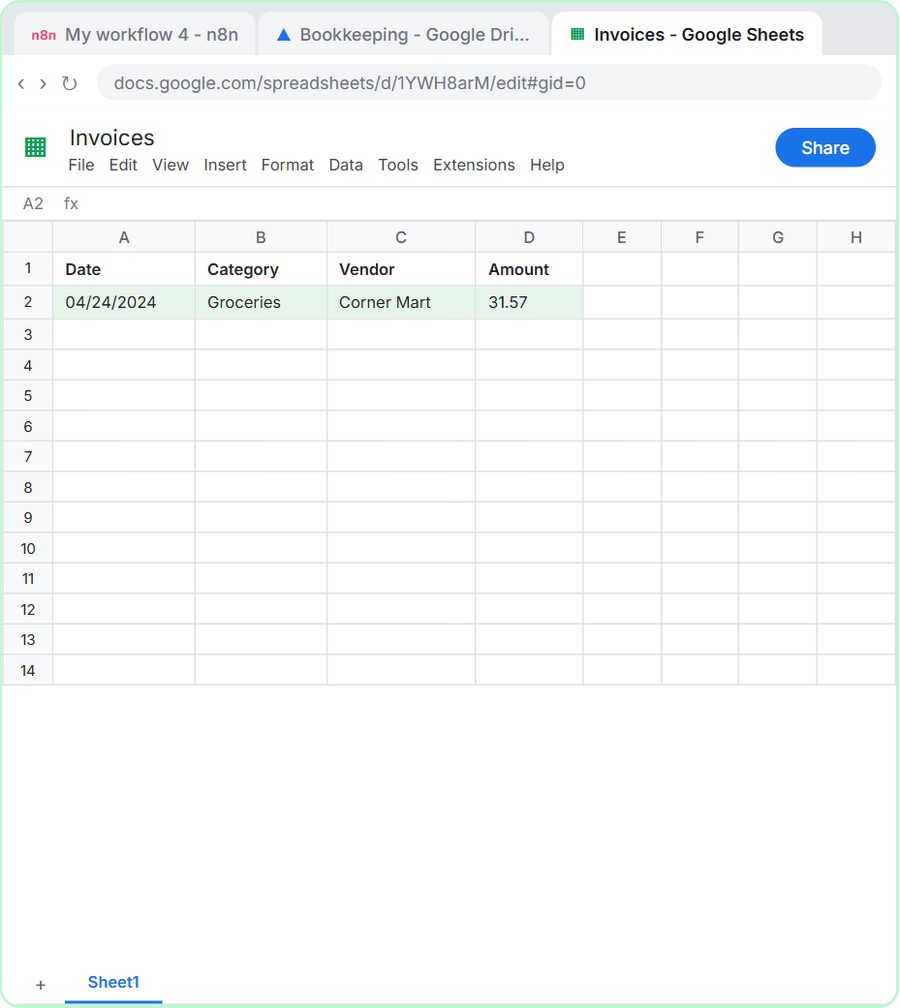 How to Do OCR in n8n: Read Receipt Photos into Google Sheets with AI
Drop a photo of a receipt into an n8n chat. An AI agent reads it, pulls out the date, vendor and amount, picks a category, and adds a row to Google Sheets.
Free · Live ~12 min Intermediate
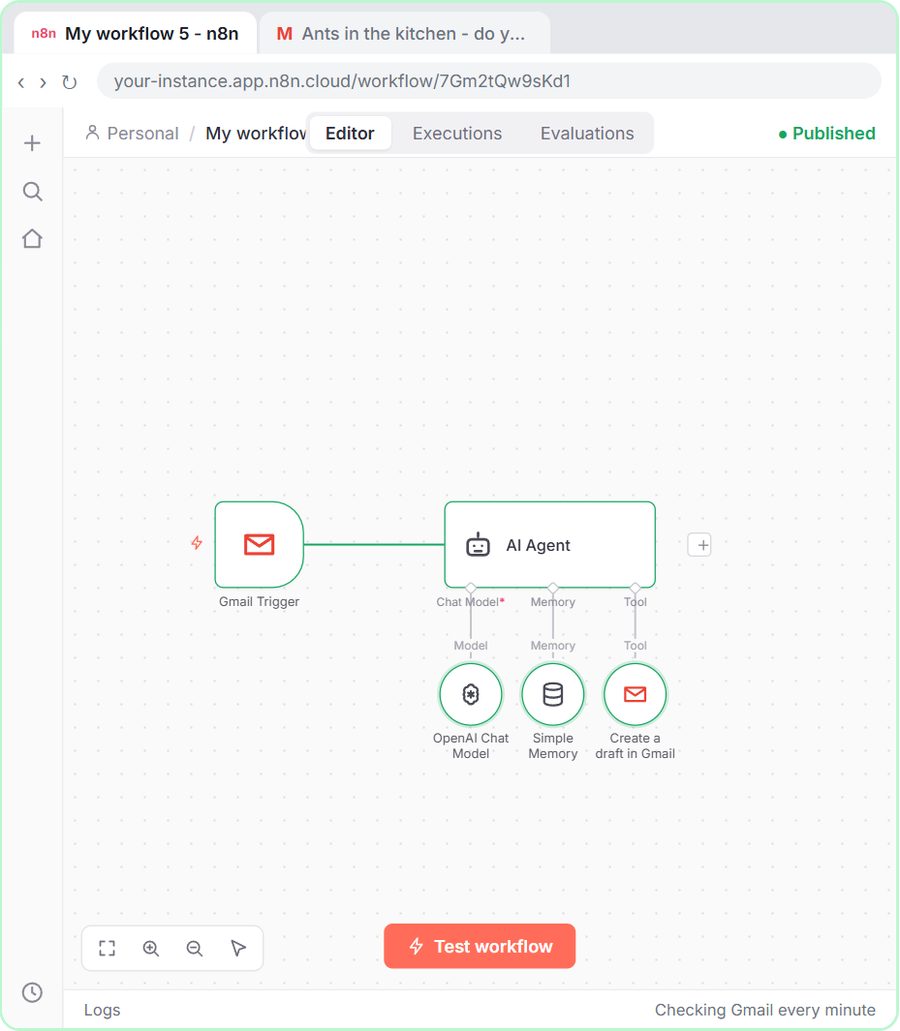 n8n AI Email Responder: Draft Gmail Replies Automatically
Build an n8n agent that watches your Gmail, reads each new customer email, and writes a reply as a draft in the same thread, ready for you to check and send.
Free · Live ~12 min Intermediate
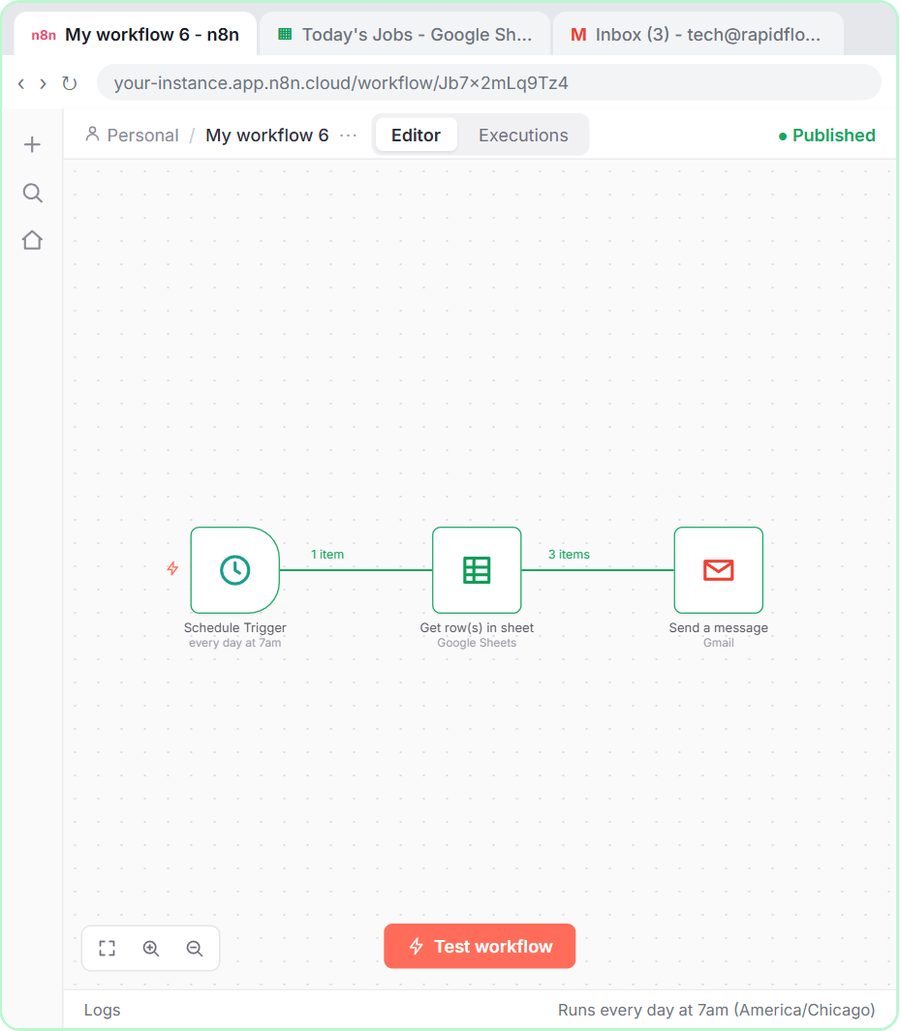 How to Make an n8n Workflow That Emails Each Tech Their Jobs from Sheets
Every morning at 7, n8n reads a plumbing company's jobs sheet, skips anything not assigned yet, and emails each job to the tech it's assigned to — customer, address…
Free · Live ~10 min Intermediate
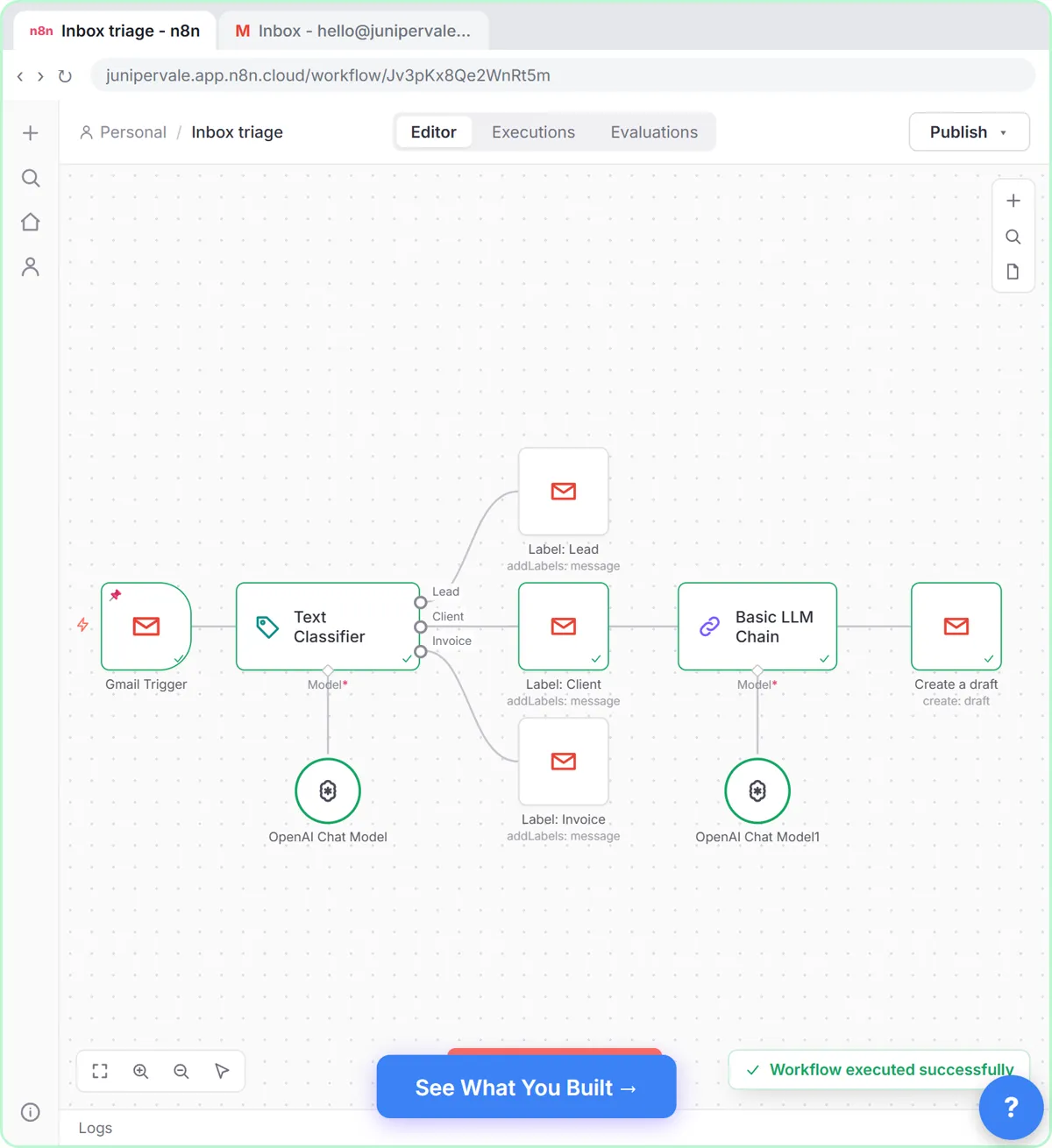 Gmail AI Triage: Auto-Label Every Email and Draft Replies
Build an n8n workflow that reads each new email, sorts it as a lead, a client or an invoice with a Text Classifier, adds the matching Gmail label, and drafts a reply to…
Free · Live ~18 min Advanced
From the blog
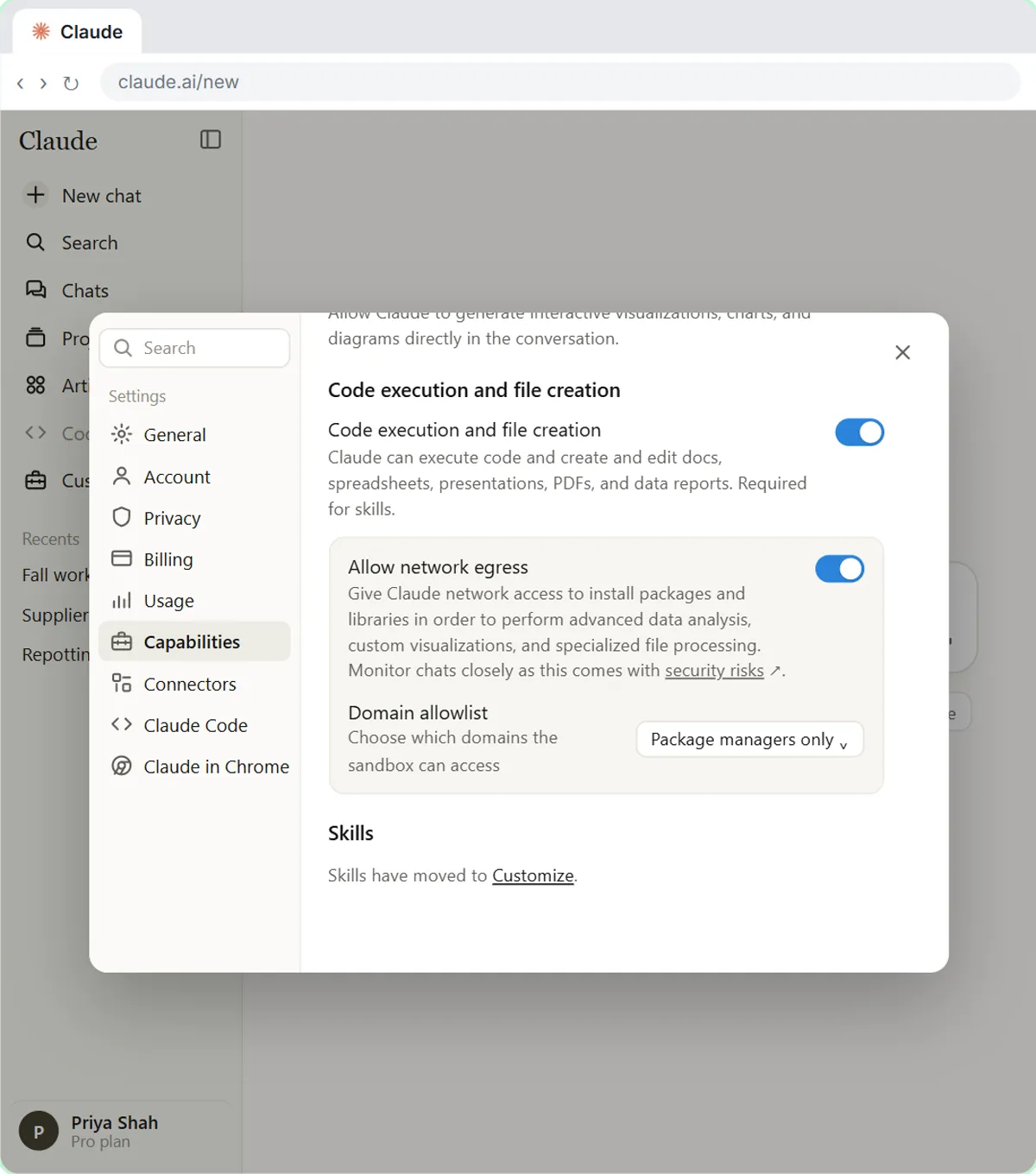 How to Get AI to Write Spreadsheet Formulas That Work
How to get ChatGPT, Claude, Gemini or Copilot to write Excel and Google Sheets formulas, check them, and ask questions of your data in plain English.
Oct 22, 2026 4 min read
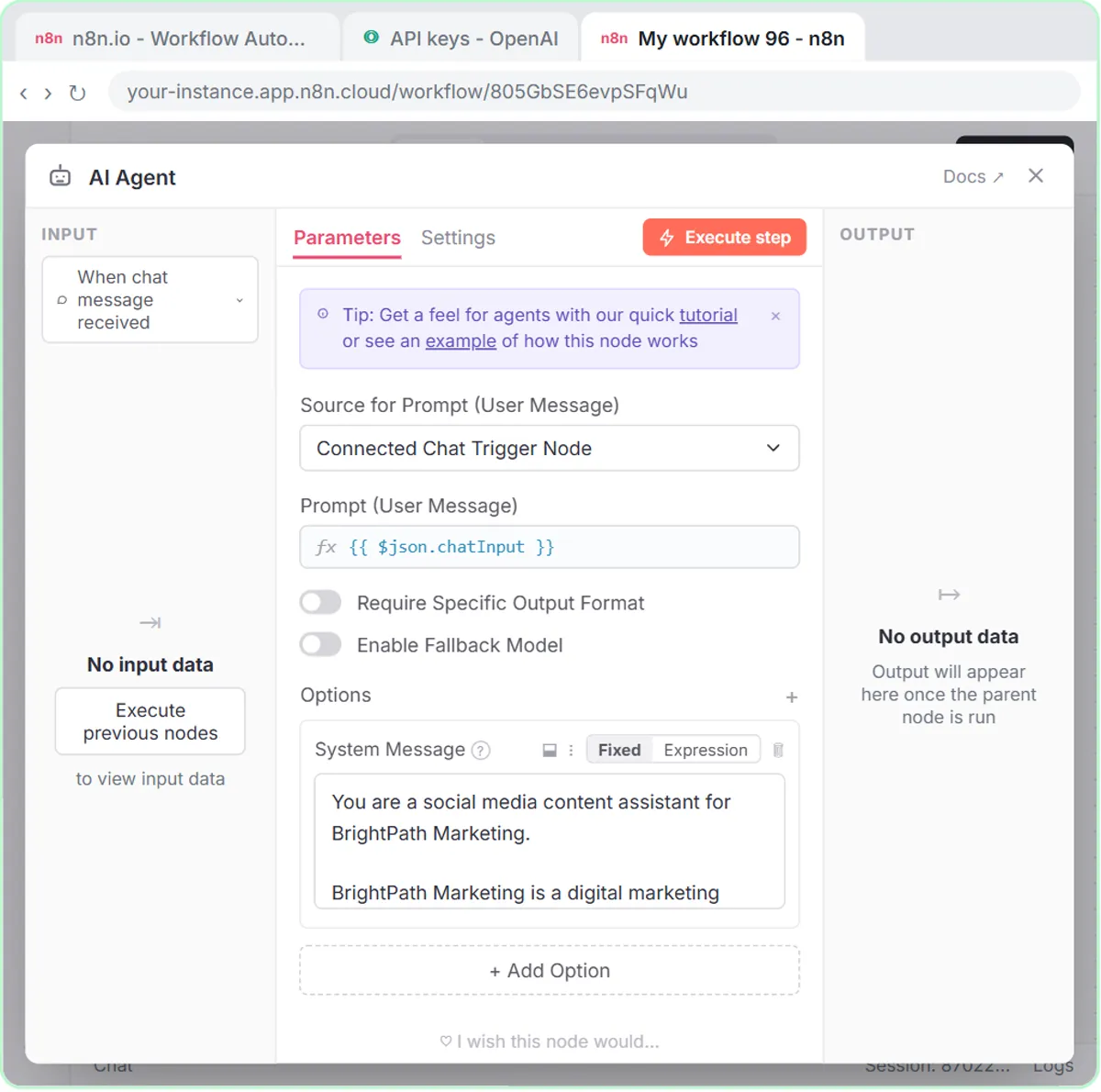 How to Hire an n8n Developer (and What to Scope First)
How to hire an n8n developer for a paid project: what to write in the brief, questions to ask, red flags, and what you can build yourself first.
Oct 22, 2026 6 min read
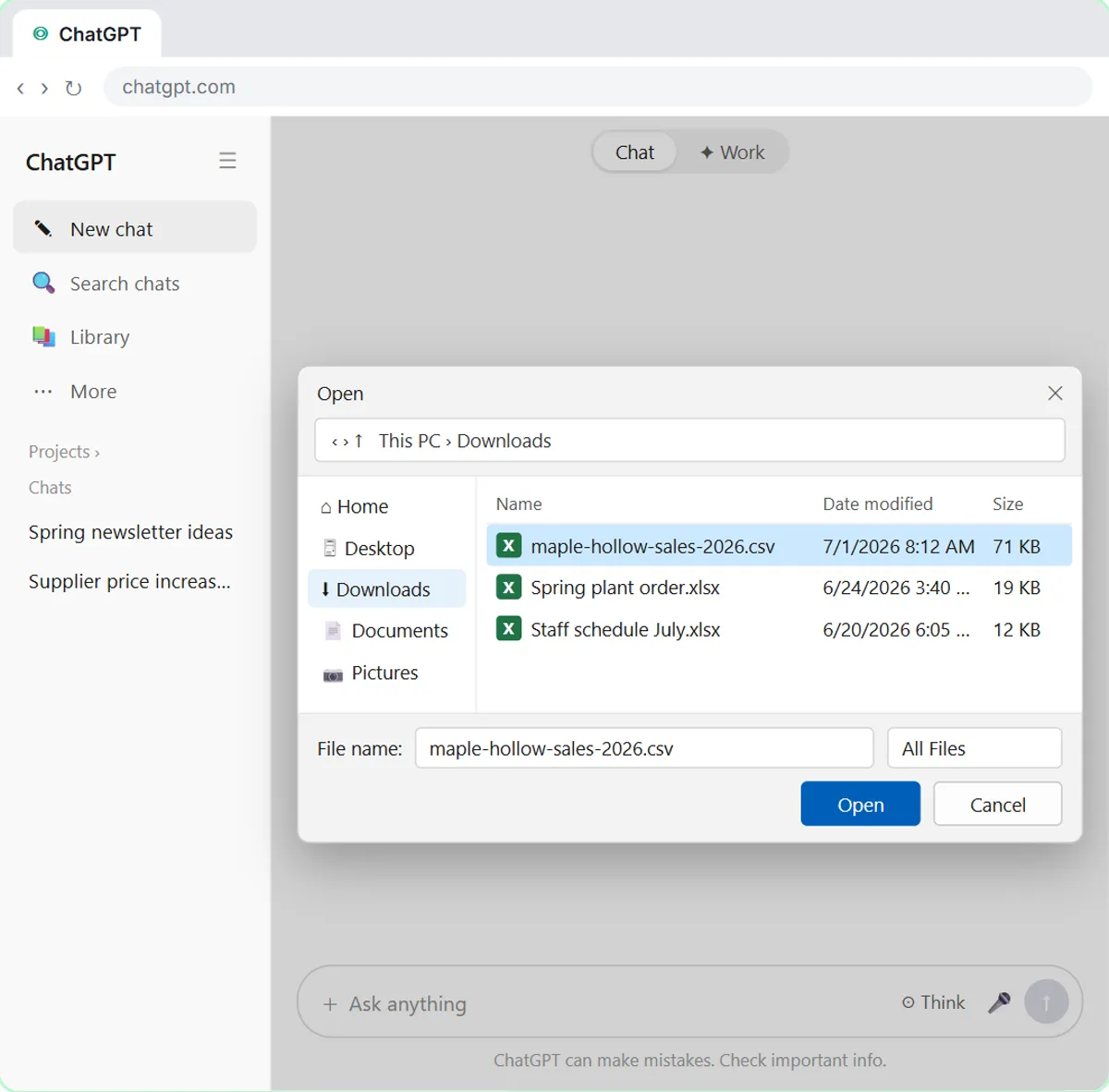 Can an AI Assistant Answer Questions About Your Own Data?
Yes: upload a spreadsheet export to ChatGPT, keep files in a Project, or connect a live Google Sheet with n8n. How each works and how to check answers.
Oct 21, 2026 4 min read
Visual guide
This lesson’s key ideas as quick visual guides: swipe through the slides, or read the same guide as text.
Terms in this lesson
Plain-English definitions, each with an example from a free lesson.
Related prompts
- Sheet question and total checker prompt: Ask an AI agent about a spreadsheet and make it show its rows, so you can add the numbers yourself before you repeat a total to…