Updated . Built against the tool’s current screens and checked step by step. How we check this lesson
n8n's most-copied Google Sheets starter reads a sheet, adds a row and updates rows with an AI-written description, but the original has a few flaws that trip beginners up. In this free lesson you use a practice copy of the n8n editor and work through the corrected version on a made-up content request list: connect your Google account, read the rows, add a new request that never duplicates, let an AI step write one sentence per row, write the sentences back, then run everything twice and check the sheet.
At a glance
| Question | Answer |
|---|---|
| What you build | Learn n8n's three core Google Sheets moves on a made-up request list: read the rows, add a new one without duplicates, then let an AI step write a description and update each row. |
| Tools | n8n |
| Time | About 12 minutes, 36 steps in 5 parts |
| Level | Intermediate |
| Cost | Free |
| Ways to learn it | Practice it step by step |
The 5 parts, in short
- Read your sheet: Open Get Rows, Open the Credential list, Pick your Google account, Open the Document list, and 5 more steps.
- Add a row: Open Generate 1 Row of Data, Type the name, Type the email, Make the row, and 6 more steps.
- Write with AI: Open the OpenAI Chat Model, Open the Credential list, Pick your OpenAI credential, Back to the canvas, and 3 more steps.
- Update the rows: Open Update Sheets data, Open Column to match on, Match on Email, Write them back, and 1 more step.
- Run it all: Run everything, Check the real sheet, Back to n8n, Run it again, and 1 more step.
Start here first: n8n: What Is n8n? Build Your First Workflow (module 1 of n8n Automation Toolkit)
In the course: Part 9 · n8n Automation Toolkit (Module 77 of the full course)
Part of: n8n Jump Start (step 5 of 16). Next up: Get Your Daily Revenue Total by Email, Automatically, using n8n
Part of: n8n Intermediate: Real Business Workflows (step 1 of 10). Next up: Get Your Daily Revenue Total by Email, Automatically, using n8n
What the template does, and what we fixed
Template 7156 reads every row of a Google Sheet, adds one new row, asks an AI agent to write a description for each row's Topic, and writes the descriptions back. The corrected version in this lesson runs in a straight line: Run Workflow, Generate 1 Row of Data, Append or Update Row, Get Rows from Google Sheets, Write description, Update Sheets data.
Four things were fixed. The original read and added at the same time, so on the first run the new row was not in the rows that were read. It used plain Append row with a fixed email, so every run added the same row again. Its yellow note told you to create a Desktop OAuth credential, but on n8n Cloud you just click Sign in with Google. And two nodes kept default names like OpenAI Chat Model4 and Structured Output Parser3.
Read the rows with Get Row(s)
Open Get Rows from Google Sheets, pick your Google credential, then choose the Document and the Sheet from the lists. Choose the tab from the list rather than trusting a value that came with a template. In our test the template's saved tab code gave the error Sheet with ID gid=0 not found until we picked the tab again. Click Execute step and the OUTPUT panel shows one item per row, with the columns from row 1.
Add a row without duplicates
Append or Update Row has a Column to match on setting. Set it to Email and n8n looks for that email before it writes: if the person is already in the sheet it updates that row, and if not it adds a new one. We ran the corrected workflow twice in n8n and the sheet stayed at nine rows, with one Jordan Lee. To send rows in from forms, emails and invoices without typing, read Automate Data Entry in Google Sheets with n8n.
Write with AI, then update the rows
The Write description agent takes each row's Topic as its prompt and returns a sentence through a Structured Output Parser. It runs once per row, so nine rows means nine OpenAI calls. Update Sheets data then uses Update Row with Email as the matching column and writes the sentence into Description. In our run, all nine Description cells were filled.
Links
- Get the template: n8n template 7156, Get started with Google Sheets in n8n.
- n8n docs: Google Sheets node: Get Row(s), Append or Update Row and Update Row.
- n8n docs: Google credentials: how to connect a Google account.
- OpenAI API keys: where you create the key the Chat Model needs.
Try it yourself, free
Reading the steps is a start. Doing them is how it sticks. The interactive module walks you through every click in a practice copy of n8n, checks each step, and never touches your real accounts.
Start “n8n: Read, Add and Update Google Sheets Rows with an AI Step”Step by step: n8n: Read, Add and Update Google Sheets Rows with an AI Step
All 36 steps of the interactive module, in order. In the module you watch each one, then do it yourself in a practice copy that checks your work.
1. Read your sheet
- Open Get Rows. You copied template 7156 into n8n and fixed its flaws first. The workflow now runs left to right: Run Workflow, Generate 1 Row of Data, Append or Update Row, Get Rows from Google Sheets, Write description, then Update Sheets data. Start with the one that reads. Double-click Get Rows from Google Sheets. We already pointed the other two Sheets nodes at the same sheet, to save time.
You copied the template into n8n, and fixed its flaws first. It now runs left to right. Add a row, read the sheet, write a description, update the rows. Start with the node that reads.
- Open the Credential list. A template cannot bring your Google login, so the Credential box is empty. Click it.
A template cannot bring your Google login. So the credential box is empty.
- Pick your Google account. Pick the Google Sheets credential for your own Google account. Here it is My Google account. On n8n Cloud, a new credential just asks you to Sign in with Google and click Allow. You do not need a Google Cloud project, and the template's yellow note about a Desktop credential is wrong.
Pick the Google credential for your own account. On n8n Cloud, a new one only needs sign in with Google, then allow. You do not need a Google Cloud project. The old yellow note about a desktop credential is wrong.
- Open the Document list. Click the Document box. n8n lists the spreadsheets that Google account can open.
N eight N lists every spreadsheet your Google account can open.
- Pick the spreadsheet. Pick Content Requests. Use your own copy of the sheet, never someone else's. Row 1 must hold the column names: Name, Email, Topic, Submitted and Description.
Pick your content requests sheet. Always use your own copy. Row one must hold the column names. Name, email, topic, submitted, and description.
- Open the Sheet list. Click the Sheet box. This is the tab inside the spreadsheet.
That is the tab inside the spreadsheet.
- Pick the tab. Pick Sheet1. Always choose the tab from the list. The template ships with a tab code from the author's own sheet, and in our test that code gave the error Sheet with ID gid=0 not found.
Pick the tab from the list. Always choose it from the list. The template shipped with a tab code from the author's own sheet. In our test that gave the error, sheet with I D gid equals zero not found.
- Read the rows. Click Execute step. The OUTPUT panel shows 8 items, one per row, with the columns Name, Email, Topic, Submitted and Description. Description is empty for now.
The output shows eight items. One for each row. The description column is empty for now.
- Back to the canvas. Close the node with the X at the top right.
Close the node.
2. Add a row
- Open Generate 1 Row of Data. Now a new request comes in, like a form was just submitted. Double-click Generate 1 Row of Data, an Edit Fields node. In the original template this row said Robert Breen, and its Email never changed, so every run added the same row again. You'll change it.
Now a new request arrives, as if a form was just filled in. In the original template this row never changed, so every run added it again. You will change it.
- Type the name. Click the Name value and type Jordan Lee.
- Type the email. Click the Email value and type jordan.lee@example.com. Email is the key that tells n8n which row is which.
Email is the key that tells n eight n which row is which.
- Make the row. Click Execute step. The OUTPUT shows 1 item with the four fields Name, Email, Topic and Submitted.
You get one item, with four fields.
- Back to the canvas. Close the node with the X at the top right.
Close the node.
- Open Append or Update Row. Double-click Append or Update Row. The original template used plain Append row, which adds a row every time, even for a person already in the sheet. This one is smarter.
The original template used plain append, which adds a row every time, even for someone already in the sheet. This one is smarter.
- Open Column to match on. The four columns are already mapped to the fields from the node before. Click Column to match on.
The four columns are already filled in from the node before.
- Match on Email. Pick Email. n8n now looks for this email first. If it finds it, it updates that row. If not, it adds a new one. Running twice can never duplicate Jordan.
Pick email. Now n eight n looks for this email first. If it finds it, it updates that row. If not, it adds a new row. Running twice can never copy Jordan.
- Add the row. Click Execute step. The OUTPUT shows 1 item. In the real sheet, row 10 is now Jordan Lee, with an empty Description.
One item comes out. In the real sheet, Jordan Lee is now a new row at the bottom, with no description yet.
- Back to the canvas. Close the node with the X at the top right.
Close the node.
3. Write with AI
- Open the OpenAI Chat Model. Next the AI. The agent Write description borrows its brain from OpenAI Chat Model, the round node below it. Double-click it. We renamed it from the template's OpenAI Chat Model4.
Next, the A I. The agent borrows its brain from the OpenAI Chat Model, the round node below it. We renamed it from the template's messy name.
- Open the Credential list. Again the Credential box is empty. Click it.
Again the credential box is empty.
- Pick your OpenAI credential. Pick My OpenAI account. No credential yet? Make a key on the OpenAI API Keys page, add funds under Billing, then paste it into a new credential. The Model is already gpt-4o-mini, the cheap one. The template's yellow note says GPT-4o, but the node uses mini.
Pick your OpenAI credential. If you have none, make a key on OpenAI's website, add some money under billing, and paste the key into a new credential. The model is already G P T four o mini, the cheap one.
- Back to the canvas. Close the node with the X at the top right.
Close the node.
- Open Write description. Double-click Write description. Its prompt is {{ $json.Topic }}, so it reads the Topic of each row. The System Message says: Take in the topic and write a one-sentence description. The template's said only write a description, and the model wrote whole paragraphs.
Its prompt is the topic of each row. The system message asks for a one sentence description. The old message just said write a description, and the model wrote whole paragraphs.
- Run the agent. Click Execute step. The agent runs once per row, so the OUTPUT shows 9 items and 9 OpenAI calls. Each has output, then description. That is cheap for 9 rows, but it adds up on a long sheet.
The agent runs once for every row. Nine items come out, which is nine calls to open A I. Cheap here, but it adds up on a long sheet.
- Back to the canvas. Close the node with the X at the top right.
Close the node.
4. Update the rows
- Open Update Sheets data. The sentences exist only inside n8n. Now write them into the sheet. Double-click Update Sheets data. Its operation is Update Row.
The sentences only exist inside n eight n so far. Now write them into the sheet. Its operation is update row.
- Open Column to match on. Update has to know which row to change. Click Column to match on.
Update has to know which row to change.
- Match on Email. Pick Email. Its value is an expression that reads each row's Email from Get Rows from Google Sheets, and Description gets the AI's sentence. A row with a blank Email could not be matched.
Pick email. Its value reads each row's email from the get rows node. And description gets the sentence the A I wrote. A row with a blank email could not be matched.
- Write them back. Click Execute step. The OUTPUT shows 9 items, one per updated row. Each has Email and Description.
Nine items, one for each row you updated.
- Back to the canvas. Close the node with the X at the top right.
Close the node.
5. Run it all
- Run everything. Click Execute workflow at the bottom. Every node runs in order, and each shows a green check. The agent takes about 20 seconds.
Every node runs, one after the other, and gets a green check. The agent takes about twenty seconds.
- Check the real sheet. Green checks only mean it ran. Click the Content Requests tab in your browser to see the real result.
Green checks only mean it ran. Check the real result.
- Back to n8n. Nine rows, and every Description is filled, including Jordan Lee. Now go back to the n8n tab and run it a second time.
Nine rows, and every description is filled in, including Jordan Lee. Now go back to n eight n, and run it a second time.
- Run it again. Click Execute workflow again. This is the test the original template failed: it added the same row on every run.
This is the test the original template failed. It added the same row on every run.
- Still nine rows. Open the Content Requests tab once more. Still 9 rows, with no second Jordan Lee. Nothing here was published, and your real sheet is safe.
Still nine rows. There is no second Jordan Lee. You did not publish anything, and nothing else was touched.
After this lesson, try these next
Chat with your sheet: an AI agent that answers questions from your rows.
Turn meeting notes into action items in a sheet.
Run it for real and publish it.
Frequently asked questions
- Where do I get n8n template 7156?
- Open n8n.io/workflows/7156, click Use for free, and copy the template into your n8n. It arrives with no credentials, so you connect Google Sheets and OpenAI yourself.
- Do I need a Google Cloud project to connect Google Sheets?
- Not on n8n Cloud. Create a new Google Sheets credential, click Sign in with Google, pick your account and click Allow. A Google Cloud project is only needed on a self-hosted n8n.
- How do I stop n8n adding duplicate rows to Google Sheets?
- Use the Append or Update Row operation and set Column to match on to a unique column such as Email. n8n updates the row when it finds that value and only adds a new row when it does not.
- Why did my Get Rows node say Sheet with ID not found?
- The tab value that came with the template belongs to the author's sheet. Open the Sheet list on the node and pick your own tab again.
- Does the lesson touch my real sheet or OpenAI key?
- No. It is a practice copy of the editor with made-up data, so nothing is read, written or billed.
More in n8n Automation Toolkit
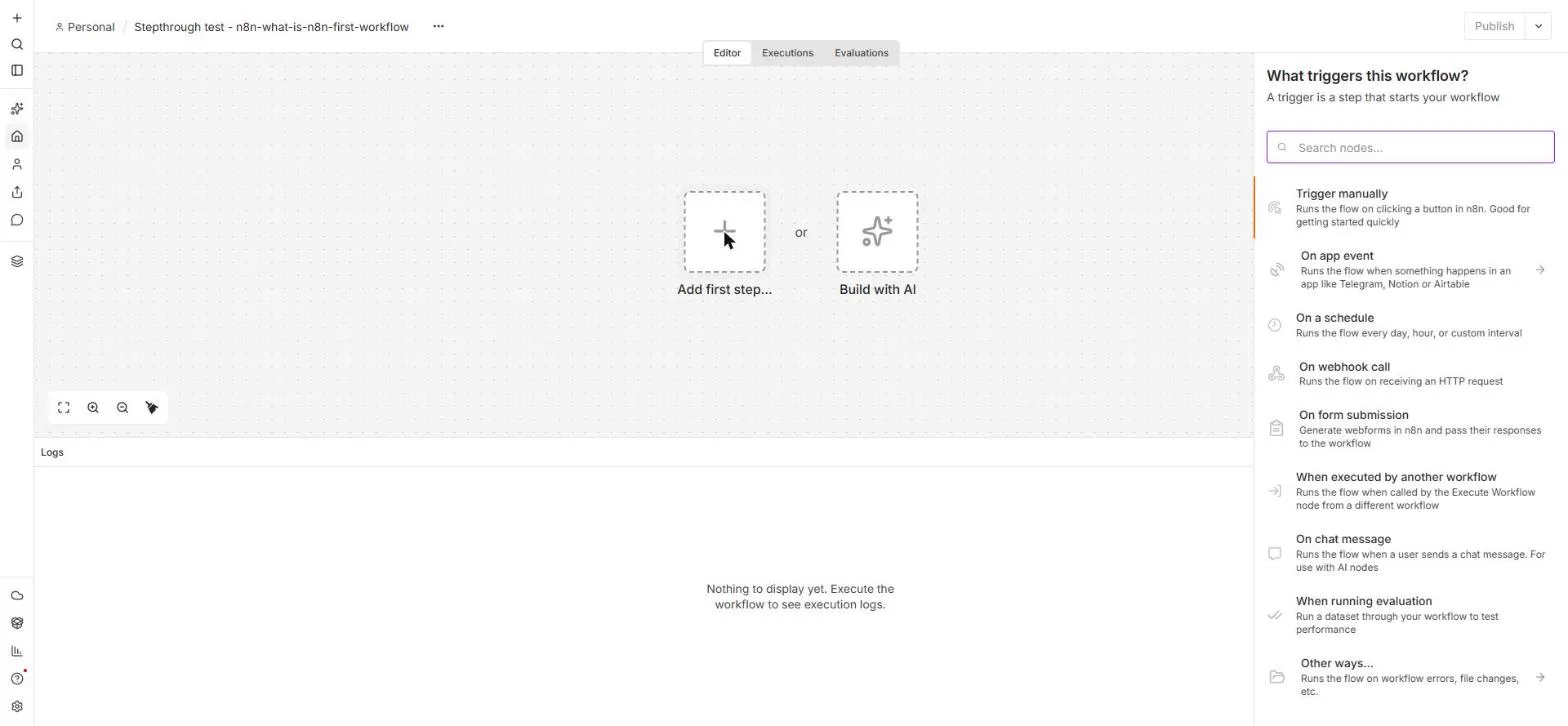 n8n: What Is n8n? Build Your First Workflow
What n8n is and how it thinks, then your first workflow: a client inquiry form that catches every request and writes a one-line summary. No code, no accounts to connect.
Free · Live ~8 min Beginner
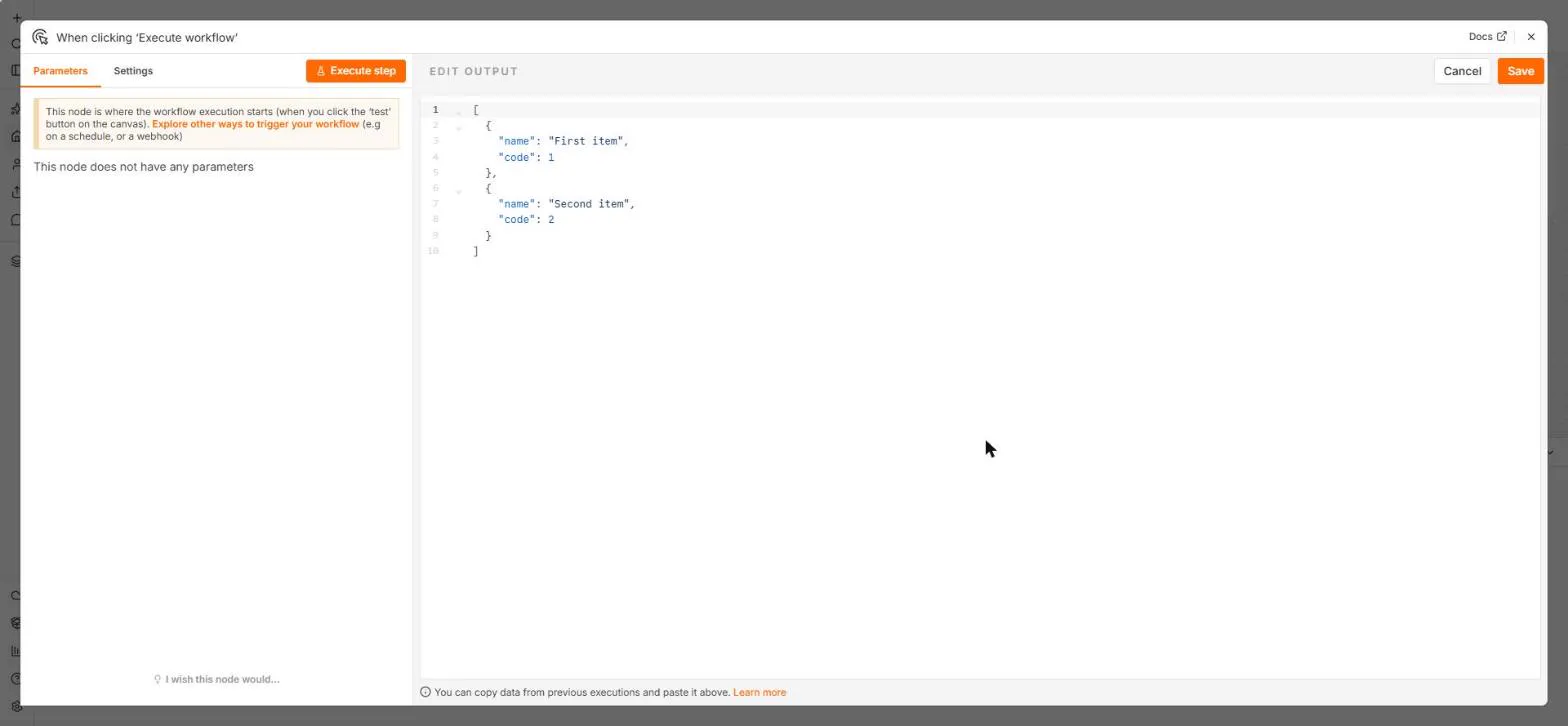 n8n: Items, JSON and Expressions, Explained by Doing
See how n8n holds data: pin five fake invoices, read them as items, Table and JSON, then write one reminder per invoice and a late fee with drag-and-drop expressions.
Free · Live ~9 min Beginner
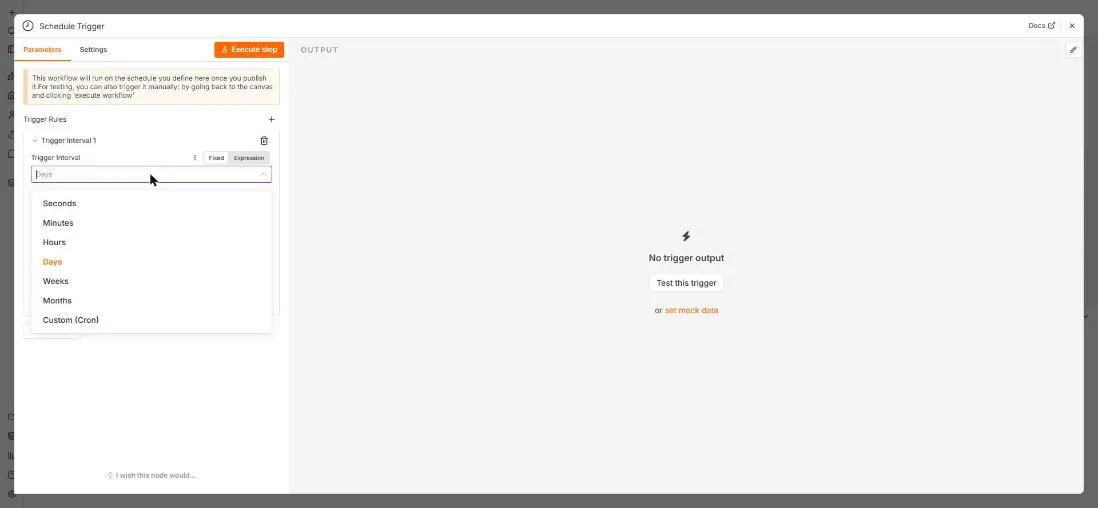 n8n: Run a Workflow on a Schedule (Every Monday at 8am)
Use the n8n Schedule Trigger to run a workflow by itself: every Monday at 8am, a timesheet reminder. Set the interval, test it now, and check the time zone.
Free · Live ~6 min Beginner
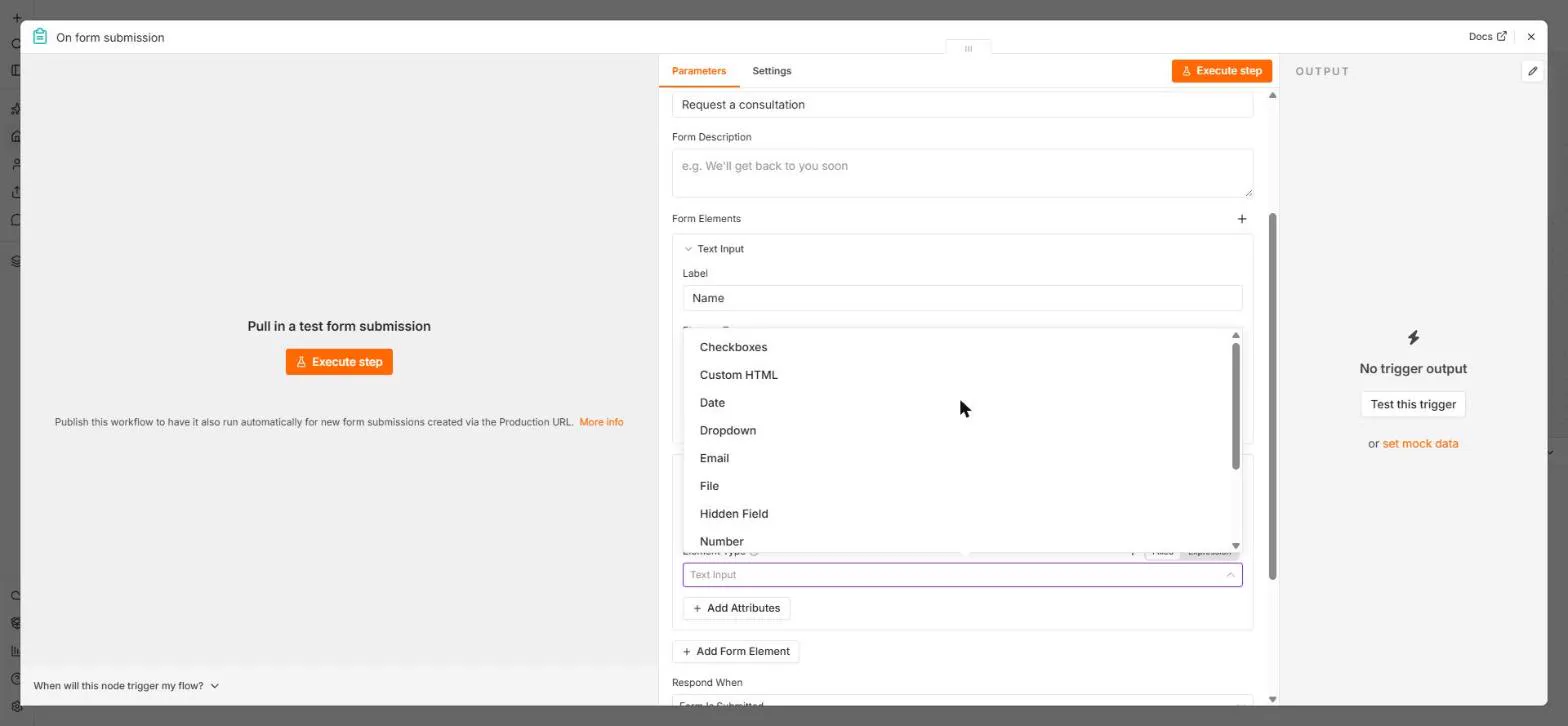 n8n: Send Form Answers Straight to Google Sheets
Build a consultation request form in n8n (required fields, email, dropdown), test it, and add every answer as a new row in Google Sheets. No webhook, no form tool to…
Free · Live ~10 min Beginner
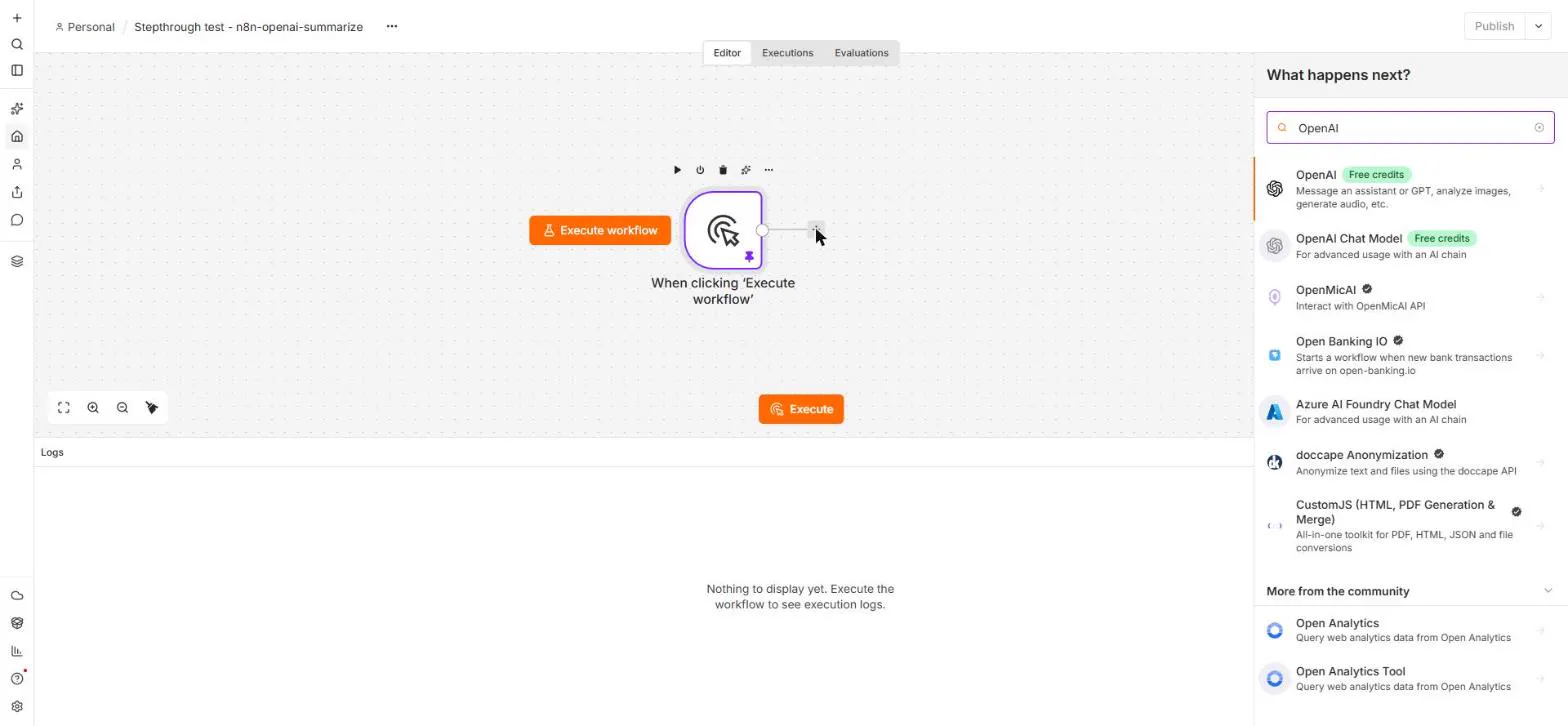 n8n: Summarize Customer Emails with OpenAI
Your first AI step in n8n: send each customer email to OpenAI with one prompt and get a one-line summary plus the next step. No agent needed, about a cent of API use.
Free · Live ~9 min Beginner
 Find and Use n8n Templates
Skip the blank canvas. Find a ready-made workflow in the n8n template gallery, import it into your workspace, connect Google Sheets and Gmail, test it with a real form…
Free · Live ~9 min Beginner
All 18 modules in n8n Automation Toolkit
More n8n tutorials
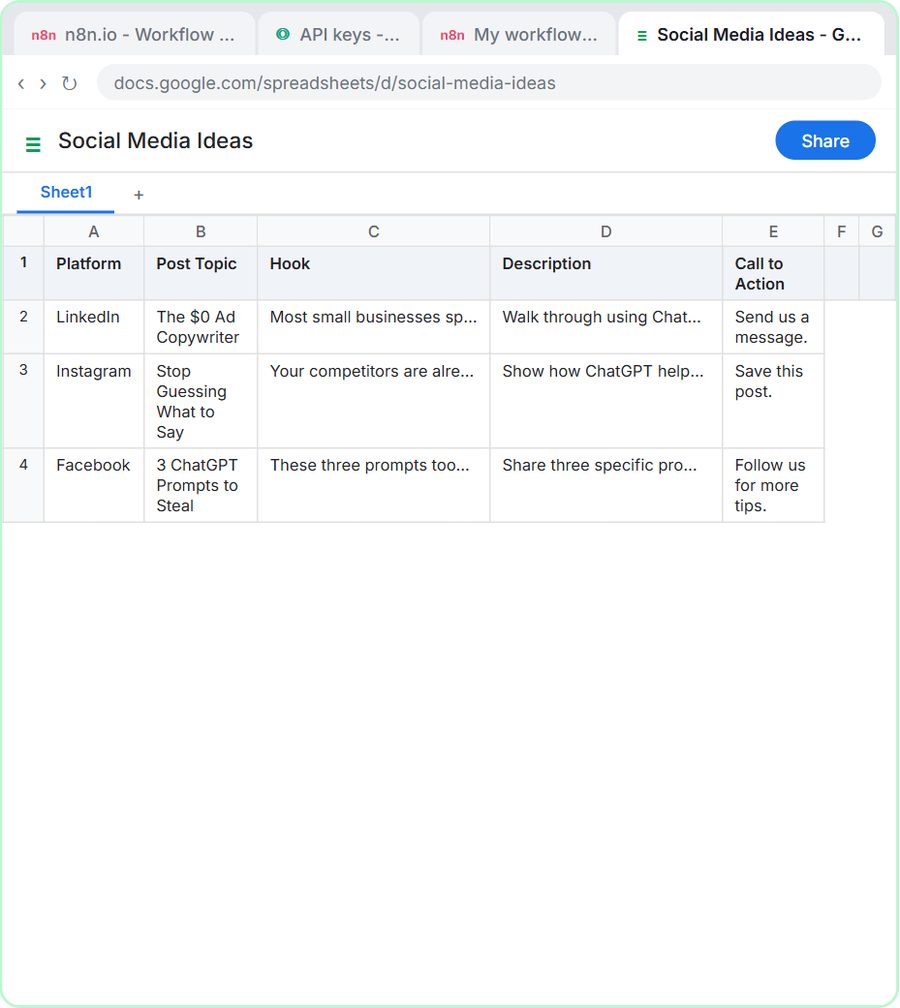 n8n AI Agent Tutorial: Save Social Media Ideas to Google Sheets
Build an AI agent for BrightPath Marketing that generates social media post ideas and saves them to Google Sheets — chat trigger, AI Agent, system prompt, model…
Free · Live ~12 min Intermediate
 Lovable + n8n: Build a Web App with an AI Backend
Build a contact form in Lovable and connect it to an n8n workflow — webhook trigger, AI Agent, Google Sheets, Gmail, and a Respond node that ties it all together.
Free · Live ~15 min Advanced
 AI Receipt Extractor: Receipts to Google Sheets with n8n
Drop a photo of a receipt into an n8n chat. An AI agent reads it, pulls out the date, vendor and amount, picks a category, and adds a row to Google Sheets.
Free · Live ~12 min Intermediate
 n8n AI Email Responder: Draft Gmail Replies Automatically
Build an n8n agent that watches your Gmail, reads each new customer email, and writes a reply as a draft in the same thread, ready for you to check and send.
Free · Live ~12 min Intermediate
 Daily Job Alerts: Email Each Tech Their Jobs from Google Sheets with n8n
Every morning at 7, n8n reads a plumbing company's jobs sheet, skips anything not assigned yet, and emails each job to the tech it's assigned to — customer, address…
Free · Live ~10 min Intermediate
 Gmail AI Triage: Auto-Label Every Email and Draft Replies
Build an n8n workflow that reads each new email, sorts it as a lead, a client or an invoice with a Text Classifier, adds the matching Gmail label, and drafts a reply to…
Free · Live ~18 min Advanced
Free cheat sheet
Print it or save the PDF: the key steps and checks from this lesson on one page, free.
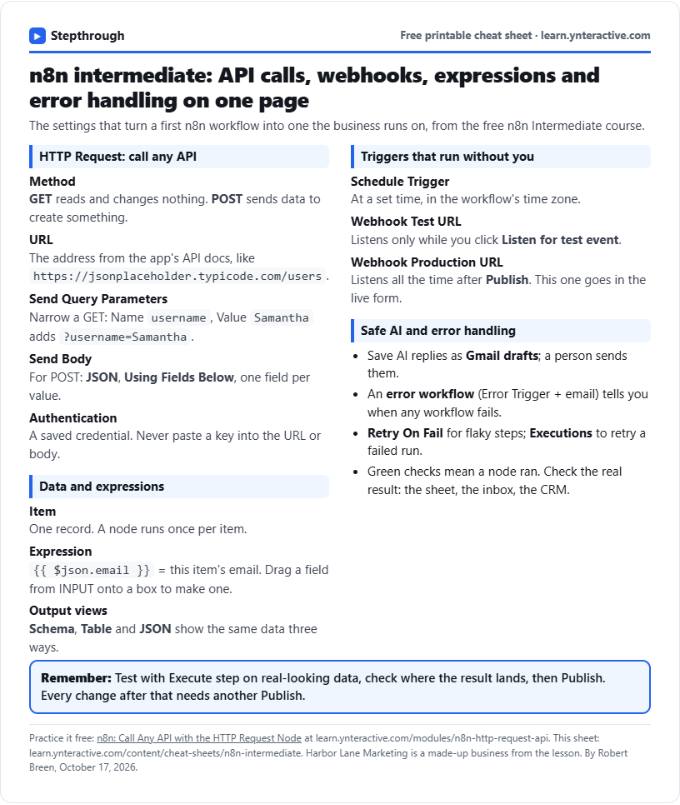
All free printable cheat sheets
Terms in this lesson
Plain-English definitions, each with an example from a free lesson.