Updated . Built against the tool’s current screens and checked step by step. How we check this lesson
A chat agent that only talks is a chatbot. Give it tools and it becomes an agent: it can look things up and act on what it finds. In this free n8n AI agent tools tutorial you turn a simple chat agent into a booking assistant for a small business. It checks Google Calendar to see whether an hour is free, books the appointment, logs it in Google Sheets and confirms it to the customer, all from one chat message. You also learn the part most tutorials skip: how to let the model fill in each tool's values, and how to read the logs to see exactly what the agent did.
At a glance
| Question | Answer |
|---|---|
| What you build | Stop playing phone tag over appointments. Give an n8n chat agent three tools: check Google Calendar for a free hour, book it, and log the booking in Google Sheets. |
| Tools | n8n |
| Time | About 11 minutes, 36 steps in 4 parts |
| Level | Advanced |
| Cost | Free |
| Ways to learn it | Practice it step by step |
The 4 parts, in short
- Give it the rules: Open the AI Agent, Write the booking rules, Back to the canvas.
- Tool 1: check the calendar: Add a tool, Search for "calendar", Add the Google Calendar Tool, Change the resource, and 6 more steps.
- Tool 2: book it: Add a tool, Search for "calendar", Another Google Calendar Tool, Pick the calendar, and 7 more steps.
- Tool 3: log it: Add a tool, Search for "sheets", Add the Google Sheets Tool, Change the operation, and 8 more steps.
Start here first: Find and Use n8n Templates (module 1 of n8n Automation Toolkit)
In the course: Part 9 · n8n Automation Toolkit (Module 63 of the full course)
Part of: AI for Medical & Dental Office Admin (step 13 of 13)
Part of: n8n Jump Start (step 11 of 14). Next up: Meeting to Action: Recap, Tracker Rows and a Kickoff Deck (ChatGPT, n8n, Gamma)
Part of: AI Agents 101 (step 7 of 9). Next up: A Support Agent That Answers from Your Own Docs
What you will build
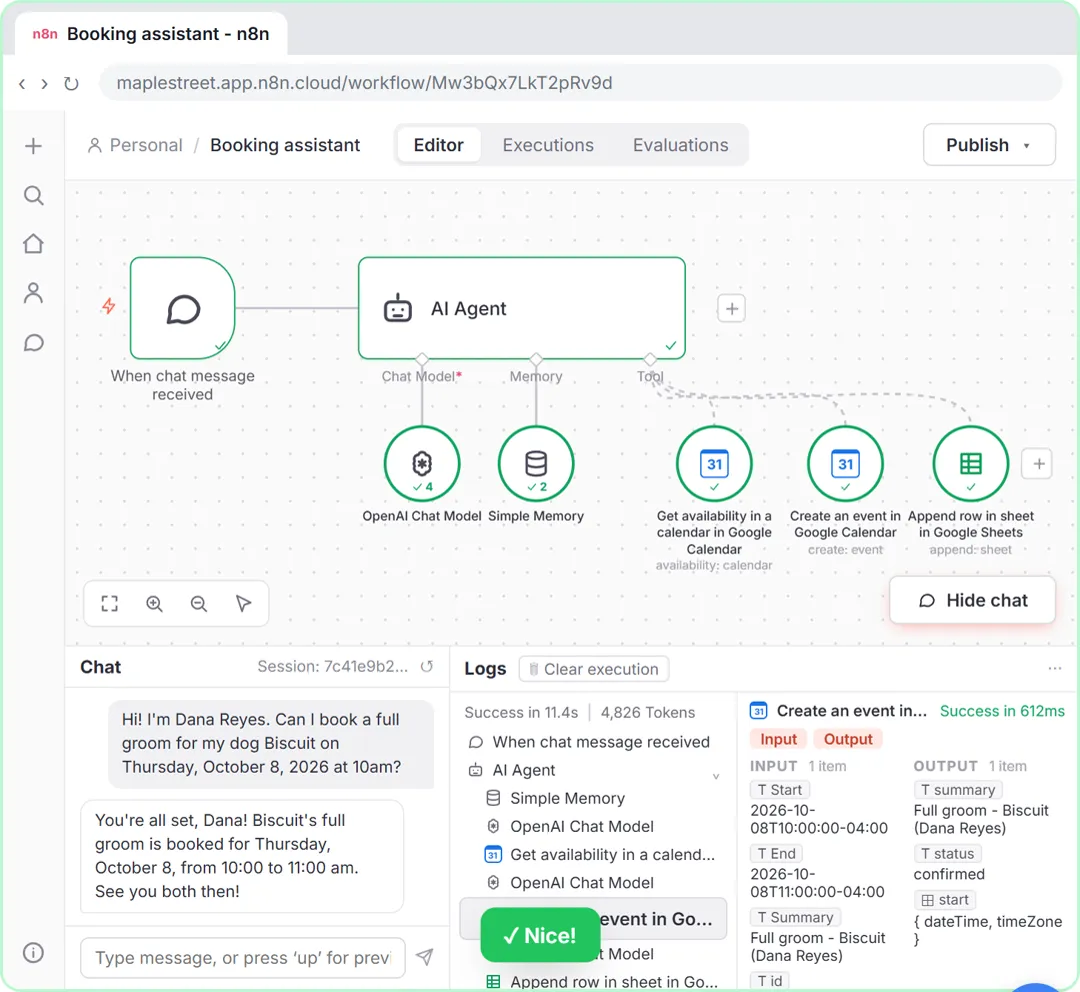
You will build a booking assistant for Maple Street Dog Grooming, a made-up grooming salon. The workflow starts with a chat trigger (When chat message received) feeding an AI Agent that already has an OpenAI Chat Model and Simple Memory attached. It can hold a conversation, but it cannot see the calendar or write anything down.
You give it clear booking rules in its system message, then connect three tool nodes to the agent's Tool input: a Google Calendar tool that gets availability in a calendar, a second Google Calendar tool that creates an event, and a Google Sheets tool that appends a row to a bookings sheet. When a customer asks for a full groom on a certain day and time, the agent checks that hour, books it if it is free, logs it and replies with a short confirmation.
Who this n8n AI agent tutorial is for
This module is for small business owners, office managers and anyone who has built a basic AI chat agent in n8n and now wants it to do real work. You do not need to write code or expressions. In the practice copy the chat agent, the Google accounts and the bookings sheet are ready when you start, so you can focus on the tools.
How tools and "Defined automatically by the model" work
Any n8n node marked as usable as a tool shows up in the Tools panel with Tool added to its name, such as Google Calendar Tool or Google Sheets Tool. When you add one to an AI Agent, the node gets a Tool Description, set automatically from its resource and operation, which tells the model what the tool does. n8n also names the node after its action, like Create an event in Google Calendar.
Each field in a tool node can be fixed, an expression, or left to the model. The sparkle button (Let the model define this parameter) swaps the field for a panel that says Defined automatically by the model. When the agent calls the tool, the model decides that value from the conversation, such as the start time 2026-10-08T10:00:00-04:00 for "Thursday at 10am". You can add a short description to guide it. Fields that should never change, like which calendar or which spreadsheet, stay fixed.
Reading the logs
The chat opens with the Logs panel beside it. After a message, the logs show the chat trigger, then the AI Agent with every step it took underneath: memory, each model call and each tool call. Click a tool call to see its input and output. It is the quickest way to check the agent did what the rules say, and to spot a wrong date or a missing value.
One tip: an agent does not know today's date. In the practice test the message includes the full date. For real use, add a line with today's date to the system message using an expression such as {{ $now }}, so customers can say "next Thursday".
How to use this in your business
The same pattern works for any "look it up, then act" job: check stock before taking an order, look up a customer before creating a support ticket, or find a free slot before scheduling a site visit. Start with one lookup tool and one action tool, write the order of the job into the system message, and read the logs after every test.
How the interactive lesson works
Every step is shown first on the left, in the Watch panel, with a short voice-over. Then you do it yourself on the right, in Your turn, on a practice copy of n8n. If you get stuck, press Do it for me and the step is done for you. Nothing is booked and nothing is published, so you can make mistakes freely, then build it for real.
Try it yourself, free
Reading the steps is a start. Doing them is how it sticks. The interactive module walks you through every click in a practice copy of n8n, checks each step, and never touches your real accounts.
Start “n8n AI Agent with Tools: Check Google Calendar, Book It and Log It”Step by step: n8n AI Agent with Tools: Check Google Calendar, Book It and Log It
All 36 steps of the interactive module, in order. In the module you watch each one, then do it yourself in a practice copy that checks your work.
1. Give it the rules
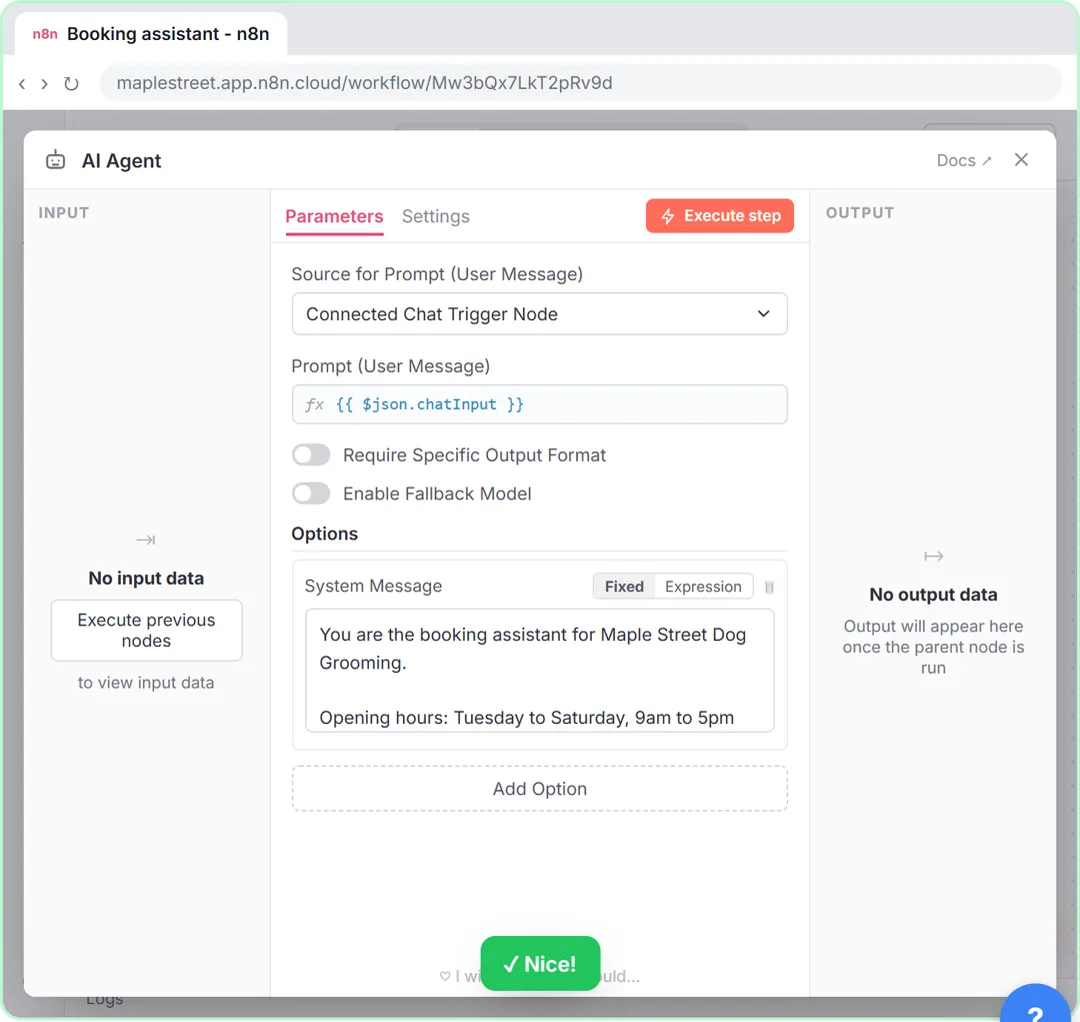
- Open the AI Agent. Your chat agent is ready: a chat trigger, an AI Agent, a model and memory. It can talk, but it can’t do anything yet. Double-click AI Agent.
Here's a chat agent for Maple Street Dog Grooming: a chat trigger, the AI agent, an OpenAI model and simple memory. It can chat, but it can't look anything up or do anything. By the end, it will check the calendar, book the appointment and log it in a sheet. Double-click the AI agent.
- Write the booking rules. Replace You are a helpful assistant under System Message. Paste in the system message.
Under options, the system message still says: you are a helpful assistant. Replace it with real rules: hours, services, and the order of the job. Check the time first, then book it, then log it. Naming the tools here tells the agent when to use each one.
You are the booking assistant for Maple Street Dog Grooming.

Opening hours: Tuesday to Saturday, 9am to 5pm (Eastern Time). Every appointment is 1 hour.
Services: bath and brush, full groom, nail trim.

How to book:
1. Get the customer's name, their dog's name, the service, and the day and time they want. Ask for anything that's missing.
2. Check that hour with the "Get availability in a calendar in Google Calendar" tool. If it's taken, suggest another time and check that one too.
3. When the hour is free, book it with the "Create an event in Google Calendar" tool. Title: service - dog's name (customer's name).
4. Then log it with the "Append row in sheet in Google Sheets" tool: the customer's name, and the booking (day, time, service, dog).
5. Confirm the booking in one short, friendly message.

Never book a time you haven't checked. Don't invent prices or services.
- Back to the canvas. The agent knows the rules. Close the node with the ×.
That is the whole job description. Close the node.
2. Tool 1: check the calendar
- Add a tool. Tools are how an agent acts. Click the + under Tool on the AI Agent.
Now the tools. Each tool is a node the agent can call on its own, whenever the rules say so.
- Search for "calendar". In Search nodes..., type calendar.
The tools panel opens. Search for calendar.
- Add the Google Calendar Tool. Click Google Calendar Tool.
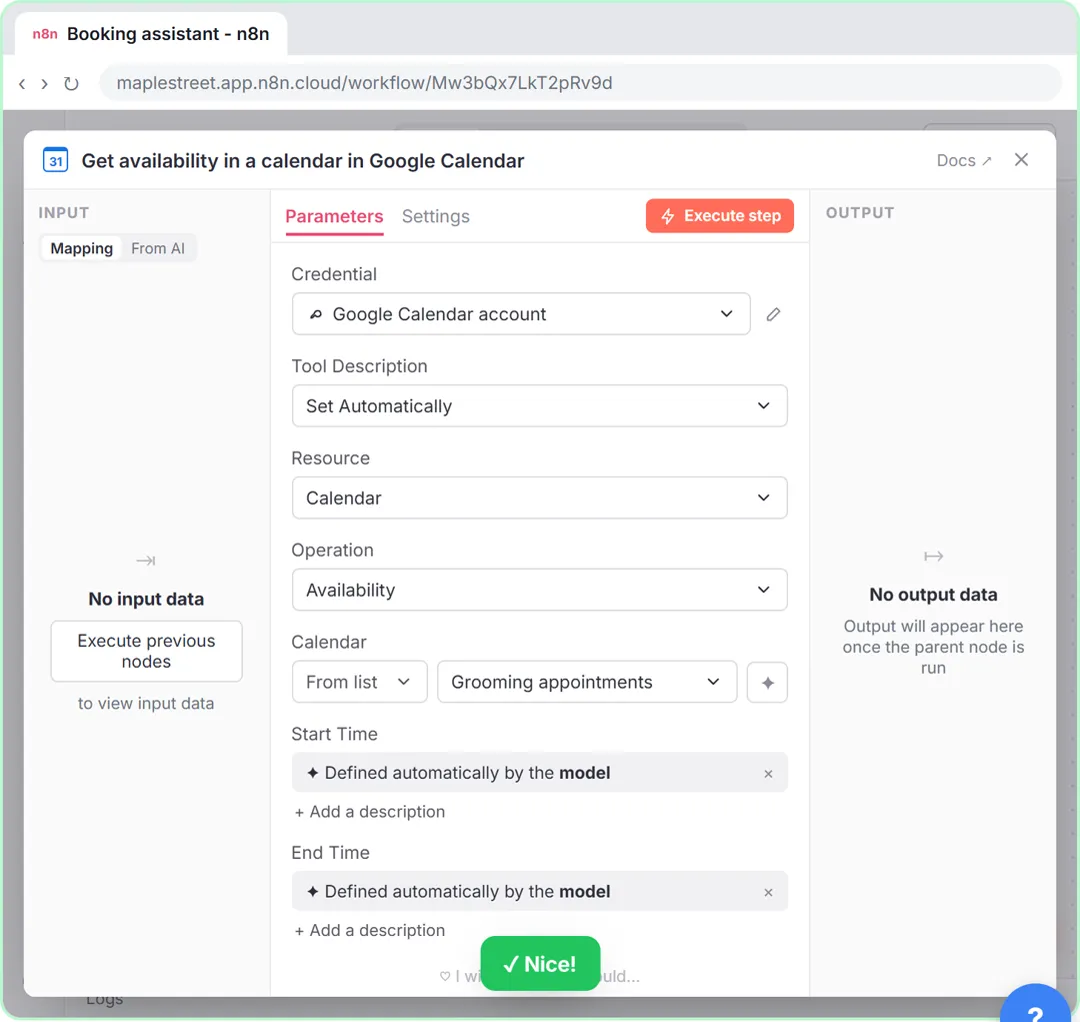
Pick the Google Calendar tool. It opens as create an event, the default. We'll use this first one to check the calendar instead. Your Google Calendar account is already connected, so the credential fills itself in.
- Change the resource. Click the Resource drop-down (it says Event).
- Choose Calendar. Pick Calendar. The operation becomes Availability and the node renames itself.
The operation switches to availability, and the node renames itself: get availability in a calendar. It answers one question: is this time free?
- Pick the calendar. Click Select a Calendar... next to From list.
Now tell it which calendar to check.
- Grooming appointments. Pick Grooming appointments.
Grooming appointments. That is where every booking lives.
- Let the model set the start. Next to Start Time, click the ✦ button (Let the model define this parameter).
Start time says now, which is no use to us. The agent should decide it from the chat. Now it reads: defined automatically by the model.
- And the end. Click the ✦ next to End Time too.
Same for end time.
- Back to the canvas. The first tool is done. Close the node with the ×.
That is tool number one: look up whether an hour is free. Close it.
3. Tool 2: book it
- Add a tool. Add a second tool. Click the + under Tool again.
Tool two books the appointment.
- Search for "calendar". Type calendar again.
Search for calendar again.
- Another Google Calendar Tool. Click Google Calendar Tool. This time Create an event is exactly what we want.
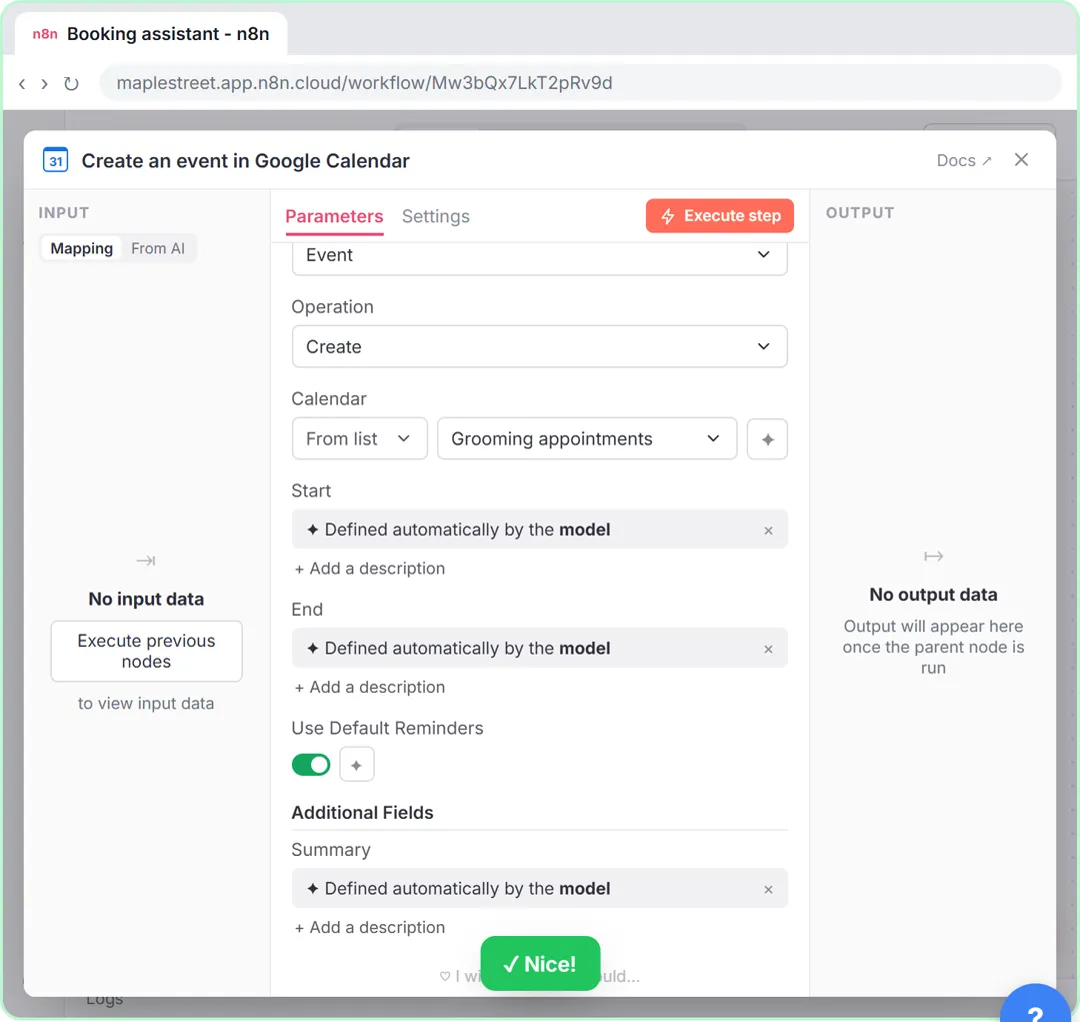
Google Calendar tool again. This time, create an event is exactly what we want, so leave resource and operation alone.
- Pick the calendar. Click Select a Calendar....
Pick the calendar.
- Grooming appointments. Pick Grooming appointments.
Grooming appointments, the same one it checks.
- Let the model set the start. Click the ✦ next to Start.
Let the model fill in the start.
- And the end. Click the ✦ next to End.
And the end.
- Add a title. An event needs a title. Under Additional Fields, click Add Field.
An event with no title shows up as no title in the calendar. Under additional fields, click add field.
- Summary. Pick Summary (the event title).
Pick summary. That is Google’s word for the event title.
- Let the model write the title. Click the ✦ next to Summary.
The system message already says how to write the title: service, dog, and customer.
- Back to the canvas. The booking tool is ready. Close the node with the ×.
Tool two is ready. Close it.
4. Tool 3: log it
- Add a tool. Last tool. Click the + under Tool.
Last tool: a log of every booking, in a Google Sheet.
- Search for "sheets". Type sheets.
Search for sheets.
- Add the Google Sheets Tool. Click Google Sheets Tool.
Google Sheets tool. Your Google Sheets account is connected already. If it is not, create the credential and sign in with Google.
- Change the operation. It starts on Get Row(s). Click the Operation drop-down.
It starts out reading rows. We want to add one, so open the operation drop-down.
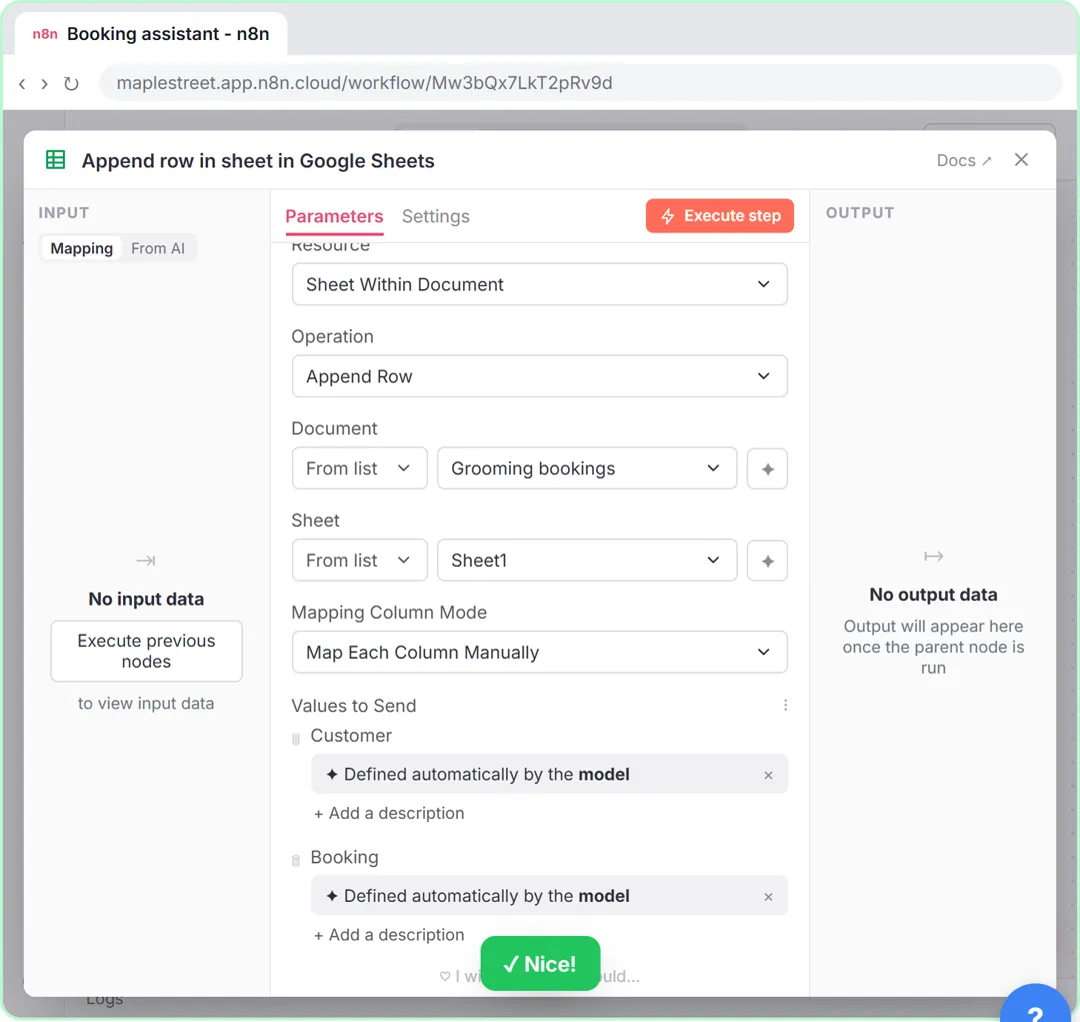
- Append Row. Pick Append Row.
Append row. Each booking goes in as a new row at the bottom.
- Choose the spreadsheet. Click Choose... next to Document.
Now the spreadsheet.
- Grooming bookings. Pick Grooming bookings.
Grooming bookings. It has two columns: customer and booking.
- Choose the tab. Click Choose... next to Sheet.
Then the tab inside it.
- Sheet1. Pick Sheet1.
Sheet one. The columns appear under values to send.
- Customer. Click the ✦ next to Customer.
- Booking. Click the ✦ next to Booking.
And booking. The model fills both from the conversation.
- Back to the canvas. Three tools, all wired to the agent. Close the node with the ×.
Three tools on one agent, all wired up. Close it.
Screenshots
Frequently asked questions
- What is a tool in an n8n AI Agent?
- A tool is a node connected to the agent's Tool input that the agent can call on its own, such as Google Calendar, Google Sheets, Gmail or an HTTP request. The model decides when to call each tool based on the conversation and the system message.
- How does an n8n agent check Google Calendar availability?
- Add a Google Calendar Tool, set Resource to Calendar so the operation is Availability, pick the calendar and let the model define Start Time and End Time. The tool returns whether that time is free.
- What does "Defined automatically by the model" mean in n8n?
- It means the AI model fills in that field when it calls the tool, using what it learned from the chat. You turn it on with the sparkle button next to a field, and you can add a description to guide the value.
- Is this course really free?
- Yes. Stepthrough is completely free, and the practice copy needs no accounts. To build it for real you need your own n8n, OpenAI and Google accounts, and some of those cost money once you use them for real work.
More in n8n Automation Toolkit
 Find and Use n8n Templates
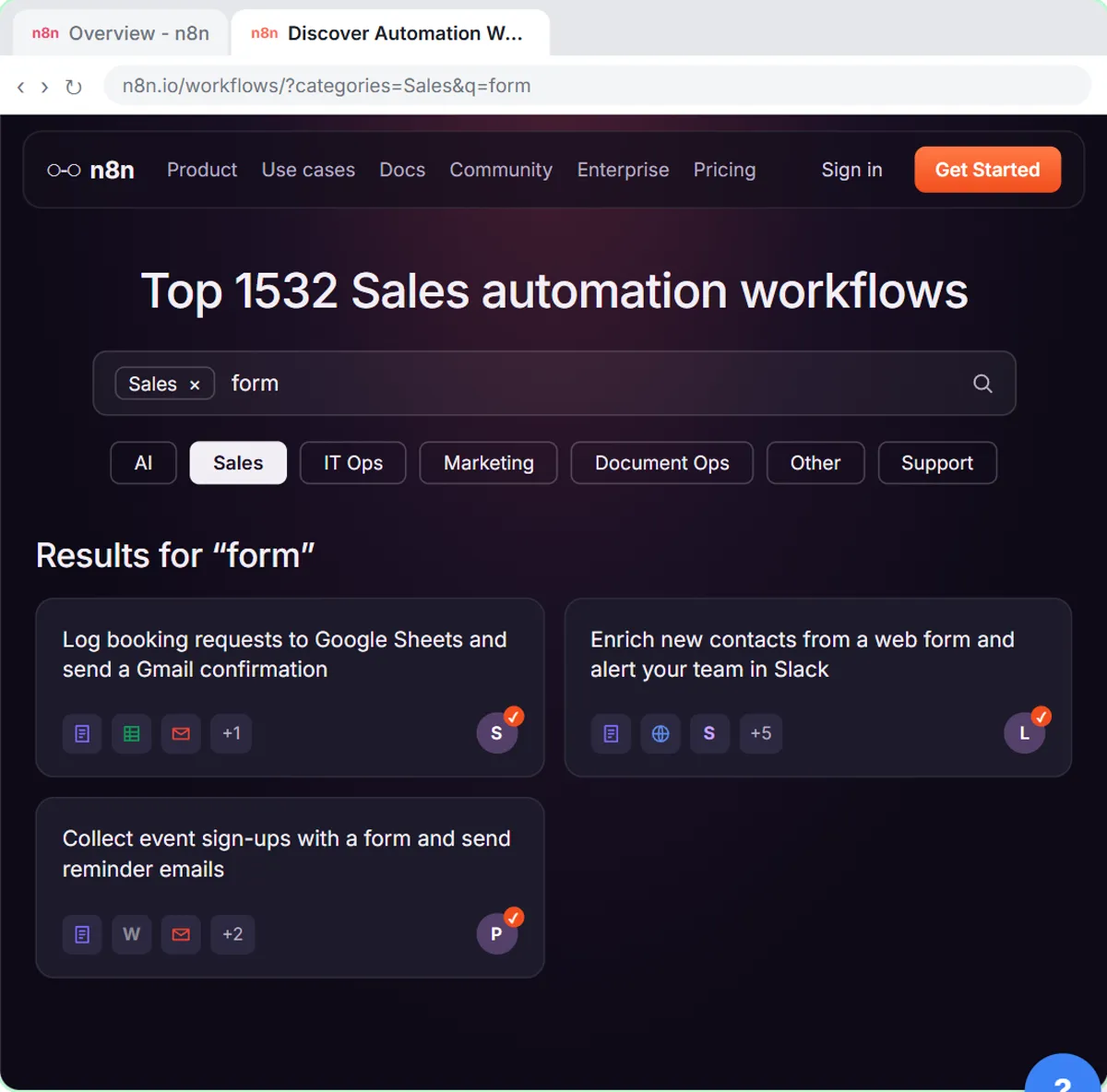
Skip the blank canvas. Find a ready-made workflow in the n8n template gallery, import it into your workspace, connect Google Sheets and Gmail, test it with a real form…
Free · Live ~9 min Intermediate
 Litescrape in n8n: Swap SerpApi for a Cheaper Search API
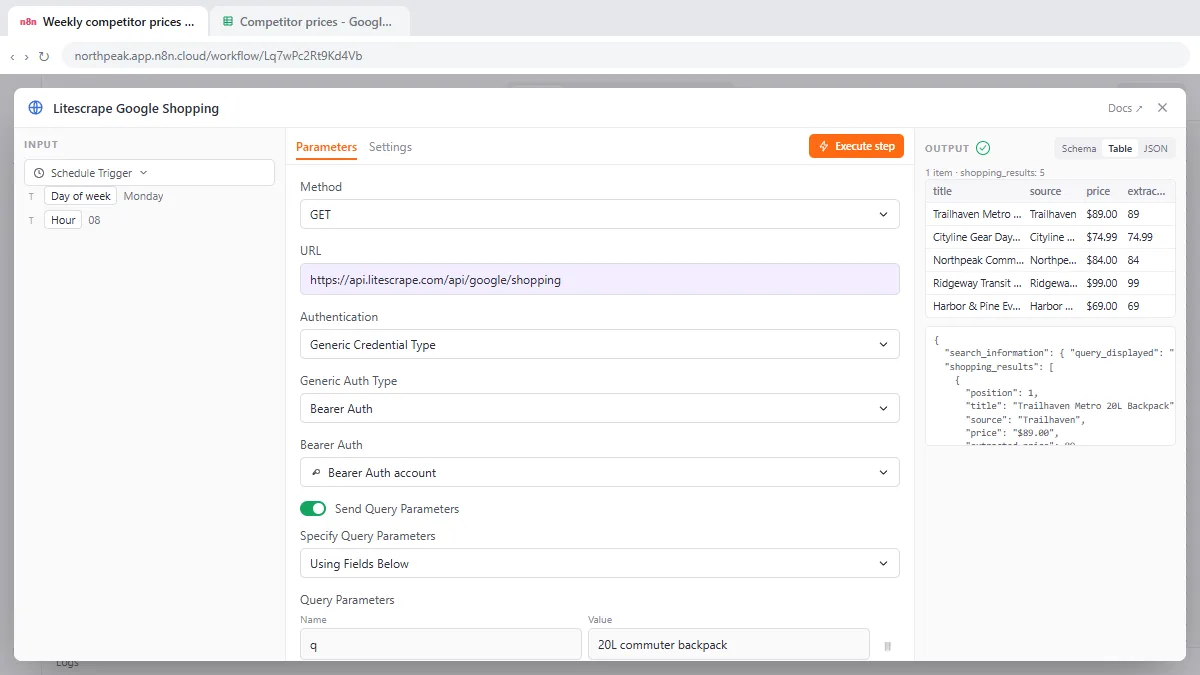
Switch a weekly n8n competitor-price workflow from SerpApi to Litescrape's Google Shopping API: change the HTTP Request URL, move the key into a Bearer Auth credential…
Free · Live ~7 min Advanced
◷n8n: Execute Step, Execute Workflow and PublishLearn the buttons in today's n8n editor: run one node with Execute step, pin test data, run everything with Execute workflow, then Publish and copy the Production URL.
Free · Live ~6 min Intermediate
 Webhooks and Forms in n8n: Capture Data from Anywhere
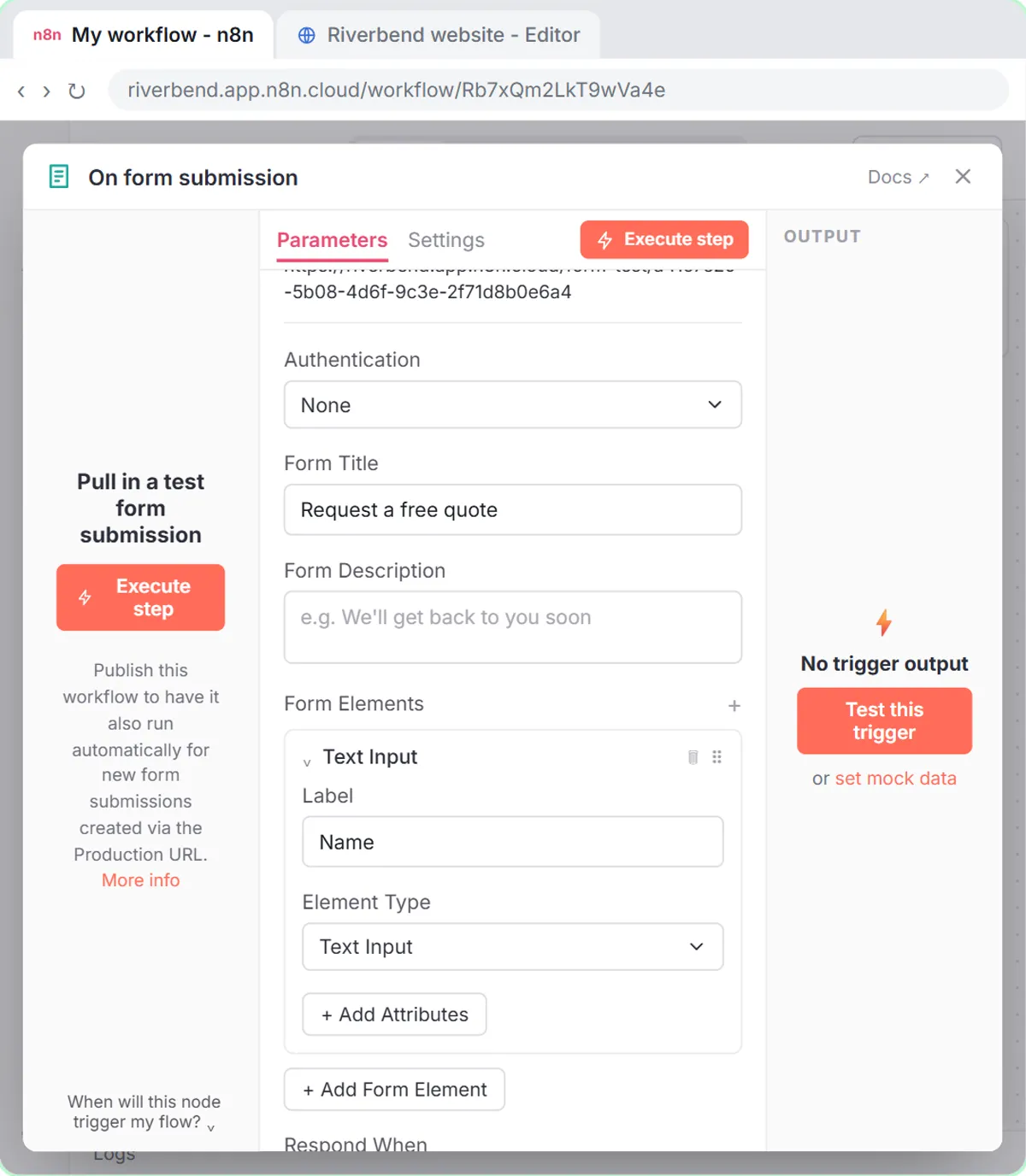
Stop losing quote requests between inboxes. Build a form n8n hosts for you, catch entries from your own website with a webhook, and save every request to one Google…
Free · Live ~12 min Advanced
 IF and Switch in n8n: Route Work by Rules
Send each request where it belongs. Use an If node to split big jobs from small ones, then a Switch with named outputs and a fallback to route by service.
Free · Live ~10 min Intermediate
◷n8n: Talk to Your Google Sheets with ChatGPT, from Zero (Free Credits or API Key, Google, Sheet, Chat)Start from nothing: copy n8n template 7639, use n8n's free credits (or your own OpenAI API key), connect Google, make your own sheet, then ask it questions in plain…
Free · Live ~16 min Beginner
All 11 modules in n8n Automation Toolkit
More n8n tutorials
 n8n AI Agent Tutorial: Save Social Media Ideas to Google Sheets
Build an AI agent for BrightPath Marketing that generates social media post ideas and saves them to Google Sheets — chat trigger, AI Agent, system prompt, model…
Free · Live ~12 min Intermediate
 Lovable + n8n: Build a Web App with an AI Backend
Build a contact form in Lovable and connect it to an n8n workflow — webhook trigger, AI Agent, Google Sheets, Gmail, and a Respond node that ties it all together.
Free · Live ~15 min Advanced
 AI Receipt Extractor: Receipts to Google Sheets with n8n
Drop a photo of a receipt into an n8n chat. An AI agent reads it, pulls out the date, vendor and amount, picks a category, and adds a row to Google Sheets.
Free · Live ~12 min Intermediate
 n8n AI Email Responder: Draft Gmail Replies Automatically
Build an n8n agent that watches your Gmail, reads each new customer email, and writes a reply as a draft in the same thread, ready for you to check and send.
Free · Live ~12 min Intermediate
 Daily Job Alerts: Email Each Tech Their Jobs from Google Sheets with n8n
Every morning at 7, n8n reads a plumbing company's jobs sheet, skips anything not assigned yet, and emails each job to the tech it's assigned to — customer, address…
Free · Live ~10 min Intermediate
 Gmail AI Triage: Auto-Label Every Email and Draft Replies
Build an n8n workflow that reads each new email, sorts it as a lead, a client or an invoice with a Text Classifier, adds the matching Gmail label, and drafts a reply to…
Free · Live ~18 min Advanced
Terms in this lesson
Plain-English definitions, each with an example from a free lesson.