Updated . Built against the tool’s current screens and checked step by step. How we check this lesson
When an n8n workflow fails, n8n does not tell you. It writes one red line in the Executions list and waits for someone to look. In this free n8n error handling tutorial you fix that for a small business whose morning workflow broke without anyone noticing. You build an error workflow with the Error Trigger that emails you when any workflow fails, make a flaky step retry by itself with Retry On Fail, send that step's failures down an Error output to an email alert, and use the Executions tab, n8n's run log, to retry the failed run.
At a glance
| Question | Answer |
|---|---|
| What you build | A silent failure means a stale price sheet and wrong quotes. In n8n, build an error workflow that emails you, make a flaky step retry by itself, send its failures down an Error output, and retry a failed run from Executions. |
| Tools | n8n |
| Time | About 10 minutes, 30 steps in 4 parts |
| Level | Intermediate |
| Cost | Free |
| Ways to learn it | Practice it step by step |
The 4 parts, in short
- Build an error workflow: Name the new workflow, Add the first step, Find the Error Trigger, Nothing to set up, and 7 more steps.
- Retry on fail: Go to Overview, Supplier price check, Open the supplier step, Settings, and 2 more steps.
- Catch the error and email it: On Error, Continue (using error output), Close the node, Add to the Error output, and 6 more steps.
- Check the run log and retry: Executions, Retry the failed run, Retry with the saved workflow.
Start here first: Find and Use n8n Templates (module 1 of n8n Automation Toolkit)
In the course: Part 9 · n8n Automation Toolkit (Module 61 of the full course)
Part of: n8n Jump Start (step 9 of 14). Next up: n8n AI Agent Tutorial: Save Social Media Ideas to Google Sheets
What you will build
Maple Lane Florist, a small flower shop, has a workflow called Supplier price check. Every morning at 6 an HTTP Request step gets the supplier's prices and a Google Sheets step updates the price sheet. One morning the supplier's server is busy, the run stops, and nobody notices.
By the end, a published Error alerts workflow emails the owner whenever a workflow fails, and Supplier price check retries the supplier, emails the owner if it still fails, and points to Error alerts for everything else.
Who this n8n error handling tutorial is for
This module is for anyone with an n8n workflow that runs on its own and who wants to know the moment it breaks. No code needed.
Retry On Fail: let a flaky step try again
Retry On Fail is on every node's Settings tab. When it is on, two fields appear. Max. Tries is the number of times the step is attempted before the run fails, from 2 to 5, and starts at 3. Wait Between Tries (ms) is the pause between attempts in milliseconds, from 0 to 5000, and starts at 1000, one second.
Use it on steps that call another service, where a busy server usually clears up in seconds. Avoid it on steps that would do harm if they ran twice, such as charging a card.
On Error: Stop Workflow, Continue, or an Error output
On Error, also on the Settings tab, decides what happens when a step still fails. Stop Workflow is the default: it halts the run and marks it as failed, which is what triggers your error workflow. Continue passes the error message along the normal path as an item, so later steps run as if it were data. Continue (using error output) gives the step a second output, labelled Error, next to Success.
The Error output is the most useful of the three when you want the rest of the run to finish and still hear about the problem. Note that a step with an Error output no longer fails the run, so the error workflow will not hear about it; the Error output is its alert.
The error workflow and the Error Trigger
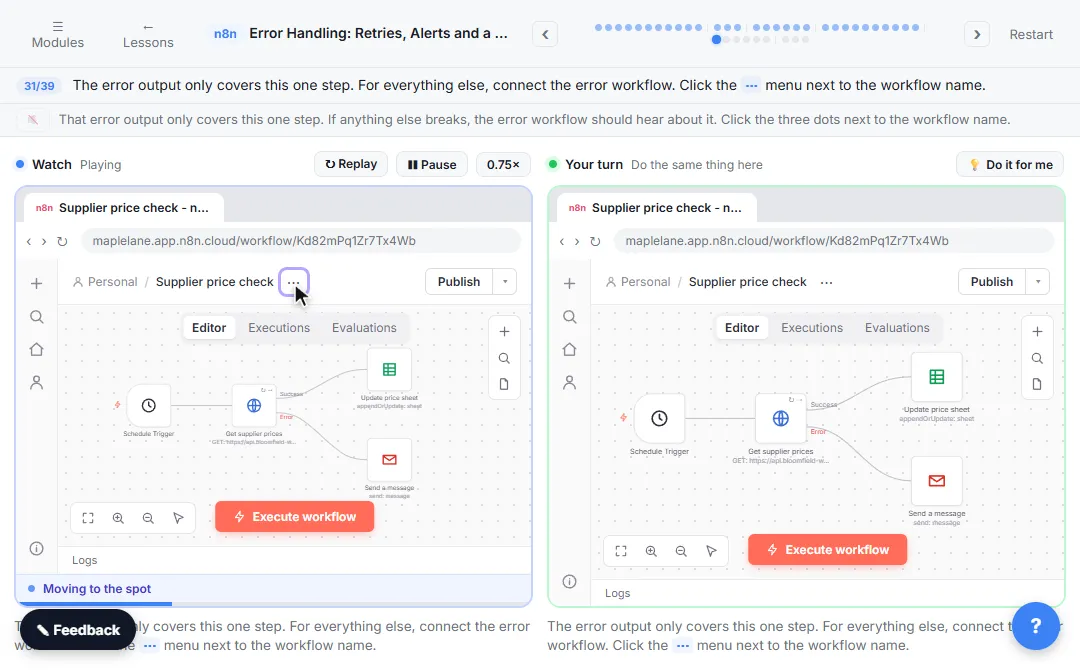
An error workflow is a separate workflow that starts with the Error Trigger node. You choose it per workflow in Settings, under Error Workflow (to notify when this one errors), and one error workflow can serve every workflow you own. It receives the failed workflow's name, the last node that ran, the error message and a link to the run.
Error workflows only run for automatic, production runs: a schedule, a form, a webhook or another trigger. They never run for a manual test with Execute workflow. In n8n 2.40 the Error Workflow list only lets you pick published workflows, so publish it.
Executions: the run log
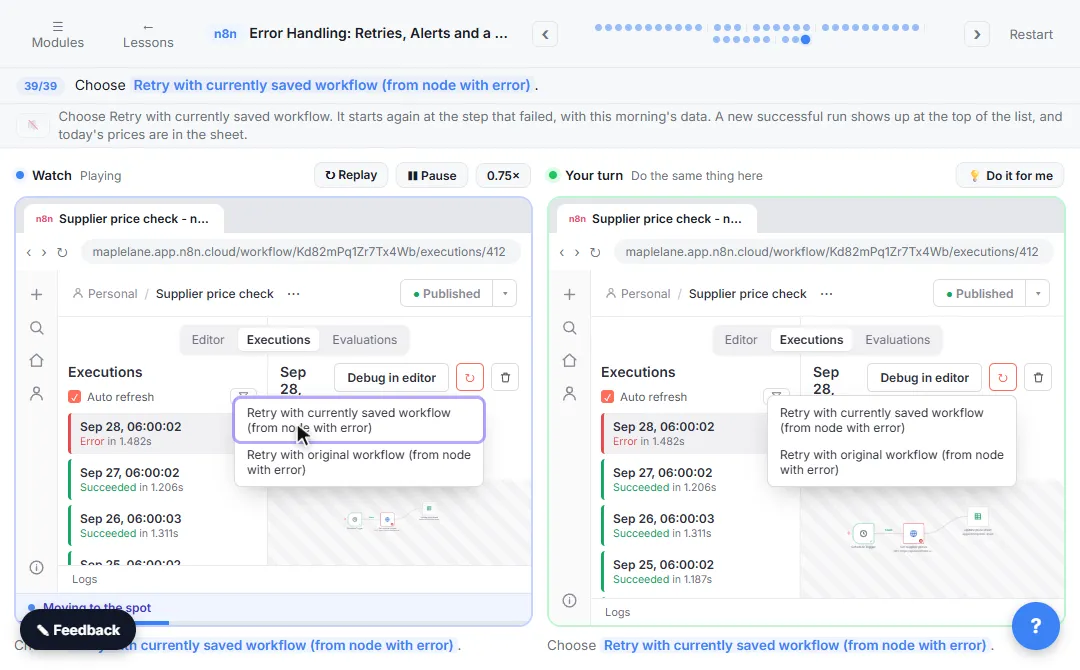
The Executions tab lists every saved run, newest first, as Succeeded or Error with its run time. Open a run to see the failed step marked. For a failed run, the retry icon offers Retry with currently saved workflow or Retry with original workflow, both from the node with the error. The retry appears at the top of the list.
How the interactive lesson works
Every step is shown first on the left, in the Watch panel, with a short voice-over. Then you do it yourself on the right, in Your turn, on a practice copy of n8n. Nothing touches a real account.
Try it yourself, free
Reading the steps is a start. Doing them is how it sticks. The interactive module walks you through every click in a practice copy of n8n, checks each step, and never touches your real accounts.
Start “Get Alerted When an n8n Automation Fails, and Let It Retry by Itself”Step by step: Get Alerted When an n8n Automation Fails, and Let It Retry by Itself
All 30 steps of the interactive module, in order. In the module you watch each one, then do it yourself in a practice copy that checks your work.
1. Build an error workflow
- Name the new workflow. This is a new, empty workflow (on Overview, Create workflow). Click its name, My workflow, at the top and type Error alerts.
This morning, Maple Lane's supplier price check failed, and nobody found out. Let's fix that. First, a workflow whose only job is to email you when another one fails. This is a new, empty workflow.
- Add the first step. Click Add first step….
- Find the Error Trigger. In Search nodes..., type error and choose Error Trigger: *Triggers the workflow when another workflow has an error*.
Search for error, and choose Error Trigger. It starts this workflow whenever another workflow fails.
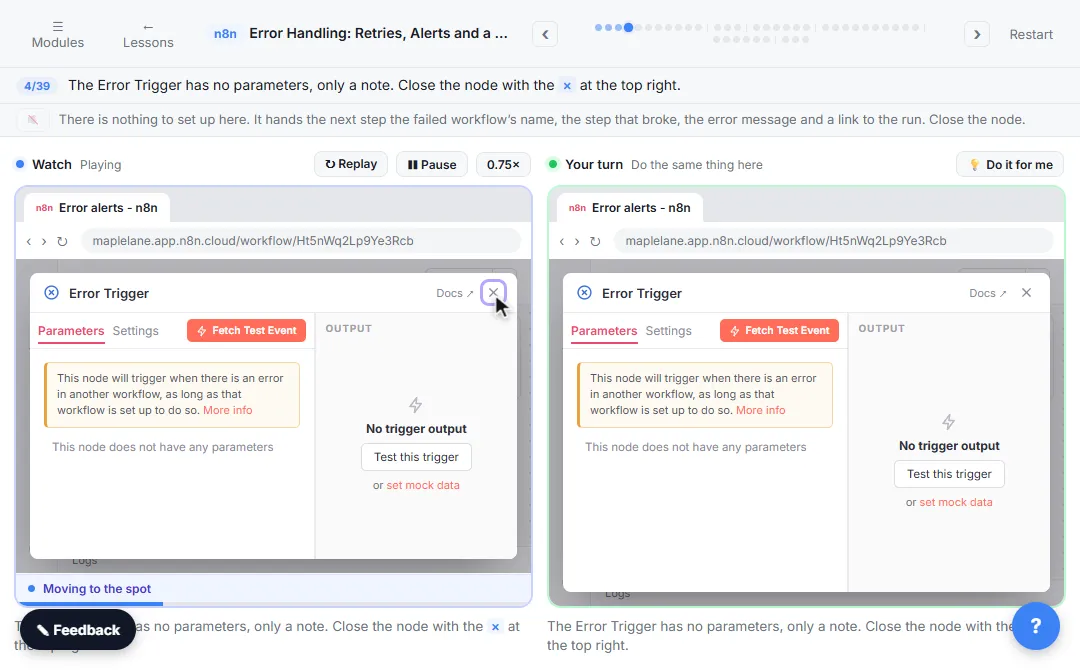
- Nothing to set up. The Error Trigger has no parameters, only a note. Close the node with the × at the top right.
There is nothing to set up here. It hands the next step the failed workflow’s name, the step that broke, the error message and a link to the run. Close the node.
- Add the email. Click the + on the right of Error Trigger.
Now the email.
- Find Gmail. Type gmail and choose Gmail.
Search for Gmail and choose it.
- Send a message. Under Message Actions, click Send a message.
Your Gmail account is already connected here. If yours is not, create the credential and sign in with Google.
- To. In To, type your address: [email protected].
In the To field, type your own email address, one you actually read.
- Subject. In Subject, type A workflow failed.
For the subject, type A workflow failed.
- Message. In Message, paste {{ $json.workflow.name }} failed at {{ $json.execution.lastNodeExecuted }}: {{ $json.execution.error.message }} See the run: {{ $json.execution.url }}. The parts in double curly braces come from the Error Trigger: the workflow's name, the last step that ran, the error message and a link to the failed run.
The parts in curly braces fill in from the Error Trigger: which workflow failed, the step that broke, the error message, and a link straight to the failed run.
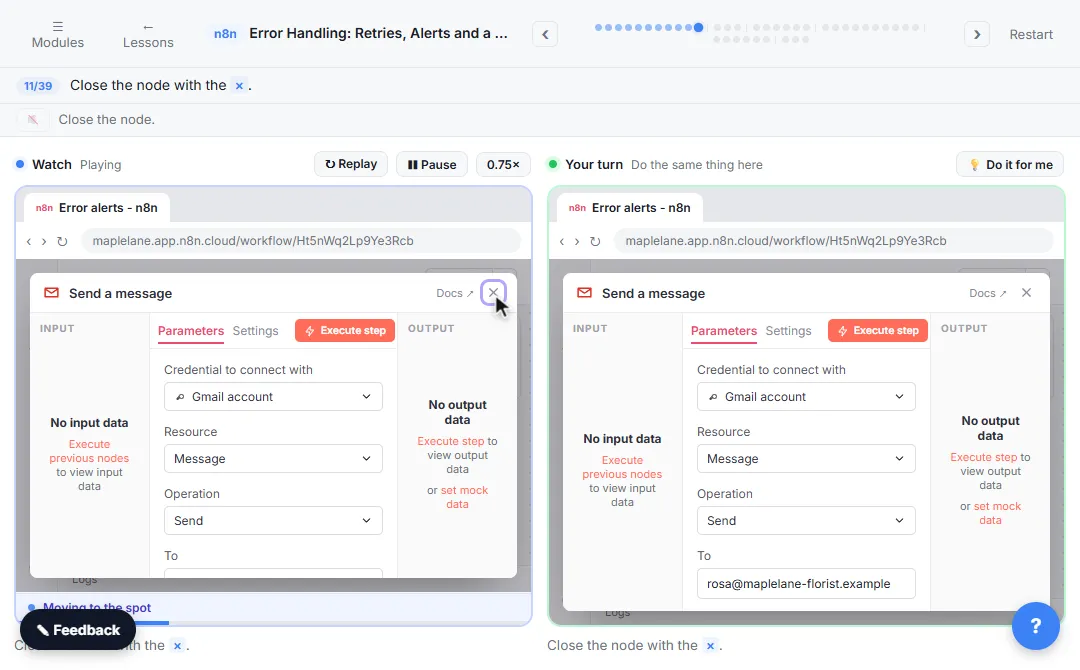
- Close the node. Close the node with the ×.
Close the node.
2. Retry on fail
- Go to Overview. In the left sidebar, click the house icon to open Overview.
In the left sidebar, click the house icon for Overview.
- Supplier price check. Click Supplier price check.
- Open the supplier step. Every morning at 6 it gets the day's wholesale prices from the supplier and updates the price sheet. Open the HTTP Request step Get supplier prices.
Every morning at six, it asks the flower supplier for today's prices and updates the price sheet. This morning the supplier's server was busy and said try again later, so the whole run stopped.
- Settings. Click the Settings tab, next to Parameters.
Most error handling lives on the Settings tab.
- Retry On Fail. Turn on Retry On Fail. Two new fields appear: Max. Tries (3) and Wait Between Tries (ms) (1000).
Turn on Retry On Fail. Now, if the supplier is busy, this step tries again by itself: three tries in total, one second apart.
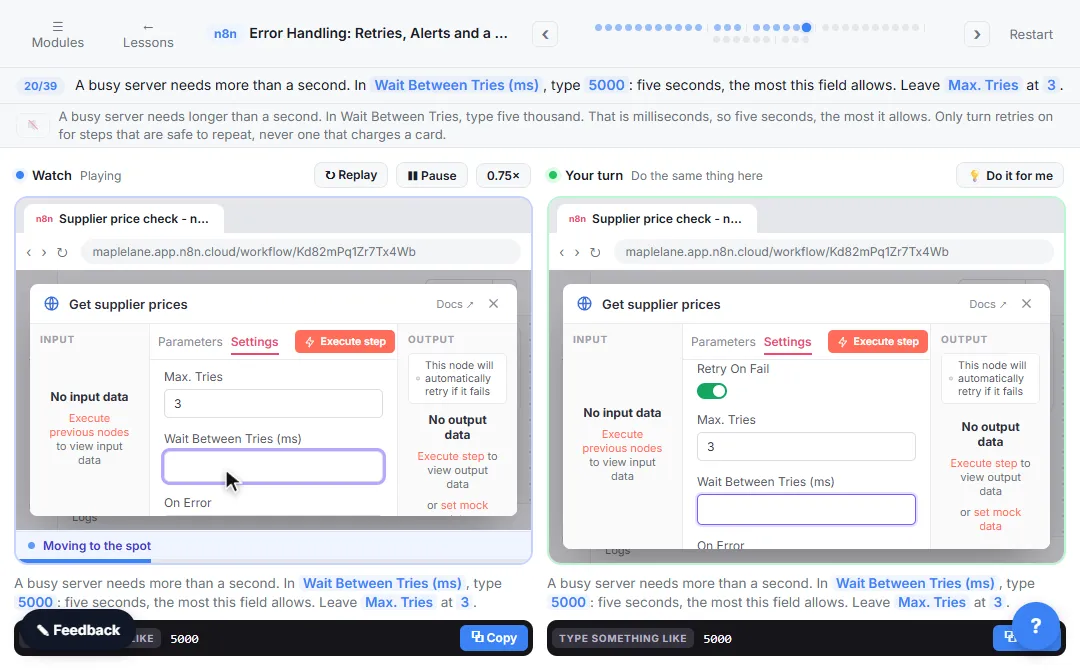
- Wait longer between tries. A busy server needs more than a second. In Wait Between Tries (ms), type 5000: five seconds, the most this field allows. Leave Max. Tries at 3.
A busy server needs longer than a second. In Wait Between Tries, type five thousand. That is milliseconds, so five seconds, the most it allows. Only turn retries on for steps that are safe to repeat, never one that charges a card.
3. Catch the error and email it
- On Error. If all three tries fail, On Error decides what happens. It is set to Stop Workflow. Open it.
If all three tries fail, On Error decides what happens next. Right now it is Stop Workflow.
- Continue (using error output). Choose Continue (using error output): *Pass item to an extra
erroroutput*.Stop Workflow ends the run. Continue sends the error down the normal path, as if it were data. The step gets a second output, just for failures.
- Close the node. Close the node with the ×.
Close the node.
- Add to the Error output. The step now has two outputs: Success still goes to the price sheet, and Error is empty. Click the + on the Error output.
See the two outputs. Success still goes to the price sheet. Error goes nowhere yet.
- Find Gmail. Type gmail and choose Gmail.
Search for Gmail and choose it.
- Send a message. Click Send a message.
- To. In To, type [email protected].
In the To field, type your email address again.
- Subject. In Subject, type Supplier prices did not update.
For the subject, type Supplier prices did not update.
- Message. In Message, paste The supplier price check failed this morning, even after 3 tries. Today's prices in the price sheet were not updated.
It tells you what this failure means for the shop: the prices are out of date.
- Close the node. Close the node with the ×.
Close the node. Now a failed price check emails you, and the run still finishes.
4. Check the run log and retry
- Executions. Click Executions in the switch at the top of the canvas.
What about this morning's prices? This is the run log: every run of this workflow.
- Retry the failed run. The newest run, this morning at 06:00, is open: Error, and Get supplier prices is marked red. Click the retry icon (↻) at the top right of the run.
The newest run opens by itself. Red means error, and the failed step is marked on the canvas. Green runs succeeded. The supplier is back up now, so click the retry icon at the top right.
- Retry with the saved workflow. Choose Retry with currently saved workflow (from node with error).
It starts again at the step that failed, with this morning's data. A new successful run shows up at the top of the list, and today's prices are in the sheet.
Screenshots
Frequently asked questions
- Why didn't my n8n error workflow run?
- The most common reasons: the run was a manual test (error workflows only run for production runs), the failing workflow does not have the error workflow selected in Settings, or the failed step uses Continue or an Error output, so the run did not actually fail.
- How many retries should I set?
- Three tries is a sensible default. Max. Tries allows 2 to 5, and Wait Between Tries allows up to 5000 milliseconds. If a step still fails after five tries, something is really broken and you want the alert.
- Is this course really free?
- Yes. Stepthrough is completely free, and the practice copy needs no accounts. To build it for real you need your own n8n and Google accounts, and some of those cost money once you use them for real work.
More in n8n Automation Toolkit
 Find and Use n8n Templates
Skip the blank canvas. Find a ready-made workflow in the n8n template gallery, import it into your workspace, connect Google Sheets and Gmail, test it with a real form…
Free · Live ~9 min Intermediate
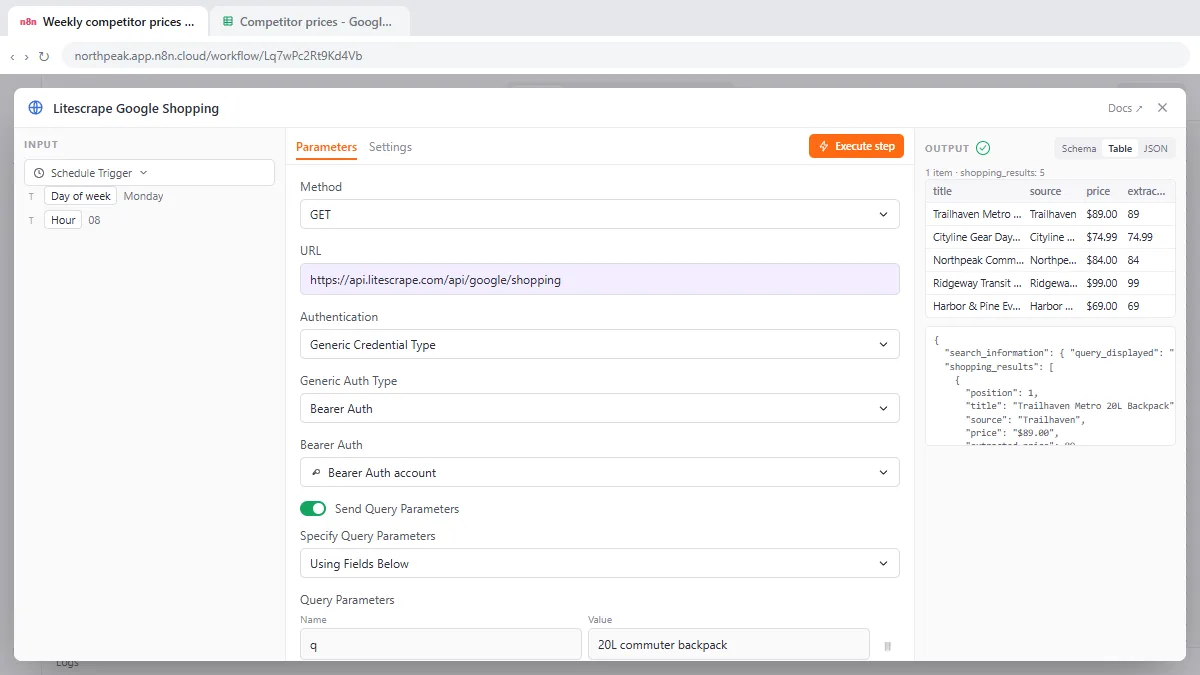 Litescrape in n8n: Swap SerpApi for a Cheaper Search API
Switch a weekly n8n competitor-price workflow from SerpApi to Litescrape's Google Shopping API: change the HTTP Request URL, move the key into a Bearer Auth credential…
Free · Live ~7 min Advanced
◷n8n: Execute Step, Execute Workflow and PublishLearn the buttons in today's n8n editor: run one node with Execute step, pin test data, run everything with Execute workflow, then Publish and copy the Production URL.
Free · Live ~6 min Intermediate
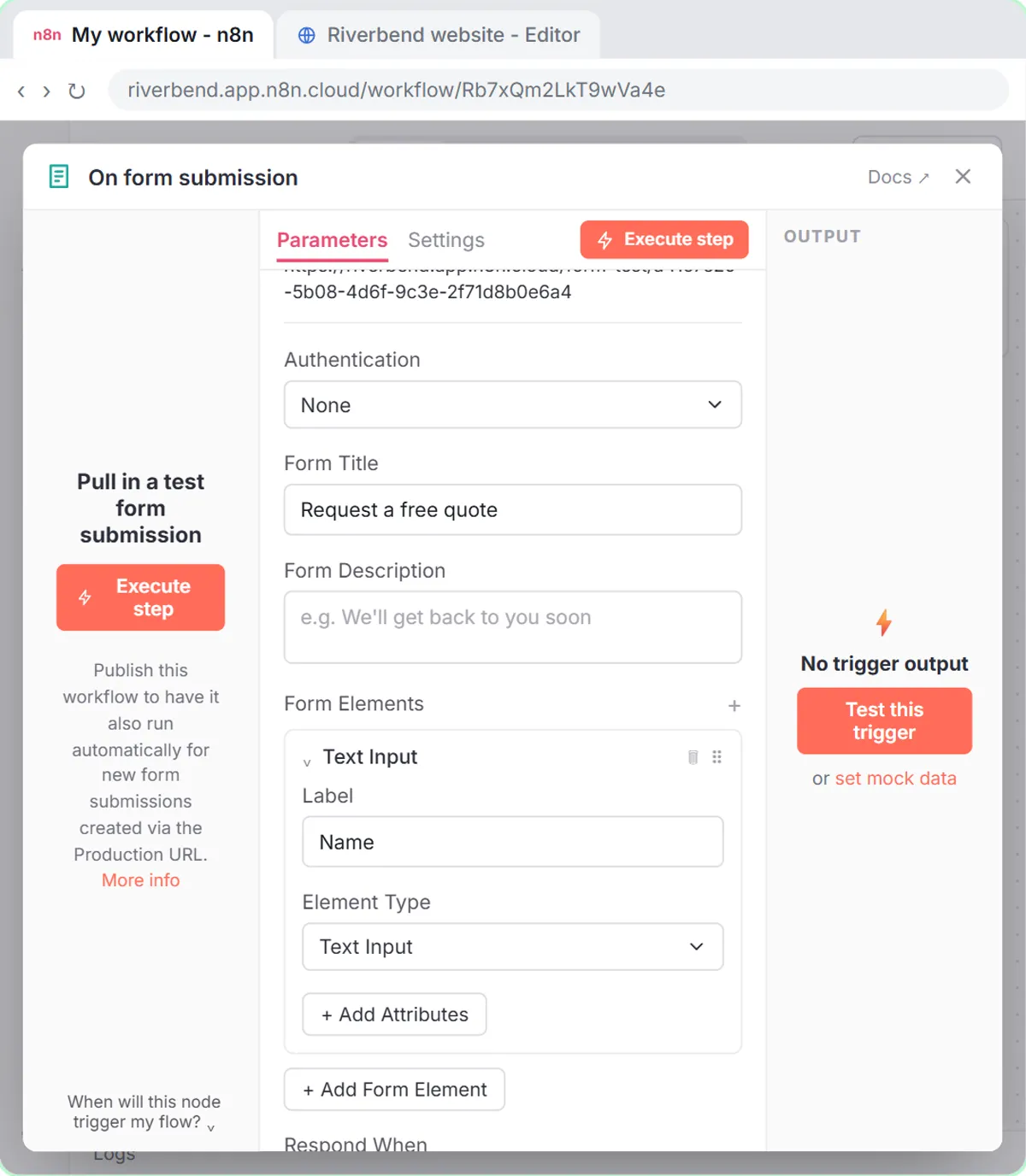 Webhooks and Forms in n8n: Capture Data from Anywhere
Stop losing quote requests between inboxes. Build a form n8n hosts for you, catch entries from your own website with a webhook, and save every request to one Google…
Free · Live ~12 min Advanced
 IF and Switch in n8n: Route Work by Rules
Send each request where it belongs. Use an If node to split big jobs from small ones, then a Switch with named outputs and a fallback to route by service.
Free · Live ~10 min Intermediate
◷n8n: Talk to Your Google Sheets with ChatGPT, from Zero (Free Credits or API Key, Google, Sheet, Chat)Start from nothing: copy n8n template 7639, use n8n's free credits (or your own OpenAI API key), connect Google, make your own sheet, then ask it questions in plain…
Free · Live ~16 min Beginner
All 11 modules in n8n Automation Toolkit
More n8n tutorials
 n8n AI Agent Tutorial: Save Social Media Ideas to Google Sheets
Build an AI agent for BrightPath Marketing that generates social media post ideas and saves them to Google Sheets — chat trigger, AI Agent, system prompt, model…
Free · Live ~12 min Intermediate
 Lovable + n8n: Build a Web App with an AI Backend
Build a contact form in Lovable and connect it to an n8n workflow — webhook trigger, AI Agent, Google Sheets, Gmail, and a Respond node that ties it all together.
Free · Live ~15 min Advanced
 AI Receipt Extractor: Receipts to Google Sheets with n8n
Drop a photo of a receipt into an n8n chat. An AI agent reads it, pulls out the date, vendor and amount, picks a category, and adds a row to Google Sheets.
Free · Live ~12 min Intermediate
 n8n AI Email Responder: Draft Gmail Replies Automatically
Build an n8n agent that watches your Gmail, reads each new customer email, and writes a reply as a draft in the same thread, ready for you to check and send.
Free · Live ~12 min Intermediate
 Daily Job Alerts: Email Each Tech Their Jobs from Google Sheets with n8n
Every morning at 7, n8n reads a plumbing company's jobs sheet, skips anything not assigned yet, and emails each job to the tech it's assigned to — customer, address…
Free · Live ~10 min Intermediate
 Gmail AI Triage: Auto-Label Every Email and Draft Replies
Build an n8n workflow that reads each new email, sorts it as a lead, a client or an invoice with a Text Classifier, adds the matching Gmail label, and drafts a reply to…
Free · Live ~18 min Advanced
Terms in this lesson
Plain-English definitions, each with an example from a free lesson.