Updated . Built against the tool’s current screens and checked step by step. How we check this lesson
A website chatbot that guesses is worse than no chatbot at all. In this free lesson you turn a basic n8n chat agent into a support agent that answers only from your own policies in a Google Doc, says so when it doesn't know, never gives legal advice, and hands the conversation to a person by email when it should.
At a glance
| Question | Answer |
|---|---|
| What you build | Turn an n8n chat agent into a support agent that answers only from your policies in a Google Doc, refuses what it should, and hands off to a person by email. |
| Tools | n8n |
| Time | About 13 minutes, 32 steps in 5 parts |
| Level | Advanced, no coding needed |
| Cost | Free |
| Ways to learn it | Practice it step by step, watch the video, read the guide with screenshots |
The 5 parts, in short
- Set the rules: Open the agent, Add an option, System Message, Write the rules, and 1 more step.
- Read your docs: Add a tool, Search for Google Docs, Google Docs Tool, Operation, and 3 more steps.
- Hand off to a person: Add another tool, Search for Gmail, Gmail Tool, Send it to the office, and 6 more steps.
- Test it: Open the chat, Ask a policy question, Ask something it must refuse, Ask for a person, and 1 more step.
- Put it on your site: Open the chat trigger, Make it public, Close the node, Publish, and 1 more step.
Start here first: AI Receipt Extractor: Receipts to Google Sheets with n8n (module 1 of Business Automations)
In the course: Part 9 · n8n Automation Toolkit (Module 42 of the full course)
Part of: Business Automations with n8n (step 6 of 7). Next up: Litescrape in n8n: Swap SerpApi for a Cheaper Search API
A Support Agent That Answers from Your Own Docs: step-by-step guide with screenshots
About the screenshots. They come from Stepthrough’s simulated practice environment (a practice copy of n8n), not the live tool, so no real account appears. The buttons and labels match the real screens the lesson was built against. Practice it yourself free at learn.ynteractive.com.
- Tools: n8n
- Time: about 13 minutes, 32 steps in 5 parts
- Level: beginner, no coding needed
Part 1: Set the rules
Step 1: Open the agent
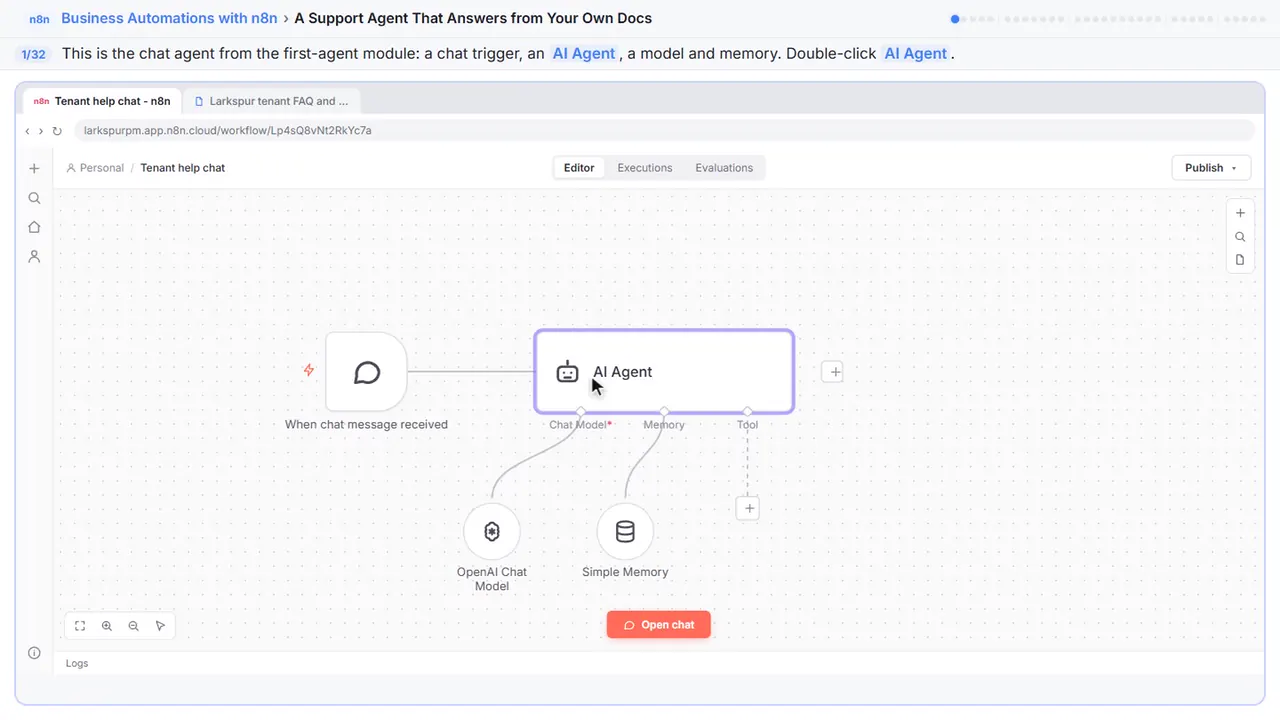
You run the office at Larkspur Property Management, and tenants ask the same questions all day. Pets, parking, rent due dates. Let's turn a basic chat agent into a support agent that answers only from your own policies, and passes anything else to a person. This is the agent from the first-agent module. Double-click the AI Agent.
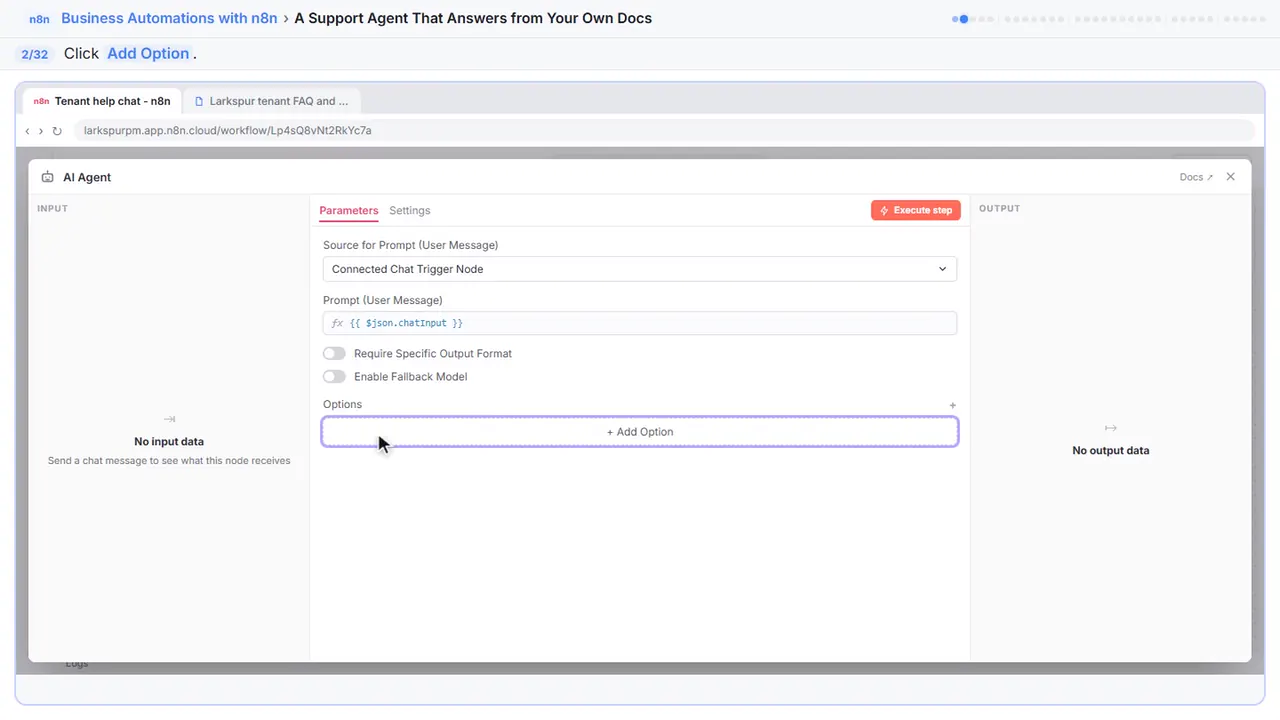
Step 2: Add an option
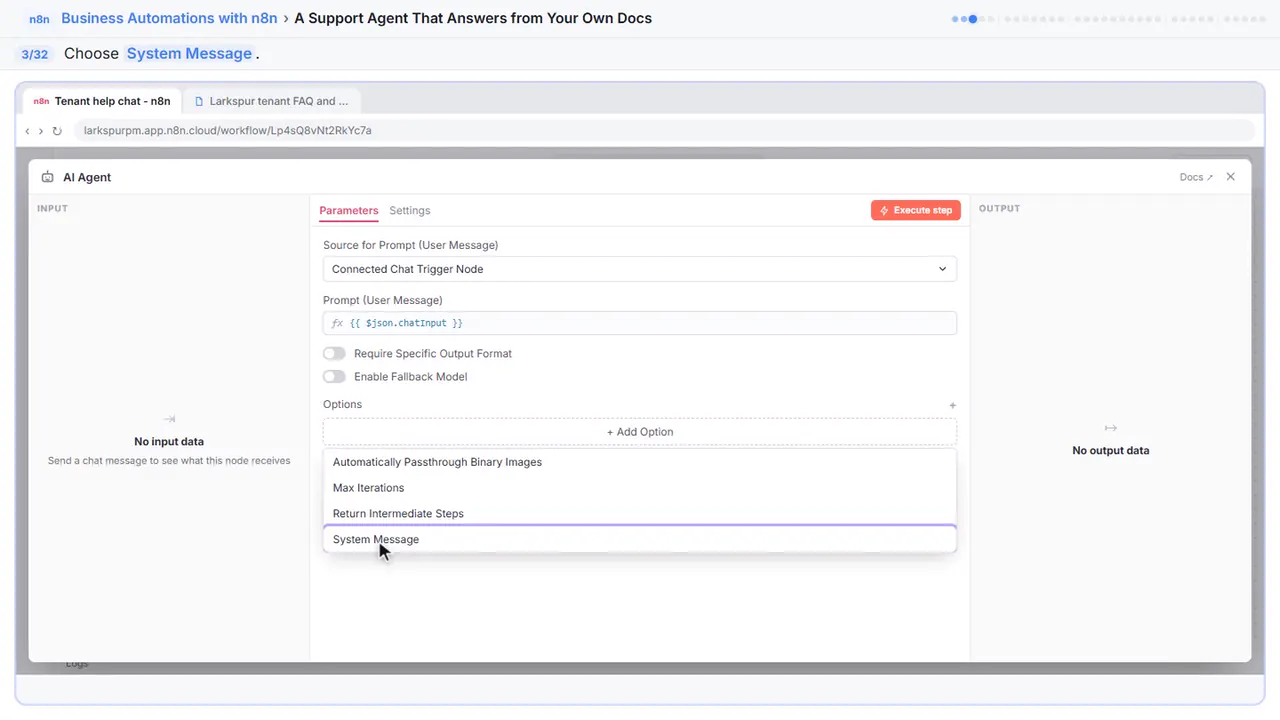
Step 3: System Message
Step 4: Write the rules
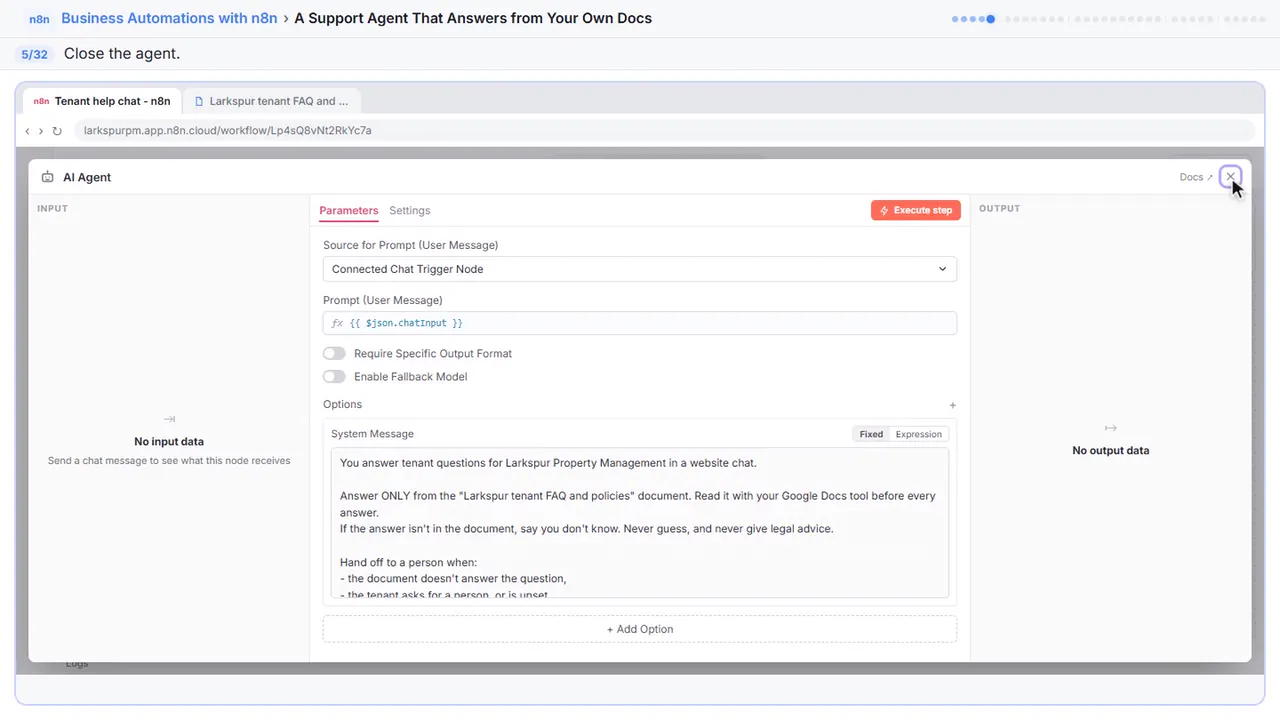
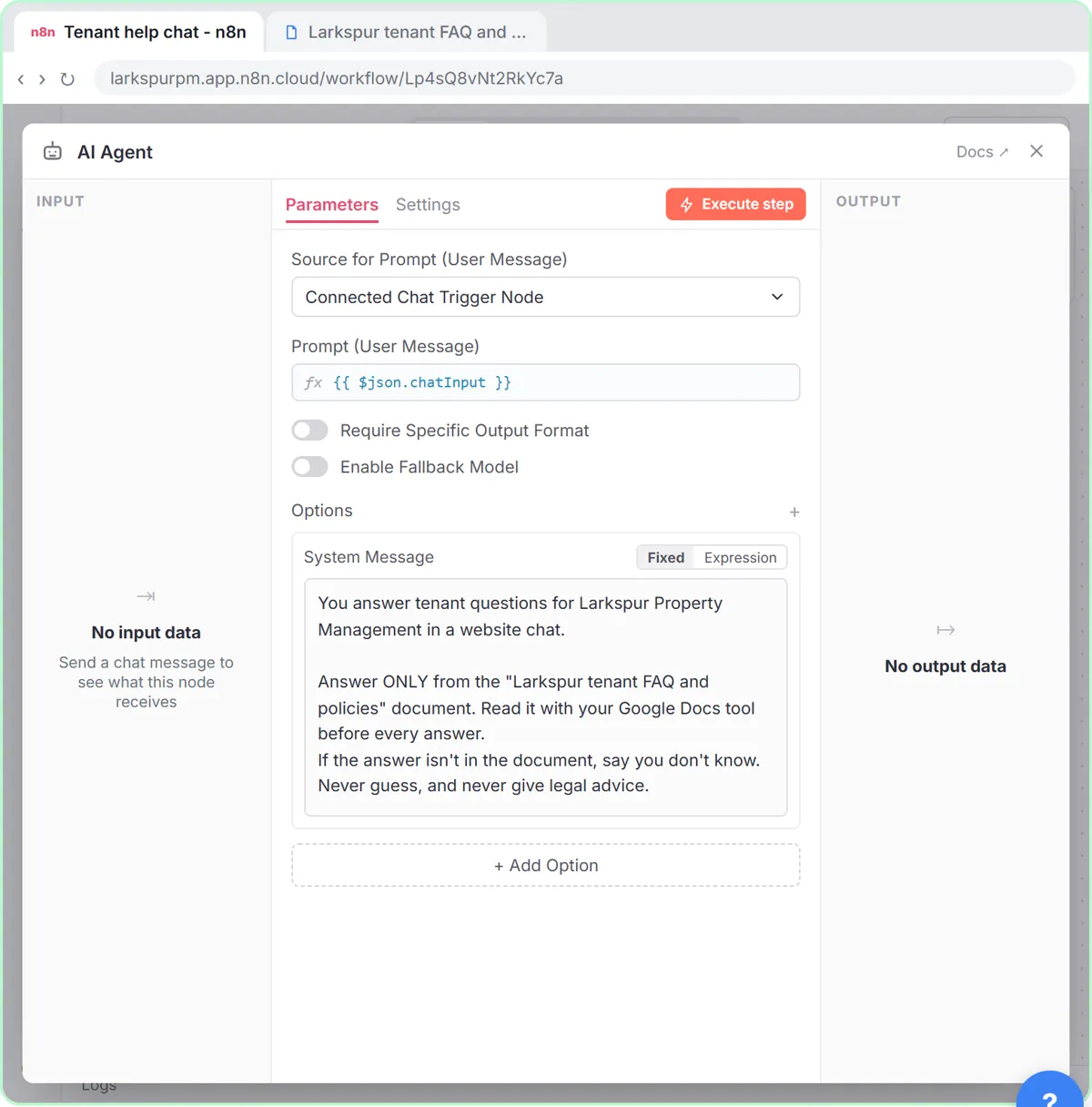
The most important line: answer only from the policies document, and if the answer isn't there, say so. Then it lists when to hand off to a person, what to collect first, and what to say in an emergency.
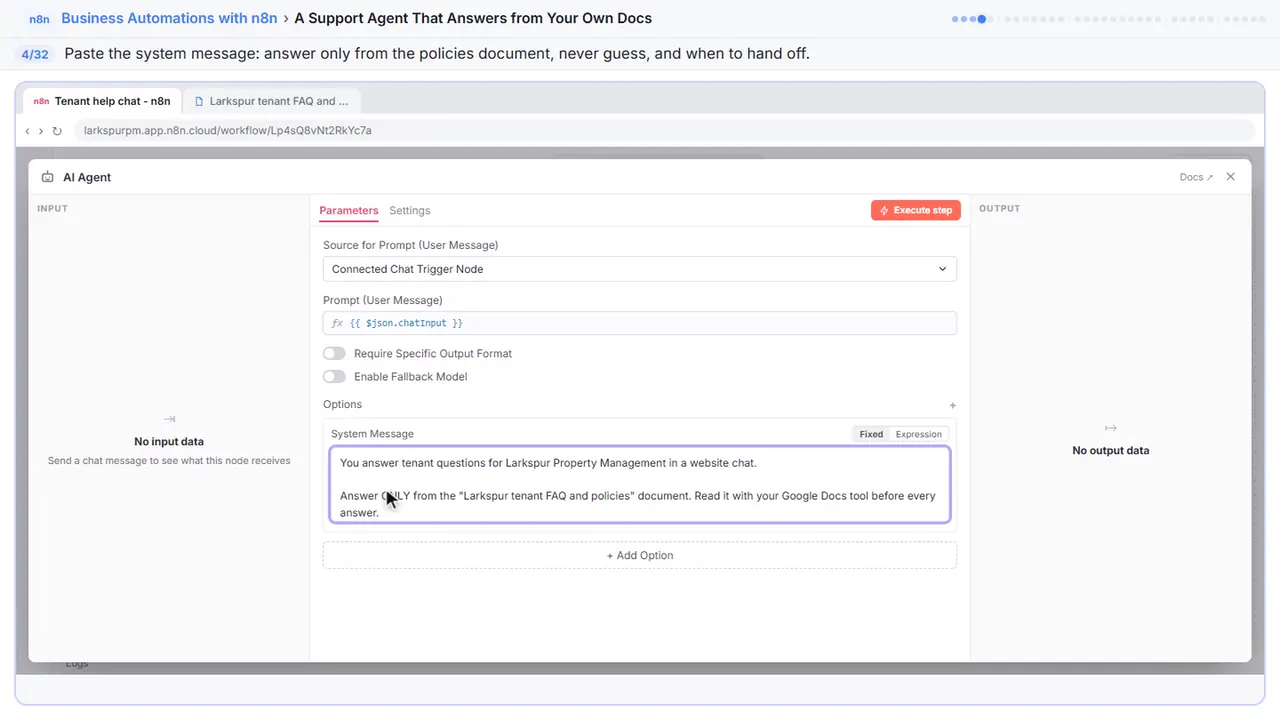
You answer tenant questions for Larkspur Property Management in a website chat.

Answer ONLY from the "Larkspur tenant FAQ and policies" document. Read it with your Google Docs tool before every answer.
If the answer isn't in the document, say you don't know. Never guess, and never give legal advice.

Hand off to a person when:
- the document doesn't answer the question,
- the tenant asks for a person, or is upset,
- it's about a payment dispute, a lease change or an emergency.
To hand off: ask for their name, unit and best phone number, then email the office with your Gmail tool. Tell them someone from the office will call them within one business day.
For emergencies (fire, gas smell, flooding), tell them to call 911 or the 24/7 maintenance line first: (555) 018-4400.

Be friendly and short: 2 to 4 sentences.
Step 5: Close the node
Close it.
Part 2: Read your docs
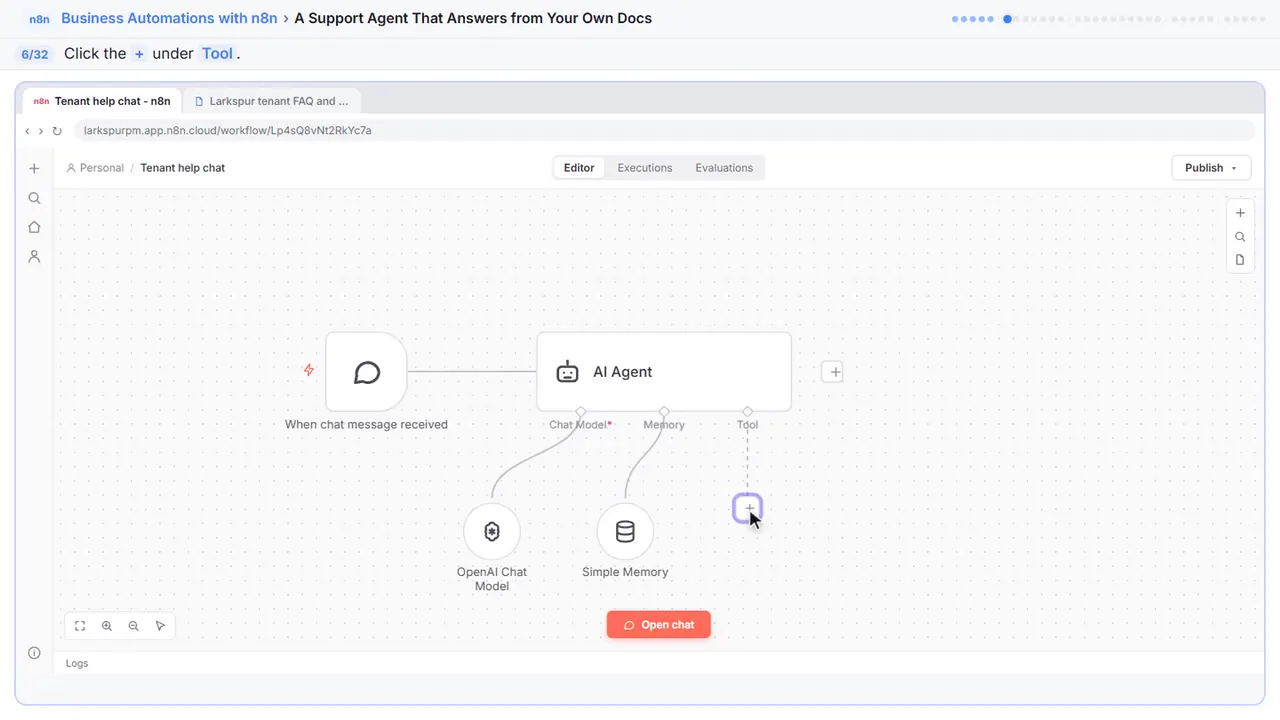
Step 6: Add a tool
Now give it the document.
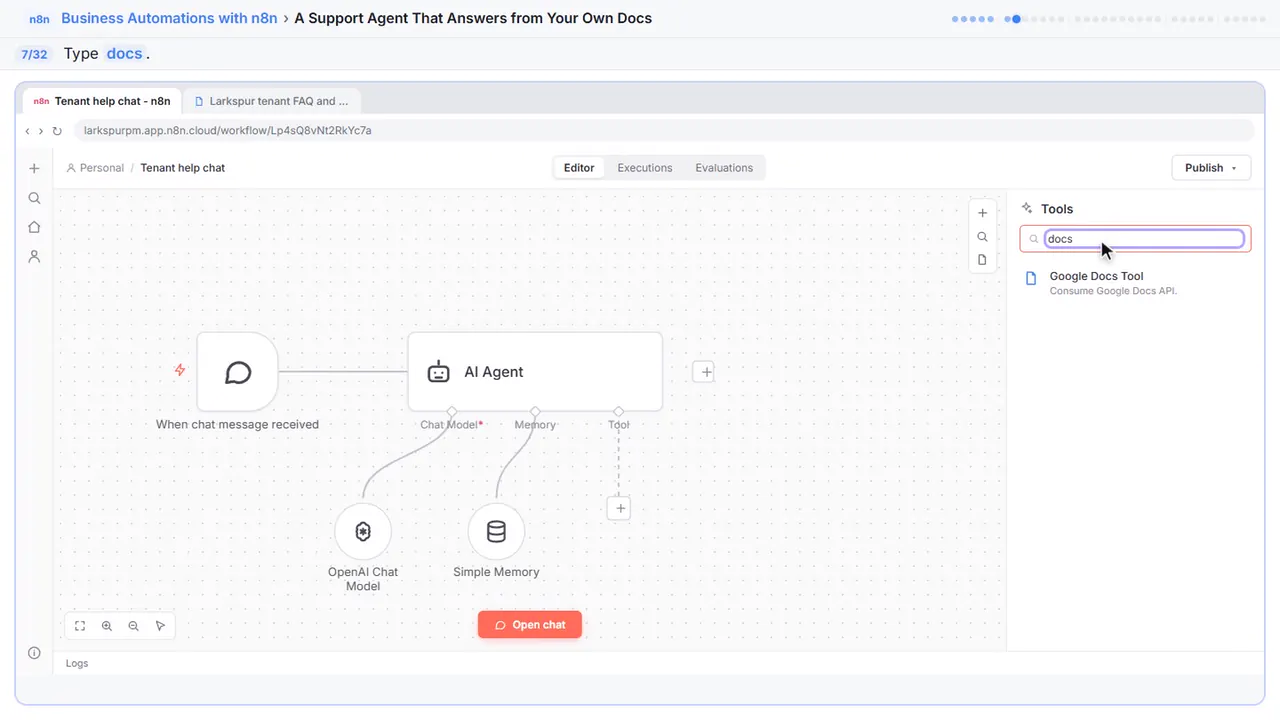
Step 7: Search for Google Docs
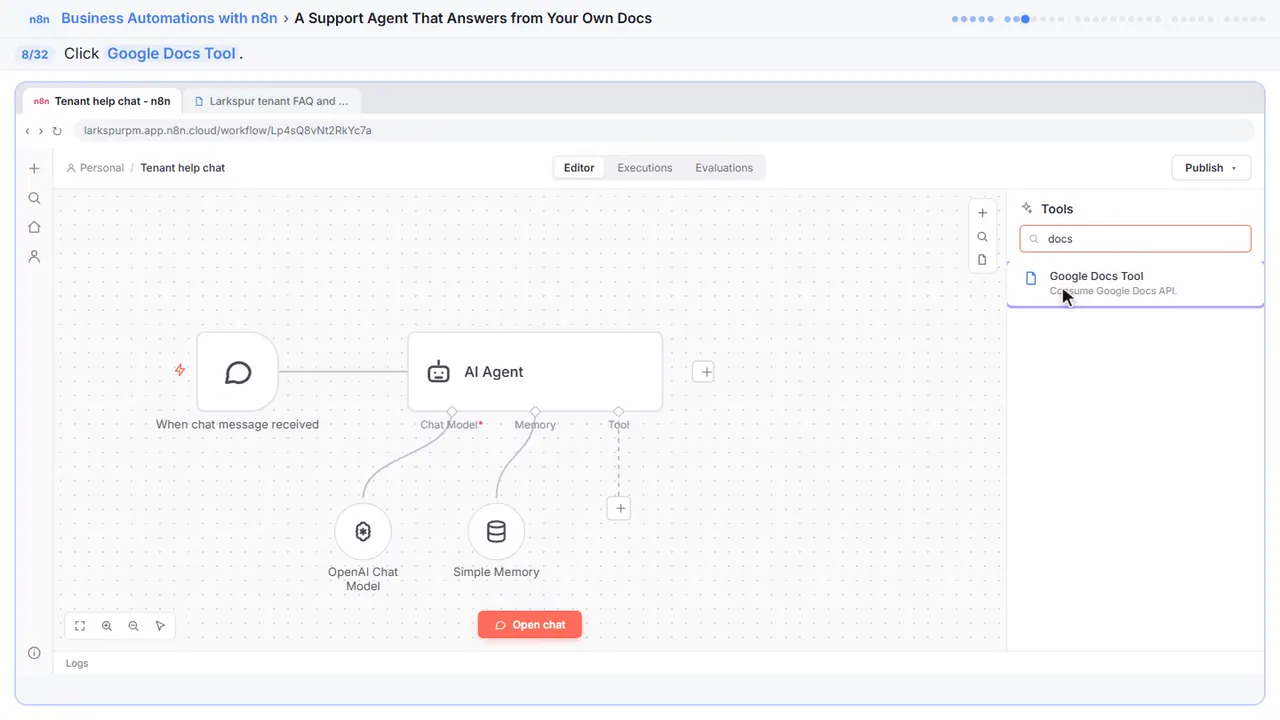
Step 8: Google Docs Tool
Google Docs Tool.
Step 9: Operation
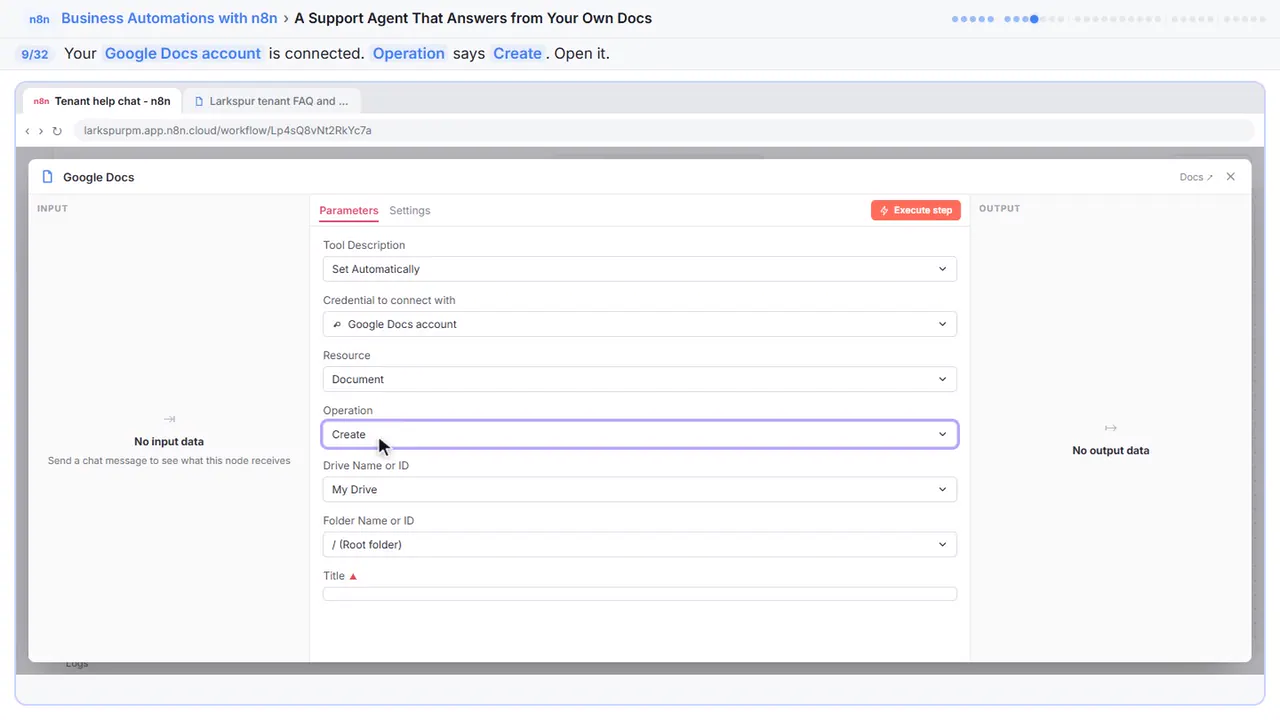
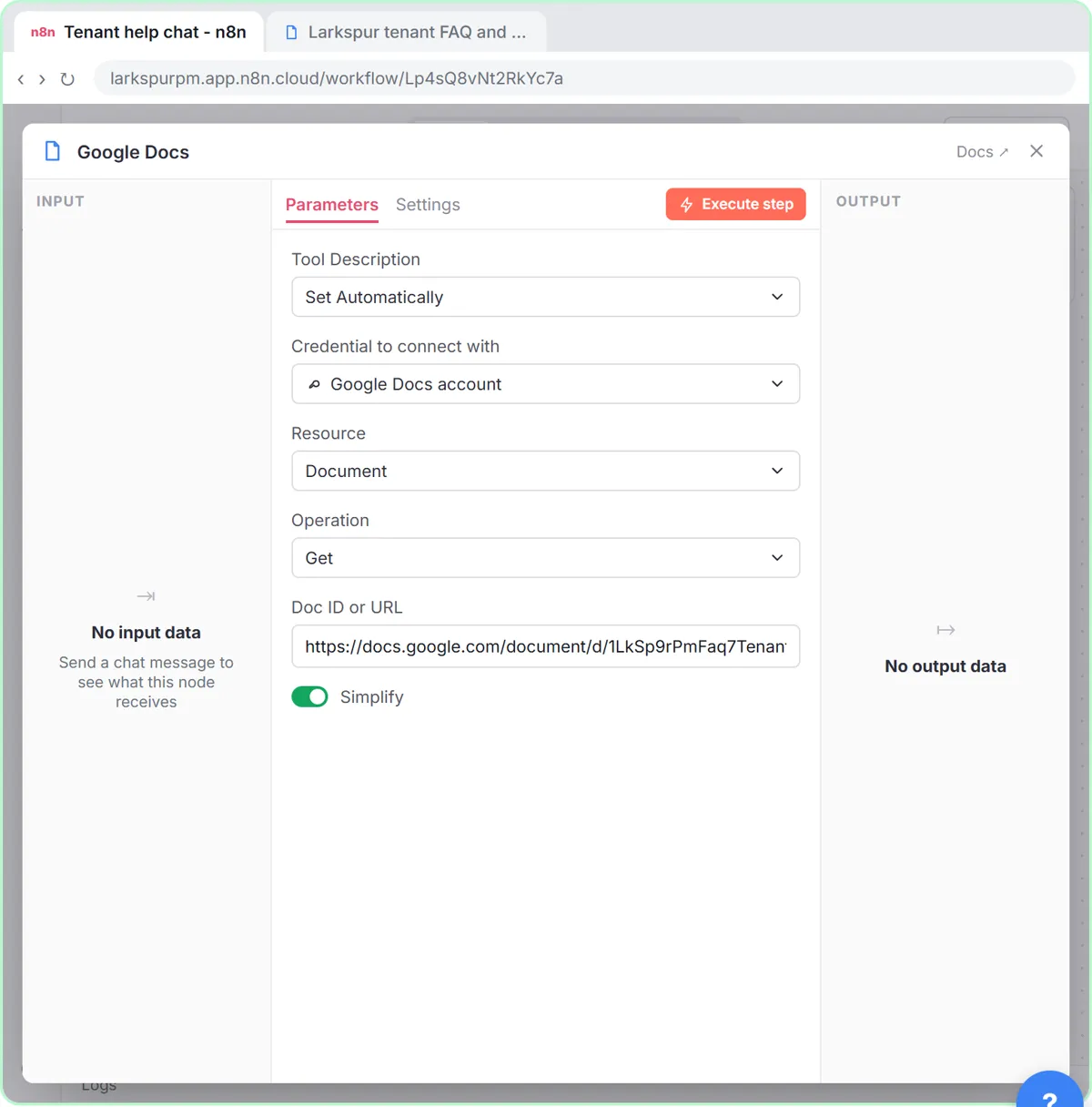
Your Google account is already connected. Careful: the operation says Create. We want the agent to read, not write.
Step 10: Get
Step 11: Point it at your policies
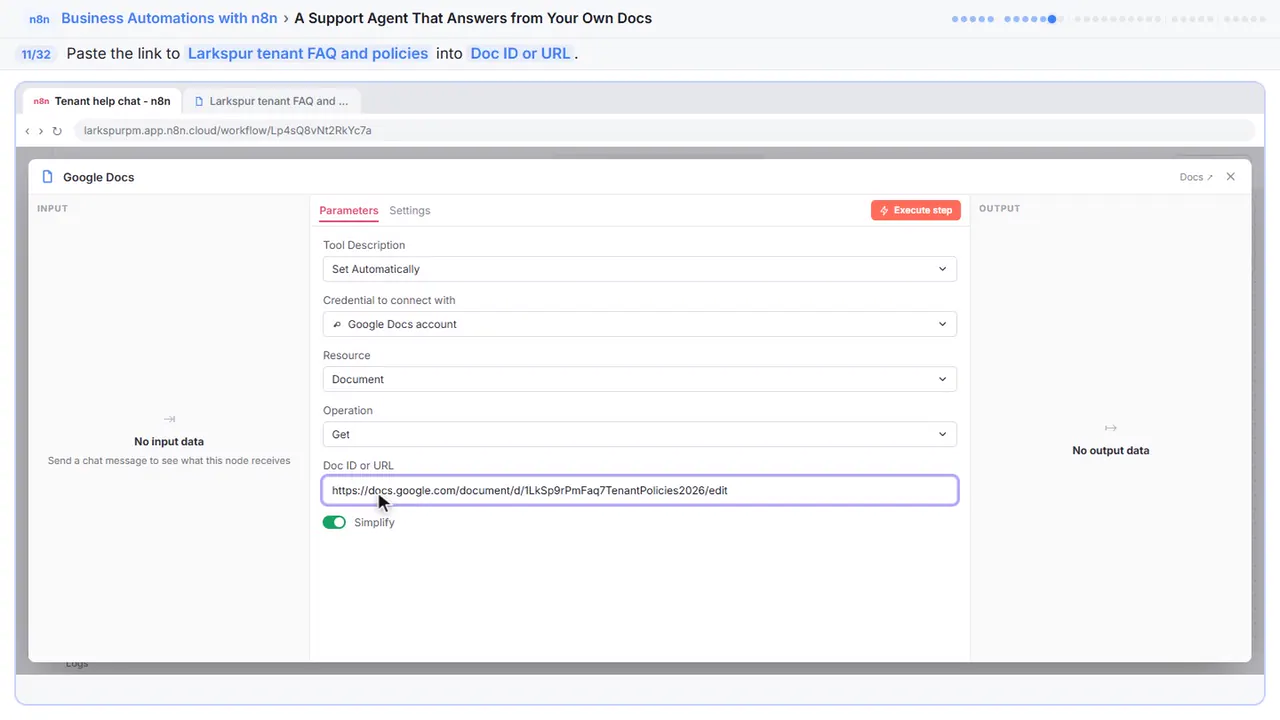
Keep it all in one Google Doc, and when a policy changes, change the doc. The agent reads the latest version every time.
Step 12: Close the node
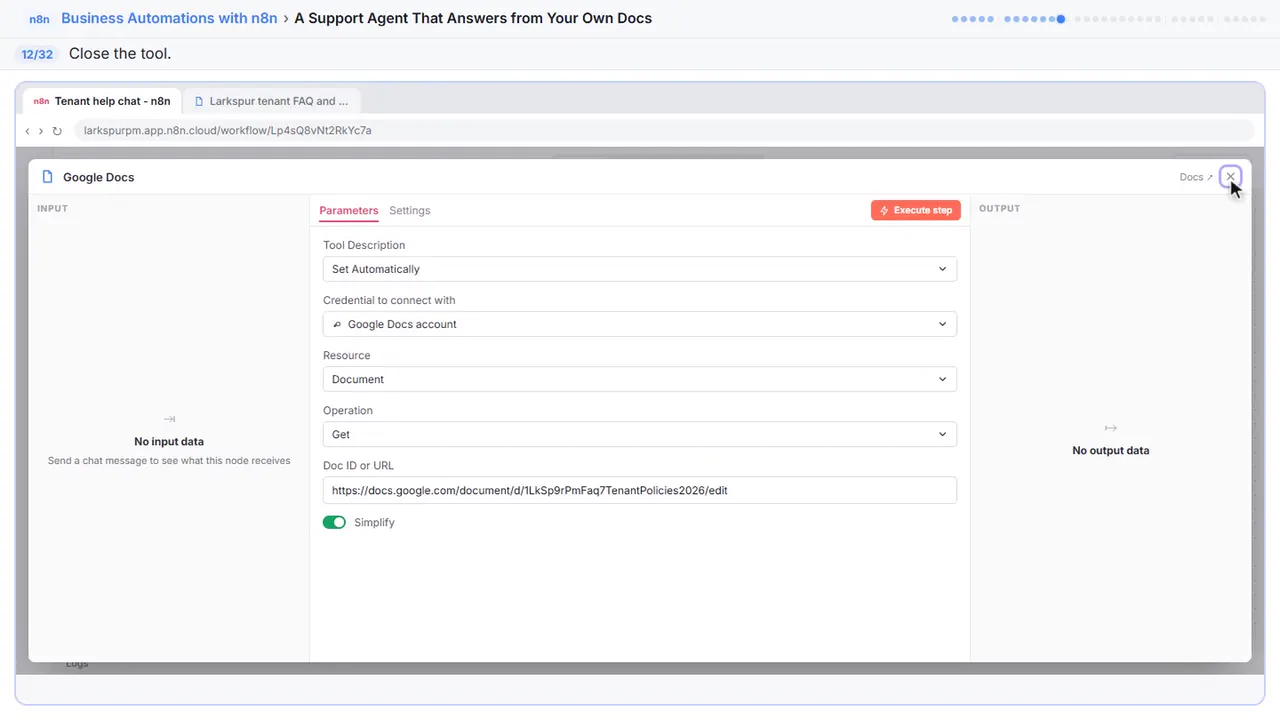
Close it.
Part 3: Hand off to a person
Step 13: Add another tool
Next, the handoff.
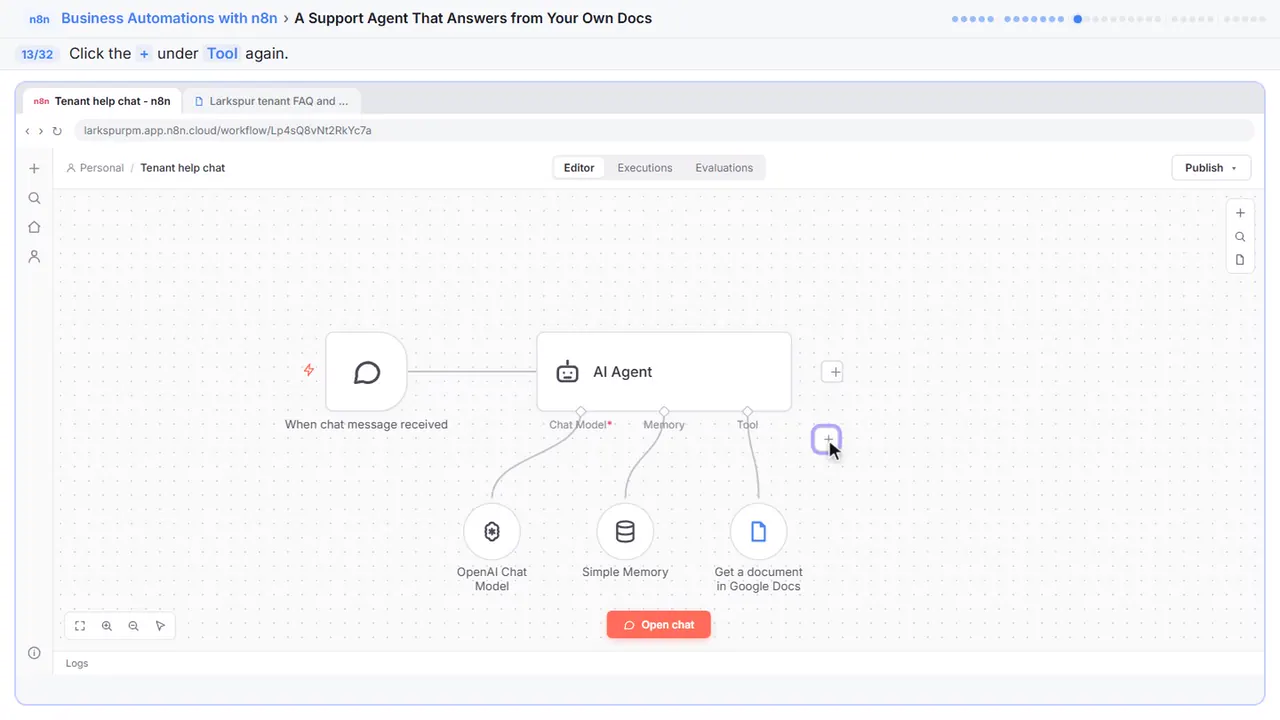
Step 14: Search for Gmail
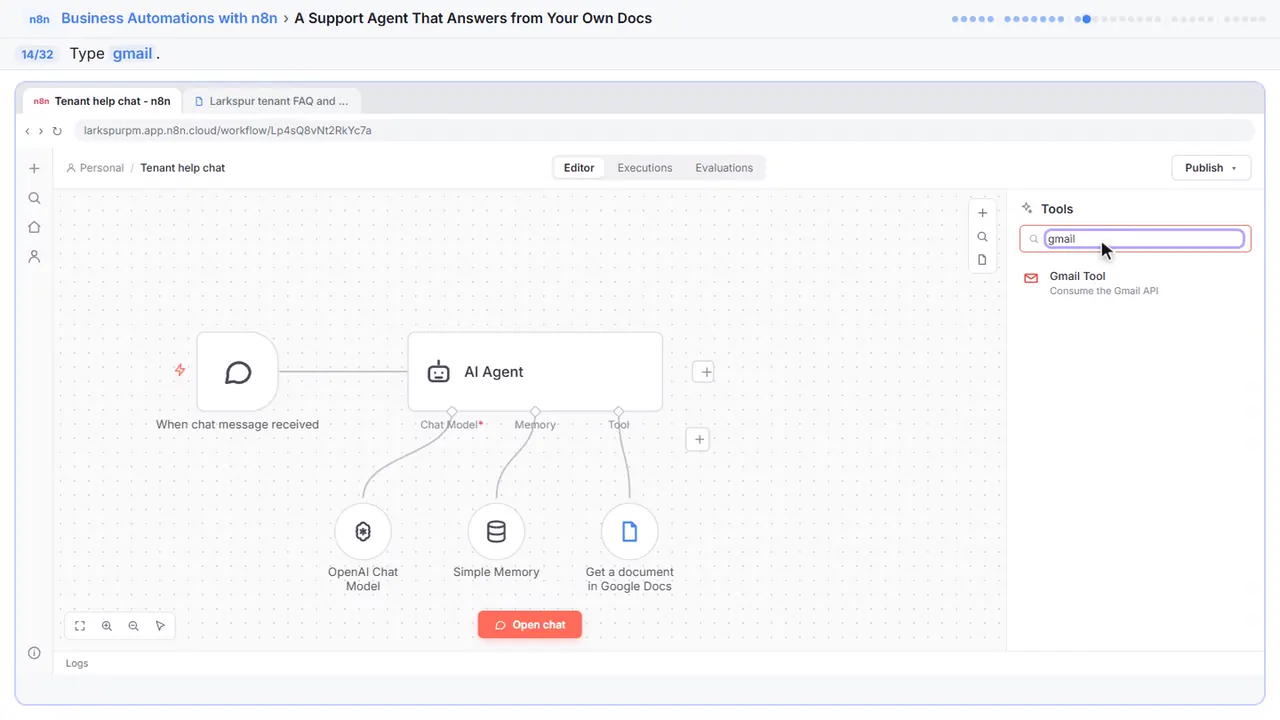
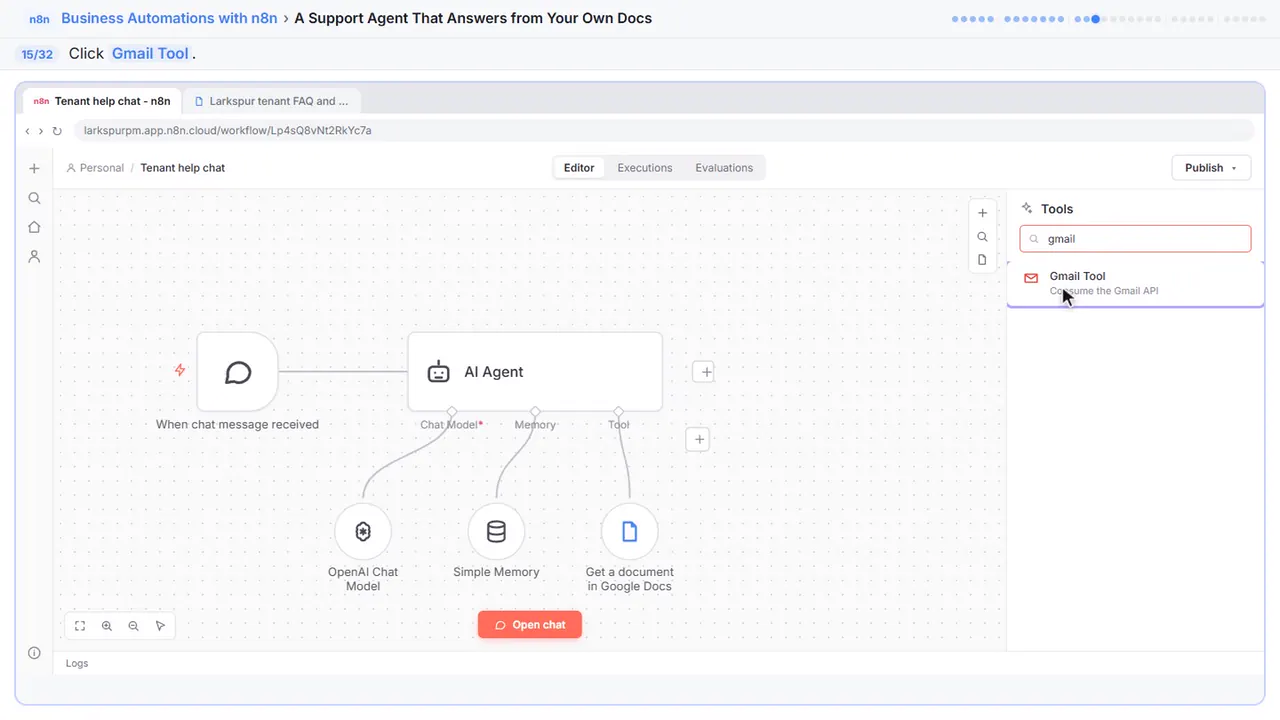
Step 15: Gmail Tool
Gmail Tool.
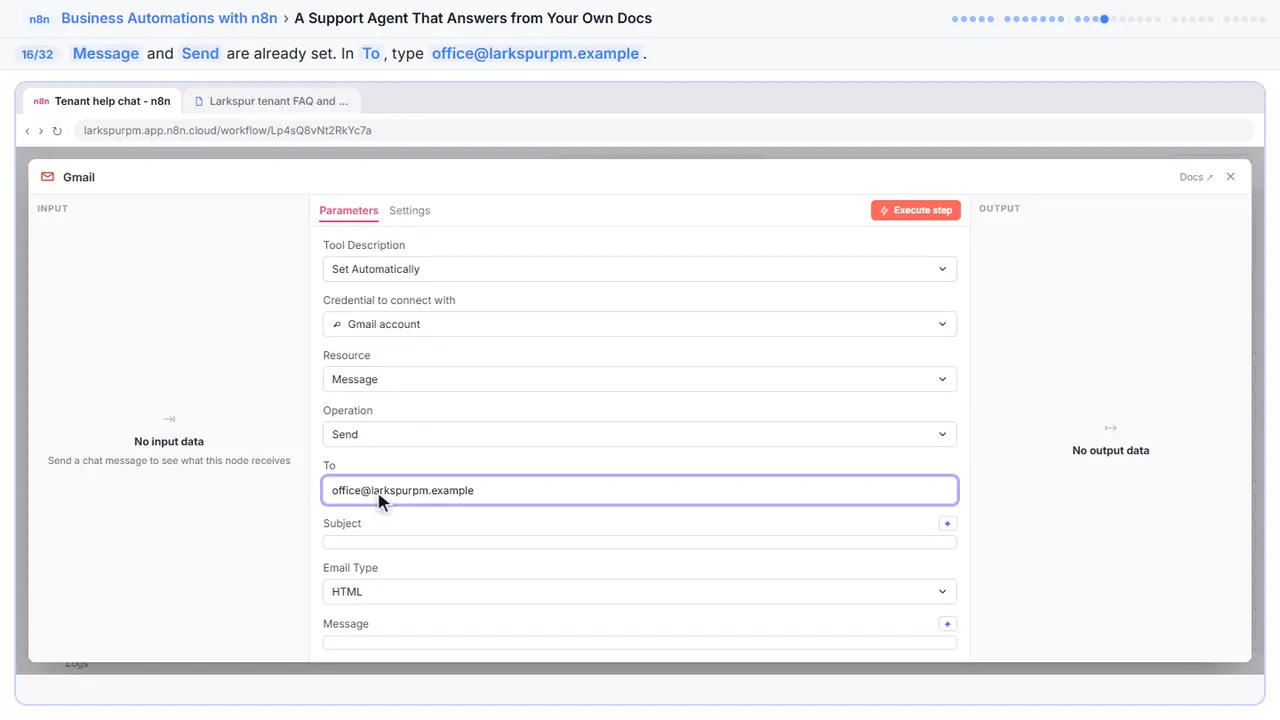
Step 16: Send it to the office
It's already set to send a message. In To, type the office address. This tool only ever emails your own staff, never the tenant.
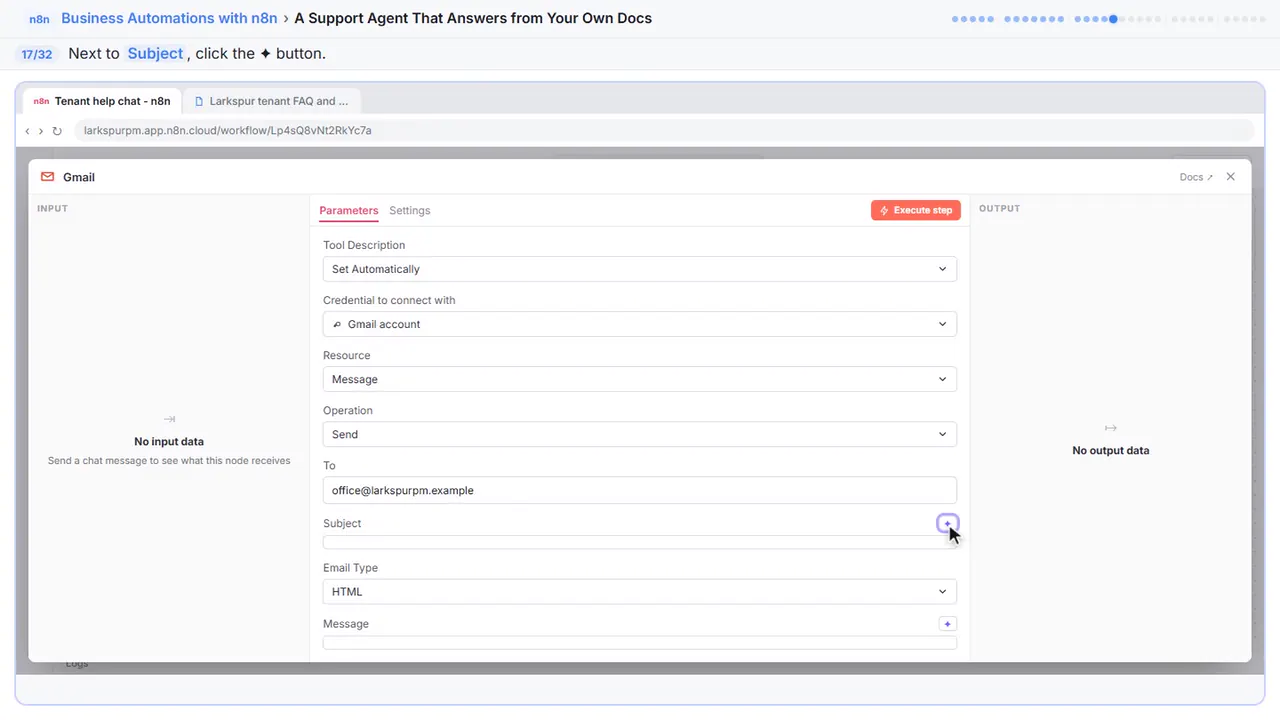
Step 17: Let the agent write the subject
The agent knows what the problem is, so let it write the subject.
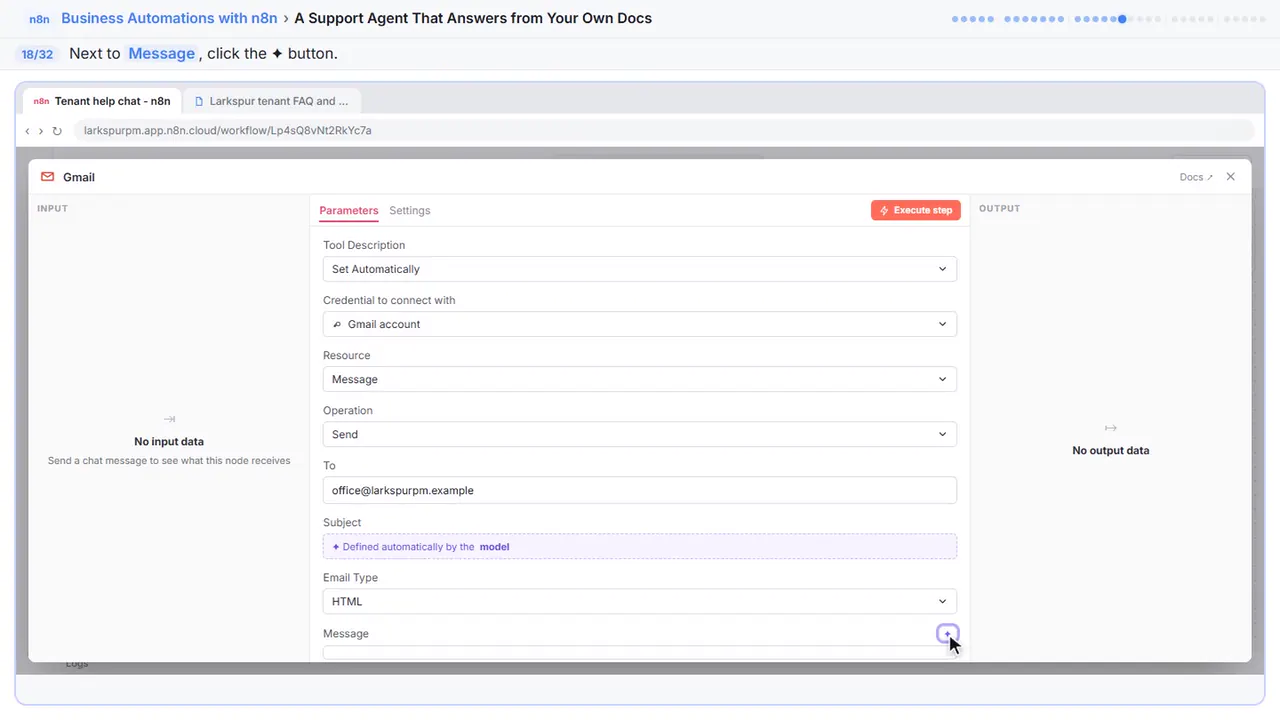
Step 18: And the message
And the sparkle next to Message. It'll include the tenant's name, unit, phone number and question.
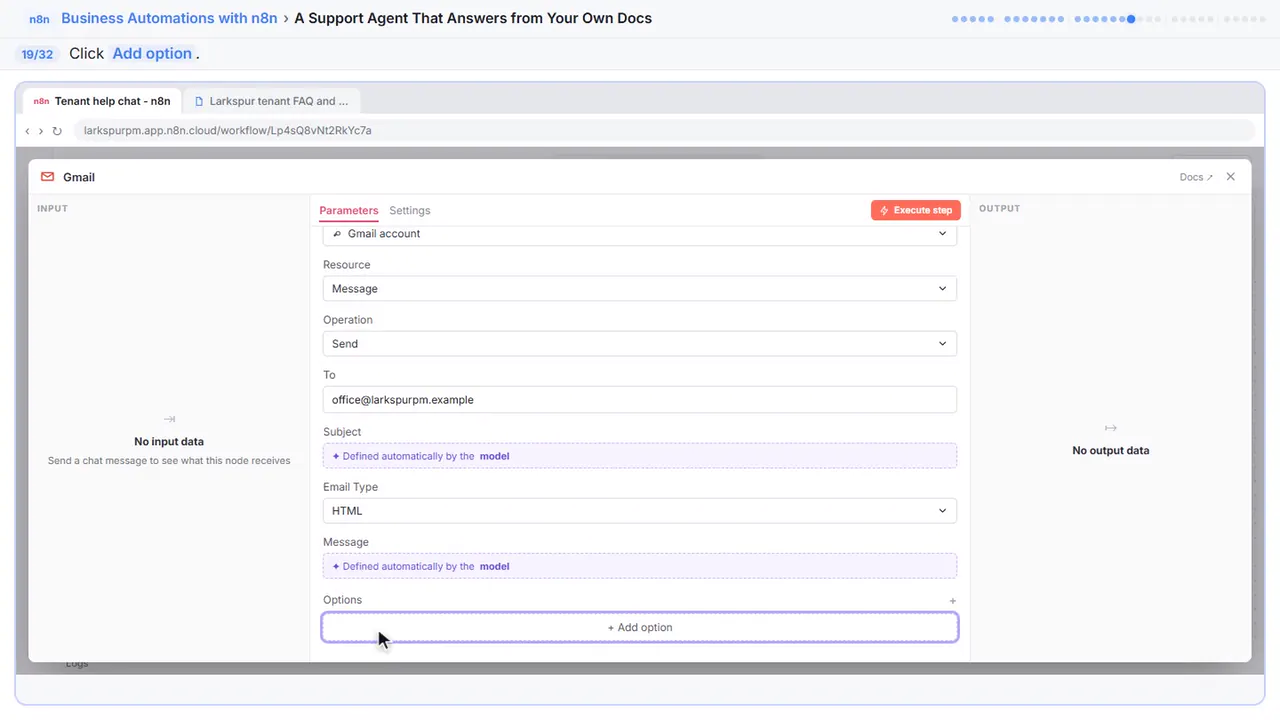
Step 19: Add option
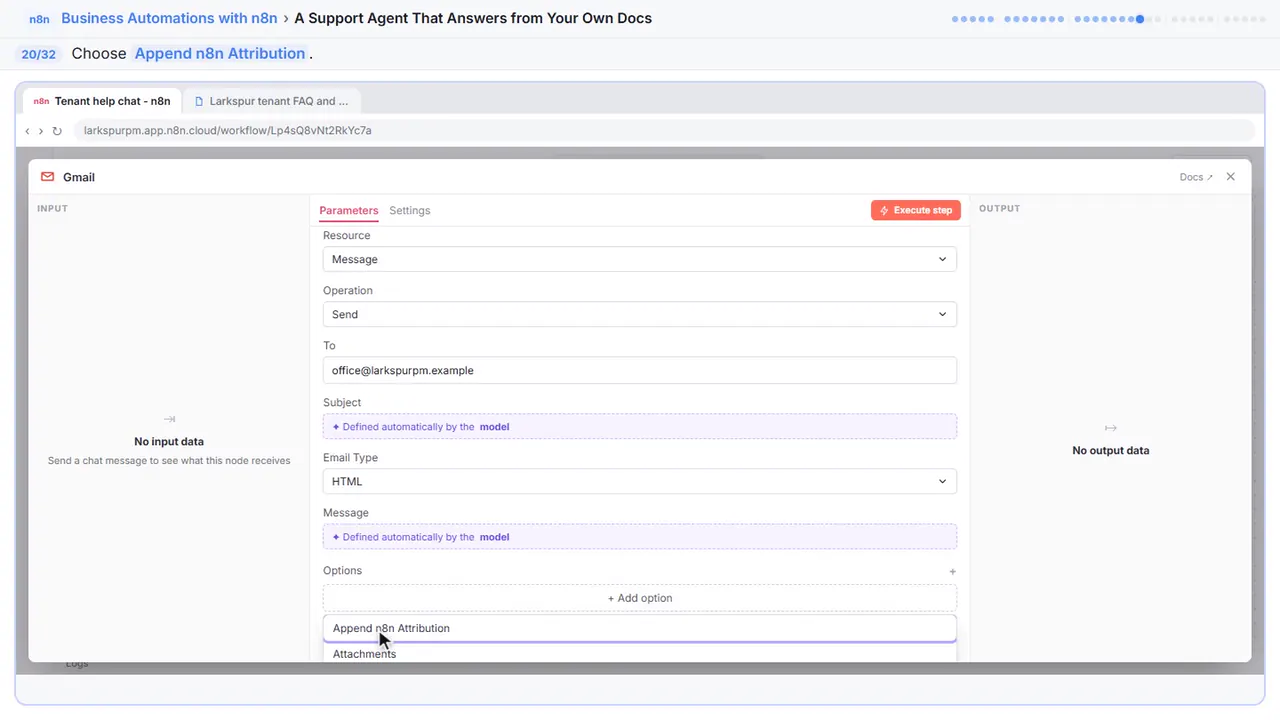
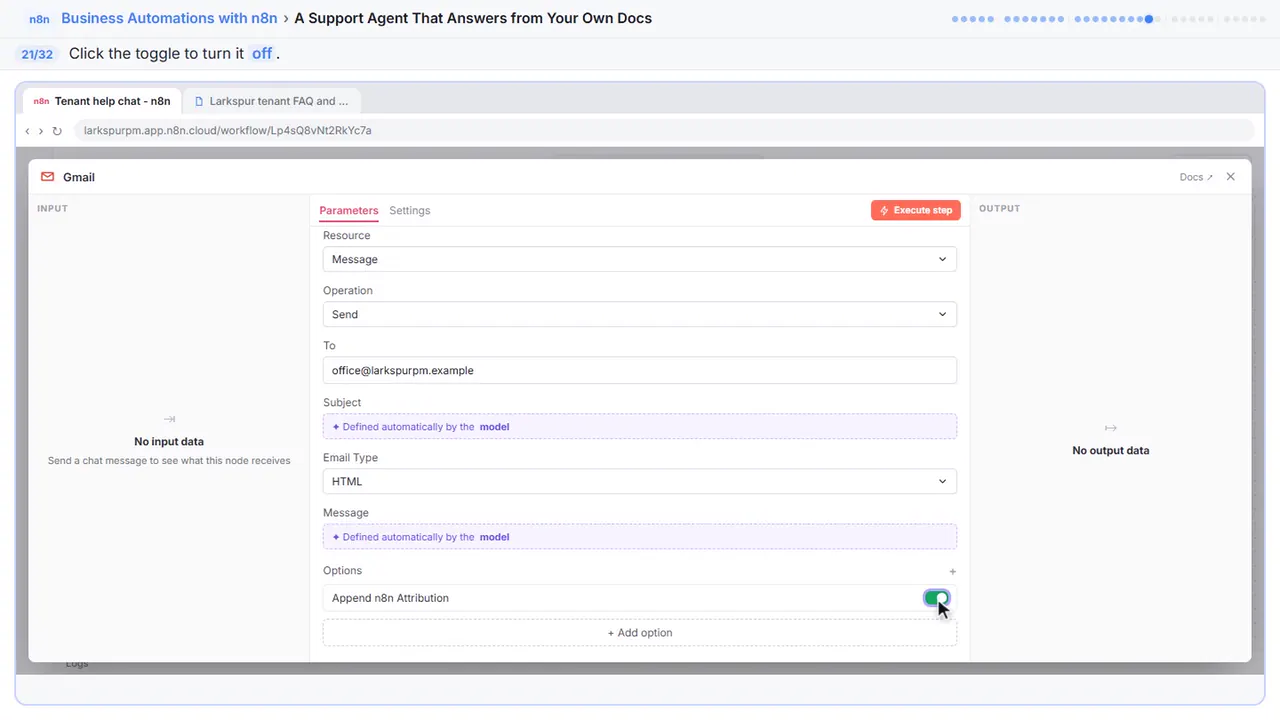
Step 20: Append n8n Attribution
Append n eight n Attribution.
Step 21: Turn it off
Turn it off. Your staff know where it came from.
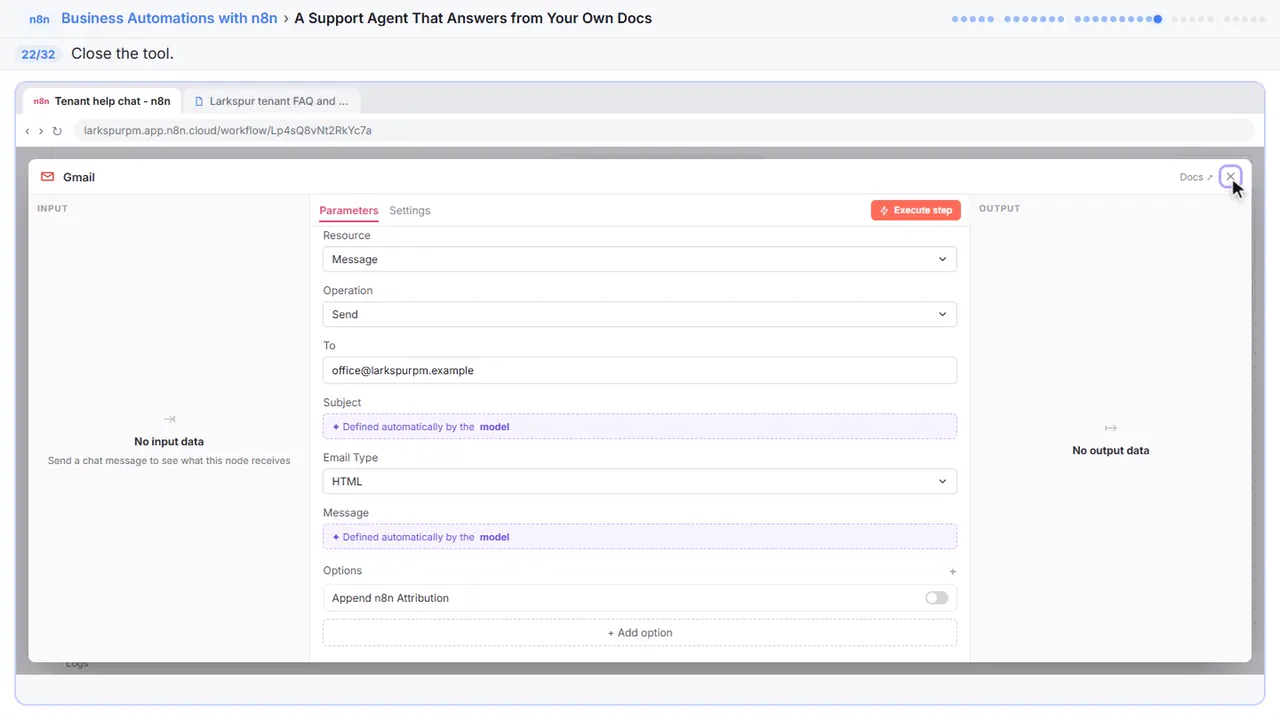
Step 22: Close the node
Close it.
Part 4: Test it
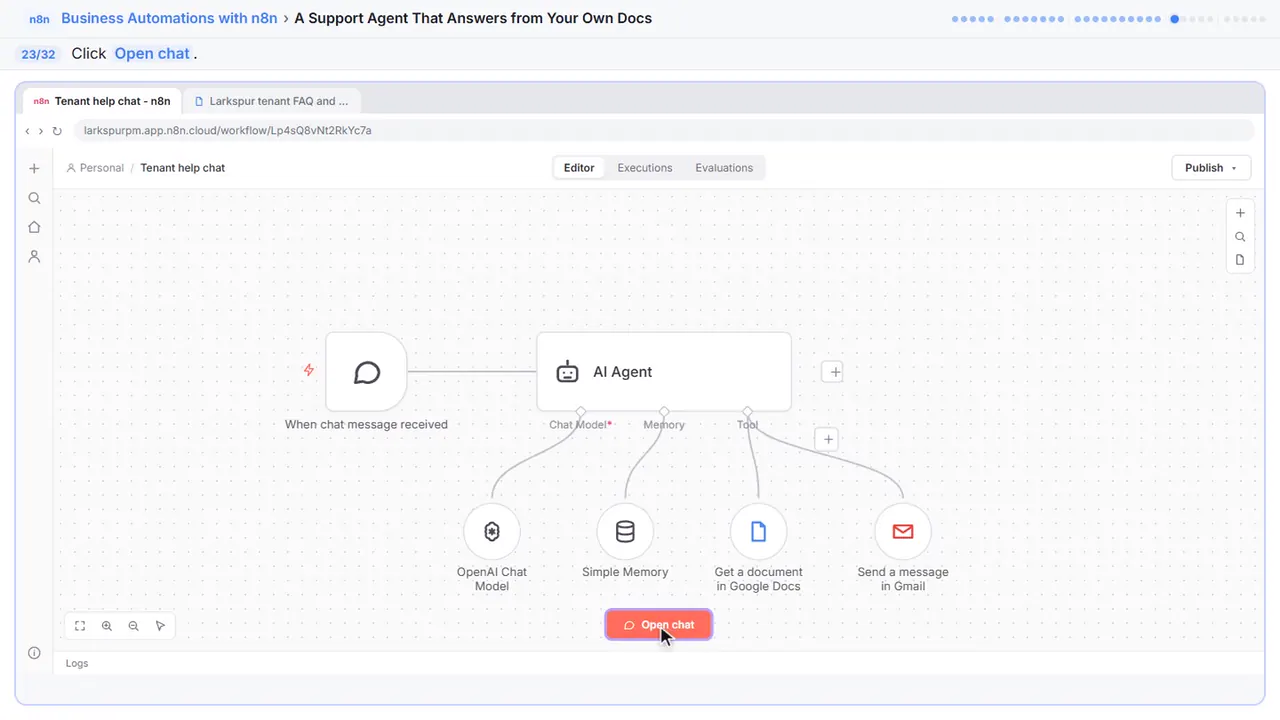
Step 23: Open the chat
Time to test it like a tenant.
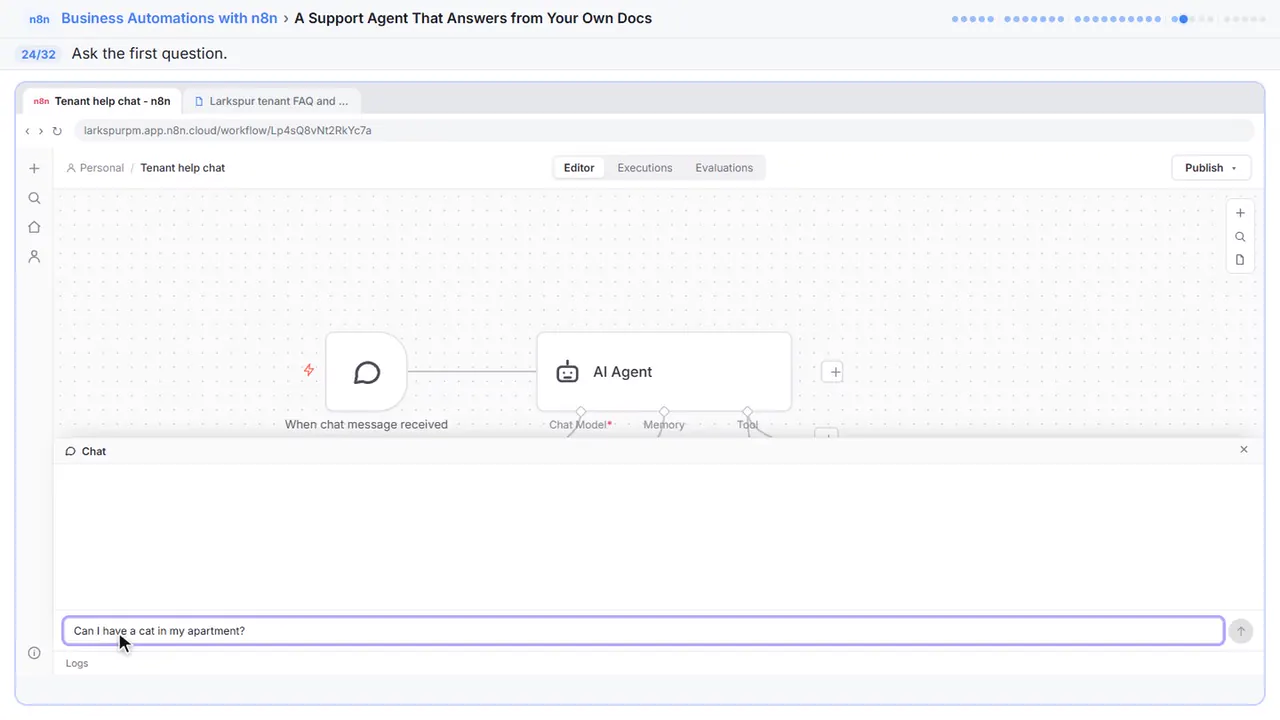
Step 24: Ask a policy question
First, a question the document answers. Ask about a cat.
Step 25: Ask something it must refuse
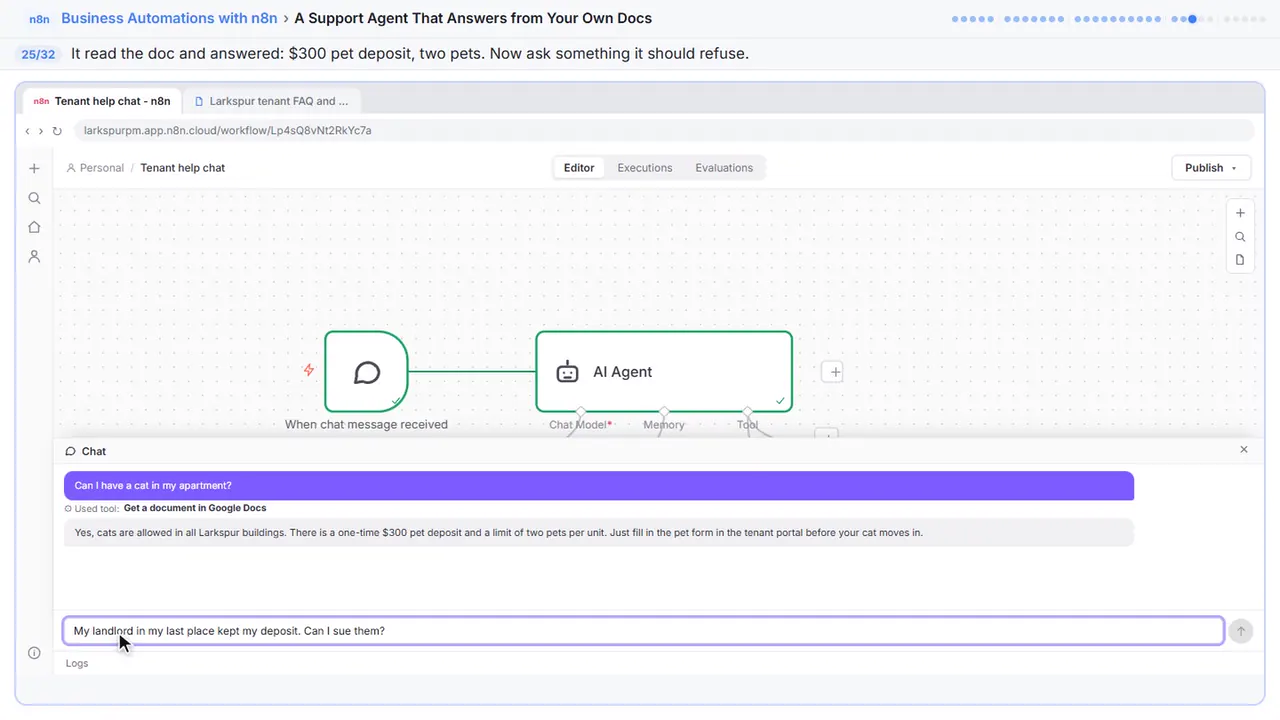
It read the document first, and answered from it: a three hundred dollar deposit, two pets per unit. Now the important test. Ask something it must not answer.
Step 26: Ask for a person
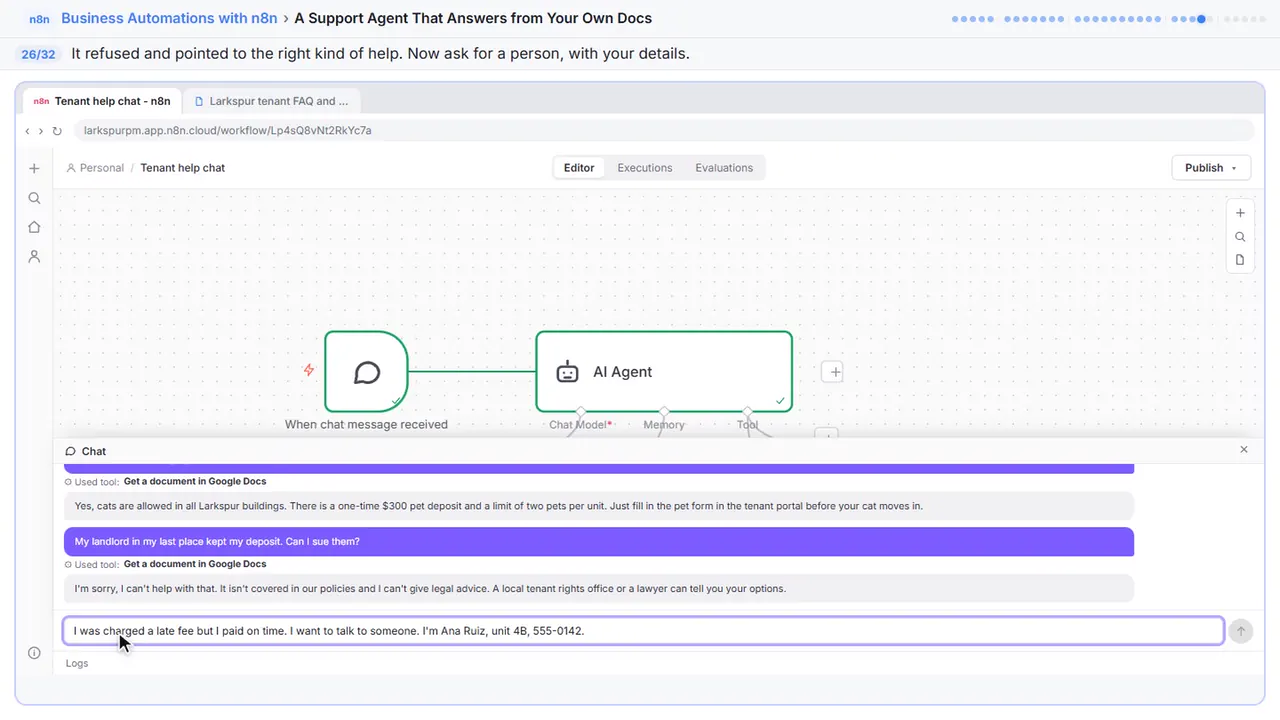
It said it can't help and didn't make anything up. Good. Last test: an upset tenant who wants a person.
Step 27: Close the chat
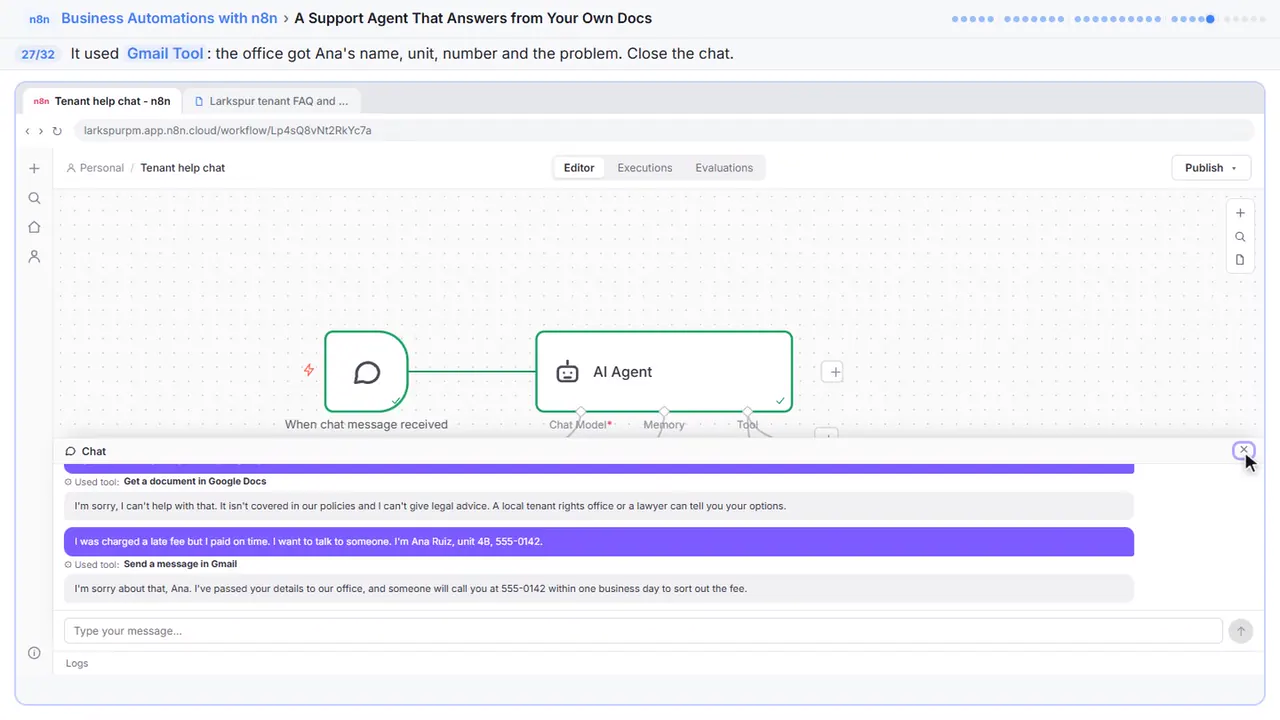
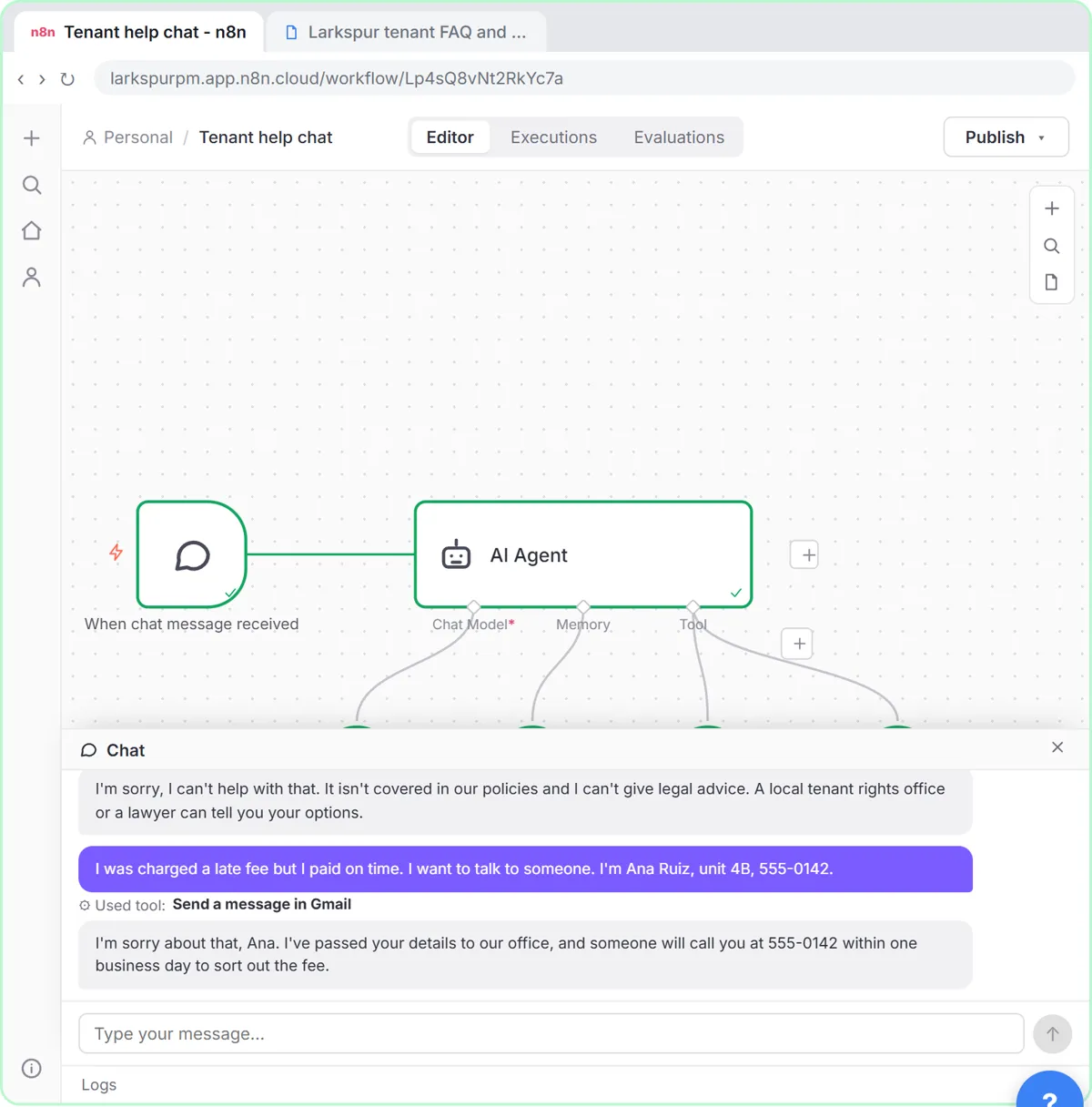
This time it used the Gmail tool. The office has Ana's name, unit, number and the problem, and Ana knows someone will call. Close the chat.
Part 5: Put it on your site
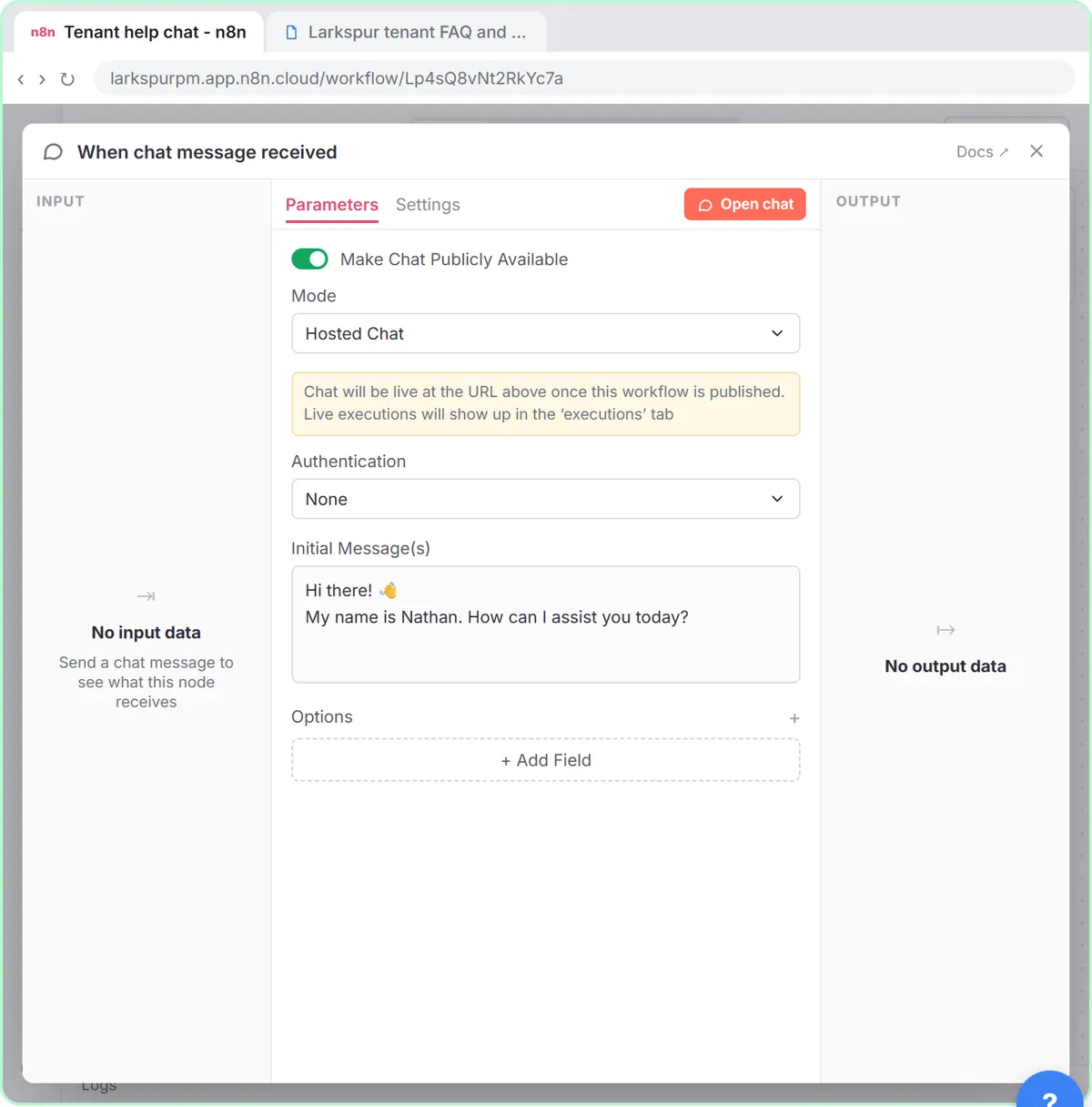
Step 28: Open the chat trigger
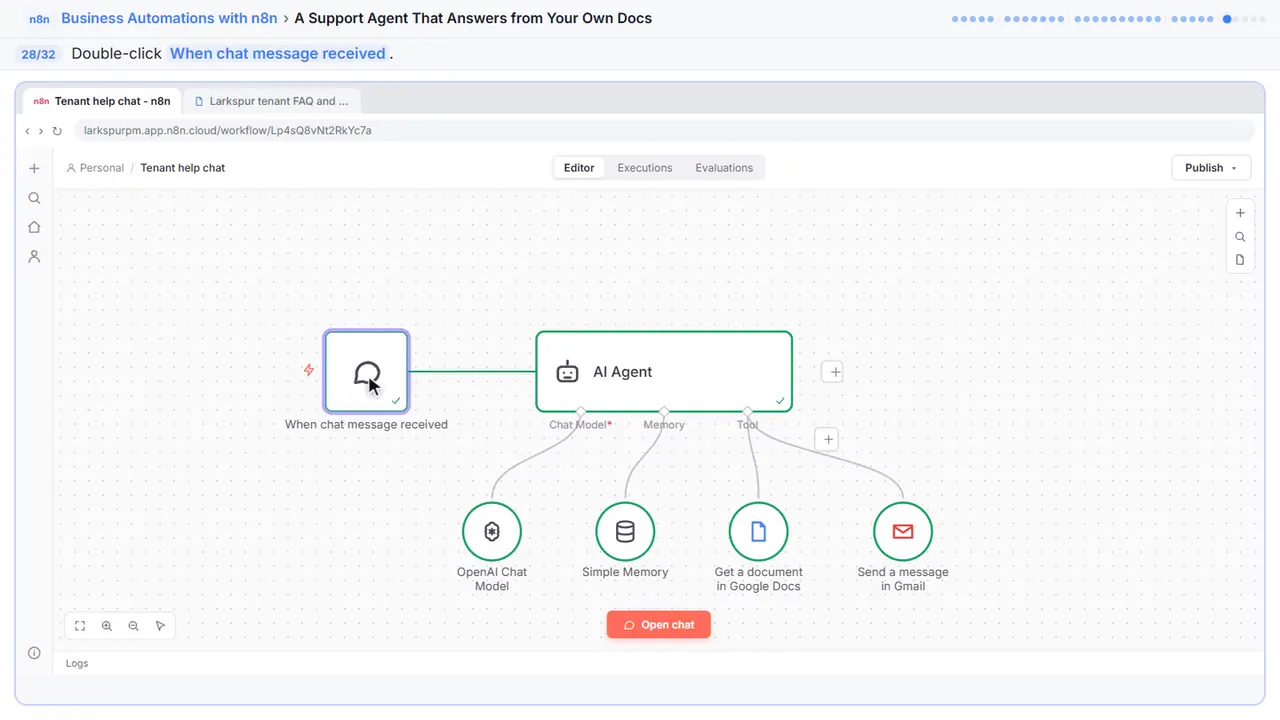
Now put it on your website. Double-click the chat trigger.
Step 29: Make it public
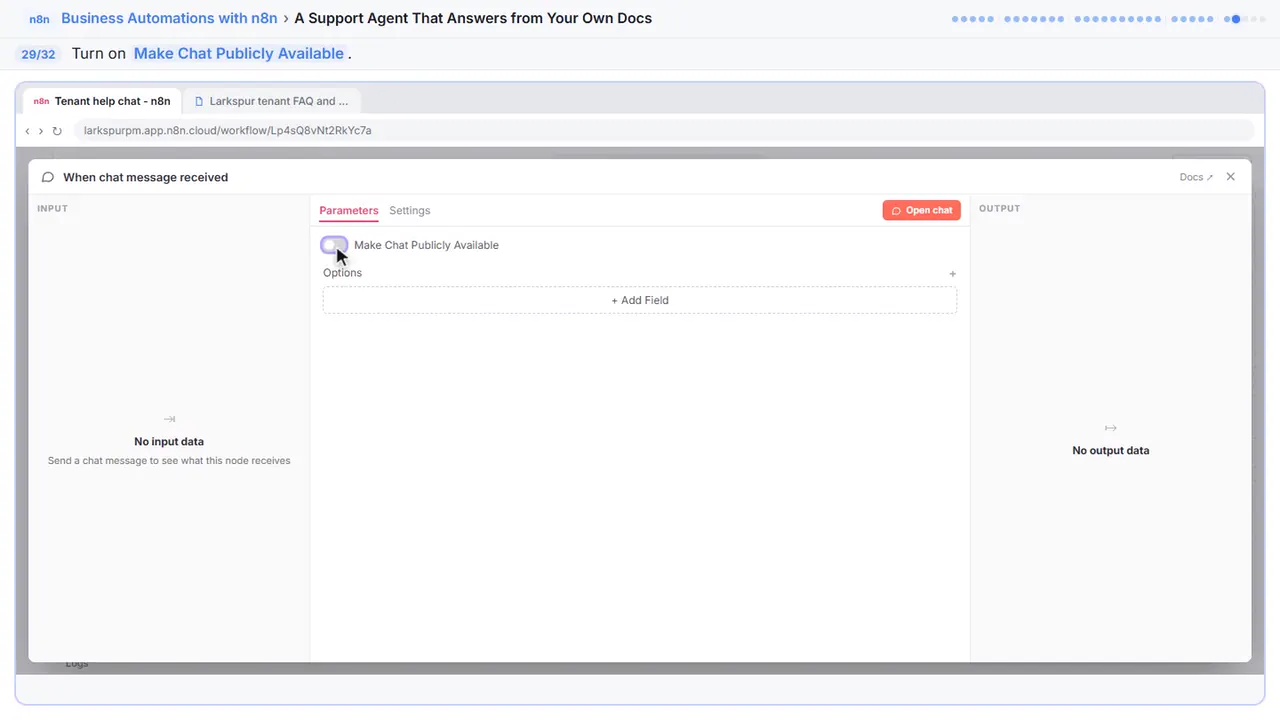
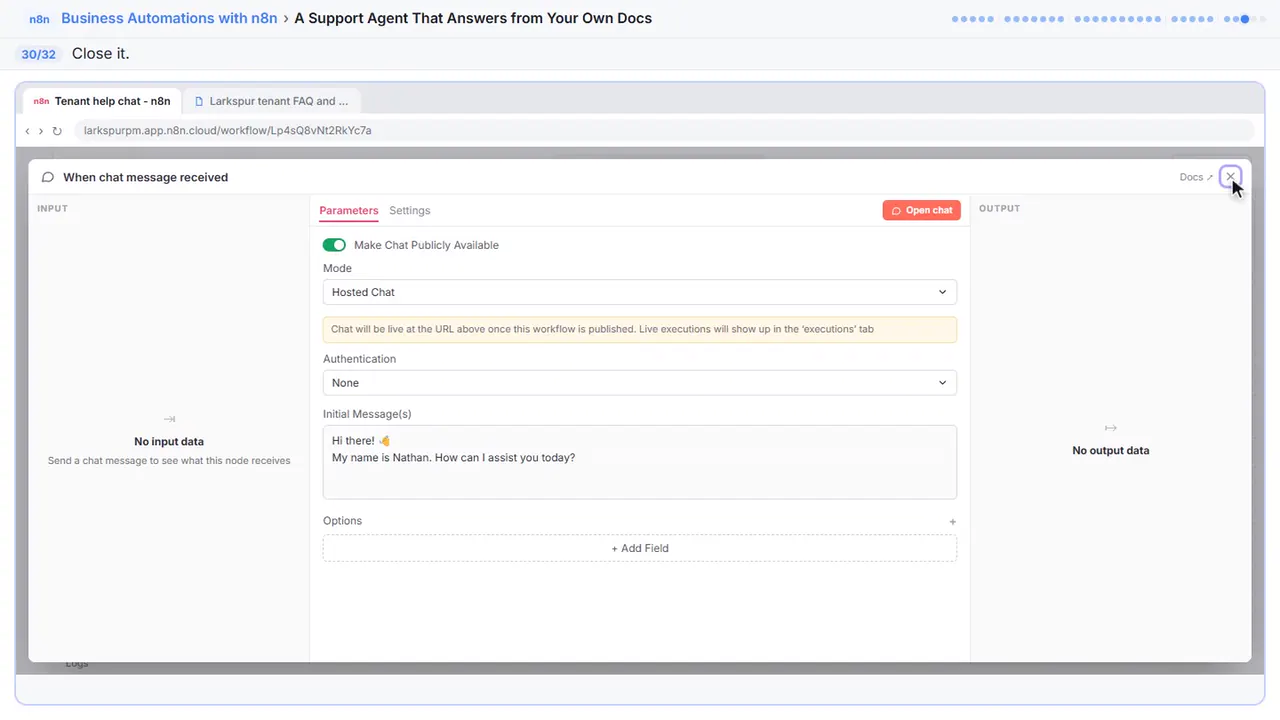
Turn on Make Chat Publicly Available. You get a chat page link, or choose Embedded Chat to put the chat bubble on your own site.
Step 30: Close the node
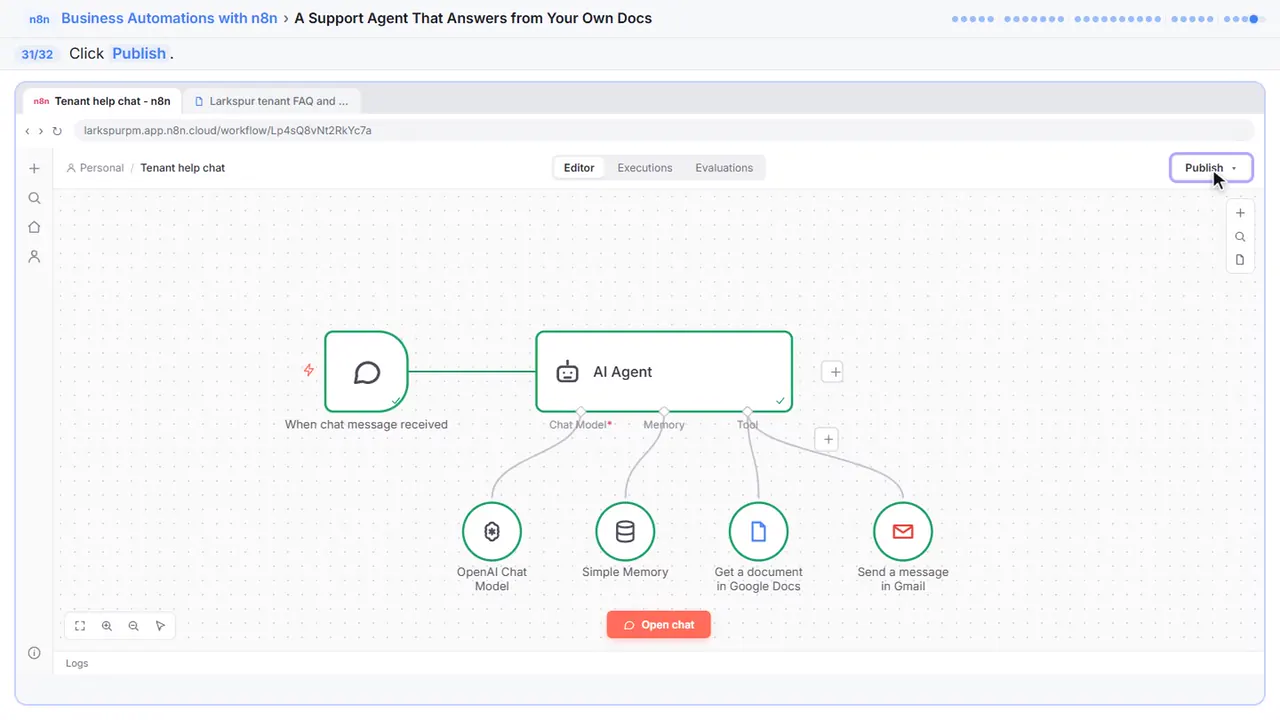
Step 31: Publish
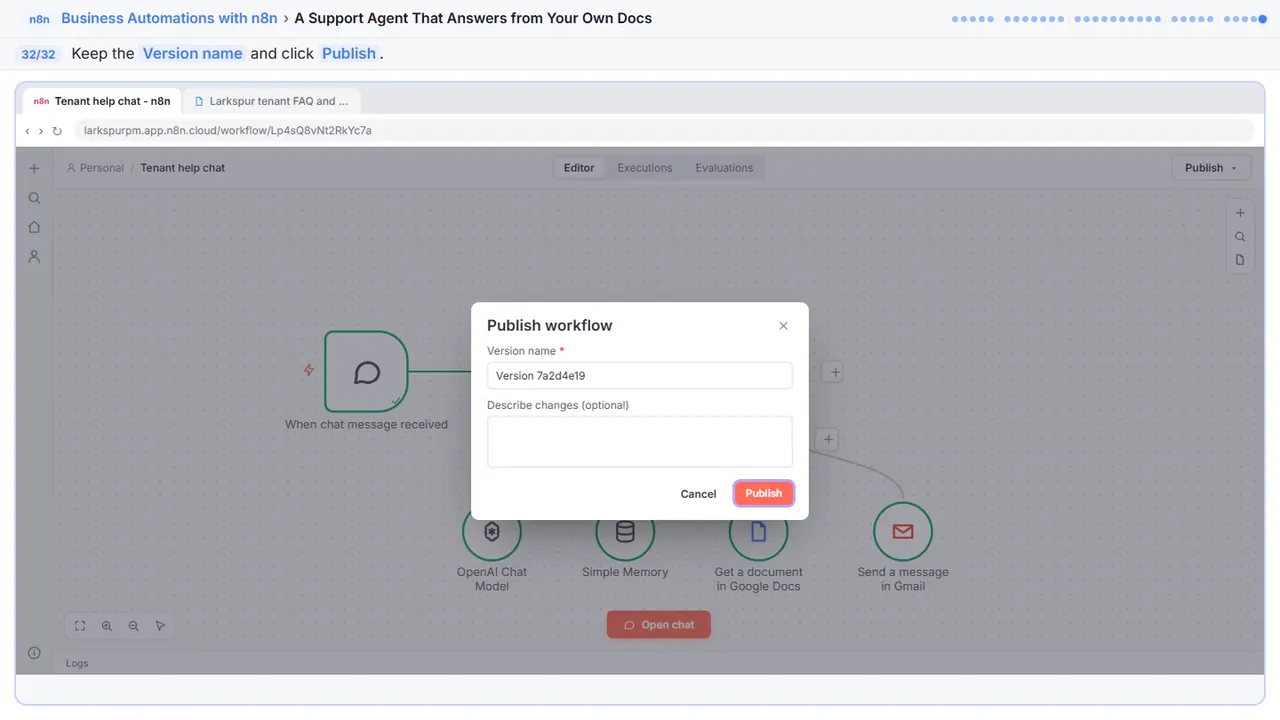
Step 32: Publish it
Keep the version name and click Publish. Read the chats and the handoff emails for the first week, and add anything people ask that the document doesn't cover yet.
Now do it yourself, free
Reading the steps is a start. Doing them is how it sticks. The interactive lesson puts you in a practice copy of n8n: you do every step yourself, it checks your work, and “Do it for me” finishes any step you get stuck on. Nothing touches your real accounts.
Practice “A Support Agent That Answers from Your Own Docs” step by stepA Support Agent That Answers from Your Own Docs: video walkthrough
The whole lesson in 2:23, narrated step by step.
Simulated practice environment. Recorded in Stepthrough’s simulated practice environment, not the live tool. Practice it yourself free at learn.ynteractive.com.
Chapters
Click a chapter to jump the video there.
Now do it yourself, free
Watching is the warm-up. The interactive lesson puts you in a practice copy of n8n: you do every step yourself, it checks your work, and “Do it for me” finishes any step you get stuck on. Nothing touches your real accounts.
Practice “A Support Agent That Answers from Your Own Docs” step by stepFull transcript
Set the rules
0:00 You run the office at Larkspur Property Management, and tenants ask the same questions all day. Pets, parking, rent due dates. Let's turn a basic chat agent into a support agent that answers only from your own policies, and passes anything else to a person. This is the agent from the first-agent module. Double-click the AI Agent.
0:17 Click Add Option.
0:18 System Message.
0:20 Paste this. The most important line: answer only from the policies document, and if the answer isn't there, say so. Then it lists when to hand off to a person, what to collect first, and what to say in an emergency.
0:31 Close it.
Read your docs
0:33 Now give it the document. Click the plus under Tool.
0:36 Type docs.
0:37 Google Docs Tool.
0:39 Your Google account is already connected. Careful: the operation says Create. We want the agent to read, not write. Open Operation.
0:47 Choose Get.
0:48 Paste the link to your FAQ and policies document. Keep it all in one Google Doc, and when a policy changes, change the doc. The agent reads the latest version every time.
0:57 Close it.
Hand off to a person
0:58 Next, the handoff. Click the plus under Tool again.
1:01 Type gmail.
1:02 Gmail Tool.
1:04 It's already set to send a message. In To, type the office address. This tool only ever emails your own staff, never the tenant.
1:11 The agent knows what the problem is, so let it write the subject. Click the sparkle next to Subject.
1:17 And the sparkle next to Message. It'll include the tenant's name, unit, phone number and question.
1:22 Click Add option.
1:24 Append n eight n Attribution.
1:26 Turn it off. Your staff know where it came from.
1:28 Close it.
Test it
1:29 Time to test it like a tenant. Click Open chat.
1:32 First, a question the document answers. Ask about a cat.
1:35 It read the document first, and answered from it: a three hundred dollar deposit, two pets per unit. Now the important test. Ask something it must not answer.
1:42 It said it can't help and didn't make anything up. Good. Last test: an upset tenant who wants a person.
1:49 This time it used the Gmail tool. The office has Ana's name, unit, number and the problem, and Ana knows someone will call. Close the chat.
Put it on your site
1:56 Now put it on your website. Double-click the chat trigger.
1:59 Turn on Make Chat Publicly Available. You get a chat page link, or choose Embedded Chat to put the chat bubble on your own site.
2:05 Close it.
2:06 Click Publish.
2:08 Keep the version name and click Publish. Read the chats and the handoff emails for the first week, and add anything people ask that the document doesn't cover yet.
2:16 Simple as that. We show you and you do it. Sign up below to learn AI automation for free.
What you will build
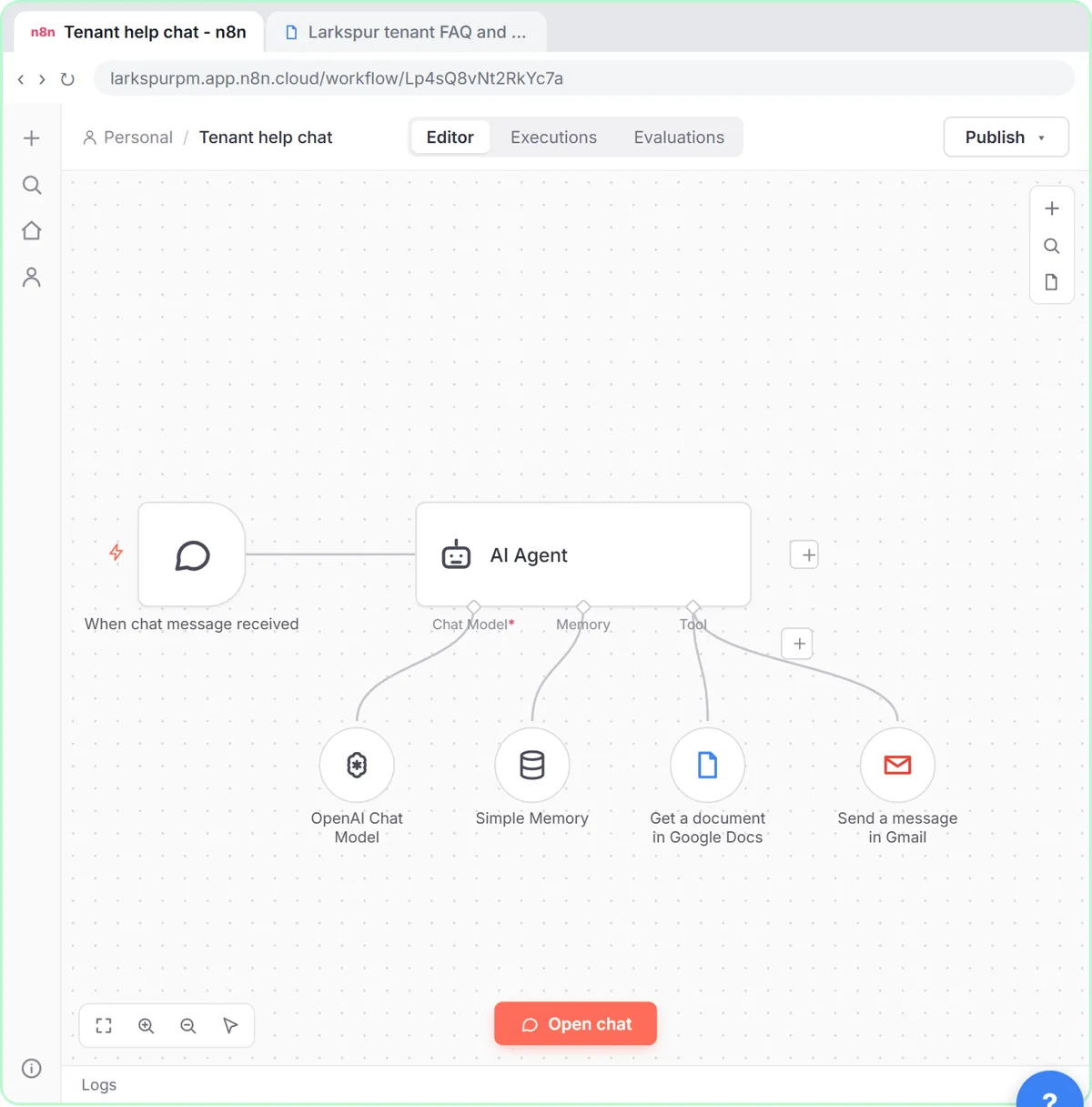
You run the office at Larkspur Property Management, a made-up company. You start from the agent built in the first-agent module: When chat message received, an AI Agent, an OpenAI Chat Model and Simple Memory. You give the agent a system message with its rules, add a Google Docs tool that reads the tenant FAQ and policies document, and add a Gmail tool that emails the office for a handoff.
Then you test it with three questions. A tenant asks whether cats are allowed, and the agent reads the document and answers: yes, a $300 pet deposit and two pets per unit. A tenant asks whether they can sue a former landlord, and the agent says it can't help and points to a tenant rights office or a lawyer. A tenant disputing a late fee asks for a person, and the agent emails the office with her name, unit, phone number and the problem, then tells her someone will call within one business day. Finally you make the chat public and publish it.
Why it doesn't make things up
Two things work together. The system message tells the agent to answer only from the policies document and to say it doesn't know otherwise. The Google Docs tool gives it that document every time, so the answer comes from your words, not from the model's general knowledge. Testing a question it must refuse is the part most people skip, and it's the one that tells you whether the rules hold.
Reading the whole document on each question is simple and works well for a few pages of FAQ and policies. For a long handbook, a vector store (often called RAG) finds just the relevant passages instead, which is faster and cheaper.
Gotchas worth knowing
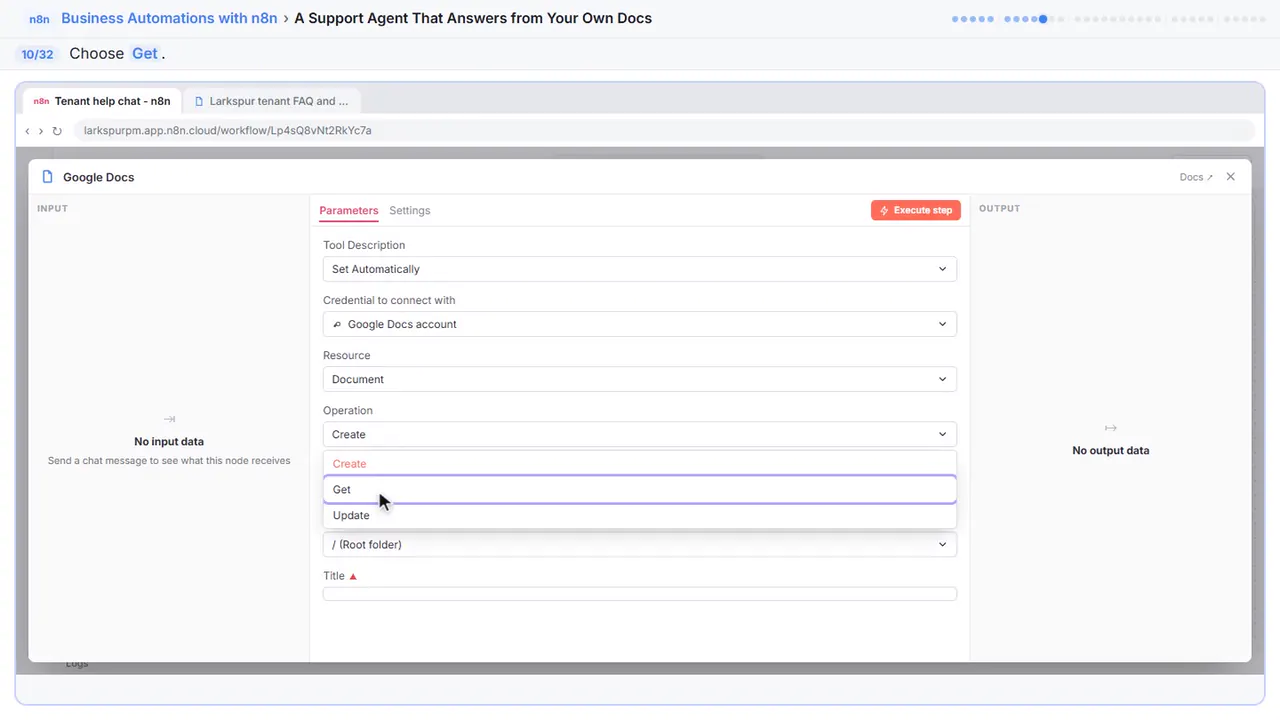
- The Google Docs tool's Operation defaults to Create. Switch it to Get, or the agent could make new documents instead of reading yours.
- Keep one document as the source of truth. When a policy changes, change the doc and the agent uses the new version on the next question.
- The handoff tool emails your own staff only, never the customer.
- Gmail adds a line saying the email was sent automatically with n8n unless you add Append n8n Attribution and turn it off.
- Test URLs and the editor chat only work while you're in n8n. After you publish, use the chat's public link or embed it.
What you need
- An n8n account: n8n Cloud from about €20 a month with a free trial, or the free self-hosted Community Edition.
- An OpenAI API key with a little credit.
- Google Docs and Gmail connected in n8n, and your FAQ and policies in one Google Doc.
Keep it honest
Tell visitors they're chatting with an AI assistant, and give emergencies a phone number, not a chat. Read the first week of chats and handoff emails, and add to the document whatever people asked that it couldn't answer. The agent shares only what's in your document, so don't put private or internal-only information in it.
Try it yourself, free
Reading the steps is a start. Doing them is how it sticks. The interactive module walks you through every click in a practice copy of n8n, checks each step, and never touches your real accounts.
Start “A Support Agent That Answers from Your Own Docs”Screenshots
Frequently asked questions
- How does the interactive lesson work?
- Each step is shown to you first on the left (Watch). Then you do it yourself in a practice copy on the right (Your turn), and every click is checked. If you get stuck, press Do it for me. It is a practice copy, so no real accounts are touched.
- Is this free?
- Stepthrough is completely free. Running the agent for real needs your own n8n account, an OpenAI API key with some credit, and Google Docs and Gmail.
- Is this RAG?
- It's the simplest version of the same idea: the agent retrieves your document before it answers. For a few pages that's all you need. For long documents, a vector store retrieves only the relevant parts.
- Can it hand off to Slack instead of email?
- Yes. Swap the Gmail Tool for the Slack tool and post to a channel your team watches.
- Can I put it on my website?
- Yes. In the chat trigger, turn on Make Chat Publicly Available. Hosted Chat gives you a link, and Embedded Chat lets you add the chat widget to your own site.
More in Business Automations
 AI Receipt Extractor: Receipts to Google Sheets with n8n
Drop a photo of a receipt into an n8n chat. An AI agent reads it, pulls out the date, vendor and amount, picks a category, and adds a row to Google Sheets.
Free · Live ~12 min
 AI Email Responder: Draft Gmail Replies Automatically with n8n
Build an n8n agent that watches your Gmail, reads each new customer email, and writes a reply as a draft in the same thread, ready for you to check and send.
Free · Live ~12 min
 Daily Job Alerts: Email Each Tech Their Jobs from Google Sheets with n8n
Every morning at 7, n8n reads a plumbing company's jobs sheet, skips anything not assigned yet, and emails each job to the tech it's assigned to — customer, address…
Free · Live ~10 min
All 5 modules in Business Automations
More n8n tutorials
 n8n AI Agent Tutorial: Save Social Media Ideas to Google Sheets
Build an AI agent for BrightPath Marketing that generates social media post ideas and saves them to Google Sheets — chat trigger, AI Agent, system prompt, model…
Free · Live ~12 min
 Lovable + n8n: Build a Web App with an AI Backend
Build a contact form in Lovable and connect it to an n8n workflow — webhook trigger, AI Agent, Google Sheets, Gmail, and a Respond node that ties it all together.
Free · Live ~15 min
 Build an AI Follow-Up Agent for HVAC Service Calls
Build an AI agent for Cedar Ridge Heating & Air that writes follow-up messages for completed service calls and saves them to Google Sheets — chat trigger, AI Agent…
Free · Live ~12 min
 Build an AI Service Request Form for Your HVAC Company
Build a service request form in Lovable for Cedar Ridge Heating & Air and connect it to n8n — the AI agent sorts each job into repair, maintenance, install or…
Free · Live ~15 min
 Build an AI Job Follow-Up Agent for Electricians
Build an AI agent for Oak & Wire Electric that writes follow-up messages after completed jobs and tracks them in Google Sheets — chat trigger, AI Agent, system prompt…
Free · Live ~12 min
 Build an AI Quote Request Form for Electrical Contractors
Build a quote request form in Lovable and connect it to an n8n workflow — webhook trigger, an AI Agent that drafts an initial estimate note, Google Sheets, Gmail, and a…
Free · Live ~15 min
Terms in this lesson
Plain-English definitions, each with an example from a free lesson.