Updated . Built against the tool’s current screens and checked step by step. How we check this lesson
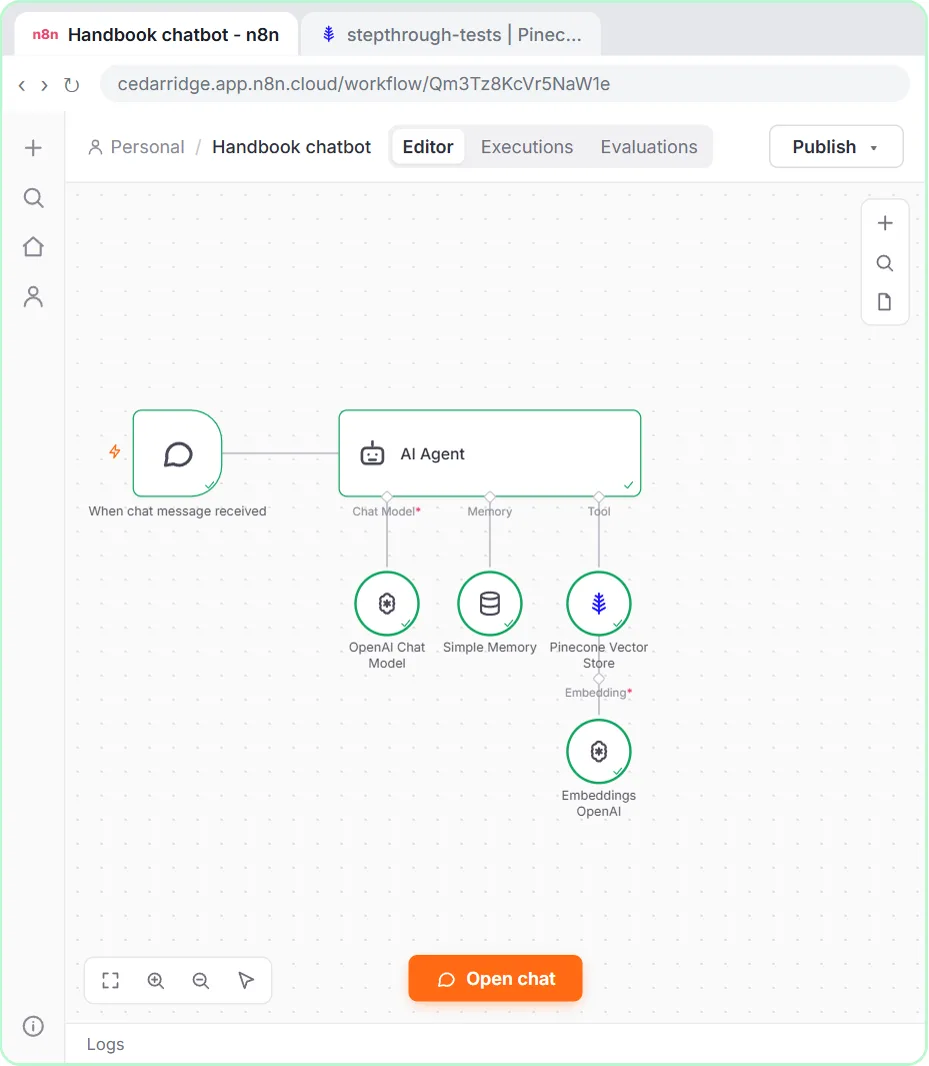
Every policy question that lands in Operations' inbox costs someone time, and a generic chatbot that guesses is worse than no answer. A chatbot that answers from your own documents fixes that, but only if people can trust it. In this free lesson you build one in n8n: a chat trigger, an AI Agent with an OpenAI Chat Model and Simple Memory, and your Pinecone index connected as a tool. The system message makes it cite the handbook page for every answer and say "I don't know" when the handbook doesn't cover a question. It is part 2 of the RAG series and uses the index loaded in part 1.
At a glance
| Question | Answer |
|---|---|
| What you build | Build an n8n chat agent that searches your handbook in Pinecone before every answer, cites the page it came from, and says "I don't know" instead of guessing. |
| Tools | n8n |
| Time | About 13 minutes, 31 steps in 4 parts |
| Level | Advanced |
| Cost | Free |
| Ways to learn it | Practice it step by step |
The 4 parts, in short
- Start the chatbot: Add the first step, On chat message, Close the node, Add the next step, and 6 more steps.
- Model and memory: Add a chat model, OpenAI Chat Model, Close the node, Add memory, and 2 more steps.
- Connect the handbook: Add a tool, Search for Pinecone, Pinecone Vector Store, Describe the tool, and 6 more steps.
- Test it: Open the chat, Ask about time off, Ask about expenses, Ask something the handbook doesn’t cover, and 1 more step.
Start here first: Make Your Handbook Searchable for an AI Helpdesk using Pinecone + n8n (module 1 of RAG: chat with your own docs)
In the course: Part 9 · n8n Automation Toolkit (Module 66 of the full course)
Part of: Business Automations with n8n (step 13 of 13)
Part of: Give AI Your Company Knowledge (step 11 of 11)
Part of: n8n Jump Start (step 14 of 14)
Part of: RAG: Chat with Your Own Docs (step 3 of 3)
What you will build
Cedar Ridge Partners, a made-up consulting firm, has its employee handbook in a Pinecone index from the previous lesson. Now you build the internal chatbot staff ask instead of emailing operations. A new n8n workflow starts with When chat message received, then an AI Agent with an OpenAI Chat Model on gpt-5-mini and Simple Memory, so follow-up questions make sense.
The Pinecone Vector Store node becomes the agent's tool, in Retrieve Documents (As Tool for AI Agent) mode, with a Description that tells the agent what the handbook covers, your index, Limit 4 and Include Metadata on. Underneath it, Embeddings OpenAI uses text-embedding-3-small, the same model the handbook was loaded with. Then you test it: two questions it answers with a page citation, and one it must refuse.
The two rules that make it trustworthy
Citations: every answer ends with its source, like (Source: Cedar Ridge employee handbook, page 6). The page comes from the chunk's metadata, which is why Include Metadata stays on, and the rule forbids citing a page the tool didn't return. A PDF gives each chunk a page number; a Word file gives only line ranges, so the prompt tells the bot to leave the page out rather than invent one. Anyone can check an answer in seconds.
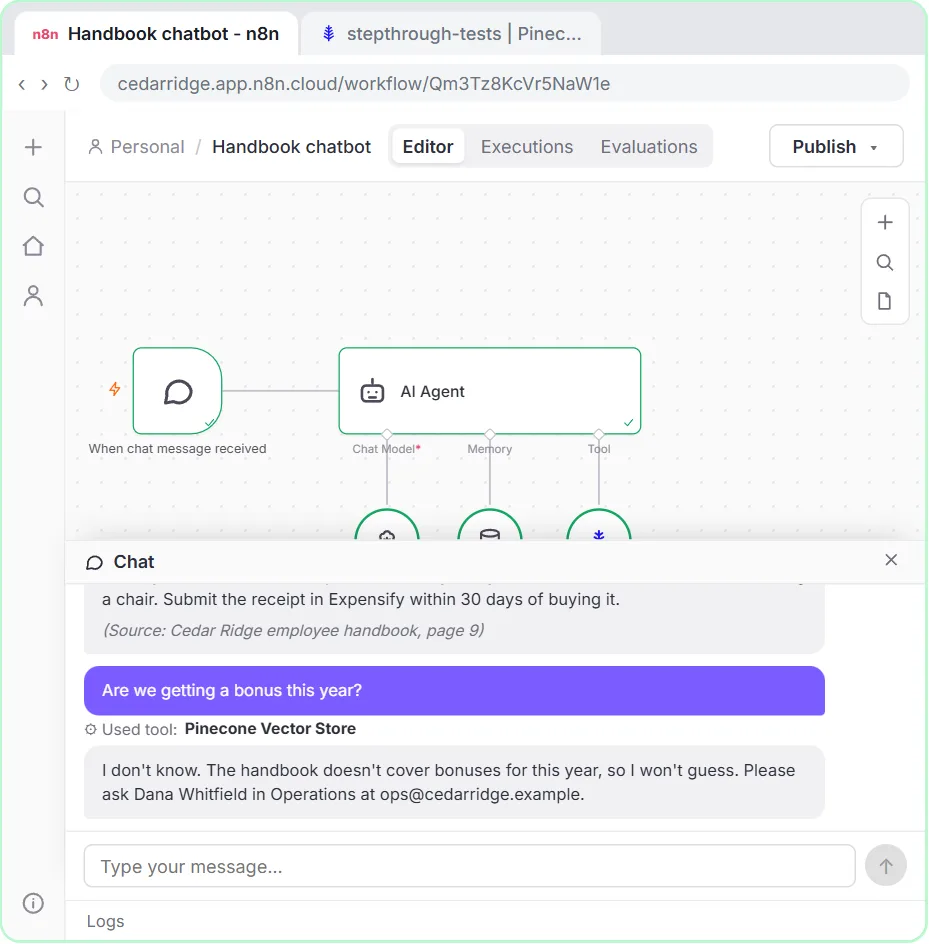
I don't know: if the search results don't answer the question, the agent says so and points to a person instead of guessing. Asked whether there is a bonus this year, it searches, finds nothing and says it doesn't know. Testing a question it must refuse is the step most people skip, and it is the one that tells you whether the rules hold.
Gotchas worth knowing
- The tool needs its own Embeddings OpenAI node, on the same model the documents were loaded with. A different model returns poor matches.
- The Description is what the agent reads to decide when to search. Say what the documents cover and tell it to use the tool before every answer.
- Limit is how many chunks come back per search. 4 is a good start; raise it if answers miss details spread across sections.
- Simple Memory keeps only the recent conversation. Each new chat session starts fresh.
- To share the chat, open When chat message received, turn on Make Chat Publicly Available and publish. Tell people it's an AI assistant.
What you need
- The Pinecone index from part 1, loaded with your document, and the Pinecone credential in n8n.
- An n8n account and an OpenAI API key with a little credit.
Links
- Pinecone (pinecone.io): the hosted vector database used in both lessons. The Starter plan is free.
- n8n Pinecone Vector Store node docs: every Operation Mode, including Insert Documents and Retrieve Documents (As Tool for AI Agent).
Try it yourself, free
Reading the steps is a start. Doing them is how it sticks. The interactive module walks you through every click in a practice copy of n8n, checks each step, and never touches your real accounts.
Start “Answer Staff Questions from Your Own Docs using n8n + Pinecone”Step by step: Answer Staff Questions from Your Own Docs using n8n + Pinecone
All 31 steps of the interactive module, in order. In the module you watch each one, then do it yourself in a practice copy that checks your work.
1. Start the chatbot
- Add the first step. This is a new, empty workflow called Handbook chatbot. Click Add first step.
In the last module you loaded the Cedar Ridge handbook into Pinecone. Now the payoff: a chatbot that answers staff questions from it, shows where each answer came from, and says I don't know when the handbook doesn't say.
- On chat message. Pick On chat message.
Pick On chat message. Every question someone types starts the workflow.
- Close the node. The defaults are fine. Close it.
The defaults are fine for testing. Close it.
- Add the next step. Click the + after When chat message received.
- Search for the agent. Type ai agent.
- AI Agent. Click AI Agent.
- Add an option. Source for Prompt is Connected Chat Trigger Node, so it reads the chat. Click Add Option.
It already reads the question from the chat. Now the rules.
- System Message. Choose System Message.
System Message.
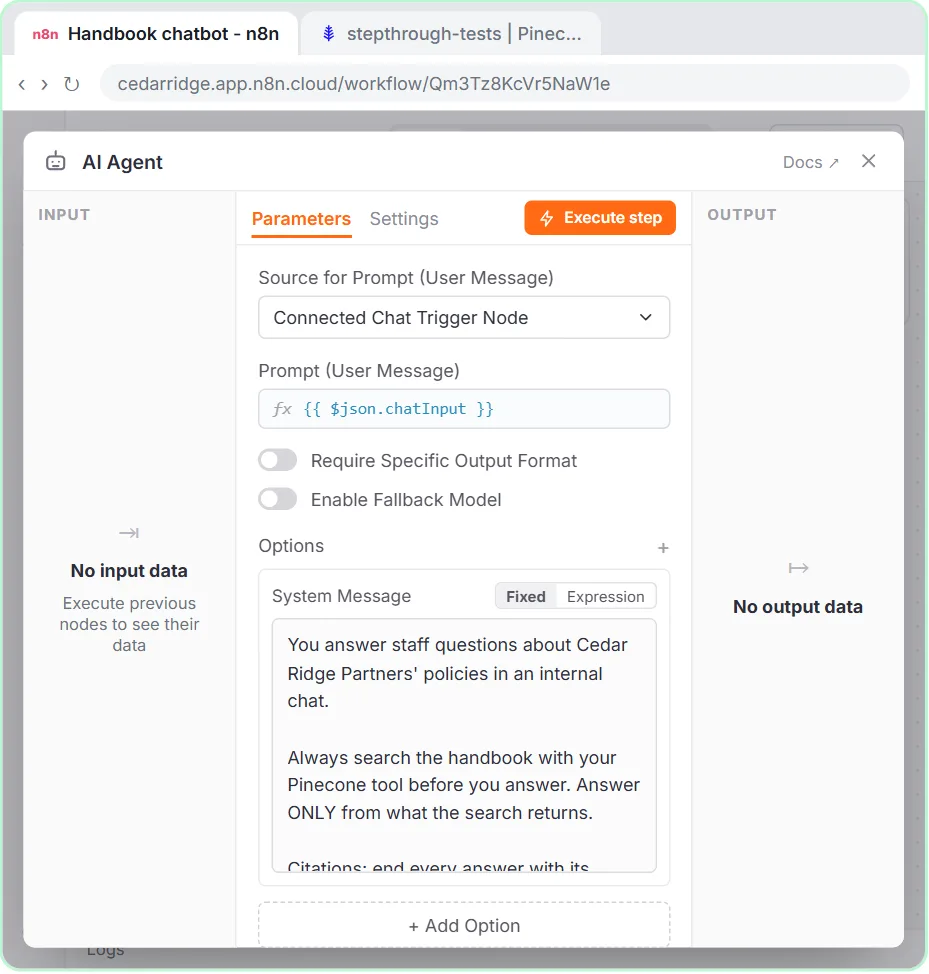
- Write the rules. Replace the default You are a helpful assistant with this system message: search the handbook first, cite the page, and say I don’t know when it isn’t there.
Three rules matter most. Search the handbook before every answer. End every answer with its source and page. And if the handbook doesn't say, answer I don't know, and point to a person. Never guess.
You answer staff questions about Cedar Ridge Partners' policies in an internal chat.

Always search the handbook with your Pinecone tool before you answer. Answer ONLY from what the search returns.

Citations: end every answer with its source, like (Source: Cedar Ridge employee handbook, page X). Take the page number from the search results. If a result has no page number, leave the page out. Never make up a page number.

If the search results don't answer the question, say "I don't know" and that the handbook doesn't cover it. Never guess. Then suggest they ask Dana Whitfield in Operations ([email protected]). An "I don't know" answer gets no source.

Keep answers to 2 to 4 sentences. No legal, tax or medical advice.
- Close the node. Close the agent.
Close it.
2. Model and memory
- Add a chat model. Click the + under Chat Model.
Now give it a model to think with.
- OpenAI Chat Model. Click OpenAI Chat Model.
OpenAI Chat Model.
- Close the node. Your OpenAI account credential is selected, so Model shows gpt-5-mini. Close it.
Your OpenAI account is connected, and the model is G P T five mini. Fast and cheap, and plenty for this. Close it.
- Add memory. Click the + under Memory.
Add memory, so a follow-up question makes sense.
- Simple Memory. Click Simple Memory. It keeps the last few messages in n8n.
Simple Memory. It keeps the last few messages inside n eight n.
- Close the node. Session ID comes from the chat trigger and Context Window Length is 5. Close it.
It takes the session from the chat trigger and remembers the last five exchanges. Close it.
3. Connect the handbook
- Add a tool. Click the + under Tool.
Now the important part. Give it the handbook.
- Search for Pinecone. Type pinecone.
- Pinecone Vector Store. Click Pinecone Vector Store.
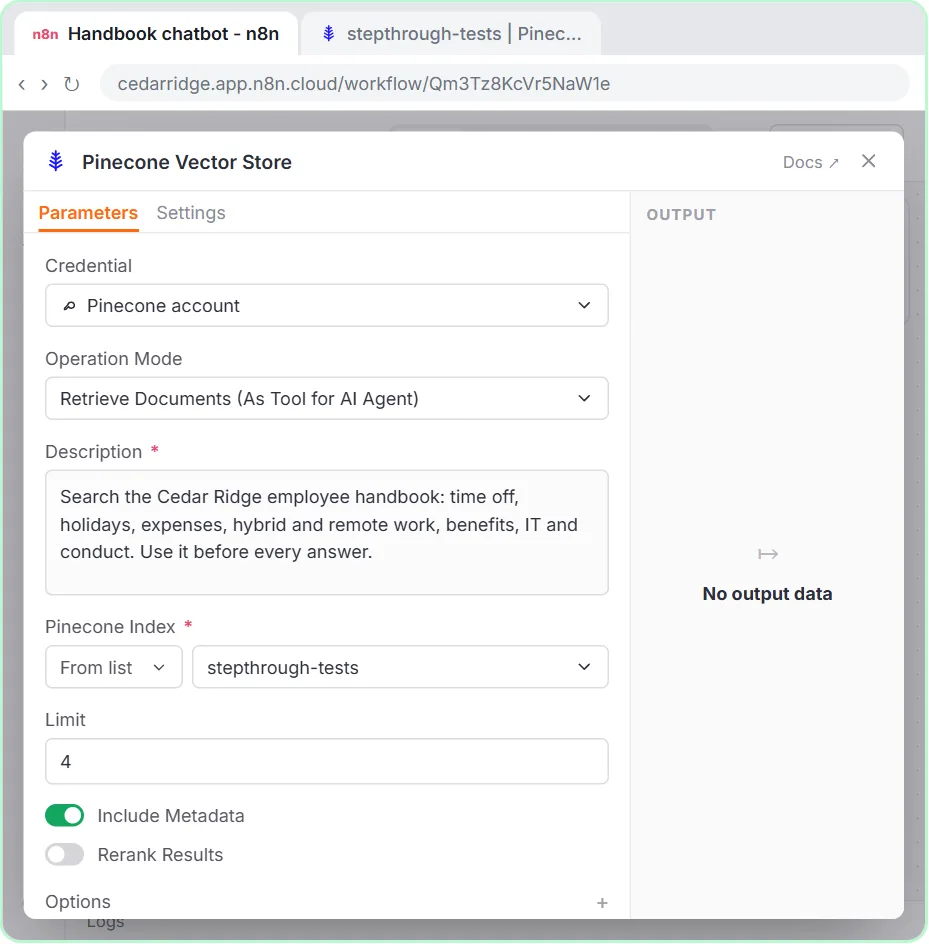
- Describe the tool. Operation Mode is already Retrieve Documents (As Tool for AI Agent). Paste a Description so the agent knows what it searches.
Operation Mode is already set to retrieve documents as a tool. Now the description. The agent reads it to decide when to search, so say what's in the handbook.
Search the Cedar Ridge employee handbook: time off, holidays, expenses, hybrid and remote work, benefits, IT and conduct. Use it before every answer.
- Pick the index. Your Pinecone account is connected. Open Pinecone Index.
Your Pinecone account is connected.
- The handbook index. Choose stepthrough-tests, the index you loaded in the last module.
- Close the node. Limit is 4: each search brings back the 4 closest chunks. Include Metadata is on, which carries the page number. Close it.
Limit is four. Each search brings back the four closest chunks. Include Metadata is on, and that carries the page number the citation needs. Close it.
- Add the embeddings. The tool needs embeddings too. Under Pinecone Vector Store, click the + under Embedding.
The question has to be turned into numbers too, so Pinecone can find the closest chunks.
- Embeddings OpenAI. Click Embeddings OpenAI.
Embeddings OpenAI.
- Close the node. text-embedding-3-small, the same model that loaded the handbook. Close it.
Text embedding three small. It must be the same model you loaded with, or the search finds nothing useful. Close it.
4. Test it
- Open the chat. Click Open chat.
Time to test it like a new hire.
- Ask about time off. Ask the first question.
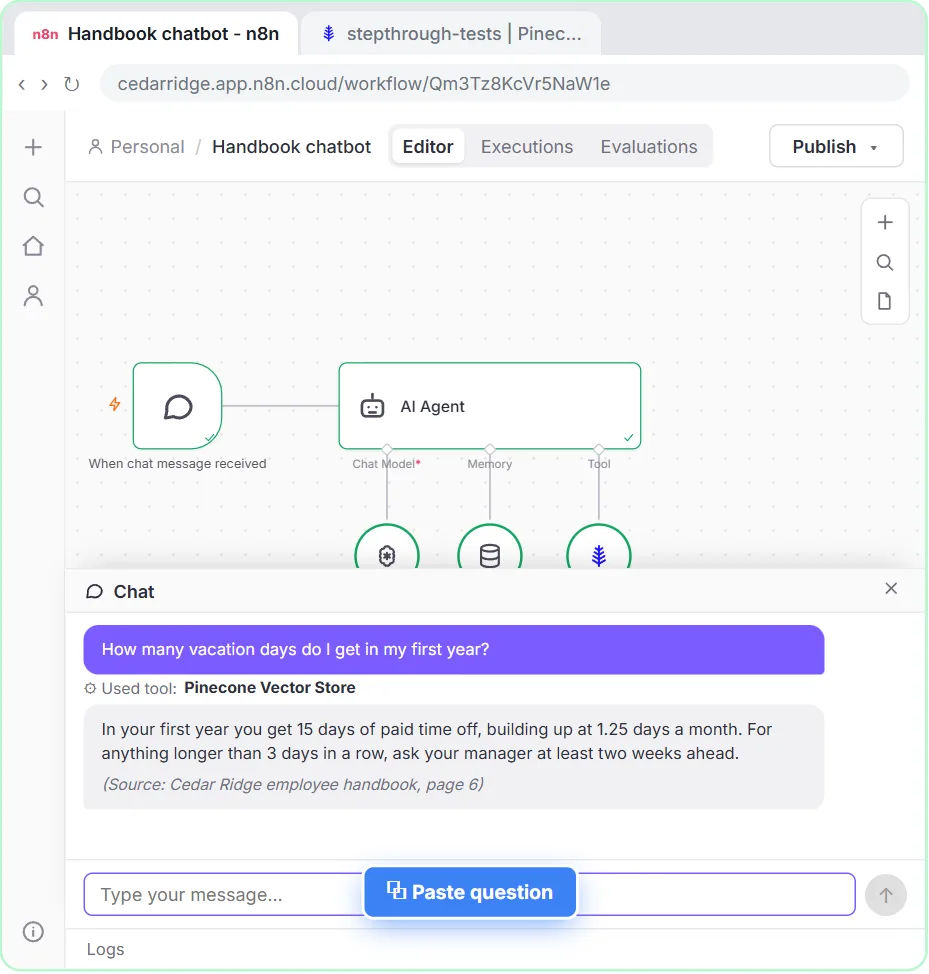
First, a question the handbook answers. Ask about vacation days.
- Ask about expenses. It searched Pinecone, answered from page 6 and cited it. Ask another.
It searched Pinecone first, answered from the handbook, and named the page. You can check it in ten seconds. Ask another.
- Ask something the handbook doesn’t cover. Page 9, with the $300 limit. Now the most important test: a question the handbook doesn’t answer.
Page nine, three hundred dollars. Now the test most people skip. Ask something the handbook doesn't cover.
- Close the chat. It searched, found nothing about bonuses, and said I don't know instead of guessing. Close the chat.
It searched, found nothing about bonuses, and said I don't know. No made-up answer. That's the rule doing its job. Close the chat.
Screenshots
Frequently asked questions
- How does the interactive lesson work?
- Each step is shown to you first on the left (Watch). Then you do it yourself in a practice copy on the right (Your turn), and every click is checked. If you get stuck, press Do it for me. It is a practice copy, so no real accounts are touched.
- Is this RAG?
- Yes. Retrieval-augmented generation means the AI retrieves relevant passages from your documents and then writes its answer from them. Here the retrieval is a Pinecone search and the generation is the AI Agent's reply.
- How do I make an n8n chatbot cite its sources?
- Keep Include Metadata on in the Pinecone Vector Store tool so each chunk carries its page number, and add a system message rule: end every answer with its source and page, and never cite a page the tool didn't return.
- How do I stop the chatbot from making things up?
- Tell it to answer only from what the search returns and to say "I don't know" otherwise, then test it with a question your documents don't cover. It reduces guessing a lot, but spot-check answers in the first weeks.
- Can I put the chatbot on our intranet or website?
- Yes. In the chat trigger, turn on Make Chat Publicly Available. Hosted Chat gives you a link, and Embedded Chat lets you add the chat widget to a page.
More n8n tutorials
 n8n AI Agent Tutorial: Save Social Media Ideas to Google Sheets
Build an AI agent for BrightPath Marketing that generates social media post ideas and saves them to Google Sheets — chat trigger, AI Agent, system prompt, model…
Free · Live ~12 min Intermediate
 Lovable + n8n: Build a Web App with an AI Backend
Build a contact form in Lovable and connect it to an n8n workflow — webhook trigger, AI Agent, Google Sheets, Gmail, and a Respond node that ties it all together.
Free · Live ~15 min Advanced
 AI Receipt Extractor: Receipts to Google Sheets with n8n
Drop a photo of a receipt into an n8n chat. An AI agent reads it, pulls out the date, vendor and amount, picks a category, and adds a row to Google Sheets.
Free · Live ~12 min Intermediate
 n8n AI Email Responder: Draft Gmail Replies Automatically
Build an n8n agent that watches your Gmail, reads each new customer email, and writes a reply as a draft in the same thread, ready for you to check and send.
Free · Live ~12 min Intermediate
 Daily Job Alerts: Email Each Tech Their Jobs from Google Sheets with n8n
Every morning at 7, n8n reads a plumbing company's jobs sheet, skips anything not assigned yet, and emails each job to the tech it's assigned to — customer, address…
Free · Live ~10 min Intermediate
 Gmail AI Triage: Auto-Label Every Email and Draft Replies
Build an n8n workflow that reads each new email, sorts it as a lead, a client or an invoice with a Text Classifier, adds the matching Gmail label, and drafts a reply to…
Free · Live ~18 min Advanced
Terms in this lesson
Plain-English definitions, each with an example from a free lesson.