Updated . Built against the tool’s current screens and checked step by step. How we check this lesson
Operations teams lose hours a week answering handbook questions that are already written down. An AI helpdesk can answer them, but first your documents have to be searchable by meaning. In this free lesson you create a Pinecone index on the free Starter plan, then build an n8n workflow that downloads an employee handbook from Google Drive, cuts it into chunks, turns each chunk into embeddings with OpenAI and stores them in Pinecone. It is part 1 of the RAG series; part 2 builds the chatbot on top.
At a glance
| Question | Answer |
|---|---|
| What you build | Create a free Pinecone index, then build an n8n workflow that reads your handbook from Google Drive, cuts it into chunks, turns them into embeddings and stores them in Pinecone. |
| Tools | n8n |
| Time | About 14 minutes, 37 steps in 5 parts |
| Level | Advanced |
| Cost | Free |
| Ways to learn it | Practice it step by step |
The 5 parts, in short
- Create the index: Create an index, Name it, Pick the embedding model, Check the dimension, and 2 more steps.
- Read the handbook: Go to n8n, Add a step, Search for Google Drive, Google Drive, and 4 more steps.
- Store it in Pinecone: Add the next step, Search for Pinecone, Pinecone Vector Store, Add documents, and 3 more steps.
- Embeddings and chunks: Add the embeddings, Embeddings OpenAI, Close the node, Add the document loader, and 10 more steps.
- Run it: Run it, Check Pinecone.
In the course: Part 9 · n8n Automation Toolkit (Module 65 of the full course)
Part of: Business Automations with n8n (step 12 of 13). Next up: Answer Staff Questions from Your Own Docs using n8n + Pinecone
Part of: n8n Jump Start (step 13 of 14). Next up: Answer Staff Questions from Your Own Docs using n8n + Pinecone
Part of: RAG: Chat with Your Own Docs (step 2 of 3). Next up: Answer Staff Questions from Your Own Docs using n8n + Pinecone
What you will build
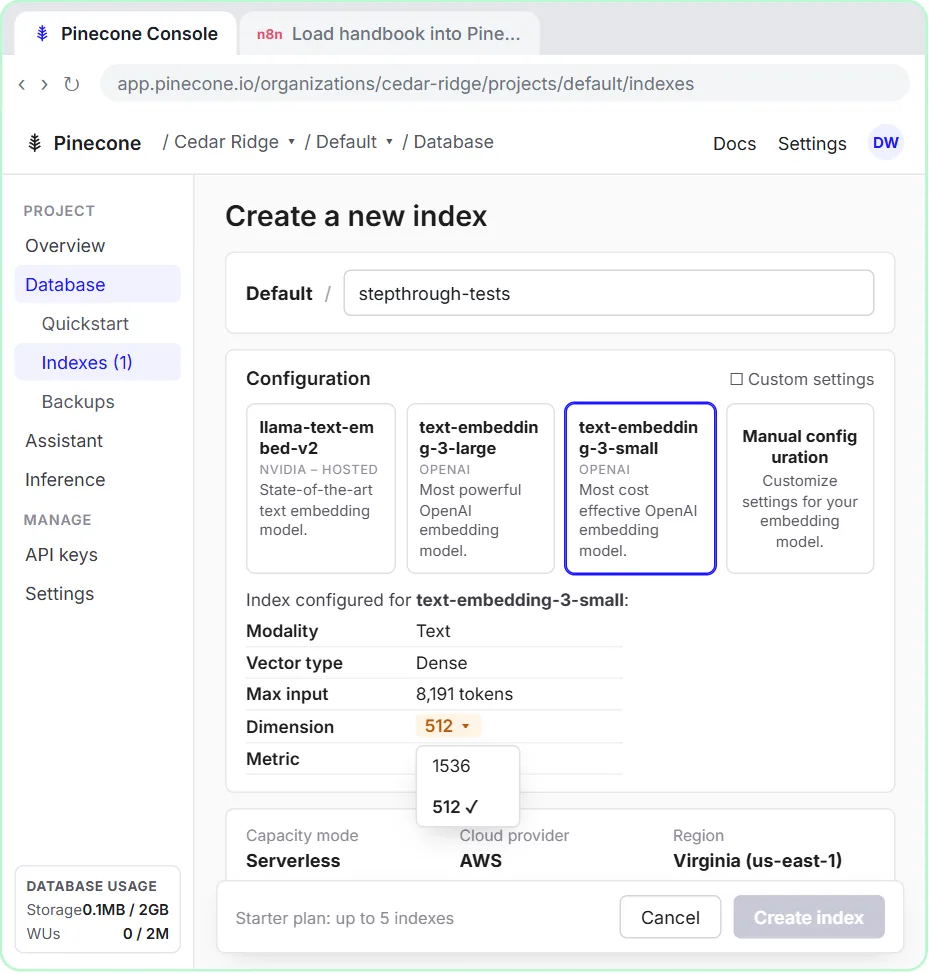
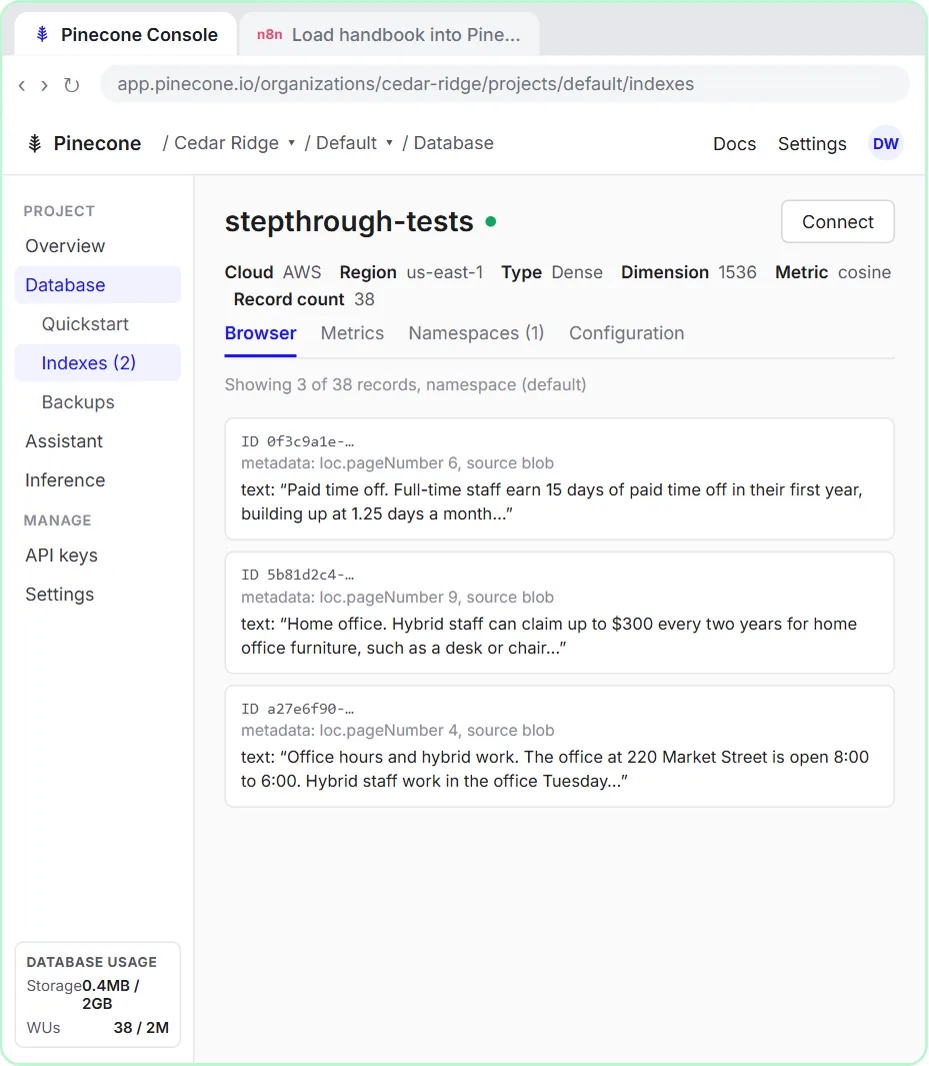
You run operations at Cedar Ridge Partners, a made-up 40-person consulting firm, and staff ask you the same handbook questions every week: paid time off, expenses, hybrid work. First you create a Pinecone index named stepthrough-tests for OpenAI's text-embedding-3-small, with the dimension set to 1536 and the cosine metric, on Serverless, AWS, Virginia (us-east-1).
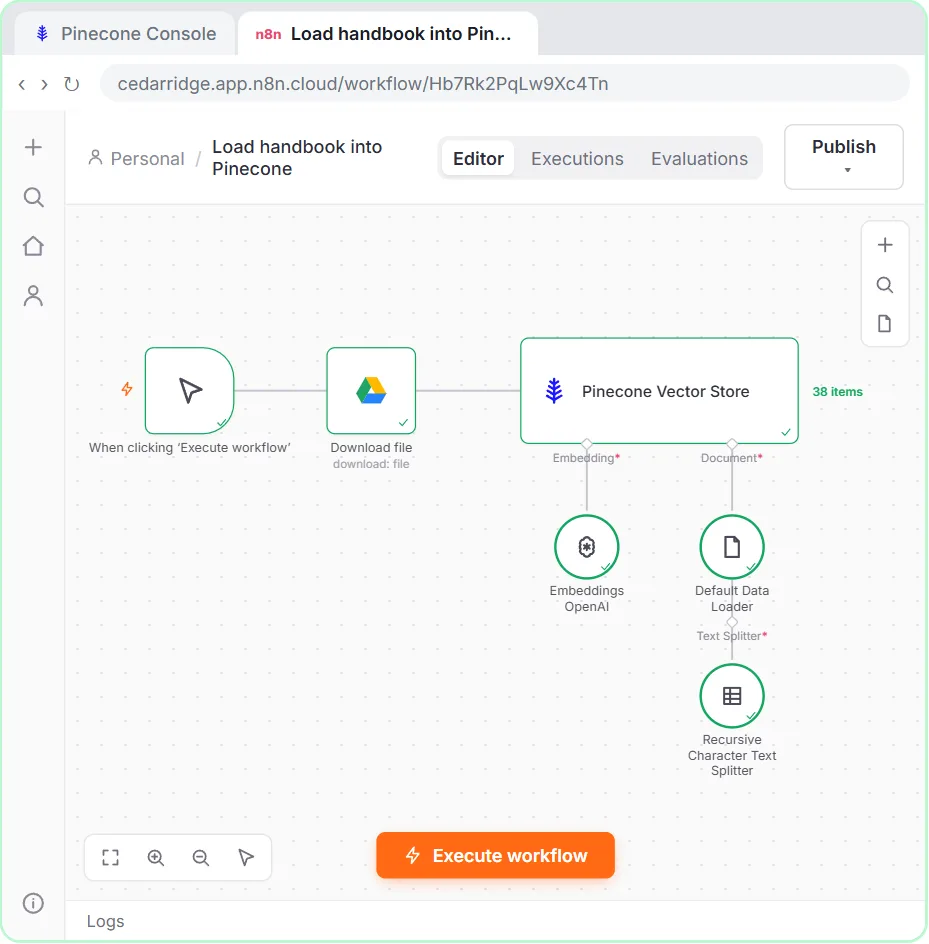
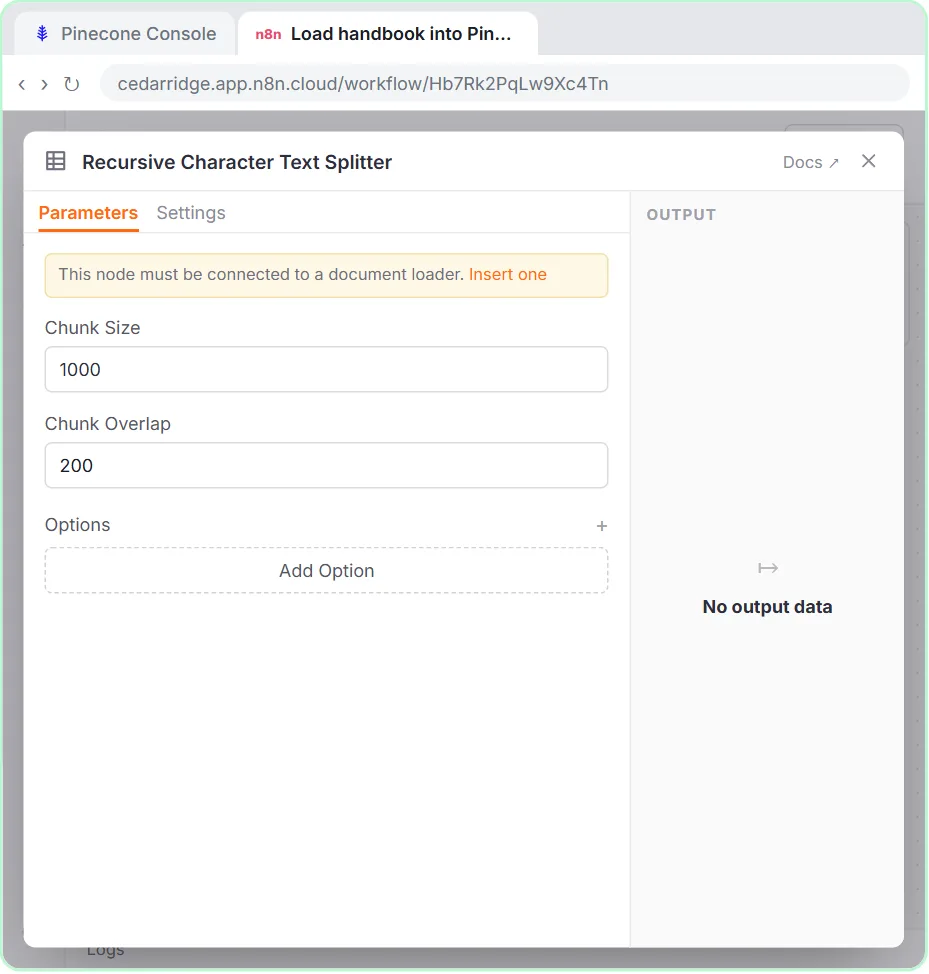
Then you build the n8n workflow. When clicking 'Execute workflow' starts it, the Google Drive node's Download file action fetches Cedar Ridge employee handbook.pdf, and the Pinecone Vector Store node, in Insert Documents mode, saves it to your index. Under it you connect Embeddings OpenAI and a Default Data Loader set to Binary, and under the loader a Recursive Character Text Splitter with 1,000-character chunks and 200 overlap. One run turns the 9-page handbook into 38 records you can see in Pinecone's index browser.
The setting that trips most people up
When you pick text-embedding-3-small in Pinecone's Create index screen, the Dimension defaults to 512. n8n's Embeddings OpenAI node uses the same model at its full size, 1,536 numbers per chunk. The index and the embeddings must match, or every insert fails with a dimension error, and you can't change the dimension after the index exists. Choose 1536 before you click Create index.
The same rule carries into the chatbot: search the index with the exact embeddings model you loaded it with. A different model puts questions and chunks in different spaces, and the search returns nonsense.
Why chunk the handbook
A search works best on pieces about one topic. Each chunk becomes one record, and later the chatbot fetches only the few closest chunks for a question instead of the whole handbook. The Recursive Character Text Splitter tries paragraph and sentence breaks first, so a policy and its conditions tend to stay together, and the 200-character overlap keeps a sentence that crosses a boundary in both neighbors.
Gotchas worth knowing
- The free Starter plan allows 5 indexes. If you already have 5, Create index asks you to upgrade, so delete an old test index first.
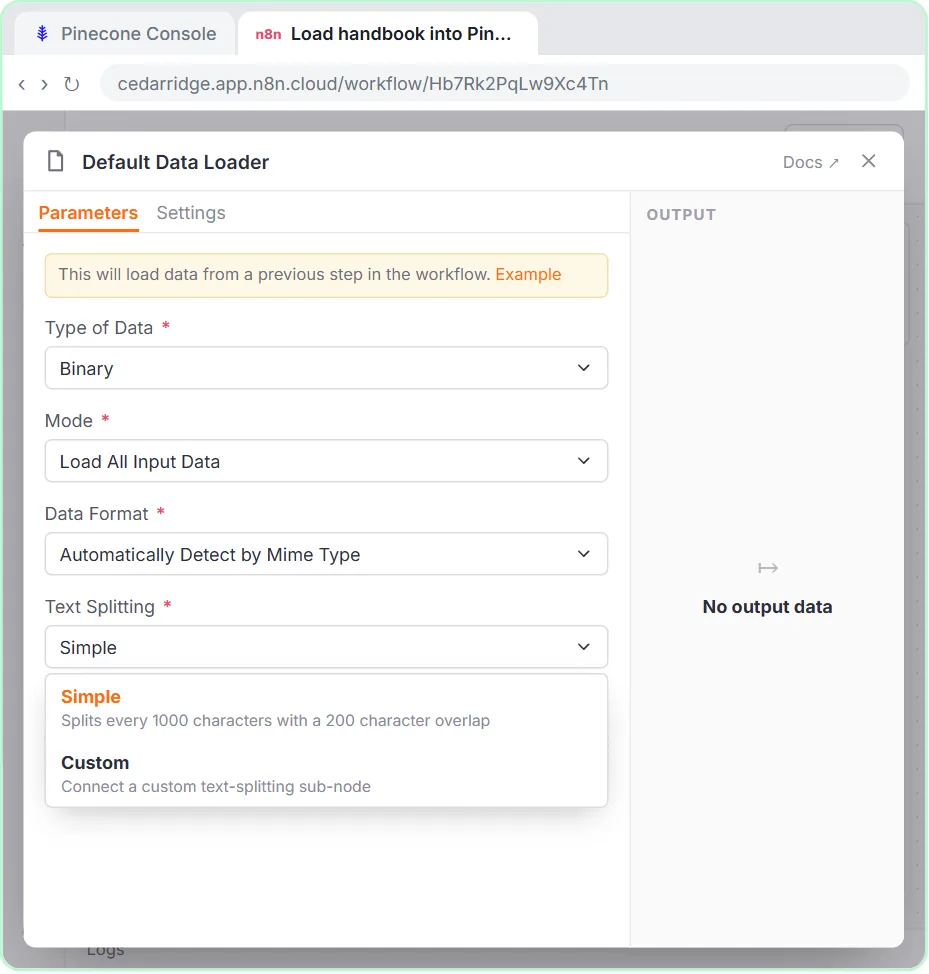
- The Default Data Loader starts on JSON. A file from Google Drive is binary, so switch Type of Data to Binary; Automatically Detect by Mime Type then reads the PDF.
- Running the workflow twice stores every chunk twice. When the handbook changes, turn on Clear Namespace in the Pinecone node's options before you run it again.
- A Google Doc downloads as a Word file by default, which the loader also reads. A PDF is the simplest file to start with.
What you need
- A free Pinecone account (Starter plan) and its API key saved as a Pinecone credential in n8n.
- An n8n account: n8n Cloud with a free trial, or the free self-hosted Community Edition.
- An OpenAI API key with a little credit, and Google Drive connected in n8n.
Links
- Pinecone (pinecone.io): the hosted vector database used in both lessons. The Starter plan is free.
- n8n Pinecone Vector Store node docs: every Operation Mode, including Insert Documents and Retrieve Documents (As Tool for AI Agent).
Try it yourself, free
Reading the steps is a start. Doing them is how it sticks. The interactive module walks you through every click in a practice copy of n8n, checks each step, and never touches your real accounts.
Start “Make Your Handbook Searchable for an AI Helpdesk using Pinecone + n8n”Step by step: Make Your Handbook Searchable for an AI Helpdesk using Pinecone + n8n
All 37 steps of the interactive module, in order. In the module you watch each one, then do it yourself in a practice copy that checks your work.
1. Create the index
- Create an index. You are in the Pinecone console, on Database › Indexes. Click Create index.
You run operations at Cedar Ridge Partners, and staff ask you the same handbook questions every week. Time off, expenses, working from home. In two lessons you'll build a chatbot that answers from the handbook. This one loads the handbook into Pinecone, a vector database. First, make a place to store it.
- Name it. Type stepthrough-tests as the index name.
Give it a name. Lowercase letters, numbers and dashes only.
- Pick the embedding model. Under Configuration, click text-embedding-3-small.
Now tell Pinecone which embedding model will make the vectors. We'll use OpenAI's text embedding three small in n eight n. It's cheap and good.
- Check the dimension. Metric is cosine, good. But Dimension says 512. Open it.
Careful here. The metric is cosine, which is right. But the dimension says five twelve. n eight n sends fifteen thirty six numbers per chunk, and the two must match.
- Choose 1536. Choose 1536.
- Create it. Serverless, AWS and Virginia (us-east-1) are already set, which the free Starter plan allows. Click Create index.
Serverless, AWS, Virginia. Those are the free Starter plan settings, so leave them. One note: the free plan allows five indexes.
2. Read the handbook
- Go to n8n. The index is ready and empty. Switch to the n8n tab.
The index is ready, and empty. Now the n eight n side. Switch to the n eight n tab.
- Add a step. A new workflow is open, and its first step is already set to Trigger manually, so it shows When clicking ‘Execute workflow’ and you run it by hand. Click the + after it.
This workflow starts when you click Execute workflow. You load the handbook once, and again when it changes.
- Search for Google Drive. Type google drive.
- Google Drive. Click Google Drive.
- Download file. Under File actions, click Download file.
We need the file itself, not just its name.
- Pick the file. Your Google Drive account is connected. Open the File list.
Your Google Drive account is already connected.
- The handbook. Choose Cedar Ridge employee handbook.pdf.
A PDF is the easiest file to start with.
- Close the node. Close the node.
Close it.
3. Store it in Pinecone
- Add the next step. Click the + after Download file.
- Search for Pinecone. Type pinecone.
- Pinecone Vector Store. Click Pinecone Vector Store.
- Add documents. Click Add documents to vector store.
We are putting documents in, so click Add documents to vector store.
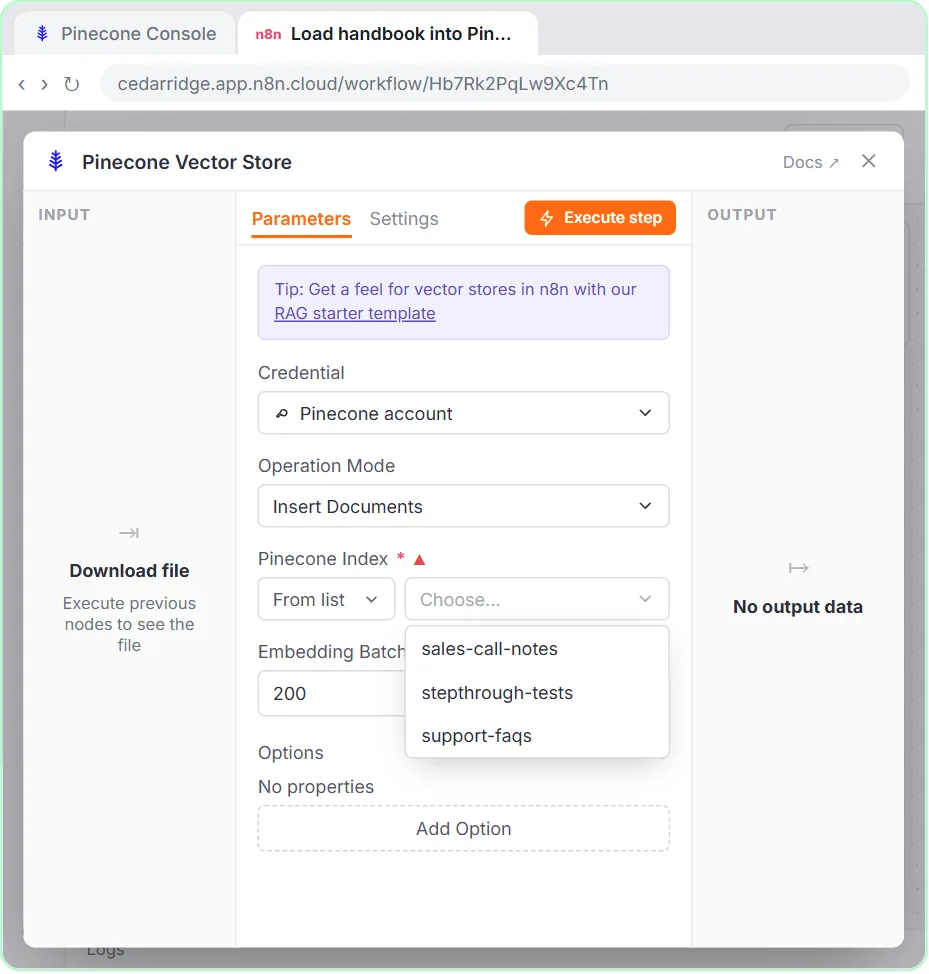
- Pick the index. Operation Mode is Insert Documents and your Pinecone account is connected. Open Pinecone Index.
Operation Mode says Insert Documents, and your Pinecone account is connected with its A P I key.
- Your new index. Choose stepthrough-tests.
- Close the node. Close it.
Close it. The node needs two more parts underneath before it can run.
4. Embeddings and chunks
- Add the embeddings. Under the Pinecone node, click the + under Embedding.
First, embeddings. They turn each piece of text into numbers that capture its meaning.
- Embeddings OpenAI. Click Embeddings OpenAI.
- Close the node. Model is text-embedding-3-small, the same model you picked in Pinecone. Close it.
The model is text embedding three small. Same as the index. That's why the dimension had to be fifteen thirty six. Close it.
- Add the document loader. Click the + under Document.
Next, the loader. It reads the file and hands Pinecone the text.
- Default Data Loader. Click Default Data Loader.
- Type of Data. Type of Data says JSON. Open it.
But Google Drive gives us a file.
- Binary. Choose Binary.
Binary just means a file.
- Text Splitting. Data Format is Automatically Detect by Mime Type, so it reads the PDF. Now open Text Splitting.
Data Format detects the PDF by itself. Now Text Splitting. This is chunking: cutting the handbook into pieces small enough to search.
- Custom. Choose Custom, so you can set the chunk size yourself.
- Close the node. Close the loader.
Close it.
- Add a text splitter. Under Default Data Loader, click the + under Text Splitter.
Now the loader has a Text Splitter slot.
- Recursive Character Text Splitter. Click Recursive Character Text Splitter, the one n8n recommends for most uses.
It cuts at paragraphs and sentences first, so a policy is less likely to be cut in half.
- Add some overlap. Chunk Size is 1000 characters. Set Chunk Overlap to 200.
Chunk Size is a thousand characters, about a long paragraph. Set Chunk Overlap to two hundred, so a sentence that crosses two chunks shows up in both.
- Close the node. Close it.
Close it. Every part is connected.
5. Run it
- Run it. Click Execute workflow.
- Check Pinecone. Every node is green and Pinecone Vector Store shows 38 items: the handbook became 38 chunks. Switch to the Pinecone tab.
Every node is green. The handbook became 38 chunks, and each one went into Pinecone with its numbers. Switch to the Pinecone tab to see them.
Screenshots
Frequently asked questions
- How does the interactive lesson work?
- Each step is shown to you first on the left (Watch). Then you do it yourself in a practice copy on the right (Your turn), and every click is checked. If you get stuck, press Do it for me. It is a practice copy, so no real accounts are touched.
- Is this free?
- The lesson is free. For the real thing, Pinecone's Starter plan is free, embedding a handbook with text-embedding-3-small costs a few cents of OpenAI credit, and n8n Cloud has a free trial or you can self-host the free Community Edition.
- What dimension should a Pinecone index use for OpenAI embeddings?
- 1536 for text-embedding-3-small at its default size, which is what n8n's Embeddings OpenAI node sends. Pinecone suggests 512 when you pick that model, so change it before you create the index.
- Can I load Google Docs, Word files or a whole folder?
- Yes. The Default Data Loader's Automatically Detect by Mime Type reads PDF, Word (docx), text, CSV and more. For a folder, add a Google Drive search step before Download file so each file runs through the same steps.
- How do I keep Pinecone up to date when the handbook changes?
- Run the workflow again with Clear Namespace turned on in the Pinecone Vector Store options, so old chunks are removed before the new ones go in. You can also start it from a Google Drive trigger when the file is updated.
More n8n tutorials
 n8n AI Agent Tutorial: Save Social Media Ideas to Google Sheets
Build an AI agent for BrightPath Marketing that generates social media post ideas and saves them to Google Sheets — chat trigger, AI Agent, system prompt, model…
Free · Live ~12 min Intermediate
 Lovable + n8n: Build a Web App with an AI Backend
Build a contact form in Lovable and connect it to an n8n workflow — webhook trigger, AI Agent, Google Sheets, Gmail, and a Respond node that ties it all together.
Free · Live ~15 min Advanced
 AI Receipt Extractor: Receipts to Google Sheets with n8n
Drop a photo of a receipt into an n8n chat. An AI agent reads it, pulls out the date, vendor and amount, picks a category, and adds a row to Google Sheets.
Free · Live ~12 min Intermediate
 n8n AI Email Responder: Draft Gmail Replies Automatically
Build an n8n agent that watches your Gmail, reads each new customer email, and writes a reply as a draft in the same thread, ready for you to check and send.
Free · Live ~12 min Intermediate
 Daily Job Alerts: Email Each Tech Their Jobs from Google Sheets with n8n
Every morning at 7, n8n reads a plumbing company's jobs sheet, skips anything not assigned yet, and emails each job to the tech it's assigned to — customer, address…
Free · Live ~10 min Intermediate
 Gmail AI Triage: Auto-Label Every Email and Draft Replies
Build an n8n workflow that reads each new email, sorts it as a lead, a client or an invoice with a Text Classifier, adds the matching Gmail label, and drafts a reply to…
Free · Live ~18 min Advanced
Terms in this lesson
Plain-English definitions, each with an example from a free lesson.