Updated . Built against the tool’s current screens and checked step by step. How we check this lesson
A small team runs 5 customer interviews or sales calls, and nobody has time to listen to them again. Speak AI (speakai.co) transcribes each recording, labels the speakers, pulls out keywords and tone, and answers questions about it in AI Chat. In this free business-case lesson you use a practice copy built from real Speak AI screenshots, captured 18 October 2026 in my trial account with a made-up 3-minute interview you can download: upload it, read the transcript, scan the keywords, people and sentiment, ask AI Chat for a summary with quotes and fixes, and export the transcript to Word. Results differ per recording. This is my own lesson, not an official Speak AI course.
At a glance
| Question | Answer |
|---|---|
| What you build | A business case for any small team that runs customer interviews or sales calls: upload the recording to Speak AI, read the transcript, keywords and tone, ask AI Chat for a summary with quotes and fixes, and export it to Word. |
| Tools | Speak AI |
| Time | About 10 minutes, 32 steps in 7 parts |
| Level | Beginner, no coding needed |
| Cost | Free |
| Ways to learn it | Practice it step by step |
The 7 parts, in short
- Five interviews, no time to re-listen: Five interviews, nobody has time, Compare the time, Meet Speak AI.
- Upload the recording: Check your trial, Click Upload, Drop in the recording, Read the cost, and 3 more steps.
- Read the transcript: See that it is done, Find the speakers, Read a key answer, Open Insights.
- Keywords, people and tone: Read the quick facts, Open Keywords, Scan the keywords, Check people and brands, and 3 more steps.
- Ask AI Chat about it: Open AI Chat, Ask for a summary, quotes and fixes, Read the summary, Read the problems, quotes and fixes.
- Export the transcript: Click Export, Choose Word, Check the options, Click Export.
- Check it, then share it: Check one quote, What this gives you, Check the pricing.
Part of: AI Apps Worth Knowing (step 41 of 42)
Part of: AI for Meetings (step 9 of 11)
The business case: interviews nobody has time to re-listen to
Customer interviews and sales calls are where people tell you what is wrong. The trouble is time. Once the call ends, the recording sits in a folder, and the problems the customer named never reach the people who could fix them.
Here is the arithmetic, using example numbers you should replace with your own. Say a small accounting firm runs 5 onboarding interviews of about 30 minutes each. Listening to all 5 again takes about 2.5 hours, and writing up the themes and pulling quotes takes about 1.5 more, so about 4 hours. With Speak AI, it is an upload, a few minutes of processing and about 45 minutes reading the summaries and checking quotes. That saves about 3 hours.
We ran Speak AI on a made-up 2:58 interview on 18 October 2026. It was transcribed in under a minute, found 20 keywords and 3 people, and AI Chat returned 3 problems, each with a quote and a fix. Your recordings will give different results.
Who this is for, and what you need
Owners, account managers, researchers and sales leads who record customer interviews or calls and want the themes without replaying them. To follow along you need nothing: the lesson is a practice copy built from real screenshots. To do it for real you need a Speak AI account and a recording. Download our sample interview if you do not have one you can share.
Get permission before you record or upload anyone. Our sample is made up and read by two computer voices, so nobody real is on it.
Step 1: upload the recording
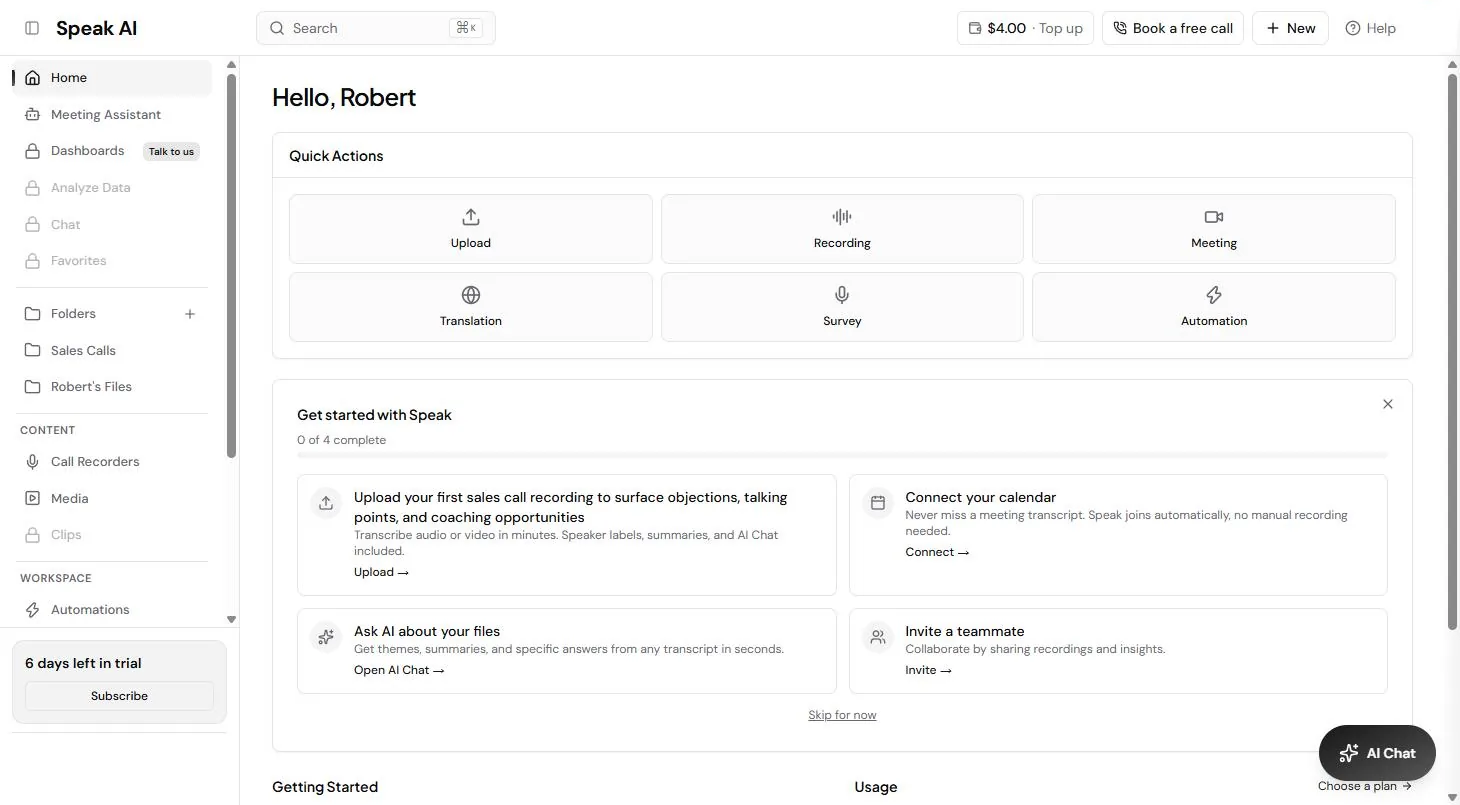
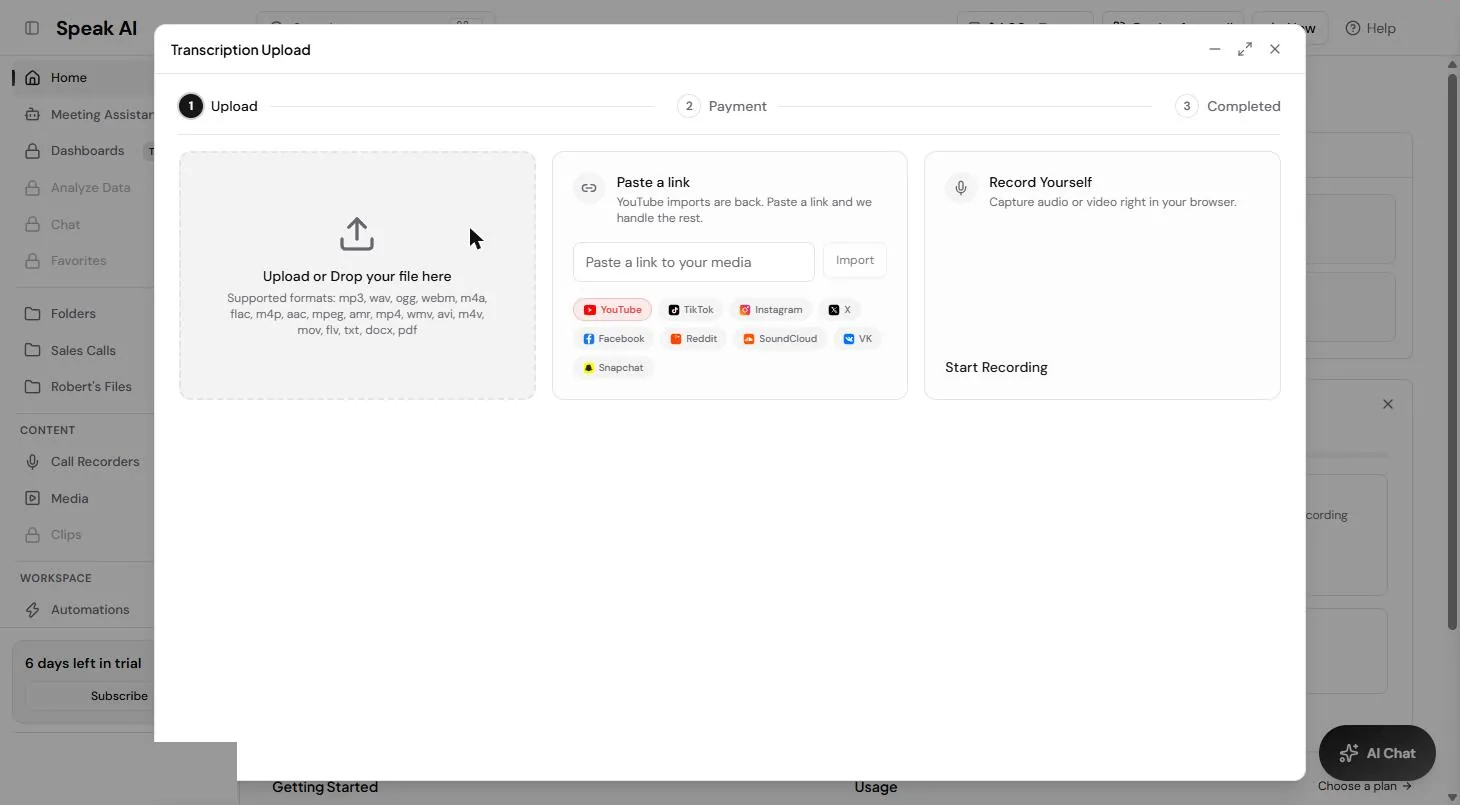
On the Speak AI home page, click Upload under Quick Actions. Transcription Upload lets you drop in a file, paste a link or record yourself. The supported formats include mp3, wav, m4a, mp4 and mov, and also txt, docx and pdf if you already have a transcript.
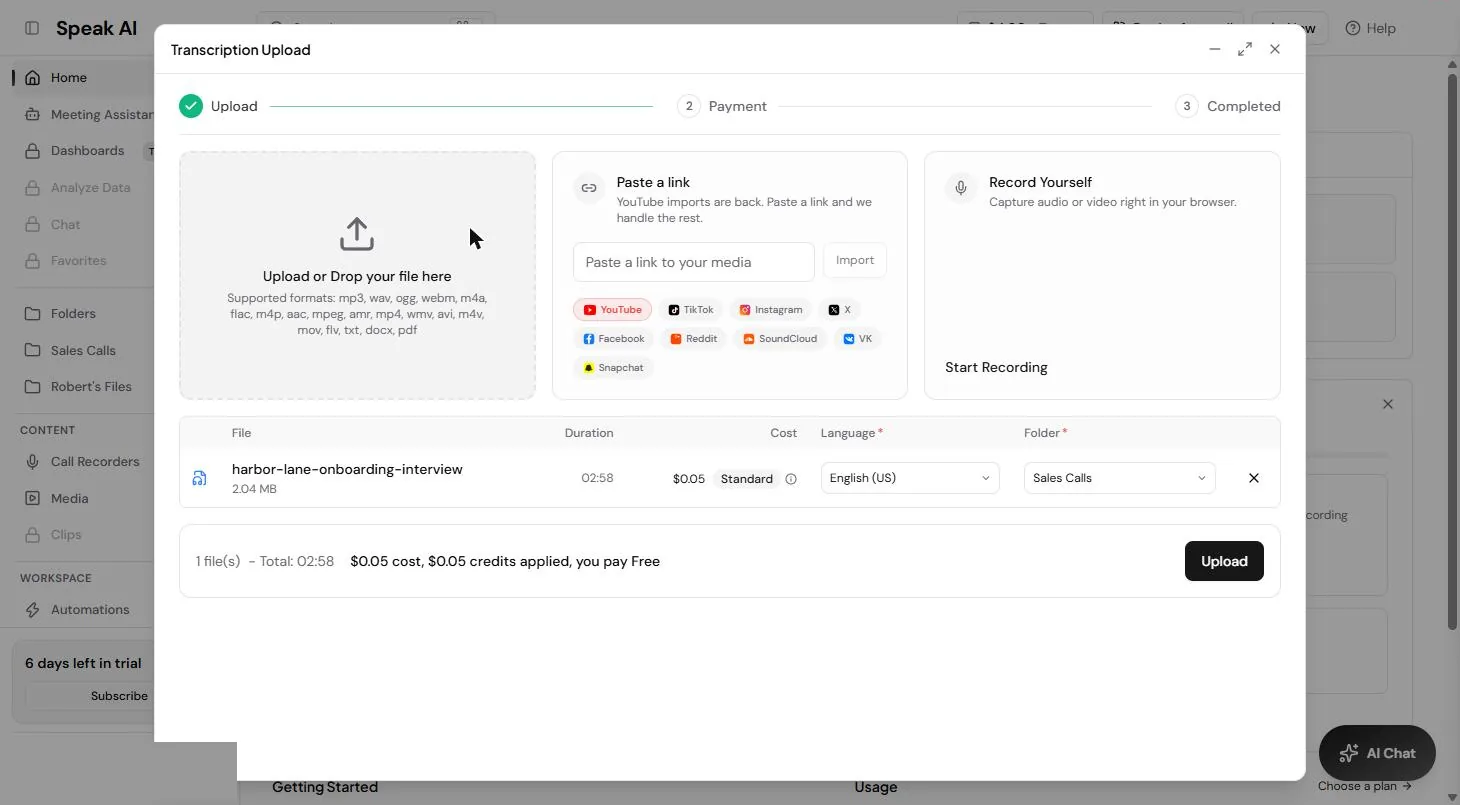
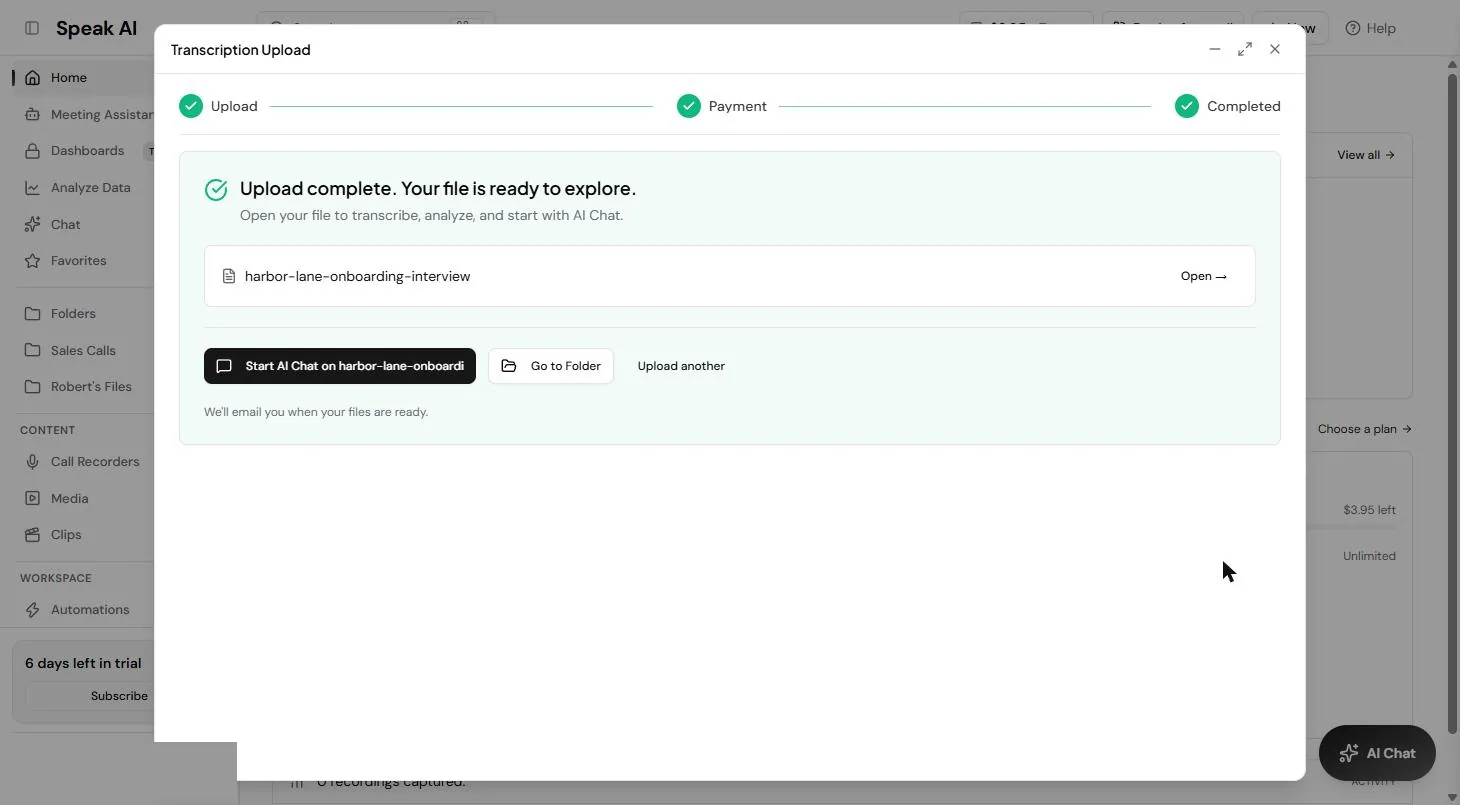
After you pick the file, Speak AI shows its length, a cost, the language and a folder. Our 2:58 file showed a $0.05 cost at the Standard rate, covered by the trial credit. Make one folder per study so all your interviews sit together, then click Upload and Open.
Step 2: read the transcript
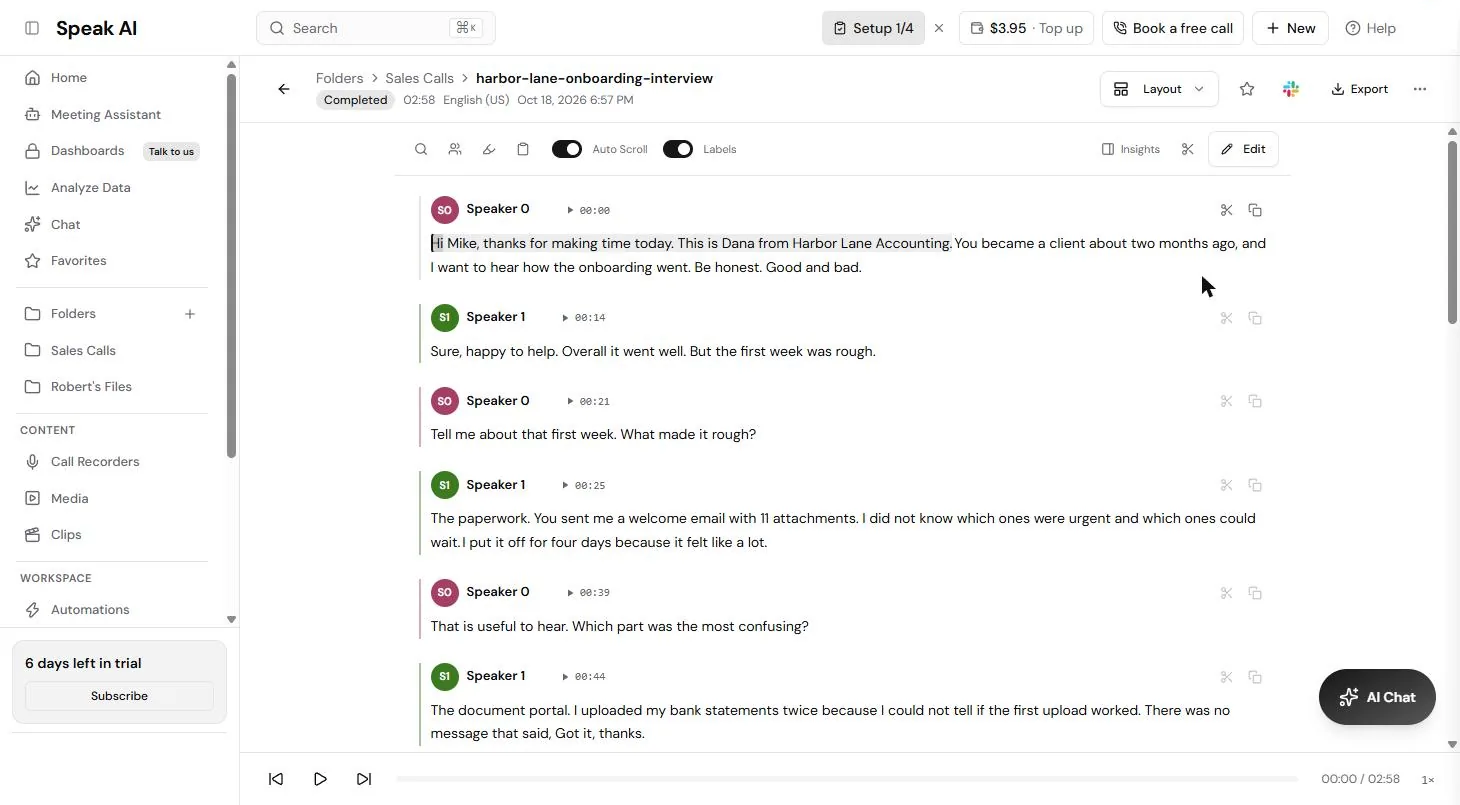
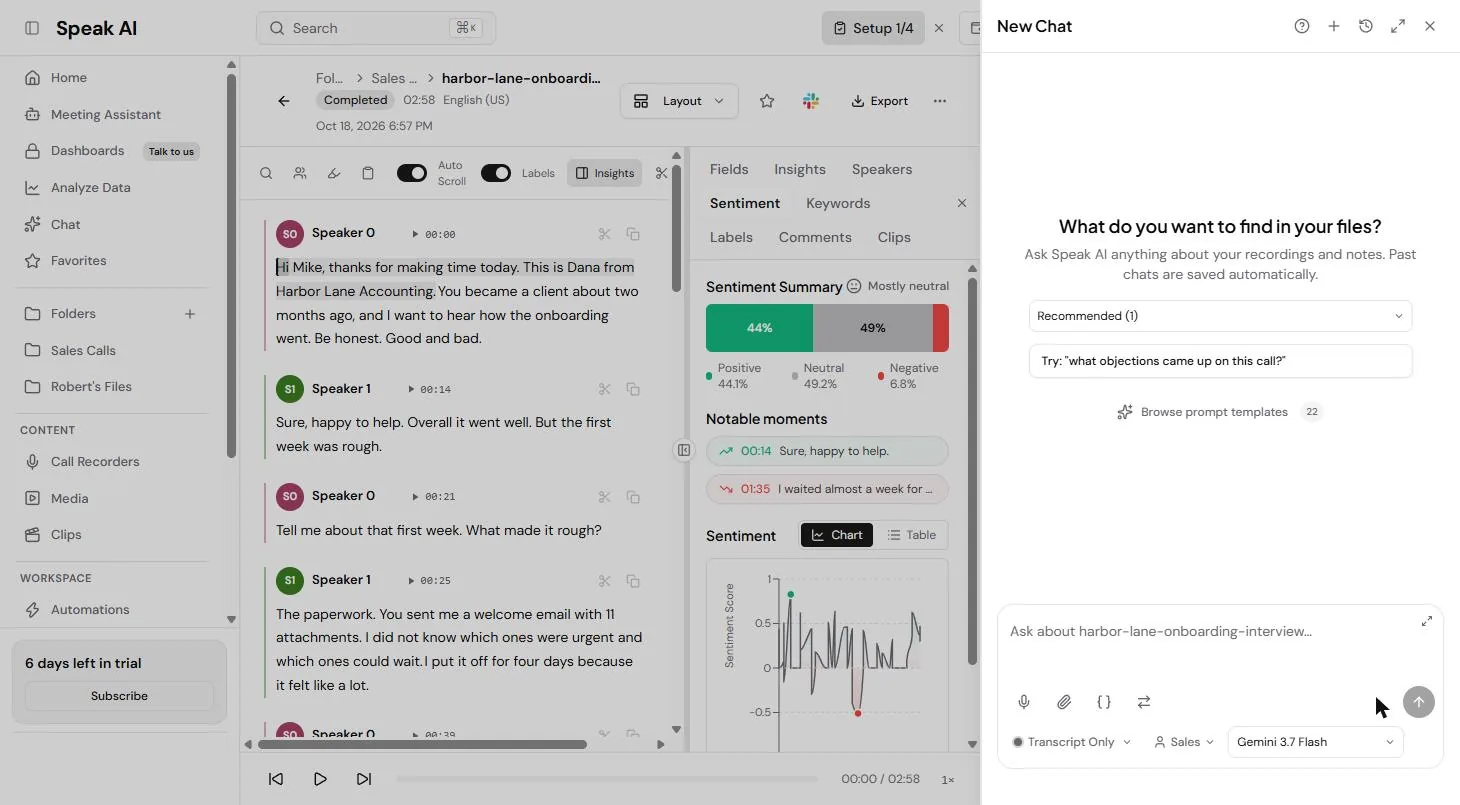
The file opens with Completed, the length and the language at the top. The transcript is split by voice into Speaker 0 and Speaker 1, with a play button and a time on every turn. In our sample, at 00:25 the client says the welcome email had 11 attachments and he did not know which were urgent. That is a theme in one line.
Step 3: scan the keywords, people and tone
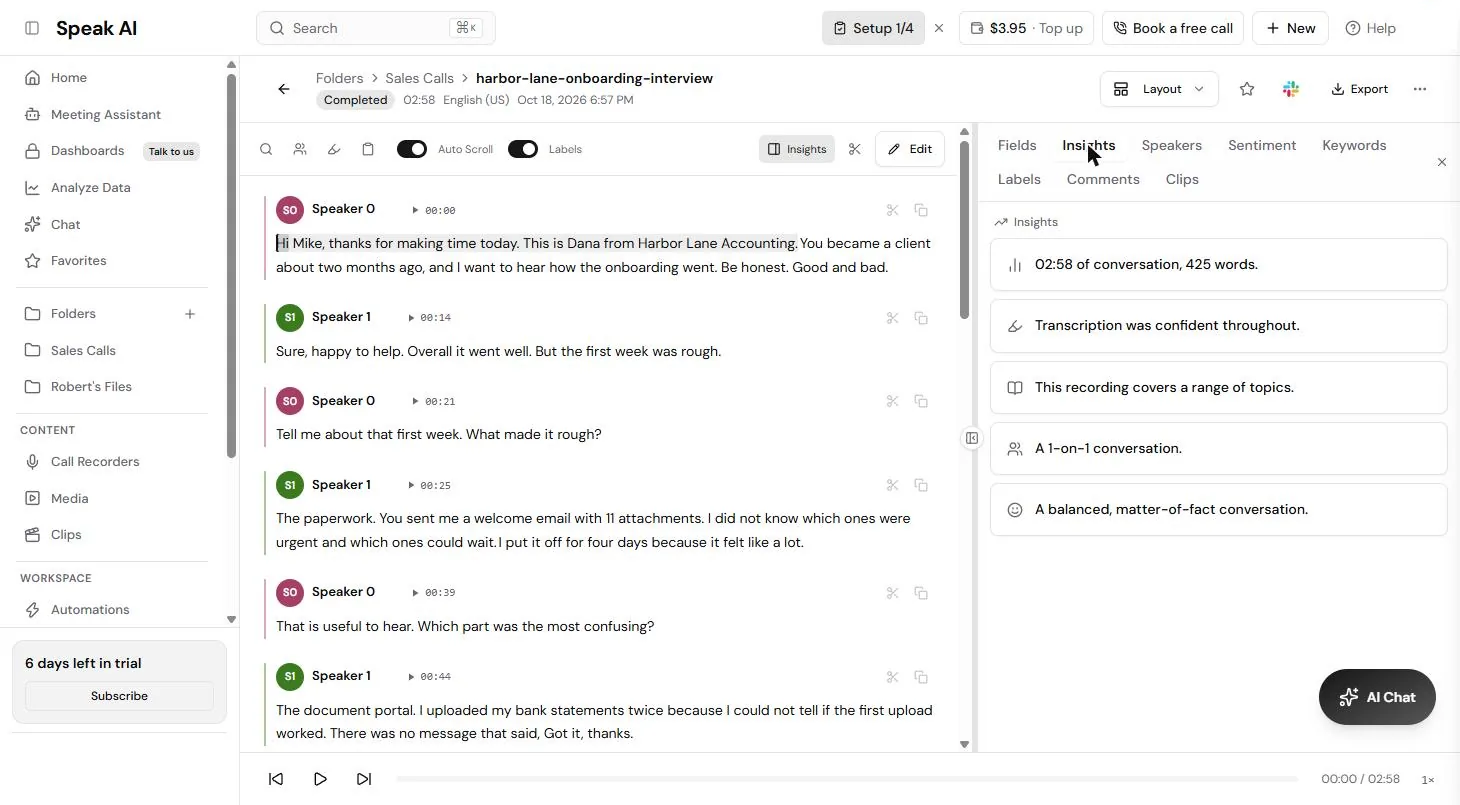
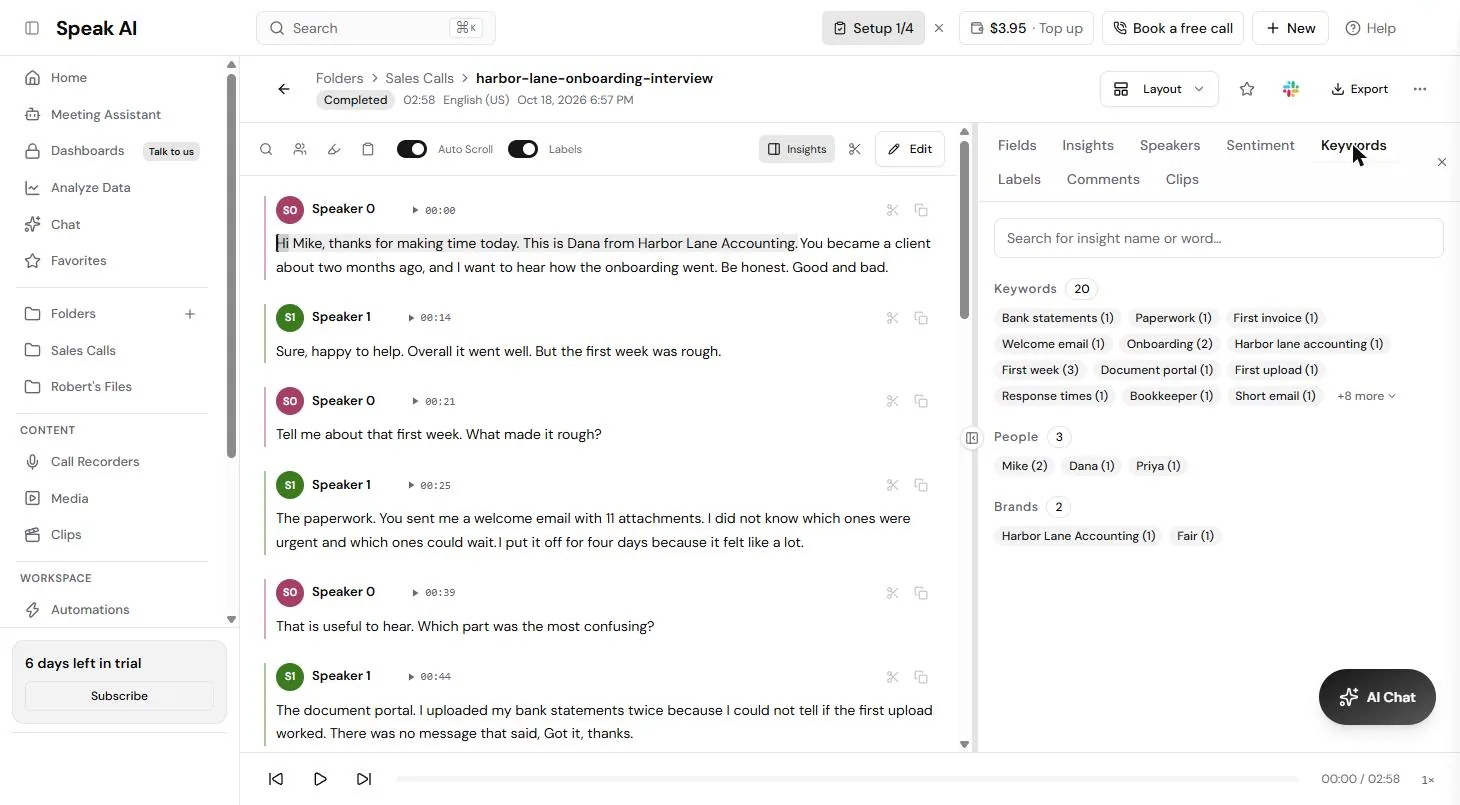
Click Insights to open a panel with tabs. Insights gives quick facts: 02:58 of conversation, 425 words, and a 1-on-1 conversation. Keywords lists 20 keywords with counts, such as First week (3), Onboarding (2), Paperwork, Document portal and First invoice. It also lists the people named and brands. Ours tagged the word "fair" as a brand, so check what it finds.
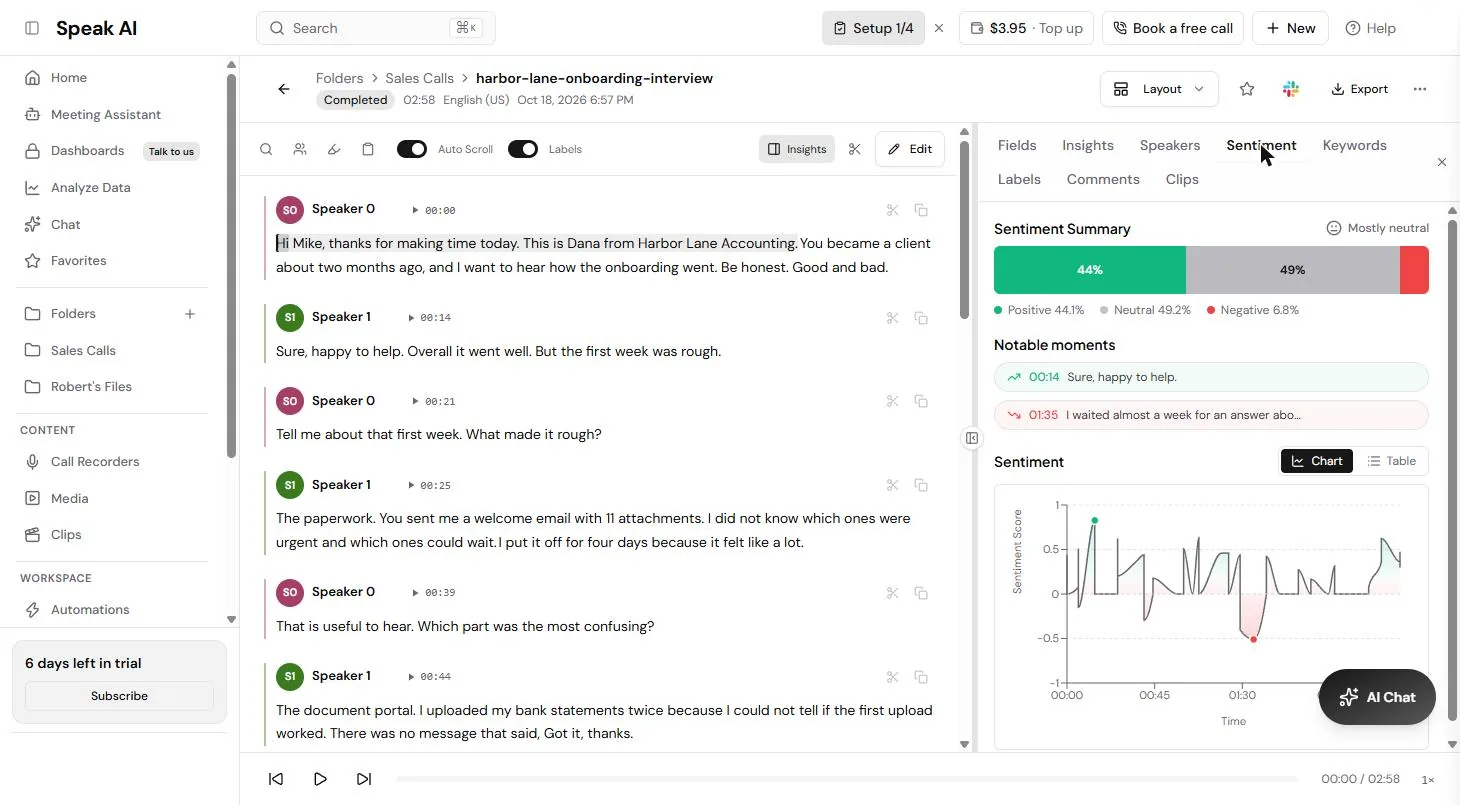
Sentiment showed Mostly neutral: 44.1% positive, 49.2% neutral and 6.8% negative, with a chart over time. Notable moments marked the low point at 01:35, when the client waited almost a week for an answer in tax season.
Step 4: ask AI Chat for a summary, quotes and fixes
Click AI Chat. It opens on the file, set to Transcript Only. We asked: "Summarize this interview in 3 bullets. Then list the top 3 problems the customer had with onboarding, with a short quote for each, and one fix for each."
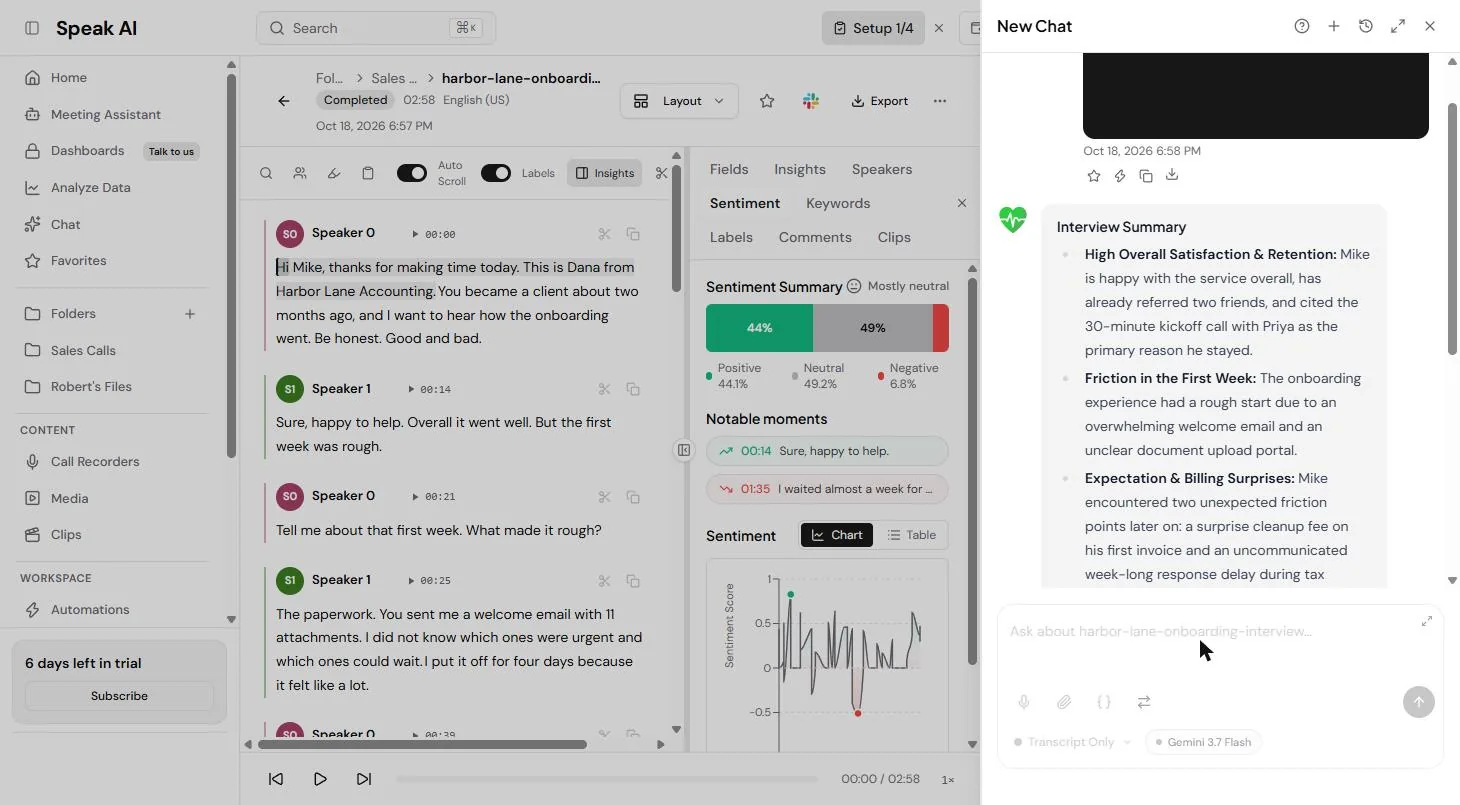
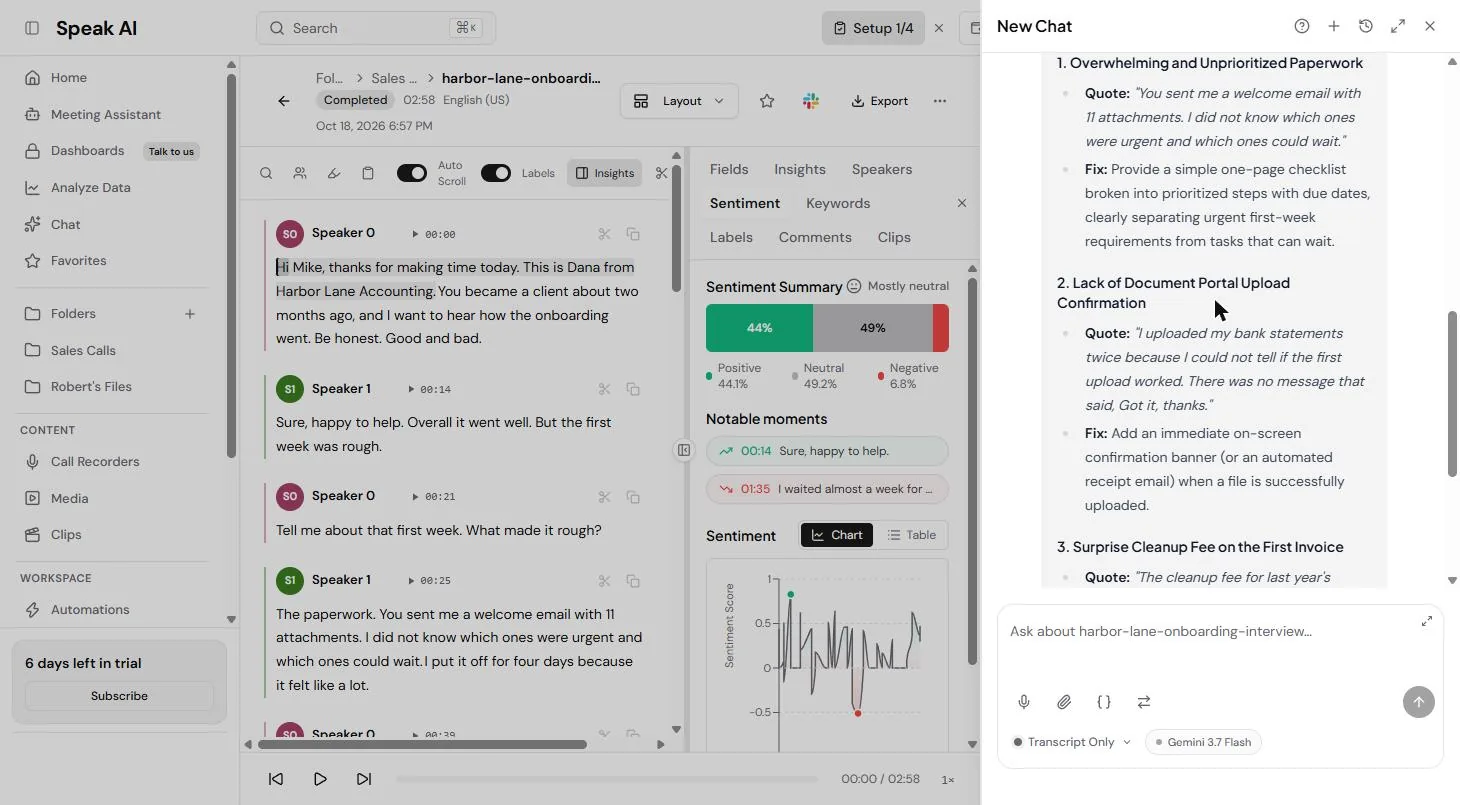
The answer started with an Interview Summary: high overall satisfaction (the kickoff call is why the client stayed), friction in the first week, and billing surprises. Then the 3 problems, each with a quote and a fix: too much paperwork with no priorities (a one-page checklist with due dates), no confirmation after a portal upload (a confirmation banner or receipt email), and a cleanup fee first seen on the invoice (put it in the proposal).
Step 5: export the transcript and check one quote
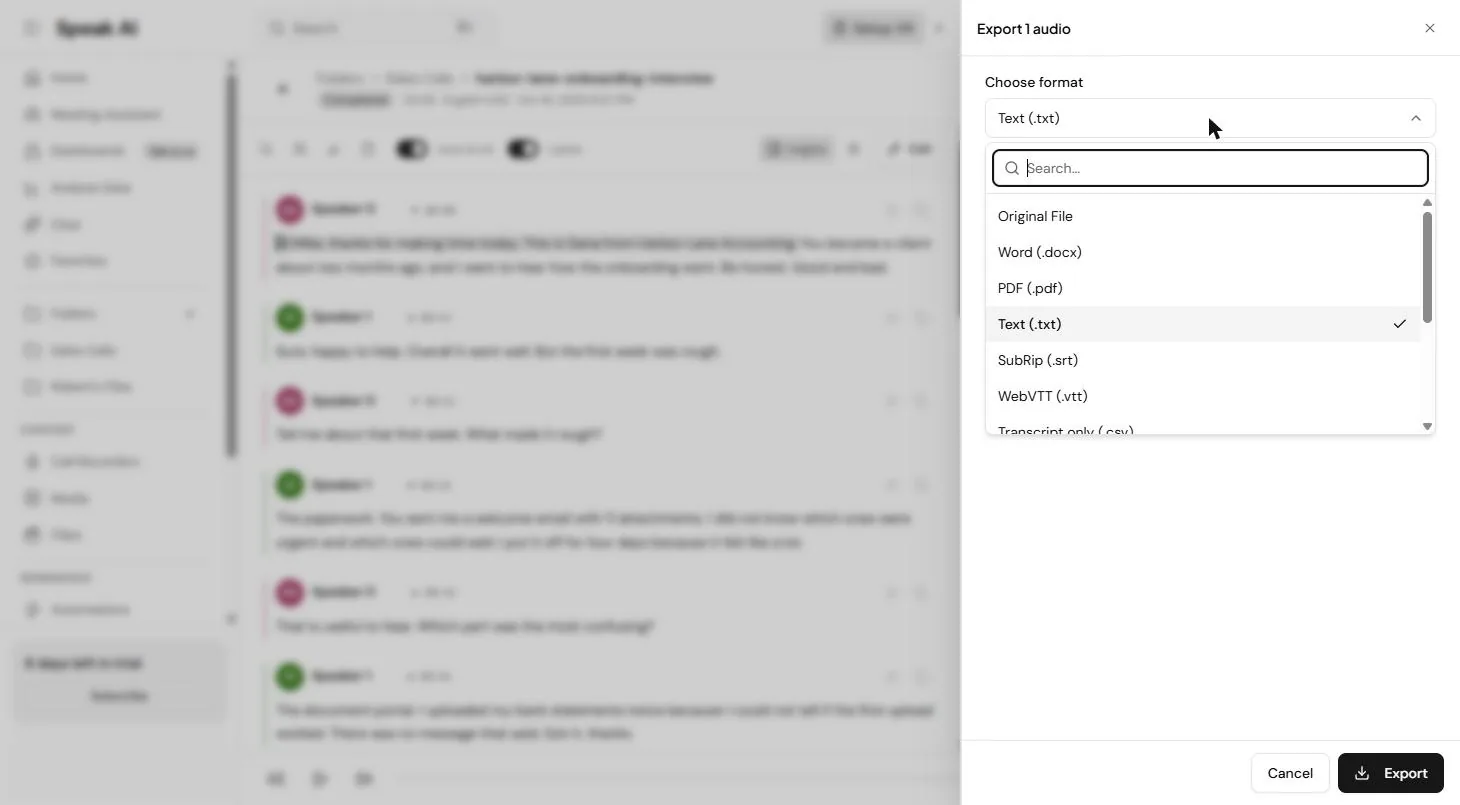
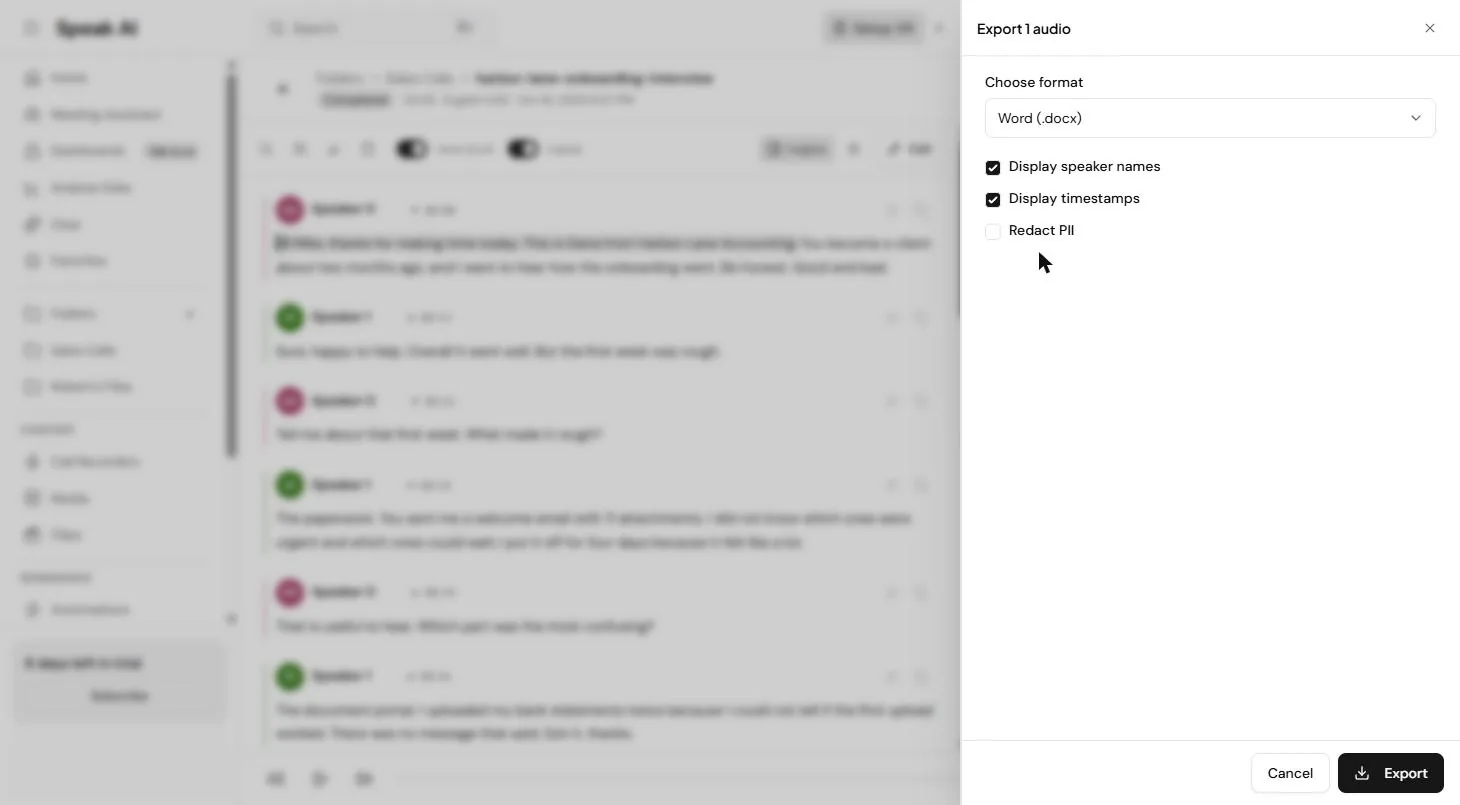
Close AI Chat and click Export. Choose format lists Original File, Word (.docx), PDF, Text, SubRip (.srt), WebVTT (.vtt), Transcript only (.csv) and more. Display speaker names and Display timestamps were on, and Redact PII was off. We chose Word and clicked Export, and a 13 KB Word file downloaded.
Before you share anything, check the quotes. At 00:59 the client says a short email would have been "fine". Our transcript wrote "fun". Press play on every line you plan to quote.
Mistakes to avoid
- Sharing an AI Chat quote without checking it against the audio. One wrong word can flip the meaning.
- Uploading a call without the other person's permission.
- Sending a real customer transcript outside the team with Redact PII off.
- Reading one interview as a trend. Look for keywords that repeat across all of them.
- Treating the example numbers in this lesson as yours. Time your own interviews.
Links
- Speak AI: the transcription and analysis tool this lesson teaches.
- Speak AI pricing: current plans. A 7-day trial with no credit card required; pay as you go credits at US$1 each, with standard transcription at 2 credits an hour; Pro at $20 per user a month billed annually, for up to 5 users; Enterprise is custom (read 18 October 2026).
- Speak AI in the AI tools directory: how it compares with other meeting and notes tools.
- Sample customer interview (.mp3, 2:58): a made-up interview between an accounting firm owner and a client, read by two computer voices, safe to upload to your own Speak AI account.
- The interview script (.txt): the same interview as text, to compare with the transcript Speak AI writes.
Try it yourself, free
Reading the steps is a start. Doing them is how it sticks. The interactive module walks you through every click in a practice copy of Speak AI, checks each step, and never touches your real accounts.
Start “Speak AI: Turn Customer Interviews into Themes and Quotes”Step by step: Speak AI: Turn Customer Interviews into Themes and Quotes
All 32 steps of the interactive module, in order. In the module you watch each one, then do it yourself in a practice copy that checks your work.
1. Five interviews, no time to re-listen
- Five interviews, nobody has time. Say Harbor Lane Accounting, a small accounting firm, ran 5 customer interviews about onboarding, about 30 minutes each. Everyone agrees the answers matter, but nobody has time to listen to them all again. Click the interviews.
A small accounting firm ran five customer interviews. Nobody has time to listen to them all again.
- Compare the time. By hand: listen to all 5 again (2.5 hours), then write up the themes and pull quotes (1.5 hours). That is about 4 hours. With Speak AI: upload all 5, wait a few minutes, then read the summaries and check the quotes, so about 45 minutes. That saves about 3 hours. These are example numbers, so time your own. Click the time saved.
By hand, that is about four hours. With Speak AI, about forty five minutes. Those are example numbers.
- Meet Speak AI. Speak AI (speakai.co) transcribes a recording, labels who spoke, pulls out keywords and tone, and answers questions about it in AI Chat. The next screens are real screenshots of my Speak AI trial account, captured 18 October 2026, with a made-up 3-minute interview you can download. Click the Speak AI card.
Speak AI turns a recording into a transcript, keywords and answers. Here are the real screens.
2. Upload the recording
- Check your trial. This is the Speak AI home page. Bottom left, my account said 6 days left in trial, and the top bar showed a $4.00 balance. Speak AI's pricing page lists a 7-day trial with no credit card required. Click the trial box.
Bottom left, it shows how many days are left in your trial.
- Click Upload. Under Quick Actions, click Upload.
- Drop in the recording. Transcription Upload opens. You can paste a link, record yourself, or upload a file. The supported formats include mp3, wav, m4a, mp4 and mov, and also txt, docx and pdf if you already have a transcript. Click the upload box and pick the file. We used harbor-lane-onboarding-interview.mp3, the sample you can download from this lesson.
We used the sample interview from this lesson.
- Read the cost. The file shows its length, 02:58, and a cost: $0.05, Standard. The line at the bottom says the trial credit covered it, so we paid nothing. Language was set to English (US). Click the cost.
It shows the length and the cost. Ours was five cents, covered by the trial credit.
- Pick a folder. Folder is required. We kept Sales Calls. For a real project, make a folder per study, such as "Onboarding interviews", so all 5 calls sit together. Click Folder.
Pick a folder, so all five interviews sit together.
- Click Upload. Click Upload.
- Open the file. Upload complete. Your file is ready to explore. From here you can open the file, start AI Chat on it, or upload another. Speak AI also says it will email you when files are ready. Click Open.
Upload complete.
3. Read the transcript
- See that it is done. At the top: Completed, 02:58, English (US). Our 3-minute file was transcribed by the time it opened, less than a minute after the upload. Longer calls take longer. Click Completed.
It says Completed. Our three minute file was ready in under a minute.
- Find the speakers. Speak AI split the call by voice: Speaker 0 is Dana, the owner, and Speaker 1 is Mike, the client. Each turn has a play button and a time. Click Speaker 1.
It split the call into Speaker zero and Speaker one, with a time on every turn.
- Read a key answer. At 00:25, Mike says: "You sent me a welcome email with 11 attachments. I did not know which ones were urgent and which ones could wait." That is a theme in one line. Click the line.
Here is a key answer. Eleven attachments, and he did not know which were urgent.
- Open Insights. Top right of the transcript, click Insights.
4. Keywords, people and tone
- Read the quick facts. A panel opens with tabs: Fields, Insights, Speakers, Sentiment, Keywords, Labels, Comments and Clips. Insights gives quick facts: 02:58 of conversation, 425 words, transcription was confident throughout, and A 1-on-1 conversation. Click the facts.
Insights gives quick facts. Three minutes, four hundred twenty five words, a one on one conversation.
- Open Keywords. Click the Keywords tab.
- Scan the keywords. Keywords (20), each with a count: First week (3), Onboarding (2), Paperwork, Welcome email, Document portal, Bank statements, First invoice and more. Across 5 interviews, the words that keep coming back are your themes. Click the keywords.
Keywords, with a count. First week came up three times. Across five calls, repeats are your themes.
- Check people and brands. People (3): Mike, Dana and Priya, the bookkeeper. Below it, Brands lists Harbor Lane Accounting, but also Fair, from "It was fair". The AI guesses, so give these a quick look before you rely on them. Click People.
It found the people. It also tagged the word fair as a brand, so check what it finds.
- Open Sentiment. Click the Sentiment tab.
- Read the tone. Sentiment Summary: Mostly neutral. Positive 44.1%, Neutral 49.2%, Negative 6.8%. A chart below shows how the tone moves through the call. Click the summary bar.
The tone was mostly neutral. Forty four percent positive, under seven percent negative.
- Jump to the low point. Notable moments marks the low point: 01:35, "I waited almost a week for an answer..." That is the tax-season reply time. In a real study, these are the moments to share with the team. Click the red moment.
Notable moments shows the low point. A week waiting for an answer in tax season.
5. Ask AI Chat about it
- Open AI Chat. Bottom right, click AI Chat.
- Ask for a summary, quotes and fixes. AI Chat opens on this file. Under the box it says Transcript Only, so it answers from the transcript. Type or paste the question, then send it.
Ask for a three bullet summary, the top three problems with a short quote for each, and one fix for each.
Summarize this interview in 3 bullets. Then list the top 3 problems the customer had with onboarding, with a short quote for each, and one fix for each.
- Read the summary. The answer starts with an Interview Summary in 3 bullets: High Overall Satisfaction & Retention (the kickoff call is why Mike stayed), Friction in the First Week, and Expectation & Billing Surprises. Click the summary.
First, a three bullet summary. Mike is happy, the first week was rough, and there were billing surprises.
- Read the problems, quotes and fixes. Scroll down for the 3 problems, each with a Quote and a Fix: Overwhelming and Unprioritized Paperwork (fix: a one-page checklist with due dates), Lack of Document Portal Upload Confirmation (fix: a confirmation banner or receipt email), and Surprise Cleanup Fee on the First Invoice (fix: put it in the proposal). Click the problems.
Then three problems, each with a quote and a fix. Paperwork, the upload portal, and a surprise fee.
6. Export the transcript
- Click Export. Close AI Chat with the X. Then, top right of the file, click Export.
Close the chat, then click Export.
- Choose Word. Choose format lists Original File, Word (.docx), PDF, Text, SubRip (.srt), WebVTT (.vtt), Transcript only (.csv) and more. Click Word (.docx).
Pick a format. We chose Word.
- Check the options. Display speaker names and Display timestamps are on. Redact PII is off. Turn it on before you share a real customer call outside the team. Click the options.
Speaker names and timestamps are on. Turn on Redact P I I before you share a real call.
- Click Export. Click Export. Ours downloaded right away as harbor-lane-onboarding-interview.docx, a 13 KB Word file with the speakers and times.
It downloads a Word file with the speakers and times.
7. Check it, then share it
- Check one quote. Before you share it, check the quotes against the audio. At 00:59 Mike says "Even a short email would have been fine". Our transcript wrote "fun". One word can flip a quote, so press play on that line and listen. Click Check one quote.
Check quotes against the audio. Our transcript wrote fun where Mike said fine.
- What this gives you. Click What this gives you.
Here is what you get, and what we did not test.
- Check the pricing. On speakai.co/pricing (read 18 October 2026): a 7-day trial with no credit card required, Pay as you go credits (1 credit is US$1; standard transcription is 2 credits an hour), Pro at $20 per user a month billed annually for up to 5 users, and custom Enterprise. Click the pricing card.
There is a seven day trial with no credit card. Pro is twenty dollars per user a month, billed yearly. Check speak a i dot co slash pricing.
Screenshots
Frequently asked questions
- Is this an official Speak AI course?
- No. This is my own lesson. Speak AI is a separate, third-party product from speakai.co, and the screens are real Speak AI screenshots captured 18 October 2026 in my trial account, with a made-up interview.
- What does Speak AI cost?
- From speakai.co/pricing on 18 October 2026: a 7-day trial with no credit card required. Pay as you go credits cost US$1 each, and standard transcription is 2 credits an hour. Pro is $20 per user a month billed annually, for up to 5 users, with 25 credits per user a month. Enterprise is custom. Our 2:58 file showed a $0.05 cost, covered by the trial credit. Check the page for current plans.
- Can Speak AI pull quotes from an interview?
- Yes. Ask AI Chat for them. We asked for the top 3 problems with a short quote and one fix for each, and it returned all three. Check each quote against the audio, because the transcript can get a word wrong.
- Can I upload a transcript instead of audio?
- The upload screen lists txt, docx and pdf among the supported formats, next to audio and video files. We tested an mp3 only.
- Will my results look like these?
- No. The keywords, sentiment and AI Chat answer here come from our made-up interview. Your recordings will get their own.
Terms in this lesson
Plain-English definitions, each with an example from a free lesson.