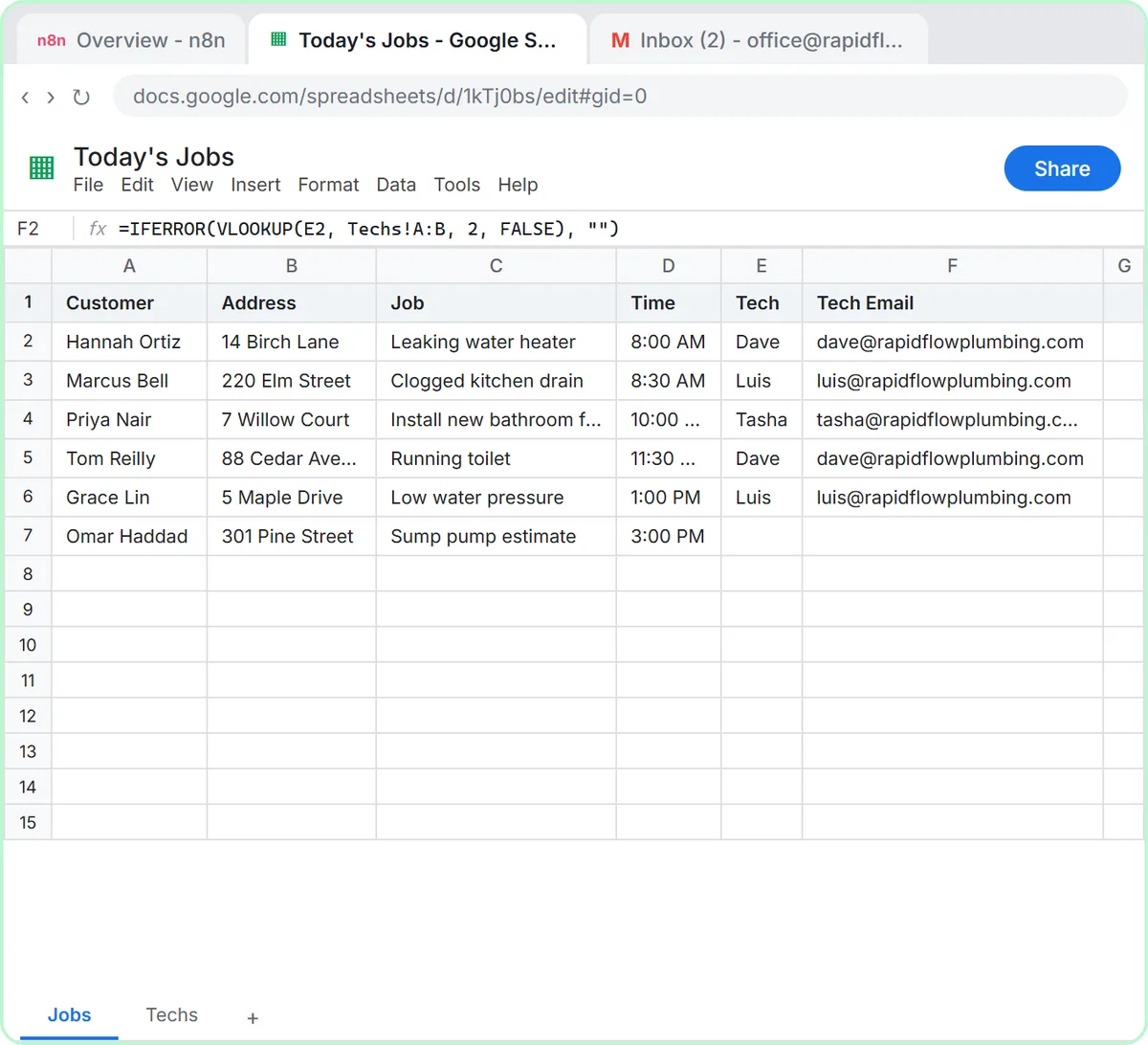
The idea is the same every time: something arrives, n8n picks out the useful parts, and a row appears in your sheet. Three free Stepthrough lessons show real versions of it, with made-up businesses, and each one runs in a practice copy so nothing touches your own accounts.
How do you automate data entry in Google Sheets?
Build a short n8n workflow with a trigger, an optional step that reads the data, and a Google Sheets node that adds the row. Then publish it so it runs by itself. The steps:
- Add a trigger. This is what starts the workflow: an n8n form, a webhook that your website form posts to, or a Gmail trigger that fires when a certain email arrives.
- Prepare the sheet. Type the column names in row 1. n8n reads that header row to learn which columns exist, so name them plainly, such as Date, Vendor and Total.
- Add the Google Sheets node. Choose the Append Row operation, connect your Google account, pick the document and the tab, and map each column to a value from the trigger. Use Append or Update Row instead when the same person or invoice could arrive twice.
- Test it. Run the workflow once with a real example and open the sheet to check the new row. Fix the column mapping before you go on.
- Publish it. Until you publish the workflow, it only runs when you press execute. Publishing hands it to its trigger so it runs on its own.
n8n's Google Sheets node offers Append Row, Append or Update Row, Get Row(s), Update Row and other operations, as listed in the n8n documentation.
Try it free, step by step
n8n: Read, Add and Update Google Sheets Rows with an AI Step. Learn n8n's three core Google Sheets moves on a made-up request list: read the rows, add a new one without duplicates, then let an AI step write a description and update each row. You do every step yourself in a practice copy of n8n, it checks your work as you go, and “Do it for me” finishes any step you get stuck on. Free, and nothing touches your real accounts.
Start the free lessonWhat are three examples of automated data entry?
The three free lessons below cover the most common sources of typed-in data: a form, an email and a photo.
- Form to sheet. A new request comes in through a form and becomes a row. The Webhooks and Forms in n8n lesson builds a quote request form and a webhook for a made-up landscaping business, and both write to the same Google Sheet. The Lovable form to n8n webhook guide shows the website-form version.
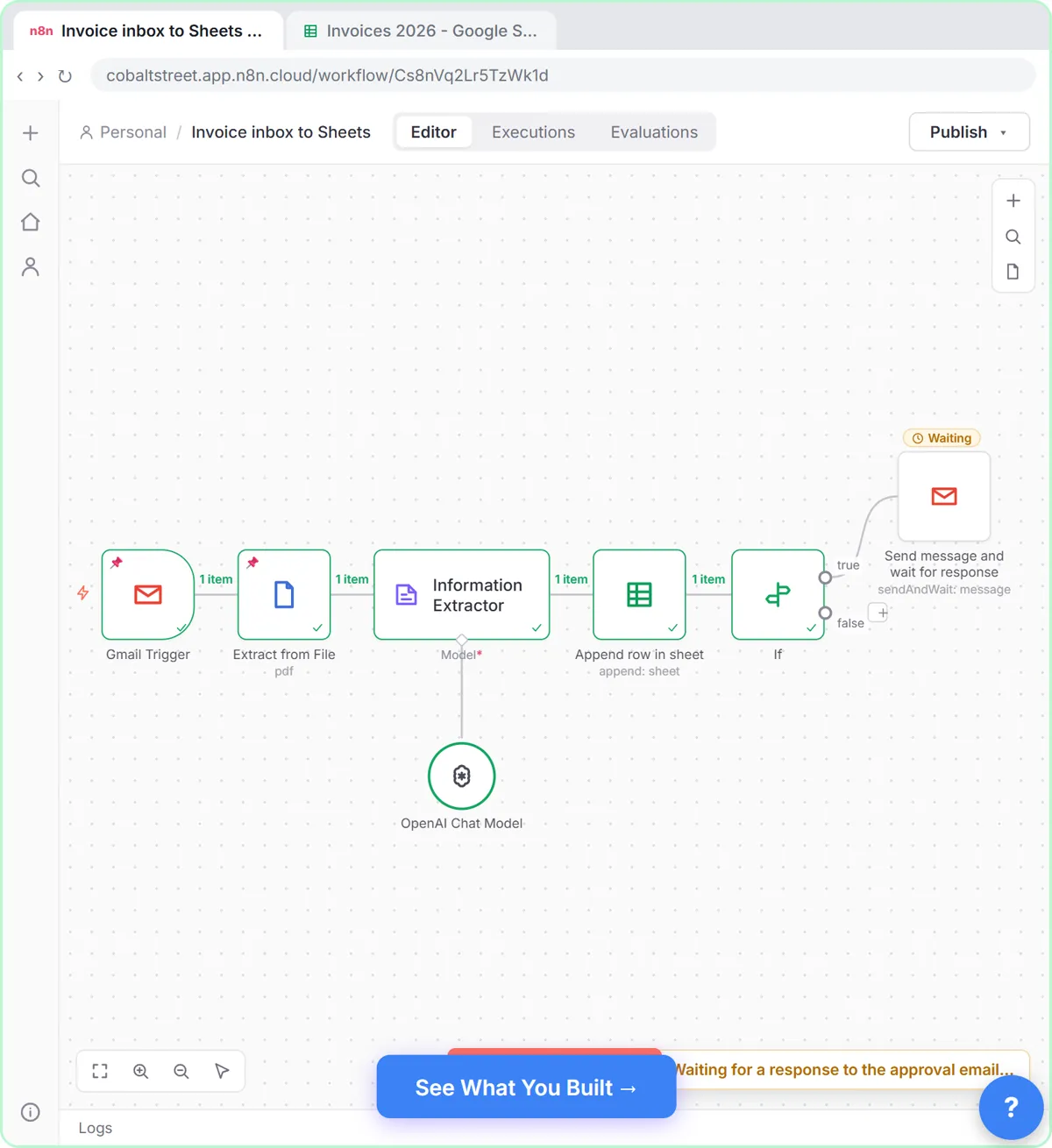
- Invoice email to sheet. Vendor invoices arrive as PDF attachments in Gmail. In Invoices from Your Inbox to Google Sheets, with Approval, AI reads each invoice, the workflow logs the vendor, invoice number and total in a sheet, and an invoice over $1,000 waits for the owner to approve it by email.
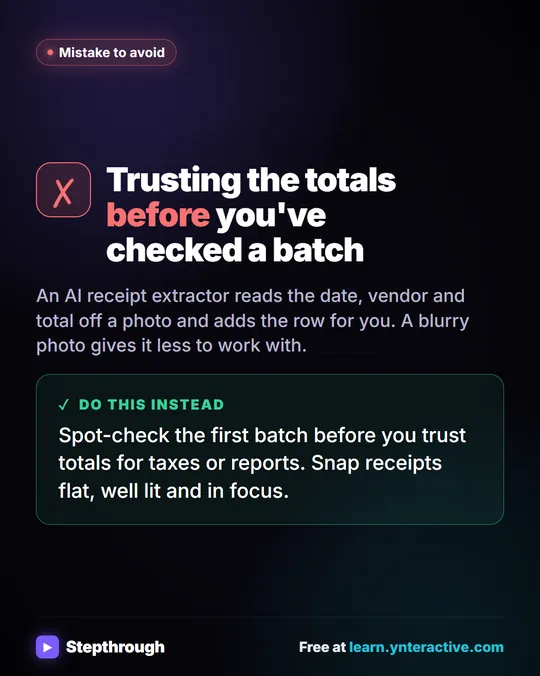
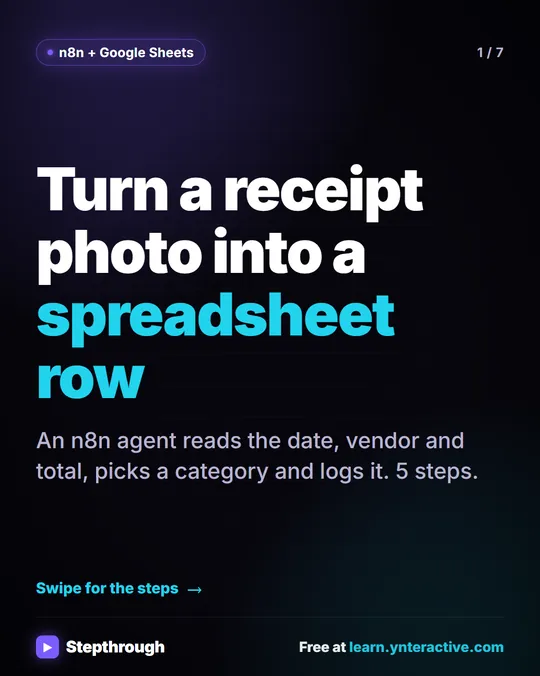
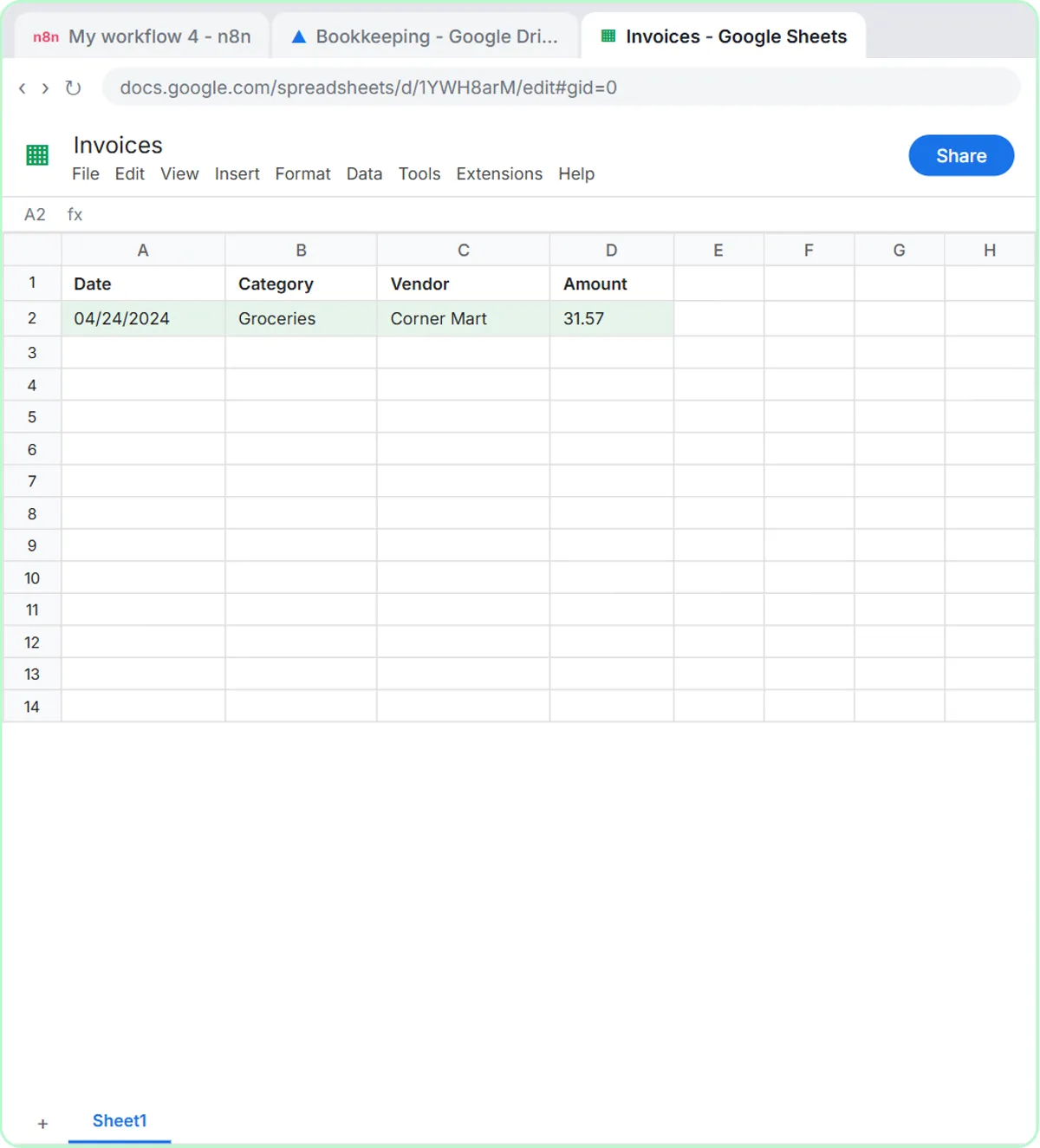
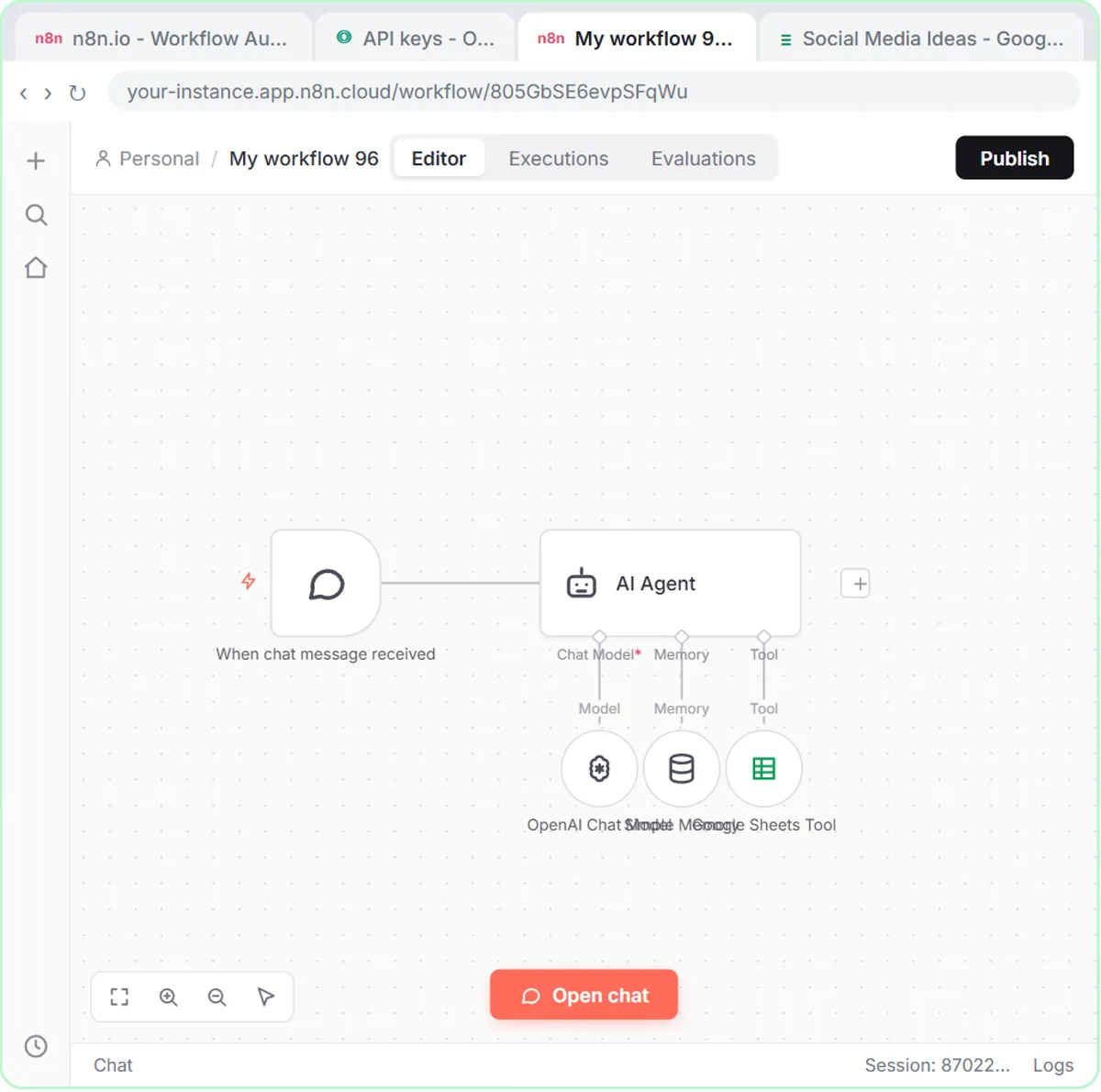
- Receipt photo to sheet. You drop a photo of a receipt into a chat. In AI Receipt Extractor, an n8n agent reads the date, vendor and amount, picks a category and adds a row to the Invoices sheet.
If you would rather compare ready-made tools, the directory of AI data entry tools lists automation platforms, invoice and receipt readers and document extractors.
In the second and third examples an AI step does the reading, so you also need an OpenAI API key, which is billed separately from ChatGPT plans. The first example needs no AI at all.
How do you stop duplicate rows?
Use Append or Update Row and tell n8n which column to match on, such as Email or Invoice Number. n8n looks for that value first: if it finds it, it updates that row, and if not, it adds a new one. The Read, Add and Update Google Sheets Rows lesson tests this by running the same workflow twice, and the sheet does not grow on the second run.
Plain Append Row always adds a line. That is right for a log where every event is its own row, and wrong for a list of people or invoices.
When should you not use Google Sheets for data entry?
Google Sheets works well for modest lists that people also want to read and fix by hand. It is not a strict database. It does not enforce types or required fields, two workflows writing at once can collide, and very large sheets get slow. Once your data grows into many linked records, or you need rules that reject bad entries, move to a real database or a CRM. The Google Sheets as a database glossary page lists these limits, and Google Sheets as a Database for Automation: Set It Up shows how to set up the sheet well.
Two habits keep a sheet healthy. Never rename or reorder the columns a live workflow uses without updating the workflow too. And let AI fill a column only after a person has agreed what the values may be, so a made-up category does not become data.
What does it cost?
The lessons are free. A real build needs a Google account and n8n, which you can run on n8n Cloud (paid after a free trial) or host yourself. Any AI step also needs an AI provider account such as an OpenAI API key. Check each vendor's pricing page for current prices before you commit.
If your data entry has more moving parts than this, an n8n developer for hire can build the full workflow for you.
Key takeaways
- n8n automates data entry by running a trigger, then a Google Sheets node that appends a row.
- Put plain column names in row 1 first, because n8n reads them as the field names.
- Use Append or Update Row with a matching column to avoid duplicates.
- Publish the workflow so it runs on its own, then test with a real example.
- Move to a real database when you need strict rules or many linked records.
Frequently asked questions
- How do I automate data entry in Google Sheets?
Create an n8n workflow with a trigger such as a form, a webhook or a Gmail trigger, add the Google Sheets node with the Append Row operation, map each column to a value from the trigger and publish the workflow. Each new item then becomes a row without anyone typing.
- Can Google Sheets update itself?
Not by itself for data that arrives from other places. Sheets has formulas that recalculate, but to bring in form answers, emails or invoices you need an automation tool such as n8n, Zapier or Make to write the rows for you.
- Is n8n free for this?
The Stepthrough lessons are free and run in a practice copy. For a real workflow, n8n Cloud is paid after a free trial, and you can host n8n yourself instead. Check n8n's pricing page for current plans.
- What if a row is duplicated?
Switch the node from Append Row to Append or Update Row and choose a column that is unique for each record, such as Email or Invoice Number. n8n then updates the existing row instead of adding a second one. Delete the duplicates already in the sheet by hand.