To get receipts into Google Sheets with AI, build an n8n workflow where you drop a receipt photo into a chat, an AI agent using an image-capable model (gpt-4o) reads the date, vendor and amount, picks a category, and appends a row to an Invoices sheet. It's for small-business owners and bookkeepers who type receipts in by hand, and the free AI Receipt Extractor lesson builds it step by step in a practice copy.
End of the month, there's a pile of receipts on the desk: gas, lunch, a hardware run. Each one needs four fields typed into a spreadsheet, and a tired eye turns 31.57 into 31.75.
What does the n8n receipt workflow include?
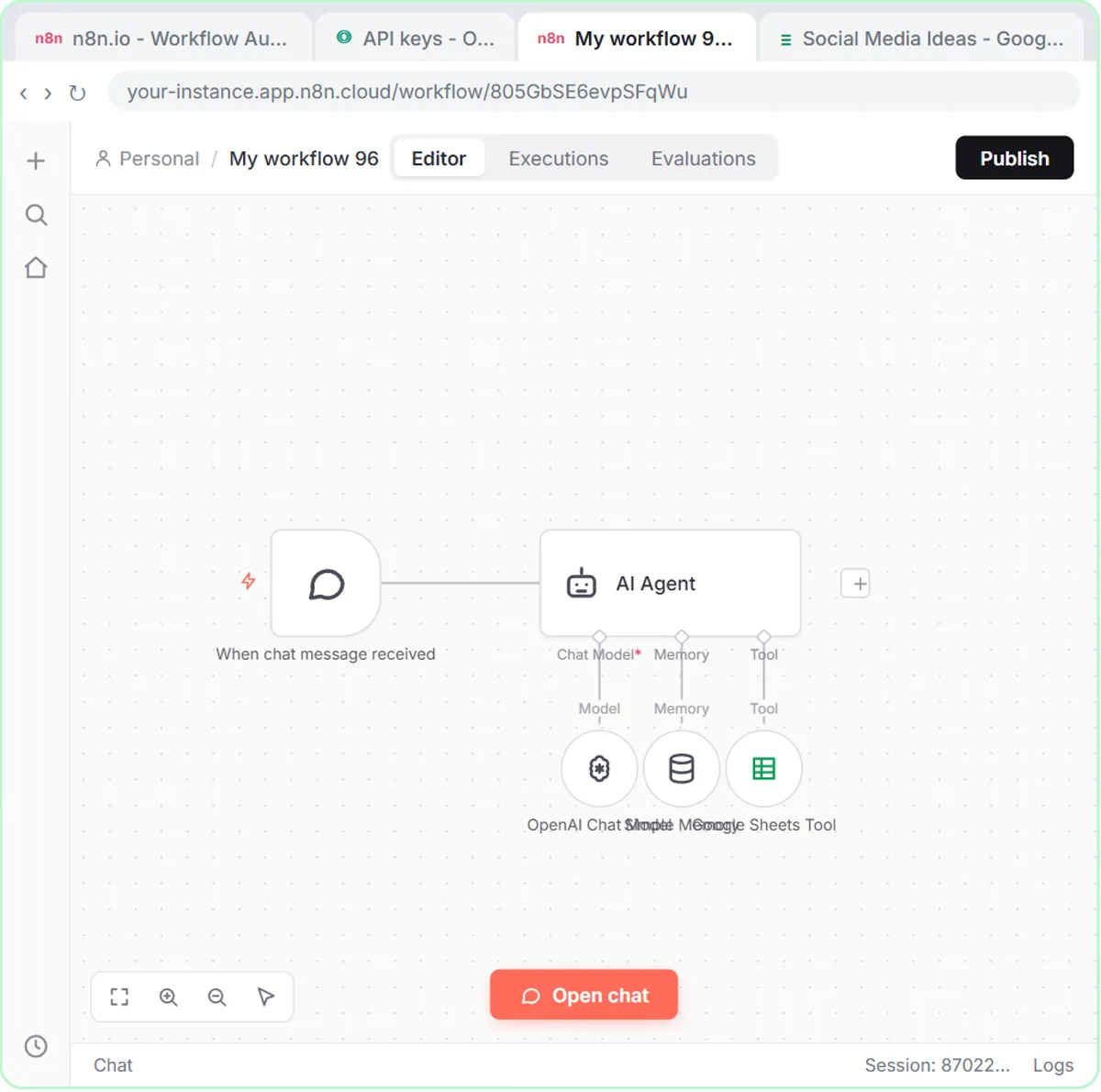
The n8n receipt workflow has a chat trigger, an AI Agent, an OpenAI chat model that can read images, Simple Memory and a Google Sheets tool. Each piece has one job:
- On chat message is the trigger, because the n8n chat lets you attach files.
- AI Agent looks at the receipt and decides what to do.
- OpenAI Chat Model set to gpt-4o reads the picture.
- Simple Memory remembers the last five messages, so "actually, call that one office supplies" works.
- Google Sheets Tool appends a row to the Invoices sheet.
Which AI model can read a receipt photo?
The receipt lesson uses gpt-4o, because a receipt is an image and gpt-4o reads images reliably. The default model is fine for text, but an agent that can't read images has nothing to work with.
In the lesson you reuse the OpenAI credential saved in the earlier n8n agent lesson, then open the Model dropdown and pick gpt-4o. The OpenAI API is billed separately from ChatGPT; OpenAI API vs ChatGPT Plus explains the key setup.
How do I set up the Invoices sheet?
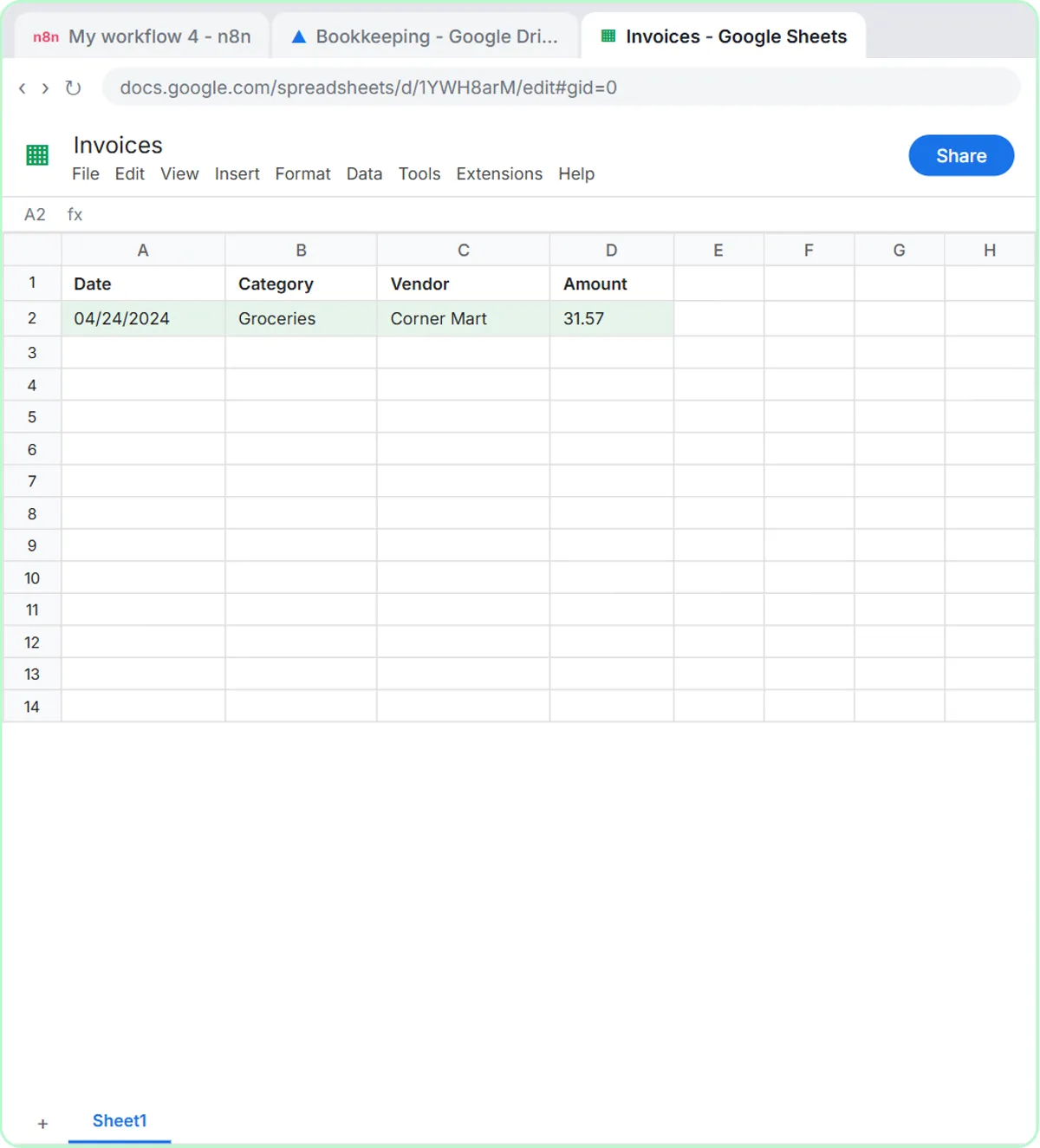
Create a blank spreadsheet named Invoices with four headers: Date, Category, Vendor and Amount. The lesson keeps it in a Bookkeeping folder shared with an accountant, so the accountant sees every receipt as it lands.
- In Google Drive, open the Bookkeeping folder and click + New, then Google Sheets, then Blank spreadsheet.
- Because the folder is shared, Google asks first. Click Create and share.
- Name the spreadsheet Invoices.
- Type Date in A1, Category in B1, Vendor in C1 and Amount in D1.
How do I connect the Google Sheets tool?
Set the Google Sheets tool to Append Row, point it at the Invoices sheet, and click the sparkle button next to each column so the model fills it. The steps in n8n:
- Change Operation from Get row(s) to Append Row.
- Pick Invoices under Document and Sheet1 under Sheet.
- Click the ✦ button next to Date, Category, Vendor and Amount. Each column now says it's defined automatically by the model.
What instructions does the receipt agent need?
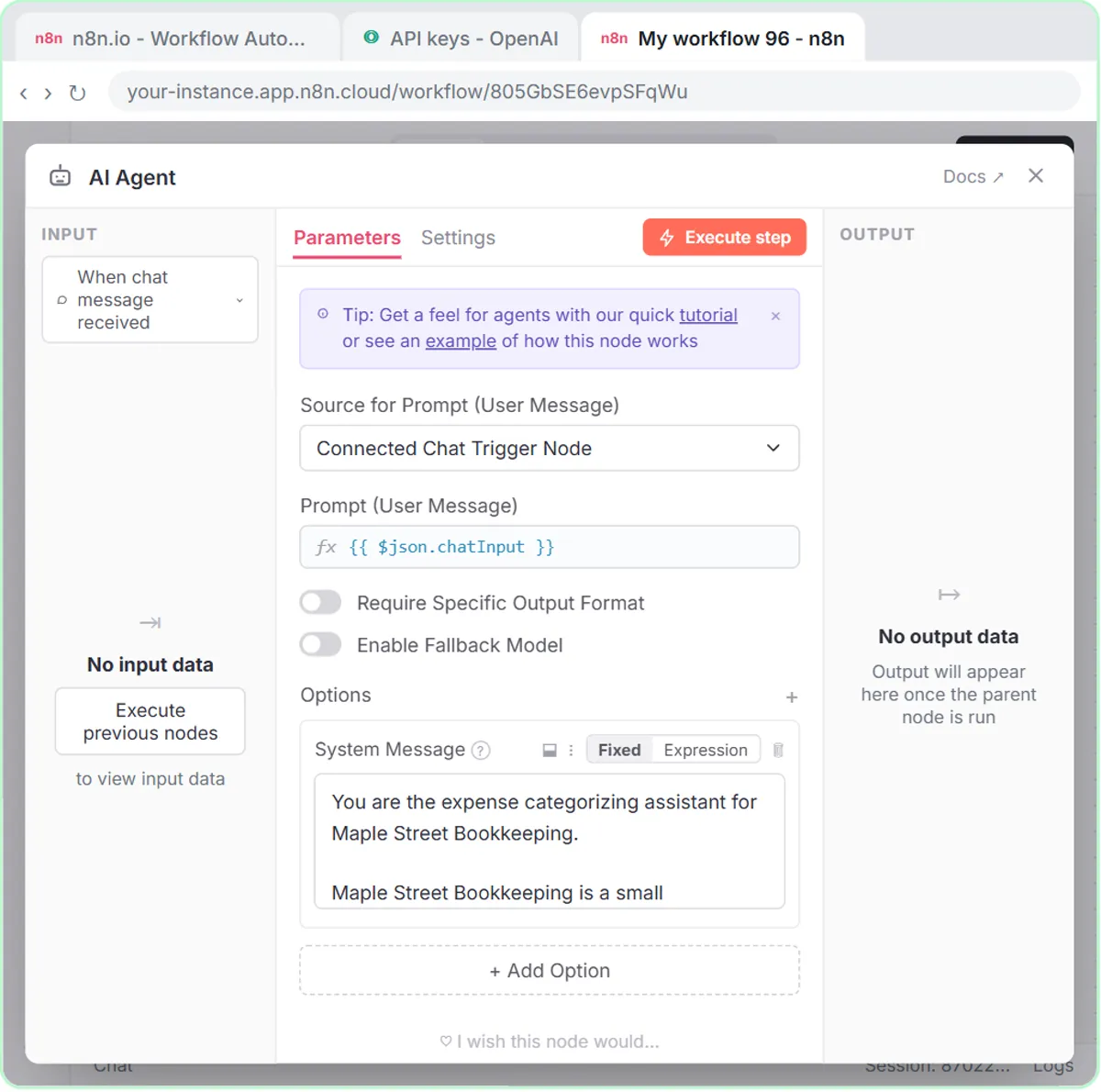
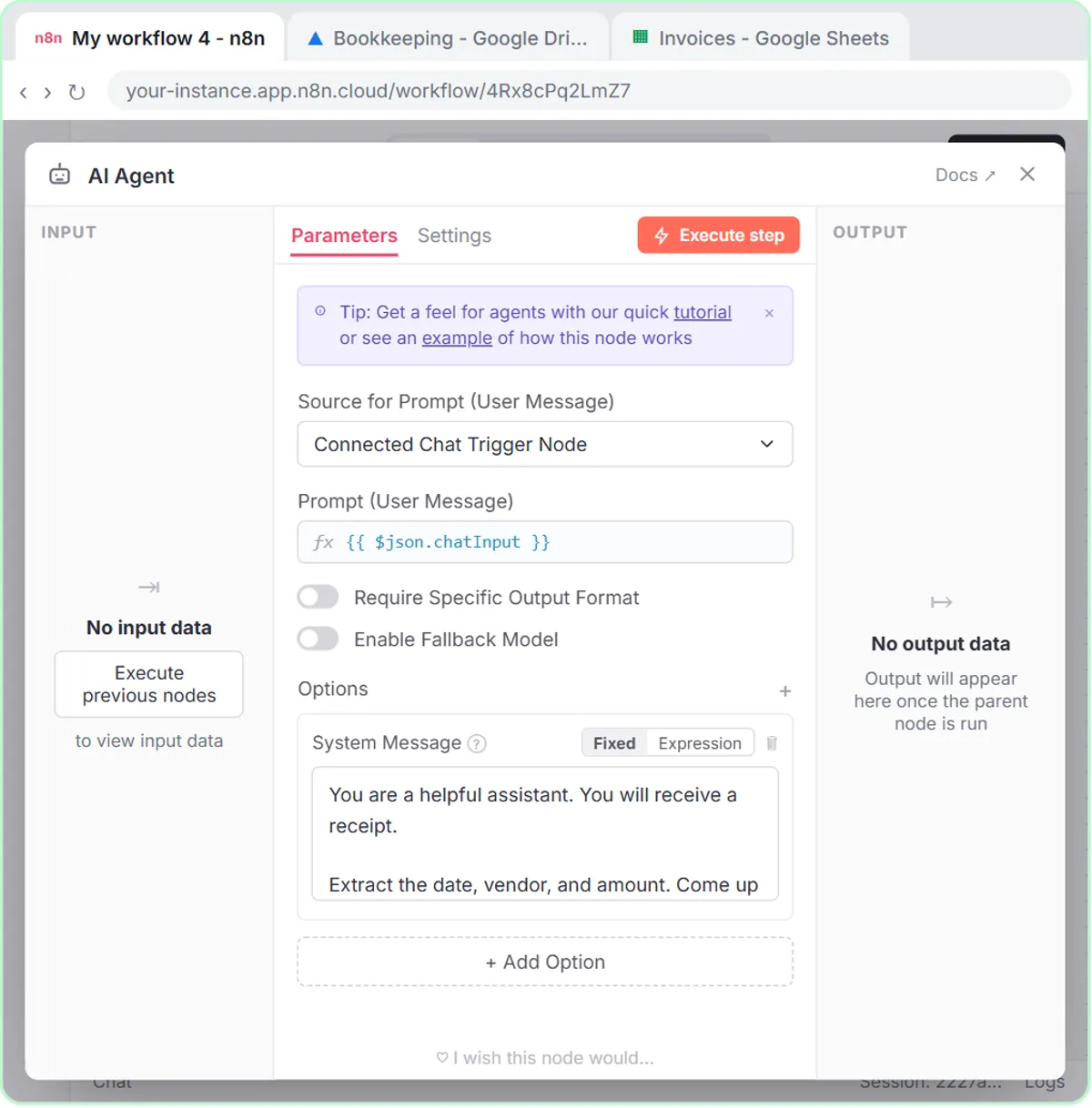
The receipt agent needs only three lines of instructions. Open the AI Agent, click Add Option, choose System Message, and paste:
You are a helpful assistant. You will receive a receipt.

Extract the date, vendor, and amount. Come up with a category.

Use the google sheets tool to add the receipt to the sheet.
Why are three lines of instructions enough?
Three lines are enough because the sheet's column headers do the mapping. With every column set to be filled by the model, the agent reads the headers (Date, Category, Vendor, Amount) and puts what it found on the receipt in the matching column.
The system message never says which value goes where. You can add a column like Payment Method or Job Number, click its sparkle button, and the agent will try to fill it as long as the header name is clear. Asking the agent to "come up with a category" gives you a grouped expense list without writing rules first.
Try it free, step by step
AI Receipt Extractor: Receipts to Google Sheets with n8n. Drop a photo of a receipt into an n8n chat. An AI agent reads it, pulls out the date, vendor and amount, picks a category, and adds a row to Google Sheets. You do every step yourself in a practice copy of n8n, it checks your work as you go, and “Do it for me” finishes any step you get stuck on. Free, and nothing touches your real accounts.
Start the free lessonHow do I test the receipt agent?
Open the n8n chat, attach the receipt photo, send it, then compare the receipt with the new row. The steps from the lesson:
- Click Open chat and type a short message like "Heres a receipt."
- Click the paperclip, pick receipt.png (the photo, not the PDF) and click Open.
- Click send. The trigger fires, gpt-4o reads the picture, and the agent calls the Sheets tool.
- Click the receipt in your message to check it: Corner Mart, April 24, total 31.57.
- Switch to the Invoices tab. The new row reads the date, Groceries, Corner Mart, 31.57. The agent chose Groceries without being told.
Should I trust AI to read receipts without checking?
No. Spot-check every new batch at first, because AI can misread a blurry or crumpled photo. A flat, well-lit, in-focus photo gives the model its best chance, and you should review the sheet before using totals for taxes or reports.
How can a bookkeeper categorize expenses with a fixed list?
A bookkeeper can give the agent a closed list of categories and a Needs Review option, as the free AI Expense Categorizer lesson does for a made-up firm, Maple Street Bookkeeping. The setup matches the receipt workflow, but you paste a batch of expenses into the chat and the system prompt is stricter.
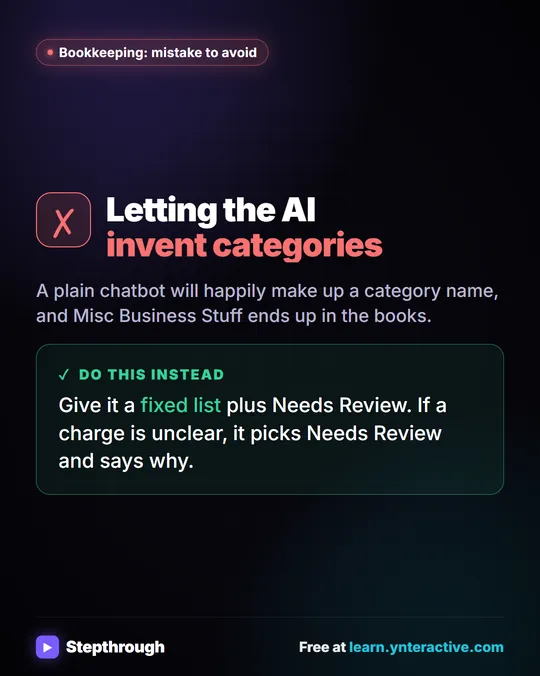
The Maple Street system prompt allows only Office Supplies, Software & Subscriptions, Meals, Travel, Utilities and Needs Review. If an expense could fit more than one category or the details are unclear, the agent must use Needs Review and say why. It must not change amounts, invent details or give tax advice. The sheet is called Expense Log, with Date, Vendor, Amount, Category and Note.
In the test, you send three made-up expenses: $64.18 of printer paper and toner from Corner Office Supply, a $45.00 monthly software charge from CloudLedger and a $38.50 client lunch at Harbor Street Cafe. The agent files them as Office Supplies, Software & Subscriptions and Meals, each with a one-sentence note. Then "Yes, save those expenses to the sheet" writes three rows.
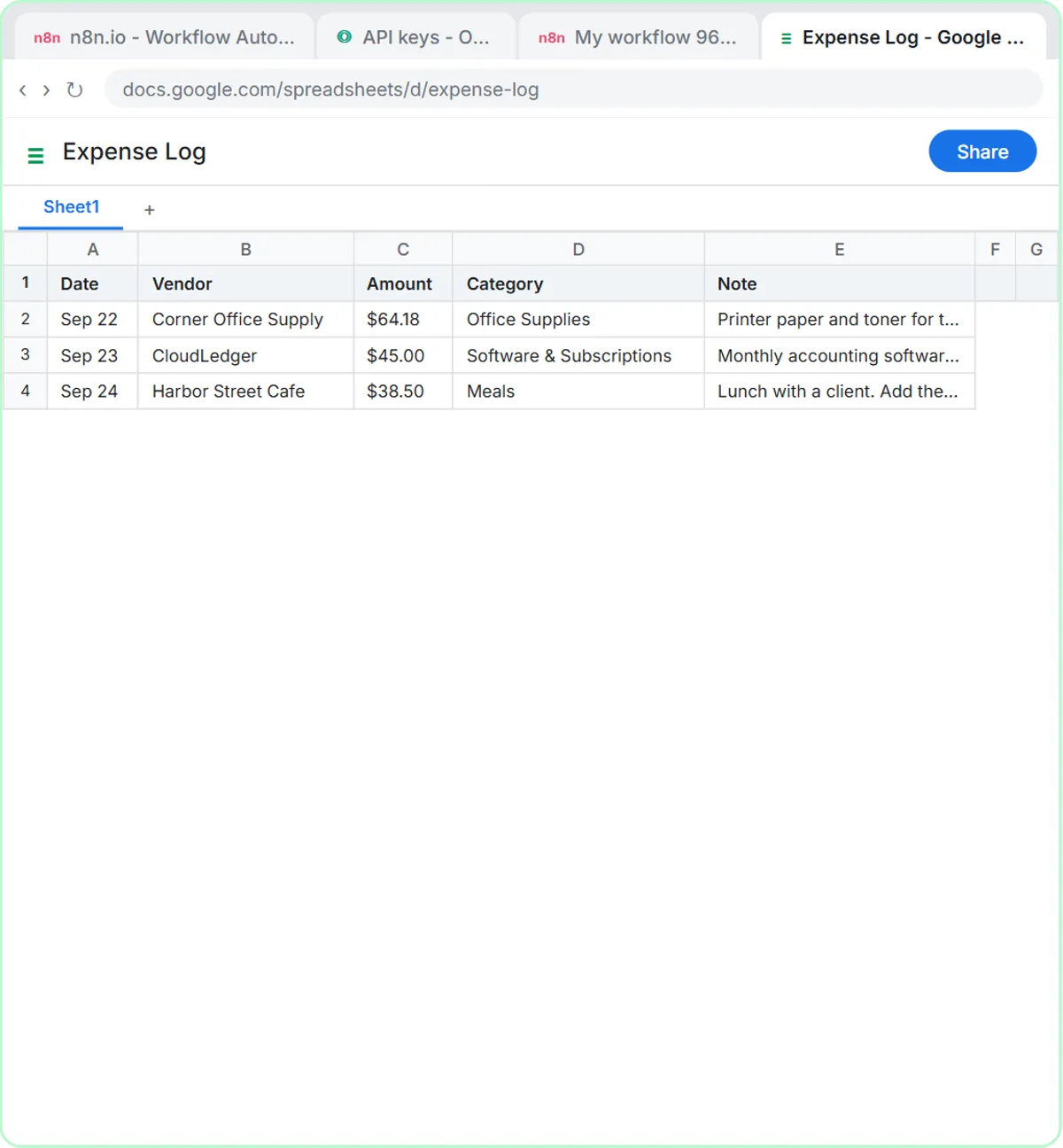
The Note column is where the agent flags a missing receipt or a client lunch that needs a name and purpose. Treat the Expense Log as a first pass that the bookkeeper reviews before anything is posted. The categories are examples, not tax guidance; your accountant decides how expenses are treated.
What does it cost, and what about privacy?
The lessons are free practice copies; building for real needs an n8n account, an OpenAI API key with credit and a Google account. n8n Cloud has a free trial and then paid plans, or you can self-host n8n.
Receipts and expense lists can include card digits, names and client details. Send only what the agent needs, and follow your company's policy on AI tools. More lessons are under AI for finance and accounting and bookkeeping firms.
Key takeaways
- An n8n AI agent with gpt-4o can read a receipt photo and append the date, category, vendor and amount to a Google Sheet.
- Clicking the sparkle button next to each Google Sheets column lets the model fill that column from its header name, so the system message can be three lines.
- In the lesson, the agent reads a Corner Mart receipt from April 24 and writes Groceries, Corner Mart and 31.57 to the Invoices sheet.
- A fixed category list with a Needs Review option keeps an expense categorizer agent from inventing categories.
- AI can misread receipts, so spot-check the sheet before using it for taxes or reports.
Frequently asked questions
- Can n8n read a receipt from a photo?
Yes, when the AI Agent uses a model that accepts images. The receipt lesson uses gpt-4o through the OpenAI Chat Model node.
- How does the agent know which column is which?
Each Google Sheets column is set so the model defines its value. The agent reads the header names, like Date and Vendor, and fills them from the receipt.
- Should I trust the numbers without checking?
No, not at first. The lesson ends by comparing the receipt with the new row, and you should spot-check your first batches the same way.
- What if an expense doesn't fit a category?
In the expense categorizer lesson, the agent must use Needs Review and explain why instead of guessing.
- Does this connect to my accounting software?
Not in these lessons. The agents write to Google Sheets, and you review the sheet and post entries yourself.