The categories in this post are examples, not tax guidance. Which account an expense belongs in, and how it's treated on a return, is your accountant's decision.
Why use AI to categorize expenses at year-end?
Because the uncategorized pile is repetitive work with a clear pattern, and AI can make the first pass while a bookkeeper keeps the final say. Most lines are obvious (toner is office supplies, a monthly software charge is a subscription), and only a few need a person to think. An agent that sorts the obvious ones and flags the rest lets you spend your time on the flagged ones.
The point is a faster first draft, not hands-off books. Every row the agent writes lands in a sheet for review.
Should AI pick its own categories or use a fixed list?
Use a fixed list for bookkeeping. An agent that invents categories will file the same kind of expense under different names, and your reports won't add up.
Two Stepthrough lessons show the difference:
| AI Receipt Extractor | AI Expense Categorizer | |
|---|---|---|
| Instruction | "Come up with a category." | "Use only these categories" |
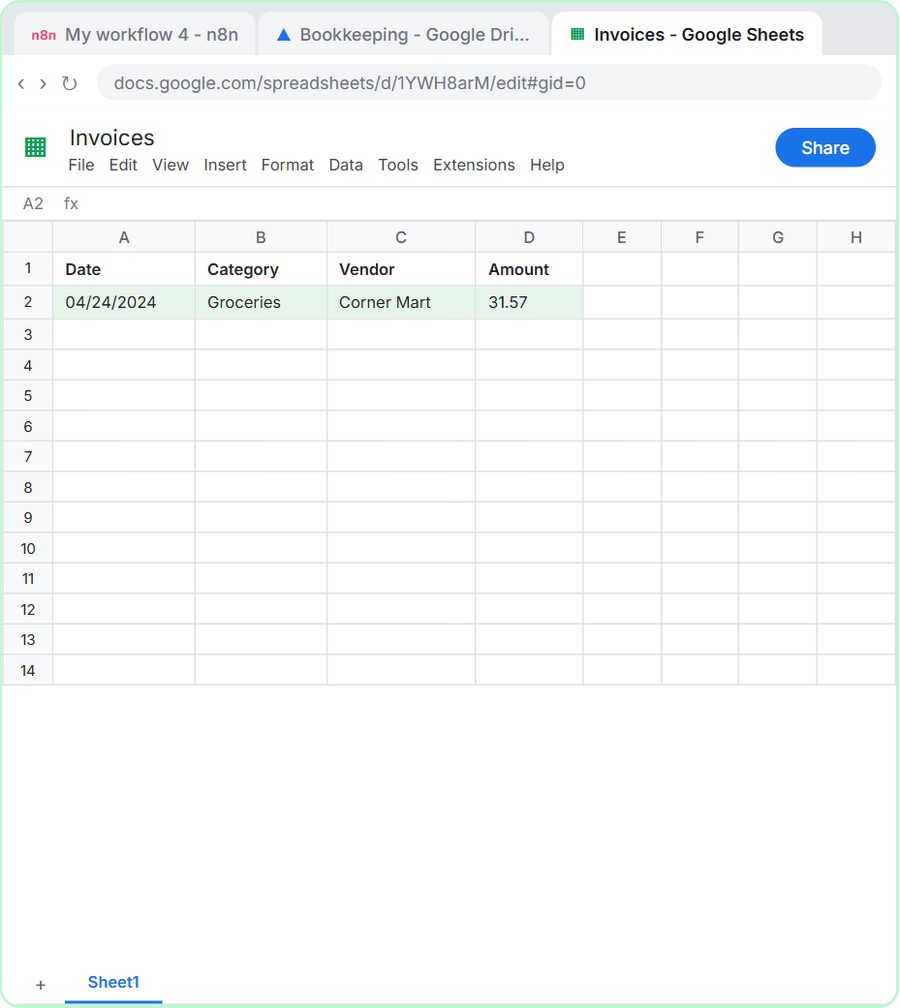
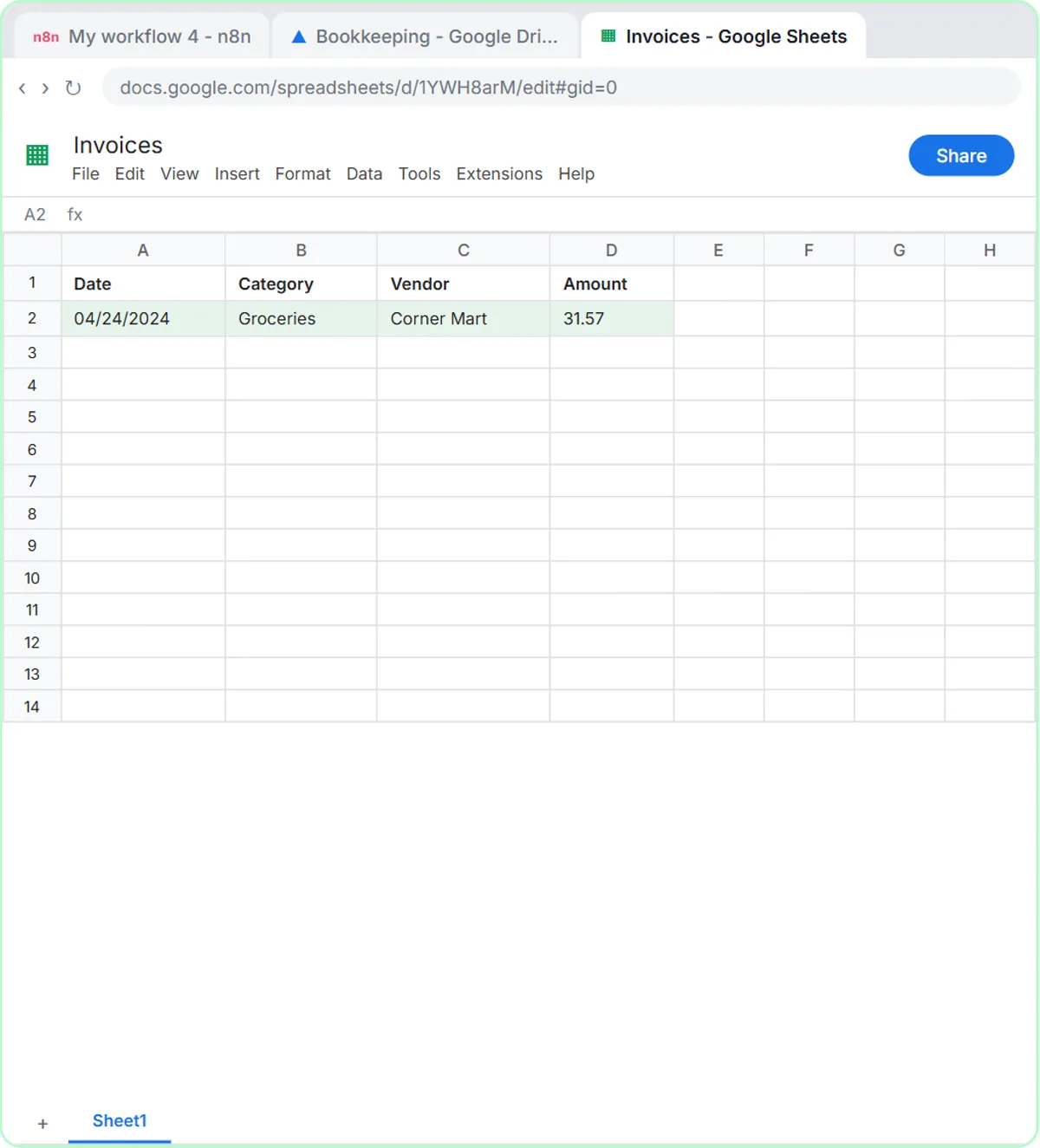
| Result in the lesson | Files a Corner Mart receipt as Groceries | Sorts three expenses into Office Supplies, Software & Subscriptions and Meals |
| Good for | Getting receipts off paper quickly | Consistent categories a bookkeeper can post |
The AI Receipt Extractor is great for turning photos into rows, and Get Receipts into Google Sheets with AI covers it. For year-end cleanup, the closed list is the one you want.
What does the expense categorizer's system prompt say?
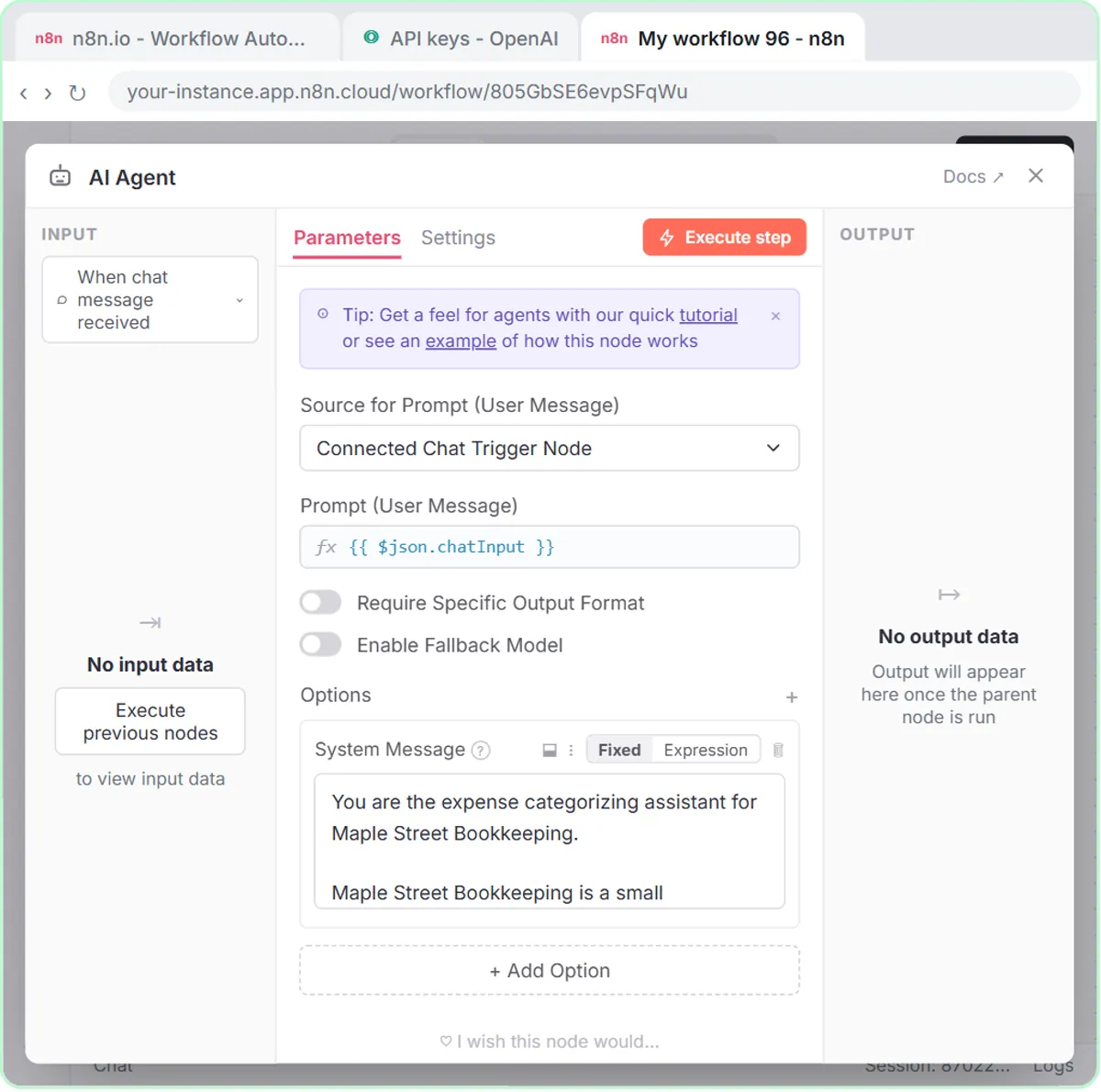
The Maple Street system prompt names the firm, the reviewer, the allowed categories, the fields to return and three hard rules. The parts that matter most:
Use only these categories:
- Office Supplies
- Software & Subscriptions
- Meals
- Travel
- Utilities
- Needs Review

For each expense, return:
- Date
- Vendor
- Amount
- Category
- Note (one sentence: what it was for, and anything the bookkeeper should check, like a missing receipt)

If an expense could fit more than one category, or the details are unclear, use Needs Review and say why.

Do not give tax advice. Do not change amounts or invent details.
Each line does a job:
- The closed list keeps every row in categories you already use. Swap in your own client's categories when you build it.
- Needs Review gives the agent a safe place to put anything it isn't sure about, so it doesn't force a guess.
- "Say why" means a flagged row tells you what to look at, instead of just a label.
- The Note asks for one sentence plus anything to check, like a missing receipt.
- "Do not change amounts or invent details" protects the one thing that must never be creative: the numbers.
The prompt also says the audience is "the bookkeeper who reviews every entry before it is posted," which sets the expectation for everything the agent writes.
How do you build the expense categorizer in n8n?
The lesson's agent is five pieces on an n8n canvas, about 12 minutes and 72 steps in the practice copy:
- On chat message trigger, so you can paste a batch of expenses into a chat.
- AI Agent, with the system prompt added under Add Option, System Message.
- OpenAI Chat Model, using gpt-5-mini, with your OpenAI API key saved as a credential.
- Simple Memory, so "save those expenses" refers to the batch you just sent.
- Google Sheets Tool, set to Append Row on an Expense Log sheet with Date, Vendor, Amount, Category and Note headers. Each column uses the ✦ button so the model fills it in.
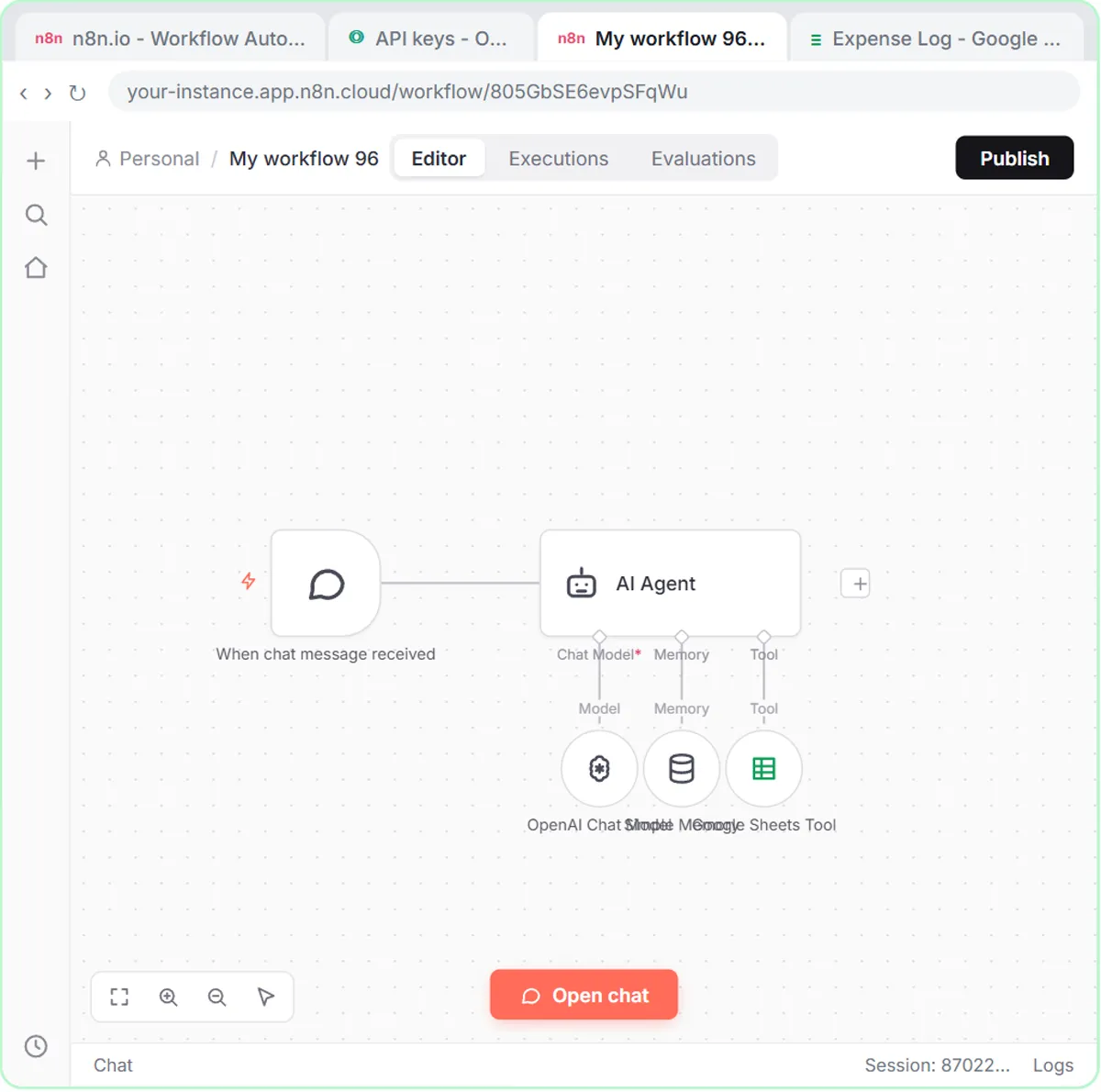
The headers must match the five fields the system prompt returns. That match is how the agent knows what goes where.
Try it free, step by step
Build an AI Agent That Categorizes Business Expenses. Build an AI agent for Maple Street Bookkeeping that sorts business expenses into categories, writes a short note for each and saves them to Google Sheets — chat trigger, AI Agent, system prompt… You do every step yourself in a practice copy of n8n, it checks your work as you go, and “Do it for me” finishes any step you get stuck on. Free, and nothing touches your real accounts.
Start the free lessonHow do you test the categorizer before using it on real books?
Send a small batch you already know the answers to, read the agent's reply, then tell it to save. The lesson's test batch:
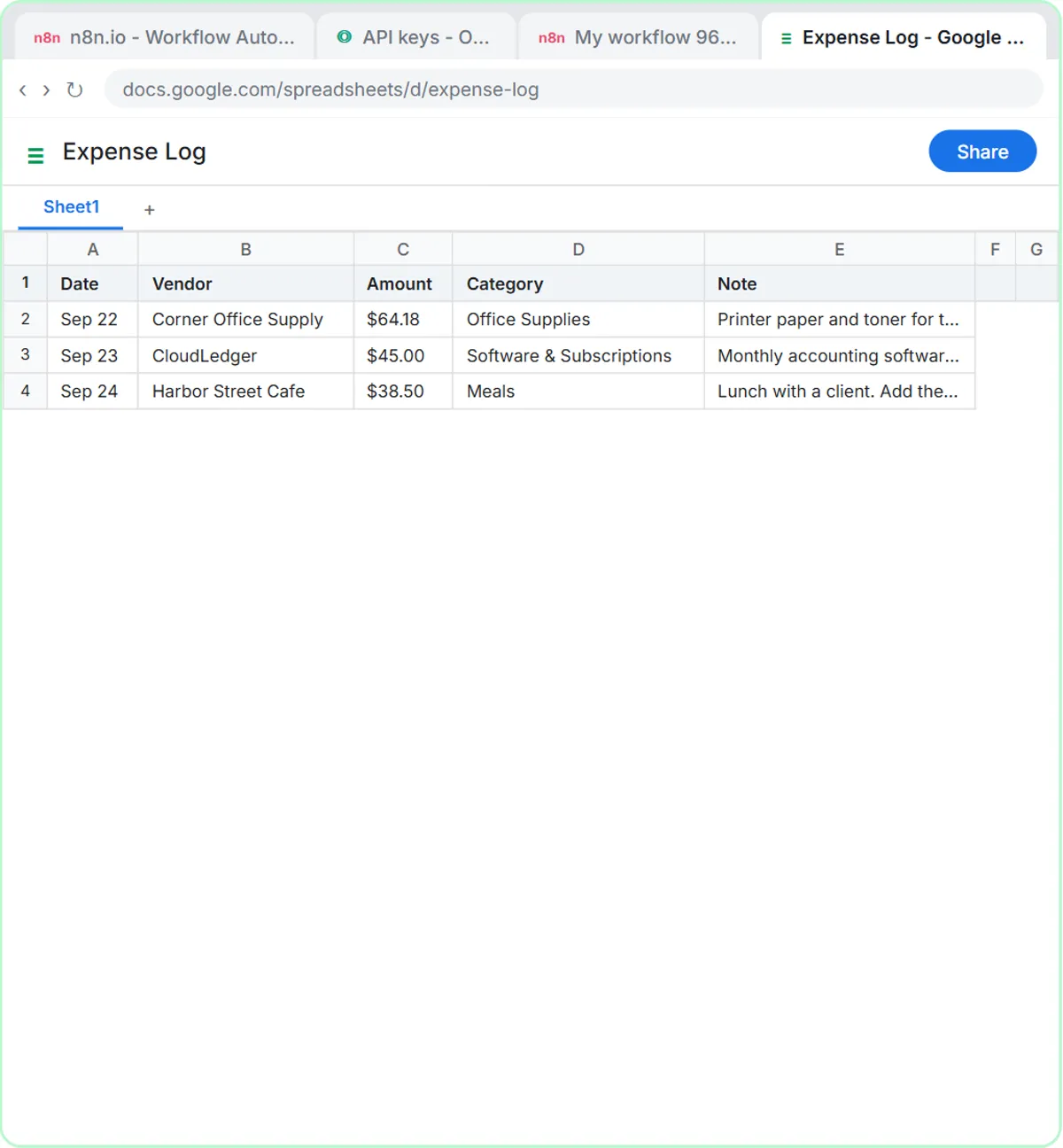
Categorize these expenses: Sep 22, Corner Office Supply, $64.18, printer paper and toner. Sep 23, CloudLedger, $45.00, monthly accounting software. Sep 24, Harbor Street Cafe, $38.50, lunch with a client.
The agent returns Office Supplies, Software & Subscriptions and Meals, each with a short note. Then "Yes, save those expenses to the sheet" writes three rows to the Expense Log. Before trusting it with a real backlog, add a test line that should land in Needs Review, such as a vague transfer, and confirm it does.
How should you work through a year-end backlog?
In small batches, with the review built in. A routine that fits the lesson's design:
- Export the uncategorized transactions from your accounting software to a list with date, vendor, amount and description.
- Paste one batch at a time into the n8n chat, the same way as the test.
- Read the reply before you say "save." If something is off, tell the agent in the same chat.
- Review the Expense Log. Sort by Category, check the Needs Review rows first, and compare a few amounts with the source.
- Post only what you've checked. The sheet is a worklist, not the books.
Rows the agent can't place, plus anything that needs the client's answer, become the list you send the client. Year-End Bookkeeping Checklist for Your Clients shows how to track those answers with owners and dates.
What should you keep out of the expense agent?
Paste only what categorizing needs: date, vendor, amount and a short description. Leave out full card and account numbers, tax IDs and anything personal, follow your firm's policy on AI tools, and keep client data in accounts your firm controls.
On cost: the lesson is free and runs in a practice copy. A real build needs n8n (n8n Cloud is paid after a free trial, or self-host it), a Google account and an OpenAI API key, which is pay-as-you-go and billed separately from ChatGPT plans; the lesson suggests $10 of credit. More lessons are on the finance page. For employee reimbursements against a policy, see Automate Expense Reimbursement Requests with AI.
Key takeaways
- AI can categorize business expenses reliably when it must use a closed list of categories plus a Needs Review option.
- The Maple Street Bookkeeping agent writes a one-sentence note for each expense that says what to check, such as a missing receipt.
- The system prompt forbids changing amounts, inventing details and giving tax advice.
- In the lesson, three test expenses are sorted into Office Supplies, Software & Subscriptions and Meals and saved to an Expense Log sheet.
- A bookkeeper reviews every row, starting with Needs Review, before anything is posted.
Frequently asked questions
- Can AI categorize expenses without a person checking?
It shouldn't. The lesson's agent is written for a bookkeeper who reviews every entry before it is posted, and unclear expenses go to Needs Review.
- Can I use my own expense categories?
Yes. Replace the list in the system prompt with your own categories and keep Needs Review as the catch-all.
- Will the AI change the amounts?
The system prompt says "Do not change amounts or invent details." Still compare a sample of rows with the source during review.
- Is Maple Street Bookkeeping a real firm?
No. Maple Street Bookkeeping and its test expenses are made-up examples used in the lesson.