5 Steps to an AI Agent That Categorizes Business Expenses
A visual guide: an n8n agent sorts expenses into a fixed list of categories, flags unclear ones as Needs Review and saves them to Google Sheets.
Slide 1 of 7 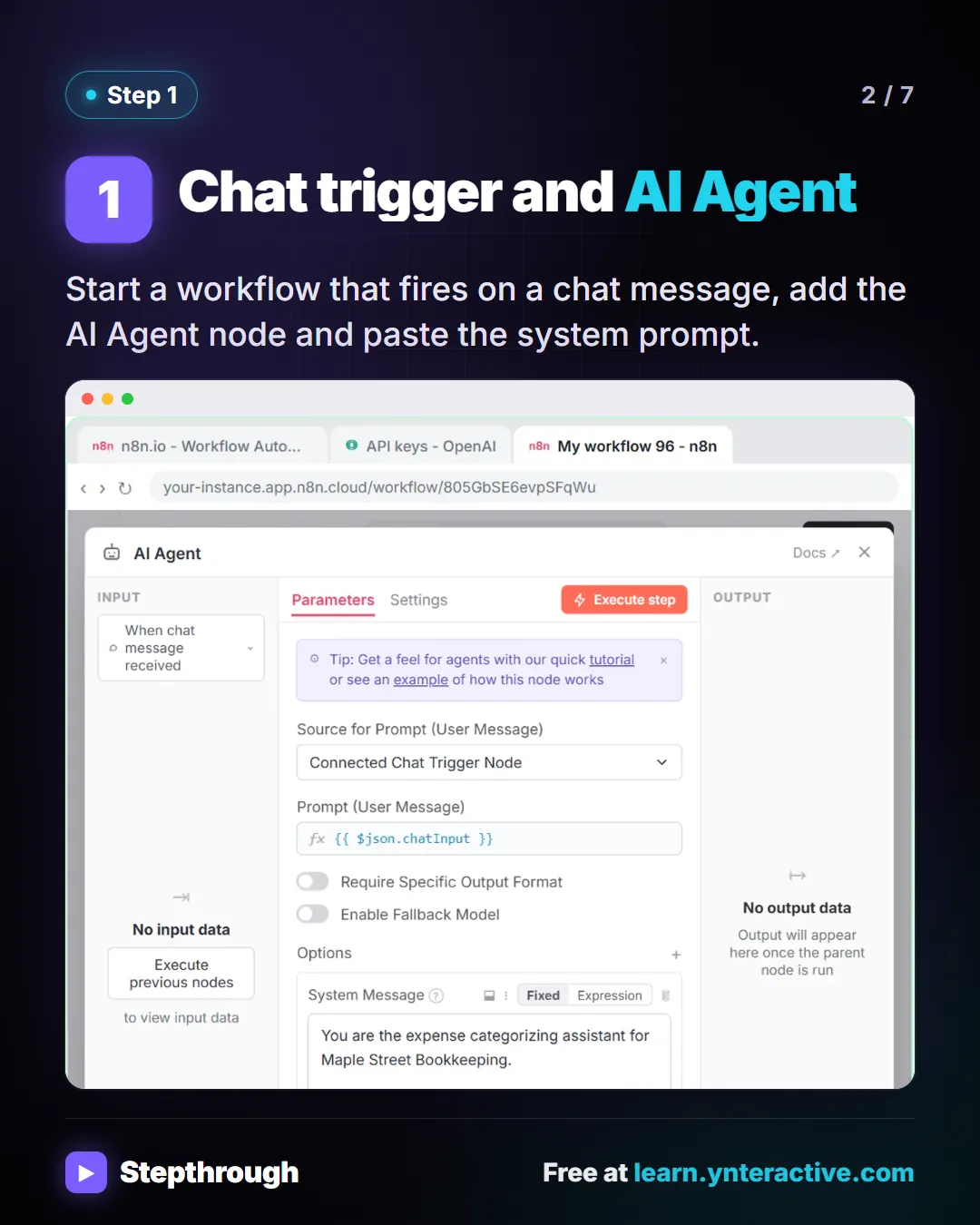
Slide 2 of 7 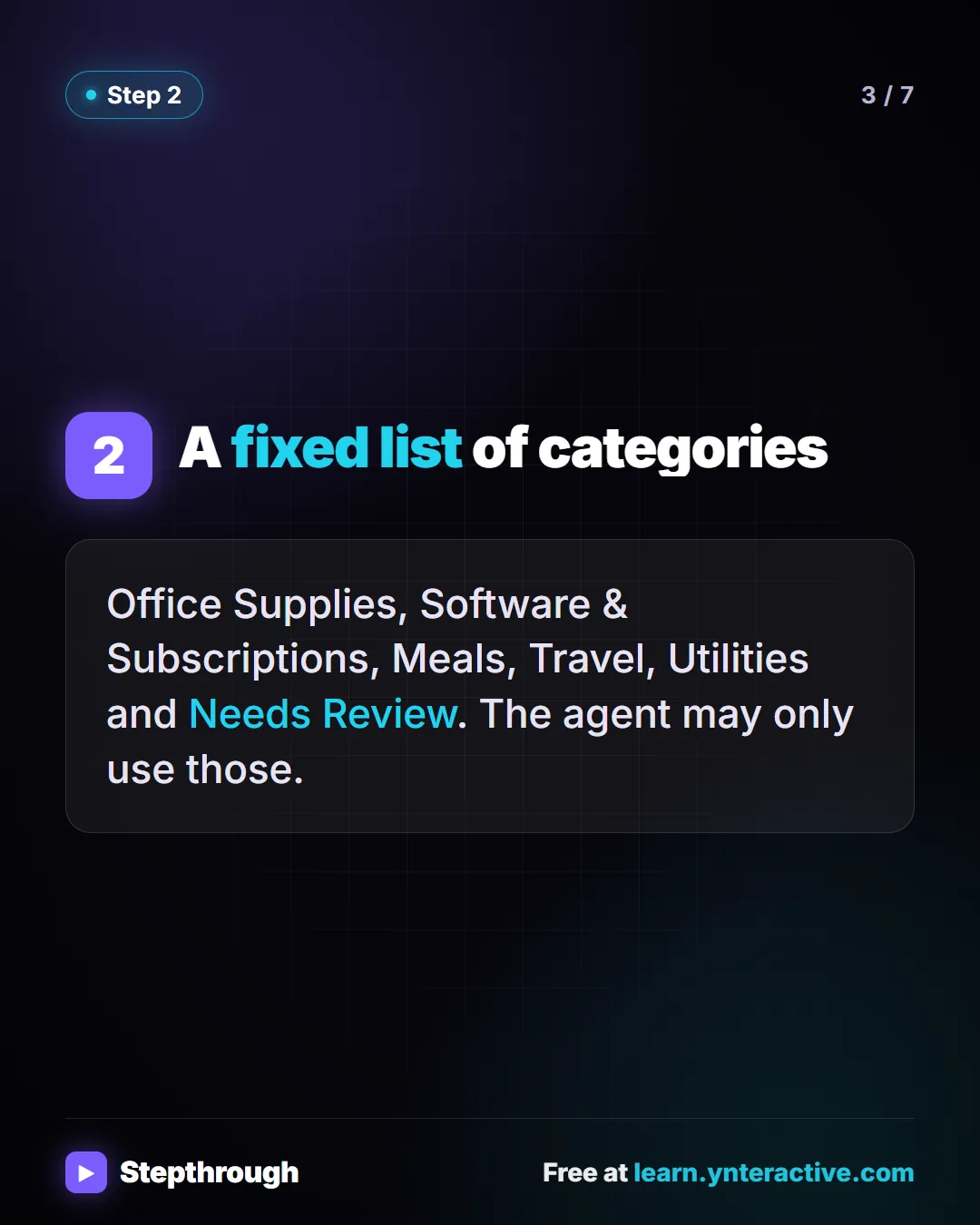
Slide 3 of 7 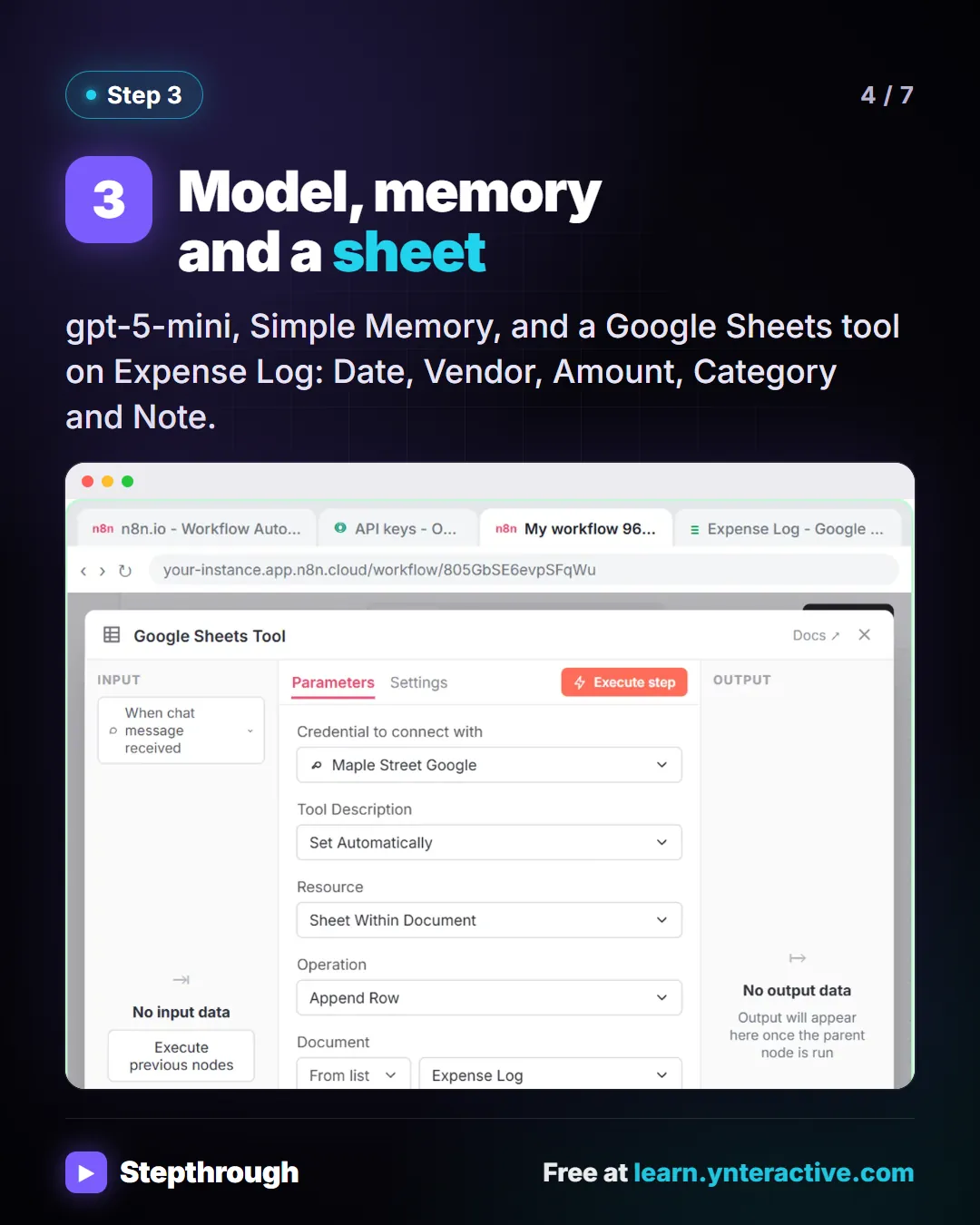
Slide 4 of 7 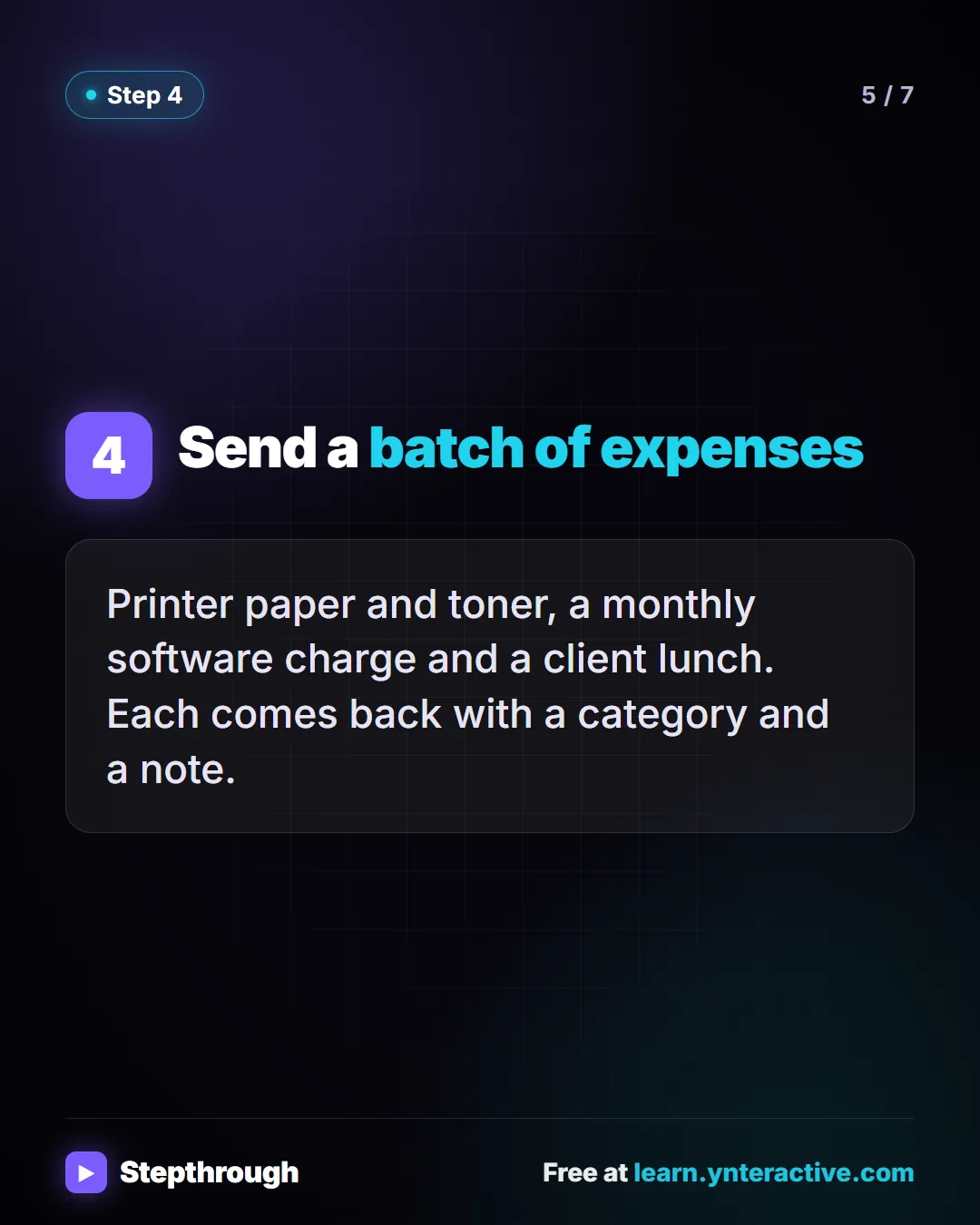
Slide 5 of 7 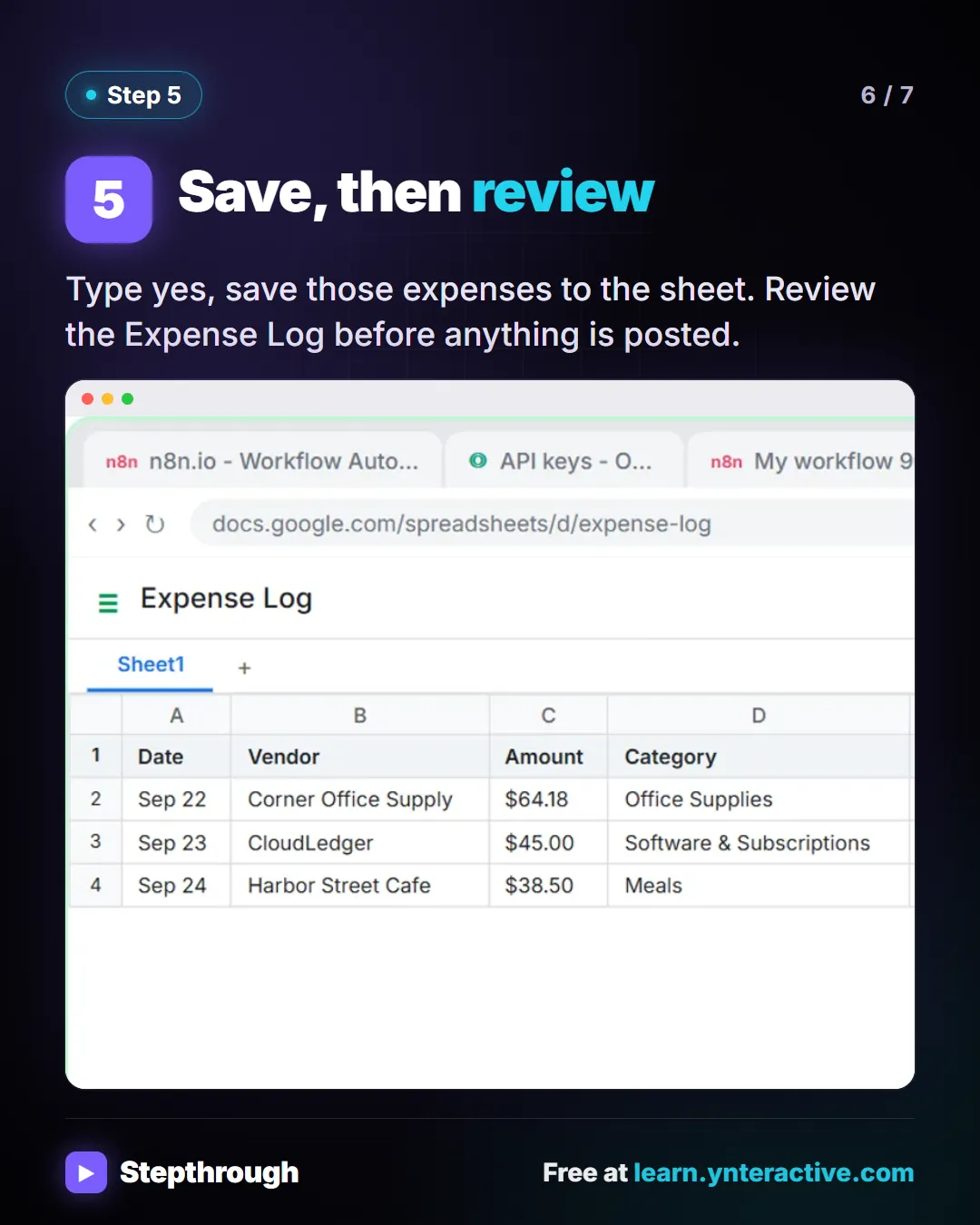
Slide 6 of 7 
Slide 7 of 7
The guide in text
Maple Street Bookkeeping (made up). It sorts what it is sure about and hands you the rest.
Step by step
Chat trigger and AI Agent
Start a workflow that fires on a chat message, add the AI Agent node and paste the system prompt.
A fixed list of categories
Office Supplies, Software & Subscriptions, Meals, Travel, Utilities and Needs Review. The agent may only use those.
Model, memory and a sheet
gpt-5-mini, Simple Memory, and a Google Sheets tool on Expense Log: Date, Vendor, Amount, Category and Note.
Send a batch of expenses
Printer paper and toner, a monthly software charge and a client lunch. Each comes back with a category and a note.
Save, then review
Type yes, save those expenses to the sheet. Review the Expense Log before anything is posted.
Businesses and people in the examples are made up (Maple Street Bookkeeping is a made-up business). The steps, screens and wording come from the free lesson and the Stepthrough glossary and prompt library.
Do it yourself, free
Build an AI Agent That Categorizes Business Expenses. Build an AI agent for Maple Street Bookkeeping that sorts business expenses into categories, writes a short note for each and saves them to Google Sheets — chat trigger, AI Agent, system prompt… You do every step yourself in a practice copy of n8n, it checks your work as you go, and “Do it for me” finishes any step you get stuck on. Free, and nothing touches your real accounts.
Start the free lessonRelated terms
Plain-English definitions, each with an example from a free lesson.
Related prompts
- Email subject lines prompt: Get ten honest subject lines for a finished email, each with preview text and a character count, grouped by approach so you can…
- Expense categorization prompt: Sort a batch of expenses into your own categories, with a short note each and a Needs Review bucket for anything unclear…
- Social post ideas prompt: A four-part ChatGPT prompt for social post ideas built on your services and real customer questions: platform, hook and call to…
- Client monthly report prompt: Turn your agency's monthly numbers and work log into a client report: what changed, what you did, what's next. Every number…
From the blog
 How to Stop ChatGPT from Making Things Up: 5 Guardrails
Stop ChatGPT from making things up with five guardrails: a facts list, a Not stated rule, never-invent rules, a closed category list and a final check.
Oct 1, 2026 6 min read
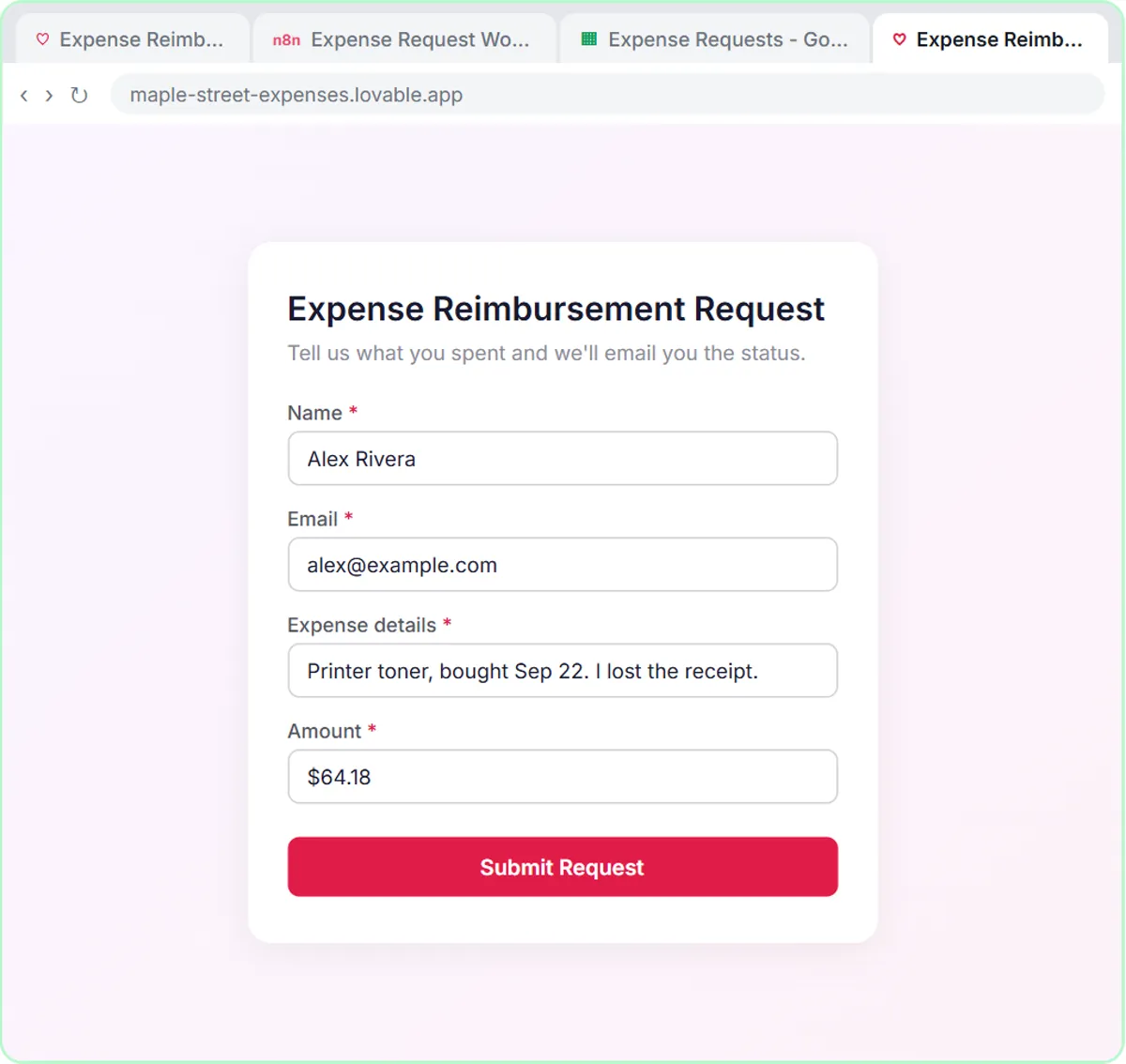 Automate Expense Reimbursement Requests with AI
Expense reimbursement automation for small teams: a Lovable form and an n8n AI agent that checks the policy, logs it in Sheets and emails the status.
Oct 1, 2026 6 min read
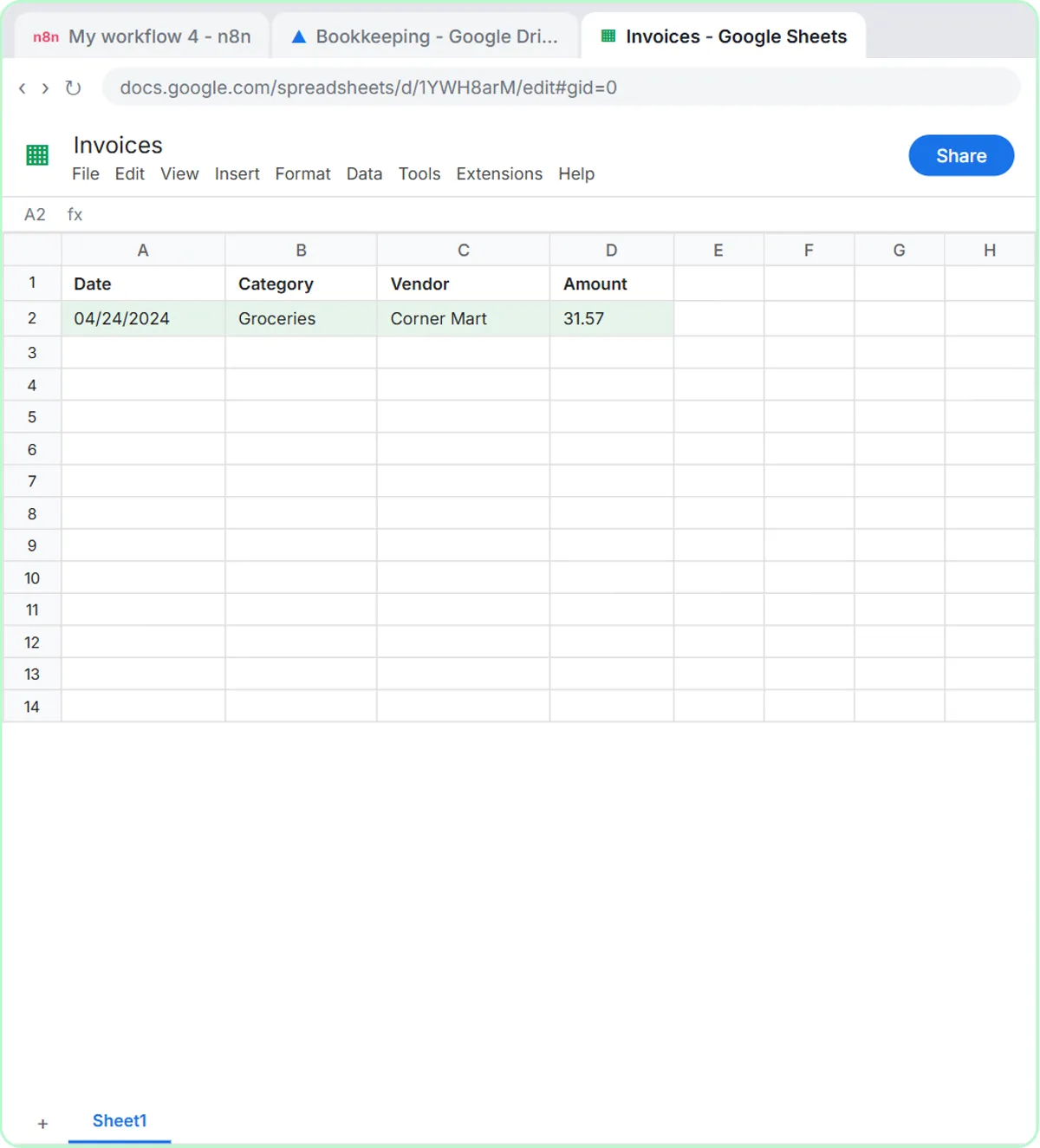 Get Receipts into Google Sheets with AI and n8n
Receipts to Google Sheets without typing: build an n8n agent that reads a receipt photo, picks a category and adds a row. Plus an expense categorizer.
Oct 1, 2026 6 min read
More visual guides
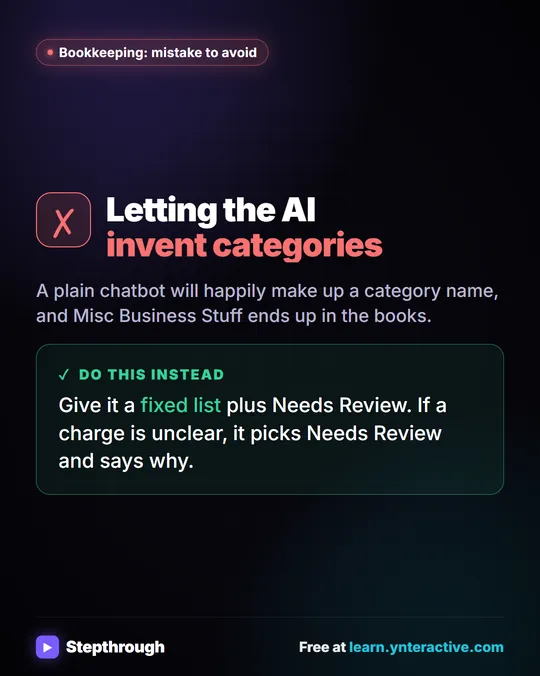 Mistake to Avoid: Letting AI Invent Expense Categories
A visual tip for bookkeepers: give an AI agent a fixed list of categories plus Needs Review, so it never makes up a category name.
Mistake to avoid One graphic
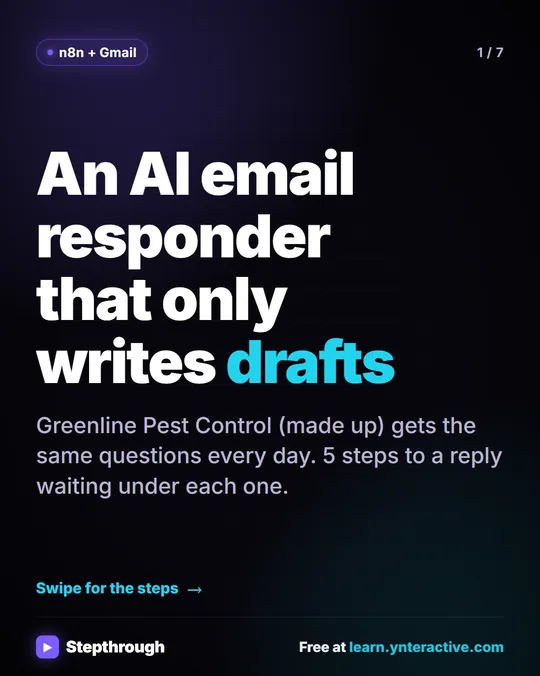 5 Steps to an AI Email Responder That Only Writes Drafts
A visual guide: an n8n agent reads each new Gmail message and saves a reply as a draft in the same thread. You read it and click Send.
Step-by-step guide 7 slides
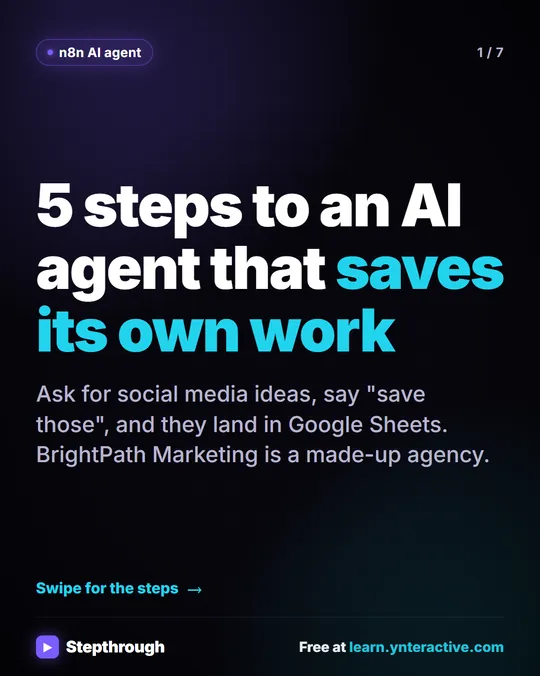 5 Steps to an n8n AI Agent That Saves to Google Sheets
A visual guide: build an n8n AI agent that writes social media ideas and saves each one as a Google Sheets row, in 5 steps from the free lesson.
Step-by-step guide 7 slides