Updated . Built against the tool’s current screens and checked step by step. How we check this lesson
Vendor invoices arrive as PDF attachments, and someone types the vendor, invoice number and total into a spreadsheet, then chases the owner for a yes on the big ones. In this free lesson you build an n8n workflow that does the typing and the chasing: AI reads each invoice, every invoice is logged in Google Sheets, and anything over $1,000 waits for the owner to click Approve in an email.
At a glance
| Question | Answer |
|---|---|
| What you build | Build an n8n workflow that reads each vendor invoice PDF from Gmail with AI, logs the vendor, invoice number and total in Google Sheets, and emails the owner an Approve button for anything over $1,000. |
| Tools | n8n |
| Time | About 14 minutes, 40 steps in 5 parts |
| Level | Advanced, no coding needed |
| Cost | Free |
| Ways to learn it | Practice it step by step, watch the video, read the guide with screenshots |
The 5 parts, in short
- Read the invoice: Add the next step, Search for extractor, Information Extractor, Say what to pull out, and 7 more steps.
- Log it: Add the log, Search for sheets, Google Sheets, Append row in sheet, and 8 more steps.
- Over $1,000?: Add a check, Search for if, If, Check the total, and 4 more steps.
- Ask for approval: Add to the true branch, Search for gmail, Gmail, Send message and wait for response, and 4 more steps.
- Test it: Test it.
Start here first: Build an AI Agent That Categorizes Business Expenses (module 1 of AI Automation for Finance)
Invoices from Your Inbox to Google Sheets, with Approval: step-by-step guide with screenshots
About the screenshots. They come from Stepthrough’s simulated practice environment (a practice copy of n8n), not the live tool, so no real account appears. The buttons and labels match the real screens the lesson was built against. Practice it yourself free at learn.ynteractive.com.
- Tools: n8n
- Time: about 14 minutes, 40 steps in 5 parts
- Level: beginner, no coding needed
Part 1: Read the invoice
Step 1: Add the next step
You keep the books at Cobalt Street Architects, and vendor invoices arrive by email as PDFs. This workflow already catches them: the Gmail Trigger downloads the attachment, and Extract from File turns the PDF into text. A test invoice is pinned to both.
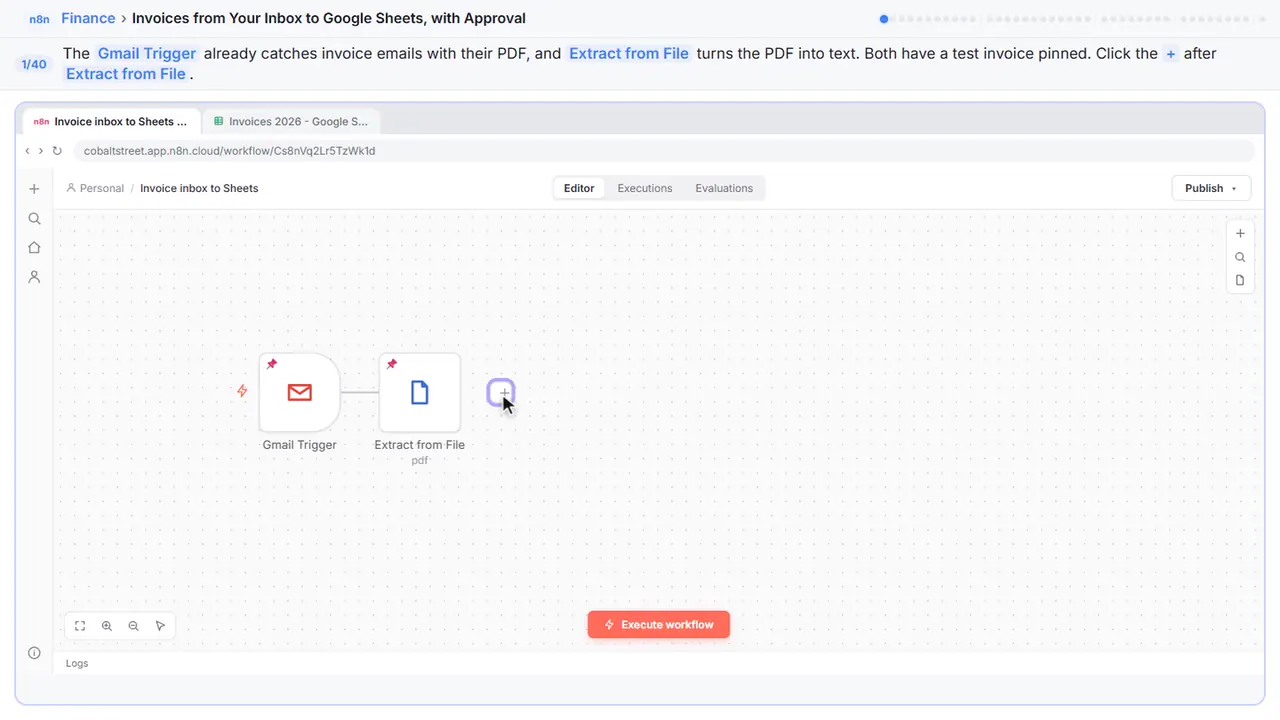
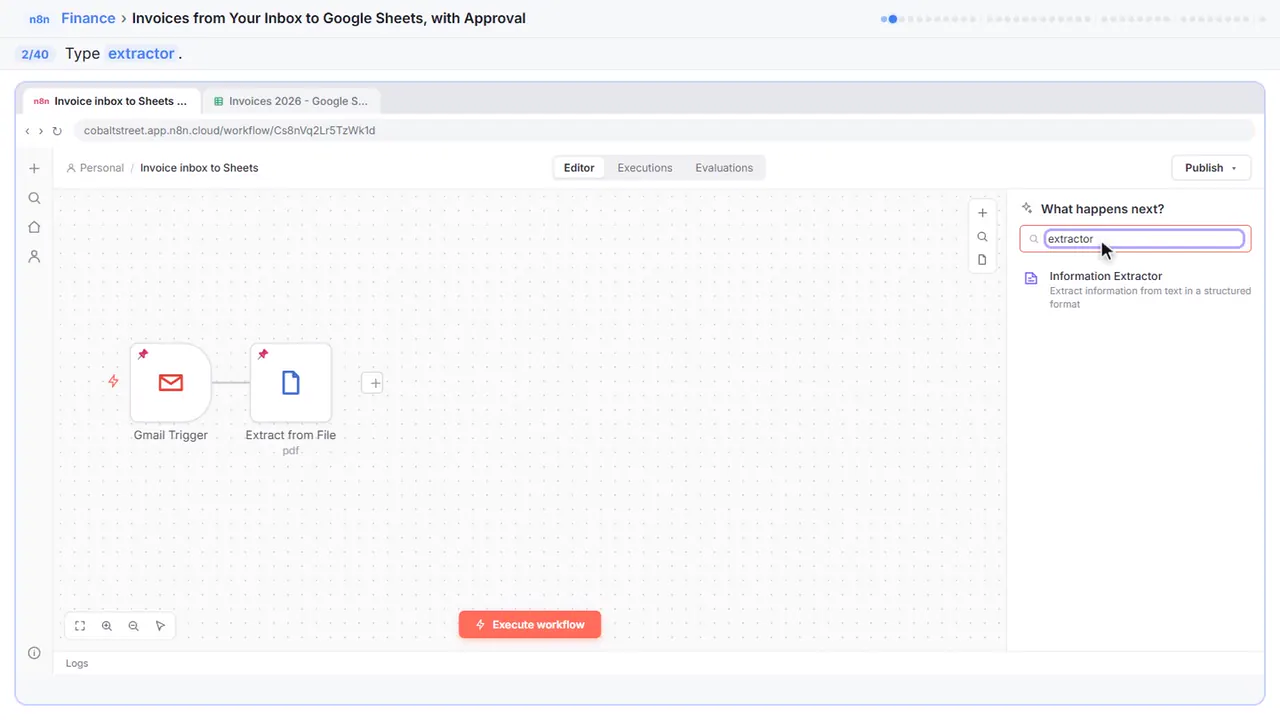
Step 2: Search for extractor
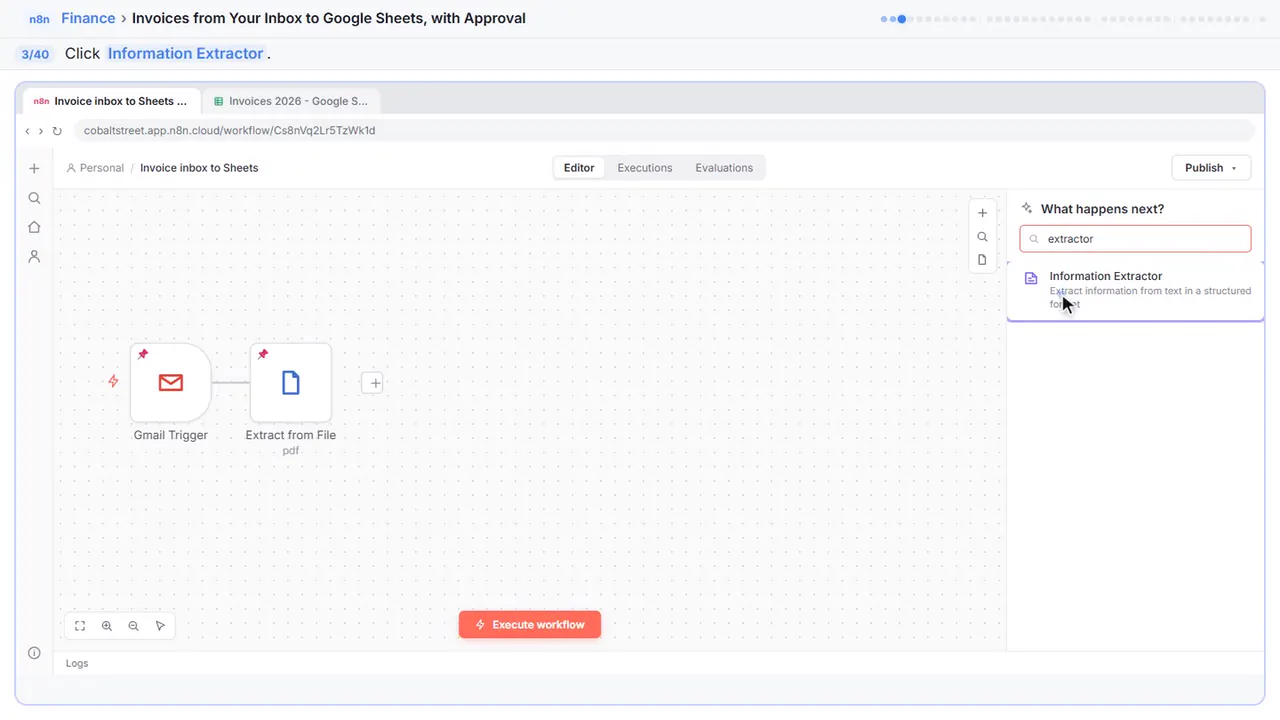
Step 3: Information Extractor
It turns that wall of text into neat fields.
Step 4: Say what to pull out
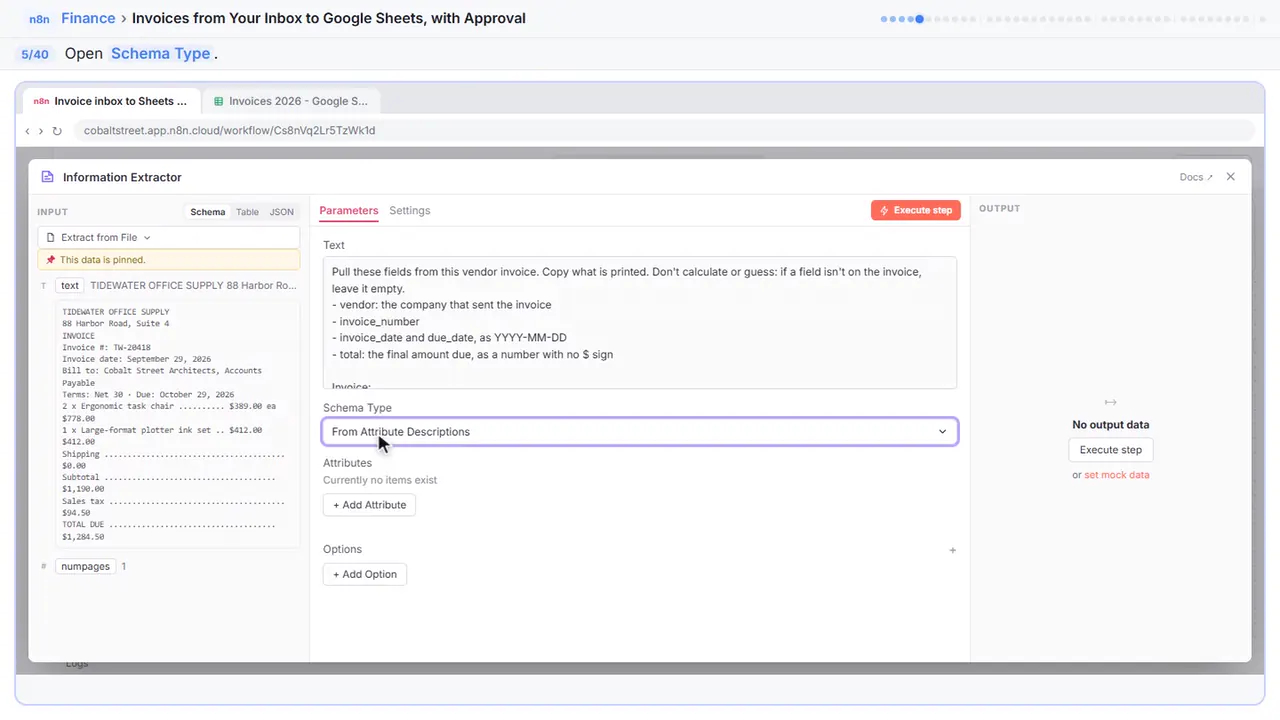
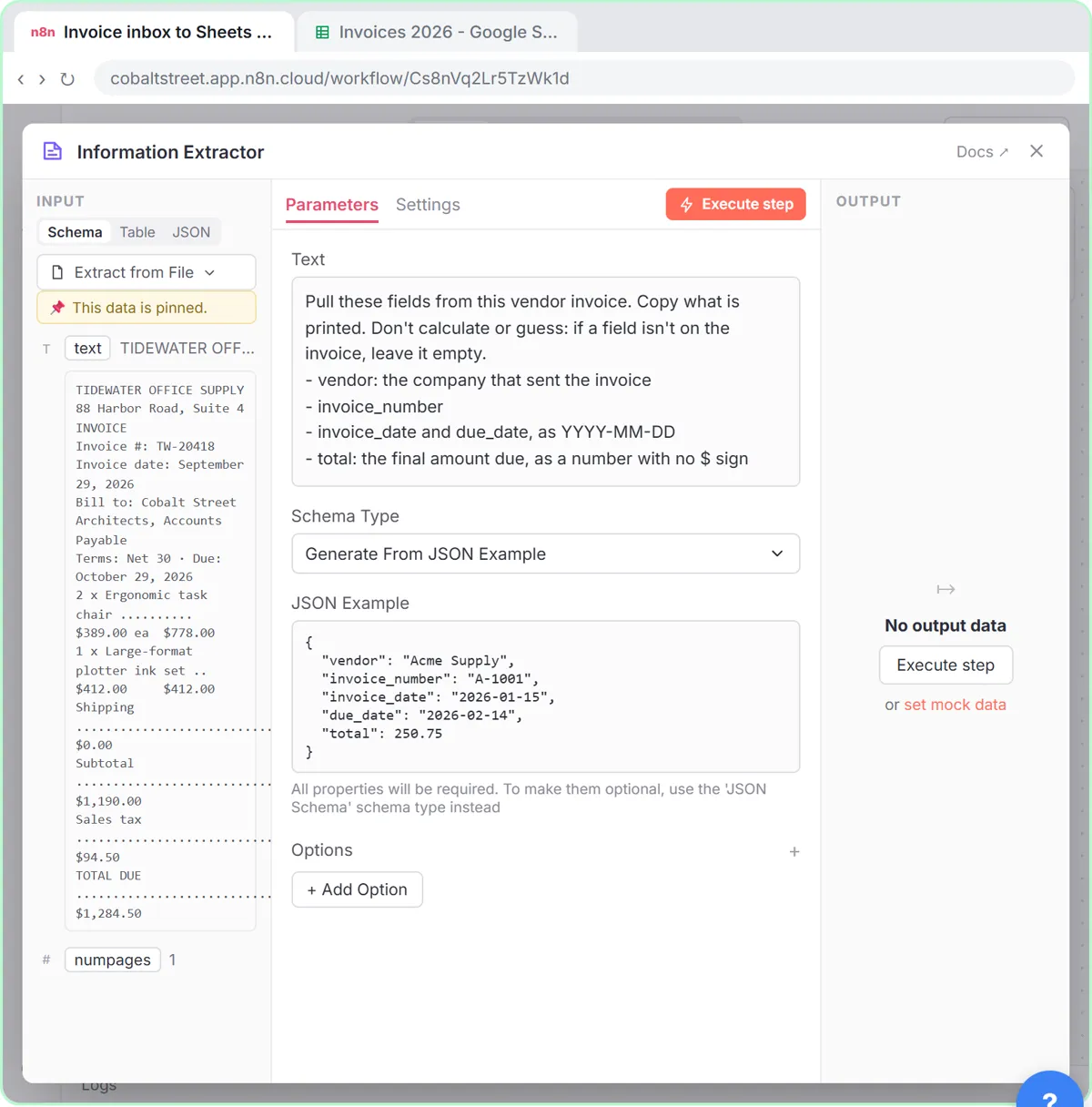
The invoice text is on the left. It lists the five fields you want and one firm rule: copy what's printed, never calculate or guess. Leave a field empty rather than invent it.
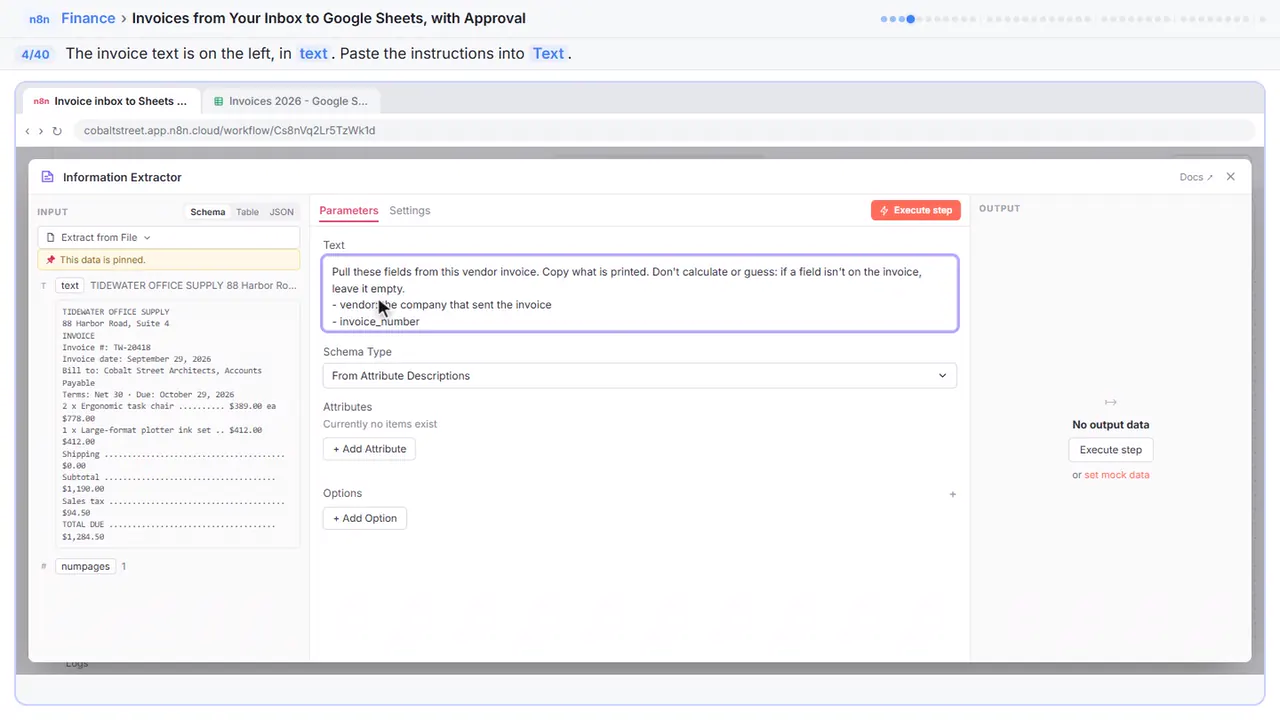
Pull these fields from this vendor invoice. Copy what is printed. Don't calculate or guess: if a field isn't on the invoice, leave it empty.
- vendor: the company that sent the invoice
- invoice_number
- invoice_date and due_date, as YYYY-MM-DD
- total: the final amount due, as a number with no $ sign

Invoice:
{{ $json.text }}
Step 5: Schema Type
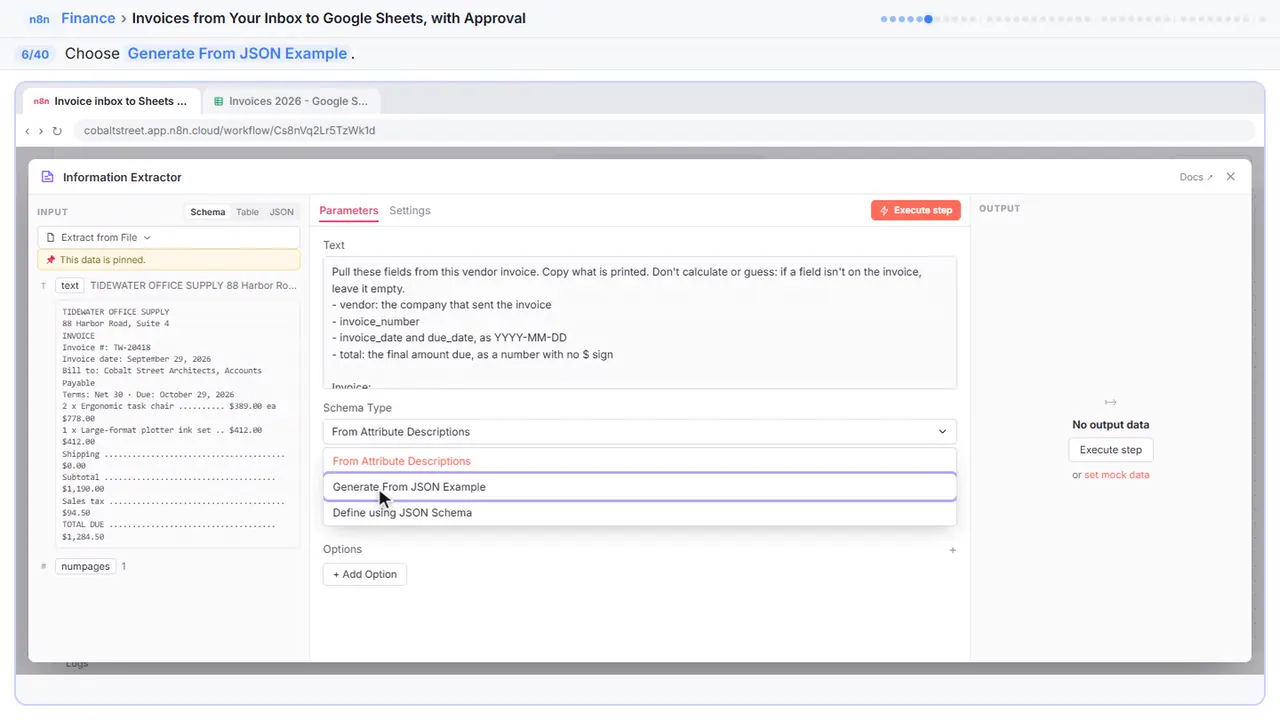
Step 6: Generate From JSON Example
Generate From JSON Example.
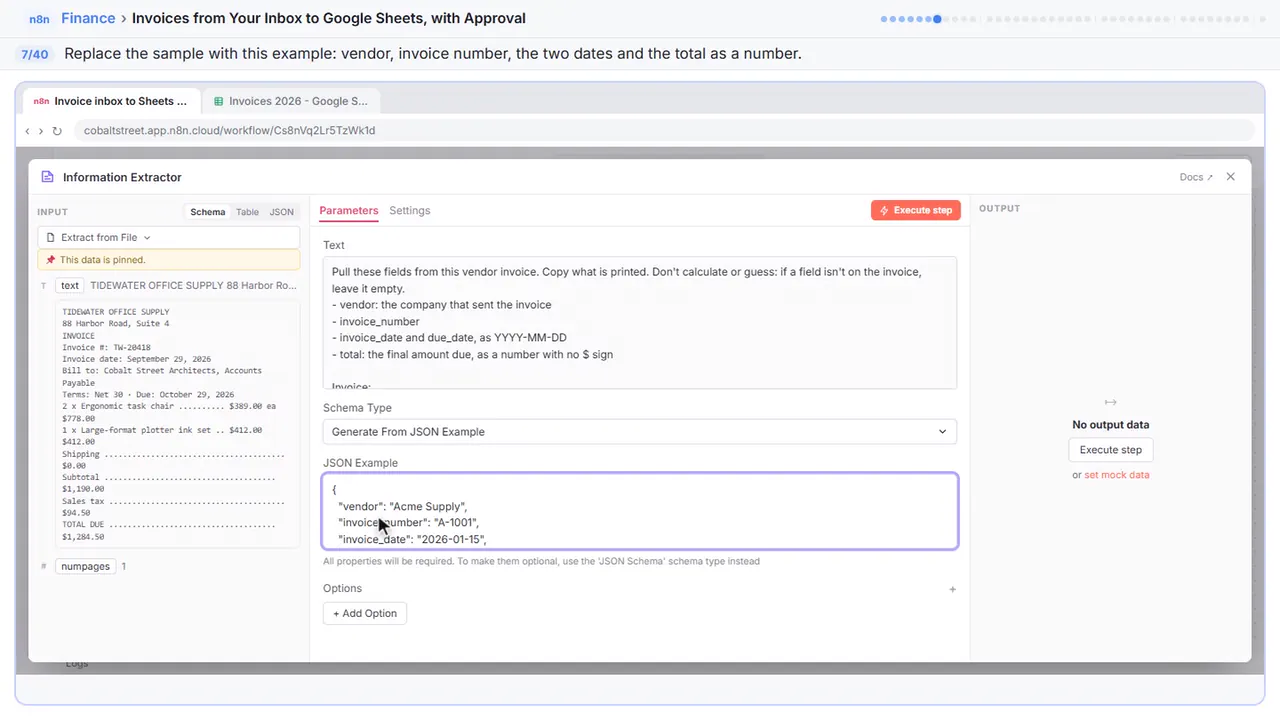
Step 7: Show the shape
Replace the sample with this. The values are made up. What matters is the shape: dates written year first, and the total as a plain number, so the next steps can compare it.
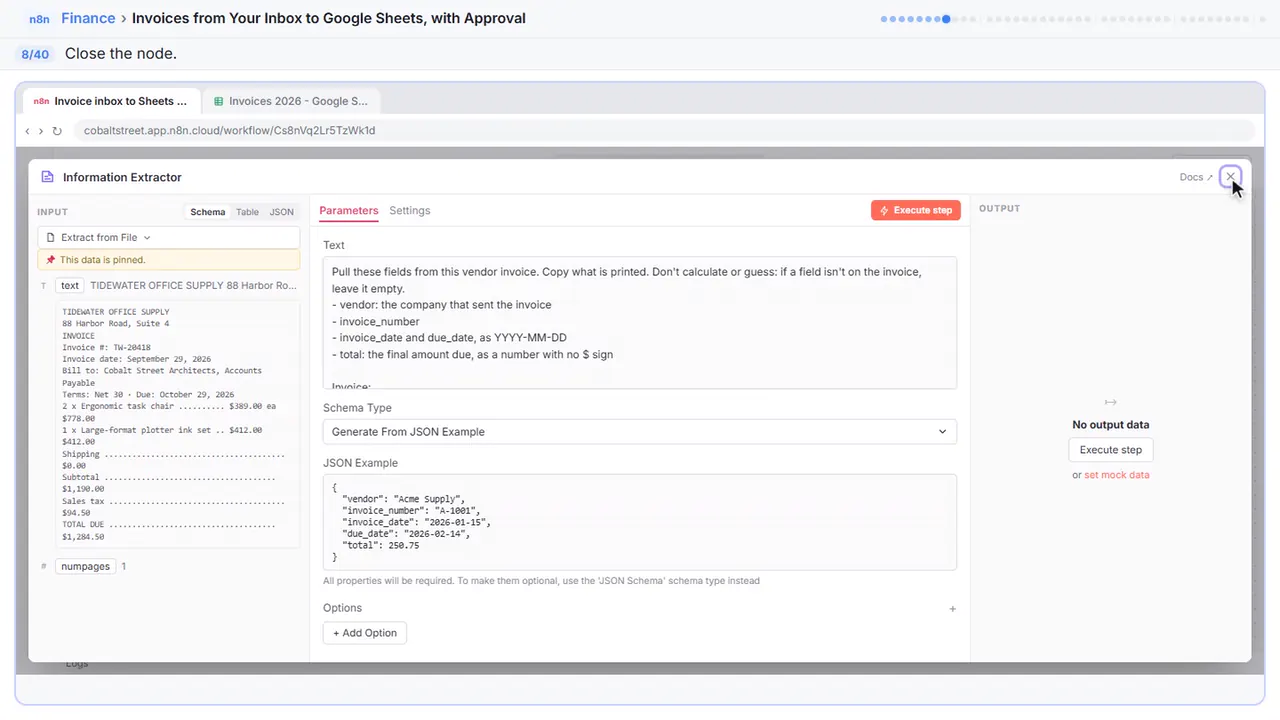
Step 8: Close the node
Close it.
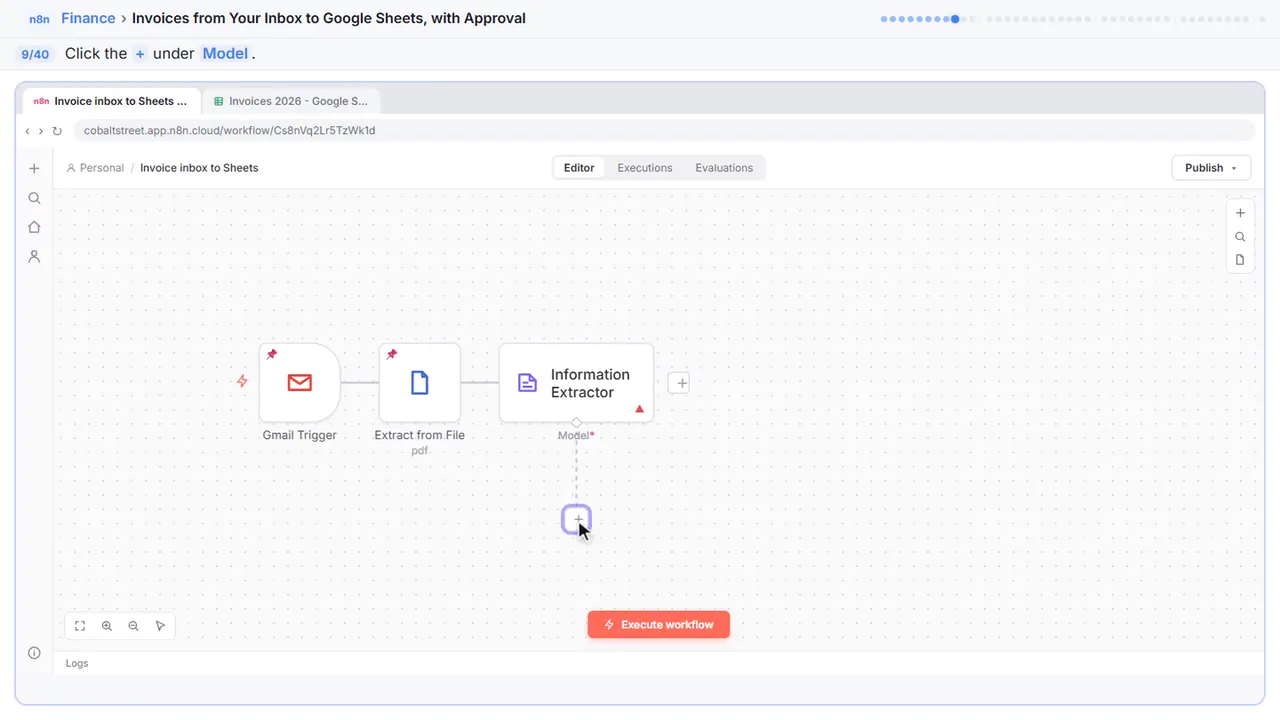
Step 9: Add a chat model
Now give it a model.
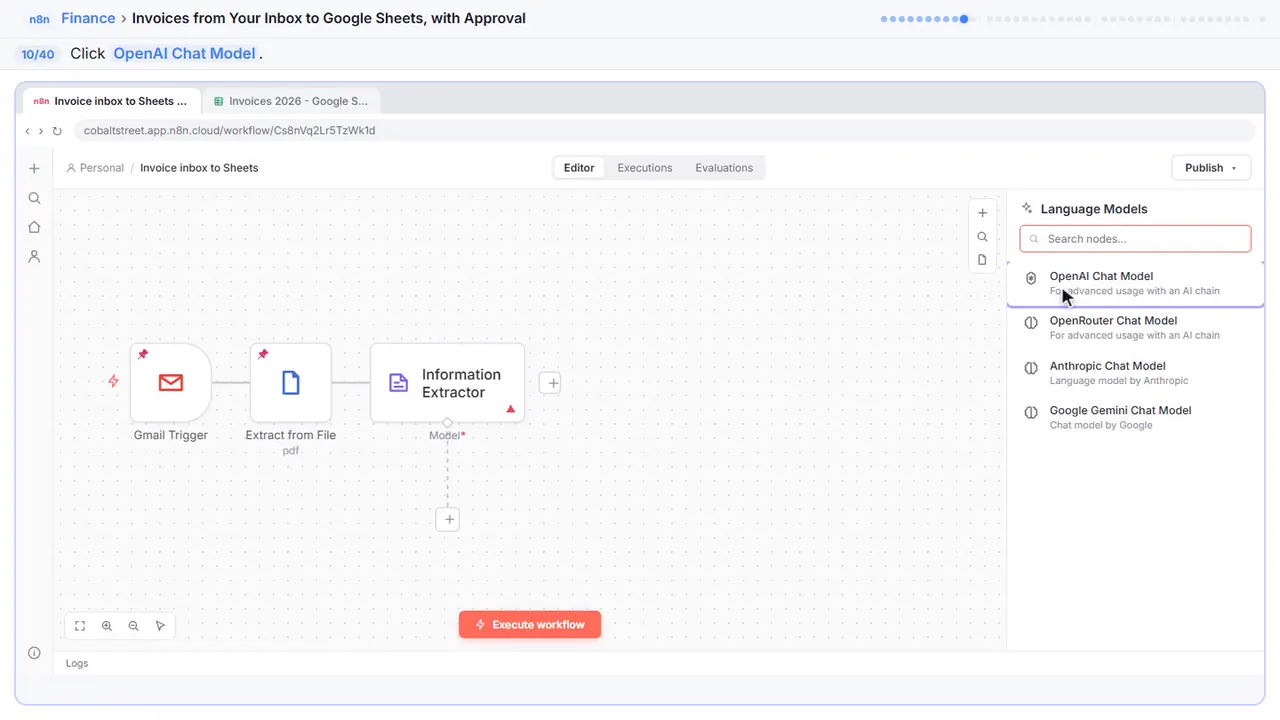
Step 10: OpenAI Chat Model
OpenAI Chat Model.
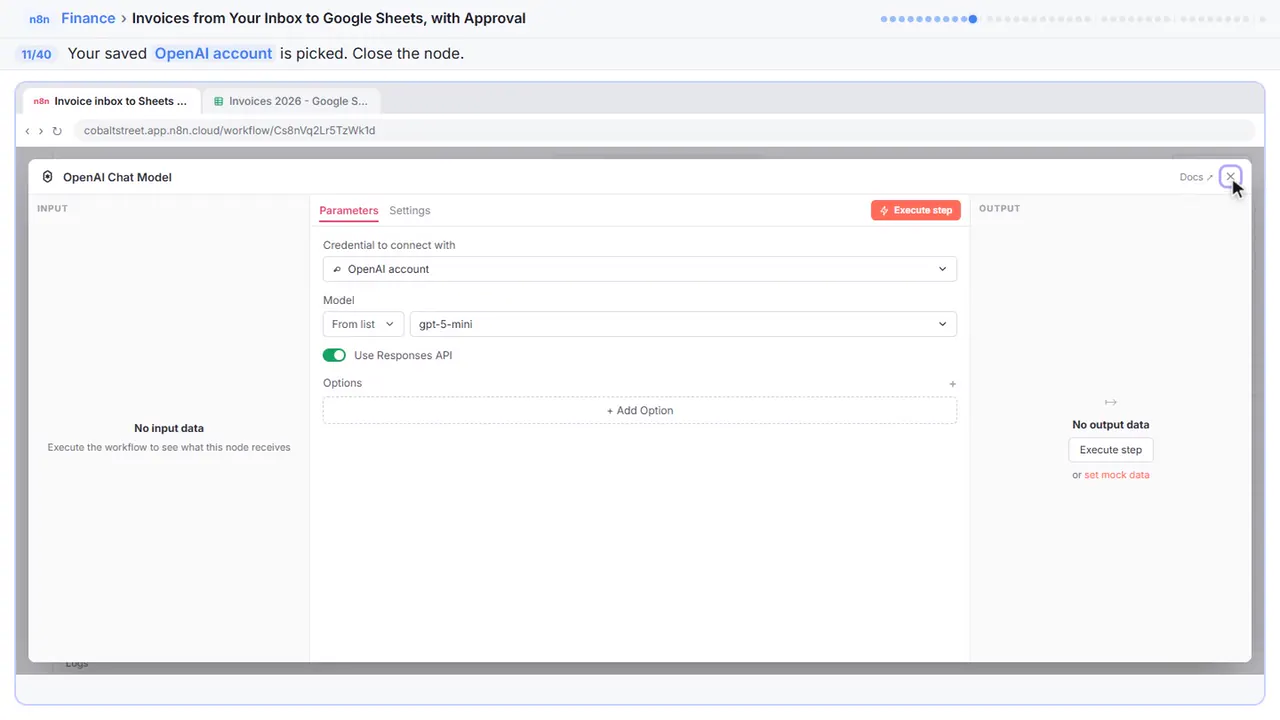
Step 11: Close the node
Your saved OpenAI key is already picked. Close it.
Part 2: Log it
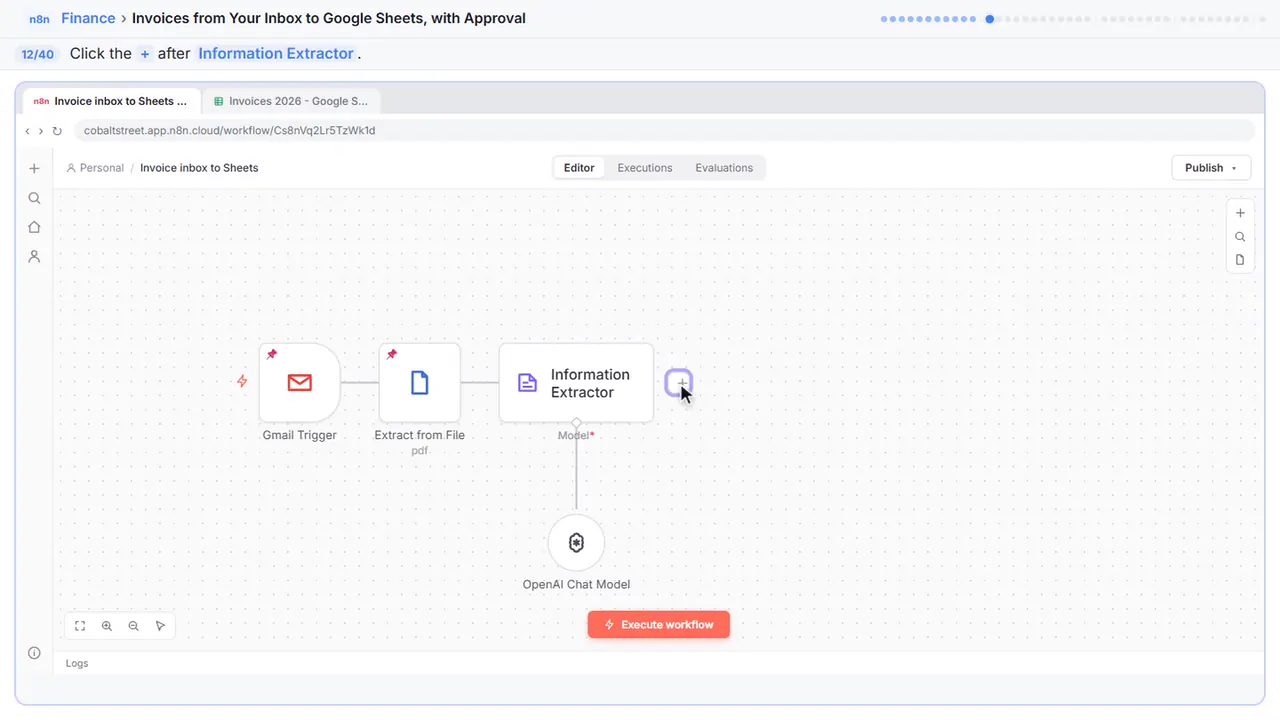
Step 12: Add the log
Every invoice gets logged.
Step 13: Search for sheets
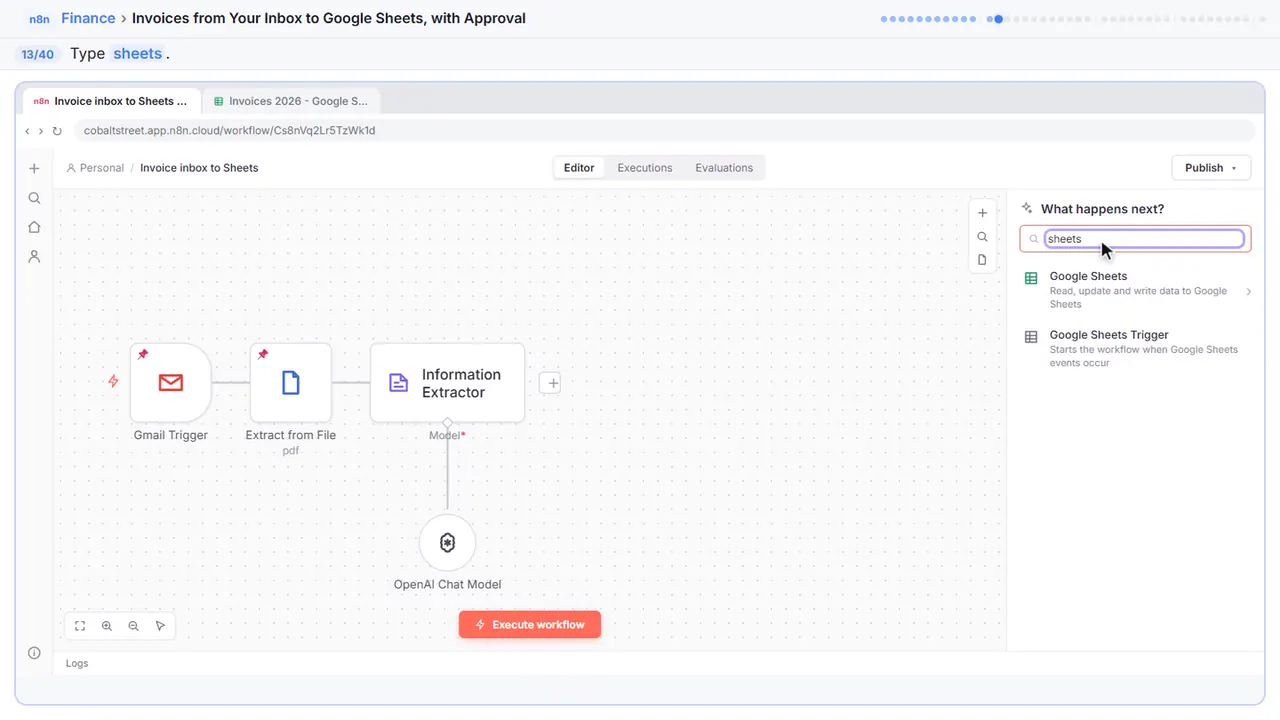
Step 14: Google Sheets
Google Sheets.
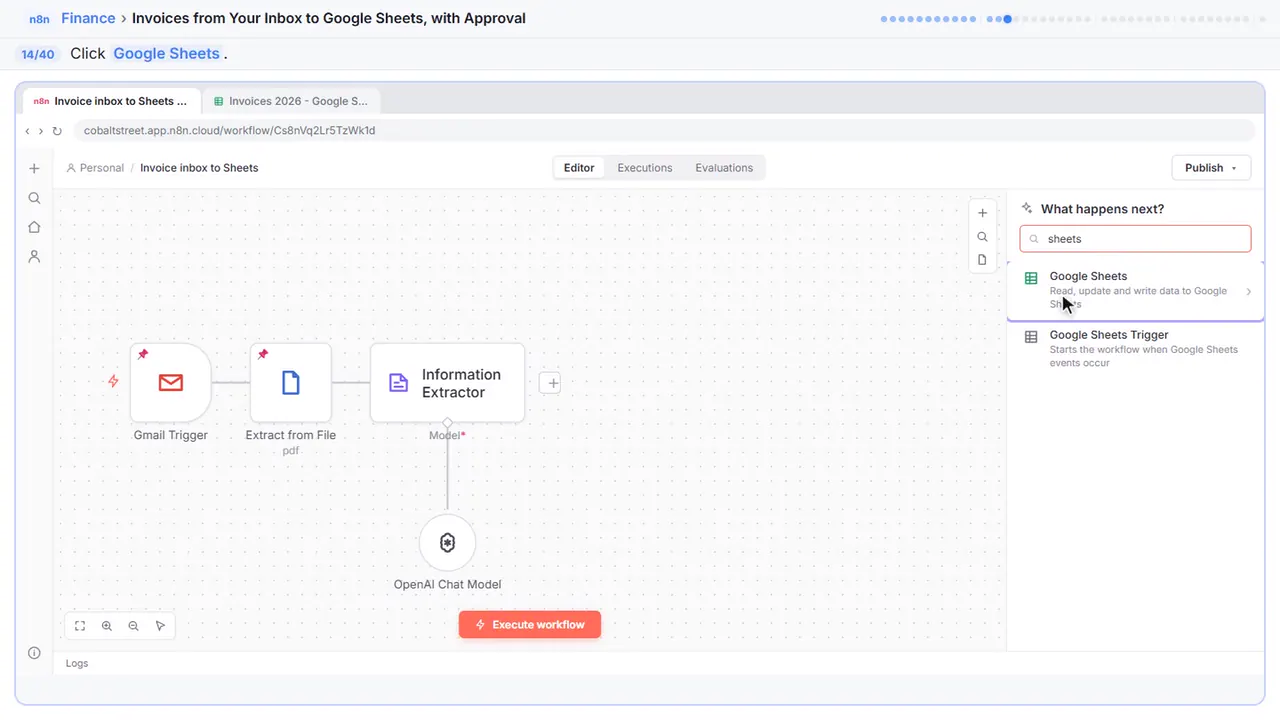
Step 15: Append row in sheet
Append row in sheet.
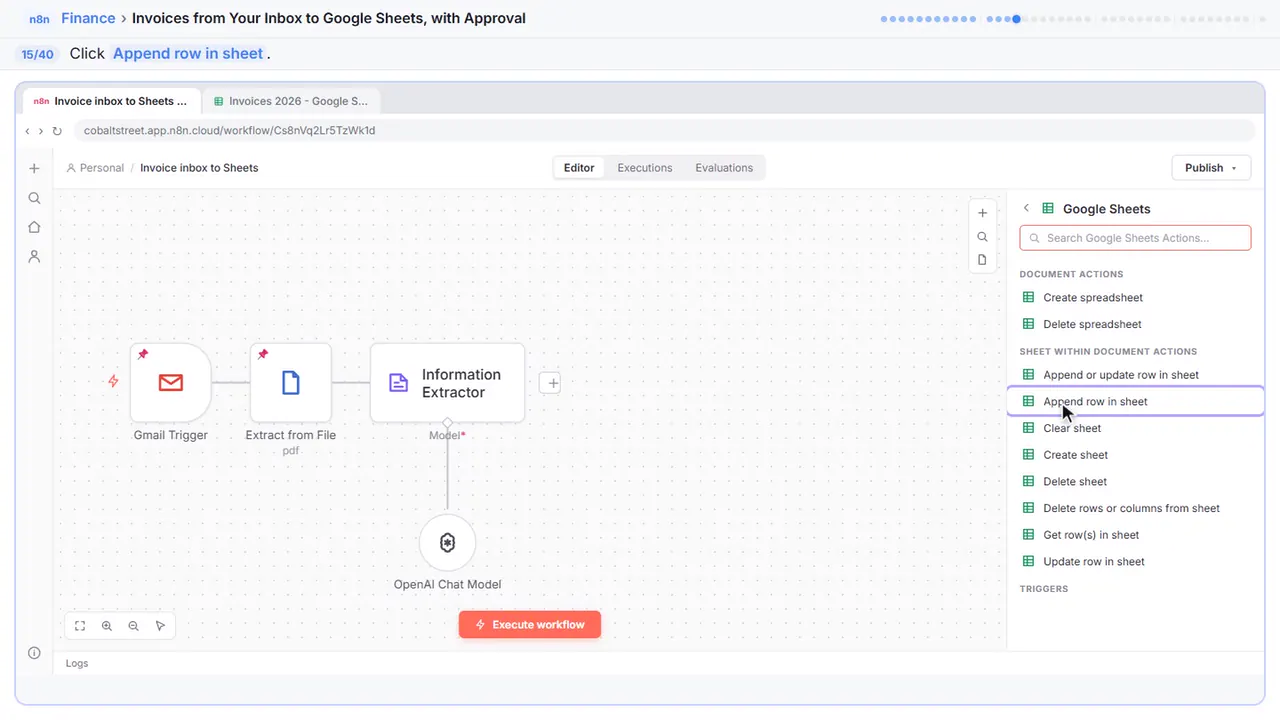
Step 16: Pick the spreadsheet
Your Google account is already connected.
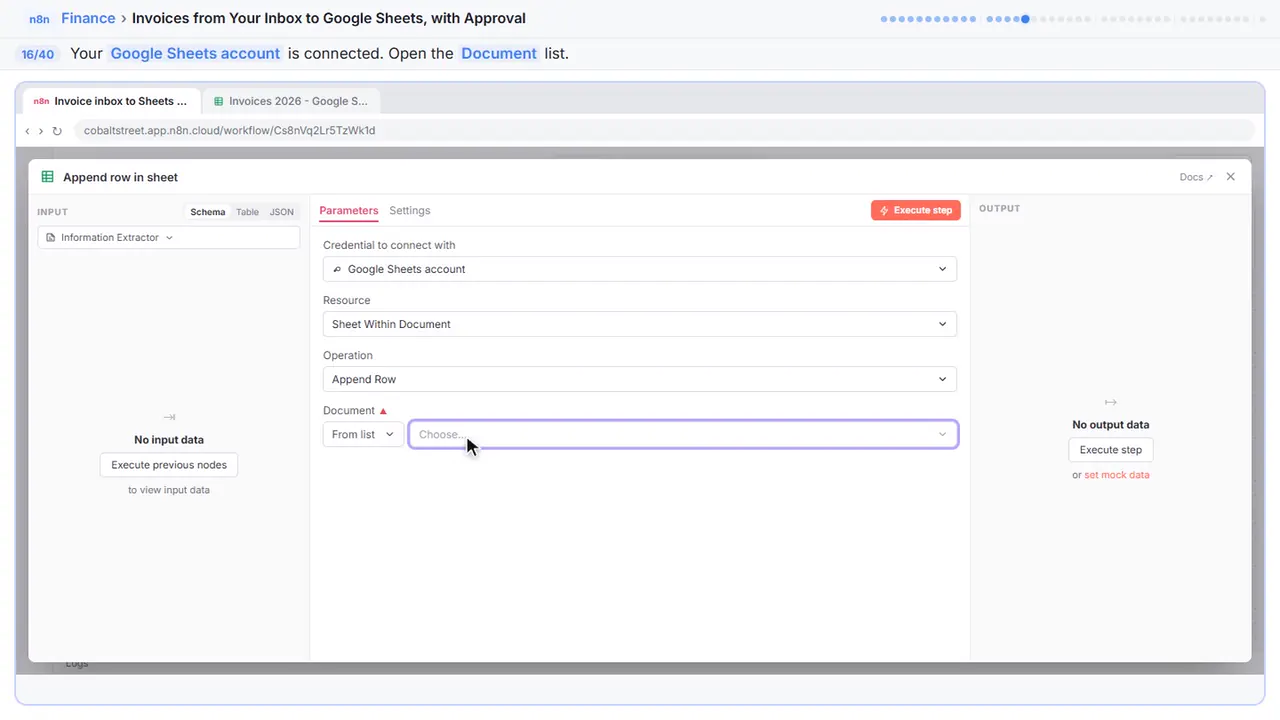
Step 17: Invoices 2026
Pick the Invoices 2026 spreadsheet.
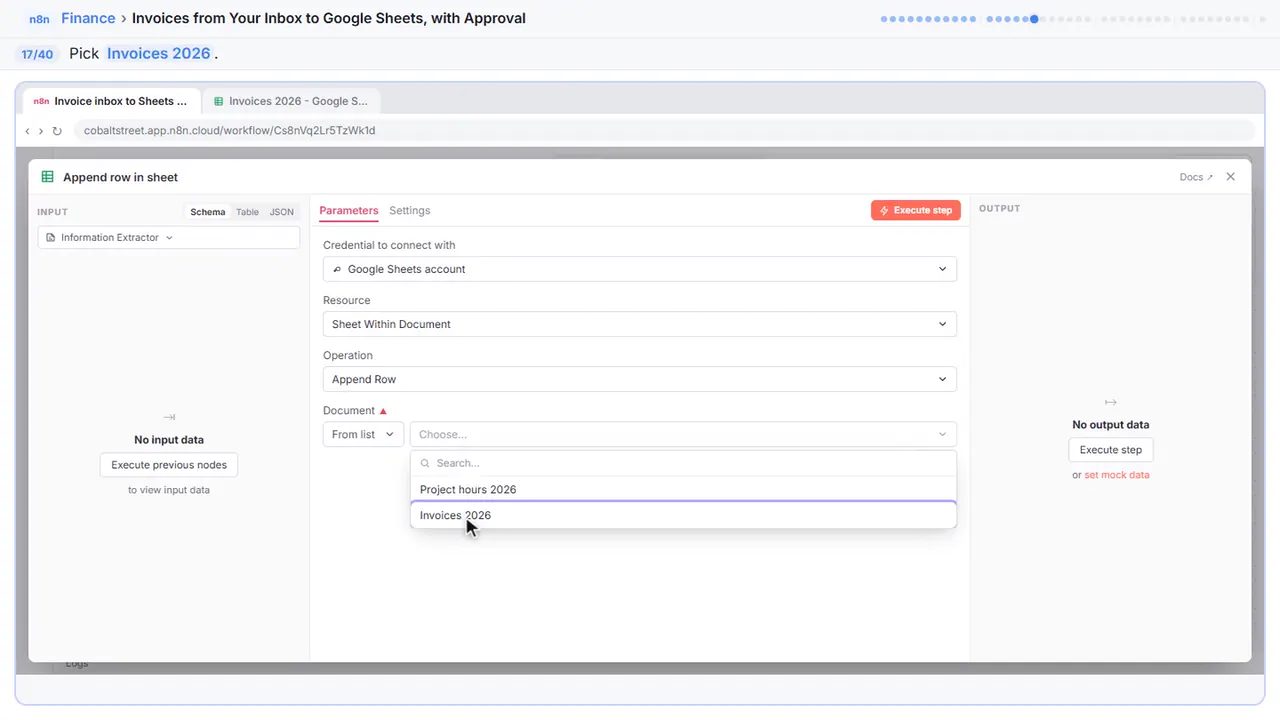
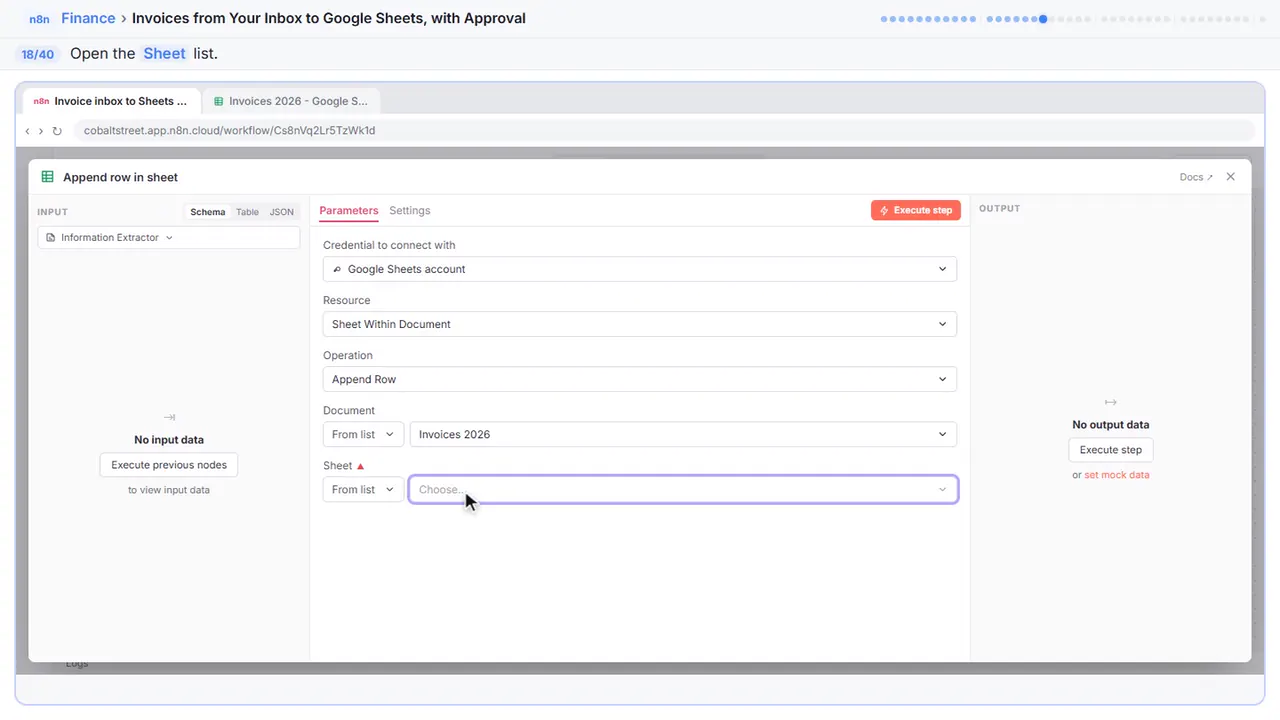
Step 18: Pick the tab
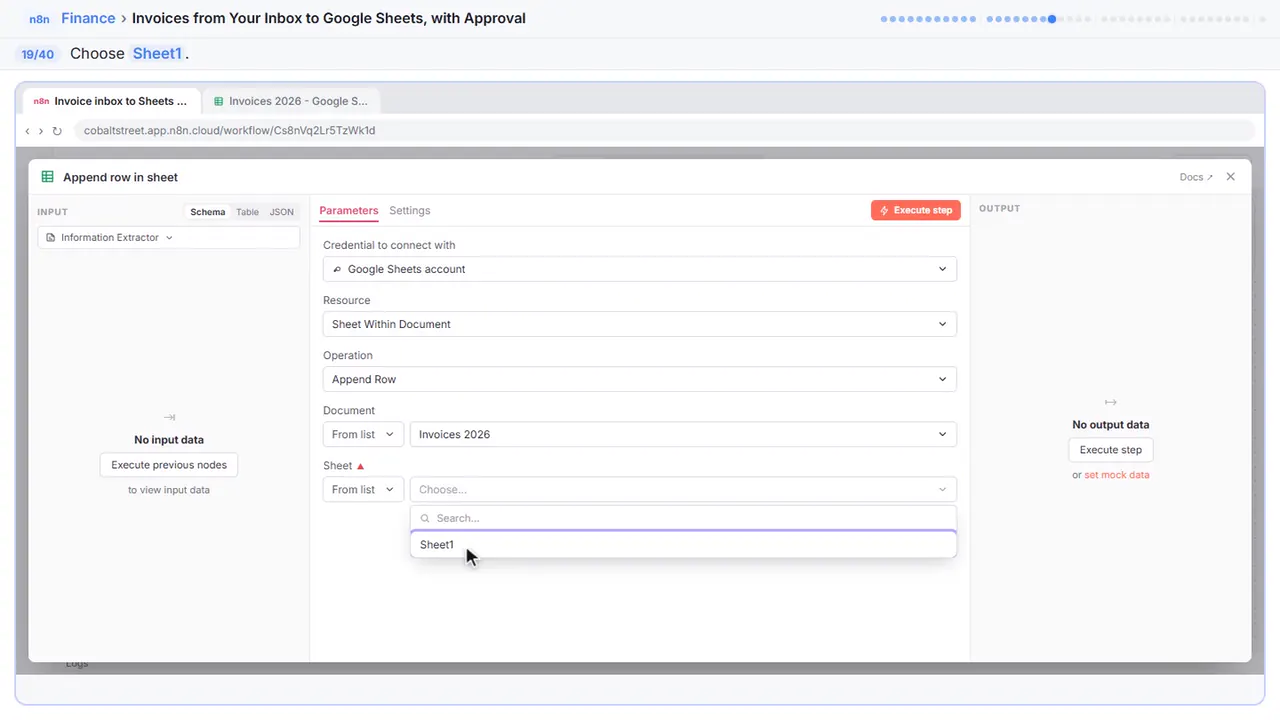
Step 19: Sheet1
Sheet1. Its columns appear under Values to Send.
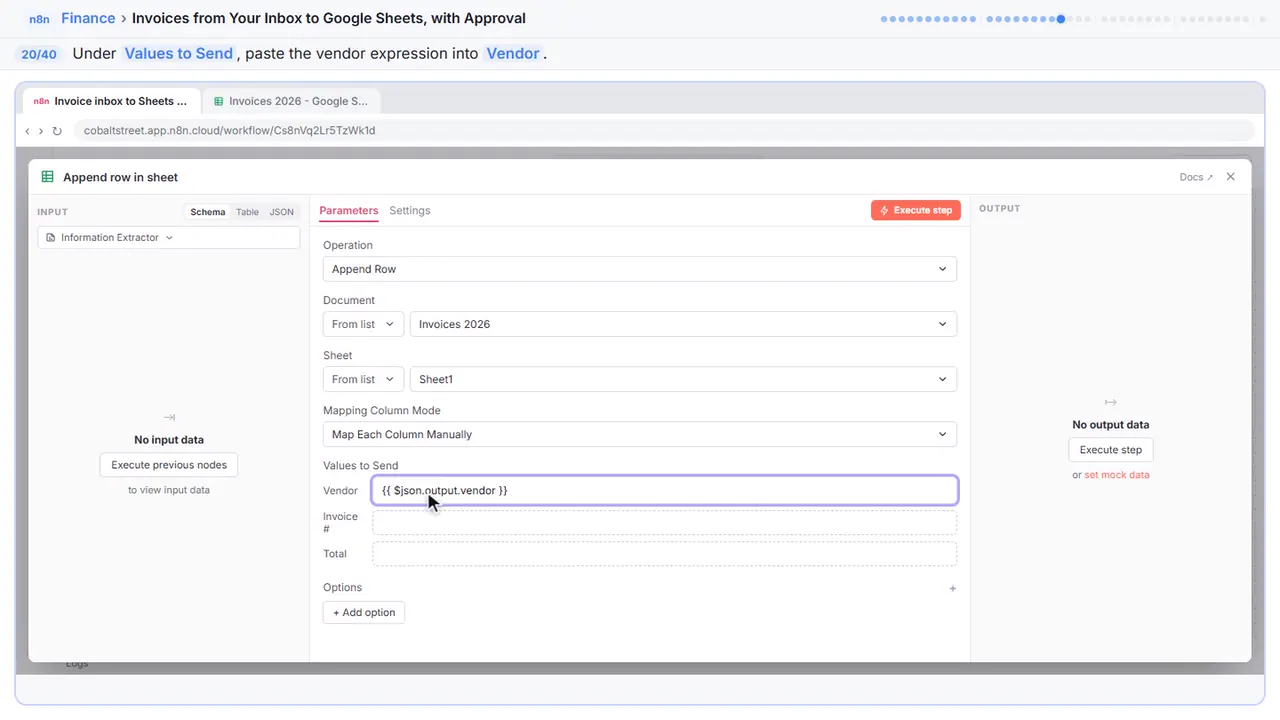
Step 20: Fill Vendor
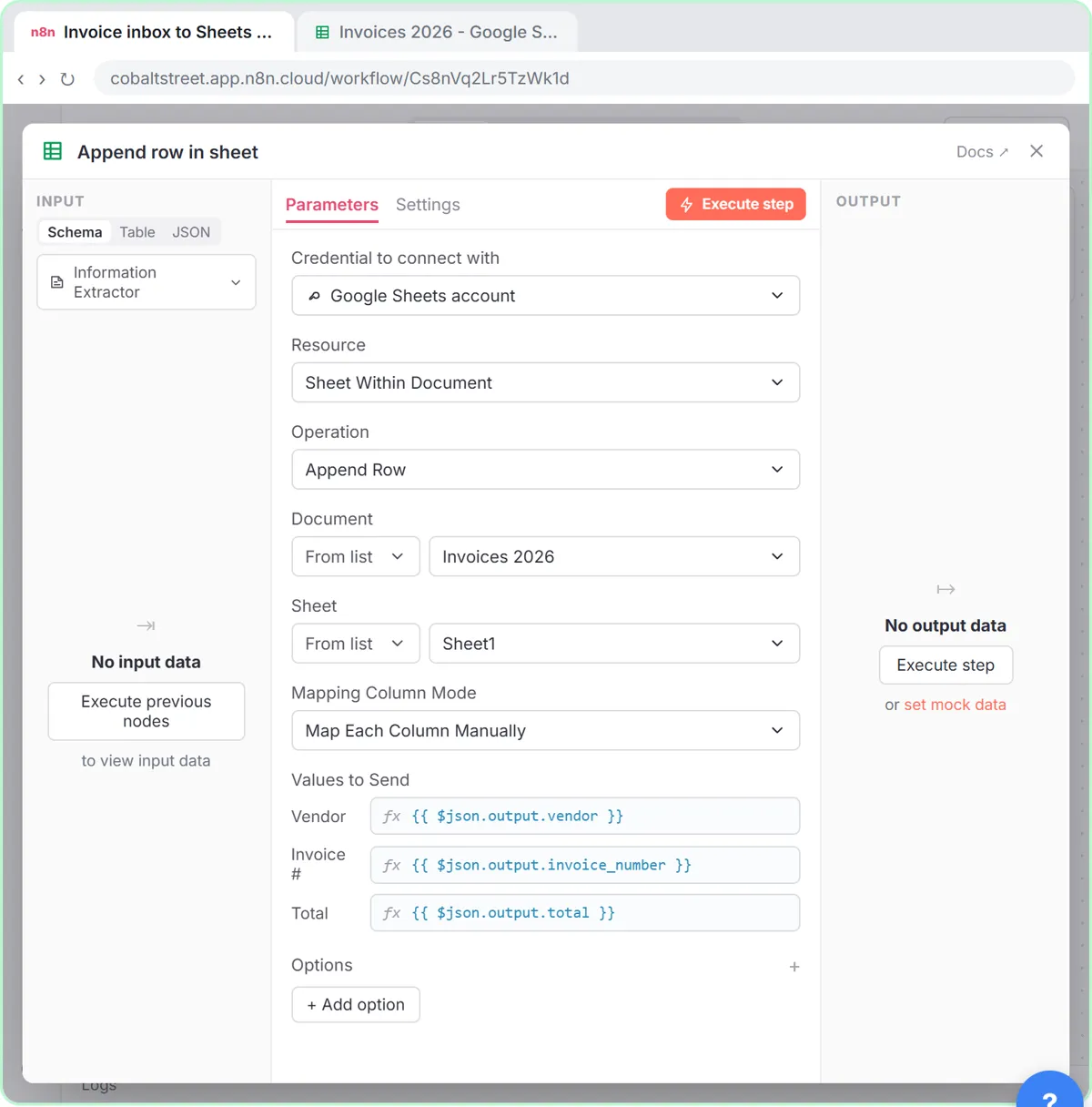
Now fill each column from the extractor's output. After a test run you can drag fields in from the left instead.
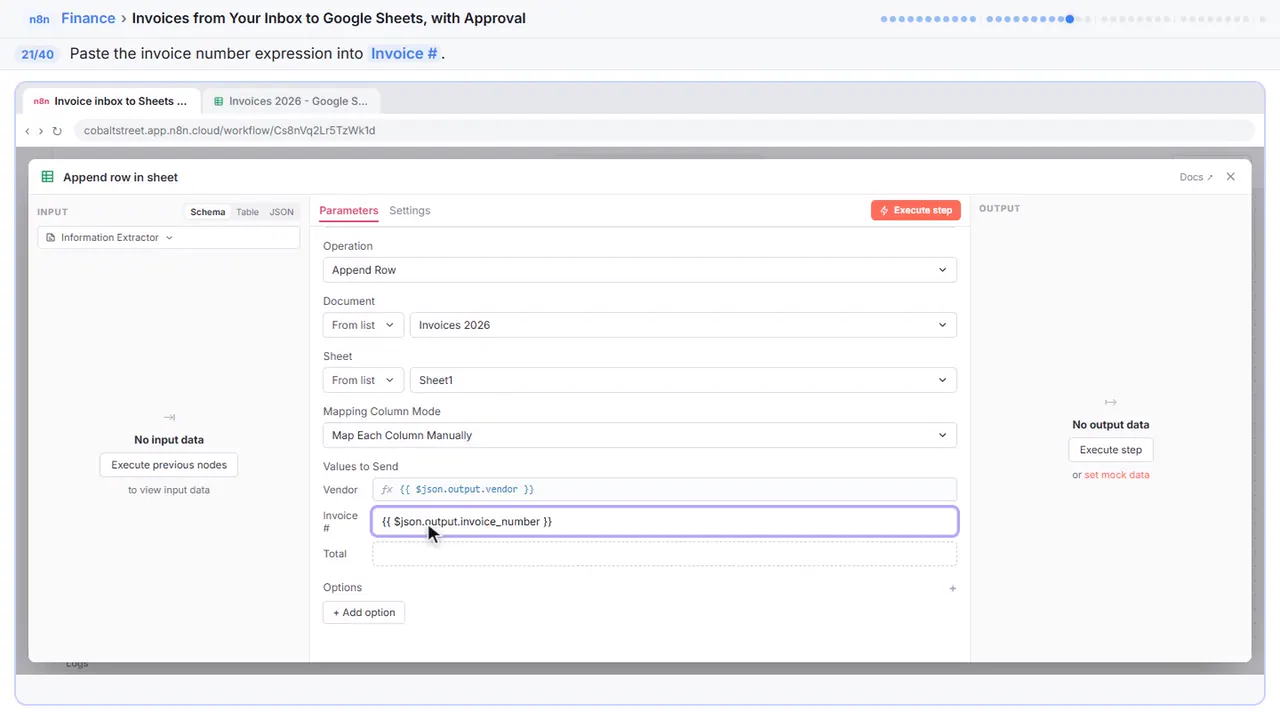
Step 21: Fill Invoice #
The invoice number goes in Invoice number.
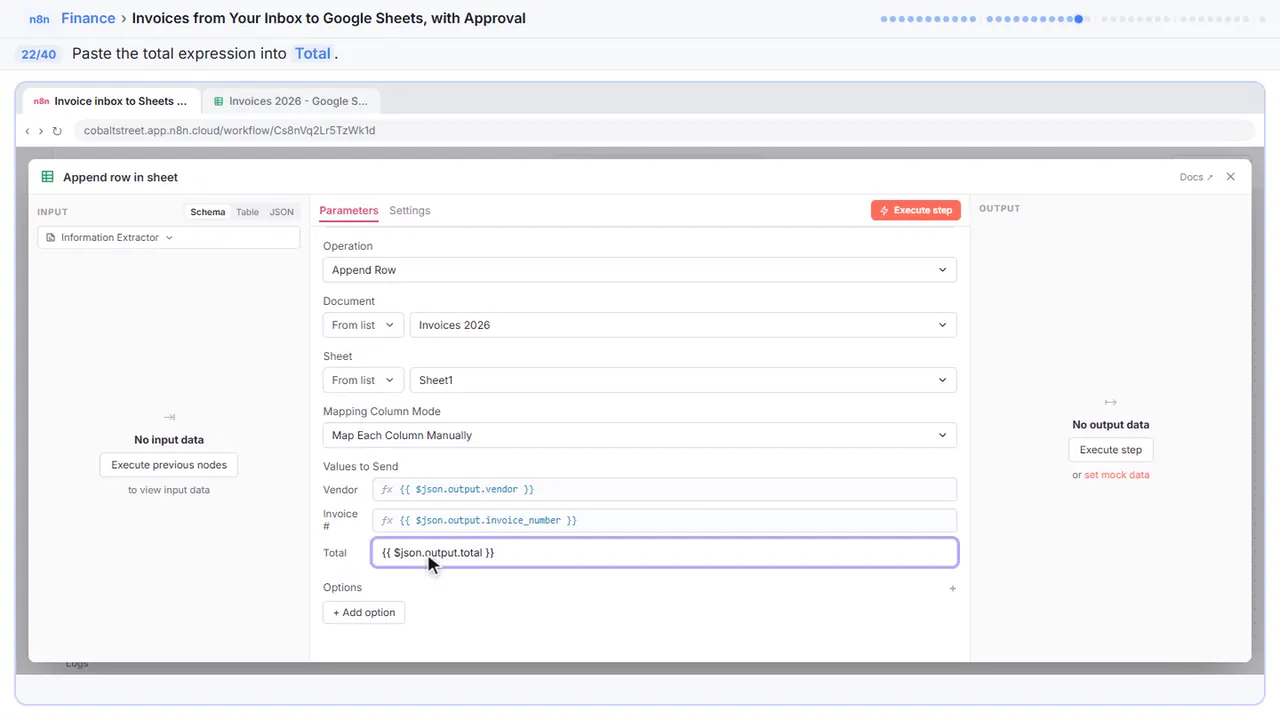
Step 22: Fill Total
And the total goes in Total.
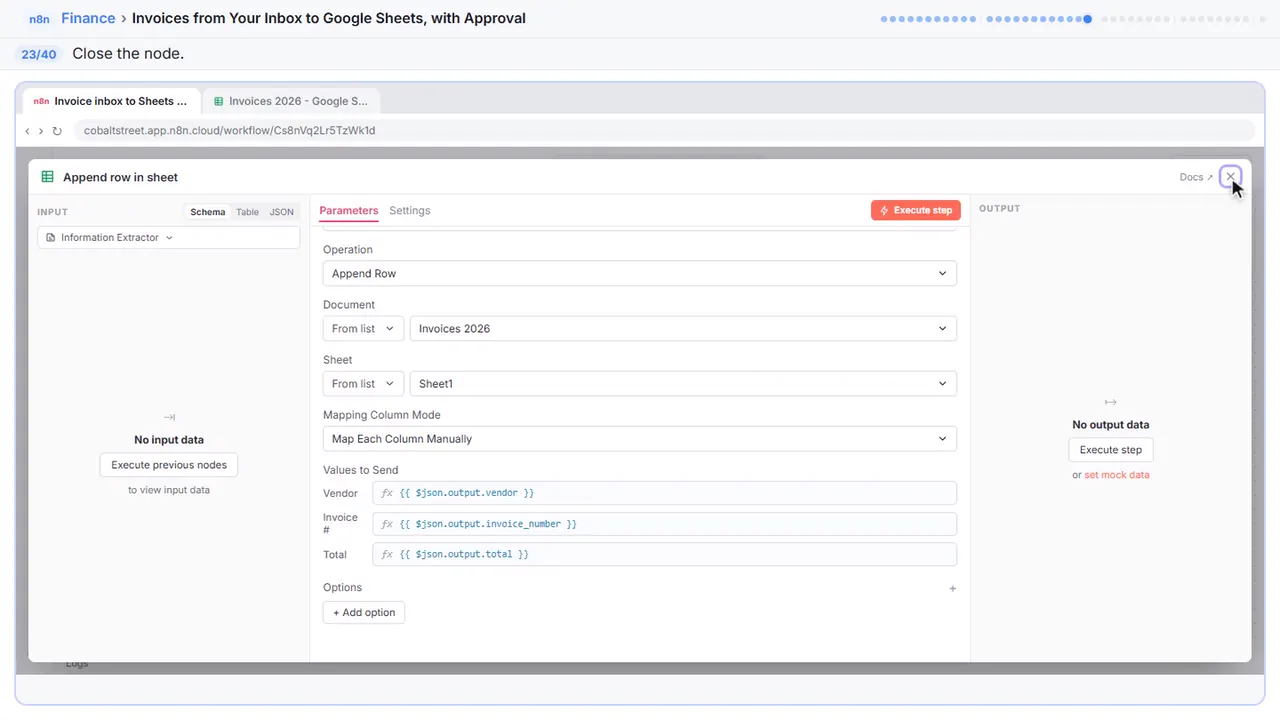
Step 23: Close the node
Close it.
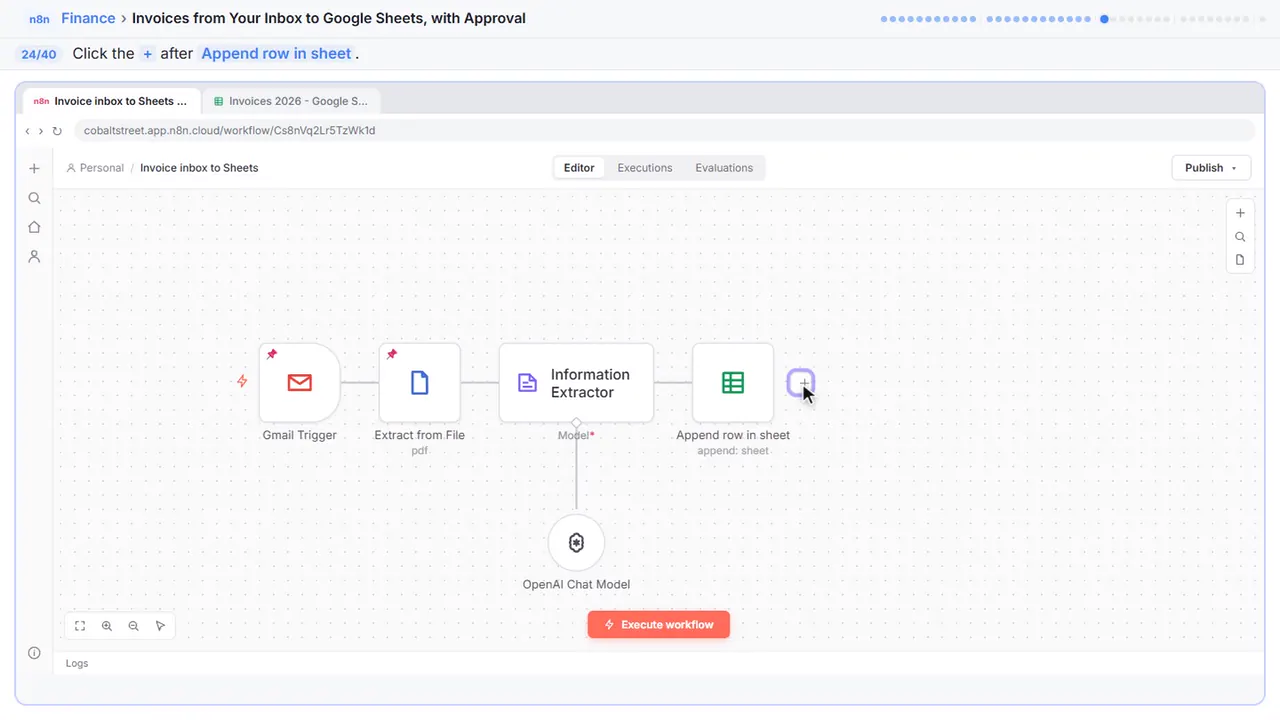
Part 3: Over $1,000?
Step 24: Add a check
Small invoices just get logged. Big ones need a yes from the owner.
Step 25: Search for if
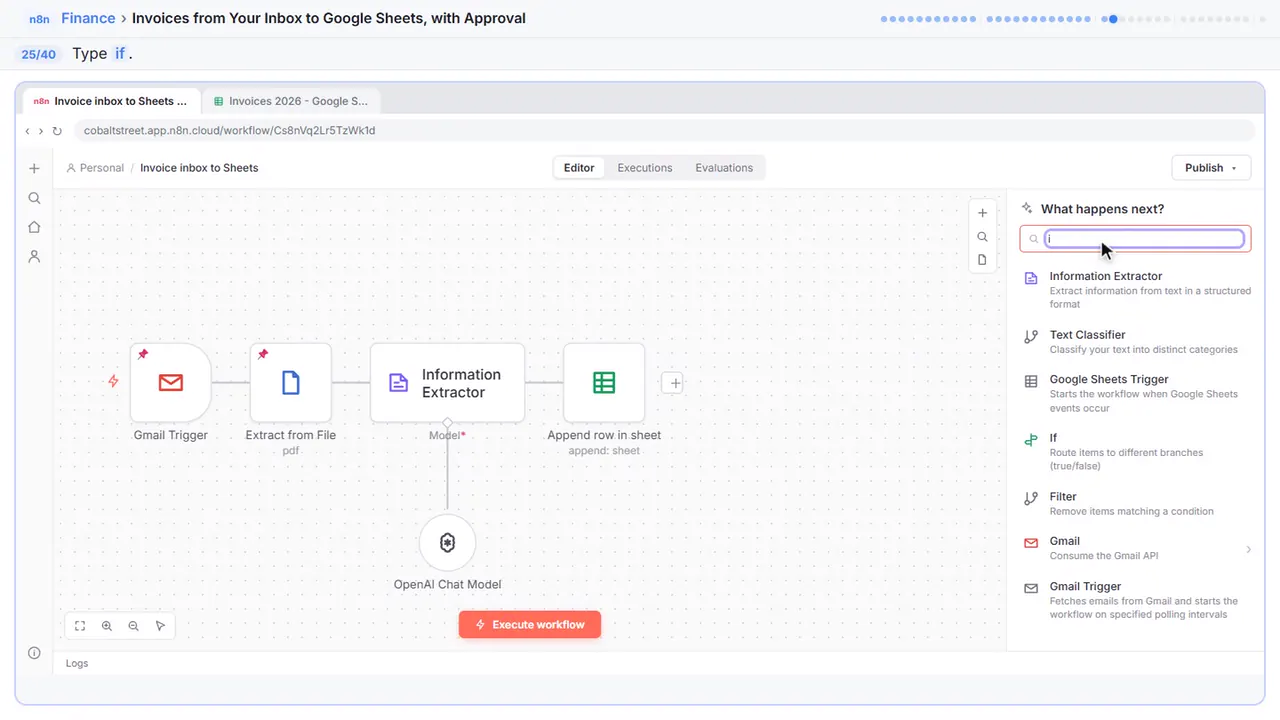
Step 26: If
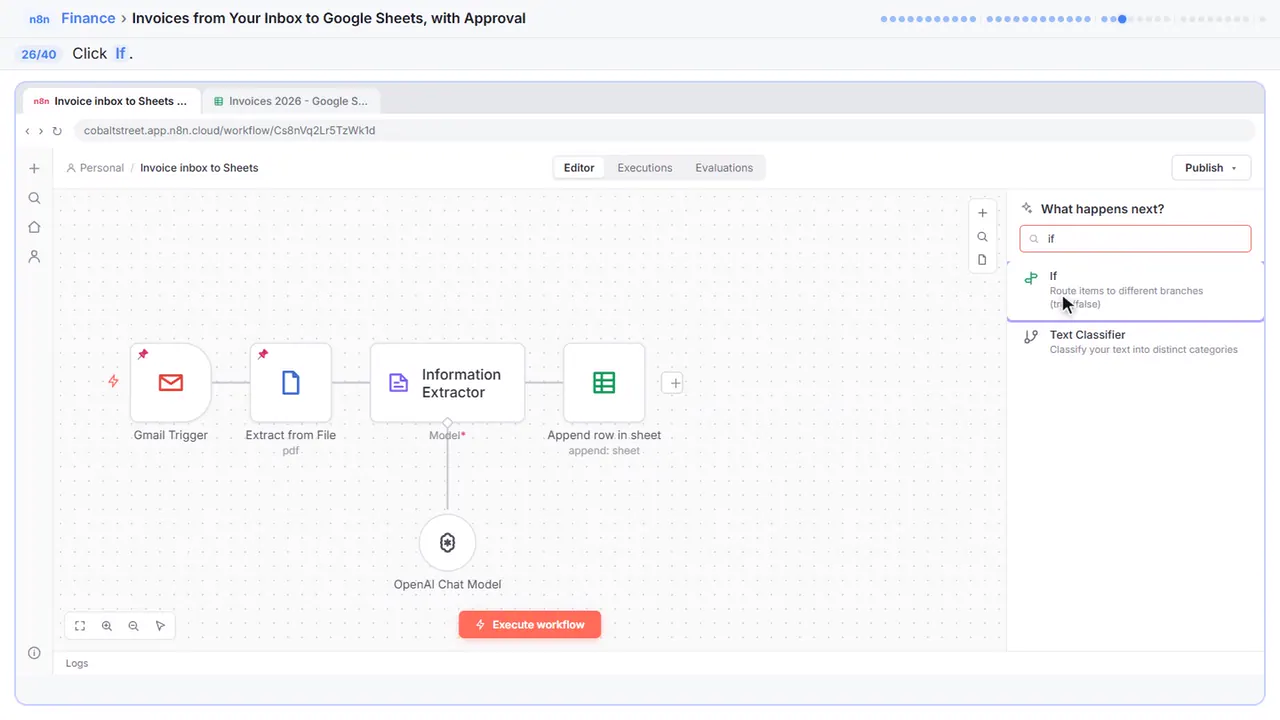
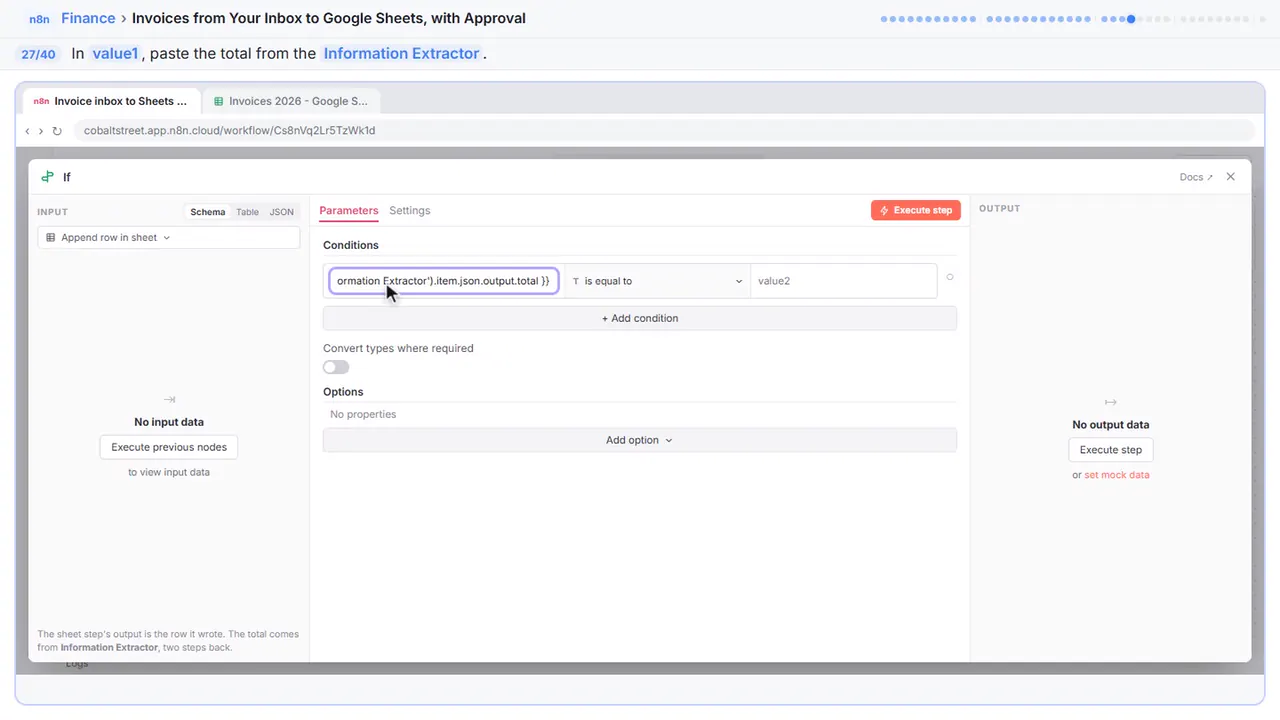
Step 27: Check the total
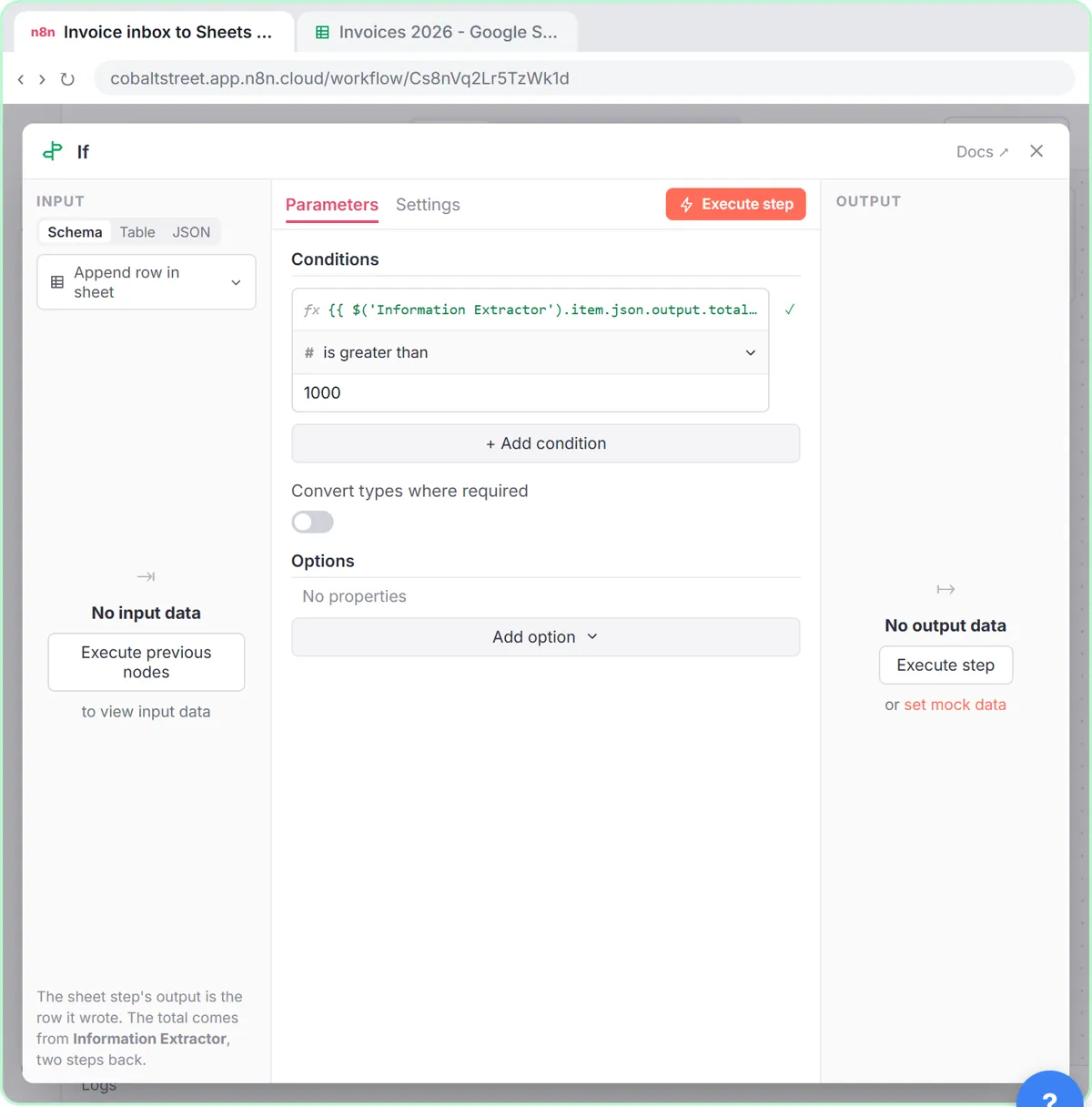
In the first box, paste the total. The sheet step's output is the row it wrote, so the expression names the extractor directly.
Step 28: Pick the comparison
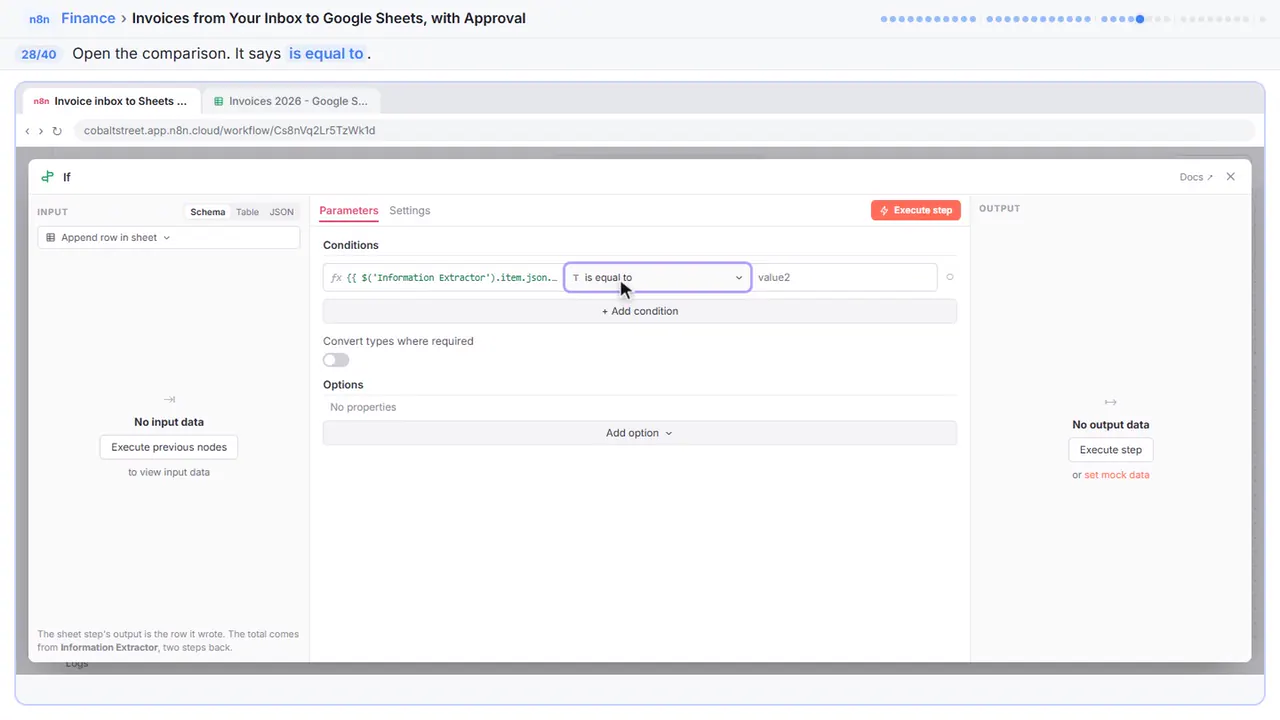
Step 29: is greater than
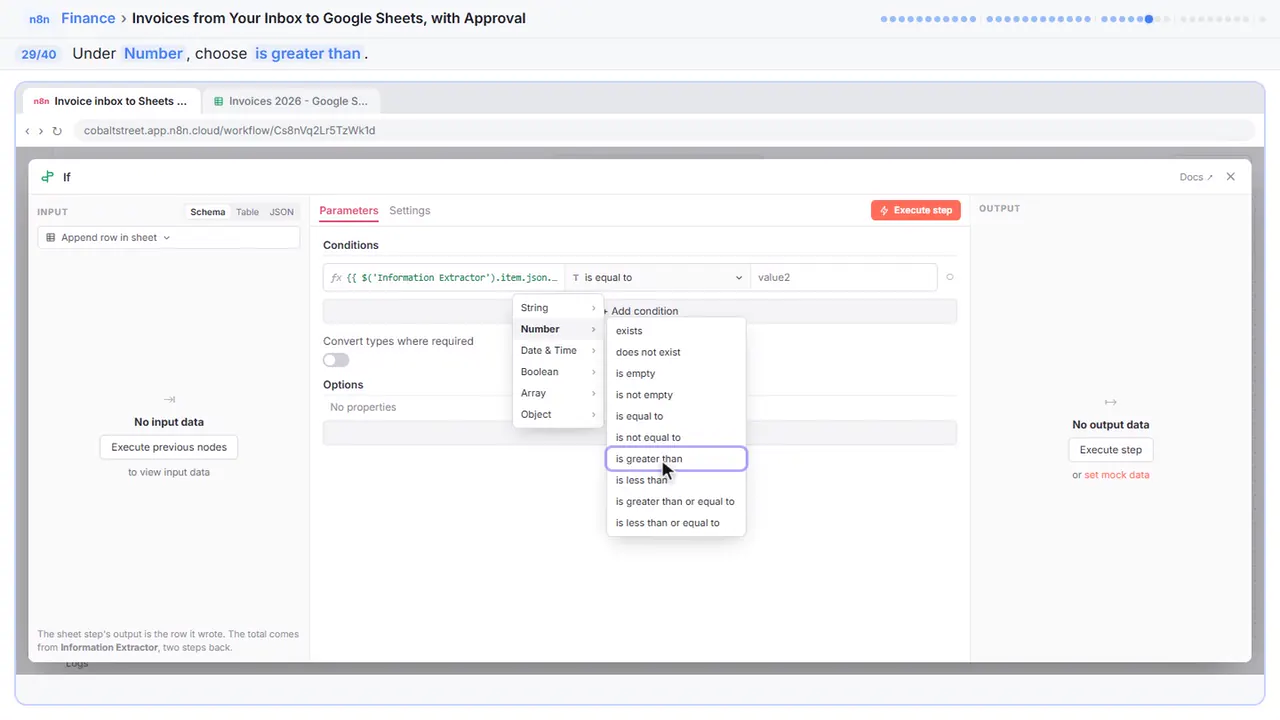
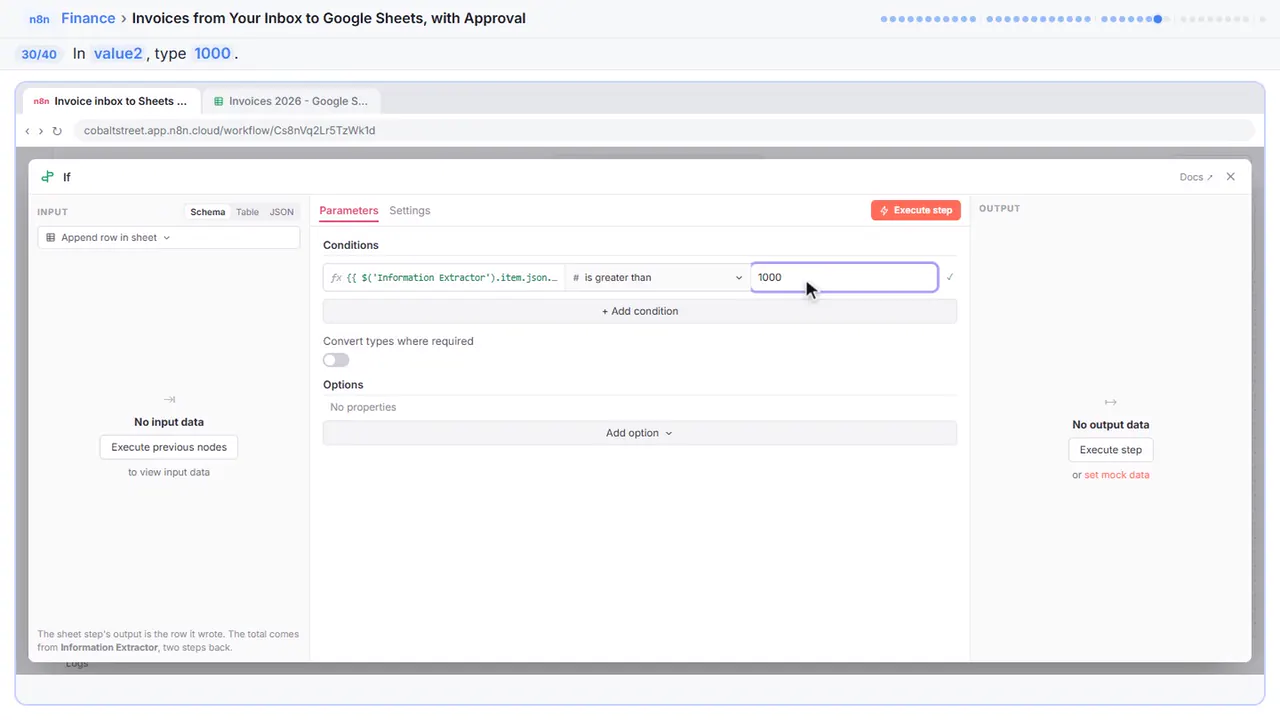
Step 30: Over $1,000
No dollar sign, no comma.
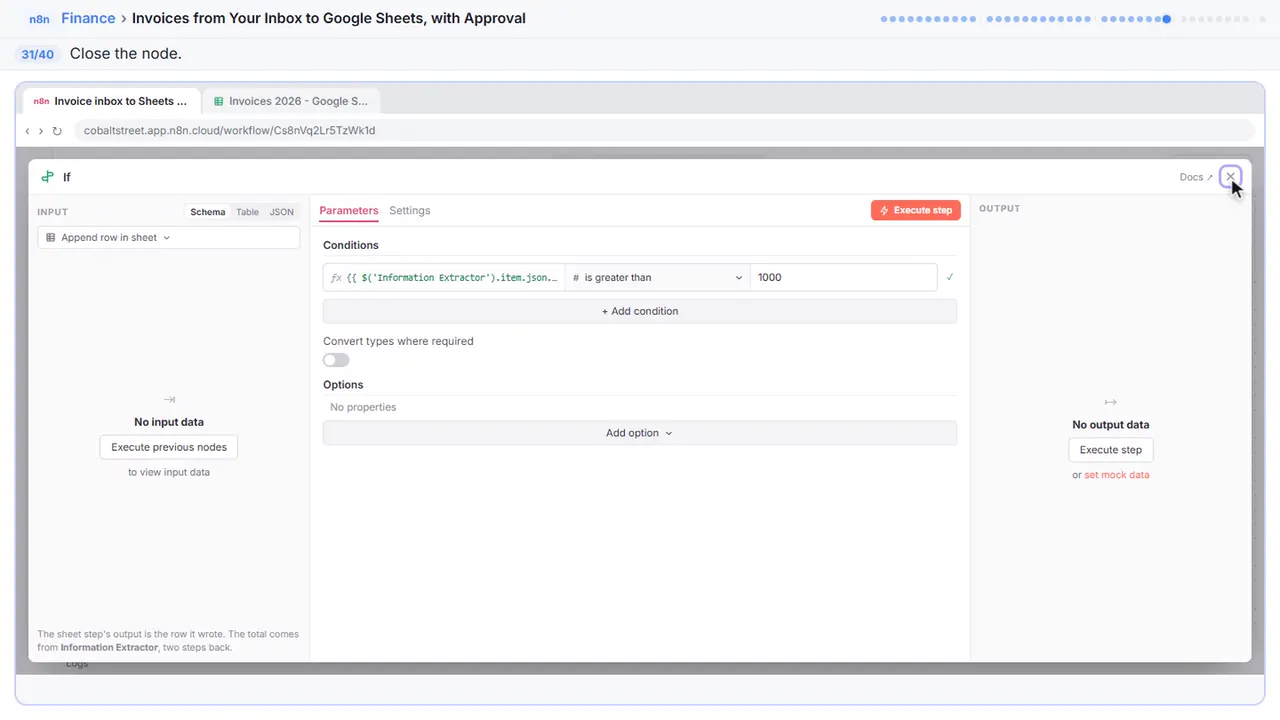
Step 31: Close the node
Close it.
Part 4: Ask for approval
Step 32: Add to the true branch
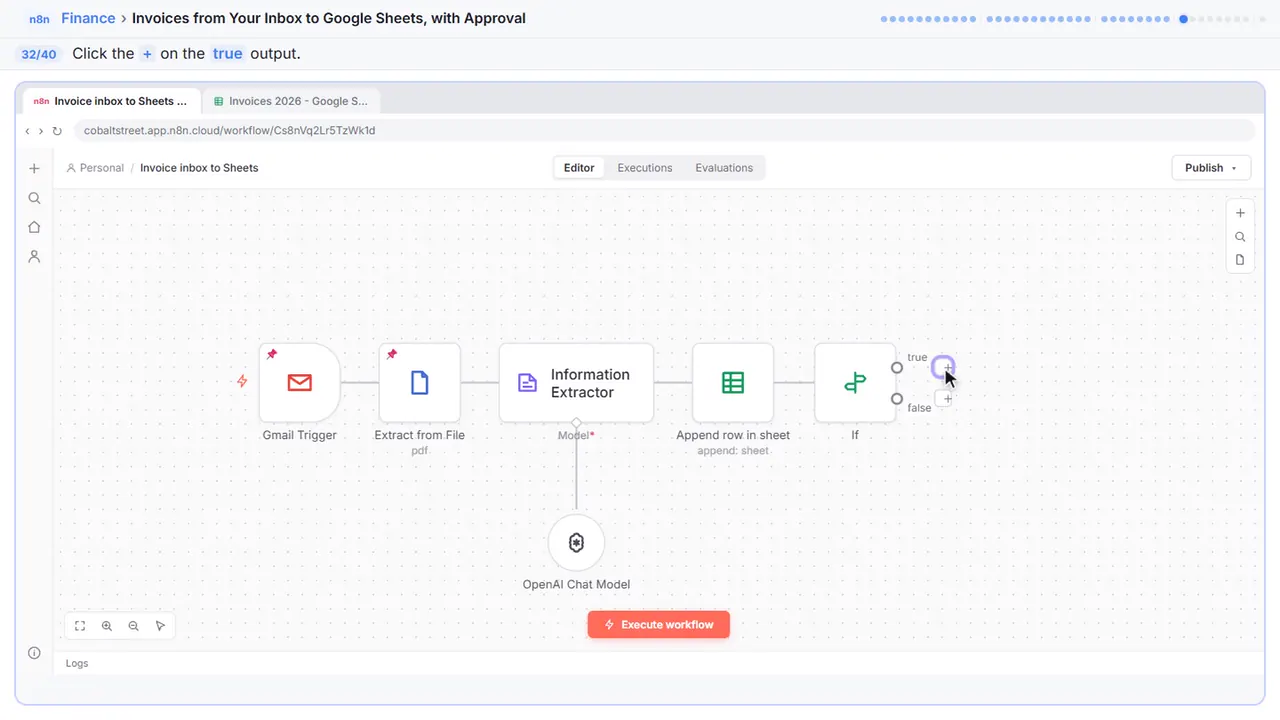
Step 33: Search for gmail
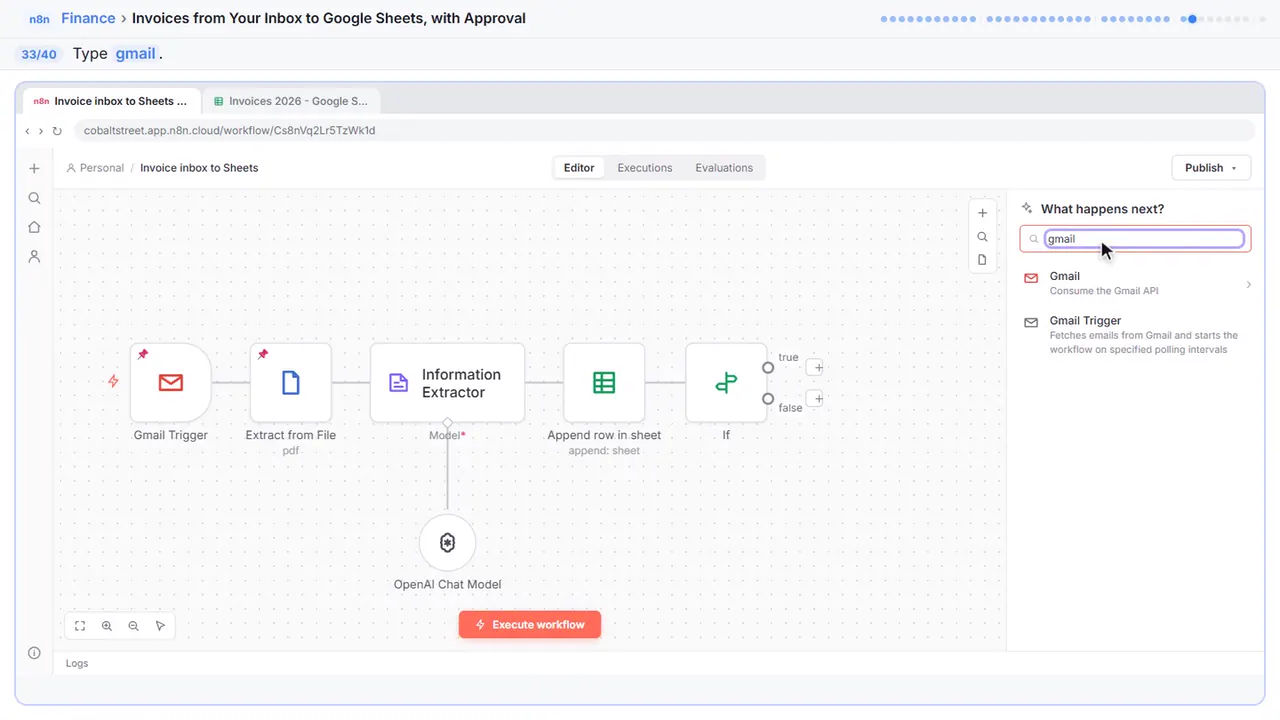
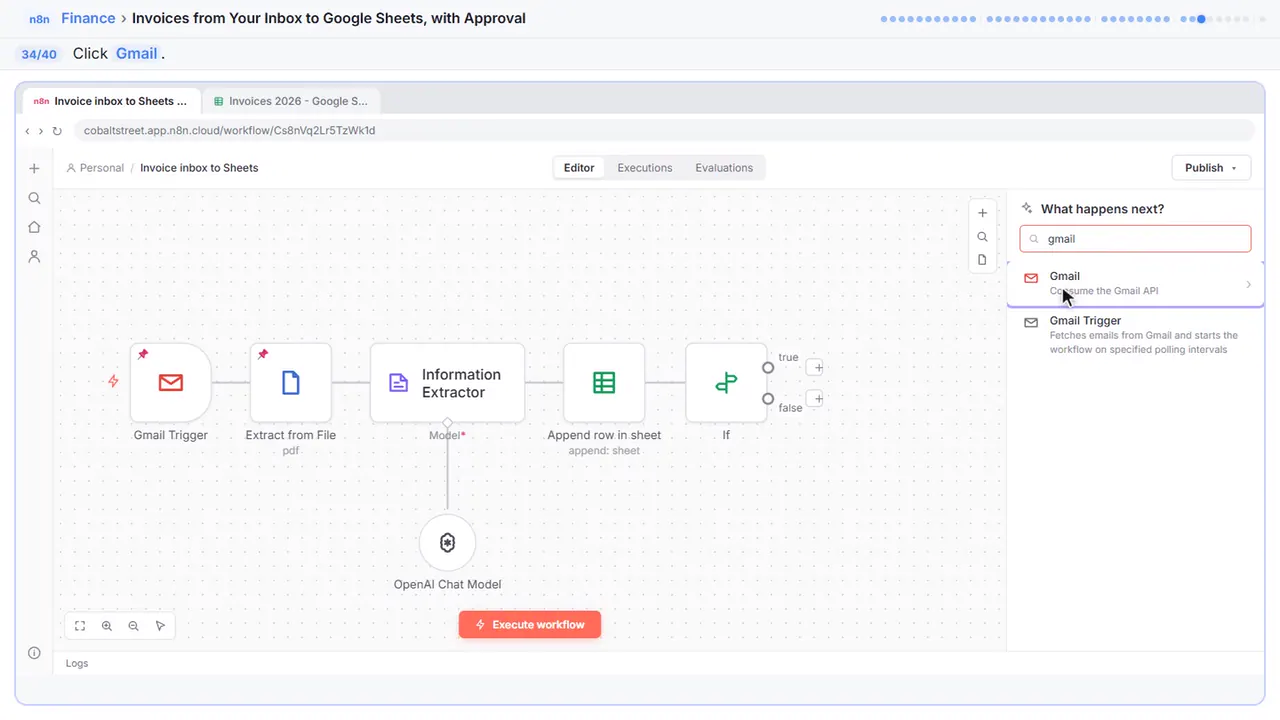
Step 34: Gmail
Gmail.
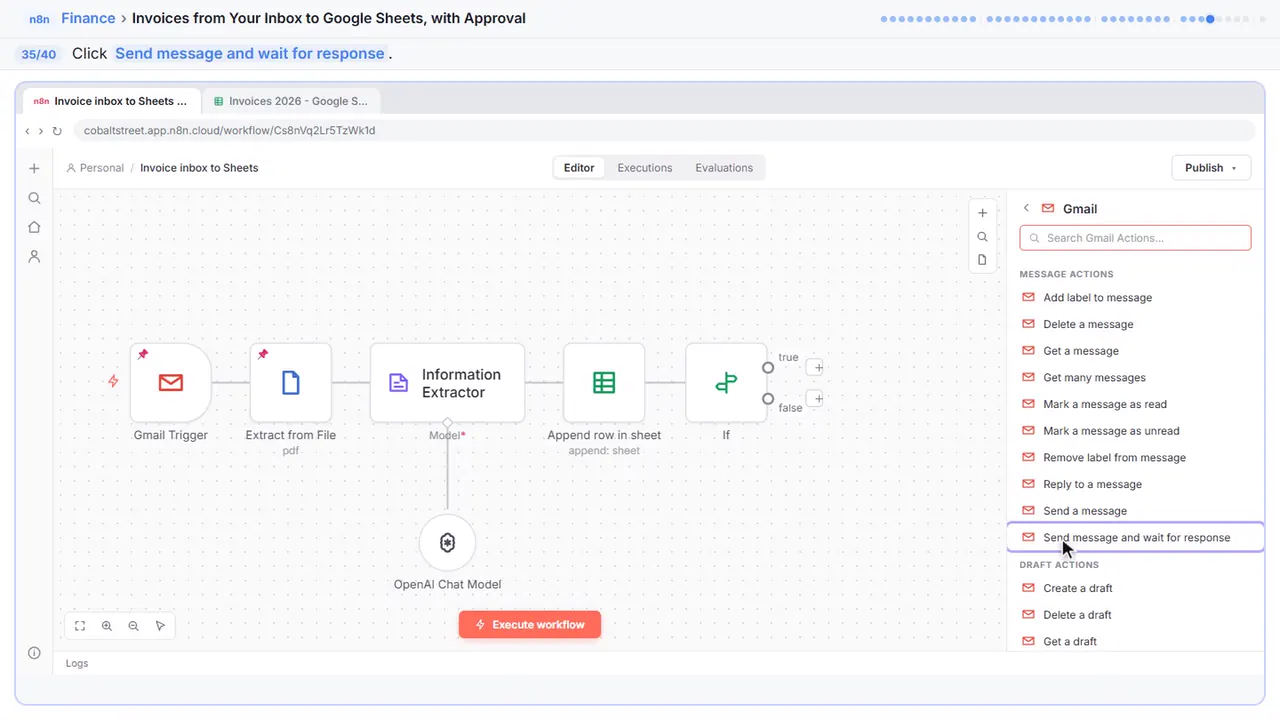
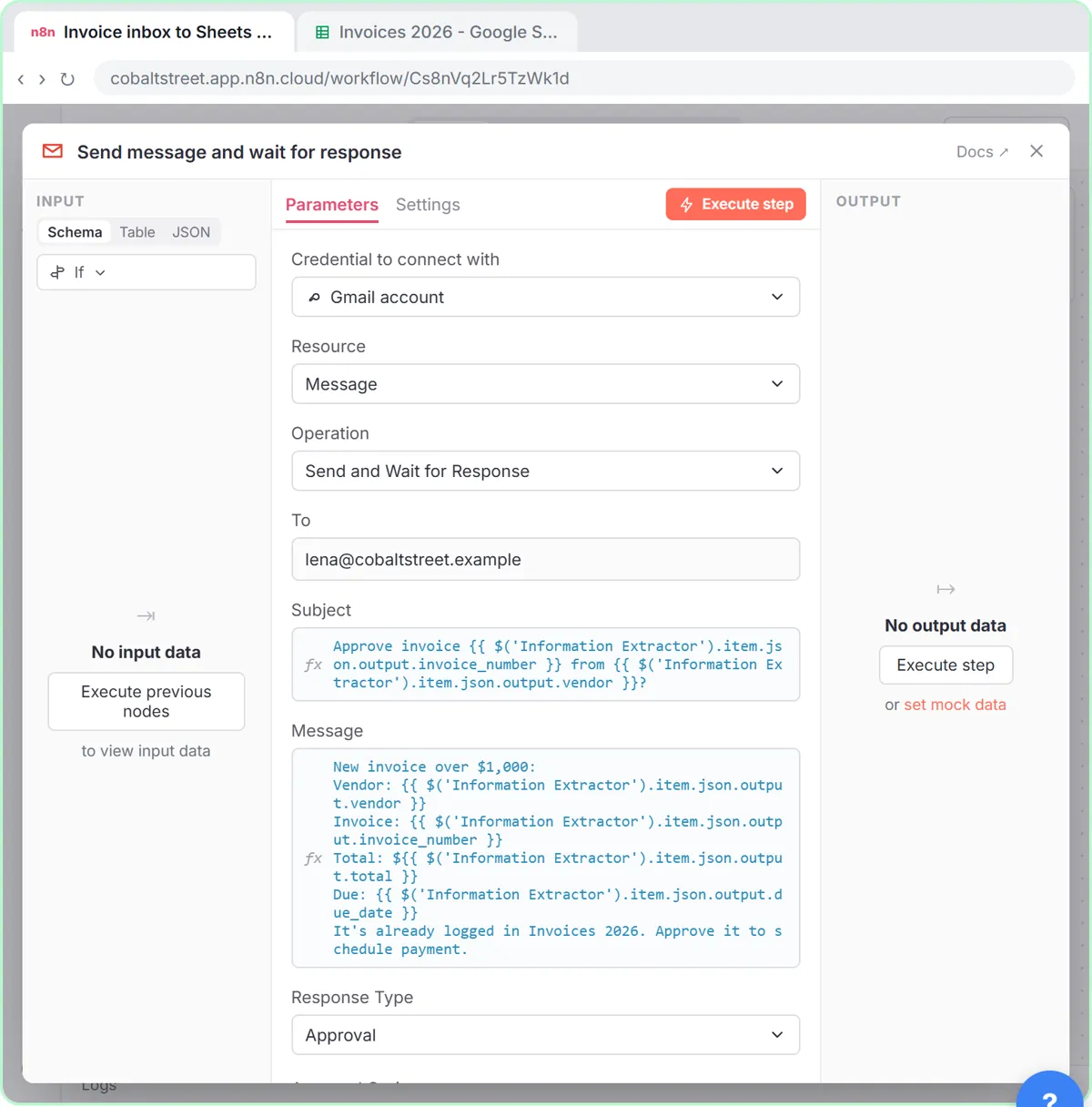
Step 35: Send message and wait for response
The workflow pauses until the owner answers.
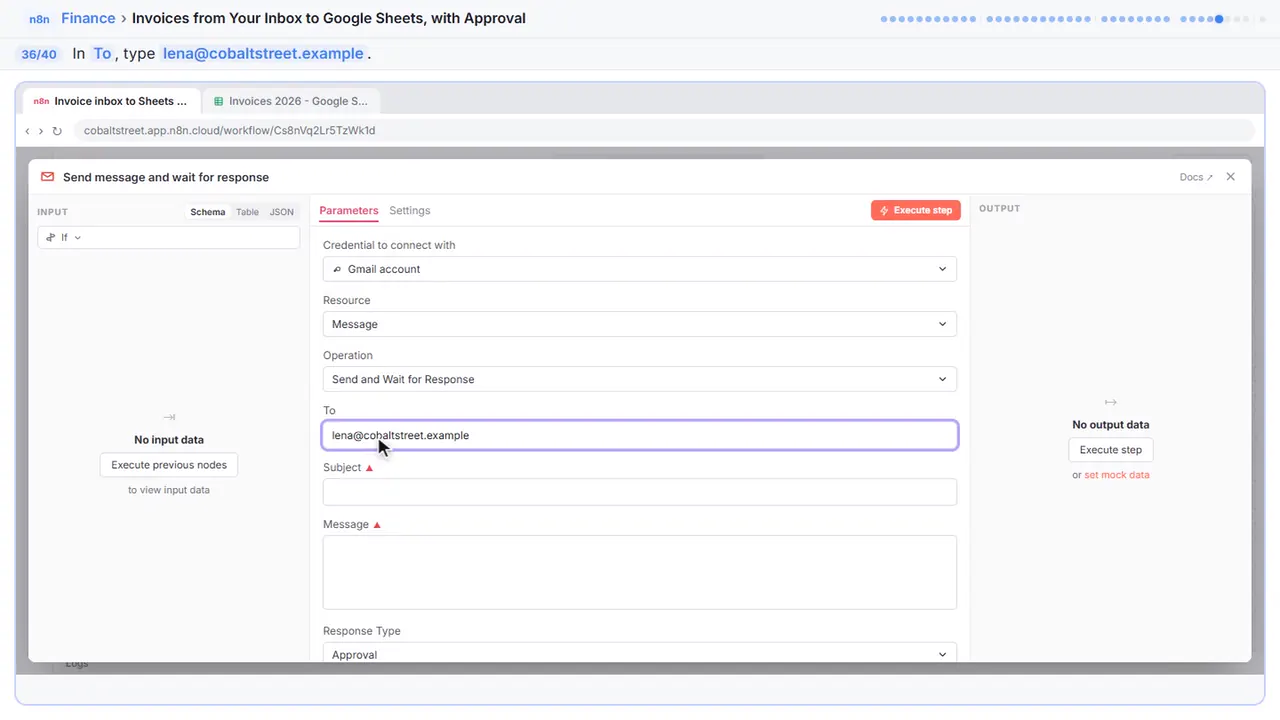
Step 36: Send it to the owner
In the To field, put the owner's email. Here that's Lena.
Step 37: Subject
It names the invoice and the vendor.
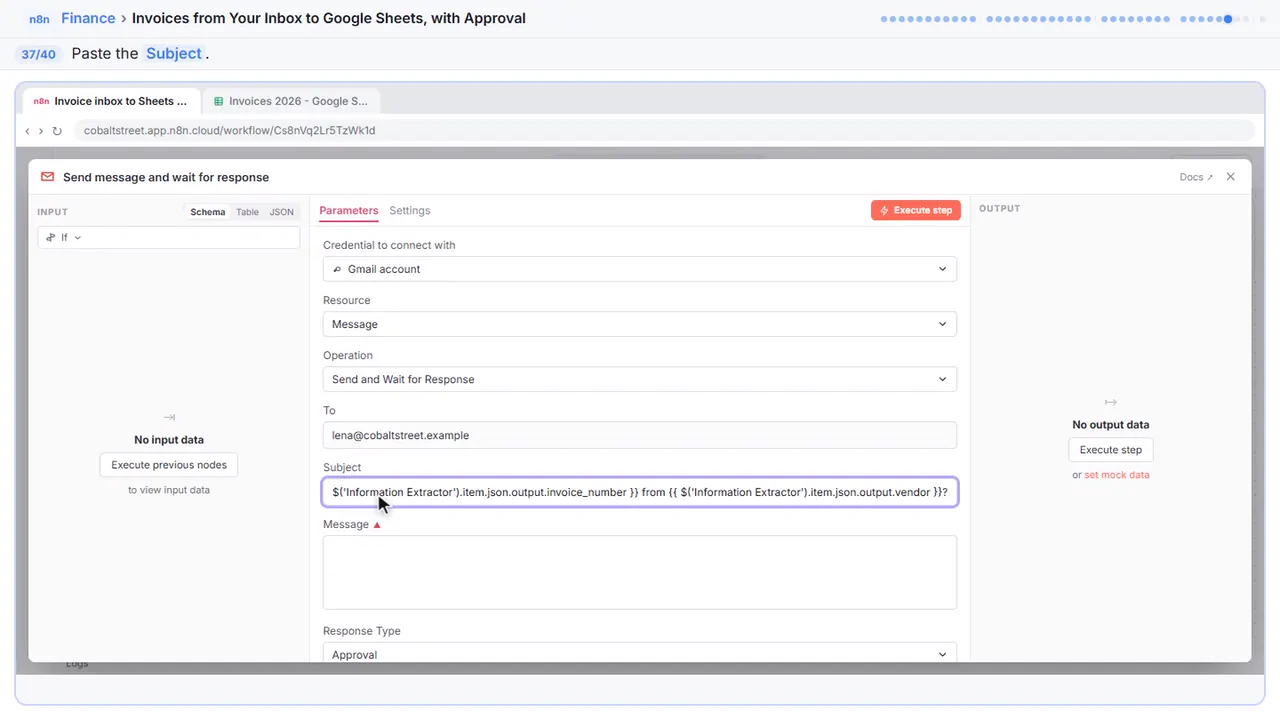
Approve invoice {{ $('Information Extractor').item.json.output.invoice_number }} from {{ $('Information Extractor').item.json.output.vendor }}?Step 38: Message
Response Type is already Approval, so the email gets an Approve button.
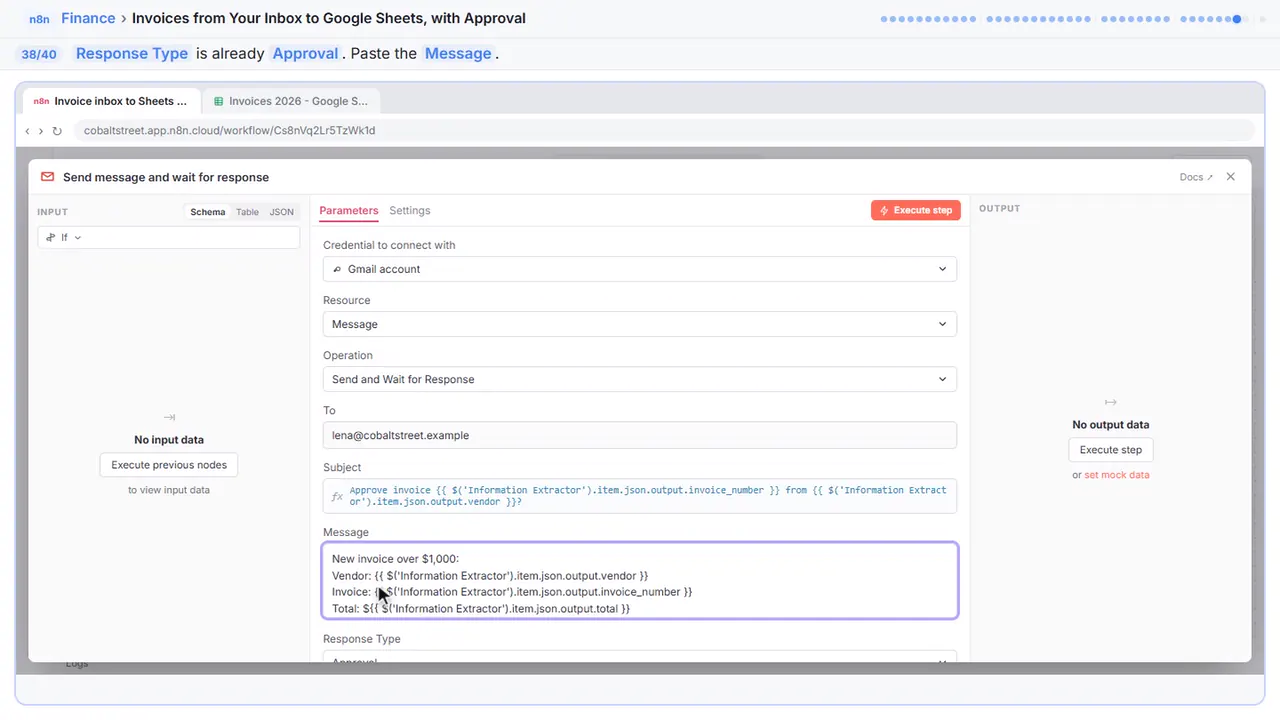
New invoice over $1,000:
Vendor: {{ $('Information Extractor').item.json.output.vendor }}
Invoice: {{ $('Information Extractor').item.json.output.invoice_number }}
Total: ${{ $('Information Extractor').item.json.output.total }}
Due: {{ $('Information Extractor').item.json.output.due_date }}
It's already logged in Invoices 2026. Approve it to schedule payment.
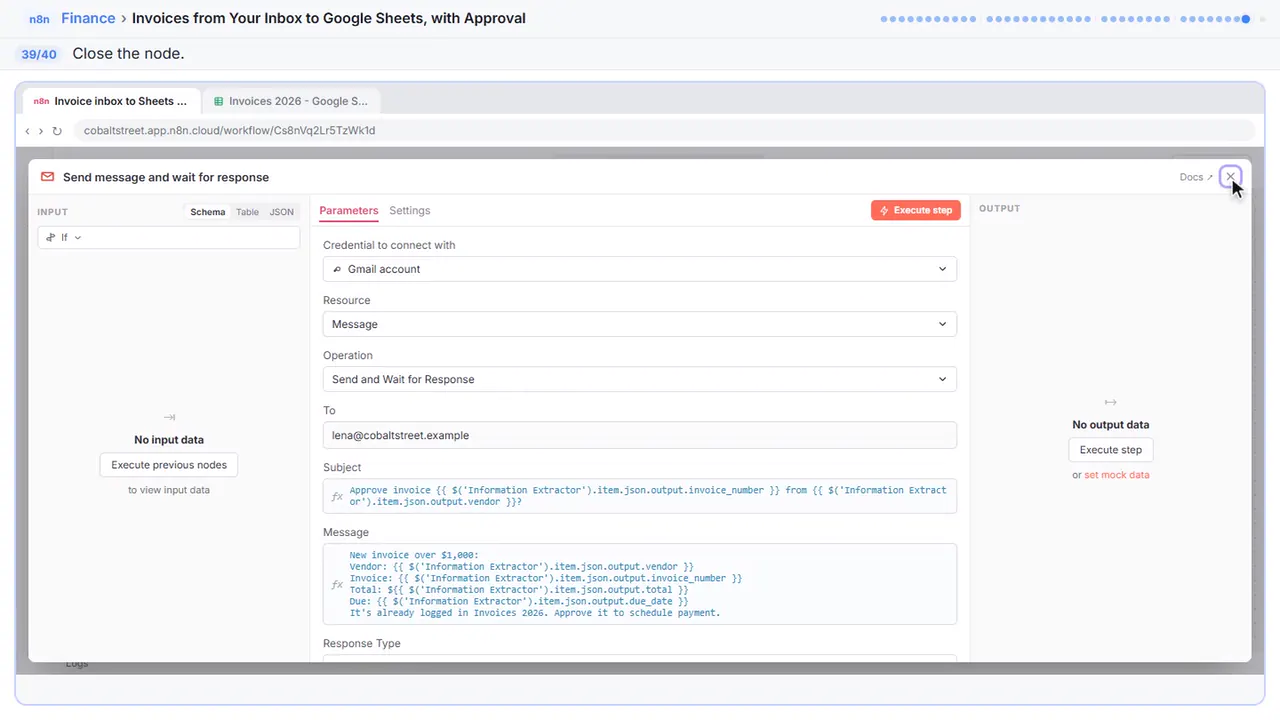
Step 39: Close the node
Close it.
Part 5: Test it
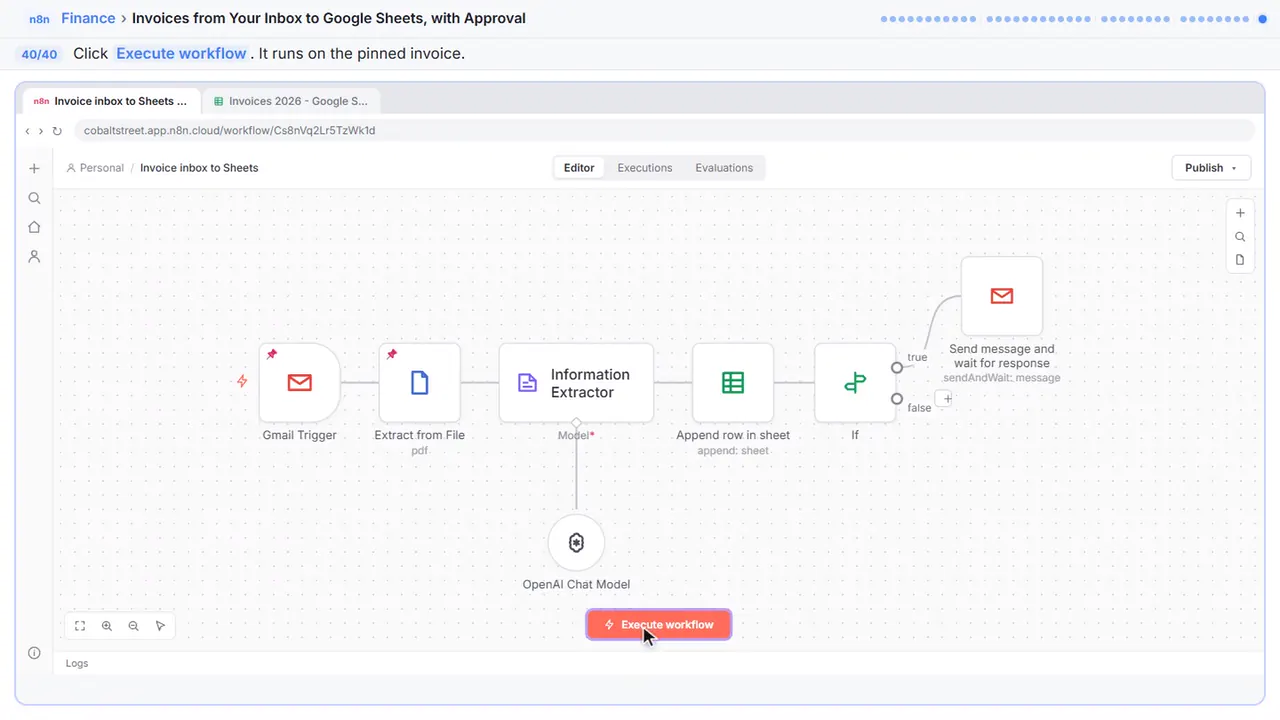
Step 40: Test it
The extractor reads twelve eighty-four fifty, the row goes into the sheet, and because it's over a thousand, Lena gets an approval email while the workflow waits for her answer. Check the sheet and her inbox, then publish it.
Now do it yourself, free
Reading the steps is a start. Doing them is how it sticks. The interactive lesson puts you in a practice copy of n8n: you do every step yourself, it checks your work, and “Do it for me” finishes any step you get stuck on. Nothing touches your real accounts.
Practice “Invoices from Your Inbox to Google Sheets, with Approval” step by stepInvoices from Your Inbox to Google Sheets, with Approval: video walkthrough
The whole lesson in 2:31, narrated step by step.
Simulated practice environment. Recorded in Stepthrough’s simulated practice environment, not the live tool. Practice it yourself free at learn.ynteractive.com.
Chapters
Click a chapter to jump the video there.
Now do it yourself, free
Watching is the warm-up. The interactive lesson puts you in a practice copy of n8n: you do every step yourself, it checks your work, and “Do it for me” finishes any step you get stuck on. Nothing touches your real accounts.
Practice “Invoices from Your Inbox to Google Sheets, with Approval” step by stepFull transcript
Read the invoice
0:00 You keep the books at Cobalt Street Architects, and vendor invoices arrive by email as PDFs. This workflow already catches them: the Gmail Trigger downloads the attachment, and Extract from File turns the PDF into text. A test invoice is pinned to both. Click the plus after Extract from File.
0:15 Type extractor.
0:17 Click Information Extractor. It turns that wall of text into neat fields.
0:21 The invoice text is on the left. Paste this into Text. It lists the five fields you want and one firm rule: copy what's printed, never calculate or guess. Leave a field empty rather than invent it.
0:32 Open Schema Type.
0:34 Generate From JSON Example.
0:36 Replace the sample with this. The values are made up. What matters is the shape: dates written year first, and the total as a plain number, so the next steps can compare it.
0:45 Close it.
0:46 Now give it a model. Click the plus under Model.
0:49 OpenAI Chat Model.
0:50 Your saved OpenAI key is already picked. Close it.
Log it
0:54 Every invoice gets logged. Click the plus after the extractor.
0:57 Type sheets.
0:58 Google Sheets.
1:00 Append row in sheet.
1:01 Your Google account is already connected. Open the Document list.
1:05 Pick the Invoices 2026 spreadsheet.
1:07 Open the Sheet list.
1:09 Sheet1. Its columns appear under Values to Send.
1:12 Now fill each column from the extractor's output. Paste this into Vendor. After a test run you can drag fields in from the left instead.
1:19 The invoice number goes in Invoice number.
1:21 And the total goes in Total.
1:23 Close it.
Over $1,000?
1:24 Small invoices just get logged. Big ones need a yes from the owner. Click the plus after the sheet step.
1:30 Type if.
1:31 Click If.
1:32 In the first box, paste the total. The sheet step's output is the row it wrote, so the expression names the extractor directly.
1:39 Open the comparison.
1:40 Under Number, choose is greater than.
1:43 Type one thousand. No dollar sign, no comma.
1:45 Close it.
Ask for approval
1:46 Click the plus on the true side.
1:48 Type gmail.
1:50 Gmail.
1:51 Click Send message and wait for response. The workflow pauses until the owner answers.
1:55 In the To field, put the owner's email. Here that's Lena.
1:59 Paste the subject. It names the invoice and the vendor.
2:02 Response Type is already Approval, so the email gets an Approve button. Paste the message: vendor, invoice, total and due date.
2:10 Close it.
Test it
2:11 Click Execute workflow. The extractor reads twelve eighty-four fifty, the row goes into the sheet, and because it's over a thousand, Lena gets an approval email while the workflow waits for her answer. Check the sheet and her inbox, then publish it.
2:24 Simple as that. We show you and you do it. Sign up below to learn AI automation for free.
What you will build
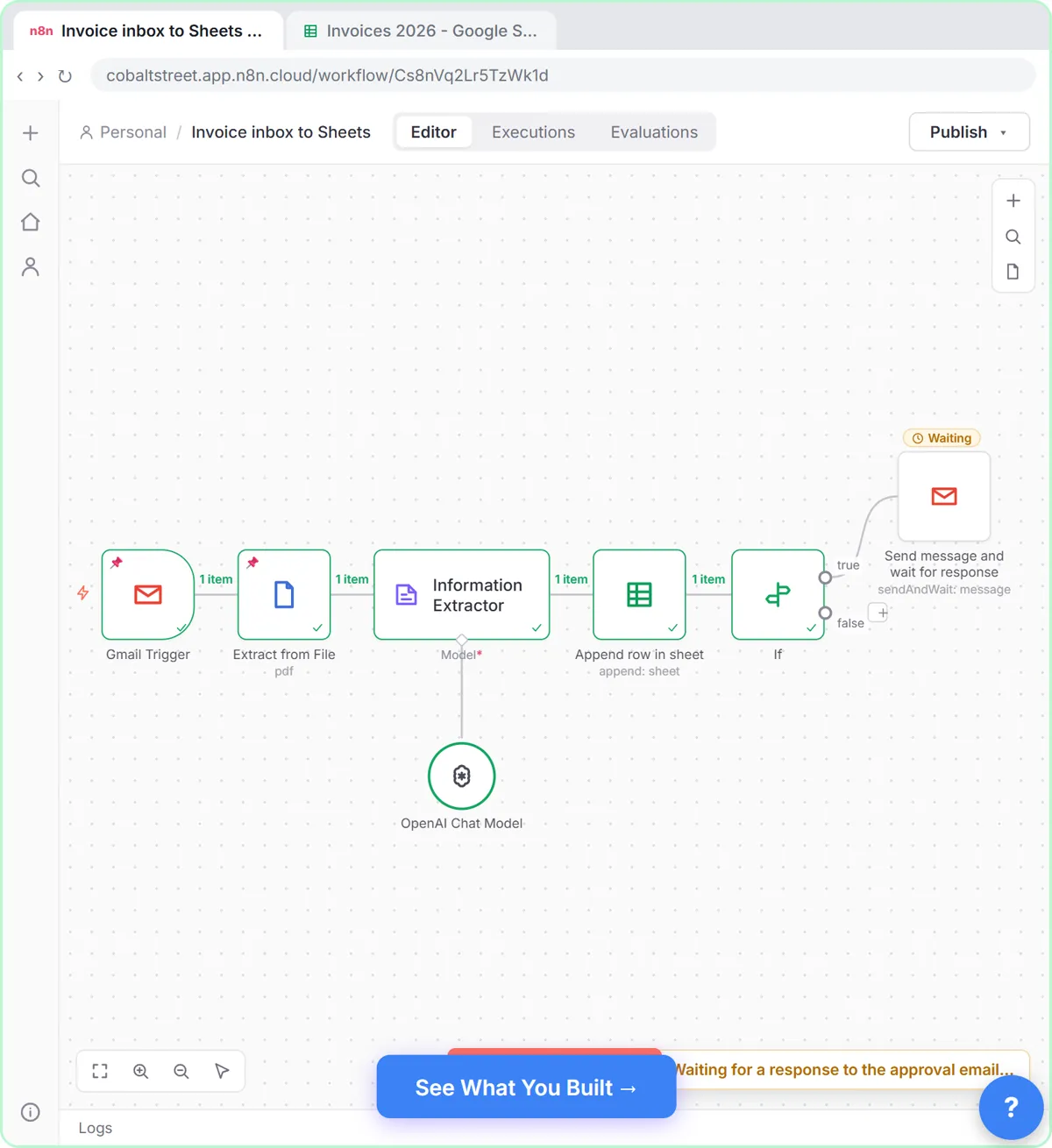
You keep the books at Cobalt Street Architects, a made-up firm. The workflow already has two steps: a Gmail Trigger that catches invoice emails and downloads the PDF, and Extract from File, which turns the PDF into plain text. A test invoice from Tidewater Office Supply is pinned to both: invoice TW-20418, dated September 29, 2026, due October 29, total $1,284.50.
You add an Information Extractor with an OpenAI Chat Model that returns the vendor, invoice number, invoice date, due date and total in a fixed shape. Then Append row in sheet logs the vendor, invoice number and total in a sheet called Invoices 2026. An If node checks whether the total is greater than 1000, and on the true branch Gmail's Send message and wait for response emails the owner, Lena, with an Approve button. The workflow pauses until she answers.
How the two ready-made steps are set up
The Gmail Trigger polls the inbox. To get the PDF, turn Simplify off and add the Download Attachments option; the first attachment arrives as binary data called attachment_0. Extract from File with the Extract From PDF operation reads that field and outputs the text. Scanned invoices that are only images have no text to extract, so check that your vendors send real PDFs, or add an OCR step first.
Gotchas worth knowing
- Ask for numbers as numbers. The JSON example shows total as 250.75, not "$250.75", so the If node can compare it to 1000.
- Dates written year first (2026-10-29) sort correctly in Sheets.
- The Information Extractor puts its fields under output, so the Sheets expressions read $json.output.vendor.
- After the Sheets step, the incoming data is the row that was written. The If node reads the total from the Information Extractor by name instead.
- Send message and wait for response defaults to Approve Only. Add Approval Options and choose Approve and Disapprove if you want a No button too.
- Test runs wait for the answer just like live runs, so check your inbox after you click Execute workflow.
What you need
- An n8n account: n8n Cloud from about €20 a month with a free trial, or the free self-hosted Community Edition.
- An OpenAI API key with a little credit. Reading one invoice with a small model costs a fraction of a cent.
- Gmail and Google Sheets connected in n8n, and a sheet with Vendor, Invoice # and Total columns.
Keep a person in the loop
AI can misread a blurry PDF or a strange layout, which is why the instructions forbid guessing and why big invoices need a click before anyone pays. Spot-check the first week of rows against the PDFs, and keep the approval step even when the numbers look right. This is bookkeeping help, not accounting or tax advice.
Try it yourself, free
Reading the steps is a start. Doing them is how it sticks. The interactive module walks you through every click in a practice copy of n8n, checks each step, and never touches your real accounts.
Start “Invoices from Your Inbox to Google Sheets, with Approval”Screenshots
Frequently asked questions
- How does the interactive lesson work?
- Each step is shown to you first on the left (Watch). Then you do it yourself in a practice copy on the right (Your turn), and every click is checked. If you get stuck, press Do it for me. It is a practice copy, so no real accounts are touched.
- Is this free?
- Stepthrough is completely free. Running the workflow for real needs your own n8n account, an OpenAI API key with some credit, and Gmail and Google Sheets.
- Does it pay invoices?
- No. It reads each invoice, logs it and, for anything over $1,000, asks the owner to approve it. Paying stays a separate, human step.
- Can I change the $1,000 limit?
- Yes. Change the number in the If node's second box.
- Can I use Slack instead of email for approvals?
- Yes. The Slack node has the same Send message and wait for response action. This lesson uses Gmail because the invoices already come through it.
More in AI Automation for Finance
All 3 modules in AI Automation for Finance
More n8n tutorials
 n8n AI Agent Tutorial: Save Social Media Ideas to Google Sheets
Build an AI agent for BrightPath Marketing that generates social media post ideas and saves them to Google Sheets — chat trigger, AI Agent, system prompt, model…
Free · Live ~12 min
 Lovable + n8n: Build a Web App with an AI Backend
Build a contact form in Lovable and connect it to an n8n workflow — webhook trigger, AI Agent, Google Sheets, Gmail, and a Respond node that ties it all together.
Free · Live ~15 min
 AI Receipt Extractor: Receipts to Google Sheets with n8n
Drop a photo of a receipt into an n8n chat. An AI agent reads it, pulls out the date, vendor and amount, picks a category, and adds a row to Google Sheets.
Free · Live ~12 min
 AI Email Responder: Draft Gmail Replies Automatically with n8n
Build an n8n agent that watches your Gmail, reads each new customer email, and writes a reply as a draft in the same thread, ready for you to check and send.
Free · Live ~12 min
 Daily Job Alerts: Email Each Tech Their Jobs from Google Sheets with n8n
Every morning at 7, n8n reads a plumbing company's jobs sheet, skips anything not assigned yet, and emails each job to the tech it's assigned to — customer, address…
Free · Live ~10 min
 Gmail AI Triage: Auto-Label Every Email and Draft Replies
Build an n8n workflow that reads each new email, sorts it as a lead, a client or an invoice with a Text Classifier, adds the matching Gmail label, and drafts a reply to…
Free · Live ~14 min
Terms in this lesson
Plain-English definitions, each with an example from a free lesson.