What is the n8n Gmail Trigger?
Updated · By Robert Breen
The Gmail Trigger is the n8n node that starts a workflow when a new email arrives in a connected Gmail account. It checks the inbox on a timer, such as every minute, and passes each new message on as data: sender, subject, a snippet and IDs.
Why it matters for a small business
Email is where most small-business work arrives: quote requests, questions, invoices, complaints. A Gmail Trigger turns the inbox into the starting point of an automation, so each incoming message can be sorted, logged, answered in draft or passed to the right person without anyone copying and pasting.
Because it reads real customer email, it deserves care. It sees everything that lands in the inbox you connect, so connect the business inbox the workflow is actually for, keep what the workflow does with each email narrow, and use filters so it only reacts to the messages you mean.
In a real lesson: AI Email Responder: Draft Gmail Replies Automatically with n8n
In the AI Email Responder lesson, you click Add first step, type gmail, click Gmail, and under Triggers pick On message received. For the credential you click Create new credential and Sign in with Google, then choose [email protected], the inbox Greenline Pest Control's customers actually write to.
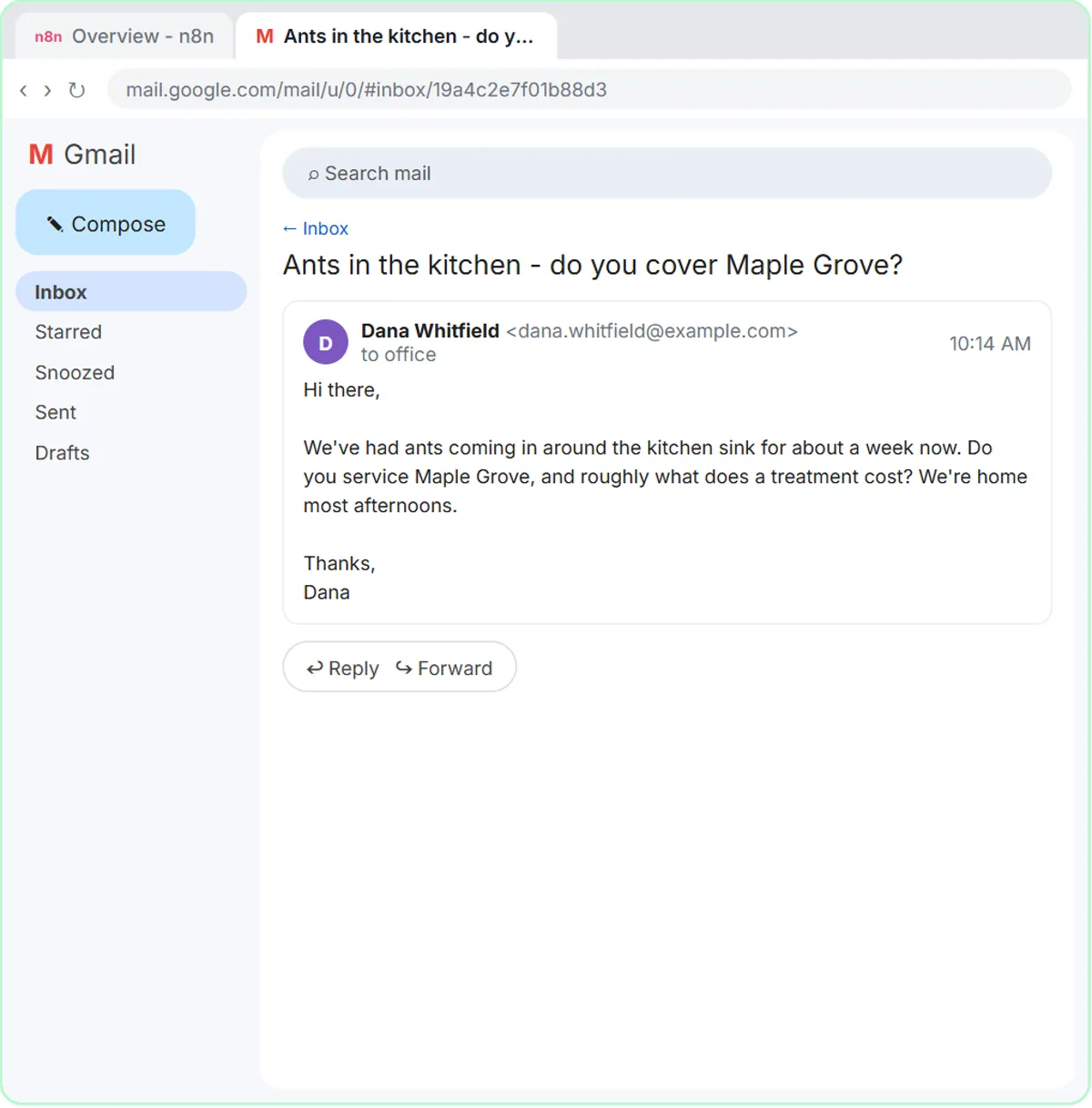
Google's permission list looks broad, and the voice-over addresses it: what actually happens is decided by the nodes you add, and these will only read mail and write drafts. You leave Every Minute and Message Received alone and click Fetch Test Event. n8n pulls in the newest email, Dana's, split into fields: From, Subject, snippet and threadId.
Those four fields drive the rest of the build. The agent's prompt uses From, Subject and snippet, and both the draft and the memory use threadId.
Try this lesson free or read the step-by-step guide.
Common confusions
Gmail Trigger vs Gmail node
The trigger watches for new mail and starts the workflow. The regular Gmail node (or the Gmail Tool for an agent) acts on mail later in the workflow: send, create a draft, add a label.
Gmail Trigger vs a webhook
Gmail doesn't call your workflow when mail arrives here. The trigger polls on a schedule instead, which is why a new email can take up to a minute to show up as a run.
Snippet vs full message
The snippet is a short preview of the message body, enough for brief customer questions. For long emails, turn off the trigger's Simplify option to get the full body.
Tips
- Use Fetch Test Event to see the exact field names before writing expressions.
- Send yourself a test email shaped like a real customer's and check what the trigger captures.
- Use the trigger's filters (a search, a label or a sender) if only some emails should start the workflow.
Related terms
Where you use it: free lessons
More free tutorials
Prompt templates that use it
Visual guide
Gmail Trigger in a few slides, with the same guide written out as text.
Frequently asked questions
- How often does the n8n Gmail Trigger check for email?
- As often as you set it. The lesson leaves it on Every Minute, which suits a customer inbox.
- Does the Gmail Trigger run before I publish the workflow?
- Only when you test it with Fetch Test Event or Execute workflow. It checks the inbox on its own only after the workflow is published.
- Can I trigger only on certain emails?
- Yes. Use the trigger's filters, such as a Gmail search or a label, so only matching emails start a run.