Updated . Built against the tool’s current screens and checked step by step. How we check this lesson
Every client email that waits for a reply is a client who might go elsewhere. In this free n8n tutorial you set up a four-node workflow that drafts the reply before anyone opens the email: a Gmail Trigger starts it, OpenAI writes a warm reply from the client's own words, one HTTP Request node fetches the sender's real, current signature from Signatoro's API, and Gmail saves the reply as a draft in the same thread for a person to check. The AI writes the message and never signs it, so every reply carries the right name, title and phone number. The workflow is a free download with no credentials in it. This is my own lesson, not an official Signatoro course.
At a glance
| Question | Answer |
|---|---|
| What you build | Stop leaving client emails waiting. A Gmail Trigger starts it, OpenAI writes a personal reply, one HTTP Request node fetches the sender's real signature from Signatoro, and Gmail saves a draft reply for a person to check. |
| Tools | n8n |
| Time | About 10 minutes, 24 steps in 8 parts |
| Level | Intermediate |
| Cost | Free |
| Ways to learn it | Practice it step by step |
The 8 parts, in short
- Why let Signatoro sign it: See what the wait costs, Let n8n draft every reply.
- Save the signature in Signatoro: Save the signature, Make an API key for n8n.
- Gmail starts the workflow: Open the Gmail Trigger, Check every minute, Turn Simplify off.
- AI writes the reply: Pick your OpenAI credential, Read the prompt, See the reply.
- Signatoro adds the signature: Call Signatoro, Choose Generic Credential Type, Choose Bearer Auth, Open the credential, and 3 more steps.
- Gmail saves a draft reply: Save a draft, not an email, Reply, then signature, Keep it in the thread.
- Test it: Test it, keep it off.
- What it saves: Read the draft, See what it saves, Get the workflow.
Start here first: n8n: What Is n8n? Build Your First Workflow (module 1 of n8n Automation Toolkit)
In the course: Part 9 · n8n Automation Toolkit (Module 87 of the full course)
Part of: AI for Medical & Dental Office Admin (step 11 of 14). Next up: n8n AI Agent with Tools: Check Google Calendar, Book It and Log It
Part of: Email on Autopilot (step 7 of 14). Next up: n8n AI Email Responder: Draft Gmail Replies Automatically
Part of: Business Automations with n8n (step 18 of 20). Next up: n8n + Felo: A Monday Research Brief With a Source for Every Answer
Part of: n8n Jump Start (step 18 of 20). Next up: n8n + Felo: A Monday Research Brief With a Source for Every Answer
Part of: AI Apps Worth Knowing (step 60 of 62). Next up: n8n + Felo: A Monday Research Brief With a Source for Every Answer
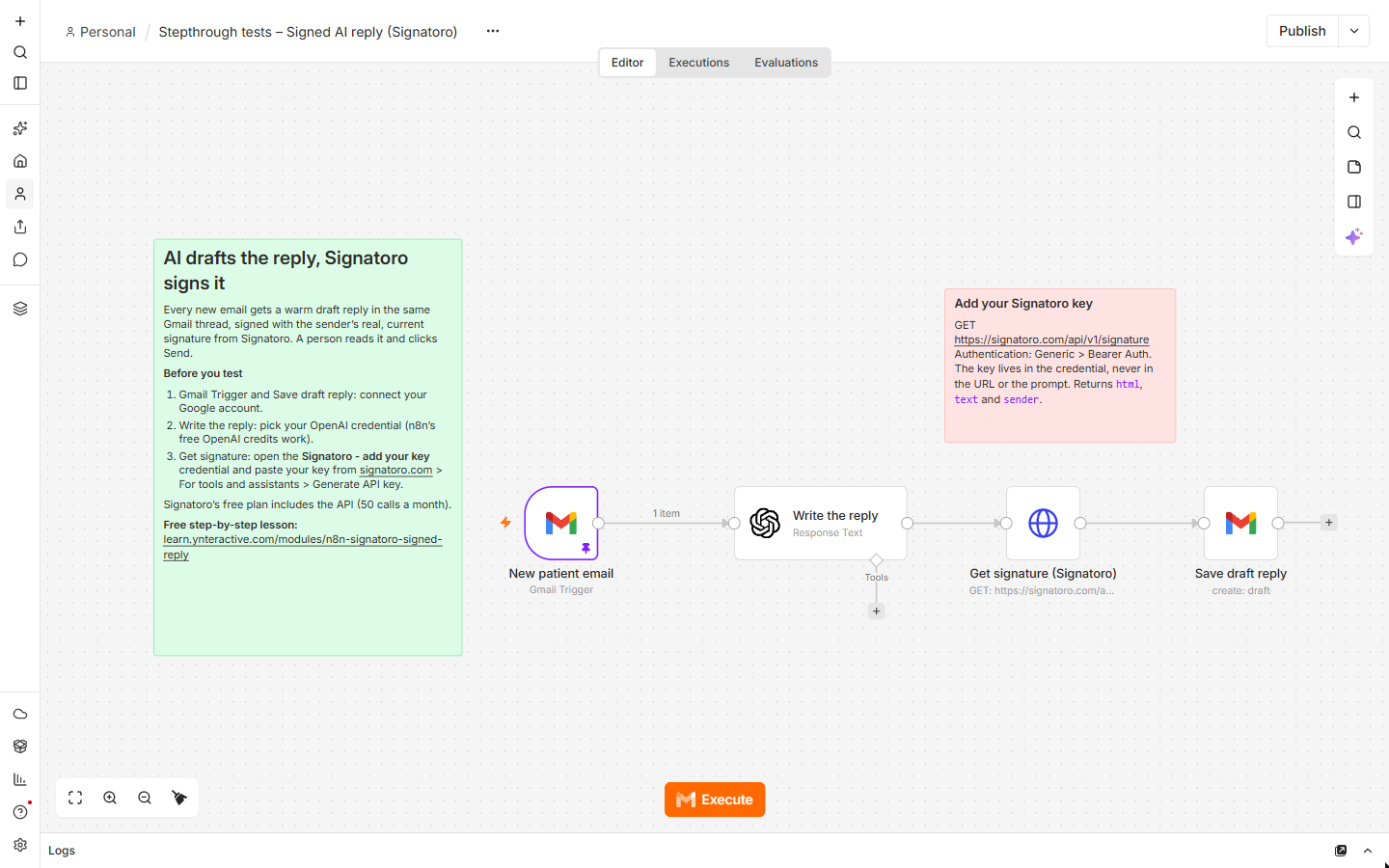
The n8n workflow
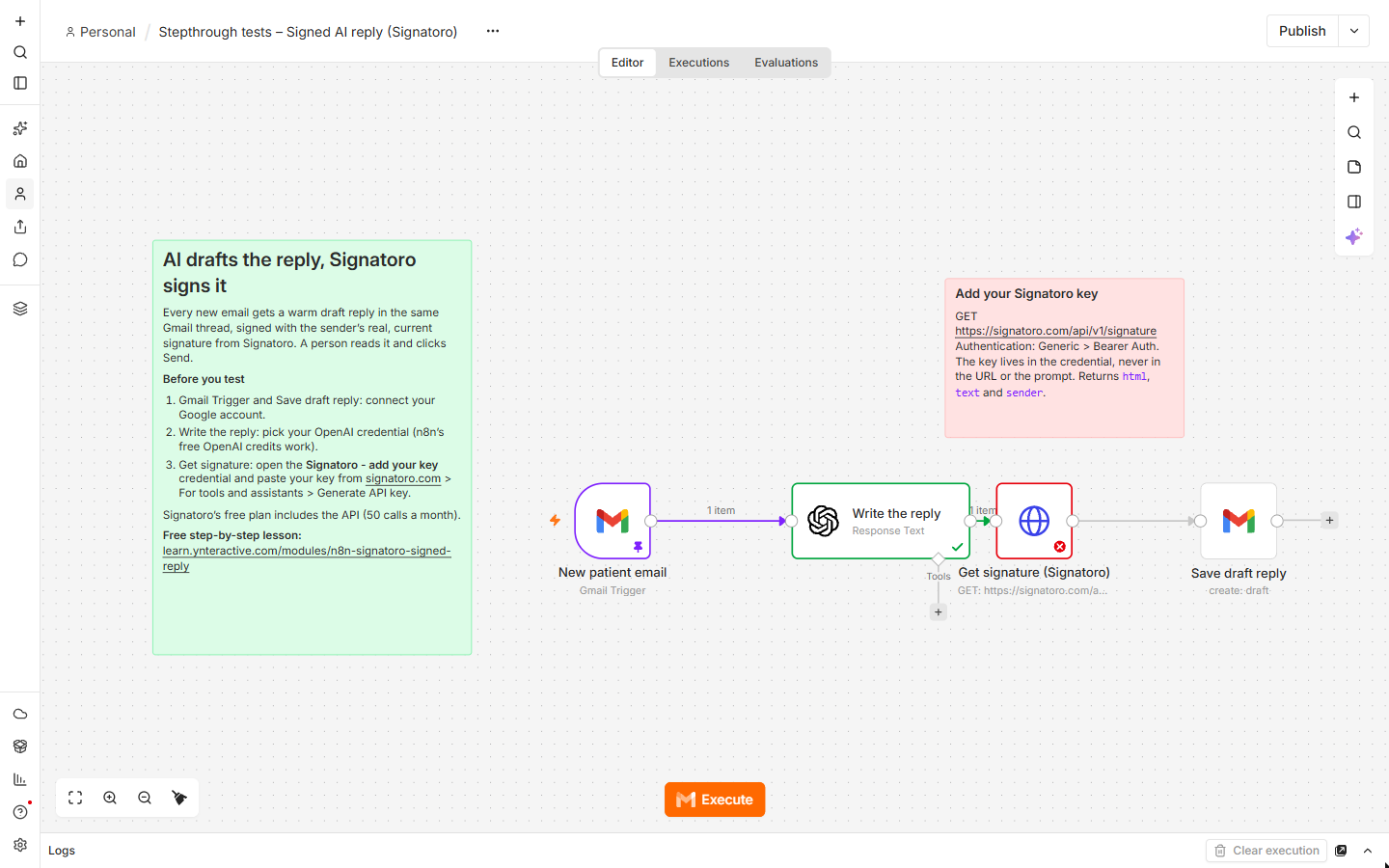
The four-node workflow from this lesson, with setup notes on the canvas. It has no credentials: connect Google and OpenAI, and create a Bearer Auth credential with your Signatoro key after you paste it onto your canvas.
Download the n8n workflow (JSON)
The business case: replies that wait
The example is Brookside Dental, a made-up family dental practice, and Dana Whitfield, its made-up patient coordinator. About 25 new patient emails arrive a week, and each one waits until someone has time to write, sign and send the answer: around 6 minutes each, or 2.5 hours a week, and some patients book somewhere else while they wait. These are example numbers, so use your own.
Letting AI write the reply is the easy part. Letting it sign is where it goes wrong: a reply signed "The Brookside team" reads like a form letter, and a model asked for a name and phone number can get them wrong or keep an old title for months. So the AI writes the message, and Signatoro, which owns the signature, adds it on every run.
What you need
- An n8n account (n8n Cloud's trial is enough). New n8n Cloud accounts get free OpenAI credits, which this workflow can use.
- A Google account for the Gmail Trigger and the Gmail draft.
- A free Signatoro account with a saved signature and an API key from Generate API key, under For tools and assistants. The free plan includes the API, with a monthly limit (the docs show 50 requests).
Step 1: save the signature and make a key in Signatoro
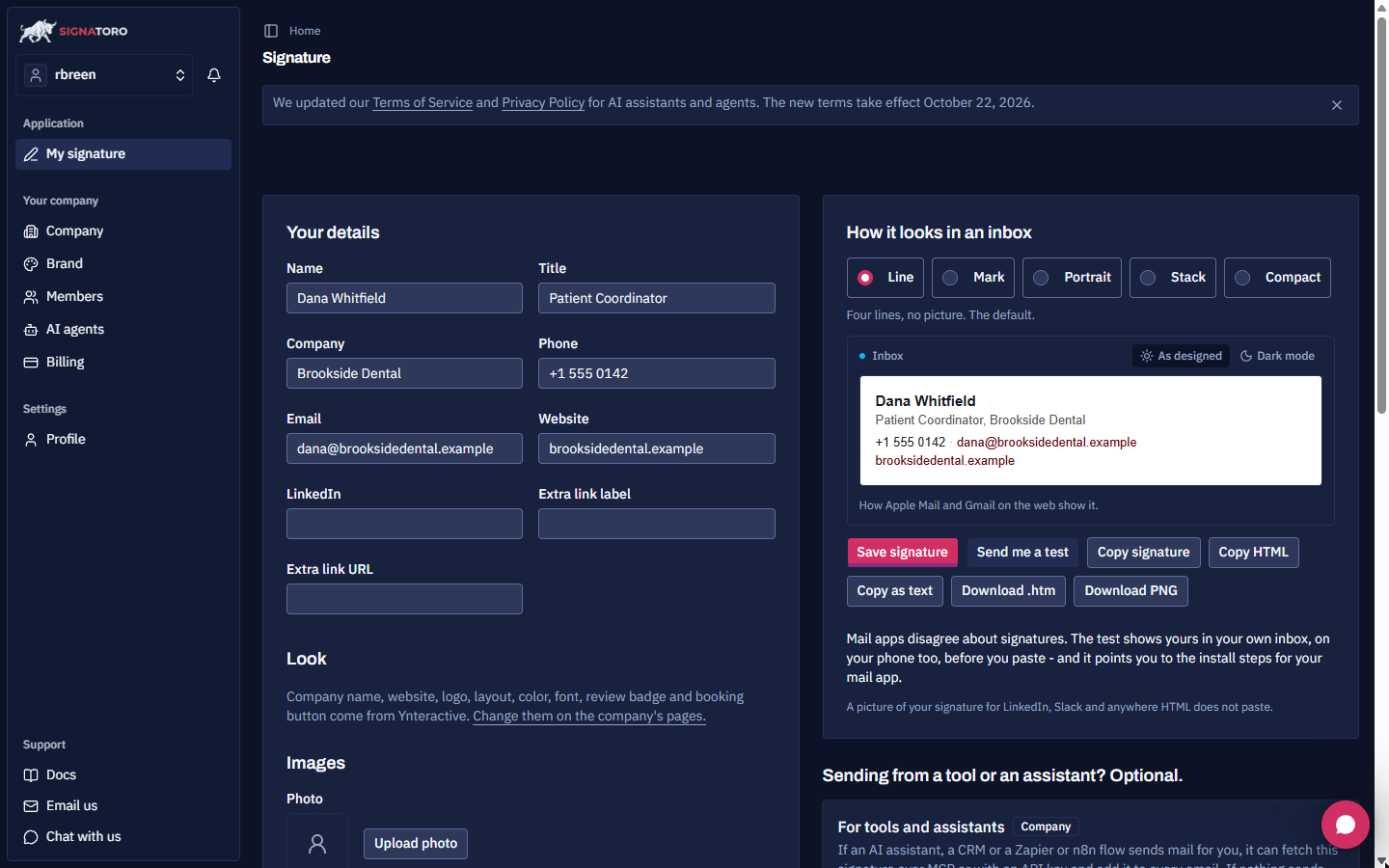
On signatoro.com, fill in Your details (Name, Title, Company, Phone, Email, Website) and click Save signature. Scroll to For tools and assistants and click Generate API key. Copy the key: it's shown once. The example request under it is exactly what n8n sends.
Step 2: the Gmail Trigger
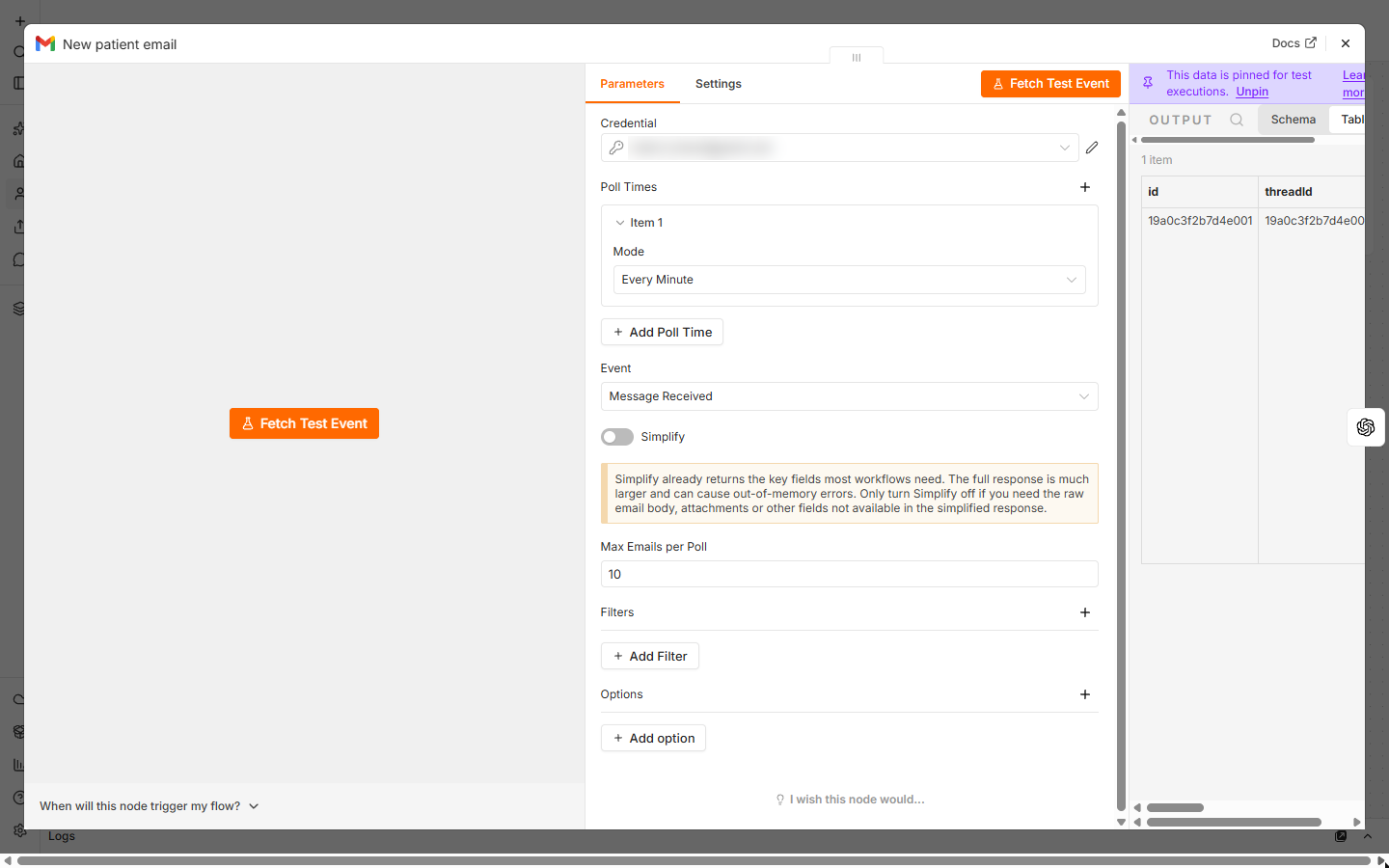
Download the workflow below, open the file, copy everything and paste it onto an n8n canvas. Open New patient email: it's a Gmail Trigger with Poll Times set to Every Minute. Connect your Google account and turn Simplify off, so the email's text, subject, threadId and sender address all reach the next nodes. While you test, pin a sample email as pinned data so you don't wait for real mail.
Step 3: OpenAI writes the reply, with no name
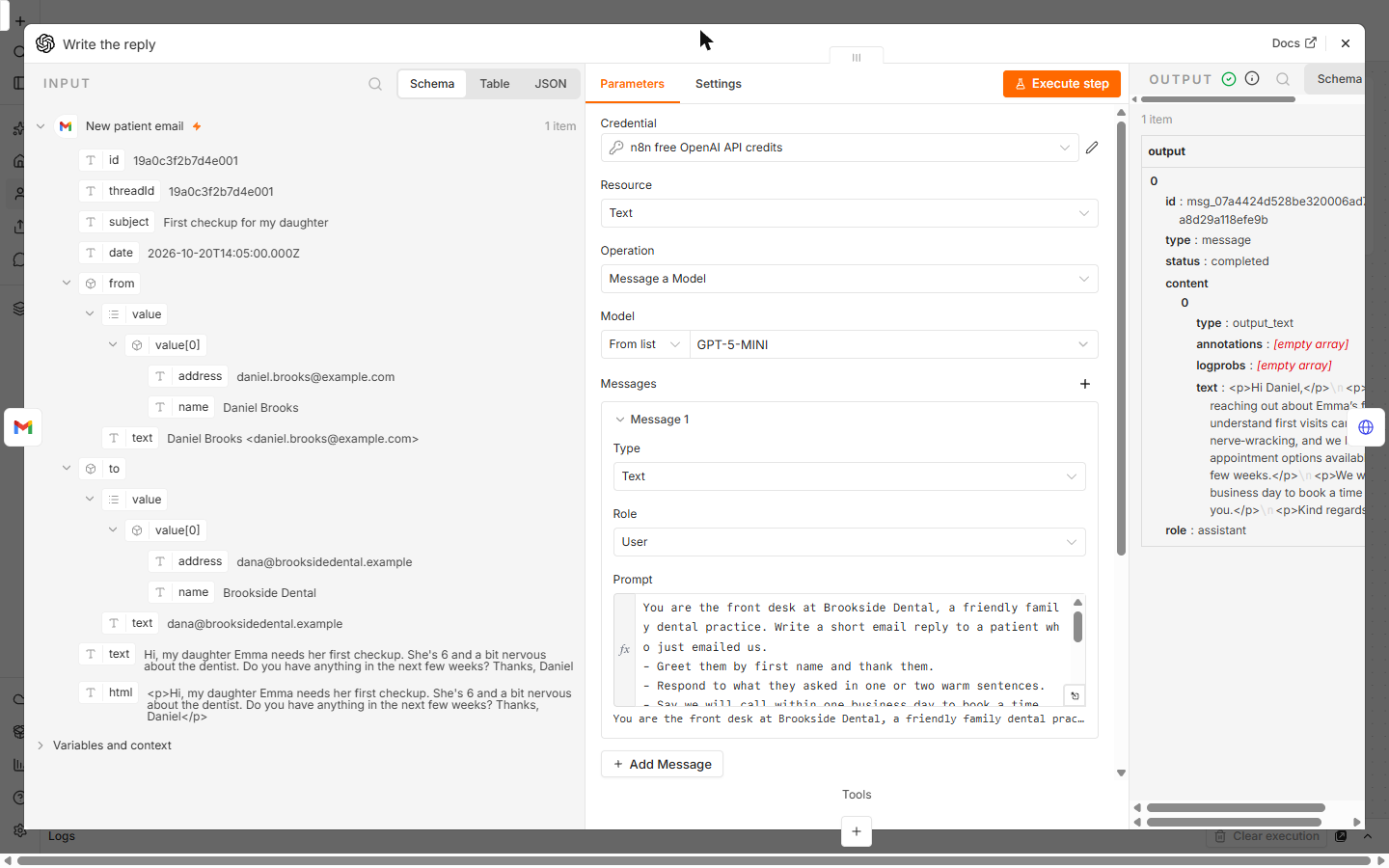
Write the reply is OpenAI's Message a Model node with GPT-5 mini. The prompt: greet the patient by first name and thank them, answer in one or two warm sentences, say we will call within one business day to book a time, give no medical advice, prices or promises, and end with a short closing line such as "Kind regards," with no name or signature. Write only the email body, as simple HTML. The email's text is added at the end with {{ $json.text }}.
In the test run it answered the sample email in three short paragraphs ending in "Kind regards,". The reply is at output[0].content[0].text, which the last node uses.
Step 4: Signatoro adds the signature
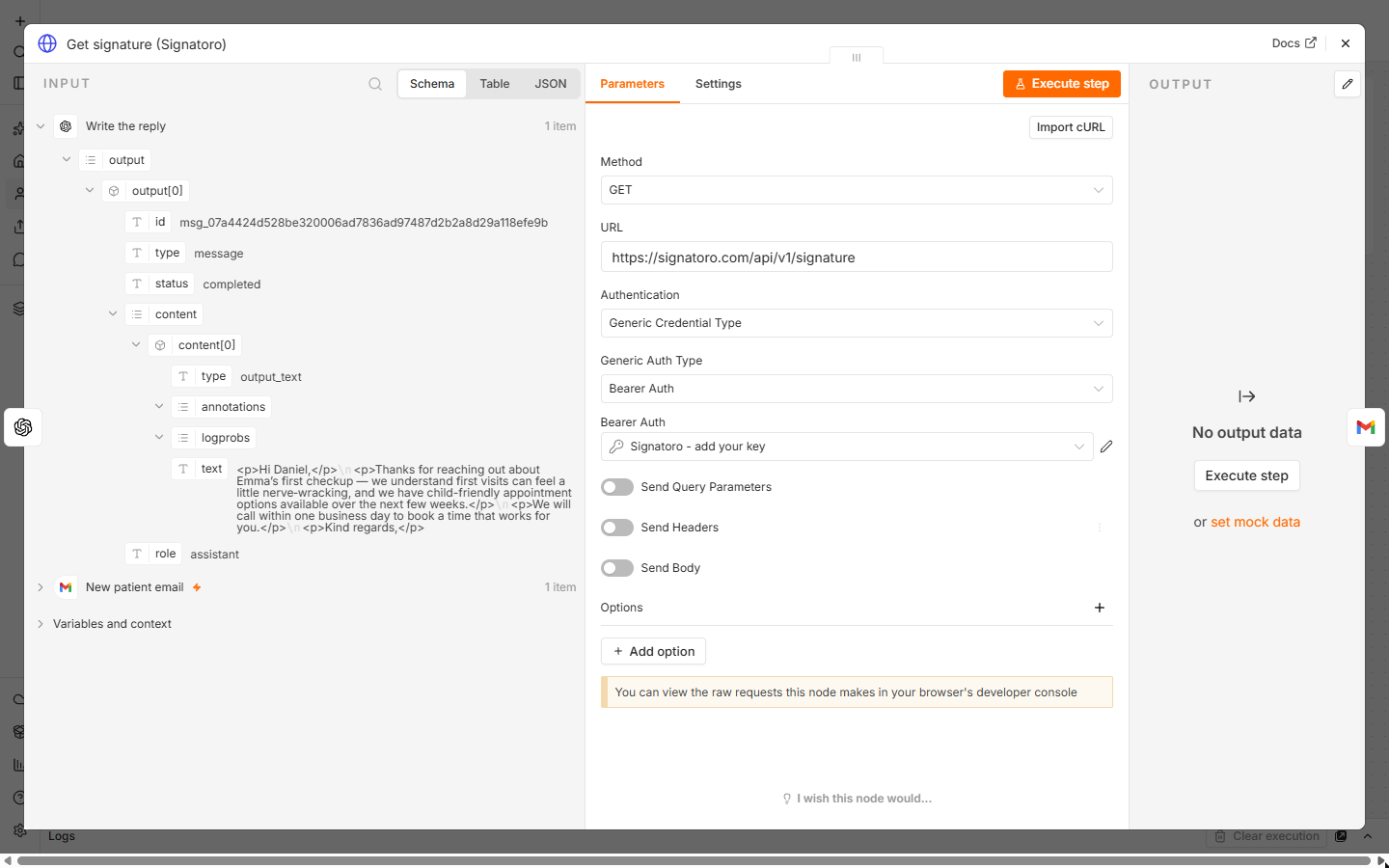
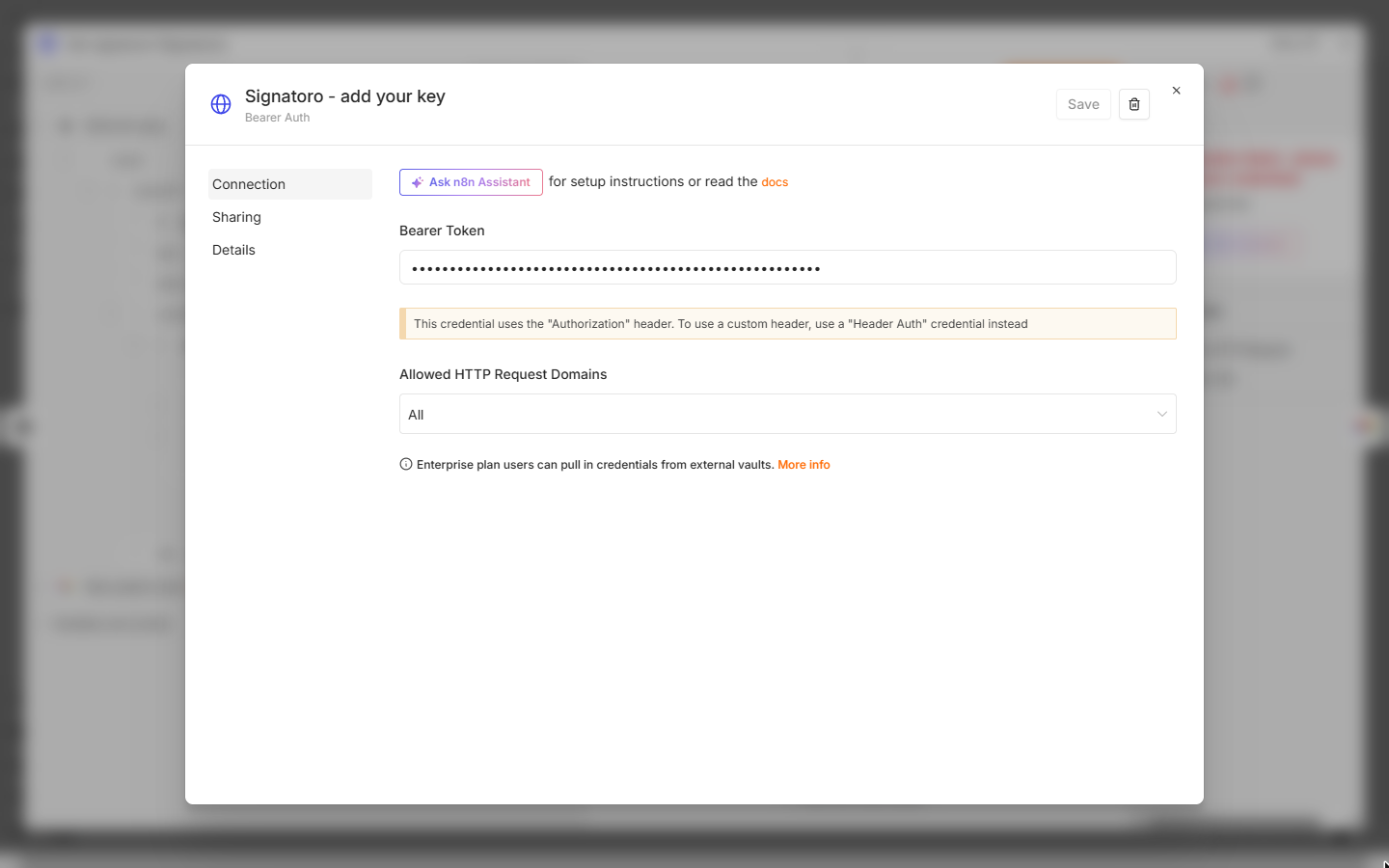
Get signature (Signatoro) is an HTTP Request node: Method GET, URL https://signatoro.com/api/v1/signature. Set Authentication to Generic Credential Type and Generic Auth Type to Bearer Auth, create a credential and paste your Signatoro key into Bearer Token. n8n sends it as a bearer token and keeps it out of the workflow and any export.
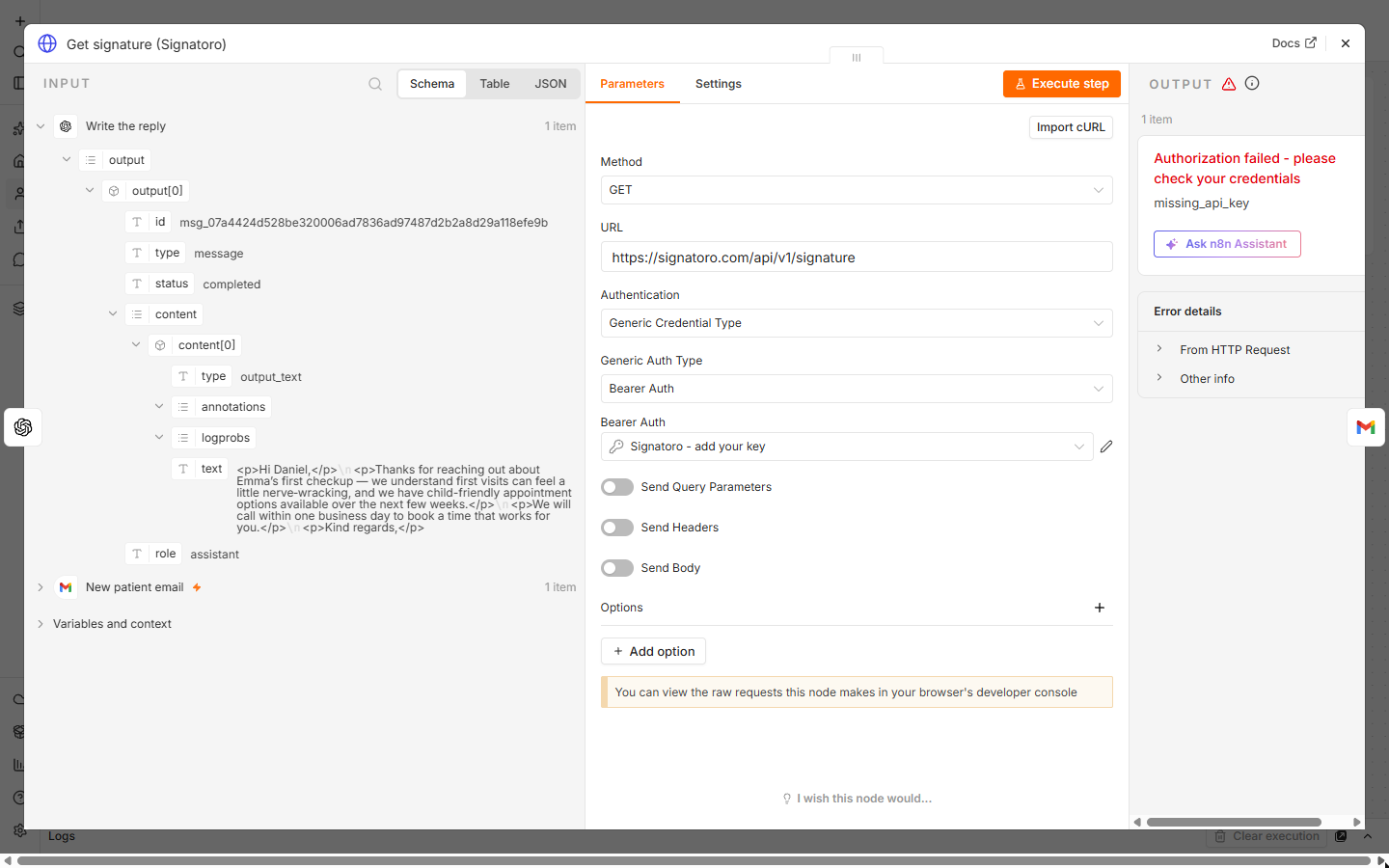
Signatoro answers with html (the signature as HTML), text and sender (name, title, company, email, phone, website). Add ?mode=short to the URL for a shorter signature: name, role and one link. If the key is missing or wrong, the node stops with Authorization failed and missing_api_key or invalid_api_key, which is what the lesson's test run shows with a placeholder key.
Step 5: Gmail saves a draft reply
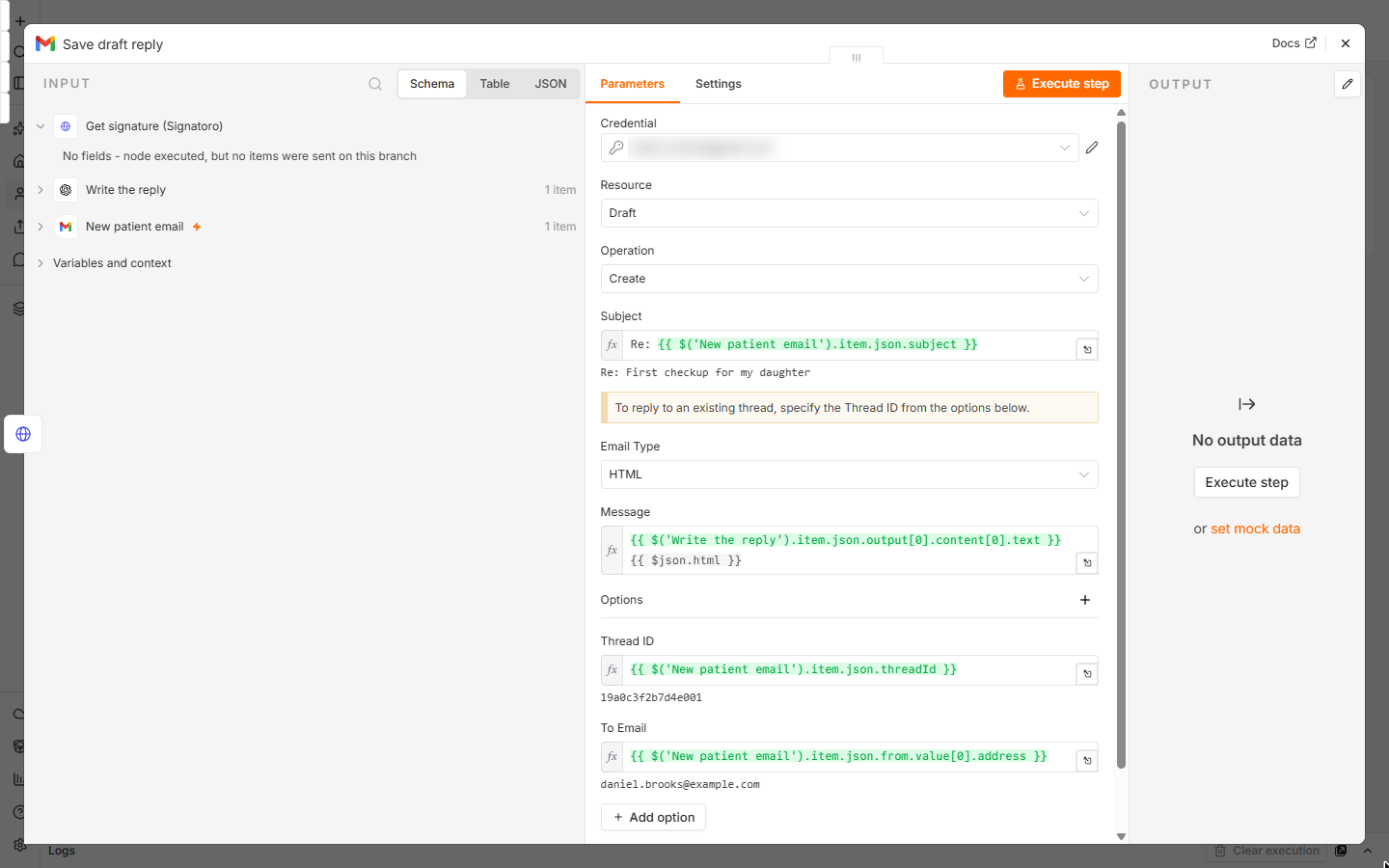
Save draft reply is a Gmail node with Resource Draft and Operation Create. Subject is Re: plus the trigger's subject, Email Type is HTML, and Message is the AI's reply followed by {{ $json.html }}, the signature. Under Options, Thread ID is the trigger's threadId, so the draft sits in the patient's own thread, and To Email is the sender's address.
Send yourself a practice email and click Execute. Read the draft in Gmail, and only then Publish the workflow. Keep it as a draft step until you trust every reply.
Using Make or Zapier instead?
The same reply, with the same practice and prompt rules, is built in [Make](/content/make-com-chatgpt-gmail-personalized-reply) with an HTTP module and in [Zapier](/content/zapier-chatgpt-gmail-reply-signatoro-signature) with Signatoro's Get Signature step.
Mistakes to avoid
- Pasting the Signatoro key into the URL or the prompt. Keep it in the Bearer Auth credential.
- Leaving Simplify on in the Gmail Trigger. The simplified email has no full text or thread for the reply.
- Asking the model to sign. It writes the closing line only; Signatoro signs.
- Sending instead of drafting. Start with drafts and let a person click Send.
Links
- Signatoro: the email signature platform this lesson uses. The free plan includes the API, with a monthly request limit.
- Signatoro signature API: GET /api/v1/signature, the Bearer key, mode=short and the response fields (html, text, sender).
- Signatoro with n8n, Zapier and Make: Signatoro's own setup notes for automations.
- Signatoro in the AI tools directory: what it does, what it costs, and every Stepthrough lesson that uses it.
- n8n Gmail node: the Draft resource and its Thread ID option.
Try it yourself, free
Reading the steps is a start. Doing them is how it sticks. The interactive module walks you through every click in a practice copy of n8n, checks each step, and never touches your real accounts.
Start “n8n + Signatoro: AI Drafts Every Reply, Signatoro Signs It”Step by step: n8n + Signatoro: AI Drafts Every Reply, Signatoro Signs It
All 24 steps of the interactive module, in order. In the module you watch each one, then do it yourself in a practice copy that checks your work.
1. Why let Signatoro sign it
- See what the wait costs. Every new patient email at Brookside Dental (made up) waits until someone has time to write, sign and send the reply. At 25 emails a week that's about 2.5 hours, and some patients book elsewhere while they wait. Click the last row.
At Brookside Dental, every new patient email waits. Someone has to write it, sign it, and send it. That's hours a week.
- Let n8n draft every reply. The fix is a four-node n8n workflow. Gmail starts it, OpenAI writes the reply, Signatoro adds Dana's real signature, and Gmail saves a draft for her to check. The AI never signs anything. Click the workflow.
Here's the fix. Gmail starts the workflow. A I writes the reply. Signatoro adds Dana's real signature. And Gmail saves a draft.
2. Save the signature in Signatoro
- Save the signature. On signatoro.com, the signature page holds the person who signs these replies: Dana Whitfield, Patient Coordinator, Brookside Dental. Fill in Your details and click Save signature. The free plan is enough.
First, the signature. On Signatoro, fill in the person who signs. Here it's Dana.
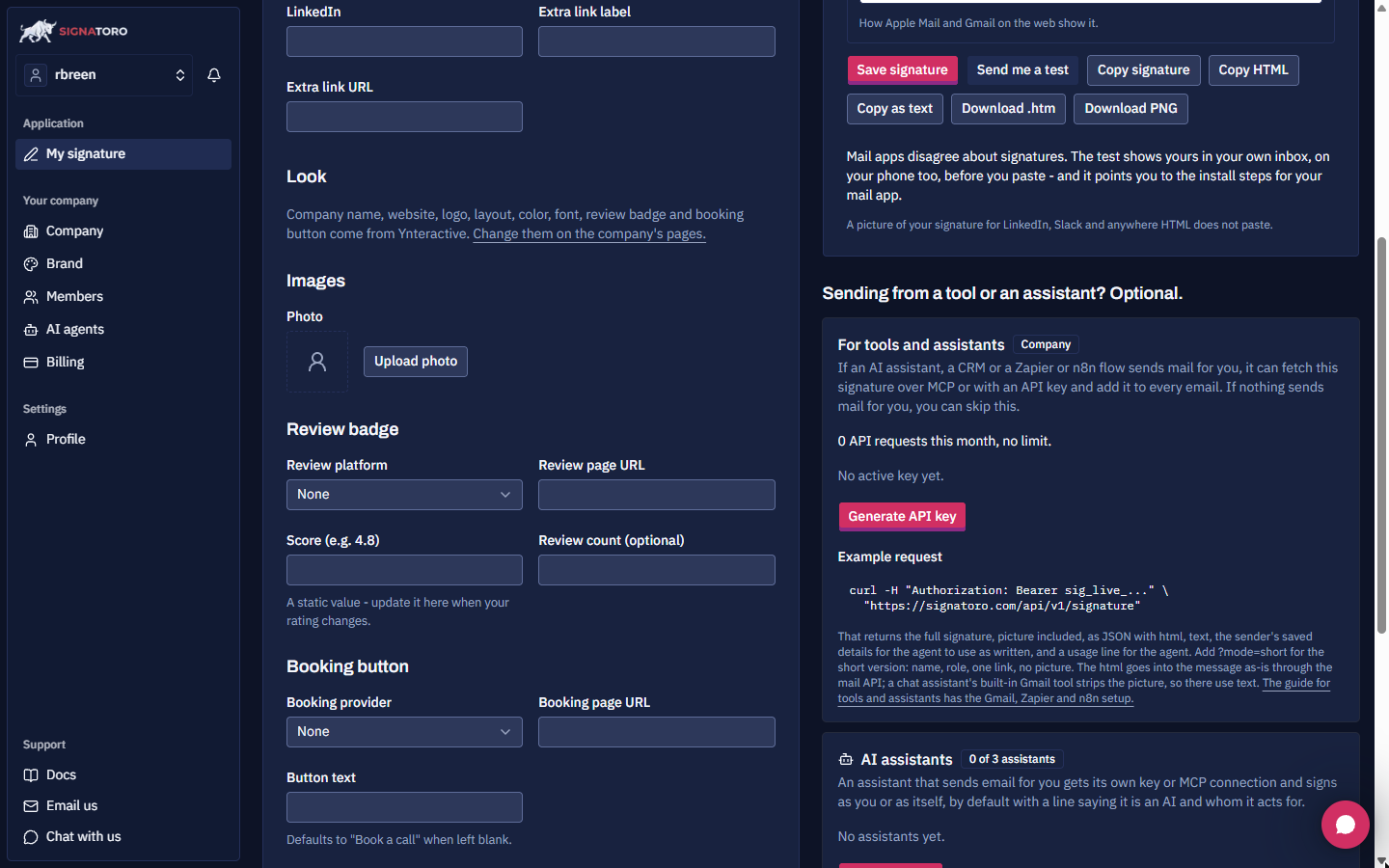
- Make an API key for n8n. Scroll to For tools and assistants. n8n needs a key to fetch the signature. Click Generate API key and copy it: it's shown once. The example request below it is exactly what n8n will send.
n8n needs a key to fetch this signature. It's shown only once.
3. Gmail starts the workflow
- Open the Gmail Trigger. Here's the workflow in n8n, with a setup note on the left. Download it from this lesson's guide page and paste it onto your own canvas. Double-click New patient email.
Here's the workflow in n8n. You can download it from the guide page. Double click New patient email.
- Check every minute. A Gmail Trigger checks the inbox on a schedule. Poll Times is Every Minute, so a draft is ready about a minute after the email lands. Connect your Google account in Credential. Click Mode.
The Gmail trigger checks the inbox every minute. Connect your own Google account here.
- Turn Simplify off. Turn Simplify off. The full email has text, subject, threadId and the sender's address, which the next nodes need. Here it holds a made-up email from Daniel Brooks, pinned for testing. Click Simplify.
Turn Simplify off, so you get the whole email. Here it's a made up test email from Daniel.
4. AI writes the reply
- Pick your OpenAI credential. The OpenAI node, Message a Model, writes the reply. New n8n Cloud accounts get free OpenAI credits, shown here as n8n free OpenAI API credits. Or connect your own key. Click Credential.
The OpenAI node writes the reply. n8n Cloud gives you free OpenAI credits to start.
- Read the prompt. The prompt sets the rules: greet by first name, answer in one or two warm sentences, say we'll call within one business day, no medical advice or prices, and end with Kind regards, but no name or signature. The email text goes in at the end. Click the Prompt.
The prompt sets the rules. Be warm. No medical advice. And end with Kind regards, but no name. The signature comes later.
- See the reply. This is a real run. GPT-5 mini answered Daniel's test email in short HTML paragraphs, ending with Kind regards, and no name. Click the output.
This is a real run. The reply is warm, short, and ends with Kind regards. No name.
5. Signatoro adds the signature
- Call Signatoro. An HTTP Request node fetches the signature. Method is GET and URL is https://signatoro.com/api/v1/signature. It answers with html, text and sender. Click URL.
An H T T P Request node fetches the signature. Method GET. And the Signatoro signature U R L.
- Choose Generic Credential Type. Set Authentication to Generic Credential Type. Click Authentication.
Set Authentication to Generic Credential Type.
- Choose Bearer Auth. Set Generic Auth Type to Bearer Auth. Signatoro reads the key from an Authorization: Bearer header. Click Generic Auth Type.
Set Generic Auth Type to Bearer Auth.
- Open the credential. The downloaded workflow comes with no credentials. Create one here and name it so it's obvious, like Signatoro - add your key. Click the pencil next to Bearer Auth.
Create a Bearer Auth credential. Give it a clear name.
- Paste your key. Paste your Signatoro key into Bearer Token. n8n stores it encrypted and adds it to every request, so it never shows in the workflow, the prompt or an exported file. Click Bearer Token.
n8n keeps it encrypted.
- Save the credential. Click Save.
- Know the key error. If the key is missing or wrong, Signatoro says so: Authorization failed with missing_api_key. This screen is a real run with a placeholder in the credential. With your real key the node returns the signature. Click the error.
If the key is missing, Signatoro tells you. Authorization failed. This test used a placeholder. With your real key, you get the signature.
6. Gmail saves a draft reply
- Save a draft, not an email. The last node is Gmail with Resource: Draft and Operation: Create. A person reads every reply before it goes. Subject is Re: plus the email's subject. Click Resource.
The last node saves a Gmail draft. Not a sent email. A person still reads every reply.
- Reply, then signature. Email Type is HTML. Message is the AI's reply followed by {{ $json.html }}, the signature from Signatoro. That order is the whole trick. Click Message.
Email type is HTML. The message is the A I reply, then the signature from Signatoro.
- Keep it in the thread. Under Options, Thread ID puts the draft in the patient's own thread and To Email is the sender's address. Both come from the trigger. Click Thread ID.
Thread I D keeps the draft in the patient's own thread. To Email is the sender.
7. Test it
- Test it, keep it off. Send yourself a practice email, then click Execute. Here the trigger and OpenAI ran, and Signatoro stopped on the placeholder key. With your key, the draft lands in the thread. Read it, and only then click Publish. Click Execute.
Send yourself a practice email, and click Execute. Read the draft before you publish anything.
8. What it saves
- Read the draft. This is the draft Dana finds in Daniel's thread: the reply from the test run, then her real signature from Signatoro. Click the draft.
Here's the draft in Daniel's thread. The reply, then Dana's real signature.
- See what it saves. A signed draft about a minute after the email lands, and a person still clicks Send. Click What this saves.
A signed draft within a minute, and a person still clicks send.
- Get the workflow. Download the workflow from the guide page, or build the same reply in Make or Zapier. Click the card.
Download the workflow, or build the same thing in Make or Zapier.
Screenshots
Frequently asked questions
- Is this an official Signatoro course?
- No. This is my own lesson. Signatoro is a separate, third-party product from signatoro.com.
- Does Signatoro's free plan include the API?
- Yes. Signatoro's docs (read 20 October 2026) say every plan includes the API and the MCP server, and free accounts have a monthly request limit; the docs' example shows 50. Each draft in this workflow is one request.
- Do I need an OpenAI key?
- Not to start. New n8n Cloud accounts get free OpenAI credits, which the OpenAI node can use. After that, connect your own OpenAI API key, billed by OpenAI.
- Why does the test run show Authorization failed?
- The lesson's run used a placeholder key on purpose, so no real key was made. The error proves n8n reached Signatoro with the right URL and header. Paste your real key into the credential and the node returns your signature.
- Can it send the reply automatically?
- It can, by switching the Gmail node to send a reply, but start with drafts. A person reading every reply is what makes an AI reply safe to use with clients.
More in n8n Automation Toolkit
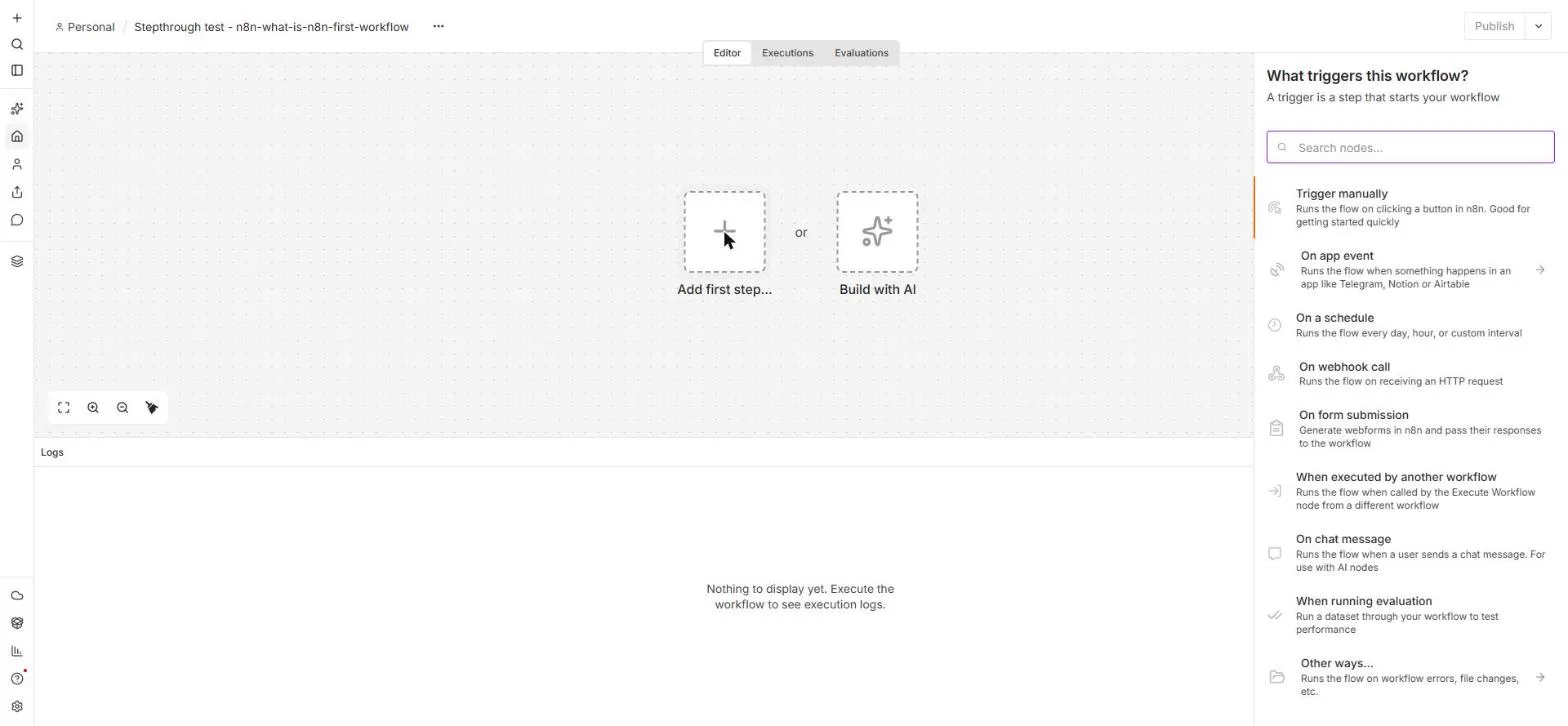 n8n: What Is n8n? Build Your First Workflow
What n8n is and how it thinks, then your first workflow: a client inquiry form that catches every request and writes a one-line summary. No code, no accounts to connect.
Free · Live ~8 min Beginner
 AI Workflow Automation for Beginners: Sort Every Client Inquiry and Draft the Reply using n8n
AI workflow automation for beginners: a form catches each client inquiry, an AI step sorts it and drafts the reply, and an If rule flags the urgent ones. Real n8n, free…
Free · Live ~12 min Beginner
 n8n: Items, JSON and Expressions, Explained by Doing
See how n8n holds data: pin five fake invoices, read them as items, Table and JSON, then write one reminder per invoice and a late fee with drag-and-drop expressions.
Free · Live ~9 min Beginner
 n8n: Run a Workflow on a Schedule (Every Monday at 8am)
Use the n8n Schedule Trigger to run a workflow by itself: every Monday at 8am, a timesheet reminder. Set the interval, test it now, and check the time zone.
Free · Live ~6 min Beginner
 n8n: Send Form Answers Straight to Google Sheets
Build a consultation request form in n8n (required fields, email, dropdown), test it, and add every answer as a new row in Google Sheets. No webhook, no form tool to…
Free · Live ~10 min Beginner
 n8n: Summarize Customer Emails with OpenAI
Your first AI step in n8n: send each customer email to OpenAI with one prompt and get a one-line summary plus the next step. No agent needed, about a cent of API use.
Free · Live ~9 min Beginner
All 24 modules in n8n Automation Toolkit
More n8n tutorials
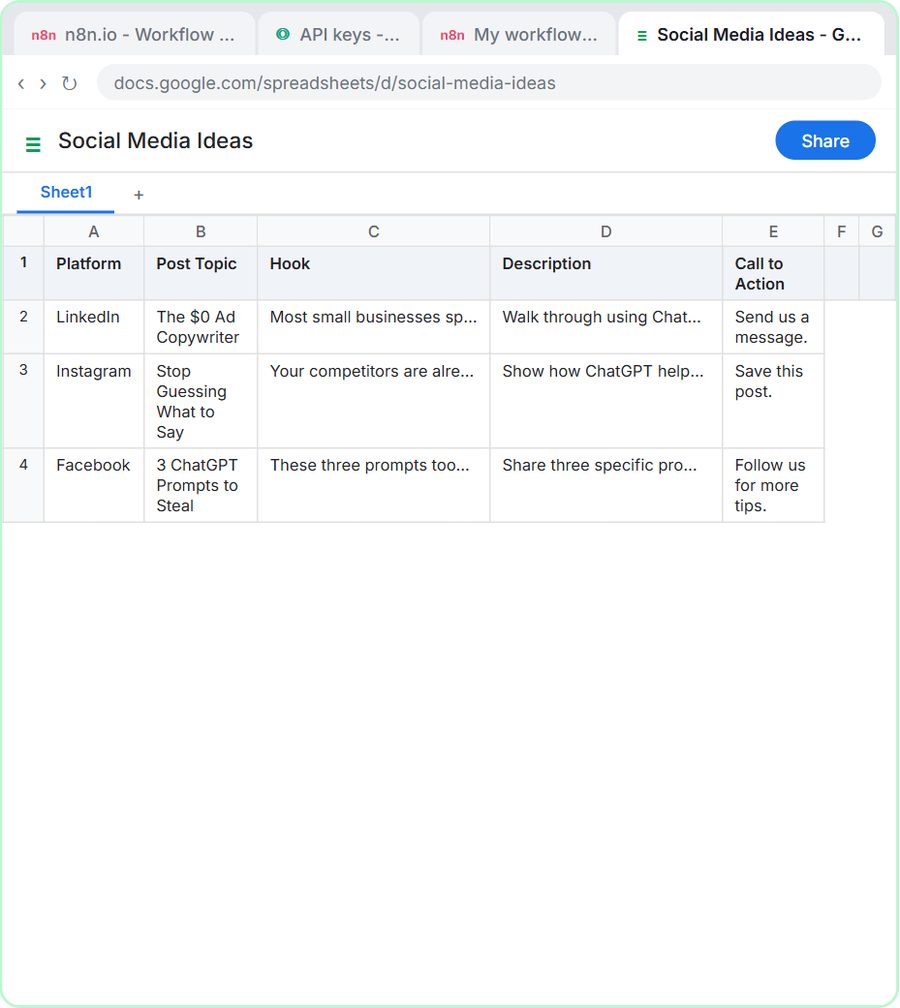 n8n AI Agent Tutorial: Save Social Media Ideas to Google Sheets
Build an AI agent for BrightPath Marketing that generates social media post ideas and saves them to Google Sheets — chat trigger, AI Agent, system prompt, model…
Free · Live ~12 min Intermediate
 Lovable + n8n: Build a Web App with an AI Backend
Build a contact form in Lovable and connect it to an n8n workflow — webhook trigger, AI Agent, Google Sheets, Gmail, and a Respond node that ties it all together.
Free · Live ~15 min Advanced
 AI Receipt Extractor: Receipts to Google Sheets with n8n
Drop a photo of a receipt into an n8n chat. An AI agent reads it, pulls out the date, vendor and amount, picks a category, and adds a row to Google Sheets.
Free · Live ~12 min Intermediate
 n8n AI Email Responder: Draft Gmail Replies Automatically
Build an n8n agent that watches your Gmail, reads each new customer email, and writes a reply as a draft in the same thread, ready for you to check and send.
Free · Live ~12 min Intermediate
 Daily Job Alerts: Email Each Tech Their Jobs from Google Sheets with n8n
Every morning at 7, n8n reads a plumbing company's jobs sheet, skips anything not assigned yet, and emails each job to the tech it's assigned to — customer, address…
Free · Live ~10 min Intermediate
 Gmail AI Triage: Auto-Label Every Email and Draft Replies
Build an n8n workflow that reads each new email, sorts it as a lead, a client or an invoice with a Text Classifier, adds the matching Gmail label, and drafts a reply to…
Free · Live ~18 min Advanced
Terms in this lesson
Plain-English definitions, each with an example from a free lesson.