Updated . Built against the tool’s current screens and checked step by step. How we check this lesson
An n8n AI agent that drafts client emails saves real time, right up to the moment it sends one with the wrong amount. You cannot unsend an email, so most owners end up checking every draft by hand. Guardian (guardian-safety-gate.com) sits in front of the step that cannot be undone and answers Allowed, Needs approval or Denied before your workflow acts. In this free lesson you turn three plain lines into a Guardian policy for a made-up bookkeeping firm: team emails go out alone, client emails wait for a person, and deletes are never allowed. You build the rule, test a team email and a client email, save it, and see where the Guardian node and the Approval Inbox fit in n8n. The Guardian screenshots are the real app, taken while building this exact policy. This is my own lesson, not an official Guardian course.
At a glance
| Question | Answer |
|---|---|
| What you build | A business case for a small firm whose n8n agent drafts client emails: turn "team emails go out alone, client emails wait for a person, deletes never happen" into a Guardian policy, test it, and see where the Guardian node and the approval inbox fit in n8n. |
| Tools | Guardian |
| Time | About 14 minutes, 33 steps in 9 parts |
| Level | Intermediate |
| Cost | Free |
| Ways to learn it | Practice it step by step |
The 9 parts, in short
- An agent that can send can also get it wrong: Meet the agent, Put a price on it, Write the three lines, Meet Guardian.
- Start a policy: Click New Policy, Name the policy, Type the action type, Tick the project.
- Write the rule: Pick Only allow specific values, Check the recipient, List the safe addresses, Keep Require Approval, and 2 more steps.
- Test it before you save: Run a test, Team email: ALLOW, Try a client email, Client email: REQUIRE APPROVAL, and 1 more step.
- Save it and test again: See what your workflow sends, Open the tester again, Run Test on the saved policy.
- Deletes are never allowed: Deny unmatched actions.
- Put Guardian in your n8n workflow: Place the Guardian node, Connect Allowed to the send, Needs Approval waits, Add the Guardian credential.
- Approve, or fix it first: Open the Approval Inbox, Open a waiting request, Fix the email if needed, Click Edit & Approve.
- What it saves, what it costs: What this saves you, Check the price.
Start here first: n8n: What Is n8n? Build Your First Workflow (module 1 of n8n Automation Toolkit)
In the course: Part 9 · n8n Automation Toolkit (Module 78 of the full course)
Part of: Business Automations with n8n (step 16 of 16)
Part of: AI Agents 101 (step 10 of 10)
Part of: AI Apps Worth Knowing (step 49 of 49)
Part of: n8n Intermediate: Real Business Workflows (step 11 of 11)
The business case: let the agent draft, not send
Picture Maya Chen, who runs Harbor Line Bookkeeping, a made-up firm. Her n8n agent reads the overdue invoices sheet, sorts clients by days overdue and drafts a reminder email for each one. She checks every draft before it goes, about 60 a month at 3 minutes each, so about 3 hours a month. If she stops checking, one wrong amount reaches a client. These are example numbers, so use your own.
Most small offices draw the line the same way: the agent can read, sort and draft on its own; anything that goes to a customer, moves money or changes a record waits for a person; and it never deletes anything. Guardian turns those lines into rules the workflow cannot skip.
Step 1: start a policy for email.send
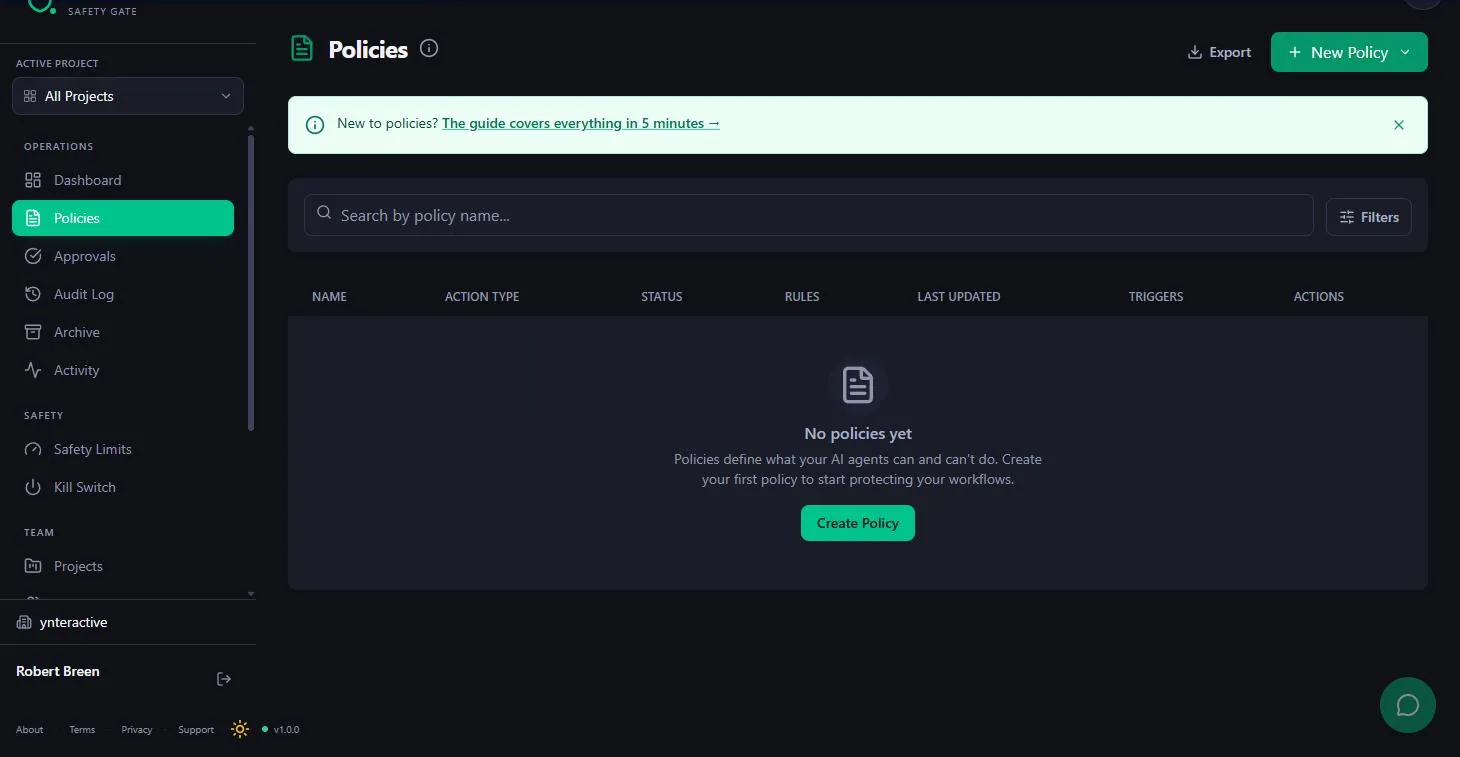
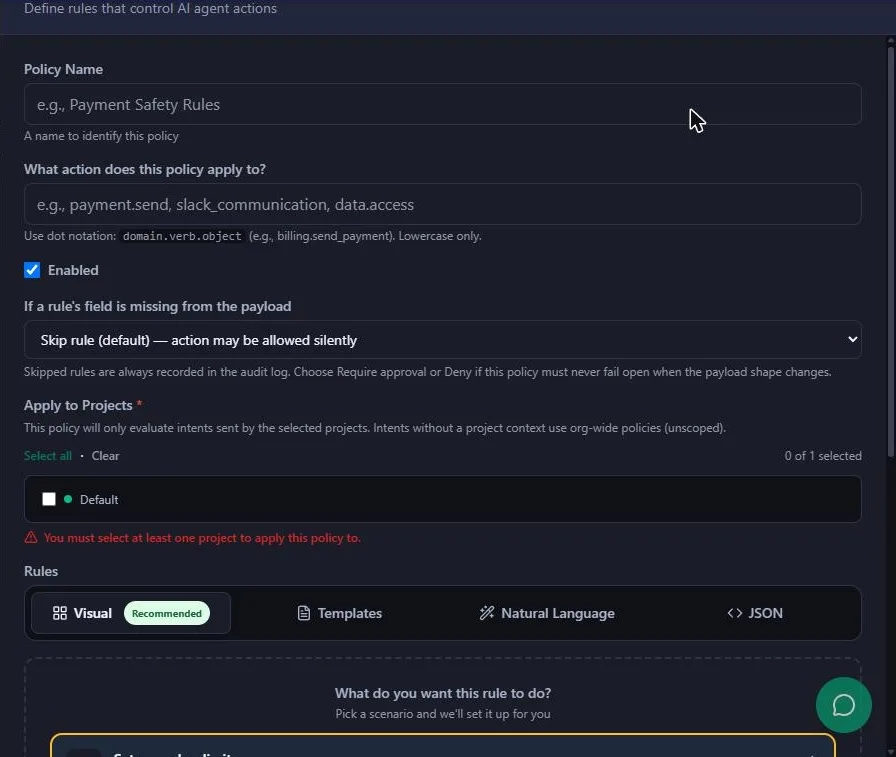
In Guardian, open Policies, click New Policy and choose Manual (Build rules from scratch). The AI Wizard needs a paid plan. Name the policy Customer emails need approval, and under What action does this policy apply to? type email.send. Guardian uses lowercase dot notation, and your n8n workflow will send the same action type before every email. Under Apply to Projects, tick Default; Guardian will not save a policy without a project.
Step 2: allow only your team addresses
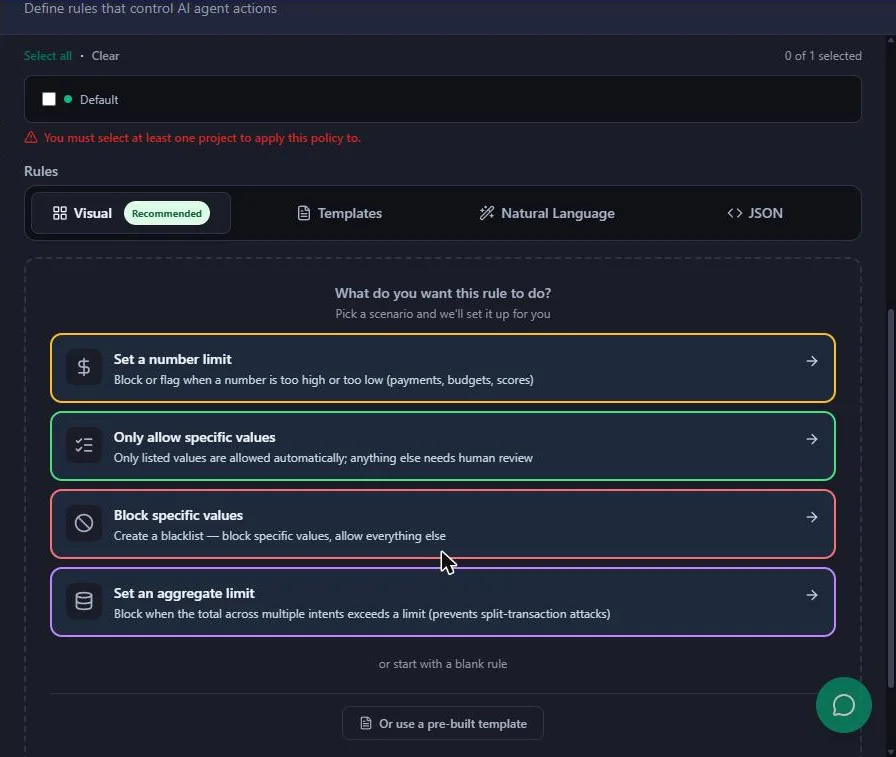
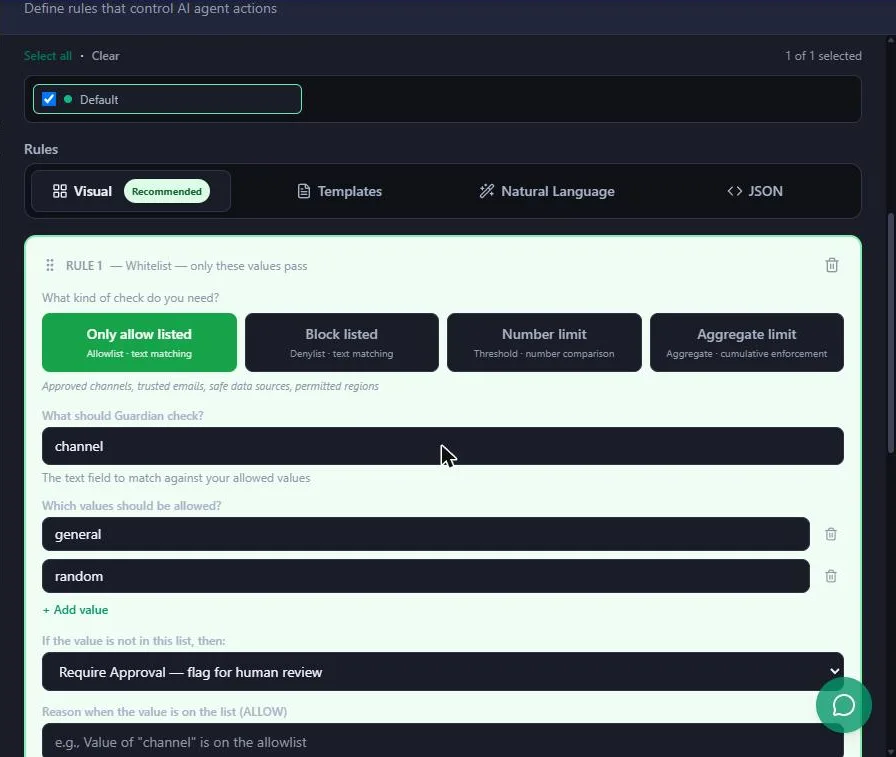
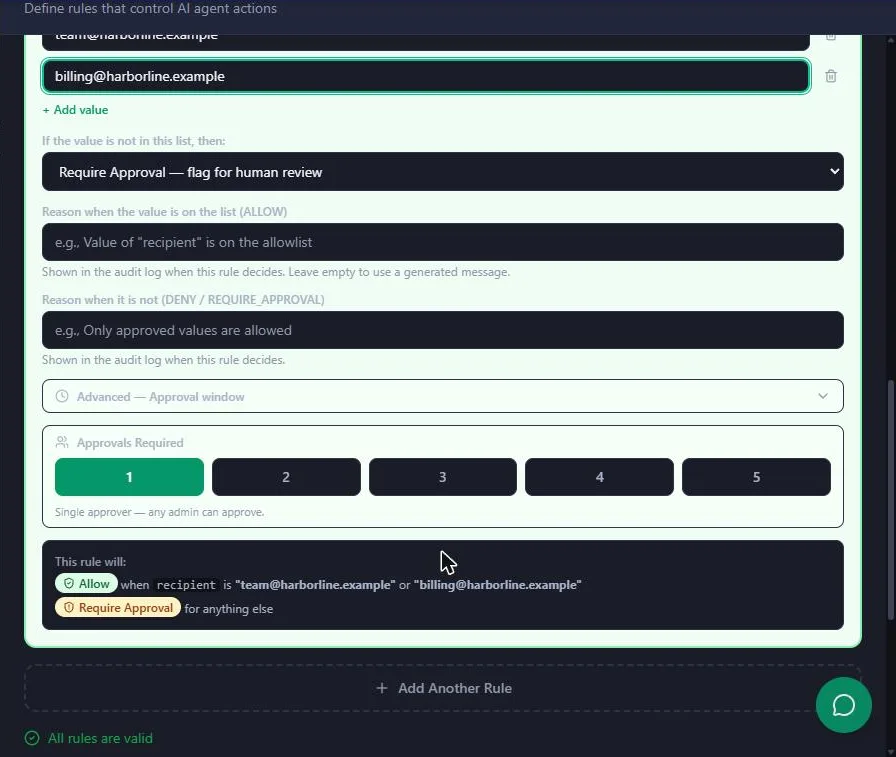
Under Rules, pick Only allow specific values: only listed values are allowed automatically, and anything else needs human review. In What should Guardian check? type recipient, the exact field name your workflow sends. List your team inboxes, for example team@ and billing@ your own domain. Keep If the value is not in this list, then: Require Approval, and write a reason such as Emails to customers wait for a person to approve. Leave Approvals Required at 1. The This rule will box reads it back: Allow when recipient is a team address, Require Approval for anything else.
Step 3: test it before you save
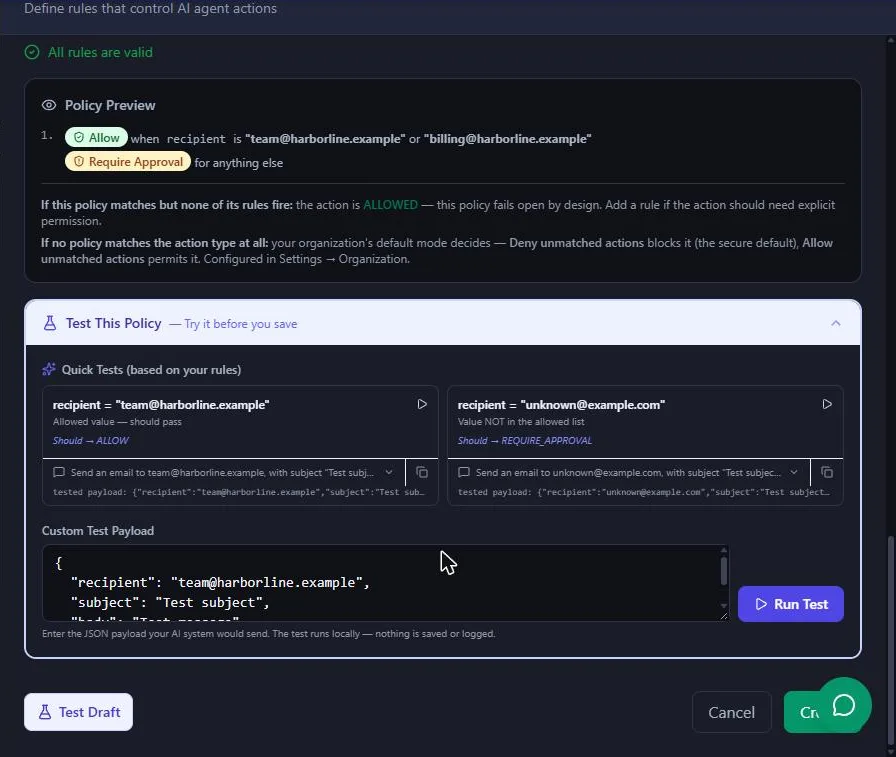
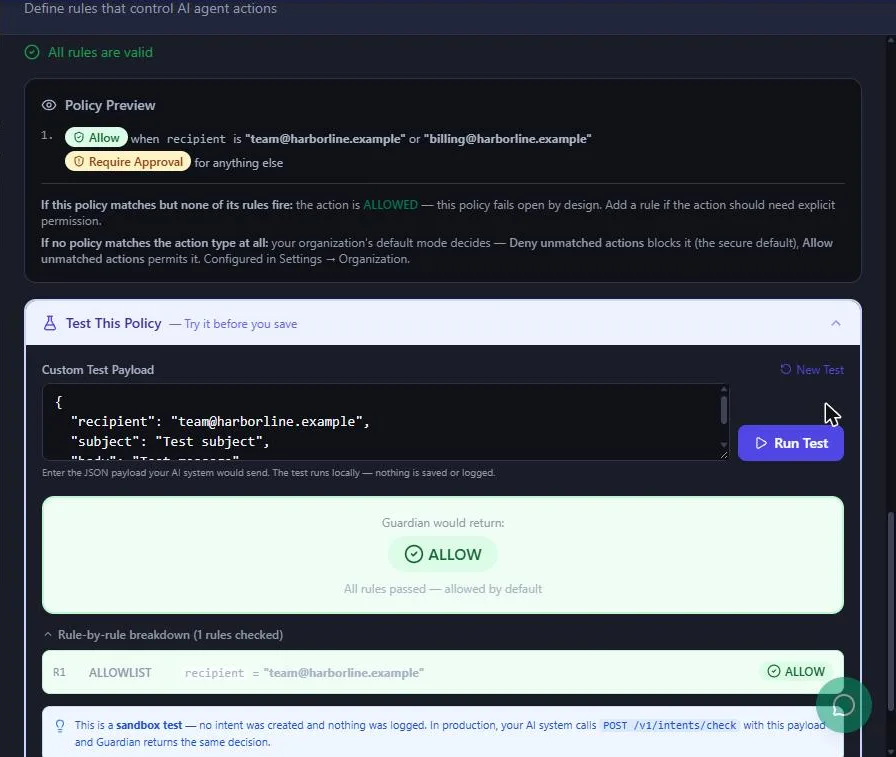
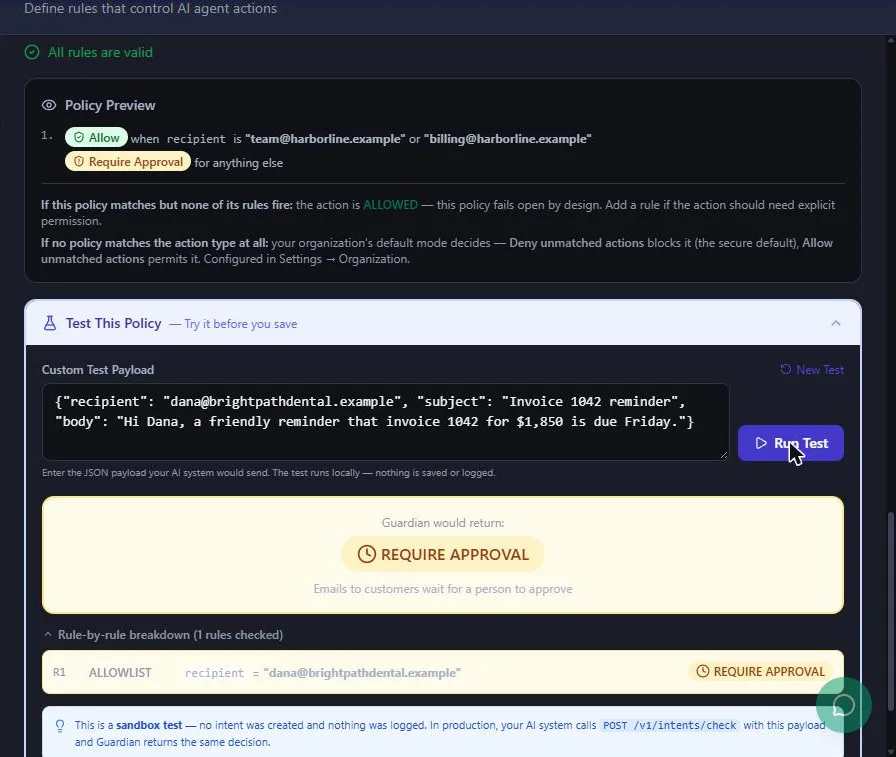
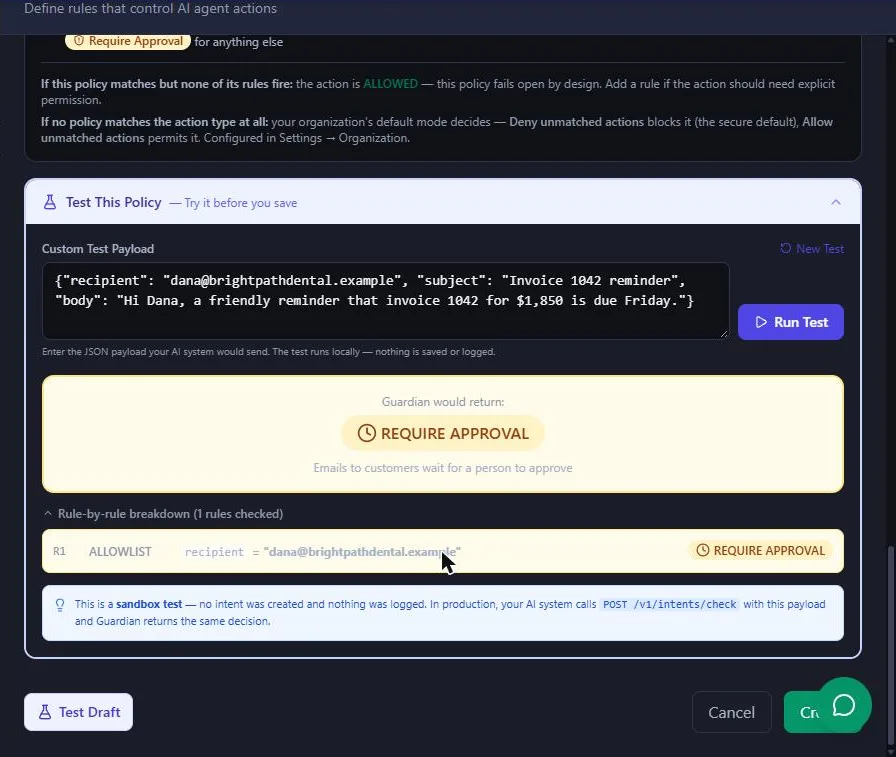
Open Test This Policy. Guardian pre-fills a Custom Test Payload from your rules. Run it with a team address and Guardian would return ALLOW. Paste a reminder to a client, such as dana@brightpathdental.example, and it returns REQUIRE APPROVAL with your reason underneath. Both are sandbox tests: no intent is created and nothing is logged. Then click Create, and Guardian says the policy is now active.
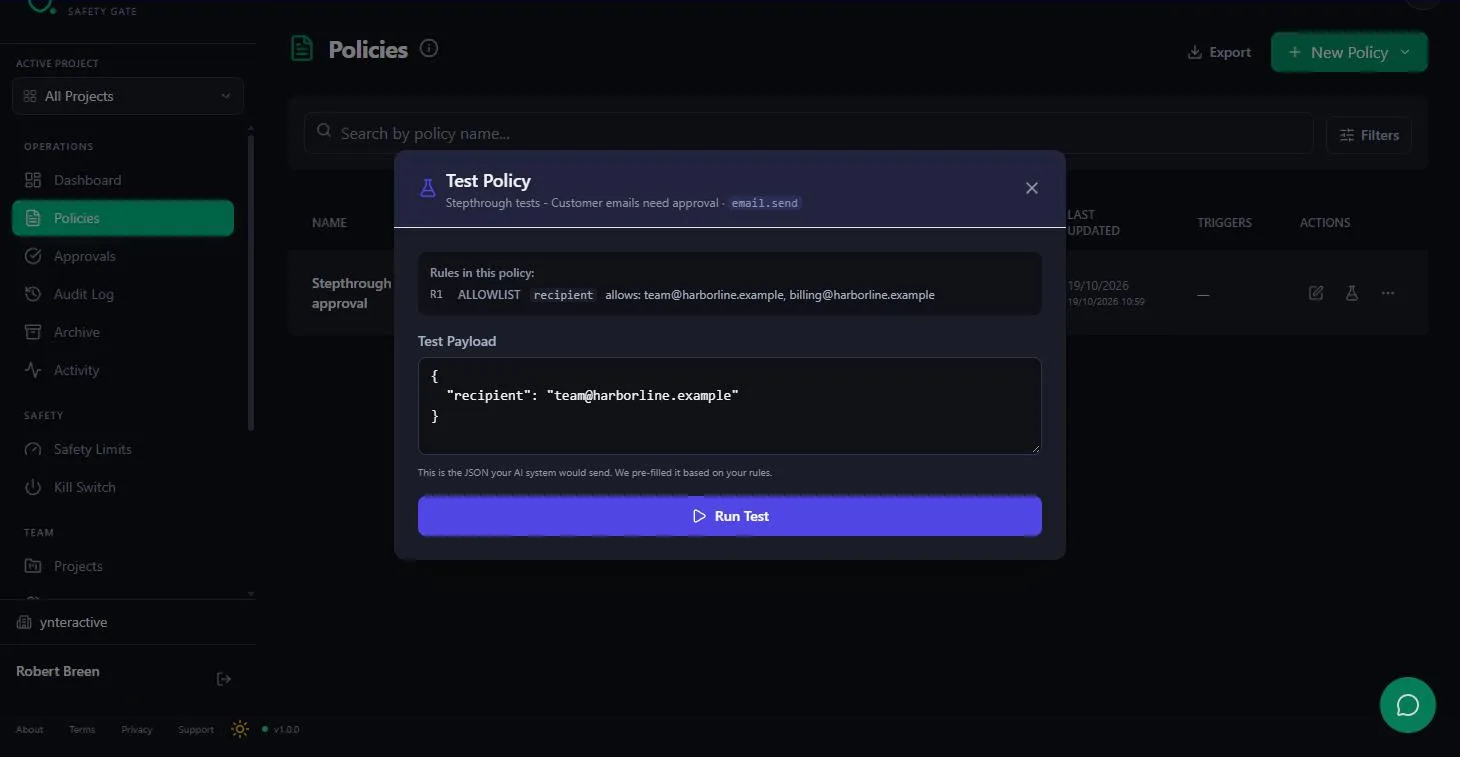
After saving, the flask icon in the policy list opens Test Policy for the saved version. Guardian's guide says to run every policy through the tester with the real payload before you rely on it, because a rule whose field name differs from the payload, even by a typo, silently never fires.
Step 4: deletes are denied by default
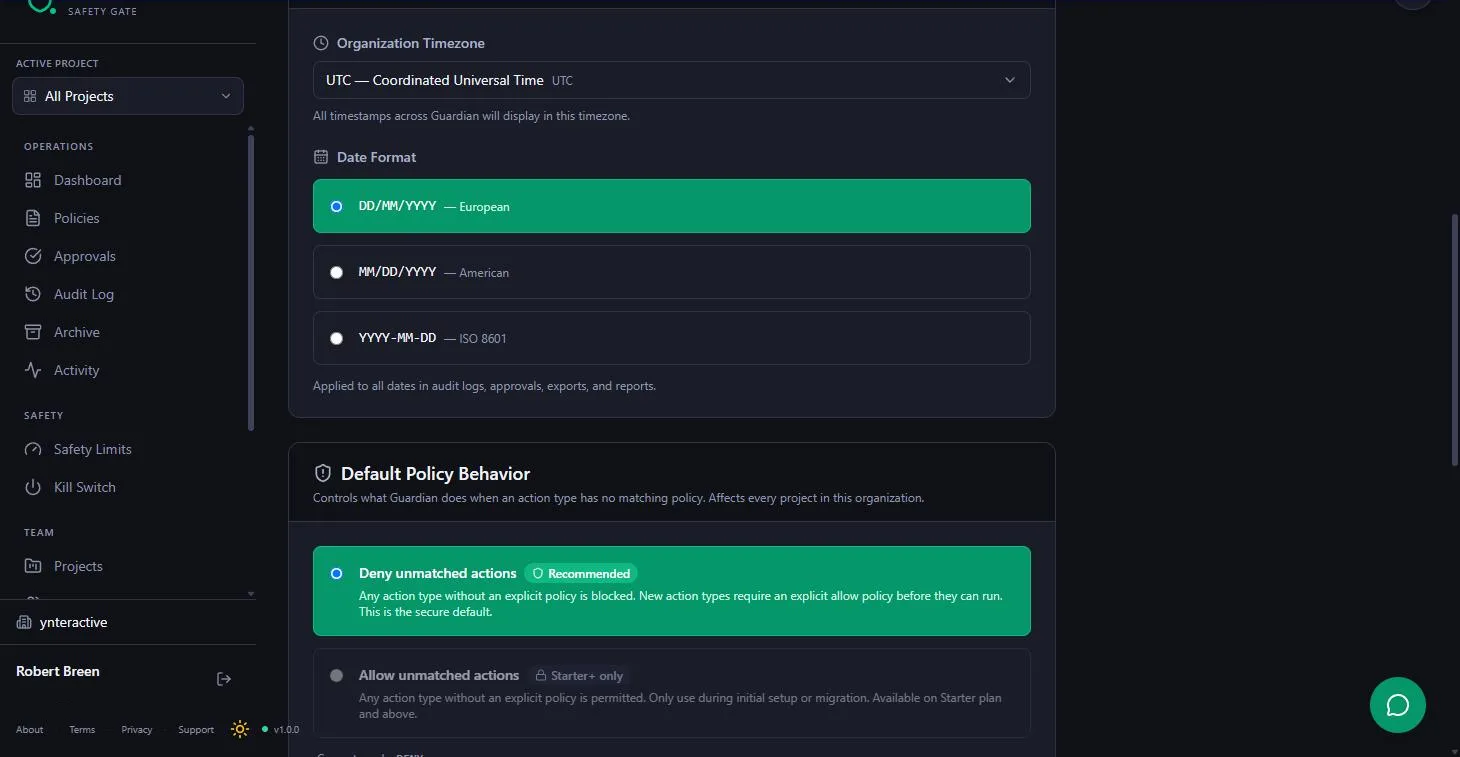
You do not need a rule for never delete. Under Settings > Organization, Default Policy Behavior has Deny unmatched actions selected and marked Recommended: any action type without an explicit policy is blocked. So if the agent ever asks for record.delete, Guardian answers Denied. Just never write an allow policy for it. Allow unmatched actions is Starter+ only.
Step 5: put the Guardian node in your n8n workflow
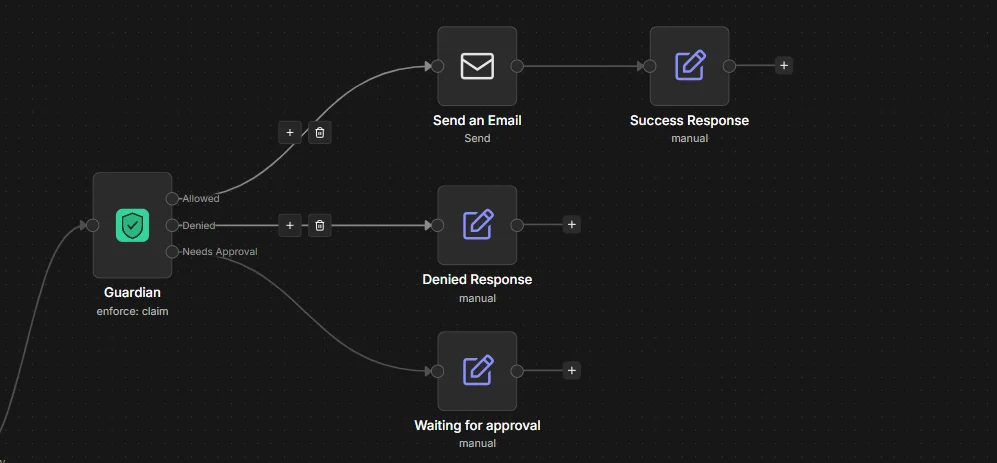
From Guardian's n8n guide: place the Guardian node right before the action node, after the step that writes the email. Set Action Type to email.send and Payload to the JSON with recipient, subject and body, the same field names as the policy. The node has three outputs: connect Allowed to the send, and point Denied and Needs Approval at a note. Never connect all three to the action.
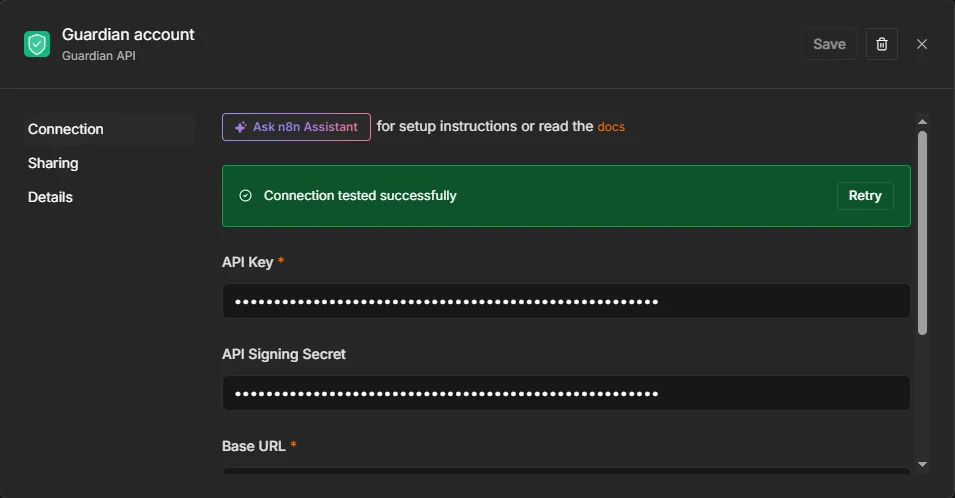
The node needs a Guardian API credential: an API key from Guardian's Settings > API Keys (Guardian asks you to verify your email first), the signing secret and the base URL it asks for. For the approval path, add a Guardian Approval Trigger, then a Guardian node set to Enforce, then the send, reading the approved payload. Keep only one active workflow listening for the same action type, or an approved email can go out twice.
Step 6: approve, or fix it first
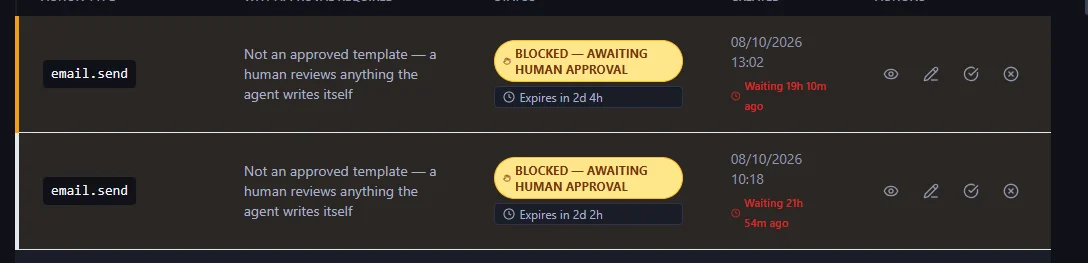
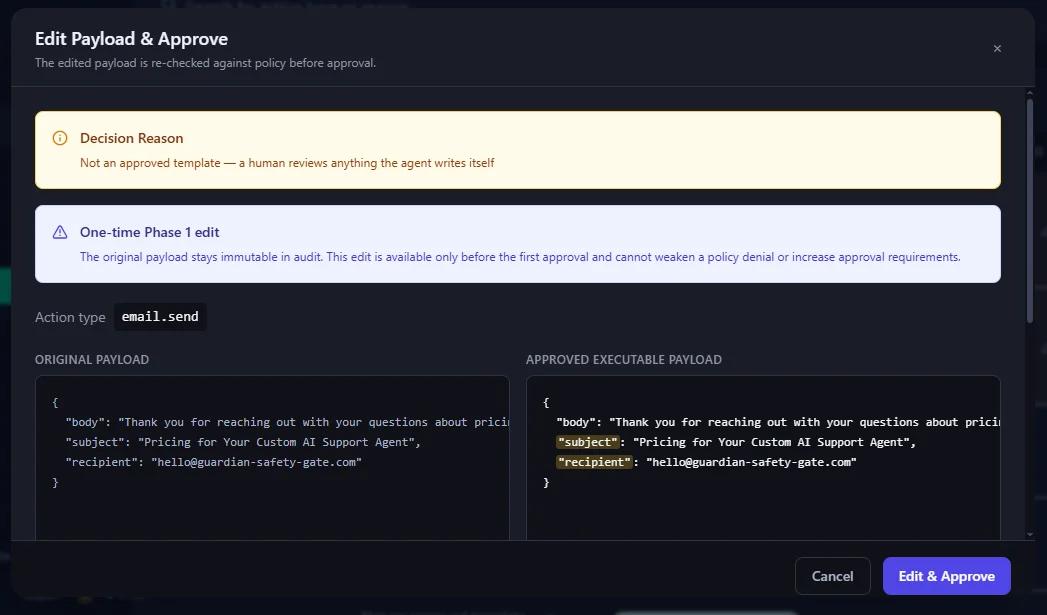
Waiting requests land in Guardian's Approval Inbox with the action type and why approval was required, shown as Blocked, awaiting human approval, with an expiry time. Edit Payload & Approve shows the original payload next to the approved one, so you can fix a wrong amount before you approve. The original stays in the audit log, and the edited version is checked against your policy again.
Mistakes to avoid
- Connecting all three Guardian outputs to the send. Only Allowed goes there.
- A field name in the rule that does not match the payload. Test with the real payload.
- Writing an allow policy for deletes. Deny unmatched actions already blocks them.
- Running a first test against a live send step. Disable it (select it and press D) or use Listen Mode, which records what Guardian would have decided without blocking.
- Two active workflows listening for the same action type, which can send an approved email twice.
- Pasting your API key into a chat, a screenshot or a shared workflow.
Links
- Guardian: the approval and audit layer this lesson teaches. Free to start, no credit card (read 19 October 2026).
- Integrating Guardian into an n8n workflow: Guardian's own n8n guide: the node, its three outputs, the credential, the approval path, Listen Mode and troubleshooting.
Try it yourself, free
Reading the steps is a start. Doing them is how it sticks. The interactive module walks you through every click in a practice copy of Guardian, checks each step, and never touches your real accounts.
Start “Guardian: Make Your n8n AI Agent Ask Before It Emails a Customer”Step by step: Guardian: Make Your n8n AI Agent Ask Before It Emails a Customer
All 33 steps of the interactive module, in order. In the module you watch each one, then do it yourself in a practice copy that checks your work.
1. An agent that can send can also get it wrong
- Meet the agent. Maya Chen runs Harbor Line Bookkeeping (made up). Her n8n AI agent reads the overdue invoices sheet, sorts clients by days overdue and drafts a reminder email for each one. Reading, sorting and drafting are safe. Sending to a client is not: a wrong amount or a rude line goes straight to a customer, and you cannot unsend it. Click the agent's job list.
Meet Maya. She runs a small bookkeeping firm. Her n8n agent reads the overdue invoices, sorts them, and drafts a reminder for each client. Reading and drafting are safe. Sending to a client is not. You can't unsend an email.
- Put a price on it. Right now Maya checks every draft herself: about 60 invoice reminders a month, 3 minutes each to check by hand, so about 3 hours a month. If she stops checking, the risk is one wrong amount sent to a client. These are example numbers, so swap in your own. Click the cost.
Right now, Maya checks every draft by hand. Sixty a month, three minutes each. That's three hours a month. And if she stops checking, one wrong amount goes to a client. Use your own numbers here.
- Write the three lines. Most small offices draw the line the same way: the agent can read, sort and draft on its own; anything that goes to a customer, moves money or changes a record needs a person to approve; and it never deletes anything. Guardian turns those lines into rules. Click the three lines.
Most small offices draw the line the same way. The agent can read, sort and draft on its own. Anything that goes to a customer waits for a person. And it never deletes anything. Guardian turns those lines into rules.
- Meet Guardian. Guardian (guardian-safety-gate.com) checks an action before your workflow runs it, and answers one of three ways: Allowed, Needs approval or Denied. It never sends, deletes or pays anything itself, and it records every answer. The Guardian screens ahead are screenshots of the real app, taken while building this exact policy. Click the Guardian card.
Guardian checks an action before your workflow runs it. It answers one of three ways. Allowed. Needs approval. Or denied. It never sends anything itself, and it keeps a record of every answer. The screens ahead are the real app.
2. Start a policy
- Click New Policy. Sign in at app.guardian-safety-gate.com and open Policies in the left menu. A policy is a set of rules for one kind of action. Click New Policy, then choose Manual (Build rules from scratch). The AI Wizard option needs a paid plan.
Sign in to Guardian, and open Policies. A policy is a set of rules for one kind of action.
- Name the policy. Click Policy Name and type Customer emails need approval. The name is just for you.
Give it a name you'll recognize. Customer emails need approval.
- Type the action type. Under What action does this policy apply to?, type email.send. This is the action type your n8n workflow will send to Guardian before every email. Guardian uses lowercase dot notation, like *billing.send_payment*. Click the action box.
Under what action does this apply to, type email dot send. Your n8n workflow will send that same name before every email.
- Tick the project. Under Apply to Projects, tick Default. Until a project is ticked, Guardian shows *You must select at least one project to apply this policy to.* Click Default.
Under Apply to Projects, tick Default. The policy needs at least one project.
3. Write the rule
- Pick Only allow specific values. Scroll to Rules. Guardian asks *What do you want this rule to do?* and offers four scenarios. We want team emails to go out alone and everything else to wait, so click Only allow specific values (*Only listed values are allowed automatically; anything else needs human review*).
We want team emails to go out alone, and everything else to wait.
- Check the recipient. Rule 1 opens with an example. In What should Guardian check?, replace *channel* with recipient. It must match the field name in the payload your workflow sends, exactly. Guardian's guide warns that a typo here makes the rule silently do nothing. Click the field box.
In what should Guardian check, type recipient. It has to match the field your workflow sends, exactly. A typo here means the rule never fires.
- List the safe addresses. Replace the two example values with your own team inboxes: team@harborline.example and billing@harborline.example. Use + Add value for more. Click the values.
Replace the examples with your own team inboxes. Team at, and billing at, your own domain.
- Keep Require Approval. If the value is not in this list, then: is already Require Approval — flag for human review. That is the line we want: any other recipient, which means a client, waits for a person. The other choice blocks it outright. Click the dropdown.
If the value isn't on the list, it's already set to Require Approval. That's our line. Any other recipient means a client, and a client email waits for a person.
- Write the reason. In Reason when it is not (DENY / REQUIRE_APPROVAL), type Emails to customers wait for a person to approve. Guardian shows it when this rule decides, so the approver knows why an email is waiting. Leave Approvals Required at 1. Click the reason box.
Emails to customers wait for a person to approve. The approver sees it, so they know why it's waiting. Leave approvals required at one.
- Read it back. This rule will: sums it up in plain words: Allow when recipient is one of your team addresses, Require Approval for anything else. Below, Guardian says *All rules are valid*. Click the summary.
Guardian reads it back in plain words. Allow when the recipient is your team. Require approval for anything else.
4. Test it before you save
- Run a test. Scroll down and open Test This Policy (*Try it before you save*). Guardian fills in Quick Tests from your rules and a Custom Test Payload: the JSON your workflow would send. The payload starts with recipient: team@harborline.example. Click Run Test.
Guardian fills in a test payload for you. That's what your workflow would send. It starts with your team address.
- Team email: ALLOW. Guardian would return: ALLOW. The rule-by-rule breakdown shows R1 ALLOWLIST passed. An email to your own team goes out with no one in the way. The note at the bottom says this is a sandbox test: no intent was created and nothing was logged. Click the result.
Guardian would return allow. An email to your own team goes straight out. And this is a sandbox test, so nothing is saved.
- Try a client email. Now the one that matters. Click the Custom Test Payload box, select everything and paste a reminder to a client: {"recipient": "dana@brightpathdental.example", "subject": "Invoice 1042 reminder", "body": "Hi Dana, a friendly reminder that invoice 1042 for $1,850 is due Friday."} Then click Run Test. Click the payload box.
Now the one that matters. Replace the payload with a reminder to a client. Dana, at Brightpath Dental.
- Client email: REQUIRE APPROVAL. Guardian would return: REQUIRE APPROVAL, with your reason underneath: *Emails to customers wait for a person to approve.* That is the second of the three lines, working. Click the result.
Require approval. With your reason underneath. Emails to customers wait for a person. That's the line, working.
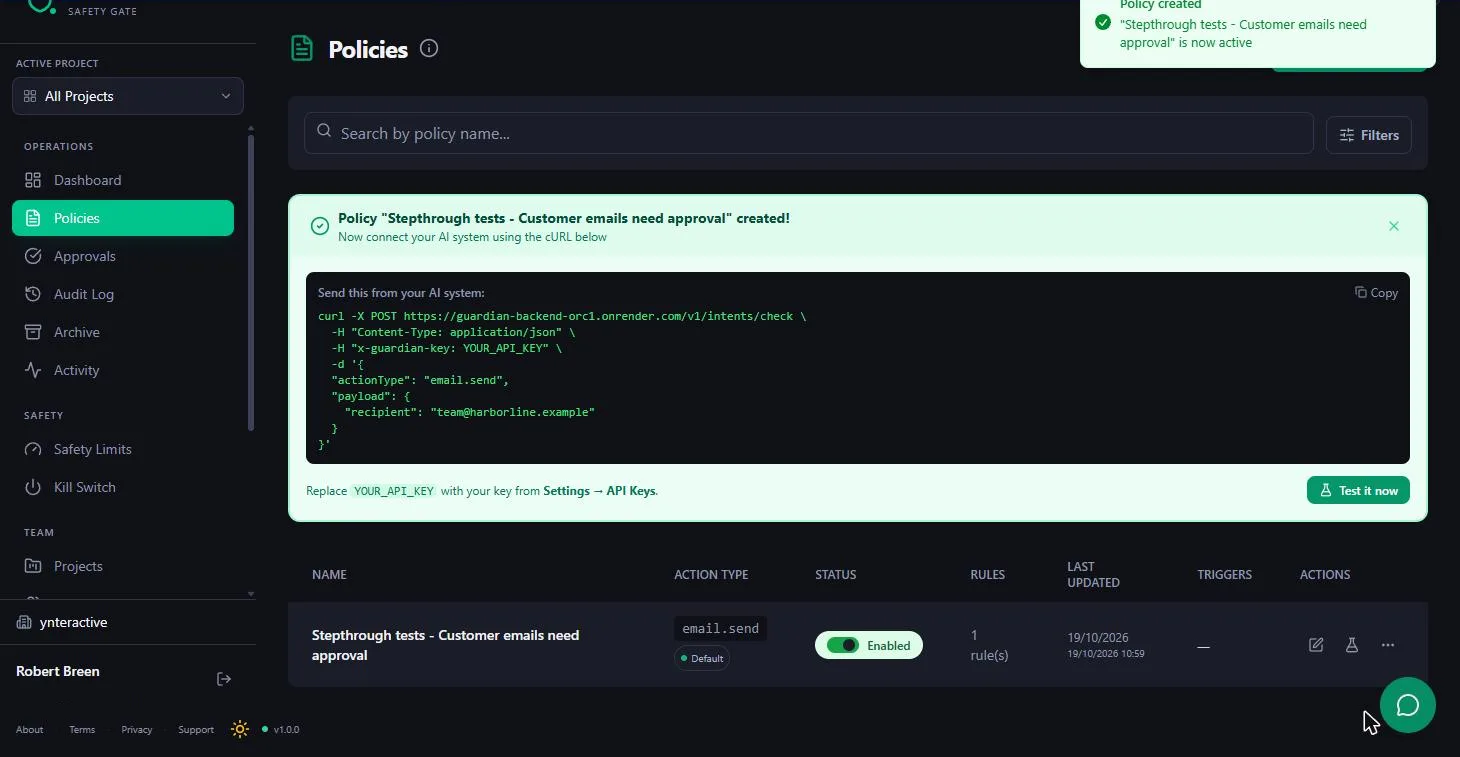
- Click Create. Happy with both answers? Click Create at the bottom right. Guardian says the policy *is now active*.
Happy with both answers?
5. Save it and test again
- See what your workflow sends. Guardian shows the request your system sends: POST /v1/intents/check with actionType: email.send and a payload. You will not type this: in n8n, the Guardian node sends it for you. Note YOUR_API_KEY: a real key comes from Settings > API Keys, and Guardian asks you to verify your email before you can create one. Never paste a key into a chat or a screenshot. Click the request.
Guardian shows the request your workflow will send. Action type, email dot send, and the payload. In n8n, the Guardian node sends it for you. The API key comes from Settings. Keep it private.
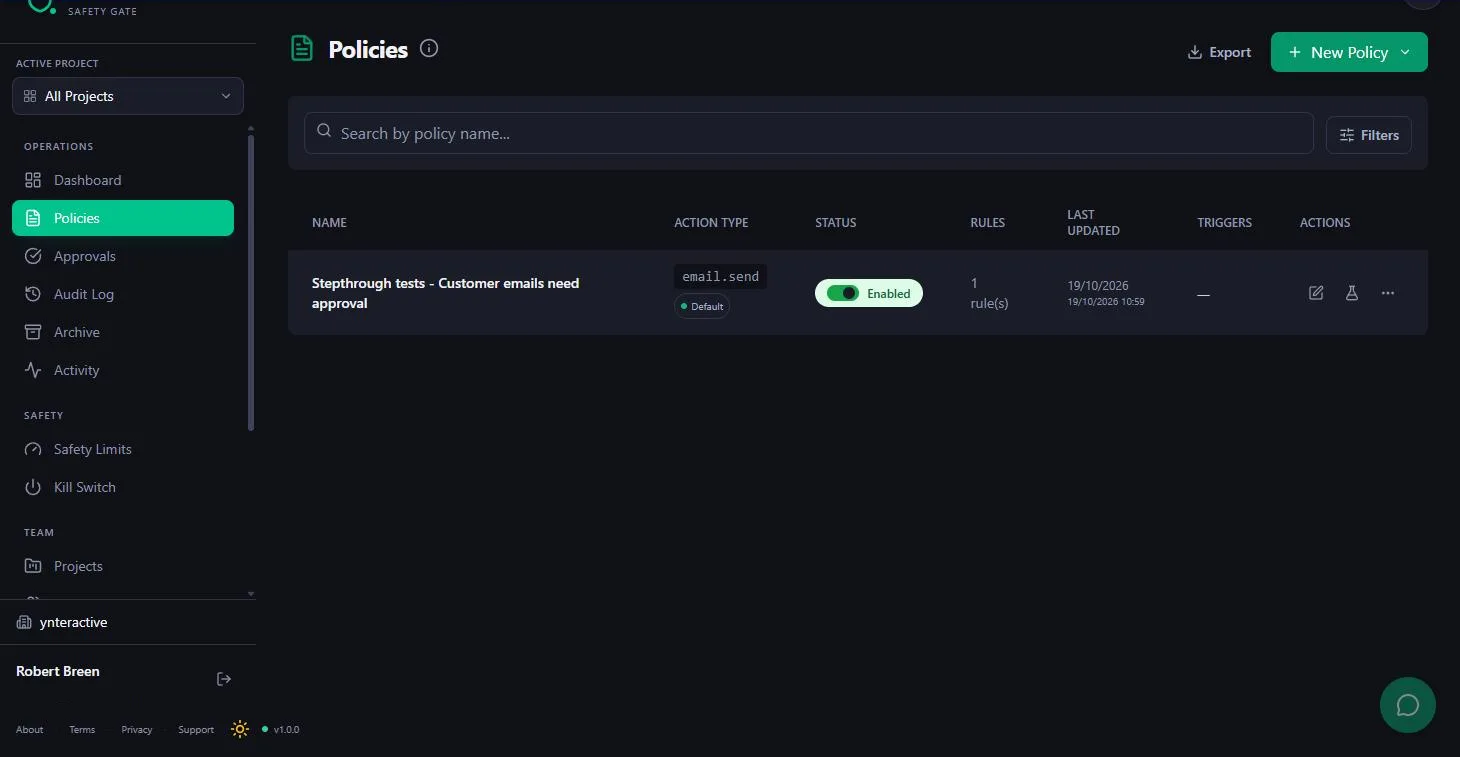
- Open the tester again. Your policy is in the list: email.send, project Default, Enabled, 1 rule. (Ours has a *Stepthrough tests* prefix in its name because it was our test copy.) Any time you change a rule, test it again. Click the flask icon under Actions.
Your policy is in the list, and it's enabled. Any time you change a rule, test it again.
- Run Test on the saved policy. Test Policy lists the rules in this policy and a Test Payload pre-filled from them. Paste the client payload again and click Run Test. Guardian's guide says to run every policy through the tester with the real payload before you rely on it. Click Run Test.
The tester shows your rule and a test payload. Test every policy with a real payload before you rely on it.
6. Deletes are never allowed
- Deny unmatched actions. The third line was: never delete anything. You do not need a rule for it. Open Settings > Organization. Under Default Policy Behavior, Deny unmatched actions is selected and marked Recommended: *Any action type without an explicit policy is blocked.* So if the agent ever asks for record.delete, there is no policy for it and Guardian says Denied. Just never write an allow policy for it. Click Deny unmatched actions.
The last line was, never delete anything. You don't need a rule for that. In Organization settings, deny unmatched actions is on. Any action without a policy is blocked. So a delete is denied. Just never write a policy that allows it.
7. Put Guardian in your n8n workflow
- Place the Guardian node. In n8n, the Guardian node goes right before the action that cannot be undone, after the step that writes the email. Set Action Type to email.send, and set Payload to the JSON with recipient, subject and body, the same field names as your policy. This image is from Guardian's own n8n guide. Click the Guardian node.
In n8n, put the Guardian node right before the send. After the step that writes the email. Set the action type to email dot send, and the payload to recipient, subject and body. The same names as your policy.
- Connect Allowed to the send. The node has three outputs: Allowed, Denied and Needs Approval. Connect Allowed to your Send an Email step. Point Denied and Needs Approval at a note, never at the send. Guardian's guide is firm: never connect all three to the action. Click Send an Email.
The node has three outputs. Allowed, denied, and needs approval. Only Allowed goes to Send an Email. The other two never touch the send.
- Needs Approval waits. Needs Approval ends in a visible note, here Waiting for approval. To send it once someone approves, Guardian's guide adds a second path: Guardian Approval Trigger, then a Guardian node set to Enforce, then the send, reading the approved payload. Keep only one active workflow listening for the same action type, or an approved email can go out twice. Click Waiting for approval.
Needs approval ends in a note that says it's waiting. Once someone approves, a second path sends it. Guardian approval trigger, then Guardian set to enforce, then the send. Keep one active workflow per action type, or it can send twice.
- Add the Guardian credential. The node needs a Guardian API credential: the API Key from Guardian's Settings > API Keys, the API Signing Secret and the Base URL it asks for. Save it and n8n shows *Connection tested successfully*. We stop here: the key is yours, so create it in your own account and keep it out of screenshots. Click API Key.
The node needs a Guardian credential. An API key from Guardian's settings, a signing secret, and the base URL. When it connects, n8n says so. Create the key in your own account, and keep it private.
8. Approve, or fix it first
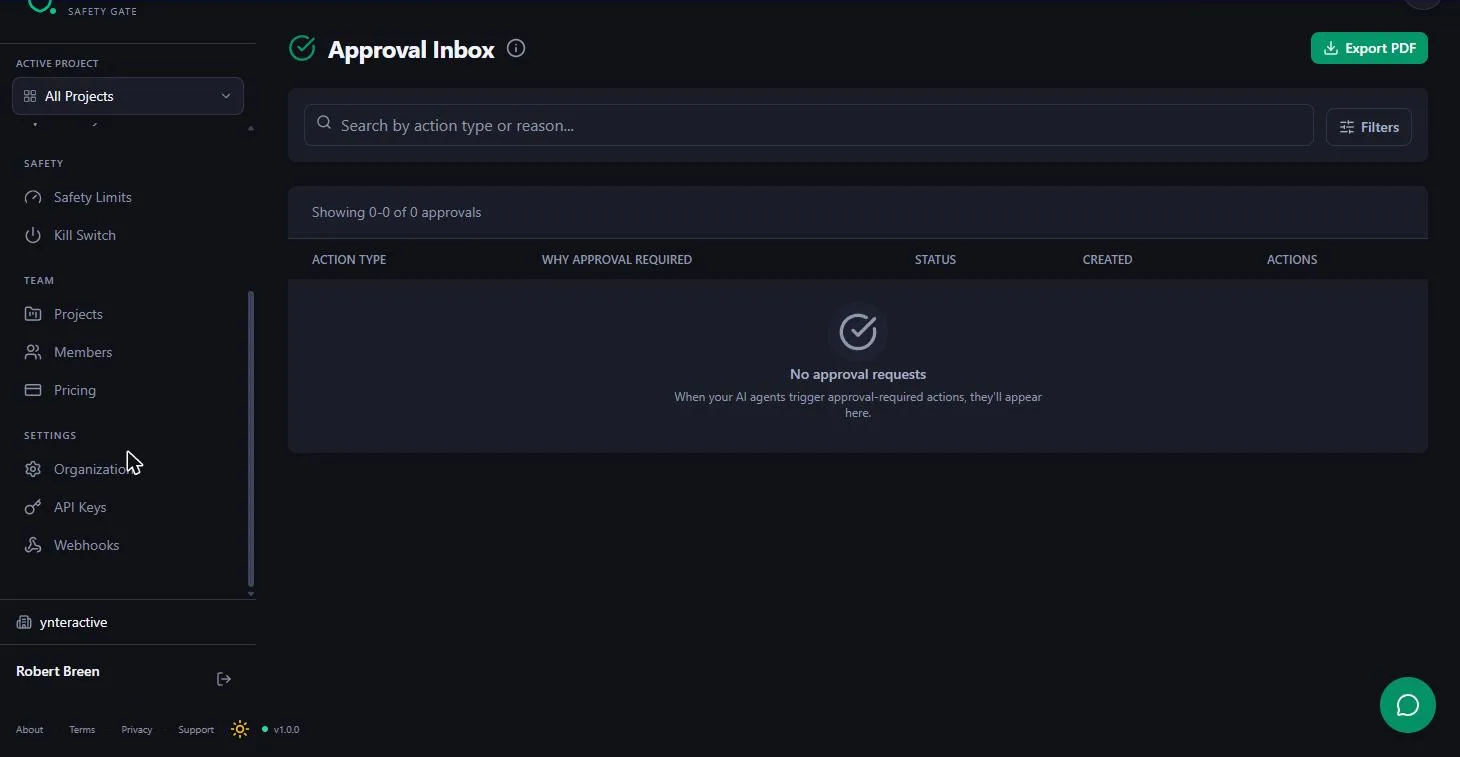
- Open the Approval Inbox. Back in Guardian, Approvals opens the Approval Inbox. Every client email that needs a person lands here, with its action type and why approval required. Ours is empty, because no live workflow is connected yet. Click the inbox.
Back in Guardian, open Approvals. Every client email that needs a person lands here, with the reason why. Ours is empty, because nothing's connected yet.
- Open a waiting request. Once it is live, waiting requests look like this image from Guardian's guide: BLOCKED — AWAITING HUMAN APPROVAL, with an expiry time. The icons on the right let you view, edit, approve or reject it. Click the pencil to read and edit before approving.
Once it's live, waiting requests look like this. Blocked, awaiting human approval. With a time limit.
- Fix the email if needed. Edit Payload & Approve shows the Original Payload next to the Approved Executable Payload. Fix a wrong amount or a clumsy line on the right. The original stays unchanged in the audit log, and Guardian re-checks the edited version against your policy. In n8n, the send reads the approved version. Click the approved payload.
Edit and approve shows the original email next to the one that will go out. Fix a wrong amount on the right. The original stays on record, and the send uses your fixed version.
- Click Edit & Approve. Click Edit & Approve. In a live setup, the approval path in n8n picks it up and sends the email. One click instead of checking every draft. Click Edit & Approve.
n8n picks it up, and sends it. One click, instead of checking every draft.
9. What it saves, what it costs
- What this saves you. Click What this saves you.
- Check the price. Guardian's site, read 19 October 2026, says it is free to start, with no credit card, and *free while we're early*. In the app, the AI Wizard needs a paid plan and Allow unmatched actions is marked Starter+ only. Check the Pricing page in the app for current plans. Click the price card.
On cost. Guardian's site says it's free to start, with no credit card, while it's early. A few extras need a paid plan. Check the pricing page in the app.
Screenshots
Frequently asked questions
- Is this an official Guardian course?
- No. This is my own lesson. Guardian is a separate, third-party product from guardian-safety-gate.com. The app screenshots were taken in my own Guardian account, and the n8n images come from Guardian's own guide, credited under each one.
- Does Guardian send the email?
- No. Guardian only answers Allowed, Needs approval or Denied, and records the decision. Your n8n workflow does the sending, and only its Allowed and approved paths should reach the send step.
- Is Guardian free?
- Guardian's site, read 19 October 2026, says it is free to start with no credit card, and free while it is early. In the app, the AI Wizard needs a paid plan and Allow unmatched actions is Starter+ only. Check the Pricing page in the app for current plans.
- What happens to an action with no policy?
- With Deny unmatched actions, the recommended default, any action type without an explicit policy is blocked. That is how this lesson keeps deletes from ever running.
- Can I fix an email before I approve it?
- Yes. Edit Payload & Approve shows the original payload next to the one that will run. You can change it before approving, the original stays in the audit log, and Guardian checks the edited version against your policy again.
- How do I test without blocking a live workflow?
- Use Test This Policy or the flask icon for sandbox tests. For a real run, Guardian's guide suggests disabling the send step and turning on Listen Mode under the Organization tab, which records every request and what Guardian would have decided, without blocking anything.
More in n8n Automation Toolkit
 n8n: What Is n8n? Build Your First Workflow
What n8n is and how it thinks, then your first workflow: a client inquiry form that catches every request and writes a one-line summary. No code, no accounts to connect.
Free · Live ~8 min Beginner
 n8n: Items, JSON and Expressions, Explained by Doing
See how n8n holds data: pin five fake invoices, read them as items, Table and JSON, then write one reminder per invoice and a late fee with drag-and-drop expressions.
Free · Live ~9 min Beginner
 n8n: Run a Workflow on a Schedule (Every Monday at 8am)
Use the n8n Schedule Trigger to run a workflow by itself: every Monday at 8am, a timesheet reminder. Set the interval, test it now, and check the time zone.
Free · Live ~6 min Beginner
 n8n: Send Form Answers Straight to Google Sheets
Build a consultation request form in n8n (required fields, email, dropdown), test it, and add every answer as a new row in Google Sheets. No webhook, no form tool to…
Free · Live ~10 min Beginner
 n8n: Summarize Customer Emails with OpenAI
Your first AI step in n8n: send each customer email to OpenAI with one prompt and get a one-line summary plus the next step. No agent needed, about a cent of API use.
Free · Live ~9 min Beginner
 Find and Use n8n Templates
Skip the blank canvas. Find a ready-made workflow in the n8n template gallery, import it into your workspace, connect Google Sheets and Gmail, test it with a real form…
Free · Live ~9 min Beginner
All 20 modules in n8n Automation Toolkit
Terms in this lesson
Plain-English definitions, each with an example from a free lesson.