Updated . Built against the tool’s current screens and checked step by step. How we check this lesson
AI workflow automation means a workflow that runs by itself with an AI step in the middle: something triggers it, the AI reads or writes like a person would, and a rule decides what happens next. In this free lesson you build one for a made-up bookkeeping firm that gets about 40 web inquiries a month. An n8n form catches each inquiry, GPT-5-MINI (on n8n's free OpenAI credits, so no API key) labels it Tax, Bookkeeping, Payroll or Other, marks it urgent or not and drafts a reply, and an If rule sends the urgent ones down their own branch. Every screen in the practice is a real n8n screen from our test run on 20 October 2026.
At a glance
| Question | Answer |
|---|---|
| What you build | AI workflow automation for beginners: a form catches each client inquiry, an AI step sorts it and drafts the reply, and an If rule flags the urgent ones. Real n8n, free OpenAI credits, no keys. |
| Tools | n8n |
| Time | About 12 minutes, 26 steps in 5 parts |
| Level | Beginner, no coding needed |
| Cost | Free |
| Ways to learn it | Practice it step by step |
The 5 parts, in short
- The business case: What inquiries cost today, The three parts of an AI workflow, Read the prompt first.
- The trigger: a form that catches every inquiry: Start a new workflow, Pick n8n Form, On new n8n Form event, Name the form, and 5 more steps.
- The AI step: read, sort and draft: Add the next step, Pick OpenAI, Choose a model, Write the prompt, and 2 more steps.
- The rule: flag the urgent ones: Add a rule, Pick If, Use the AI answer, Pick contains, and 2 more steps.
- What it saves: What this saves, Up next.
Start here first: n8n: What Is n8n? Build Your First Workflow (module 1 of n8n Automation Toolkit)
In the course: Part 9 · n8n Automation Toolkit (Module 80 of the full course)
Part of: Intro to AI Automation (step 4 of 4)
Part of: AI for Accounting & Bookkeeping Firms (step 32 of 35). Next up: n8n + Felo: A Monday Research Brief With a Source for Every Answer
Part of: Email on Autopilot (step 14 of 14)
Part of: Business Automations with n8n (step 17 of 20). Next up: n8n + Signatoro: AI Drafts Every Reply, Signatoro Signs It
Part of: n8n Jump Start (step 17 of 20). Next up: n8n + Signatoro: AI Drafts Every Reply, Signatoro Signs It
Part of: AI Agents 101 (step 13 of 13)
Part of: AI Back Office for Small Business (step 17 of 18)
Part of: n8n for Beginners: Your First Automations (step 3 of 11). Next up: n8n: Items, JSON and Expressions, Explained by Doing
The workflow you build
Three nodes, no other apps and no keys. Labels match n8n Cloud in October 2026. Download the prompt from the lesson.
| Node | What it does | What came out in our test |
|---|---|---|
| On form submission (n8n Form) | Hosts a form with Your name and What do you need help with? | 1 item: Priya Shah, Shah Dental Studio, "Our payroll run failed this morning..." |
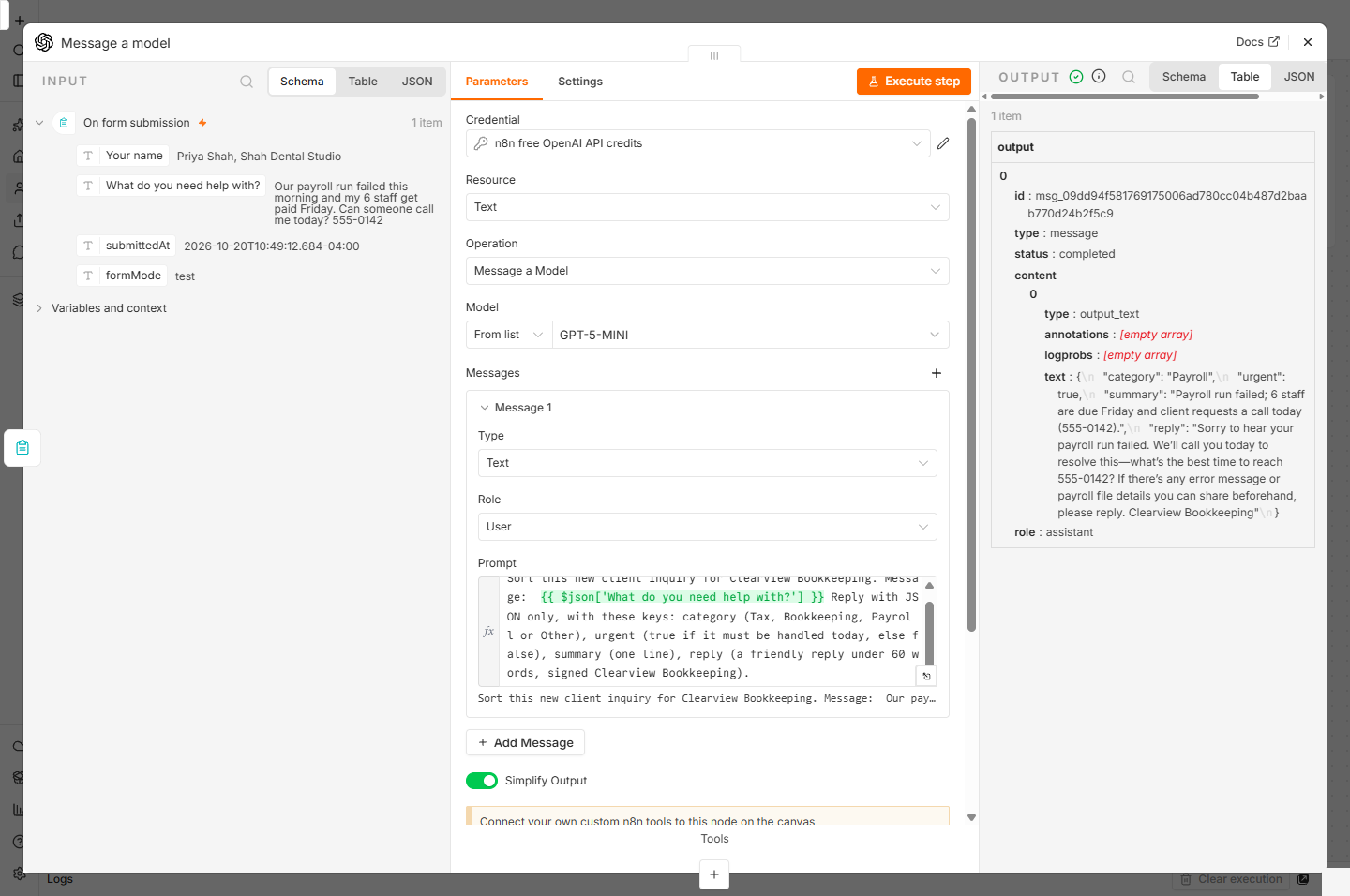
| OpenAI: Message a model | GPT-5-MINI reads the message and returns category, urgent, summary and reply as JSON | category Payroll, urgent true, a one-line summary and a draft reply promising a call today |
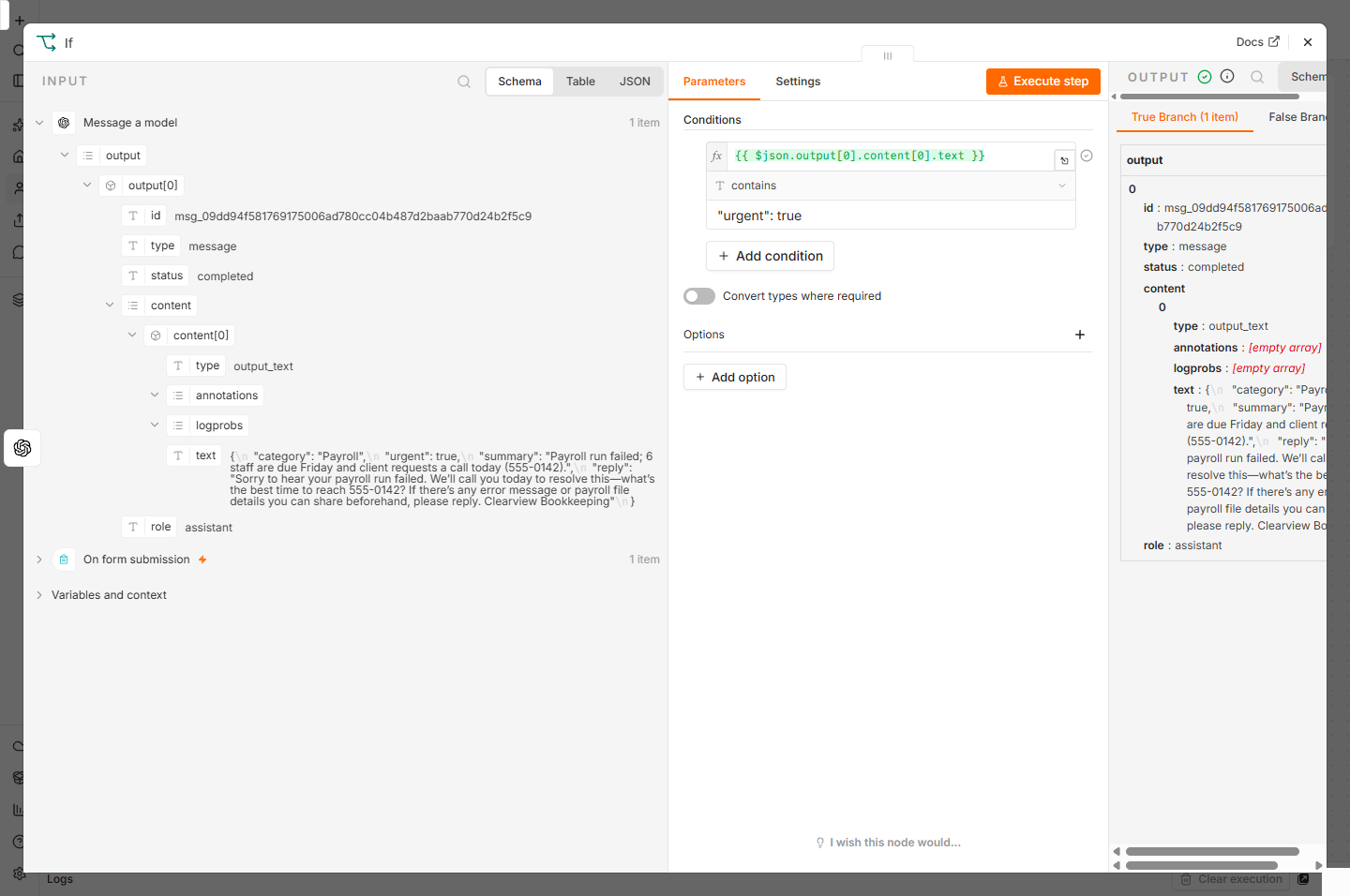
| If | text contains "urgent": true | True Branch (1 item) |
What AI workflow automation is (and is not)
Plain automation moves data from one app to another on fixed rules: a form row goes into a sheet. AI workflow automation adds a step that handles the messy, human part: reading a free-text message, deciding what it is about, and writing a reply. The workflow still runs on rules; the AI only fills in the part that needs judgement.
It is not an AI agent. An agent decides its own next steps and picks tools. A workflow always runs the same path, which makes it easier to test, cheaper to run and safer to give to a small team.
The business case
Clearview Bookkeeping (made up) gets about 40 inquiries a month through its website. Reading, sorting and writing a first reply takes about 5 minutes each, about 3.5 hours a month, and one or two urgent payroll problems a month still wait until the next morning. The workflow does the reading and the first draft in seconds and flags the urgent ones straight away. A person still checks and sends every reply. Swap in your own numbers.
Trigger, AI step, rule: how the build goes
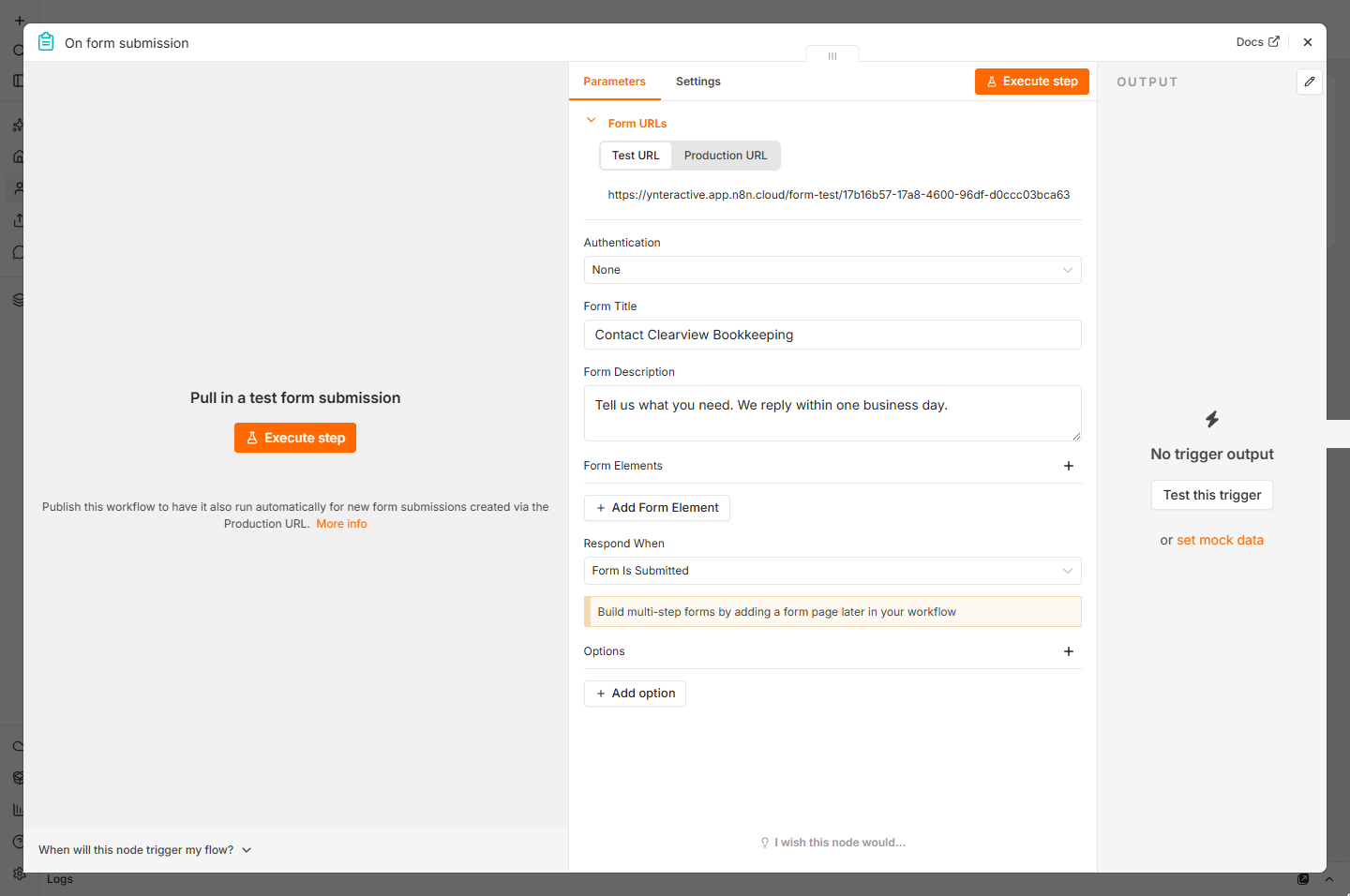
Create a workflow, click Add first step..., search form and pick n8n Form, then On new n8n Form event. Give the form a title and two elements, click Execute step and submit a test inquiry in the tab n8n opens: OUTPUT shows 1 item.
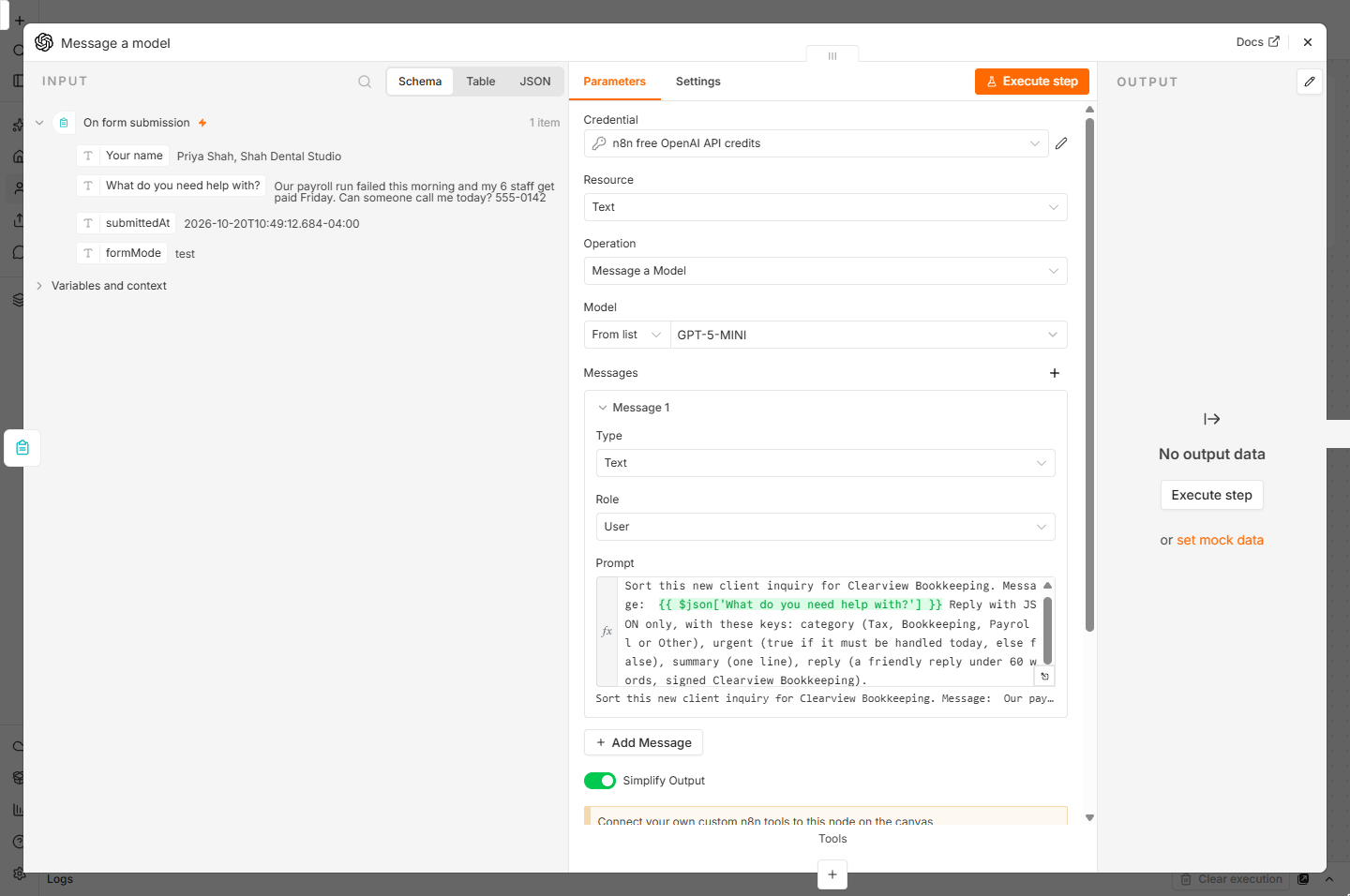
Click the + after the trigger, search OpenAI (it shows Free credits) and pick Message a model. Keep the credential n8n free OpenAI API credits, choose GPT-5-MINI, write the prompt and drag the message field into it. Ask for JSON with four named keys. Execute step: in our run it came back as Payroll, urgent true, with a summary and a reply.
Click the + after the AI step, add If, drag the AI text into value1, choose String, contains and type "urgent": true. Execute step: the inquiry lands in True Branch.
Why ask the AI for a fixed shape
A rule can only test what it can find. "urgent": true is easy to check; "this seems quite pressing" is not. Name every key, list the allowed values and say JSON only, then test with a real example before you rely on it. Read the draft replies for the first few weeks: the AI is right most of the time, not every time.
Links
- n8n (affiliate link): the workflow tool this lesson uses (free trial, no credit card).
- n8n docs: OpenAI node: every OpenAI operation, including Message a model.
- n8n docs: If node: conditions, types and branches.
Disclosure: links marked "affiliate link" are partner links. If you sign up through one, Stepthrough may earn a commission at no extra cost to you. The lesson is free either way and does not depend on it.
Try it yourself, free
Reading the steps is a start. Doing them is how it sticks. The interactive module walks you through every click in a practice copy of n8n, checks each step, and never touches your real accounts.
Start “AI Workflow Automation for Beginners: Sort Every Client Inquiry and Draft the Reply using n8n”Step by step: AI Workflow Automation for Beginners: Sort Every Client Inquiry and Draft the Reply using n8n
All 26 steps of the interactive module, in order. In the module you watch each one, then do it yourself in a practice copy that checks your work.
1. The business case
- What inquiries cost today. Clearview Bookkeeping gets about 40 web inquiries a month. Dana reads each one, decides what it is and how urgent, and writes a first reply: about 5 minutes each, or 3.5 hours a month. Worse, an urgent payroll problem can sit until the next morning. Click the monthly total.
Clearview gets forty web inquiries a month. Five minutes each to read, sort and answer. And urgent ones can wait a day.
- The three parts of an AI workflow. An AI workflow automation has three parts: a trigger that starts it (a form is sent), an AI step that does the reading and writing, and a rule that decides what happens next. You build all three in n8n, in one workflow. Click the workflow card.
An AI workflow has three parts. A trigger. An AI step. And a rule.
- Read the prompt first. This is the prompt the AI step will use. It asks for four things back: a category, urgent true or false, a one-line summary and a short reply. Download a copy on this page, then click the prompt.
This is the prompt. It asks for a category, urgent yes or no, a summary and a reply.
2. The trigger: a form that catches every inquiry
- Start a new workflow. In n8n, click Create workflow and give it a name. On the empty canvas, click Add first step...
Create a new workflow.
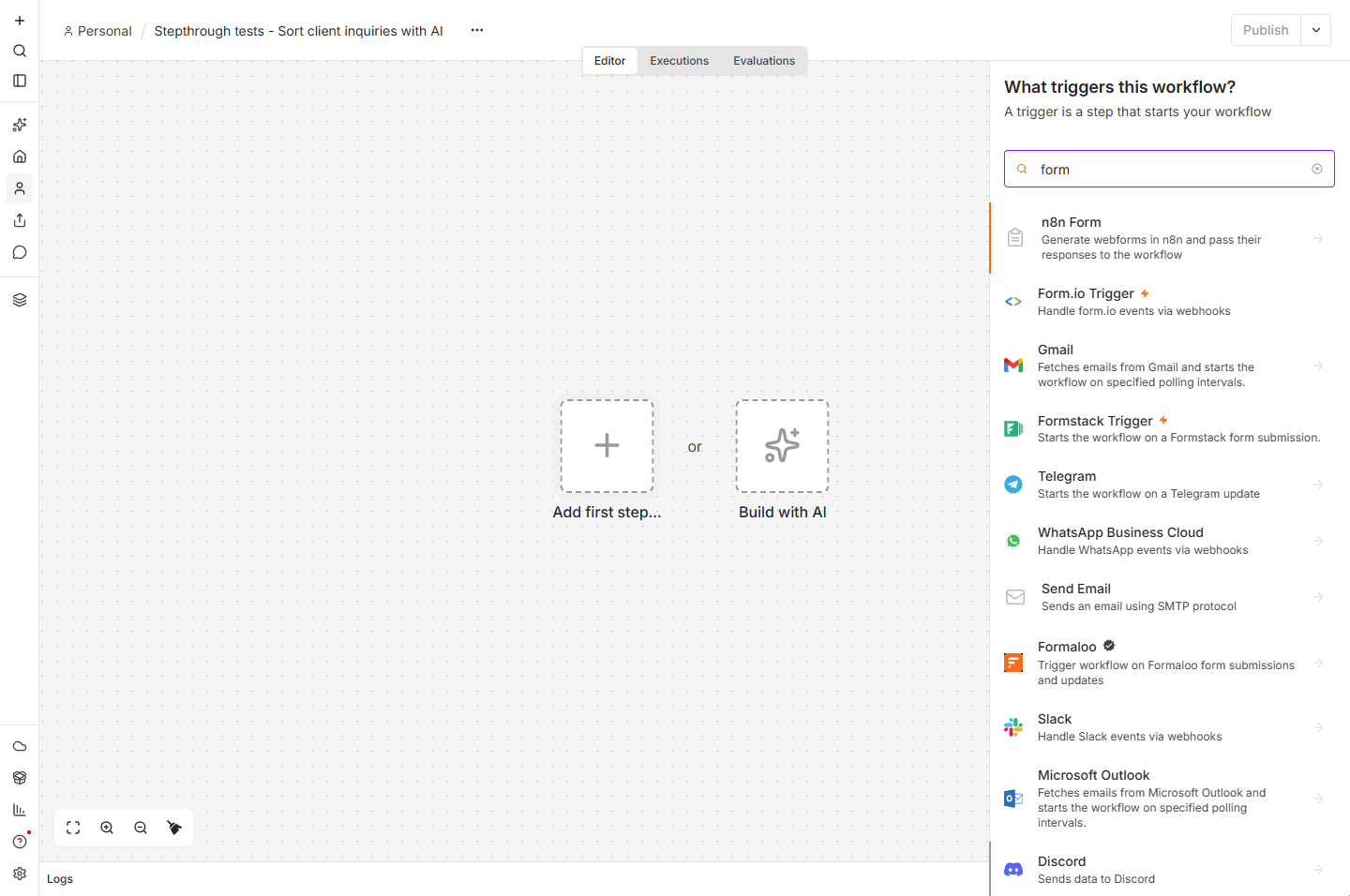
- Pick n8n Form. n8n asks What triggers this workflow? Type form in the search box and click n8n Form. It makes a web form for you, so you need no other app.
Search for form. It builds the web form for you.
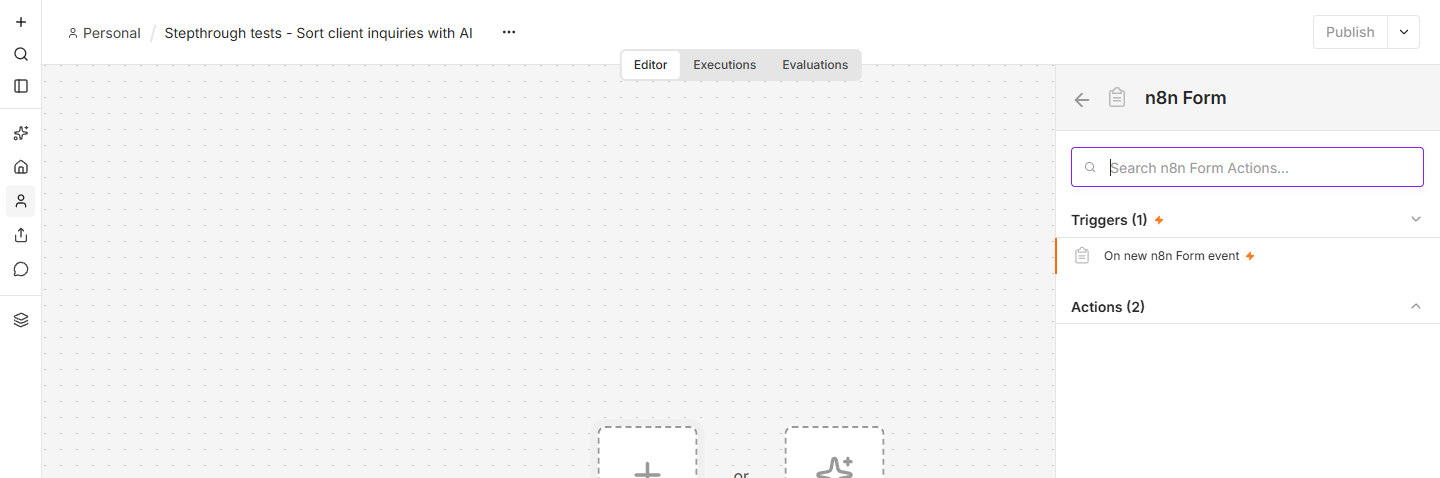
- On new n8n Form event. Under Triggers, click On new n8n Form event.
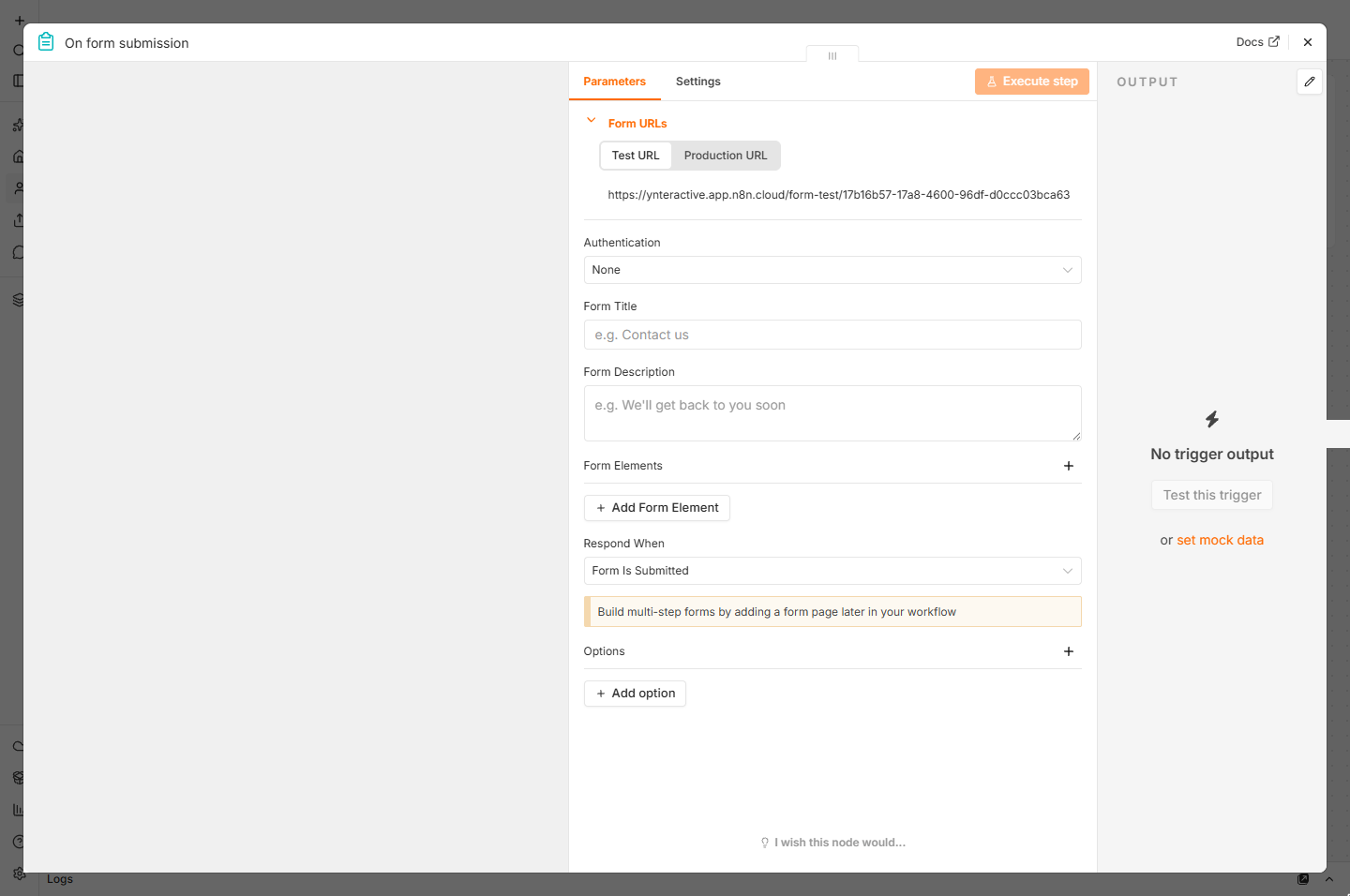
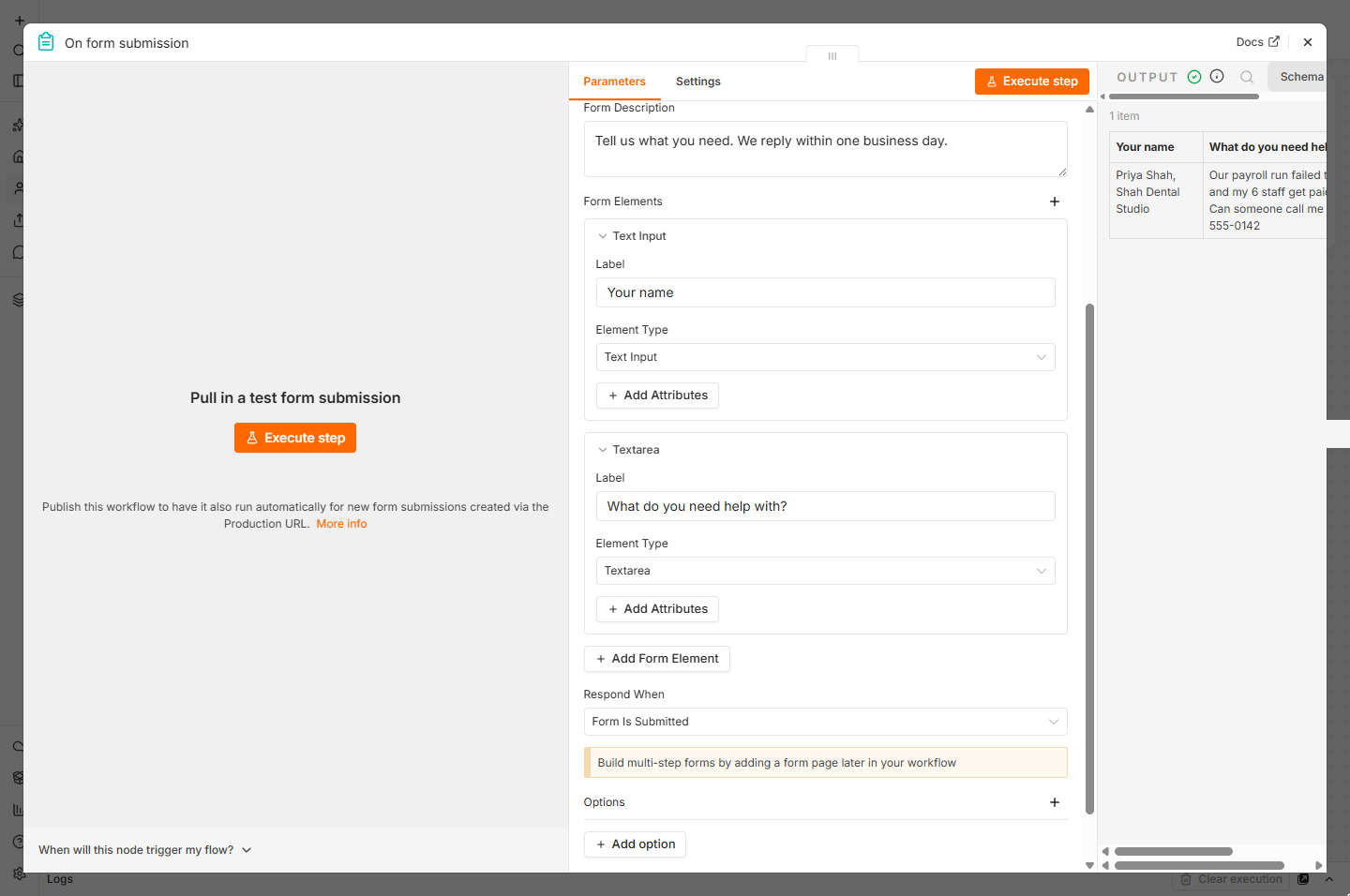
- Name the form. The On form submission panel opens. Paste the title into Form Title. (We also typed a one-line description: "Tell us what you need. We reply within one business day.")
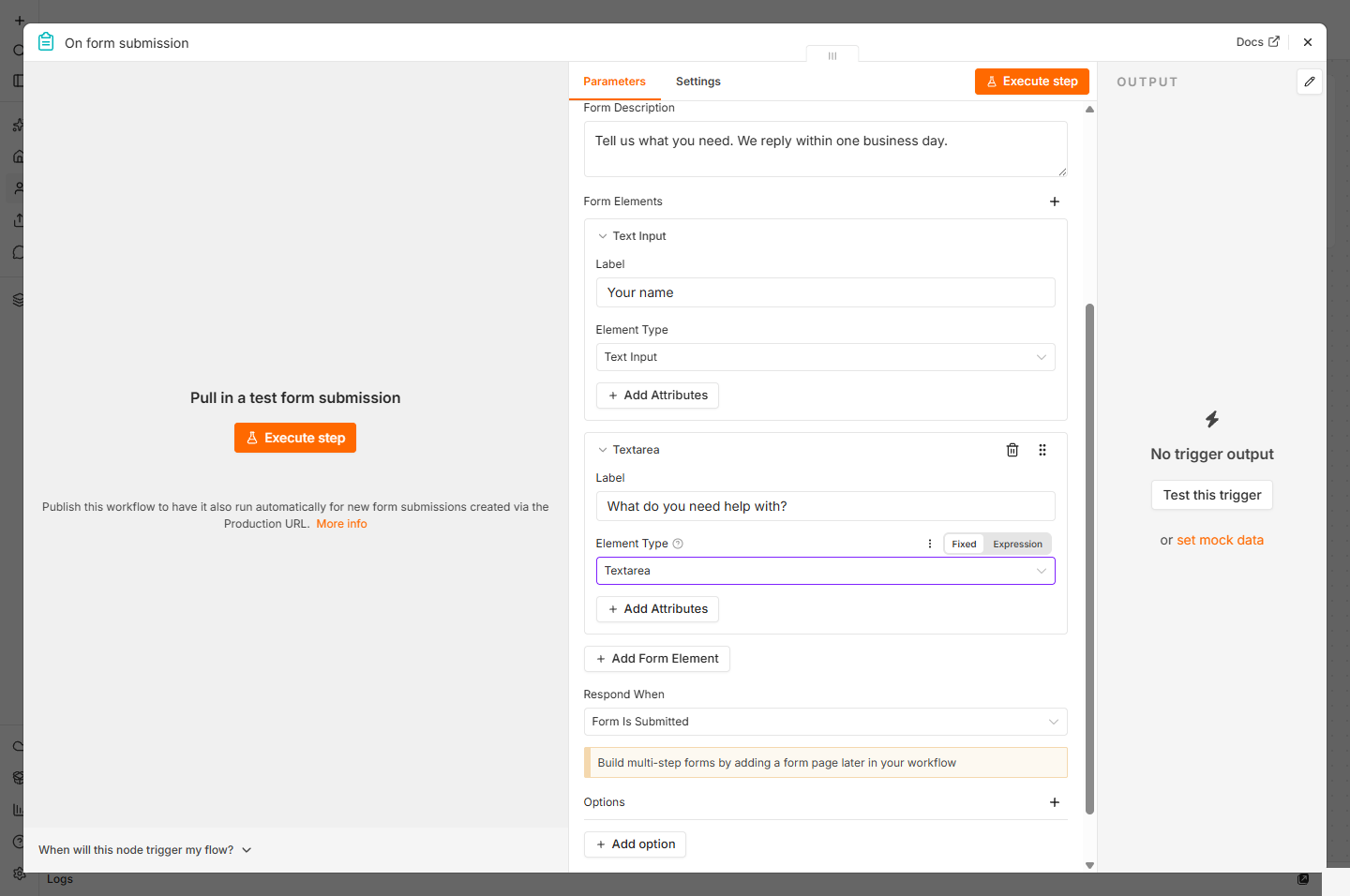
- Add two questions. Click Add Form Element twice. Make the first one a Text Input labelled Your name, and the second a Textarea labelled What do you need help with? (Element Type, then Textarea).
Add two form elements. Your name. And what do you need help with, as a text area.
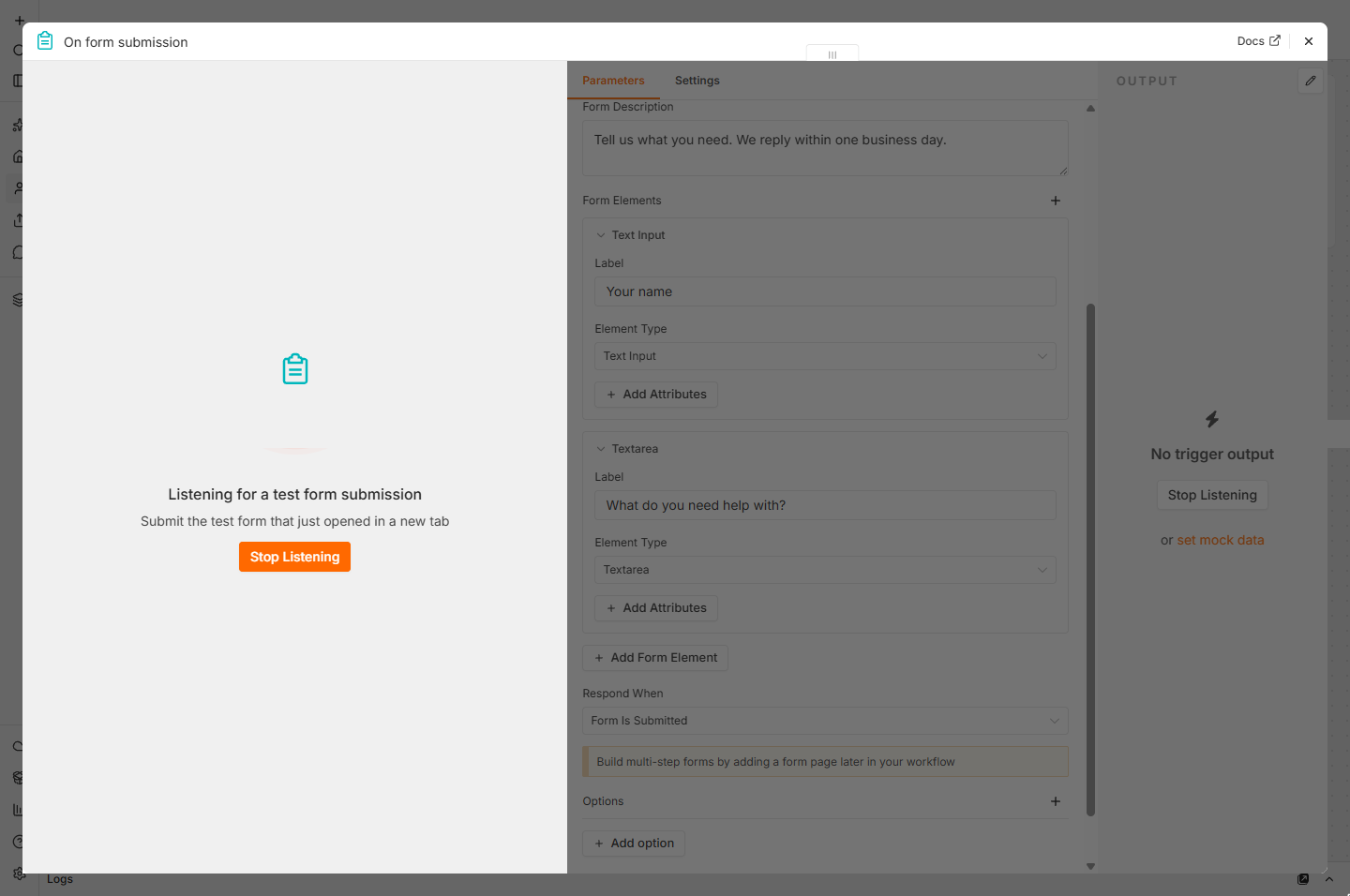
- Test the form. Both questions are in. Click Execute step. n8n opens the test version of your form in a new tab and waits for an answer.
The test form opens in a new tab.
- n8n is listening. n8n now shows Listening for a test form submission. Switch to the new tab it opened. Click the message.
n8n is listening for a test answer. Go to the new tab.
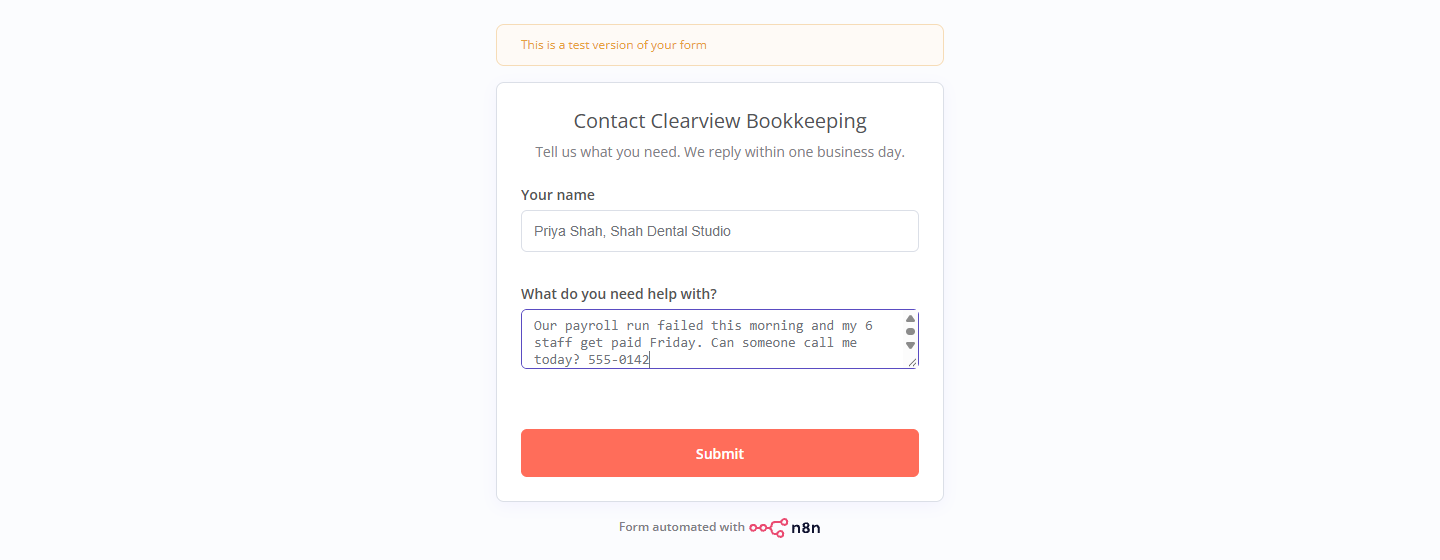
- Send a test inquiry. Fill the form as a client would. We used a made-up dental office: Priya Shah, Shah Dental Studio, "Our payroll run failed this morning and my 6 staff get paid Friday. Can someone call me today? 555-0142". Click Submit.
Fill it in as a client would. A payroll problem, due Friday.
- The inquiry arrived. Back in n8n, OUTPUT shows 1 item: the name and the message, exactly as typed. That is the trigger working. Click the output.
Back in n8n, the output shows one item. The trigger works.
3. The AI step: read, sort and draft
- Add the next step. Close the panel. On the canvas, click the + after On form submission.
Close the panel.
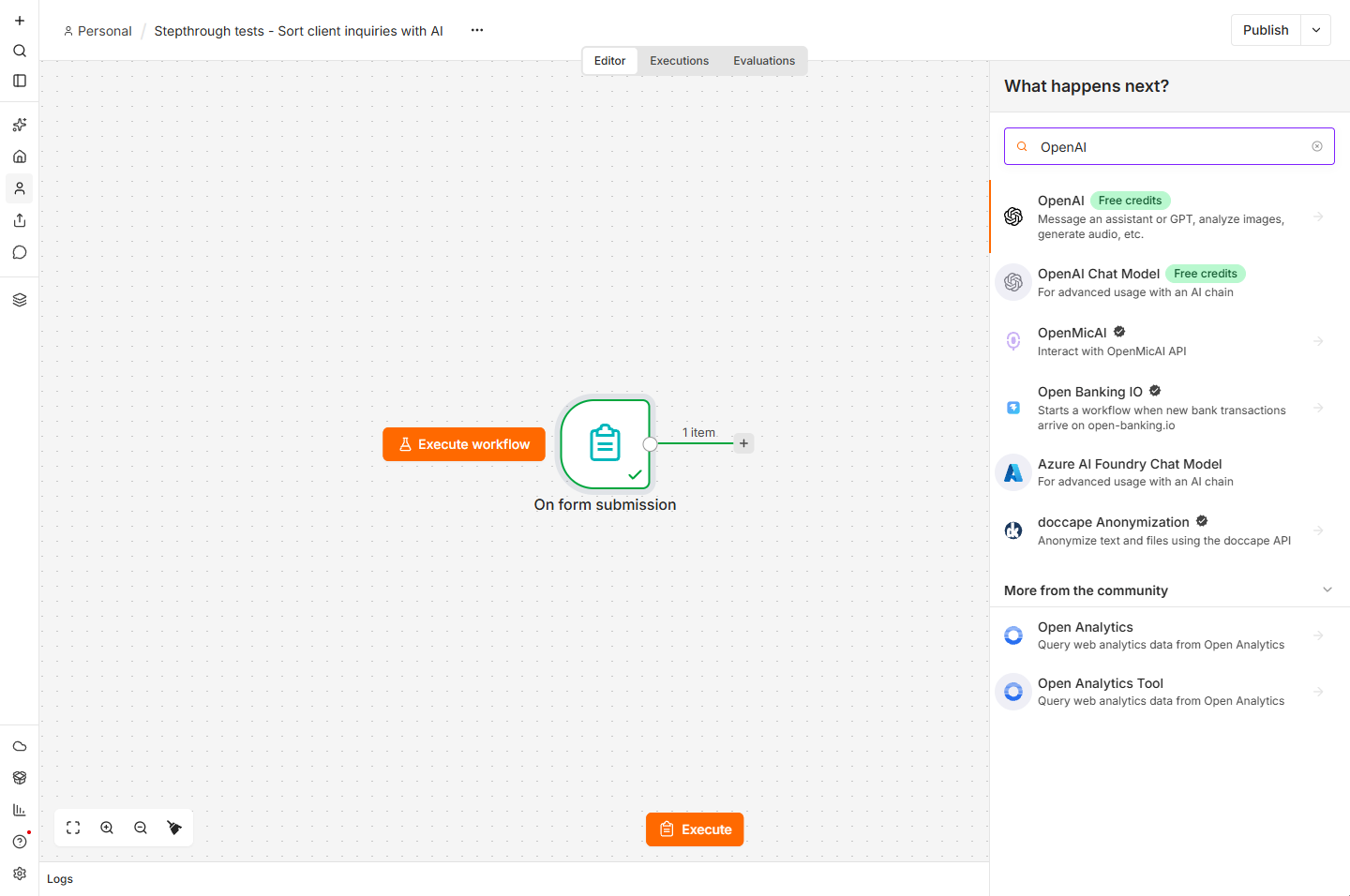
- Pick OpenAI. Search OpenAI and click OpenAI. The green Free credits label means a new n8n account can use it without an OpenAI key. Then pick the action Message a model.
Search OpenAI and click it. Free credits means no key needed to start. Then pick Message a model.
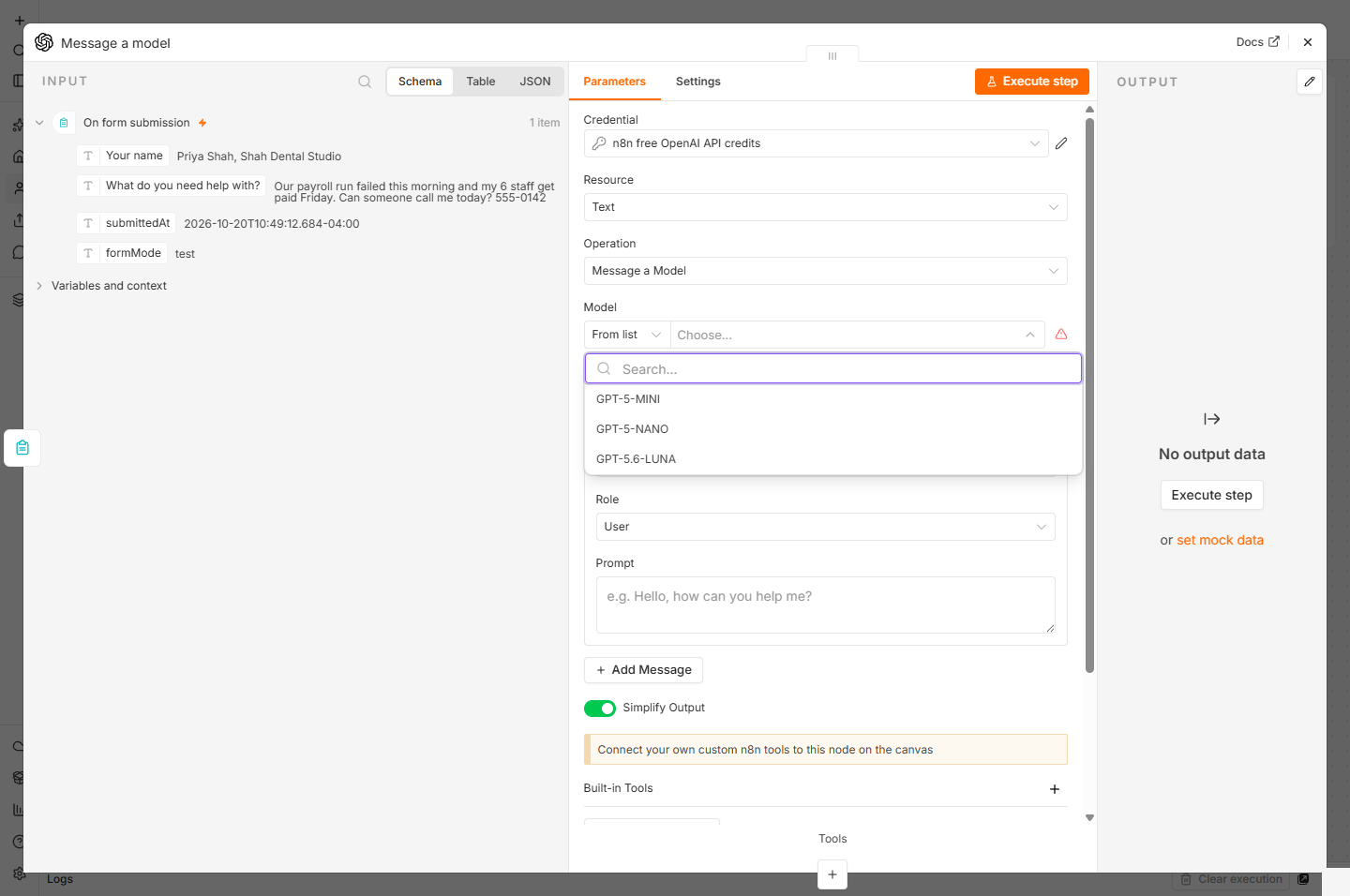
- Choose a model. Check that Credential says n8n free OpenAI API credits. Open Model and click GPT-5-MINI: fast, cheap and good enough to sort messages.
Use the n8n free credits. Pick GPT five mini.
- Write the prompt. In Prompt, type the start of the prompt, then drag the field What do you need help with? from INPUT into the box, so each inquiry is read automatically. Finish with the four keys from the prompt sheet. Click the Prompt box.
Then add the four things you want back.
- Run the AI step. Click Execute step. It sends Priya's message to the model and waits a few seconds.
- Read what the AI did. The answer: category Payroll, urgent true, a one-line summary, and a reply that promises a call today and asks for the error message. Five minutes of reading and writing, done in seconds. Click the text.
Payroll. Urgent. A one line summary. And a reply that promises a call today.
4. The rule: flag the urgent ones
- Add a rule. Close the panel. Click the + after Message a model.
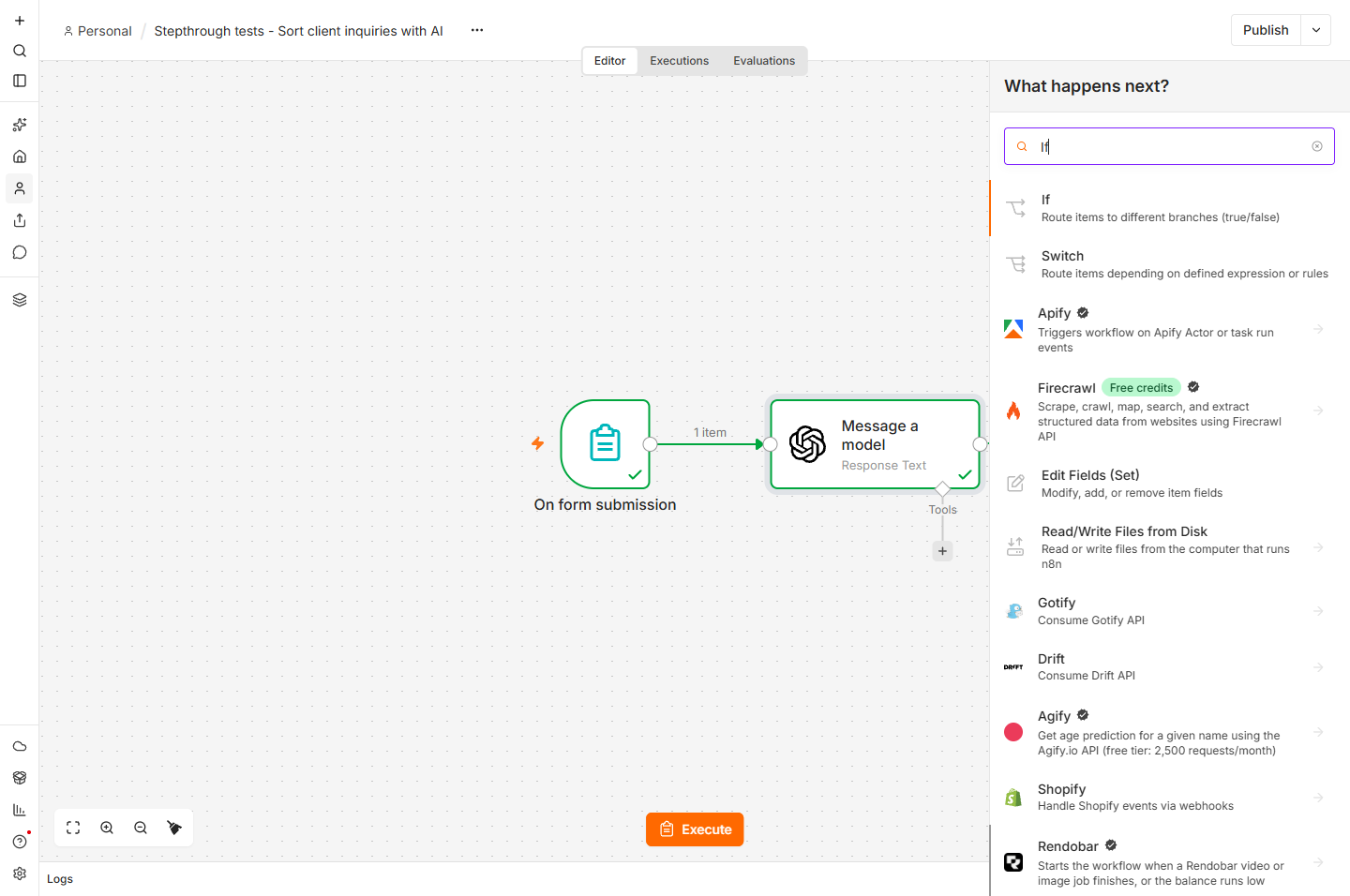
- Pick If. Search If and click If: "Route items to different branches (true/false)".
Search If.
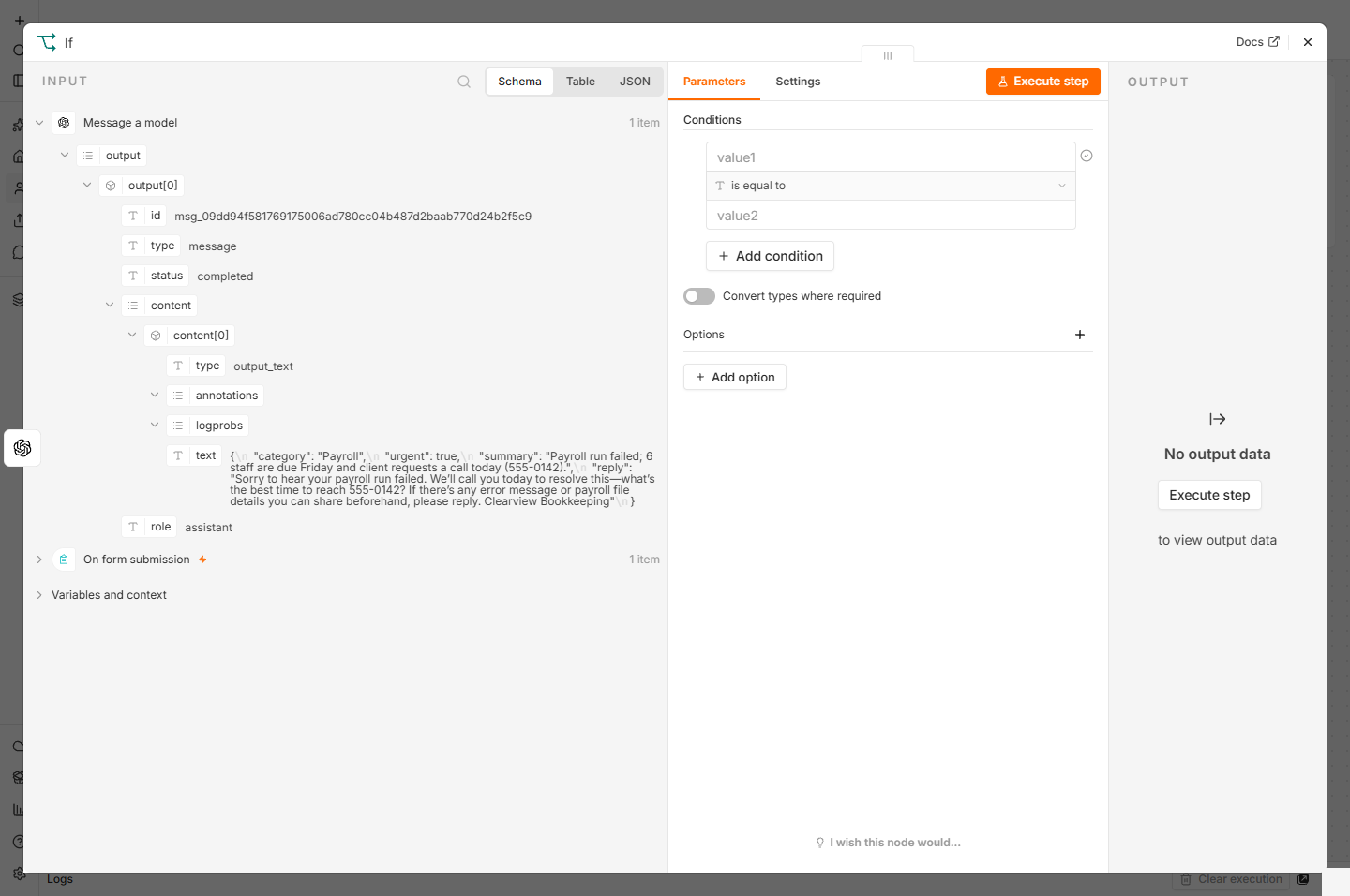
- Use the AI answer. Drag text (the AI answer) from INPUT into value1. Then open the is equal to menu. Click text.
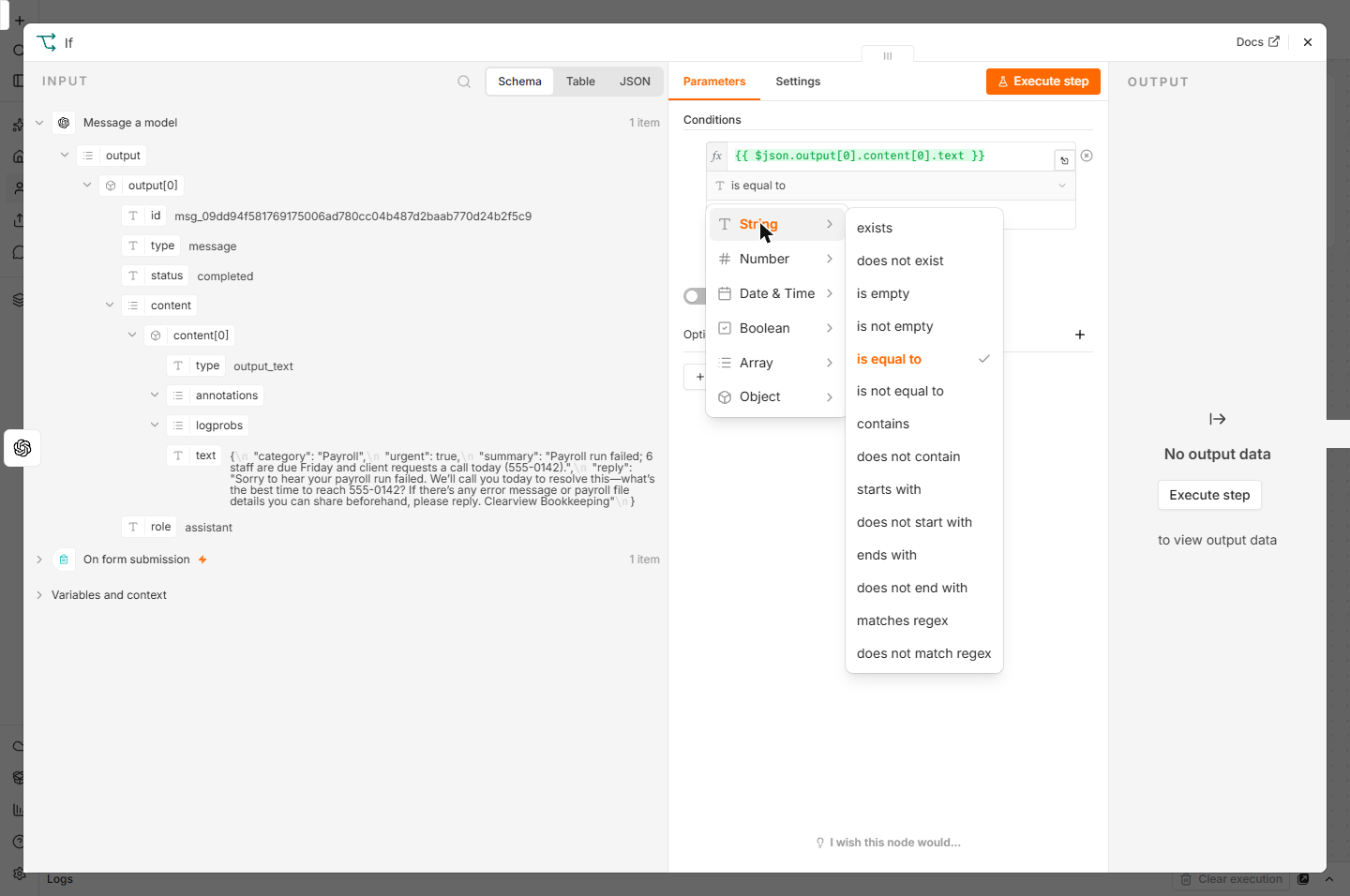
- Pick contains. Under String, click contains.
- Check the urgent branch. Type "urgent": true in value2 (with the quotes), then click Execute step. Priya's inquiry lands in True Branch (1 item). Click True Branch.
Execute the step. Priya's message lands in the true branch.
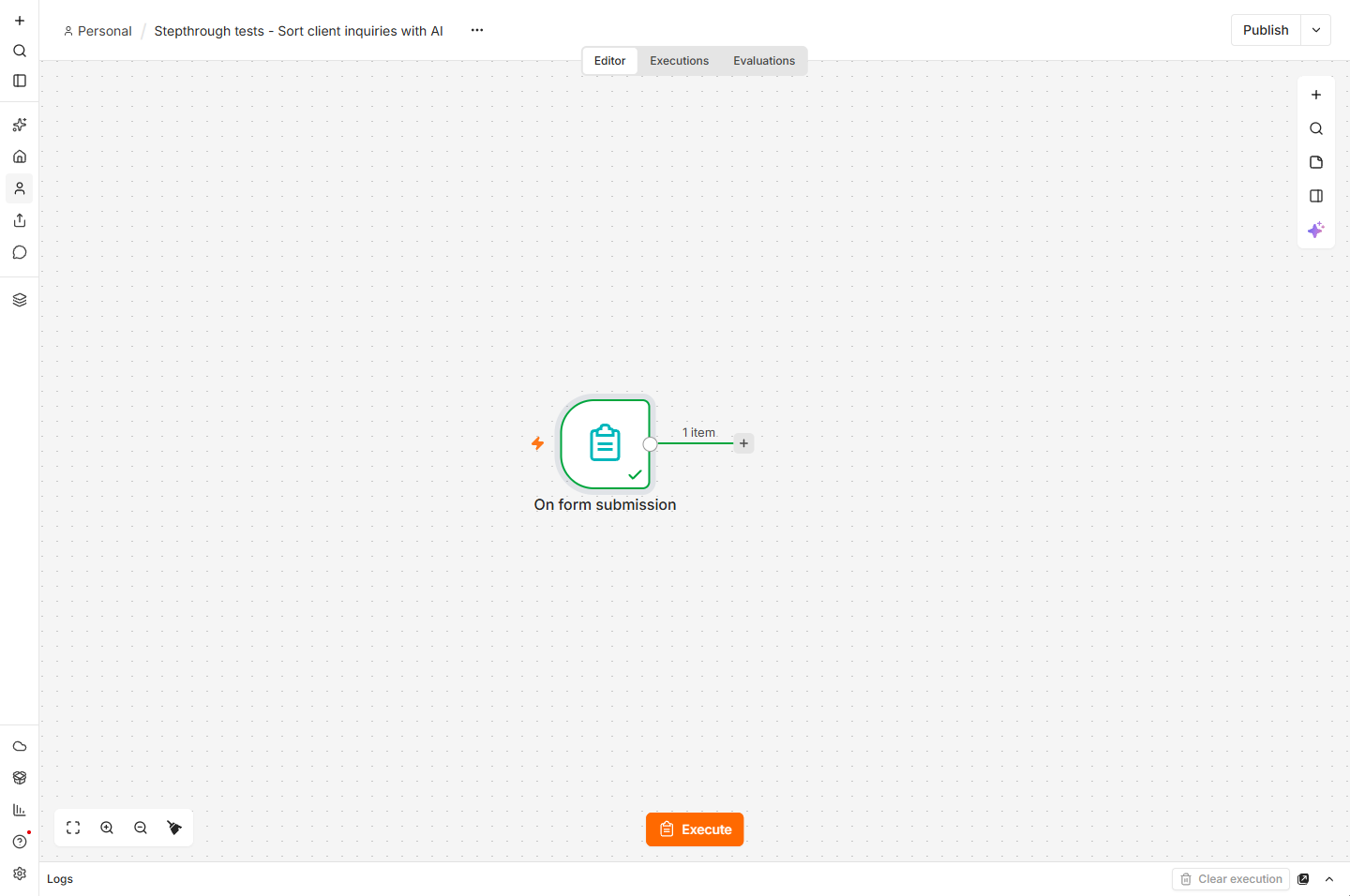
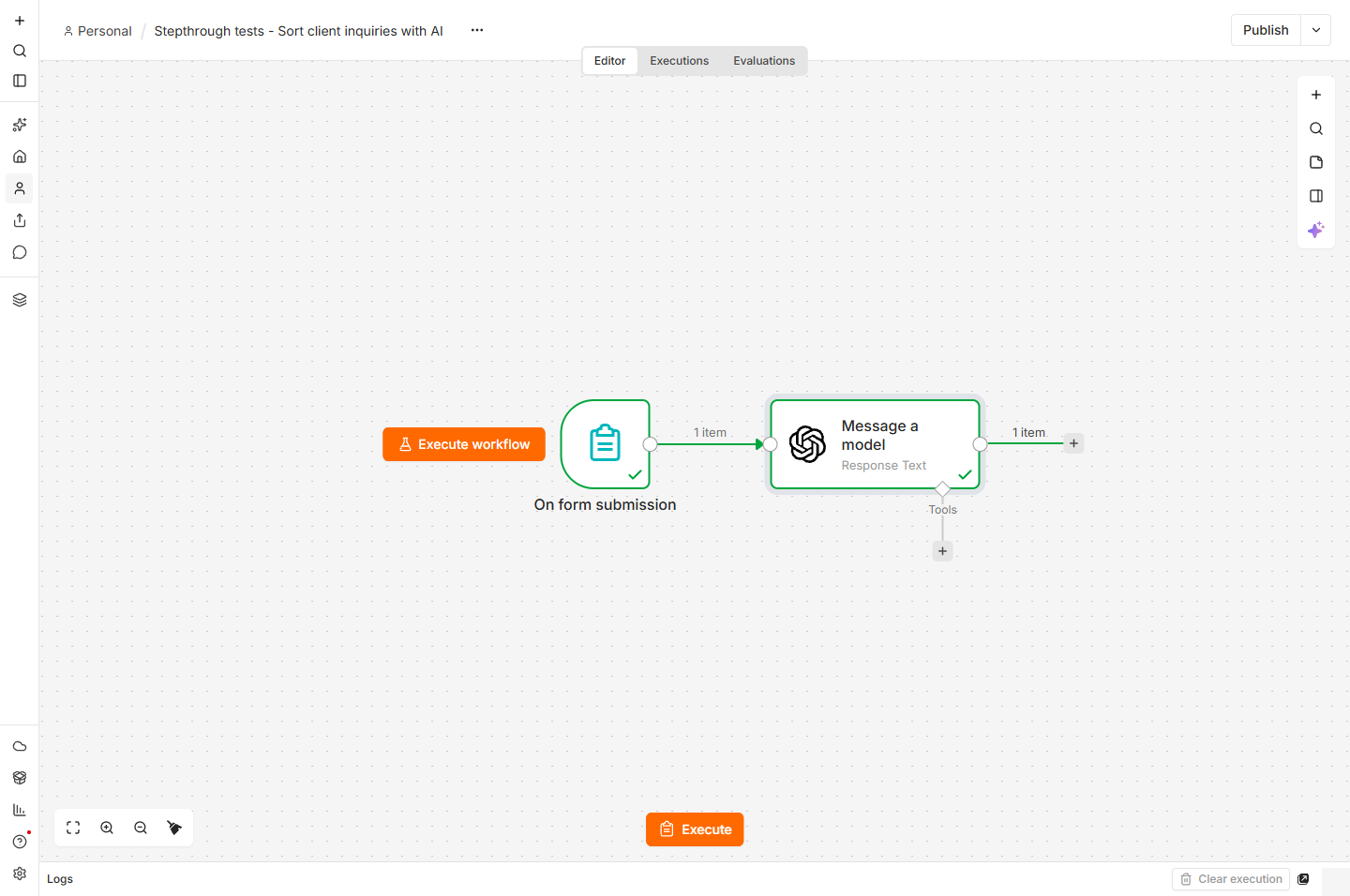
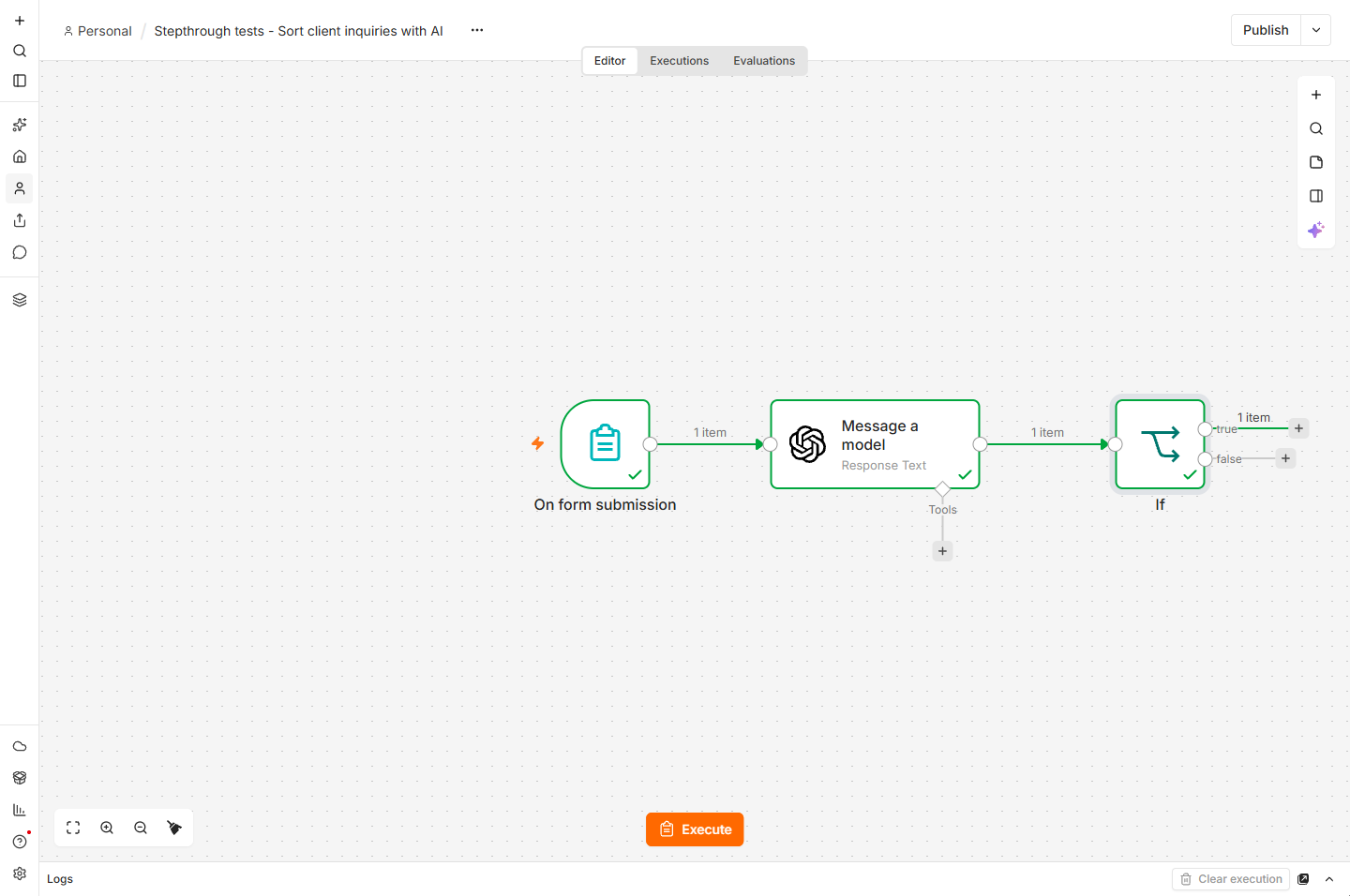
- Your AI workflow. Close the panel. The whole workflow ran: form, then AI, then If, with 1 item on the true branch. Next you would connect the true branch to a Slack or text alert and the false branch to an email reply. Click true.
Form. AI. Rule. One item on the true branch. Urgent ones can now alert you.
5. What it saves
- What this saves. About 3.5 hours a month of reading and first drafts, and no urgent payroll problem waits overnight. The AI drafts; Dana still sends. Click What you have now.
Three and a half hours a month. And no urgent client waits overnight.
- Up next. Next: send the drafted reply by email, or post urgent ones to Slack, with the nodes you already know. Click Up next.
Next, send the reply and alert the team.
Screenshots
Frequently asked questions
- What is AI workflow automation?
- A workflow that runs by itself with an AI step in it. A trigger starts it, the AI step reads or writes (for example, sorting a message and drafting a reply) and rules decide what happens next.
- Do I need an OpenAI API key to try this in n8n?
- Not to start. In October 2026 new n8n Cloud accounts showed a Free credits label on the OpenAI node and a credential called n8n free OpenAI API credits. When those run out, add your own OpenAI key.
- What is the difference between an AI workflow and an AI agent?
- A workflow always follows the same path you drew. An agent decides its own next steps and which tools to use. Start with a workflow: it is easier to test and cheaper to run.
- Is AI workflow automation safe for client messages?
- Keep a person in the loop: let the AI label and draft, and have someone check before anything is sent. Do not send card numbers or passwords through the AI step, and check your provider's data settings.
More in n8n Automation Toolkit
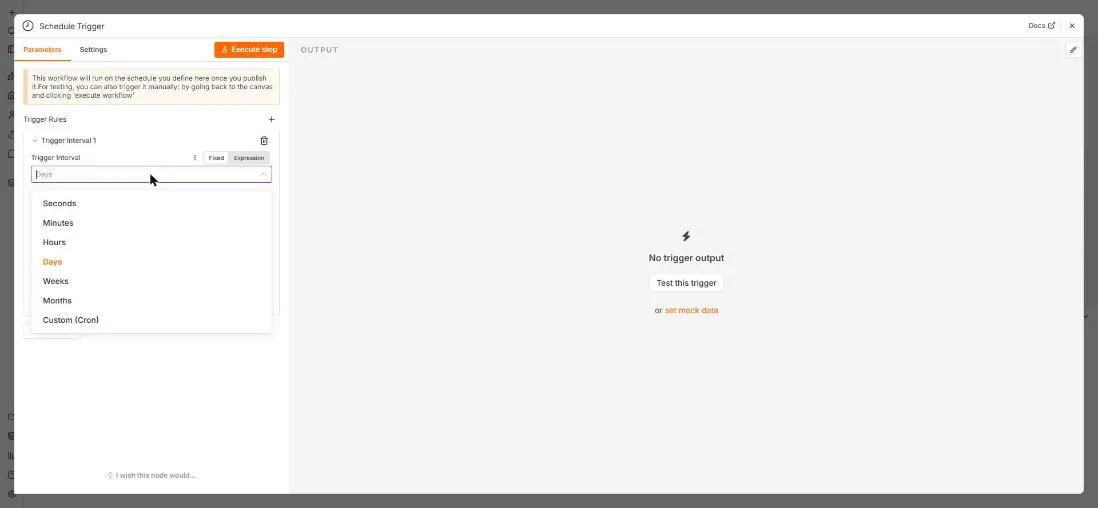 n8n: Run a Workflow on a Schedule (Every Monday at 8am)
Use the n8n Schedule Trigger to run a workflow by itself: every Monday at 8am, a timesheet reminder. Set the interval, test it now, and check the time zone.
Free · Live ~6 min Beginner
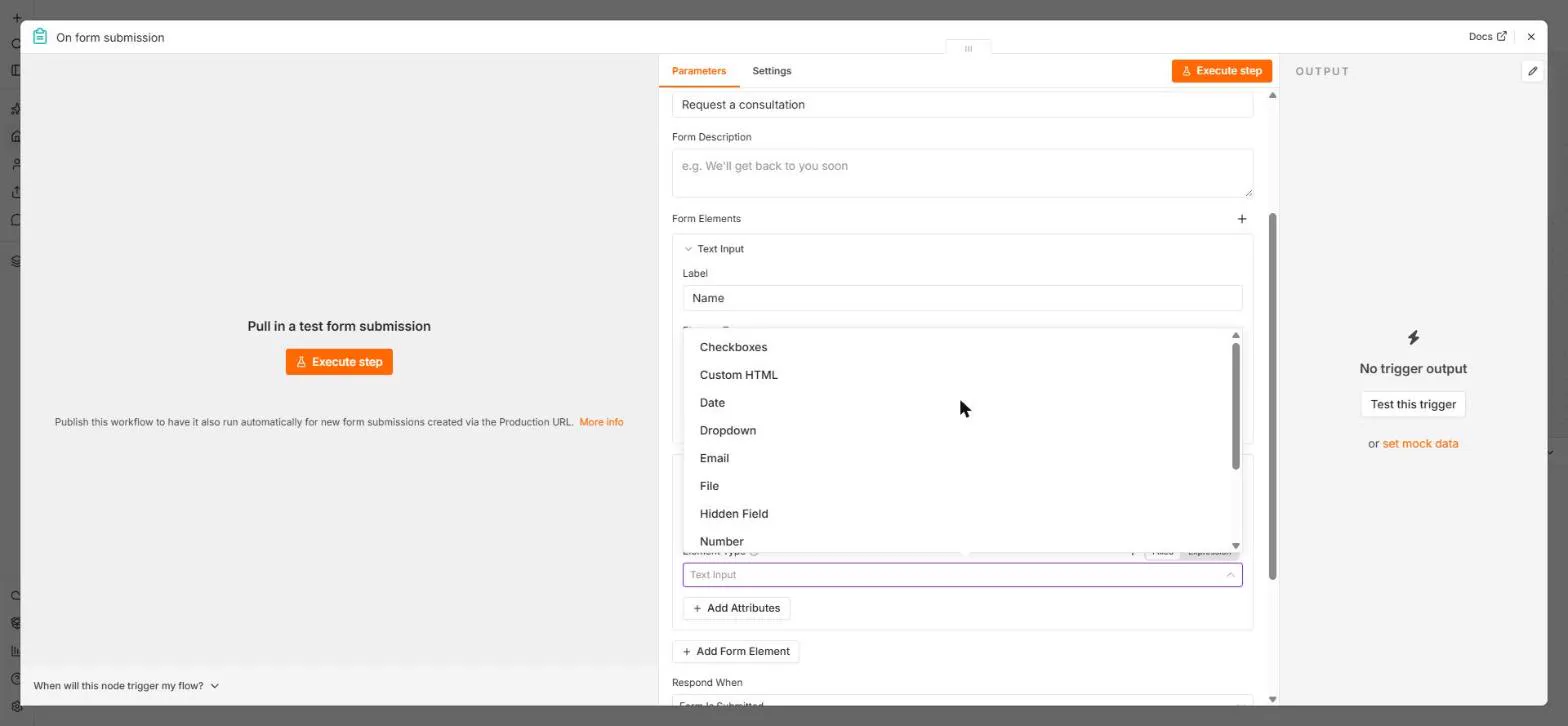 n8n: Send Form Answers Straight to Google Sheets
Build a consultation request form in n8n (required fields, email, dropdown), test it, and add every answer as a new row in Google Sheets. No webhook, no form tool to…
Free · Live ~10 min Beginner
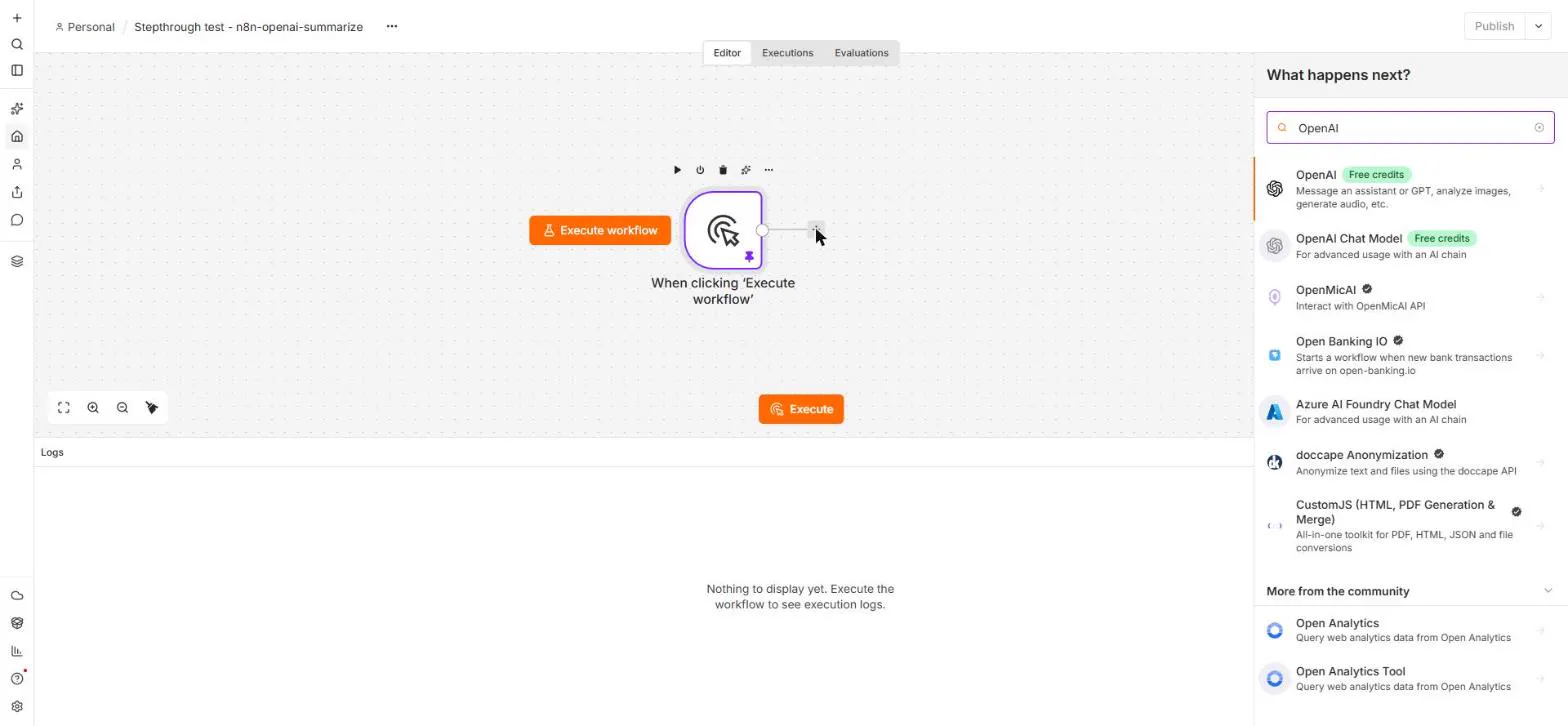 n8n: Summarize Customer Emails with OpenAI
Your first AI step in n8n: send each customer email to OpenAI with one prompt and get a one-line summary plus the next step. No agent needed, about a cent of API use.
Free · Live ~9 min Beginner
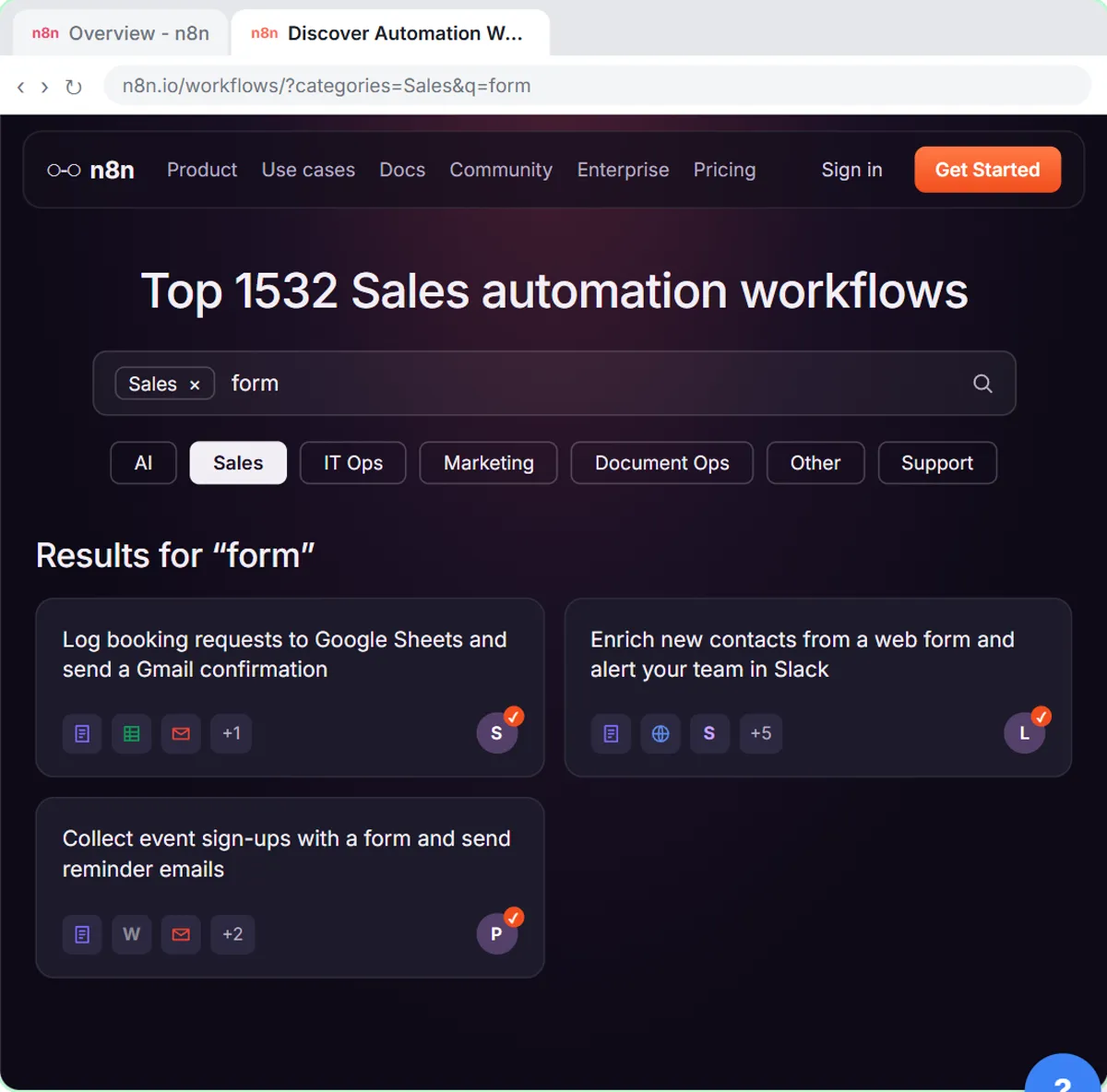 Find and Use n8n Templates
Skip the blank canvas. Find a ready-made workflow in the n8n template gallery, import it into your workspace, connect Google Sheets and Gmail, test it with a real form…
Free · Live ~9 min Beginner
 Litescrape in n8n: Swap SerpApi for a Cheaper Search API
Switch a weekly n8n competitor-price workflow from SerpApi to Litescrape's Google Shopping API: change the HTTP Request URL, move the key into a Bearer Auth credential…
Free · Live ~7 min Advanced
◷n8n: Execute Step, Execute Workflow and PublishLearn the buttons in today's n8n editor: run one node with Execute step, pin test data, run everything with Execute workflow, then Publish and copy the Production URL.
Free · Live ~6 min Beginner
All 24 modules in n8n Automation Toolkit
More n8n tutorials
 n8n AI Agent Tutorial: Save Social Media Ideas to Google Sheets
Build an AI agent for BrightPath Marketing that generates social media post ideas and saves them to Google Sheets — chat trigger, AI Agent, system prompt, model…
Free · Live ~12 min Intermediate
 Lovable + n8n: Build a Web App with an AI Backend
Build a contact form in Lovable and connect it to an n8n workflow — webhook trigger, AI Agent, Google Sheets, Gmail, and a Respond node that ties it all together.
Free · Live ~15 min Advanced
 AI Receipt Extractor: Receipts to Google Sheets with n8n
Drop a photo of a receipt into an n8n chat. An AI agent reads it, pulls out the date, vendor and amount, picks a category, and adds a row to Google Sheets.
Free · Live ~12 min Intermediate
 n8n AI Email Responder: Draft Gmail Replies Automatically
Build an n8n agent that watches your Gmail, reads each new customer email, and writes a reply as a draft in the same thread, ready for you to check and send.
Free · Live ~12 min Intermediate
 Daily Job Alerts: Email Each Tech Their Jobs from Google Sheets with n8n
Every morning at 7, n8n reads a plumbing company's jobs sheet, skips anything not assigned yet, and emails each job to the tech it's assigned to — customer, address…
Free · Live ~10 min Intermediate
 Gmail AI Triage: Auto-Label Every Email and Draft Replies
Build an n8n workflow that reads each new email, sorts it as a lead, a client or an invoice with a Text Classifier, adds the matching Gmail label, and drafts a reply to…
Free · Live ~18 min Advanced
Terms in this lesson
Plain-English definitions, each with an example from a free lesson.