5 Steps to Turn a Receipt Photo into a Google Sheets Row
A visual guide: an n8n AI agent reads a receipt photo, pulls out the date, vendor and total, picks a category and adds a row to Google Sheets.
Slide 1 of 7 
Slide 2 of 7 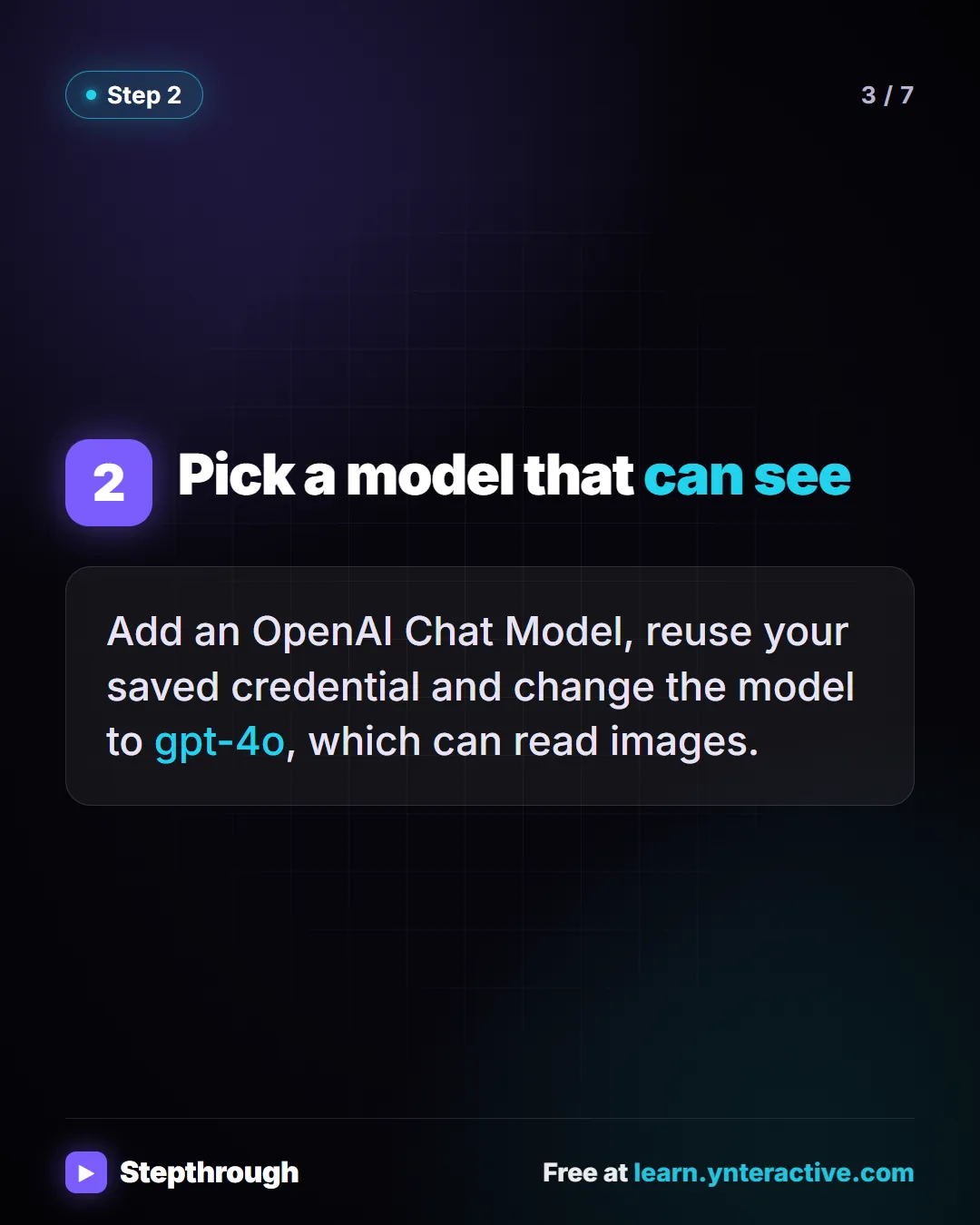
Slide 3 of 7 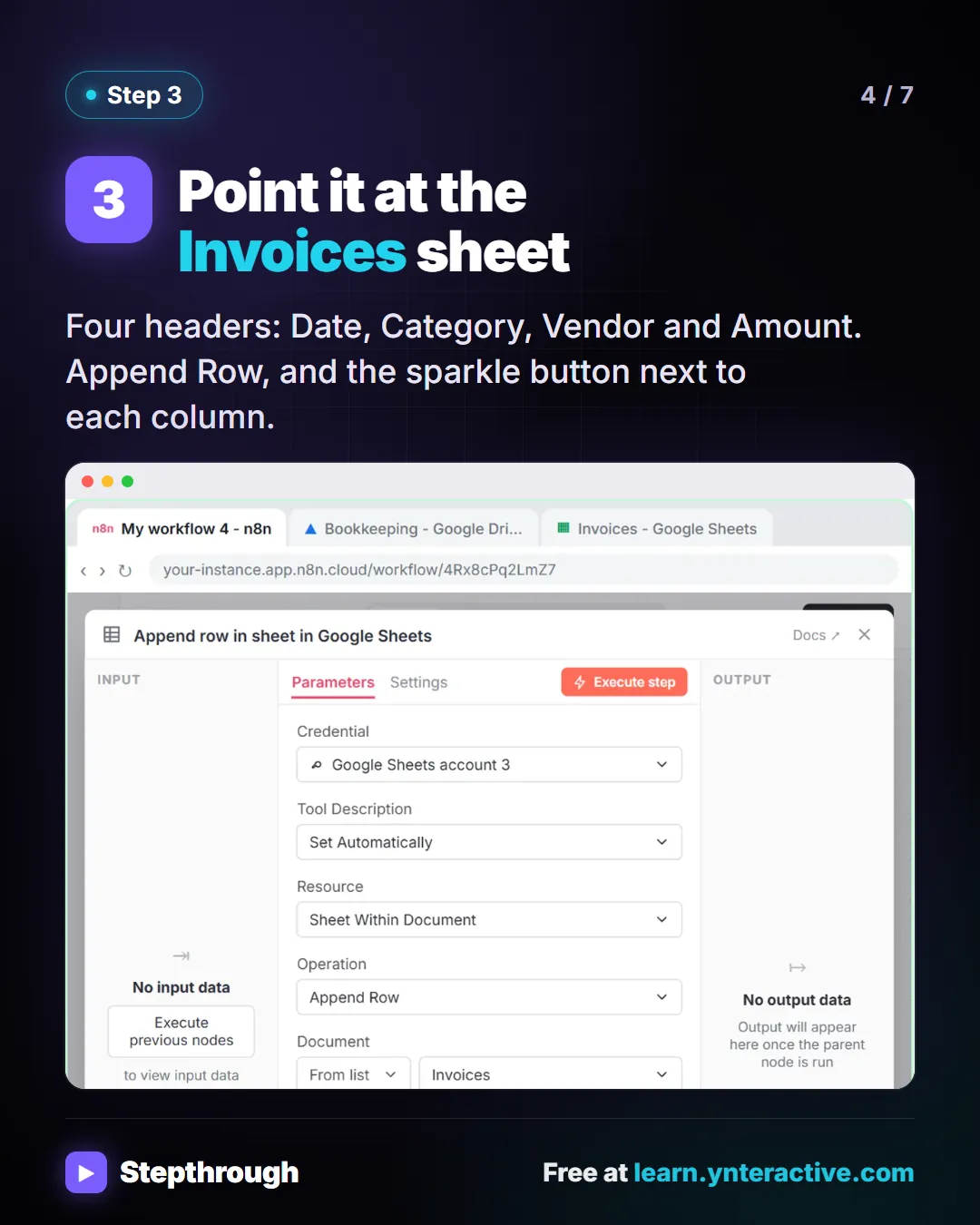
Slide 4 of 7 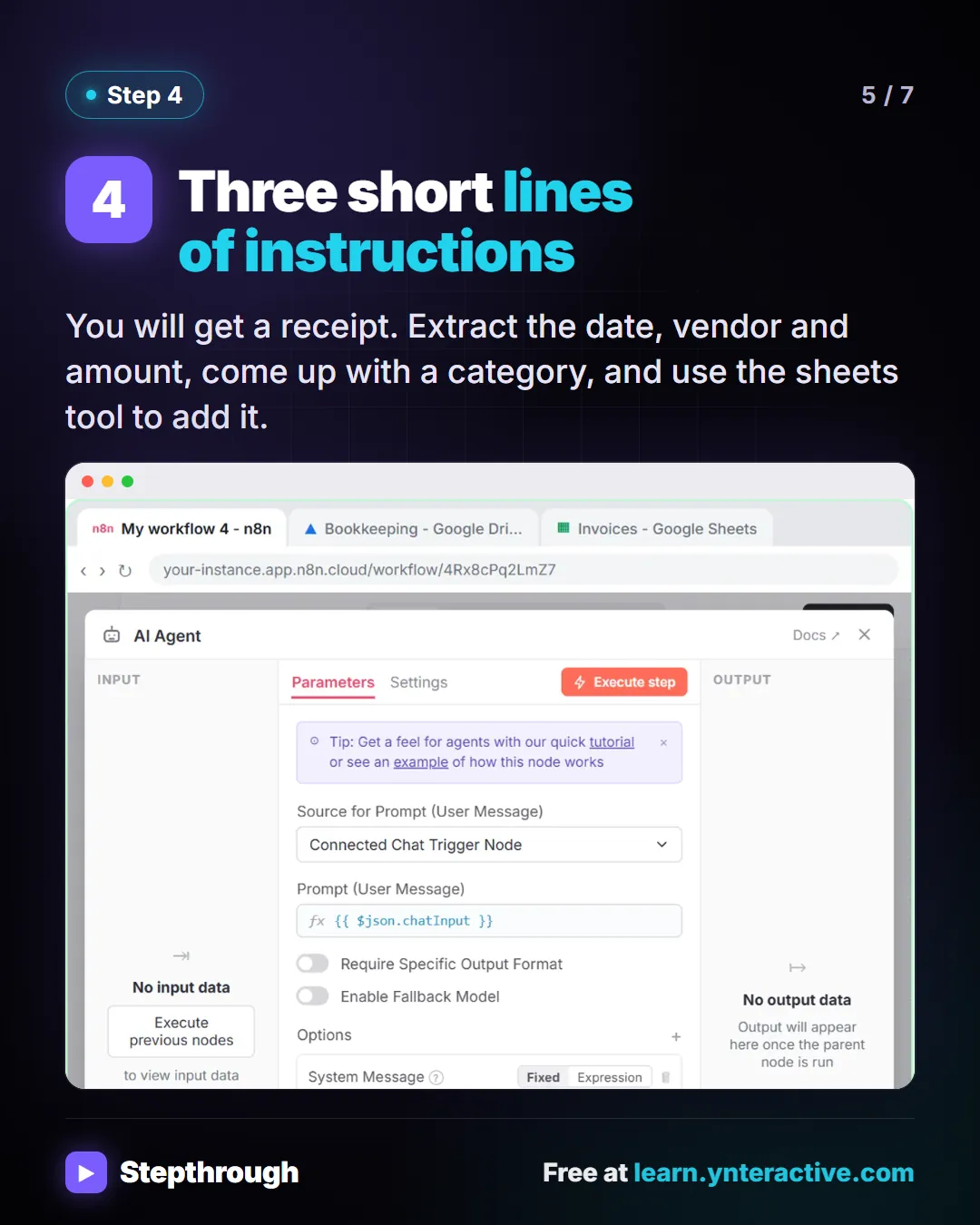
Slide 5 of 7 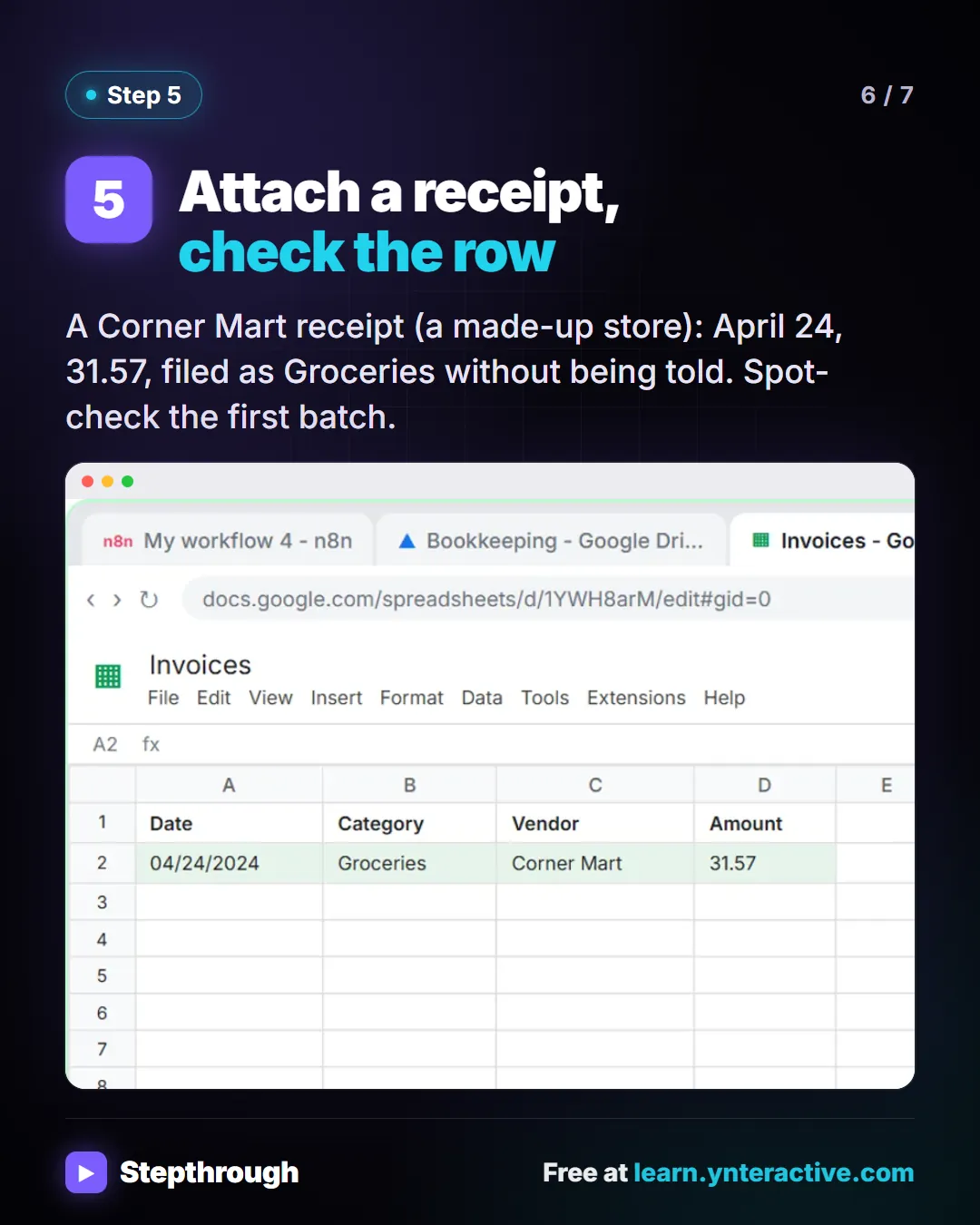
Slide 6 of 7 
Slide 7 of 7
The guide in text
An n8n agent reads the date, vendor and total, picks a category and logs it. 5 steps.
Step by step
Chat trigger and AI Agent
Create a workflow, add
On chat message, then search for agent and add the AI Agent node.Pick a model that can see
Add an OpenAI Chat Model, reuse your saved credential and change the model to gpt-4o, which can read images.
Point it at the Invoices sheet
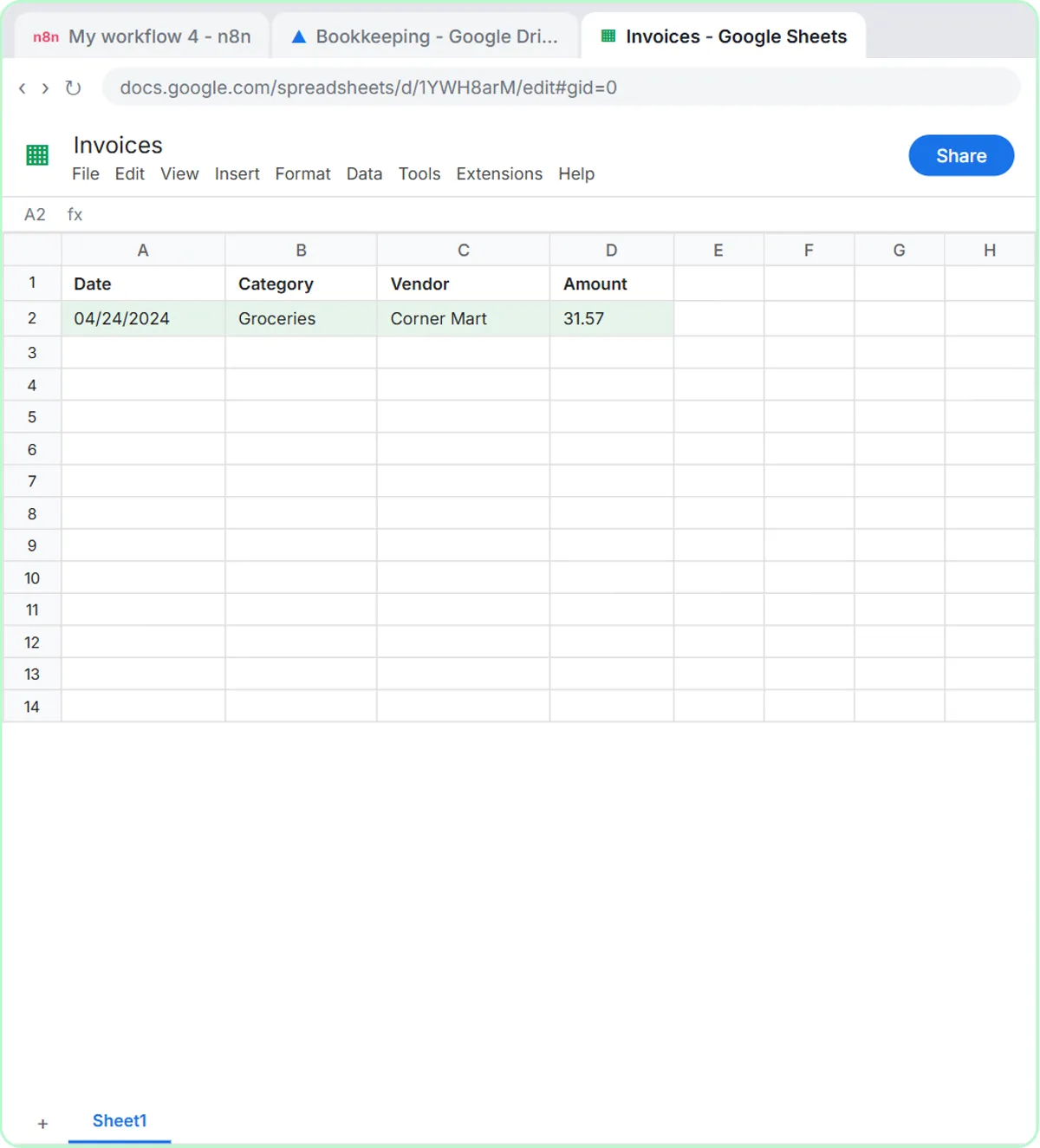
Four headers: Date, Category, Vendor and Amount. Append Row, and the sparkle button next to each column.
Three short lines of instructions
You will get a receipt. Extract the date, vendor and amount, come up with a category, and use the sheets tool to add it.
Attach a receipt, check the row
A Corner Mart receipt (a made-up store): April 24, 31.57, filed as Groceries without being told. Spot-check the first batch.
Businesses and people in the examples are made up (Corner Mart is a made-up business). The steps, screens and wording come from the free lesson and the Stepthrough glossary and prompt library.
Do it yourself, free
AI Receipt Extractor: Receipts to Google Sheets with n8n. Drop a photo of a receipt into an n8n chat. An AI agent reads it, pulls out the date, vendor and amount, picks a category, and adds a row to Google Sheets. You do every step yourself in a practice copy of n8n, it checks your work as you go, and “Do it for me” finishes any step you get stuck on. Free, and nothing touches your real accounts.
Start the free lessonRelated terms
Plain-English definitions, each with an example from a free lesson.
Related prompts
- Receipt details extraction prompt: Pull date, vendor, tax, total and job from receipt photos into a table, with "Unreadable" instead of guesses and a check that…
- Expense categorization prompt: Sort a batch of expenses into your own categories, with a short note each and a Needs Review bucket for anything unclear…
- Expense report summary prompt: Summarize a month of expense or reimbursement rows for the owner: totals by category and status, what's waiting, and flags to…
- Google Sheets columns plan prompt: Plan the Google Sheets columns for an n8n automation: header names, what goes in each, who fills it, and which must match your…
From the blog
 How to Start Using AI in a Small Business: 5 Projects
How to start using AI in a small business: five first projects, from better prompts to an inbox agent, with what each saves and what it costs.
Oct 1, 2026 6 min read
 Learn n8n from Zero: Free Projects in the Right Order
Learn n8n for beginners with six free, hands-on projects in a sensible order, from templates to AI agents to a web form, plus what you need for real.
Oct 1, 2026 7 min read
 Get Receipts into Google Sheets with AI and n8n
Receipts to Google Sheets without typing: build an n8n agent that reads a receipt photo, picks a category and adds a row. Plus an expense categorizer.
Oct 1, 2026 6 min read
More visual guides
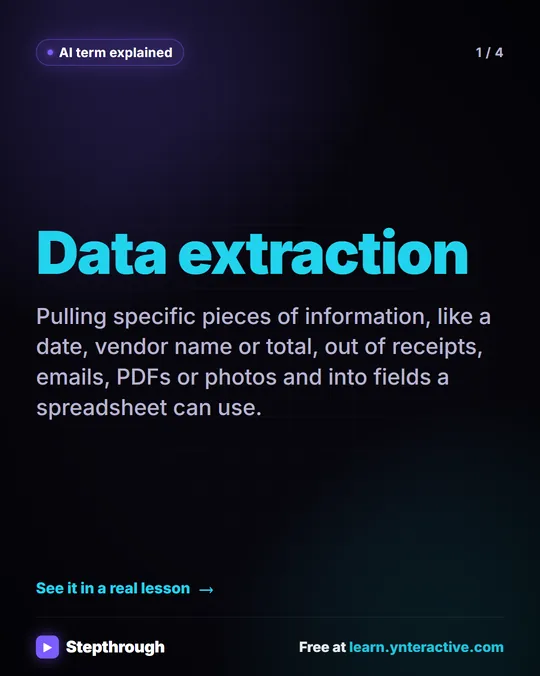 What Is AI Data Extraction? A Visual Guide
A visual guide to AI data extraction: pulling the date, vendor and total out of a receipt photo and into Google Sheets, from a real n8n lesson.
AI term explained 4 slides
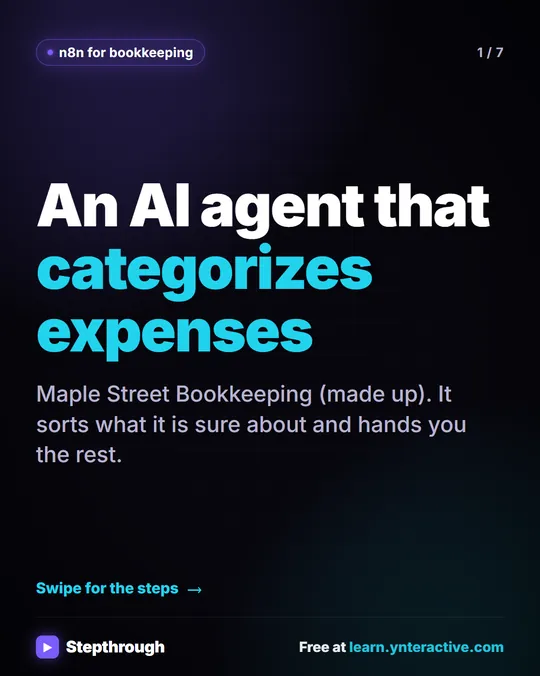 5 Steps to an AI Agent That Categorizes Business Expenses
A visual guide: an n8n agent sorts expenses into a fixed list of categories, flags unclear ones as Needs Review and saves them to Google Sheets.
Step-by-step guide 7 slides
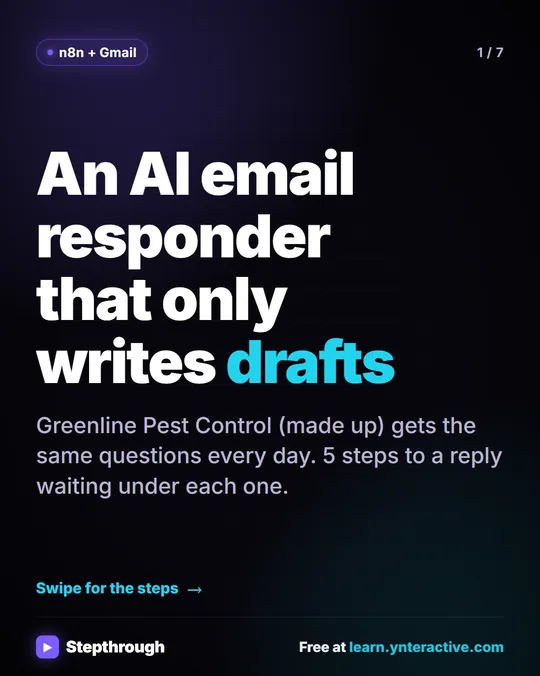 5 Steps to an AI Email Responder That Only Writes Drafts
A visual guide: an n8n agent reads each new Gmail message and saves a reply as a draft in the same thread. You read it and click Send.
Step-by-step guide 7 slides