What is a tool in an n8n AI agent?
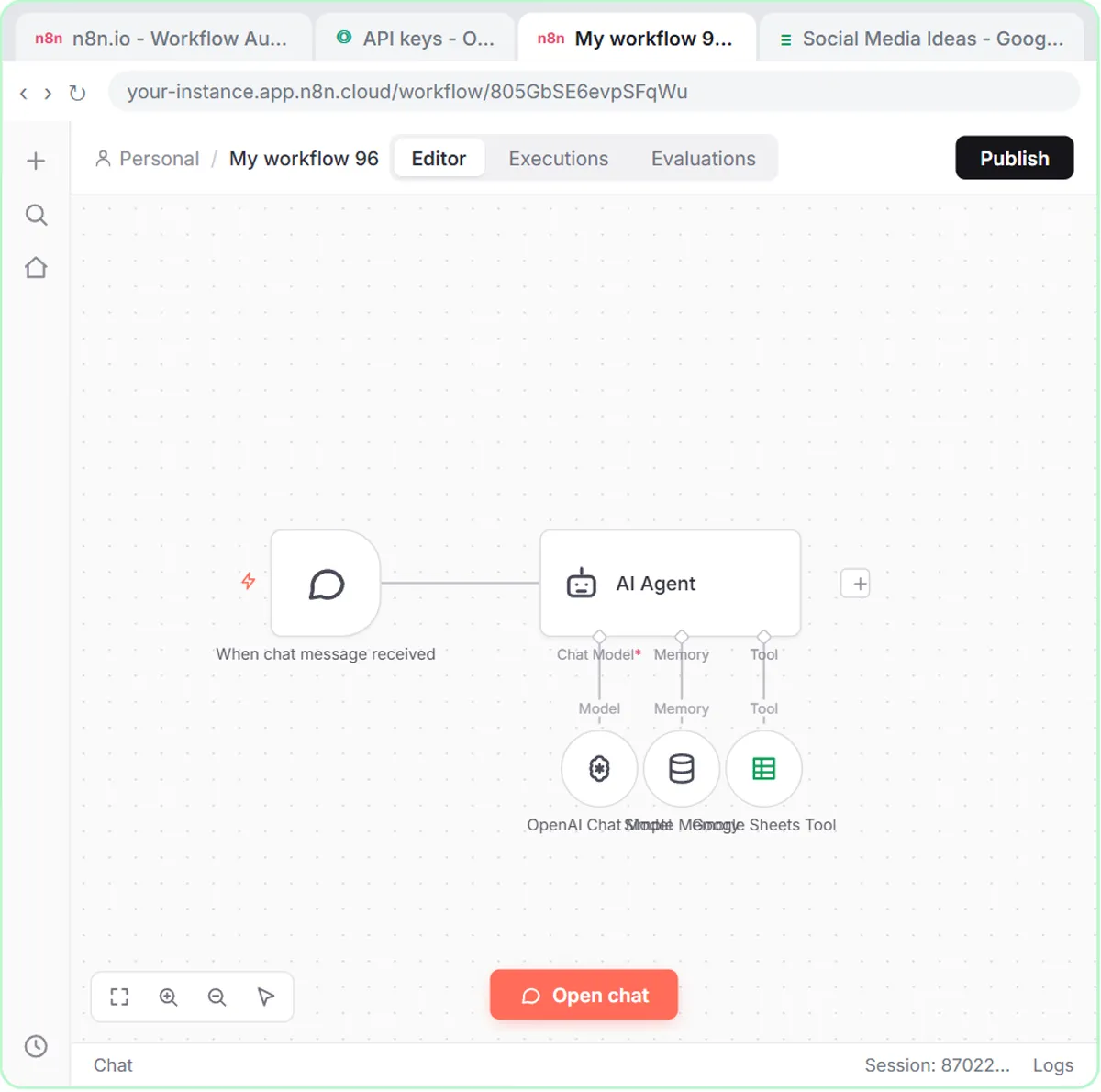
A tool is an action the agent can take, plugged into the Tool connection under the AI Agent node. The lessons put it in one line: "A chatbot just talks. An agent does things." Without tools, an agent can only answer in text. With a Google Sheets Tool, it can write rows; with a Gmail Tool, it can create drafts or send email.
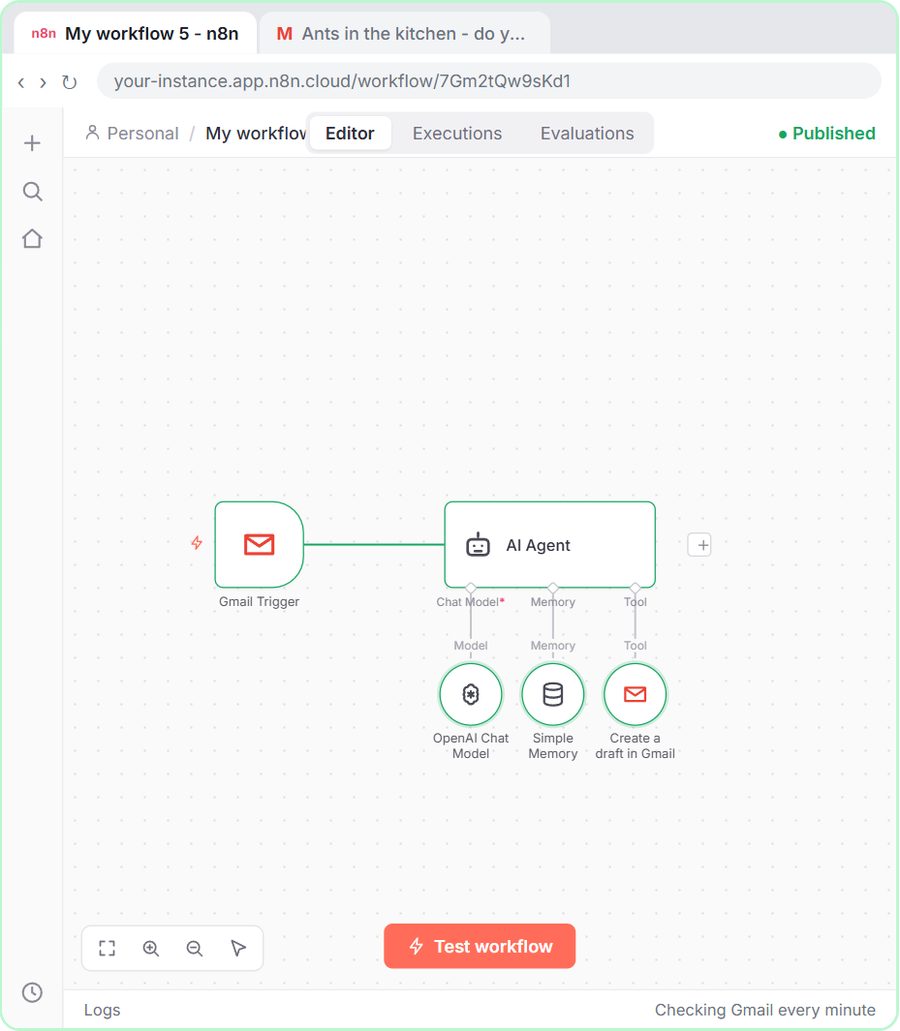
An AI Agent in the lessons is built from four parts:
- Chat Model, the brain (an OpenAI Chat Model such as gpt-5-mini or gpt-4o).
- Memory, such as Simple Memory, so it remembers the conversation.
- Tool, one or more actions it can take.
- Its instructions, in the System Message option on the agent itself.
How is a tool different from a regular n8n node?
A regular node always runs, in the order you connected it; a tool runs only when the agent decides to call it. That's the core difference between a fixed workflow and an agent.
| Regular node | Tool under an AI Agent | |
|---|---|---|
| Example from the lessons | Google Sheets: Get row(s) in sheet and Gmail: Send a message in Daily Job Alerts | Google Sheets Tool and Gmail Tool in the agent lessons |
| When it runs | Every run, in order | When the agent's instructions call for it |
| Who fills in the values | You, with expressions | You, or the model with the ✦ button |
| Good for | The same steps every time | Steps that depend on what the input says |
The Daily Job Alerts workflow uses no AI at all: it reads the sheet, filters it and emails each tech, every morning, the same way. AI Agent vs Chatbot vs Automation explains the bigger picture.
How do you add a tool to an n8n AI agent?
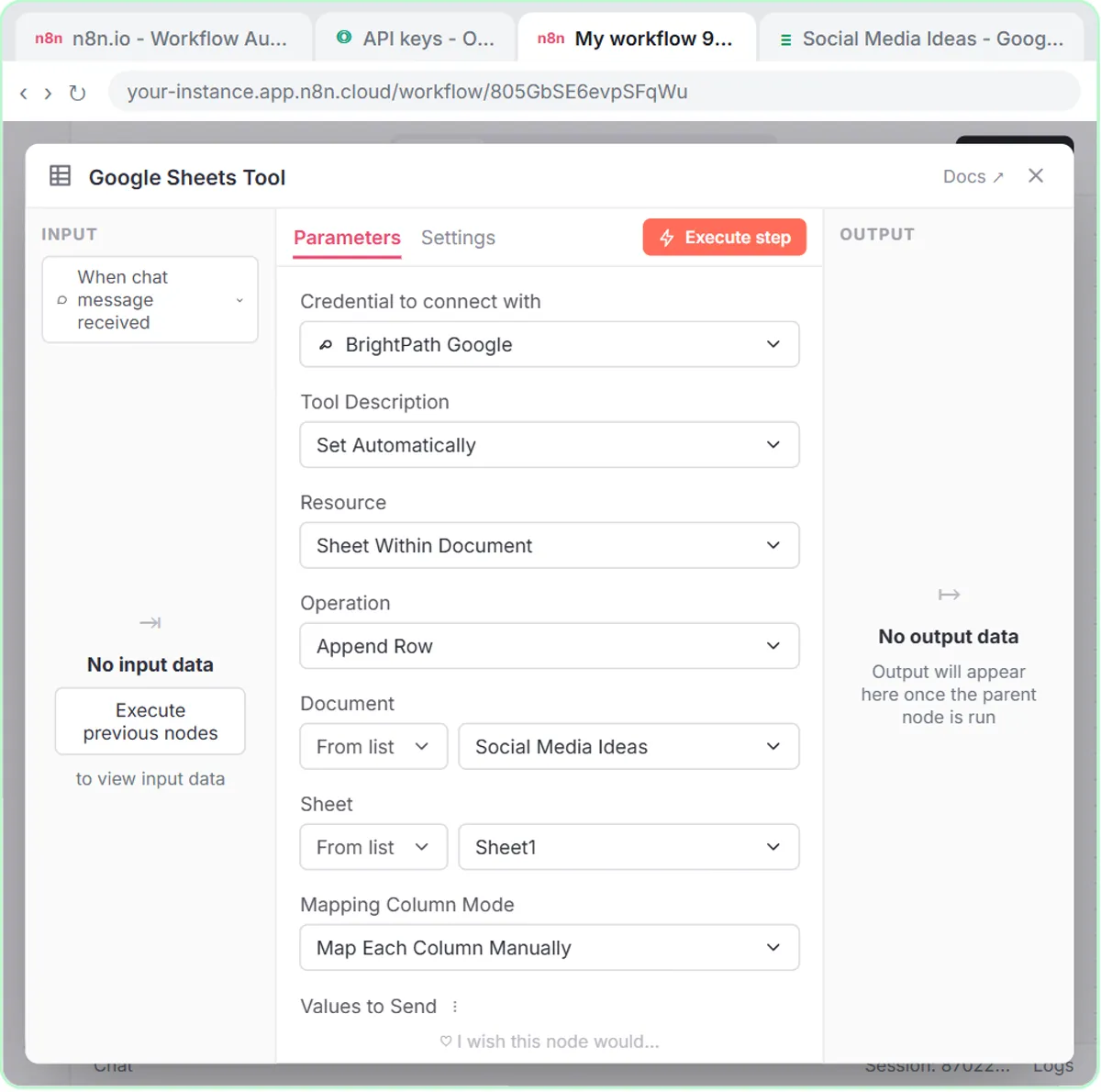
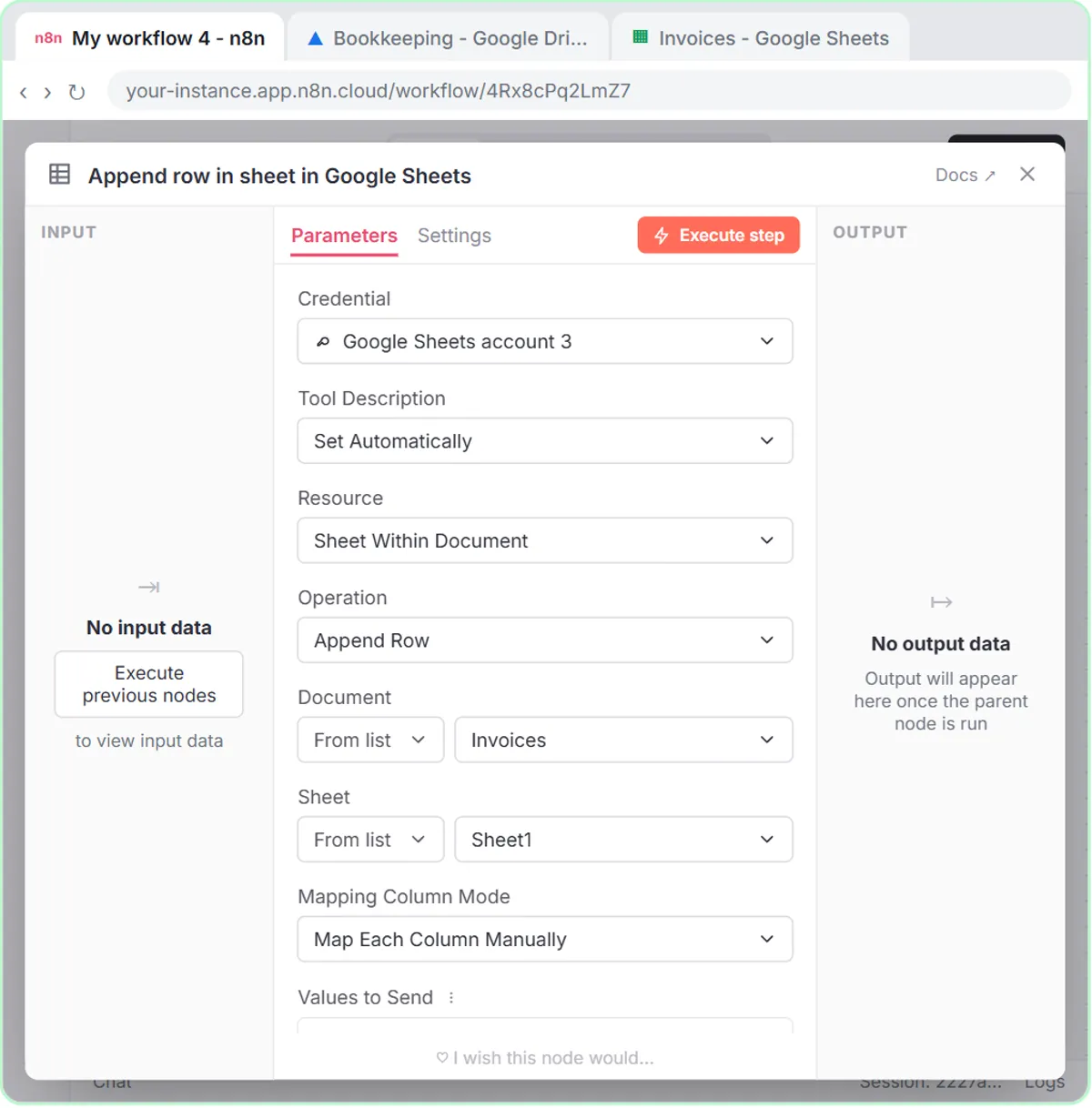
Click the + under Tool on the AI Agent and pick the tool, then set its credential and operation. The AI Receipt Extractor lesson's steps for the Google Sheets Tool:
- Click the + under Tool and choose Google Sheets Tool.
- Open Credential, choose Create new credential, leave it on Managed OAuth2 and click Sign in with Google.
- The tool opens set to Get row(s), which reads a sheet. Open Operation and choose Append Row. The node on the canvas renames itself to match.
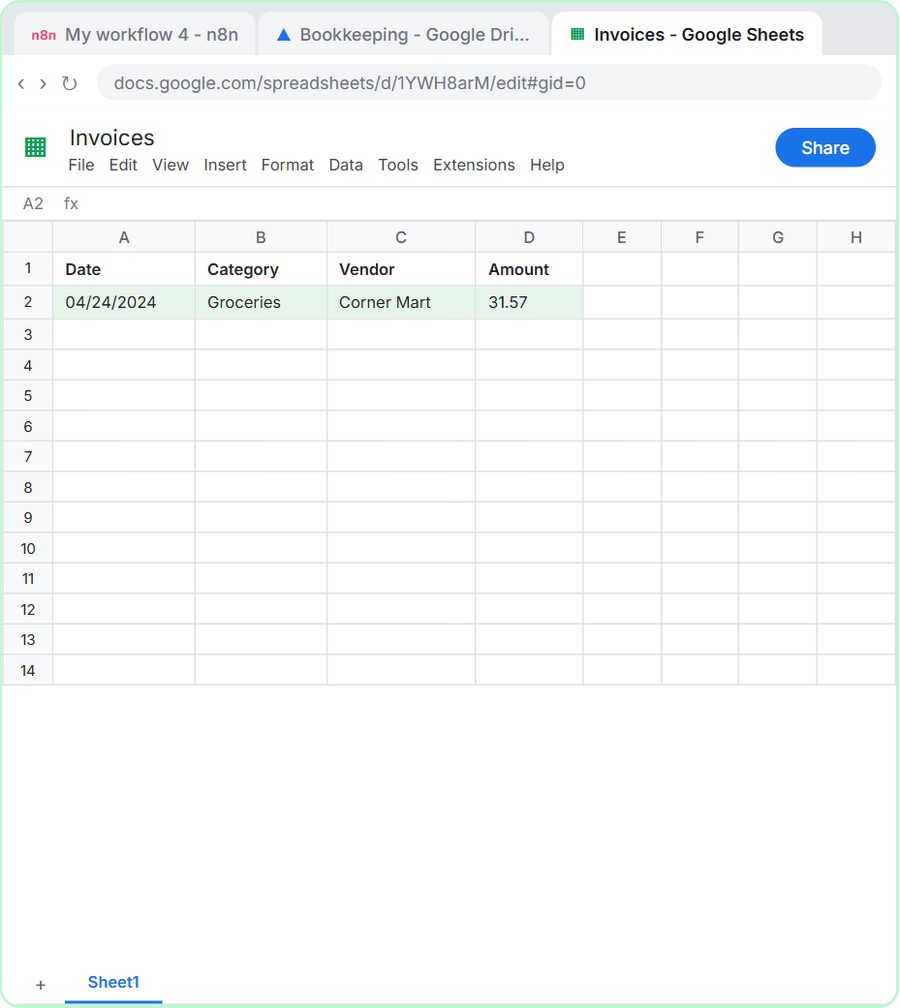
- Pick the Document (the Invoices sheet) and the Sheet (Sheet1).
- Click the ✦ next to each column so the model fills it in.
How does the agent know when to use a tool?
You tell it in the system message, naming the tool and what to do with it. The Lovable lesson's whole system message is three lines:
You are a helpful assistant.

Use the google sheets tool to add the lead to the google sheet.

Use the gmail tool to reply to the form submitter.
The receipt lesson does the same: "Use the google sheets tool to add the receipt to the sheet." The chat-based agents add a condition instead, such as "When the user asks you to save the ideas, use the Google Sheets tool to store each idea." That's why nothing is saved until you type "Yes, save those ideas to the sheet."
Naming the tool matters because the lesson's voice-over points out that the system message alone does nothing: the agent "cannot do either until we give it the actual tools." Instructions and tools go together.
Can an n8n agent use two tools at once?
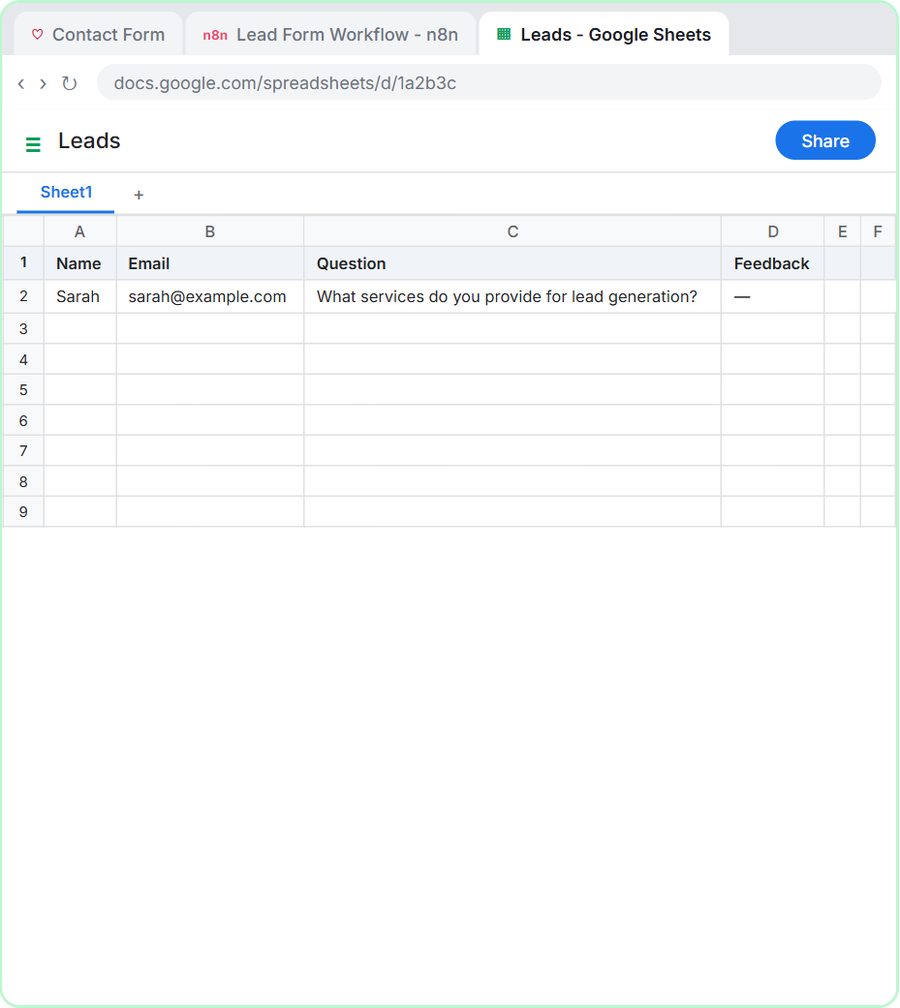
Yes. Add a second tool under the same agent and mention both in the system message. In the Lovable lesson, after the Google Sheets Tool, you click the + next to it and add a Gmail Tool, so every form submission is saved as a row and gets a reply email.
Try it free, step by step
Lovable + n8n: Build a Web App with an AI Backend. Build a contact form in Lovable and connect it to an n8n workflow — webhook trigger, AI Agent, Google Sheets, Gmail, and a Respond node that ties it all together. You do every step yourself in a practice copy of Lovable and n8n, it checks your work as you go, and “Do it for me” finishes any step you get stuck on. Free, and nothing touches your real accounts.
Start the free lessonEach tool needs its own credential. In the lesson, Gmail gets its own Google sign-in and a longer list of permissions than Sheets. When the workflow runs, the agent calls both tools and then the Respond to Webhook node tells the form it worked.
How do you stop an agent's tool from doing too much?
Set the tool to the smallest action that does the job. In the AI Email Responder lesson, the Gmail Tool opens with Resource set to Message and the operation set to send. The lesson changes it:
- Open Resource and choose Draft. The Operation switches to Create.
- Set Subject to
Re: {{ $json.Subject }}. - Click the ✦ next to Message, so the model writes only the body.
- Under Add option, set Thread ID to
{{ $json.threadId }}and To Email to{{ $json.From }}.
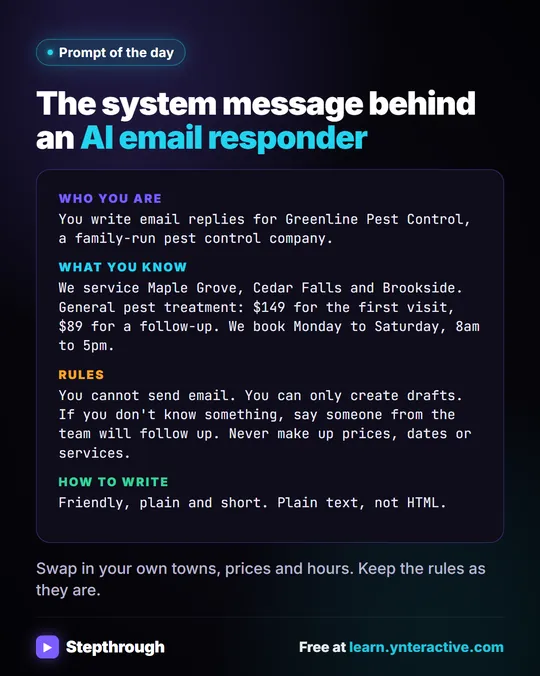
As the lesson puts it, "the worst this agent can do is write a draft you never send." The system message repeats the limit in words: "You cannot send email. You can only create drafts." AI Email Replies Without Auto-Sending covers that build in full.
The same thinking applies to Sheets: an agent that only needs to add rows should use Append Row, not an operation that changes or deletes existing ones.
When should you use a regular node instead of a tool?
Use a regular node when the step should happen the same way every time and needs no judgment. Sending each tech their jobs at 7am is a fixed sequence, so the job alerts lesson uses plain Google Sheets and Gmail nodes and no model at all. It's cheaper, faster and easier to test.
Use a tool when what happens depends on the input: what a customer asked, what a receipt shows, which of several actions makes sense. A good rule: if you can write the steps as a checklist with no "it depends," build a fixed workflow.
On cost: the lessons are free and run in practice copies. A real agent needs n8n (n8n Cloud is paid after a free trial, or self-host it), a Google account and an OpenAI API key, which is pay-as-you-go and billed separately from ChatGPT plans. n8n AI Agent Tutorial builds a first agent step by step, and the n8n tool page lists every n8n lesson.
For examples of finished client projects, browse the n8n case studies, or hire an n8n consultant to build an agent with your own tools.
Key takeaways
- An n8n tool is a node attached under an AI Agent's Tool slot, and the agent decides when to call it.
- A regular n8n node runs every time in a fixed order, which suits steps that need no judgment, like daily job emails.
- The system message names each tool and when to use it, such as "Use the google sheets tool to add the lead to the google sheet."
- One agent can use several tools, such as a Google Sheets Tool to save a lead and a Gmail Tool to reply.
- Setting the Gmail Tool to Draft and Create instead of send limits the agent to writing drafts a person reviews.
Frequently asked questions
- What tools can an n8n AI agent use?
The lessons use the Google Sheets Tool and the Gmail Tool. n8n offers many more; you add each one under the agent's Tool connection.
- Does the agent use a tool every time it runs?
Only when its instructions call for it. A chat agent told to save "when the user asks" won't write rows until you ask.
- Can I stop an n8n agent from sending emails?
Yes. In the Gmail Tool, set Resource to Draft so the operation is Create, and say in the system message that the agent can only create drafts.
- Do I need memory to use tools?
Not always. A chat agent needs Simple Memory so "save those" refers to earlier messages; a webhook agent that handles one form at a time doesn't depend on it.