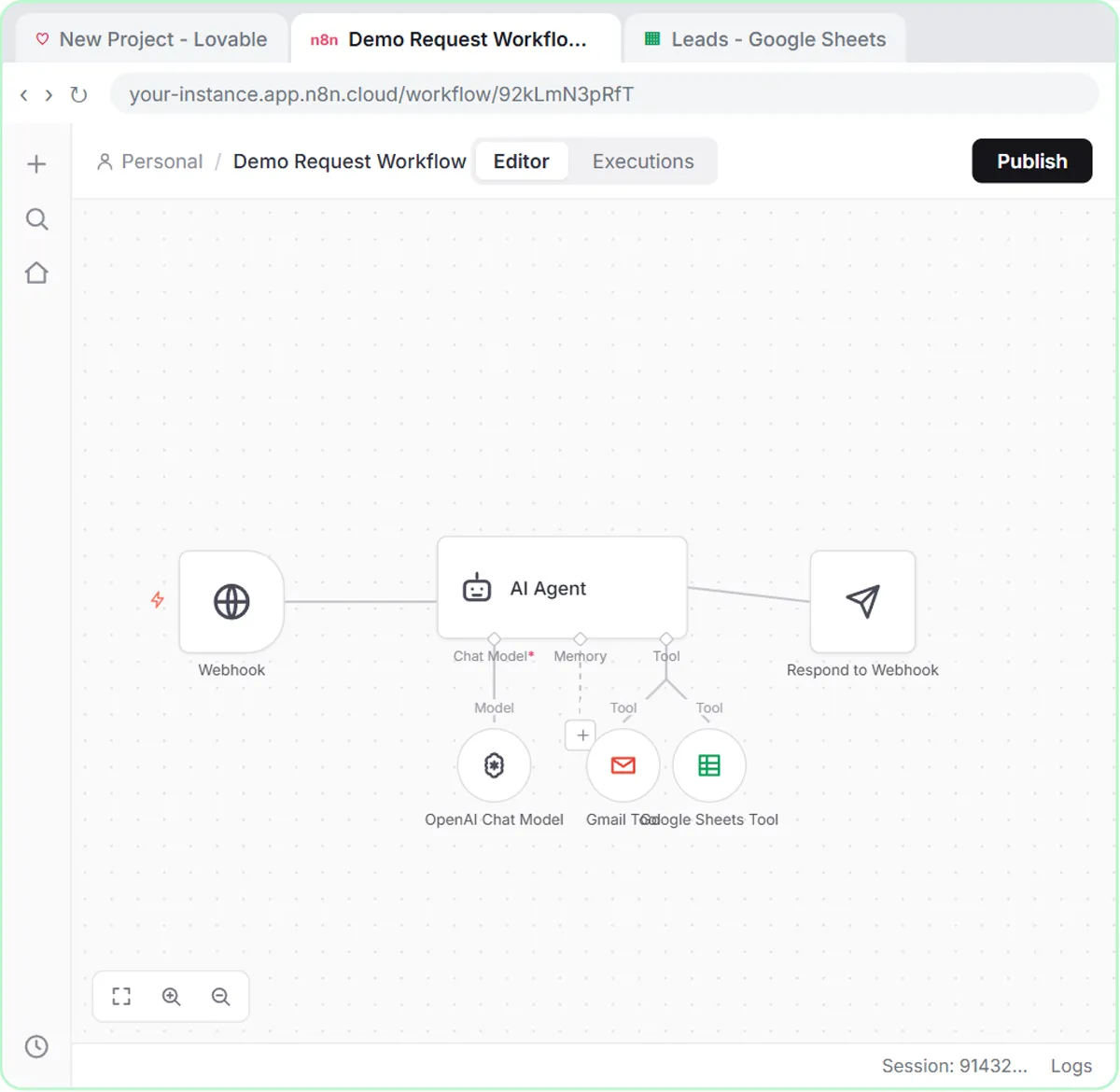
To build your first AI agent in n8n, you connect five nodes: an On chat message trigger, an AI Agent with a System Message, an OpenAI Chat Model, Simple Memory and a Google Sheets Tool. This tutorial is for beginners with no coding background, and it follows the free AI Social Media Idea Agent lesson (69 steps, about 12 minutes), where the agent writes social media ideas and saves them to a Google Sheet.
Most people use AI in a chat window and copy the answer somewhere by hand. An n8n AI agent skips the copying and puts the result where it belongs.
What does the n8n AI agent in this tutorial do?
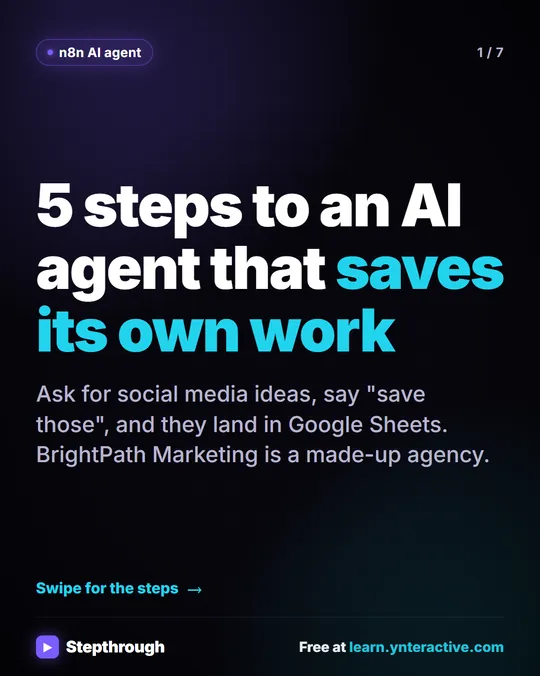
The agent writes social media post ideas for BrightPath Marketing, a made-up digital marketing agency, and saves each idea as a row in a Google Sheet when you ask it to. Every n8n agent you build later uses the same five parts:
| Part | Node in n8n | What it does |
|---|---|---|
| Trigger | On chat message | Lets you talk to the agent |
| Brain and rules | AI Agent + System Message | Plans the work and follows your standing instructions |
| Model | OpenAI Chat Model (gpt-5-mini) | Does the thinking and writing |
| Memory | Simple Memory | Remembers the conversation |
| Tool | Google Sheets Tool | Lets the agent act, here by adding rows |
If you're not sure you need an agent at all, AI Agent vs Chatbot vs Automation explains the difference.
What do you need before you build an n8n AI agent?
You need an n8n account and an OpenAI API key with credit. The OpenAI API is pay-as-you-go and billed separately from any ChatGPT plan, so you add credit at platform.openai.com first (the lesson suggests $10), then create a secret key named "n8n agent" and copy it right away, because OpenAI only shows a key once. OpenAI API vs ChatGPT Plus covers the billing and key safety in detail.
n8n Cloud has a free trial and then paid plans, or you can self-host n8n. The Stepthrough lesson runs in a practice copy, so you can learn the whole build before you sign up for anything.
How do you add the chat trigger and the AI Agent?
Start with an On chat message trigger, then connect an AI Agent node to it. The steps in n8n:
- Click Create workflow, then Add first step...
- Pick On chat message near the bottom of the list and close the node with the ×.
- Click the + on the right edge of the trigger and choose AI Agent.
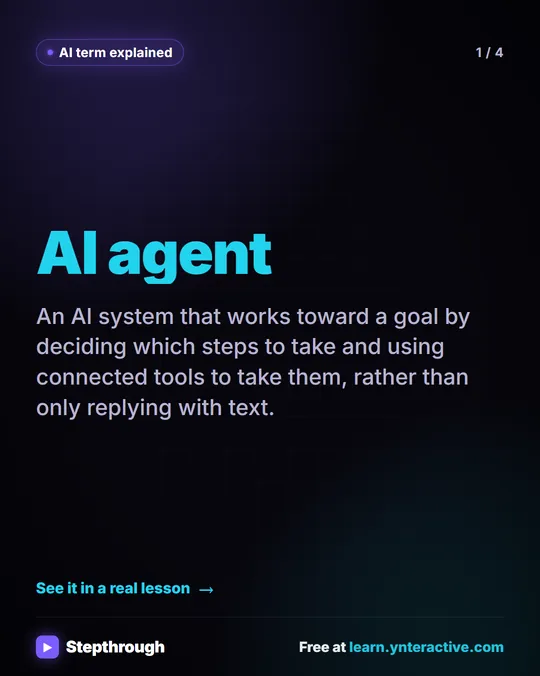
The AI Agent node makes a plan and carries it out with whatever tools you give it.
What goes in the System Message?
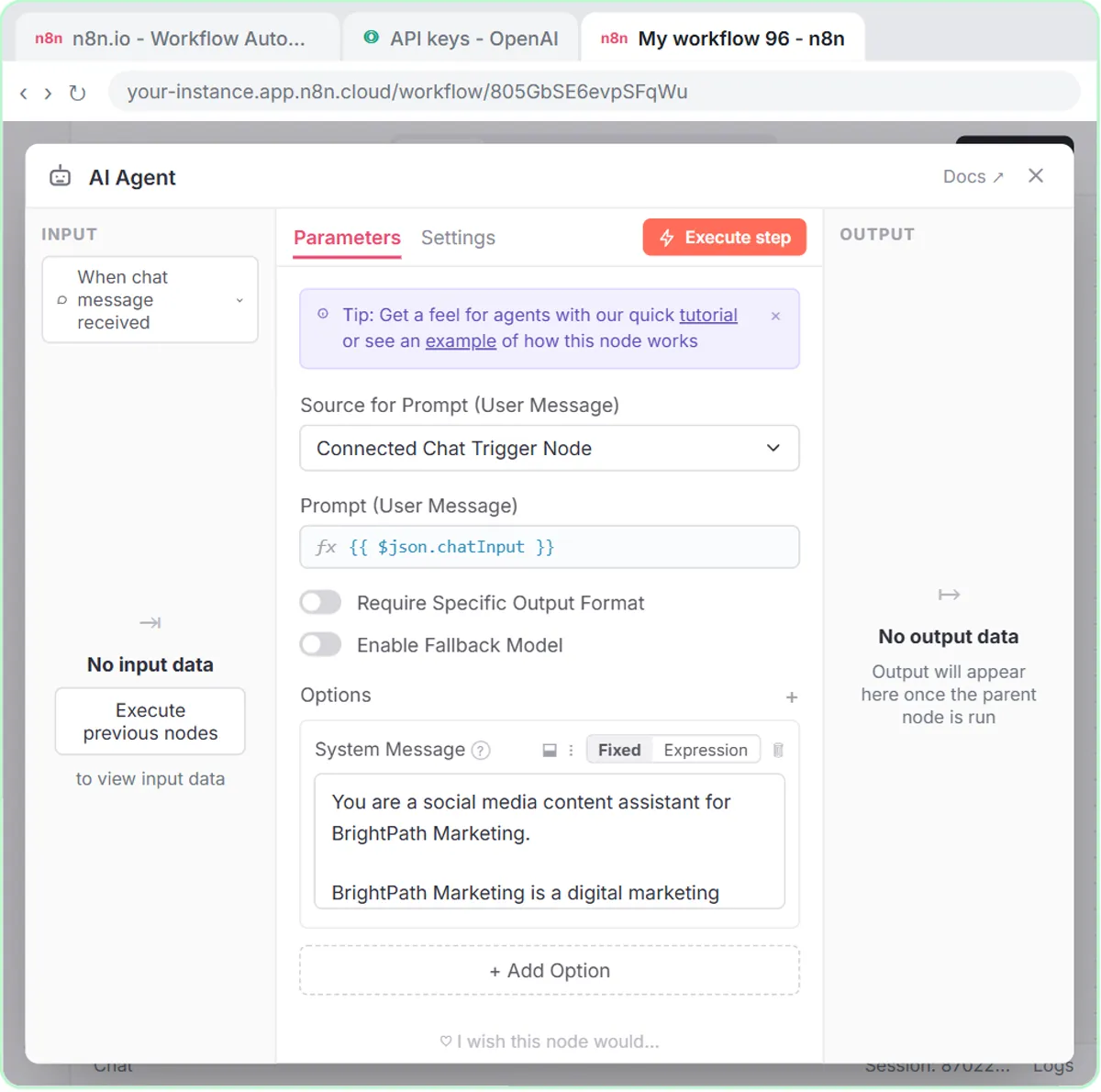
The System Message is the standing instruction the AI Agent reads before every request: who it works for, how it should sound, what format to return and which rules to follow. Add it under Options with + Add Option, then System Message. The lesson's BrightPath System Message:
- Describes the business: SEO, paid ads, social media and website design for small and midsize businesses.
- Sets the audience and voice: business owners and marketing managers; helpful, practical, professional and approachable.
- Fixes the output format: Platform, Post Topic, Hook, Short Description and Suggested Call to Action for each idea.
- Sets the rules: use the Google Sheets tool when the user asks to save the ideas, and don't invent statistics or make unsupported claims.
How do you connect the OpenAI Chat Model and memory?
Click the + under Chat Model, pick OpenAI Chat Model, save your API key as a credential and choose gpt-5-mini; then click the + under Memory and pick Simple Memory. In detail:
- Open Credential to connect with, click + Create new credential, paste the key and click Save. n8n tests the connection and keeps the credential for every future workflow.
- Open the Model dropdown and pick gpt-5-mini, which is fast, cheap and plenty for writing post ideas.
- Add Simple Memory, which keeps the recent conversation inside n8n with no database and no extra credentials.
Without Simple Memory, the agent wouldn't know which ideas "save those ideas" refers to. If memory later shows an error on a trigger that isn't a chat, Fix "No session ID found" in n8n Simple Memory explains the fix.
How do you set up the Google Sheets Tool?
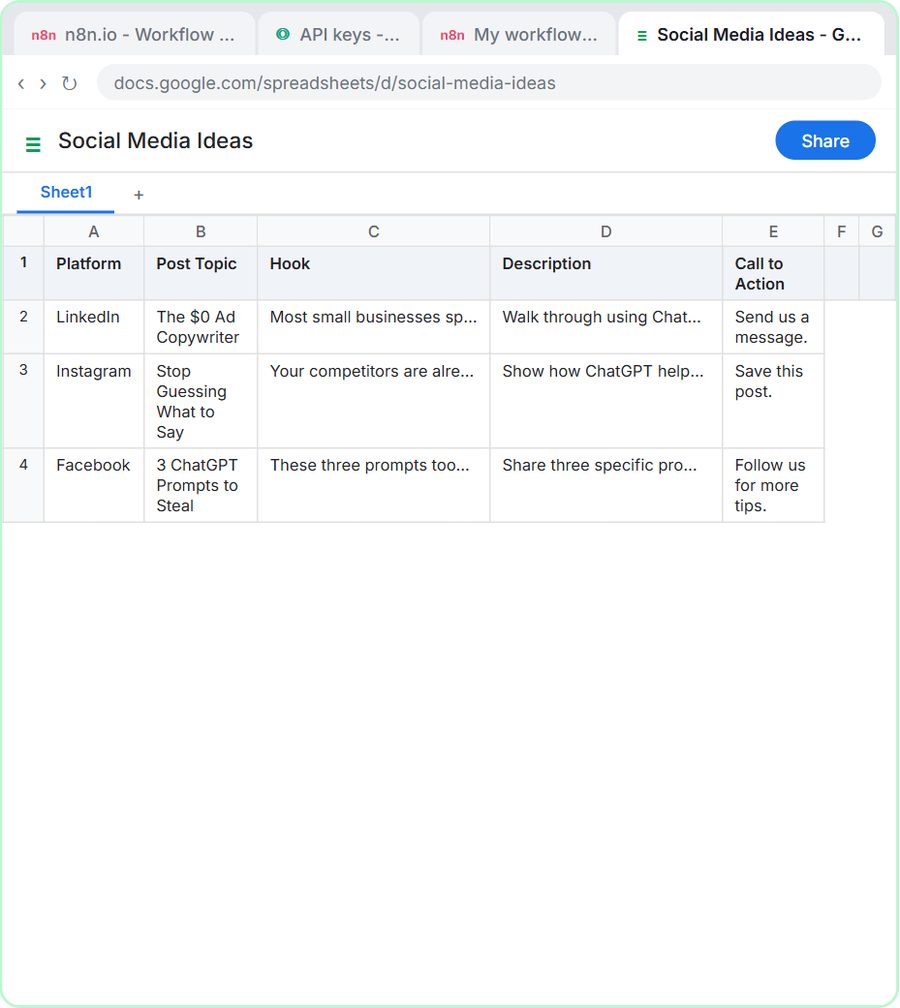
Create a sheet whose column headers match the System Message, then set the Google Sheets Tool to Append Row and let the model fill every column. First, in Google Sheets, create a spreadsheet called Social Media Ideas with five headers: Platform, Post Topic, Hook, Description and Call to Action. Then, in n8n:
- Click the + under Tool and pick Google Sheets Tool.
- Open Credential, click + Create new credential and Sign in with Google. Approve the three permissions and click Continue.
- Set Operation to Append Row.
- Pick Social Media Ideas as the Document and Sheet1 as the Sheet.
- Under Values to Send, click the sparkle button (✦) next to each of the five columns.
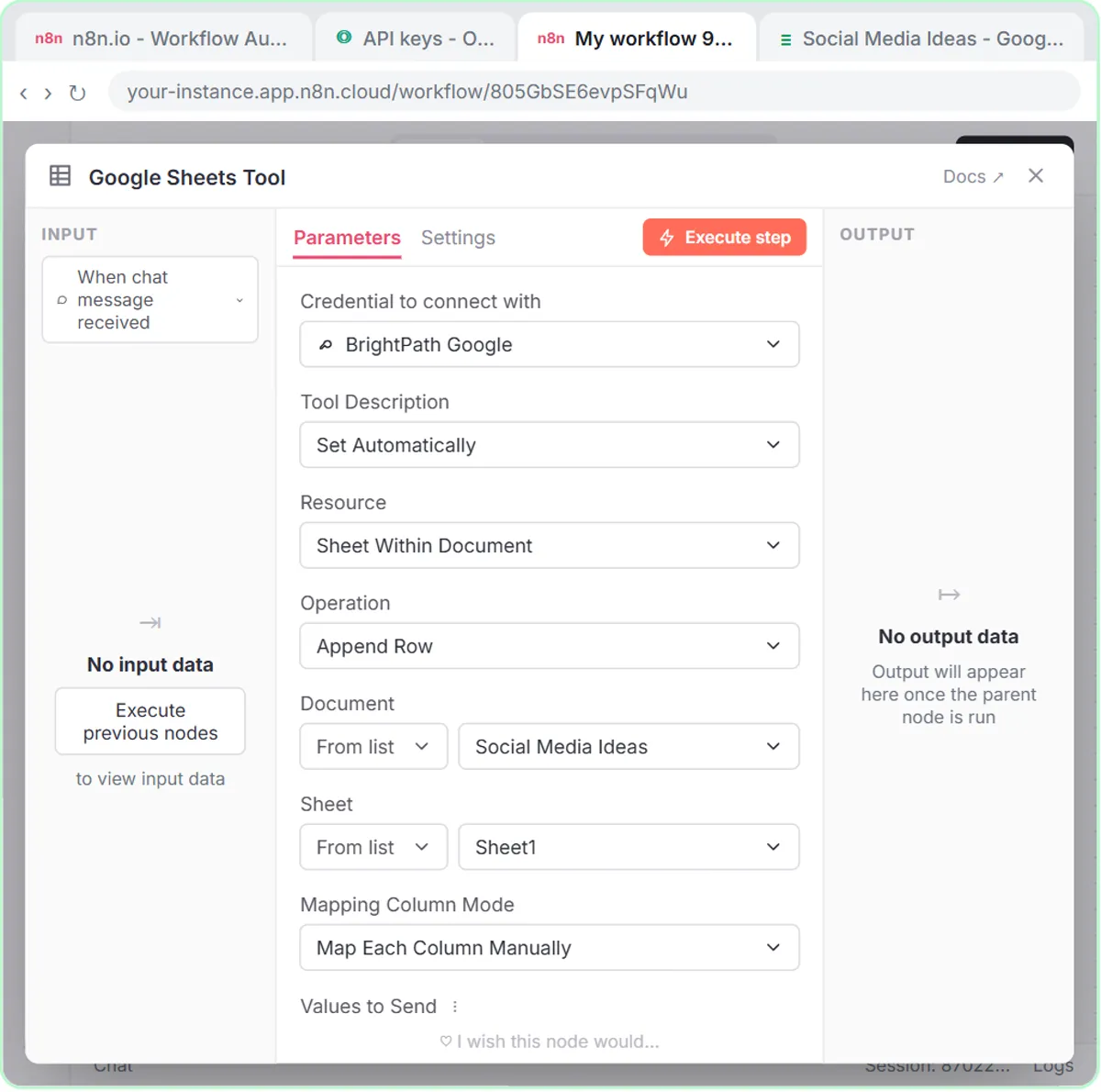
The sparkle button sets a column to be filled automatically by the model, so you never map fields by hand.
How do you test an n8n AI agent?
Click Open chat at the bottom of the canvas, ask for ideas, then ask the agent to save them. The lesson's first message:
Give me 3 social media post ideas about how small businesses can use ChatGPT to improve their advertising
The agent returns three ideas (LinkedIn, Instagram and Facebook), each with a hook, description and call to action. Then send:
Yes, save those ideas to the sheet
The agent decides to use the Google Sheets Tool and writes each idea as a row in Social Media Ideas.
Try it free, step by step
n8n AI Agent Tutorial: Save Social Media Ideas to Google Sheets. Build an AI agent for BrightPath Marketing that generates social media post ideas and saves them to Google Sheets — chat trigger, AI Agent, system prompt, model, memory, and the Sheets tool. You do every step yourself in a practice copy of n8n, it checks your work as you go, and “Do it for me” finishes any step you get stuck on. Free, and nothing touches your real accounts.
Start the free lessonWhat are common mistakes when building an n8n AI agent?
The common mistakes are mismatched headers, no memory and a leaked key.
- Headers that don't match the prompt. Five fields in the System Message need five matching columns in the sheet.
- No memory. "Save those" only works if the agent remembers what "those" are.
- A leaked key. An OpenAI API key can spend your money. Never paste it into a chat, a shared file or a screen recording.
How do you reuse the same n8n agent for sales?
Change two things, the System Message and the sheet, and the same five nodes become a sales follow-up agent. The AI Deal Follow-Up Agent lesson does exactly that for Northwind Scheduling Software, a made-up company that sells scheduling software to small service businesses.
- The System Message makes the agent a sales follow-up assistant: friendly, plain, specific and brief, "a helpful rep, not a pushy salesperson." Each message matches the deal's stage, stays under 80 words, ends with one clear ask, and never invents prices, discounts or results.
- The sheet is called Deal Follow-Ups, with five headers: Prospect, Company, Stage, Follow-up Message and Next Step.
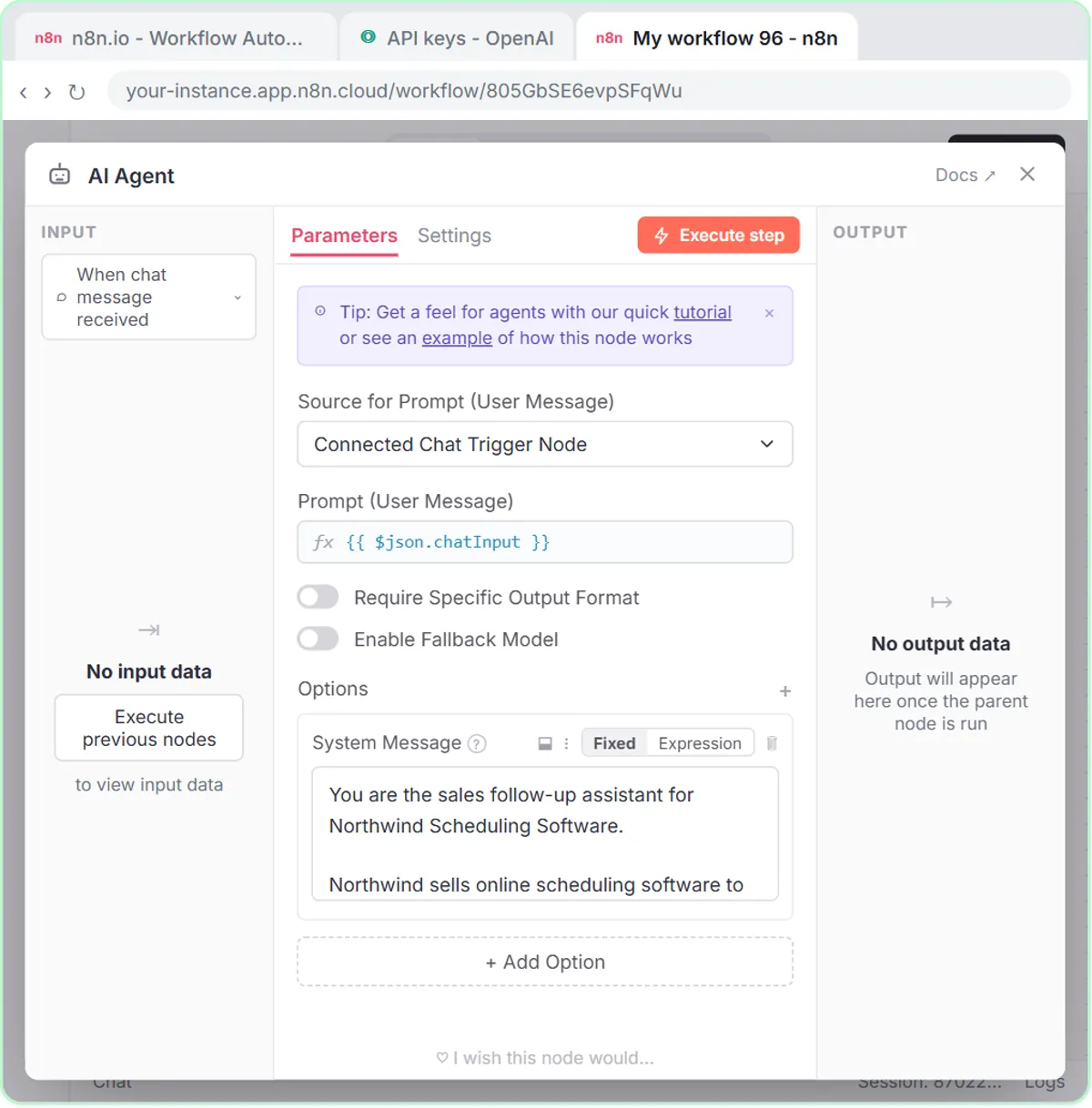
You paste three open deals into the chat, and "Yes, save those follow-ups to the sheet" writes one row per deal for a rep to review and send. AI Lead Qualification from a Demo Request Form shows those deals and how this agent pairs with a demo request form. For the projects before and after this one, see the n8n Jump Start path, Learn n8n from Zero and all n8n lessons.
Key takeaways
- An n8n AI agent has five parts: a trigger, the AI Agent node with a System Message, a chat model, Simple Memory and at least one tool.
- The System Message holds the business details, tone, output format and rules, and its output fields should match the Google Sheet's column headers.
- The Google Sheets Tool set to Append Row, with the sparkle button on each column, lets the model fill the sheet without manual field mapping.
- Simple Memory is what lets a follow-up message like "save those ideas" refer back to earlier answers.
- Reusing an n8n agent for another job, like sales follow-ups, mostly means rewriting the System Message and the sheet's columns.
Frequently asked questions
- What are the parts of an n8n AI agent?
An n8n AI agent has a trigger (here, On chat message), the AI Agent node with a System Message, a chat model such as the OpenAI Chat Model, Simple Memory, and one or more tools, like the Google Sheets Tool.
- Do I need to code to build an AI agent in n8n?
No. Every node in the n8n AI agent is added by clicking, and the System Message is pasted in. The Stepthrough lesson is 69 short steps and about 12 minutes.
- What does the sparkle button in the n8n Google Sheets Tool do?
The sparkle button sets a column to be filled automatically by the model. The agent reads the column headers and decides what goes in each one.
- Does an n8n AI agent cost money to run?
The Stepthrough lesson is free. For real use, n8n Cloud is paid after a free trial (or you can self-host), and the OpenAI API is billed per request, separately from ChatGPT plans. Check current pricing.
- Is BrightPath Marketing a real company?
No. BrightPath Marketing and Northwind Scheduling Software are made-up examples used in the lessons.