You can have AI write email replies without ever letting it send one: build an n8n agent that reads each new Gmail message and saves its reply as a Gmail draft in the same thread. This is for small businesses that answer the same customer questions all day. The free AI Email Responder lesson walks you through the whole build in a practice copy of n8n and Gmail.
Nobody wants a robot sending a made-up price to a customer at 11 p.m., so this setup only writes drafts. In the lesson you're the office at a made-up company, Greenline Pest Control.
What does the n8n email responder do?
The n8n email responder checks Gmail every minute, writes a reply to each new email using your real facts, and saves that reply as a draft under the customer's message. A person reads the draft and clicks Send.
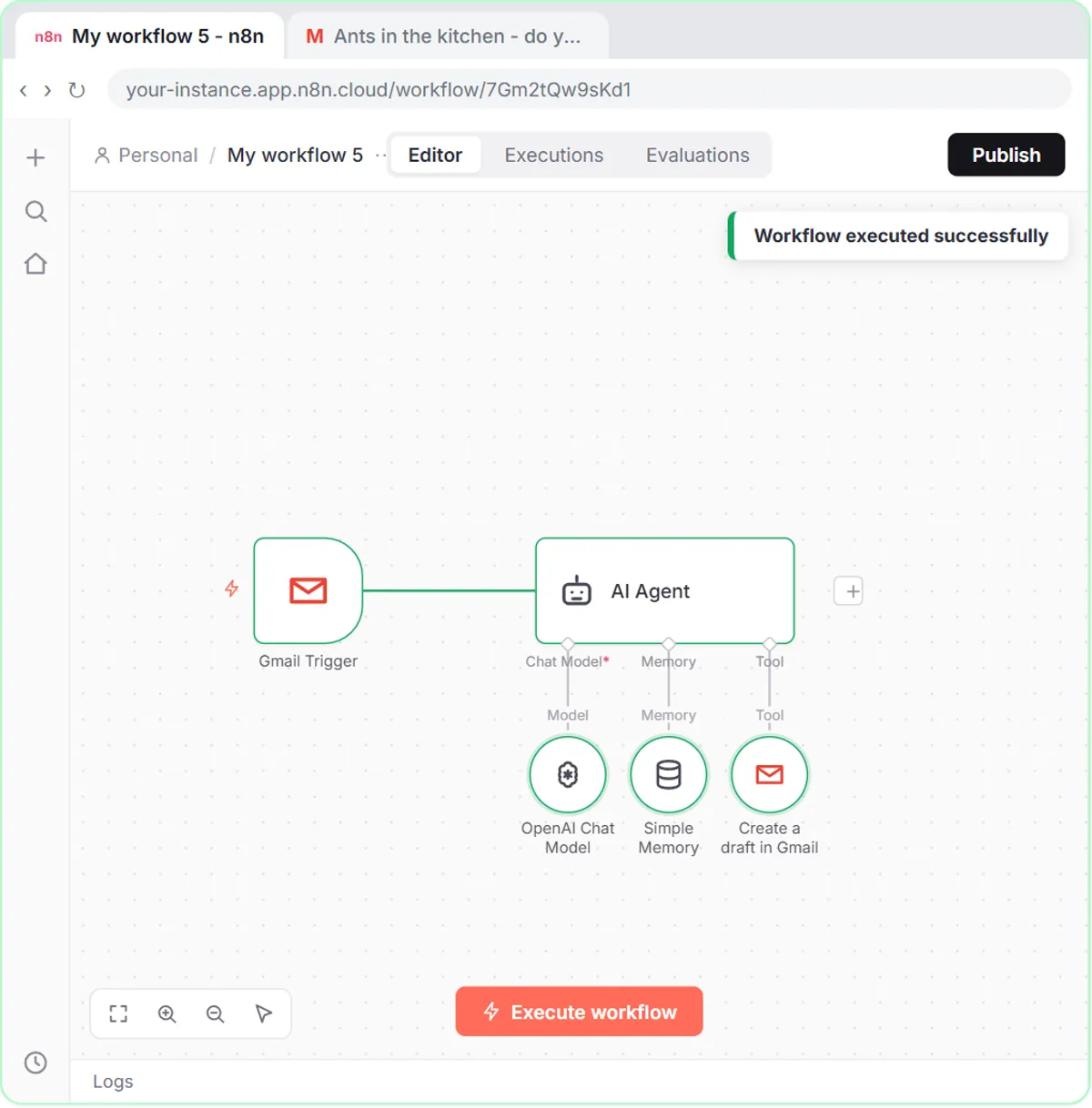
In the lesson, a customer named Dana writes in: ants in the kitchen, does Greenline cover Maple Grove, and roughly what does it cost? The workflow that answers her has five parts:
- Gmail Trigger: checks the inbox every minute for new messages.
- AI Agent: reads each email and decides what to write.
- OpenAI Chat Model: the model the AI Agent thinks with.
- Gmail Tool, set to Draft: saves the reply in the same thread.
- Simple Memory: lets the agent remember what it already told a customer who writes back.
How do I make n8n watch my Gmail inbox?
Add a Gmail Trigger set to On message received, connect your Google account, and leave it on Every Minute.
- Click Create workflow, then Add first step, search for Gmail and choose On message received under Triggers.
- Open Credential, click Create new credential, then Sign in with Google and pick the inbox customers write to ([email protected] in the lesson).
- Leave Every Minute and Message Received as they are and click Fetch Test Event.
The Gmail Trigger's test event shows Dana's email as data: From, Subject, a snippet of the message and a threadId. Those fields feed every later step.
How do I get the AI Agent to read an email instead of a chat?
Open the AI Agent's Source for Prompt and choose Define below, then paste a prompt that pulls in the email's fields. By default the n8n AI Agent expects a chat message, and an email is not a chat.
Write a reply to this email, then save it as a draft in the same thread.
<email>
From: {{ $json.From }}
Subject: {{ $json.Subject }}
Message: {{ $json.snippet }}
</email>
The double curly brackets are n8n expressions that fill in fields from the email. Under Chat Model, add an OpenAI Chat Model and pick your OpenAI credential. The lesson reuses the key from the AI Social Media Idea Agent module and keeps the default model, since writing a short email is an easy job.
How do I stop the AI from sending email on its own?
Set the Gmail Tool's Resource to Draft, so the operation becomes Create instead of Send. With Draft selected, the worst the agent can do is write a draft you never send.
- Under Tool, add a Gmail Tool on the same Gmail account.
- Open Resource (it starts on Message, with the operation Send) and choose Draft.
- In Subject, paste
Re: {{ $json.Subject }}so Gmail keeps the reply in the same conversation. - Next to Message, click the ✦ button so the model writes the body. Leave the email type on text.
- Click Add option, choose Thread ID and paste
{{ $json.threadId }}. Without the Thread ID option, the draft lands as a brand new email instead of a reply. - Click Add option again, choose To Email and paste
{{ $json.From }}so the draft is addressed to the sender.
Then, under Memory, add Simple Memory and leave the defaults for now.
What goes in the system message?
The system message has four parts: who the agent is, what it knows, the rules, and how to write. Without business facts, the agent guesses prices. Open the AI Agent, click Add Option and choose System Message.
- Who you are: it writes email replies for Greenline Pest Control, a family-run pest control company.
- What you know: Greenline services Maple Grove, Cedar Falls and Brookside; general pest treatment is $149 for the first visit and $89 for a follow-up; booking is Monday to Saturday, 8am to 5pm; to book, the customer replies with an address and two times that work.
- Rules: "You cannot send email. You can only create drafts." If it doesn't know something, it says someone from the team will follow up, and it never makes up prices, dates or services.
- How to write: friendly, plain and short, plain text, signed "The Greenline team".
To use it for your business, swap in your own towns, prices and hours and keep the rules section as it is.
Try it free, step by step
AI Email Responder: Draft Gmail Replies Automatically with n8n. Build an n8n agent that watches your Gmail, reads each new customer email, and writes a reply as a draft in the same thread, ready for you to check and send. You do every step yourself in a practice copy of n8n, it checks your work as you go, and “Do it for me” finishes any step you get stuck on. Free, and nothing touches your real accounts.
Start the free lessonWhy does the first test fail with "No session ID found"?
The first test fails because Simple Memory looks for a chat session ID, and an email has none. Click Execute workflow and the Simple Memory node turns red with No session ID found. The fix is to open Simple Memory, set Session ID to Define below and use {{ $json.threadId }} as the key, so memory keeps one conversation per email thread. That beats deleting the memory node, the quick fix you'll often see. More in Fix "No session ID found" in n8n Simple Memory.
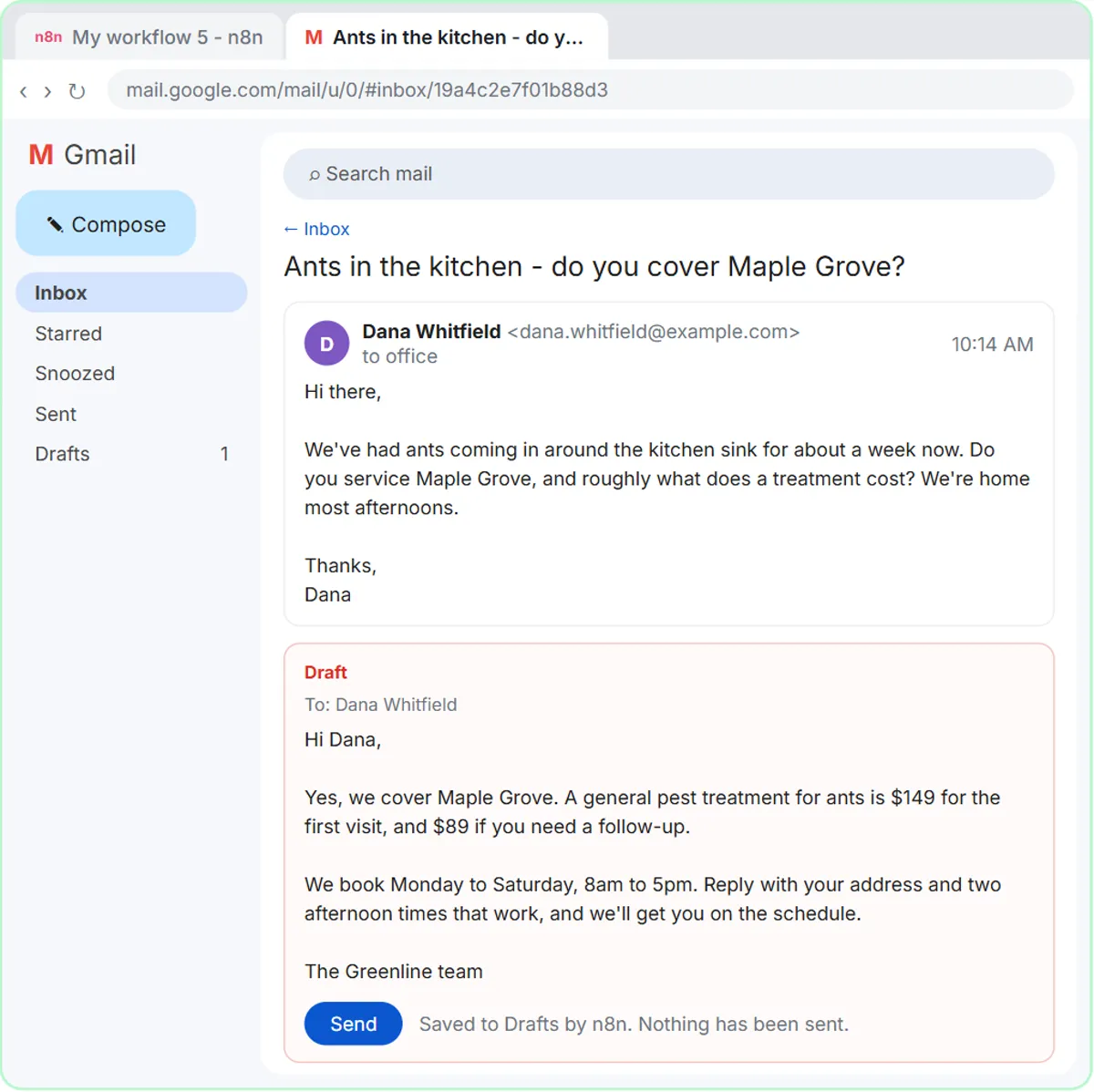
Run Execute workflow again and everything goes green. In Gmail, the draft sits under Dana's email: yes to Maple Grove, $149 for the first visit, and a request for her address and two times. The draft has not been sent.
How do I make it run on its own?
Click Publish, keep the default version name, and click Publish again. A published n8n workflow checks the inbox every minute without anyone pressing Execute workflow, and every new email gets a draft waiting for you.
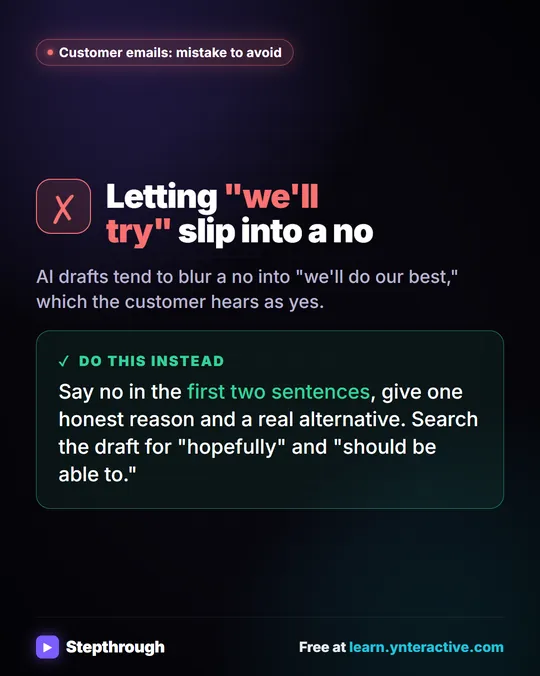
Keep the "What you know" list current, and read each draft before you send it. For what to look for, see Check AI Email Drafts for Promises Before You Send.
What does it cost to run?
The lesson is free and connects no real accounts, but the real build uses paid services. The OpenAI API is pay-as-you-go and billed separately from any ChatGPT plan, and you add credit at platform.openai.com before the key works. n8n Cloud is a paid service after its free trial, and n8n can also be self-hosted. Gmail works with a regular Google account.
Is there a simpler option without automation?
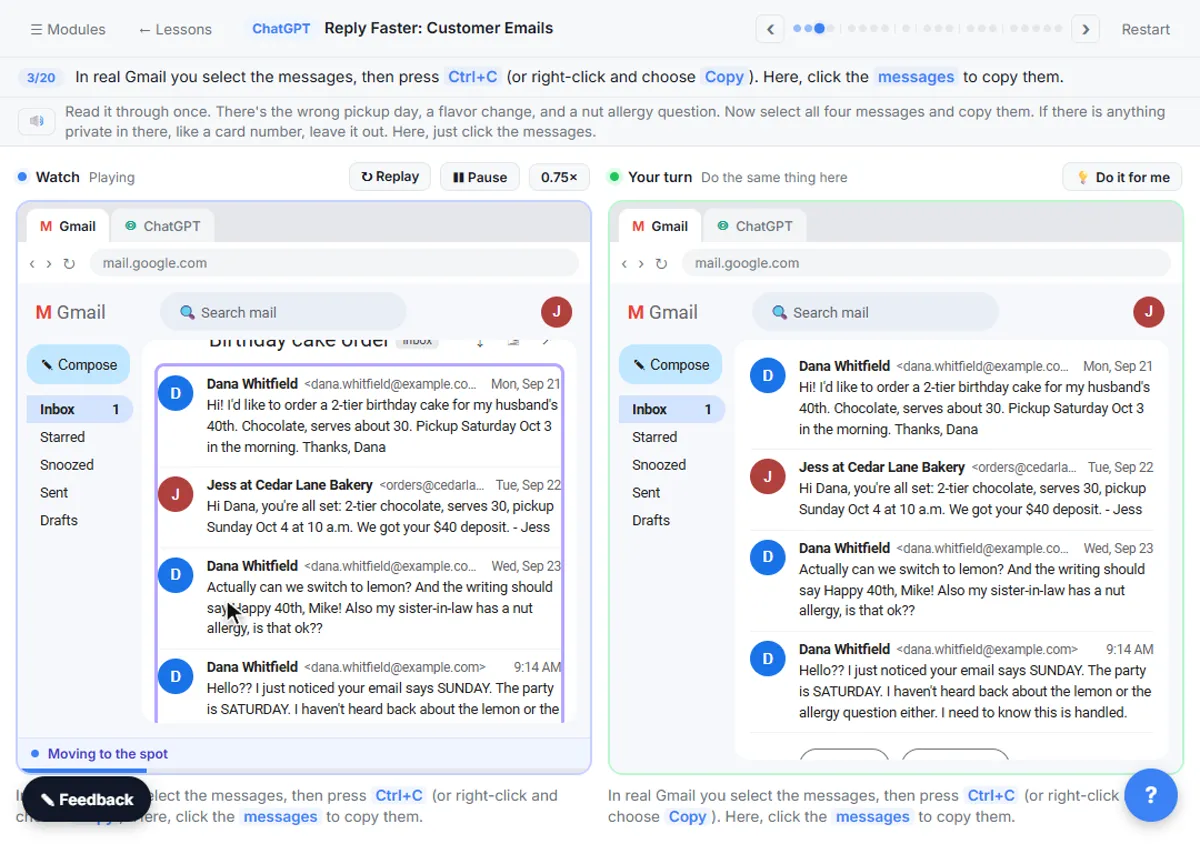
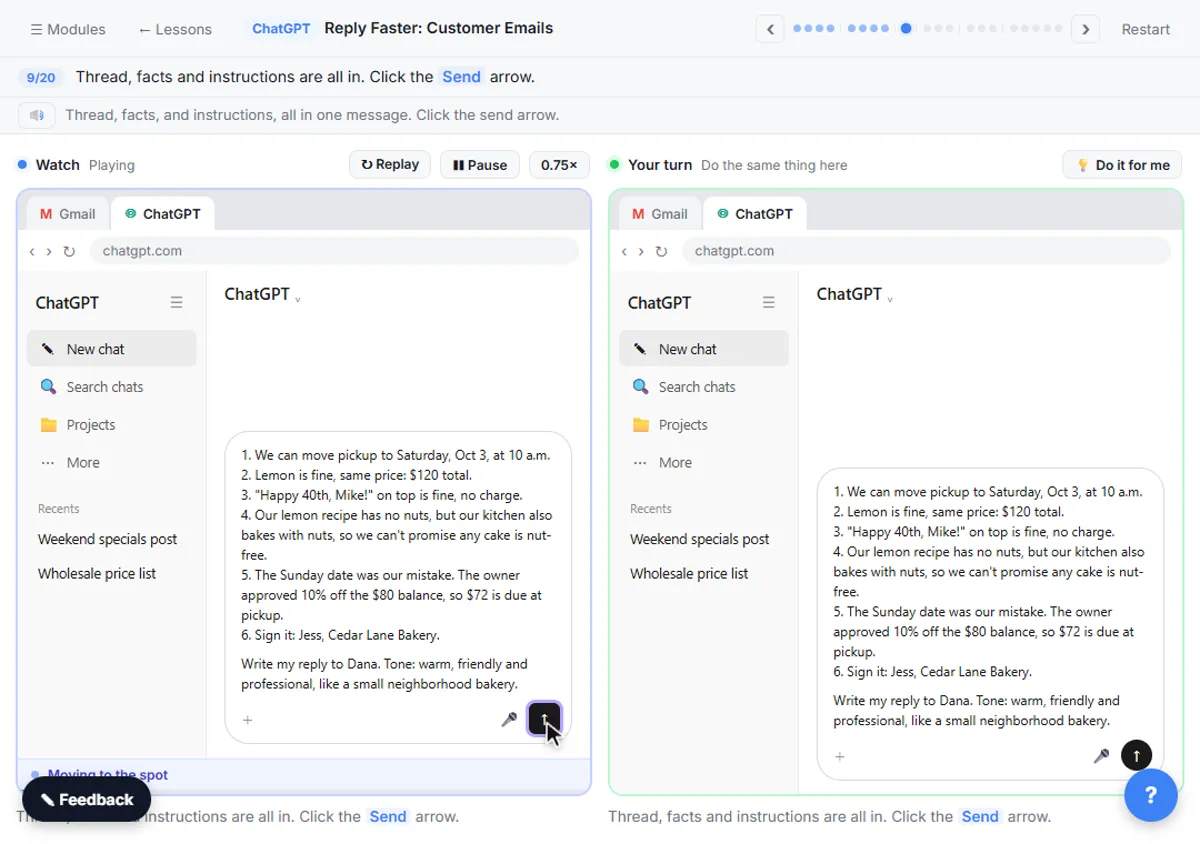
Yes: copy the thread into ChatGPT, get a draft, and paste the reply into Gmail yourself. The Reply Faster lesson teaches that routine, including a numbered facts list and a check of every promise in the draft. It works with any ChatGPT plan and nothing runs in the background.
Both lessons are part of the Email on Autopilot path, and there are more builds in the n8n tutorials.
Key takeaways
- An n8n agent can write email replies as Gmail drafts, so no AI-written email goes out until a person clicks Send.
- Setting the Gmail Tool's Resource to Draft, with the Thread ID option set to the trigger's threadId, puts each reply in the customer's thread.
- A four-part system message (who it is, what it knows, rules, how to write) keeps the agent from inventing prices, dates or services.
- The "No session ID found" error in Simple Memory is fixed by using the Gmail threadId as the session key.
- The OpenAI API is billed separately from ChatGPT, and n8n Cloud is paid after its free trial unless you self-host n8n.
Frequently asked questions
- Will the AI send emails without my approval?
No. The Gmail Tool is set to Draft, so the agent can only create drafts, and the system message also says it cannot send email.
- How does the draft end up in the same Gmail thread?
The Gmail Tool's Thread ID option is set to the threadId from the Gmail Trigger, and the subject is "Re:" plus the original subject.
- How often does it check for new email?
Every minute. The Gmail Trigger is left on Every Minute, and the workflow runs on its own once it is published.
- What if a customer asks something the agent doesn't know?
The system message tells the agent to say someone from the team will follow up and never to make up prices, dates or services.