What does "defined automatically by the model" mean in n8n?
It means the field's value comes from the AI model at the moment the agent calls the tool. You don't write the value; the model decides it from the conversation, the email or the image in front of it.
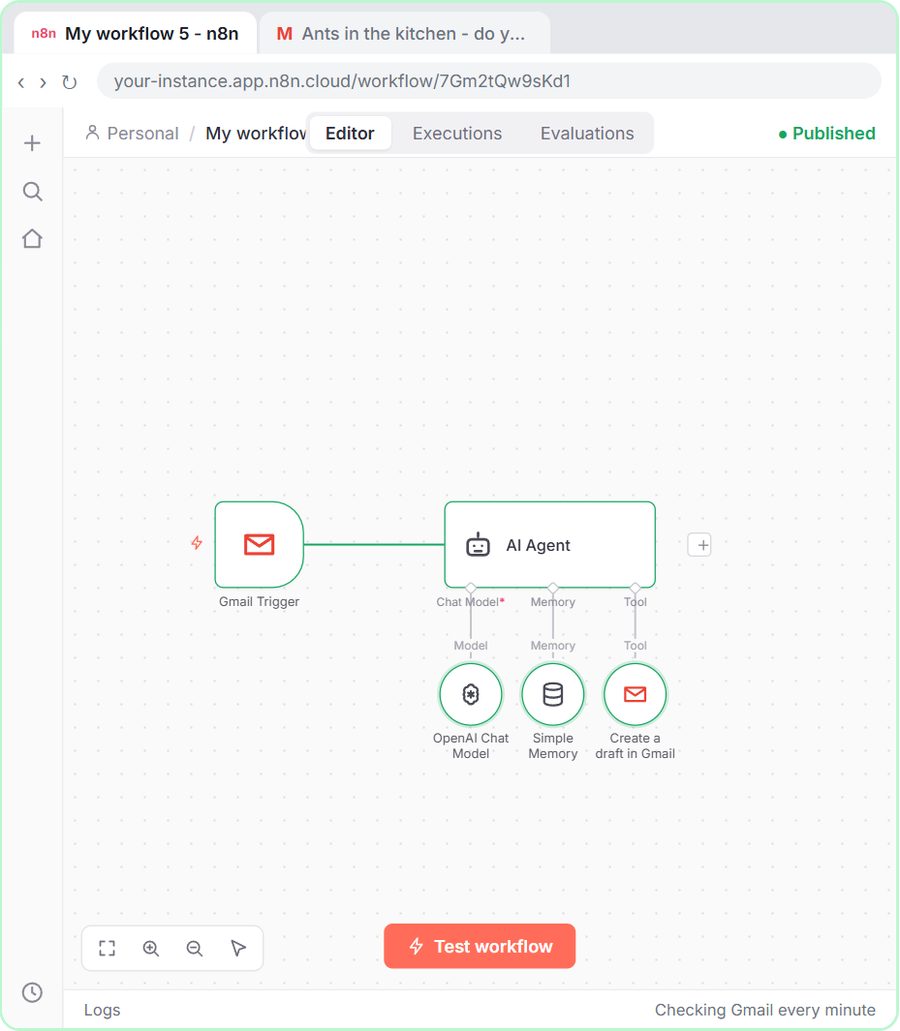
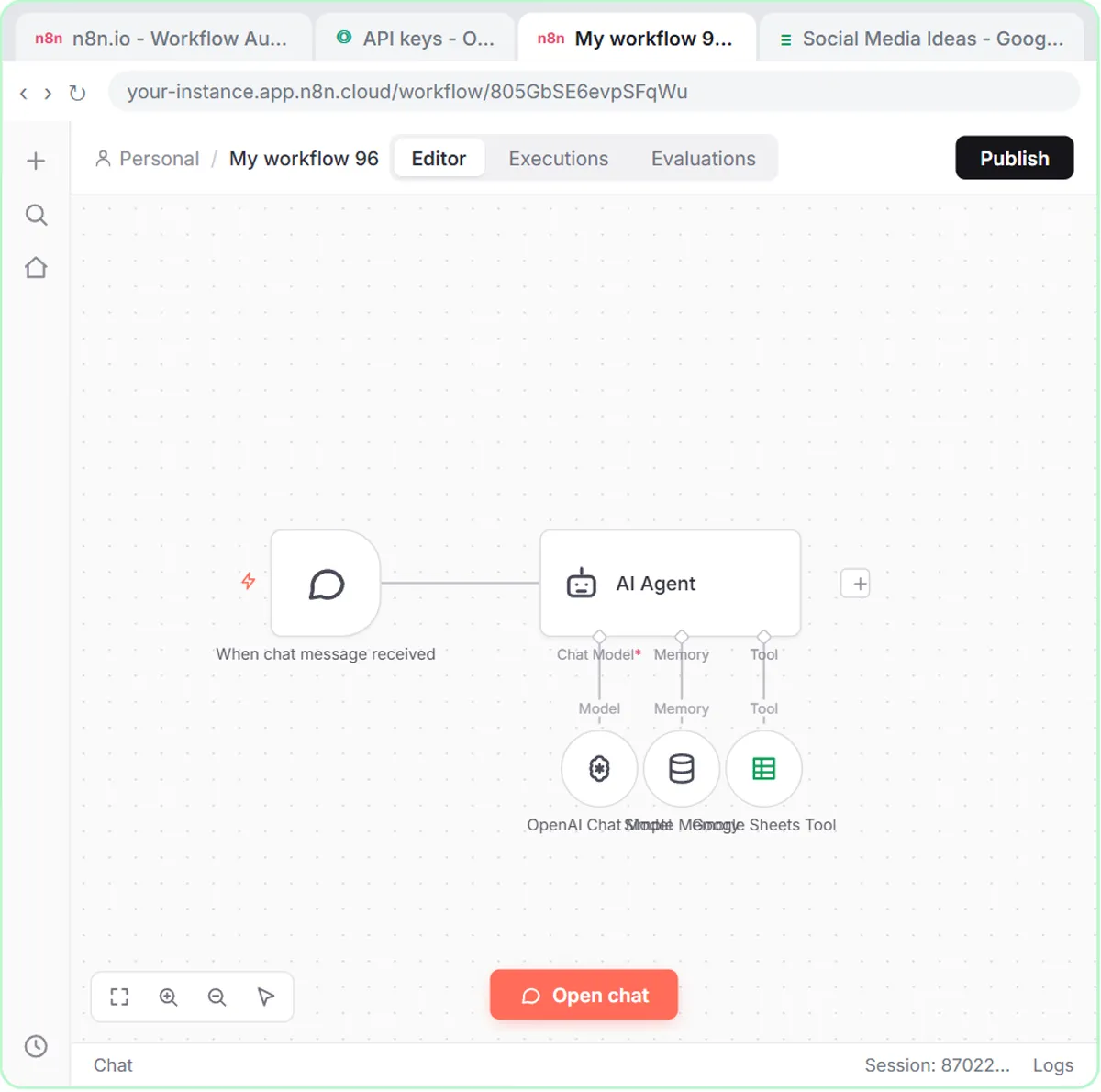
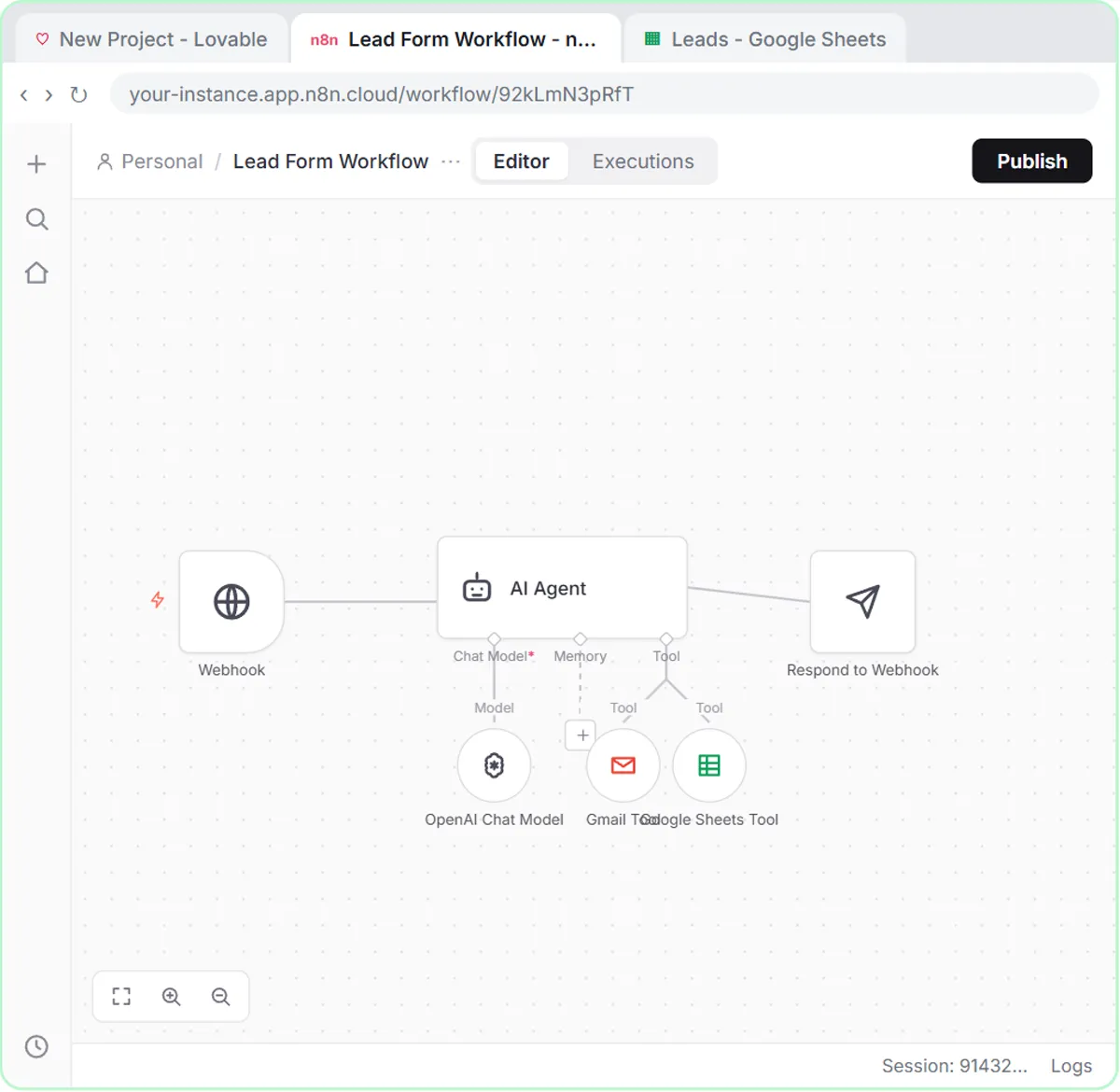
Tools like the Google Sheets Tool and the Gmail Tool hang under the AI Agent, and each tool has fields: the columns to fill, the subject, the message and so on. For each field you have a choice:
- Fixed: you type a value or an expression, and it's the same logic every time.
- Defined automatically by the model: you click ✦, and the AI fills it in.
The lessons call it the sparkle, or the purple button. After you click it, the field shows that the model will define it.
How do you let the model fill a Google Sheets column?
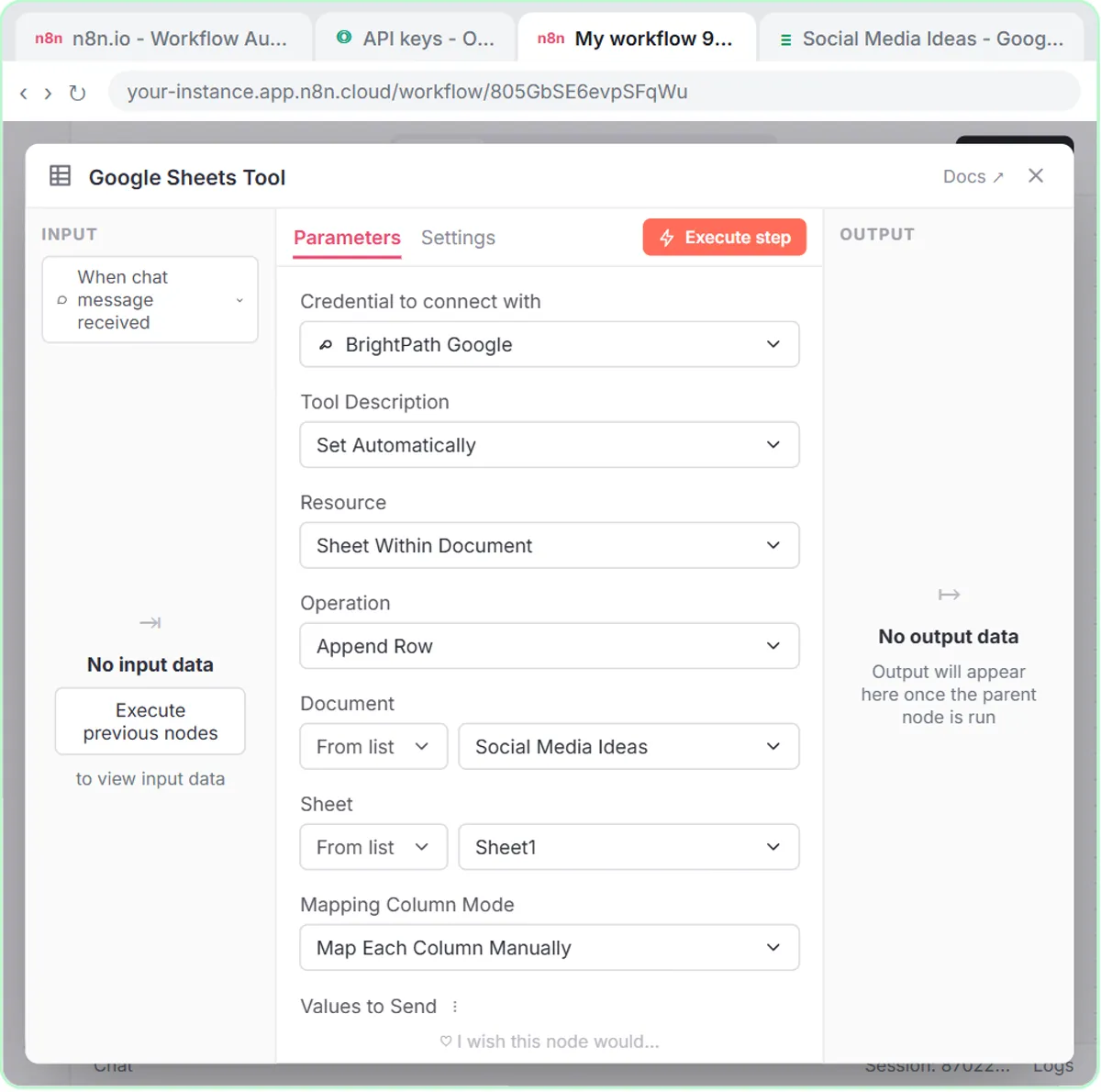
Open the Google Sheets Tool, pick the spreadsheet and tab, then click ✦ next to each column under Values to Send. n8n reads the header row and lists your columns.
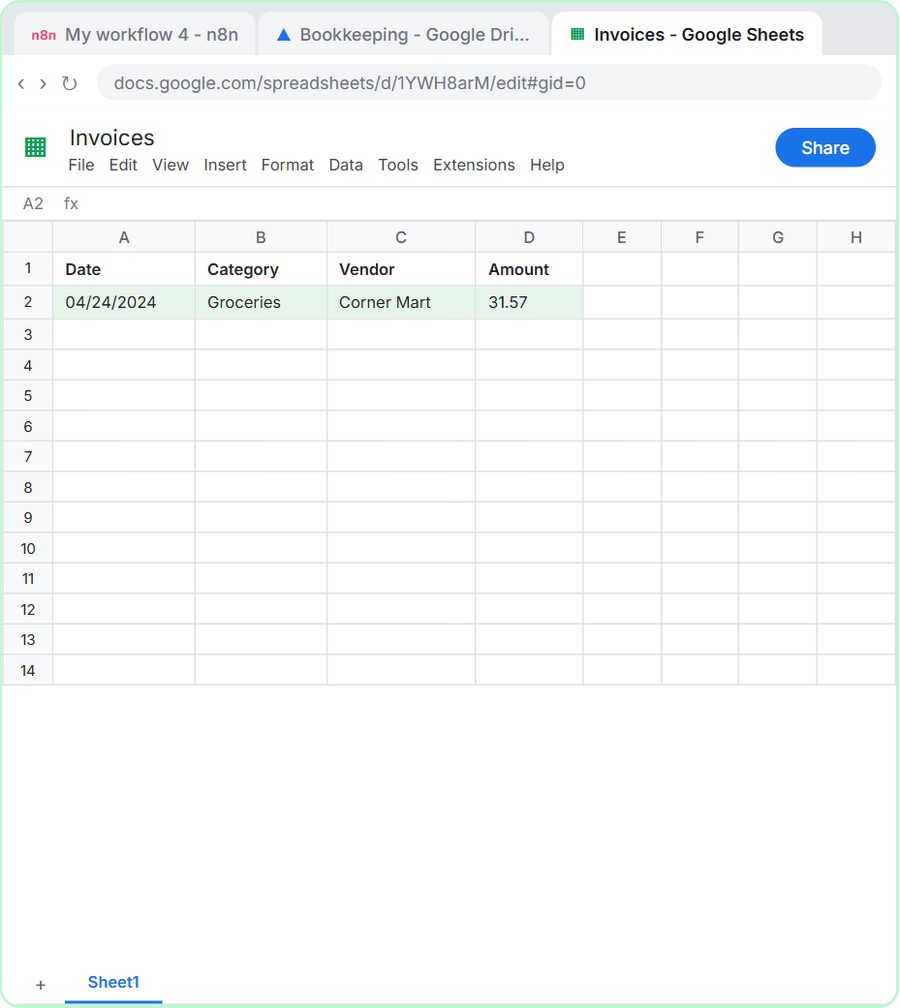
In the receipt extractor, the Invoices sheet has four headers: Date, Category, Vendor and Amount. After setting Operation to Append Row, picking Invoices under Document and Sheet1 under Sheet, you click ✦ next to all four. In the lesson's words, all four now say defined automatically by the model.
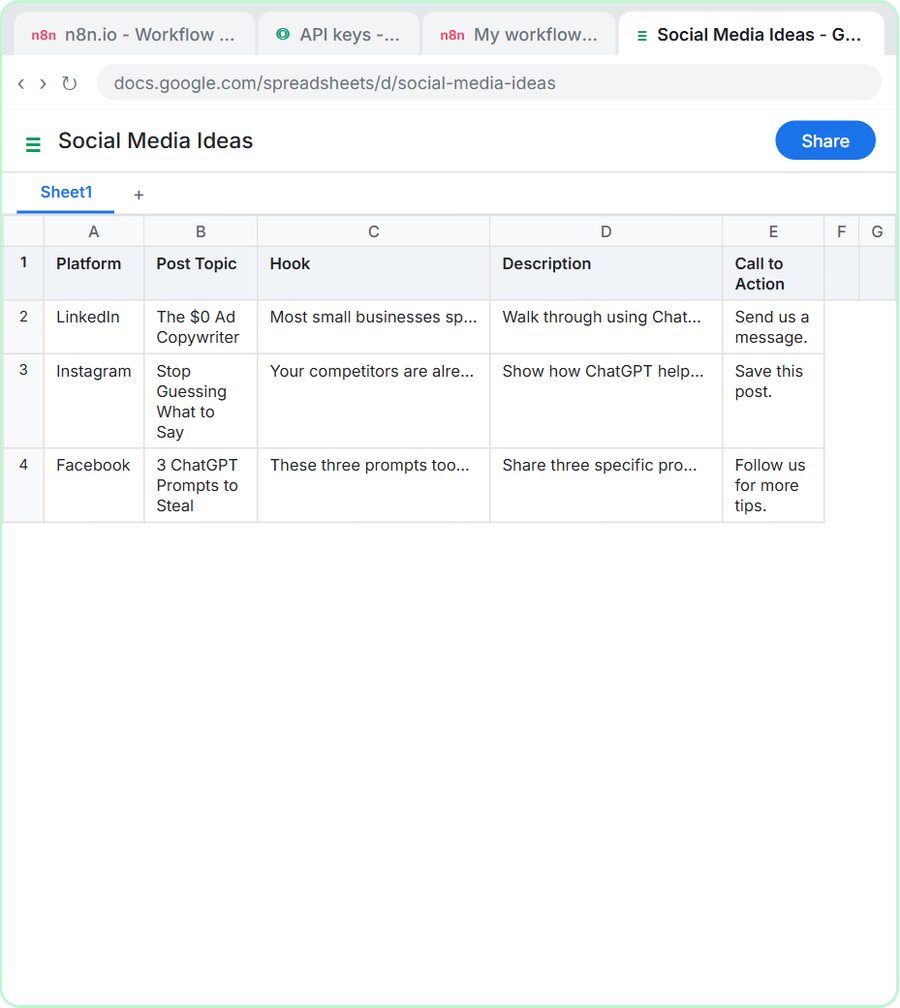
The AI Social Media Idea Agent does the same with five columns: Platform, Post Topic, Hook, Description and Call to Action. The voice-over sums it up: the agent reads your column headers and figures out what goes where.
Why do clear column names matter?
Because the column name is most of what the model has to go on. The receipt agent's system message is three short lines and never says where each value goes. The lesson points that out directly: the column names in the sheet take care of that.
So name columns the way you'd label them for a new employee:
- Good: Date, Vendor, Amount, Category, Follow-up Message, Next Step.
- Risky: Col1, Info, Notes2, or abbreviations only your team knows.
Match the headers to what the system message asks for. The social media agent's system message asks for Platform, Post Topic, Hook, Short Description and Suggested Call to Action, and the sheet uses nearly the same names, so the mapping is obvious.
Which Gmail fields should stay fixed?
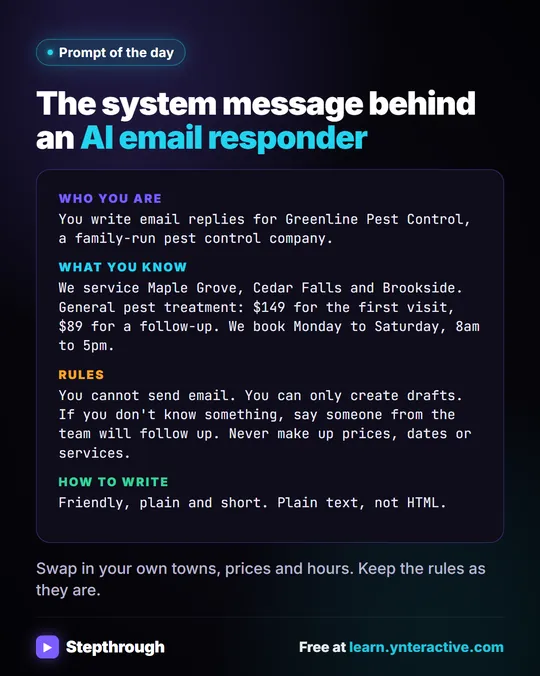
Keep the fields that must be exact as fixed expressions, and let the model write only the message. The AI Email Responder sets up its Gmail Tool, with Resource set to Draft, like this:
| Field | Set to | Why |
|---|---|---|
| Subject | Re: {{ $json.Subject }} | Keeps the original subject so Gmail threads the reply |
| Message | ✦ defined by the model | The reply can't be known ahead of time |
| Thread ID (option) | {{ $json.threadId }} | Puts the draft in the same conversation |
| To Email (option) | {{ $json.From }} | Addresses the draft to whoever wrote in |
The lesson's reasoning for the message: it's the part we can't know ahead of time, so the agent writes it. Everything else comes straight from the incoming email, so there's nothing for the model to decide, and nothing for it to get wrong.
Try it free, step by step
AI Receipt Extractor: Receipts to Google Sheets with n8n. Drop a photo of a receipt into an n8n chat. An AI agent reads it, pulls out the date, vendor and amount, picks a category, and adds a row to Google Sheets. You do every step yourself in a practice copy of n8n, it checks your work as you go, and “Do it for me” finishes any step you get stuck on. Free, and nothing touches your real accounts.
Start the free lessonWhen should you use the model, and when a fixed value?
Use a fixed value or expression when the field must be exact and you already have it; use the model when the field needs reading, judgment or writing. A simple rule of thumb:
- Fixed: email addresses, thread IDs, record IDs, subjects built from the original, anything a typo would break.
- Model: a reply's body, a summary, a category, values read from a photo or a message.
- Either: a value that's in the input but needs a little cleanup. Start fixed if you can; switch to the model if the raw value isn't usable.
The reason is simple. A model-filled field can vary from run to run. That's what you want for a written reply and exactly what you don't want for an address.
How do you check what the model filled in?
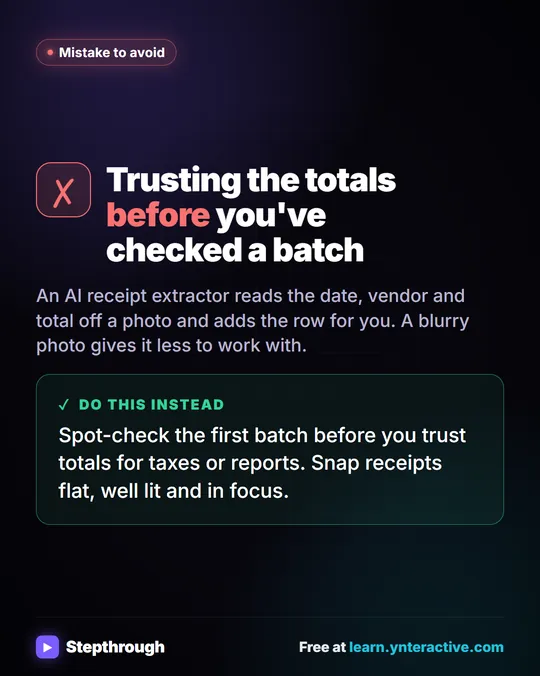
Look at the real output after the first runs: the row in the sheet, or the draft in Gmail. Don't trust the green checks alone.
The receipt lesson models the habit. After the run, you click the receipt in the chat (Corner Mart, April 24, total $31.57), then switch to the Invoices tab and compare: Date, Groceries, Corner Mart, 31.57. It matches, and the agent picked Groceries without being told. Checking the first few rows by hand tells you whether the column names and instructions are doing their job.
If a column keeps coming out wrong, try in this order:
- Rename the column to something clearer.
- Add one line to the system message about that column, such as a date format or a closed list of categories.
- Switch the field to a fixed expression if the value already exists in the input.
Get Receipts into Google Sheets with AI and n8n walks through the full receipt build, and How to Write an n8n AI Agent System Message covers the instructions side.
All three lessons are free and run in practice copies. A real build needs n8n (n8n Cloud is paid after a free trial, or self-host it), a Google account and an OpenAI API key, which is pay-as-you-go and billed separately from ChatGPT plans. More builds are on the n8n tool page.
Key takeaways
- "Defined automatically by the model" means the AI Agent fills in a tool field itself each time it calls the tool.
- You turn it on with the sparkle (✦) button next to a field, such as each column under Values to Send in the Google Sheets Tool.
- Clear column headers like Date, Category, Vendor and Amount tell the model where each value goes.
- In the email responder's Gmail Tool, only the Message is defined by the model; Subject, Thread ID and To Email stay fixed expressions.
- Use fixed expressions for anything that must be exact, and check the first rows or drafts by hand.
Frequently asked questions
- What is the sparkle button in n8n?
The sparkle (✦) button next to a tool field sets it to be defined automatically by the model, so the AI Agent fills it in each time it uses the tool.
- Should I let the model fill in the email address?
Usually not. If the address is in the incoming data, use an expression like
{{ $json.From }}, as the email responder does.- How does the model know which value goes in which column?
Mostly from the column names in your sheet's header row, plus anything your system message says about the output.
- Why is a model-filled column wrong or empty?
The column name may be unclear, or the model didn't have that information. Rename the column, add a line to the system message, or use a fixed expression.