What is AI data extraction?
Updated · By Robert Breen
AI data extraction is pulling specific pieces of information, such as a date, vendor name, total or customer address, out of unstructured content like receipts, emails, PDFs or photos, and putting them into fields a spreadsheet or another system can use.
Why it matters for a small business
A lot of small-business admin is retyping: receipts into the books, order details into a tracker, contact info from emails into a CRM. It is slow, boring and easy to get wrong. Extraction lets AI read the messy original and fill in the fields, so a person only checks the result.
Modern models can read images as well as text, so a phone photo of a crumpled receipt is often enough. That removes the scanning and template setup older document tools needed.
In a real lesson: AI Receipt Extractor: Receipts to Google Sheets with n8n
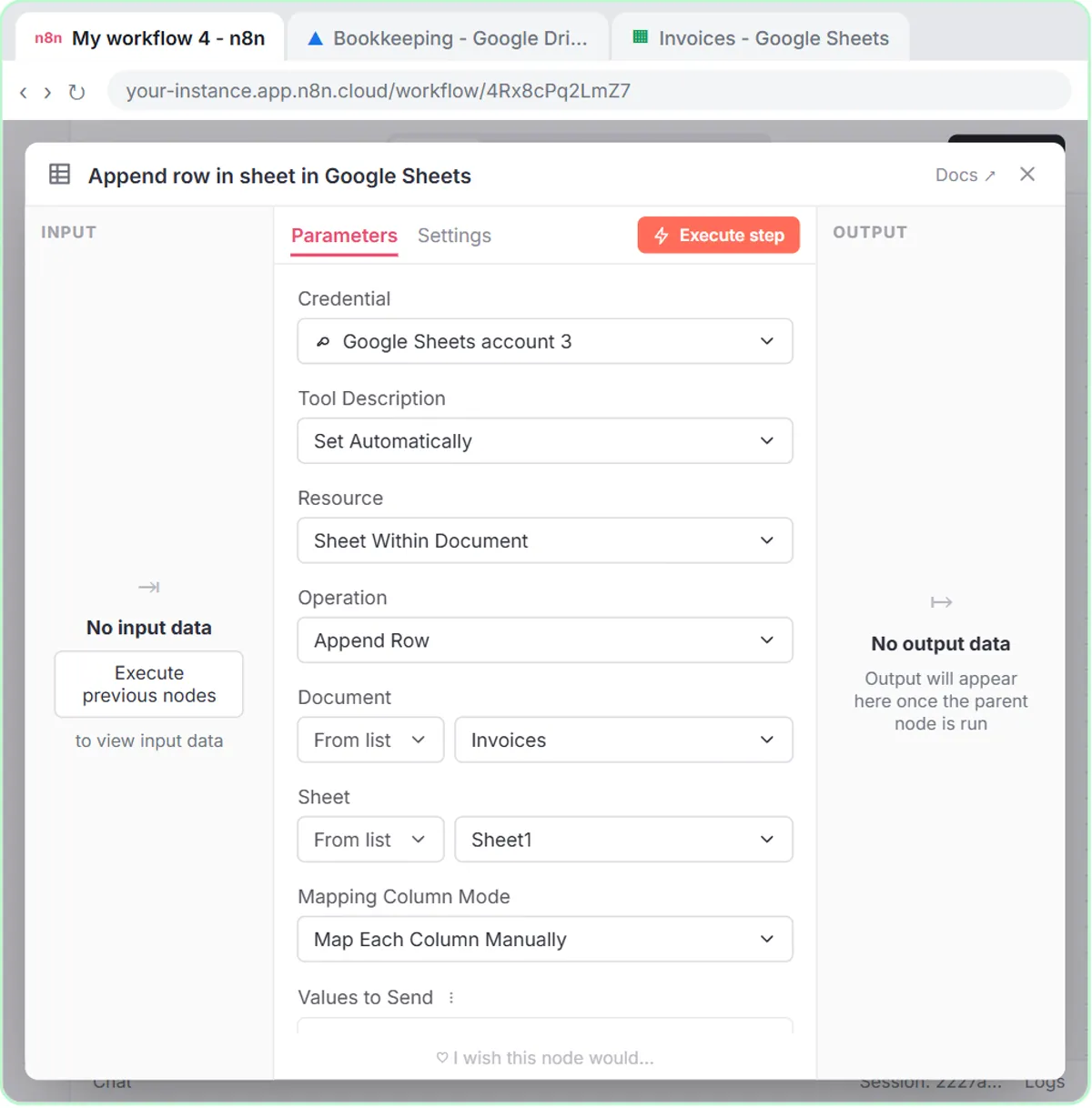
In AI Receipt Extractor, you build an n8n workflow with an On chat message trigger, an AI Agent and the OpenAI Chat Model set to gpt-4o, which the lesson picks because it reads images reliably. You create a sheet named Invoices in a Bookkeeping folder with four headers: Date, Category, Vendor and Amount.
In the Google Sheets Tool, you change the operation to Append Row, choose Invoices and Sheet1, and click the ✦ button next to each column so the model fills it. The system message is three lines: you will receive a receipt; extract the date, vendor and amount and come up with a category; use the Google Sheets tool to add it. It never says which value goes where, because the column names handle that.
You open the chat, type a short message, attach receipt.png with the paperclip and send. Then you check the work: the receipt shows Corner Mart, April 24, a total of $31.57, and the new row in Invoices matches, with Groceries as the category the agent chose on its own.
Try this lesson free or read the step-by-step guide.
Common confusions
Data extraction vs OCR
OCR turns an image of text into raw characters. Extraction goes further and decides which characters are the vendor, the date and the total. A multimodal model like the one in the lesson does both in one step.
Extraction vs classification
Extraction copies values that are in the document. Choosing Groceries is classification, because that word isn't on the receipt; the model inferred it. Check inferred fields more carefully.
Tips
- Name the fields you want, and match them to your column headers exactly.
- Compare the first several results with the original before trusting the workflow.
- Watch for misread totals on faded receipts and for tax being mistaken for the total.
Related terms
Where you use it: free lessons
- AI Receipt Extractor: Receipts to Google Sheets with n8n (n8n, 12 min)
- Build an AI Agent That Categorizes Business Expenses (n8n, 12 min)
Prompt templates that use it
Visual guides
Data extraction in a few slides, with the same guide written out as text.
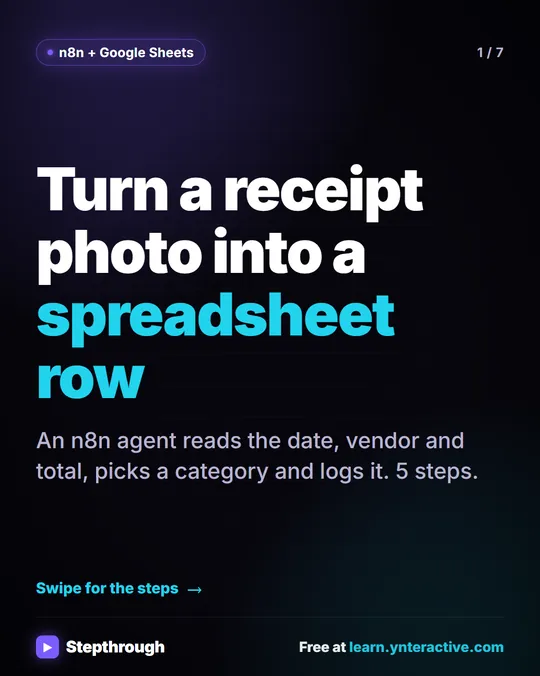 5 Steps to Turn a Receipt Photo into a Google Sheets Row
A visual guide: an n8n AI agent reads a receipt photo, pulls out the date, vendor and total, picks a category and adds a row to Google Sheets.
Step-by-step guide 7 slides
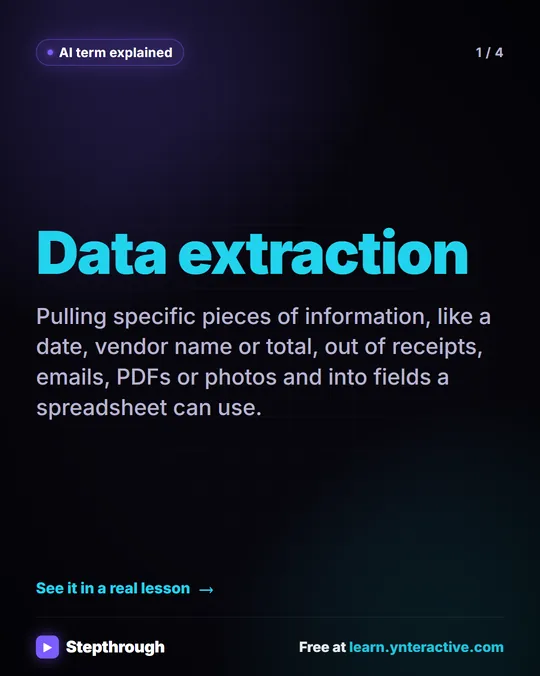 What Is AI Data Extraction? A Visual Guide
A visual guide to AI data extraction: pulling the date, vendor and total out of a receipt photo and into Google Sheets, from a real n8n lesson.
AI term explained 4 slides
Frequently asked questions
- Can AI extract data from a photo?
- Yes, if the model supports images. The receipt lesson uses gpt-4o and a phone-style photo, receipt.png.
- How accurate is AI data extraction?
- It is usually good on clear documents and less reliable on blurry, handwritten or unusual ones. Spot-check results, especially amounts, before they go into your books.