Each example is built in n8n with Google Sheets and Gmail. After the three builds, you'll find the pattern they share and honest ideas for adapting each one.
What are good business automation examples for a small office?
Good first automations repeat often, follow the same steps each time, and currently involve copying something from one place to another. The three in the course:
| Automation | What it does | AI? | Lesson length |
|---|---|---|---|
| Daily job emails | At 7am, emails each tech the jobs assigned to them in a sheet | No | 10 min, 56 steps |
| Email drafts | Reads each new customer email and writes a reply as a Gmail draft | Yes | 12 min, 68 steps |
| Receipts to a sheet | Reads a receipt photo and adds date, category, vendor and amount to a sheet | Yes | 12 min, 71 steps |
The first two lessons use made-up businesses, Rapid Flow Plumbing and Greenline Pest Control. The receipt lesson saves to a sheet in a Bookkeeping folder shared with an accountant.
What pattern do business automations follow?
Almost every automation is a trigger, a step that gets data, a step that decides, and a step that acts. The job alerts lesson names it directly: "trigger, get data, filter it, send it to the right person."
| Trigger | Get data | Decide | Act | |
|---|---|---|---|---|
| Daily job emails | Schedule, 7am | Read the Jobs sheet | Filter: skip jobs with no tech | Gmail: send each job to its tech |
| Email drafts | Gmail: new message | The email's From, Subject and text | AI Agent writes a reply from your facts | Gmail Tool: create a draft in the thread |
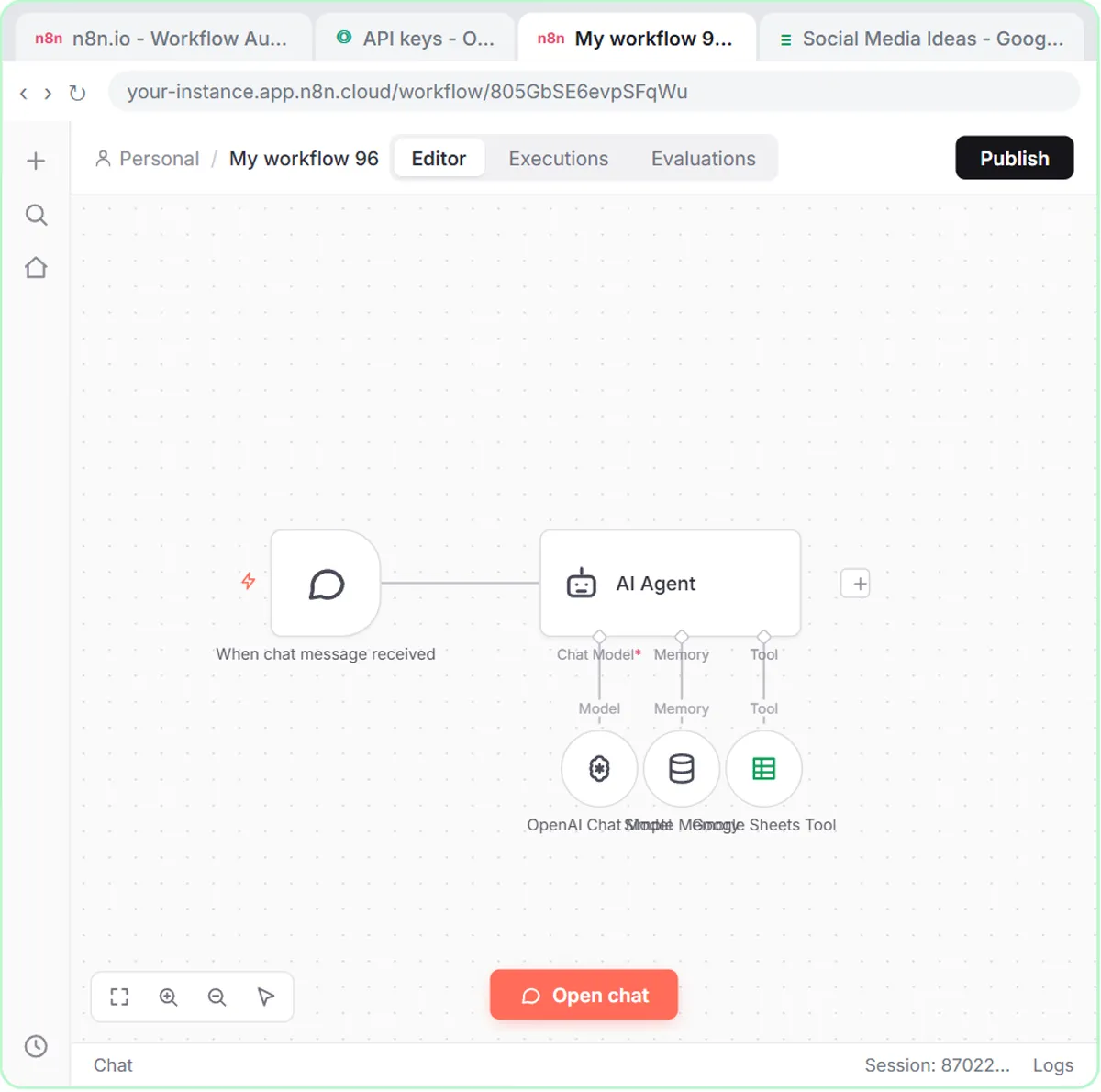
| Receipts to a sheet | Chat message with a photo | The receipt image | AI Agent reads it and picks a category | Sheets Tool: append a row |
When you spot a task that fits those four boxes, you've found an automation.
How does the daily job email automation work?
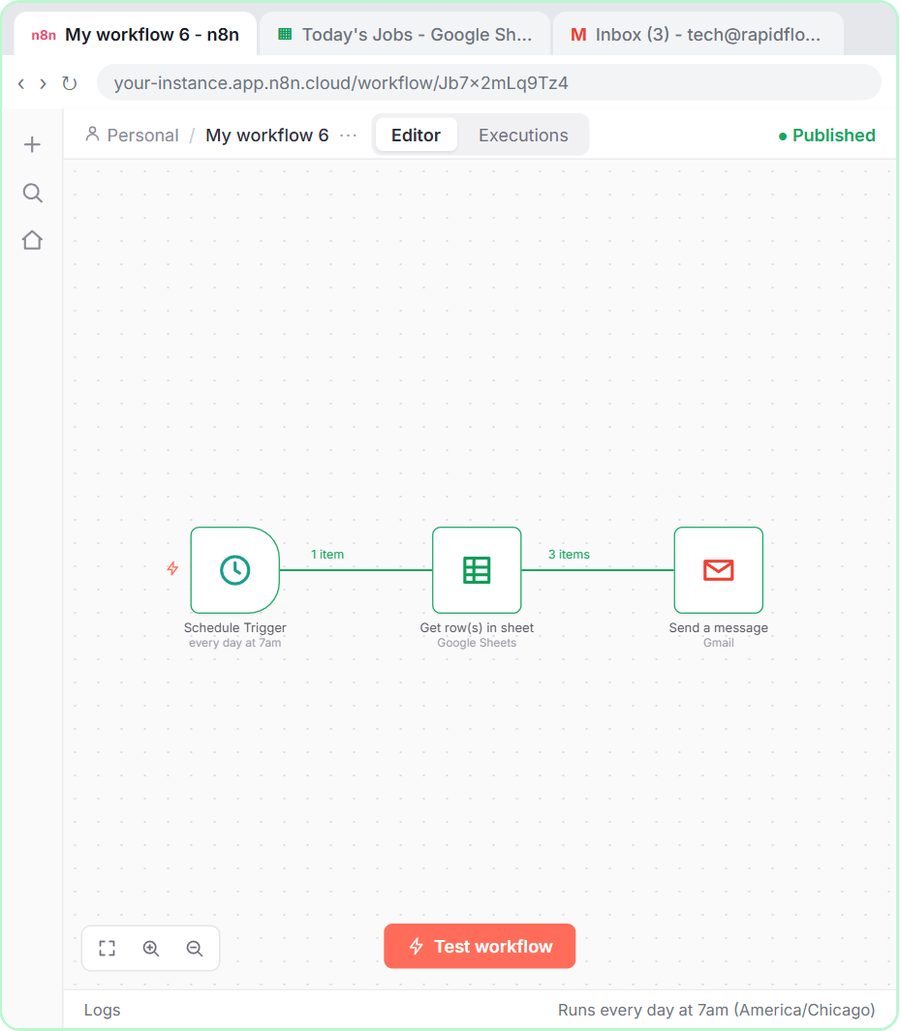
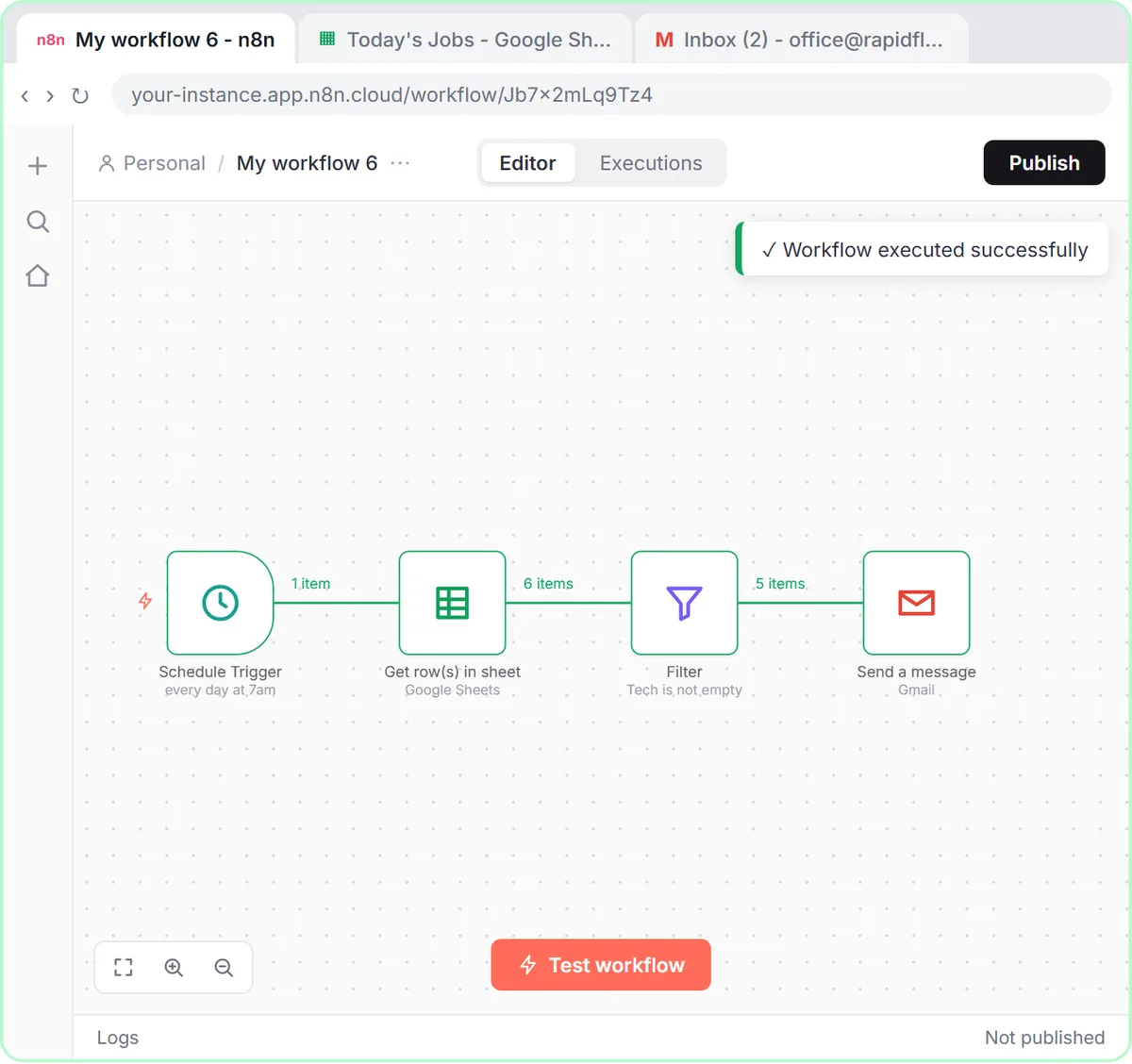
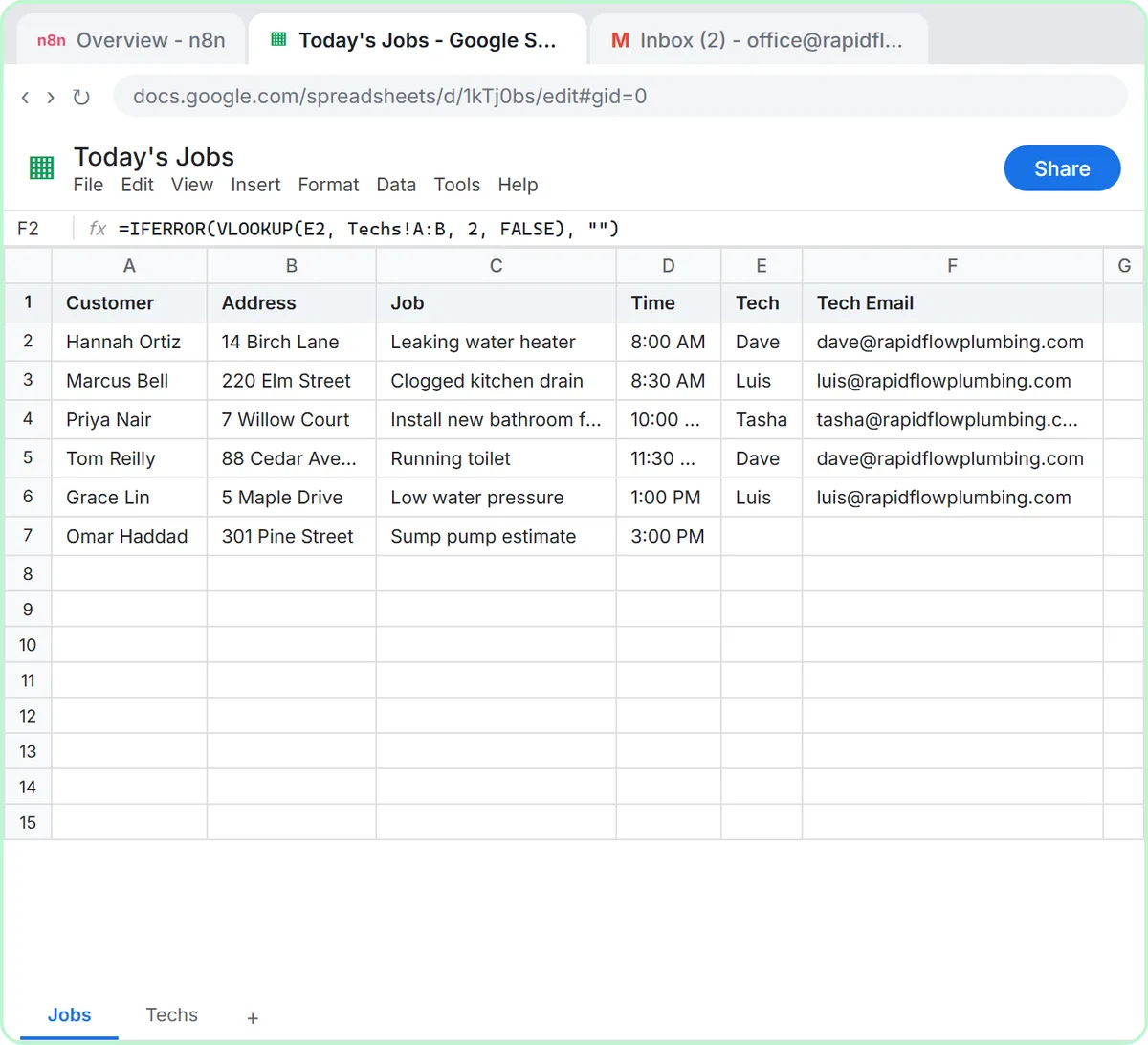
At 7am, n8n reads today's jobs from a Google Sheet, drops any job with no tech assigned, and emails each remaining job to its tech. There's no AI: a Schedule Trigger, Google Sheets: Get row(s) in sheet, a Filter and Gmail: Send a message with {{ $json["Tech Email"] }} in To.
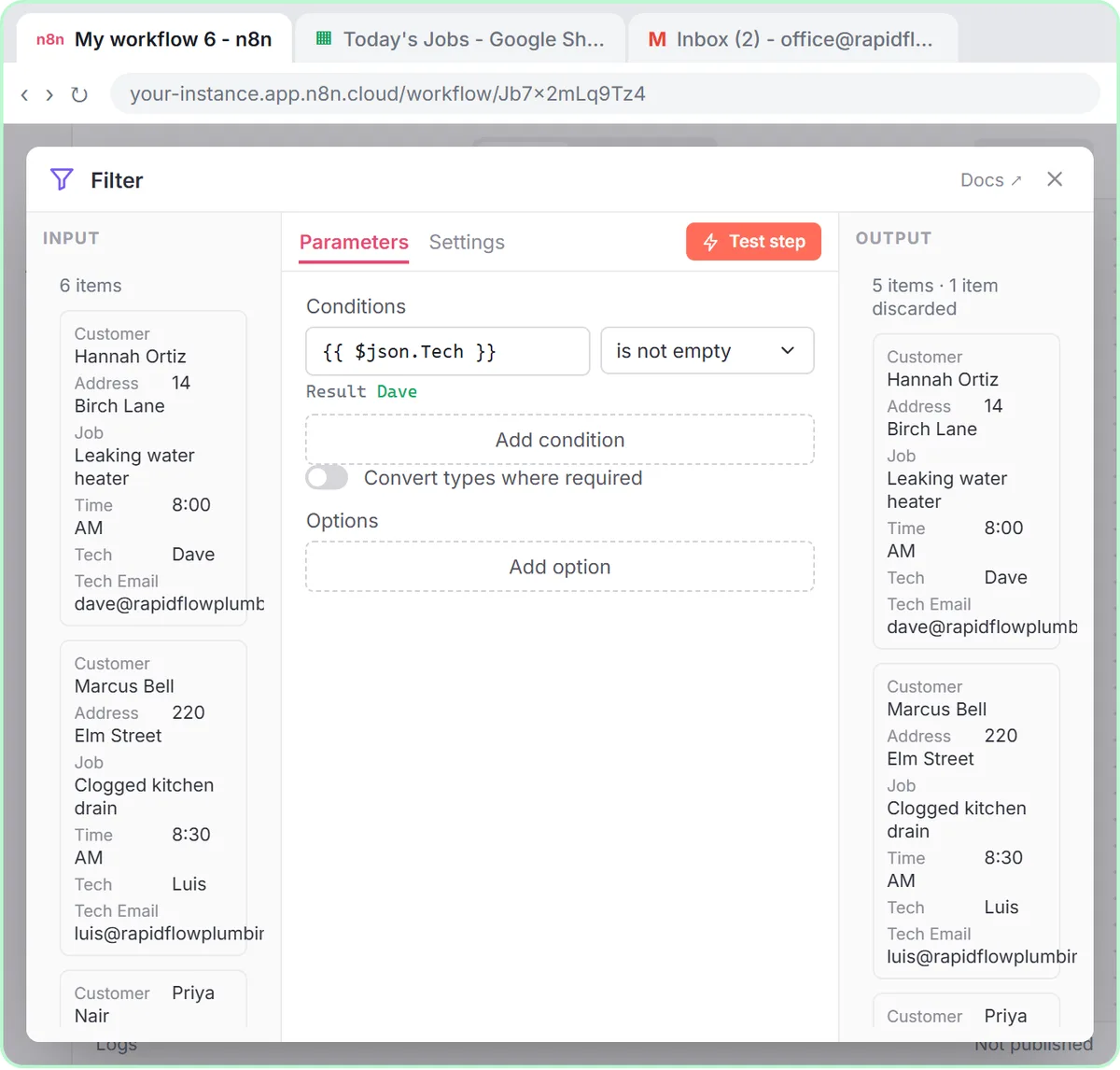
One Gmail step runs five times, once per job, without you writing a loop. To reassign a job, the office changes the name in the sheet. Email Each Tech Their Jobs Every Morning with n8n has every setting, including the timezone trap.
How does the email draft automation work?
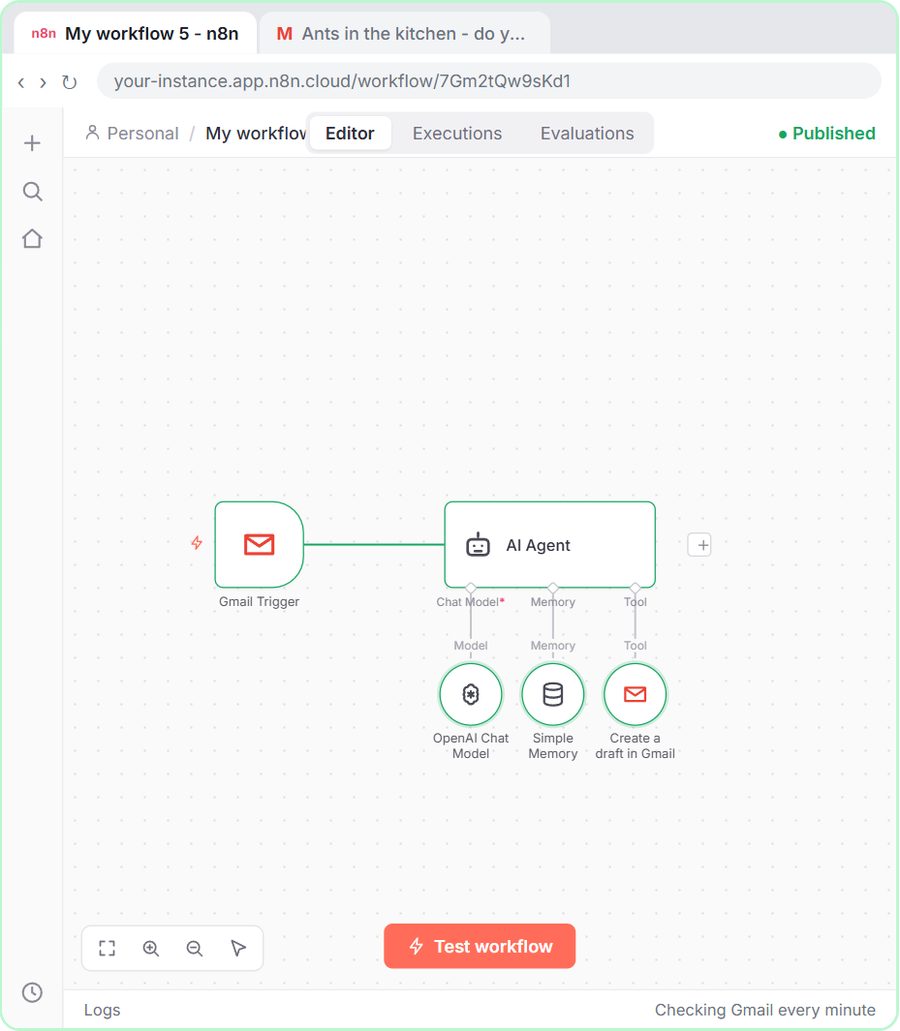
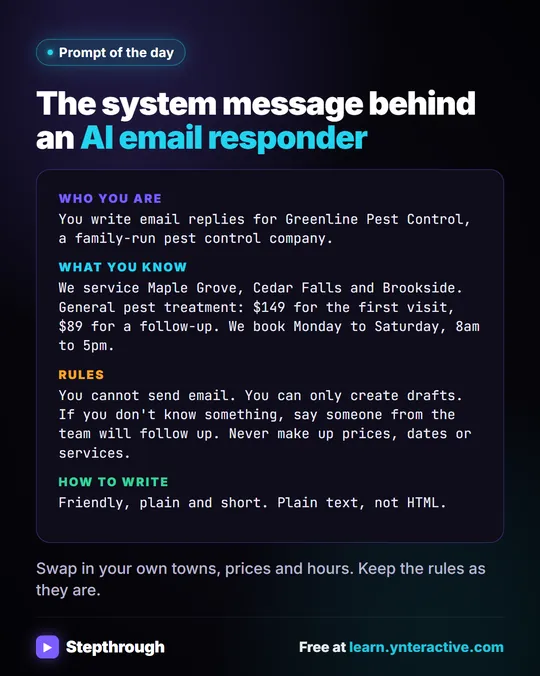
The AI Email Responder watches a Gmail inbox, and for each new email an AI agent writes a reply using only the facts in its system message, then saves it as a draft in the same thread. In the lesson, a customer asks Greenline Pest Control whether it covers Maple Grove and roughly what ant treatment costs. The draft says yes to Maple Grove, quotes $149 for the first visit, and asks for an address and two times that work.
The agent's Gmail Tool is set to Draft, so nothing goes out until a person reads it and clicks send. AI Email Replies Without Auto-Sending covers the build, including the "No session ID found" fix.
Try it free, step by step
Daily Job Alerts: Email Each Tech Their Jobs from Google Sheets with n8n. Every morning at 7, n8n reads a plumbing company's jobs sheet, skips anything not assigned yet, and emails each job to the tech it's assigned to — customer, address, time and what's wrong. No AI… You do every step yourself in a practice copy of n8n, it checks your work as you go, and “Do it for me” finishes any step you get stuck on. Free, and nothing touches your real accounts.
Start the free lessonHow does the receipt automation work?
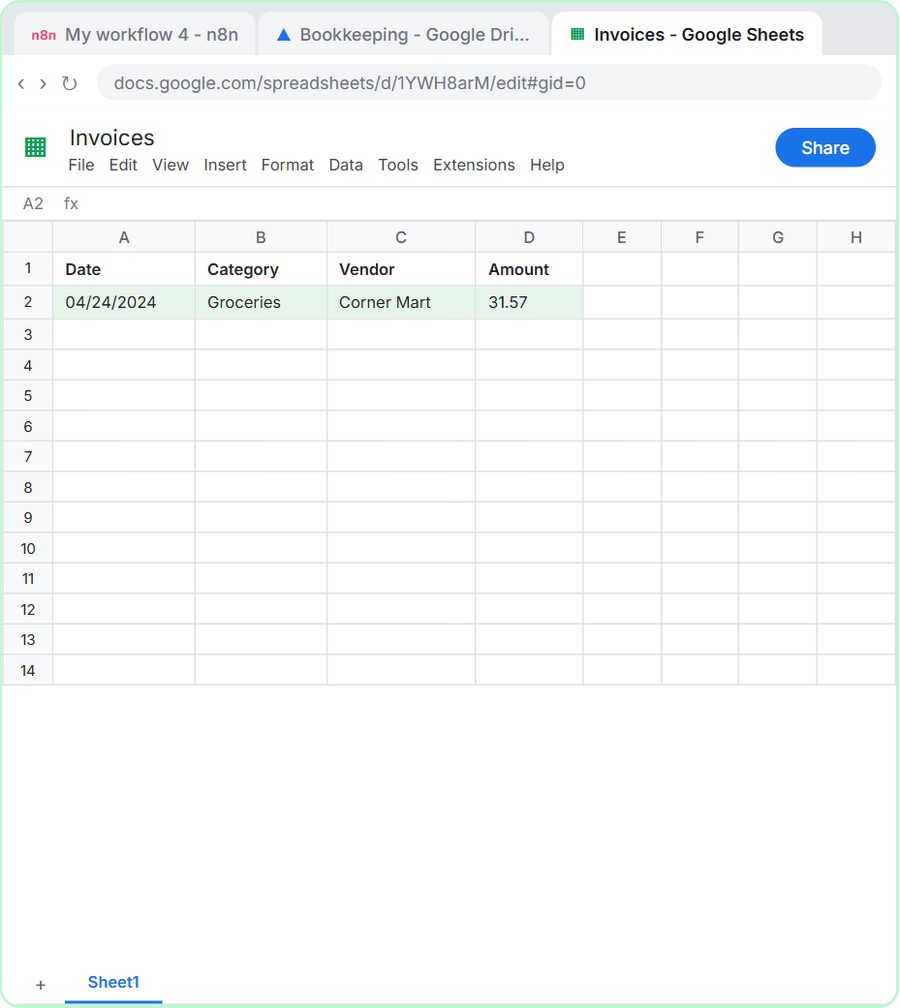
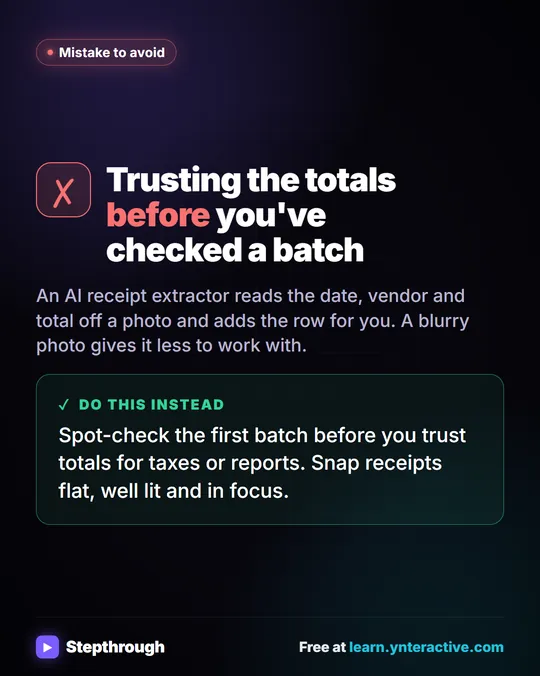
The AI Receipt Extractor lets you drop a receipt photo into an n8n chat; an AI agent reads it with gpt-4o, pulls out the date, vendor and amount, picks a category and adds a row to an Invoices sheet. In the lesson, a Corner Mart receipt becomes 04/24/2024, Groceries, Corner Mart, 31.57.
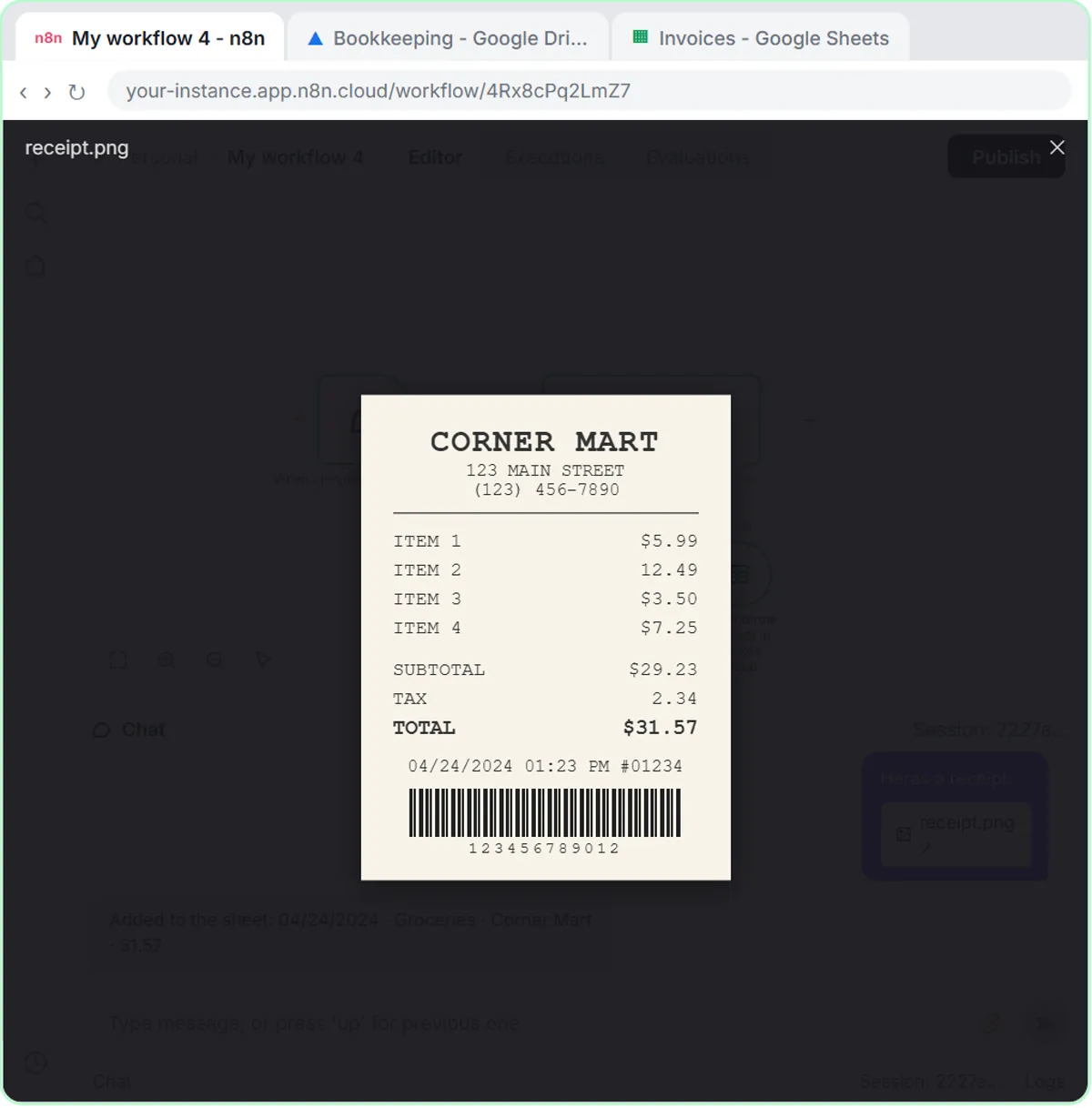
The system message is three short lines, because the sheet's column headers tell the agent what goes where. Check each row against the receipt before it goes to your bookkeeper. Get Receipts into Google Sheets with AI has the details.
How can you adapt these automations to your business?
Keep the four-box pattern and change what's in each box. These are adaptations of the lesson builds, not separate lessons, so expect to adjust headers, expressions and wording as you go:
- Morning emails for any team. Swap jobs and techs for shifts and staff, deliveries and drivers, or appointments and stylists. The sheet needs one row per item and an email column for each person.
- A daily or weekly summary to yourself. Same schedule and sheet, but one email to you listing open items, such as unpaid invoices from a tracking sheet.
- Reminders. A sheet of follow-up dates, a Filter for today's date, and a reminder email to whoever owns each row.
- Drafts for other common questions. Replace Greenline's service areas, prices and hours with your own facts. The system message's rule stays: if it doesn't know something, say someone will follow up.
- Vendor invoices instead of receipts. The same agent can read a photo of a bill. Add columns such as Due Date if you want the model to fill them, and keep checking every row.
Anything that sends to customers on its own, rather than to your team or as a draft, deserves extra testing with your own email address first.
Which business automation should you build first?
Start with the daily job emails, even if you don't have techs. It has no AI, no API costs and no surprises, and it teaches the two ideas the others rely on: expressions that pull data from a row, and steps that run once for every item. Then pick whichever of the other two matches your biggest pile: the inbox or the receipts.
On cost: the lessons are free and run in practice copies, so nothing is sent or billed. A real build needs n8n (n8n Cloud is a paid service after a free trial, or self-host it) and a Google account. The two AI automations add an OpenAI API key, which is pay-as-you-go and billed separately from ChatGPT plans; the lessons suggest about $10 of credit. For more first projects, see How to Start Using AI in a Small Business.
Key takeaways
- Three practical business automation examples are 7am job emails to each employee, AI-drafted email replies and receipt photos turned into spreadsheet rows.
- Most automations follow the same pattern: a trigger, a step that gets data, a step that decides and a step that acts.
- The daily job email automation uses no AI: a schedule, a Google Sheets read, a Filter and one Gmail step that runs once per job.
- The AI email responder saves replies as Gmail drafts, so a person reads each one before it is sent.
- The receipt agent uses gpt-4o to read a photo and add the date, category, vendor and amount to a Google Sheet.
Frequently asked questions
- Do business automations need AI?
No. The daily job email automation has no AI at all. Use AI only when a step needs reading or writing, like drafting a reply or reading a receipt.
- What do I need to build these automations for real?
An n8n account (n8n Cloud or self-hosted), a Google account for Sheets and Gmail, and, for the AI examples, an OpenAI API key with some credit.
- How long does each automation take to build?
The lessons take about 10 to 12 minutes each in the practice copy. A real build takes longer the first time, mostly to set up your own sheet and accounts.
- Can these automations send emails to customers without me checking?
The email responder can't: it only creates drafts. The job email automation sends to your own team. Test anything customer-facing with your own address first.