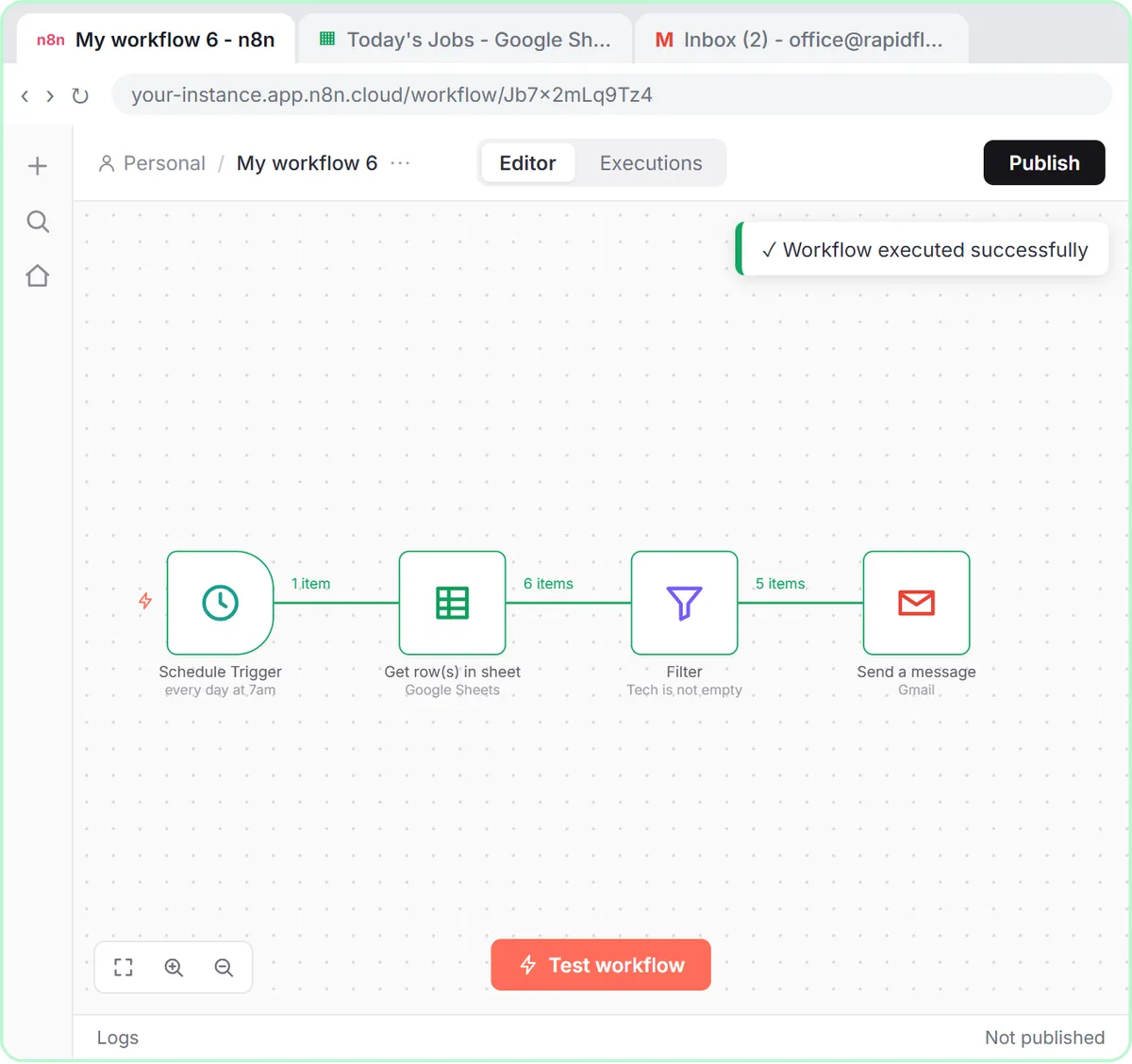
To email each field tech their jobs every morning, build a four-step n8n workflow: a Schedule Trigger at 7am, Google Sheets Get row(s) in sheet, a Filter that keeps rows where Tech is not empty, and Gmail Send a message with To set to each row's Tech Email. It's a good first automation for any business with people in the field, and you can practice it free in the Daily Job Alerts lesson. Set the workflow timezone first, because n8n schedules default to New York time.
Every morning, someone in the office copies the day's jobs from a spreadsheet into emails, one tech at a time. n8n can do it on its own, with no AI.
What does the n8n job email workflow do?
The workflow reads today's jobs from a Google Sheet at 7am, drops any job with no tech assigned, and sends each remaining job to its tech by Gmail.
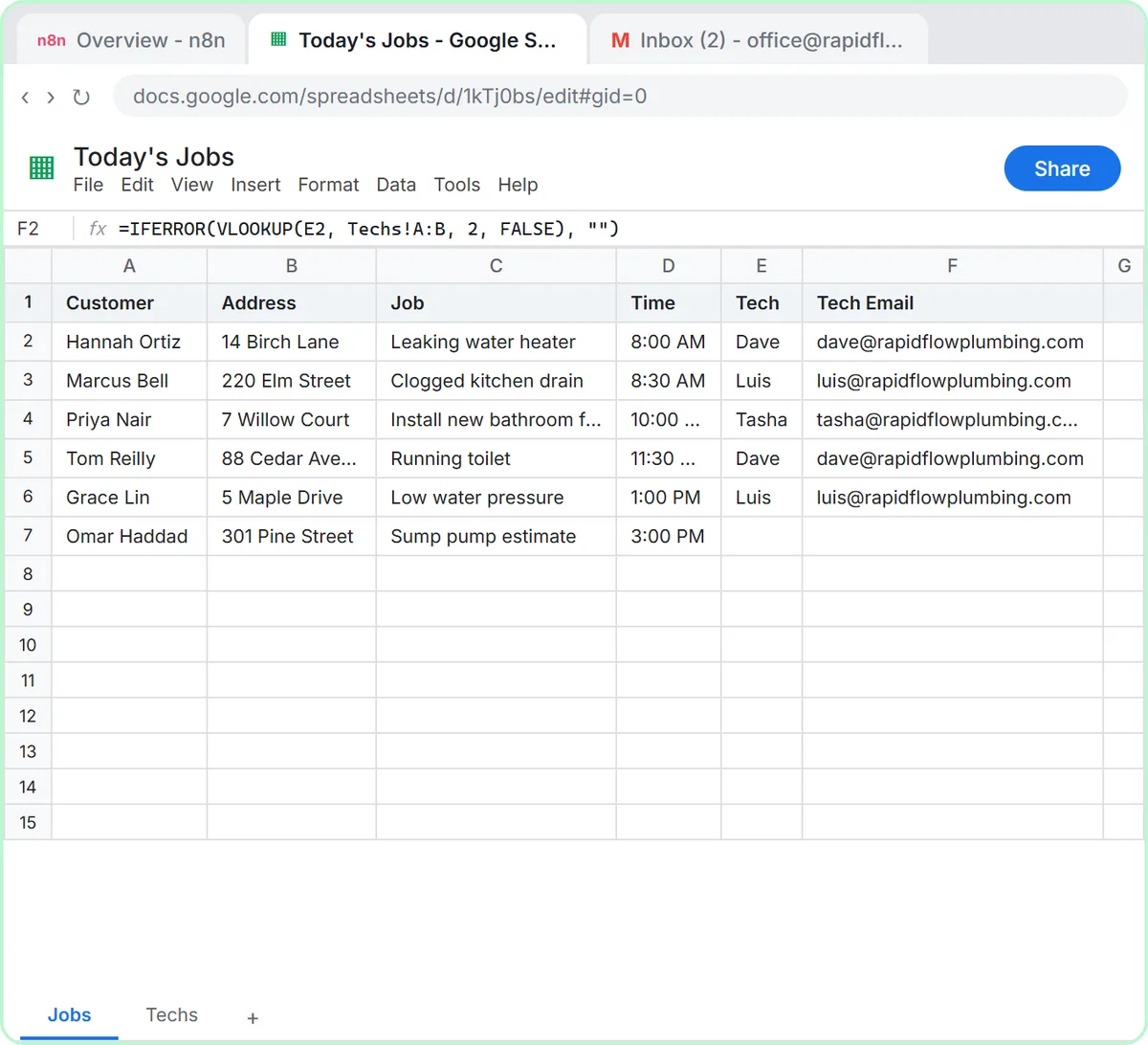
In the lesson you're the office at Rapid Flow Plumbing, a made-up company with four techs: Dave, Luis, Tasha and Kevin. The Today's Jobs sheet has a Jobs tab with Customer, Address, Job, Time, Tech and Tech Email columns. Tech Email is looked up from a Techs tab, so the office only types a first name. There are six jobs, and the last one, a sump pump estimate, has no tech yet.
How do I set the timezone for an n8n schedule?
Set the timezone in the workflow's Settings before you add the schedule, because an n8n schedule runs on the workflow timezone and that timezone defaults to New York time.
- Click Create workflow.
- Click the ··· next to the workflow name and choose Settings.
- Open the Timezone dropdown and pick your own. Rapid Flow is on Central time, so the lesson picks America/Chicago.
- Click Save.
If your business isn't on Eastern time and you skip this, the 7am email arrives at the wrong 7am.
How do I make an n8n workflow run every morning at 7am?
Add an On a schedule trigger, keep it at every 1 day, and change Trigger at Hour from midnight to 7am.
- Click Add first step and choose On a schedule.
- Leave the interval at every 1 day.
- Open Trigger at Hour and choose 7am. The n8n Schedule Trigger fires at midnight by default, and nobody reads job emails at midnight.
How do I read rows from Google Sheets in n8n?
Add Google Sheets: Get row(s) in sheet, pick your document and tab, and click Execute step to see one item per row.
- Click the + after the Schedule Trigger, type sheets and choose Google Sheets: Get row(s) in sheet. Don't pick Append, which adds rows instead of reading them.
- Pick your Google Sheets credential, or create one and sign in with Google.
- Choose the Today's Jobs document and the Jobs tab.
- Click Execute step. n8n reads the sheet right away and shows six items, labeled with the column names.
How do I skip rows with no tech assigned?
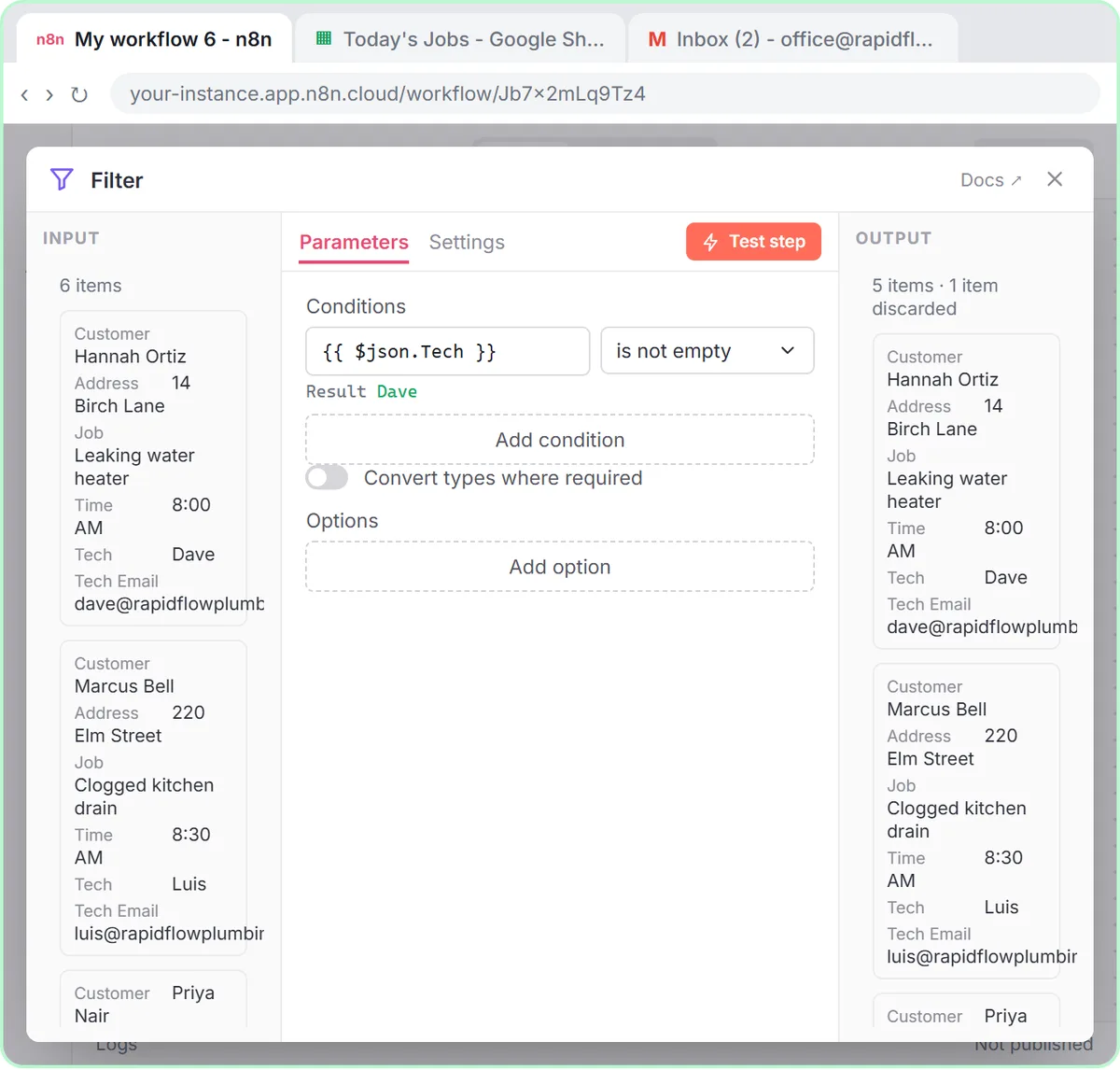
Add a Filter node with {{ $json.Tech }} as the value and the test set to is not empty, so rows with a blank Tech are dropped before Gmail runs.
- Click the + after Google Sheets, type filter and choose Filter.
- In value1, paste
{{ $json.Tech }}. The preview underneath shows Dave for the first row. - Open the operator dropdown (it says is equal to) and, under String, choose is not empty.
- Click Execute step. Six items go in and five come out. The sump pump job is discarded.
How do I send each row to a different email address in n8n?
Put the expression {{ $json["Tech Email"] }} in the Gmail To field, so each email goes to the address in that row's Tech Email column.
- Click the + after the Filter, type gmail and choose Gmail: Send a message.
- Create a new credential with Sign in with Google and pick the account the emails should come from, like the office account.
- In To, paste
{{ $json["Tech Email"] }}. The column name has a space, so it goes in square brackets and quotes. A typed address would send every job to the same person. - In Subject, paste
{{ $json.Time }} job: {{ $json.Customer }}. - Open Email Type and switch it from HTML to Text. A plain note reads fine on a phone.
- Paste the message:
Hi {{ $json.Tech }},

Job: {{ $json.Job }}
Address: {{ $json.Address }}
Time: {{ $json.Time }}
Customer: {{ $json.Customer }}
Last, click Add option, choose Append n8n Attribution and switch it off, so the "sent with n8n" line doesn't appear at the bottom.
If expressions are new to you, n8n Expressions for Beginners explains the curly brackets.
Try it free, step by step
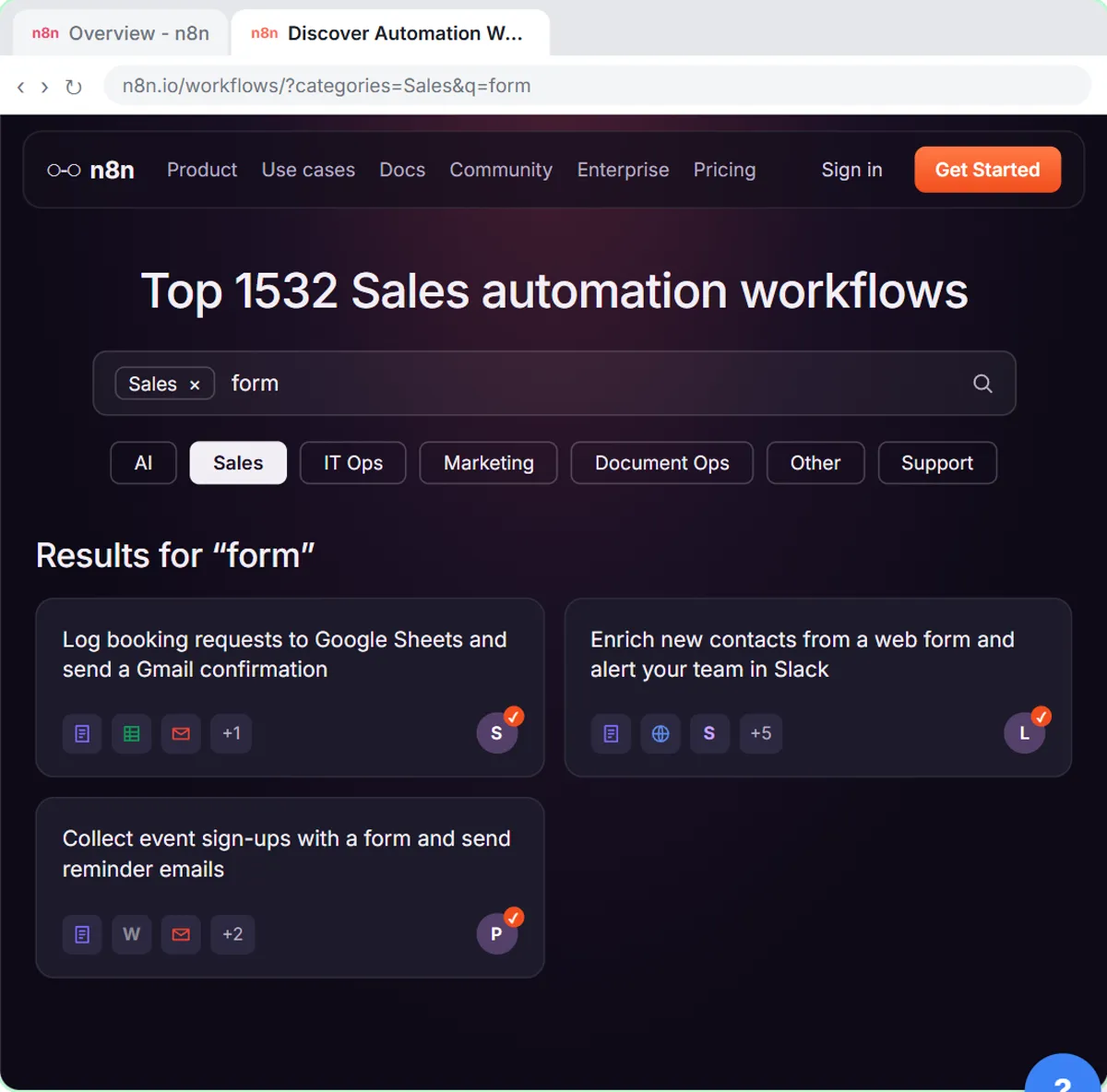
Daily Job Alerts: Email Each Tech Their Jobs from Google Sheets with n8n. Every morning at 7, n8n reads a plumbing company's jobs sheet, skips anything not assigned yet, and emails each job to the tech it's assigned to — customer, address, time and what's wrong. No AI… You do every step yourself in a practice copy of n8n, it checks your work as you go, and “Do it for me” finishes any step you get stuck on. Free, and nothing touches your real accounts.
Start the free lessonHow do I test and turn on the workflow?
Click Execute workflow to send the emails now, check the results, then click Publish so the workflow runs every morning on its own.
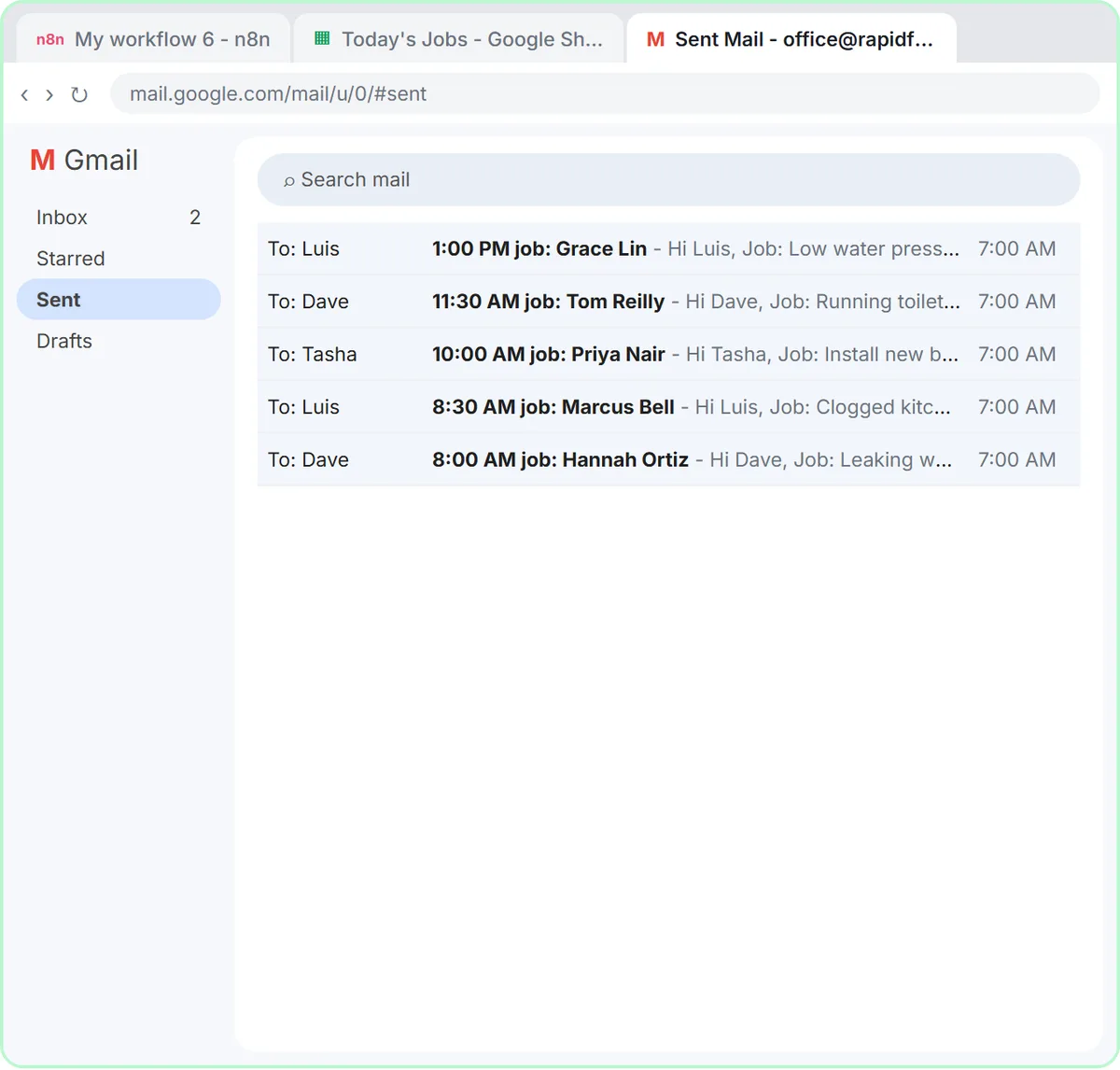
Six rows come out of the sheet, five pass the Filter, and the single Gmail step sends five emails, because n8n runs a step once for every item it receives. In the lesson the office's Sent folder has five emails: two to Dave, two to Luis and one to Tasha. Kevin gets none because he has no jobs today. The email about Marcus Bell goes to Luis, with his job straight from the sheet.
An n8n workflow only runs on its own after you click Publish. Until then it runs only when you press Execute.
What are the common mistakes with this workflow?
The common mistakes are the New York default timezone, the midnight default hour, picking Append instead of Get, typing one address in To, forgetting to publish, and leaving old jobs in the sheet. The workflow sends every assigned row every day, so keep the sheet to today's jobs.
How can I use this in my own business?
Any business with more than one person in the field can use this pattern: plumbers, electricians, cleaners and landscapers. When a job moves to another tech, the office changes the name in the sheet and tomorrow's email goes to the right person.
The same shape, trigger, get data, filter, send to the right person, works for invoice reminders, daily reports and appointment reminders. To build it for real you need an n8n account (n8n Cloud is a paid service after a free trial, or you can self-host n8n) and a Google account with Sheets and Gmail.
To start from something prebuilt instead, see How to Use n8n Templates and the Find and Use n8n Templates lesson. More lessons are on the n8n tutorials page and the plumbing page.
Key takeaways
- An n8n workflow with a Schedule Trigger, Google Sheets, a Filter and Gmail can email each tech their jobs every morning with no AI.
- n8n schedules default to New York time, so set the workflow timezone in Settings before building the schedule.
- The n8n Schedule Trigger fires at midnight by default, so change Trigger at Hour to 7am.
- The expression {{ $json["Tech Email"] }} in the Gmail To field sends each row to its own tech.
- n8n runs a step once per item, so six sheet rows filtered to five send five emails from one Gmail step.
Frequently asked questions
- Why does my n8n schedule run at the wrong time?
An n8n schedule uses the workflow's timezone, which defaults to New York time. Open the ··· menu next to the workflow name, go to Settings and pick your own timezone.
- How do I send each Google Sheets row to a different email address?
Put an expression in the Gmail To field that points at the email column, like {{ $json["Tech Email"] }}. n8n runs the Gmail step once per row, so each email goes to that row's address.
- How do I stop n8n from emailing rows with a blank column?
Add a Filter before Gmail with the column's expression as the value and the test set to is not empty. Rows with a blank value are dropped.
- Do I need AI to email jobs from Google Sheets?
No. The Daily Job Alerts workflow has no AI in it. It's a schedule, a sheet, a filter and an email, which makes it a good first n8n project.
- Does the practice lesson send real emails?
No. The Daily Job Alerts lesson uses practice copies of n8n, Google Sheets and Gmail. No account is connected and no email is sent.