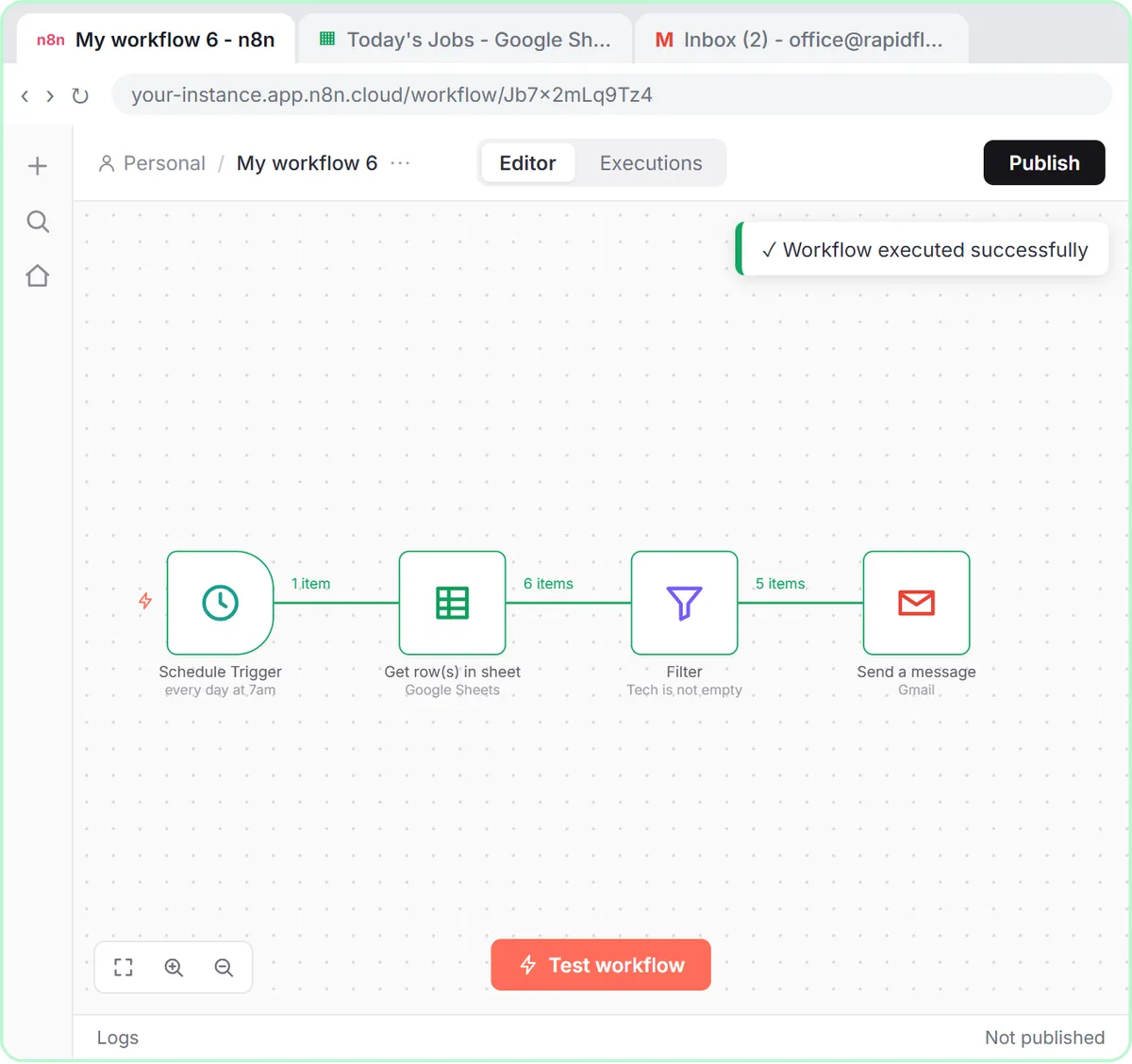
A mail merge sends one personalized email per row of a spreadsheet, and n8n can do it from Google Sheets to Gmail with three steps: Get row(s) in sheet, a Filter, and Gmail: Send a message with expressions in the To, Subject and Message fields. This guide is for office staff who send the same kind of email to a list of people, like staff schedules or appointment notes, and you can practice the pattern free in the Daily Job Alerts lesson.
What is a mail merge?
A mail merge is one email template filled in with different details for each row of a list. Each person gets their own email with their own name and details, instead of one group email to everyone.
In the Daily Job Alerts lesson, the list is a Google Sheet of today's jobs at Rapid Flow Plumbing, a made-up company, and each tech gets an email for each job assigned to them. The same pattern works for any list where each row should become its own email.
How does n8n send one email per row?
An n8n node runs once for every item it receives, and Get row(s) in sheet turns each spreadsheet row into one item. So one Gmail node sends one email per row, with no loop to set up.
The workflow has four nodes:
- A trigger that starts it: On a schedule in the lesson (7am daily), or a manual start for a one-time send.
- Google Sheets: Get row(s) in sheet, pointed at your spreadsheet and tab. Choose Get row(s), which reads rows; Append would add rows instead.
- Filter, which keeps only the rows that should get an email.
- Gmail: Send a message, with expressions that fill in each row's details.
In the lesson's test, six rows come out of the sheet, five pass the Filter, and the Gmail node sends five emails. Email Each Tech Their Jobs Every Morning with n8n shows the full 7am build; this post focuses on what makes any mail merge work.
How should you set up the sheet for a mail merge?
Put clear headers in row 1, one recipient per row, and a column with each person's email address. The headers become the names you use in n8n expressions, so keep them short and stable.
The lesson's Jobs tab has Customer, Address, Job, Time, Tech and Tech Email columns. One detail is worth copying: Tech Email isn't typed by hand. It's looked up from a separate Techs tab, so the office types only a first name and the address fills in. That cuts down on typos in the one column that decides where each email goes.
If you'll rename a column later, remember that every expression using the old name will come back empty.
How do you send each email to a different address?
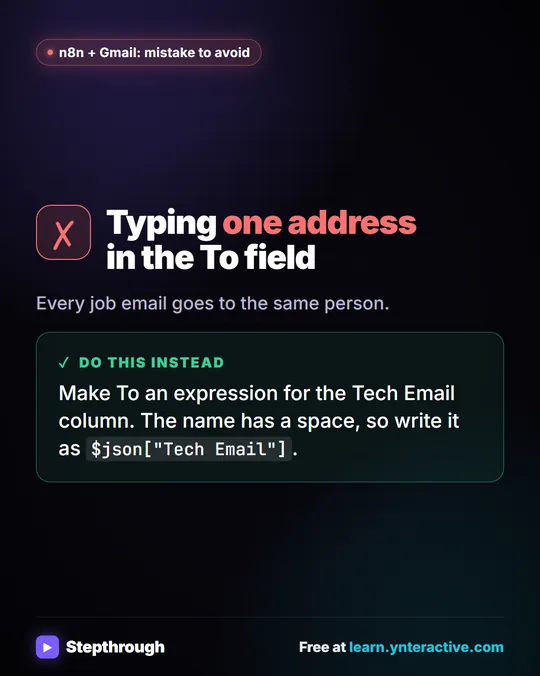
Put an expression that points at the email column in the Gmail node's To field, not a typed address. In the lesson, it's:
{{ $json["Tech Email"] }}The column name has a space, so it goes in square brackets and quotes. A name without spaces can use a dot, like {{ $json.Tech }}. Underneath the field, n8n shows what the expression gives for the first row, so you can confirm it reads Dave's address before sending anything.
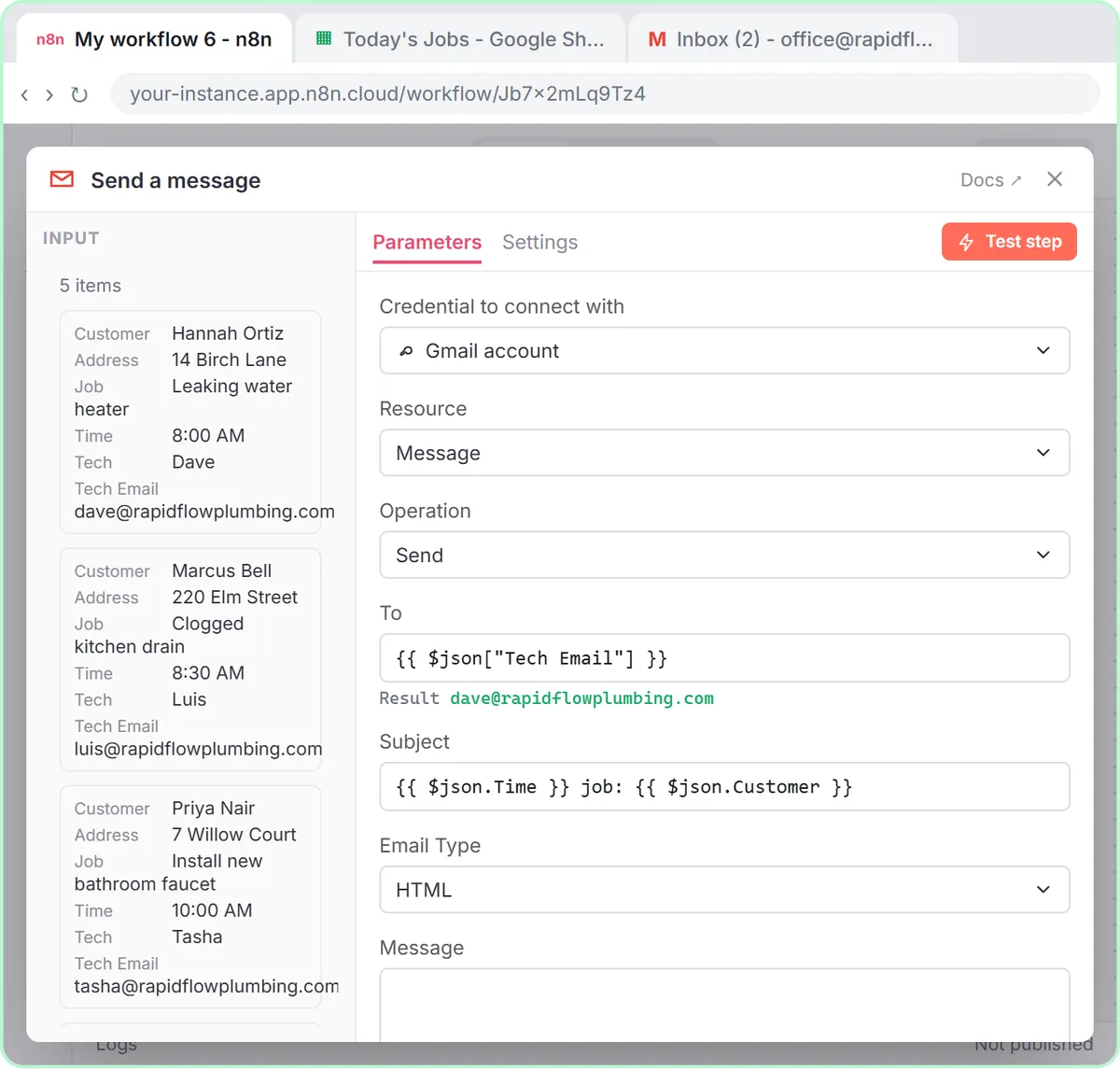
If you type one address in To, every email goes to that one person. n8n Expressions for Beginners explains $json, dots and brackets.
How do you personalize the subject and message?
Use expressions in the Subject and Message fields the same way, pulling in each row's details. The lesson's subject is {{ $json.Time }} job: {{ $json.Customer }}, and the message is:
Hi {{ $json.Tech }},

Job: {{ $json.Job }}
Address: {{ $json.Address }}
Time: {{ $json.Time }}
Customer: {{ $json.Customer }}
Two settings make the result read like a normal email:
- Email Type: change it from HTML to Text. Plain text is simpler and reads fine on a phone.
- Append n8n Attribution: click Add option, choose Append n8n Attribution and switch it off. Otherwise n8n adds a line saying the email was sent with n8n.
Try it free, step by step
Daily Job Alerts: Email Each Tech Their Jobs from Google Sheets with n8n. Every morning at 7, n8n reads a plumbing company's jobs sheet, skips anything not assigned yet, and emails each job to the tech it's assigned to — customer, address, time and what's wrong. No AI… You do every step yourself in a practice copy of n8n, it checks your work as you go, and “Do it for me” finishes any step you get stuck on. Free, and nothing touches your real accounts.
Start the free lessonHow do you skip rows that shouldn't get an email?
Add a Filter node between the sheet and Gmail with a condition that only the right rows pass. In the lesson, the condition is {{ $json.Tech }} is not empty, so the one job with no tech is dropped instead of emailed to nobody.
You can use the same idea for other rules. A column like Send or Status lets someone mark which rows go out today, and the Filter keeps only those. The Filter shows its counts after a test, such as six in and five out, so you can see what was dropped.
How do you test a mail merge without emailing real people?
Send the first run to yourself. Make a copy of the sheet, or a test tab, where every email column holds your own address, point the workflow at it, and run it.
Then use n8n's own checks:
- Test step on the Google Sheets node to see the rows as items, with column names as labels.
- Test step on the Filter to confirm how many rows pass.
- Test workflow to run the whole thing, then open your Gmail Sent folder and read a couple of the emails.
In the lesson, the Sent folder shows five emails, two to Dave, two to Luis and one to Tasha, each with its own job. Once the test emails look right, point the workflow back at the real sheet. If it runs on a schedule, click Publish to turn it on.
Should you run a mail merge once or on a schedule?
Run it on a schedule when the list changes every day and should go out at the same time, like the lesson's 7am job emails. Use a manual start for a one-time send, so it only runs when you choose.
A scheduled merge sends every row that passes the Filter, every time it runs. The lesson's advice applies to any repeating merge: keep the sheet to the rows that should go out today, or use a status column so yesterday's rows don't go out again. If you'd rather start from a ready-made workflow, the Find and Use n8n Templates lesson shows how to import one from the n8n gallery.
When should you not use n8n for a mail merge?
Don't use a Gmail mail merge for marketing emails to a customer list. Marketing email usually needs consent and an easy way to unsubscribe, and email marketing tools are built for that. Check the rules that apply to you; this isn't legal advice.
Gmail also has daily sending limits, so a large list can hit them. An n8n Gmail mail merge fits best for operational emails to people who expect them: your staff, your crews, or customers about their own appointment or order. More n8n lessons are on the n8n tool page.
Key takeaways
- A mail merge sends one personalized email per spreadsheet row, and n8n does it with Get row(s) in sheet, a Filter and Gmail: Send a message.
- An n8n node runs once per item, so one Gmail node sends a separate email for each row that passes the Filter.
- The Gmail To field should hold an expression like
{{ $json["Tech Email"] }}, not a typed address. - Set Email Type to Text and turn off Append n8n Attribution so the emails read like normal messages.
- Test the merge by sending to your own address first, check the Sent folder, and avoid using a Gmail merge for marketing lists.
Frequently asked questions
- Can n8n do a mail merge from Google Sheets?
Yes. Read the rows with Google Sheets: Get row(s) in sheet, filter them, and send with Gmail: Send a message using expressions for the address, subject and message.
- Why did every email go to the same person?
The To field probably has a typed address instead of an expression. Use an expression that points at your email column, like
{{ $json["Tech Email"] }}.- How do I remove "sent with n8n" from the emails?
In the Gmail node, click Add option, choose Append n8n Attribution and switch it off.
- Does this mail merge use AI?
No. It reads the sheet, filters rows and fills in the template with expressions. There's no AI step and no OpenAI cost.