Gmail is a separate credential with its own sign-in. The steps below cover both, plus the two places people get stuck: picking the right Google account and finding the right spreadsheet.
How do you connect Google Sheets to n8n?
Create a Google Sheets credential from the node's Credential dropdown and sign in with Google. On n8n Cloud there's no Google developer setup: n8n handles it through Managed OAuth2. The steps from the lessons:
- Open a Google Sheets node and click the Credential dropdown.
- Click Create new credential.
- Leave it on Managed OAuth2 and click Sign in with Google.
- Pick the Google account that owns the spreadsheet.
- Allow access. Google lists what n8n may do in Sheets. Depending on the screen, tick Select all, or check the three boxes: See, edit, create, and delete all your Google Sheets spreadsheets, See, edit, create, and delete all of your Google Drive files and Connect to an external service.
- Click Continue. Google hands the connection back to n8n, and you see Account connected (or "connection successful").
The Drive permission matters even though you only want Sheets. The lessons explain that n8n needs Drive access to find your spreadsheets by name.
Do you have to connect Google again for every workflow?
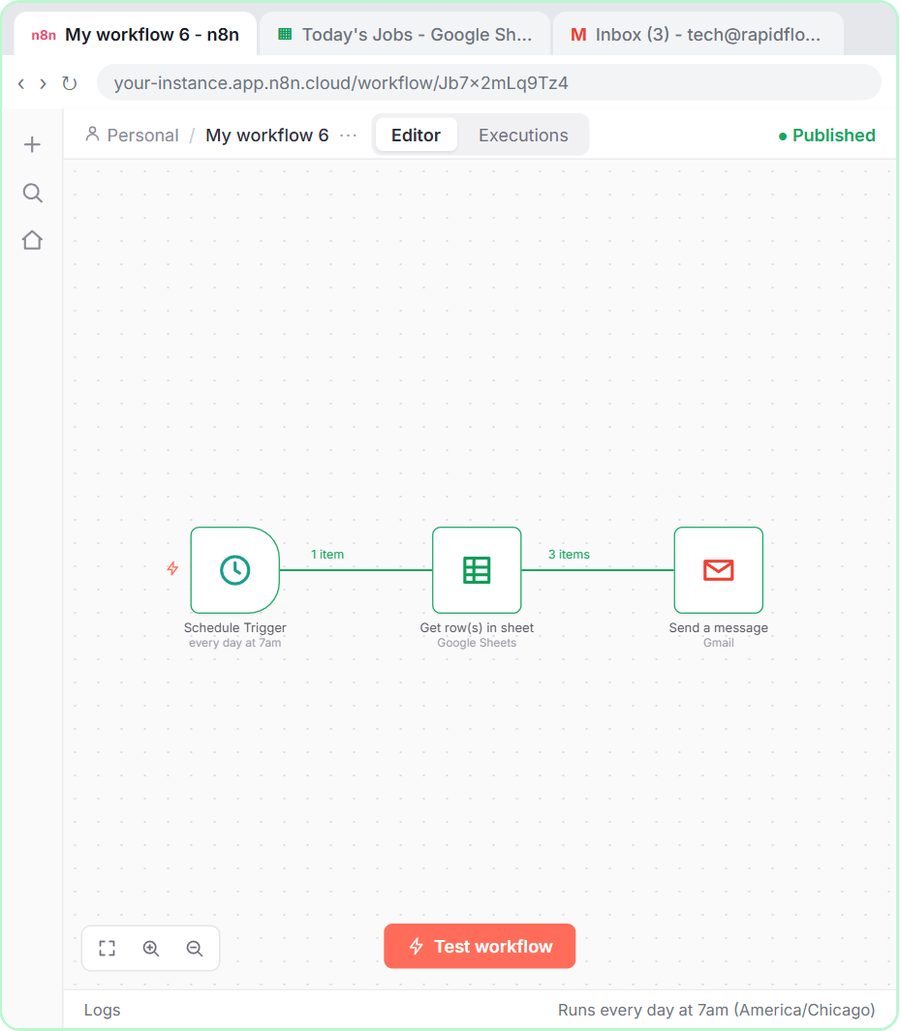
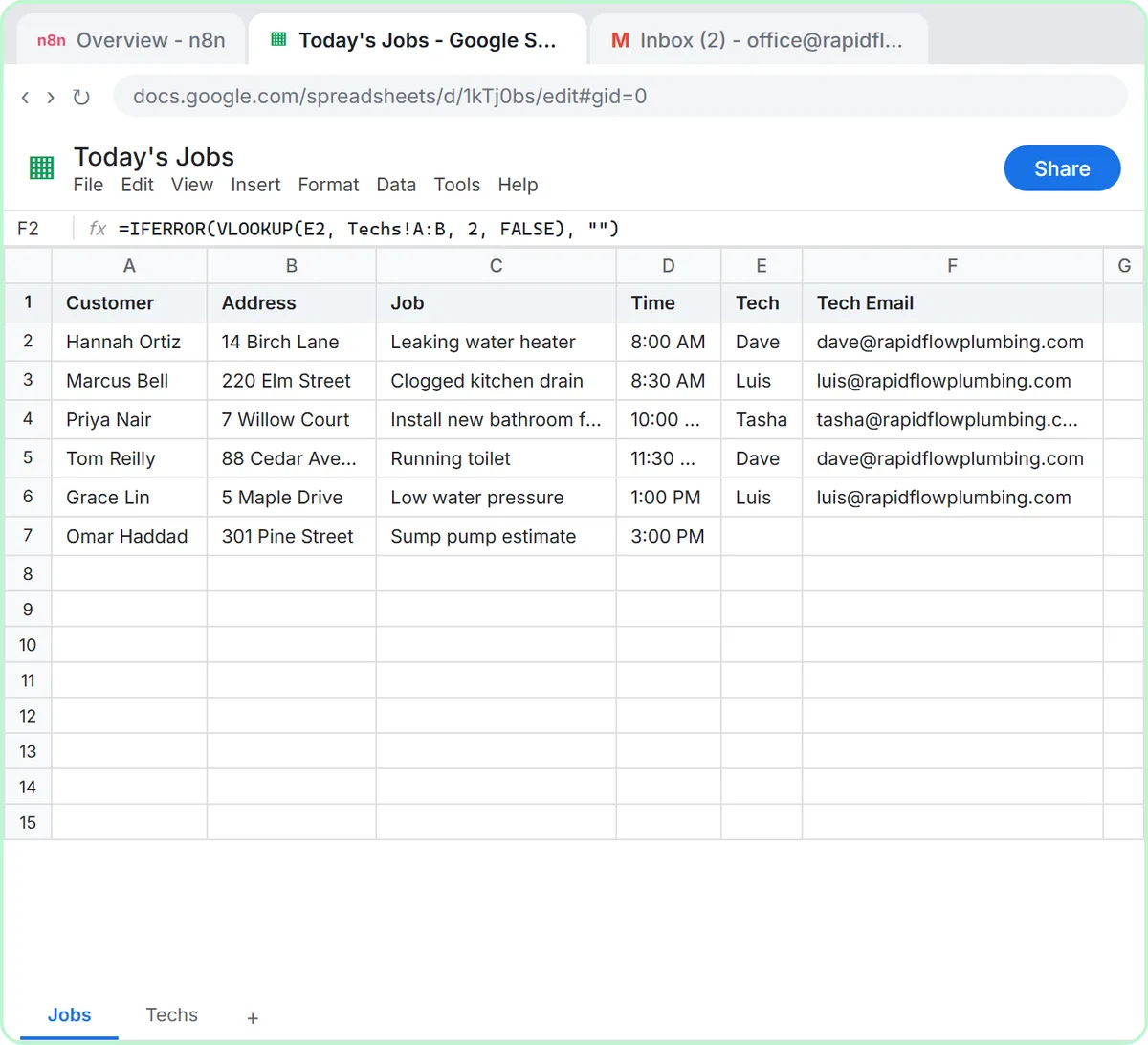
No. n8n saves the credential, so every later workflow can pick it from the list. In the Daily Job Alerts lesson, the Google Sheets step simply chooses Google Sheets account from the Credential dropdown, the one created earlier, and n8n already has permission.
The same goes for OpenAI and Gmail credentials. Create each one once, give it a name you'll recognize, and reuse it.
Why does Gmail need its own credential?
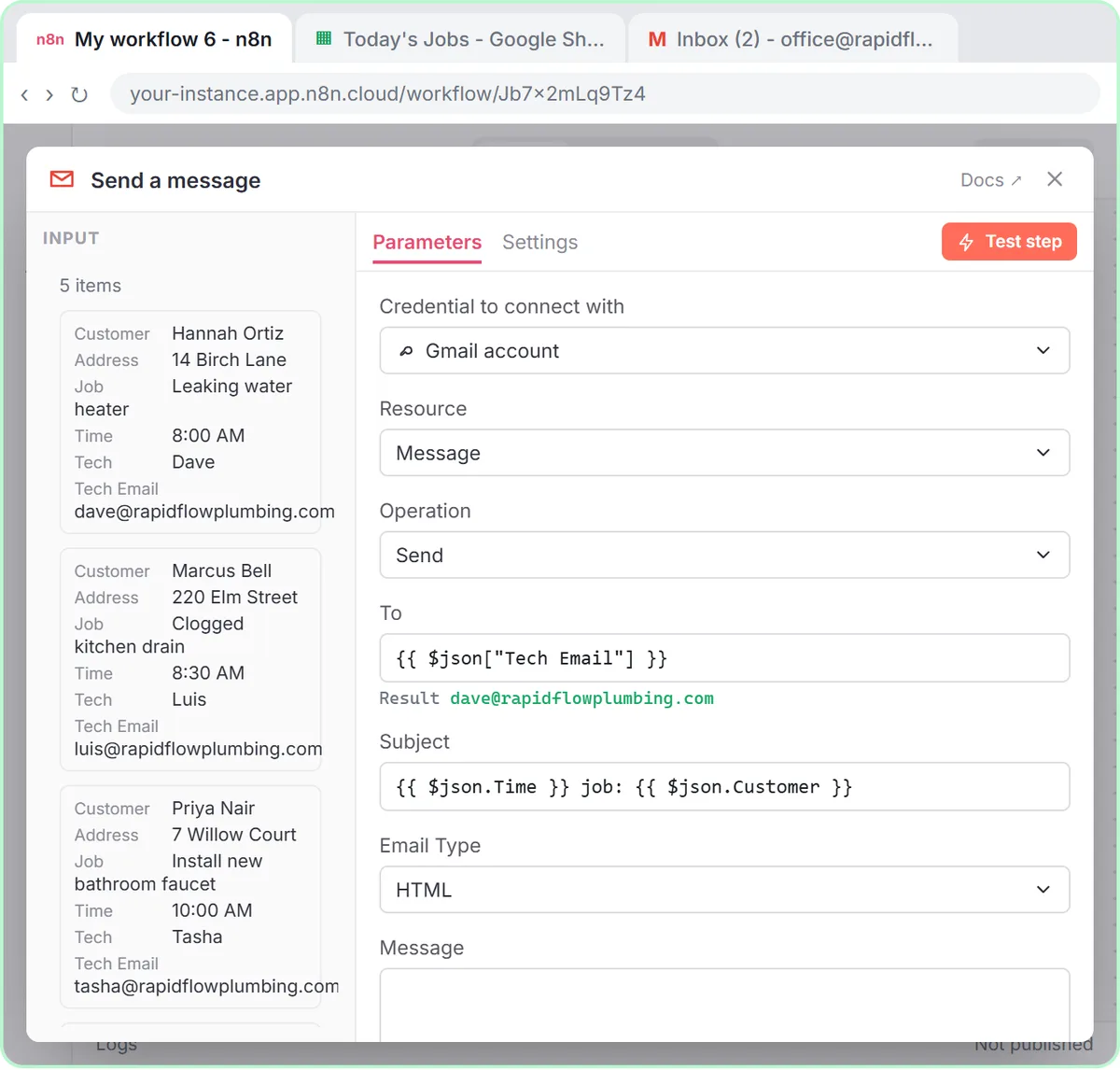
Gmail and Google Sheets are separate Google services, so n8n asks for separate permission for each. In the job alerts lesson, the Gmail step needs "its own permission": Credential, Create new credential, Sign in with Google, then you pick the account the emails should come from (for a business, usually the office account) and click Continue.
Two things to know about the Gmail sign-in:
- Pick the sending account on purpose. Emails go out from whichever Gmail account you connect. In the lessons, that's the office inbox, not a personal one.
- The permission list is longer. Google lists broad email permissions. In the AI Email Responder lesson, the narration points out that what actually happens is decided by the nodes you add, such as creating drafts instead of sending.
Once connected, the credential shows up as Gmail account and can be reused, for example by a Gmail trigger and a Gmail Tool in the same workflow.
How does an n8n template connect your accounts?
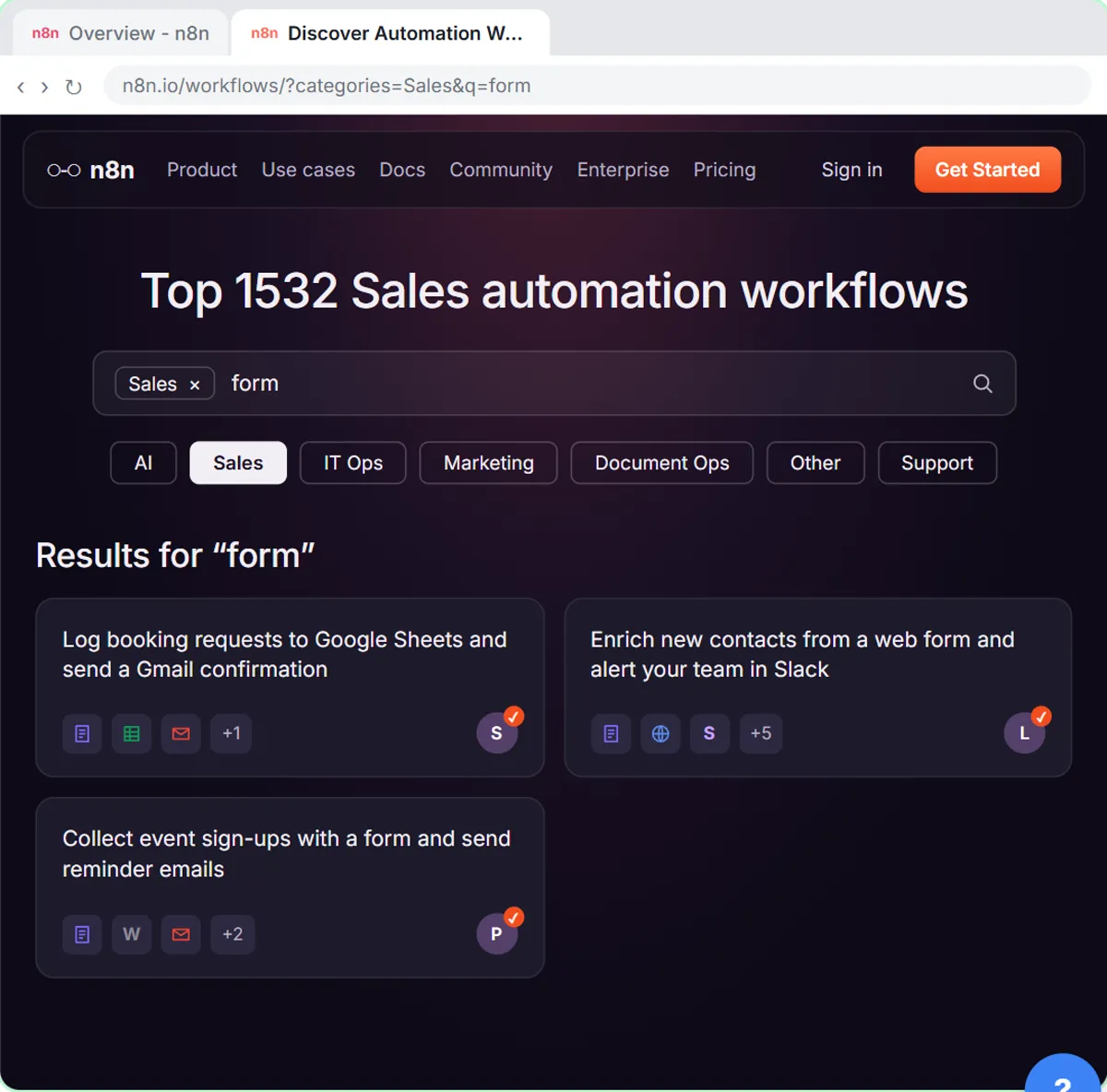
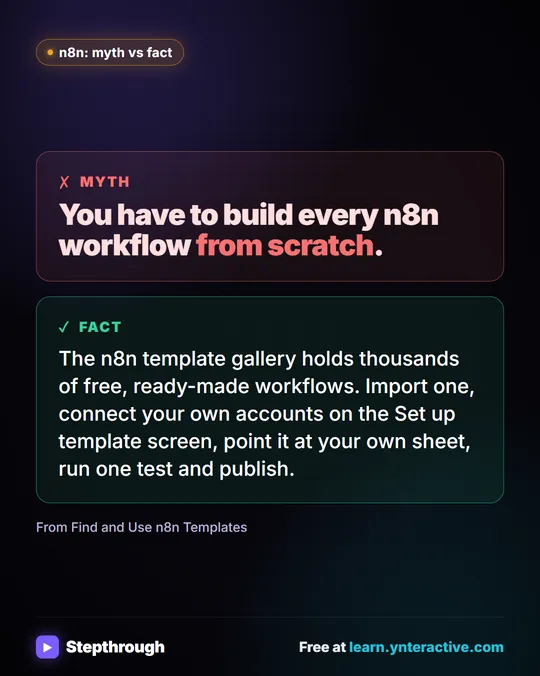
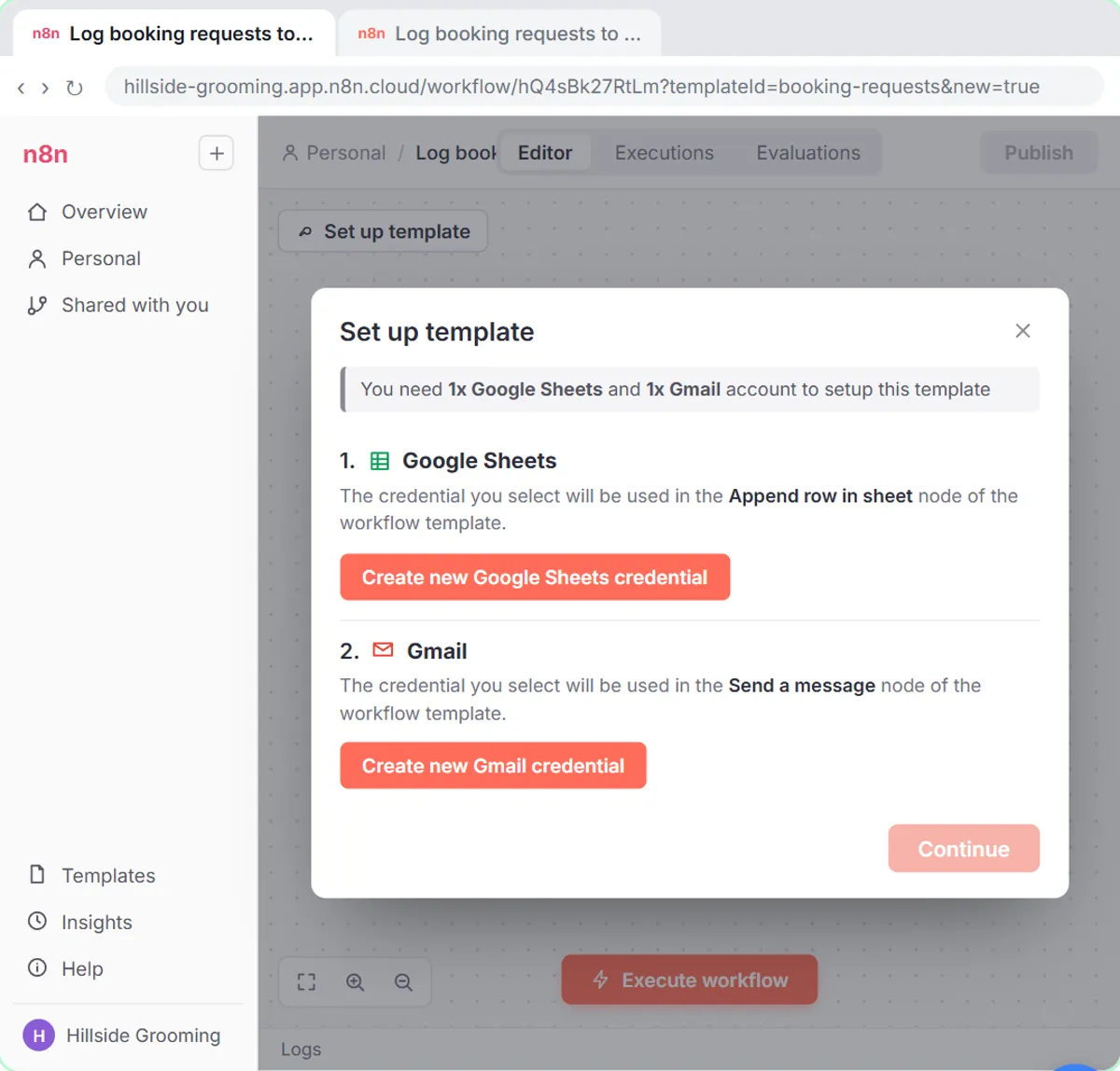
An imported template opens with a Set up template window that lists every account it needs, and you create each credential from there. In the template lesson, the booking-request workflow for Hillside Pet Grooming (a made-up business) needs two:
- Under 1. Google Sheets, click Create new Google Sheets credential, sign in with Google, tick Select all, click Continue, then close the window.
- Under 2. Gmail, click Create new Gmail credential and do the same.
- When both have a green check, click Continue. n8n puts each credential into the right step.
How to Use n8n Templates covers the rest of the template, from finding it in the gallery to publishing it.
Try it free, step by step
Find and Use n8n Templates. Skip the blank canvas. Find a ready-made workflow in the n8n template gallery, import it into your workspace, connect Google Sheets and Gmail, test it with a real form entry and publish it. You do every step yourself in a practice copy of n8n, it checks your work as you go, and “Do it for me” finishes any step you get stuck on. Free, and nothing touches your real accounts.
Start the free lessonHow do you point n8n at the right spreadsheet?
After the credential, choose the spreadsheet in the Document dropdown and the tab in the Sheet dropdown. The template can't know which spreadsheet is yours, so its Google Sheets step shows a warning until you pick one.
- Click Document and choose your spreadsheet by name (in the lesson, Hillside Booking Requests).
- Click Sheet and choose the tab (Sheet1, or Jobs in the job alerts lesson).
- Check the Operation. Get row(s) in sheet reads rows; Append Row adds a new row at the bottom.
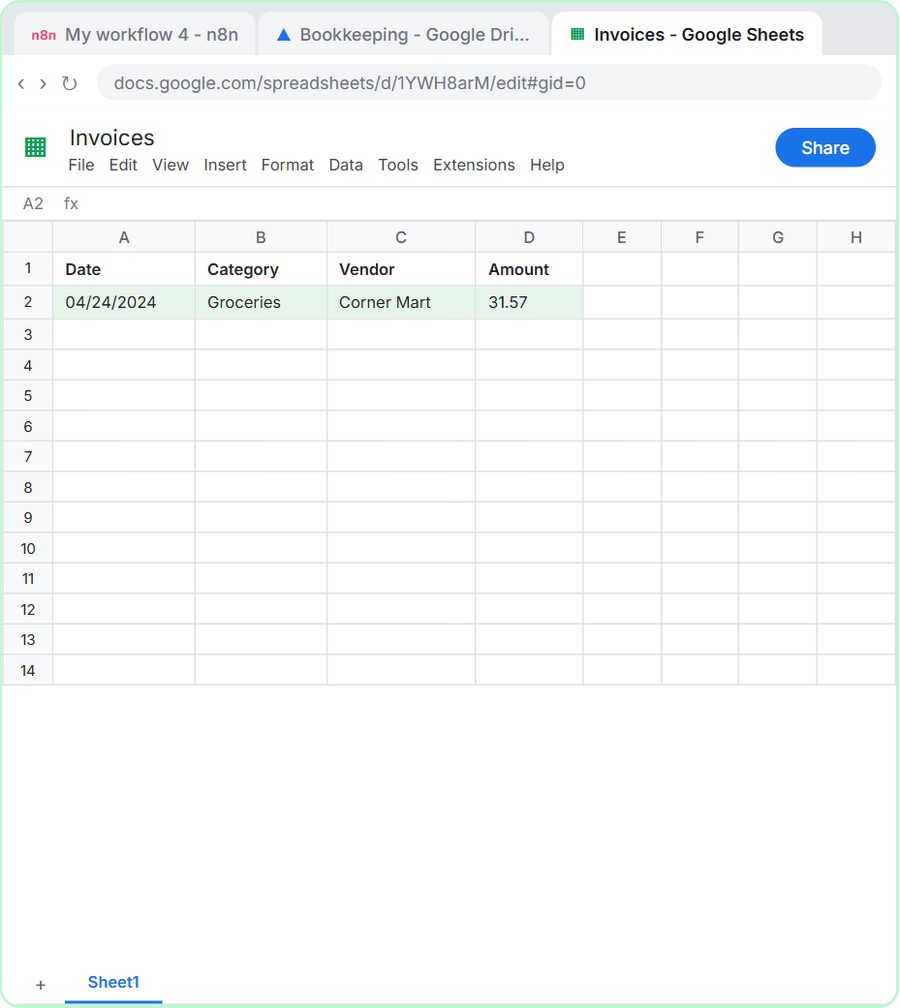
Name the spreadsheet before you go looking for it. The AI Receipt Extractor lesson renames the new file to Invoices first, "so you can find it in n8n's list." Put the column headers in row 1, too. The template expects Name, Email, Pet name and Submitted; the receipt sheet uses Date, Category, Vendor and Amount.
What goes wrong when connecting Google to n8n?
Most problems come from the wrong Google account, a spreadsheet n8n can't see yet, or a missed permission box. Check these in order:
- The wrong Google account. The Document list only shows spreadsheets the connected account can reach. If your sheet is missing, you probably signed in with a different account. Create a new credential with the account that owns the sheet.
- A spreadsheet that doesn't exist yet. Create the sheet first. The receipt lesson builds it in a Bookkeeping folder shared with an accountant, where Google asks you to confirm with Create and share before making the file. If your folder isn't shared, you won't see that step.
- An unchecked box. If a permission was left unticked, the node can fail later. Reconnect and allow every box the lesson shows.
- Headers that don't match. n8n reads the header row to list your columns, so typos in row 1 become mismatched fields.
- A self-hosted n8n. The lessons use n8n Cloud, where Sign in with Google works out of the box. Self-hosted n8n usually needs extra Google setup first, so check n8n's own documentation.
What does it cost to connect Google to n8n?
The Google connection itself is just a sign-in: the lessons use a regular Google account with Sheets and Gmail. n8n Cloud is a paid service after a free trial, or you can self-host n8n. AI steps add an OpenAI API key, which is pay-as-you-go and billed separately from ChatGPT plans.
The Stepthrough lessons are free and run in a practice copy, so nothing is connected, sent or billed. Email Each Tech Their Jobs Every Morning puts both credentials to work in one workflow, and the n8n tool page lists every n8n lesson.
If you would rather have the connections and the workflow set up for you, see n8n consulting with Robert Breen.
Key takeaways
- On n8n Cloud, Google Sheets connects through Credential, Create new credential and Sign in with Google, with Managed OAuth2 and no Google developer setup.
- The Google Sheets credential needs Sheets and Drive permissions, because n8n uses Drive access to find spreadsheets by name.
- Gmail is a separate credential, and emails are sent from whichever Gmail account you connect.
- n8n saves each credential, so later workflows pick it from the Credential dropdown instead of signing in again.
- If a spreadsheet is missing from the Document list, the connected Google account usually can't see it.
Frequently asked questions
- Do I need a Google Cloud project to connect Google Sheets to n8n?
Not on n8n Cloud. Leave the credential on Managed OAuth2 and click Sign in with Google. Self-hosted n8n usually needs extra setup, so check n8n's documentation.
- Can one Google credential cover Sheets and Gmail?
In the lessons, no. Google Sheets and Gmail each get their own credential, created with their own Sign in with Google.
- Why can't I find my spreadsheet in the Document dropdown?
The connected Google account probably can't see it, or the file doesn't exist yet. Check which account you signed in with and name the sheet first so it's easy to find.
- Which Gmail account should I connect?
The account the emails should come from. For a business, the lessons use the office inbox rather than a personal account.