To use an n8n template, open Templates from your n8n workspace, pick a workflow in the gallery, click Use for free and import it to your instance. Then connect your accounts in the Set up template window, swap in your own spreadsheet and email wording, run a test with Execute workflow and click Publish. You can practice every step free in the Find and Use n8n Templates lesson.
The n8n template gallery holds thousands of free, ready-made workflows. Most people copy one, see a canvas full of red warnings and give up. The template isn't broken: it just doesn't know your accounts or your data yet.
What does the example template do?
The example template logs booking requests from a form to Google Sheets and sends each customer a Gmail confirmation.
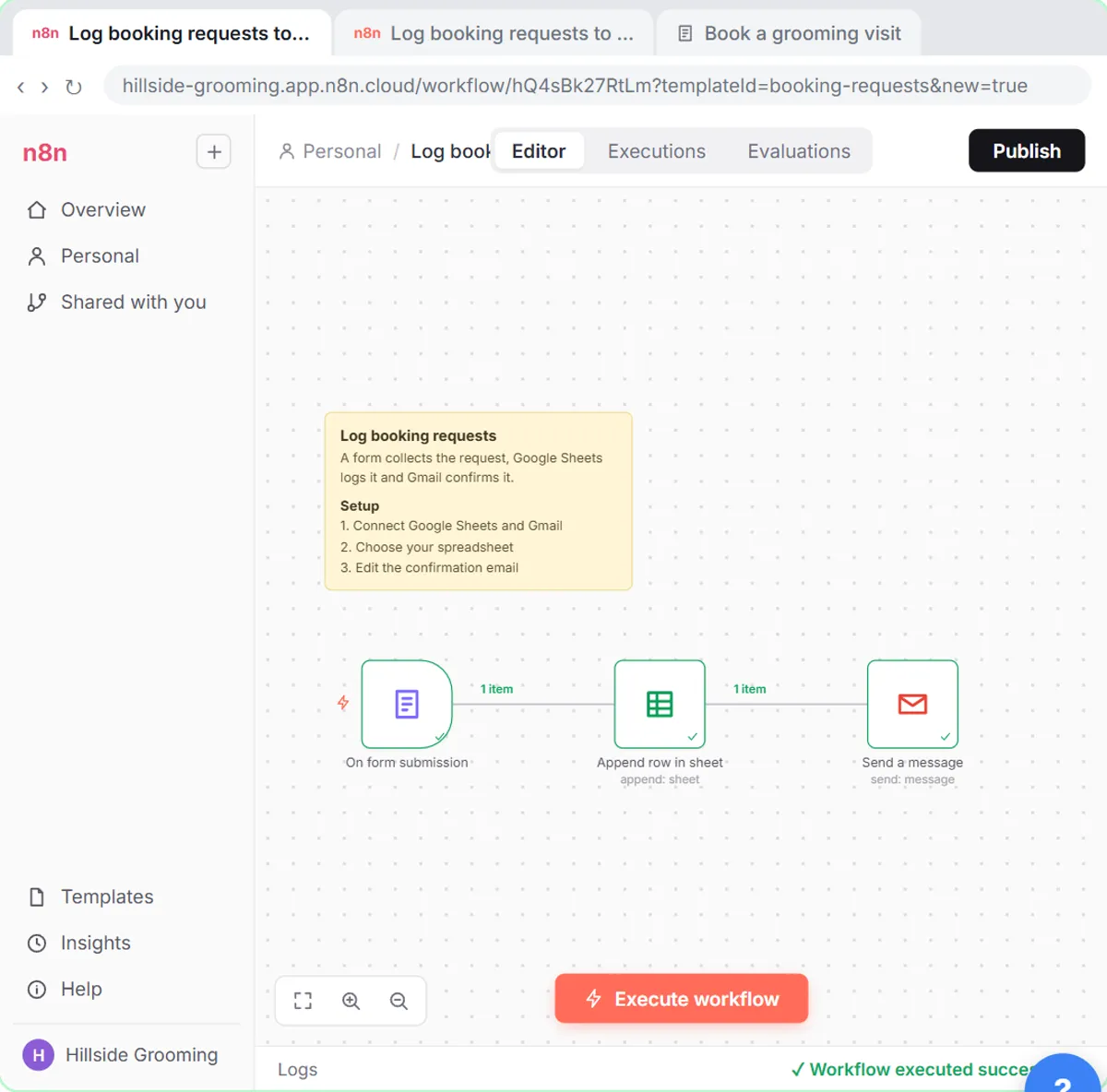
In the lesson you set it up for Hillside Pet Grooming, a made-up grooming shop. Customers fill in a short form with their name, email and pet's name. The workflow is a form trigger, a Google Sheets step and a Gmail step, plus a sticky note from the template's creator. You don't build any of it from scratch.
How do I find a template in the n8n gallery?
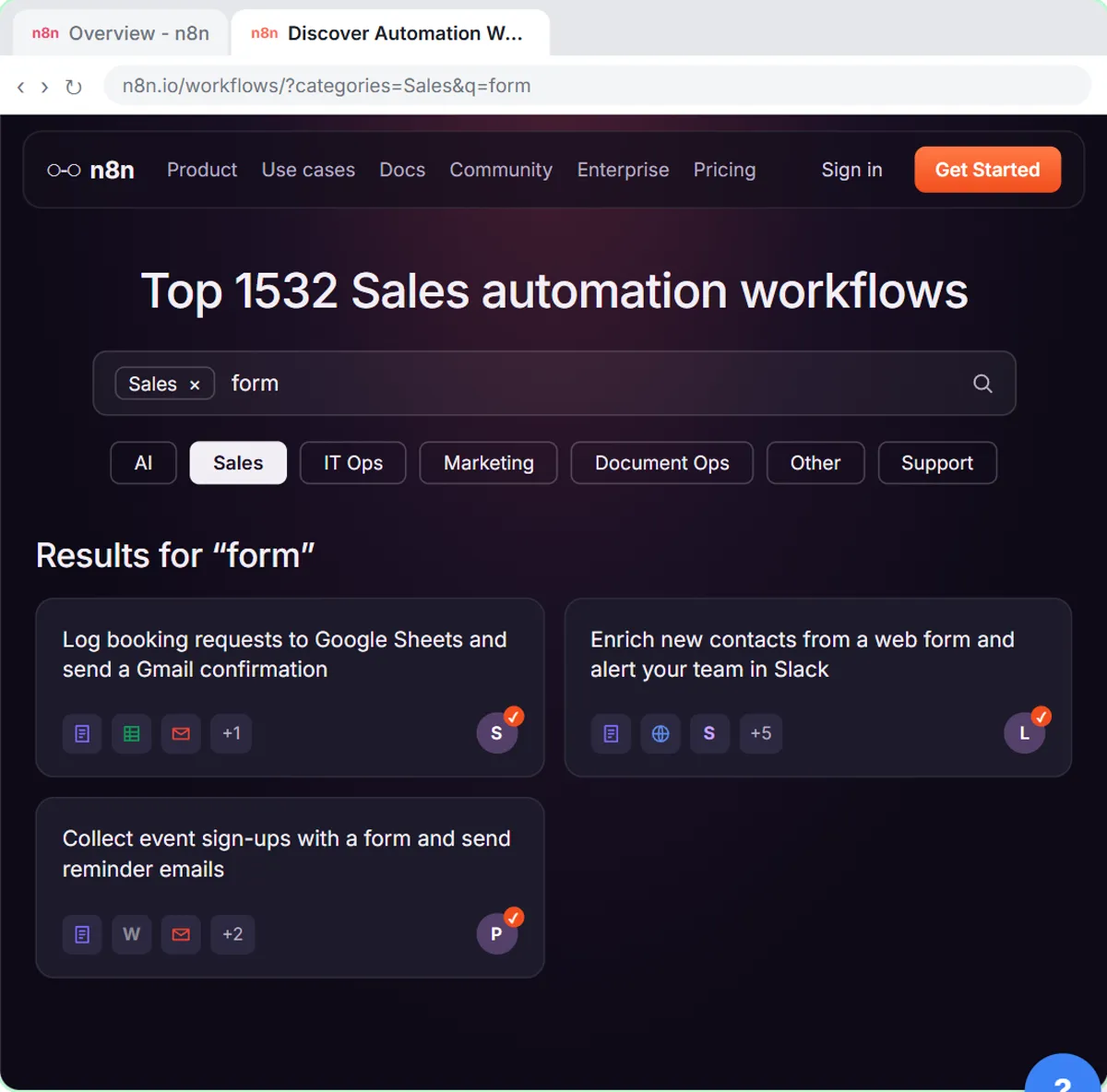
Click Templates in the left sidebar of your n8n workspace, choose a category and search for what you need.
- In your n8n workspace, click Templates. The template gallery opens on the n8n website in a new tab, and it knows which workspace to import into later.
- Click a category. The gallery has categories like AI, Sales, IT Ops and Marketing. Booking requests are really sales leads, so the lesson picks Sales.
- Type form in the search box and press Enter.
- Open Log booking requests to Google Sheets and send a Gmail confirmation. The template page shows a preview, who made it and what it needs.
What are the ways to import an n8n template?
There are three ways to import an n8n template: import it straight to your instance, copy the template JSON and paste it onto a canvas, or use Import from File or Import from URL in the workflow menu.
- Import to your instance. Click Use for free. Because you came from your own workspace, the Use template window lists it; in the lesson that's Import template to hillside-grooming.app.n8n.cloud. One click opens the workflow in n8n. This works for n8n Cloud and self-hosted n8n.
- Copy template to clipboard (JSON). Copy it, open an empty workflow and paste with Ctrl+V or Cmd+V. You then connect each account by opening the nodes that show warnings.
- Import from File or Import from URL. For a workflow file someone sends you, open the ··· workflow menu at the top of the editor. Import from File takes a .json file; Import from URL takes a link to the JSON.
How do I connect accounts to an imported n8n template?
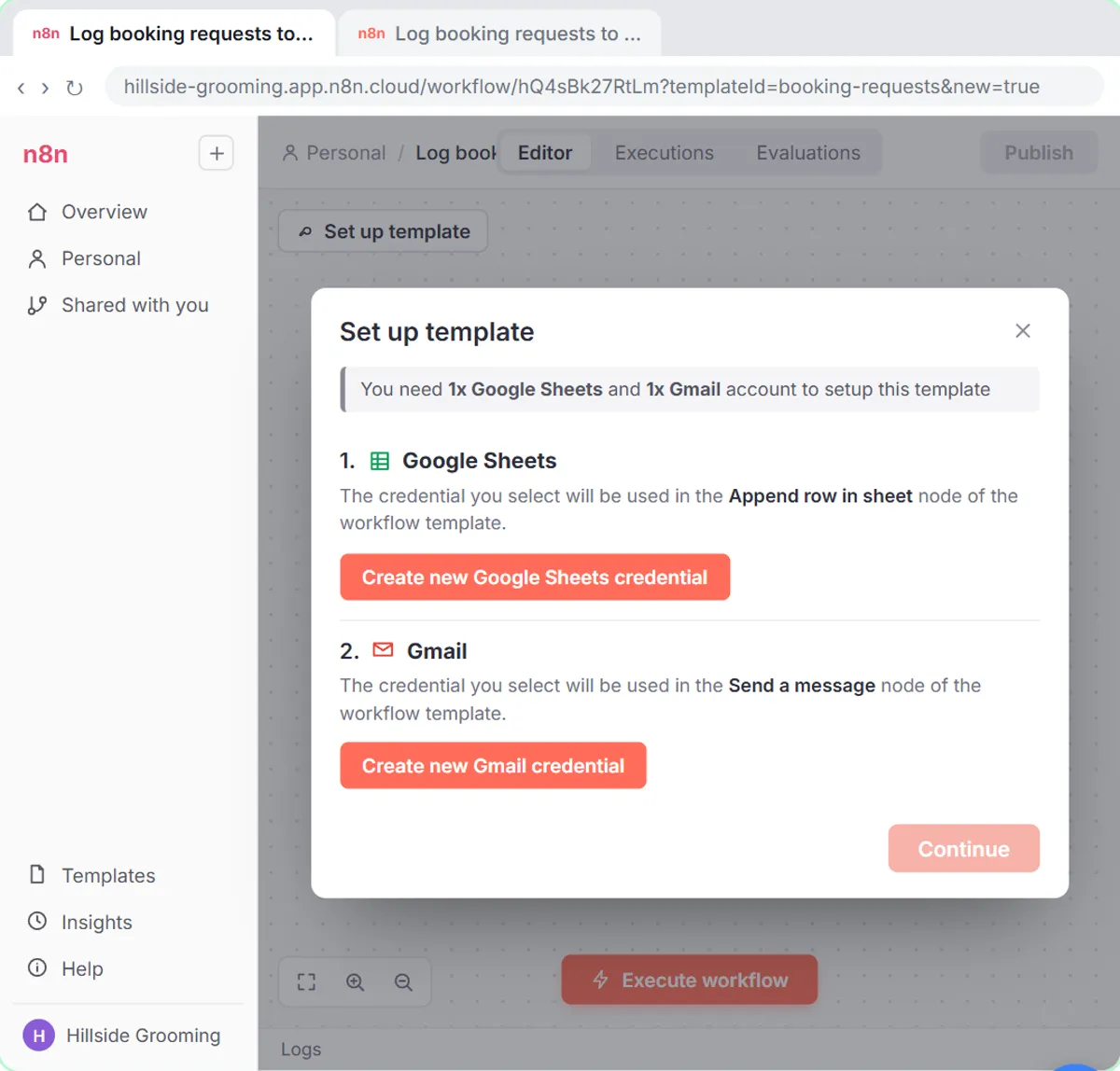
Use the Set up template window that opens after the import: it lists every account the template needs, and you create each credential there.
n8n templates never include credentials. The Hillside template needs two: 1. Google Sheets and 2. Gmail. For each:
- Click Create new Google Sheets credential (later, Create new Gmail credential).
- Click Sign in with Google and pick the account your business uses.
- Tick Select all on Google's permission list, then click Continue.
- When it says Account connected, close the window with the ×.
When both have a green check, click Continue and n8n places the credentials into the right steps. On n8n Cloud, Sign in with Google is all you need. On self-hosted n8n you may need to set up your own Google OAuth app first.
How do I make the template use my own sheet and email?
Open each node that still shows a warning, choose your own spreadsheet, and rewrite any message your customers will see.
- Open the Append row in sheet node. Your credential is already filled in.
- In Document, pick Hillside Booking Requests. In Sheet, pick Sheet1. The template already maps the name, email, pet name and submitted-time columns, so your sheet needs those headers in its first row.
- Open the Send a message node. It already sends to the email address from the form.
- Replace the template's message with your own:
Hi {{ $json.Name }},

Thanks for reaching out to Hillside Pet Grooming! We got your request for {{ $json["Pet name"] }} and will call you within one business day to pick a time.

See you soon,
The Hillside team
The double curly brackets pull in the customer's name and pet's name from the form. "Pet name" has a space, so it uses square brackets and quotes; n8n Expressions for Beginners explains why.
Try it free, step by step
Find and Use n8n Templates. Skip the blank canvas. Find a ready-made workflow in the n8n template gallery, import it into your workspace, connect Google Sheets and Gmail, test it with a real form entry and publish it. You do every step yourself in a practice copy of n8n, it checks your work as you go, and “Do it for me” finishes any step you get stuck on. Free, and nothing touches your real accounts.
Start the free lessonHow do I test and publish an n8n template?
Click Execute workflow, submit the test form n8n opens, check for green checks on every step, then click Publish.
- When every warning is gone, click Execute workflow at the bottom. n8n opens the booking form in a new tab.
- Fill it in. The lesson uses Jordan Lee, [email protected] and a pet named Biscuit. In a real test, use your own email so you get the confirmation.
- Click Submit and go back to the n8n tab. Every step has a green check: the request went into the sheet and the confirmation went out.
- Click Publish. An n8n workflow only runs for every real booking after it's published.
Should I use a template or build the workflow myself?
Search the n8n template gallery first, and build one workflow yourself at least once so you understand what templates do.
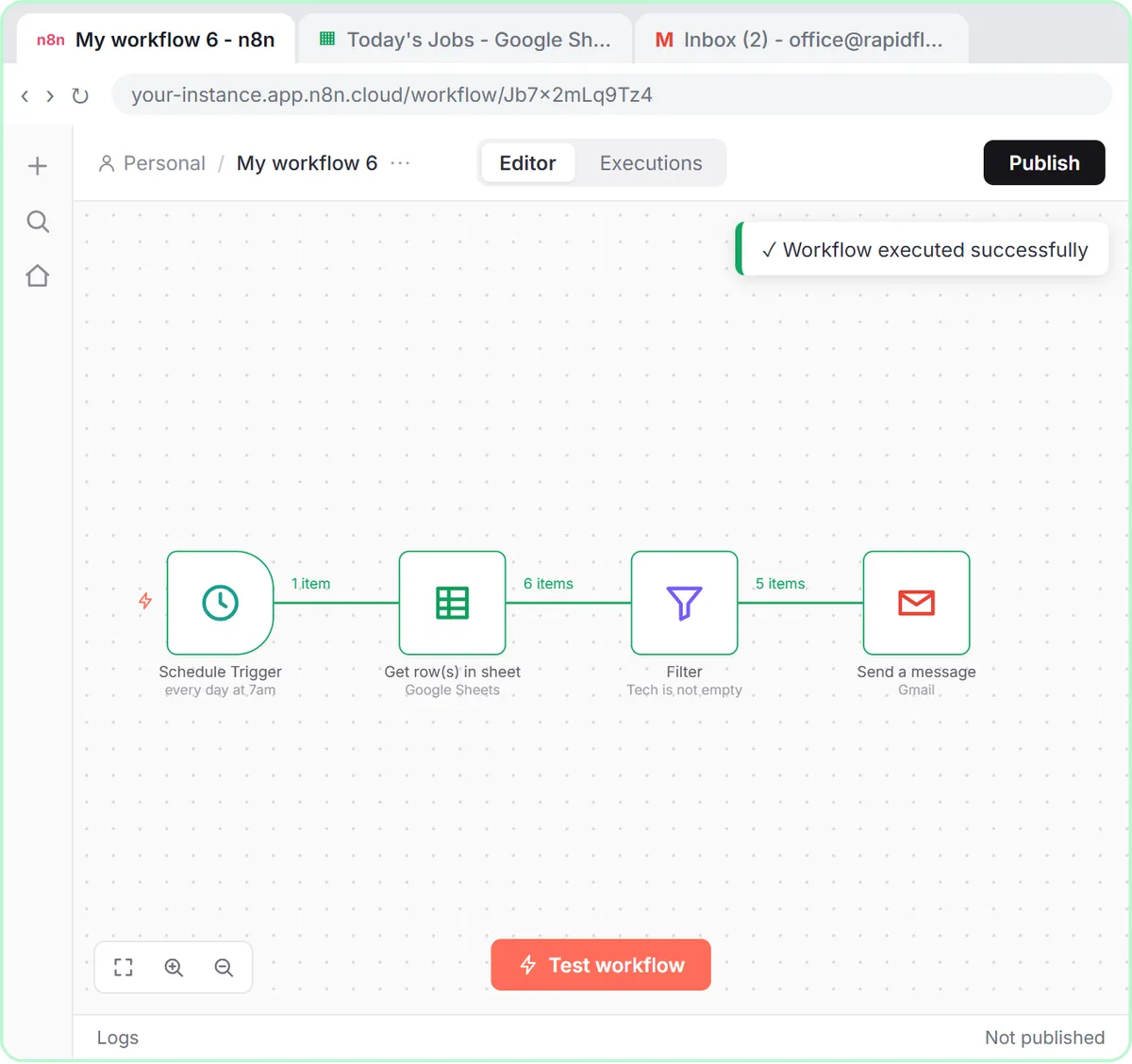
If a template is close to what you need, importing and adjusting it is usually faster than a blank canvas. Our Daily Job Alerts lesson builds a small workflow from scratch with a schedule, a Google Sheet, a Filter and Gmail; the write-up is Email Each Tech Their Jobs Every Morning with n8n. For what to take next, see Learn n8n from Zero or the n8n Automation Toolkit.
For real use you need an n8n account. n8n Cloud is a paid service after a free trial, and n8n can also be self-hosted. The apps a template connects to may have their own costs.
Key takeaways
- n8n templates in the gallery are free to use, and each template page has a Use for free button.
- Opening Templates from your own n8n workspace lets you import a template to your instance in one click.
- An imported n8n template has no credentials, so you connect each account in the Set up template window.
- Before publishing a template, open every node with a warning, pick your own spreadsheet and rewrite customer-facing messages.
- Click Execute workflow to test an n8n template, then click Publish so it runs on its own.
Frequently asked questions
- Are n8n templates free?
The templates in the n8n gallery are free to use, and the button on each template page says Use for free. You still need an n8n account to run them.
- How do I import an n8n template?
Open Templates from your n8n workspace, pick a template and click Use for free, then import it to your instance. You can also copy the template JSON and paste it onto a canvas, or use Import from File or Import from URL in the workflow menu.
- Why does my imported n8n template show warnings?
Templates arrive without credentials and often without the files or settings they need. Connect your accounts on the Set up template window, then open each node with a warning and fill in your own choices.
- Can I use n8n templates on self-hosted n8n?
Yes. Open Templates from your self-hosted instance and the gallery lists it as an import destination, or copy the template JSON and paste it onto your canvas.
- Does the practice lesson import anything into my account?
No. The Find and Use n8n Templates lesson uses a practice copy of n8n and the gallery. Nothing is imported, no email is sent, and the template and its creator are made up.