To connect a Lovable form to n8n, build the form in Lovable with a prompt that POSTs each submission as JSON to a URL stored in a secret named N8N_WEBHOOK_URL, then start an n8n workflow with On webhook call, publish it and paste its Production URL into that secret. An AI Agent in the workflow can then log each submission in Google Sheets and reply by Gmail. It's for small-business owners who want web forms answered without code, and the free Lovable + n8n lesson builds it in a practice copy.
Most website forms land in an inbox and wait. Nobody logs them, and on a busy day some never get a reply.
How do Lovable and n8n work together?
Lovable builds the form a visitor fills in, and n8n runs the workflow that handles each submission. The webhook URL is the only link between them.
- Lovable writes the front end from a plain-English description.
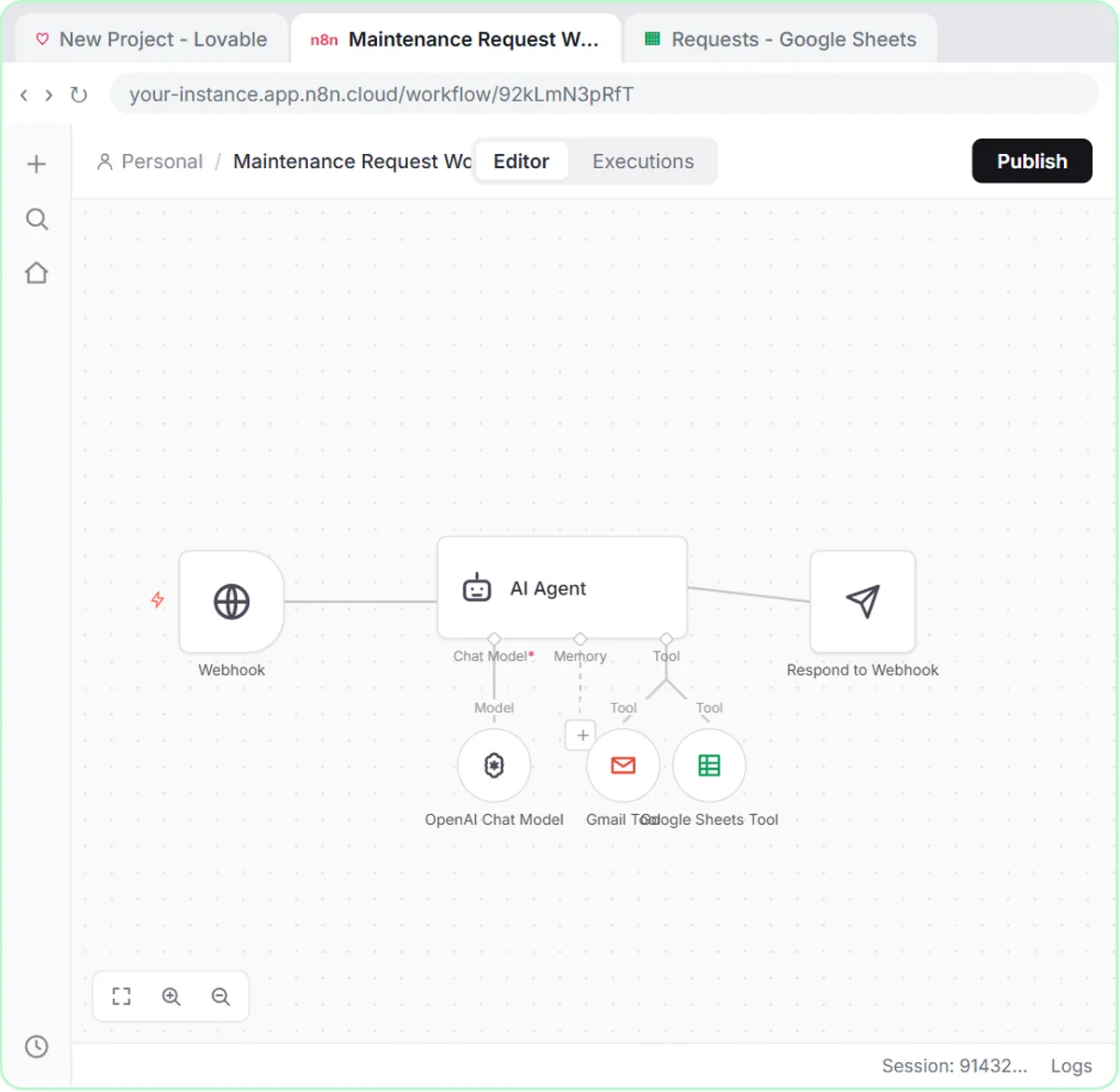
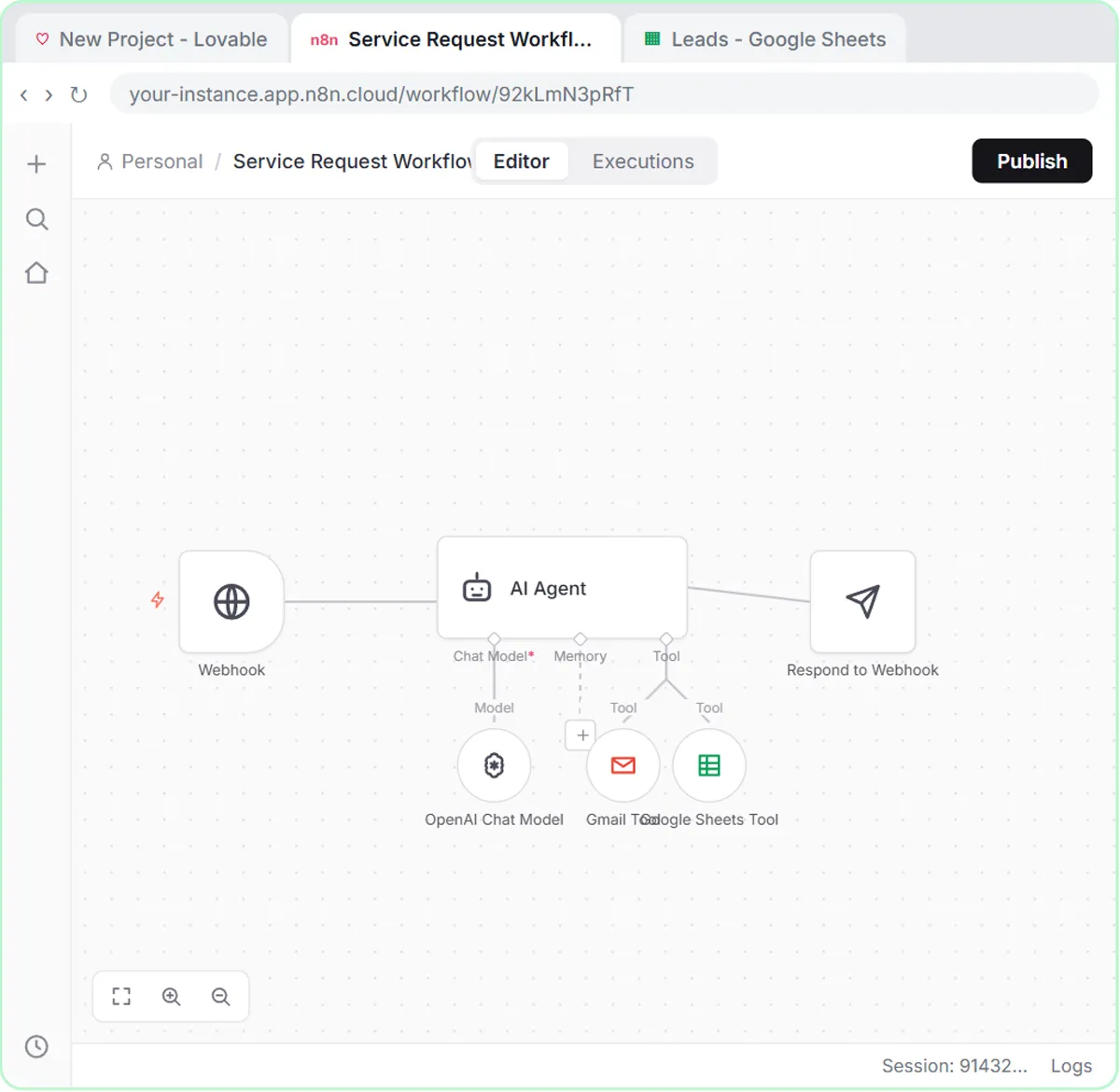
- n8n receives each submission in a Webhook node. An AI Agent reads it and uses a Google Sheets tool and a Gmail tool, and a Respond to Webhook node tells the form it worked.
Because the form only collects fields and sends them to one URL, you can change the reply wording or add a tool in n8n without touching the form.
How do I build the form in Lovable?
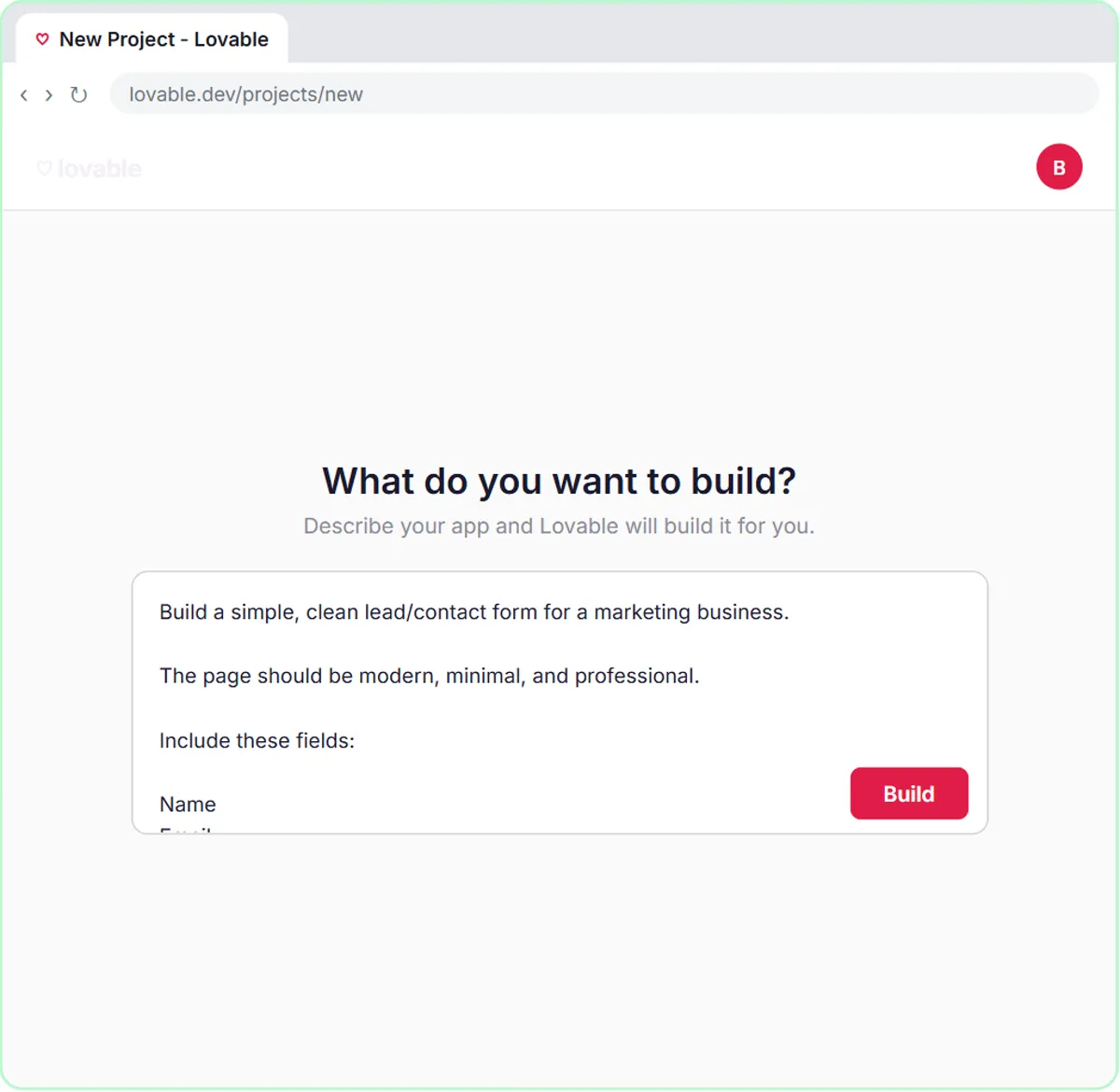
Click Start with a prompt in Lovable, paste a description of the form that says where to send the data, and click Build. The lesson's prompt asks for Name, Email, Question and Feedback fields, a "Have a Question?" heading, a "Sending..." button state, friendly success and error messages, and required Name, Email and Question fields.
The key lines tell Lovable how to send the data:
When the form is submitted, send the data as a POST request to the n8n webhook URL.
The data should be sent as JSON with keys: name, email, question, feedback.
Do not hard-code any webhook URL.
Reference the N8N_WEBHOOK_URL secret/config value when sending the form submission.
A Lovable app is only a preview after you build it. Nothing is public until you publish it in Lovable.
How do I set up the n8n webhook trigger?
Create a workflow, choose On webhook call, and set Respond to Using 'Respond to Webhook' Node. The steps:
- Click Create workflow, then Add first step….
- Pick On webhook call.
- Open the Respond dropdown and choose Using 'Respond to Webhook' Node.
Why should the form wait for Respond to Webhook?
The form should wait so it only shows success after the agent has saved the lead and sent the email. By default, an n8n webhook answers immediately, before the AI agent has even started.
If the webhook answers right away and the agent then fails, the visitor sees "Thanks!" and you never see the lead. With the Respond to Webhook setting, a failure shows the visitor the friendly error message instead, so they can try again.
How does the AI agent read the form fields?
The AI Agent reads the form fields through a prompt template that pulls each value from the webhook body. Add an AI Agent, change Source to Define below, and paste:
Name: {{ $json.body.name }}
Email: {{ $json.body.email }}
Question: {{ $json.body.question }}
Feedback: {{ $json.body.feedback }}
The double curly braces are n8n expressions, and the keys match what the Lovable prompt sends. (n8n Expressions for Beginners explains them.) Then click + Add Option, choose System Message, and paste three lines: you are a helpful assistant, use the Google Sheets tool to add the lead, and use the Gmail tool to reply to the form submitter.
Which model and tools does the agent need?
The agent needs an OpenAI Chat Model, a Google Sheets tool and a Gmail tool. In the lesson:
- Chat Model: add OpenAI Chat Model, connect your API key credential and pick gpt-5-mini. See OpenAI API vs ChatGPT Plus for the key.
- Google Sheets Tool: create a spreadsheet called Leads with Name, Email, Question and Feedback headers, sign in with Google, pick Leads and Sheet1, and click ✦ next to each column.
- Gmail Tool: click the + next to Google Sheets, add Gmail Tool, sign in with Google and grant the Gmail permissions.
How do I finish and publish the n8n workflow?
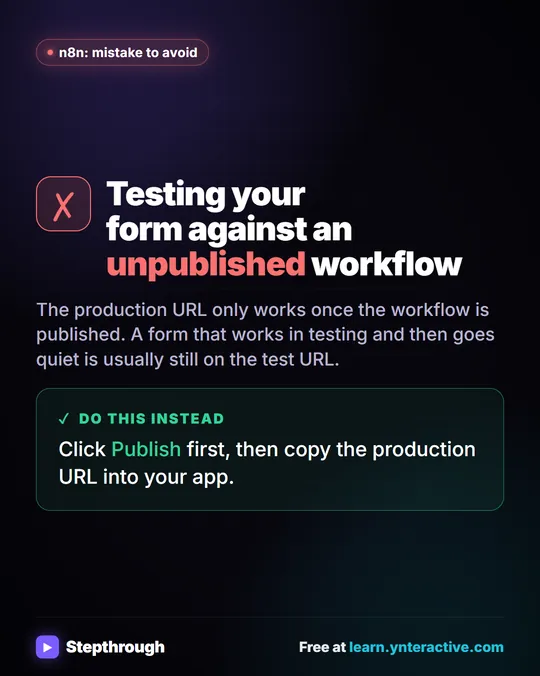
Add a Respond to Webhook node after the agent, then click Publish. Click the + on the right edge of the AI Agent, choose Respond to Webhook (nothing to configure), and click Publish. An n8n workflow has to be published to run on its own, and the production webhook URL only works after publishing.
Where does the webhook URL go in Lovable?
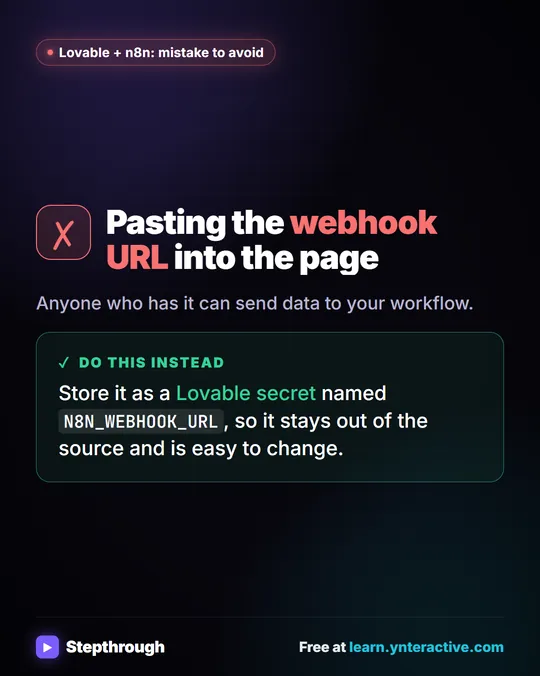
The n8n Production URL goes into a Lovable secret named N8N_WEBHOOK_URL. Use the Production URL, not the test URL, because the test URL only works while you test in the n8n editor.
- Double-click the Webhook node, click the Production URL tab and click the URL to copy it.
- In Lovable, click More in the toolbar to open the settings where secrets live.
- Add a secret named N8N_WEBHOOK_URL, paste the URL and click Save.
- Open Preview, fill in the form and submit. The agent adds a row to Leads, sends a Gmail reply and the form shows its success message.
- When everything works, publish the Lovable app so real visitors can use it.
Try it free, step by step
Lovable + n8n: Build a Web App with an AI Backend. Build a contact form in Lovable and connect it to an n8n workflow — webhook trigger, AI Agent, Google Sheets, Gmail, and a Respond node that ties it all together. You do every step yourself in a practice copy of Lovable and n8n, it checks your work as you go, and “Do it for me” finishes any step you get stuck on. Free, and nothing touches your real accounts.
Start the free lessonWhat does the HVAC version of this form do?
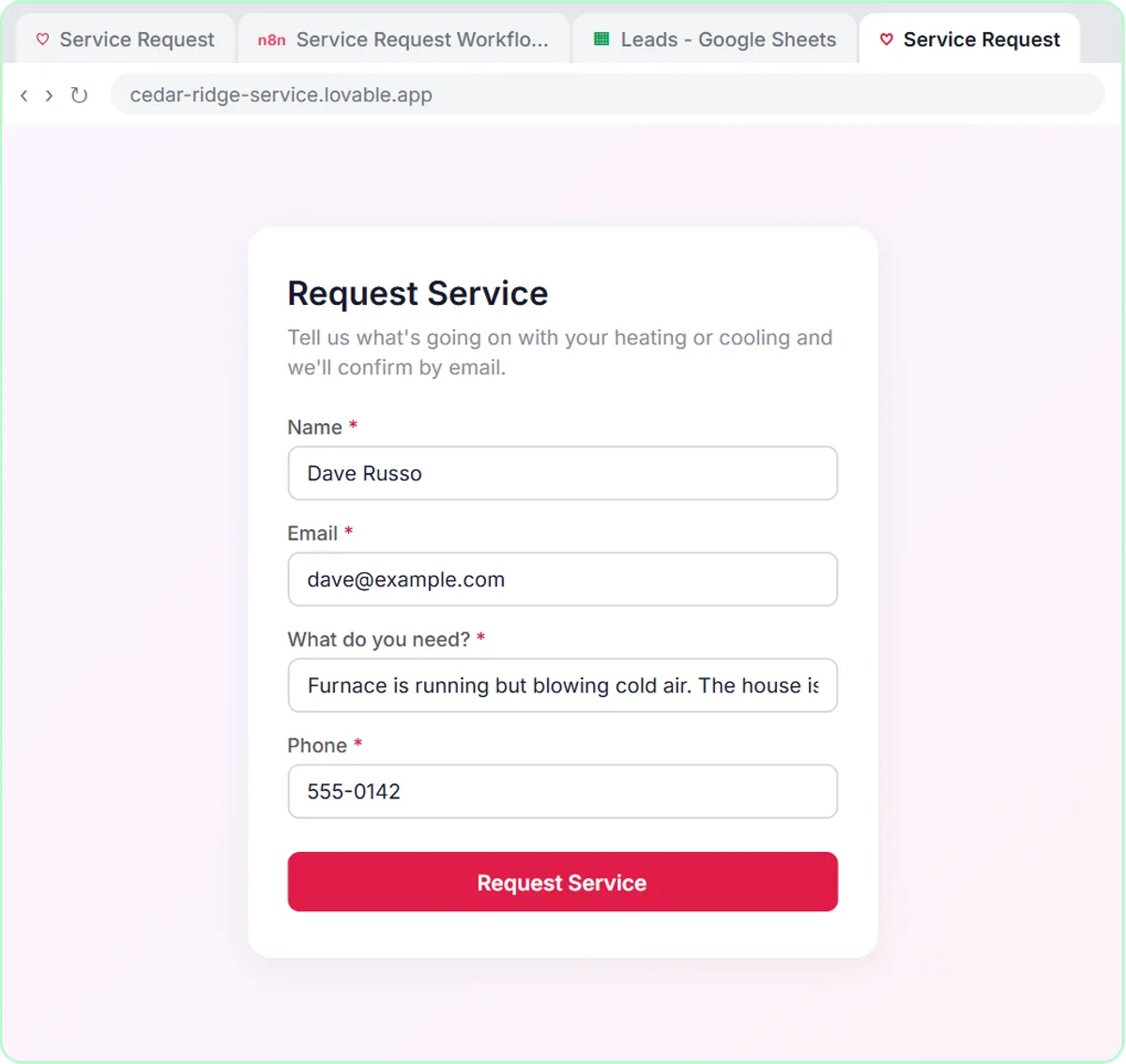
The HVAC version sorts each service request into a job type and emails a confirmation that names it. The free HVAC service request form lesson uses a made-up company, Cedar Ridge Heating & Air, with the same steps and different details:
- The form is a Request Service page with Name, Email, "What do you need?" and Phone, all required. The error message says "Something went wrong. Please call the office."
- The system message sorts each request into Repair, Maintenance, Install or Emergency. No heat, no cooling in extreme heat, or water leaking from the system counts as an emergency.
- The confirmation email names the job type. If the customer mentions a gas smell, the email tells them to leave the house and call the gas company from outside.
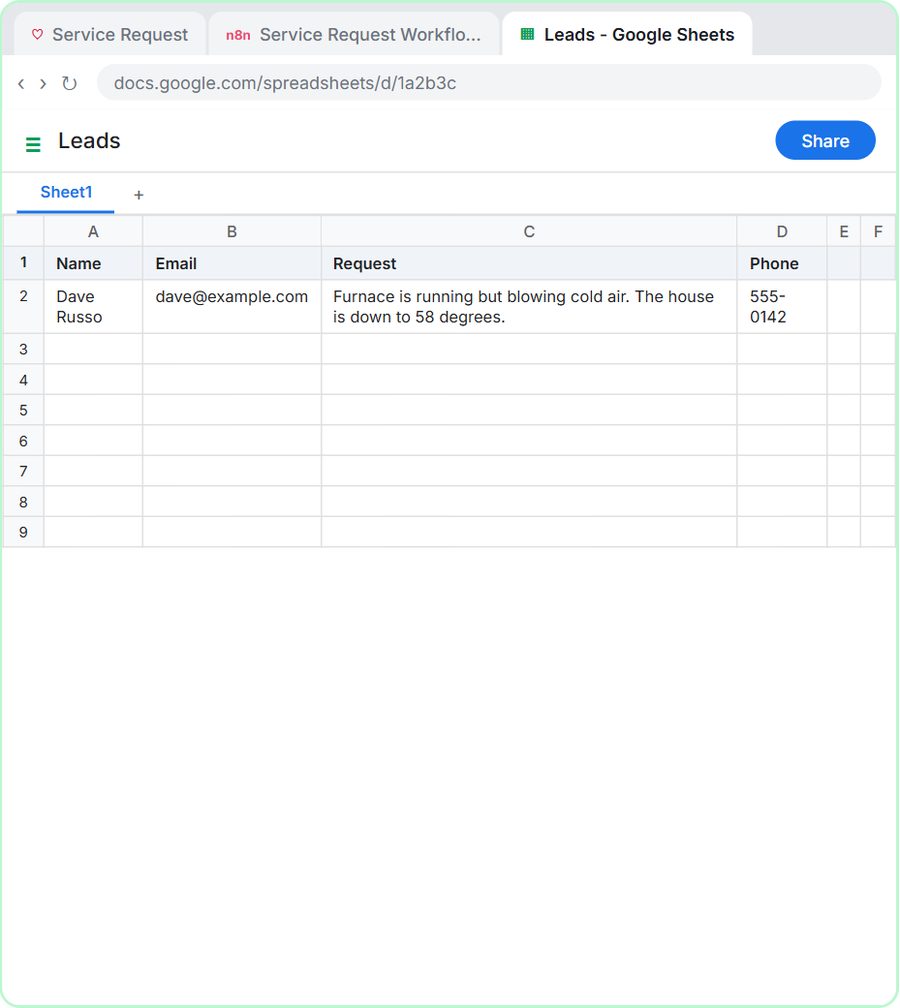
In the test, a homeowner's furnace is blowing cold air in a house that's down to 58 degrees. The Cedar Ridge agent treats the request as an emergency, logs it in the Leads sheet and emails a confirmation. The sheet stores what the customer typed; the job type goes in the email. More lessons are on the HVAC and Lovable pages.
What does it cost to build for real?
The lessons are free practice copies, so nothing is created or billed. Building for real needs a Lovable account (Lovable has free and paid plans), an n8n account (n8n Cloud has a free trial and then paid plans, or self-host n8n), an OpenAI API key with credit and a Google account.
Submissions include people's names and emails, so collect only what you need and follow your company's policy on sending customer data to AI services.
Key takeaways
- A Lovable form connects to n8n through one webhook URL stored in a Lovable secret named N8N_WEBHOOK_URL, not in the page code.
- Setting the n8n webhook's Respond option to "Using 'Respond to Webhook' Node" makes the form wait until the AI agent has finished.
- Copy the n8n Production URL, not the test URL, and publish the n8n workflow before the form uses it.
- A Lovable app is only a preview until you publish it in Lovable.
- In the HVAC lesson, the agent sorts requests into Repair, Maintenance, Install or Emergency and names the job type in the confirmation email.
Frequently asked questions
- Do I need to code to connect Lovable to n8n?
No. Lovable builds the form from a written prompt, and the n8n workflow is built by clicking and pasting. The only link is the webhook URL saved as a Lovable secret.
- Should I use the n8n test URL or the Production URL?
Use the Production URL, after you publish the n8n workflow. The test URL only works while you're testing in the n8n editor.
- Why use the Respond to Webhook node?
The Respond to Webhook node makes the form wait until the agent has saved the lead and sent the email, so the visitor only sees success when the work is done.
- Is my Lovable form live as soon as it's built?
No. Lovable builds a preview first, and nothing is public until you publish the Lovable app.
- Does the agent send emails automatically?
In these lessons, yes, through the Gmail tool. If you want a person to check replies first, save them as Gmail drafts instead, as the AI Email Responder lesson does.