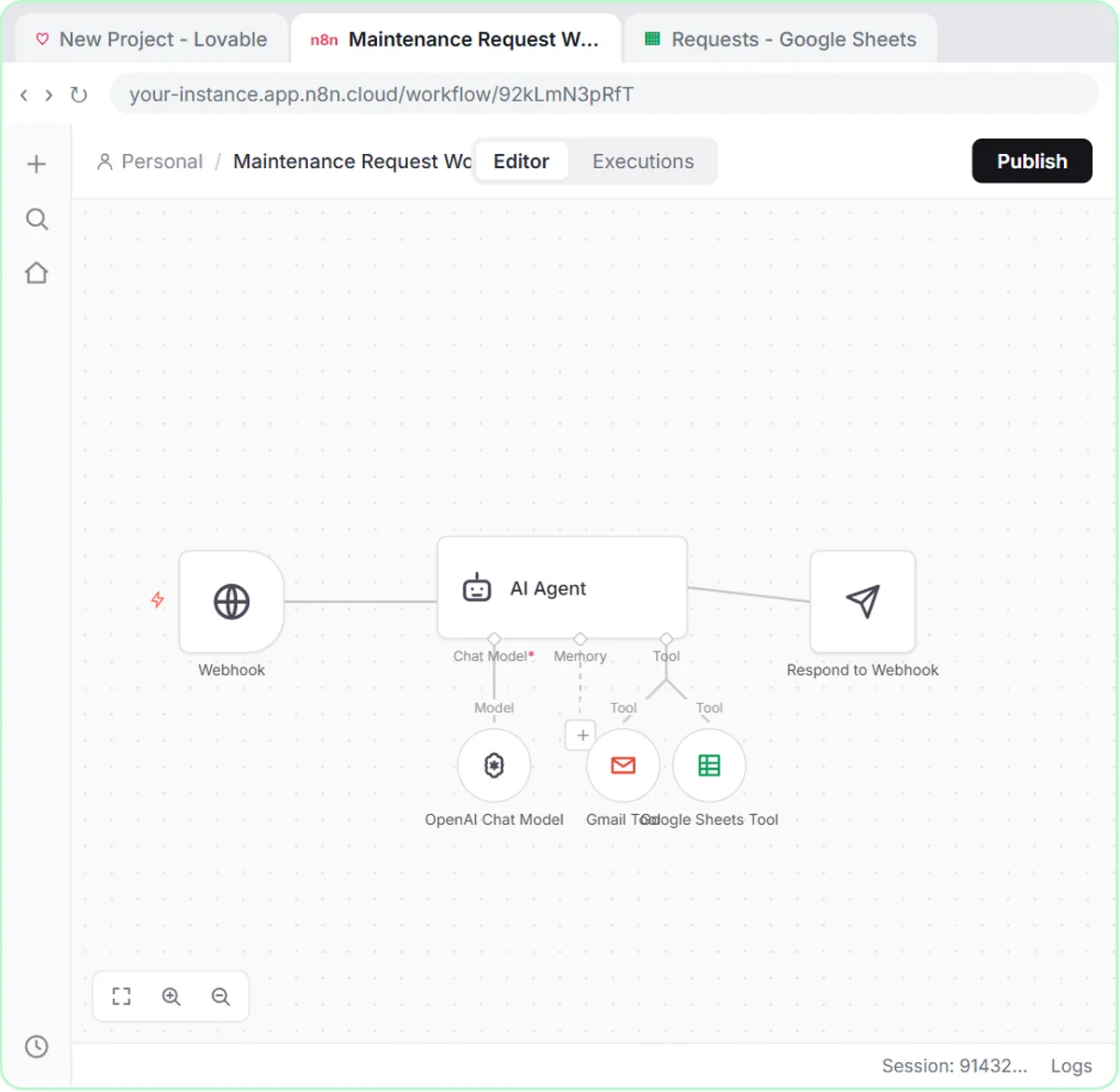
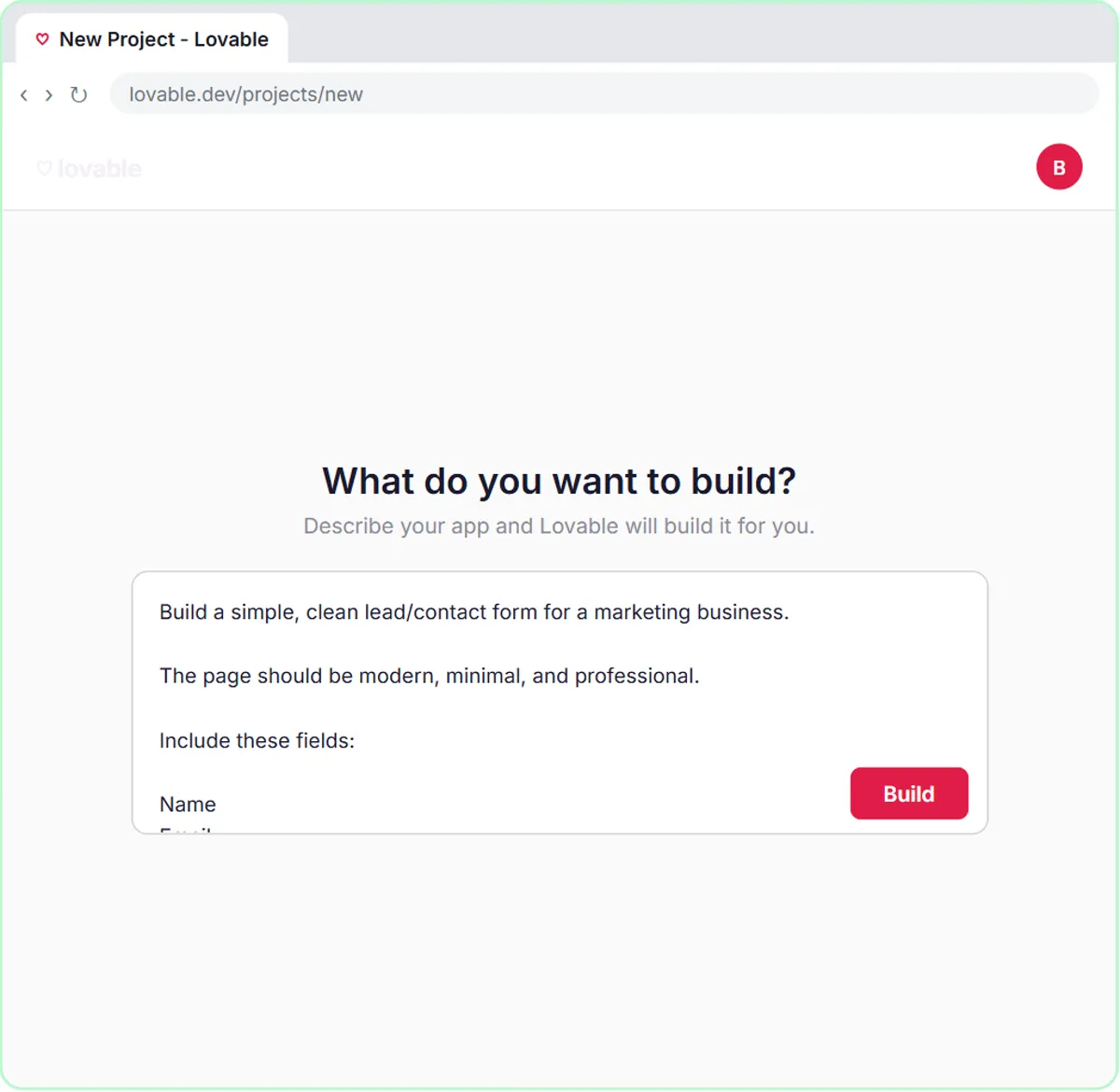
A webhook is a web address that waits for data: when something happens in one app, such as a form being submitted, that app sends the details to the address, and the app behind it starts working right away. This guide is for small-business owners and office staff who keep seeing the word in tools like n8n, and you can build one free in the Lovable + n8n lesson, which connects a contact form to an AI agent.
You don't need to write code to use a webhook. You need to know what it receives, which of its two addresses to use, and what it sends back.
What is a webhook, in plain words?
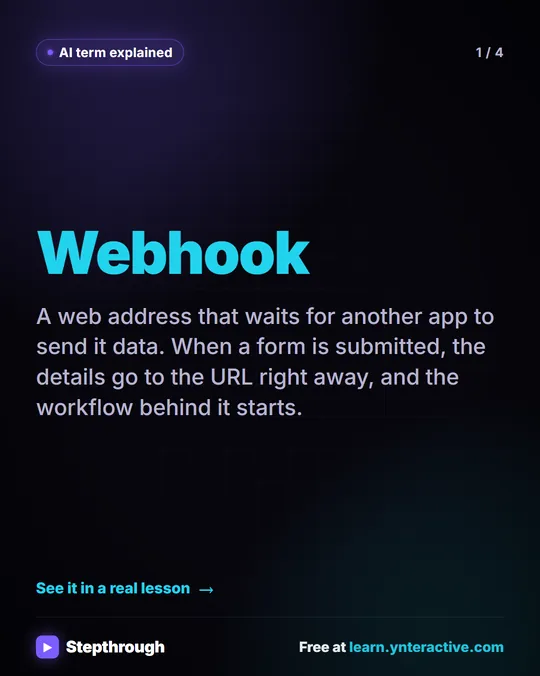
A webhook is a URL that sits and waits until another app sends it data. The lesson puts it in one line: "A webhook is just a URL that waits for incoming data."
Think of it as a mail slot. Your website form knows the slot's address. When a visitor clicks Send Message, the form drops the details through the slot, and n8n, sitting behind the slot, picks them up and starts the workflow. Nobody has to check anything or press a button.
The other common way for two apps to talk is checking on a schedule. The Gmail trigger in the AI Email Responder lesson works that way: it checks the inbox Every Minute for new mail. A webhook doesn't check. It gets told, the moment the data exists.
What does a form actually send to a webhook?
A form sends a POST request with the answers packed as JSON: a short list of labels (keys) and values. The Lovable prompt in the lesson spells it out: "send the data as a POST request to the n8n webhook URL. The data should be sent as JSON with keys: name, email, question, feedback."
A submission from that contact form looks roughly like this:
{
  "name": "Sarah",
  "email": "[email protected]",
  "question": "Do you offer lead generation services?",
  "feedback": ""
}
POST simply means "here is some data for you," as opposed to asking for a page. JSON is a plain-text format that both apps can read. The keys matter: n8n finds each answer by its key, so the form and the workflow must use the same names.
How do you create a webhook in n8n?
In n8n, a webhook is a trigger: you start a workflow with On webhook call, and n8n gives you the URL. The lesson's steps:
- Click Create workflow, then Add first step….
- Click On webhook call.
- Open the Respond dropdown and pick Using 'Respond to Webhook' Node (more on that below).
- Add the next step, such as an AI Agent, by clicking the + on the right edge of the webhook node.
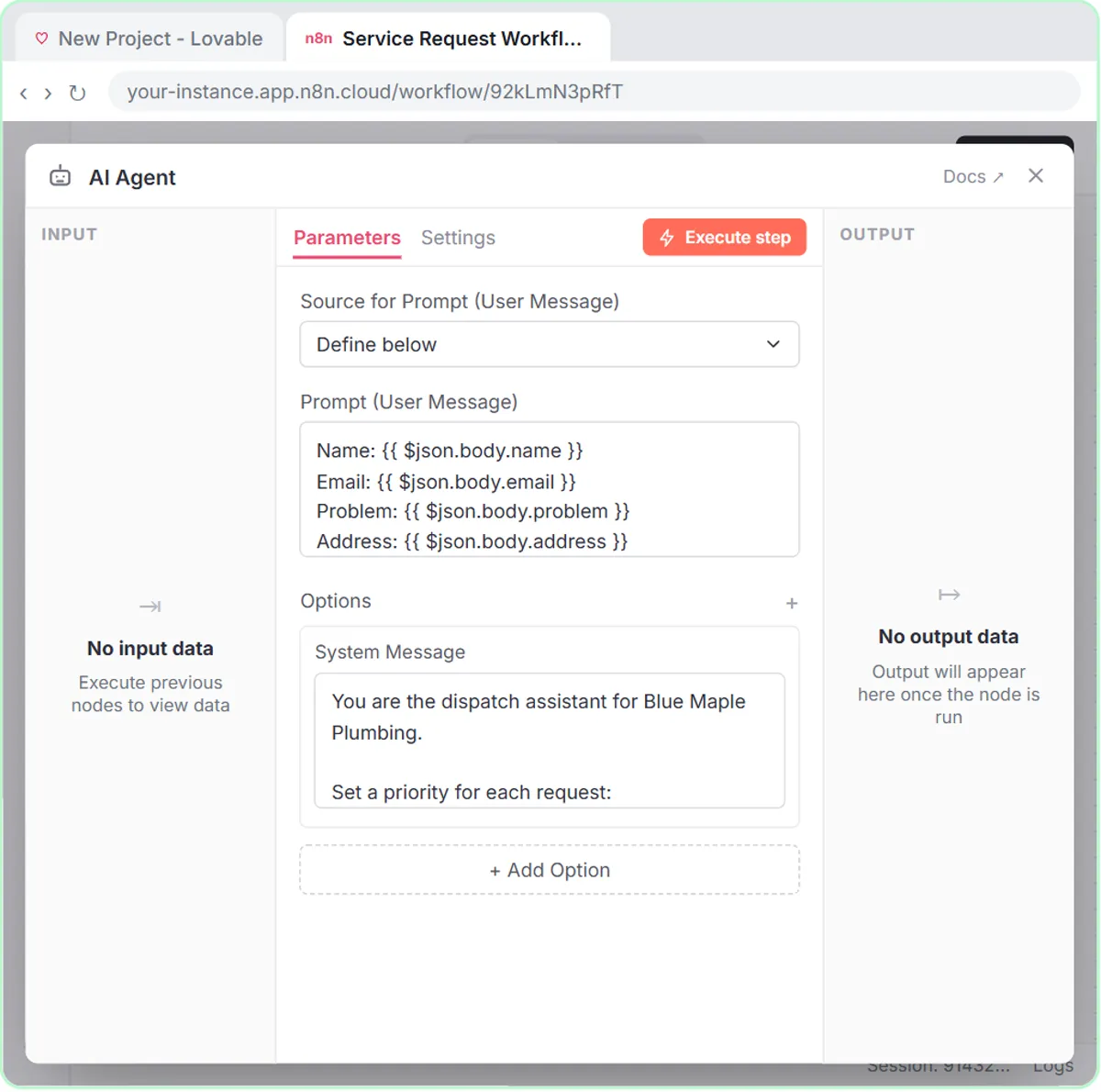
Inside the workflow, each field arrives inside the request body. That's why the AI Agent's prompt template in the lesson reads Name: {{ $json.body.name }} and Email: {{ $json.body.email }}. n8n Expressions for Beginners explains the curly braces.
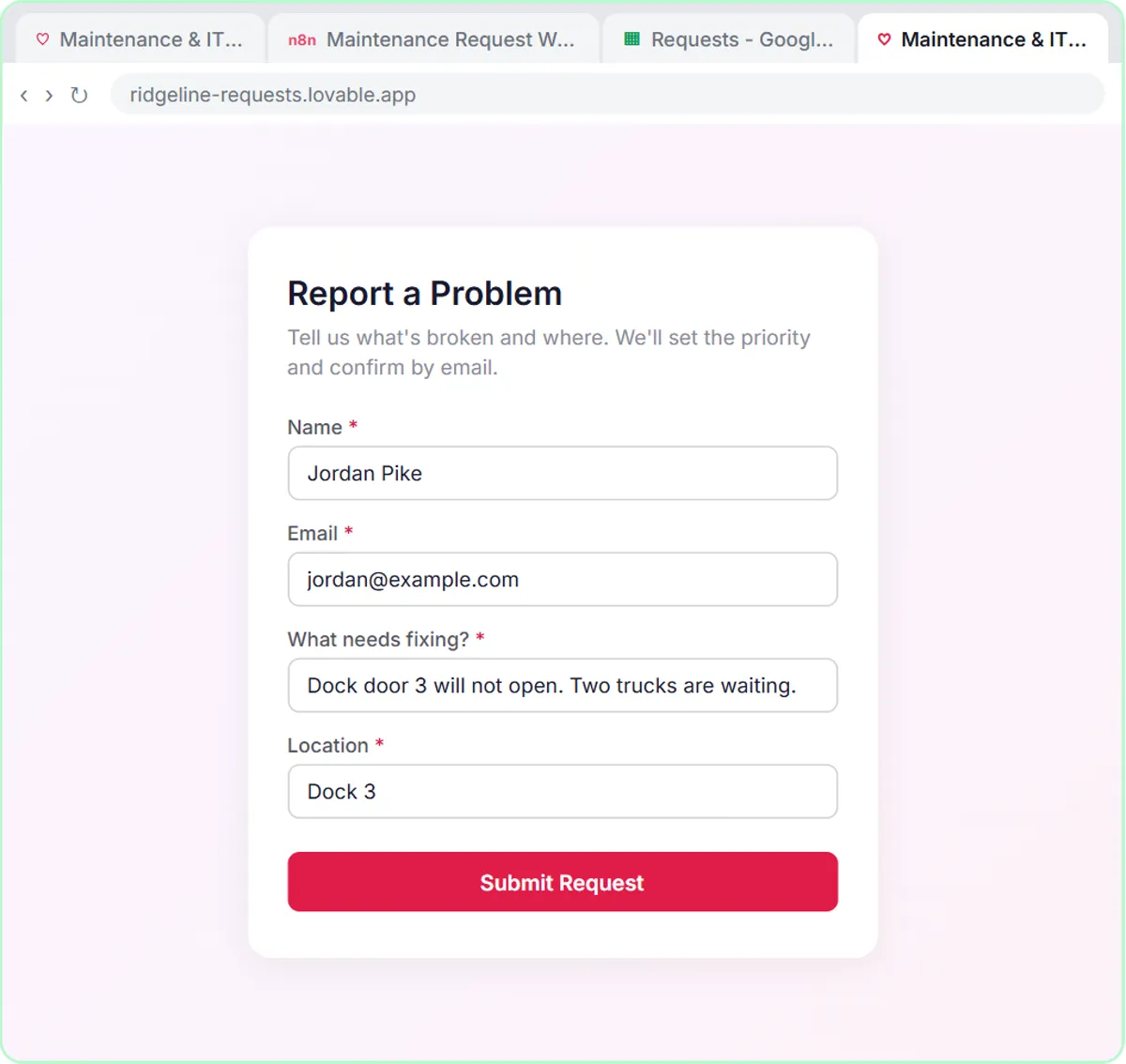
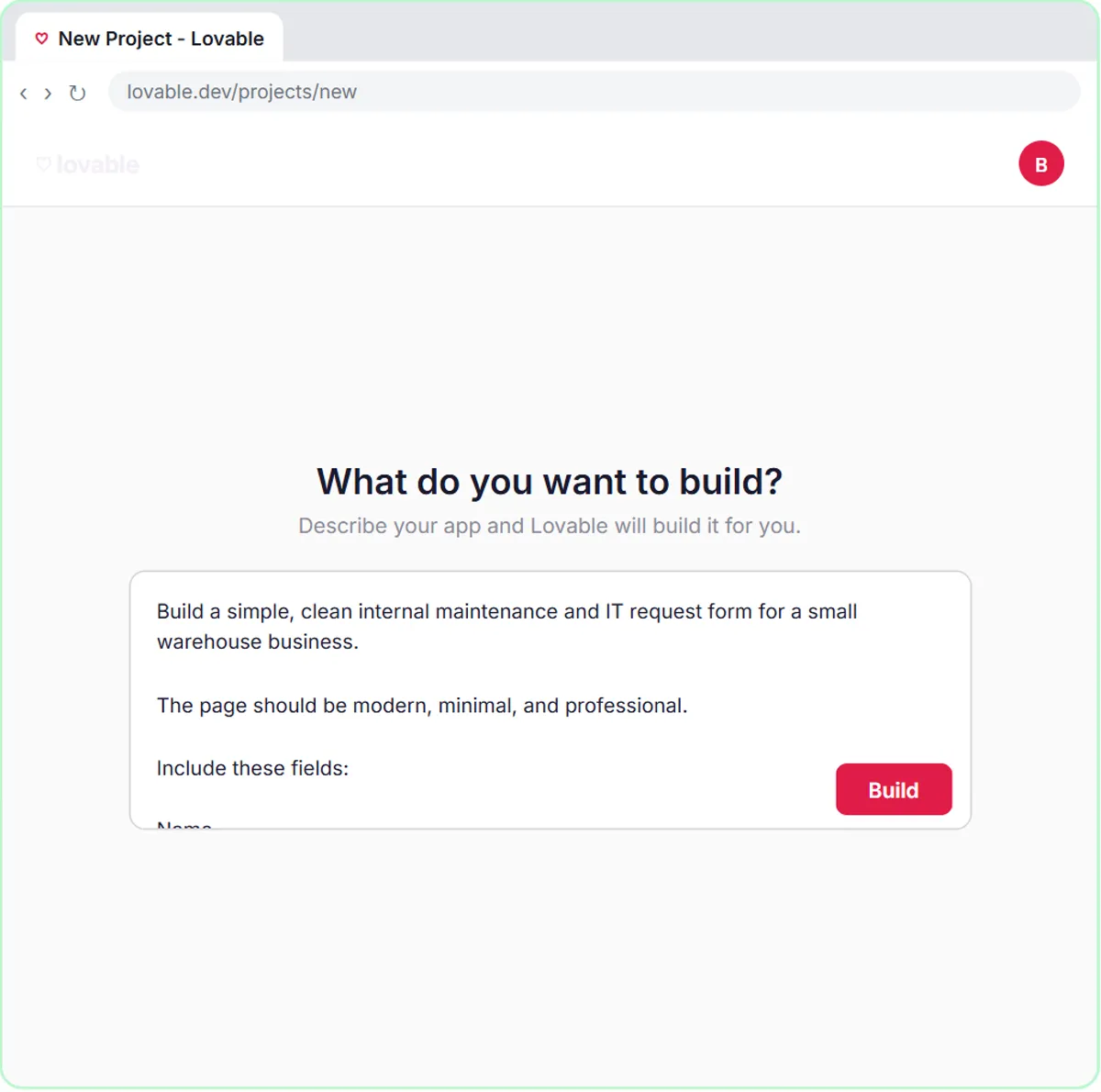
The same pattern works for an internal form. In the maintenance and IT request form lesson, a made-up warehouse company, Ridgeline Supply Co., sends the keys name, email, request and location. When the test request reports that dock door 3 won't open with trucks waiting, the agent marks it Urgent for the Facilities team, saves it to a Requests sheet and emails a confirmation.
What are the test URL and the production URL?
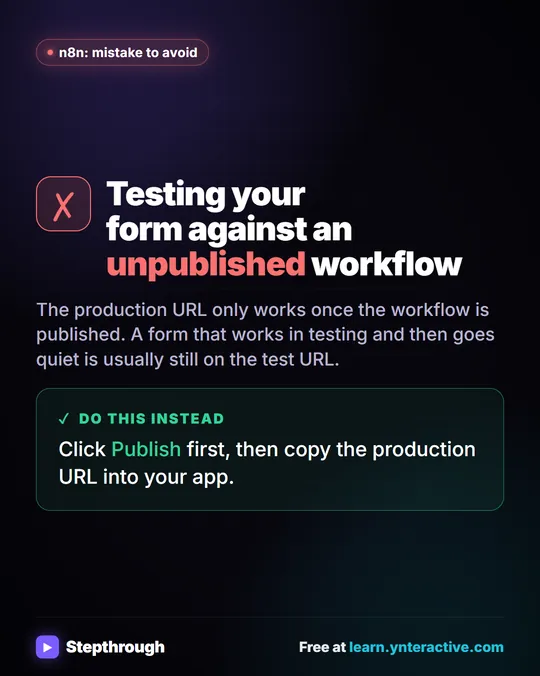
Every n8n webhook has two addresses: a Test URL that only works while you're testing in the editor, and a Production URL that your published workflow uses. A real form should always point at the Production URL, and that URL only works after you click Publish.
In the lessons, you click Publish, double-click the webhook, click the Production URL tab and click the URL to copy it. The example address has the shape https://your-instance.app.n8n.cloud/webhook/ followed by a long ID. If your form works while you test and then goes quiet, read n8n Webhook Test URL vs Production URL, Explained.
What does a webhook send back?
A webhook can answer the app that called it, and that answer is what makes a form say "Thanks!" or "Something went wrong." By default, the n8n webhook answers immediately, before the AI agent has even run.
The lesson changes that. Setting Respond to Using 'Respond to Webhook' Node tells n8n to wait, and a Respond to Webhook node at the end of the workflow sends the answer once the agent has saved the row and sent the email. In the lesson's words, the Respond to Webhook node sends a success response back to the form "so the user sees a confirmation message instead of an error." There's nothing to configure inside it.
The Lovable form in the lesson has three states that depend on that answer: the button changes to "Sending...", success shows "Thanks! Your message has been received.", and a failure shows "Something went wrong. Please try again."
Try it free, step by step
Lovable + n8n: Build a Web App with an AI Backend. Build a contact form in Lovable and connect it to an n8n workflow — webhook trigger, AI Agent, Google Sheets, Gmail, and a Respond node that ties it all together. You do every step yourself in a practice copy of Lovable and n8n, it checks your work as you go, and “Do it for me” finishes any step you get stuck on. Free, and nothing touches your real accounts.
Start the free lessonWhere should a webhook URL be kept?
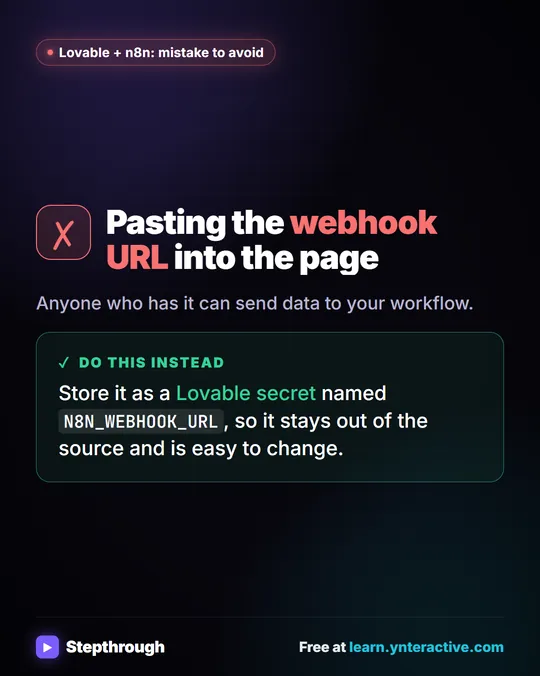
Keep the webhook URL in a setting, not in the page code. The lesson's Lovable prompt says "Do not hard-code any webhook URL" and points the form at a secret named N8N_WEBHOOK_URL instead.
To add the secret, click More in the Lovable toolbar, paste N8N_WEBHOOK_URL as the name, paste the Production URL as the value and click Save. If the URL ever changes, you update one value and leave the form alone. A webhook URL accepts data from anyone who has it, so treat it like a private address and don't post it publicly.
Where would a small business use a webhook?
Use a webhook wherever one app needs to hand something to another the moment it happens. Common examples:
- Website forms: contact, quote, service and demo requests. The Stepthrough lessons build forms like these for an HVAC company, a plumber, an electrician, a sales team, a coffee brand and a bookkeeping firm, all made up.
- Internal forms: maintenance requests, IT tickets and expense reimbursements.
- Other apps: many online tools, such as payment, scheduling and survey apps, can send a webhook when something happens. Check each tool's own documentation for what it sends and how to set it up.
A webhook is only the doorway. What happens next is up to the workflow: log the request in Google Sheets, sort it, email a confirmation or alert a person. Connect a Lovable Form to n8n with a Webhook walks through the full build.
What does it cost to use webhooks?
The Stepthrough lessons are free and run in practice copies, so nothing is published, sent or billed. A real build needs n8n (n8n Cloud is a paid service after a free trial, or you can self-host n8n), and Lovable has free and paid plans. If the workflow uses an AI agent, the OpenAI API is pay-as-you-go and billed separately from ChatGPT plans; the lessons suggest about $10 of credit to start. More lessons are on the n8n tool page.
Key takeaways
- A webhook is a URL that waits for another app to send it data, so the workflow starts the moment something happens.
- A website form sends each submission to a webhook as a POST request with JSON keys like name, email, question and feedback.
- In n8n, a webhook is the On webhook call trigger, and form fields are read with expressions like
{{ $json.body.name }}. - A live form must use the n8n Production URL, which only works after the workflow is published.
- Setting Respond to "Using 'Respond to Webhook' Node" makes the form wait for the real result before showing success.
Frequently asked questions
- Is a webhook the same as an API?
Not quite. An API is a set of addresses you call to ask an app for something. A webhook works the other way around: you give an app your address, and it calls you when something happens.
- Do I need to code to use a webhook?
No. In the lesson, Lovable writes the form from a prompt and n8n creates the webhook when you click On webhook call. You copy one URL between them.
- Why does my form work in testing but not live?
The form is usually still pointing at the n8n Test URL, or the workflow isn't published. Publish the workflow and use the Production URL.
- Is Ridgeline Supply Co. a real company?
No. Ridgeline Supply Co. and its dock door request are made-up examples used in the lesson.