This guide covers what the form should ask, how to write the priority rules, and how the pieces connect.
What should an internal IT request form ask?
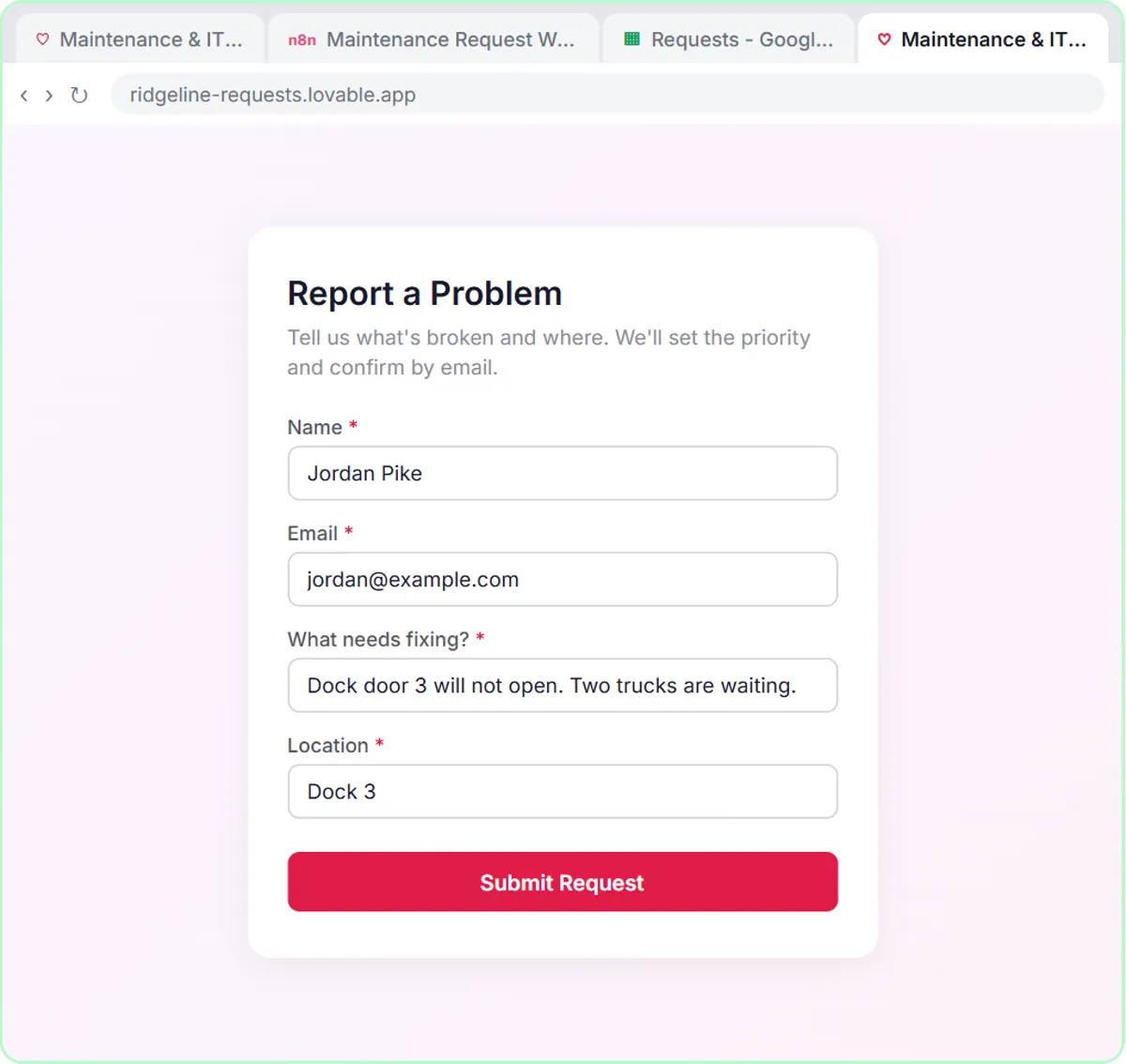
Ask only what the person handling the request needs to start: who, how to reach them, what's wrong, and where. The lesson's form has four required fields:
| Field | Why it's there |
|---|---|
| Name | Who to follow up with |
| Where the confirmation goes | |
| What needs fixing? | The request itself, in the person's own words |
| Location | Where the problem is |
Four fields is enough for most small offices. Every extra field is a reason for someone to skip the form and send an email instead. If you later find the team always asks the same follow-up question, add that one field.
How does AI set the priority on a request?
It follows rules you write in the AI Agent's system message, and those rules decide almost everything about how useful the form is. The lesson's system message for Ridgeline Supply Co.:
You are the maintenance and IT request assistant for Ridgeline Supply Co., a small warehouse business.

Set a priority: Urgent (safety risk, or it stops shipping or receiving), This week, or Backlog. Assign one team: Facilities, IT, or Equipment.

Use the google sheets tool to add the request to the google sheet.

Use the gmail tool to email the requester a short confirmation with the priority and team.
Three priorities, each defined by what it means for the business, and three teams. That's the pattern to copy. "Urgent" isn't "the person sounds upset"; it's "safety risk, or it stops shipping or receiving." Write your own definitions the same way, in terms of what actually stops work in your office. The glossary entry on AI triage explains the idea, and How to Sort Requests with AI covers writing the rules in more depth.
Try it free, step by step
Build an AI Maintenance and IT Request Form. Build an internal maintenance and IT request form in Lovable for Ridgeline Supply Co. and connect it to n8n — the AI agent sets the priority, assigns a team, saves the request to Google Sheets and… You do every step yourself in a practice copy of Lovable and n8n, it checks your work as you go, and “Do it for me” finishes any step you get stuck on. Free, and nothing touches your real accounts.
Start the free lessonHow do I build the form without coding?
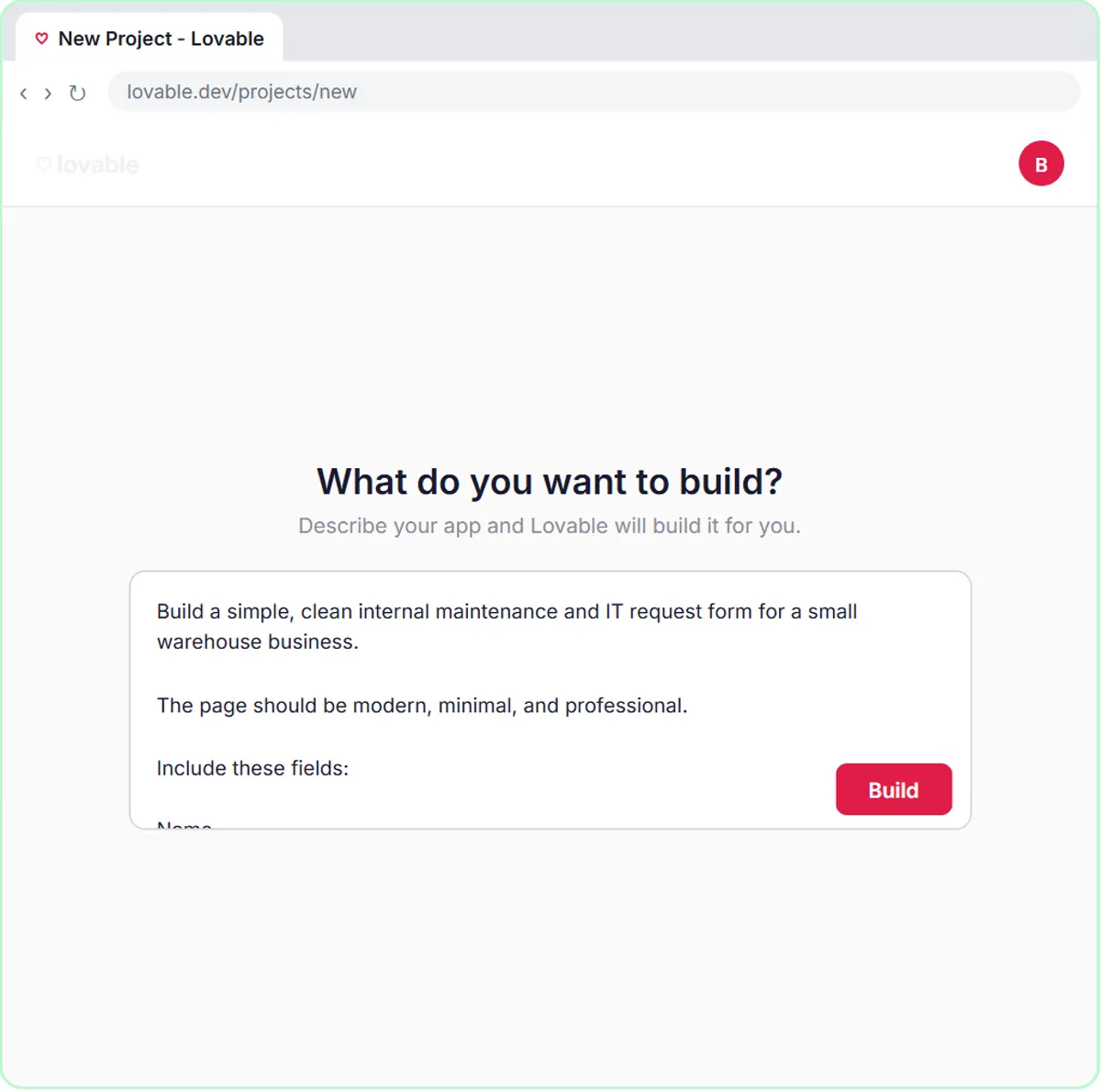
Describe it to Lovable in a prompt. The lesson's prompt sets the fields, the heading, the wording on screen and the rules:
- Heading: Report a Problem, with the line "Tell us what's broken and where. We'll set the priority and confirm by email."
- While sending, the button says Sending...
- On success: "Request received! Check your email for the priority."
- On failure: "Something went wrong. Please tell your supervisor."
- All four fields required, and the email format validated.
- The data goes to n8n as JSON with the keys name, email, request and location.
That failure message is a nice internal touch: if the form breaks, people know to tell a person instead of assuming it worked. What Is Vibe Coding? explains how this kind of prompt-built form works.
How does the form connect to n8n?
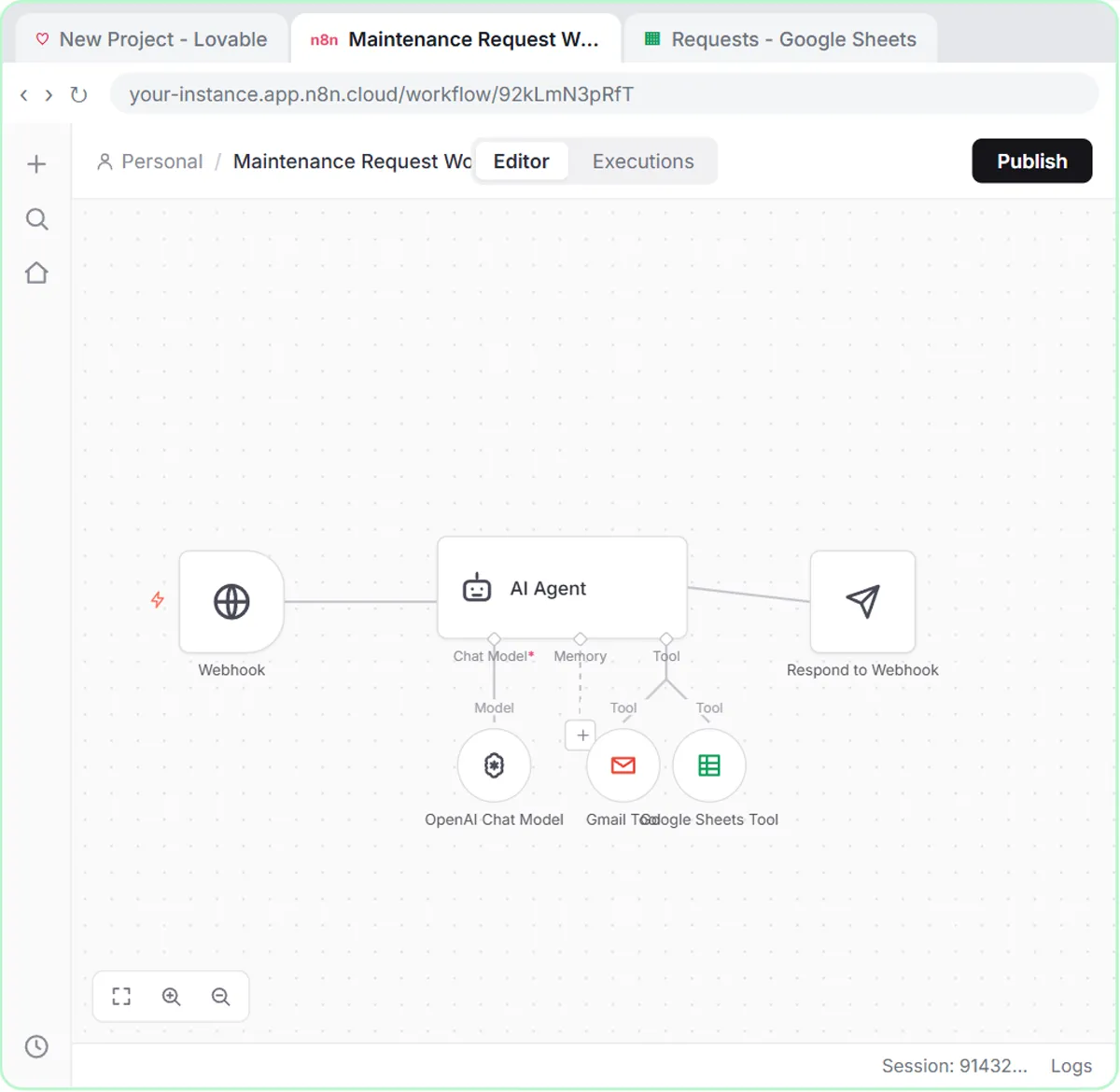
Through a webhook. The workflow starts with On webhook call, set to respond Using 'Respond to Webhook' Node so the form waits for the work to finish. Then:
- An AI Agent reads the request, with its prompt source set to Define below and a template that pulls in each field, such as
{{ $json.body.request }}. - An OpenAI Chat Model gives it a model; the lesson picks gpt-5-mini.
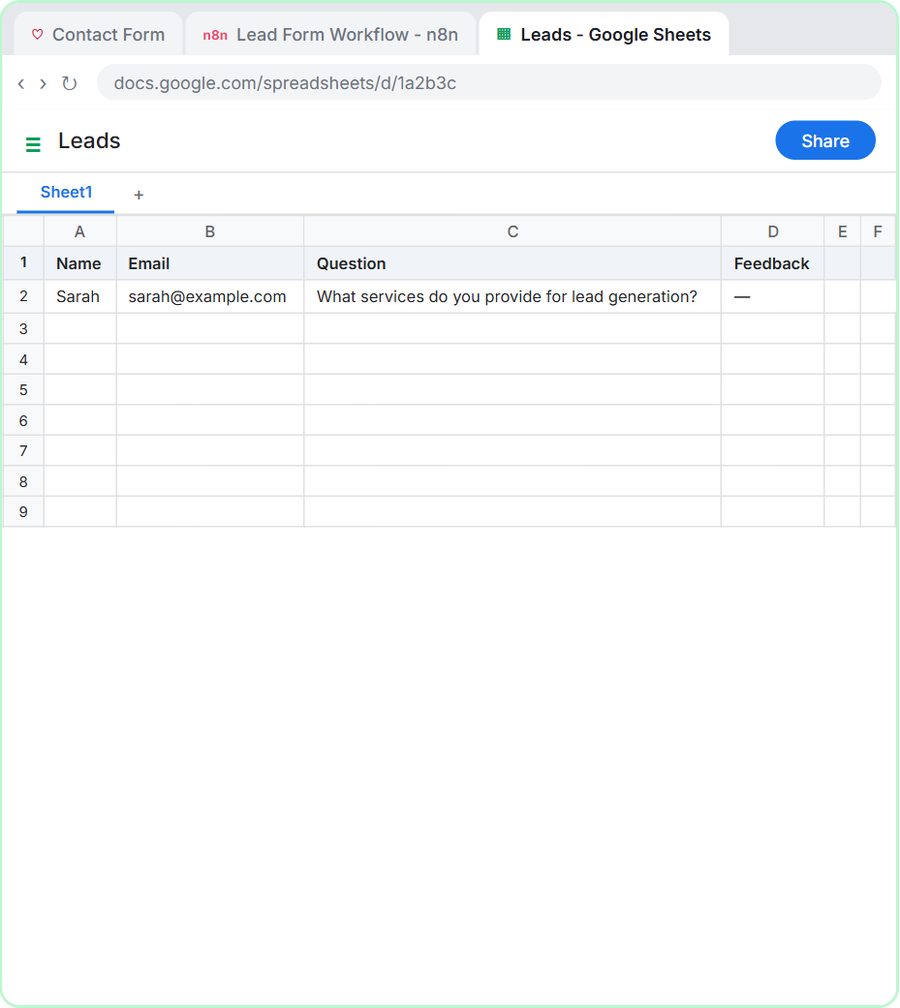
- A Google Sheets Tool appends the request to a sheet named Requests with the columns Name, Email, Request and Location.
- A Gmail Tool emails the requester the priority and team.
- A Respond to Webhook node tells the form it worked.
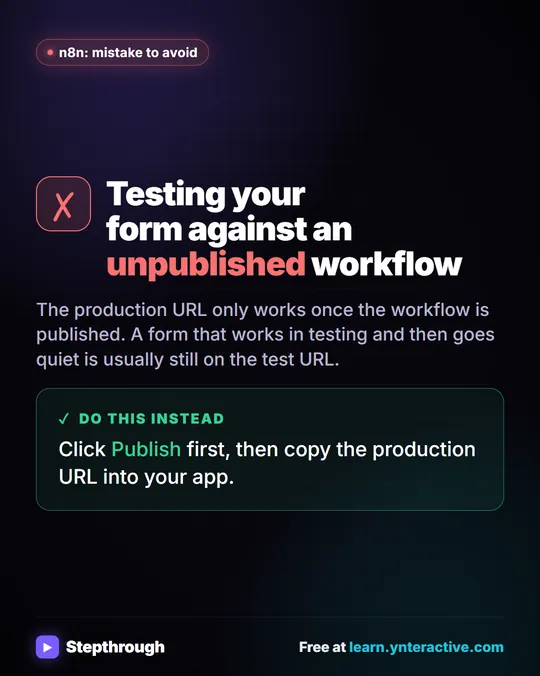
You click Publish, open the Webhook node's Production URL tab, copy the URL, and save it in Lovable under More as the secret N8N_WEBHOOK_URL. The general version of this build is Build a Web App with an AI Backend, and n8n Webhook Test URL vs Production URL explains why the production URL matters.
Should I log the priority and team in the sheet too?
It's a useful addition once the basic form works. The lesson's sheet keeps the four form fields, and the priority and team go to the requester by email. If you want to sort the backlog by priority, add Priority and Team columns to the sheet and map them in the Google Sheets Tool with the ✦ button, so the agent fills them in. Then the sheet becomes the list your facilities and IT people work from.
What should a person still check?
Anything marked Urgent, and anything involving safety. AI can sort a clear request well, but it can misread a vague one, such as "the door is acting weird." A quick daily look at the sheet catches requests that landed in the wrong team or priority.
Two other habits help:
- Tell staff what Urgent means. Put your definition on the form or in the confirmation, so people learn to describe the impact, not just the problem.
- Keep a real escalation path. For a safety risk, people should still call or find a supervisor. The form is for the record, not for emergencies. The glossary entry on escalation has more.
On cost: the lessons are free practice copies. A real build uses Lovable and n8n Cloud, which both have paid plans, and OpenAI API credit, which is pay-as-you-go and separate from ChatGPT plans. The operations industry page lists more lessons for operations teams.
Key takeaways
- An internal request form needs four fields for most offices: name, email, what needs fixing and location.
- The AI Agent's system message sets the rules; the lesson defines Urgent as a safety risk or anything that stops shipping or receiving.
- Lovable builds the form from a prompt, and n8n receives each submission through a webhook.
- The n8n workflow uses an AI Agent, a Google Sheets Tool, a Gmail Tool and a Respond to Webhook node.
- A person should still review Urgent and safety-related requests, and emergencies need a real escalation path, not just a form.
Frequently asked questions
- Can AI really decide the priority of an IT request?
It can apply rules you write, such as "Urgent means a safety risk or it stops shipping." Clear definitions make it reliable; vague ones make it guess. Review Urgent requests yourself.
- Do I need separate forms for IT and facilities?
Not with this setup. One form collects every request, and the AI assigns a team, such as Facilities, IT or Equipment, from the description.
- What happens if the form fails to send?
The lesson's form shows "Something went wrong. Please tell your supervisor." so the person knows to report it another way.
- Does this cost anything to run?
The lesson is free. A real version uses Lovable and n8n Cloud, which have paid plans, plus OpenAI API credit billed per request.