What does publishing a workflow mean in n8n?
Updated · By Robert Breen
Publishing a workflow in n8n switches it from something you run by hand while testing to something that runs on its own whenever its trigger fires: on a schedule, when an email arrives or when a form calls its production URL.
Why it matters for a small business
An unpublished workflow can look finished and still do nothing. The schedule never fires at 7 a.m., the inbox is never checked, and the form's webhook URL doesn't answer. Many "my automation stopped working" moments are really "it was never turned on" or "the app is pointing at the test version".
Publishing is also the moment your automation starts acting for the business without you watching. That's why the lessons test first with Execute workflow or Test workflow, check every place the data should land, and only then publish. Once it's live, a mistake repeats on every run until someone notices.
In a real lesson: Daily Job Alerts: Email Each Tech Their Jobs from Google Sheets with n8n
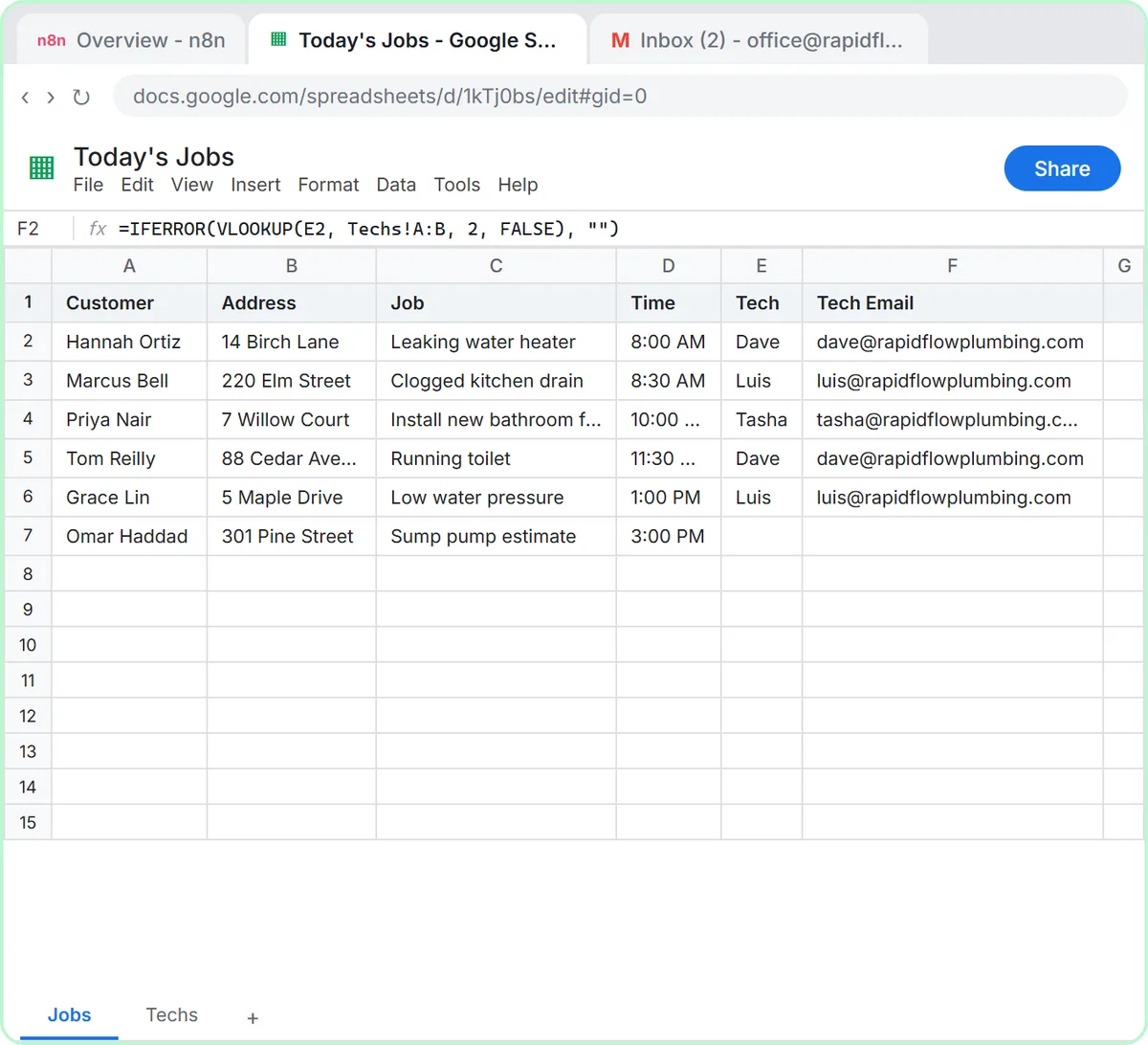
The Daily Job Alerts lesson has the clearest before and after. Throughout the build, the workflow for Rapid Flow Plumbing (a made-up company) only runs when you click Test step or Test workflow. The final test reads six jobs, the Filter passes five, and the Gmail step sends five emails: two to Dave, two to Luis and one to Tasha.
Then you click Publish. From that moment the Schedule Trigger fires every morning at 7 in the America/Chicago timezone you chose in Settings, whether anyone is at the desk or not. The voice-over adds the operational catch: it sends every assigned row every day, so the office has to keep the sheet to today's jobs.
In the AI Email Responder, clicking Publish asks for a version name. You keep the default, click Publish again, and the Gmail trigger starts checking the inbox every minute.
Try this lesson free or read the step-by-step guide.
Common confusions
Execute workflow vs Publish
Execute workflow (or Test workflow) runs it once, right now, while you watch. Publish hands it to the trigger so it runs by itself. A workflow that works when you press execute but never runs alone usually isn't published.
Published vs production URL
A Webhook node's production URL only answers once the workflow is published. Before that, only the test URL works, and only while the editor is listening.
Publish vs Active
Older versions of n8n used an Active toggle for the same idea. Guides that say "activate the workflow" mean publish it.
Tips
- Run one full test right before publishing and look at the real outputs: the sheet row, the sent email, the draft.
- After editing a published workflow, publish again so the live version gets your change.
- Set the workflow timezone before publishing anything that runs on a schedule.
Related terms
Where you use it: free lessons
- Daily Job Alerts: Email Each Tech Their Jobs from Google Sheets with n8n (n8n, 10 min)
- AI Email Responder: Draft Gmail Replies Automatically with n8n (n8n, 12 min)
- Lovable + n8n: Build a Web App with an AI Backend (Lovable and n8n, 15 min)
Visual guide
Publishing a workflow in a few slides, with the same guide written out as text.
Frequently asked questions
- Why isn't my n8n workflow running on its own?
- Check that it is published and that its trigger can actually fire: the schedule time and timezone, the connected Gmail account, or whether the sending app has the production URL.
- Can I change a workflow after publishing it?
- Yes. Edit it, test it, then publish again so the live version picks up the change.
- Does publishing make my workflow public?
- No. Publishing means it runs automatically. Who can reach it depends on its trigger; a webhook URL, for example, works for anyone who has it.