What is the difference between a webhook test URL and production URL?
Updated · By Robert Breen
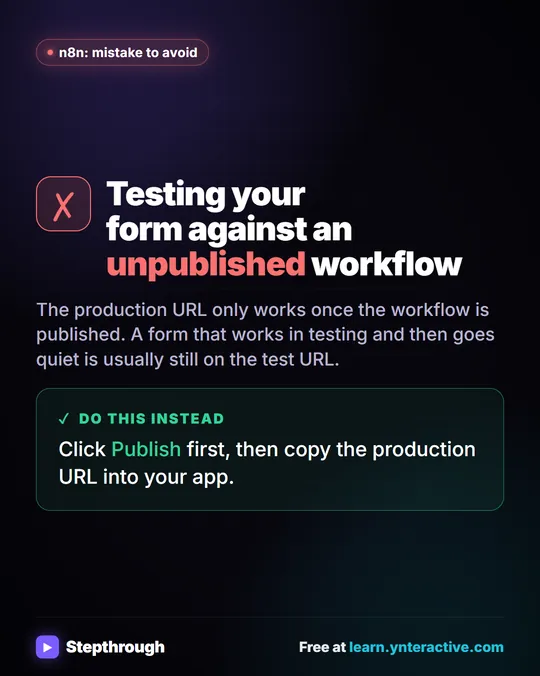
Every n8n Webhook node has two addresses. The test URL only receives data while you are testing the workflow in the editor; the production URL works around the clock once the workflow is published. A live form or app should always send to the production URL.
Why it matters for a small business
This is the most common reason a webhook automation works one day and goes quiet the next. While you build, the test URL catches your test submission and shows it in the editor, which feels like success. Then you close the editor, and real submissions sent to the test URL go nowhere, with no warning in your inbox.
The cost is easy to miss: a demo request or an emergency service request that never reaches the sheet is a lost customer, and nobody knows to follow up. The two addresses exist on purpose, so you can experiment without touching the live version, but it means you have to switch the sending app over when you go live.
In a real lesson: Build an AI Demo Request Form That Qualifies Leads
In the demo request form lesson, you build a Book a Demo form for Northwind Scheduling Software, the made-up software company in the lesson. The form sends name, email, need and team size to an n8n webhook, and the agent rates each lead Hot, Warm or Nurture before saving it and emailing one next step.
The order of the last steps is the point. First you click Publish, because the production URL only answers for a published workflow. Then you double-click the Webhook node and click the Production URL tab; the voice-over notes that the test URL only works during testing. You click the URL to copy it, switch to Lovable, open More, and save it as the secret N8N_WEBHOOK_URL.
Then you test the way a prospect would: Preview, Fill with test data, Book a Demo. A team of twelve that wants to switch this month comes back rated Hot with two demo times offered, and the row appears in Google Sheets. Because the form points at the production URL, the same path keeps working after you close n8n.
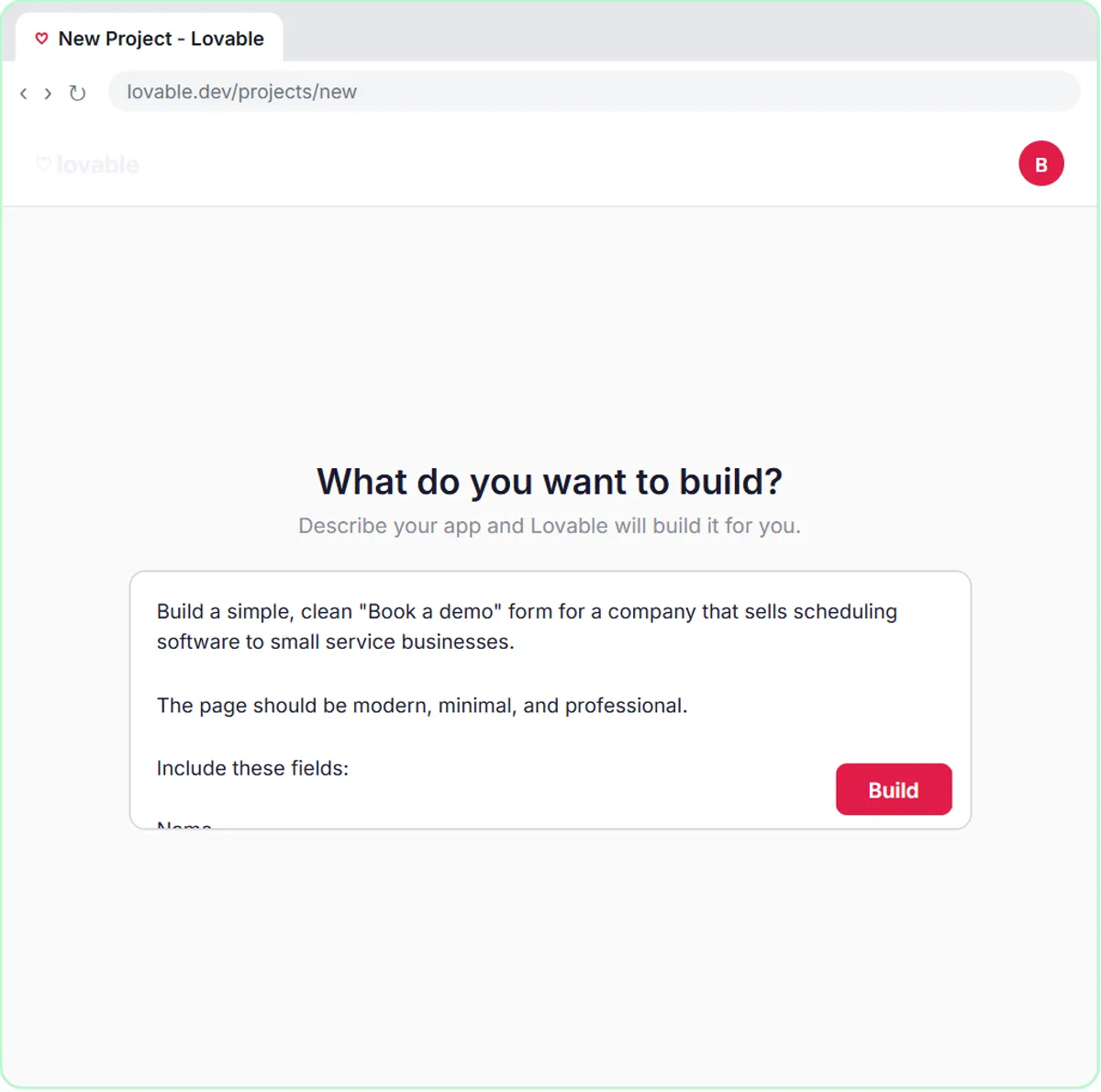
Try this lesson free or read the step-by-step guide.
Common confusions
Which URL goes in the app?
Use the test URL only while you're watching the editor and want to see the incoming data. Anything real (a website form, a payment tool, a Lovable app) gets the production URL. The two look almost the same, so copy from the tab, never from memory.
Saved vs published
Saving a workflow doesn't switch on the production URL; publishing does. If live calls fail outright, check that the workflow is published before you change anything else.
Editing a live workflow
After you edit, publish again so the live version picks up the change. The production URL itself stays the same unless you change the webhook's path, so the sending app doesn't need a new address.
Tips
- Publish first, copy second. That order avoids the most common mistake.
- Keep the URL in one place, like a secret or a setting, so switching from test to production is a single edit.
- After going live, send one real submission and confirm it reaches the sheet and the inbox.
Related terms
Where you use it: free lessons
- Build an AI Demo Request Form That Qualifies Leads (Lovable and n8n, 15 min)
- Lovable + n8n: Build a Web App with an AI Backend (Lovable and n8n, 15 min)
- Build an AI Emergency Request Form for Your Plumbing Company (Lovable and n8n, 15 min)
Visual guide
Test URL vs production URL in a few slides, with the same guide written out as text.
Frequently asked questions
- Can I use the n8n test URL for a real form?
- No. It only listens while you're testing in the editor, so real submissions sent to it are lost once you stop testing.
- Where do I find the production URL in n8n?
- Open the Webhook node and click the Production URL tab, then click the URL to copy it. Publish the workflow before you rely on it.
- Do I need to update my app every time I edit the workflow?
- Usually not. The production URL stays the same unless you change the webhook's path, so publishing your changes is enough.