What does "Get row(s)" do in n8n?
Updated · By Robert Breen
Get row(s) is the Google Sheets operation in n8n that reads rows from a sheet and passes each one on as a separate item, labeled with the column names. It is how a workflow uses a spreadsheet as its list of things to do: jobs to send, customers to remind, orders to check.
Why it matters for a small business
Plenty of small businesses already run on a spreadsheet: today's jobs, open invoices, upcoming appointments. Get row(s) lets an automation start from that sheet instead of asking anyone to retype it. The office keeps editing the sheet the way they always have, and the workflow picks up whatever is there when it runs.
Because each row becomes its own item, every step after it runs once per row on its own. That is what makes a single Gmail step send six different emails. Reading the sheet is also where you decide scope: which document, which tab, and whether to read every row or only the ones that match a value. Get that wrong and every later step works on the wrong list.
In a real lesson: Daily Job Alerts: Email Each Tech Their Jobs from Google Sheets with n8n
The "Read the sheet" chapter of the Daily Job Alerts lesson is built on this operation. You are the office at Rapid Flow Plumbing, a made-up plumbing company. After the 7am schedule trigger, you click the +, type sheets and choose Google Sheets: Get row(s) in sheet. The voice-over draws the line: get rows reads rows; append would add rows, which is not what you want here.
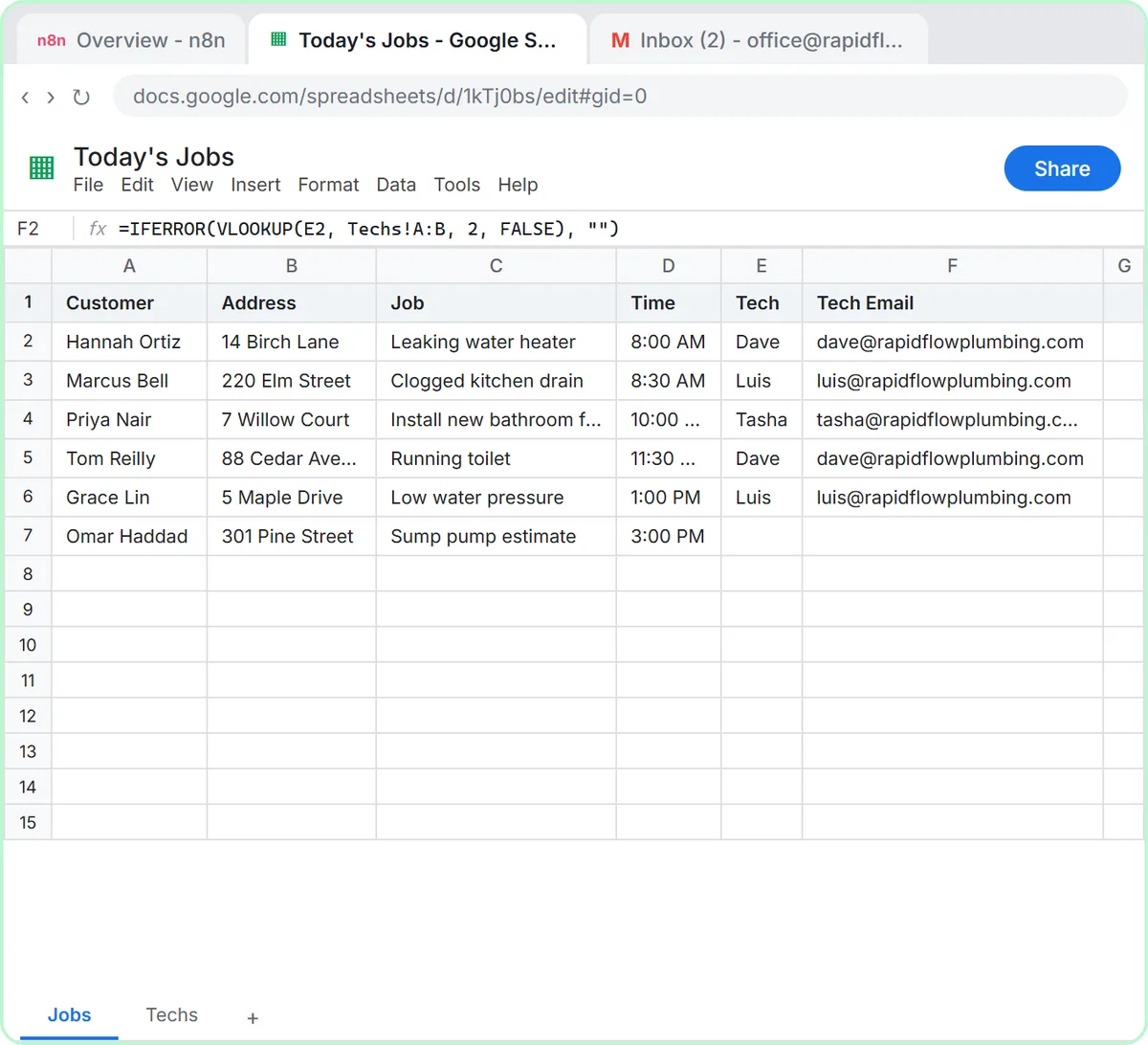
You reuse the Google Sheets account credential, choose Today's Jobs as the document and Jobs as the sheet, not Techs, because every job row already carries its tech's email. Then Test step reads the sheet right away: six items, one per row, with the column names (Customer, Address, Job, Time, Tech, Tech Email) as labels.
From there, a Filter drops the unassigned sump pump job, and the Gmail step sends the other five to their techs.
Try this lesson free or read the step-by-step guide.
Common confusions
Get row(s) vs Append Row
Get row(s) reads existing rows out of a sheet. Append Row adds a new row at the bottom. The receipt agent's Sheets tool opens set to Get row(s) and you switch it to Append Row, because that agent writes rather than reads.
Reading a sheet vs a Sheets trigger
Get row(s) runs when the workflow reaches it, such as at 7am. A trigger that watches a sheet starts a workflow when rows change. Job Alerts uses a schedule plus Get row(s).
Tips
- Pick the tab carefully; Document and Sheet are two separate choices.
- Keep the sheet to the rows you want acted on, or filter them right after reading.
- Test the step and check the item count matches the rows you expect.
Related terms
Where you use it: free lessons
- Daily Job Alerts: Email Each Tech Their Jobs from Google Sheets with n8n (n8n, 10 min)
- AI Receipt Extractor: Receipts to Google Sheets with n8n (n8n, 12 min)
Frequently asked questions
- Does Get row(s) read the whole sheet?
- By default it reads every data row on the tab you choose. The node also lets you add filters so it returns only rows where a column matches a value.
- Why did my Gmail step send one email per row?
- Because Get row(s) outputs one item per row, and n8n runs the next steps once for each item. That is usually what you want; filter first if some rows shouldn't get an email.