Updated . Built against the tool’s current screens and checked step by step. How we check this lesson
If you run several client projects, your week probably starts the same way: an hour of hunting through email, Slack and meeting notes to work out what is actually due. The cost is not just the hour. It is the deliverable that never made it onto the calendar and slipped. Routine (routine.co) is a planner that puts tasks, calendar and notes in one app, with an AI assistant that can read all three. This guide shows a simple weekly loop from Routine's own help center: capture everything in plain words, process the Inbox to zero, give the important work a day on the Calendar, and let the assistant check the plan for clashes. It comes with a free practice lesson built from Routine's docs. This is my own guide, not an official Routine course.
At a glance
| Question | Answer |
|---|---|
| What you build | Get scattered client tasks into one place with Routine: capture them in plain words, clear the Inbox in minutes, give the important work a day and let the AI assistant catch a calendar clash. |
| Tools | Routine |
| Time | About 8 minutes, 18 steps in 5 parts |
| Level | Beginner, no coding needed |
| Cost | Free |
| Ways to learn it | Practice it step by step, read the guide with screenshots |
The 5 parts, in short
- Capture everything: Open the Console, Capture a task with a date, Capture a task with no date.
- Process the Inbox: Open the Inbox, Do the 2-minute task now, Select the webinar invite, Discard it, and 4 more steps.
- Plan the week: Open the Calendar, Put the workshop agenda on Wednesday.
- Ask the AI assistant: Open the Assistant, Ask about conflicts, Ask it to move the meeting, Approve the change.
- Focus on today: Open the Agenda.
Start here first: Granola: Client Call Notes Written for You, With No Meeting Bot (module 1 of AI Automation for Consulting & Agencies)
Part of: AI for Consulting & Agencies (step 15 of 33). Next up: A Presentation from Your Notes in 5 Minutes (Gamma)
Part of: AI Apps Worth Knowing (step 27 of 77). Next up: OLVA: Answer Every Question on a Sales Discovery Call
Routine: Plan Your Week from One Inbox: step-by-step guide with screenshots
About the screenshots. They come from Stepthrough’s simulated practice environment (a practice copy of Routine), not the live tool, so no real account appears. The buttons and labels match the real screens the lesson was built against. Practice it yourself free at learn.ynteractive.com.
- Tools: Routine
- Time: about 8 minutes, 18 steps in 5 parts
- Level: beginner, no coding needed
Part 1: Capture everything
Step 1: Open the Console
Meet Nina Okafor. She is an engagement manager at Calder and Moss Advisory, a made-up consulting firm. She runs three client projects. Her tasks live in email, in chat and in meeting notes. Last month a client deliverable slipped because of it. Let's fix her week with Routine. Here, click the key under the window.
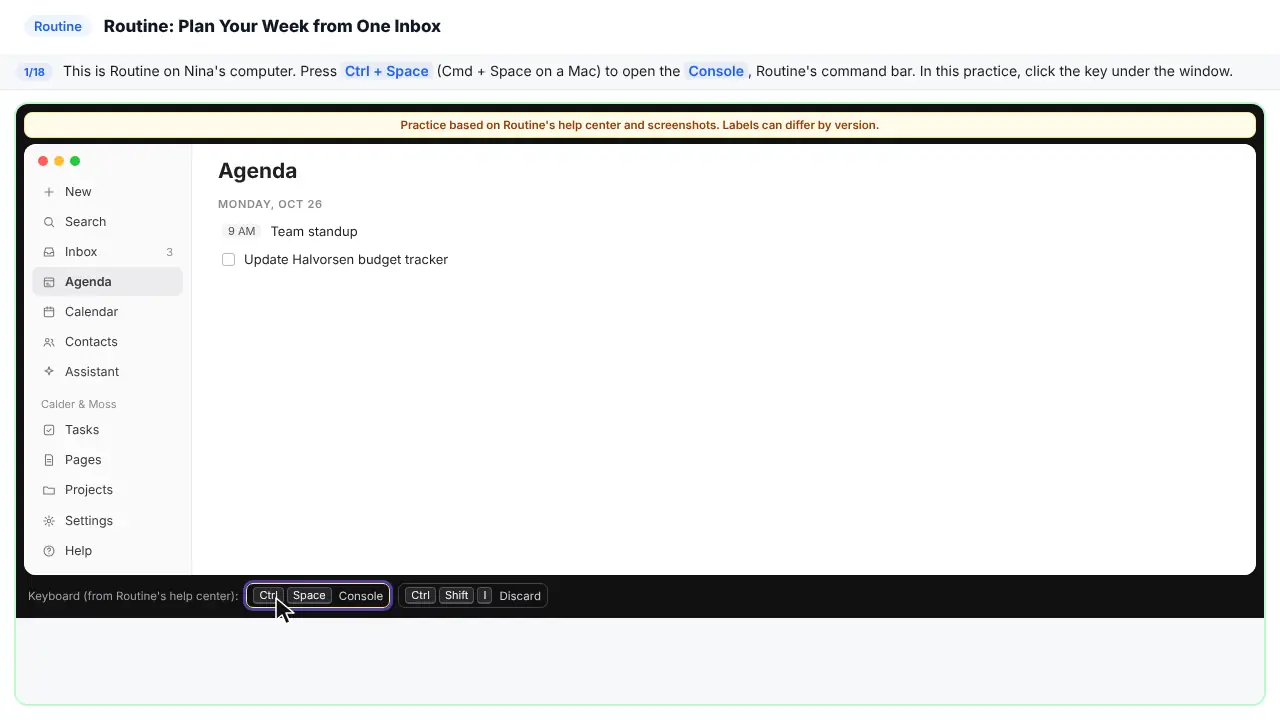
Step 2: Capture a task with a date
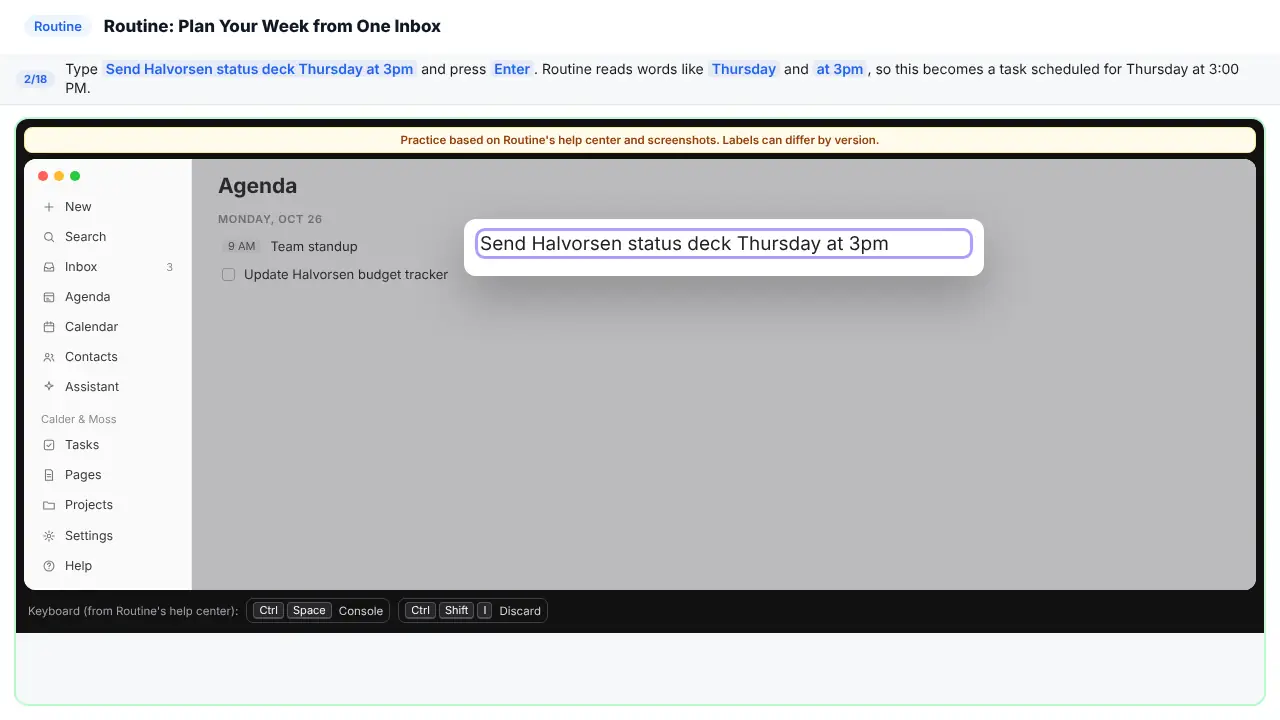
Send Halvorsen status deck, Thursday at 3pm. Routine reads the day and the time. So this is now a task on Thursday at 3.
Step 3: Capture a task with no date
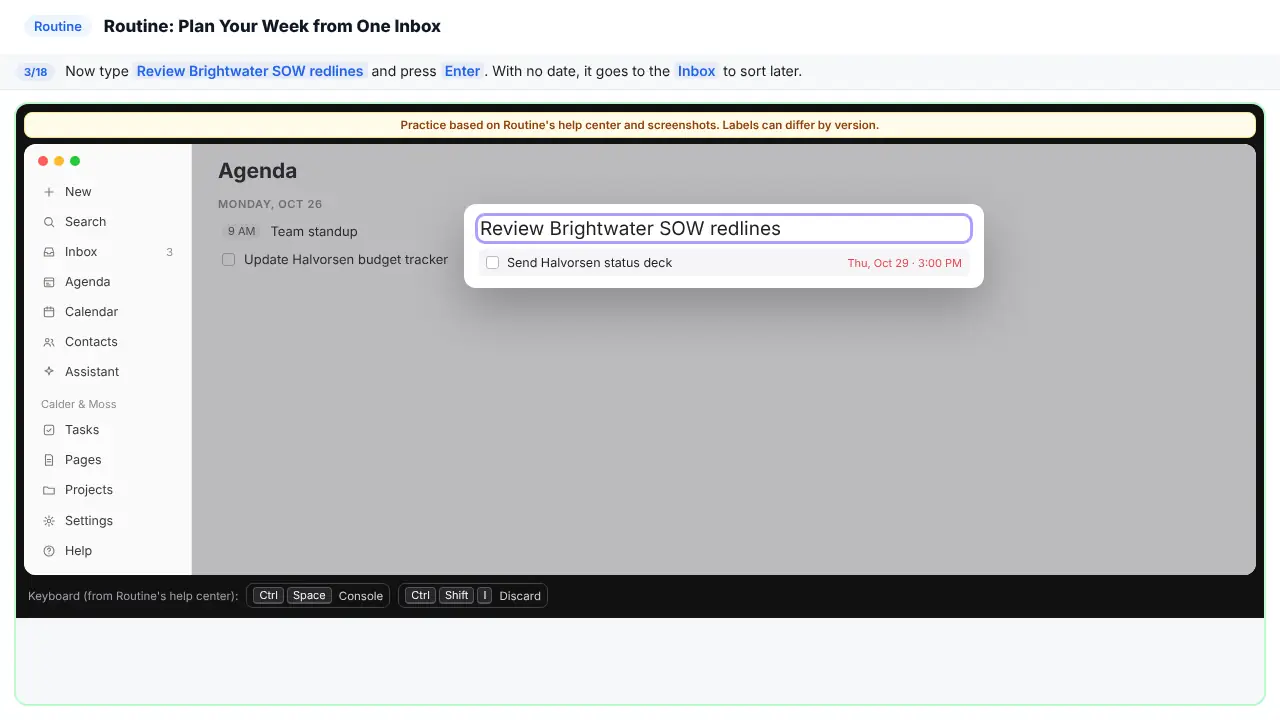
Now one with no date. With no date, it goes to the Inbox. You decide later.
Part 2: Process the Inbox
Step 4: Open the Inbox
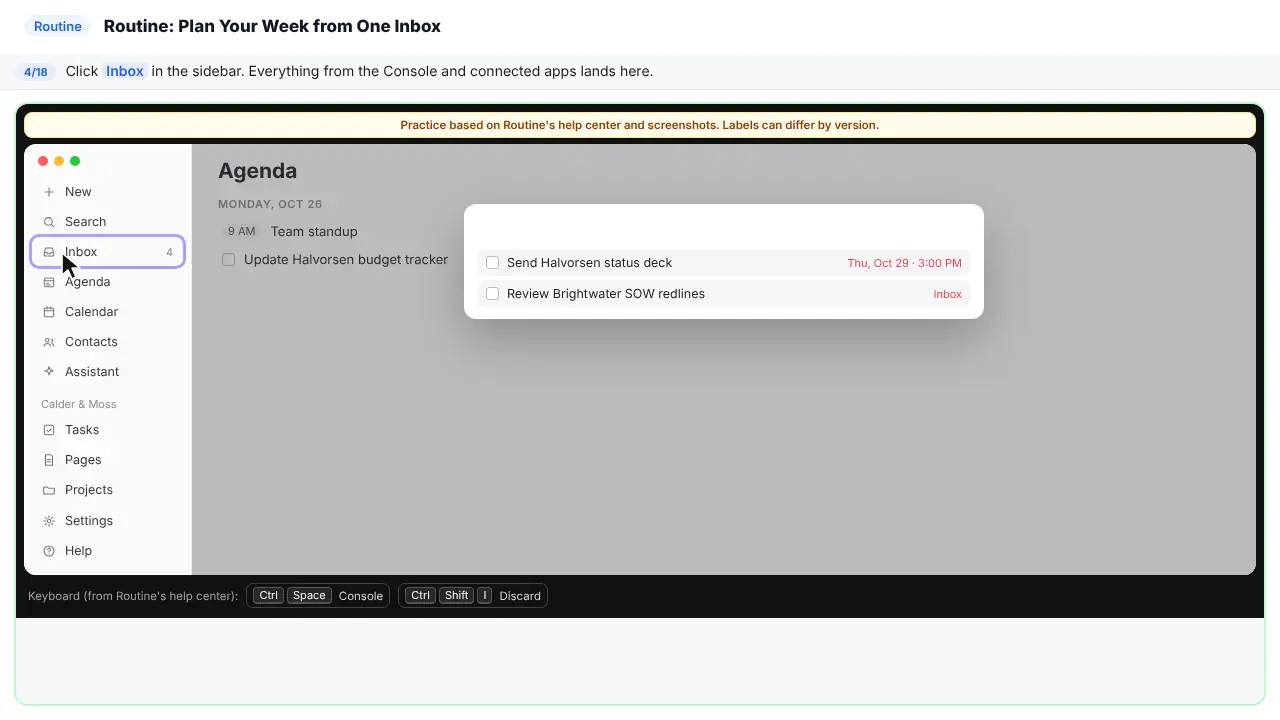
Everything you capture lands here. So does anything from apps you connect, like Gmail or Slack.
Step 5: Do the 2-minute task now
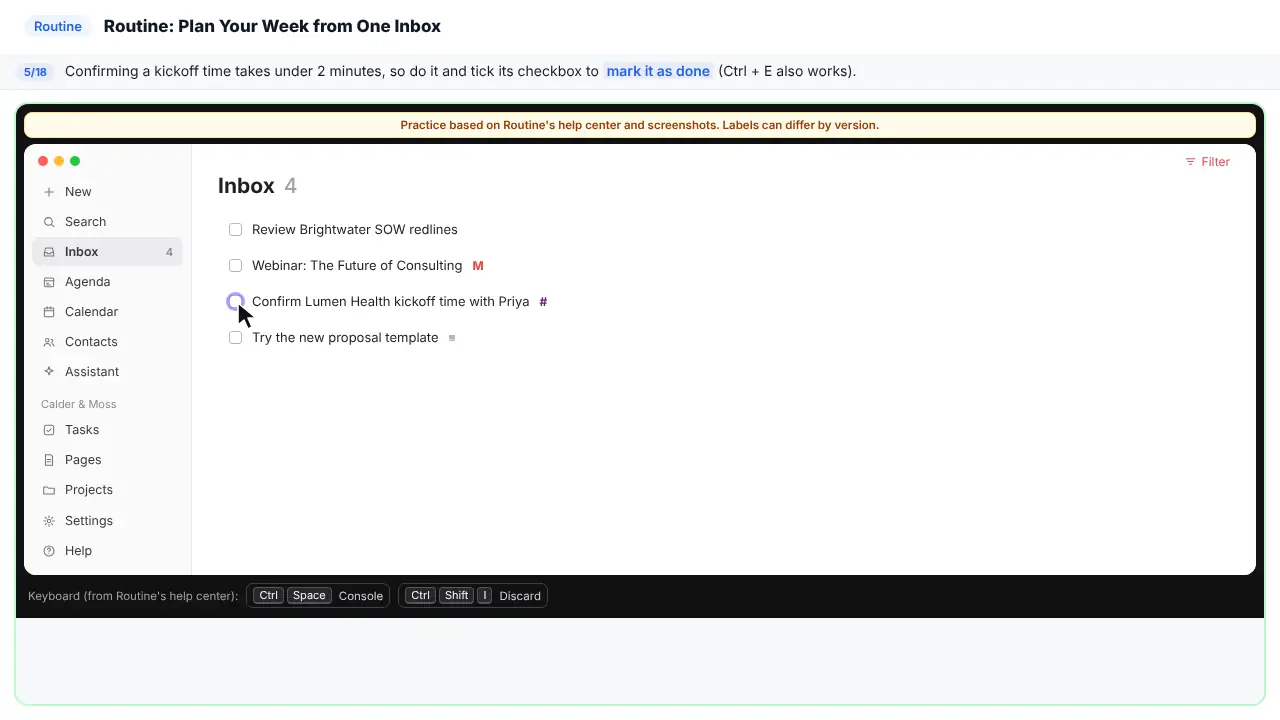
Four items. Take them one at a time. Confirming the kickoff time takes under two minutes. So just do it, and tick the box.
Step 6: Select the webinar invite
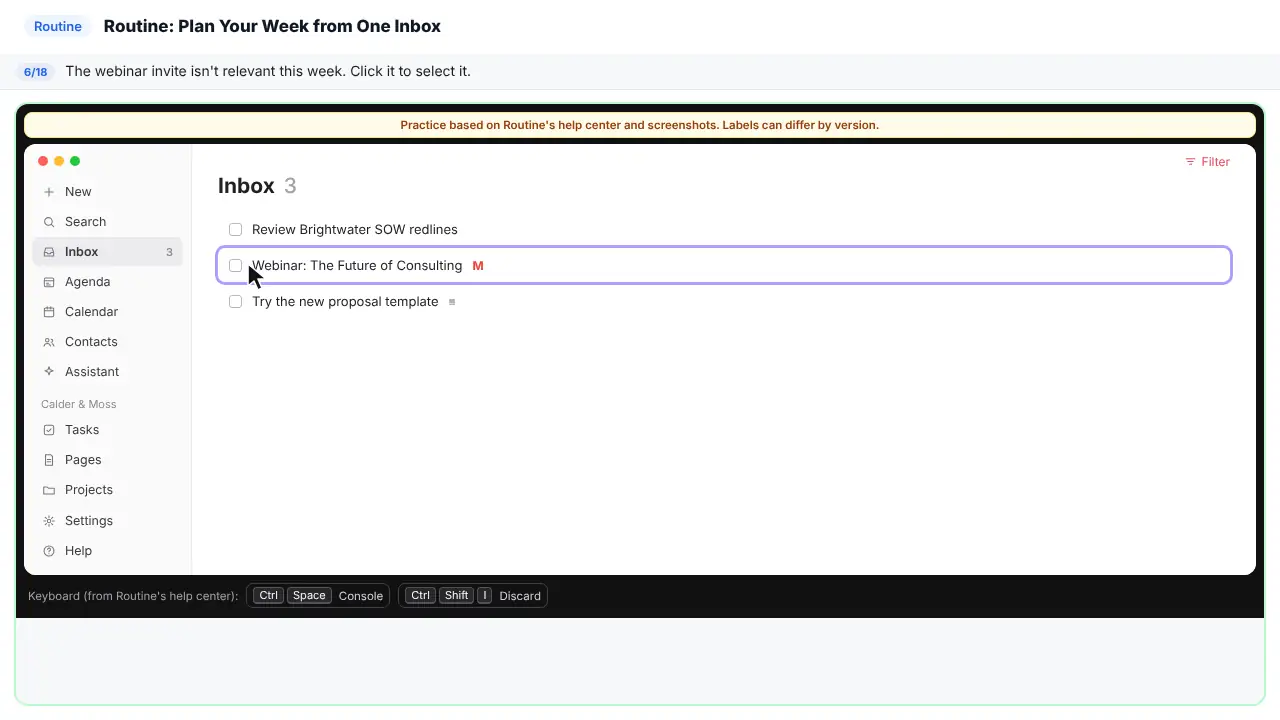
The webinar invite is not useful this week.
Step 7: Discard it
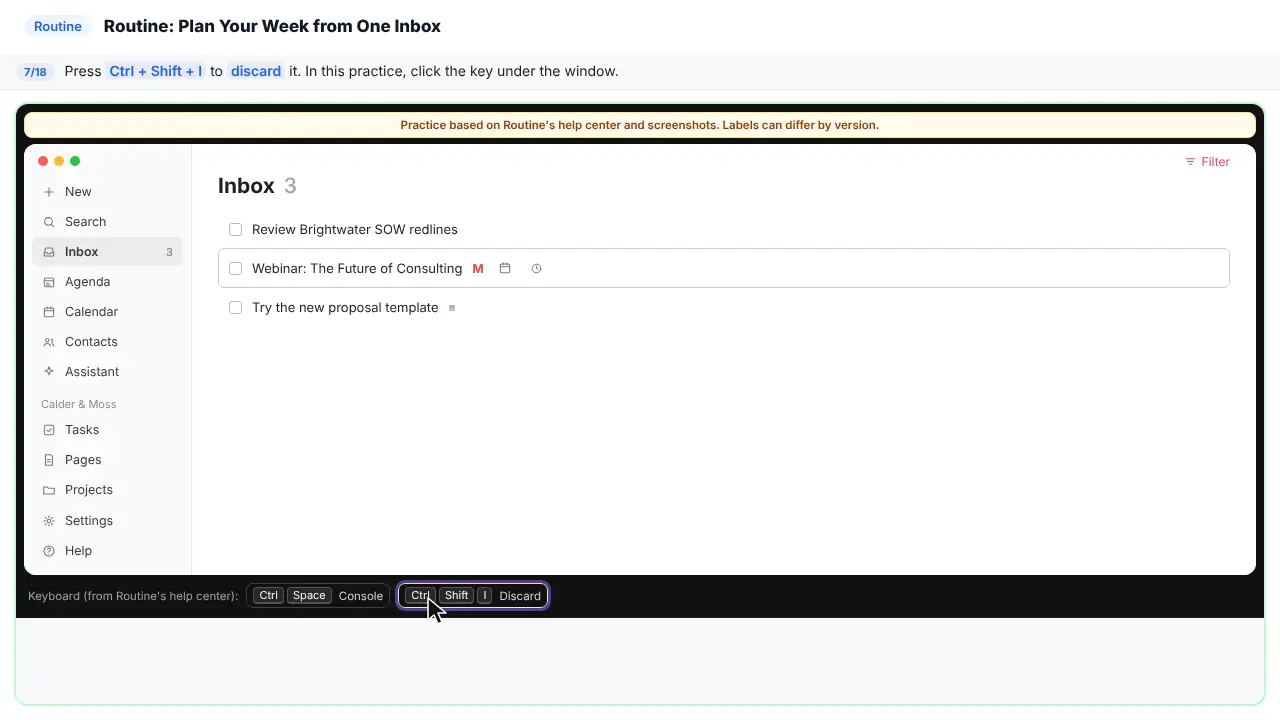
It's gone from your list. Here, click the key under the window.
Step 8: Schedule the redlines
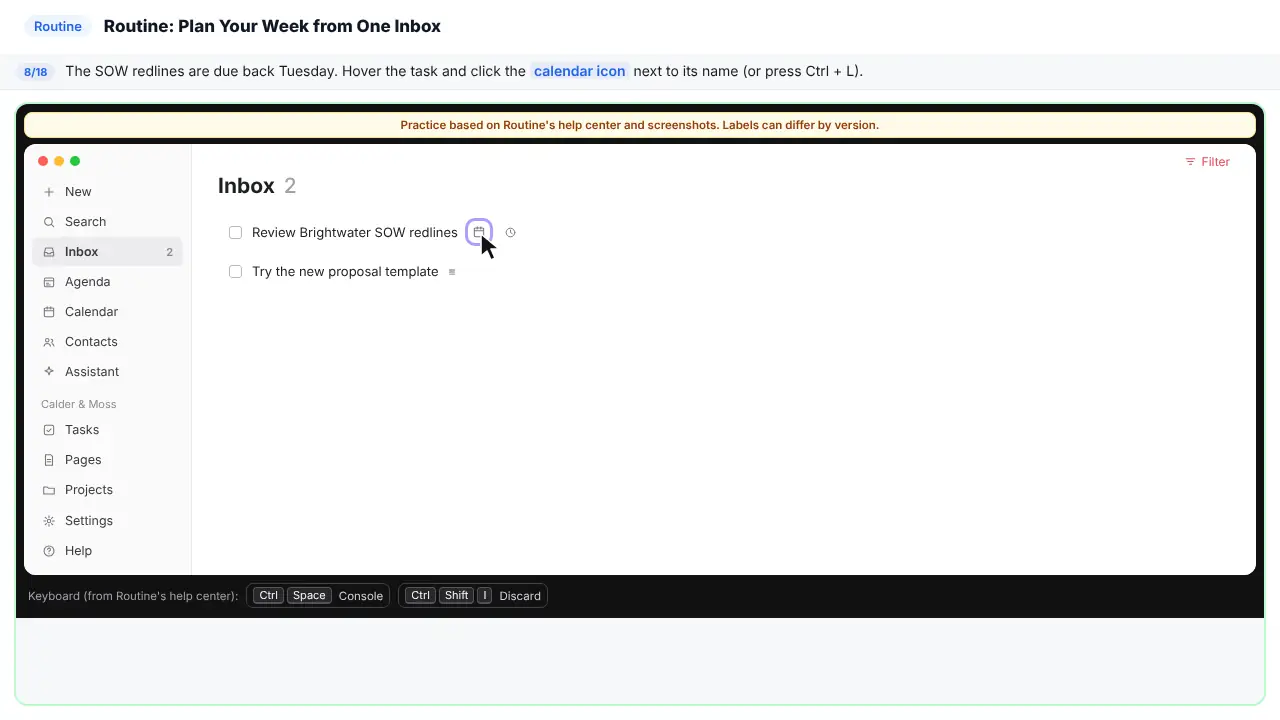
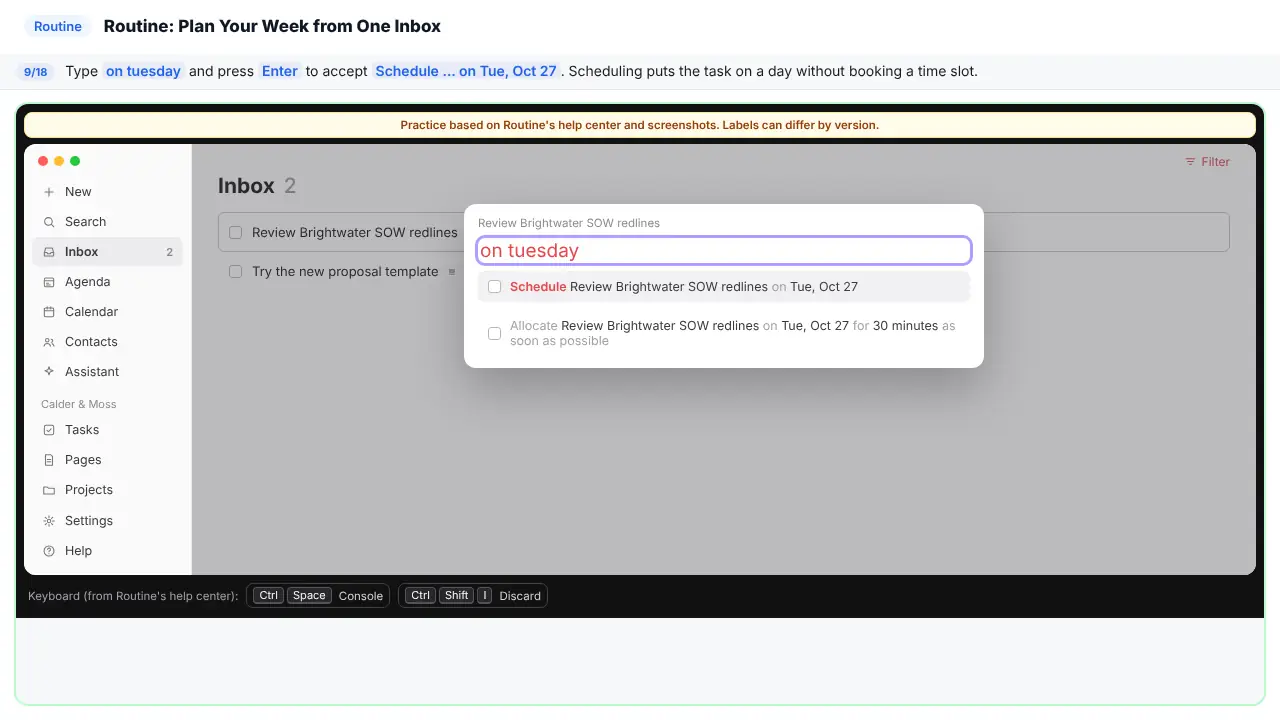
The redlines are due back on Tuesday. Point at the task and click the calendar icon next to its name.
Step 9: Pick the day
The task now sits on Tuesday. It does not book a time slot. It just says which day it belongs to.
Step 10: Postpone the template idea
The new proposal template. Nina isn't sure about it yet. Don't delete it, and don't let it clutter the week.
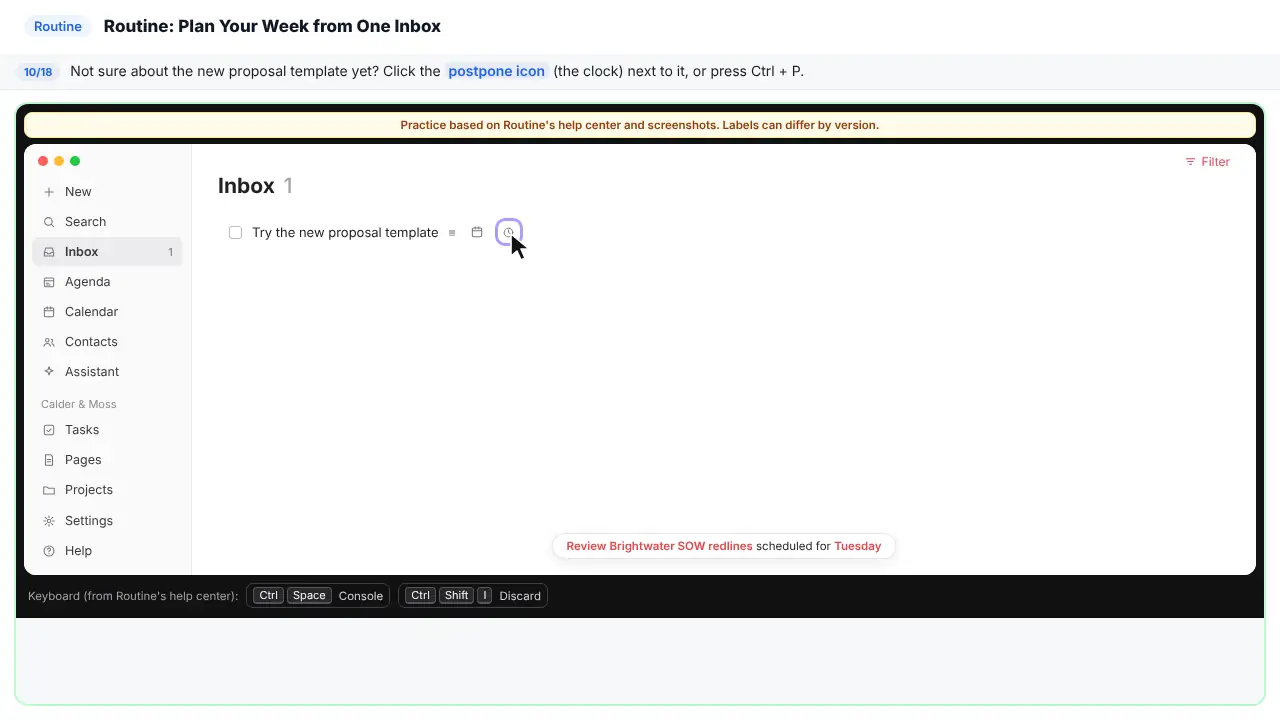
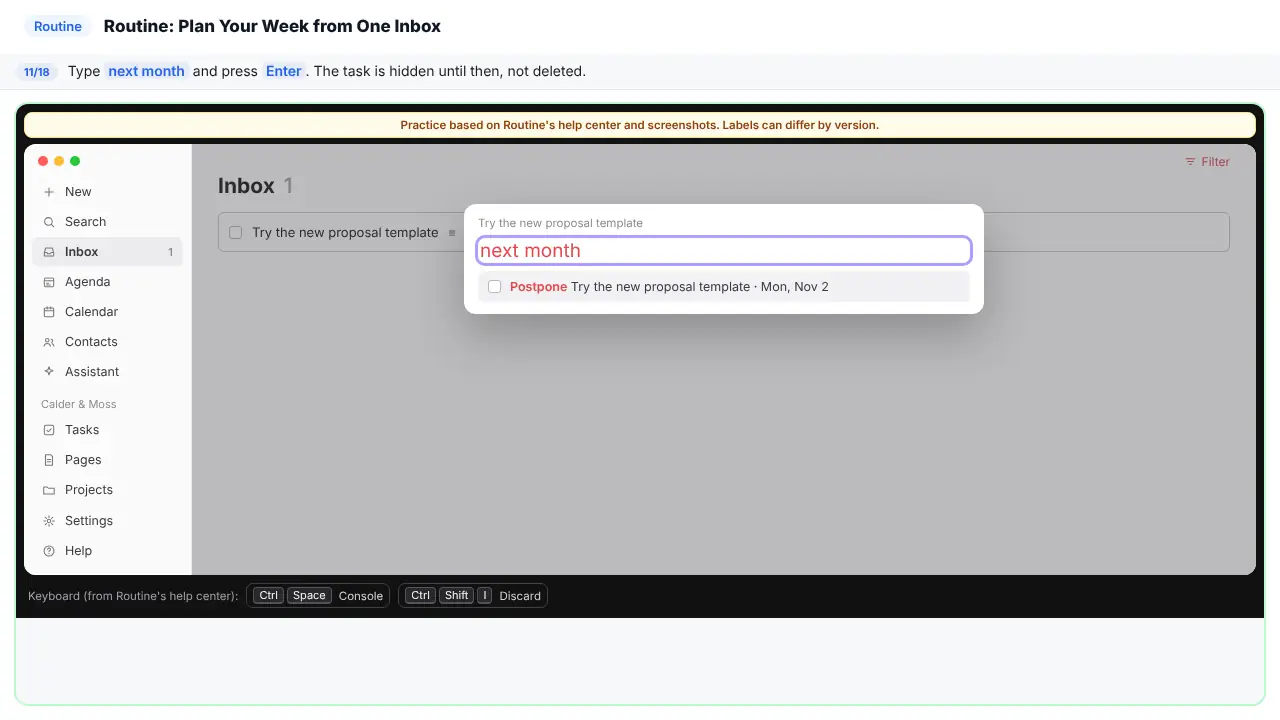
Step 11: Hide it until next month
It is hidden until then. Not deleted. And look. The Inbox is empty. That's Inbox Zero.
Part 3: Plan the week
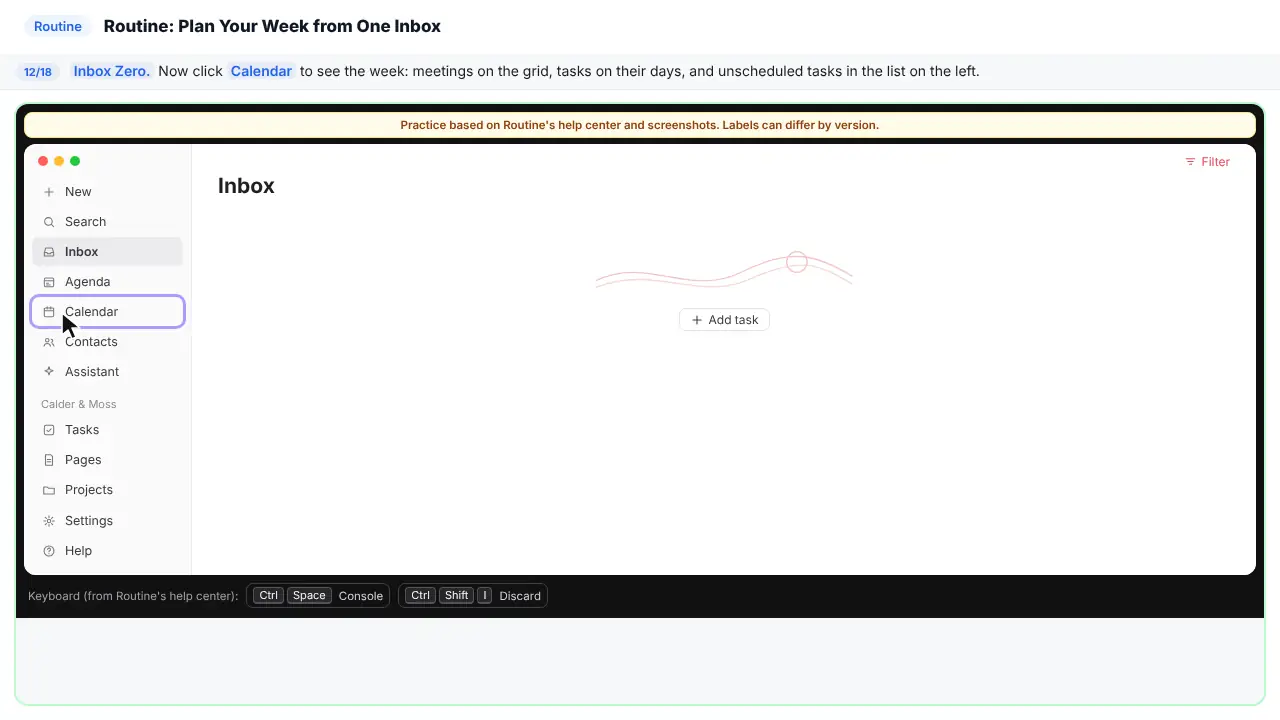
Step 12: Open the Calendar
Now plan the week.
Step 13: Put the workshop agenda on Wednesday
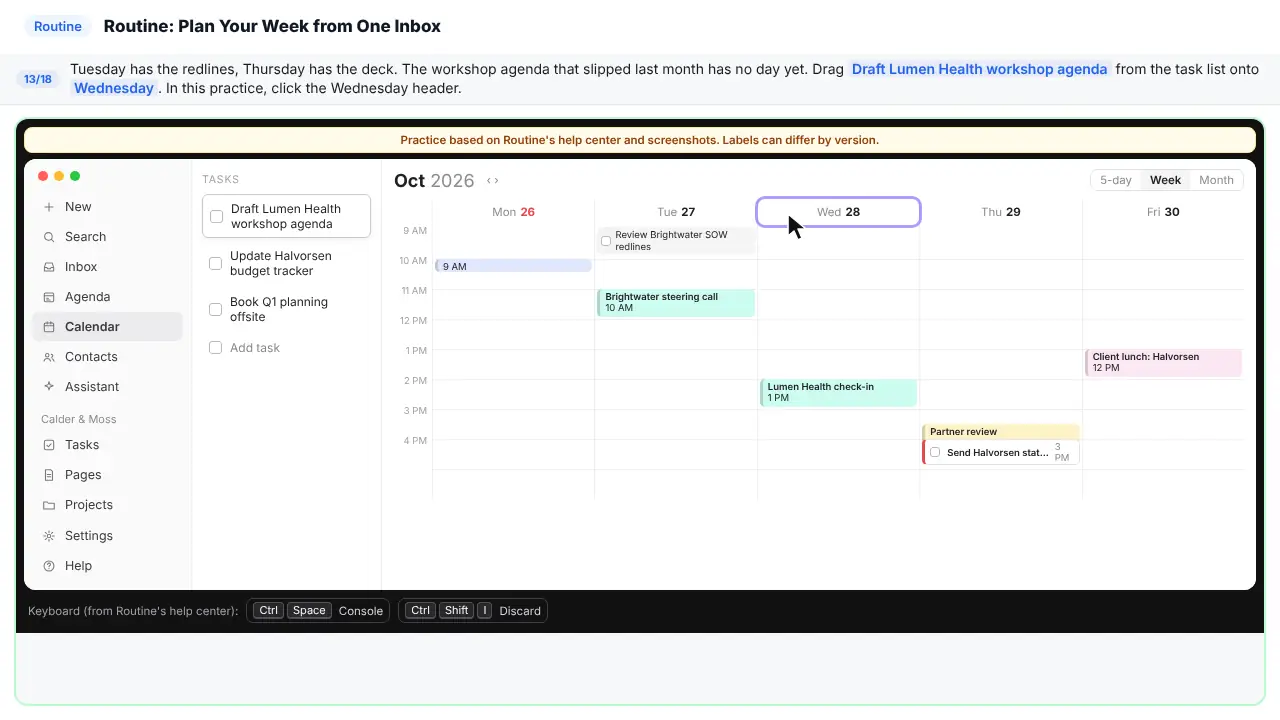
Here's the week. The redlines are on Tuesday. The deck is on Thursday at 3. But the workshop agenda has no day. That's the one that slipped last month. Here, just click Wednesday.
Part 4: Ask the AI assistant
Step 14: Open the Assistant
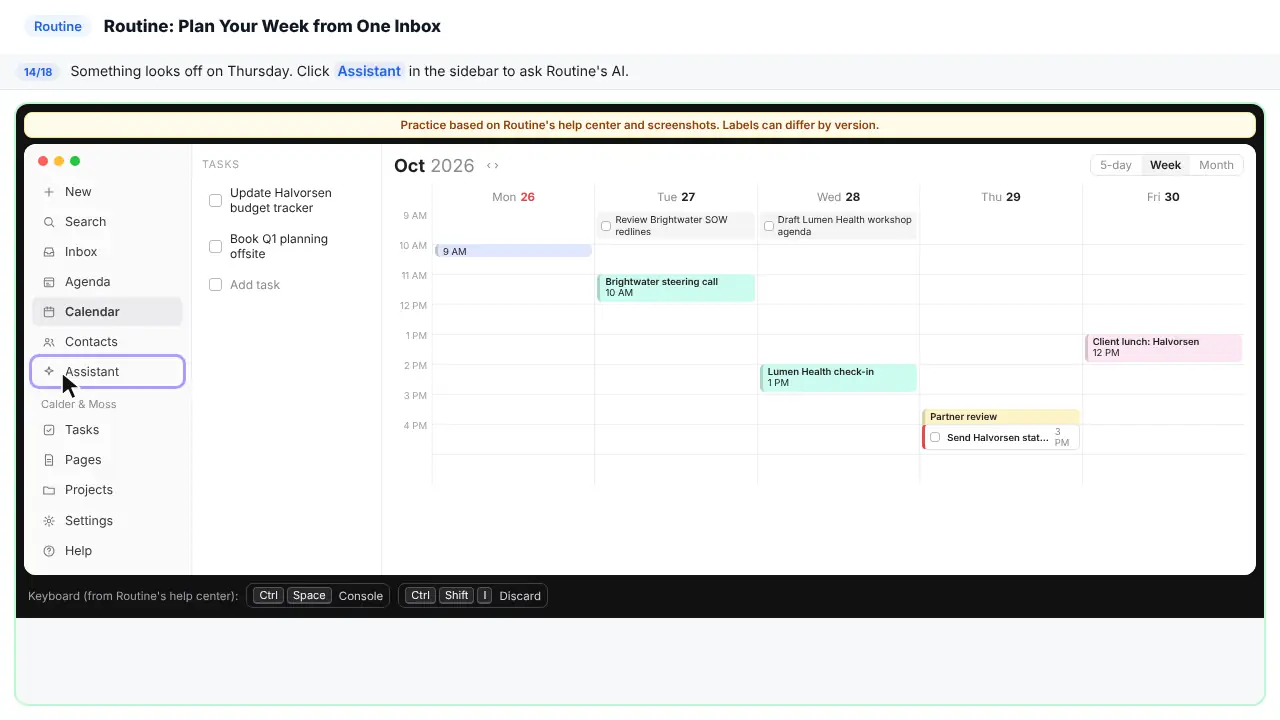
Something looks off on Thursday. Let's ask the AI.
Step 15: Ask about conflicts
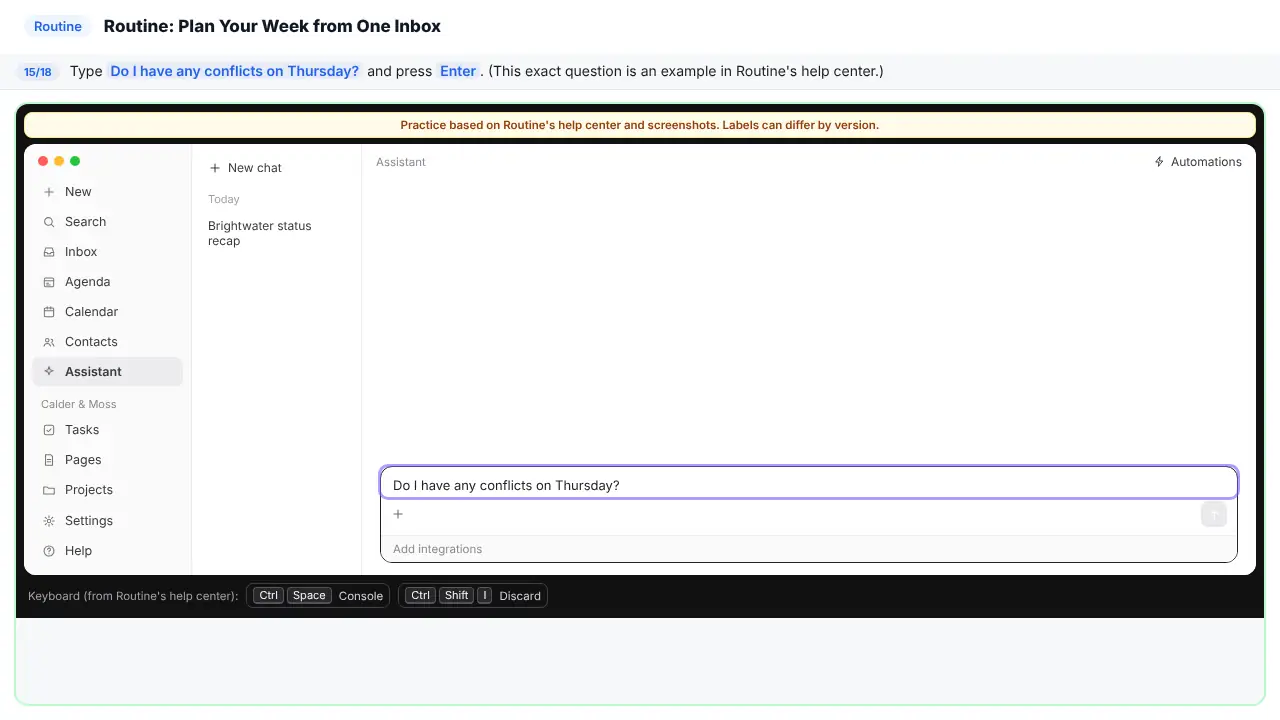
The assistant can read your calendar and your tasks.
Step 16: Ask it to move the meeting
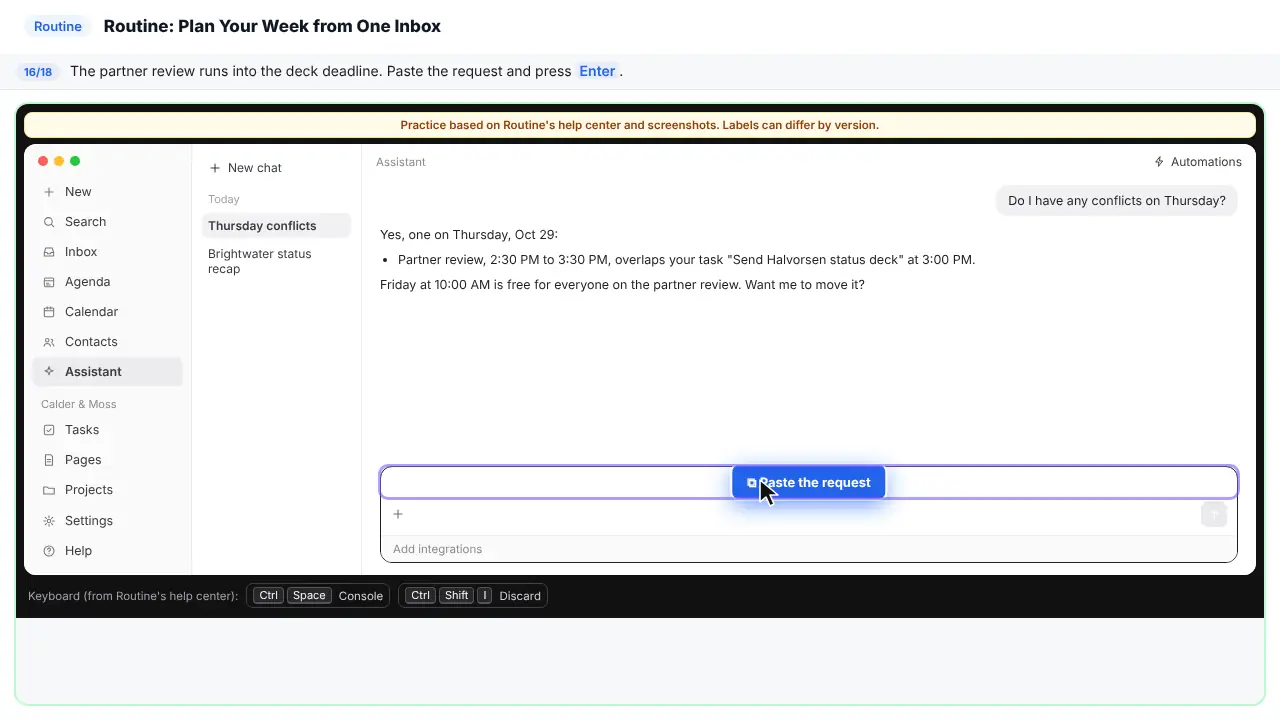
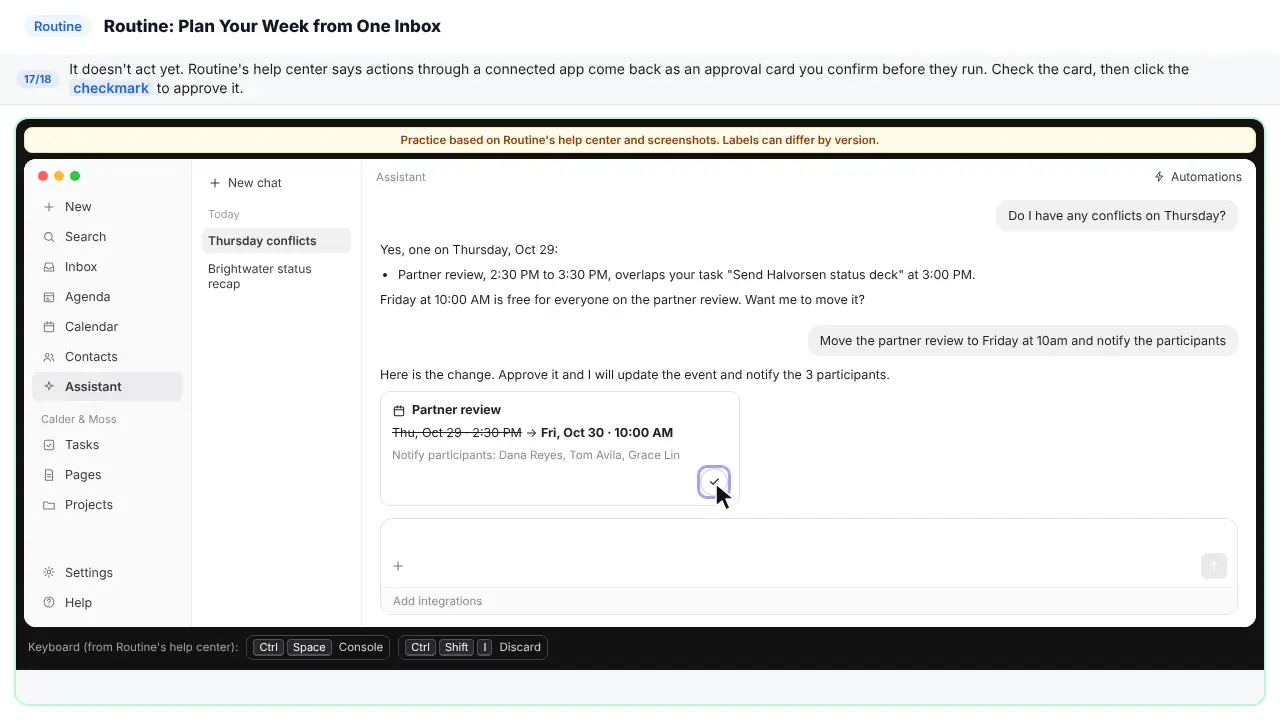
There it is. The partner review runs right into the deck deadline. Ask it to move the meeting to Friday at 10, and to tell the people invited.
Step 17: Approve the change
Notice it did not just do it. Actions through a connected app wait for you. Check the card. Is it the right meeting? The right time?
Part 5: Focus on today
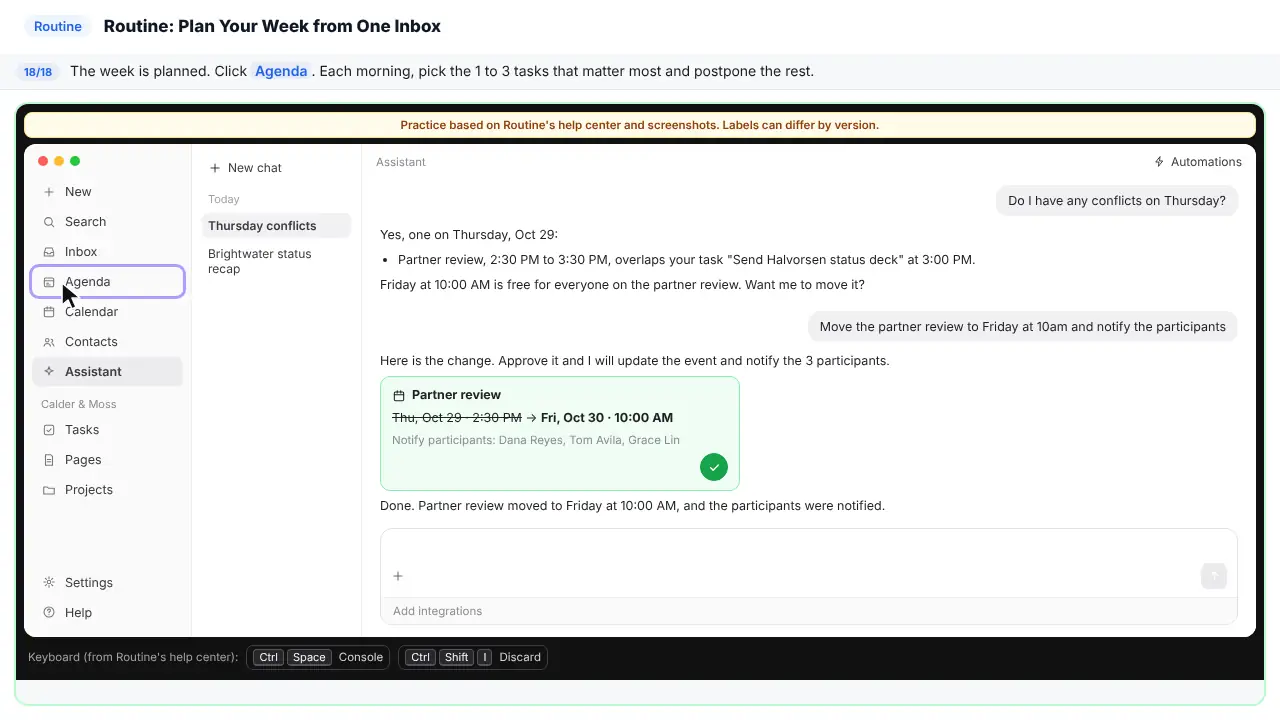
Step 18: Open the Agenda
Last step. This is your day. Each morning, pick the one to three tasks that matter most. Postpone the rest. Twenty minutes on Monday, and the week has a plan.
Part of these free courses: AI Apps Worth Knowing, AI for Consulting & Agencies
Now do it yourself, free
Reading the steps is a start. Doing them is how it sticks. The interactive lesson puts you in a practice copy of Routine: you do every step yourself, it checks your work, and “Do it for me” finishes any step you get stuck on. Nothing touches your real accounts.
Practice “Routine: Plan Your Week from One Inbox” step by step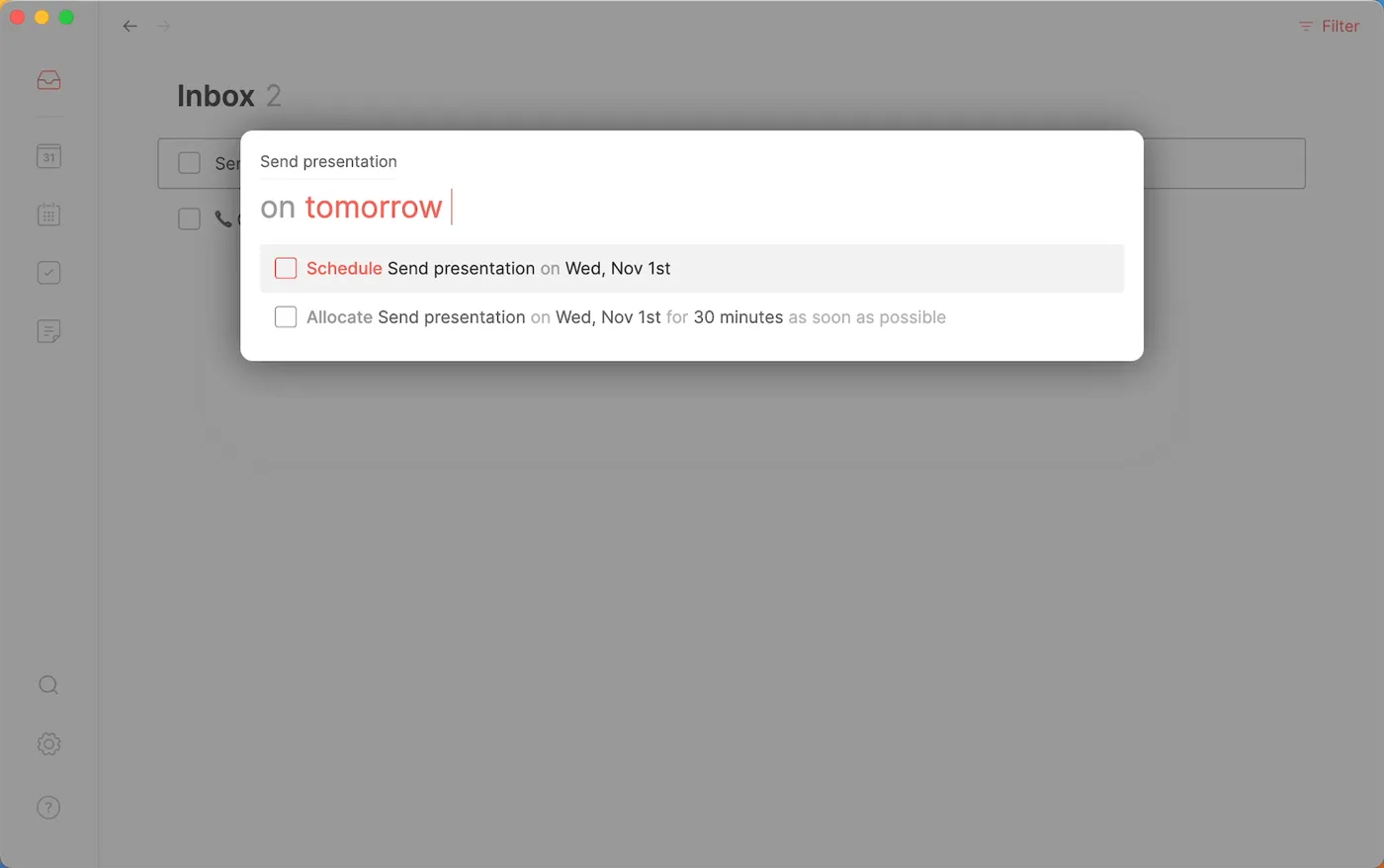
The weekly loop on one page
Routine's help center describes this order. Shortcuts are Ctrl on Windows and Cmd on a Mac.
| When | What you do in Routine | Shortcut |
|---|---|---|
| Any time | Open the Console and type the task in plain words, such as "Send status deck Thursday at 3pm". Undated items go to the Inbox. | Ctrl + Space |
| Once or twice a week | Process the Inbox: discard, do it now if under 2 minutes, schedule it if it has a date, postpone it if unsure. Repeat until Inbox Zero. | Discard Ctrl + Shift + I · Done Ctrl + E · Schedule Ctrl + L · Postpone Ctrl + P |
| Monday | Open the Calendar, drag unscheduled deliverables onto a day, and postpone what can wait. | Ctrl + L |
| Monday | Ask the AI assistant to check the week, such as "Do I have any conflicts on Thursday?", and approve any changes it proposes. | |
| Every morning | On the Agenda, hide events you won't attend, pick 1 to 3 key tasks and postpone the rest. |
The business case: the deliverable that never got a day
Picture Nina Okafor, engagement manager at Calder & Moss Advisory, a made-up 12-person consulting firm. She runs three client projects. Requests arrive by email, decisions get made in Slack, and action items sit in meeting notes. Every Monday she spends about an hour rebuilding her to-do list from all of them, and last month a client workshop agenda slipped because it was never on her calendar at all.
Here is the arithmetic, using example numbers you should replace with your own. An hour of Monday hunting is about 45 hours a year per manager, before counting the cost of a missed deliverable: an awkward client call, a rushed weekend, a write-off. The fix is not a smarter to-do list. It is one place where every task lands, one decision per task, and a day on the calendar for the work that matters. That is the loop Routine is built around, and its AI assistant adds a second pair of eyes on the plan.
What Routine is
Routine is an app for tasks, calendar and notes, for desktop and mobile. It connects to Google Calendar, Outlook and iCloud calendars, and integrations bring in tasks from tools such as Gmail and Slack. The Console is a command bar you open from anywhere with Ctrl + Space (Cmd + Space on a Mac), where you type tasks and events in plain words and ask the assistant questions.
Its AI features, as listed on routine.co: an AI assistant that can read your tasks, calendars, events, notes and contacts; voice commands; natural-language capture; and, on paid plans, AI meeting notes, AI agents and AI automations. According to routine.co/pricing, the Free plan includes tasks, calendars and notes, the AI assistant and voice commands, offline mode, a few integrations and custom databases, and a monthly allowance of AI credits. Time blocking is on the paid Personal plan and up.
Step 1: capture everything in the Console
Press Ctrl + Space and type the task the way you would say it. Routine recognizes keywords such as on, at, for, with, every, this and next, plus today and tomorrow, so "Send Halvorsen status deck Thursday at 3pm" becomes a task scheduled for Thursday at 3:00 PM, and "Team meeting Friday at 10am for 1 hour" becomes an event. Anything with no date, like "Review Brightwater SOW redlines", goes to the Inbox.
Capture is meant to be fast and unfinished. Do not decide anything yet. Connect the apps where work arrives (Settings, Integrations) so their tasks land in the same Inbox.
Step 2: process the Inbox to zero
Routine's help center calls the Inbox a capture buffer, not a planning tool. Work through it one item at a time and give each one decision: discard it if it no longer matters, mark it done if it takes under 2 minutes, schedule it if it has a date (the calendar icon next to the task, or Ctrl + L, then type a day such as "on tuesday"), or postpone it if you are not sure (the postpone icon or Ctrl + P), which hides it until a later date without deleting it.
You can also link an item to a project, assign it to a teammate, or add a label or priority. Repeat until the Inbox is empty: that is Inbox Zero. Set a regular time for it, daily or weekly, so the Inbox never becomes another list you work from.
Step 3: give the important work a day
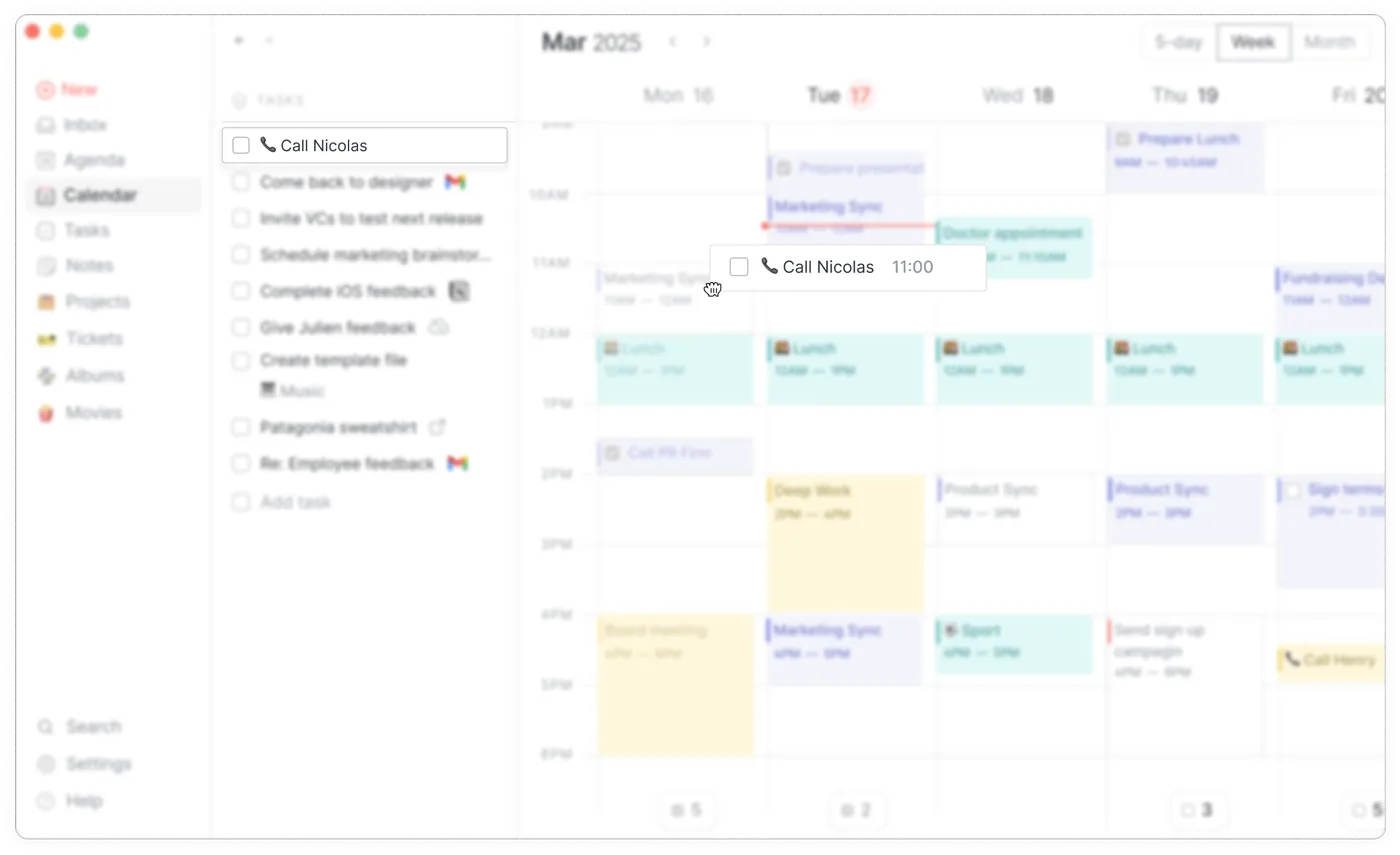
Open the Calendar. Meetings sit on the grid; scheduled tasks sit on their days; unscheduled tasks wait in the task list. Drag the deliverables that matter onto a day (or select one and press Ctrl + L). In the lesson, the workshop agenda that slipped last month goes on Wednesday, between the Tuesday redlines and the Thursday deck.
Routine separates three actions. Scheduling puts a task on a day without booking time. Time blocking drags a task onto a time slot to reserve it, and a task can have several blocks; it is a paid-plan feature. Postponing hides a task until later. Scheduling alone already fixes the main problem: nothing important is left without a day.
Step 4: ask the AI assistant to check the plan
Open the Assistant and ask a plain question. The help center's own example is "Do I have any conflicts on Thursday?". In the lesson it finds that a partner review runs into the 3:00 PM deck deadline. Ask it to fix the problem, such as "Move the partner review to Friday at 10am and notify the participants", and check what it proposes before it acts.
Routine's docs describe a human in the loop design: actions through connected apps, such as sending a Slack message, appear as approval cards that you confirm before they run, and AI automations can pause for your approval. Read the card the way you would read a colleague's draft: the right meeting, the right time, the right people.
Step 5: focus each morning
Open the Agenda. Hide the events you will not attend, choose one to three key tasks for the day and postpone everything else. During deep work, the Console's widgets show today's tasks and the time until your next event, so you do not have to open the calendar.
Once the loop works for you, Routine's Projects group related tasks, pages and meetings for each client, and Pages and the Journal hold notes. Keep the loop itself small: capture, process, plan, focus.
Privacy and client data
The assistant works because it can read your tasks, calendars, events, notes and contacts. Before you connect work accounts, read Routine's privacy and security article in the help center and check your firm's rules on client data in third-party apps. Keep sensitive client details out of task titles if your firm's policy requires it, and review any connected integration's permissions.
Where to go next
For meetings, try taking client call notes with Granola or drafting a kickoff outline. For the client emails that create half your tasks, see replying to a scope change. Wondering what an assistant can do on its own? Read AI agent vs chatbot vs automation.
Who this is for
Consultants, account managers, agency leads and anyone in a small white-collar firm who juggles several clients and loses time each week rebuilding a to-do list. The practice lesson needs nothing installed and no account. To do it for real you need Routine (the Free plan covers everything in the lesson) and a connected calendar.
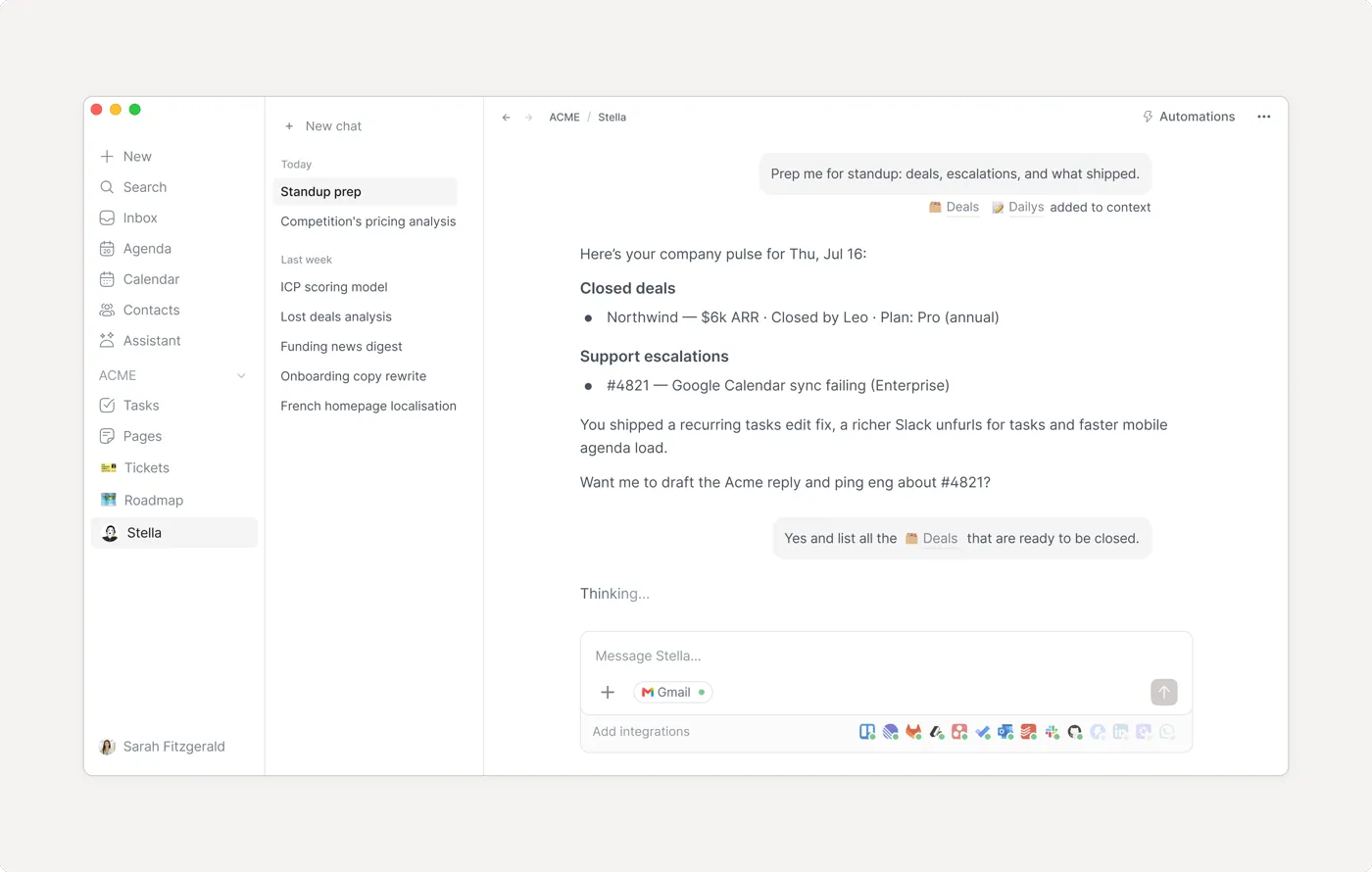
A note on the screens: the lesson and this guide were built from Routine's public help center and website on 21 October 2026 without signing in, so labels and layout can differ in your version. The three screenshots below are Routine's own.
Mistakes to avoid
- Working from the Inbox instead of processing it: each item should leave with one decision.
- Deleting ideas you are unsure about instead of postponing them.
- Leaving deliverables unscheduled because they have no meeting attached.
- Booking every task into a time slot: schedule to a day first, block time only for the few that matter.
- Approving an assistant's change without reading which meeting, time and people it touches.
- Connecting work accounts before checking your firm's rules on client data in third-party apps.
Links
- Routine: the product site: download for desktop and mobile, features and plans.
- The Routine Workflow (help center): Routine's own weekly loop this lesson follows: capture, process the Inbox, plan the week, focus each day.
- Inbox (help center): the Inbox Zero method, the 2-minute rule and the shortcut for each decision.
- Planning & Scheduling (help center): the difference between scheduling, time blocking and postponing.
- Console (help center): the command bar: natural-language capture, the keywords it understands, and the AI assistant.
- Routine plans: what the Free plan includes and what needs a paid plan.
Try it yourself, free
Reading the steps is a start. Doing them is how it sticks. The interactive module walks you through every click in a practice copy of Routine, checks each step, and never touches your real accounts.
Start “Routine: Plan Your Week from One Inbox”Screenshots
Frequently asked questions
- Is this an official Routine course?
- No. This is my own guide and practice lesson. Routine is a separate product from routine.co. The screenshots are Routine's own, credited and linked; everything else follows Routine's public help center, read 21 October 2026.
- Is Routine free?
- Routine has a Free plan that its pricing page describes as free forever. It includes tasks, calendars and notes, the AI assistant and voice commands, with a monthly allowance of AI credits. Time blocking, AI meeting notes, AI agents and AI automations are on paid plans. Check routine.co/pricing for the current details.
- What is the difference between scheduling and time blocking in Routine?
- Scheduling puts a task on a day without reserving time. Time blocking drags the task onto a time slot so the time is reserved on your calendar, and one task can have several blocks. Postponing hides a task until a later date without discarding it.
- What can Routine's AI assistant do?
- It can read your tasks, calendars, events, notes and contacts to answer questions, prepare your day, reschedule meetings and surface priorities. You can use it by typing or by voice. Actions through connected apps appear as approval cards you confirm first.
- What is Inbox Zero?
- A way of processing an inbox until it is empty by making one decision per item: discard, do it now, schedule, postpone or delegate. Routine's help center recommends it for its Inbox, which is meant as a capture buffer rather than a list to work from.
- Which calendars does Routine work with?
- Routine lists Google Calendar, Outlook and iCloud Calendar integrations.
More in AI Automation for Consulting & Agencies
Take a client call with Granola: jot a few lines, let it write the notes from the transcript, check the budget against its source, draft the follow-up email and share…
Free · Live ~5 min Beginner
◷Beautiful.ai: A Client Review Deck from Your Brief in Under an HourBuild a client quarterly review deck with Beautiful.ai Create with AI: brief it with the real numbers, fix the outline before generating, check every figure and share a…
Free · Live ~6 min Beginner
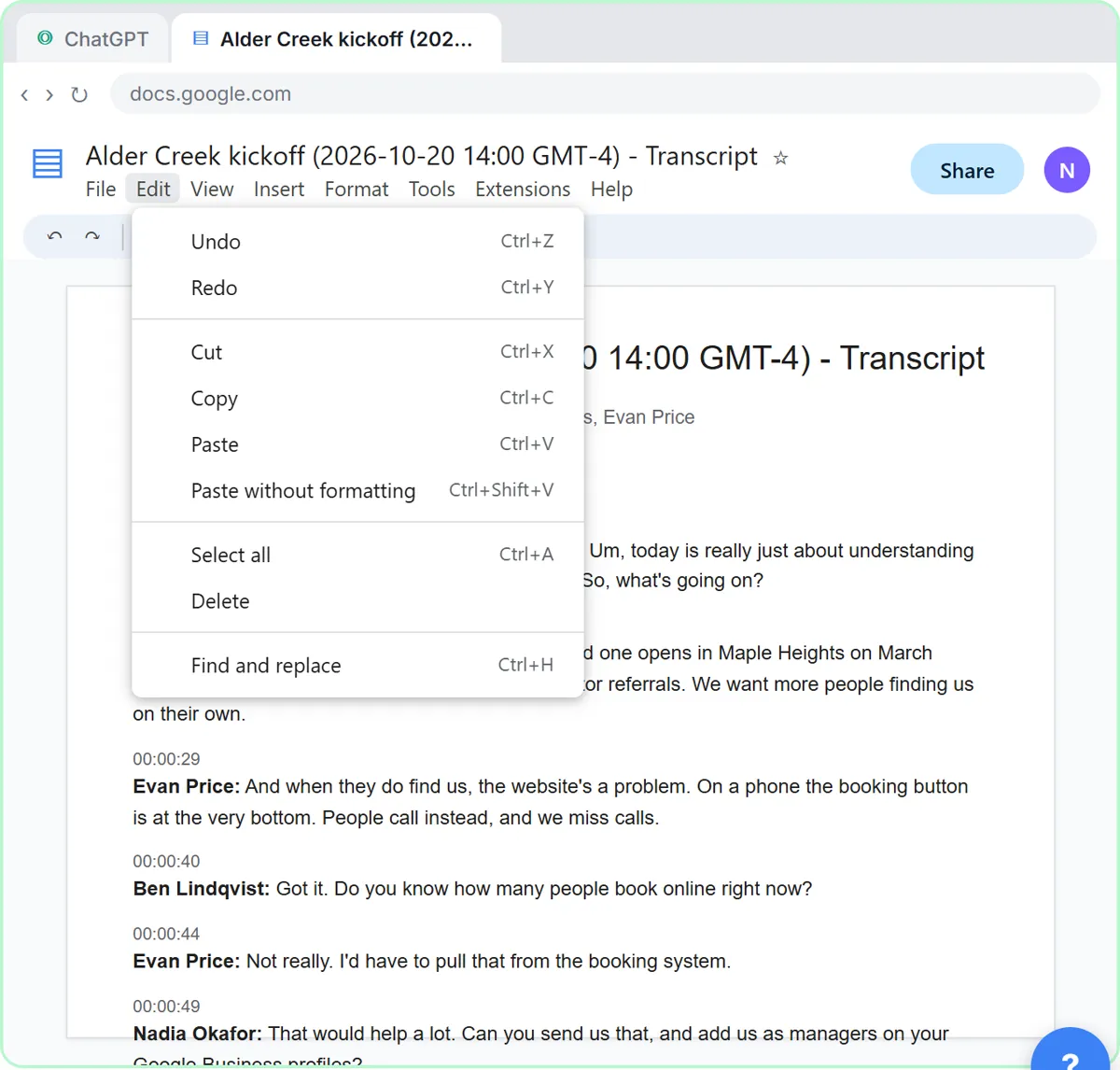 Turn a Client Kickoff Call into a Proposal Outline with ChatGPT (Agencies & Consultants)
Turn the transcript of a client kickoff call into the scope, budget and timeline the client stated, an action items table, open questions, and a recap email with a…
Free · Live ~10 min Beginner
◷Handle Scope Creep Without Losing the Client using ChatGPTA client asks for "one small extra" and a new language, and wants the launch date to hold. Give ChatGPT the thread and the project facts, catch the free work and the…
Free · Live ~9 min Beginner
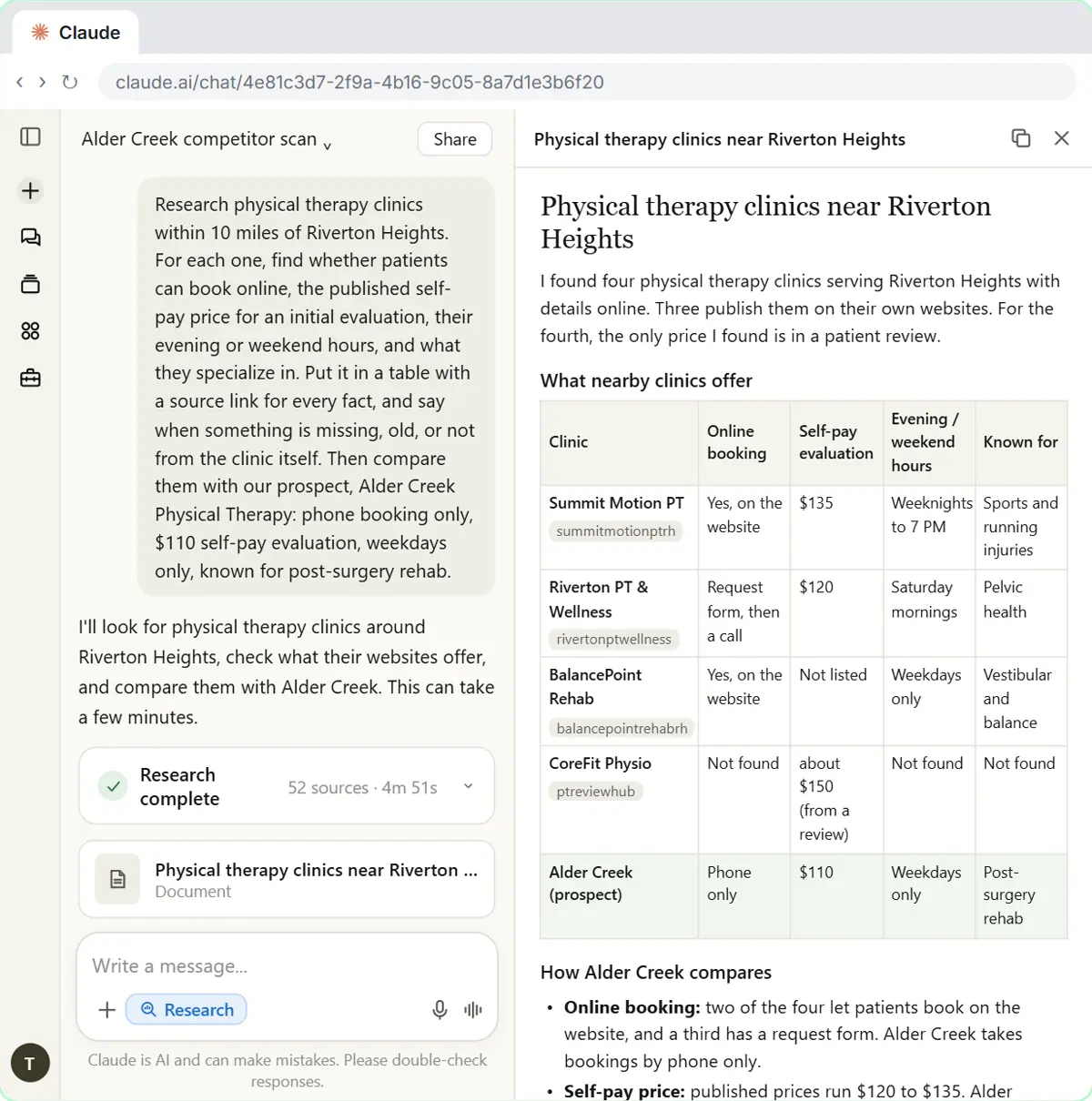 Research a Prospect's Market with Claude Research Before a Pitch (Consultants & Agencies)
Turn on Research before a pitch, have Claude check what a prospect's competitors offer online, read the cited report, check a source and turn it into talking points for…
Free · Live ~7 min Beginner
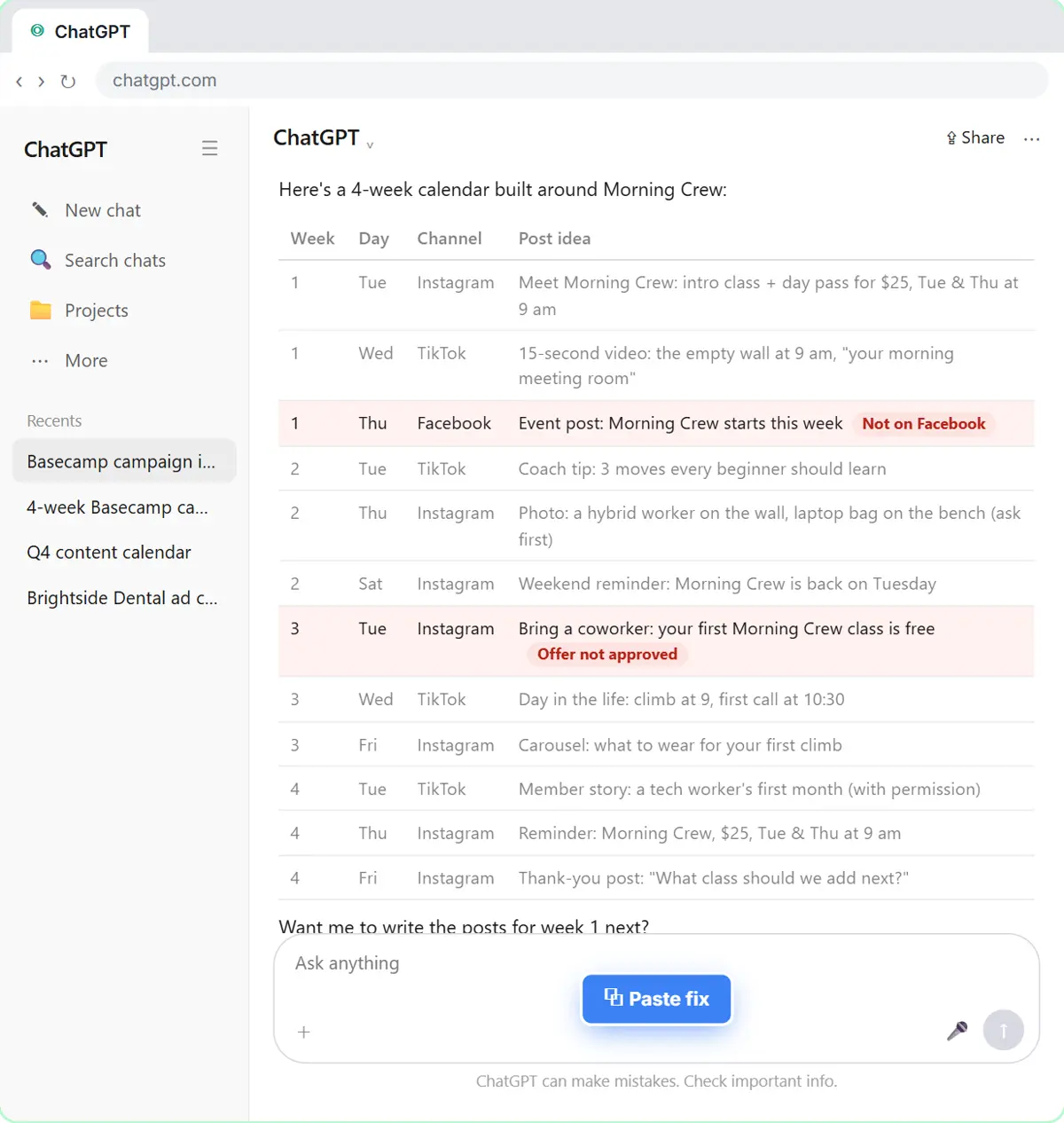 Prompt Chaining for a Client Campaign Plan: Build It in Steps with ChatGPT (Agencies)
Ask ChatGPT for a client's whole 4-week campaign in one prompt, then build a better one in four steps: audiences, offers, a calendar table checked against the client's…
Free · Live ~7 min Beginner
All 15 modules in AI Automation for Consulting & Agencies
From the blog
Routine Weekly Planning FAQ: Console, Inbox, AI AssistantPlain answers on planning your week in Routine: the Console, processing the Inbox to zero, scheduling vs time blocking and the AI assistant's approvals.
Oct 21, 2026 4 min read
Routine Weekly Planning: 8 Mistakes to AvoidRoutine mistakes that wreck a weekly plan: working from the Inbox, deliverables with no day, deleting what to postpone and approving AI changes unread.
Oct 21, 2026 5 min read
Terms in this lesson
Plain-English definitions, each with an example from a free lesson.