The example is made up. Nina Okafor is an engagement manager at Calder & Moss Advisory, a consulting firm, and runs three client projects. Her tasks arrive by email, in Slack and in meeting notes, so every Monday starts with an hour of hunting. Last month a client deliverable slipped because it never made it onto the calendar.
A note on the screens: the lesson was built from Routine's help center and website, read on 21 October 2026, without signing in. Labels can differ by version. This is our own lesson, not an official Routine course.
How does the Routine weekly loop work?
It follows five parts, the loop Routine's help center describes:
- Capture everything. Press Ctrl + Space (Cmd + Space on a Mac) to open the Console. Type Send Halvorsen status deck Thursday at 3pm and press Enter. Then type Review Brightwater SOW redlines.
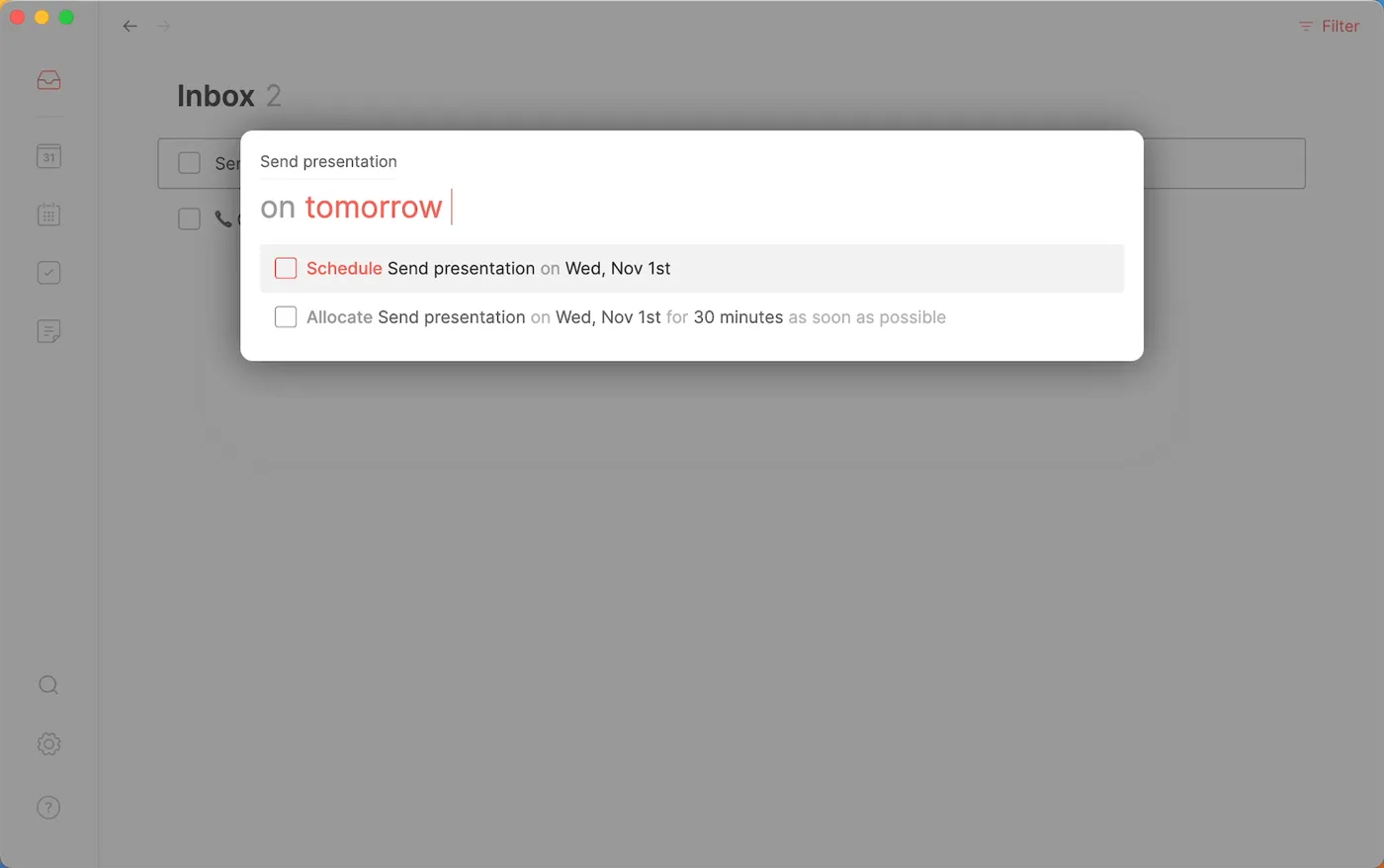
- Process the Inbox. Open Inbox. Tick the 2-minute task as done, discard the webinar invite, schedule the redlines on tuesday and postpone the template idea to next month. The Inbox is empty: inbox zero.
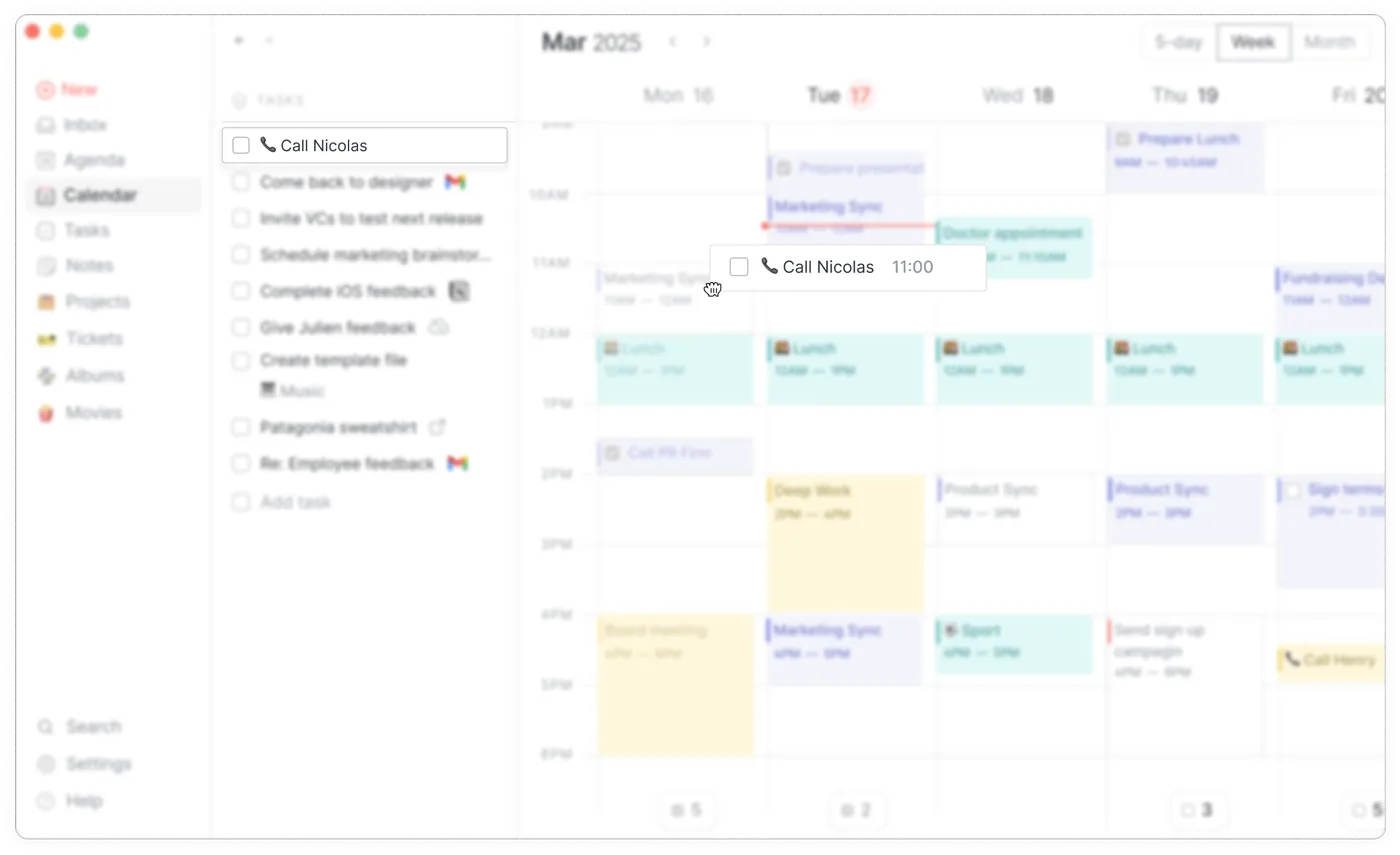
- Plan the week. Open Calendar and drag Draft Lumen Health workshop agenda, the deliverable that slipped, onto Wednesday.
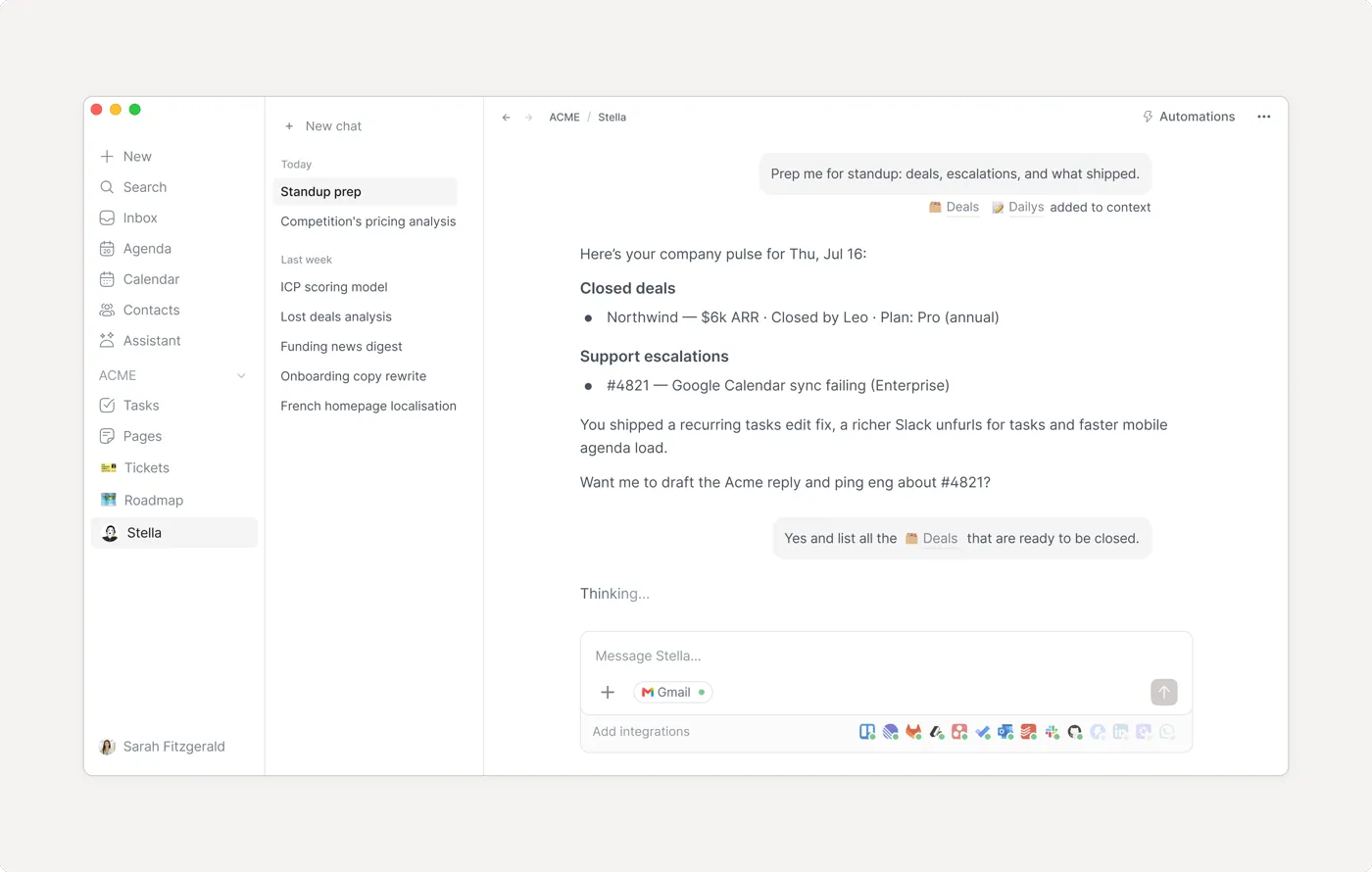
- Ask the AI assistant. Open Assistant, ask Do I have any conflicts on Thursday?, ask it to move the partner review to Friday at 10am and notify the participants, then approve the card.
- Focus on today. Open Agenda and pick the 1 to 3 tasks that matter most.
In the lesson, that whole plan takes about twenty minutes on Monday.
Why process the Inbox instead of working from it?
Routine's help center calls the Inbox a capture buffer, not a planning tool. Deciding once, in one sitting, is faster than rereading the same list all week. Each item leaves with one decision: discard it, do it now if it takes under 2 minutes, schedule it if it has a date, or postpone it if you are unsure.
Try it free, step by step
Routine: Plan Your Week from One Inbox. Get scattered client tasks into one place with Routine: capture them in plain words, clear the Inbox in minutes, give the important work a day and let the AI assistant catch a calendar clash. You do every step yourself in a practice copy of Routine, it checks your work as you go, and “Do it for me” finishes any step you get stuck on. Free, and nothing touches your real accounts.
Start the free lessonKey takeaways
- Capture every task in one place first, in plain words, and decide later.
- Give each Inbox item one decision until the Inbox is empty.
- Put every deliverable on a day, or meetings fill the week first.
- Let the assistant spot clashes, and check its approval card before you confirm.
- Each morning, pick one to three key tasks and postpone the rest.
Frequently asked questions
- What is the Routine Console?
Routine's command bar. Open it with Ctrl + Space on Windows or Cmd + Space on a Mac and type a task the way you would say it.
- How does Routine know when a task is due?
It reads words like Thursday and at 3pm. Send Halvorsen status deck Thursday at 3pm becomes a task scheduled for Thursday at 3:00 PM. A task with no date goes to the Inbox to sort later.
- Where do tasks from Gmail or Slack go?
Into the same Inbox, once you connect those apps under Settings, Integrations.
- How do I discard an Inbox item?
Select it and press Ctrl + Shift + I. To mark one done, tick its checkbox or press Ctrl + E.
- What is the difference between scheduling and time blocking?
Scheduling puts a task on a day without booking a time slot. Time blocking reserves hours on the calendar, and a task can have several blocks. Time blocking is on Routine's paid plans.
- How do I schedule a task from the Inbox?
Hover the task and click the calendar icon next to its name, or press Ctrl + L. Type a day such as on tuesday and press Enter.
- What does postpone do?
It hides the task until a later date, without deleting it. Click the postpone icon (the clock) or press Ctrl + P, then type something like next month.
- What can the AI assistant see?
Your tasks, calendar and notes. It can answer questions, such as whether you have conflicts on Thursday, and propose changes.
- Will the assistant move my meetings on its own?
No. Routine's help center says actions through a connected app, like a calendar or Slack, come back as an approval card you confirm before they run. In the lesson, you check the meeting, the new time and the people on the card, then click the checkmark.
The AI assistant (screenshot from routine.co) - Which calendars does Routine connect to?
Google Calendar, Outlook and iCloud Calendar. Connect your work calendar before you rely on the assistant's conflict checks, and check your firm's rules on client data in third-party apps first.
- Is Routine free?
Routine has a free plan that covers tasks, calendars, notes and the AI assistant with a monthly allowance of AI credits. Time blocking, AI meeting notes and AI automations are on the paid plans. Check Routine's pricing page for current plans. The practice itself needs no account.
- What goes wrong most often?
Working from the Inbox instead of clearing it, and approving a change without reading it. See Routine weekly planning mistakes, then try the practice.