Updated . Built against the tool’s current screens and checked step by step. How we check this lesson
A discovery call is where a deal is won or quietly lost. The prospect asks a product question the rep can't answer, someone repeats a price that changed months ago, and the CRM notes get written from memory an hour later, if at all. OLVA is a third-party AI meeting assistant that runs on your computer instead of joining the call as a bot. In this free lesson you click through real OLVA screens on a made-up discovery call: you save one discovery playbook that every call can use, get a private answer when the prospect asks about QuickBooks, ask OLVA which checklist items you still need, look at Live insight, and turn the call into client notes and a follow-up email.
Stepthrough partner. OLVA links to Stepthrough’s free lessons, and we feature OLVA in return. The lesson itself is our own.
At a glance
| Question | Answer |
|---|---|
| What you build | Give OLVA your product playbook once. On a discovery call it answers product questions privately and tells you what you still need to ask, then drafts the follow-up email. Every screen is the real OLVA app. |
| Tools | OLVA |
| Time | About 8 minutes, 26 steps in 5 parts |
| Level | Intermediate |
| Cost | Free |
| Ways to learn it | Practice it step by step |
The 5 parts, in short
- One playbook for every discovery call: Open Manage contexts, Add a context, Name it, Add a note, and 5 more steps.
- Start OLVA on the call: Check the context, Choose the playbook, Start OLVA, Start Olva.
- Answer product questions on the spot: Turn on Live insight, Get an answer to her question, Click Ask about this call, Ask about your checklist, and 1 more step.
- Check facts and terms as you go: Open AI Assist, See it side by side, End the meeting, Stop the meeting.
- CRM notes and the follow-up: Open the meeting chat, Create client notes, Draft the follow-up email, Copy the email.
Part of: AI for Sales Teams (step 2 of 17)
Part of: AI Apps Worth Knowing (step 23 of 42). Next up: OLVA: Listen in Interviews and Debrief Against the Scorecard
Part of: AI for Meetings (step 4 of 11). Next up: OLVA: Listen in Interviews and Debrief Against the Scorecard
The business problem: discovery calls that leak deals
Sales managers see the same three leaks on discovery calls. A rep says "let me check and get back to you" on a basic product question, and the momentum goes. A prospect quotes an old price, nobody corrects it, and the real quote later feels like a price rise. And the call ends without the facts the deal needs: who owns the budget, when they want to start and how they decide. Those gaps show up later as stalled deals and empty CRM fields.
The fix is not a longer script. It is having your product facts and your discovery checklist in front of you while you listen, privately, and having the write-up done before the next call starts. That is what this lesson sets up with OLVA.
What you will do: one discovery call, start to finish
You are Priya, an account executive at Tallypoint, a made-up time tracking and payroll software company. Your prospect is Cedar & Vale Physical Therapy, a made-up group with four clinics. Lena Brooks, the practice manager, runs payroll from spreadsheets and loses a day to it every other Friday. Marcus Hale, the owner, is worried about overtime mistakes and remembers an old price.
Before the call you save a discovery playbook in OLVA: your plans and prices, the tools you connect to, how long setup takes, your discovery checklist and what to watch for, plus your product one-pager. On the call, Lena asks whether Tallypoint syncs with QuickBooks Online, and you click Say next for a private reply built from your notes. Near the end you ask OLVA which checklist items you haven't covered. When Marcus quotes an old price, you correct it from your own price list. After the call you ask for client notes for your CRM and draft the follow-up email. Every screen in the lesson is the real OLVA app, from our own test call, with that call's text blurred; the playbook text and question you type are marked Example.
Who this is for
Account executives, founders who still sell, sales development reps who run first calls, and sales managers who want every rep's notes to look the same. You do not need any AI experience. The lesson is built from screenshots of the real OLVA app, so nothing listens to a real call and you do not need an OLVA account to take it.
Step 1: one playbook context for every discovery call
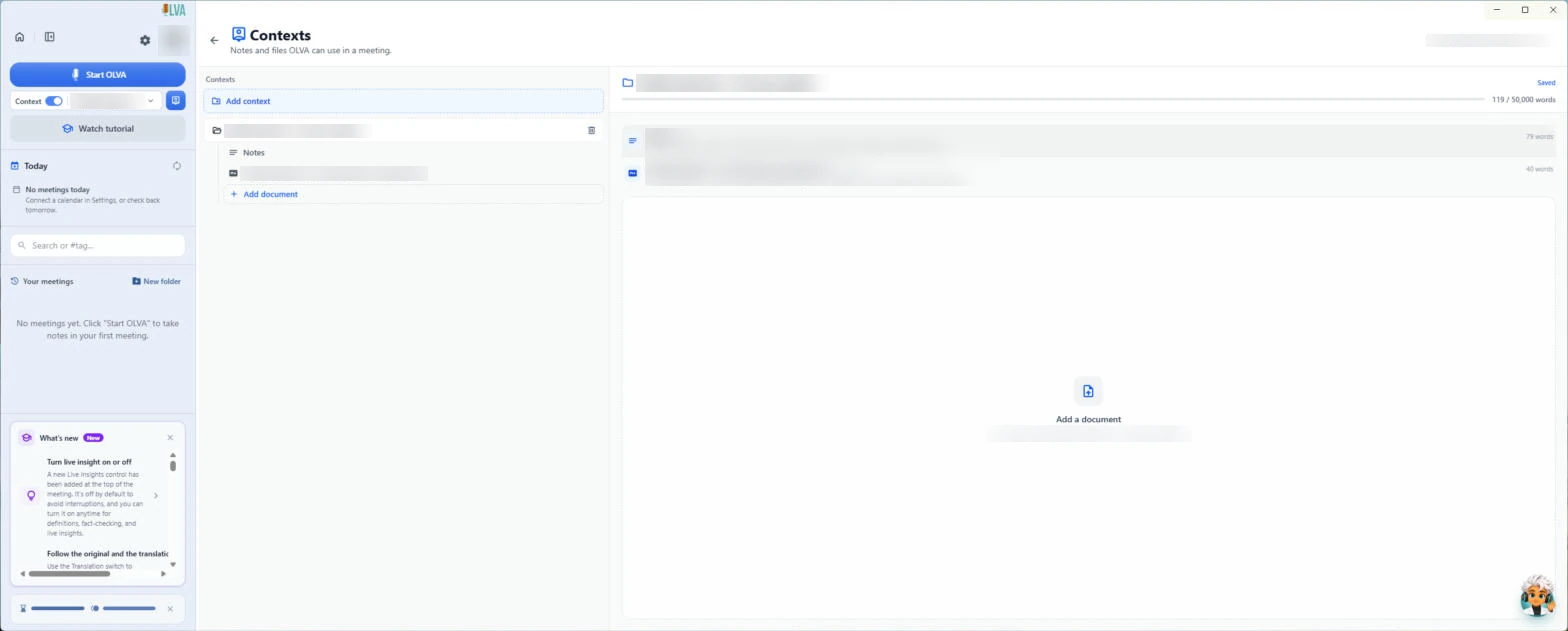
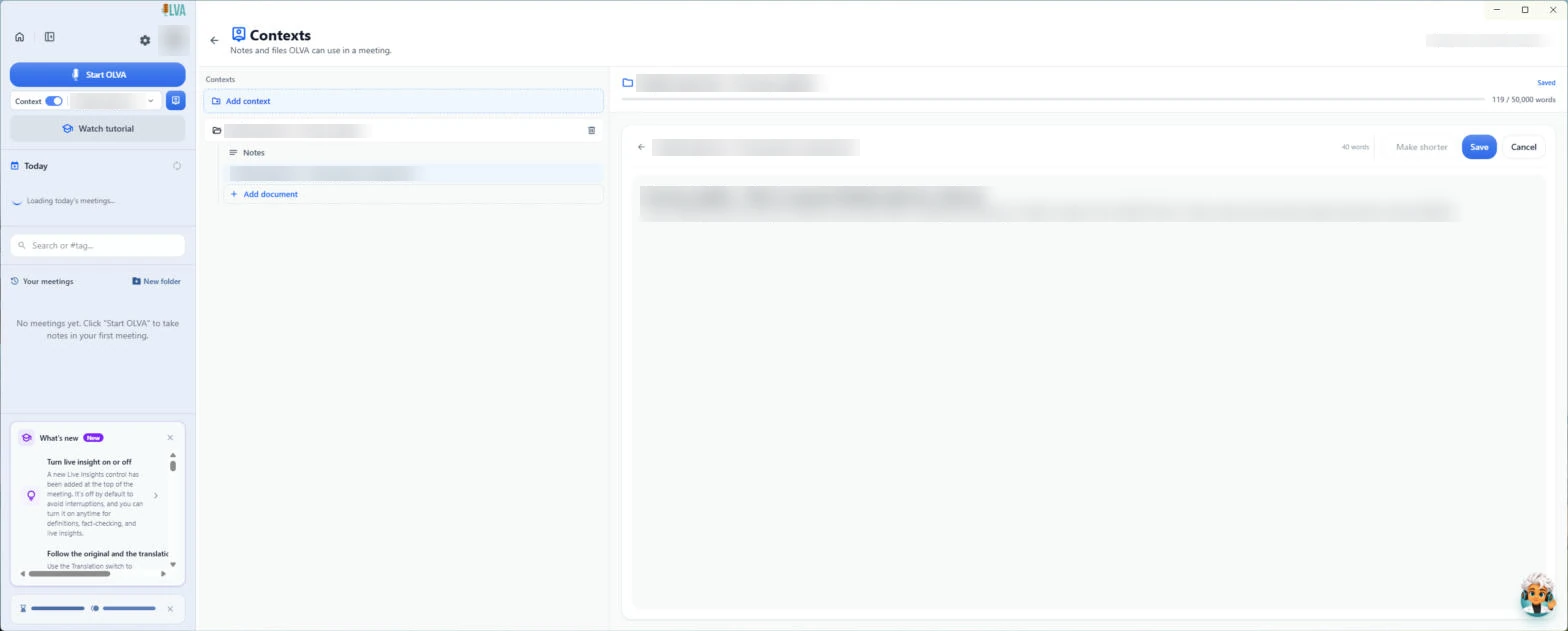
In the consulting version of this lesson you make one context per client. For discovery calls it works better the other way round: one context for your product, used on every call. In OLVA you click Manage contexts, then Add context, name it (here, Tallypoint discovery playbook), add a note and attach your one-pager with Add document. OLVA takes PDF, Word, PowerPoint, text and Markdown files and shows the file as text so you can check it before you save.
What goes in the note decides how good the answers are. Put in the facts reps get asked about (plans, prices, integrations, setup time), the discovery checklist (current tool, team size, main pain, budget owner, timeline, how they decide) and the traps (an old price that ended, never promising a custom integration). If you sell more than one product, make one playbook per product.
Step 2: private answers while the prospect talks
Before you click Start OLVA, check that the playbook is picked in the context picker, and tell the prospect you are taking AI notes. OLVA listens through your computer and opens beside Zoom, Google Meet or Teams, so it does not appear as a participant. Switch on Live insight at the top right of the live window.
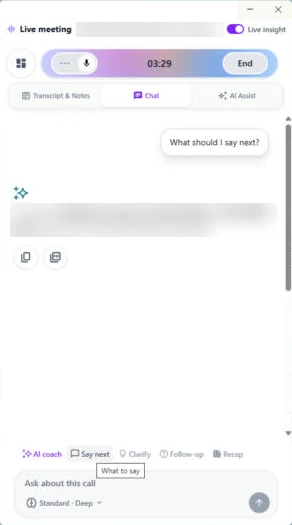
When Lena asks about QuickBooks Online, you click Say next under the transcript. Chat opens with "What should I say next?" and a suggested reply only you can see. In our own test call, the reply came straight from the saved notes, with the price and timeline in it. Say it in your own words, and check it first. Later you type a question in Ask about this call, such as which checklist items haven't we covered, and OLVA answers from the transcript and your notes. If the budget owner is still open, ask before you hang up.
Step 3: Live insight, and catching an old price
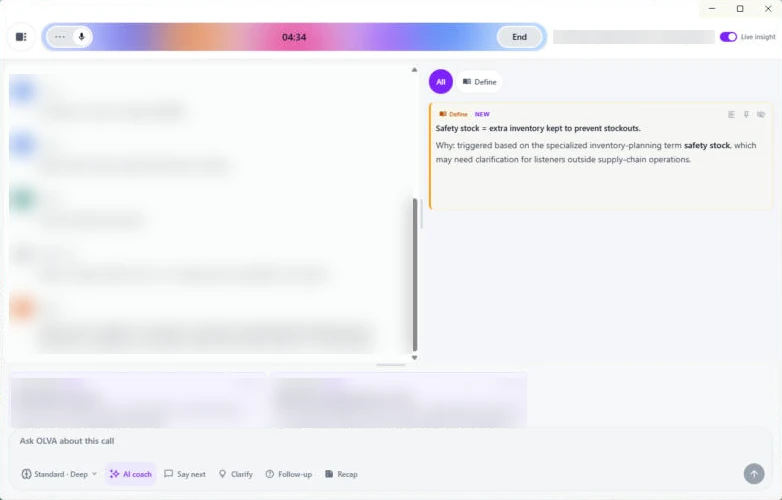
Live insight collects cards in the AI Assist tab as the call goes. In our test call a Define card explained a specialist term the moment it was said. OLVA can also add Fact Check cards, but none came up in our short test, so the lesson doesn't show one and you shouldn't count on one. When Marcus says "six dollars a head", correct it yourself: in the example, Standard has been $8 per employee per month since July. The layout button left of the timer puts the transcript and the cards side by side.
Correct a price on the call, kindly and straight away. A wrong number that goes unchallenged becomes the number in the prospect's head, and the real quote later feels like a price rise.
Step 4: CRM notes and the follow-up email
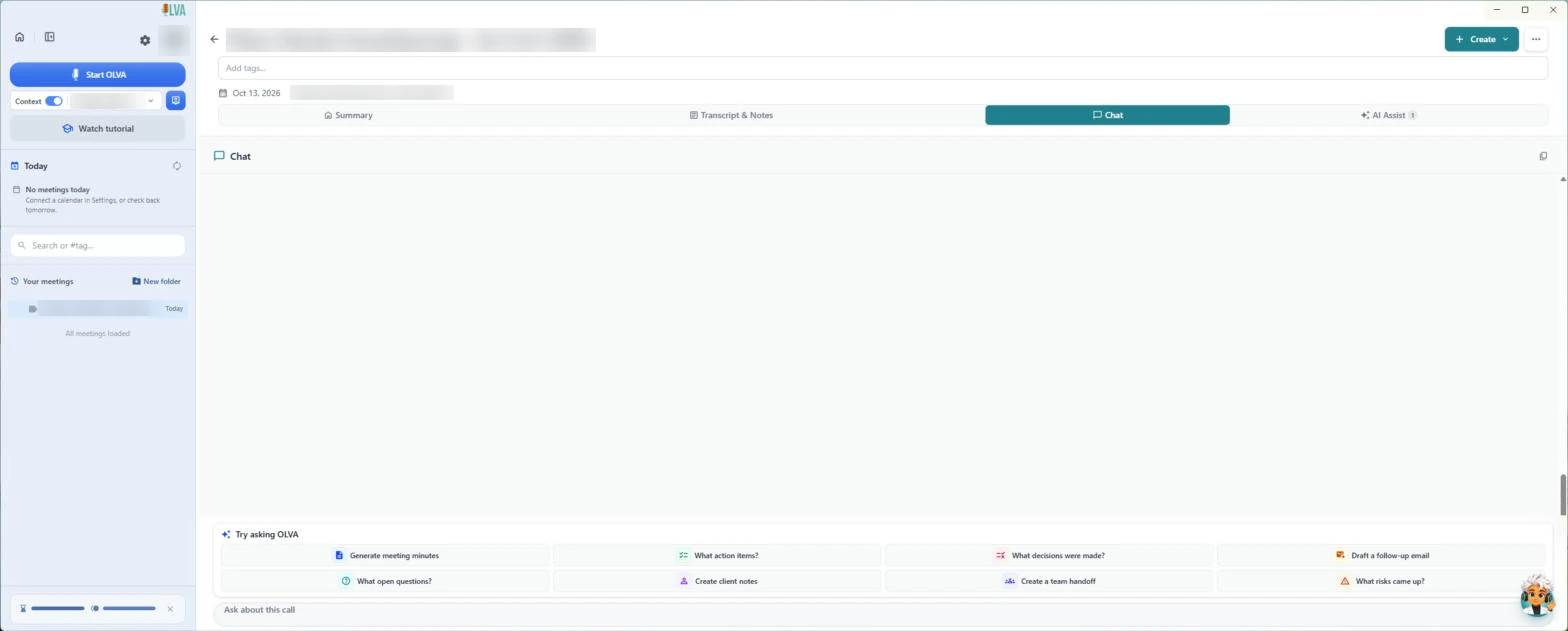
Click End and confirm Stop Meeting, and the call is saved in Your meetings. It opens on Summary while OLVA writes it up. In the meeting's Chat tab, the Try asking OLVA panel has ready-made requests, including Create client notes and Draft a follow-up email. We didn't run Create client notes in our test, so read what it gives you before it goes in your CRM. In our test, Draft a follow-up email wrote a subject line, key takeaways and a next-steps table from the call. Every answer has a copy button: read it, fix the price and anything misheard, make it sound like you, and send it the same day.
What this saves you
- No "let me get back to you" on the questions your playbook already answers.
- Fewer price surprises: your playbook is in front of you, so an old number gets corrected on the call, not in the proposal.
- CRM notes that start from the call record, not from memory.
- A follow-up email that goes out the same day, built from what the prospect actually said.
Mistakes to avoid
- A thin playbook. If a price, plan or integration is not in your notes, OLVA can't answer from it. Update the playbook whenever pricing changes.
- Reading the answer out word for word. It is a private prompt, not a script, and it can be wrong. Check prices against your own price list.
- Skipping consent. Tell the prospect you are taking AI notes at the start, and follow the rules where you work.
- Pasting client notes into the CRM unread. They come from the transcript; fix anything OLVA misheard first.
Links
- OLVA (olva.ai): the meeting assistant this lesson teaches. It is a separate product with its own account and plans.
- OLVA how-to guides: OLVA's own short lessons on contexts, live answers and what you can create after a meeting.
Try it yourself, free
Reading the steps is a start. Doing them is how it sticks. The interactive module walks you through every click in a practice copy of OLVA, checks each step, and never touches your real accounts.
Start “OLVA: Answer Every Question on a Sales Discovery Call”Step by step: OLVA: Answer Every Question on a Sales Discovery Call
All 26 steps of the interactive module, in order. In the module you watch each one, then do it yourself in a practice copy that checks your work.
1. One playbook for every discovery call
- Open Manage contexts. Before a discovery call, give OLVA your product facts. Click Manage contexts, the blue button next to the context picker.
Discovery calls go wrong in two ways. You can't answer a product question, or you quote the wrong price. So before the call, give OLVA your product facts.
- Add a context. Click Add context.
This time you make one context for all your discovery calls, not one per client.
- Name it. A new context starts as Untitled, with the name selected, and saves itself. Paste in the name (our example: Tallypoint discovery playbook).
Call it your discovery playbook.
- Add a note. Click Add a note under the new context.
- Write the playbook. Put in your plans and prices, integrations, setup time, your discovery checklist and what to watch for. Paste in the notes to drop in our example.
Put in what reps get asked about. Your plans and prices. The tools you connect to. How long setup takes. Then your discovery checklist, so OLVA knows what you still need to find out.
Product: Tallypoint, time tracking and payroll for teams with several locations.
Plans: Standard $8 per employee per month. Plus $11 (adds PTO tracking and shift swaps). Minimum 10 employees. The old $6 price ended in July.
Integrations: QuickBooks Online and Xero, synced both ways.
Setup: 10 business days, with a setup specialist.
Discovery checklist: current tool, team size, main pain, who owns the budget, timeline, how they decide.
Watch for: never promise a custom integration.
- Save the notes. Click Save.
- Attach the one-pager. Click Add document, then pick your product one-pager in the Windows Open window (PDF, Word, PowerPoint, text or Markdown). We leave that window out, because it shows our own folders.
Add your product one-pager too.
- Save the document. OLVA converts the file and shows it as text, with Make shorter, Save and Cancel. Check it, then click Save.
OLVA shows the file as text first. Check it, then click Save.
- Go back. Click the back arrow next to Contexts.
Every rep on the team can use the same playbook.
2. Start OLVA on the call
- Check the context. Your discovery call with Cedar & Vale Physical Therapy is starting in Zoom. Click the context picker to check which context is on.
Your discovery call with a physical therapy group is starting in Zoom.
- Choose the playbook. Under CHOOSE CONTEXT, click your playbook (here, Tallypoint discovery playbook). Our test context's name is blurred.
Pick your discovery playbook.
- Start OLVA. Tell the prospect you are taking AI notes, then click Start OLVA.
Tell them you're taking AI notes, then click Start OLVA. It doesn't join as a bot. It listens through your computer.
- Start Olva. The first time, OLVA says Language detection is automatic. You can pick your languages later in Settings. Click Start Olva.
The first time, OLVA tells you it detects the language for you.
3. Answer product questions on the spot
- Turn on Live insight. The live window opens beside your call. Lena and Marcus are describing how they run payroll today. Turn on Live insight at the top right.
Let them talk. That's the point of discovery. Switch on Live insight, at the top right, so OLVA checks facts as you go.
- Get an answer to her question. Lena asks whether Tallypoint syncs with QuickBooks Online. Under the transcript, click Say next.
Lena asks if you sync with QuickBooks. You're not sure.
- Click Ask about this call. Say next opens Chat with What should I say next? and a reply only you can see. In our test it answered from the saved notes, price and timeline included (blurred here). On your call it answers from your playbook, so check it before you say it. Near the end of the call, check what you still need: click Ask about this call.
Say next opens the Chat tab, with a reply only you can see. It comes from your saved notes. Later, check what you still need to learn.
- Ask about your checklist. Paste in the question (our example: Which discovery checklist items haven't we covered?).
Ask which checklist items you haven't covered yet.
- Send it. Click the send arrow.
Only you see this.
4. Check facts and terms as you go
- Open AI Assist. OLVA answers in Chat from the transcript and your notes (our test answer is blurred). If the budget owner is still open, ask Marcus before you hang up. Now click the AI Assist tab.
OLVA answers from the call and your notes. If the budget owner is still open, ask before you hang up.
- See it side by side. With Live insight on, cards collect here as the call goes. In our test a Define card explained a term. OLVA can also add Fact Check cards, but none came up in our short test call, so we can't show you one. Don't count on it to catch an old price: when Marcus says "six dollars a head", correct it from your own price list ($8 since July, in our example). Click the layout button left of the timer.
Live insight adds cards here. In our test, OLVA defined a term. It can also fact check, but none came up in our test. So if Marcus quotes the old six dollar price, correct it yourself. It's eight now.
- End the meeting. Now the transcript is on the left and the cards are on the right. Marcus wants the numbers before Thursday. Click End.
Now the transcript and the cards sit side by side. Marcus wants the numbers before Thursday.
- Stop the meeting. Click Stop Meeting.
The call is saved.
5. CRM notes and the follow-up
- Open the meeting chat. The meeting opens on Summary while OLVA writes it up. Click the Chat tab.
Now the part reps skip: notes for the CRM.
- Create client notes. Under Try asking OLVA, click Create client notes. We didn't run this one in our test, so we can't show its answer. Read the notes before they go in your CRM.
Under Try asking OLVA, click Create client notes. We didn't capture its answer in our test, so read it carefully before it goes in your CRM.
- Draft the follow-up email. Click Draft a follow-up email.
- Copy the email. In our test, OLVA wrote a subject line, a thank-you, key takeaways and a next-steps table (blurred here). Read yours, fix the price and anything it misheard, make it sound like you, then click the copy button under it and send it the same day.
In our test it wrote a subject, key points and next steps. Read it, check the price, and make it sound like you.
Screenshots
Frequently asked questions
- How does the interactive lesson work?
- Each step is shown to you first (Watch). Then you do it yourself on the same real OLVA screen, which checks that you clicked the right button (Your turn). If you get stuck, press Do it for me. The screens are screenshots from our own test call, so nothing listens to a call and no OLVA account is touched.
- Is OLVA part of Stepthrough?
- No. OLVA is a separate, third-party product from olva.ai. This lesson is free. To use OLVA for real you need the OLVA desktop app for Windows or Mac and your own OLVA account; check olva.ai for current plans.
- Should I make one OLVA context per prospect or one for my product?
- For discovery calls, one playbook context for your product usually works best: the facts reps get asked about, your discovery checklist and the traps to avoid. Make a separate context per account later in the deal, when there is account-specific history worth giving OLVA.
- Does OLVA join the sales call as a bot?
- No. OLVA listens through your own computer and opens beside the meeting, so it does not appear as a participant. Tell the prospect you are taking AI notes, or get their consent, before you start.
- Can OLVA write my CRM notes after a sales call?
- After the call, the meeting's Chat tab has a Create client notes button under Try asking OLVA. We didn't capture its answer in our test, so check the notes against the call before you copy them into your CRM yourself.
More OLVA tutorials
 OLVA: Listen in Interviews and Debrief Against the Scorecard
Load the role's scorecard and the resume into OLVA. In the interview it suggests follow-up questions privately and tells you what you haven't covered, then helps you…
Free · Live ~8 min Intermediate
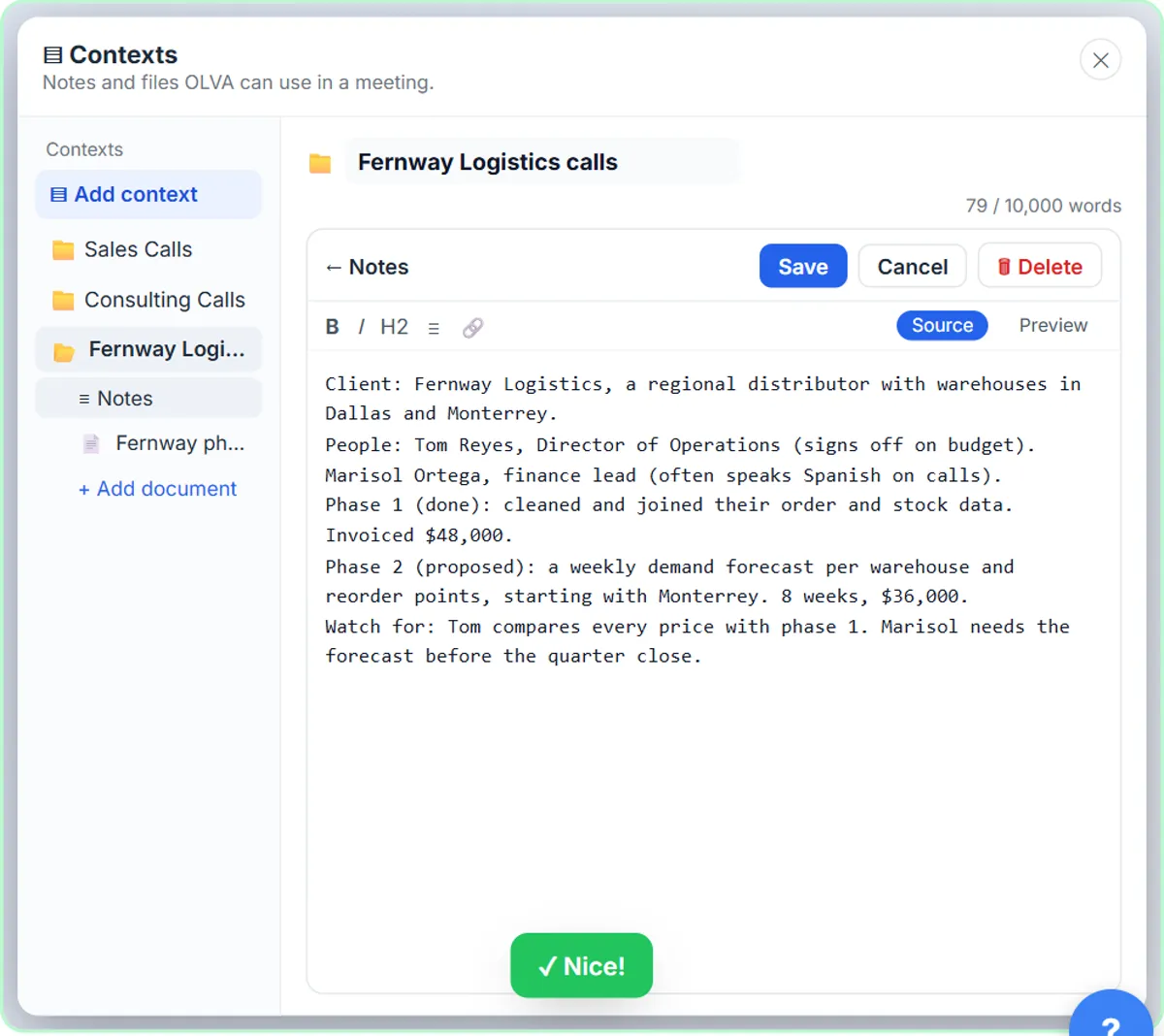 OLVA: A Private AI Assistant on Your Client Calls
Give OLVA your client notes, get private answers and fact checks during a Zoom call, then turn the meeting into minutes, a follow-up email and a PowerPoint deck.
Free · Live ~9 min Intermediate
Terms in this lesson
Plain-English definitions, each with an example from a free lesson.