Updated . Built against the tool’s current screens and checked step by step. How we check this lesson
Interviewers who type notes only half listen. They skip the follow-up question that would have shown how good a candidate really is, and the debrief a day later runs on memory, so two interviewers score the same answer differently. OLVA is a third-party AI meeting assistant that runs on your computer instead of joining the call as a bot. In this free lesson you click through real OLVA screens in a made-up interview for a Senior Bookkeeper: you load the scorecard and the resume as a context, ask for a follow-up question when an answer needs more, check which scorecard items you haven't covered, look at Live insight, and turn the interview into a handoff for the panel.
Stepthrough partner. OLVA links to Stepthrough’s free lessons, and we feature OLVA in return. The lesson itself is our own.
At a glance
| Question | Answer |
|---|---|
| What you build | Load the role's scorecard and the resume into OLVA. In the interview it suggests follow-up questions privately and tells you what you haven't covered, then helps you write up a handoff for the panel. Every screen is the real OLVA app. |
| Tools | OLVA |
| Time | About 8 minutes, 26 steps in 5 parts |
| Level | Intermediate |
| Cost | Free |
| Ways to learn it | Practice it step by step |
The 5 parts, in short
- Load the scorecard and the resume: Open Manage contexts, Add a context, Name it after the role, Add a note, and 5 more steps.
- Start OLVA in the interview: Check the context, Choose the role, Start OLVA, Start Olva.
- Ask better follow-up questions: Turn on Live insight, Get a follow-up question, Click Ask about this call, Ask about the scorecard, and 1 more step.
- Check what you heard: Open AI Assist, See it side by side, End the interview, Stop the meeting.
- A debrief the whole panel can use: Open the meeting chat, Create a team handoff, Copy it for the panel, List the open questions.
Part of: AI for Recruiting & HR (step 4 of 14)
Part of: AI Apps Worth Knowing (step 24 of 42)
Part of: AI for Meetings (step 5 of 11)
The business problem: interviews scored from memory
A bad hire is expensive, and so is a good candidate who slips away. Both often start in the interview itself. The interviewer is typing, so the follow-up question never gets asked. A must-have on the scorecard never comes up. And the panel debriefs a day later, each person working from their own memory and their own half-page of notes.
Structured interviews fix most of this: the same core questions for every candidate and a score against the same scorecard. The hard part is doing it while also listening. This lesson uses OLVA to keep the scorecard in front of you during the interview and to write the debrief from what the candidate actually said.
What you will do: one interview, start to finish
You are Maya, interviewing for a Senior Bookkeeper at Alder & Finch CPAs, a made-up accounting firm. Rachel Kim, the controller, is on the panel. The candidate, Sam Okafor, closes the books for twelve small-business clients today. Everyone and everything in the example is made up.
Before the interview you save a context for the role: the five scorecard must-haves, the questions every candidate gets and your interview rules, plus the candidate's resume. In the interview you click Follow-up when Sam tells a good story, and you ask OLVA which scorecard items you haven't covered. Live insight explains specialist terms as they come up. When Sam says five years of month-end close and the resume shows close work since 2023, you note it as a question for round two. After the interview you ask for a team handoff and the open questions for round two. Every screen in the lesson is the real OLVA app, from our own test call, with that call's text blurred; the scorecard and question you type are marked Example. Our test didn't capture what Follow-up, Create a team handoff or What open questions? return, and the lesson says so where it matters.
Who this is for
Recruiters, HR generalists, hiring managers and anyone who sits on interview panels, especially when you interview for roles outside your own expertise. You do not need any AI experience. The lesson is built from screenshots of the real OLVA app, so nothing listens to a real interview and you do not need an OLVA account to take it.
Step 1: the scorecard and the resume as a context
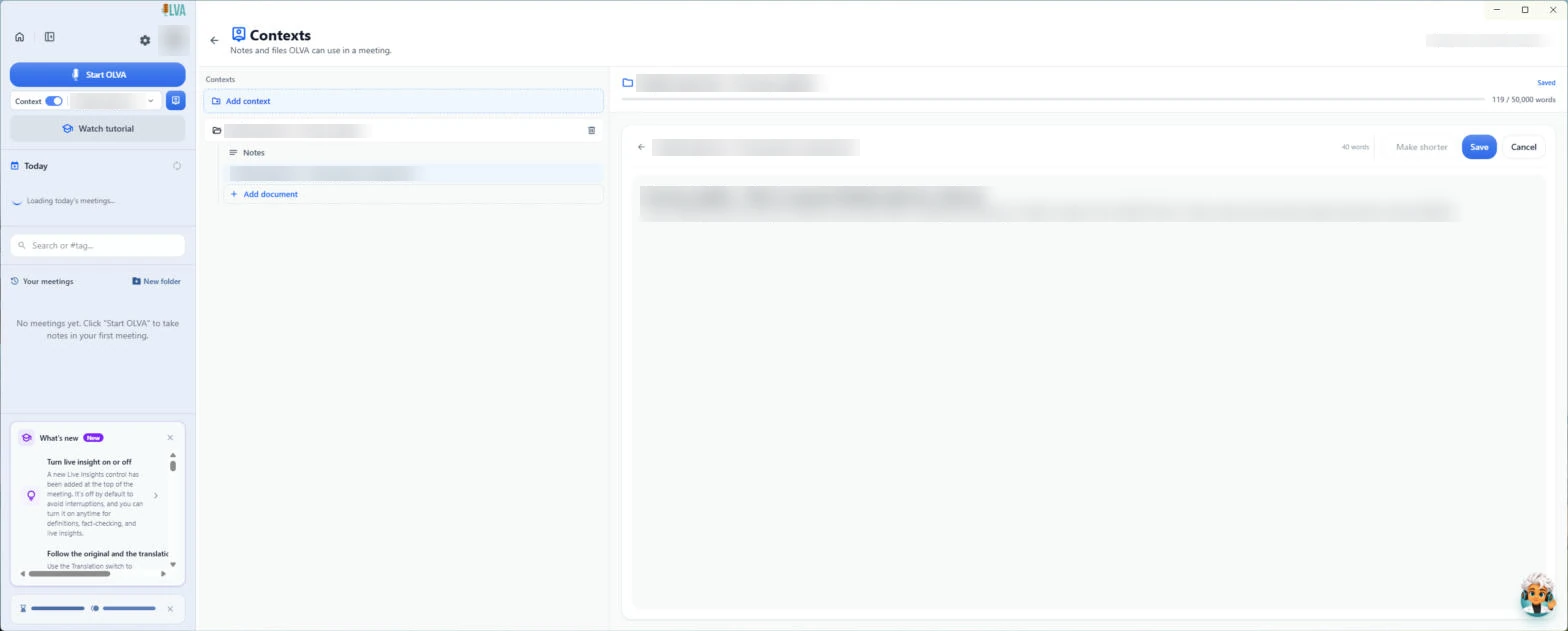
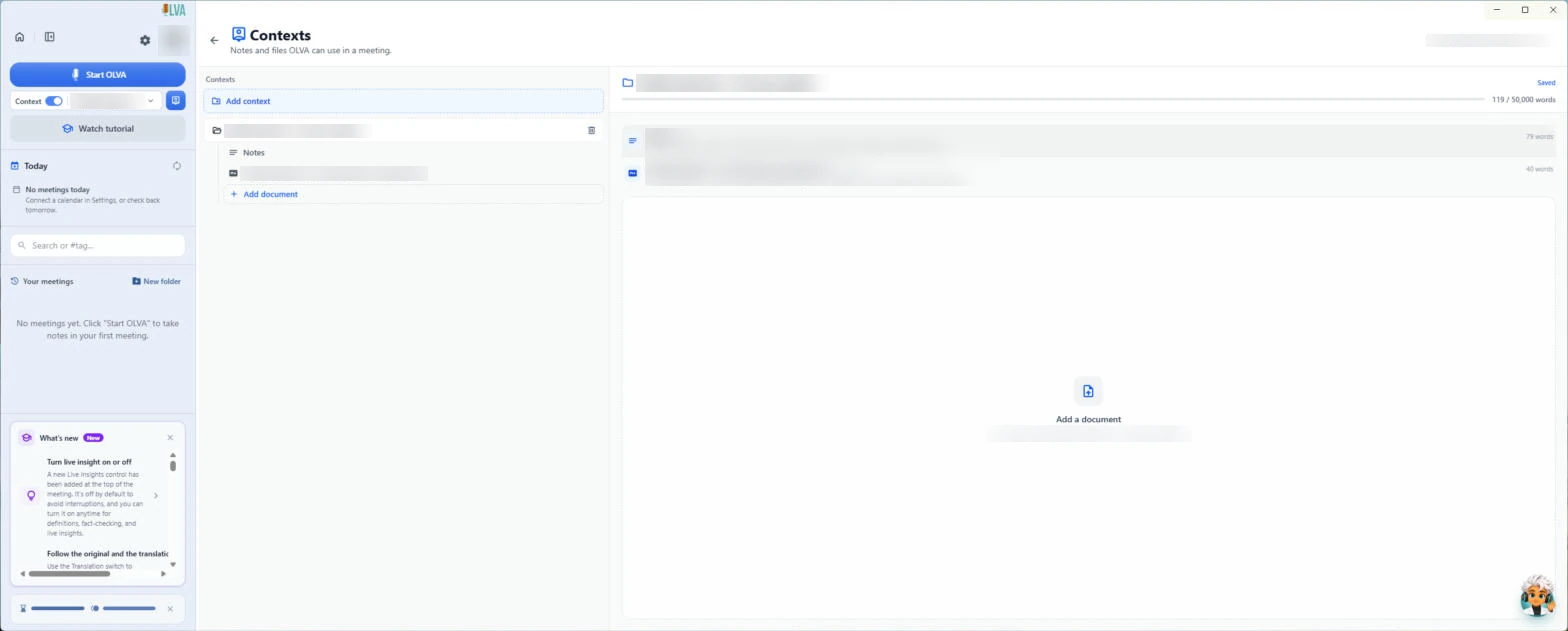
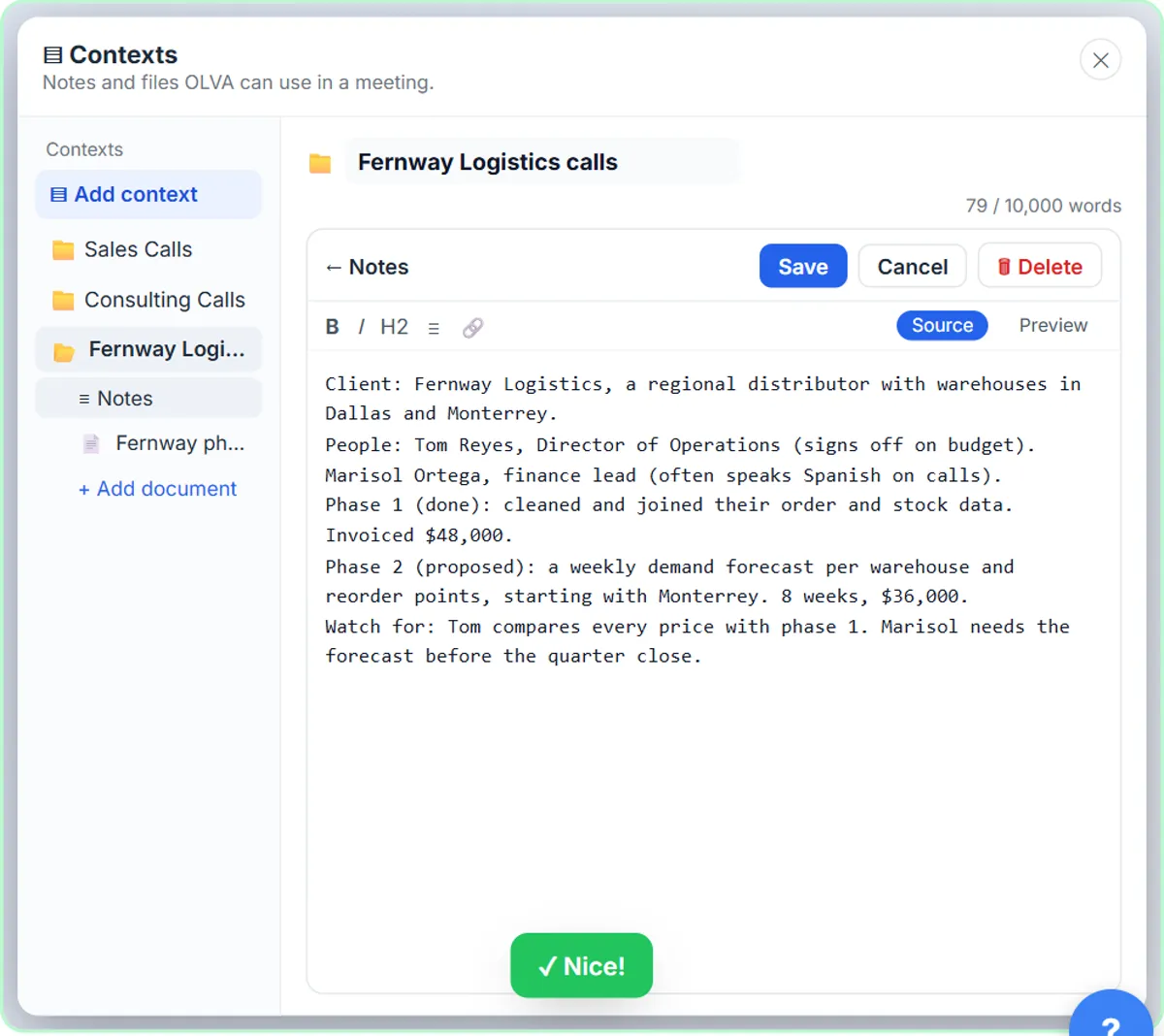
Make one OLVA context per open role. In OLVA you click Manage contexts, then Add context, and name it after the role. Add a note with the scorecard (the must-haves, numbered), the questions every candidate gets and your rules, for example: ask every candidate the same core questions and score against the scorecard only. Then attach the candidate's resume with Add document. OLVA shows it as text so you can check it before you save.
Numbering the scorecard items pays off later: you can ask about item 3 or item 5 by number, and the debrief is quicker to compare across candidates. Swap the resume before each interview, and keep the scorecard the same for everyone.
Step 2: follow-up questions and scorecard coverage
Tell the candidate you are taking AI notes before you click Start OLVA. Some places require consent to record or transcribe, so follow the law where you hire. OLVA listens through your computer and opens beside the call, so it does not appear as a participant. Switch on Live insight at the top right.
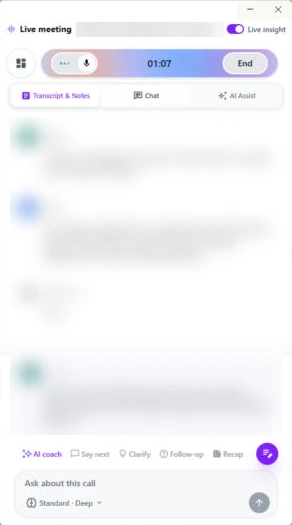
Under the transcript is an AI coach row: AI coach, Say next, Clarify, Follow-up and Recap. When an answer deserves more, click Follow-up. Answers from this row show in the Chat tab, where only you see them. We didn't capture a Follow-up answer in our test, so read what it suggests and ask your follow-up in your own words. Before time runs out, type a question in Ask about this call, such as which scorecard items haven't we covered yet, and OLVA answers from the transcript and your notes, so every candidate gets the same ground covered.
Step 3: definitions, and claims to check yourself
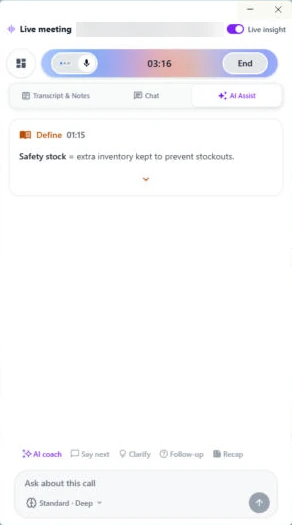
The AI Assist tab collects cards as the interview goes. In our test call a Define card explained a specialist term the moment it was said, which helps when you interview for a role outside your own expertise; in an accounting interview that could be a term like bank feed. OLVA can also add Fact Check cards, but none came up in our test, so don't count on one. When Sam says five years of month-end close and the resume shows close work since 2023, with accounts payable before that, note it yourself.
Treat a fact check as a question to ask, not a verdict. People count experience in different ways. Put it on the list for the next round and let the candidate explain.
Step 4: a handoff for the panel and the open questions
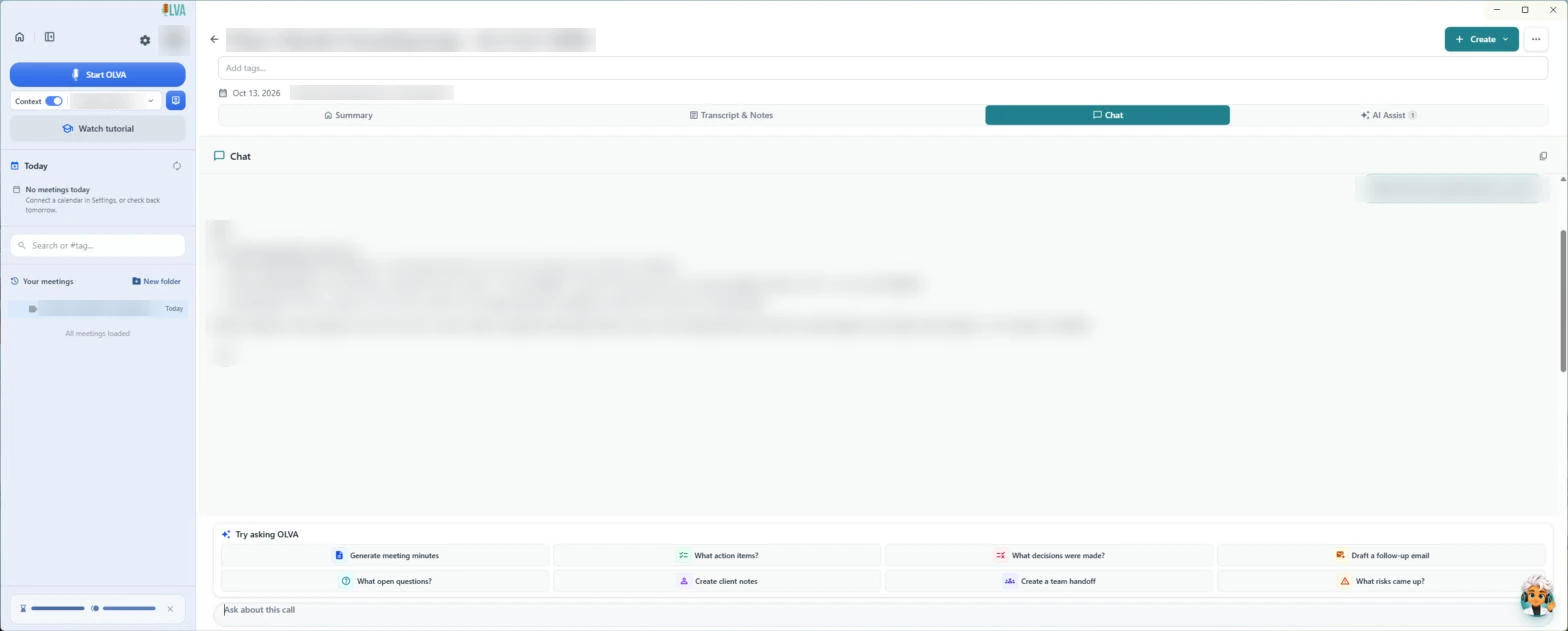
Click End and confirm Stop Meeting, and the interview is saved in Your meetings. In the meeting's Chat tab, under Try asking OLVA, click Create a team handoff, then What open questions? for the list to cover in round two. We didn't run either one in our test, so we can't show what they return: read both against your scorecard before you share them. Every answer in Chat has a copy button, so the handoff is one click from the panel.
OLVA keeps the record; the people on the panel make the decision. Each interviewer should score the scorecard on their own before the debrief.
What this saves you
- Full attention on the candidate, because you are not typing.
- Better follow-up questions, so a strong candidate gets the chance to show it.
- The same scorecard ground covered in every interview.
- A debrief that starts from the same written record for everyone on the panel.
Mistakes to avoid
- Letting the AI decide. Use OLVA's notes as a record and score against the scorecard yourself.
- Treating a mismatch with the resume as dishonesty. Ask the candidate about it.
- Skipping consent. Tell candidates you are taking AI notes, and follow the law and your company's hiring rules.
- Different contexts for different candidates. Keep the role's scorecard the same; only the resume changes.
Links
- OLVA (olva.ai): the meeting assistant this lesson teaches. It is a separate product with its own account and plans.
- OLVA how-to guides: OLVA's own short lessons on contexts, live answers and what you can create after a meeting.
Try it yourself, free
Reading the steps is a start. Doing them is how it sticks. The interactive module walks you through every click in a practice copy of OLVA, checks each step, and never touches your real accounts.
Start “OLVA: Listen in Interviews and Debrief Against the Scorecard”Step by step: OLVA: Listen in Interviews and Debrief Against the Scorecard
All 26 steps of the interactive module, in order. In the module you watch each one, then do it yourself in a practice copy that checks your work.
1. Load the scorecard and the resume
- Open Manage contexts. Before the interview, give OLVA the role. Click Manage contexts, the blue button next to the context picker.
If you type notes in an interview, you only half listen. Then the debrief runs on memory. Give OLVA the role first.
- Add a context. Click Add context.
Make one context per open role.
- Name it after the role. A new context starts as Untitled, with the name selected, and saves itself. Paste in the name (our example: Senior Bookkeeper interviews).
Name it after the role.
- Add a note. Click Add a note under the new context.
- Paste the scorecard. Add the role, the scorecard, the questions to cover and your interview rules. Paste in the notes to drop in our example.
The five must-haves. The questions every candidate gets. And your rule: score against the scorecard only.
Role: Senior Bookkeeper at Alder & Finch CPAs. Hybrid. Reports to Rachel Kim, Controller.
Scorecard (must-haves): 1) owns month-end close for several clients, 2) bank and credit card reconciliations, 3) QuickBooks Online and Xero, 4) explains numbers clearly to clients, 5) trains junior staff.
Questions to cover: a close that went wrong, clients who send receipts late, a time they trained someone.
Rules: ask every candidate the same core questions. Score against the scorecard only.
- Save the notes. Click Save.
- Attach the candidate's resume. Click Add document, then pick the candidate's resume in the Windows Open window (PDF, Word, text or Markdown). We leave that window out, because it shows our own folders.
Now add today's candidate.
- Save the resume. OLVA converts the file and shows it as text, with Make shorter, Save and Cancel. Check it, then click Save.
OLVA shows it as text, so you can check it.
- Go back. Click the back arrow next to Contexts.
2. Start OLVA in the interview
- Check the context. The interview with Sam Okafor is starting in Zoom, with Rachel Kim, the Controller, on the panel. Click the context picker.
The interview is starting in Zoom. Rachel, the controller, is on the panel.
- Choose the role. Under CHOOSE CONTEXT, click the role's context (here, Senior Bookkeeper interviews). Our test context's name is blurred.
Pick the Senior Bookkeeper context.
- Start OLVA. Tell the candidate you are taking AI notes (some places require consent to transcribe), then click Start OLVA.
Tell the candidate you're taking AI notes. Some places need their consent.
- Start Olva. The first time, OLVA says Language detection is automatic. You can pick your languages later in Settings. Click Start Olva.
The first time, OLVA tells you it detects the language for you.
3. Ask better follow-up questions
- Turn on Live insight. The live window opens beside your call. Rachel asks about a month-end close that went wrong. Turn on Live insight at the top right.
Rachel asks about a close that went wrong. Switch on Live insight, at the top right.
- Get a follow-up question. Sam found a duplicate payment line by line. To dig deeper, click Follow-up under the transcript.
Sam gives a good story. Don't move on yet.
- Click Ask about this call. The suggestion shows in Chat, where only you can see it. We didn't capture a Follow-up answer in our test, so this is the nearest real screen: a Say next answer, blurred. Ask your follow-up in your own words, for example how Sam explained the problem to the client (scorecard item 4). Later, check what's missing: click Ask about this call.
Answers show up in the Chat tab, only for you. Ask the follow-up in your own words. Later, check what's missing.
- Ask about the scorecard. Paste in the question (our example: Which scorecard items haven't we covered yet?).
Ask which scorecard items you haven't covered.
- Send it. Click the send arrow.
The candidate doesn't see this.
4. Check what you heard
- Open AI Assist. OLVA answers in Chat from the transcript and your notes (our test answer is blurred). If Xero and training aren't covered yet, ask about them before time runs out. Now click the AI Assist tab.
OLVA answers from the call and your scorecard. If Xero and training aren't covered, ask before time runs out.
- See it side by side. With Live insight on, a Define card explains a term so you can follow along. In our test it defined an inventory term; in an accounting interview it could explain one like bank feed. OLVA can also add Fact Check cards, but none came up in our test, so don't count on one. If Sam says five years of month-end close and the resume shows close work since 2023, note it yourself as a question for the next round, not a verdict. Click the layout button left of the timer.
A Define card explains terms, so you can follow the accounting talk. No fact check came up in our test. So if a claim doesn't match the resume, note it yourself, as a question, not a verdict.
- End the interview. Now the transcript is on the left and the cards are on the right. When the interview wraps up, click End.
The transcript and cards now sit side by side. When the interview wraps up, click End.
- Stop the meeting. Click Stop Meeting.
5. A debrief the whole panel can use
- Open the meeting chat. The meeting opens on Summary while OLVA writes it up. Click the Chat tab.
Now write up the interview for the panel.
- Create a team handoff. Under Try asking OLVA, click Create a team handoff. We didn't run this one in our test, so we can't show its answer. Check it against your scorecard before you share it.
Under Try asking OLVA, click Create a team handoff. We didn't capture its answer in our test, so check it against your scorecard before you share it.
- Copy it for the panel. Every answer in Chat ends with a copy button. This screen shows a different real answer from our test (a follow-up email, blurred), because we didn't capture a handoff. Read the handoff, fix anything OLVA misheard, then click copy and share it with the panel.
Every answer ends with a copy button. Read the handoff, fix anything misheard, then click copy, and share it with the panel.
- List the open questions. Click What open questions? for the next round. We didn't run this one in our test either, so read its list before you rely on it.
Last, click What open questions. That's your list for round two. Score the candidate yourself. OLVA keeps the record, you make the call.
Screenshots
Frequently asked questions
- How does the interactive lesson work?
- Each step is shown to you first (Watch). Then you do it yourself on the same real OLVA screen, which checks that you clicked the right button (Your turn). If you get stuck, press Do it for me. The screens are screenshots from our own test call, so nothing listens to a call and no OLVA account is touched.
- Is OLVA part of Stepthrough?
- No. OLVA is a separate, third-party product from olva.ai. This lesson is free. To use OLVA for real you need the OLVA desktop app for Windows or Mac and your own OLVA account; check olva.ai for current plans.
- Is it OK to use an AI note taker in a job interview?
- Tell the candidate at the start and get their consent where the law requires it, and follow your company's hiring and data rules. Use the notes as a record; the hiring decision stays with the people on the panel, scored against the same scorecard for every candidate.
- Does OLVA join the interview as a bot?
- No. OLVA listens through your own computer and opens beside the meeting, so it does not appear as a participant. That is why telling the candidate is up to you.
- Can OLVA write the interview debrief?
- After the interview, the meeting's Chat tab has a Create a team handoff button under Try asking OLVA. We didn't capture its answer in our test, so read it and check it against your scorecard before you share it.
More OLVA tutorials
 OLVA: Answer Every Question on a Sales Discovery Call
Give OLVA your product playbook once. On a discovery call it answers product questions privately and tells you what you still need to ask, then drafts the follow-up…
Free · Live ~8 min Intermediate
 OLVA: A Private AI Assistant on Your Client Calls
Give OLVA your client notes, get private answers and fact checks during a Zoom call, then turn the meeting into minutes, a follow-up email and a PowerPoint deck.
Free · Live ~9 min Intermediate
Terms in this lesson
Plain-English definitions, each with an example from a free lesson.