Updated . Built against the tool’s current screens and checked step by step. How we check this lesson
The problem: mid-project, the client asks for "one small extra" and the easy answer is "sure, no problem." A few of those and a fixed-price project has lost its margin, the launch slips, and the client is unhappy anyway because the date they were promised moved. In this free, interactive lesson you give ChatGPT the client's thread and your scope facts, let it draft, have it check every promise against those facts, fix the lines that give away work or a date, and send a reply from Gmail that still says yes the right way.
At a glance
| Question | Answer |
|---|---|
| What you build | A client asks for "one small extra" and a new language, and wants the launch date to hold. Give ChatGPT the thread and the project facts, catch the free work and the date you can't promise, and send a clear reply from Gmail. |
| Tools | ChatGPT |
| Time | About 9 minutes, 20 steps in 6 parts |
| Level | Beginner, no coding needed |
| Cost | Free |
| Ways to learn it | Practice it step by step |
The 6 parts, in short
- Copy the thread: Open the thread, Expand all messages, Copy the thread, Switch to ChatGPT.
- Give ChatGPT the context: Click the message box, Paste the thread, Add the facts, Say what a good reply looks like.
- Get the first draft: Send it.
- Check every promise: Read the draft, then click the message box, Ask ChatGPT to check its promises, Send the check.
- Fix it and warm it up: Read the table, then click the message box, Ask for specific changes, Send the fix.
- Send it from Gmail: Copy the reply, Go back to Gmail, Click Reply, Paste the reply, and 1 more step.
Start here first: Reply Faster: Turn a Messy Customer Email Thread into a Clear, Friendly Reply. This Consulting & Agencies version follows the same build with its own example business, Quillmark Studio.
Part of: AI for Consulting & Agencies (step 3 of 18). Next up: Research a Prospect's Market with Claude Research Before a Pitch (Consultants & Agencies)
The example: a shop page, a Spanish version and printed flyers
You're Theo, the project lead at Quillmark Studio, a made-up web design agency, halfway through a six-page website redesign for Tobin Street Coffee. The statement of work includes two rounds of revisions and a launch on Friday, November 6.
Rachel, the client, loves the new homepage and asks for "just one" shop page so customers can buy beans online. Then the owner asks for a Spanish version. You promised an answer Monday and missed it, and now Rachel needs an answer today: can you add both and still launch November 6, because the flyers with that date are already printed? The honest answers: the shop page isn't in scope and needs a change order that your account director approves and prices; you don't translate, but you can build for Spanish later and introduce a translator; and November 6 holds for the six pages in scope, with a new date in the change order if the shop page is added.
What you need before you start
- A free ChatGPT account (chatgpt.com).
- The client's email thread. Any email app works, because you copy and paste.
- Your scope facts: what the statement of work covers, how change orders work, who approves them, and what the launch date depends on. Leave out rates you're not allowed to share.
- Nothing at all for the practice copy in this lesson: it needs no account.
How to say yes to more work without giving it away
Scope creep rarely arrives as a big request. It's "one small page", "a quick tweak", "while you're in there", and each one feels too small to put through a process. AI drafts make it worse, because they're tuned to be agreeable: ask for a friendly reply and you'll get "happy to add it!" The reply that protects the project and the relationship does three things: it says yes to the goal, names the process (a short change order with a price and a date) and the person who approves it, and keeps the original date for the original scope.
That's also kinder to the client. Rachel has flyers printed with November 6 on them. An honest answer now lets her choose between the shop page and the date before anything else gets printed, instead of finding out in the last week.
Who this lesson is for
Project managers, account managers, freelancers and agency owners at web, marketing, design and consulting firms who answer client requests between kickoff and launch. It works for any fixed-scope engagement, from a brand refresh to a software implementation. No AI experience needed.
Ways to use it after the lesson
- Keep a short scope-facts template for every project: what's in, how changes work, who approves them, and what the launch depends on.
- Keep your own rule line in every facts list: no extra work, prices or dates agreed in email.
- Use the same check-the-promises step on status updates, where "we're on track" can quietly become a commitment.
- Paste the approved change order into the same chat and ask for a short note that walks the client through it.
How the interactive lesson works
Each step plays first in the Watch panel with a short voice-over, then you do it yourself in Your turn on a practice copy of Gmail and ChatGPT. Nothing touches a real account and no email is sent. The agency, client, people, dates and numbers are made up.
Try it yourself, free
Reading the steps is a start. Doing them is how it sticks. The interactive module walks you through every click in a practice copy of ChatGPT, checks each step, and never touches your real accounts.
Start “Handle Scope Creep Without Losing the Client using ChatGPT”Step by step: Handle Scope Creep Without Losing the Client using ChatGPT
All 20 steps of the interactive module, in order. In the module you watch each one, then do it yourself in a practice copy that checks your work.
1. Copy the thread
- Open the thread. This is Theo's inbox at Quillmark Studio. Click Rachel Osei's thread, Website: shop page?, to open it.
Here's the inbox for Theo, the project lead at Quillmark Studio, a small web design agency. His client Rachel wants something extra, and her thread has four messages, three questions, and a reply that's a day late.
- Expand all messages. Gmail folds up the older messages in a thread. Click Expand all, the double-arrow icon at the top right of the thread.
Gmail folds up the older messages, so only the newest one is open. You want the whole story, so click Expand all, the double-arrow icon at the top right.
- Copy the thread. In real Gmail you select the messages, then press Ctrl+C (or right-click and choose Copy). Here, click the messages to copy them.
Read it through once. Rachel wants a shop page, a Spanish version, and the November sixth launch to hold. If there's anything private in there, like contract rates or login details, leave it out. Here, just click the messages.
- Switch to ChatGPT. Click the ChatGPT tab at the top.
Now switch over to ChatGPT.
2. Give ChatGPT the context
- Click the message box. You are in a new chat. Click the message box.
You're in a fresh chat. You'll give ChatGPT three things in one message: the thread, the facts, and what a good reply looks like.
- Paste the thread. Paste in the thread. One line says what this is, then the four emails, oldest first.
First, the thread. One line tells ChatGPT what it's looking at, then the emails, oldest first.
Here is an email thread between me, the project lead at a web design agency, and my client, oldest message first.

Rachel Osei (Fri, Oct 9): Hi Theo, the new homepage looks great! One small thing: could you add a shop page so people can buy beans online? Just one page. Rachel

Theo at Quillmark Studio (Fri, Oct 9): Thanks Rachel, glad you like it! Let me look at the shop page and get back to you Monday. - Theo

Rachel Osei (Mon, Oct 12): Also, our owner asked if the site can be in Spanish too. We have a lot of Spanish-speaking customers.

Rachel Osei (8:47 AM): Theo, I haven't heard back about the shop page, and our owner is asking me every day. Can you add it and the Spanish version and still launch Nov 6? We already printed flyers with the launch date. I need an answer today.
- Add the facts. Paste in the facts. These are the only things the reply may promise: what the statement of work covers, how change orders work, who approves them, the rough estimate, what you don't do, what the launch date depends on, and your own rule.
Next, the facts. ChatGPT can't see your statement of work or how your agency handles changes, so spell them out. Number them, so you can check them later.
Facts (only promise what is here):
1. Our statement of work covers a 6-page website redesign for Tobin Street Coffee, with 2 rounds of revisions. Launch is Friday, Nov 6.
2. An online shop page is not in the statement of work. Adding it needs a written change order.
3. Maya Brandt, our account director, approves every change order. She can send one by Wednesday, Oct 14. I can't agree to new work, a price or a new date myself.
4. Our rough estimate for the shop page is 16 to 20 hours, but Maya sets the final price.
5. We don't translate. We can build the site so a Spanish version can be added later, and introduce Rachel to a translator we've worked with.
6. Nov 6 holds for the 6 pages in scope. If the shop page is added, Maya will confirm a new launch date in the change order.
7. My rule: I don't agree to extra work, prices or dates in email. I explain the options and who decides.
8. I said I'd answer Monday and didn't. That's on me.
9. Sign it: Theo, Quillmark Studio.
- Say what a good reply looks like. Paste in the instructions: the tone, the three questions to answer, the next step and who decides, a word limit, and a rule not to invent anything.
Last, tell it what a good reply looks like: friendly and on her side, the three questions to answer, the next step and who decides, and a word limit. And one rule that matters most: don't invent details or promise anything that isn't in the facts.
Write my reply to Rachel. Tone: friendly, clear and on her side, like a partner, not a gatekeeper. Apologize once for the late reply. Answer all three of her questions: the shop page, the Spanish version, and the Nov 6 launch. Explain the next step and who decides. Keep it under 200 words. No subject line, since it's a reply in the same thread. Don't invent details or promise anything that isn't in the facts.
3. Get the first draft
- Send it. Thread, facts and instructions are all in. Click the Send arrow.
Thread, facts, and instructions, all in one message.
4. Check every promise
- Read the draft, then click the message box. Read the draft closely. Your real draft will differ every time, and a good model may get it right. This practice draft has two slips: look at the shop page and launch lines. Then click the message box.
That's a friendly first draft. It apologizes once and handles the Spanish question well. Your real draft will be a little different each time, and it may come out right. In this practice draft, read the shop page and the launch: free extra work, and a date that only holds for the original six pages. A draft can sound helpful and still give away the project.
- Ask ChatGPT to check its promises. Paste in the check to ask for a table of every promise and the fact behind it.
Ask ChatGPT to check its own work: every promise in the reply, next to the fact that backs it up.
Check that reply against my facts. Make a table of every promise or claim in it and the fact that backs it up. Flag anything the facts don't support.
- Send the check. Click the Send arrow.
5. Fix it and warm it up
- Read the table, then click the message box. Three of the five claims match a fact. The free shop page isn't supported at all, and the launch line is only partly supported. ChatGPT suggests wording for both. In your own chat, the table may say everything is supported. That is a good result too. Click the message box.
Three of the five claims match a fact. Nothing in your facts makes the shop page free, and the launch date only holds for the pages in scope. In your own chat, the table may say everything is supported, and that's a good result too. Still compare the table with your own facts, since you know the project.
- Ask for specific changes. Paste in the fix: use both suggested wordings, give each question its own short paragraph, and keep every other fact the same.
Now ask for specific changes, not just make it better. Use both suggested wordings, give each of her questions its own short paragraph, and keep every other fact exactly the same.
Use both of those wordings. Then give each of her three questions its own short paragraph so the answers are easy to find, keep it friendly, and stay under 200 words. Keep every other fact exactly the same. Reply with just the email.
- Send the fix. Click the Send arrow.
6. Send it from Gmail
- Copy the reply. Read the final reply. In real ChatGPT it shows up in an Email card: click the copy icon on the card or under it, and ignore the Connect email button.
Read it once more. Each question gets a straight answer: the shop page goes through a change order with a price, the Spanish version has a plan, and the launch date is honest. It still says yes to what she wants, just the right way.
- Go back to Gmail. Click the Gmail tab at the top.
Back to Gmail.
- Click Reply. Under the last message, click Reply.
Under Rachel's last message, click Reply. Your answer stays in the same thread, which is why you told ChatGPT to skip the subject line.
- Paste the reply. Paste in the reply to drop in the reply you copied. In real Gmail, press Ctrl+V.
Hi Rachel,

Sorry for the late reply. I said I'd get back to you Monday and I didn't.

The shop page: it isn't in our current plan, so it needs a short change order. Maya Brandt, our account director, will send you one by Wednesday, Oct 14, with the price and timing. You decide from there.

The Spanish version: we don't do translation ourselves, but we can build the site so Spanish can be added later, and I can introduce you to a translator we trust.

The launch: Nov 6 holds for the six pages we planned. If you add the shop page, the change order will give you the new launch date, so we can decide together before your flyers go out.

Talk soon,
Theo
Quillmark Studio
- Read it, then send. Read it one last time: the change order and who sends it, the Spanish answer and the launch date. Then click Send.
One last read before it goes out. ChatGPT wrote the draft, but your name is on it, so check the change order and who sends it, the Spanish answer, and the launch date. Everything's right.
Frequently asked questions
- How do I reply to a client asking for extra work?
- Say yes to the goal, then explain the process: it isn't in the current scope, so it needs a short change order with a price and timing, and name who sends it and when. Keep the original date for the original scope. The lesson walks through exactly that reply.
- Can ChatGPT write a scope change email?
- Yes, as a drafting tool. Paste the thread and a numbered list of scope facts, ask for the reply, then have ChatGPT check every promise against those facts. Drafts often agree to free work or a date, so fix anything the check flags.
- Should I ever do small extras for free?
- That's your call, and your account director's. The point is to decide it on purpose, in writing, rather than have a friendly email decide it for you.
- What should I leave out when I paste a client thread?
- Rates you're not allowed to share, other clients' names, login details and anything the reply doesn't need. Follow your agency's data policy.
- Is it free?
- Yes. Stepthrough is free and the practice copy needs no account. To do it for real you need your own ChatGPT and email accounts.
More in AI Automation for Consulting & Agencies
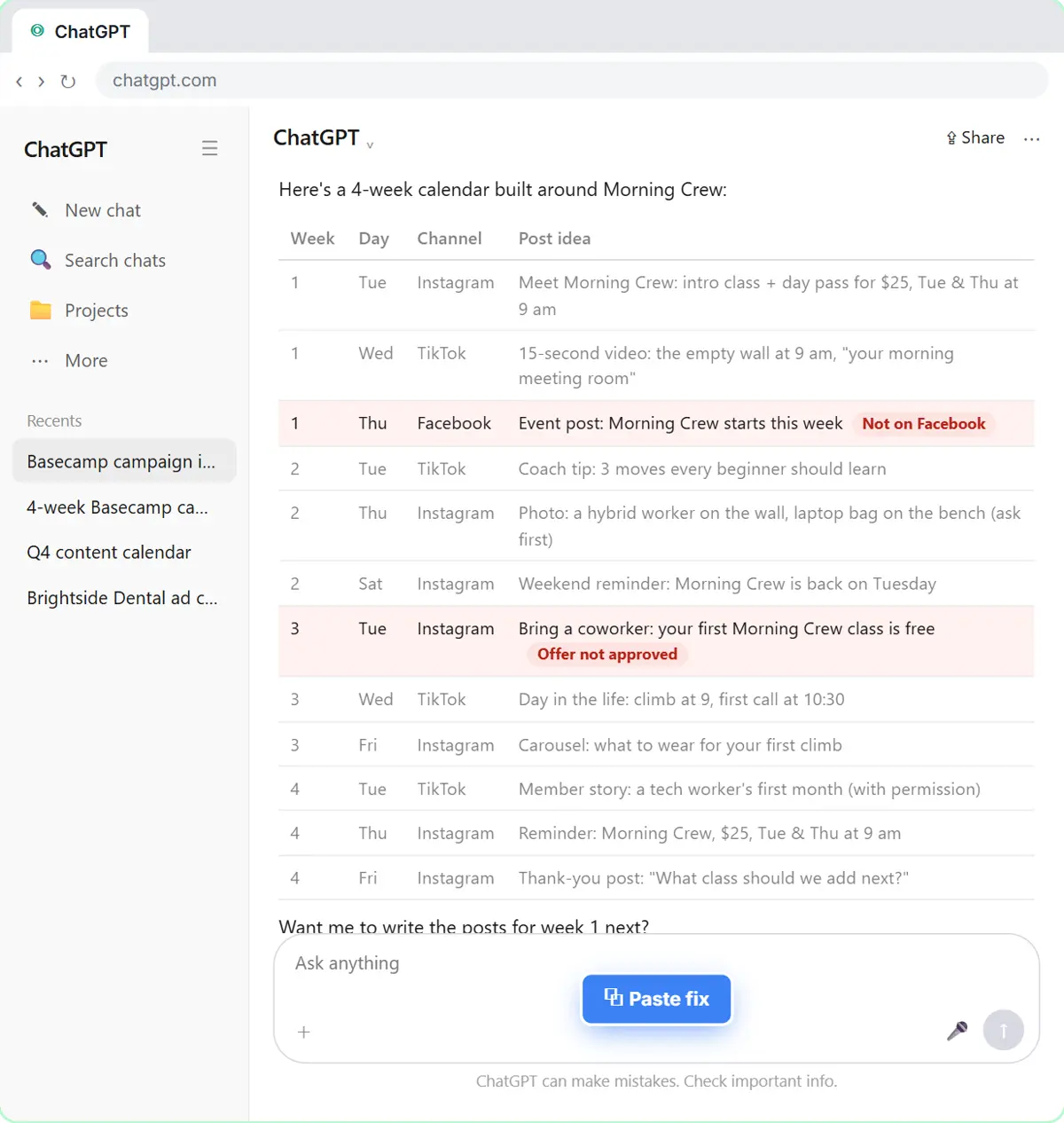 Prompt Chaining for a Client Campaign Plan: Build It in Steps with ChatGPT (Agencies)
Ask ChatGPT for a client's whole 4-week campaign in one prompt, then build a better one in four steps: audiences, offers, a calendar table checked against the client's…
Free · Live ~7 min Beginner
 OLVA: A Private AI Assistant on Your Client Calls
Give OLVA your client notes, get private answers and fact checks during a Zoom call, then turn the meeting into minutes, a follow-up email and a PowerPoint deck.
Free · Live ~9 min Intermediate
◷Turn a Messy Client Brief into a Finished Proposal Deck using RunableA business case for a small agency: price what a slow proposal costs, then use Runable, an AI agent, to turn a messy client email into a finished six-slide proposal…
Free · Live ~16 min Beginner
◷Preview Every Website Change Before Your Client Sees It using KosukeA business case for agencies and small businesses that use an AI coding agent: price what an unchecked website change costs, then use Kosuke to give every change a live…
Free · Live ~15 min Intermediate
All 7 modules in AI Automation for Consulting & Agencies
More ChatGPT tutorials
 Get On-Brand Social Posts Every Time using a ChatGPT Custom GPT
See why generic prompts give generic results, then build a Custom GPT loaded with your brand voice and watch the output transform.
Free · Live ~8 min Beginner
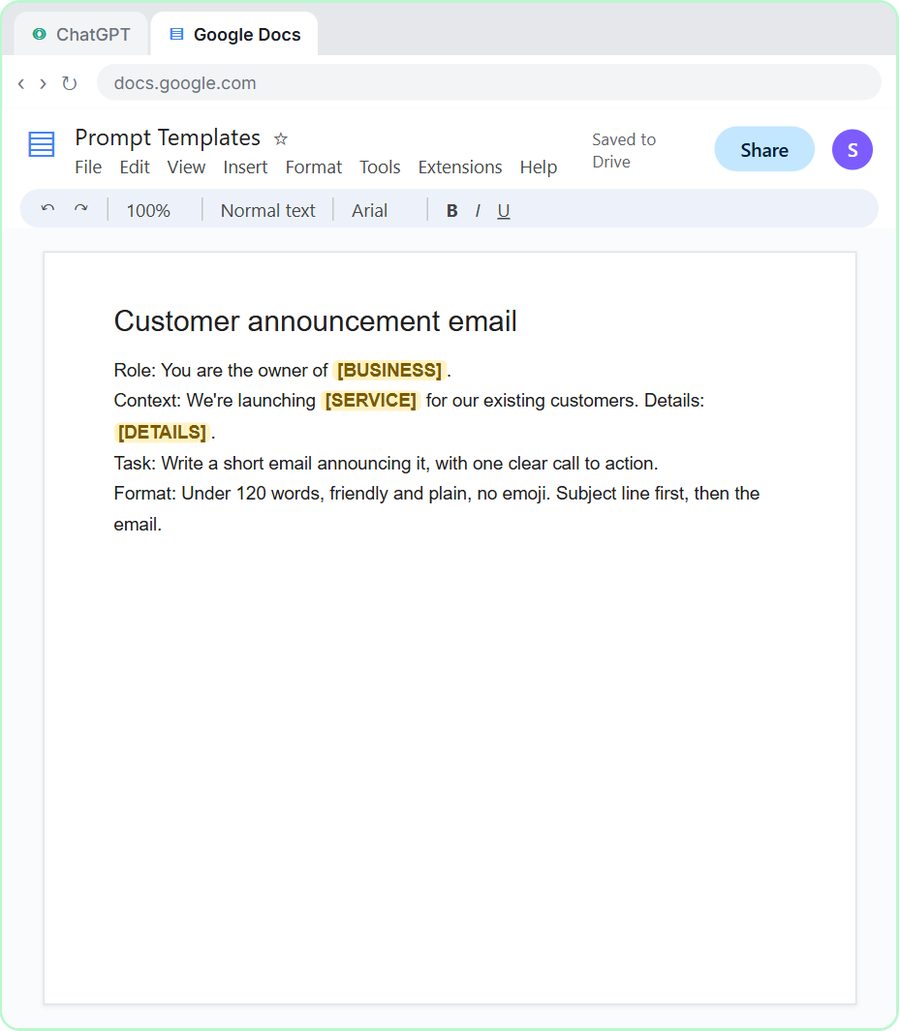 Prompt Writing 101: Role, Context, Task, Format
Ask ChatGPT for the same customer email twice, once vaguely and once with a four-part prompt, and see exactly why structure gets a better answer.
Free · Live ~8 min Beginner
◷Send a Same-Day Follow-up After Every Discovery Call using ChatGPTTurn a discovery call transcript into the decisions, the next steps with owners and dates, deal notes for your CRM, and a follow-up email the prospect gets the same…
Free · Live ~7 min Beginner
◷Hold Your Price When a Prospect Asks for a Discount using ChatGPTA prospect wants 30% off and a free month to sign this week. Give ChatGPT the thread and your pricing rules, catch the discount you can't approve, and send a reply that…
Free · Live ~9 min Beginner
 Get Your Business Recommended by ChatGPT
Ask ChatGPT who it recommends in your town, see which pages it trusts, then use it to write an FAQ page and Business Profile copy that answer real customer questions.
Free · Live ~10 min Intermediate
◷Run a Weekly Ops Review Where Every Task Has an Owner using ChatGPTTurn a weekly operations and vendor review into the decisions, the next steps with owners and dates, the risks to watch and a team recap, without turning a vendor's…
Free · Live ~7 min Beginner
Visual guides
This lesson’s key ideas as quick visual guides: swipe through the slides, or read the same guide as text.
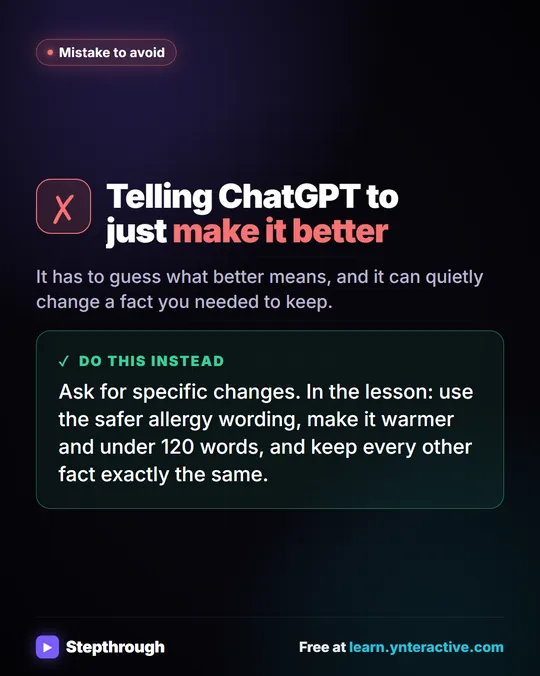 Don't tell ChatGPT to make it better. Say this instead.
A customer's cake order went sideways. Wrong pickup day, a flavor change, and a nut allergy question nobody answered.
Mistake to avoid One graphic
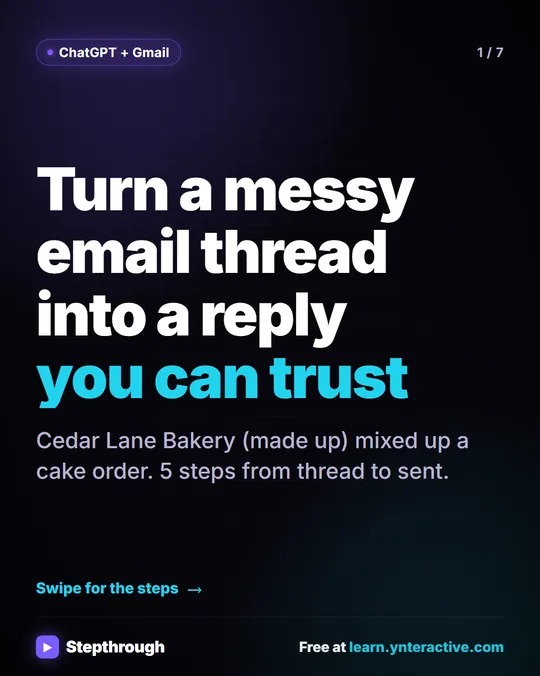 5 Steps to Turn a Messy Email Thread into a Clear Reply
A visual guide: paste a customer thread with numbered facts, check every promise in ChatGPT's draft, fix it and send it from Gmail.
Step-by-step guide 7 slides
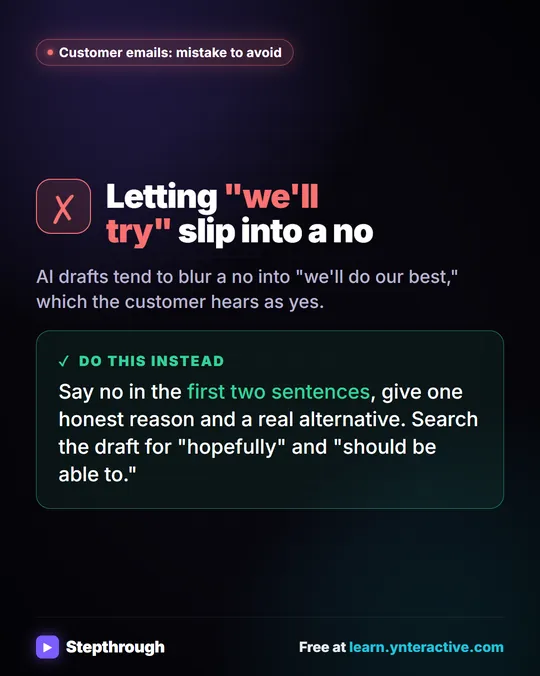 Mistake to Avoid: A Soft Yes When You Mean No
A visual tip for customer emails: AI drafts blur a no into "we'll do our best." Say no early, give one reason and a real alternative.
Mistake to avoid One graphic
Free cheat sheets
Print it or save the PDF: the key steps and checks from this lesson on one page, free.
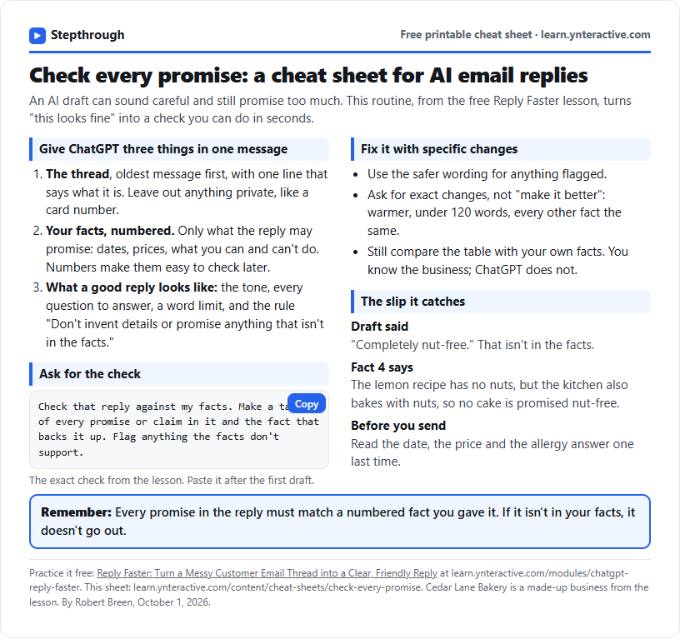 Check Every Promise in an AI Reply: Cheat Sheet
A free one-page cheat sheet: give ChatGPT the thread and your numbered facts, ask for a promise-by-promise table, fix what it flags, then send.
Topic cheat sheet Free PDF
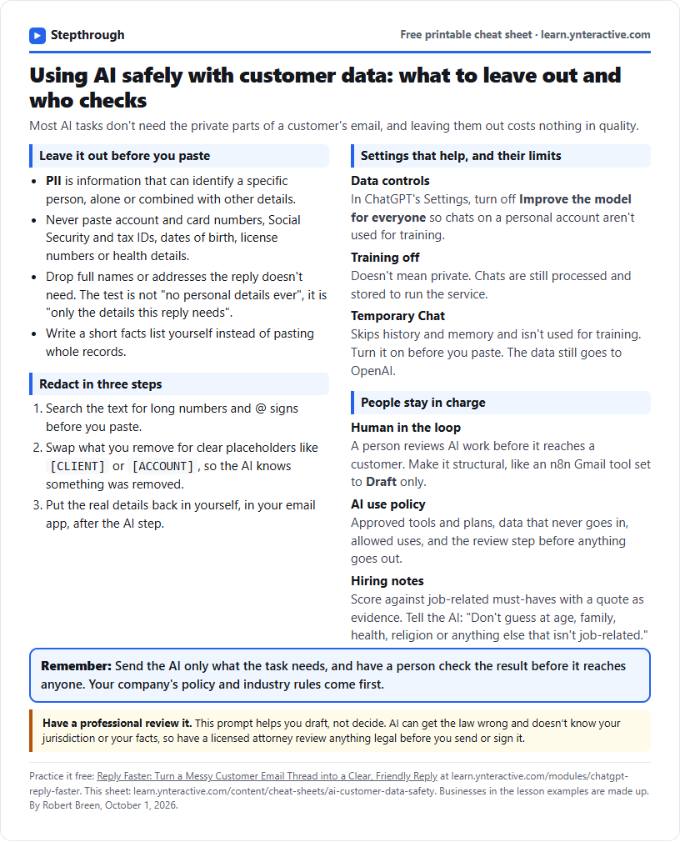 Using AI Safely with Customer Data: Cheat Sheet
A free one-page cheat sheet on AI and customer data: what never to paste, how to redact, data controls, Temporary Chat and human review.
Topic cheat sheet Free PDF
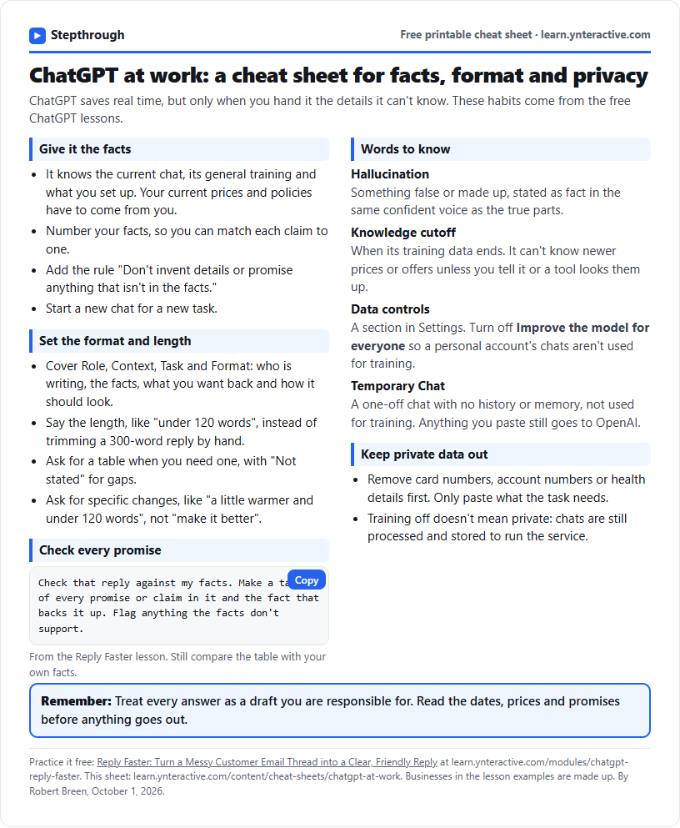 ChatGPT at Work Cheat Sheet: Facts, Format, Privacy
A free one-page cheat sheet for ChatGPT at work: give it facts, set the format and length, check every promise and keep private data out.
Tool cheat sheet Free PDF
All free printable cheat sheets
Terms in this lesson
Plain-English definitions, each with an example from a free lesson.
Related prompts
- Check reply promises prompt: A ChatGPT prompt that checks a draft before you send it: a table of every promise, the fact behind each, and safer wording for…
- Email newsletter prompt: A ChatGPT prompt for a short customer newsletter built from your numbered updates: one section each, one main call to action, no…
- Email shortener prompt: Cut a long email down to what the reader needs without changing a fact, date, price or promise, plus a list of what was removed…
- Payment received thank-you prompt: Confirm a payment and say thanks in a few lines: the amount, what it was for, the balance now owed, and what happens next…