Updated . Built against the tool’s current screens and checked step by step. How we check this lesson
"AI agent" is everywhere, but most explanations stay abstract. In this free, hands-on lesson you chase six unpaid invoices for a small pet grooming business three different ways. A chatbot writes you a template with blanks. An automation sends the same reminder to everyone past a date, including a customer who already paid half. Then ChatGPT's Work mode, acting as an AI agent, reads the list, works out the steps, drafts the right reminders and hands you the one invoice that needs a person.
At a glance
| Question | Answer |
|---|---|
| What you build | Chase six unpaid invoices three ways: a chatbot writes a template, an automation follows a rule, and an AI agent works out the steps and flags the tricky one. |
| Tools | ChatGPT |
| Time | About 7 minutes, 20 steps in 4 parts |
| Level | Beginner, no coding needed |
| Cost | Free |
| Ways to learn it | Practice it step by step |
The 4 parts, in short
- A chatbot answers: Click the message box, Ask for a reminder email, Send it, Read the answer.
- An automation follows rules: Open the automation example, Look at the trigger, Look at the action, Check the odd case.
- An agent works toward a goal: Go back to ChatGPT, Switch to Work, Click the task box, Give it the goal, the data and the limits, and 4 more steps.
- Which one to use: Open the cheat sheet, When to use a chatbot, When to use an automation, When to use an AI agent.
In the course: Part 2 · Better Prompts (Module 5 of the full course)
Part of: AI at Work: Start Here (step 7 of 8). Next up: What Is a Webhook? Send a Test and Watch the Data Arrive
What you will do
The example business is Oak Hill Pet Grooming, a made-up shop run by Tara. Six invoices are open. Four are more than 14 days late, and one of those customers, Ben, already paid $60 of his $120. That one detail is what separates the three kinds of AI help, so you will watch how each one handles it.
First you ask ChatGPT in normal Chat mode for a reminder email. Then you look at the recipe behind a simple automation and its run history. Finally you switch ChatGPT to Work, give it the goal, the invoice list and your limits, and check what it produces before anything goes out. You finish with a one-screen cheat sheet you can use to decide which tool fits a job.
The short version
A chatbot answers when you ask. It is great for writing, ideas and explanations, but it only knows what you tell it, and you still do the work afterwards: finding who is overdue, filling in names and amounts, and sending each email.
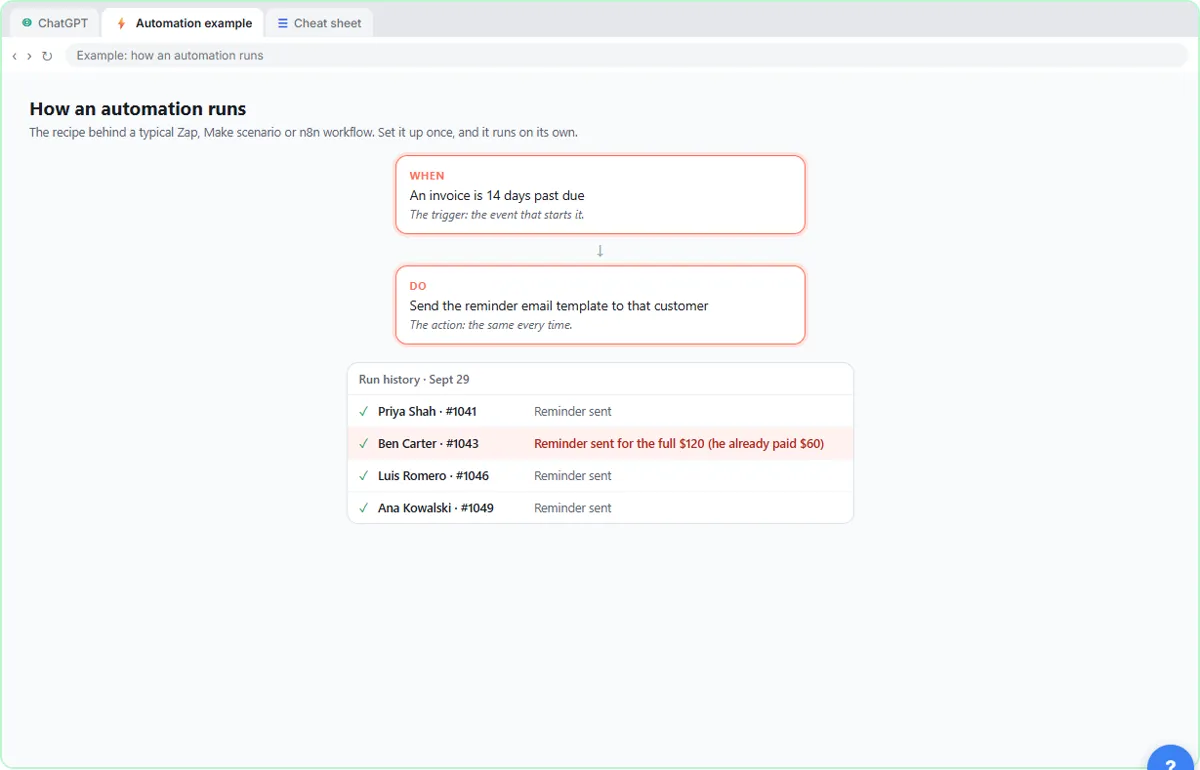
An automation follows fixed rules on its own. It has a trigger (an invoice turns 14 days past due) and an action (send the reminder template). It runs the same way every time, day or night, which makes it cheap and dependable for repeat jobs in tools like Zapier, Make or n8n. It never uses judgment, so odd cases go through anyway: Ben gets a reminder for the full $120.
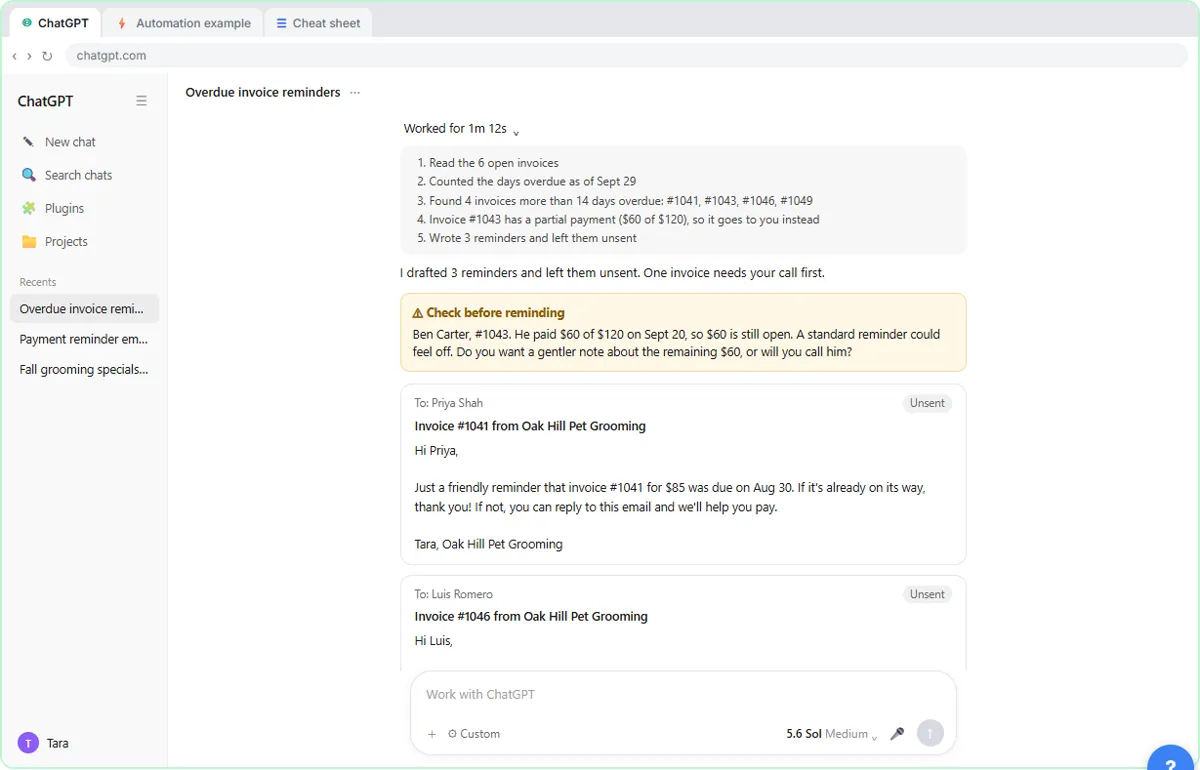
An AI agent gets a goal instead of a script. It decides the steps, uses tools to carry them out and can make small judgment calls. In the lesson, ChatGPT Work reads the invoices, does the date math, drafts three reminders, leaves them unsent, and flags Ben's partial payment for Tara to decide. Because an agent decides things, you give it clear limits and check what it produces.
How ChatGPT Work fits in
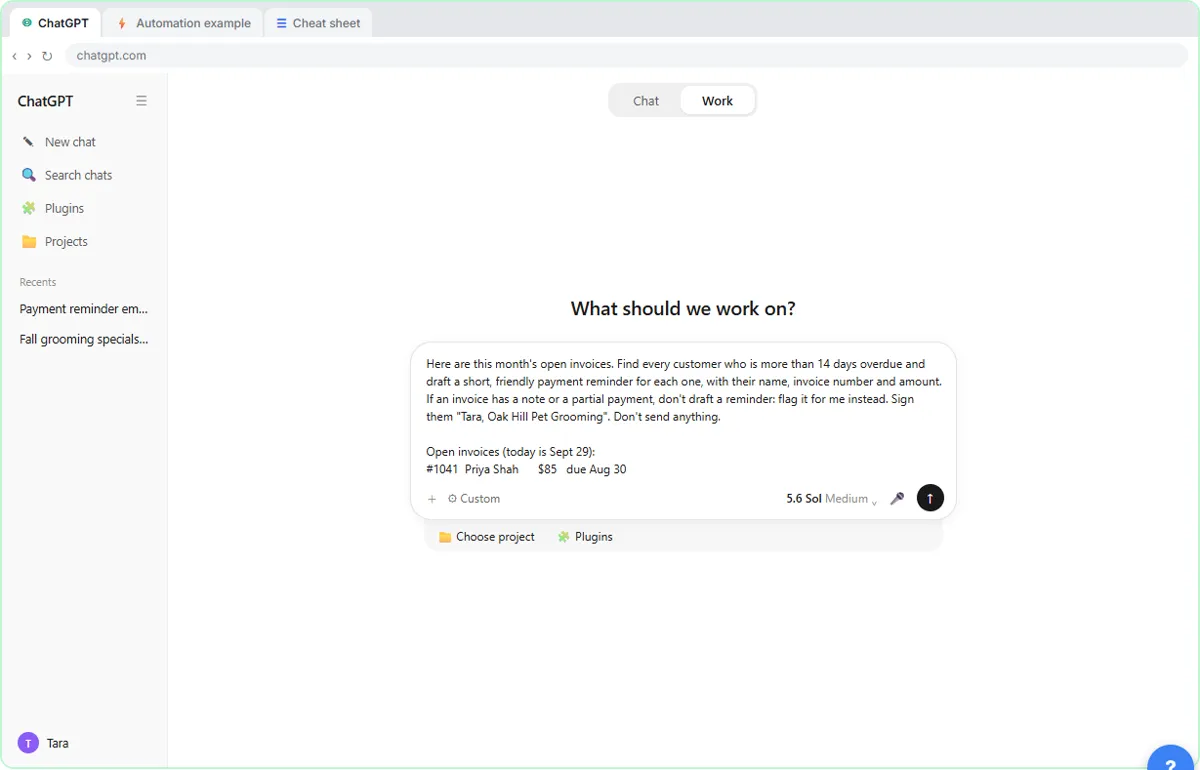
ChatGPT now has a Chat and Work switch at the top of the page. Chat is the question-and-answer mode you know. Work is where you hand ChatGPT a whole task; it replaced the older agent mode. In Work the box reads "Work with ChatGPT", and when the task is done you see "Worked for" with the time it took. Click it to see the steps. Work is on chatgpt.com and in the ChatGPT desktop app, and how much you can use it depends on your plan.
With plugins, Work can reach into the apps you already use, such as Gmail, Slack, Google Drive and your calendar. For example, it can create email drafts in Gmail and leave them unsent. While you are learning, set it to ask for approval before anything sensitive, like sending an email, and keep that habit for anything that reaches a customer.
How to write a task for an agent
Write it like a note to a coworker who is covering for you. Include four things: the goal ("remind everyone more than 14 days overdue"), the information it needs (the invoice list), the judgment calls you want it to make ("if there is a partial payment, flag it for me"), and hard limits ("don't send anything"). The lesson's task has all four, and you can reuse the pattern for any job.
Then check the output the same way every time: names, numbers, amounts and dates against your own records. Agents are fast and usually right, but you are the one sending the email.
Which one should you use?
Use a chatbot when you want an answer or a draft and are happy to finish the job yourself. Use an automation when the job is the same every time, like copying a form into a sheet or sending a daily report. Use an agent when the job needs a little thinking along the way: sorting, looking things up, drafting for different situations. Many small businesses end up using all three: automations for the routine, an agent for the messy middle, and a chatbot for everything else.
How the interactive lesson works
Every step is shown first in the Watch panel with a short explanation, then you do it yourself in Your turn on a practice copy of ChatGPT and two simple explainer tabs. Each click is checked, and Do it for me helps if you get stuck. No account is needed and nothing is sent, so you can try it safely before using ChatGPT Work on your own tasks.
Try it yourself, free
Reading the steps is a start. Doing them is how it sticks. The interactive module walks you through every click in a practice copy of ChatGPT, checks each step, and never touches your real accounts.
Start “AI Agent vs Chatbot vs Automation: One Job Done Three Ways”Step by step: AI Agent vs Chatbot vs Automation: One Job Done Three Ways
All 20 steps of the interactive module, in order. In the module you watch each one, then do it yourself in a practice copy that checks your work.
1. A chatbot answers
- Click the message box. ChatGPT is open in Chat mode, the normal one. Click the message box.
Tara runs Oak Hill Pet Grooming, and six customers still owe her money. We'll handle the same job three ways, so you can see what a chatbot, an automation and an AI agent each do. First, the chatbot.
- Ask for a reminder email. Paste in the request to ask for a payment reminder.
Here's how most people use AI: ask for some writing.
- Send it. Click the send arrow.
Send it.
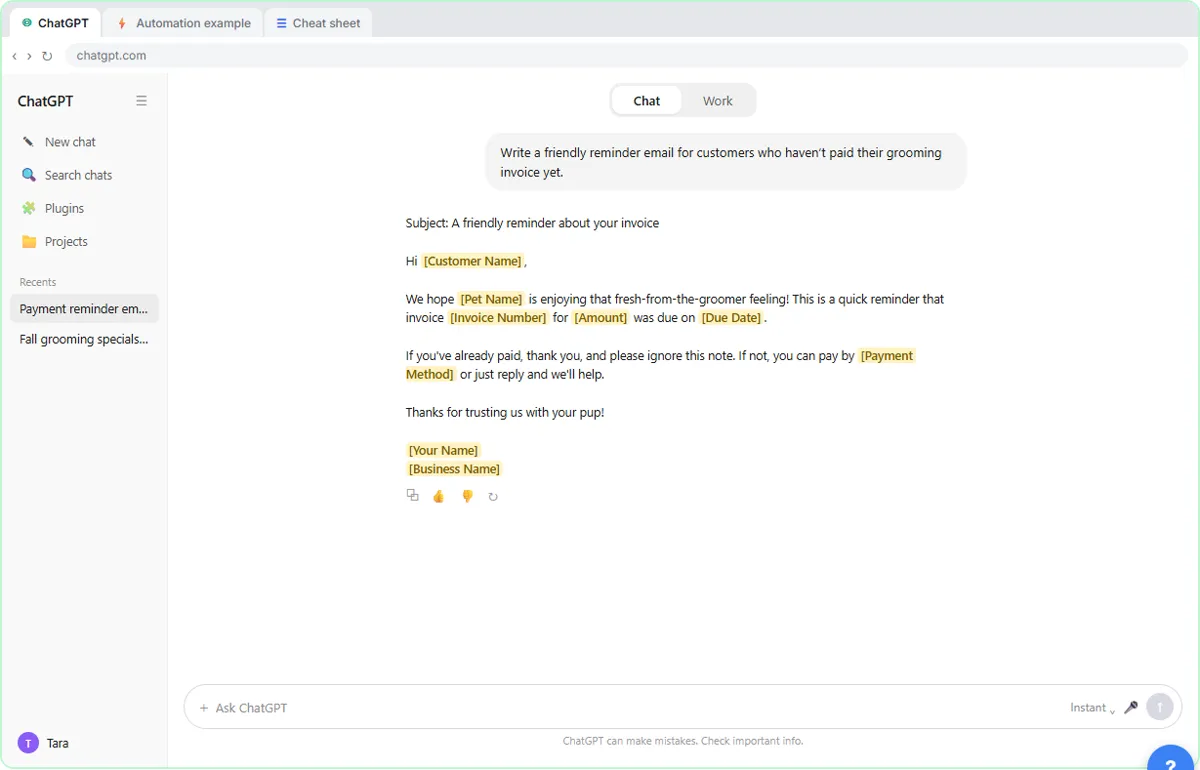
- Read the answer. Click the answer to read it. Notice the blanks in square brackets.
A decent template, full of blanks. That's a chatbot: it answers what you ask, and then you do the rest. You still have to find who's overdue, fill in each name and amount, and send every email yourself.
2. An automation follows rules
- Open the automation example. Click the Automation example tab.
Now the second way: an automation. This tab shows the recipe behind one, the kind you build in Zapier, Make or n8n.
- Look at the trigger. Click the When card.
Every automation starts with a trigger: the event that sets it off. Here, it's an invoice turning 14 days past due. Nobody has to press anything.
- Look at the action. Click the Do card.
Then the action: send the same reminder template to that customer. It runs the exact same way every time, day or night. That's the strength of an automation.
- Check the odd case. In the run history, click Ben Carter's row.
And here's the weakness. Ben already paid half, but the rule only checks the due date, so he got a reminder for the full amount. An automation never stops to think. It does exactly what the rule says.
3. An agent works toward a goal
- Go back to ChatGPT. Click the ChatGPT tab.
Now the third way: an AI agent. Go back to the ChatGPT tab.
- Switch to Work. At the top, click Work in the Chat / Work switcher.
At the top there's a switch between Chat and Work. Chat answers you. Work is ChatGPT's agent mode: you hand it a whole task, and it works out the steps and does them.
- Click the task box. Click the Work with ChatGPT box.
The box now says Work with ChatGPT. Instead of a question, you give it a goal, the information it needs, and your limits.
- Give it the goal, the data and the limits. Paste in the task. It has the goal, the invoice list, one judgment call and a clear limit: Don’t send anything.
Look at what's in this task: the goal, which is to remind anyone more than 14 days overdue; the invoice list; a judgment call, which is to flag anything with a partial payment; and a hard limit, don't send anything.
Here are this month's open invoices. Find every customer who is more than 14 days overdue and draft a short, friendly payment reminder for each one, with their name, invoice number and amount. If an invoice has a note or a partial payment, don't draft a reminder: flag it for me instead. Sign them "Tara, Oak Hill Pet Grooming". Don't send anything.

Open invoices (today is Sept 29):
#1041  Priya Shah      $85   due Aug 30
#1043  Ben Carter      $120  due Sept 2   note: paid $60 on Sept 20
#1046  Luis Romero     $65   due Sept 8
#1049  Ana Kowalski    $95   due Sept 11
#1052  Sam Okafor      $70   due Sept 22
#1053  Jo Whitfield    $110  due Sept 26
- Hand it off. Click the send arrow.
Send it. In real life, Work can take a minute or several, and you can do something else while it runs.
- See what it did. Click Worked for 1m 12s to open the steps it took.
It's done. You never listed these steps. It read the invoices, did the date math, picked out four, and decided one of them needed a person.
- Read the flagged invoice. Click the Check before reminding box.
This is the difference from the automation. It noticed Ben's partial payment and handed that one to Tara instead of sending the wrong reminder. That's the judgment you asked for in the task.
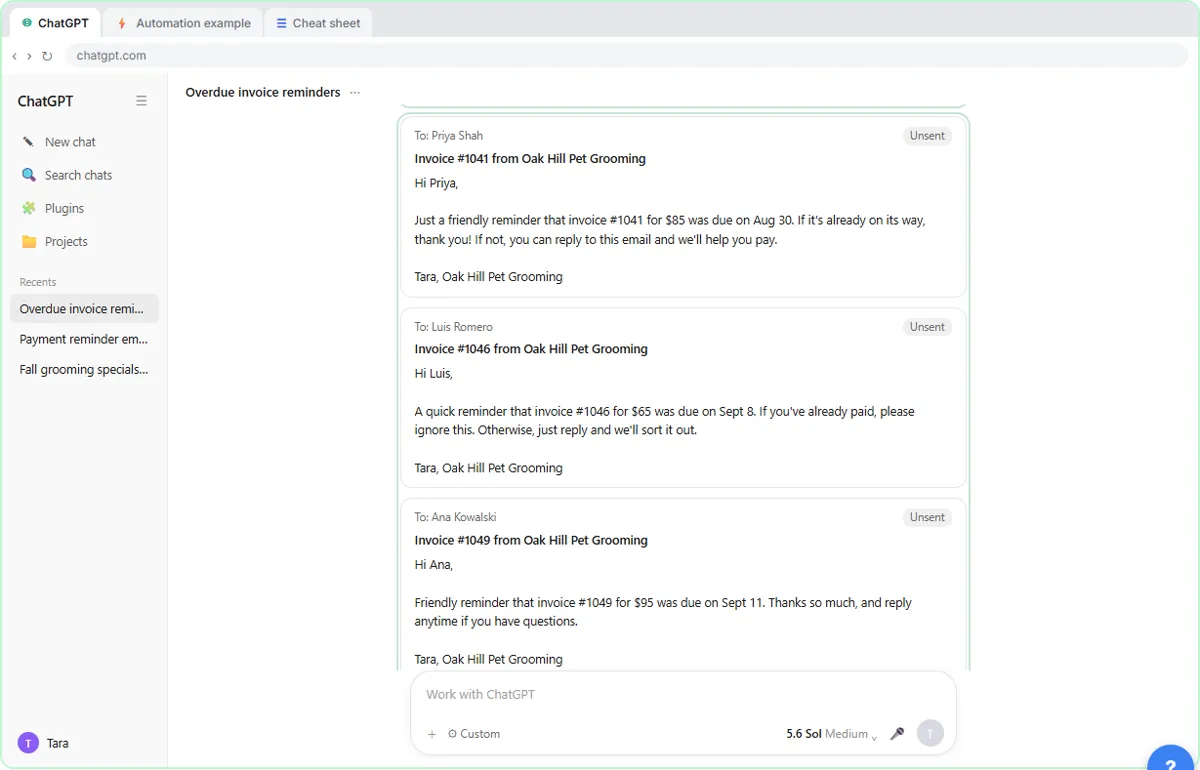
- Check the drafts yourself. Click the drafts to check each name, invoice number and amount.
Now your part: check every draft against the invoice list before anything goes out. Names, invoice numbers, amounts. They all match here, and nothing was sent. If you connect the Gmail plugin, Work can put the drafts right in Gmail, and you can have it ask for your approval before it sends anything.
4. Which one to use
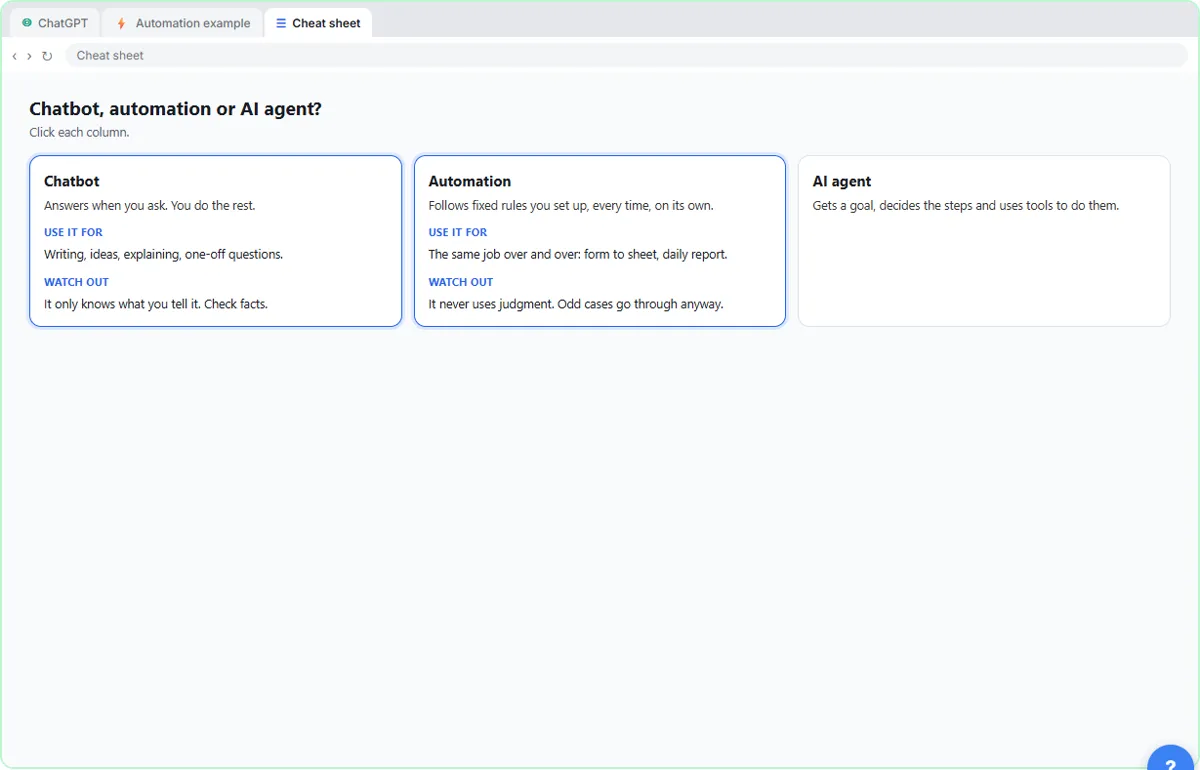
- Open the cheat sheet. Click the Cheat sheet tab.
You've now seen all three.
- When to use a chatbot. Click the Chatbot column.
Use a chatbot for writing, ideas and questions, when you're happy to do the last step yourself. It only knows what you tell it, so check the facts.
- When to use an automation. Click the Automation column.
Use an automation for the same job over and over, like a form going into a sheet, or a daily report. It's cheap, fast and dependable, but it never uses judgment.
- When to use an AI agent. Click the AI agent column.
Use an agent when the job needs a little judgment along the way. Give it a clear goal and clear limits, and approve anything that goes out to a customer. Many businesses end up using all three together.
Screenshots
Frequently asked questions
- What is the difference between an AI agent and a chatbot?
- A chatbot answers your questions and leaves the rest of the work to you. An AI agent takes a goal, decides the steps, uses tools such as your email or files to carry them out, and can make small judgment calls along the way.
- Is an automation the same as an AI agent?
- No. An automation follows fixed rules you set up, like "when an invoice is 14 days late, send this email". It is dependable but never uses judgment. An agent works out its own steps toward a goal, which makes it more flexible and also means you should check its work.
- What is ChatGPT Work?
- Work is ChatGPT's mode for handing off whole tasks, chosen with the Chat and Work switch at the top of the page. It replaced the older agent mode. It can read files, browse, and use plugins for apps like Gmail and Slack, and it shows the steps it took when it finishes.
- Can an AI agent send emails to my customers on its own?
- It can if you connect your email and allow it, but you should not start that way. Ask for drafts, tell it not to send anything, and set it to ask for approval before sensitive actions. Check every name, amount and date before anything goes out.
- Is this lesson free?
- Yes. Stepthrough is completely free and the practice copy needs no account. To try Work for real you need your own ChatGPT account; how much you can use it depends on your plan.
More in AI Basics
More ChatGPT tutorials
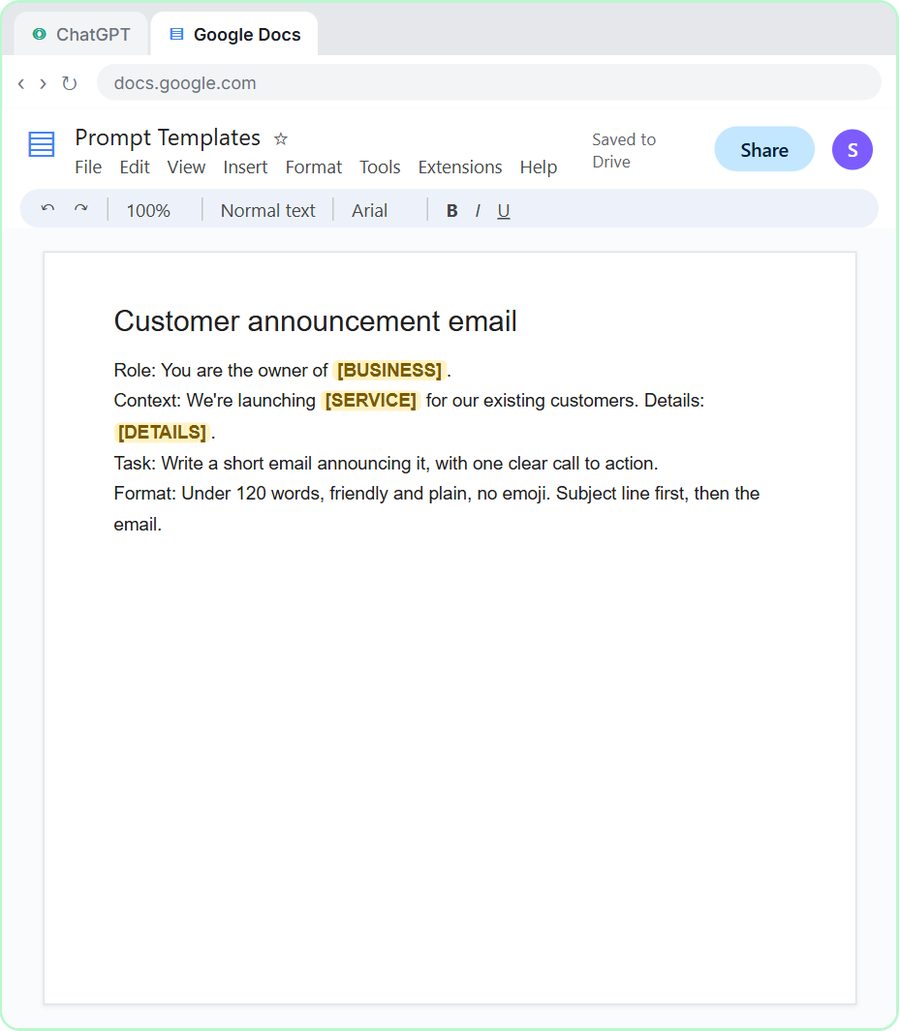 Prompt Writing 101: Role, Context, Task, Format
Ask ChatGPT for the same customer email twice, once vaguely and once with a four-part prompt, and see exactly why structure gets a better answer.
Free · Live ~8 min
 Get Your Business Recommended by ChatGPT
Ask ChatGPT who it recommends in your town, see which pages it trusts, then use it to write an FAQ page and Business Profile copy that answer real customer questions.
Free · Live ~10 min
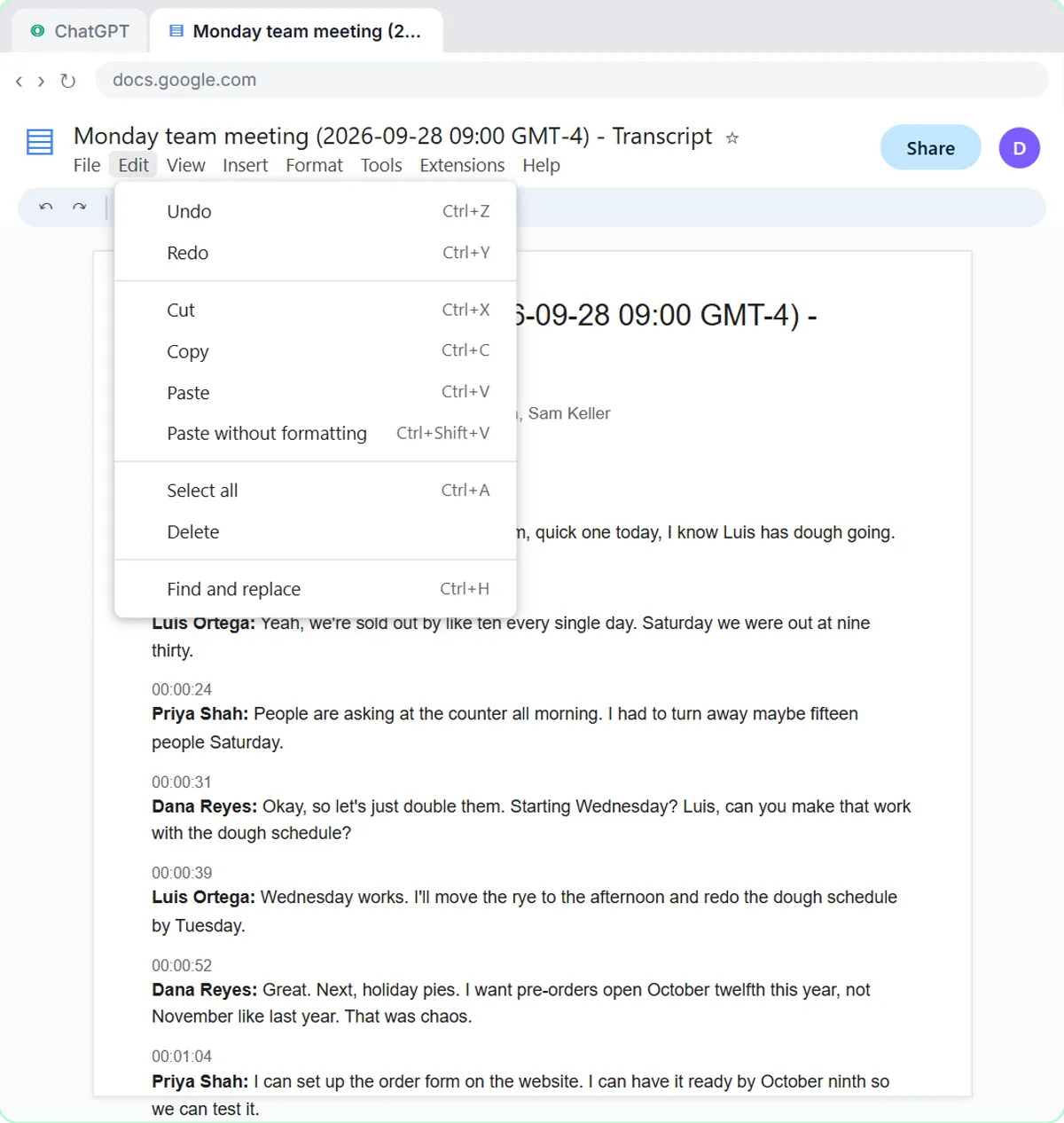 Summarize a Meeting Transcript with ChatGPT
Paste a long meeting transcript into ChatGPT and get the decisions, an action items table with owners and due dates, and a follow-up email ready to send.
Free · Live ~9 min
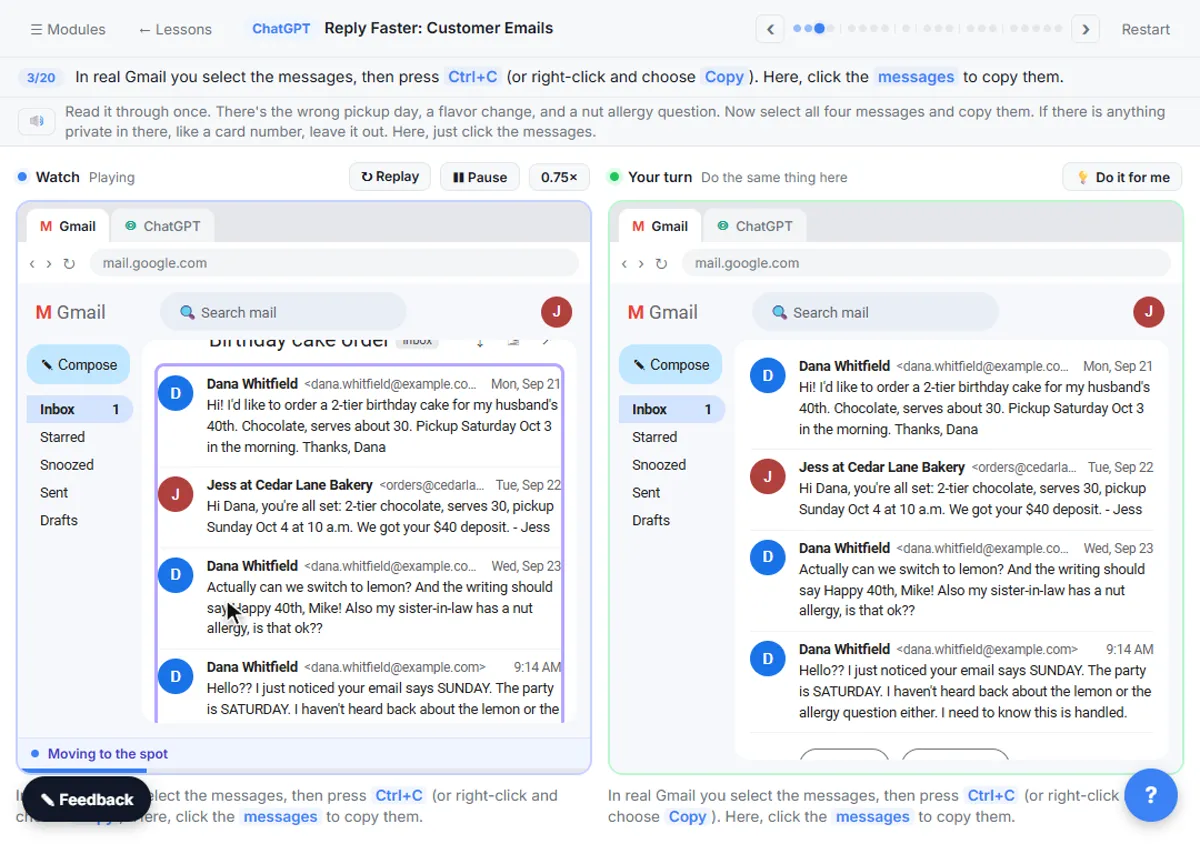 Reply Faster: Turn a Messy Customer Email Thread into a Clear, Friendly Reply
Turn a messy customer email thread into a clear, friendly reply: give ChatGPT the thread and your facts, check every promise, fix the tone, and send it from Gmail.
Free · Live ~9 min
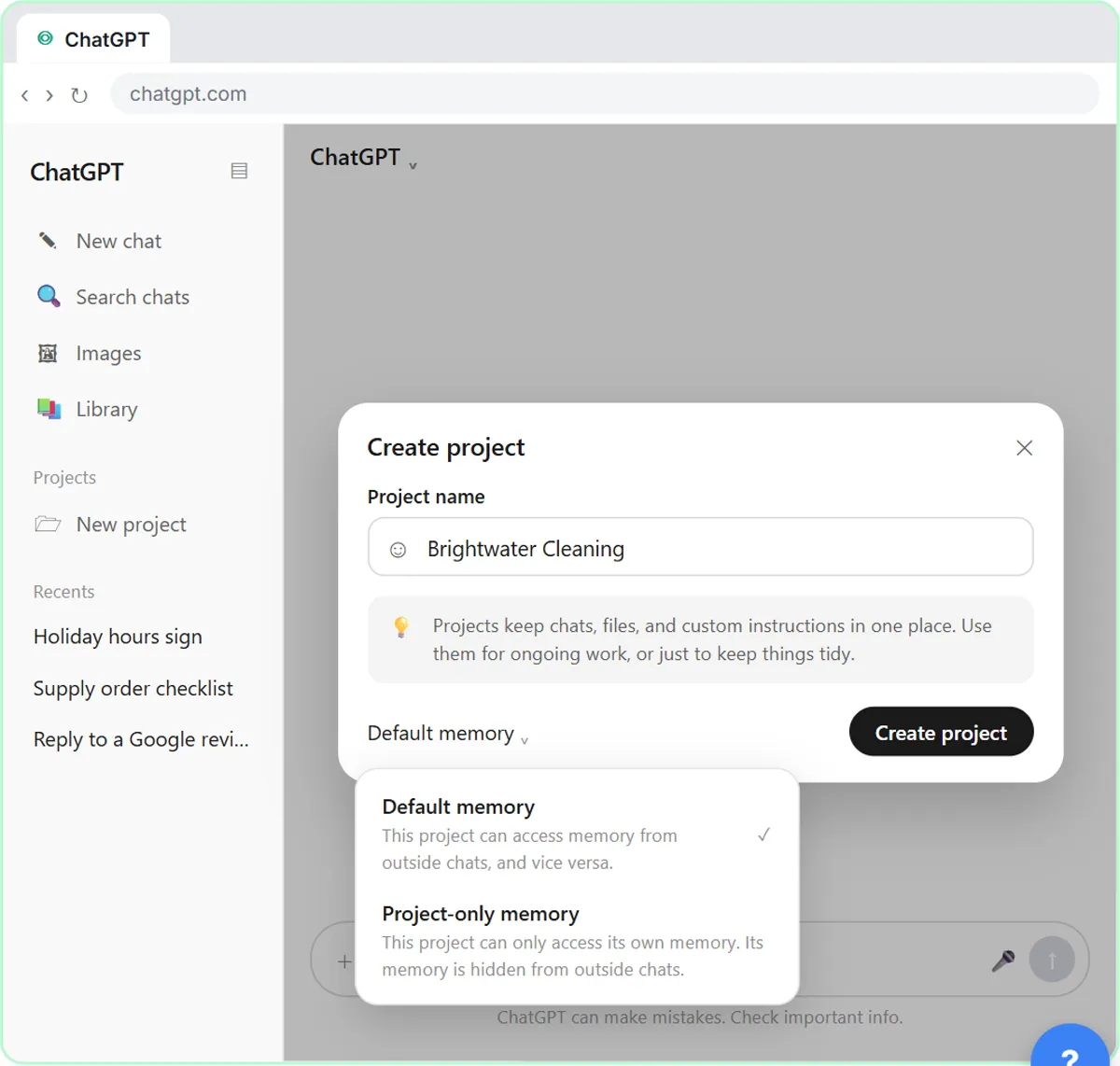 ChatGPT Projects: Keep Your Brand Voice, Files and Instructions in One Place
Set up a ChatGPT Project with your brand voice instructions, your price list and your style guide, so every new chat already knows your business.
Free · Live ~9 min
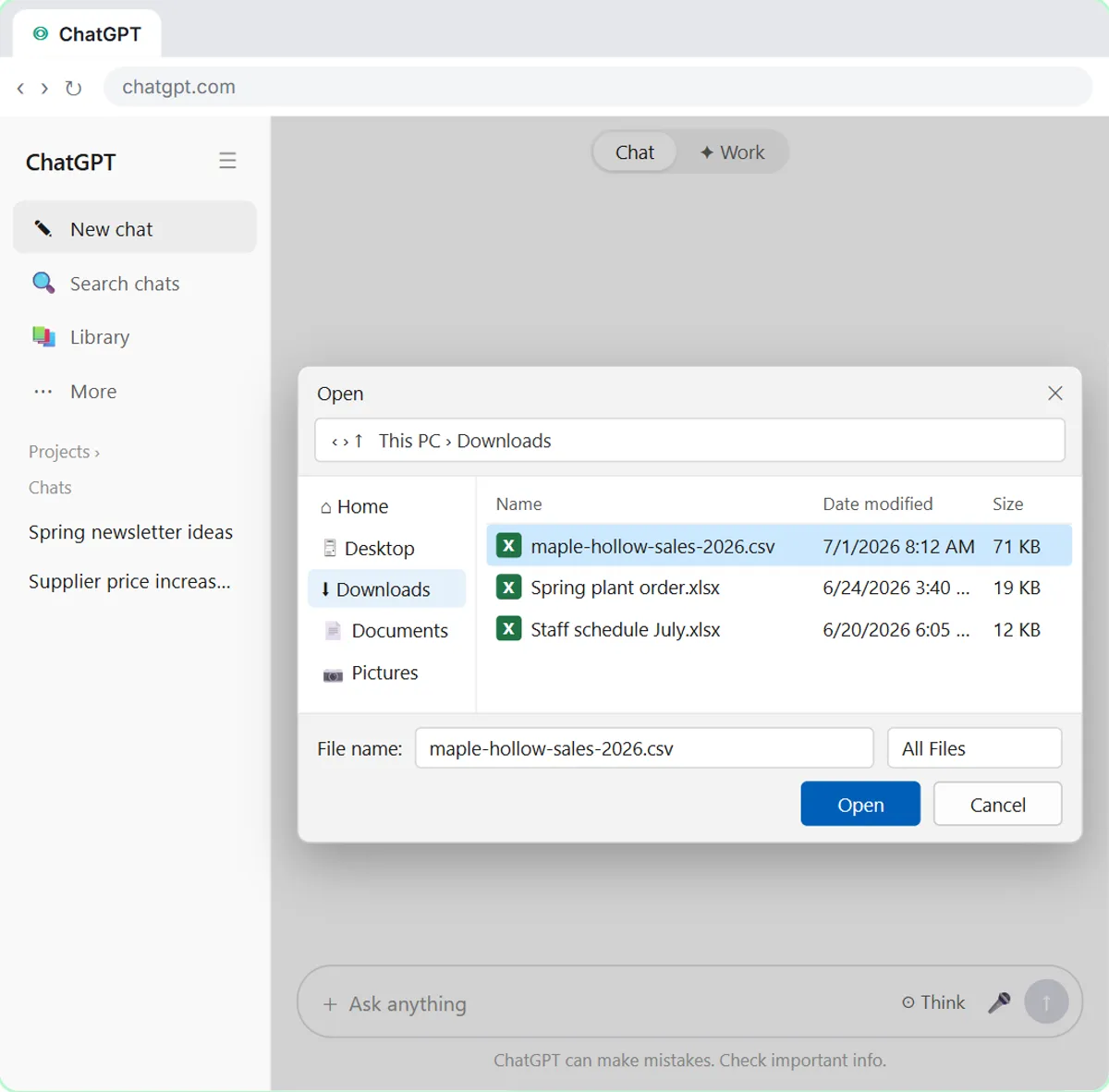 Analyze a Spreadsheet with ChatGPT: Upload a CSV, Get a Chart and Three Takeaways
Upload a CSV of sales to ChatGPT, have it check the data first, ask your questions, get a chart you can download, and finish with the three takeaways that matter.
Free · Live ~10 min
Terms in this lesson
Plain-English definitions, each with an example from a free lesson.