Updated . Built against the tool’s current screens and checked step by step. How we check this lesson
Sort six office jobs into plain rules, AI steps and human decisions, then see the safe shape of an AI automation and how n8n, Make and Zapier each add the AI step.
At a glance
| Question | Answer |
|---|---|
| What you build | Sort six office jobs into plain rules, AI steps and human decisions, then see the safe shape of an AI automation and how n8n, Make and Zapier each add the AI step. |
| Tools | Automation basics |
| Time | About 6 minutes, 16 steps in 3 parts |
| Level | Beginner, no coding needed |
| Cost | Free |
| Ways to learn it | Practice it step by step |
The 3 parts, in short
- Rule, AI or a person?: Copying inquiries into a tracker, Sorting emails by what they say, A deadline reminder, Drafting a reply, and 2 more steps.
- Where the AI step goes: See where the AI step goes, The trigger, The AI step, The rule after it, and 2 more steps.
- Your tool: See how each tool adds AI, AI in n8n, AI in Make, AI in Zapier.
Start here first: Start Here: How Stepthrough Works (module 1 of AI Basics)
Part of: Email on Autopilot (step 4 of 14). Next up: Zapier: ChatGPT Drafts Every Reply, Signatoro Signs It
Part of: Zapier Jump Start (step 3 of 4). Next up: Zapier: ChatGPT Drafts Every Reply, Signatoro Signs It
Part of: Make Jump Start (step 4 of 7). Next up: Add AI to Make.com: ChatGPT Writes a Personal Reply, Gmail Sends It
Part of: AI Agents 101 (step 2 of 13). Next up: What Are Claude Skills? Turn One On and Watch It Work
What you'll build
Most of an automation is plain rules that are free and never make things up. AI is worth adding only where a step has to read, write or judge messy words, like sorting client emails or drafting a reply. In this module you sort six jobs for a small bookkeeping firm into rules, AI steps and human decisions, then walk through the safe shape of an AI automation: trigger, one small AI step, a rule, a person, then the action. Last, you see how n8n, Make and Zapier each add that AI step. About 6 minutes, nothing to set up, and every screen is a plain diagram.
Use plain rules for anything that is the same every time. Add an AI step only to read, write or judge messy words, give it one job and a fixed list of answers, and let a rule act on what it returns. Keep a person on anything a client will see, and save drafts instead of sending. Remember the second bill: the AI model is paid for separately. Next, add a real AI step in your course's tool.
- Tools: Automation basics
- Time: about 6 minutes, 16 steps in 3 chapters
- Level: beginner, no coding needed
- Price: free
Practice first, then build it for real
Every screen here is a plain diagram, not n8n, Make or Zapier. Nothing is sent and no account is needed. The firm and its jobs are made up. To build it for real you need your own Automation basics account, and some services charge once you use them for real work, so check each tool's current pricing.
Try it yourself, free
Reading the steps is a start. Doing them is how it sticks. The interactive module walks you through every click in a practice copy of Automation basics, checks each step, and never touches your real accounts.
Start “When to Add AI to an Automation (n8n, Make or Zapier)”Step by step: When to Add AI to an Automation (n8n, Make or Zapier)
All 16 steps of the interactive module, in order. In the module you watch each one, then do it yourself in a practice copy that checks your work.
1. Rule, AI or a person?
- Copying inquiries into a tracker. Click card 1 to see which kind of step it needs.
Priya at Harbor Lane Bookkeeping has six jobs she'd like to automate. For each one, ask: is this a plain rule, an AI step, or a person's call? Copying inquiries into a tracker is the same every time. No AI needed.
- Sorting emails by what they say. Click card 2 to see which kind of step it needs.
Card two. Clients word things a hundred ways. A keyword rule would miss some. This is a good AI step: it reads the meaning and picks one label.
- A deadline reminder. Click card 3 to see which kind of step it needs.
Card three. A date and a template. A schedule does it. Adding AI here would only add cost and risk.
- Drafting a reply. Click card 4 to see which kind of step it needs.
Card four. Writing from a client's messy words is what AI is good at. But save it as a draft, so a person reads it first.
- Reading invoice PDFs. Click card 5 to see which kind of step it needs.
Card five. Every vendor lays out an invoice differently. AI can pull out the total and the due date. Check the numbers before you pay.
- A refund decision. Click card 6 to see which kind of step it needs.
Card six. Money and a client relationship. AI can sum up the history, but a person makes this call.
2. Where the AI step goes
- See where the AI step goes. Click the Where the AI goes tab.
Now let's put an AI step inside a real automation.
- The trigger. Click the Trigger card.
It still starts with a plain trigger: a new email arrives. No AI needed to notice an email.
- The AI step. Click the AI step card.
The AI step has one clear job. Read the email, pick one label from a fixed list, and write a short draft. A fixed list matters, because the next step depends on it.
- The rule after it. Click the Rule card.
Then a plain rule acts on the label. If it says billing, go one way. Rules are cheap and predictable, so let them do the routing.
- The person. Click the Person card.
Anything a client will read gets a human check, at least until you trust it. Priya reads the draft and approves it.
- The action. Click the Action card.
Last, the action saves a draft. Draft, not send. That one choice makes most AI automations safe to try.
3. Your tool
- See how each tool adds AI. Click the Your tool tab.
n8n, Make and Zapier can all add an AI step.
- AI in n8n. Click the n8n column.
In n8n, use an OpenAI node for one task, or the AI Agent node when the AI needs memory and tools. It's the strongest choice for agents and for answering from your own documents.
- AI in Make. Click the Make column.
In Make, add the OpenAI module and pick Generate a response. Filters and routers then act on the answer.
- AI in Zapier. Click the Zapier column.
In Zapier, add the ChatGPT app or AI by Zapier. With any of the three, the AI model has its own bill, so start with one small step and a person checking it.
More in AI Basics
Try the practice in under two minutes: watch a step, click, type, get unstuck with Do it for me, and finish.
Free · Live ~2 min Beginner
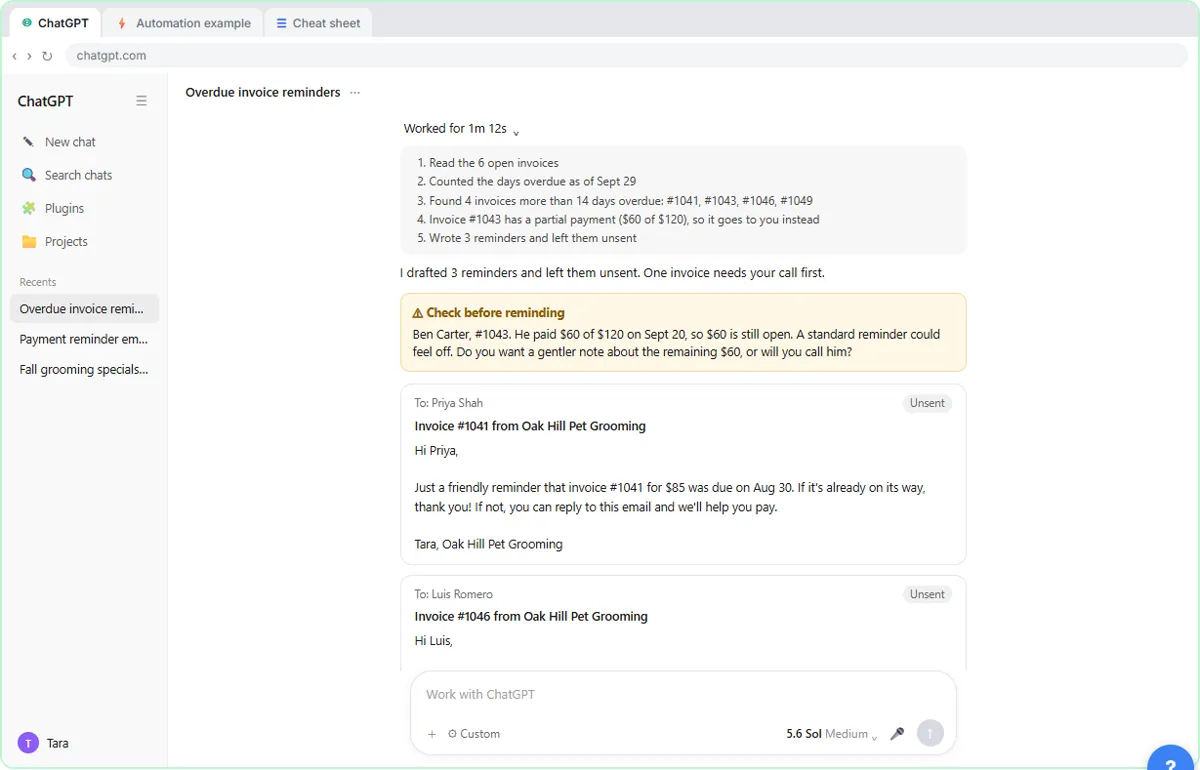 AI Agent vs Chatbot vs Automation: One Job Done Three Ways
Chase six unpaid invoices three ways: a chatbot writes a template, an automation follows a rule, and an AI agent works out the steps and flags the tricky one.
Free · Live ~7 min Beginner
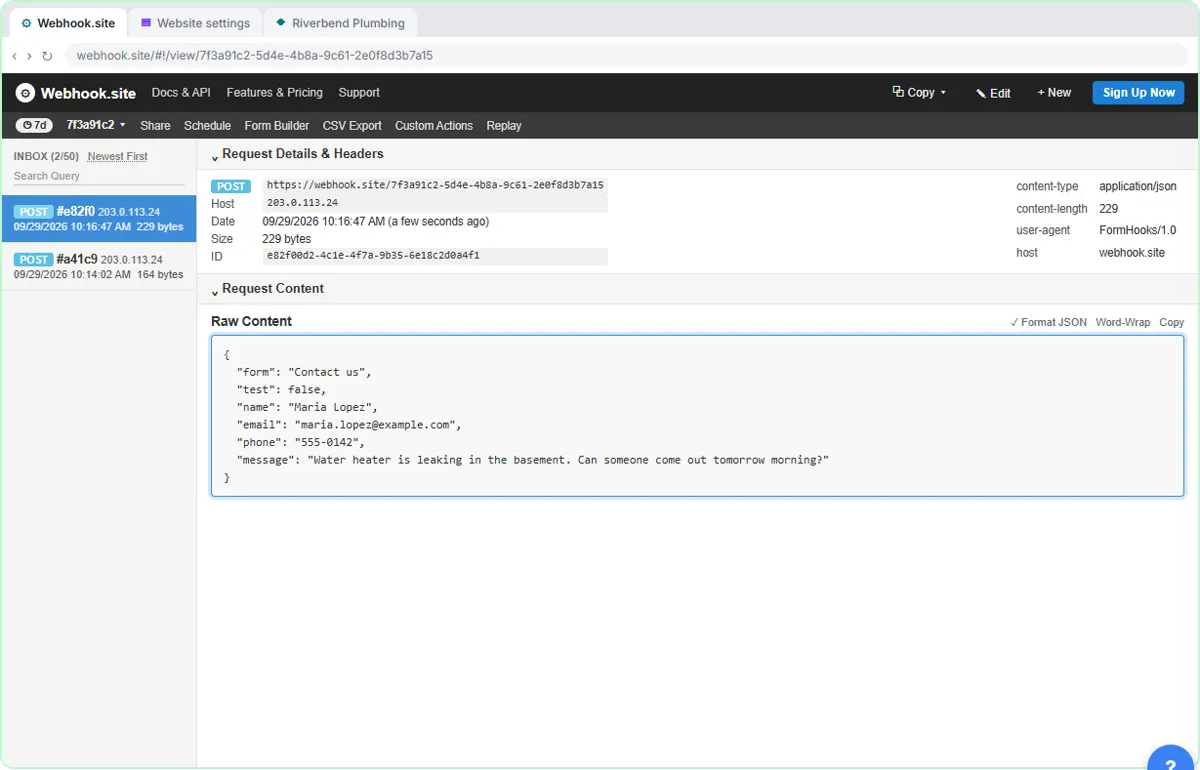 What Is a Webhook? Send a Test and Watch the Data Arrive
Point a plumber's website contact form at a free webhook tester, send a test and a real message, and watch the data arrive the moment it's sent.
Free · Live ~6 min Intermediate
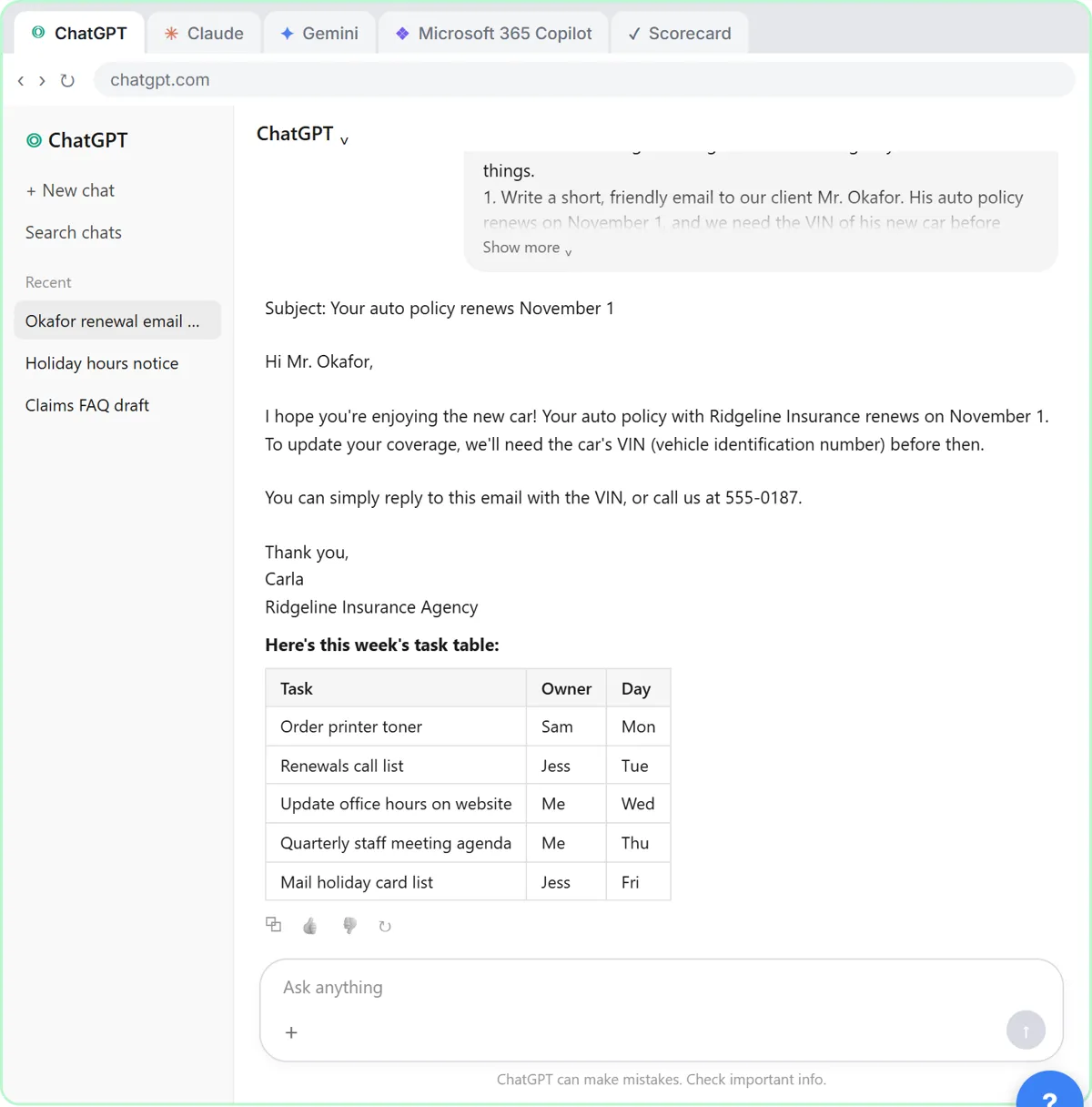 Choose the AI Assistant Your Team Should Use, Tested on ChatGPT, Claude, Gemini and Copilot
Give one real office task to ChatGPT, Claude, Gemini and Microsoft Copilot, check each answer on the facts, and pick the one to use at work.
Free · Live ~8 min Beginner
◷ChatGPT: Keep Client Data Safe, Set Up Your Team's Data Controls in 10 MinutesA client asks if their files go into ChatGPT. Answer with confidence: set the data controls, memory, Temporary Chat and shared links, then hand your team a one-page AI…
Free · Live ~10 min Beginner
◷Clear Client Data Out of ChatGPT Before It Becomes a Problem: Delete Chats, Clear Memory and Use Temporary ChatSomeone pasted client details into ChatGPT. Delete that one chat, archive what you keep, clear the one memory it left, set safe defaults and start using Temporary Chat.
Free · Live ~10 min Beginner
Terms in this lesson
Plain-English definitions, each with an example from a free lesson.