Updated . Built against the tool’s current screens and checked step by step. How we check this lesson
Learn the three ideas behind every n8n workflow, Make scenario and Zap: a trigger starts it, actions do the jobs, and data mapping carries the details. Fix the classic typed-in mistake.
At a glance
| Question | Answer |
|---|---|
| What you build | Learn the three ideas behind every n8n workflow, Make scenario and Zap: a trigger starts it, actions do the jobs, and data mapping carries the details. Fix the classic typed-in mistake. |
| Tools | Automation basics |
| Time | About 6 minutes, 17 steps in 4 parts |
| Level | Beginner, no coding needed |
| Cost | Free |
| Ways to learn it | Practice it step by step |
The 4 parts, in short
- The recipe: Look at the trigger, Look at the first action, Look at the second action.
- Map the data: Open the data mapping, Read what the form sends, Map the client name, Map the email, and 3 more steps.
- Test it: Open the test, Run a test, Check the new row.
- Same idea, three tools: Open the cheat sheet, The words in n8n, The words in Make, The words in Zapier.
Start here first: Start Here: How Stepthrough Works (module 1 of AI Basics)
Part of: Zapier Jump Start (step 1 of 4). Next up: Never Miss a New Client Inquiry using Zapier
Part of: Make Jump Start (step 1 of 7). Next up: Your First Make.com Scenario: Google Forms to Google Sheets
Part of: Webhooks & Website Forms (step 1 of 8). Next up: What Is a Webhook? Send a Test and Watch the Data Arrive
Part of: n8n for Beginners: Your First Automations (step 1 of 11). Next up: n8n: What Is n8n? Build Your First Workflow
What you'll build
A small bookkeeping firm copies every new client inquiry into a spreadsheet by hand. Before you build the automation that does it for them in n8n, Make or Zapier, learn the three ideas all three tools share: the trigger that starts it, the actions that do the work, and the data mapping that carries the client's name and message from one step to the next. You'll map five fields, fix the most common beginner mistake and test the result. It takes about 6 minutes, nothing to set up, and every screen is a plain diagram, not a real app.
A trigger starts it. Actions do one job each. Data mapping points each box at a label from an earlier step, so every run fills in its own details, and typed words stay the same forever. Test with a sample before you turn it on, and check that no column comes out blank. Next, build a real one: the next module in your course does exactly this in the real tool.
- Tools: Automation basics
- Time: about 6 minutes, 17 steps in 4 chapters
- Level: beginner, no coding needed
- Price: free
Practice first, then build it for real
Every screen here is a plain diagram, not n8n, Make or Zapier. Nothing is sent and no account is needed. The firm and the inquiry are made up. To build it for real you need your own Automation basics account, and some services charge once you use them for real work, so check each tool's current pricing.
Try it yourself, free
Reading the steps is a start. Doing them is how it sticks. The interactive module walks you through every click in a practice copy of Automation basics, checks each step, and never touches your real accounts.
Start “Automation Basics: Triggers, Actions and Data Mapping”Step by step: Automation Basics: Triggers, Actions and Data Mapping
All 17 steps of the interactive module, in order. In the module you watch each one, then do it yourself in a practice copy that checks your work.
1. The recipe
- Look at the trigger. Click the When card.
Priya runs the office at Harbor Lane Bookkeeping. New client inquiries come in through the website, and she copies each one into a spreadsheet by hand. Every automation that fixes this starts with a trigger. The trigger is the event that starts it. Here, it's a new inquiry from the contact form.
- Look at the first action. Click the first Then card.
After the trigger come the actions. An action is one job the automation does. The first one adds a row to the client tracker.
- Look at the second action. Click the second Then card.
The second action emails Priya. Notice the curly brackets around name. That spot gets filled in with the real client's name each time. That's data mapping, and it's next.
2. Map the data
- Open the data mapping. Click the Data mapping tab.
- Read what the form sends. On the left, click the sample inquiry to read its labels and values.
On the left is what the form sends for one inquiry. Each piece has a label and a value. The label is name, the value is Maria Lopez. Every tool shows you a sample like this after you test the trigger.
- Map the client name. In the Add a row action on the right, click the Client name box to fill it from name.
On the right are the boxes of the add a row action. It now points at the name label, so every new inquiry fills in its own name.
- Map the email. Click the Email box to fill it from email.
Same for the email.
- Map the service. Click the Service box to fill it from service.
And the service they asked about.
- Fix the typed-in note. The Notes box has words typed into it. Click it to map message instead.
Here's the most common beginner mistake. Someone typed words into the Notes box. Typed words never change, so every row would say the same thing.
- Map the date. Click the Date received box to fill it from submitted_at.
Last one. The label here is submitted underscore at, not date. Labels don't always match your column names, which is why you read the sample first.
3. Test it
- Open the test. Click the Test run tab.
Now test it before you turn it on.
- Run a test. Click Run test with the sample.
Every tool lets you run the automation once with the sample data.
- Check the new row. Click the new row in the client tracker.
Check the result like a customer would see it. Every column has the right value, and the notes show Maria's real message. If a box were blank, you'd go back and check which label you picked.
4. Same idea, three tools
- Open the cheat sheet. Click the Cheat sheet tab.
n8n, Make and Zapier all work this way. They just use different words.
- The words in n8n. Click the n8n column.
In n8n, the whole automation is a workflow, and each box is a node. You map data by dragging a field into a box.
- The words in Make. Click the Make column.
In Make, the automation is a scenario, and each step is a module. You click a box and pick from the earlier module.
- The words in Zapier. Click the Zapier column.
In Zapier, the automation is a Zap. The first step is the trigger and every step after it is an action. Learn the idea once, and all three get easier.
More in AI Basics
Try the practice in under two minutes: watch a step, click, type, get unstuck with Do it for me, and finish.
Free · Live ~2 min Beginner
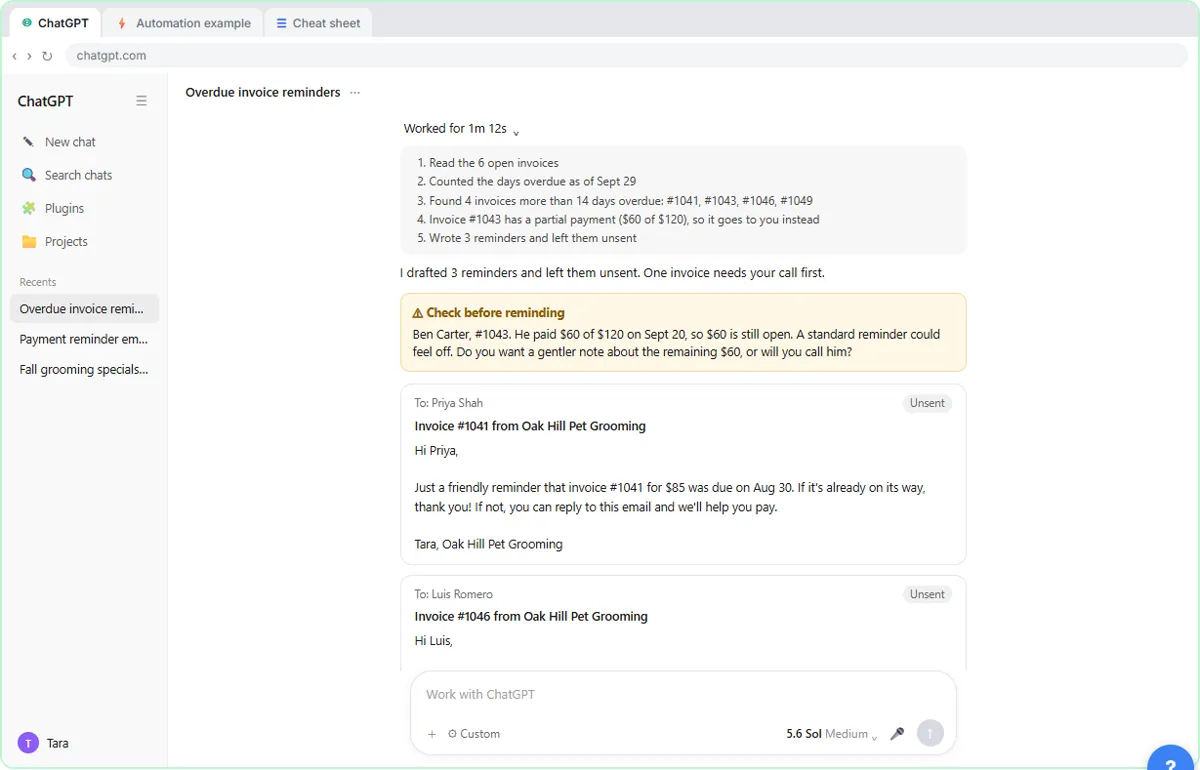 AI Agent vs Chatbot vs Automation: One Job Done Three Ways
Chase six unpaid invoices three ways: a chatbot writes a template, an automation follows a rule, and an AI agent works out the steps and flags the tricky one.
Free · Live ~7 min Beginner
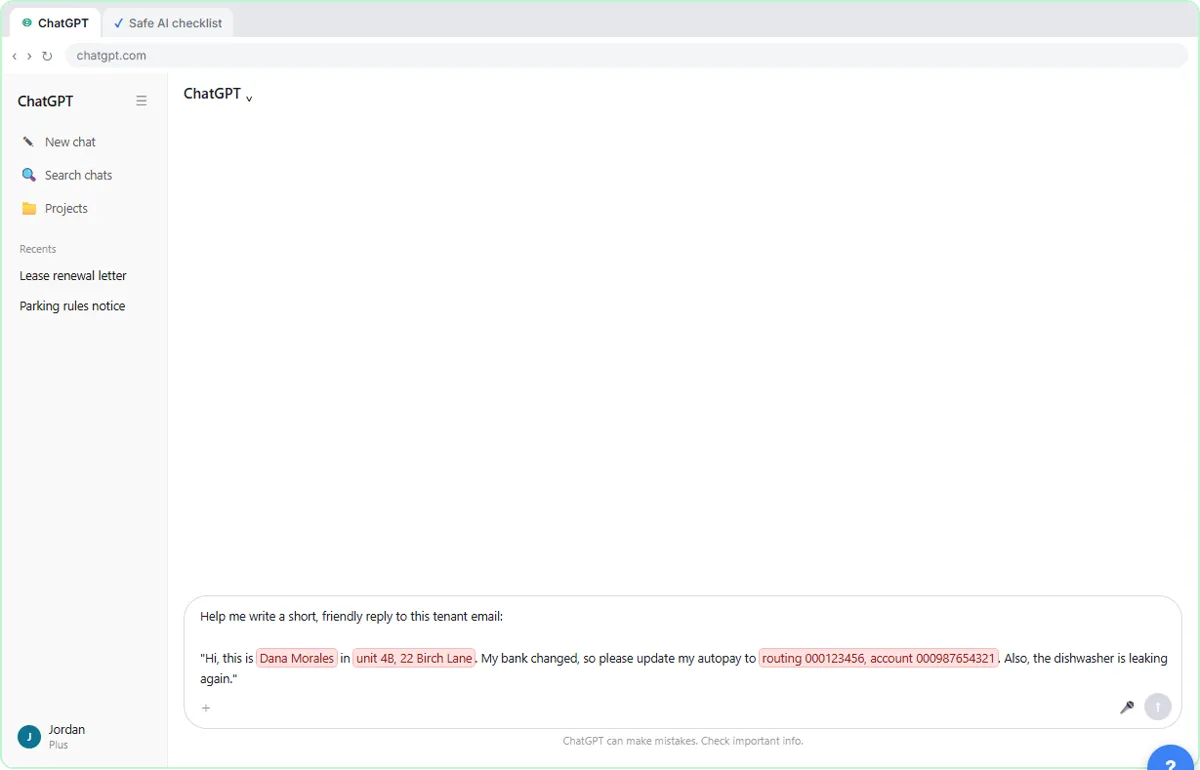 Use AI at Work Without Leaking Client Data using ChatGPT
Turn off model training, strip a tenant's bank details and address out of a prompt, then catch the two promises ChatGPT made up before the reply goes out.
Free · Live ~7 min Beginner
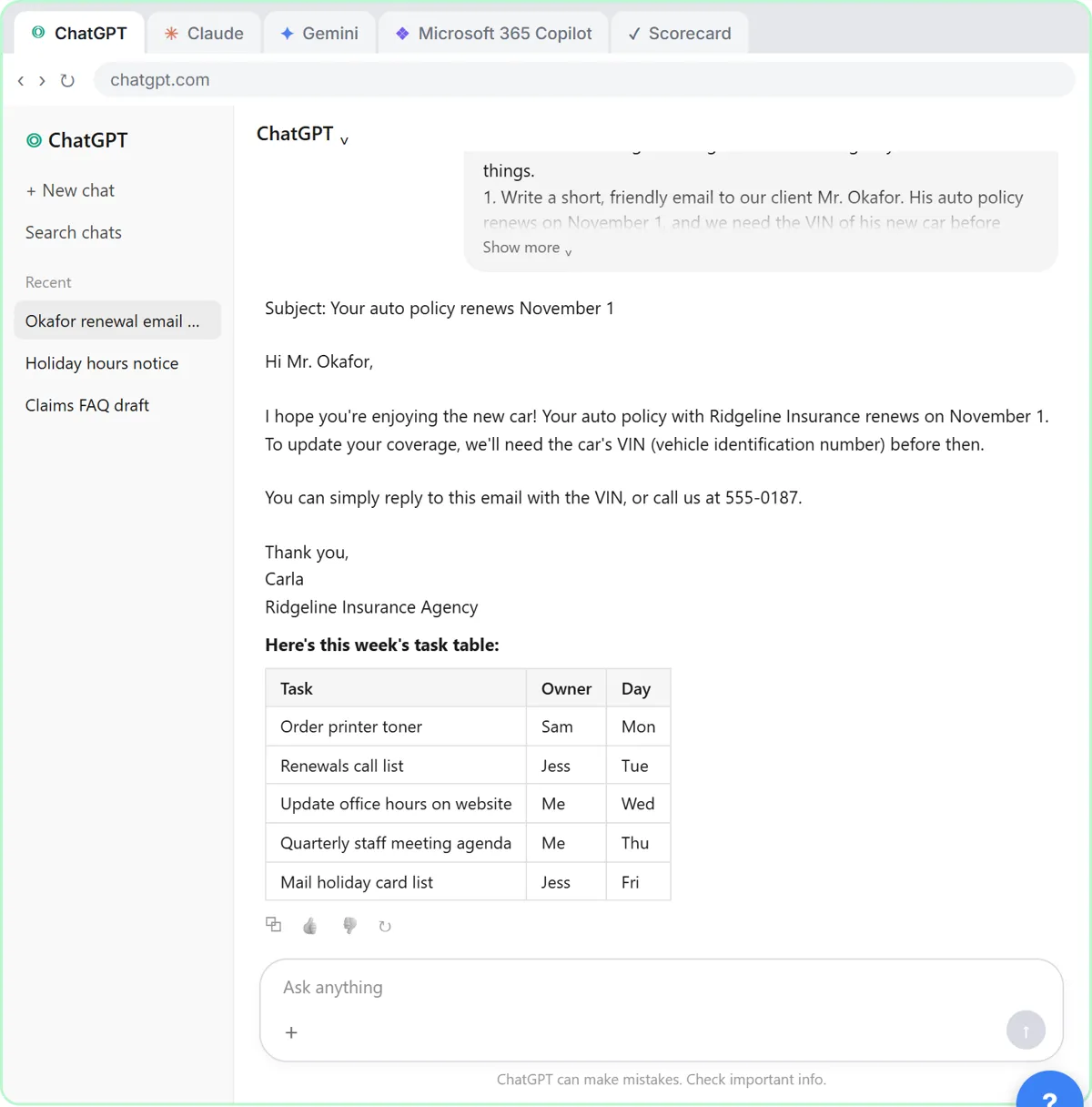 Choose the AI Assistant Your Team Should Use, Tested on ChatGPT, Claude, Gemini and Copilot
Give one real office task to ChatGPT, Claude, Gemini and Microsoft Copilot, check each answer on the facts, and pick the one to use at work.
Free · Live ~8 min Beginner
◷ChatGPT: Keep Client Data Safe, Set Up Your Team's Data Controls in 10 MinutesA client asks if their files go into ChatGPT. Answer with confidence: set the data controls, memory, Temporary Chat and shared links, then hand your team a one-page AI…
Free · Live ~10 min Beginner
◷Clear Client Data Out of ChatGPT Before It Becomes a Problem: Delete Chats, Clear Memory and Use Temporary ChatSomeone pasted client details into ChatGPT. Delete that one chat, archive what you keep, clear the one memory it left, set safe defaults and start using Temporary Chat.
Free · Live ~10 min Beginner
Terms in this lesson
Plain-English definitions, each with an example from a free lesson.