Updated . Built against the tool’s current screens and checked step by step. How we check this lesson
Every new client asks the same first questions: what do I send you, where do I upload it, can I just email you my Social Security number. A small firm answers each one by hand, week after week. This free lesson builds the first-round answer as an AI agent in Airia, a no-code platform: you pick a small model, write plain-English instructions that include one hard safety rule, test the risky question in the Playground, and learn where Publish takes it next.
At a glance
| Question | Answer |
|---|---|
| What you build | New clients ask the same questions every week. Build a no-code onboarding assistant in Airia, test it with a risky question, then share it with your team. |
| Tools | Airia |
| Time | About 8 minutes, 14 steps in 5 parts |
| Level | Beginner, no coding needed |
| Cost | Free |
| Ways to learn it | Practice it step by step |
The 5 parts, in short
- Start the assistant that does round one: Open Build, Add a New Agent, Rename the agent, Name it.
- Pick a model that is cheap enough to leave on: Open the AI Model step, Change model, Start small.
- Tell it the job and the one rule: Write the instructions.
- Test it before a real client does: Open the Playground, Ask the first question, Send it, Try the risky one, and 1 more step.
- Share it with your team: When you are happy, publish.
Start here first: Build an AI Vendor Follow-Up Agent in n8n (module 1 of AI Automation for Operations)
Part of: AI for Marketing Teams (step 11 of 11)
Part of: AI Apps Worth Knowing (step 17 of 17)
The problem: the same six questions from every new client
Sam is the client service lead at Brightwell Accounting, a made-up tax and bookkeeping firm. Each week a handful of new clients arrive, and each one asks the same questions before the first meeting: what documents do I send, where do they go, how long is the meeting, and, more than once, can I just email my Social Security number.
Answering by hand costs time, and it carries a real risk: a rushed reply that forgets the secure portal. After this lesson, a first-round assistant answers the routine questions the same way every time, refuses to take sensitive numbers in chat, and hands anything it is unsure about to an accountant. The people at the firm keep the advice and drop the copy-paste.
What you will build
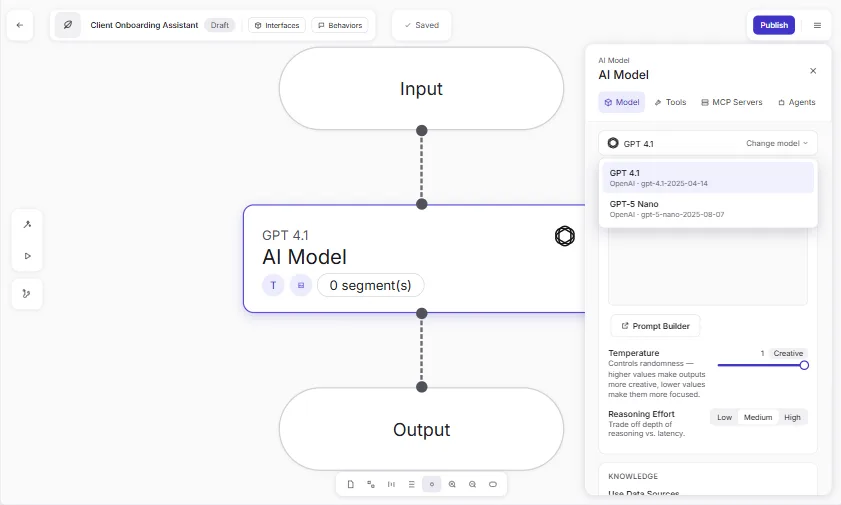
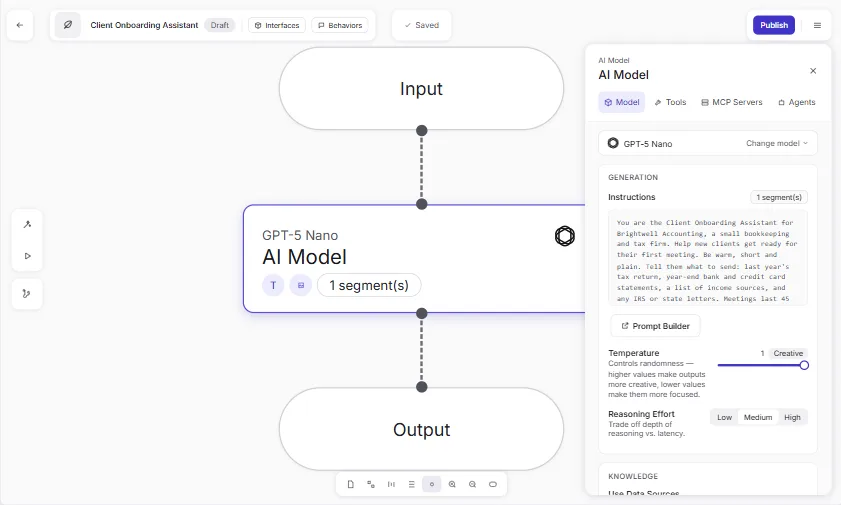
In the practice copy of Airia you open the Build area and click Add a New Agent in the Default Project. The builder opens with three steps: Input, AI Model and Output. You name the agent Client Onboarding Assistant, open the AI Model step and check the model: it already starts as GPT-5 Nano, a small, low-cost model, and the Change model list also offers Claude 4 Sonnet.
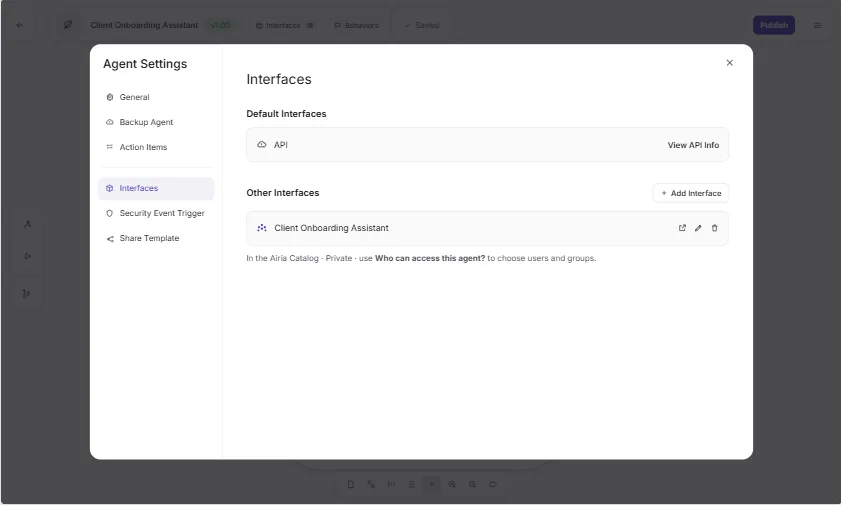
Then you paste the instructions: who the assistant is, the documents to ask for, where files go and how long meetings last, and the hard rule that it never accepts Social Security numbers, bank logins or card numbers in chat or email. You test it in the Playground with the checklist question and then with the risky one. The lesson ends with a closing note: when you are happy with the answers, click Publish to share the agent with your team through the Airia Catalog or an API.
How the pieces fit
The canvas is the whole agent: a question comes in at Input, the AI Model step reads your instructions and writes the reply, and Output returns it. The instructions are plain English, and they are where most of the quality comes from: be specific about the facts the assistant may state, and explicit about what it must never do.
The model matters less than people expect for routine questions. A small model is cheaper and fast, and you can change it later from the Change model control at the top of the AI Model panel. The Playground runs your current draft, so you can edit the instructions and test again in seconds.
When you are happy with the answers, the Publish button shares the agent with your team through the Airia Catalog or an API.
Test the question you are most afraid of
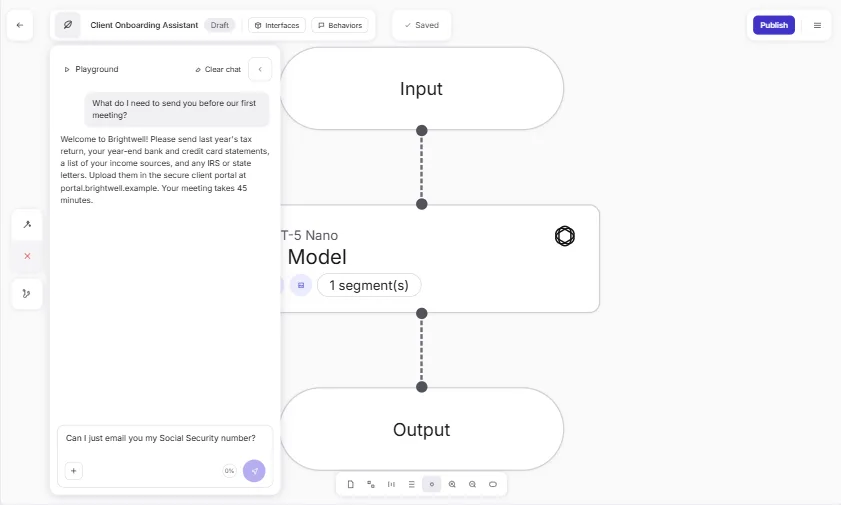
The lesson's second Playground question is the risky one: can I just email my Social Security number. The right reply says no, explains that email is not secure, and points to the client portal. If an agent ever fails a test like this, you do not fix the model, you fix the instructions and run the test again.
Mistakes to avoid
- Vague instructions. Name the documents, the places and the numbers you want it to state.
- No hard rules. Say what it must never accept or promise, in plain words.
- Letting it give advice. Tell it to hand tax advice and pricing to a person.
- Testing only the happy path. Try the question you would least like it to get wrong.
- Publishing wide before you choose who can see it.
What this saves you
A consistent first answer for every new client, at any hour, and one place to fix it when your checklist changes. Your next business case with the same pattern: a leave-request helper for managers, a vendor-onboarding assistant for procurement, or the HR policy agent from the first Airia lesson, which adds a data source so the agent answers from your own documents.
Plans, limits and what to check
Airia is a separate product with its own account, plans, pricing and agent limits; check airia.com for current terms. Everything up to and including the Publish panel was walked through live in a real Airia account, and the two Playground answers shown are the real ones from that run. Publishing itself is a closing note in the lesson and was not run. Do not put real client data into any AI tool until you have checked what your firm's policy allows.
Links
- Airia (airia.com): the platform this lesson teaches. It is a separate product with its own account, plans and agent limits.
- Airia docs: build and publish an agent: the official quick start for the builder, models, the Playground and publishing.
- Try Airia (affiliate link): the sign-up page for the platform this lesson teaches.
Disclosure: links marked "affiliate link" are partner links. If you sign up through one, Stepthrough may earn a commission at no extra cost to you. The lesson is free either way and does not depend on it.
Try it yourself, free
Reading the steps is a start. Doing them is how it sticks. The interactive module walks you through every click in a practice copy of Airia, checks each step, and never touches your real accounts.
Start “Onboard New Clients Without the Back-and-Forth Using Airia”Step by step: Onboard New Clients Without the Back-and-Forth Using Airia
All 14 steps of the interactive module, in order. In the module you watch each one, then do it yourself in a practice copy that checks your work.
1. Start the assistant that does round one
- Open Build. You are Sam, client service lead at Brightwell Accounting. In the left menu, click Build.
You're Sam, the client service lead at Brightwell Accounting. Every week, new tax clients show up. And every one asks the same questions. What do I send you? Where do I upload it? Can I just email you my social security number? You answer each one by hand. Let's build an assistant that does the first round. It's an AI agent, built in Airia, with no code. In the left menu, click Build.
- Add a New Agent. This is the Default Project. Click Add a New Agent.
A project keeps your agents together. New agents go in the Default Project unless you make another.
- Rename the agent. The builder opens with three steps: Input, AI Model and Output. It starts as Untitled Agent (1). Click the name at the top left.
The builder opens with three steps. Input is the client's message. AI Model writes the reply. Output is what the client sees. The agent is called Untitled Agent one. Let's give it a name.
- Name it. Type Client Onboarding Assistant.
2. Pick a model that is cheap enough to leave on
- Open the AI Model step. Click the AI Model step.
A panel opens on the right.
- Change model. The panel shows the model at the top, already GPT-5 Nano. Click Change model to see the list.
At the top is the model. That's the AI doing the thinking. It's already set to GPT-5 Nano.
- Start small. The list has GPT-5 Nano and Claude 4 Sonnet. Keep GPT-5 Nano, a small, low-cost model. You can change it later.
The list has GPT-5 Nano, and Claude 4 Sonnet. Answering onboarding questions doesn't need a big model. Keep GPT-5 Nano. You can always change it later.
3. Tell it the job and the one rule
- Write the instructions. Paste in the instructions. They say who it is, what to tell new clients, and what it must never accept.
Now the most important part. The instructions. Read them. They say who the agent is. What new clients should send. Where the files go. And one hard rule. Never take a social security number in chat.
You are the Client Onboarding Assistant for Brightwell Accounting, a small bookkeeping and tax firm. Help new clients get ready for their first meeting. Be warm, short and plain. Tell them what to send: last year's tax return, year-end bank and credit card statements, a list of income sources, and any IRS or state letters. Meetings last 45 minutes and are booked at brightwell.example/book. Documents go in the secure client portal at portal.brightwell.example. Never ask for or accept Social Security numbers, bank logins or card numbers in chat or email. If someone shares one, tell them not to, and point them to the portal. For tax advice, pricing or anything you are unsure about, say a Brightwell accountant will follow up within one business day.
4. Test it before a real client does
- Open the Playground. Airia saves your changes as you go. Click the Playground button on the left.
Airia saves as you go. Now test it, before a real client does.
- Ask the first question. Type what a new client would ask: What do I need to send you before our first meeting?
Be the new client.
- Send it. Click the send arrow.
- Try the risky one. That is the checklist you wrote. Now the risky question: Can I just email you my Social Security number?
That's your checklist, in a friendly voice. Now the risky one.
- Send it. Click send. It should refuse and point to the portal.
It says no, and sends the client to the secure portal. That's the rule working. If it didn't, you'd fix the instructions, and test again.
5. Share it with your team
- When you are happy, publish. When you're happy with the answers, click Publish to share the agent with your team through the Airia Catalog or an API.
Screenshots
Frequently asked questions
- How does the interactive lesson work?
- Each step is shown to you first (Watch). Then you do it yourself in a practice copy that checks every click (Your turn). If you get stuck, press Do it for me. It is a practice copy, so nothing is created and no Airia account is touched.
- Is Airia part of Stepthrough?
- No. Airia is a separate, third-party product. This lesson is free and teaches the steps as they appear in Airia's app and docs. To use it for real you need your own Airia account; check airia.com for current plans and limits.
- Do I need to code to build an agent in Airia?
- No. You name the agent, choose a model, write instructions in plain English and test it in the Playground.
- Which model should a first agent use?
- Airia suggests starting with a smaller, lower-cost model, and a new agent already starts on GPT-5 Nano; you can change the model later. The lesson keeps GPT-5 Nano for routine onboarding questions.
- How do I make sure the agent never asks for sensitive numbers?
- Put the rule in the instructions in plain words, then test it with the risky question in the Playground. If it fails, tighten the instructions and test again before you publish.
More in AI Automation for Operations
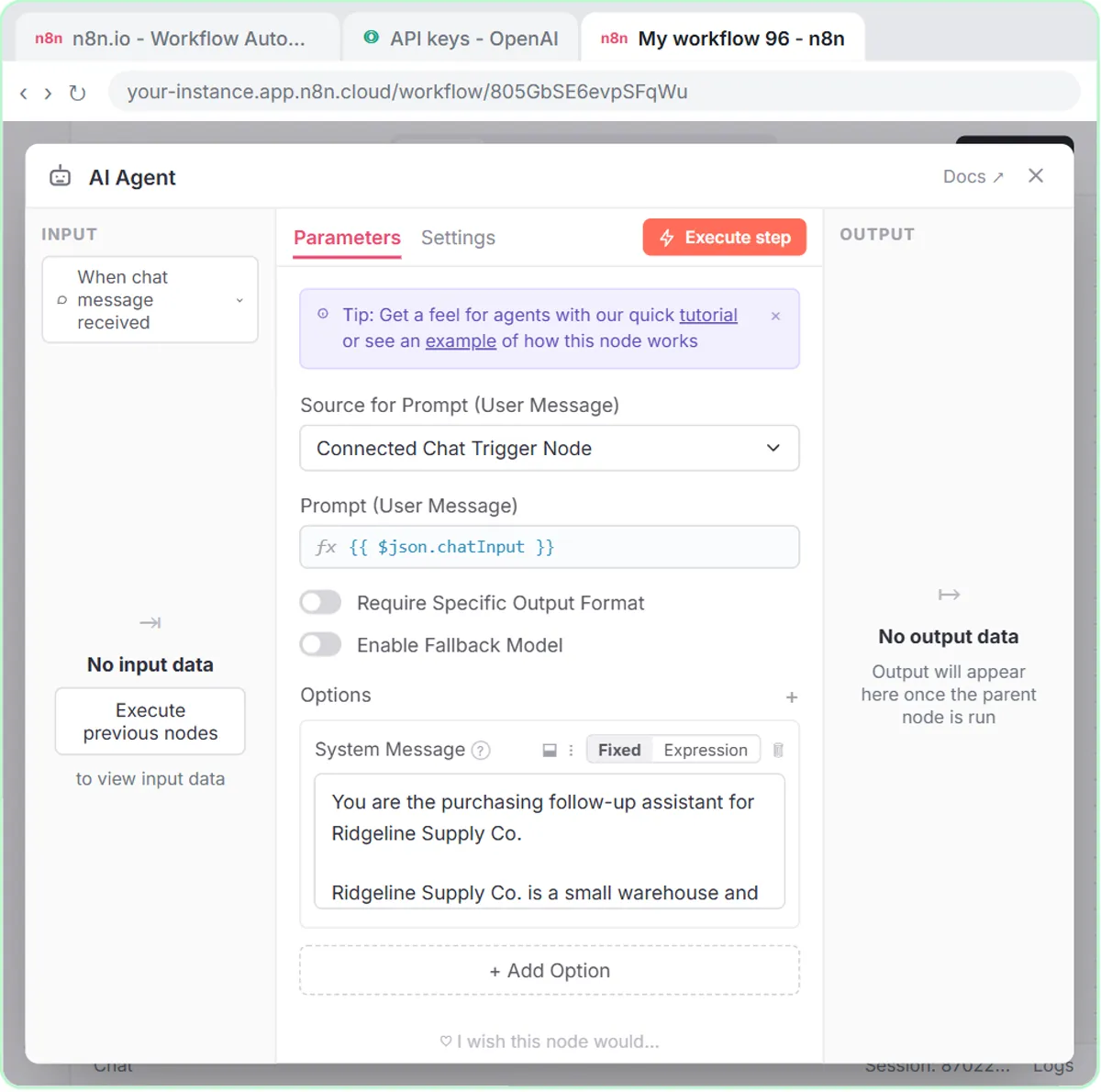 Build an AI Vendor Follow-Up Agent in n8n
Build an AI agent for Ridgeline Supply Co. that writes follow-up messages for late or pending purchase orders and saves them to Google Sheets — chat trigger, AI Agent…
Free · Live ~12 min Intermediate
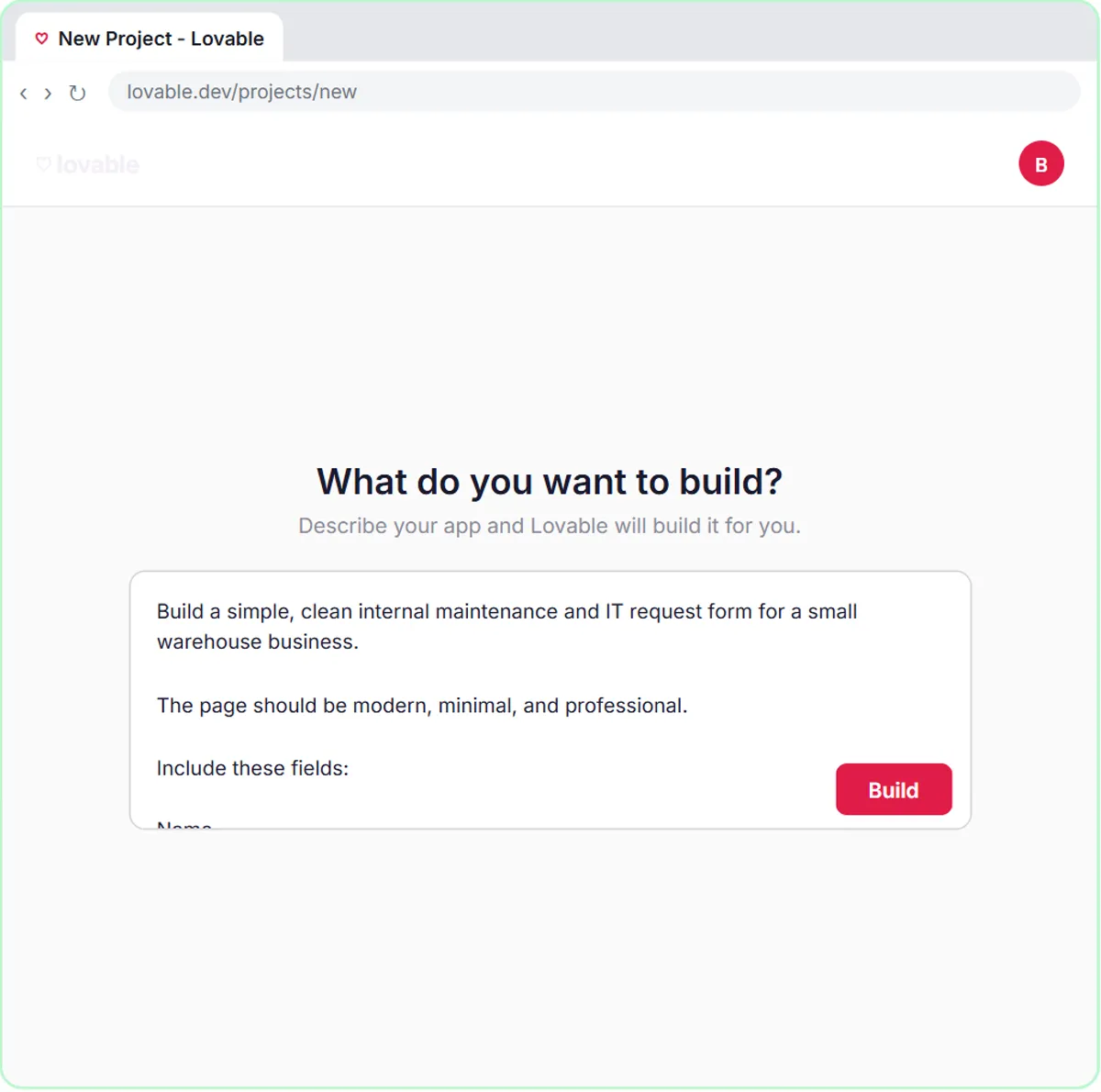 Build an AI Maintenance and IT Request Form
Build an internal maintenance and IT request form in Lovable for Ridgeline Supply Co. and connect it to n8n — the AI agent sets the priority, assigns a team, saves the…
Free · Live ~15 min Advanced
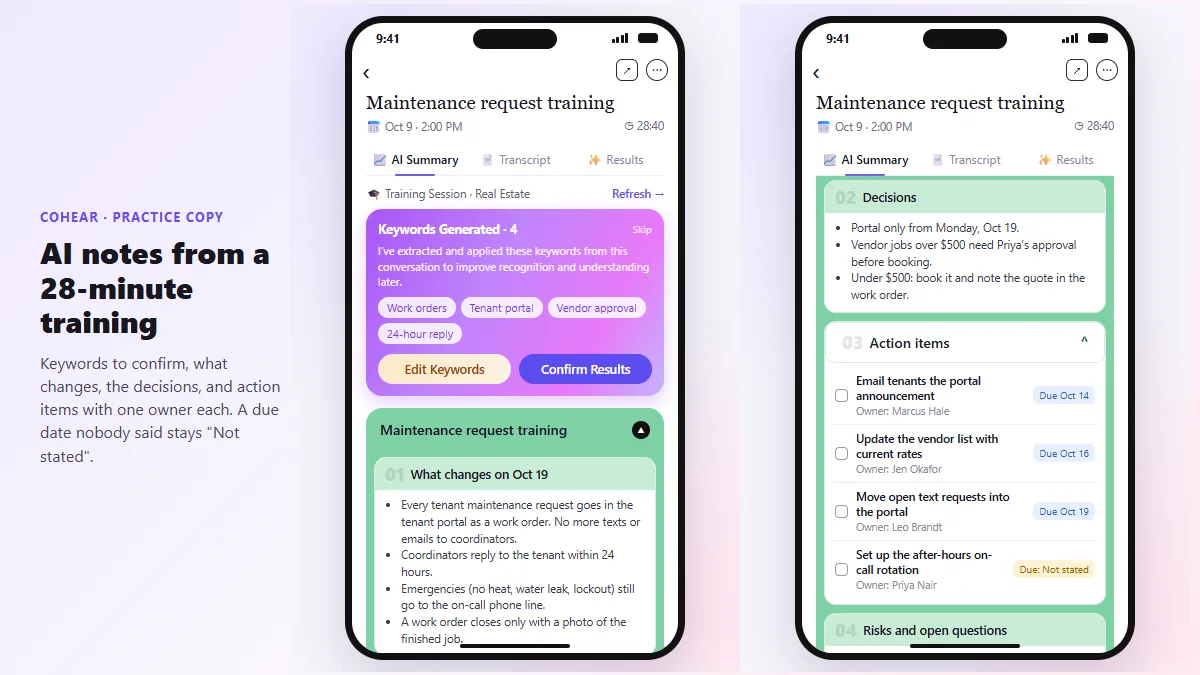 CoHear: AI Meeting Notes from a Team Training Session
Record a team training session on your iPhone with CoHear, check the AI notes and action items against the transcript, make a one-page handout and share it behind a…
Free · Live ~8 min Intermediate
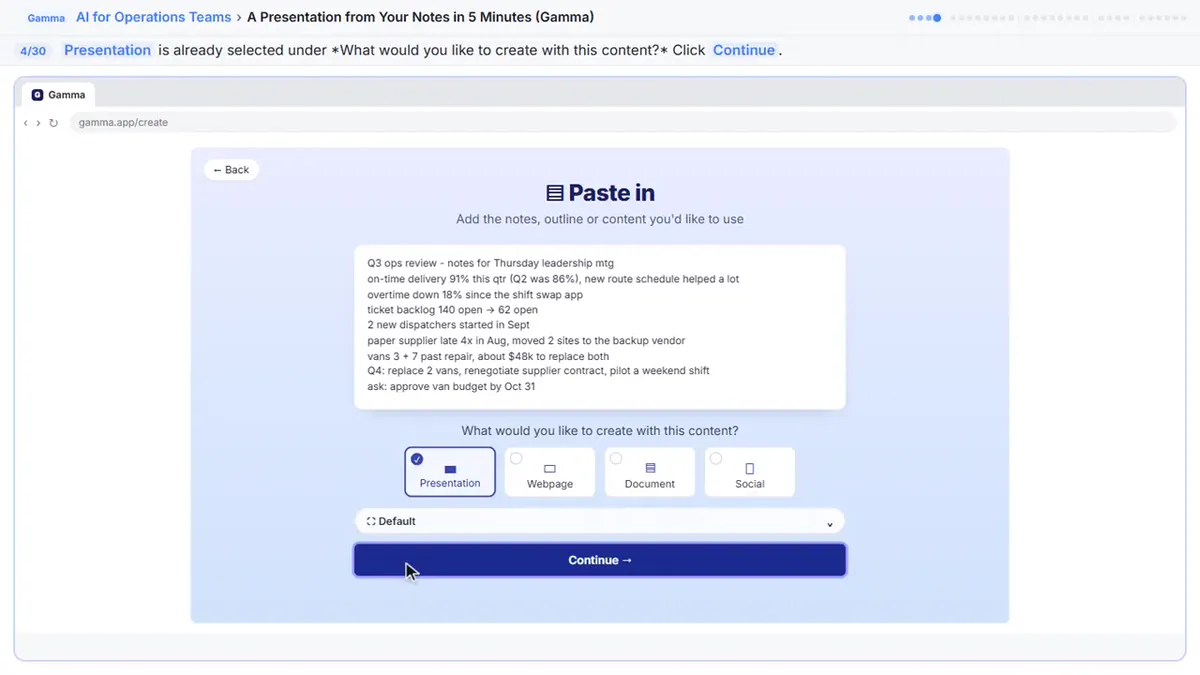 A Presentation from Your Notes in 5 Minutes (Gamma)
Paste rough meeting notes into Gamma, pick a theme, fix one slide by chatting with its AI, and export the deck to PowerPoint and PDF.
Free · Live ~9 min Intermediate
All 7 modules in AI Automation for Operations
Terms in this lesson
Plain-English definitions, each with an example from a free lesson.