Updated . Built against the tool’s current screens and checked step by step. How we check this lesson
Most small businesses have a report that starts life as a messy export: a CSV from the till, the booking system or the bank, with title rows, odd dates and amounts stored as text. Claude has a built-in Excel skill, called xlsx, that teaches it to turn that kind of file into a real Excel workbook. In this free, interactive tutorial you check the one setting the skill needs, upload a messy sales export, ask for a clean Data tab, a Summary tab built with formulas and a chart, ask for one change, and open the finished file in Excel.
At a glance
| Question | Answer |
|---|---|
| What you build | Upload a messy sales export to Claude and get back a clean Excel workbook with a Data tab, a Summary tab built with formulas, and a chart, thanks to Claude's built-in Excel skill. |
| Tools | Claude |
| Time | About 8 minutes, 26 steps in 5 parts |
| Level | Intermediate |
| Cost | Free |
| Ways to learn it | Practice it step by step |
The 5 parts, in short
- Check the setting: Open your account menu, Open Settings, Go to Capabilities, Turn on cloud code execution, and 1 more step.
- Upload the messy export: Open the + menu, Add a file, Pick the export, Open it, and 3 more steps.
- Watch the Excel skill work: Open Claude's work details, Spot the Excel skill, Open the workbook, See the Summary tab, and 1 more step.
- Ask for one change: Click the reply box, Ask for a highlight, Send it, Download the new version.
- Open it in Excel: Open the download, Enable editing, Open the Summary tab, Check a total, and 1 more step.
Start here first: What Are Claude Skills? Turn One On and Watch It Work (module 1 of Claude Skills)
In the course: Part 4 · Claude for Everyday Work (Module 33 of the full course)
What the Excel skill is
Skills are folders of instructions and scripts that Claude loads when a task needs them. Anthropic ships a few built-in skills for common file types: Excel spreadsheets, Word documents, PowerPoint presentations and PDFs. The Excel one is named xlsx. You never have to pick it. When you ask for a spreadsheet, or give Claude a spreadsheet or CSV file to work on, Claude reads the skill and follows it.
The skill's rules are what make the result trustworthy. The most important one: use formulas, never typed-in results. A total should be a SUM or SUMIFS formula, not a number Claude worked out and pasted in, so the workbook recalculates when you change something. The skill also has Claude recalculate every formula and check for errors before it hands the file over, use a clean professional font, and write down any assumptions where you will see them.
How to turn it on
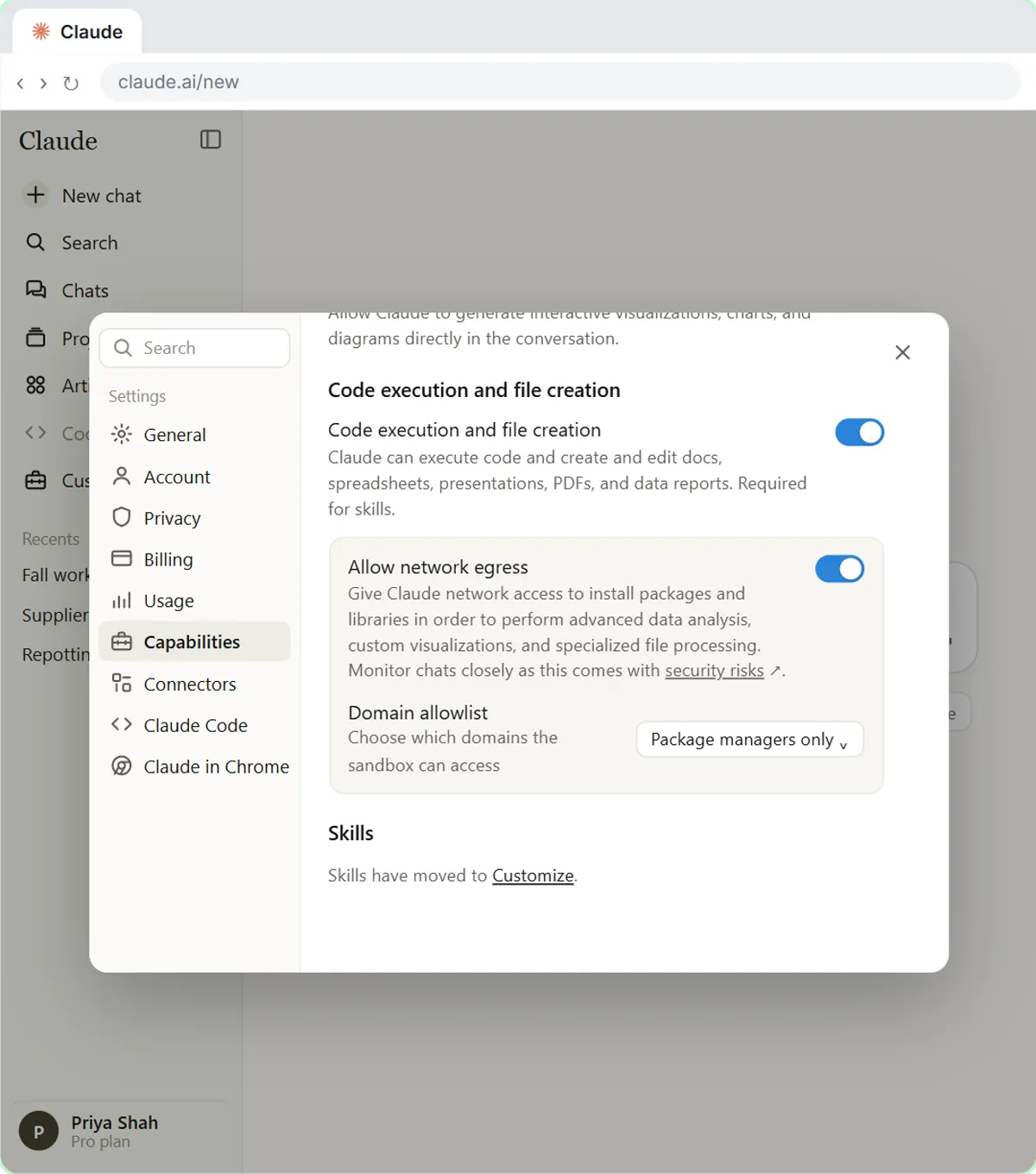
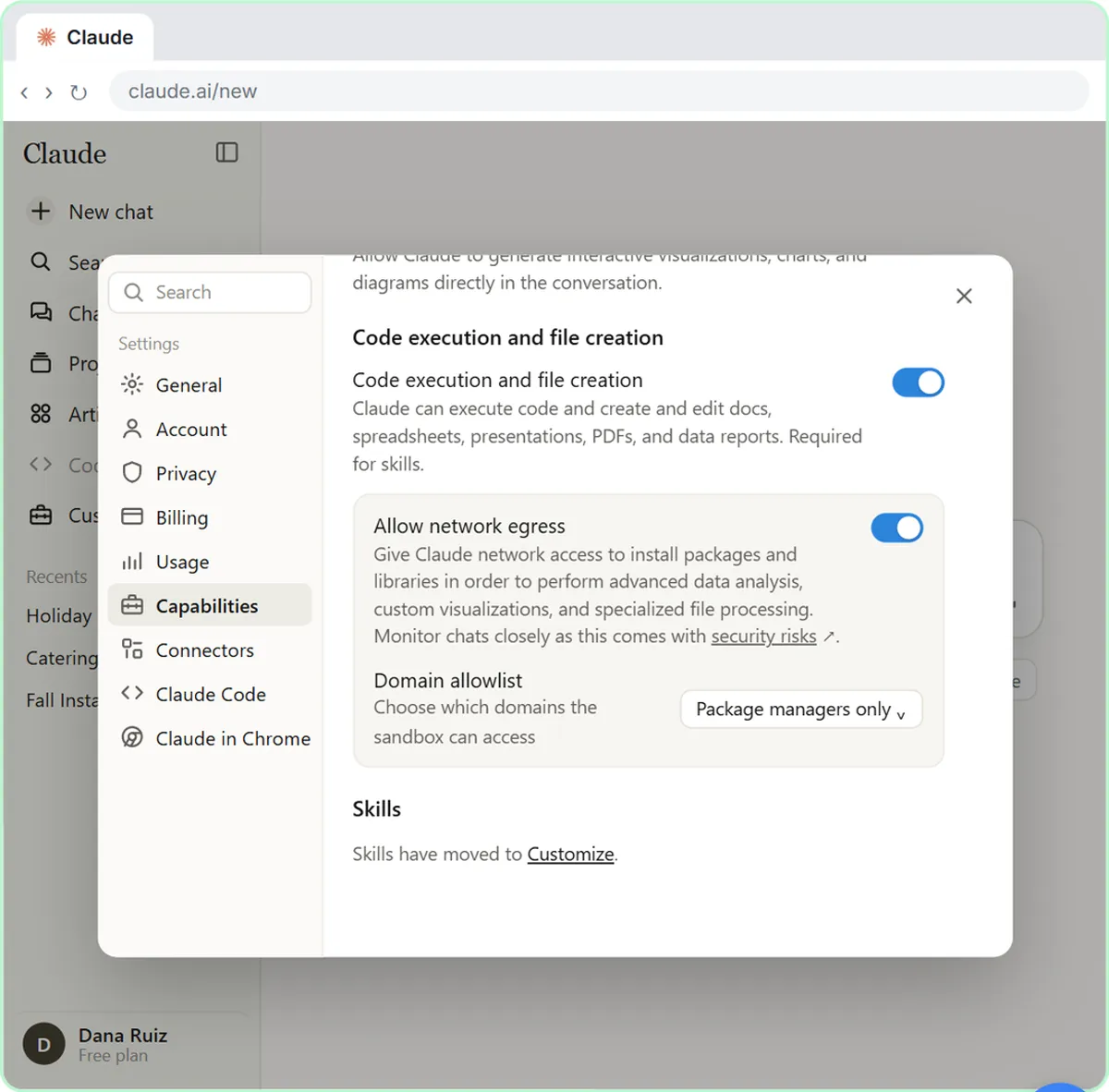
On the Free, Pro and Max plans, open the account menu from your initial at the bottom left, choose Settings, then Capabilities, and turn on Cloud code execution and file creation (under Code execution and file creation). That one switch powers all of Claude's built-in file skills. On Team and Enterprise plans it is on by default, and an owner can manage it in the organization settings.
The same Capabilities page says "Skills have moved to Customize." Customize, then Skills, is where you switch on Anthropic's example skills and add your own. The Excel skill is built in, so there is nothing else to turn on for it.
How to check Claude's work
Cleaning data means making decisions, so always read what Claude says it changed. Duplicates are the classic trap: two identical rows may be a double export, or two real sales. So ask Claude to list what it removed. Then click a few totals in Excel and look at the formula bar, and compare one month's total with the original export before you share the workbook.
Ideas for your own business
Any recurring export works the same way: point-of-sale sales, online orders, bank or card transactions, timesheets, job lists from a field service app. Ask for the tabs you want by name, say which formulas or summaries matter, and ask for a chart. Next time, a skill of your own can hold those instructions, so you only upload the file. That is the next module in this course.
How the interactive lesson works
Each step shows you what to do and lets you do it yourself in a practice copy of Claude, your computer's file window and Excel. Nothing connects to a real account and no file is uploaded anywhere. A voiceover explains each step, and long prompts go in with one Paste button.
Try it yourself, free
Reading the steps is a start. Doing them is how it sticks. The interactive module walks you through every click in a practice copy of Claude, checks each step, and never touches your real accounts.
Start “Claude's Excel Skill: Turn a Messy Export into a Clean Workbook”Step by step: Claude's Excel Skill: Turn a Messy Export into a Clean Workbook
All 26 steps of the interactive module, in order. In the module you watch each one, then do it yourself in a practice copy that checks your work.
1. Check the setting
- Open your account menu. Claude's built-in Excel skill (called xlsx) teaches it to build real workbooks with working formulas. It needs one setting. Click your initial, P, at the bottom left. (On a real account it is your name and plan, like Robert · Max.)
Claude has a built-in Excel skill, called x l s x. It teaches Claude to build real Excel workbooks, with working formulas instead of typed-in numbers. Today you'll use it to turn a messy sales export into a clean workbook. It needs one setting first, so click your initial at the bottom left.
- Open Settings. Click Settings.
- Go to Capabilities. Click Capabilities on the left.
- Turn on cloud code execution. Under Code execution and file creation, turn on Cloud code execution and file creation (if yours is already on, leave it). Claude says it is required for skills: it powers the built-in Excel, Word, PowerPoint and PDF skills.
Turn on Cloud code execution and file creation. This one switch powers Claude's built-in skills for Excel, Word, PowerPoint and PDF files. If yours is already on, just leave it.
- Close Settings. Skills now live under Customize, in the Settings list on the left or in the sidebar. That is where you turn on example skills and add your own. The Excel skill is built in, so there's nothing more to switch on. Close Settings with the X.
Skills live under Customize now. That's where you turn on example skills and add your own. The Excel skill is built in, so there's nothing more to switch on. Close Settings with the X.
2. Upload the messy export
- Open the + menu. Willow Creek Plant Shop exports its sales from the till as a CSV file, and it's messy. Click the + in the message box.
Here's the job. Willow Creek Plant Shop exports its sales from the till as a C S V file, and it's a mess. Let's give it to Claude.
- Add a file. Click Upload or add files.
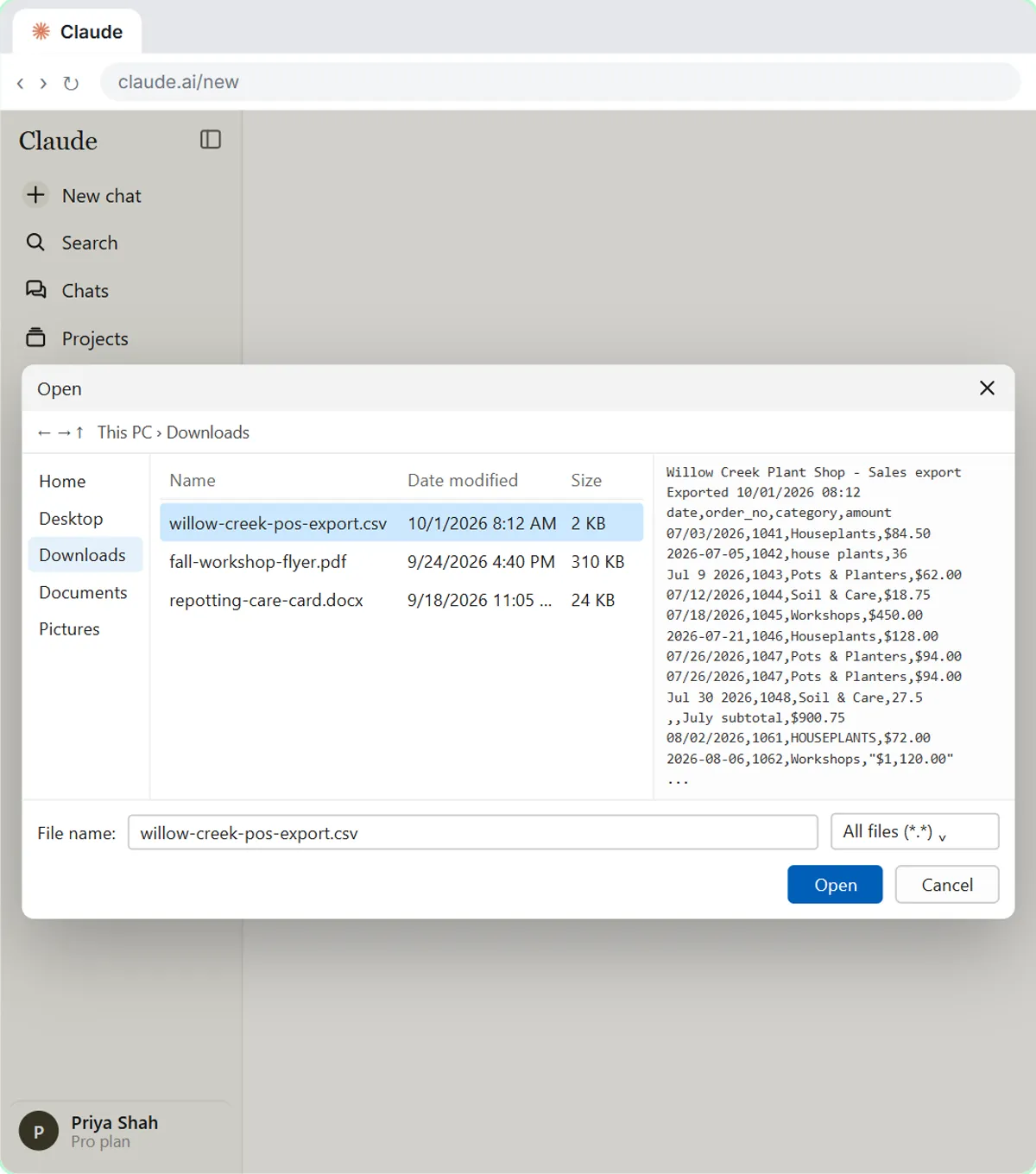
- Pick the export. Your computer's file window opens. Click willow-creek-pos-export.csv and look at the preview on the right.
Your computer's file window opens.
- Open it. See the mess: two title lines above the headers, dates in three formats, dollar signs, a subtotal line, a repeated row and "house plants" spelled three ways. Click Open.
See the mess? Two title lines above the headers, dates in three different formats, dollar signs, a subtotal line, a repeated row, and the word houseplants spelled three different ways.
- Click the message box. The file is attached. Click the message box.
The file is attached to your message.
- Ask for the workbook. Say exactly what you want: a Data tab, a Summary tab with formulas, and a chart. Paste in the prompt.
Say exactly what you want: a Data tab with the clean rows, a Summary tab by month and category, built with formulas, and a chart. And ask Claude to tell you what it changed.
This is our point-of-sale export for July to September. Please clean it up and turn it into an Excel workbook with: a Data tab with one clean row per sale (one date format, amounts as numbers, no duplicates or subtotal lines, consistent category names), a Summary tab with total sales by month and category using formulas, and a column chart of monthly sales by category. Tell me what you changed.
- Send it. Click the send arrow.
3. Watch the Excel skill work
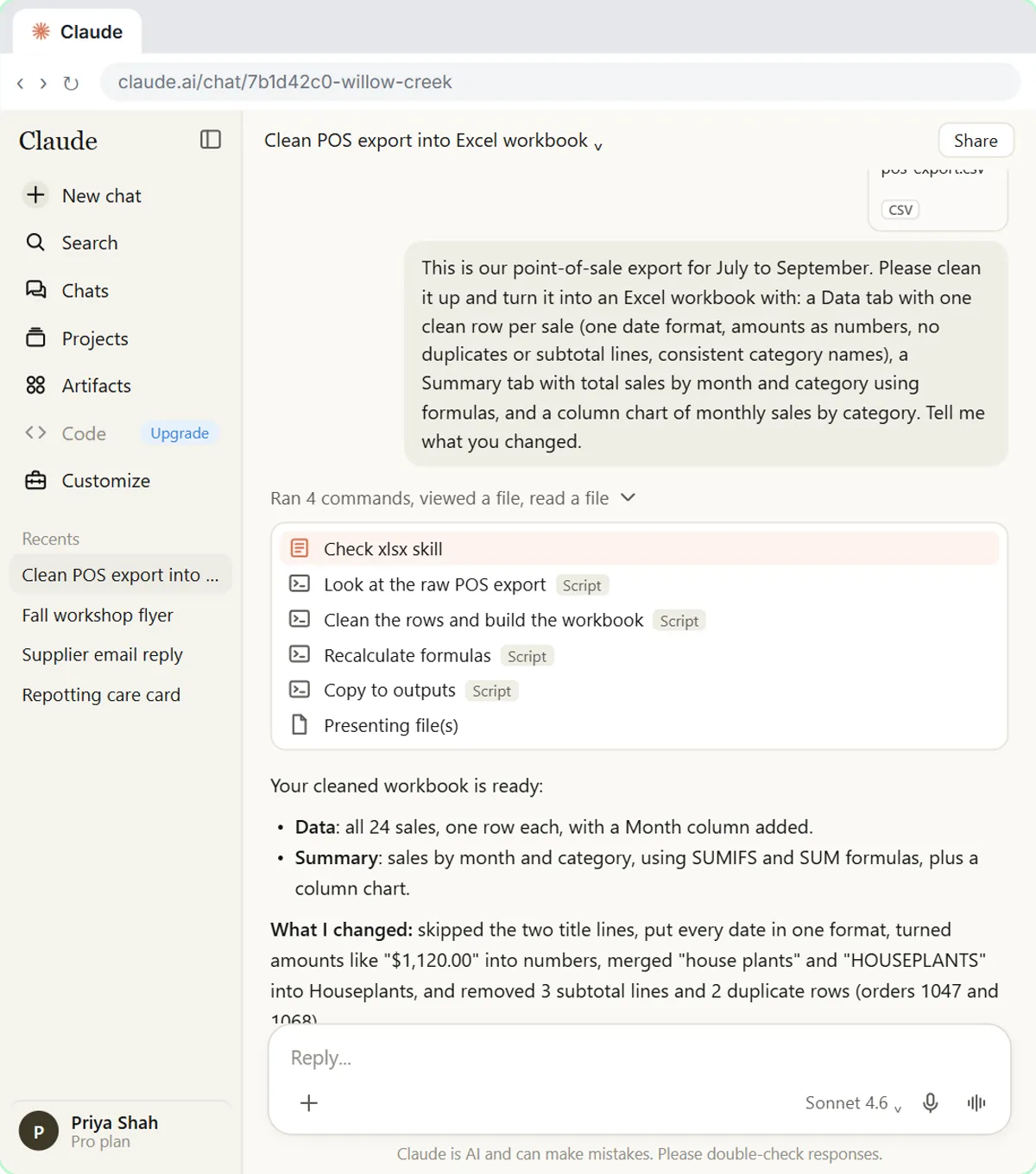
- Open Claude's work details. Claude read the file, cleaned it and built the workbook. Click Shared a file, ran 2 commands above the reply. (Claude writes this line itself, so the wording varies.)
Claude read the export, cleaned it and built a workbook. Above its reply is a short line about what it did.
- Spot the Excel skill. Find Loaded skill xlsx in the list (older runs said "Check xlsx skill"). That's the built-in Excel skill, picked on its own. Click the line above the list again to close it.
Look for the line that says Loaded skill, x l s x. You asked for a spreadsheet, so Claude picked the Excel skill on its own.
- Open the workbook. The reply lists every fix, including the two duplicate rows it removed, so you can check them. Click the file card. (Real Claude often opens the workbook on the right by itself.)
Now skim the reply. It lists every fix it made, including the two duplicate rows it removed, so you can say if either one was a real sale.
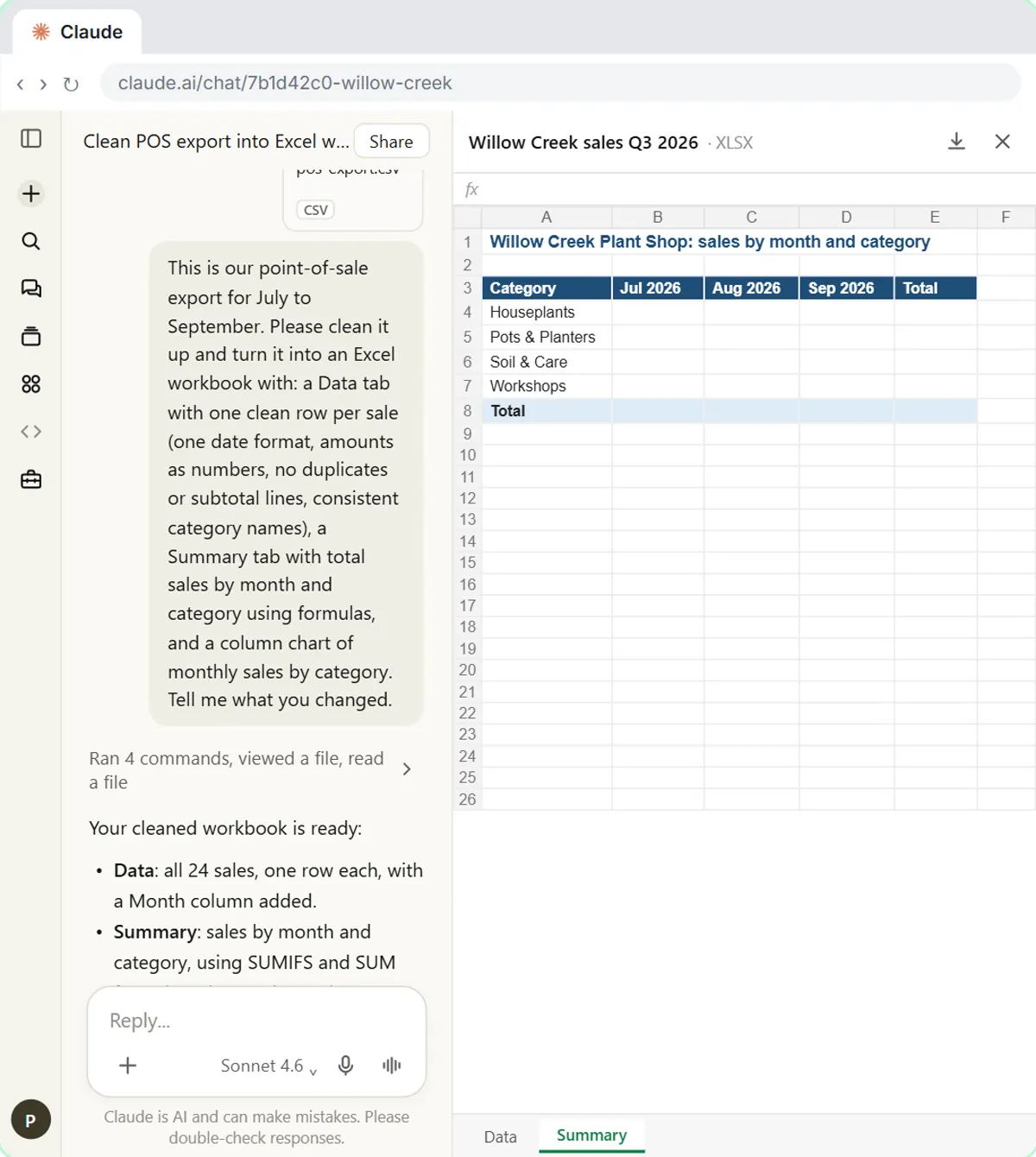
- See the Summary tab. The Data tab has one clean row per sale, one date format and a new Month column. Click the Summary tab at the bottom.
The Data tab has one clean row per sale, one date format, real numbers, and a new Month column.
- Close the preview. Sales by month and category, with the totals filled in. The chart is on the Charts tab at the top of the preview. You'll see both again in Excel. Close the preview with the X.
Here's the Summary, by month and category, with the totals filled in. The chart has its own Charts tab at the top of the preview. You'll see it all again when you open the file in Excel. Close the preview with the X.
4. Ask for one change
- Click the reply box. Now ask for one change. Click the reply box.
Now let's ask for one change, the way you'd ask a helper.
- Ask for a highlight. Ask in plain words for the top category each month to stand out. Paste in the prompt.
Ask for the top-selling category in each month to stand out in green. Plain words are fine.
- Send it. Click the send arrow.
- Download the new version. Claude added a conditional formatting rule and made an updated file. Click Download on the new file card.
Claude added a conditional formatting rule, so the highlight moves by itself if the numbers change, and it made an updated file.
5. Open it in Excel
- Open the download. Your browser shows the finished download. Click the file to open it.
Your browser shows the finished download.
- Enable editing. Excel usually opens downloaded files in Protected View. This one is yours, so click Enable Editing.
Excel usually opens files from the internet in Protected View, to be safe. You asked Claude for this one, so click Enable Editing.
- Open the Summary tab. The workbook opens on the Data tab. Click the Summary tab.
The workbook opens on the Data tab.
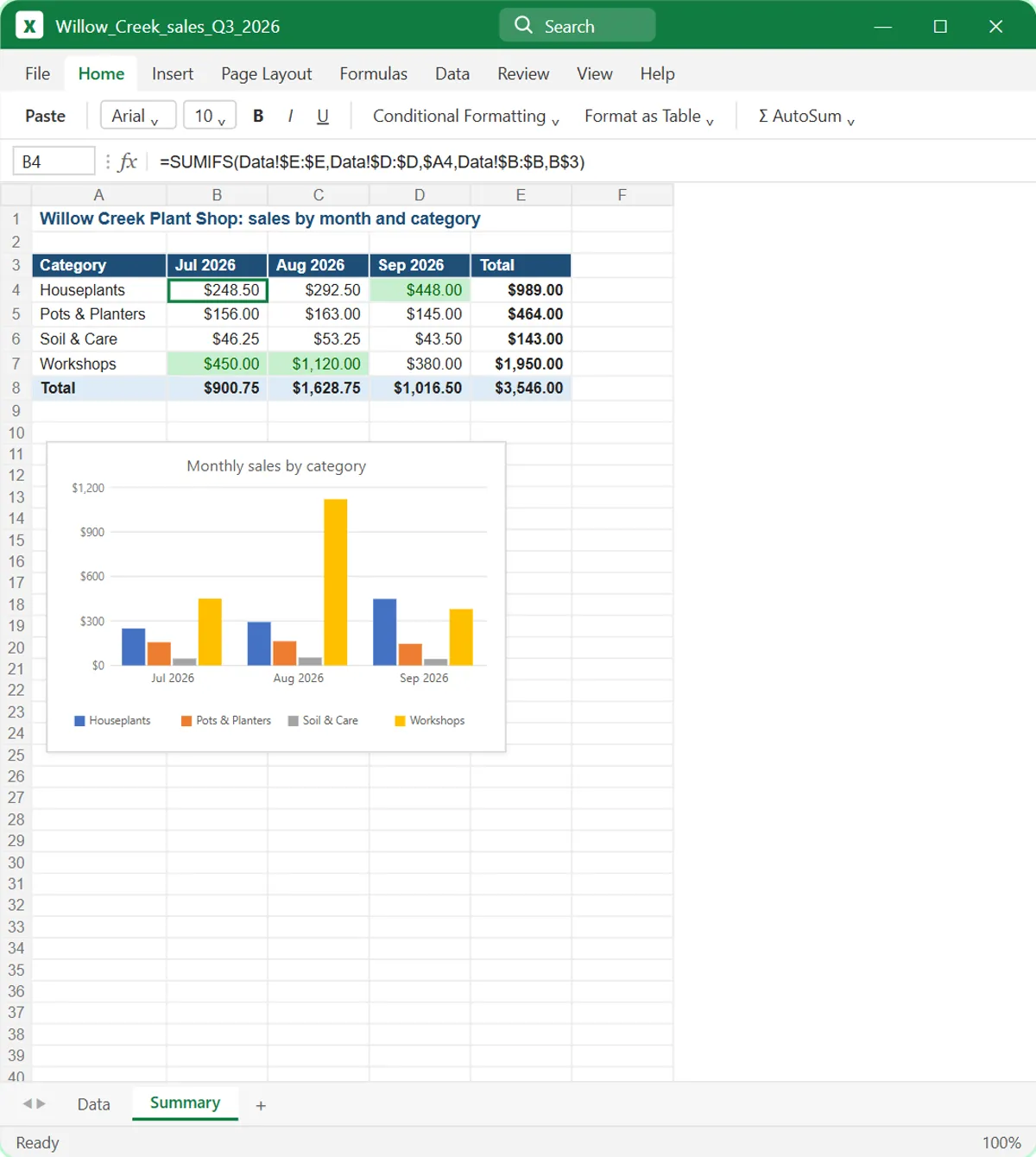
- Check a total. Now the totals are filled in, the top category each month is green, and the chart is there. Click cell B4, July's Houseplants total.
Now every total is filled in, the top category in each month is green, and there's your chart. Let's check how a total is made.
- Check the grand total. The formula bar shows =SUMIFS(...): it adds up the Data tab by category and month. No typed-in numbers, so change a sale and everything updates. Click cell E8, the grand total.
Look at the formula bar. It's a SUM IFS formula that adds up the Data tab by category and month, not a typed-in number. That's the Excel skill's rule, so if you fix a sale on the Data tab, the summary and the chart update by themselves. Last one: click Cell E8, the grand total.
Screenshots
Frequently asked questions
- Does Claude have an Excel skill?
- Yes. Claude has a built-in Excel skill called xlsx, alongside built-in skills for Word, PowerPoint and PDF. It turns on with the Cloud code execution and file creation setting, and Claude uses it automatically whenever you ask for a spreadsheet or give it one to work on.
- Can Claude clean a messy CSV file?
- Yes. Upload the CSV with the plus button and Upload or add files, then say exactly what clean means for you: one date format, amounts as numbers, no duplicates or subtotal lines, consistent names. Ask Claude to list what it changed so you can check its decisions.
- Will the workbook have real formulas?
- That is one of the Excel skill's rules: use formulas, never hardcoded results, so totals update when the data changes. Click a total in Excel and look at the formula bar to see it.
- Where is the chart in Claude's file preview?
- The preview in the chat has a Data and a Summary tab at the bottom, and a separate Charts tab at the top. Older previews left formula results empty, so if a total looks blank, download the file and open it in Excel.
- Is this course really free?
- Yes. Stepthrough is completely free, and the practice copy needs no accounts. To do it for real you need your own Claude account. File creation and skills work on Claude's Free, Pro, Max, Team and Enterprise plans.
More in Claude Skills
 What Are Claude Skills? Turn One On and Watch It Work
Learn what a Claude skill is, switch on the setting skills need, turn on an example skill in Customize, and watch Claude use its Excel and Word skills on its own.
Free · Live ~7 min Beginner
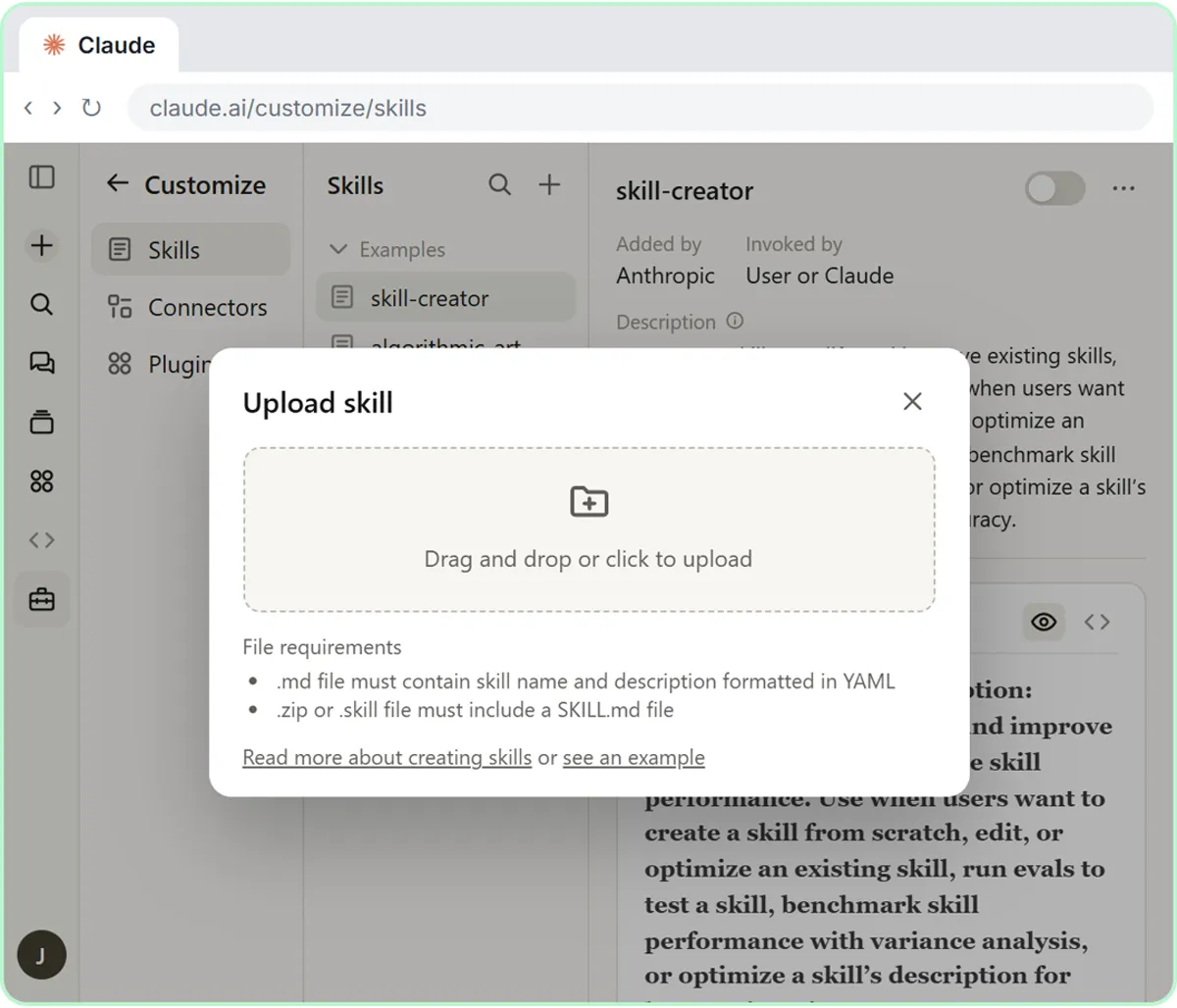 How to Install a Custom Skill in Claude (Upload a Skill .zip)
Upload your own skill to Claude as a .zip, check that it’s switched on, see what’s inside its SKILL.md, and watch Claude use it to write a landscaping quote your way.
Free · Live ~6 min Beginner
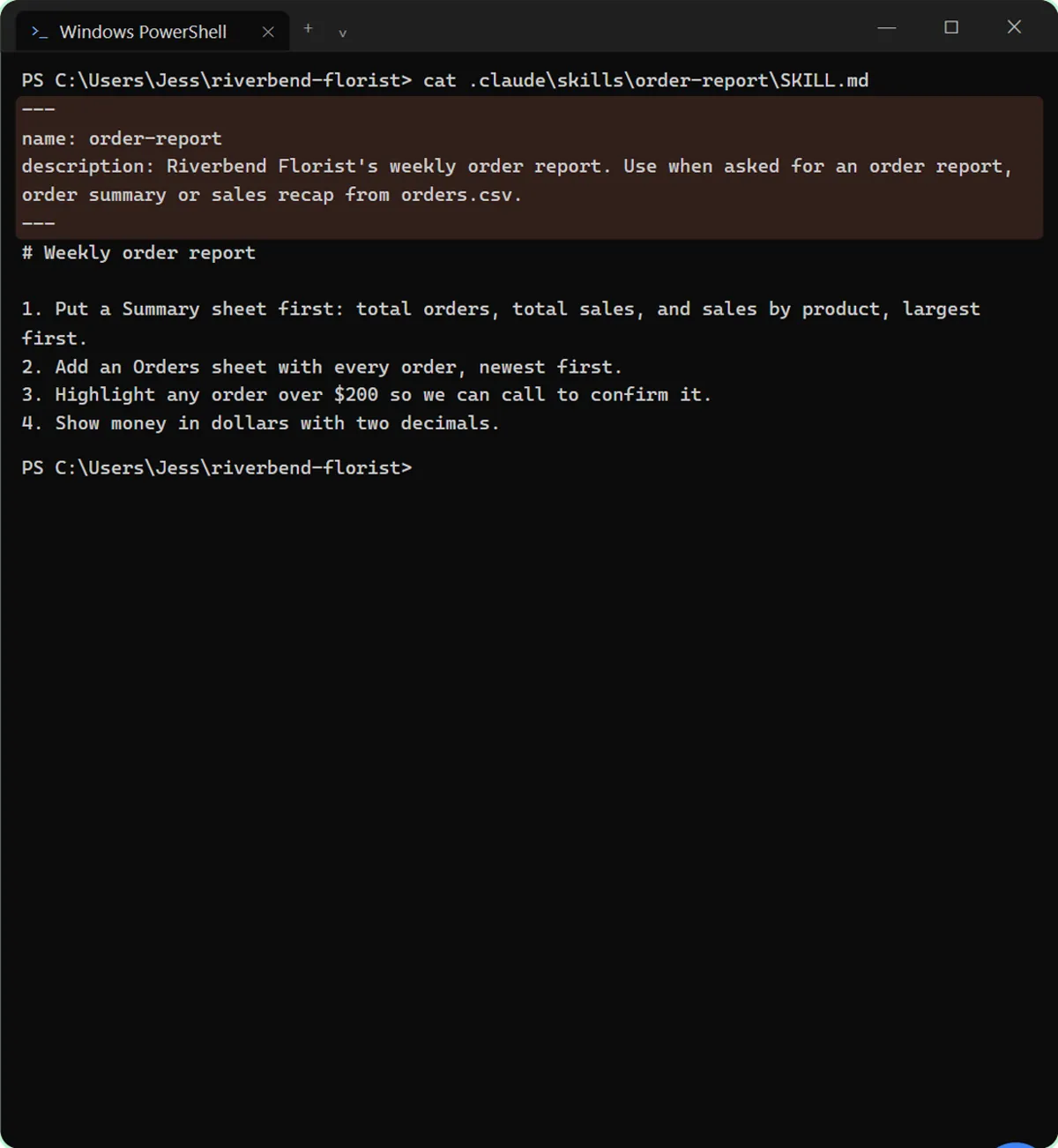 Install Skills in Claude Code: the Skills Folder and a Plugin Marketplace
See what a SKILL.md looks like, learn where Claude Code keeps skills, install Anthropic's document skills from a plugin marketplace, and watch Claude use them on its own.
Free · Live ~7 min Advanced
All 6 modules in Claude Skills
More Claude tutorials
 Your First Chat with Claude: Models, Files and a Great First Prompt
Pick a model, attach a customer's complaint email with the + menu, write a four-part prompt, read Claude's reply, ask a follow-up, then pin and rename the chat.
Free · Live ~7 min Beginner
 Claude Projects for Your Business: Instructions, Knowledge and Quotes
Create a project for your business, give it instructions for tone and policies, add your price sheet and warranty as project knowledge, and get a customer quote that…
Free · Live ~8 min Beginner
 Claude Artifacts: Build a Price Calculator You Can Try, Change and Share
Have Claude build an interactive lawn price calculator, try it in the artifact panel, ask for a change, and share it with a link.
Free · Live ~7 min Beginner
 Claude Research: Get a Cited Competitor Price Scan, Then Check It
Turn on Research, have Claude check what nearby competitors charge, read the cited report, check a source and ask a follow-up.
Free · Live ~7 min Beginner
 Connect Claude to Google Drive, Gmail and Google Calendar
Connect Google Drive, Gmail and Google Calendar to Claude, then find your price sheet, summarize a customer's email thread and check your week, approving each tool as…
Free · Live ~8 min Intermediate
 Check a Contract for Red Flags with Claude
Upload a vendor contract, get it in plain English, find the risky clauses with the exact words quoted, draft questions for the vendor, and save the review as a project…
Free · Live ~11 min Beginner
Terms in this lesson
Plain-English definitions, each with an example from a free lesson.