Updated . Built against the tool’s current screens and checked step by step. How we check this lesson
Claude can do more than answer. Ask it for a small tool, a one-page flyer or a document you will keep using, and it builds an artifact: something that opens in its own panel beside the chat, where you can try it, change it and share it. In this free, interactive Claude artifacts tutorial you build a lawn care price calculator for a small business. You enter a lawn size, pick a service and check the math, ask Claude for one change, share the calculator with a link, and then find it again in Artifacts.
At a glance
| Question | Answer |
|---|---|
| What you build | Have Claude build an interactive lawn price calculator, try it in the artifact panel, ask for a change, and share it with a link. |
| Tools | Claude |
| Time | About 7 minutes, 19 steps in 5 parts |
| Level | Beginner, no coding needed |
| Cost | Free |
| Ways to learn it | Practice it step by step |
The 5 parts, in short
- Ask for a calculator: Start a new chat, Describe the calculator, Send it.
- Try it in the panel: Enter a lawn size, Pick a service, Try another, See it bigger, and 1 more step.
- Ask for one change: Reply in the same chat, Ask for one change, Send it, Pick Mowing, and 1 more step.
- Share it: Open Share, Change who has access, Share with a link, Copy the link.
- Find it again: Open the artifact’s menu, Find it in Artifacts.
Start here first: Your First Chat with Claude: Models, Files and a Great First Prompt (module 1 of Claude for Everyday Work)
In the course: Part 4 · Claude for Everyday Work (Module 21 of the full course)
What you will do
You are the office manager at Bright Path Landscaping, a made-up landscaping company. Customers keep asking the same question: what will it cost for my lawn? Instead of answering each one by hand, you ask Claude for a calculator they can use themselves. It asks for a lawn size in square feet and a service, mowing, aeration or fertilizing, and shows the estimate with the math underneath.
Every price in the module is a sample price, chosen so the numbers are easy to check: each service has a base price per visit plus a rate for every 1,000 square feet. For an 8,000 square foot lawn, aeration comes to $40 + $8 × 8 = $104 a visit and fertilizing to $35 + $5 × 8 = $75. After your change, 26 weekly mows at $49 come to $1,274, and the 10% discount for 10 or more visits brings the estimate to $1,146.60.
Who this Claude tutorial is for
This module is for owners, office managers and anyone who wants Claude to make something they can use again, not just a reply to read once. It follows Claude Projects in the Claude for Everyday Work course, but you can take it on its own. You do not need to write code, you do not need a Claude account to practice, and you do not need to know anything about AI.
How to ask for a good artifact
Claude makes an artifact when the result is something substantial and self-contained that you are likely to reuse or change, such as a calculator, a checklist, a one-page flyer, a small dashboard or a document. You can simply ask for one. The more specific you are about who will use it, what they enter and what they should see, the closer the first version will be.
Ask Claude to show its working. A calculator that prints "$40 + $8 × 8" under the estimate lets you and your customers check the math in seconds. Then test it the way a customer would before you share it: try a few sizes and every option, and look for anything that could be misread.
Change one thing at a time. Ask in the same chat, say exactly what you want added or changed, and check the result before you ask for the next change. If you are about to make a big change and want to keep what you have, use Duplicate in the artifact's menu first.
Sharing, settings and plans
Artifacts start private to you. On Pro and Max plans, Share lets you keep it to Only you, switch it to Anyone with the link, or invite specific people by email (in beta). On Team and Enterprise plans you can also share with your organization. Anthropic's help center says people need a Claude account to open a shared artifact, so open your link in a private window to see what a customer will see before you send it.
Anthropic introduced this kind of artifact on September 16, 2026, and is rolling the new Claude experience out in stages. Artifacts made in a chat before then show Publish instead of Share: publishing gives you a public link that anyone can open without a Claude account, and you can unpublish it later. Creating artifacts works on every plan, including Free, and needs Cloud code execution and file creation turned on in Settings > Capabilities.
Artifacts can also use Claude inside them, turning them into small AI-powered apps, such as a helper that drafts a reply to a customer. They ask for permission the first time they use Claude, usage counts against each person's own plan, and they cannot be shared with Anyone with the link.
How the interactive lesson works
Each step shows you what to do on the left and lets you do it yourself on the right, in a practice copy of Claude.ai. Nothing connects to a real Claude account and nothing is built, shared or sent anywhere, so you can click around safely. The requests go in with one Paste button, and the calculator in the practice copy really works, so you can check every number. When you finish, you can build your own calculator with your real prices at claude.ai in a few minutes.
Try it yourself, free
Reading the steps is a start. Doing them is how it sticks. The interactive module walks you through every click in a practice copy of Claude, checks each step, and never touches your real accounts.
Start “Claude Artifacts: Build a Price Calculator You Can Try, Change and Share”Step by step: Claude Artifacts: Build a Price Calculator You Can Try, Change and Share
All 19 steps of the interactive module, in order. In the module you watch each one, then do it yourself in a practice copy that checks your work.
1. Ask for a calculator
- Start a new chat. Claude can build things you can use and share: a flyer, a document, or a small tool like a price calculator. These are called artifacts, and they open in their own panel beside the chat. Click the message box.
This time, Claude builds you something your customers can use: a price calculator. Claude calls things like this artifacts. They open in their own panel beside the chat, where you can try them, change them and share them.
- Describe the calculator. Say who it’s for, what customers enter, and the prices to use. These are sample prices, so the math is easy to check. Paste in the request.
Be specific: who it's for, what customers type in, and the prices to use. These are sample prices, so the math is easy to check. Asking Claude to show the math helps you catch mistakes.
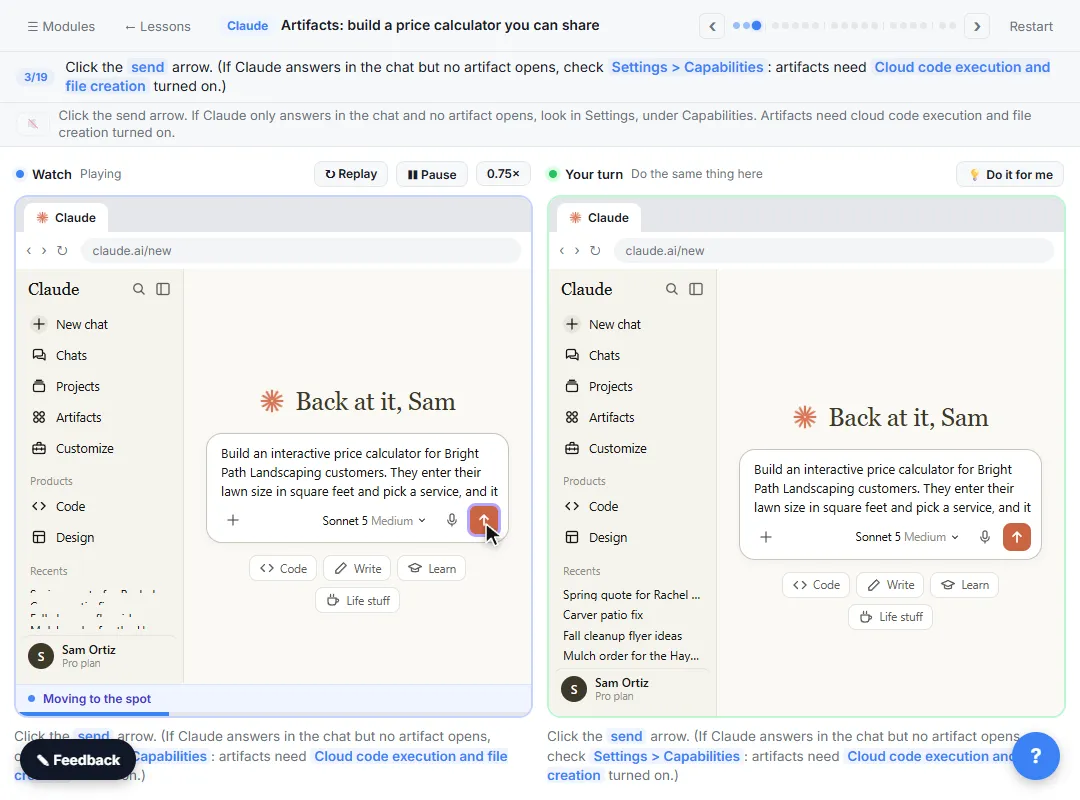
Build an interactive price calculator for Bright Path Landscaping customers. They enter their lawn size in square feet and pick a service, and it shows the estimate for one visit. Use these sample prices: Mowing $25 + $3 per 1,000 sq ft. Aeration $40 + $8 per 1,000 sq ft. Fertilizing $35 + $5 per 1,000 sq ft. Show how the price is worked out, and add a note that the final price is confirmed after a site visit. Keep it simple and friendly, in green and white.
- Send it. Click the send arrow. (If Claude answers in the chat but no artifact opens, check Settings > Capabilities: artifacts need Cloud code execution and file creation turned on.)
If Claude only answers in the chat and no artifact opens, look in Settings, under Capabilities. Artifacts need cloud code execution and file creation turned on.
2. Try it in the panel
- Enter a lawn size. Claude built the calculator and opened it in the artifact panel on the right. It really works. Type 8000 in Lawn size.
Claude built the calculator and opened it in a panel beside the chat. It's not a picture of a calculator. It really works.
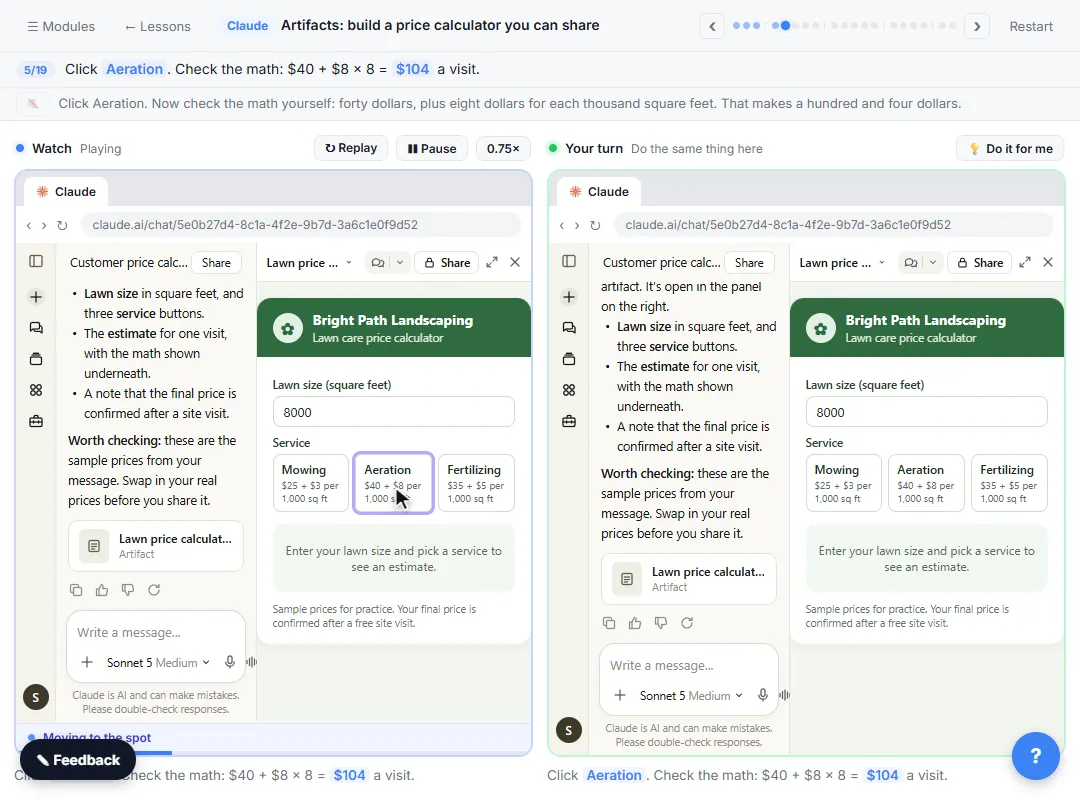
- Pick a service. Click Aeration. Check the math: $40 + $8 × 8 = $104 a visit.
Now check the math yourself: forty dollars, plus eight dollars for each thousand square feet. That makes a hundred and four dollars.
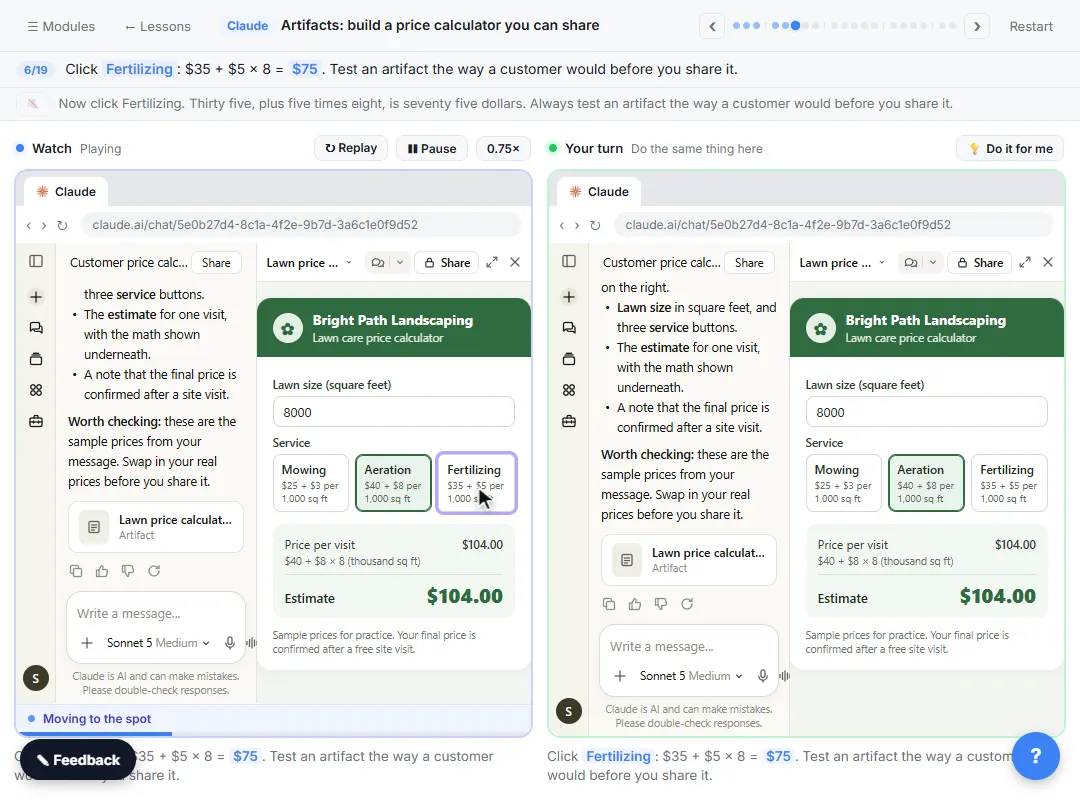
- Try another. Click Fertilizing: $35 + $5 × 8 = $75. Test an artifact the way a customer would before you share it.
Thirty five, plus five times eight, is seventy five dollars. Always test an artifact the way a customer would before you share it.
- See it bigger. Click the expand button at the top right of the panel.
To see it the way a customer would, click the expand button at the top right of the panel.
- Back to the chat. The artifact fills the page. Click Chat to bring the conversation back.
Now the calculator fills the page.
3. Ask for one change
- Reply in the same chat. Customers often book more than one visit. To change an artifact, just ask in the same chat. Click the message box at the bottom.
Lots of customers book more than one visit. To change an artifact, you just ask in the same chat.
- Ask for one change. Ask for one clear change at a time: a Number of visits box, and 10% off at 10 visits or more. Paste in the change.
Ask for one clear change at a time. Add a number of visits box, and take ten percent off at ten visits or more.
Add a "Number of visits" box. Multiply the price per visit by the number of visits, and take 10% off when it’s 10 visits or more. Show the discount as its own line.
- Send it. Click the send arrow.
- Pick Mowing. Claude changed the same artifact, and the panel now has Number of visits. Click Mowing: $25 + $3 × 8 = $49 a visit.
Claude changed the same artifact instead of making a new one, and the panel now has a number of visits box. For eight thousand square feet, that’s forty nine dollars a visit.
- Enter the visits. Type 26 in Number of visits, a weekly mow for the season.
4. Share it
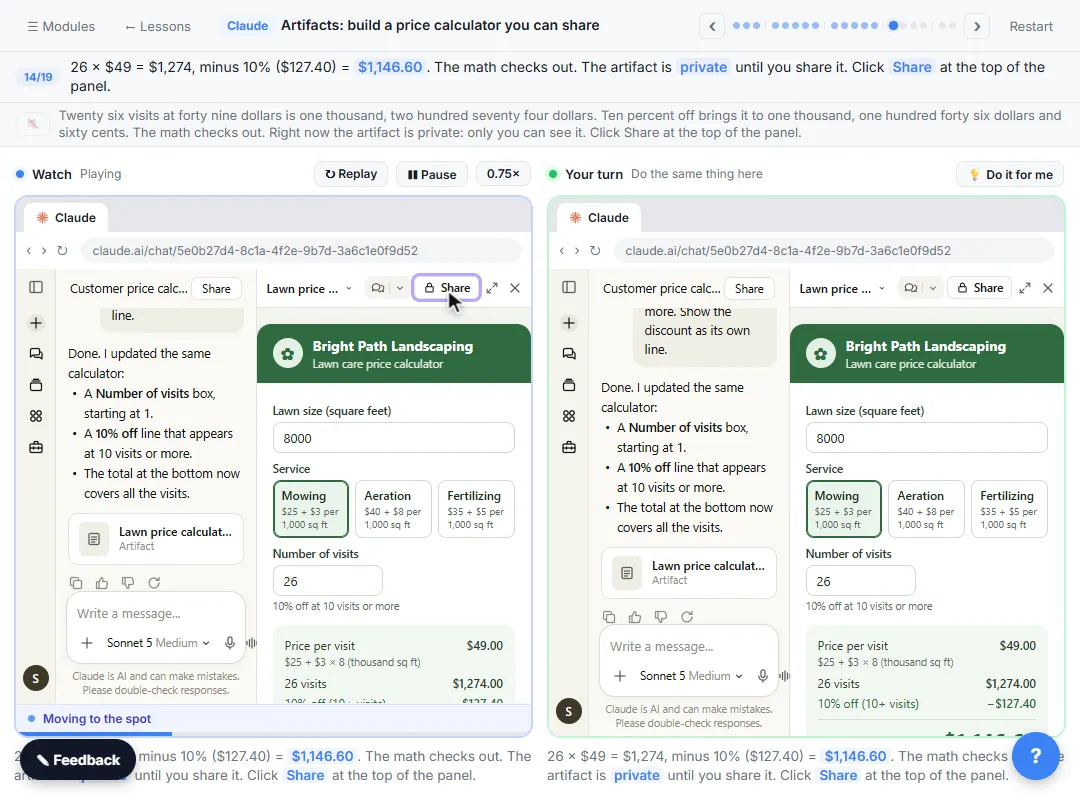
- Open Share. 26 × $49 = $1,274, minus 10% ($127.40) = $1,146.60. The math checks out. The artifact is private until you share it. Click Share at the top of the panel.
Twenty six visits at forty nine dollars is one thousand, two hundred seventy four dollars. Ten percent off brings it to one thousand, one hundred forty six dollars and sixty cents. The math checks out. Right now the artifact is private: only you can see it.
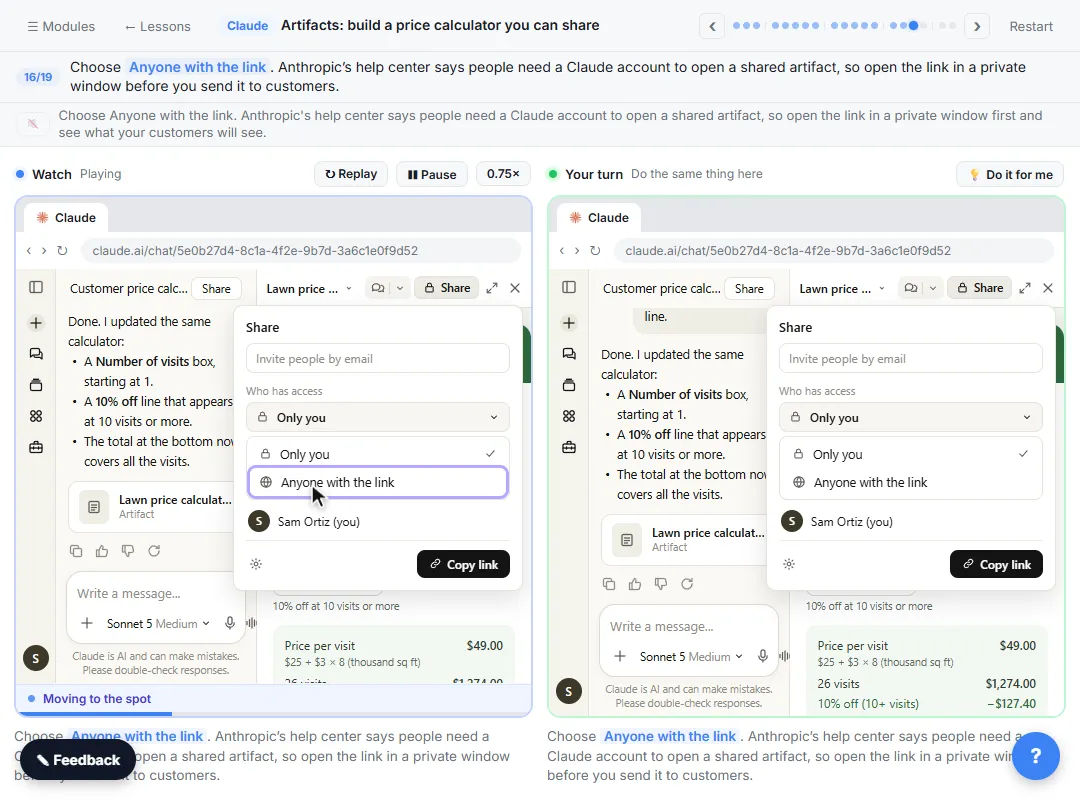
- Change who has access. You can invite people by email, or share a link. Under General access, click Only you.
You can invite people by email, or share a link. Under General access, click Only you to change it.
- Share with a link. Choose Anyone with the link. Anthropic’s help center says people need a Claude account to open a shared artifact, so open the link in a private window before you send it to customers.
Anthropic's help center says people need a Claude account to open a shared artifact, so open the link in a private window first and see what your customers will see.
- Copy the link. Click Copy link, then paste it into an email or a text. (Older artifacts show Publish instead of Share: click Publish and copy the public link.)
If you see a Publish button instead of Share, that’s an older artifact.
5. Find it again
- Open the artifact’s menu. Click the artifact’s name at the top of the panel. Its menu has Export, Rename, Duplicate and more.
From this menu you can export it, rename it, or duplicate it, which is a handy way to keep a copy before a big change.
- Find it in Artifacts. Everything you make is saved in Artifacts. Click the Artifacts icon in the sidebar.
Everything you make is saved in one place.
Screenshots
Frequently asked questions
- What is an artifact in Claude?
- Something Claude makes that you would put in front of someone: a small interactive tool, a document, a design, a deck or a dashboard. It opens beside the conversation, and you can change it by asking Claude, come back to it later and share it. Everything you make is saved in Artifacts in the sidebar.
- How do I share a Claude artifact?
- Open the artifact and click Share. Under Who has access, choose Anyone with the link (Pro and Max), or invite people by email, then click Copy link. Older artifacts made in a chat before September 16, 2026 show Publish instead: click Publish and copy the public link.
- Do people need a Claude account to open my artifact?
- Anthropic's help center says yes for artifacts shared with Share, and no for older chat artifacts that were published with Publish. Open your link in a private window to check what others will see.
- Do I need to turn artifacts on in Settings?
- There is no separate artifacts switch for chat artifacts, but they need Cloud code execution and file creation turned on in Settings > Capabilities (or Organization settings > Capabilities on Team and Enterprise plans).
- Can I change an artifact after Claude makes it?
- Yes. Ask for the change in the same chat and Claude updates the artifact. Artifacts made from the Docs, Slides and Design templates can also be edited directly.
- Is this course really free?
- Yes. Stepthrough is completely free, and the practice copy needs no accounts. To do it for real you need your own Claude account. Creating artifacts works on the Free plan; sharing options depend on your plan.
More in Claude for Everyday Work
Pick a model, attach a customer's complaint email with the + menu, write a four-part prompt, read Claude's reply, ask a follow-up, then star and rename the chat.
Free · Live ~7 min
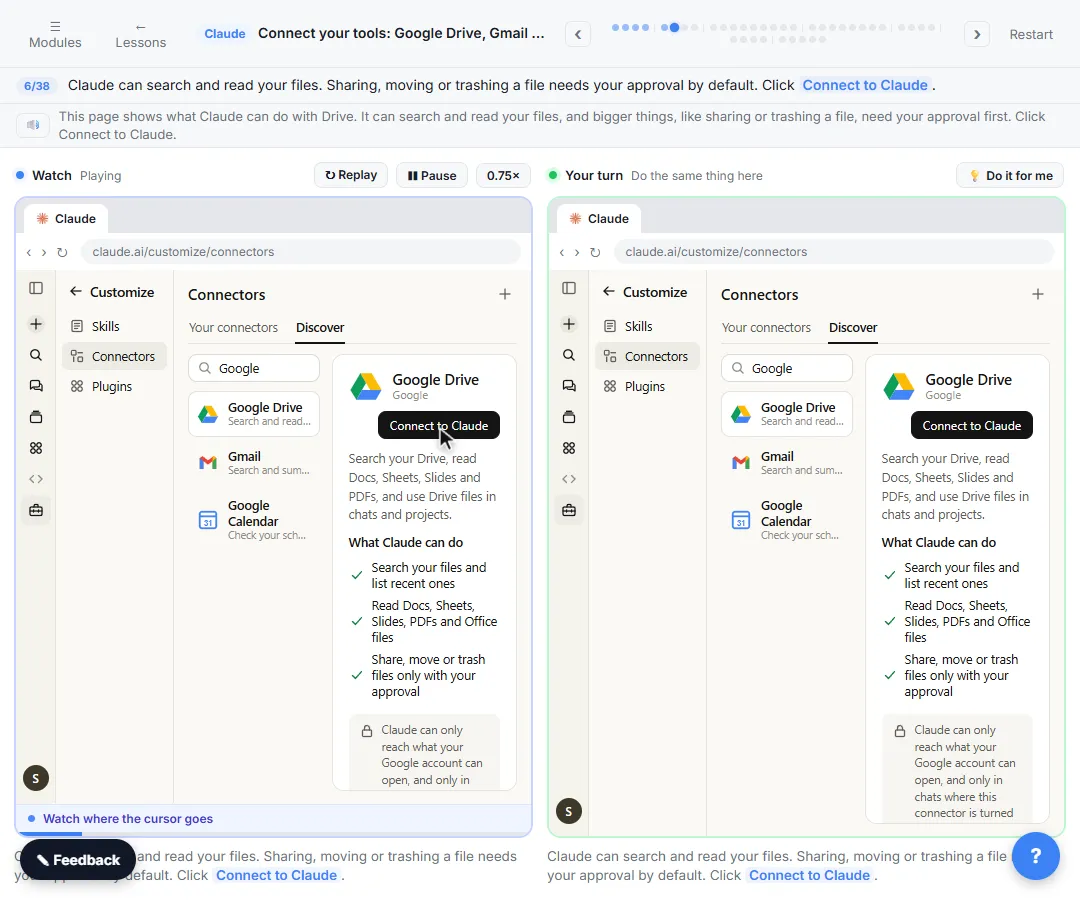 Connect Claude to Google Drive, Gmail and Google Calendar
Connect Google Drive, Gmail and Google Calendar to Claude, then find your price sheet, summarize a customer's email thread and check your week, approving each tool as…
Free · Live ~8 min
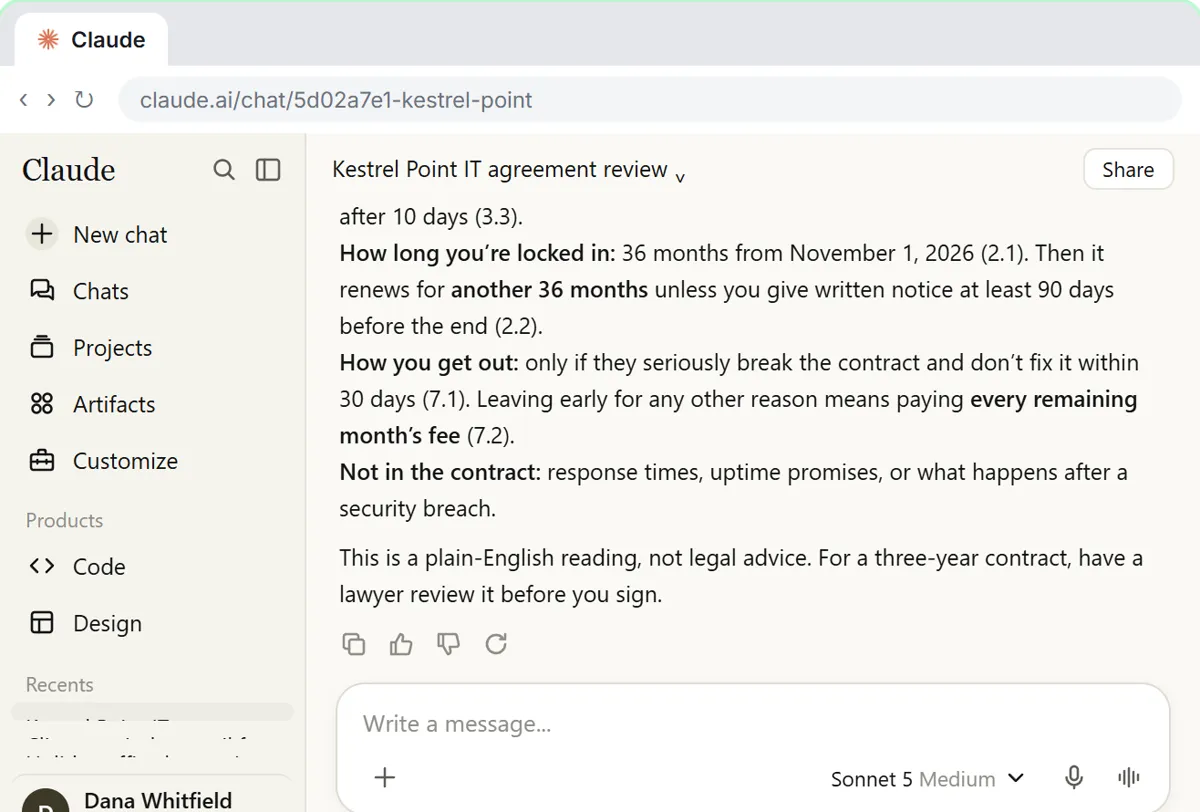 Check a Contract for Red Flags with Claude
Upload a vendor contract, get it in plain English, find the risky clauses with the exact words quoted, draft questions for the vendor, and save the review as a project…
Free · Live ~11 min
All 6 modules in Claude for Everyday Work
More Claude tutorials
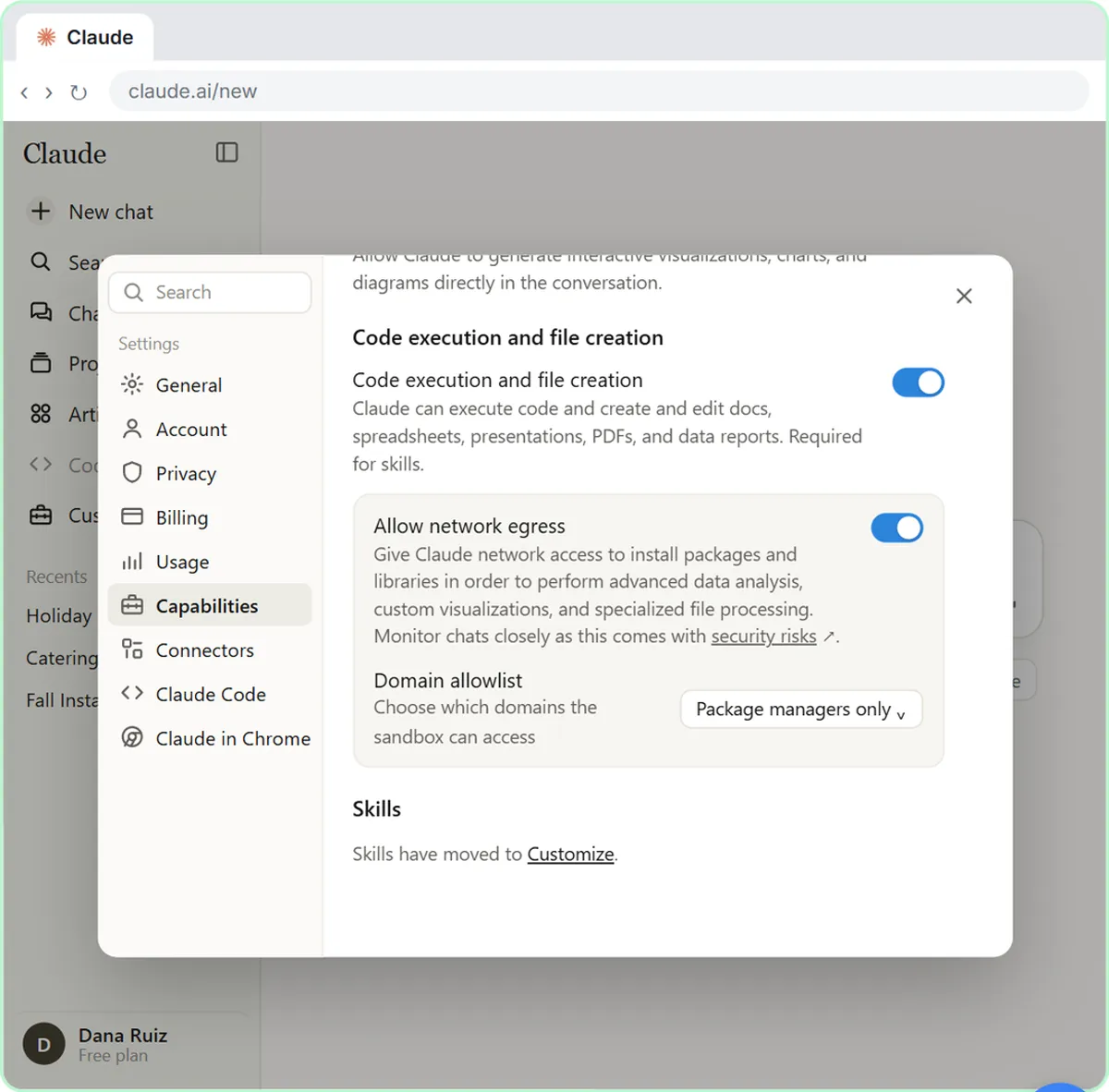 What Are Claude Skills? Turn One On and Watch It Work
Learn what a Claude skill is, switch on the setting skills need, turn on an example skill in Customize, and watch Claude use its Excel and Word skills on its own.
Free · Live ~7 min
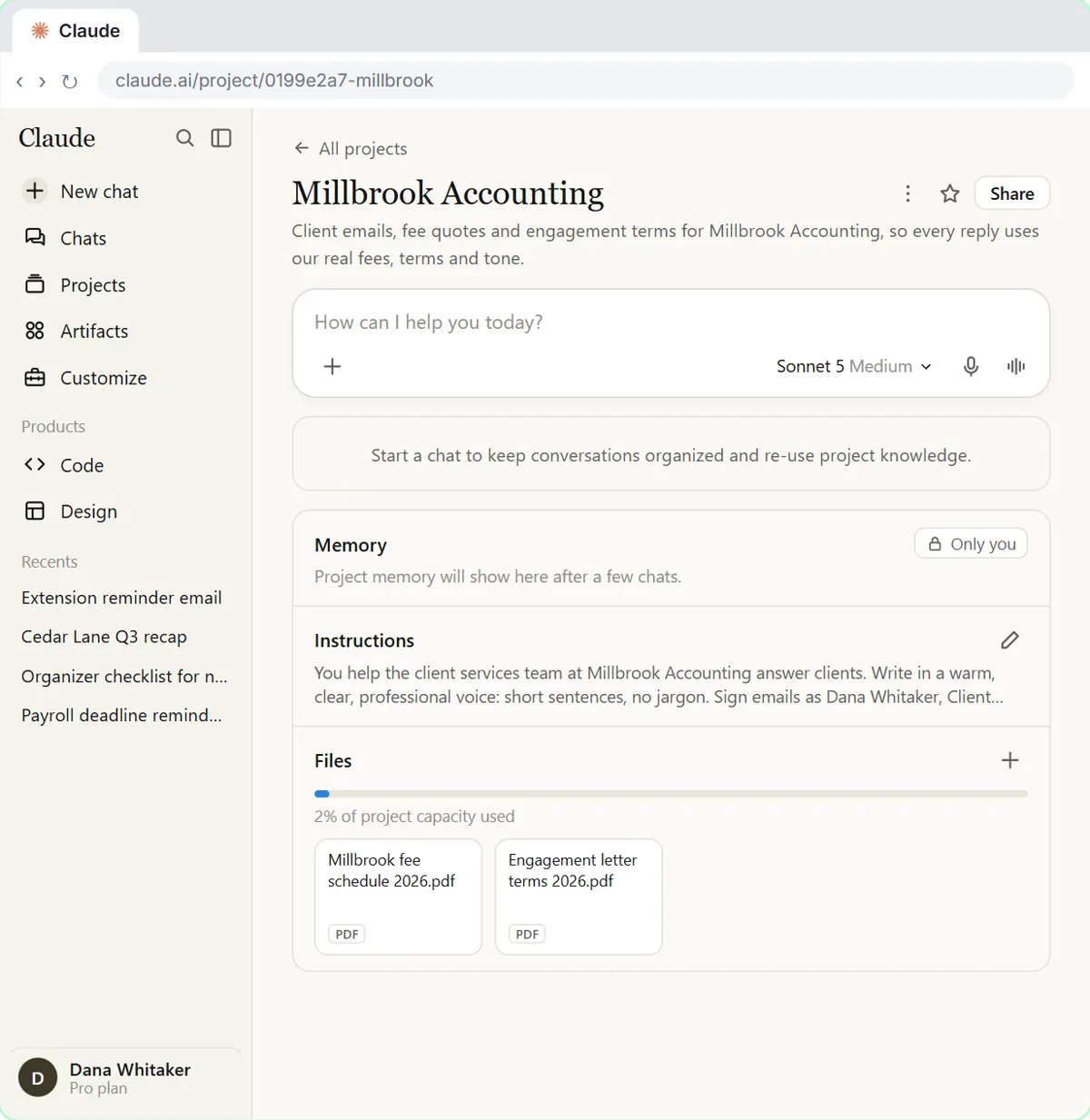 A Claude Project for Your Accounting Firm: Fee Schedule, Engagement Terms and Tone
Create a Claude project for your accounting firm, give it your tone and client policies, add your fee schedule and engagement letter terms as project knowledge, and get…
Free · Live ~9 min
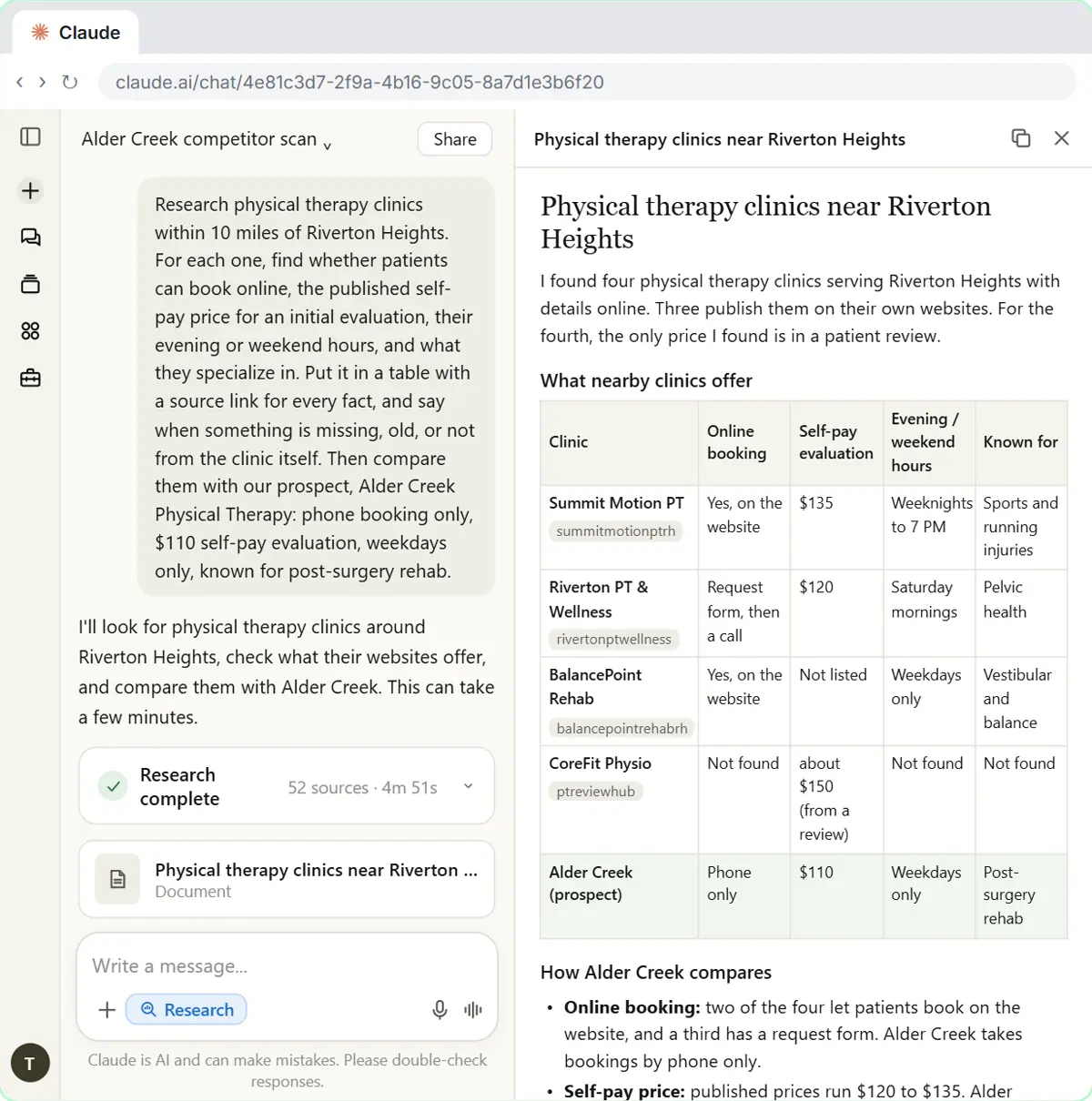 Research a Prospect's Market with Claude Research Before a Pitch (Consultants & Agencies)
Turn on Research before a pitch, have Claude check what a prospect's competitors offer online, read the cited report, check a source and turn it into talking points for…
Free · Live ~7 min
Terms in this lesson
Plain-English definitions, each with an example from a free lesson.