How do you use these prompts?
Fill in every [BLANK] with your real details, paste one prompt into a new Claude chat, and send it. The tool opens as an artifact on the right. Then test it with two or three inputs you can work out in your head before anyone else sees it.
Three rules from the lesson make these prompts work:
- Give the real numbers in the prompt. A calculator built on made-up prices looks just as convincing as a correct one.
- Ask Claude to show the math. A tool that shows how it got a number is easy to check.
- Change one thing at a time. Ask in the same chat, then test again.
If Claude answers in the chat and no artifact opens, check Settings > Capabilities: the lesson notes that artifacts need Code execution and file creation turned on. The Claude artifacts glossary page explains the idea in plain words.
Calculators
1. A customer price calculator
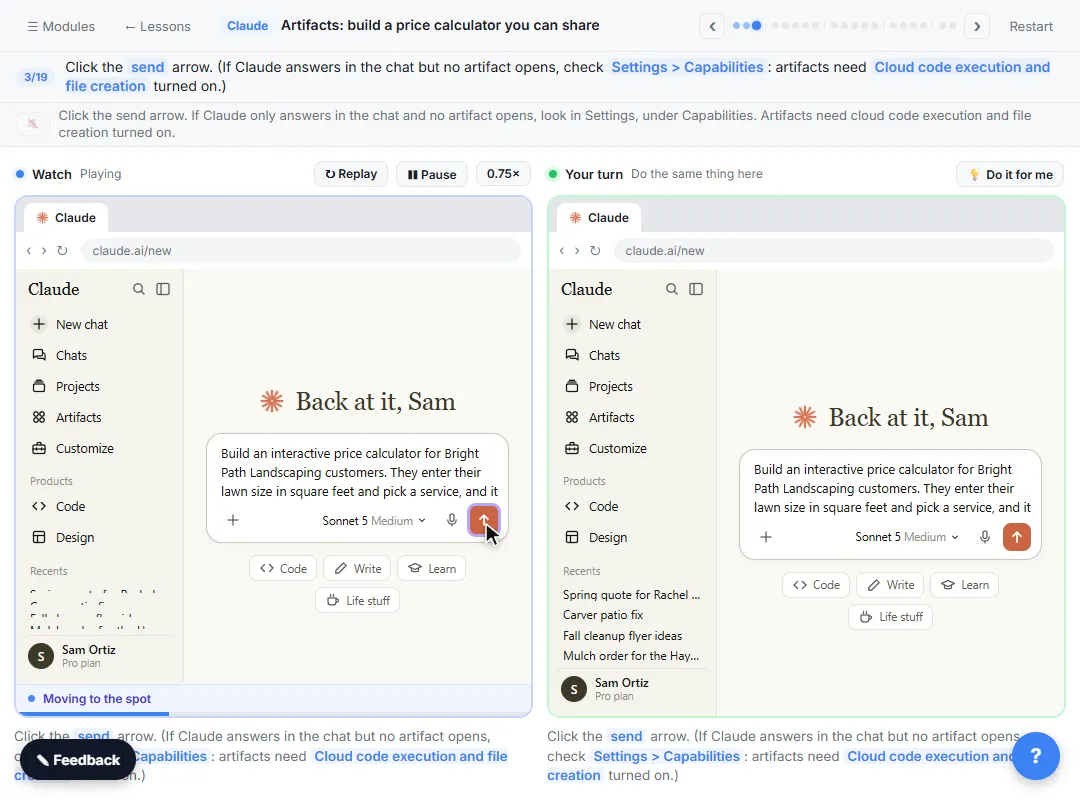
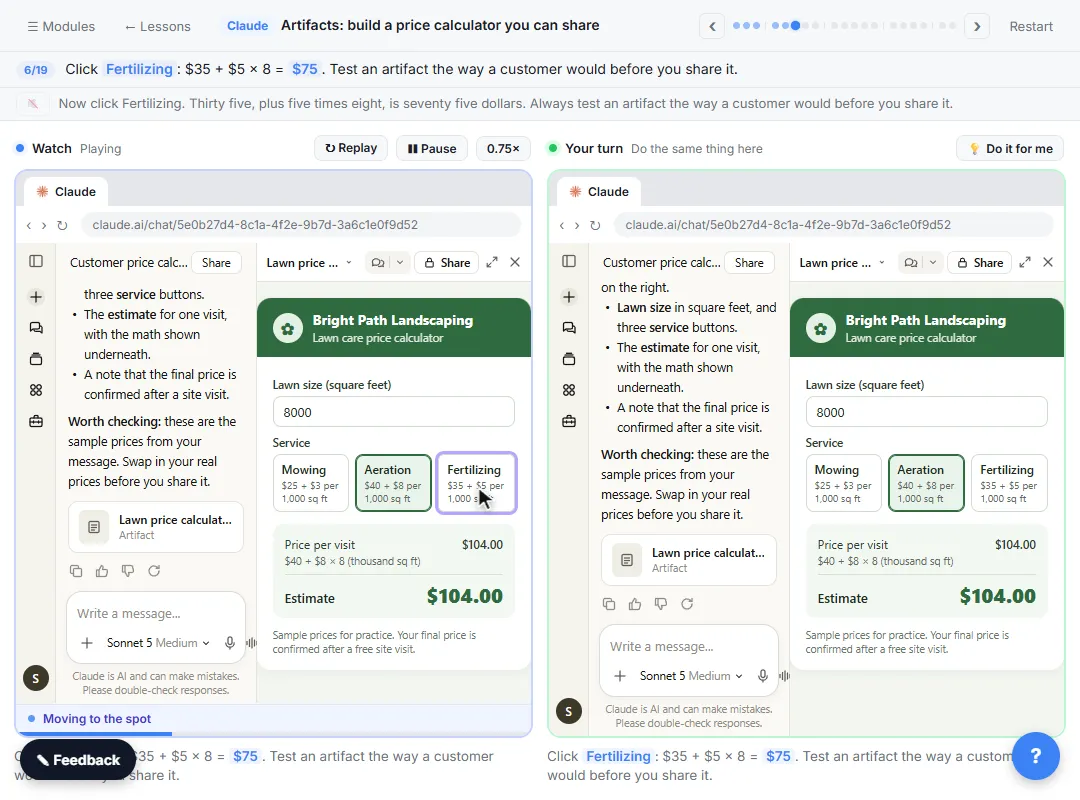
Build an interactive price calculator for [BUSINESS] customers. They enter [INPUT, e.g. lawn size in square feet] and pick a service, and it shows the estimate for one visit. Use these prices: [SERVICE 1: BASE + RATE]. [SERVICE 2: BASE + RATE]. [SERVICE 3: BASE + RATE]. Show how the price is worked out, and add a note that the final price is confirmed by [HOW, e.g. a site visit]. Keep it simple and friendly, in [COLORS].
This is the lesson's prompt with the blanks opened up. Check one result by hand before you share it.
2. A quote calculator with a volume discount
Build a quote calculator for [SERVICE]. The user enters [QUANTITY FIELD] and [OPTION FIELD]. Price: [PRICE RULES]. Take [X]% off when [QUANTITY FIELD] is [N] or more. Show the subtotal, the discount and the total on separate lines, so the math is easy to check.
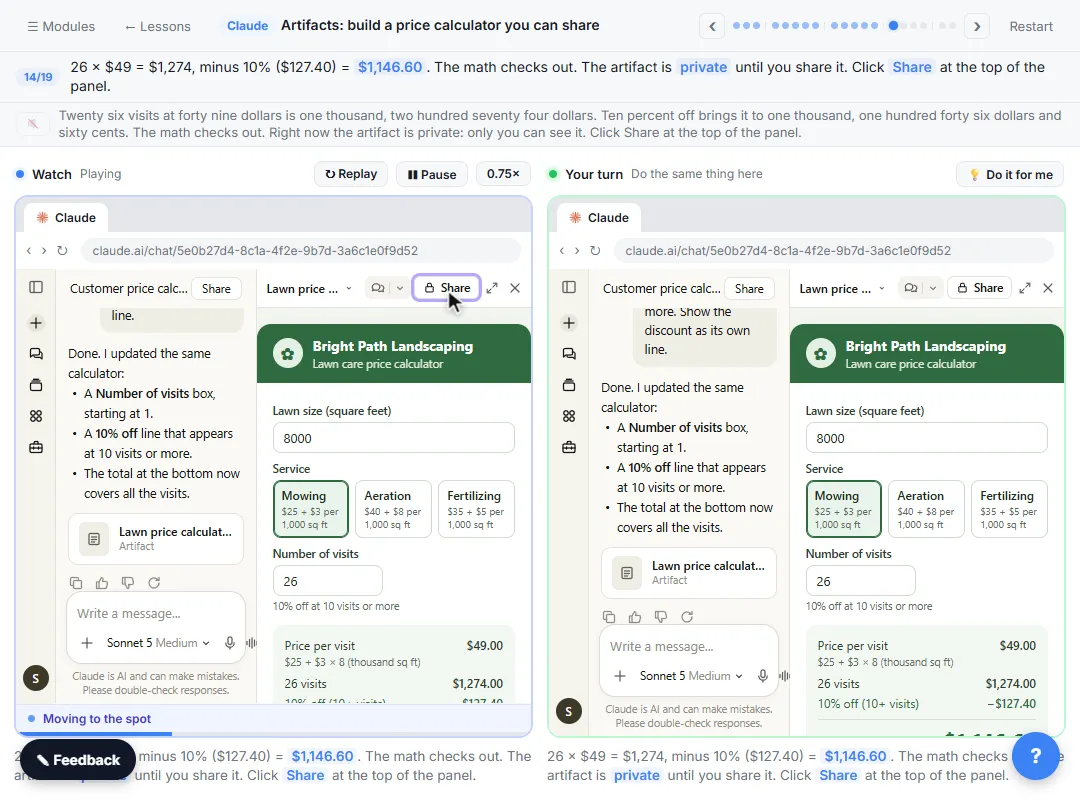
Separate lines for subtotal, discount and total make the discount visible, which is exactly what you check in the lesson ($1,274 minus $127.40 is $1,146.60).
3. An internal mileage or expense calculator
Build a simple calculator for our staff to work out a mileage claim. They enter the miles driven and pick [TRIP TYPES]. Use a rate of [RATE] per mile. Show the math, round to the cent, and add a note: "Check the current rate with [PERSON OR TEAM] before you submit."
Put the rate in the prompt yourself. Don't ask Claude to look it up and trust whatever comes back.
4. A "which plan fits me" helper
Build a short interactive helper that asks a customer [3 TO 5 QUESTIONS] and then recommends one of our plans: [PLAN A: WHO IT FITS], [PLAN B: WHO IT FITS], [PLAN C: WHO IT FITS]. Show which answers led to the recommendation. Don't show any price that isn't in this message.
The last line keeps Claude from adding prices you never gave it.
Checklists and forms
5. A new-hire first-week checklist
Build an interactive checklist for a new [ROLE] at [COMPANY] for their first week. Group the items by day, Monday to Friday. Each item has a checkbox. Show how many items are done out of the total. Items: [PASTE YOUR LIST].
Paste your own list. If you let Claude invent the items, read every one before it goes to a new hire.
6. A client intake checklist
Build a one-page intake checklist for new [CLIENT TYPE] clients. Sections: documents we need, questions to ask, and next steps. Use only these items: [PASTE ITEMS]. Add a "Copy summary" area at the bottom that lists which items are checked.
7. A meeting agenda builder
Build a small tool to plan a meeting agenda. The user adds agenda items with a name, an owner and minutes. It shows the running total of minutes and warns when the total goes over [LENGTH] minutes.
Trackers and pages
8. A simple project timeline
Build a visual timeline for [PROJECT]. Phases and dates: [PHASE 1, START, END], [PHASE 2, START, END], [PHASE 3, START, END]. Highlight today's phase. Keep it readable on a phone.
9. A one-page FAQ for customers
Build a clean one-page FAQ for [BUSINESS] customers, in [COLORS]. Use only these questions and answers, word for word: [PASTE Q AND A]. Add a short line at the top with how to contact us: [CONTACT LINE].
"Word for word" matters: an FAQ is a promise, so it should only say what you already say.
10. A team phone and email list
Build a searchable staff directory page from this list: [PASTE NAME, ROLE, EXTENSION]. Typing in the search box filters by name or role.
Leave out personal phone numbers and anything else the page doesn't need. The PII glossary page explains what counts as personal information.
Follow-ups that test, change and share
These go in the same chat, after the artifact opens.
11. Ask Claude to check its own math
Check the calculator against these three test cases and tell me if any result is wrong: [INPUT 1 → EXPECTED], [INPUT 2 → EXPECTED], [INPUT 3 → EXPECTED]. Fix the artifact if anything is off.
You still run the same three cases yourself. This prompt just catches problems sooner.
12. Add one feature
Add a [FIELD NAME] box. [RULE FOR THE NEW FIELD]. Keep everything else the same.
This mirrors the lesson's change: one clear request, and Claude updates the same artifact instead of making a new one.
13. Fix one thing that looks wrong
When I enter [INPUT], the total shows [WRONG NUMBER], but it should be [RIGHT NUMBER] because [REASON]. Fix that calculation and don't change anything else.
Saying which input gave which wrong number, and why, is the fastest way to a fix.
14. Get it ready to share
Before I share this with customers: list every price, rule and promise the artifact shows, and the line of my message each one came from. Flag anything you added that I didn't give you.
Then put in your real prices, test it like a customer, and click Share. Artifacts start private, and the lesson walks through changing General access to Anyone with the link.
Try it free, step by step
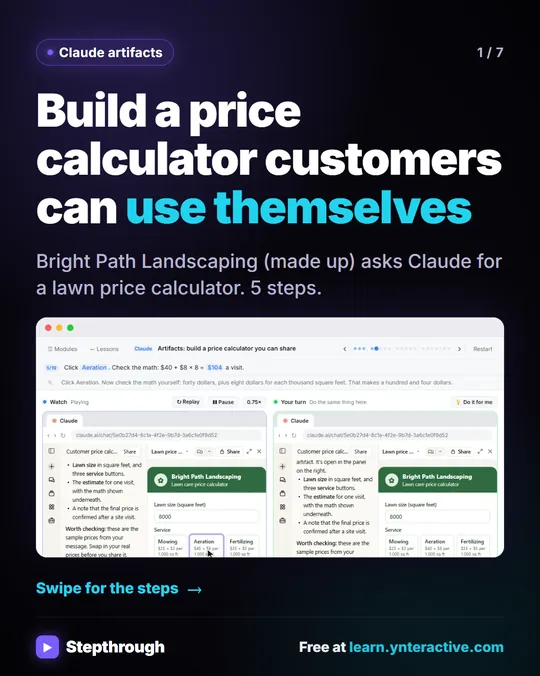
Claude Artifacts: Build a Price Calculator You Can Try, Change and Share. Have Claude build an interactive lawn price calculator, try it in the artifact panel, ask for a change, and share it with a link. You do every step yourself in a practice copy of Claude, it checks your work as you go, and “Do it for me” finishes any step you get stuck on. Free, and nothing touches your real accounts.
Start the free lessonWhat should you check before you share an artifact?
Three things, every time. First, the numbers: run two or three inputs you can do in your head. Second, the words: every price, policy and promise on the page should be one you already make. Third, who can see it: artifacts start private, and the lesson notes that Anthropic's help center says people need a Claude account to open a shared artifact, so open the link in a private window first and see what your customers will see.
If you're new to Claude, start with your first Claude chat, then take the artifacts module in the free Claude Jump Start course. For more ideas built around one job, see Claude Artifacts for Office Managers, and to avoid the usual problems, Claude Artifacts Mistakes to Avoid.
Key takeaways
- An artifact is a working tool Claude builds in a panel beside the chat: you can click it, test it, change it and share it.
- Good artifact prompts name who it's for, what goes in, what comes out and the exact numbers.
- Ask Claude to show the math, then check two or three results yourself.
- Change one thing at a time, in the same chat, and test again.
- Artifacts start private; check what a viewer sees before you send the link.
Frequently asked questions
- Do I need a paid Claude plan for artifacts?
No. The lesson says artifacts work on every plan, including Free. Sharing options can differ by plan, so check what your plan shows under Share.
- Why didn't Claude open an artifact?
Check Settings > Capabilities. Artifacts need Code execution and file creation turned on.
- Can I change an artifact after Claude builds it?
Yes. Ask for the change in the same chat. Claude updates the same artifact, and you test it again.
- Where do I find an artifact later?
In Artifacts, in Claude's sidebar. Everything you make is saved there.
- Is Bright Path Landscaping a real company?
No. Bright Path Landscaping and its prices are made up for the lesson, so every number is easy to check.