Updated . Built against the tool’s current screens and checked step by step. How we check this lesson
Every small team has a task that someone explains by hand, again and again: adding a client to the portal, filing an expense, setting up a new hire's accounts. Each walkthrough takes an hour, it comes out a little different every time, and the questions keep coming for weeks. Clueso takes screen recordings of a process, ums and wrong turns included, and turns them into two things: a polished training video with an AI voiceover, and a step-by-step help article with a screenshot for each click. This guide shows a small business how to do it the way Clueso's own team recommends: upload the recording, start from the prompt box with it as the source, and prompt Clueso for a training video with the steps, a voiceover and your branding. We did every step in the real Clueso app with a made-up 33-second recording, wrong turn included, and show what came back: the plan, a 1-minute branded video and a five-step article. It comes with a free practice lesson built from those real screens. This is my own guide, not an official Clueso course.
At a glance
| Question | Answer |
|---|---|
| What you build | Stop teaching the same task by hand. Upload a rough screen recording to Clueso, add it as the source in Start with Prompt, brief a training video with steps, voiceover and your branding, check the plan, and get a step-by-step help article from the same project. |
| Tools | Clueso |
| Time | About 10 minutes, 22 steps in 4 parts |
| Level | Beginner, no coding needed |
| Cost | Free |
| Ways to learn it | Practice it step by step |
The 4 parts, in short
- Upload the recording: Upload the recording, Pick the file, Create the project, Read what it wrote from your clicks.
- Open Start with Prompt: Back to the prompt box, Add Project, Pick the recording, Choose how Clueso works, and 1 more step.
- Prompt the training video: Write the brief, Send it, Check the plan against the recording, Approve the plan, and 1 more step.
- The finished video and article: Let it build, Read its report, then play, The branded intro, The steps, one by one, and 4 more steps.
Start here first: AI Receipt Extractor: Receipts to Google Sheets with n8n (module 1 of Business Automations)
In the course: Part 9 · n8n Automation Toolkit (Module 109 of the full course)
Part of: AI for Operations Teams (step 33 of 39). Next up: Tell the Client, the Boss and the Team in One Go using ChatGPT
Part of: AI Apps Worth Knowing (step 67 of 123). Next up: Granola: Client Call Notes Written for You, With No Meeting Bot
A one-page plan for your first training video
Fill this in before you hit record. It keeps the recording short and the article clean. Replace the example answers with your own.
| Question | Example answer (Northgate Benefits Group) |
|---|---|
| Which task do people ask about most? | Adding a new client in the portal |
| Who watches it? | New account managers in their first two weeks |
| What is the finished result? | The client is in the portal once, with the right renewal month |
| What must never show on screen? | Real client emails, phone numbers, policy numbers, salaries |
| Where will it live? | The team knowledge base, linked from the onboarding checklist |
| What should the prompt ask for? | Clear steps, a zoom on each click, a plain-English voiceover, navy and white branding, and the help article |
| Who checks it, and when? | The operations lead, whenever the portal changes |
The business case: stop teaching the same task by hand
Picture Dana Ortiz, operations lead at Northgate Benefits Group, a made-up 14-person employee-benefits broker. Every new account manager needs to learn how to add a new client in the portal, and Dana teaches it by sitting next to them. Then the questions arrive in chat for weeks: which field is required, what happens with duplicates, where the renewal month goes.
Here is the arithmetic, using example numbers you should replace with your own. Say Dana spends about an hour on the walkthrough and another hour answering follow-up questions, for each of six new hires a year, across five common tasks. That is about 60 hours a year of repeat teaching, and every version is slightly different. A short training video and a help article for each task say it the same way every time, and they become part of employee onboarding. The hard part has always been the editing. That is the part Clueso does for you.
What Clueso is
Clueso is a web app, with a Chrome extension for recording, that turns screen recordings into polished product and training videos and documentation. From its home screen you can create with a prompt, record your screen, upload videos you already have, or upload slide decks. After you record or upload, Clueso transcribes what you said, writes a clean script, and builds a first draft in its video editor. It also writes a step-by-step article from the same recording, with a screenshot for each click.
In the editor you can edit the script like a document, pick an AI voice and generate a text-to-speech voiceover, add zooms, callouts, spotlights and blurs, and add auto captions. Clueso's site also lists AI avatars, translation into many languages, reusable templates (called Clueprints) and an MCP connection for AI assistants. Clueso's site says it has a free plan with no credit card required; check Clueso's pricing page for what each plan includes.
Step 1: upload the screen recording
Record the task once, start to finish, the way you would show a new hire. Clueso's recording tips are worth following: avoid extra clicks, because each click becomes a step, and get the clicks right even if the rest is messy. Our test recording was 33 seconds with no voice, and Dana took a wrong turn into the Reports page before going to Clients.
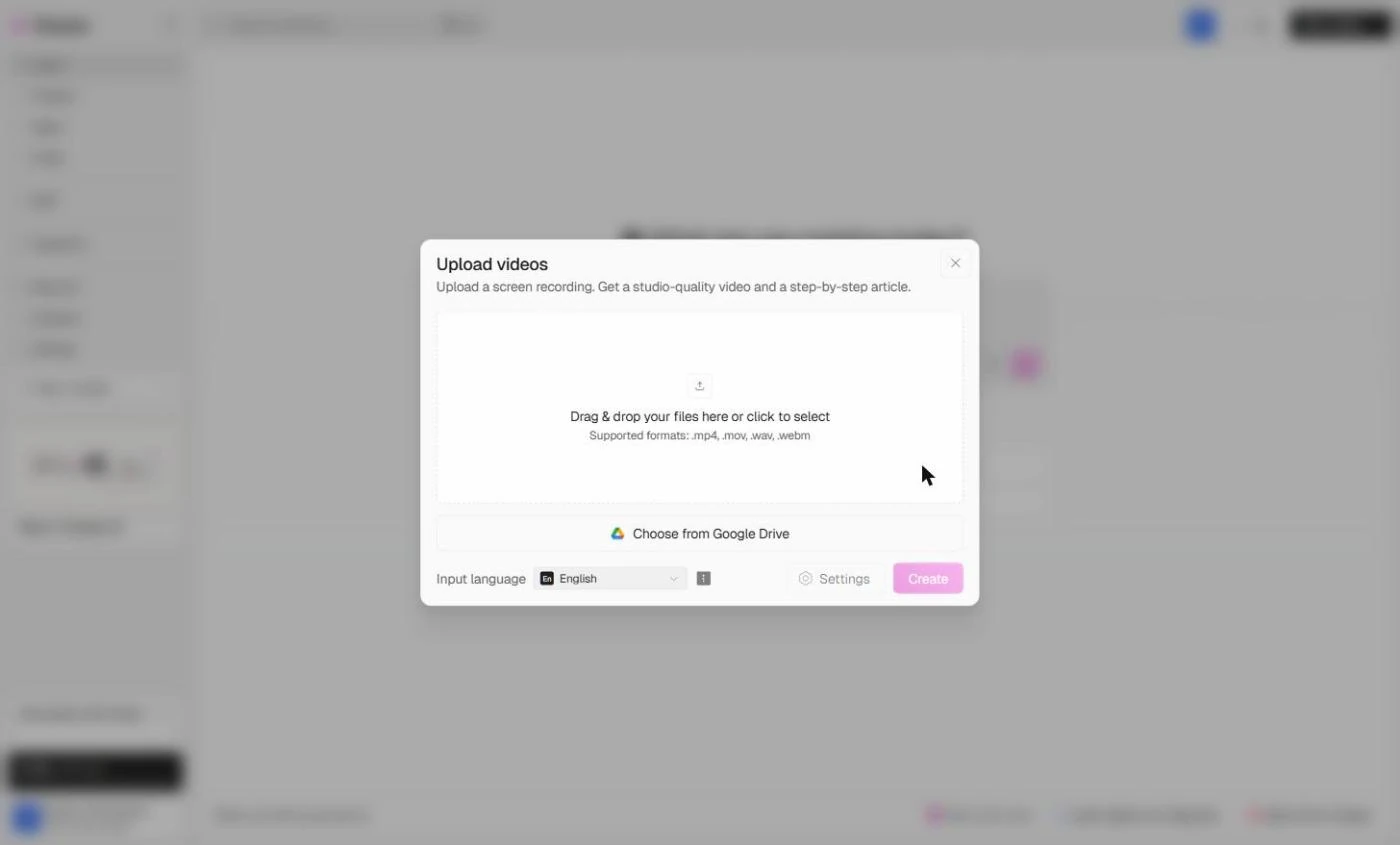
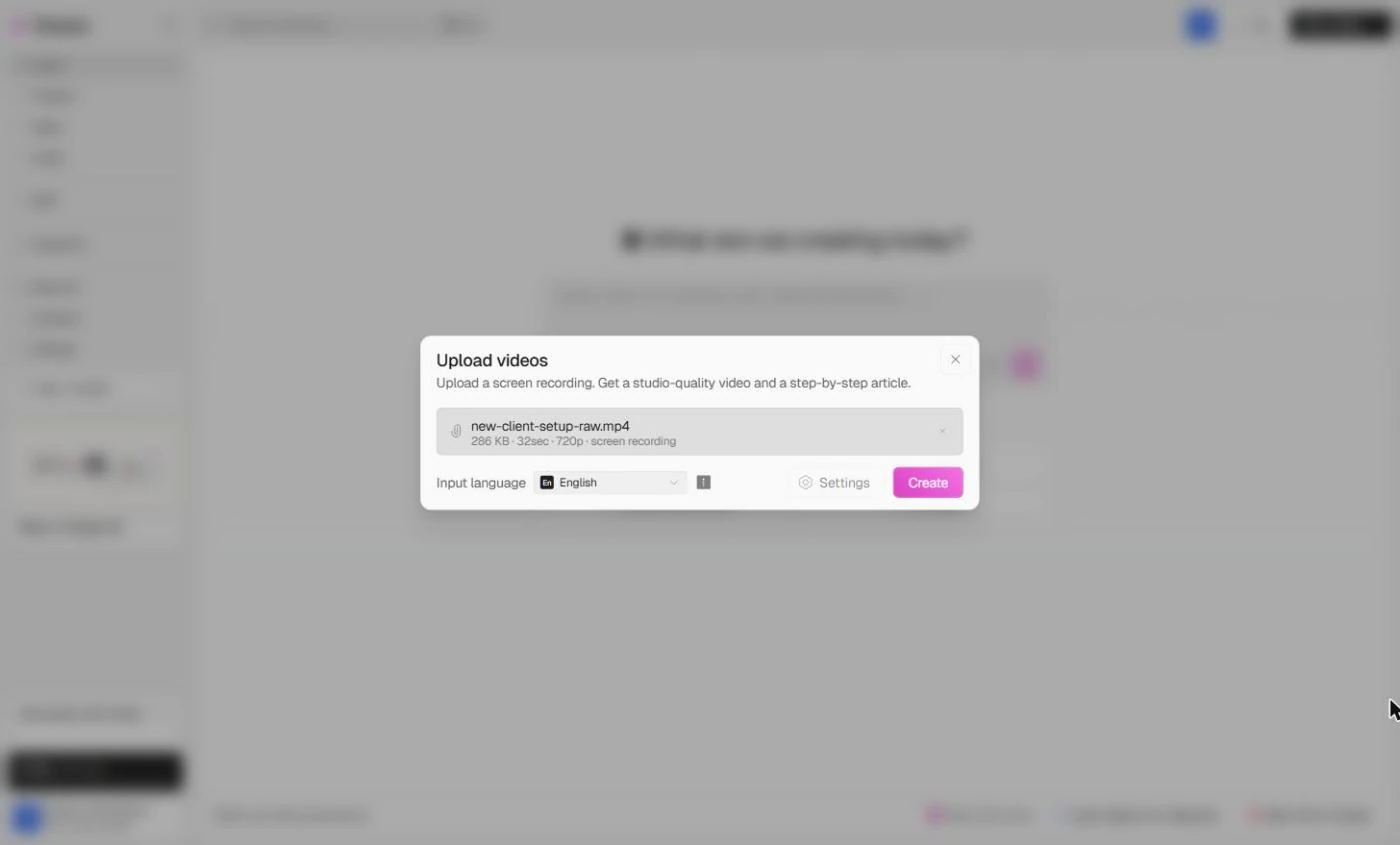
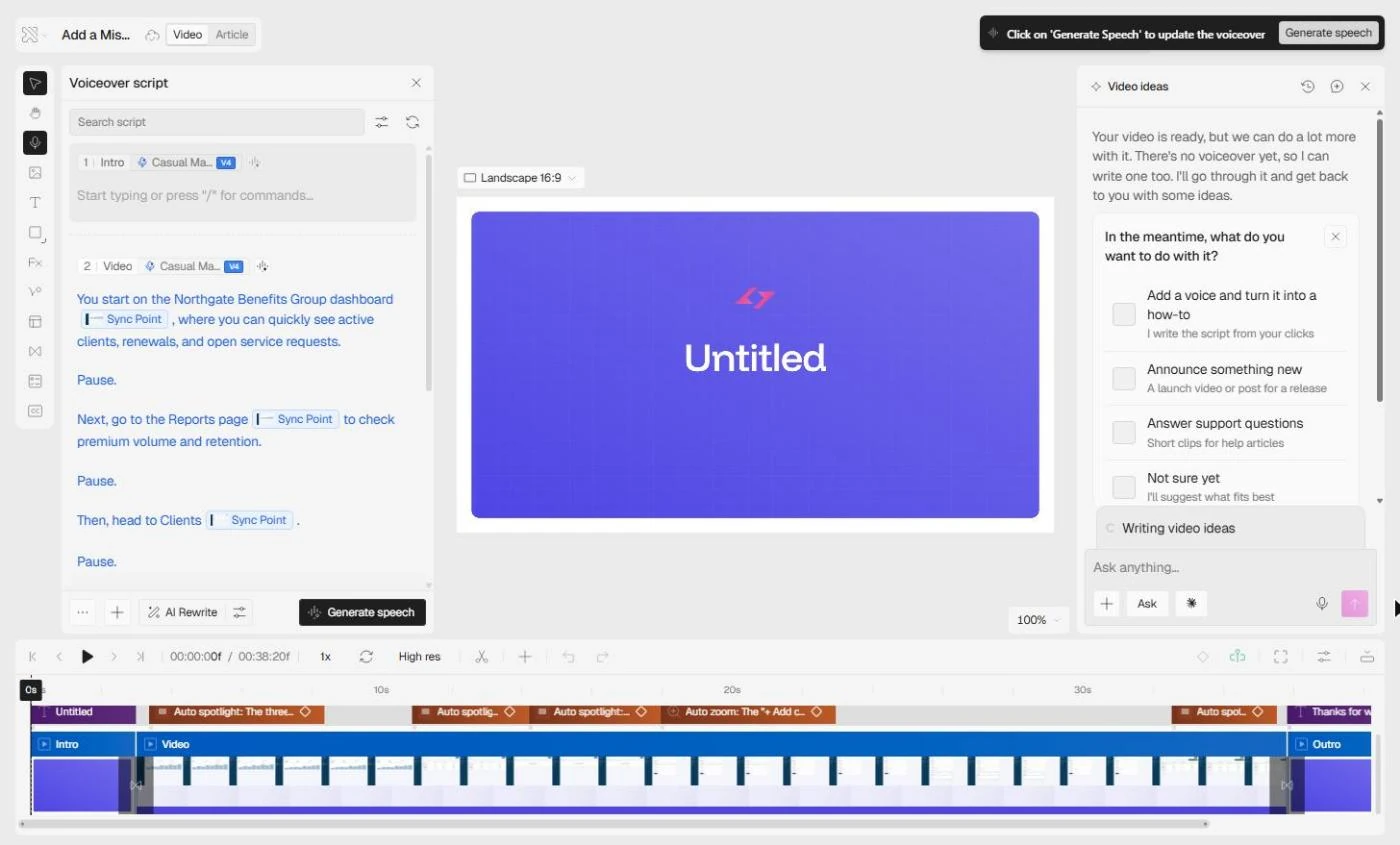
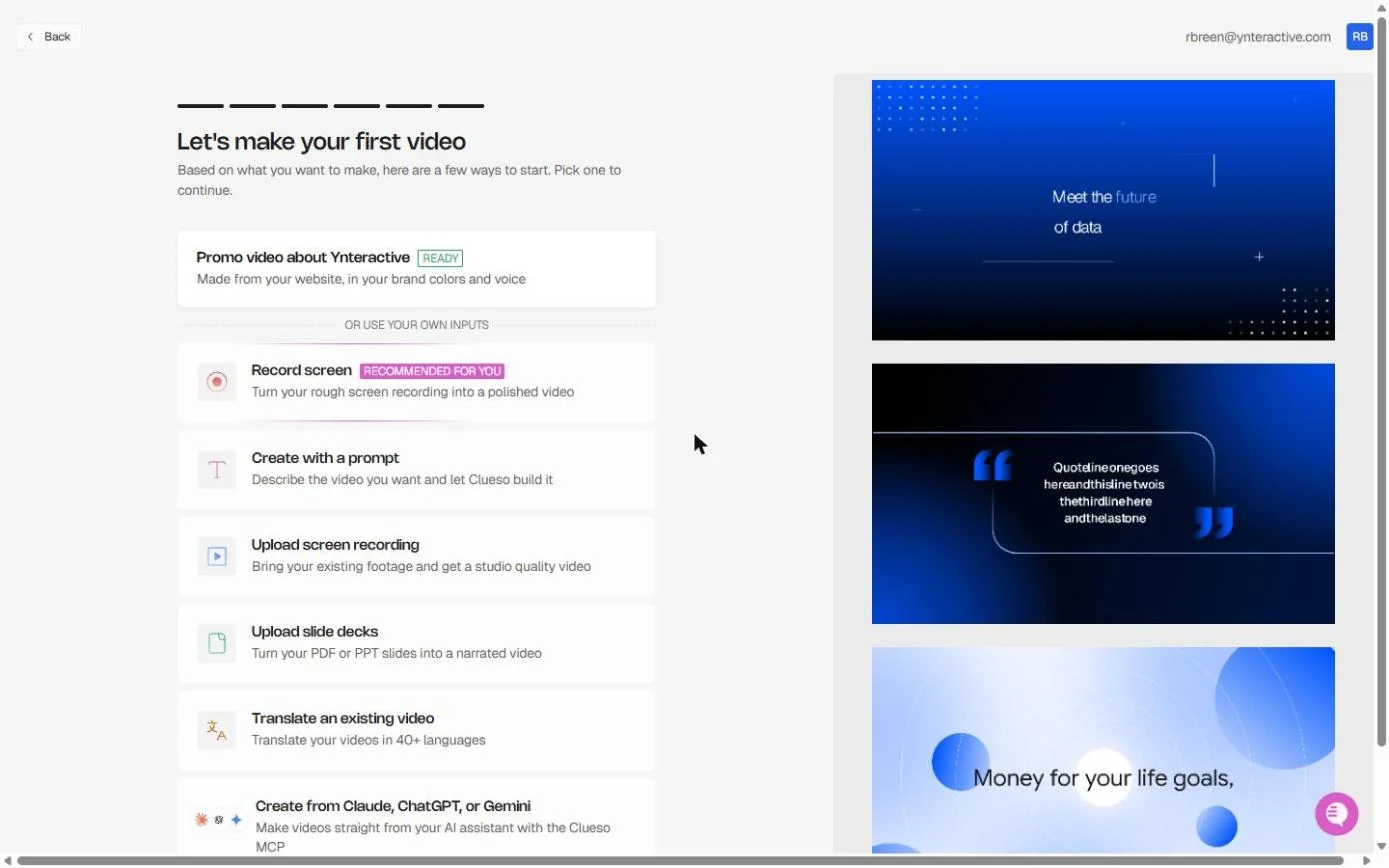
On the home screen, under What are we creating today?, click Upload videos. The dialog takes .mp4, .mov, .wav or .webm and promises a studio-quality video and a step-by-step article. Check the input language, pick the file and click Create. About a minute later the editor opens with a project Clueso named itself (ours was Add a Missing Client to Northgate Benefits) and a voiceover script written from the clicks.
Read that script. Ours narrated the wrong turn as if it were a step ("Next, go to the Reports page to check premium volume and retention") and stopped before Save client. From clicks alone, Clueso gives you a draft, not training. That is what the prompt is for.
Step 2: start with a prompt, with the recording as the source
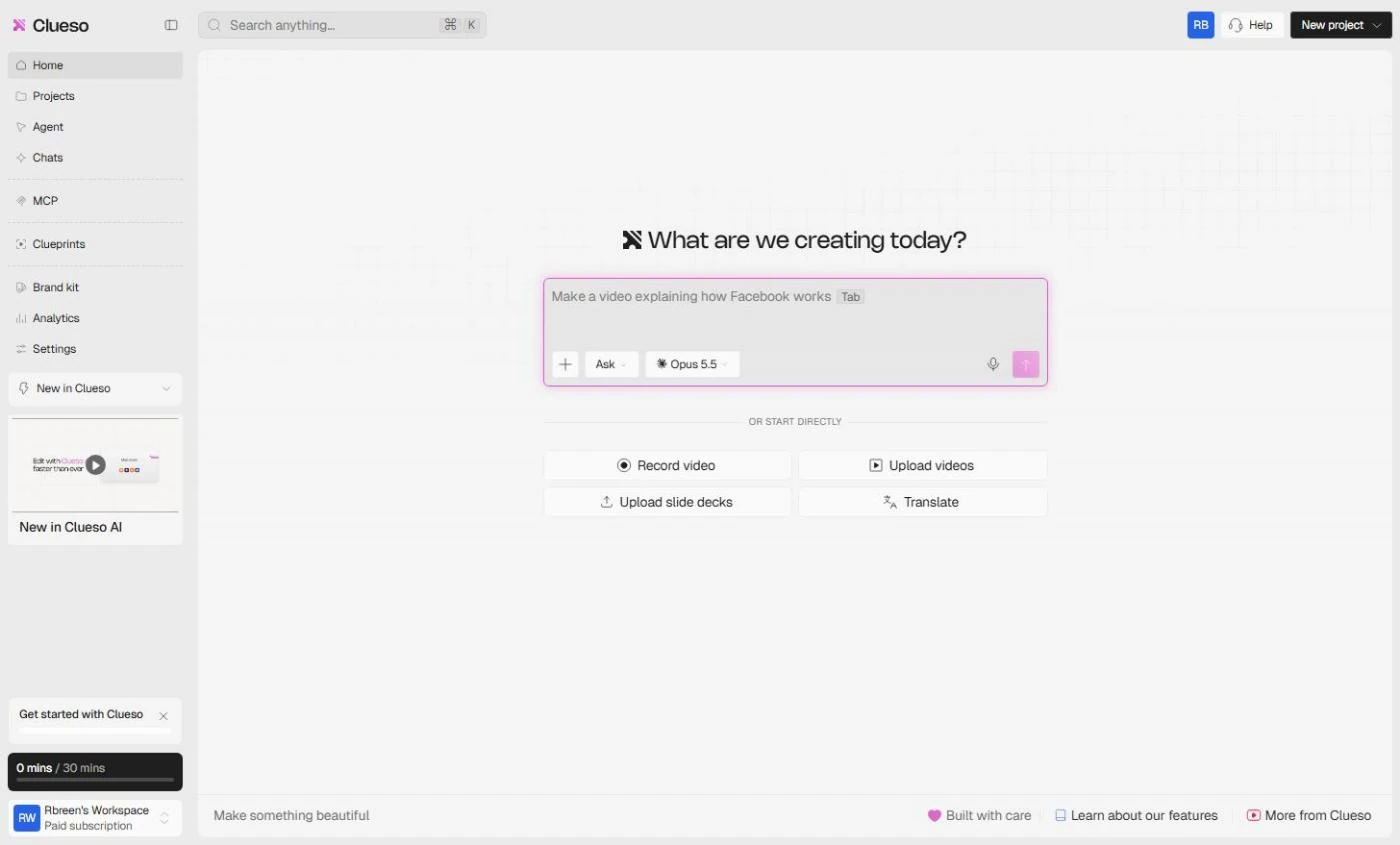
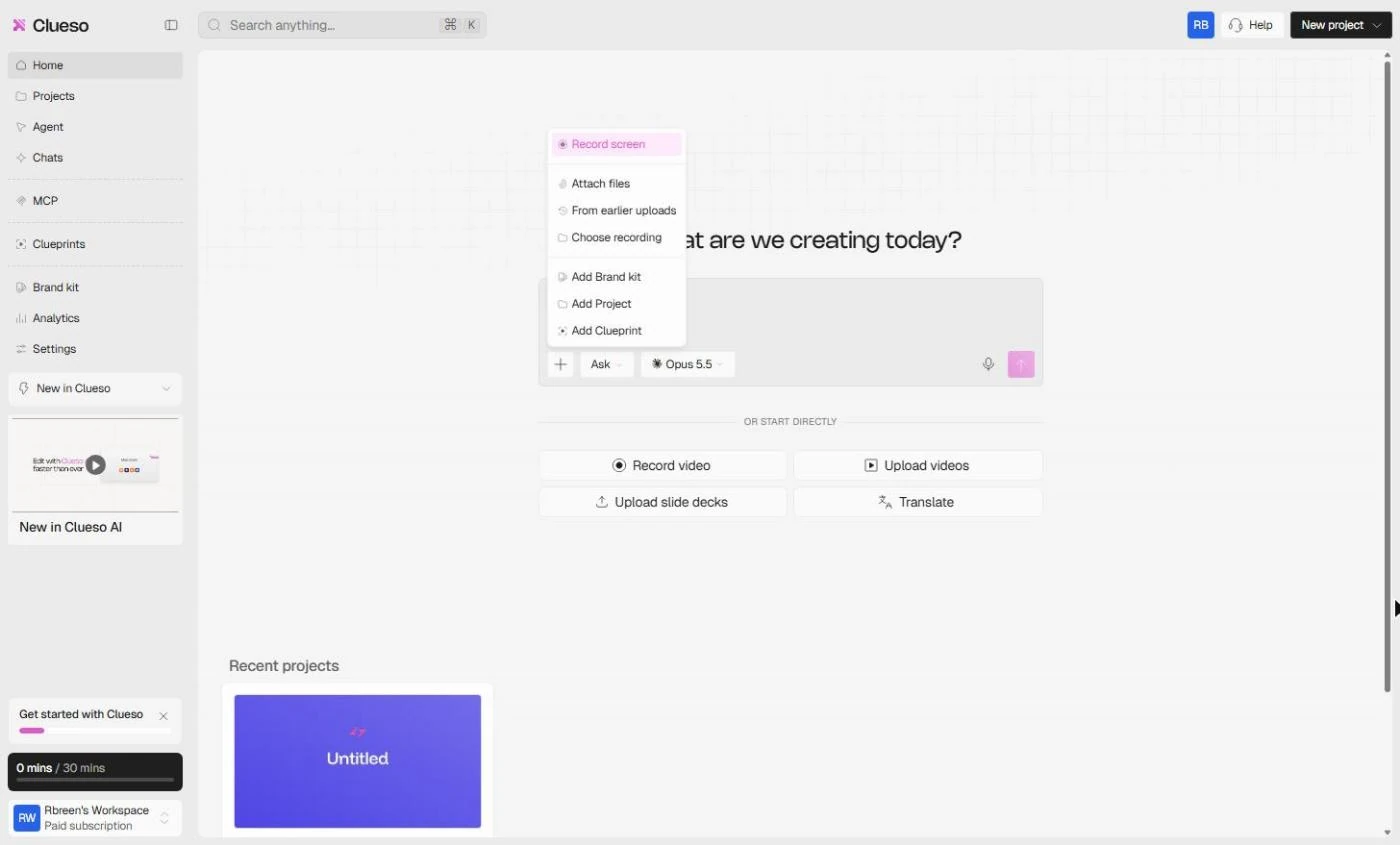
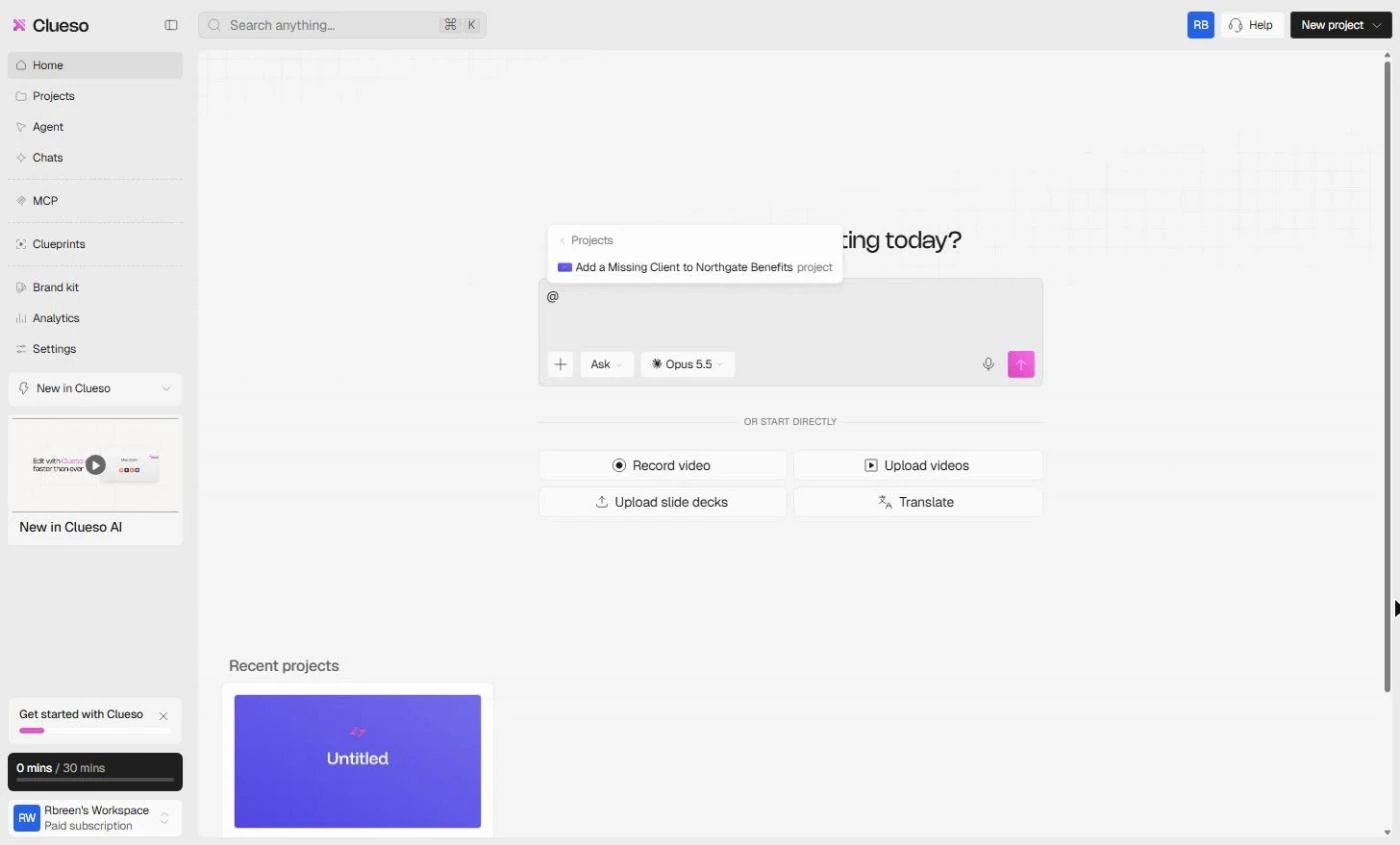
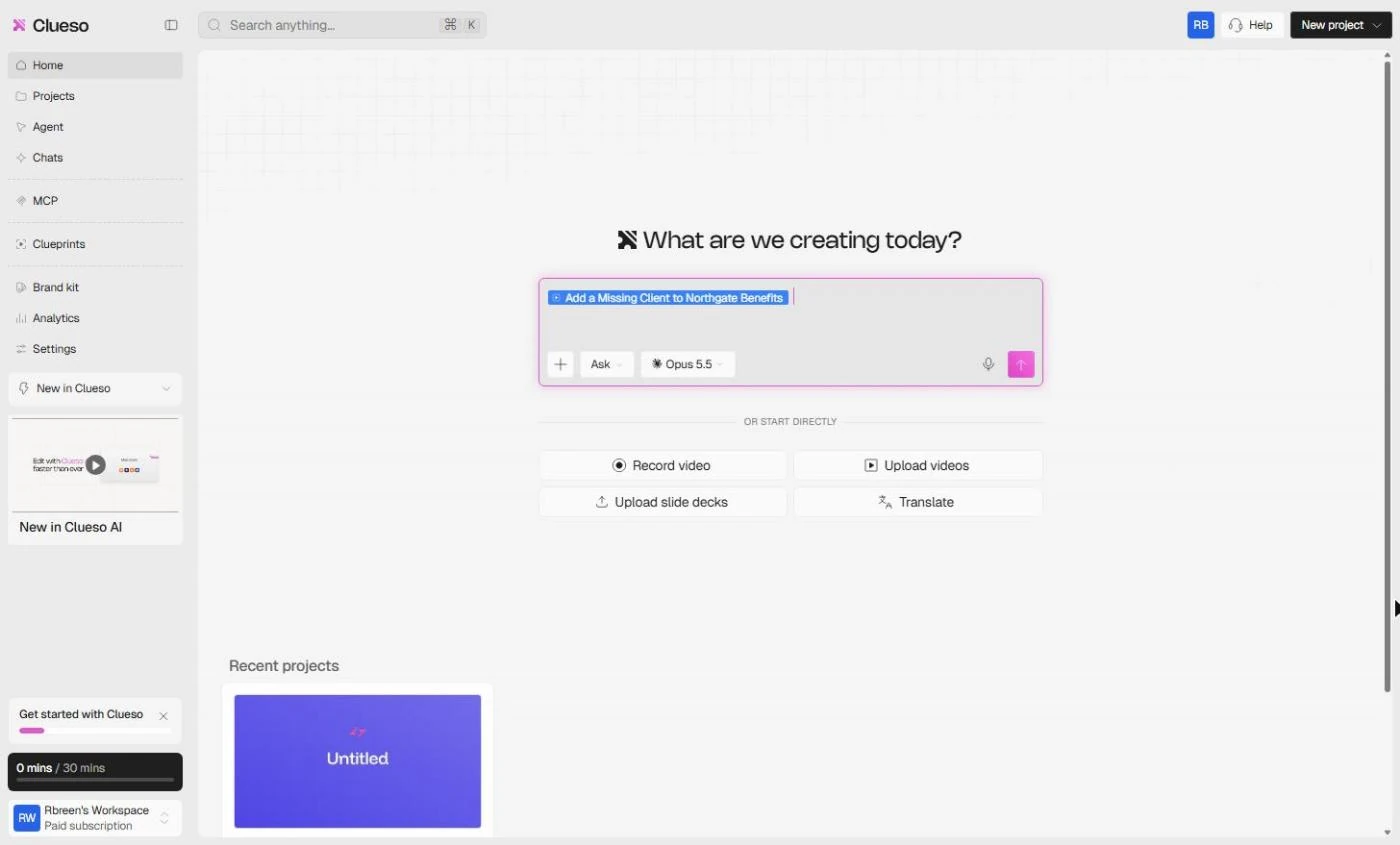
Back on the home screen, the box that asks What are we creating today? is where Start with Prompt begins. Before you write, give Clueso the material. Click the + button next to the box. The menu has Record screen, Attach files, From earlier uploads, Choose recording, Add Brand kit, Add Project and Add Clueprint. Click Add Project and pick the project your upload made. It sits in the box as a blue chip: that is the source.
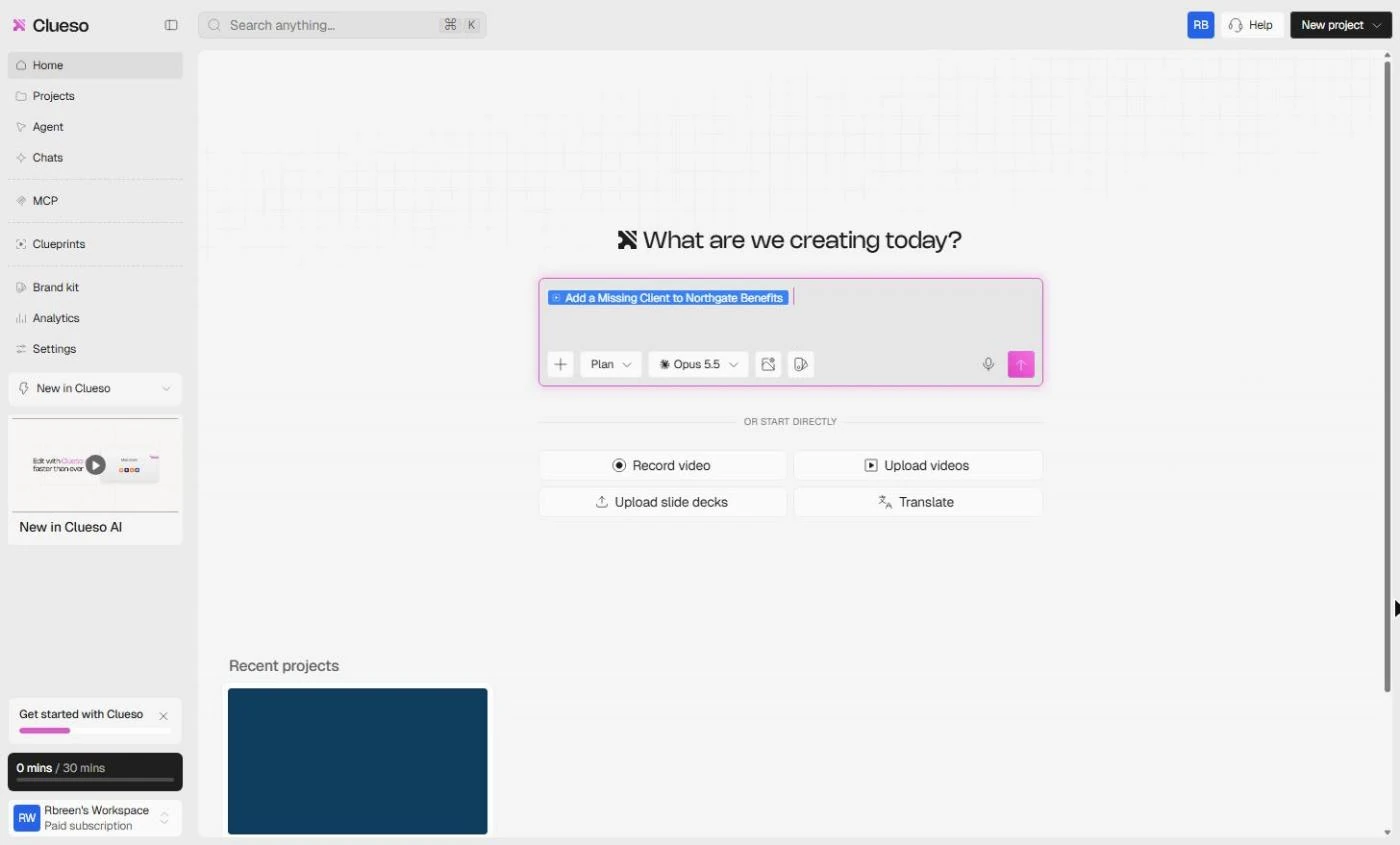
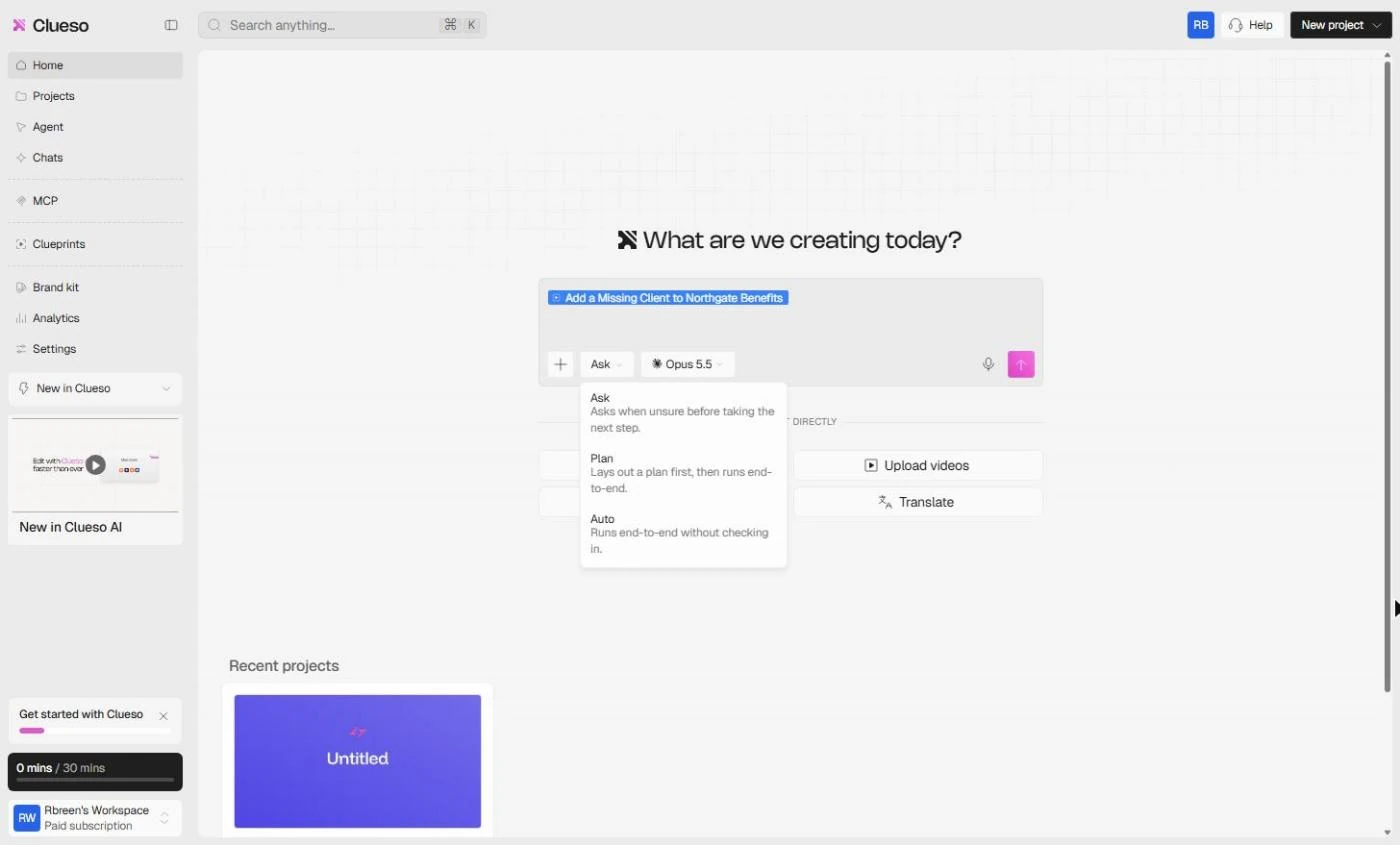
Next to +, the mode reads Ask. Click it and pick Plan, which lays out a plan first, then runs end to end. Ask checks with you when it is unsure; Auto runs without checking in. For training, Plan is the safe choice, because you see the script before it spends the build.
Step 3: prompt Clueso to create the training video
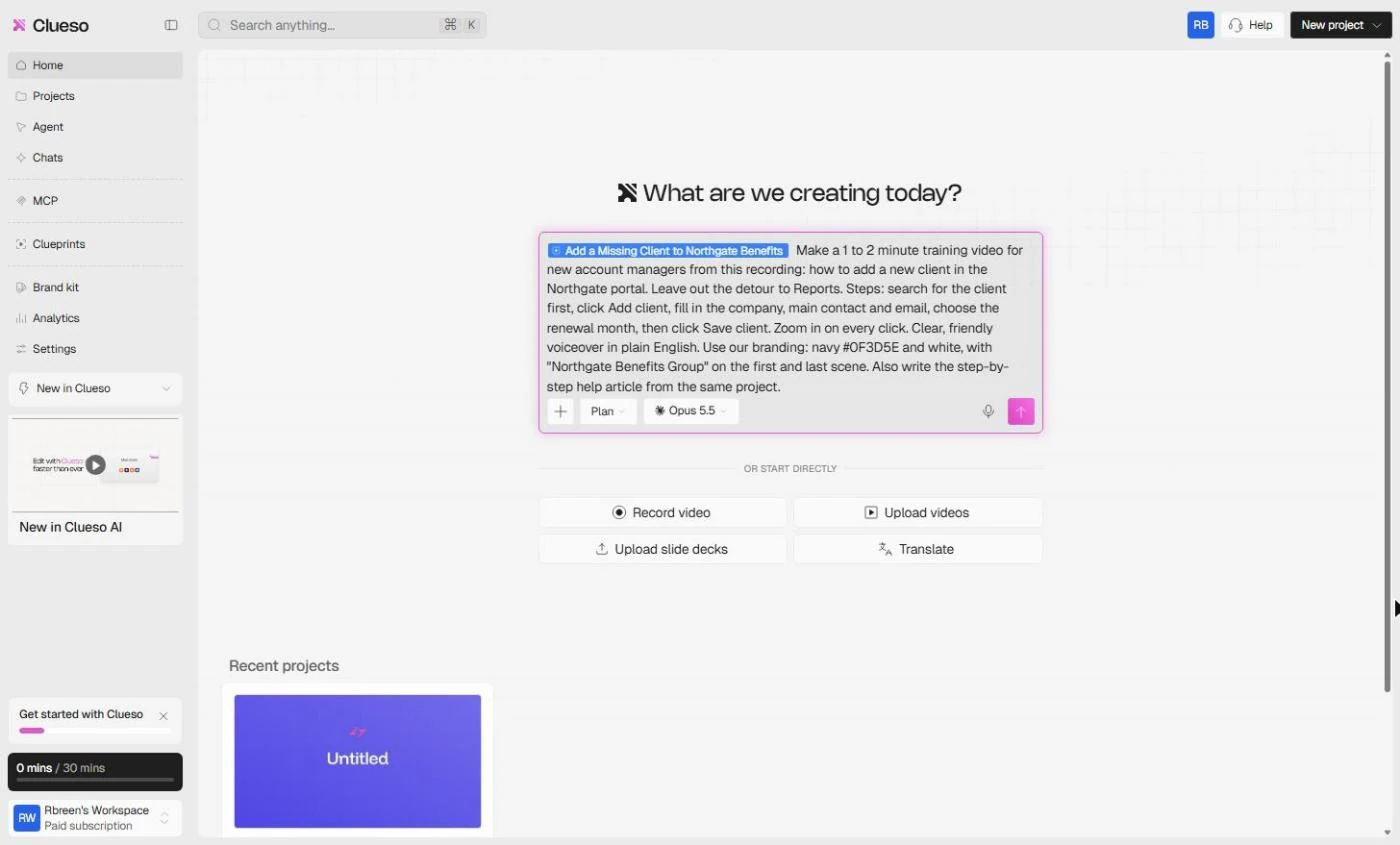
There is no duration or tone setting in this box, so put both in the prompt. Write it like a brief for a freelance editor, which is how Clueso's own best-practices page puts it: the length, who it is for, what to leave out, the steps in order, the voice and the branding. Our prompt asked for a 1 to 2 minute training video for new account managers, leaving out the detour to Reports, with the five steps listed, a zoom on every click, a clear, friendly plain-English voiceover, navy #0F3D5E and white with the firm name on the first and last scene, and the step-by-step help article from the same project.
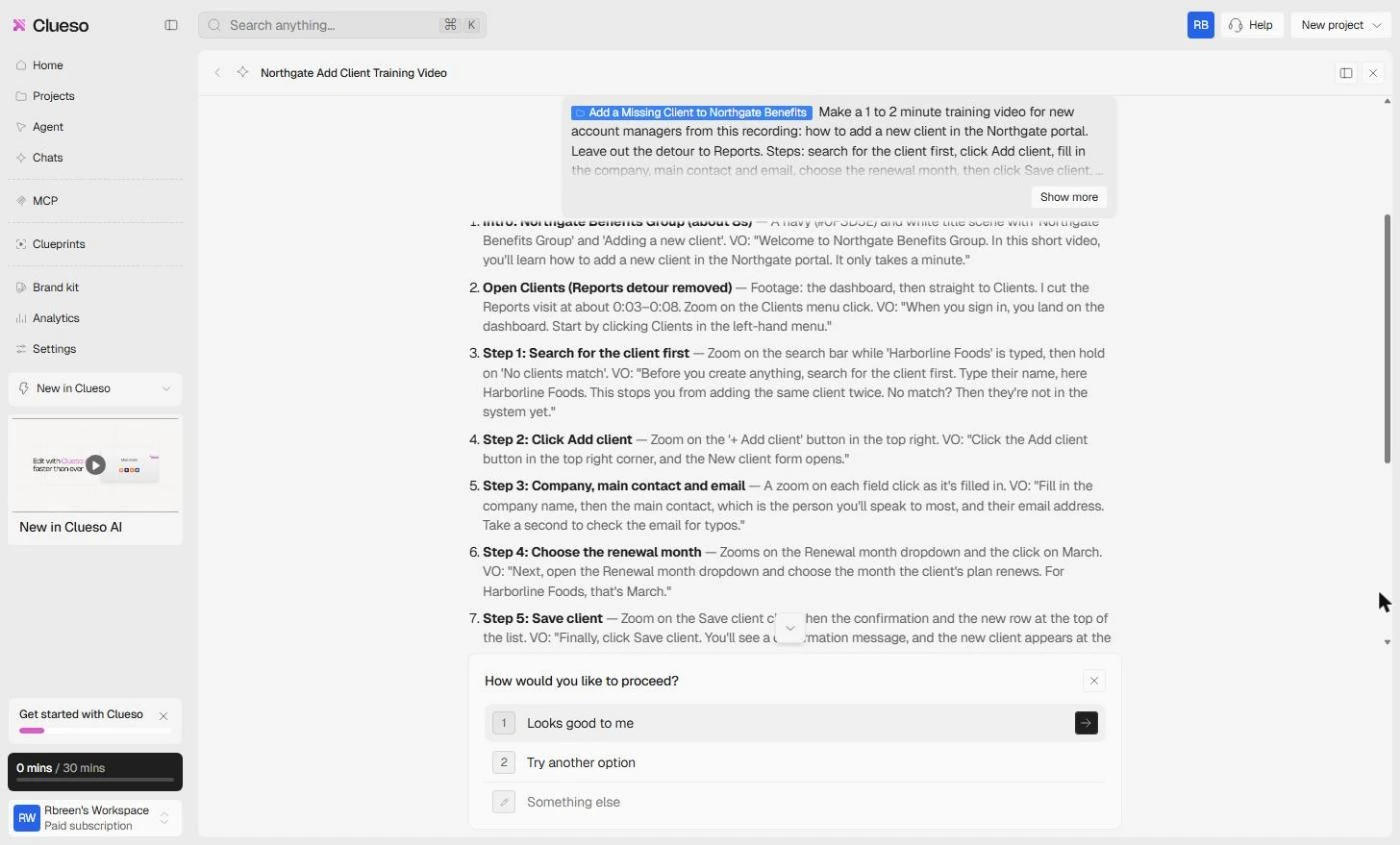
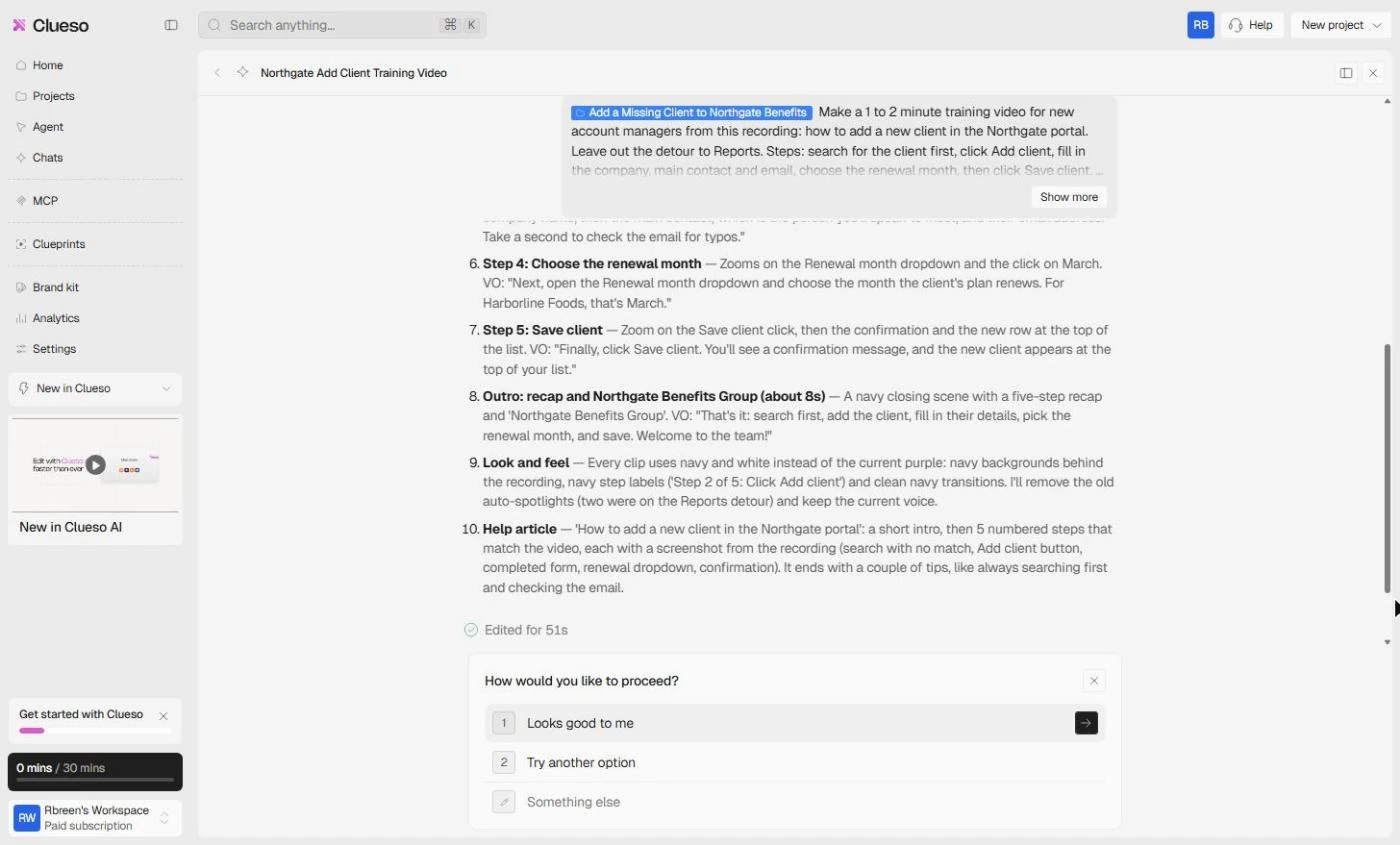
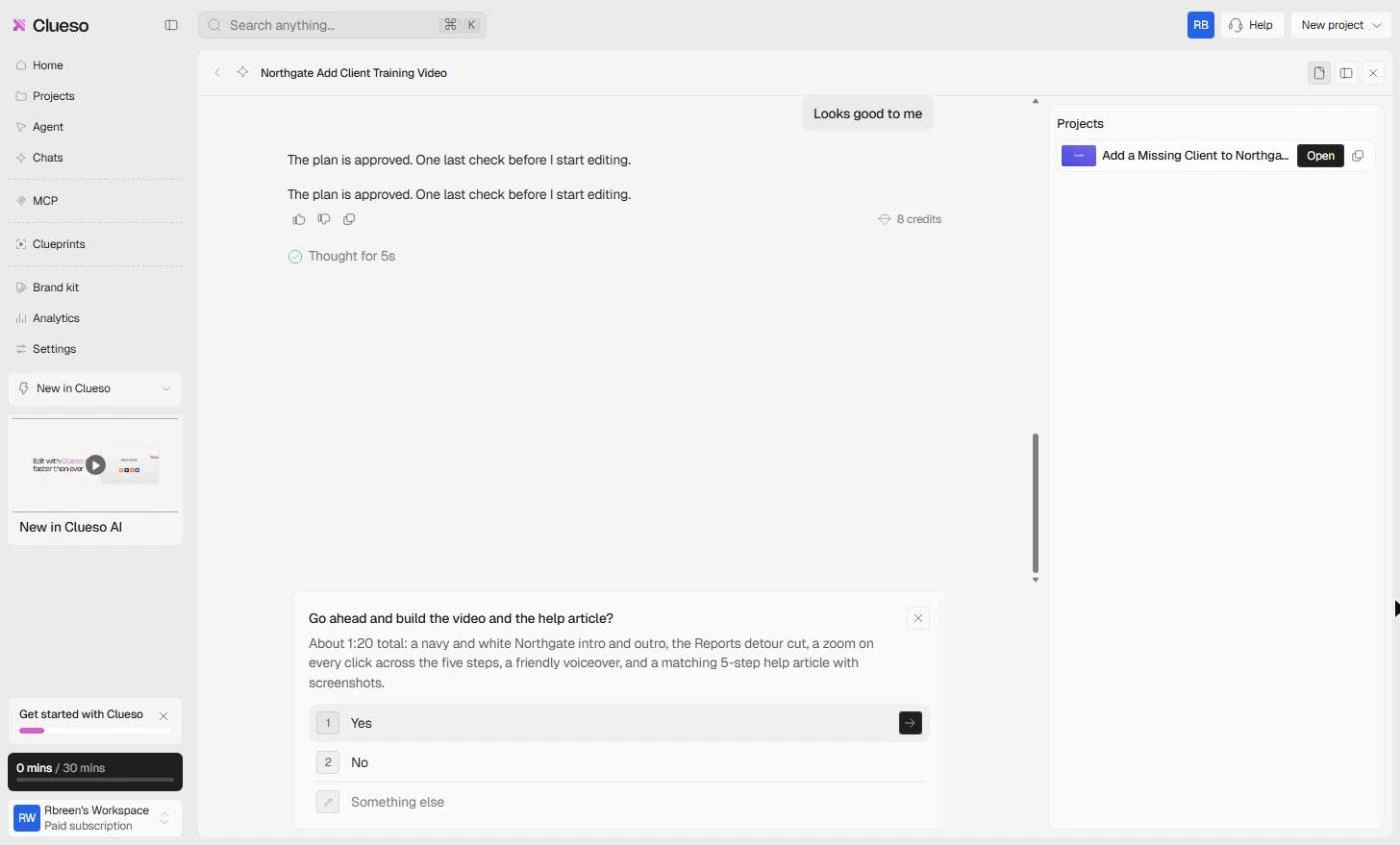
About a minute and a half later Clueso answered with a plan: a navy intro, Open Clients (Reports detour removed, cut at about 0:03 to 0:08), Steps 1 to 5 with the exact voiceover lines, a navy outro with a recap, and a five-step article with a screenshot per step. Writing it used 22 credits. Read it against your recording. If one step is wrong, pick Something else and name the one fix. Ours was right, so we clicked Looks good to me, then Yes to build.
Step 4: review the finished training video
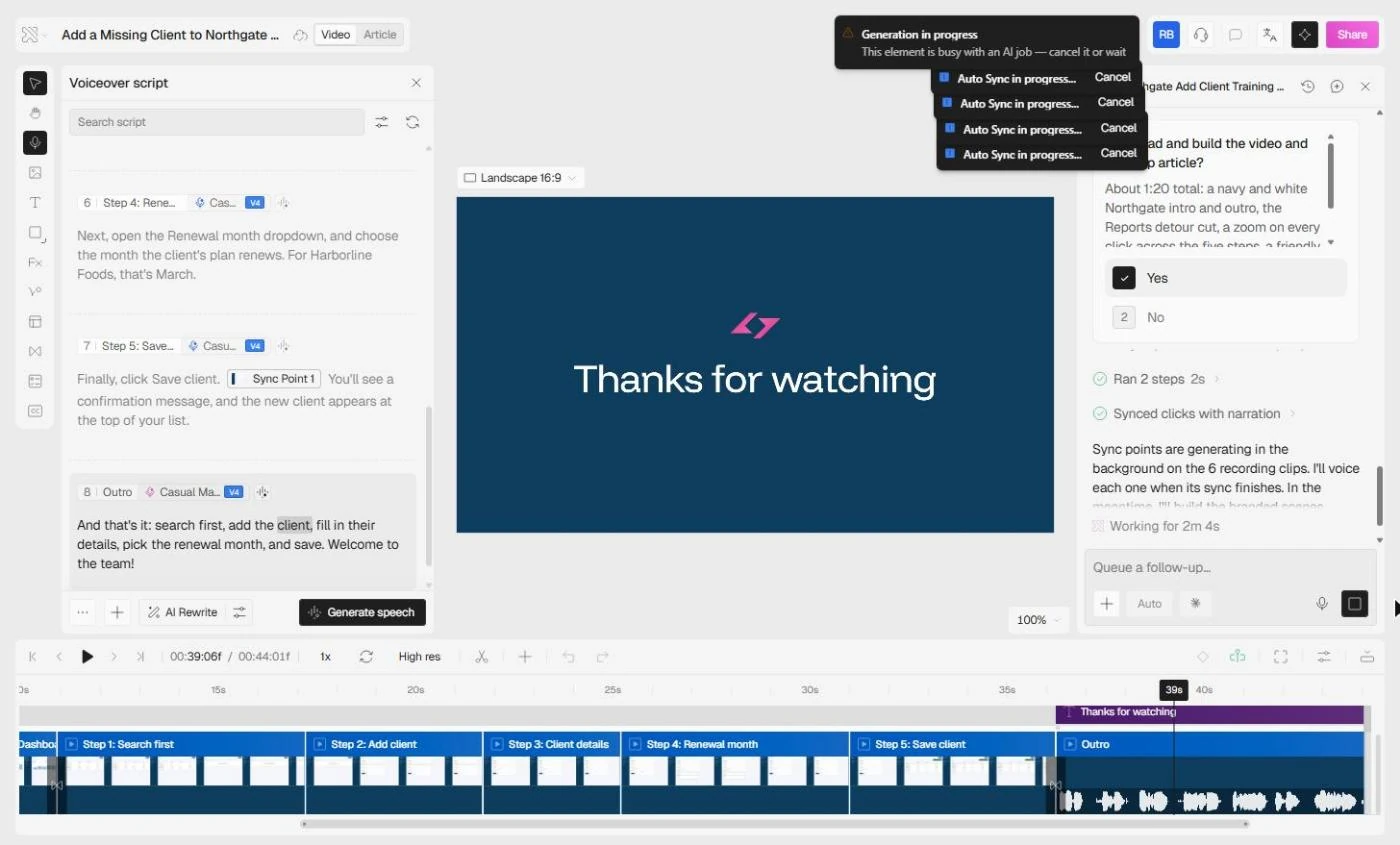
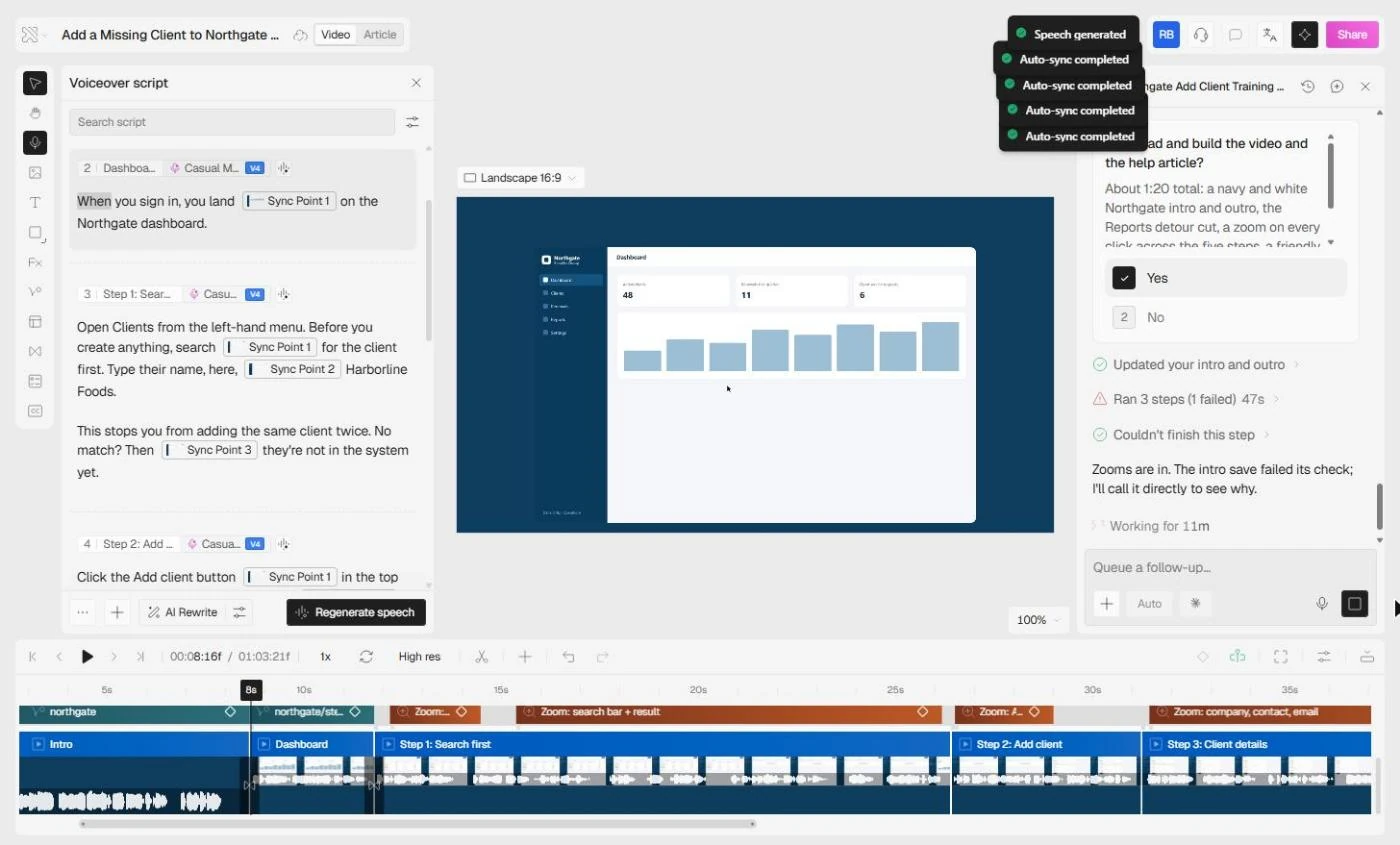
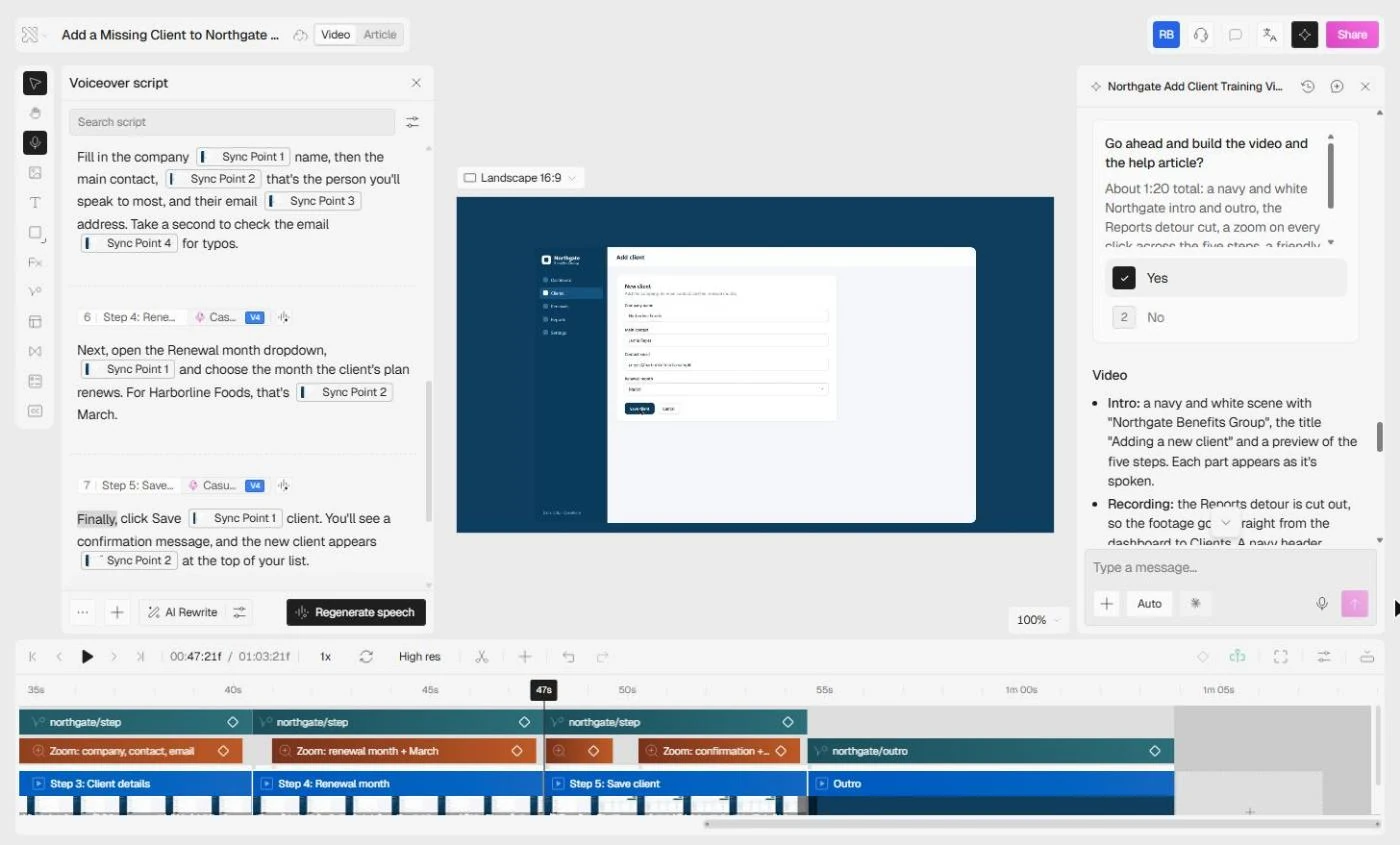
The build is the slow part: Clueso voices each clip, lines the clicks up with the narration, swaps its default purple for your colors and adds a zoom on every click. Ours took about 23 minutes and 469 credits, and one internal step reported Couldn't finish this step before it carried on. The result was about 1:04: a navy intro with Northgate Benefits Group, Adding a new client and the five steps, then the recording with a navy header (Step 1 of 5: Search for the client first) and a progress bar, zooms on each click, and a navy outro that ticks off the steps.
Read Clueso's own report before you watch. Ours named two honest limits of the recording: the Clients click happened on the Reports page, so with Reports cut it zooms on the Clients menu instead, and the three form fields were filled in one moment, so one zoom covers them. Then watch the video end to end. You can still change anything by hand in the editor, or ask in the side panel in plain words: name the clip and the change.
Step 5: open the step-by-step article from the same project
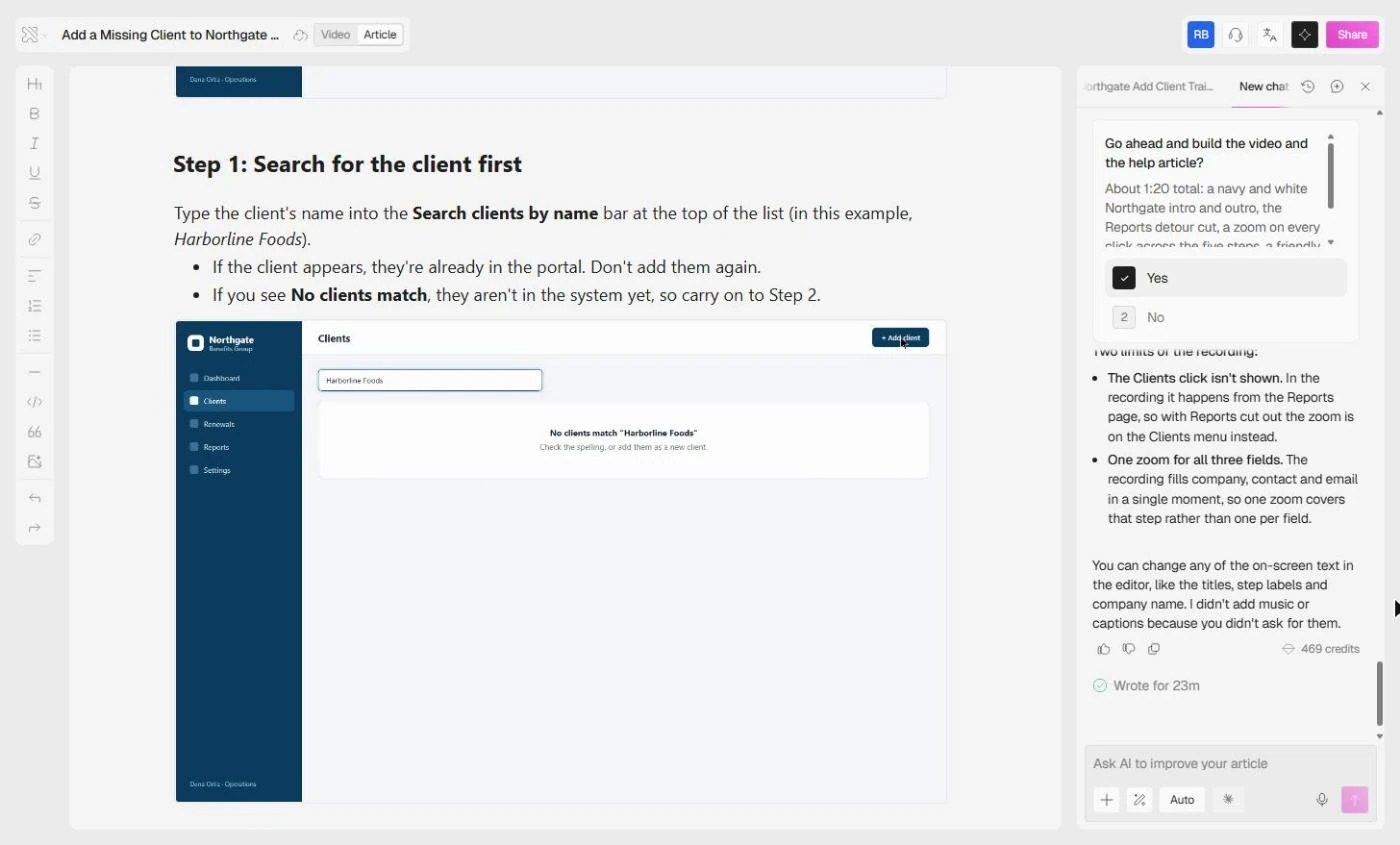
Switch to the Article tab. Because the prompt asked for it, Clueso rewrote the article with the video: How to add a new client in the Northgate portal, a plain intro, You'll need, Before you start: open Clients, Steps 1 to 5 with a fresh screenshot from the recording for each, and three quick tips. Read every step against the video. In the Article tab you can also ask AI to improve your article in the side panel.
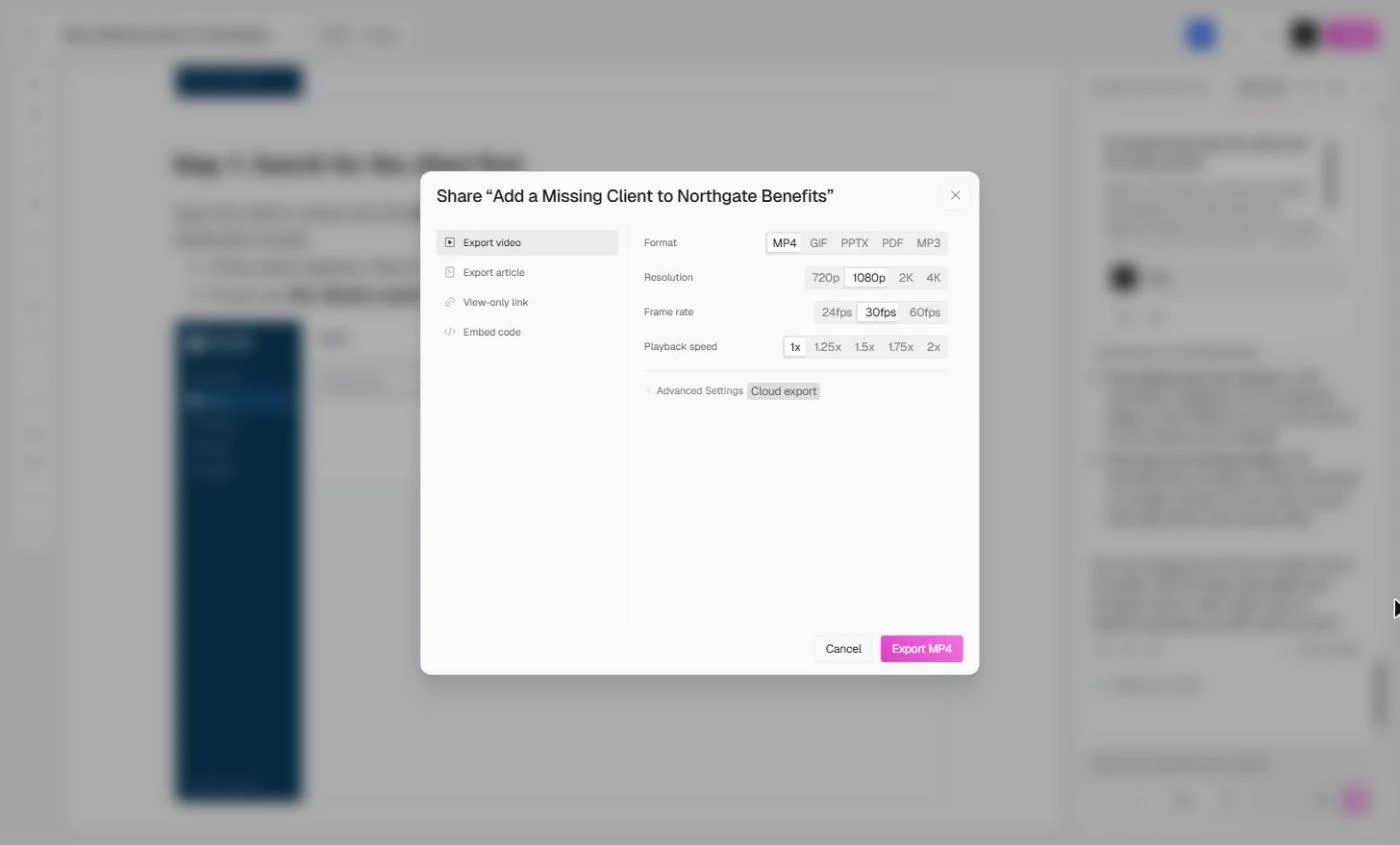
Check every screenshot for client data. To hide it, open the screenshot's editor and blur the email or account number. This is ordinary redaction, and it matters most for personal information. Then click Share: it offers Export video (MP4, GIF, PPTX, PDF or MP3, 720p to 4K), Export article, View-only link and Embed code. Put the video and the article where people already look, such as your knowledge base or the standard operating procedure for the task. When the screen changes, record again and regenerate. Give each video an owner and a review date.
Where to go next
To capture how a task is really done before you document it, try mapping a recurring task with Screenpipe. To turn the steps into a written procedure, see writing an SOP as an editable doc. For a video that is already finished, adding captions to a client video covers subtitles in more depth.
If the questions keep coming after the video is out, the next step is a bot that answers from your documents: see building an FAQ support agent with Chatbase. And for teams that work in more than one language, translating a client document with DeepL is a good companion.
Who this is for
Operations leads, office managers, team leads and trainers at small white-collar firms who explain the same software task over and over, plus anyone writing help articles or onboarding docs for customers. The practice lesson needs nothing installed and no account. To do it for real you need a Clueso account and, for recording, Google Chrome with the Clueso extension.
A note on the screens: the lesson and this guide were built in the real Clueso app on 4 November 2026, so labels and layout can change in later versions. The screenshots below are our own captures of that run, with made-up data.
Mistakes to avoid
- Re-recording a whole take because of a stumble: Clueso writes the voiceover, so only wrong clicks need a new take.
- Clicking around while recording: every click becomes a step and a screenshot.
- Writing a one-line prompt ("make a video about our portal") instead of saying who it is for, the steps, the voice and the branding.
- Forgetting to add the recording as the source before you send the prompt.
- Approving the plan without reading it against the recording: a wrong step costs one line in the plan, and a rebuild after.
- Publishing an article whose screenshots show real client emails, names or account numbers.
- Sharing the video or article without watching and reading it first: AI can make mistakes.
- Recording a task nobody asks about. Start with the one that costs the most repeat teaching.
- Letting the video go stale after the software changes. Give it an owner and a review date.
Links
- Clueso: the product site: sign up and the pricing page.
- Quickstart (Clueso help center): the official five-minute path from a rough recording to a video and an article.
- Create a Video with Chat (Clueso help center): the prompt workflow: add a project or files as the source and describe the video you want.
- Video basics (Clueso help center): editing the script, sync points, choosing a voice and generating the AI voiceover.
- Article basics (Clueso help center): the step-by-step article Clueso writes from your recording, and how to edit its screenshots.
- Blur screenshots (Clueso help center): hiding emails, account numbers and other client data before you publish.
Try it yourself, free
Reading the steps is a start. Doing them is how it sticks. The interactive module walks you through every click in a practice copy of Clueso, checks each step, and never touches your real accounts.
Start “Clueso: Turn a Rough Screen Recording into a Training Video and Help Article”Step by step: Clueso: Turn a Rough Screen Recording into a Training Video and Help Article
All 22 steps of the interactive module, in order. In the module you watch each one, then do it yourself in a practice copy that checks your work.
1. Upload the recording
- Upload the recording. Dana Ortiz runs operations at Northgate Benefits Group, a made-up 14-person benefits broker. Every new account manager needs the same walkthrough: how to add a new client in the portal. Dana recorded it once instead, rough take and all, including a wrong turn into Reports. On Clueso's home screen, click Upload videos.
This is Dana Ortiz. She runs operations at Northgate Benefits Group, a made-up benefits broker. Every new account manager needs the same walkthrough. How to add a new client in the portal. Dana recorded it once instead, wrong turn and all.
- Pick the file. The Upload videos dialog takes .mp4, .mov, .wav or .webm, and promises *a studio-quality video and a step-by-step article*. Input language is English. Click the drop area and pick new-client-setup-raw.mp4. If the process spans several recordings, upload each one.
The upload dialog promises a studio quality video and a step by step article. The input language is English.
- Create the project. Clueso read the file: 286 KB · 32sec · 720p · screen recording. Click Create.
Clueso read the file. Thirty two seconds, seven twenty p.
- Read what it wrote from your clicks. About a minute later the editor opens. Clueso named the project Add a Missing Client to Northgate Benefits and wrote a Voiceover script from the clicks. Read it: *"Next, go to the Reports page to check premium volume and retention."* It narrated Dana's wrong turn as if it were a step, and it stops before Save client. A raw recording gives you a draft, not training. That is what the prompt is for. Click the script.
The editor opens. Clueso named the project and wrote a script from the clicks. Read it. It narrates Dana's wrong turn into Reports, as if it were a step. And it stops before Save. That is what the prompt is for.
2. Open Start with Prompt
- Back to the prompt box. Back on the home screen. Start with Prompt is this box: What are we creating today? Before you write anything, give Clueso the recording to work from. Click the + button.
Back on the home screen, this box is Start with Prompt. Before you write anything, give Clueso the recording.
- Add Project. The menu offers Record screen, Attach files, From earlier uploads, Choose recording, Add Brand kit, Add Project and Add Clueprint. Your upload became a Clueso project, so click Add Project.
Your upload became a Clueso project.
- Pick the recording. Pick Add a Missing Client to Northgate Benefits.
Pick Dana's project.
- Choose how Clueso works. The project is now a blue chip in the prompt: that is the source. Next to +, the mode says Ask. Click it.
The project is attached as the source. Next to the plus, the mode says Ask.
- Pick Plan. Three modes: Ask checks with you when unsure, Plan *lays out a plan first, then runs end-to-end*, and Auto runs without checking in. For a training video, read the plan before it spends the build. Pick Plan.
Ask checks with you when it is unsure. Plan lays out a plan first. Auto just runs. For training, read the plan before it builds. Pick Plan.
3. Prompt the training video
- Write the brief. There is no length or tone setting here: say it in the prompt. Write it like a brief for an editor: the length, who it is for, what to leave out (the Reports detour), the steps in order, a zoom on every click, the voice, the branding, and the step-by-step article too. Paste it.
There is no length or tone setting. Say it in the prompt. Write it like a brief. Who it is for. What to leave out. The steps in order. The voice. Your brand colors. And the help article too.
Make a 1 to 2 minute training video for new account managers from this recording: how to add a new client in the Northgate portal. Leave out the detour to Reports. Steps: search for the client first, click Add client, fill in the company, main contact and email, choose the renewal month, then click Save client. Zoom in on every click. Clear, friendly voiceover in plain English. Use our branding: navy #0F3D5E and white, with "Northgate Benefits Group" on the first and last scene. Also write the step-by-step help article from the same project.
- Send it. Click the pink arrow.
- Check the plan against the recording. About a minute and a half later: *Here's my plan for the training video (about 1:20) and the help article. Does this look right?* Read it as Dana would. A navy intro, then Open Clients (Reports detour removed): *"I cut the Reports visit at about 0:03 to 0:08."* Then Steps 1 to 5 with the exact voiceover lines, a navy outro with a recap, and a five-step article. Writing it used 22 credits. Click the Reports line.
A minute and a half later, here is the plan. Read it as Dana would. A navy intro. The Reports detour, cut. Then five steps, with the exact voiceover lines. And a five step article.
- Approve the plan. The steps match the portal, the detour is gone and the branding is right. Under How would you like to proceed?, click Looks good to me. (If a step were wrong, Something else lets you say the one fix first.)
The steps match, the detour is gone, and the colors are right.
- Build it. One last check: *Go ahead and build the video and the help article?* Click Yes.
One last check.
4. The finished video and article
- Let it build. This is the slow part. Clueso voices each clip, lines the clicks up with the narration, swaps the purple for navy and adds a zoom on every click. In our run one internal step said Couldn't finish this step and it carried on. The whole build took about 23 minutes. Click the status line.
This is the slow part. Clueso voices each clip, adds the zooms and swaps in your colors. In our run it took about twenty three minutes.
- Read its report, then play. Done: about 1:04, and *"I've built the training video and rewritten the help article in the same project."* Its report says what it checked, and two honest limits of the recording: the Clients click happened on the Reports page, so with Reports cut it zooms on the menu instead, and one zoom covers all three form fields. The build used 469 credits. Click play.
Done. About one minute. Read its report. It even names two limits of Dana's recording.
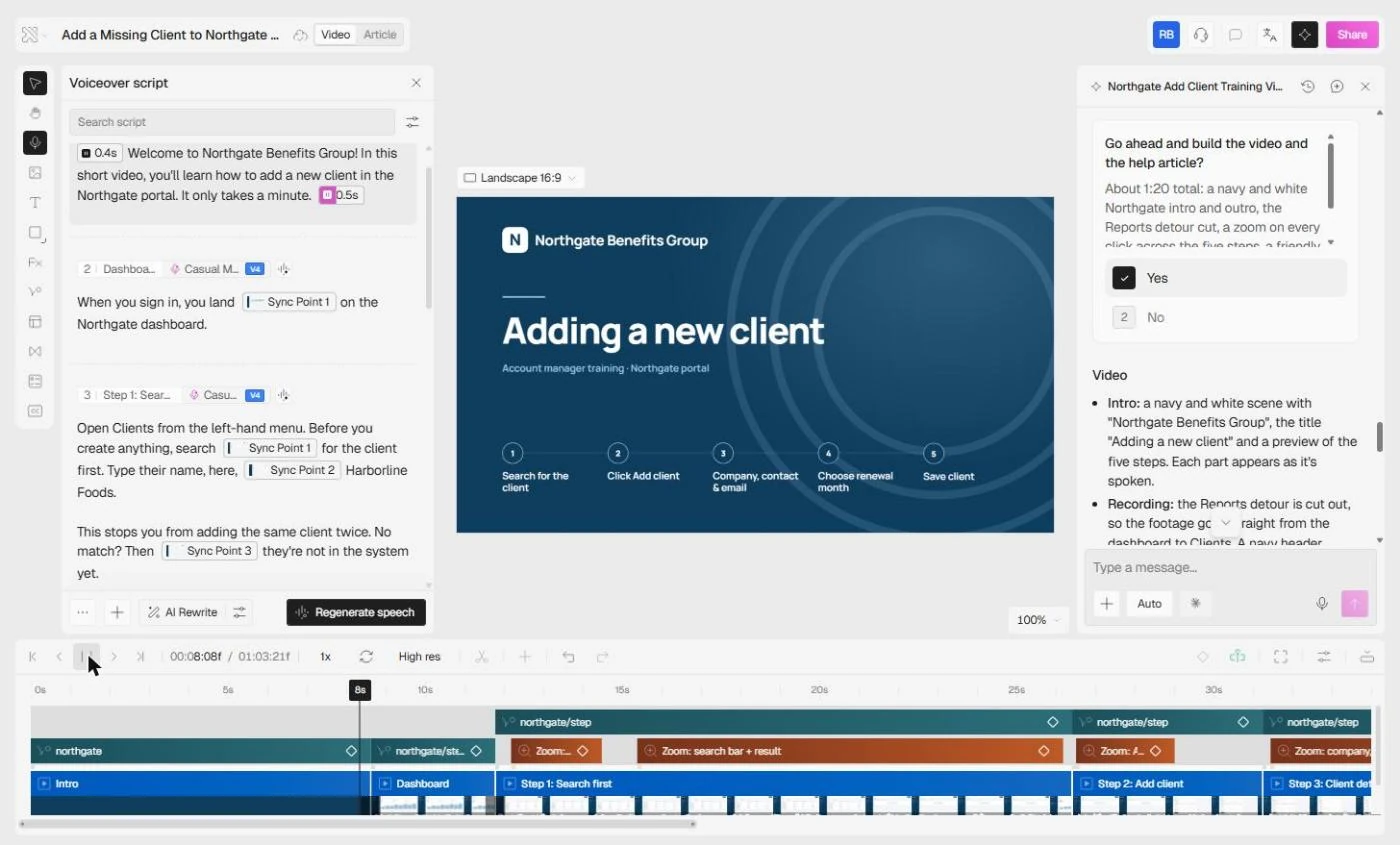
- The branded intro. Navy and white, Northgate Benefits Group, *Adding a new client*, and the five steps as a preview. Nobody designed this slide. Click the video.
Navy and white. Northgate Benefits Group. Adding a new client. And the five steps. Nobody designed this slide.
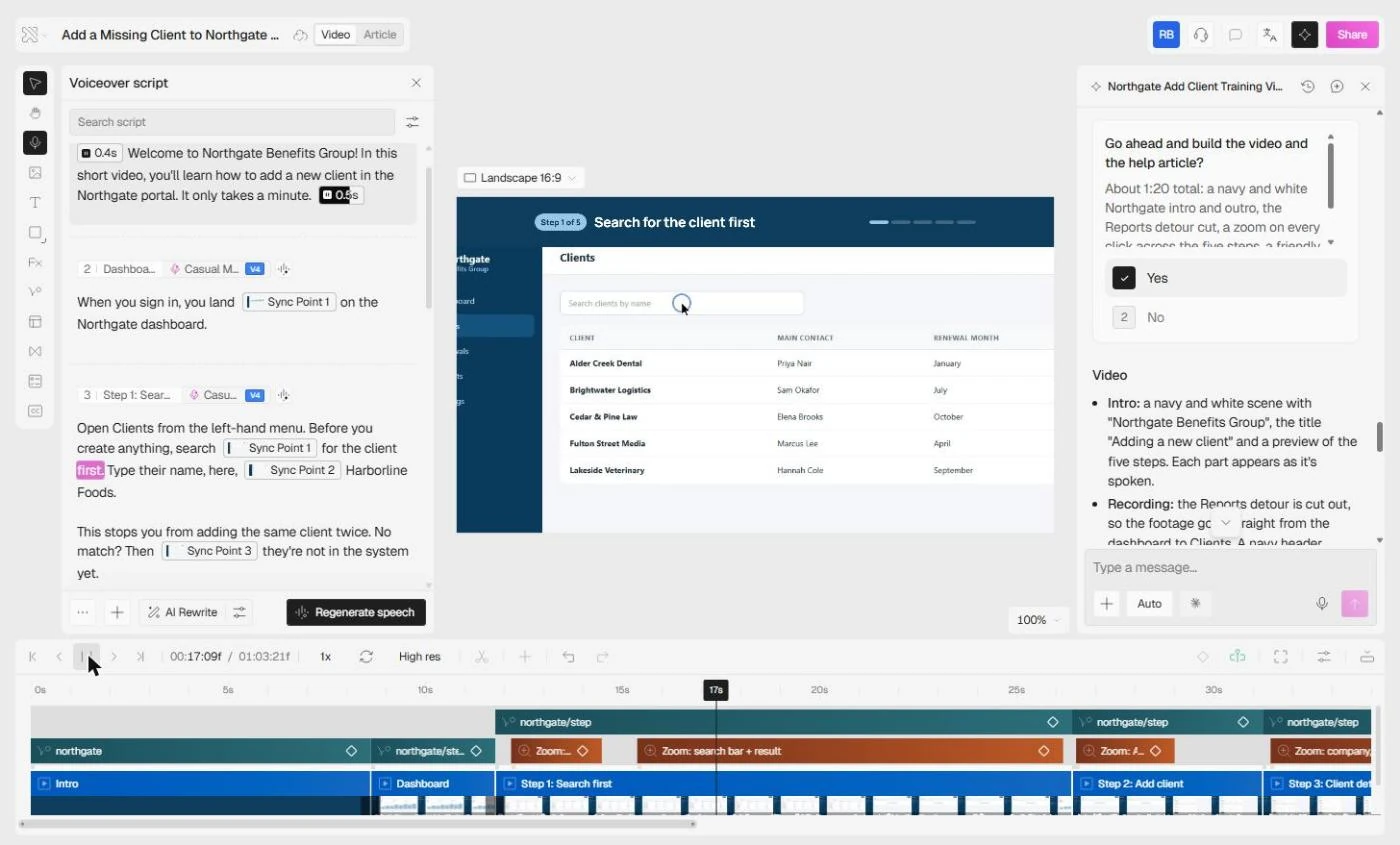
- The steps, one by one. Straight from the dashboard to Clients, no Reports. A navy header says Step 1 of 5 · Search for the client first, with a progress bar, while the recording zooms on the search box. Click the header.
Straight to Clients. No Reports. A navy header says Step 1 of 5, search for the client first.
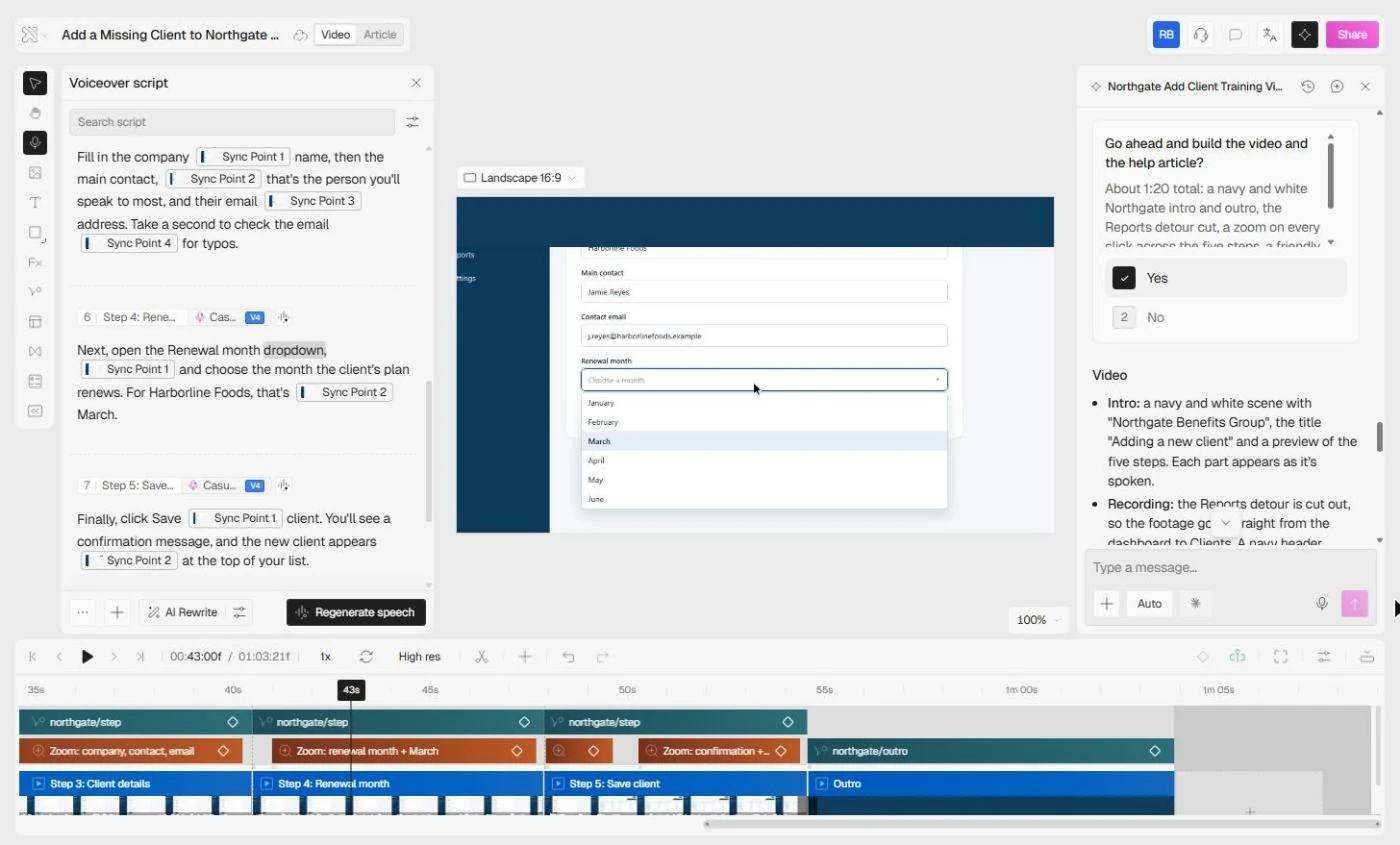
- Open the article. Every click gets a zoom, like this one on Renewal month and March. Now the second payoff. Click Article at the top.
Every click gets a zoom, like this one on the renewal month. Now the second payoff.
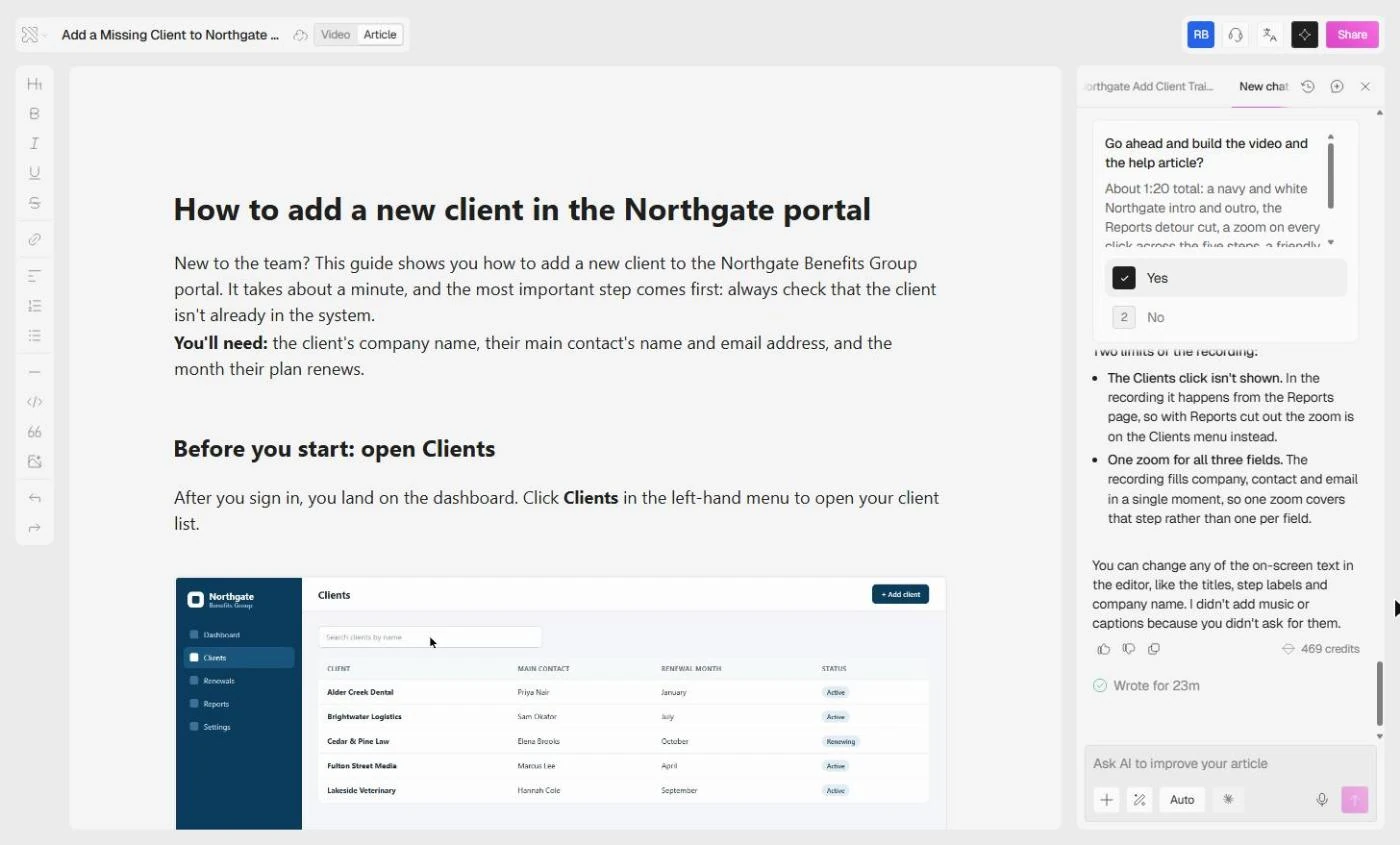
- Read the help article. How to add a new client in the Northgate portal: a plain intro, You'll need, then Before you start: open Clients with a fresh screenshot from the recording. Clueso rebuilt the article with the video this time, because the prompt asked for it. Click the section.
How to add a new client in the Northgate portal. A plain intro, what you will need, and a screenshot for each step. It was rebuilt with the video, because the prompt asked for it.
- Check each step, then Share. Step 1: Search for the client first, with what to do if the client already exists. The screenshots show only made-up data here. In your own recordings, check every screenshot for client names and emails before you share. Click Share.
Step 1. Search for the client first. Check every screenshot for client data before you share.
- Stop before you export. Share offers Export video (MP4, GIF, PPTX, PDF or MP3, 720p to 4K), Export article, View-only link and Embed code. We stopped here and exported nothing. For real, watch the video once as a new hire, then put both links in your onboarding checklist. Click Cancel to finish.
Share offers video, article, a view only link and embed code. We stopped here. For real, watch it once as a new hire, then put both links in your onboarding checklist.
Screenshots
Frequently asked questions
- Is this an official Clueso course?
- No. This is my own guide and practice lesson. Clueso is a separate product. Every step was done in the real Clueso app on 4 November 2026, and the screenshots are our own captures of that run.
- What is the Start with Prompt workflow?
- It is Clueso's prompt-based way to build a video, in the What are we creating today? box on the home screen: add your source material with + (a project, files, a Brand kit or a Clueprint), pick a mode (Ask, Plan or Auto), describe the video including its length and tone, and send it. In Plan mode Clueso shows its plan before it builds.
- Do I have to re-record if I stumble?
- No. Clueso writes the script and an AI voiceover, so your ums and side stories don't end up in the video. You can also edit the script like a document and click Generate speech. Re-record only if the clicks themselves were wrong.
- Can I use recordings I already have?
- Yes. On the home screen, click Upload videos, check the input language, pick the file and click Create; it becomes a Clueso project. Then, in the prompt box, add it as the source with + and Add Project, or attach the file directly with Attach files.
- Does Clueso write the help article too?
- Yes. The same project has a step-by-step article with a screenshot for each step. Ask for it in the same prompt and Clueso rewrites it with the video; in our run it came back as an intro, You'll need, five steps with fresh screenshots and three tips. You can edit the screenshots, and ask AI to improve the article in the side panel.
- Is Clueso free?
- Clueso's site says it has a free plan with no credit card required. Plans and limits change, so check Clueso's pricing page for what each plan includes, such as how many minutes of video you can export.
- How do I keep client data out of the video and article?
- Record with a test client where you can. In the article, hover a screenshot, click the pen icon, use Blur and Save edits; the blur is permanent. In the video, the Blur effect covers an area on screen. Check every screenshot before you share.
More in Business Automations
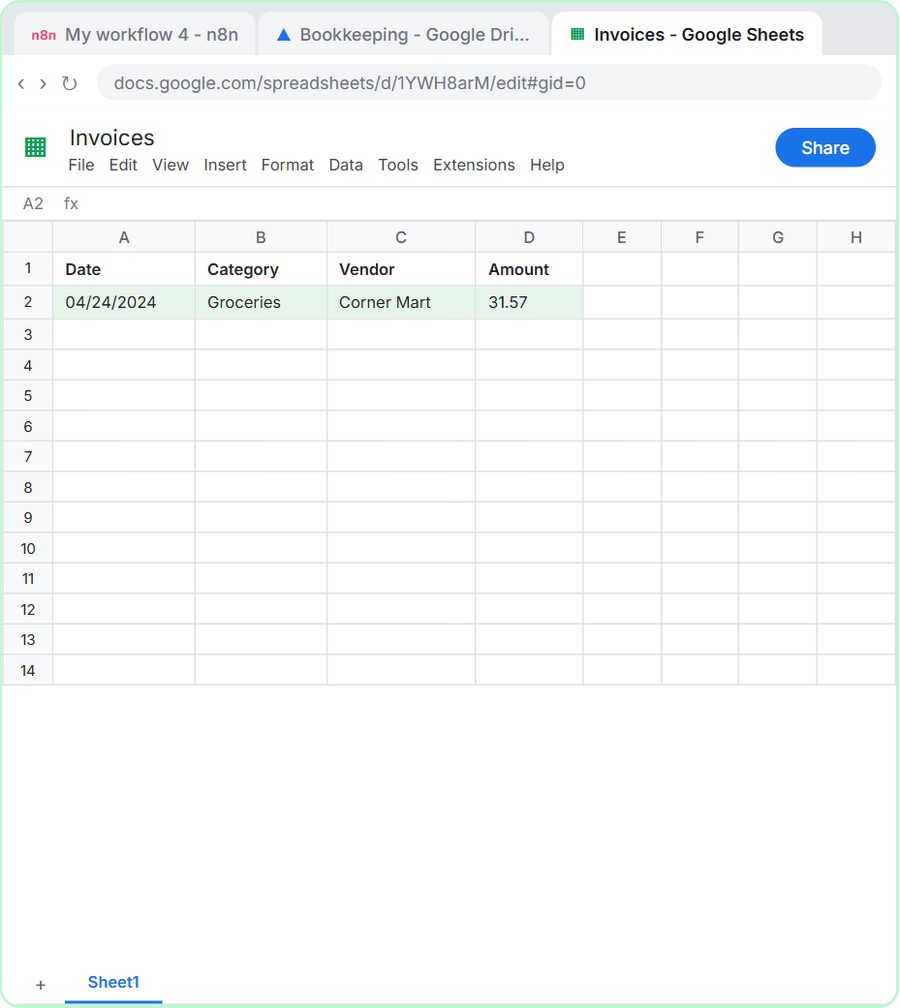 AI Receipt Extractor: Receipts to Google Sheets with n8n
Drop a photo of a receipt into an n8n chat. An AI agent reads it, pulls out the date, vendor and amount, picks a category, and adds a row to Google Sheets.
Free · Live ~12 min Intermediate
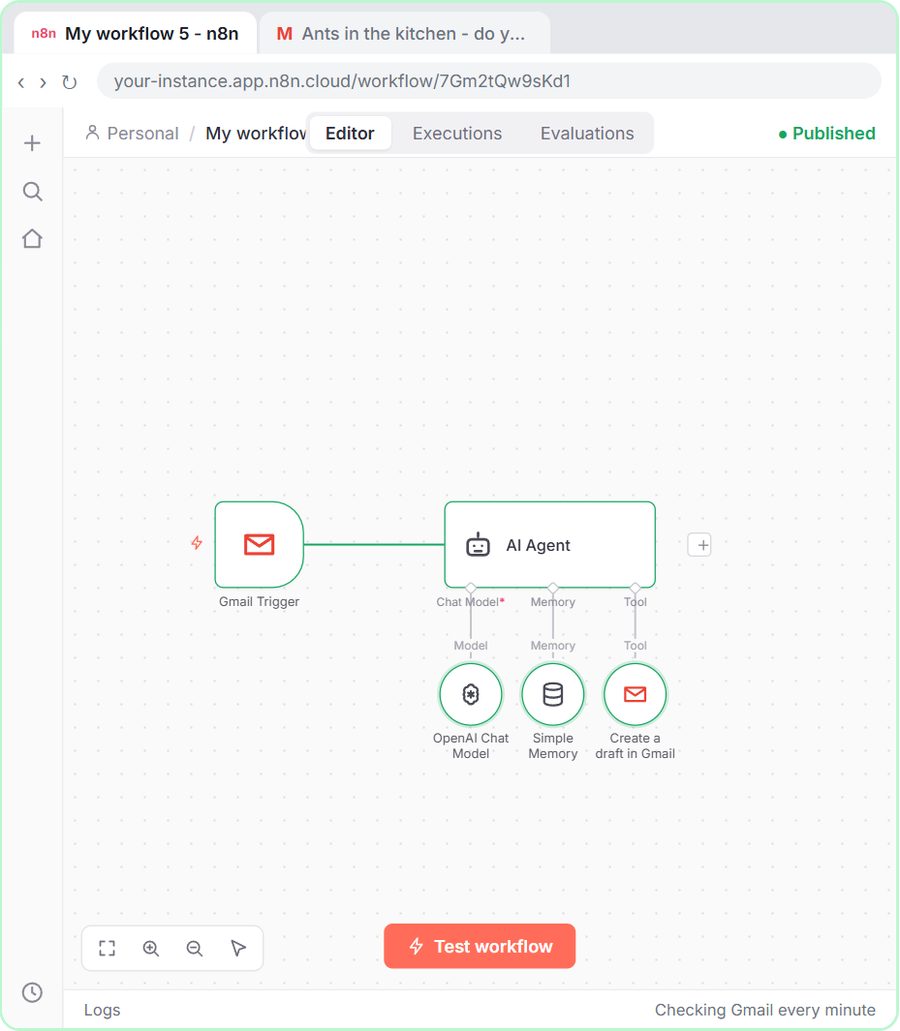 n8n AI Email Responder: Draft Gmail Replies Automatically
Build an n8n agent that watches your Gmail, reads each new customer email, and writes a reply as a draft in the same thread, ready for you to check and send.
Free · Live ~12 min Intermediate
 Daily Job Alerts: Email Each Tech Their Jobs from Google Sheets with n8n
Every morning at 7, n8n reads a plumbing company's jobs sheet, skips anything not assigned yet, and emails each job to the tech it's assigned to — customer, address…
Free · Live ~10 min Intermediate
 Gmail AI Triage: Auto-Label Every Email and Draft Replies
Build an n8n workflow that reads each new email, sorts it as a lead, a client or an invoice with a Text Classifier, adds the matching Gmail label, and drafts a reply to…
Free · Live ~18 min Advanced
 A Support Agent That Answers from Your Own Docs
Turn an n8n chat agent into a support agent that answers only from your policies in a Google Doc, refuses what it should, and hands off to a person by email.
Free · Live ~13 min Advanced
 Chatbase: Answer Customer FAQs with an AI Agent
A business case for a small firm that answers the same customer questions every week: build a Chatbase AI agent on your FAQ in the real app, make it say when it does…
Free · Live ~15 min Beginner
All 33 modules in Business Automations
More Clueso tutorials
Terms in this lesson
Plain-English definitions, each with an example from a free lesson.