Updated . Built against the tool’s current screens and checked step by step. How we check this lesson
Turn a messy donor export into board-ready totals without pivot tables. Upload it to Better Analyst, get a chart, make the AI audit its own data, fix the double-counted gift, and write a note that says what a person must confirm.
At a glance
| Question | Answer |
|---|---|
| What you build | Turn a messy donor export into board-ready totals without pivot tables. Upload it to Better Analyst, get a chart, make the AI audit its own data, fix the double-counted gift, and write a note that says what a person must confirm. |
| Tools | Better Analyst |
| Time | About 7 minutes, 24 steps in 5 parts |
| Level | Beginner, no coding needed |
| Cost | Free |
| Ways to learn it | Practice it step by step |
The 5 parts, in short
- Upload the export: Open the data picker, Upload the file, Close the window, Ask the question, and 1 more step.
- Read the first answer: See it show its work, Read what it noticed, Look at the chart, Read the total.
- Make it check the data: Ask it to check the raw data, Send it, The double-counted gift, The refund, and 1 more step.
- Correct the totals: Tell it exactly what to change, Send it, See the updated chart, Check the corrected row, and 1 more step.
- Write the board note: Ask for the board note, Send it, Read it before you use it, Open Export, and 1 more step.
Start here first: AI Receipt Extractor: Receipts to Google Sheets with n8n (module 1 of Business Automations)
In the course: Part 9 · n8n Automation Toolkit (Module 108 of the full course)
Part of: AI Apps Worth Knowing (step 104 of 104)
What you'll build
Riverbend Community Food Bank is made up. Its development director exports a year of gifts before each board meeting, then spends the evening cleaning appeal names and building totals, and one double-counted gift can end up in front of the board. In this lesson you upload a made-up export of 250 rows to Better Analyst and ask for totals and a chart. Then you make it audit the raw data, correct what it finds, and write a short board note. It uses 4 of the 10 messages a month on the Free plan.
You went from a messy export to a chart, an audit, corrected totals and a board note. Better Analyst cleaned up the appeal names by itself, but its first total counted one gift twice until you asked it to check. Ask for that audit every time, then confirm what it flags against your donor records. Our sample is 250 clean-ish rows, so try it on a test copy of your own export before you trust it with a real board packet.
- Tools: Better Analyst
- Time: about 7 minutes, 24 steps in 5 chapters
- Level: beginner, no coding needed
- Price: free
Practice first, then build it for real
Practice copy built from real Better Analyst screens (betteranalyst.com), captured 31 October 2026 on a Free plan account. Nothing here touches a Better Analyst account. The food bank, the donors and the gifts are made up. The charts, tables and answers are what Better Analyst produced, and your results can differ. To build it for real you need your own Better Analyst account, and some services charge once you use them for real work, so check each tool's current pricing.
Try it yourself, free
Reading the steps is a start. Doing them is how it sticks. The interactive module walks you through every click in a practice copy of Better Analyst, checks each step, and never touches your real accounts.
Start “Better Analyst: Check a Donor Export Before the Board Sees It”Step by step: Better Analyst: Check a Donor Export Before the Board Sees It
All 24 steps of the interactive module, in order. In the module you watch each one, then do it yourself in a practice copy that checks your work.
1. Upload the export
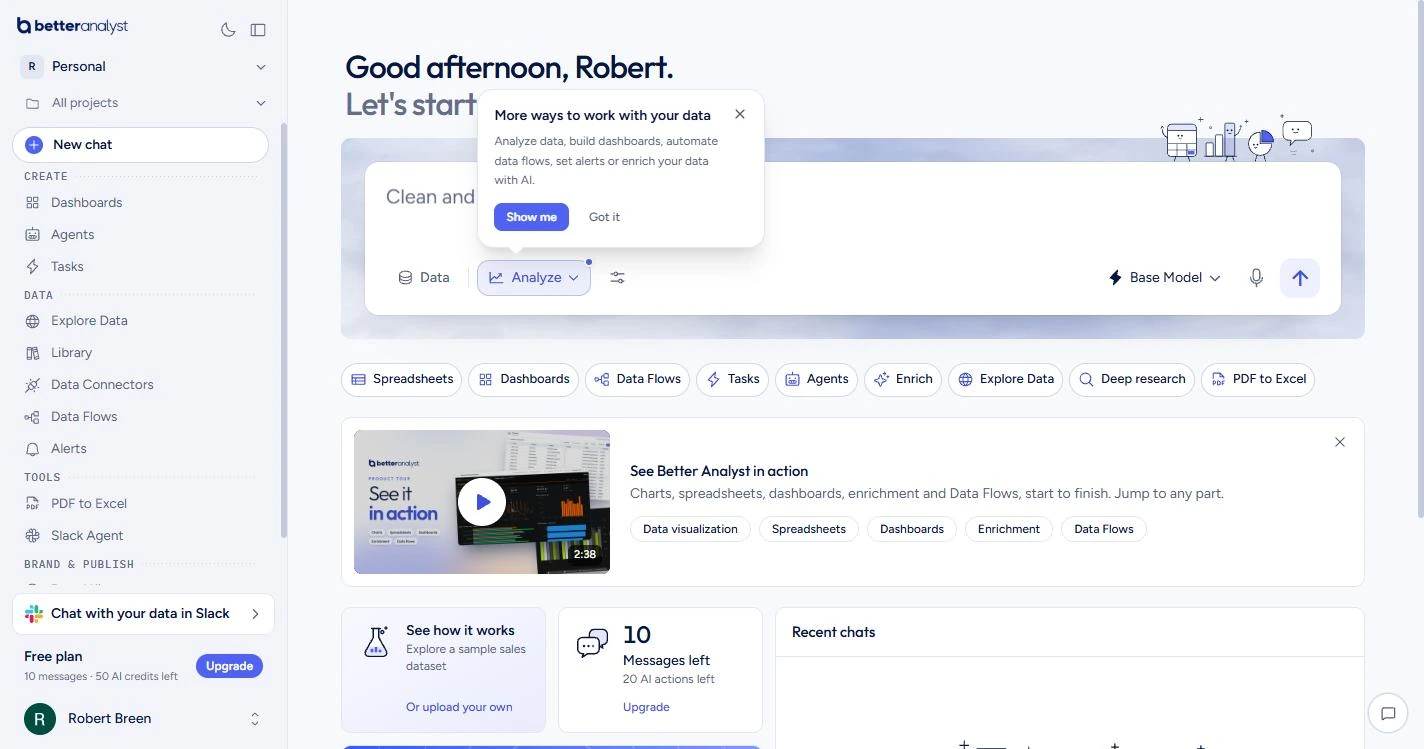
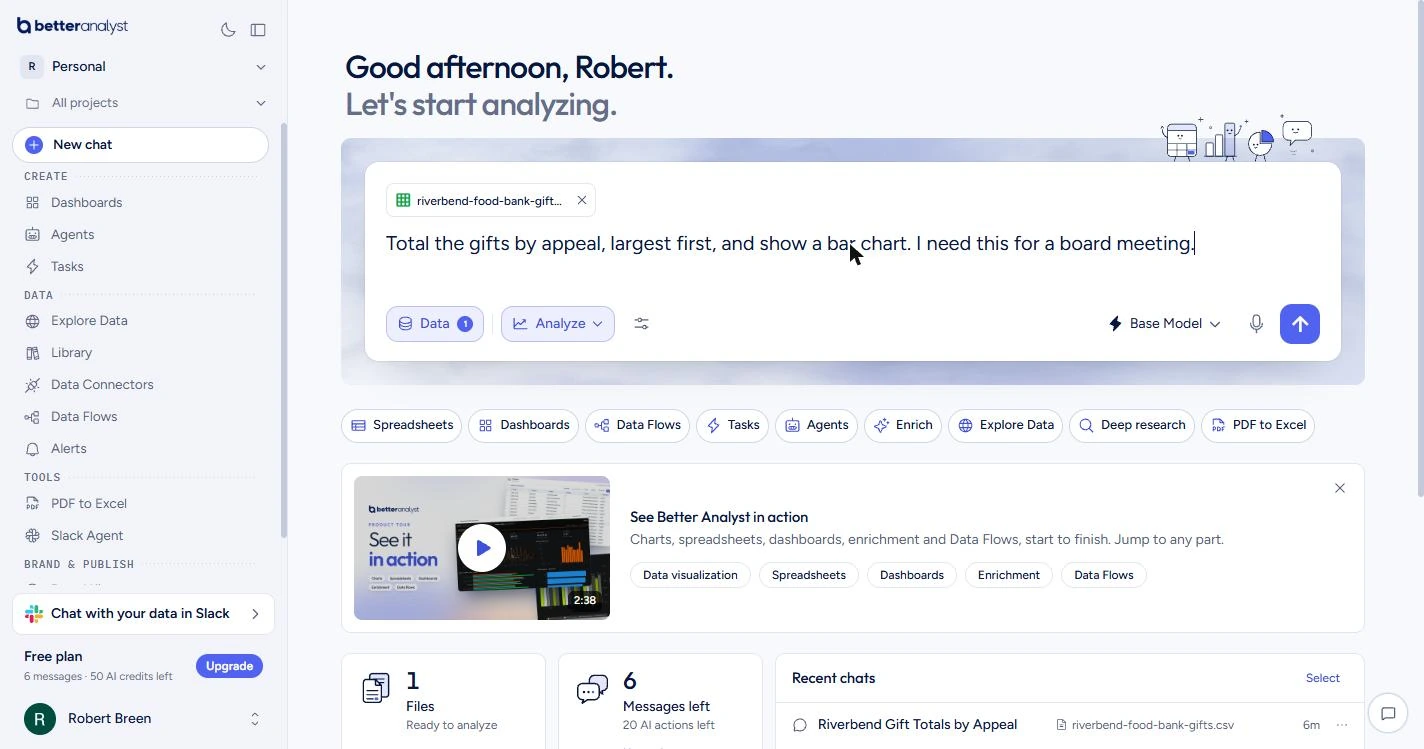
- Open the data picker. You are Nora, development director at Riverbend Community Food Bank, a made-up nonprofit. The board meets Thursday and wants to know which appeals raised the most. You have a year of gifts in riverbend-food-bank-gifts.csv, from the links on this lesson. In Better Analyst, click Data. If a tip pops up, click Got it first.
You run fundraising at a food bank, and the board wants to know which appeals raised the most. In Better Analyst, click Data.
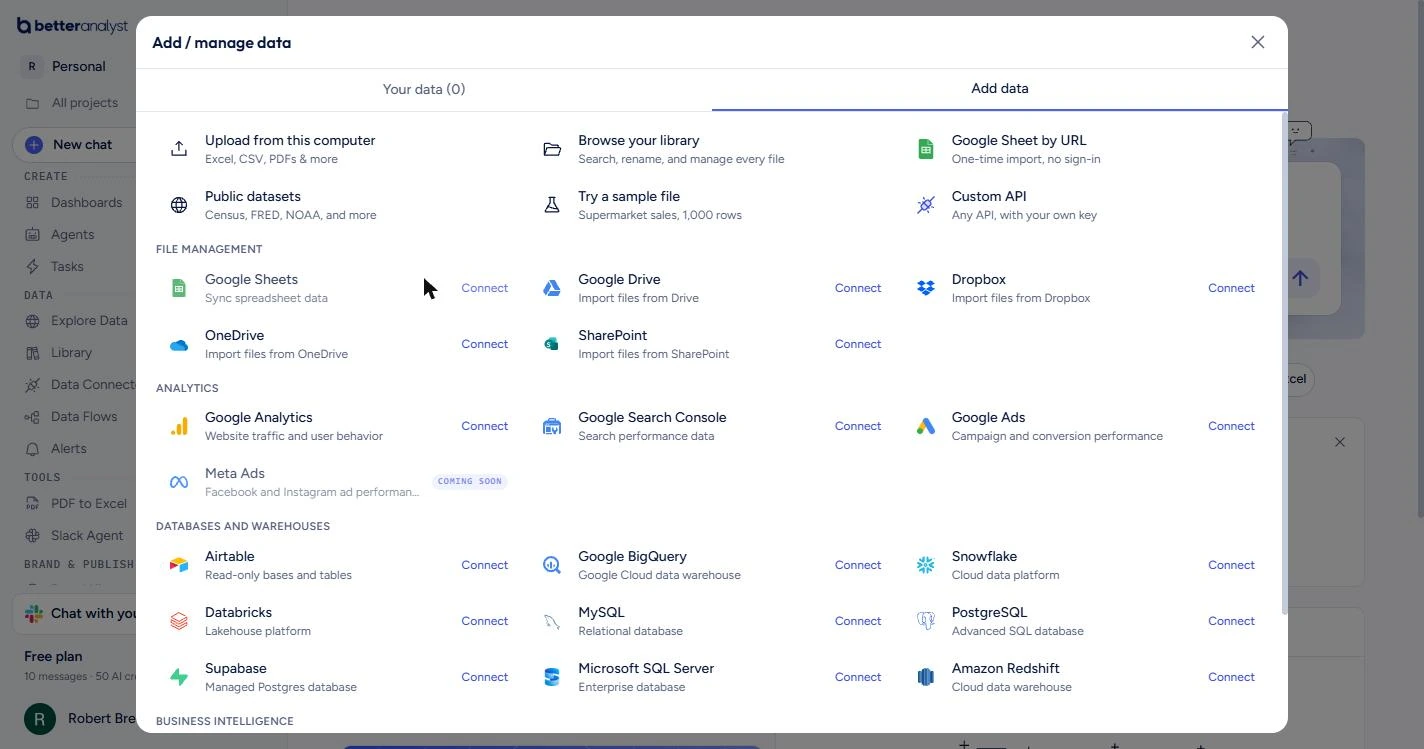
- Upload the file. Click Upload from this computer and pick the CSV. Better Analyst also connects to Google Sheets, OneDrive, HubSpot, Salesforce and more. The Free plan lists one connected data source.
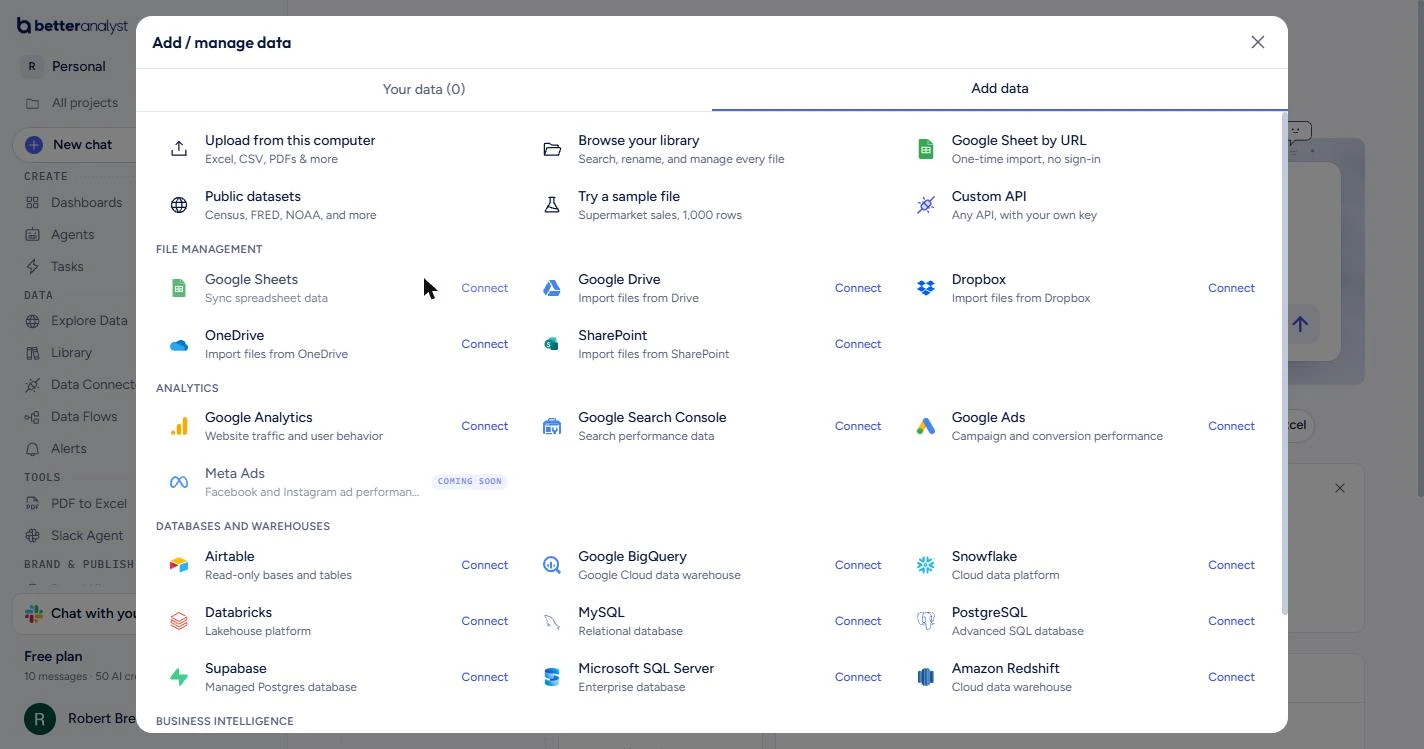
- Close the window. The window stayed open for us after the upload, and the file was attached behind it. Click the X at the top right.
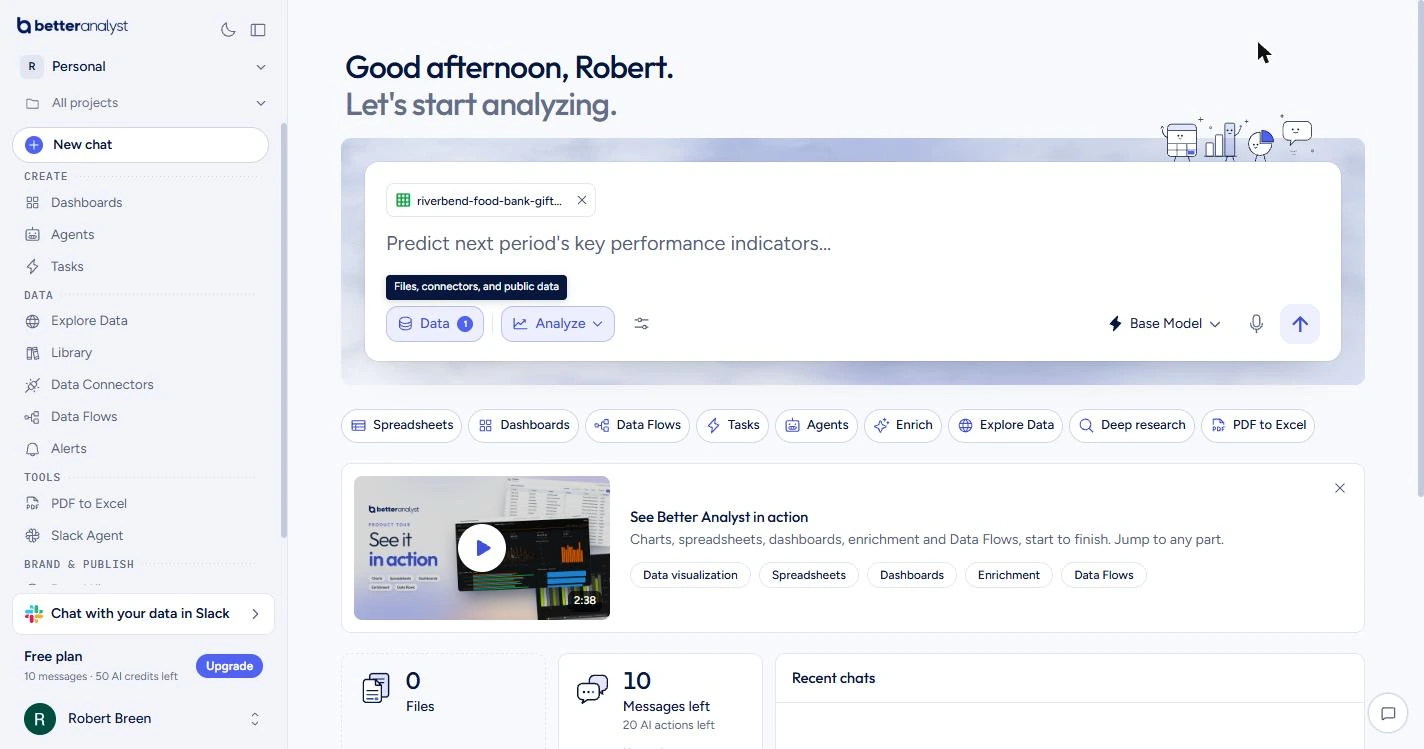
- Ask the question. The file now shows above the box. Ask the way you would ask a colleague.
The file is attached. Ask your question, the way you would ask a colleague.
- Send it. Click the blue arrow. Each send uses one of the Free plan's 10 messages a month, so this lesson is written to use 4.
The free plan gives you ten messages a month, and this lesson uses four.
2. Read the first answer
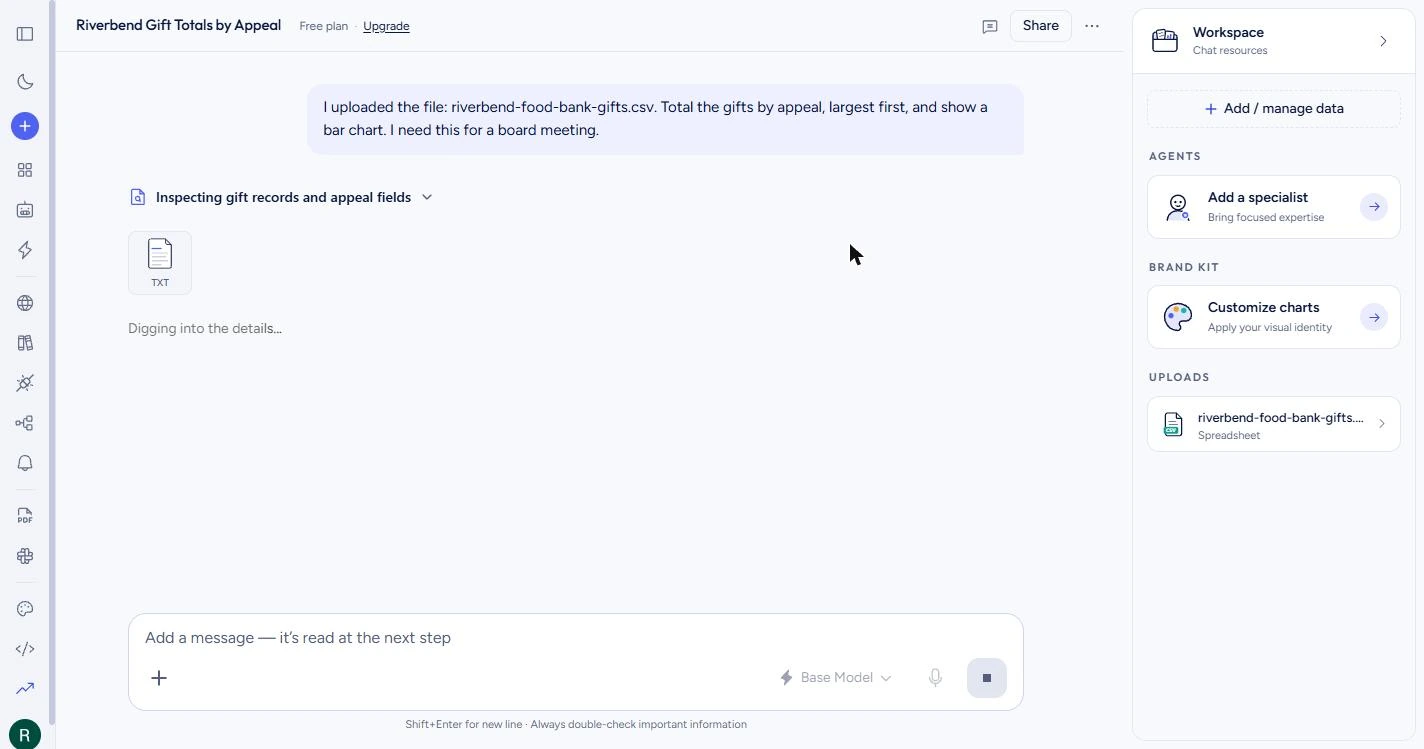
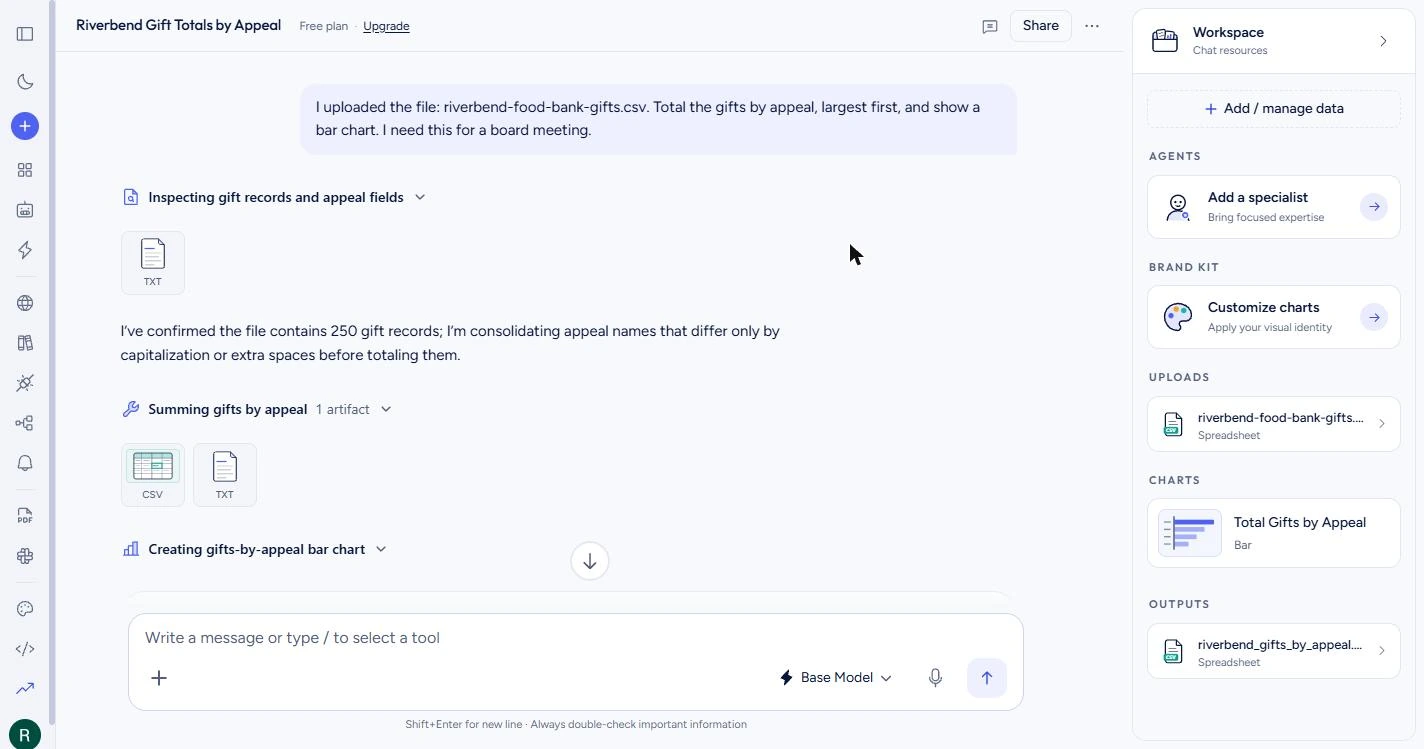
- See it show its work. Better Analyst does not guess at the math. It writes code, runs it on your file, and lists each step, so you can open a step to see what it did. Ours took about half a minute. Click the step name.
It writes code, runs it on your file, and lists each step.
- Read what it noticed. The export has appeal names like Spring Appeal, spring appeal and SPRING APPEAL. You did not mention them. It found them and is merging them before it totals, which is the part you usually spend the evening on. Click the sentence.
Nobody told it about the messy appeal names. It found them and merged them. That is usually your whole evening.
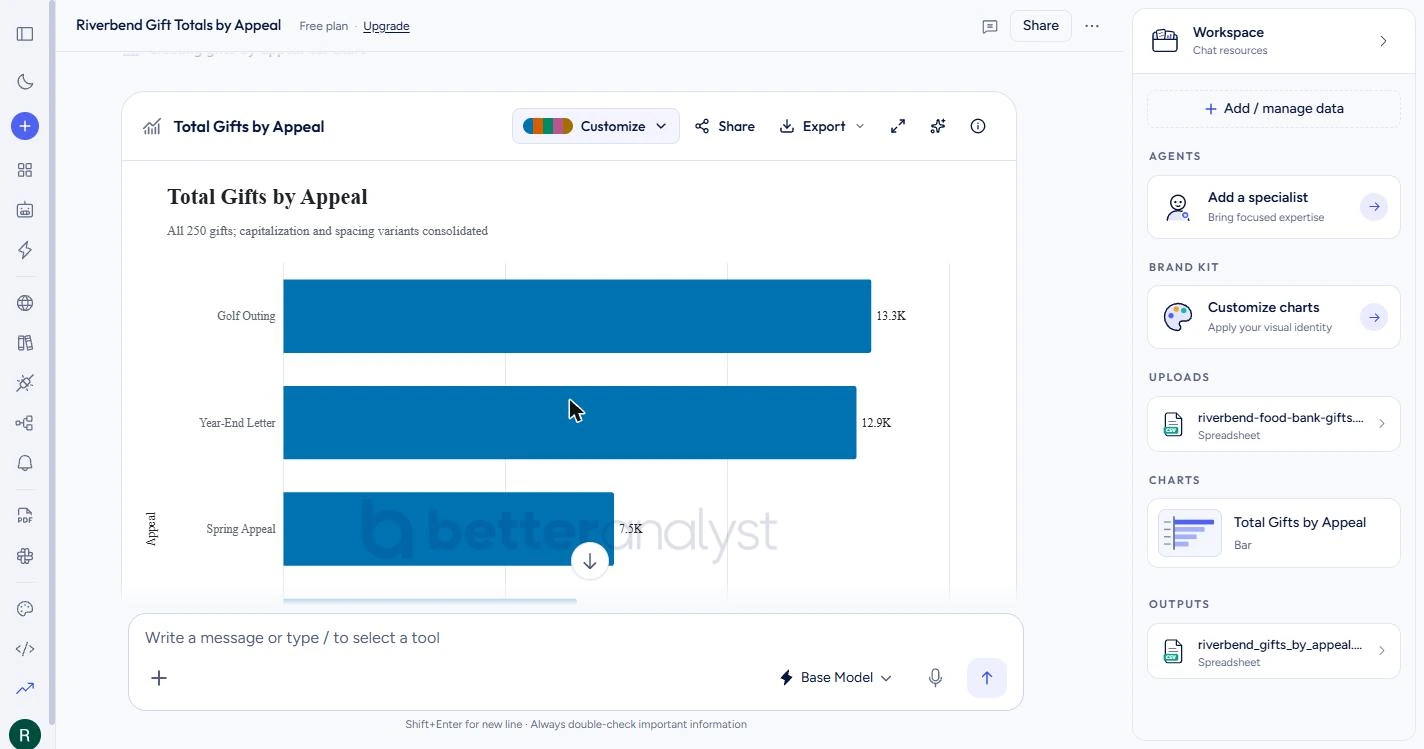
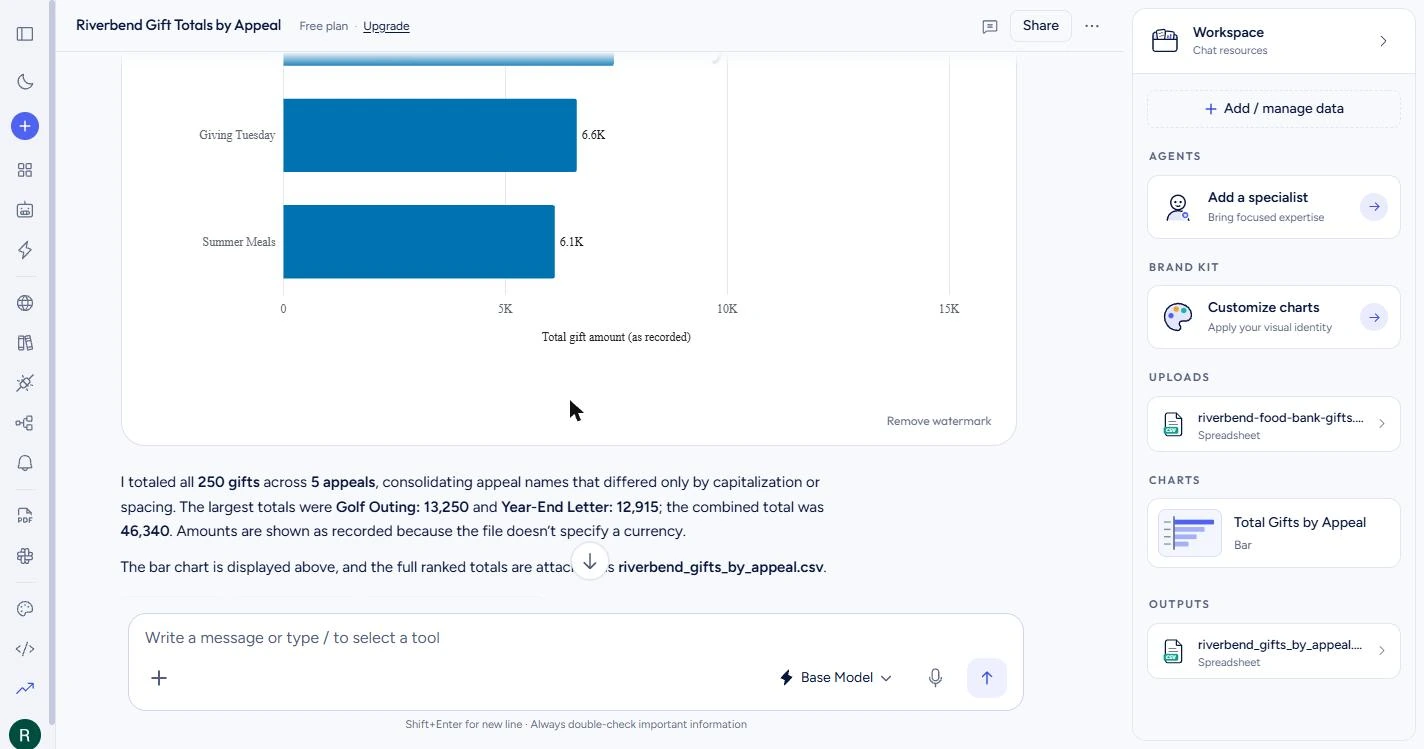
- Look at the chart. Here is the chart, largest first: Golf Outing, then Year-End Letter. It looks finished. The faint logo across it is the Free plan's watermark; Pro removes it. Click the chart.
Here is the chart, largest first. It looks finished.
- Read the total. It says 250 gifts and a combined total of 46,340. That sounds exact, and it is what you would put on a slide. We built this file, so we know the true total is 46,290. Something in the data is wrong, and nothing on this screen says so. Click the total.
Two hundred fifty gifts, and a total of forty six thousand three hundred forty. It sounds exact. It is fifty dollars too high, and nothing here says so.
3. Make it check the data
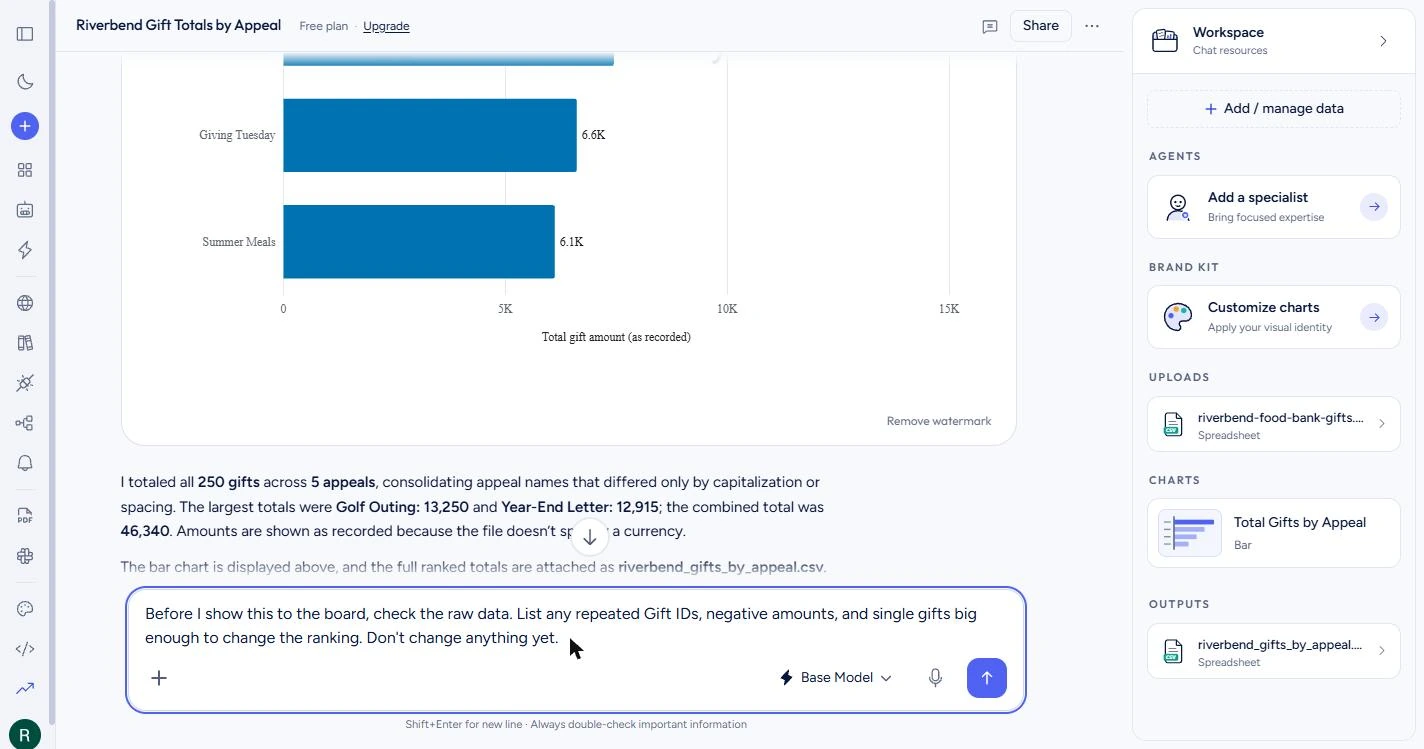
- Ask it to check the raw data. A tidy chart proves nothing about the rows behind it. So ask for the specific problems that break donor reports. Tell it not to change anything yet, because you want to see the list before anything moves.
A tidy chart proves nothing about the rows behind it. Ask it to check, and tell it not to change anything yet.
Before I show this to the board, check the raw data. List any repeated Gift IDs, negative amounts, and single gifts big enough to change the ranking. Don't change anything yet.
- Send it. Click the arrow.
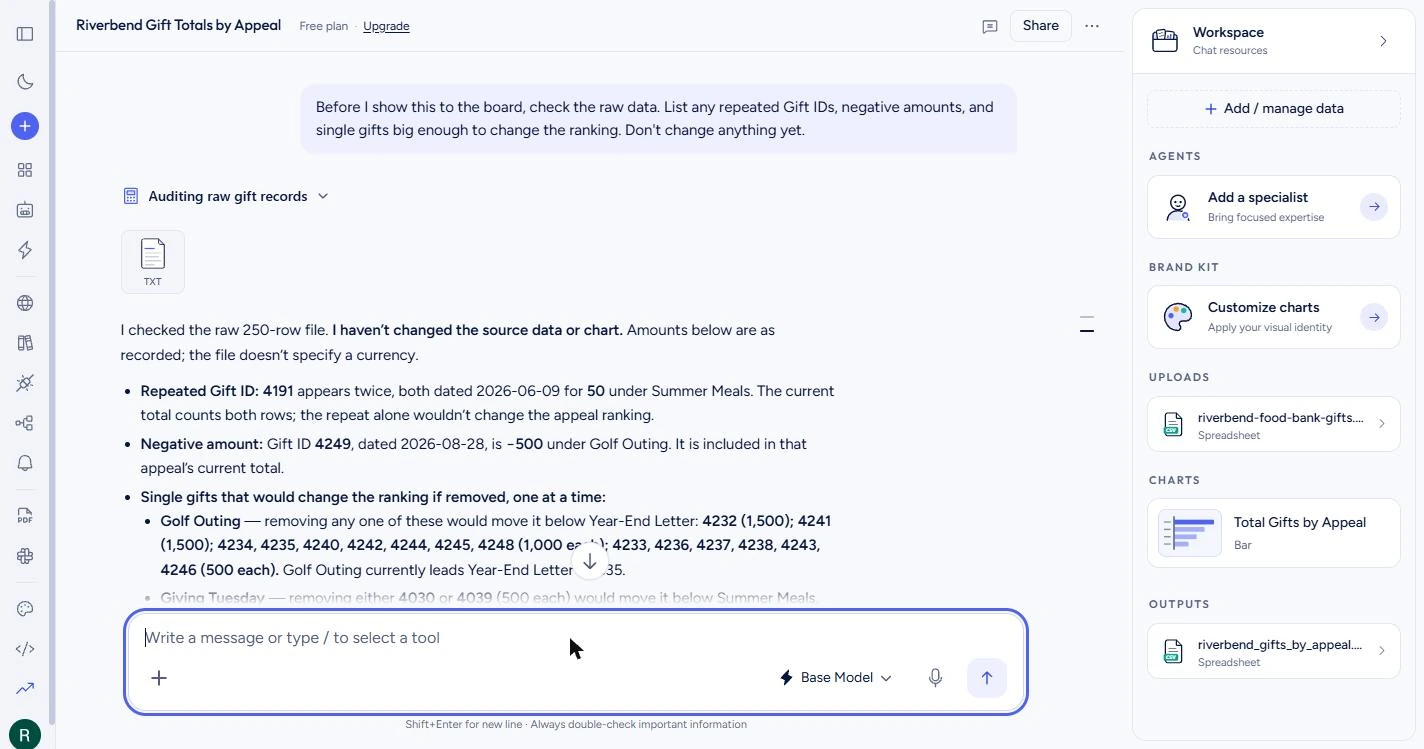
- The double-counted gift. There it is. Gift ID 4191 appears twice, 50 under Summer Meals. That is the extra 50 in your total. It was in the first answer too, and it did not come up until you asked. Before you delete it, a person should check that it is one gift entered twice. Click the line.
There it is. One gift appears twice. That is the extra fifty dollars. It did not come up until you asked.
- The refund. Gift ID 4249 is -500 under Golf Outing, a refund already netted out of that total. That is correct for money raised, but the first answer also counted it as one of 19 gifts. Click the line.
Here is a refund of five hundred dollars. It belongs in the total, but it is not a gift, and it was being counted as one.
- How thin the lead is. You asked which single gifts could change the ranking, and it did the math. Golf Outing leads Year-End Letter by only 335, so removing any one of 15 listed gifts flips the top two. If the board reads a winner into that chart, tell them how close it is. Click the line.
Golf Outing leads by only three hundred thirty five dollars. One gift flips the top two, so tell the board how close it is.
4. Correct the totals
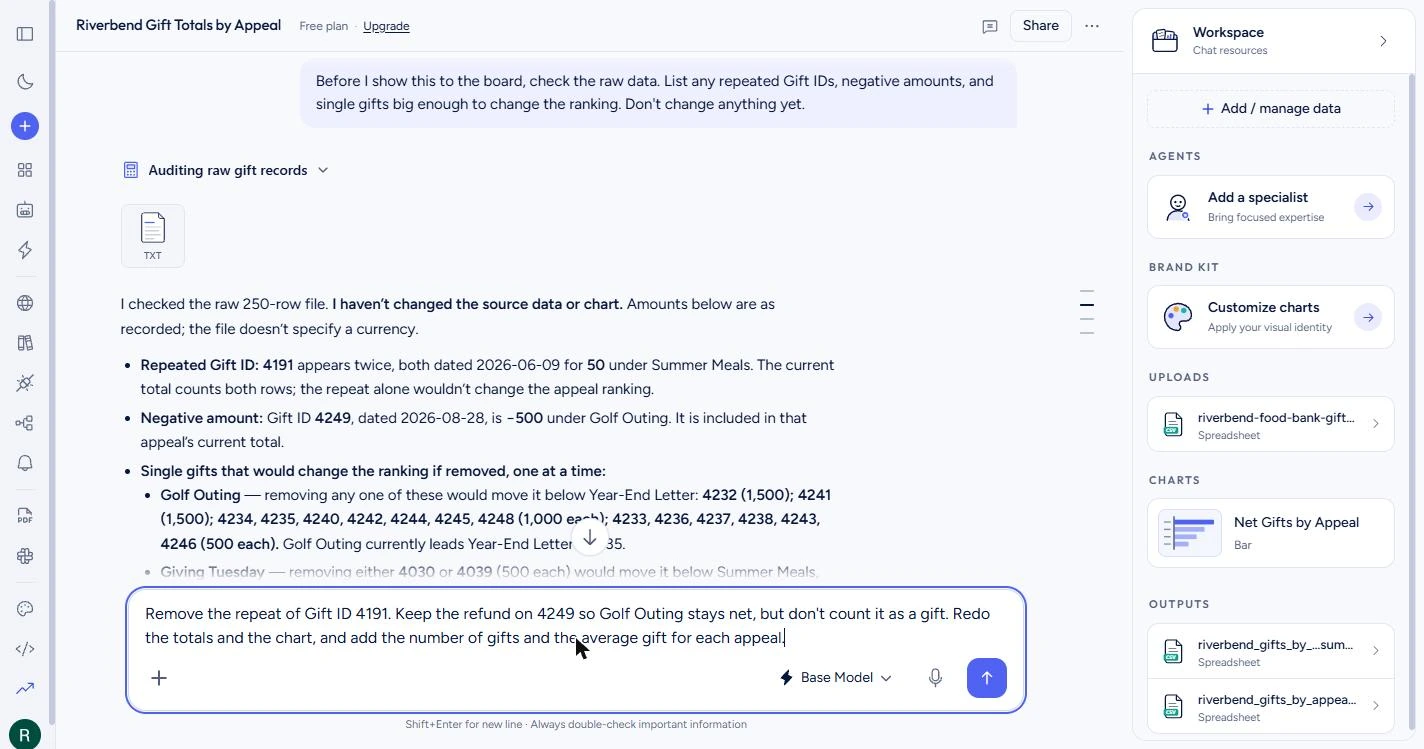
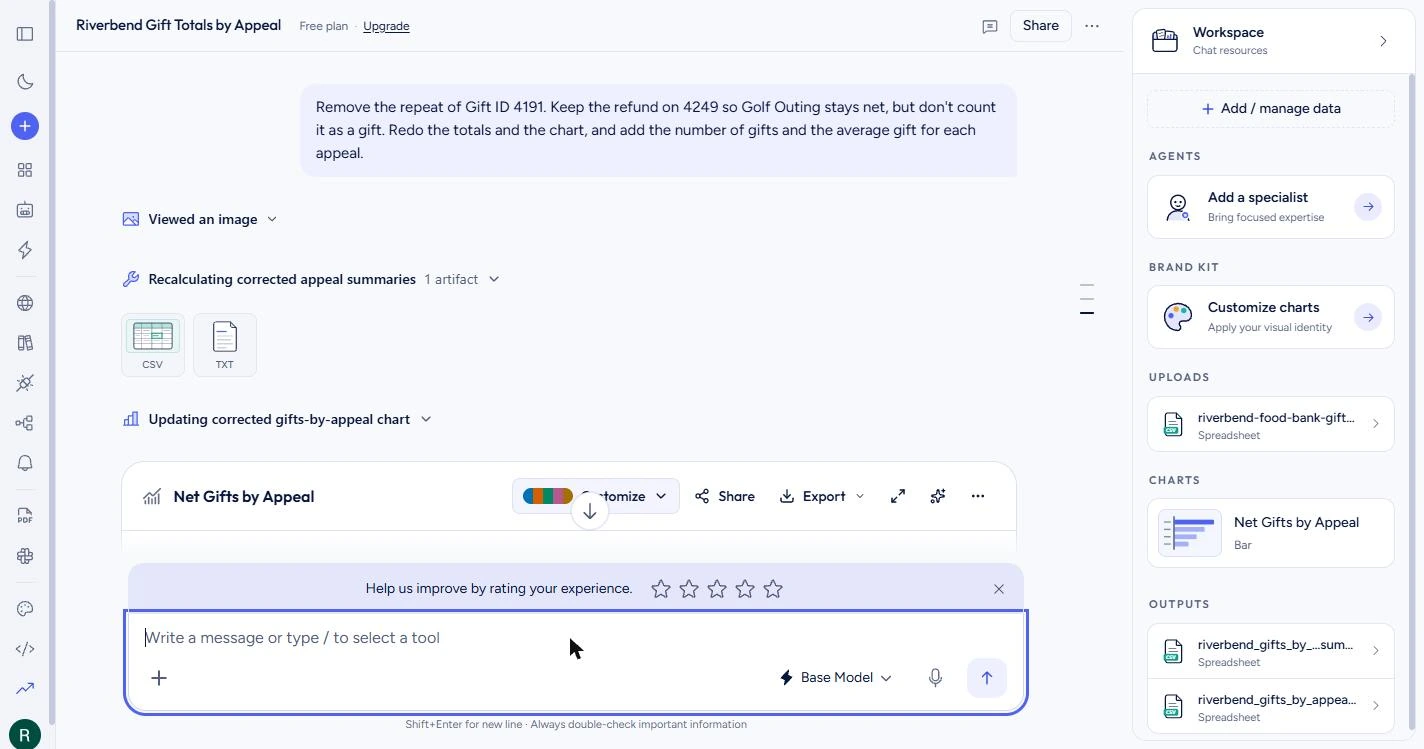
- Tell it exactly what to change. You decide, and you say so exactly. In a real office, this is after you have checked the two gifts in your donor records. Better Analyst works from its own copy of the numbers here, and your file stays as it was.
You decide what changes, and you say so exactly. In a real office, check your donor records first.
Remove the repeat of Gift ID 4191. Keep the refund on 4249 so Golf Outing stays net, but don't count it as a gift. Redo the totals and the chart, and add the number of gifts and the average gift for each appeal.
- Send it. Click the arrow.
- See the updated chart. It updated the same chart and renamed it Net Gifts by Appeal. A rating bar may pop up over the box; you can close it. Click the chart title, then scroll down to the table in the answer.
It updated the chart, and renamed it.
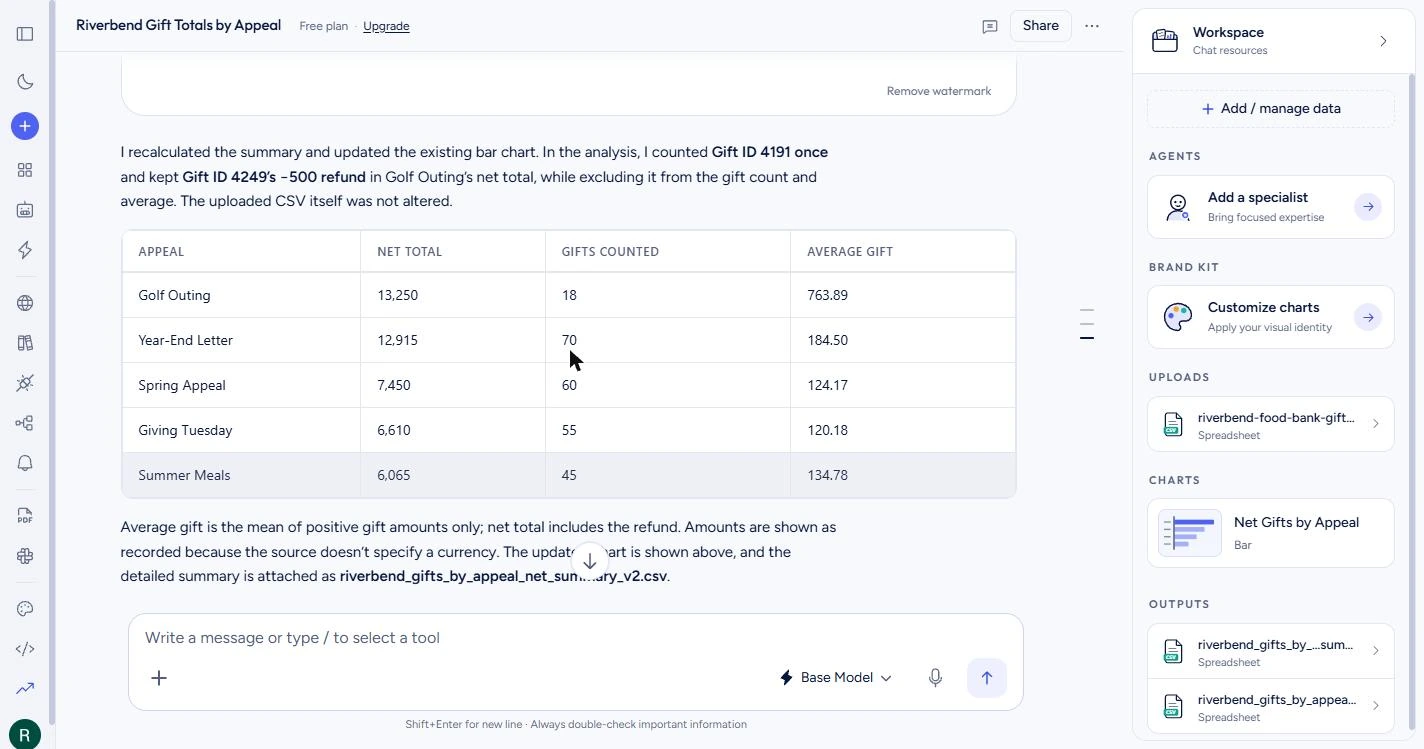
- Check the corrected row. Summer Meals went from 6,115 to 6,065, with 45 gifts. We added up the file separately, and every total and count here matches ours. The five net totals now add up to 46,290. Add them yourself once; it takes a few seconds. Click the row.
Summer Meals dropped by fifty. We added up the file separately, and every number matches. Add them yourself once.
- Read the average carefully. Golf Outing shows 18 gifts now, and an average of 763.89. It says below the table that the average uses positive gifts only, so it is 13,750 divided by 18, not the net 13,250. Either choice can be fine, as long as you can explain the one on your slide. Click the row.
Eighteen gifts now. The average leaves out the refund, and the note under the table says so. Be ready to explain that choice.
5. Write the board note
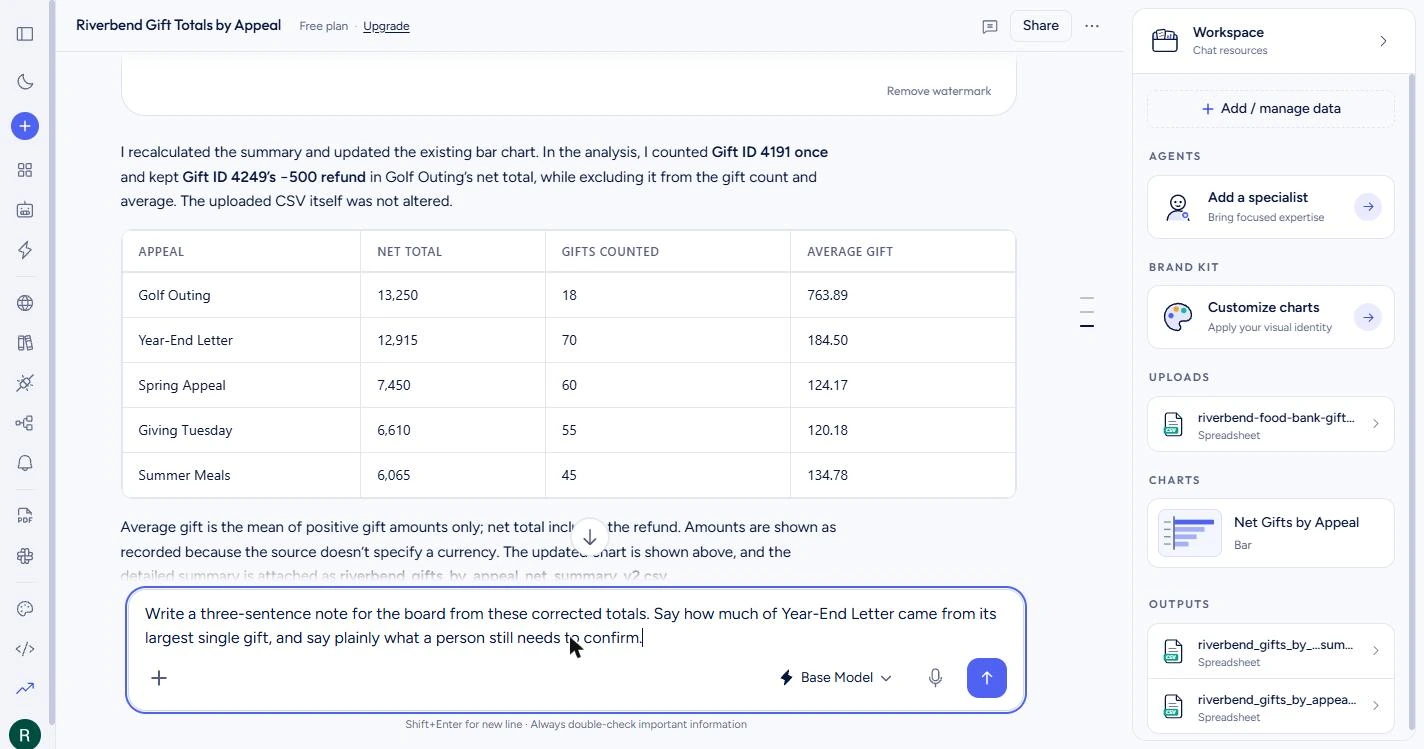
- Ask for the board note. One more thing we planted: a single 5,000 gift inside Year-End Letter. It could not change the ranking on its own, so the audit did not list it. Ask for it directly, and ask what still needs a person.
One big gift sits inside Year-End Letter. The check did not list it, so ask directly. And ask what still needs a person.
Write a three-sentence note for the board from these corrected totals. Say how much of Year-End Letter came from its largest single gift, and say plainly what a person still needs to confirm.
- Send it. Click the arrow. That is your fourth message, so 6 of the 10 are left this month.
That is your fourth message.
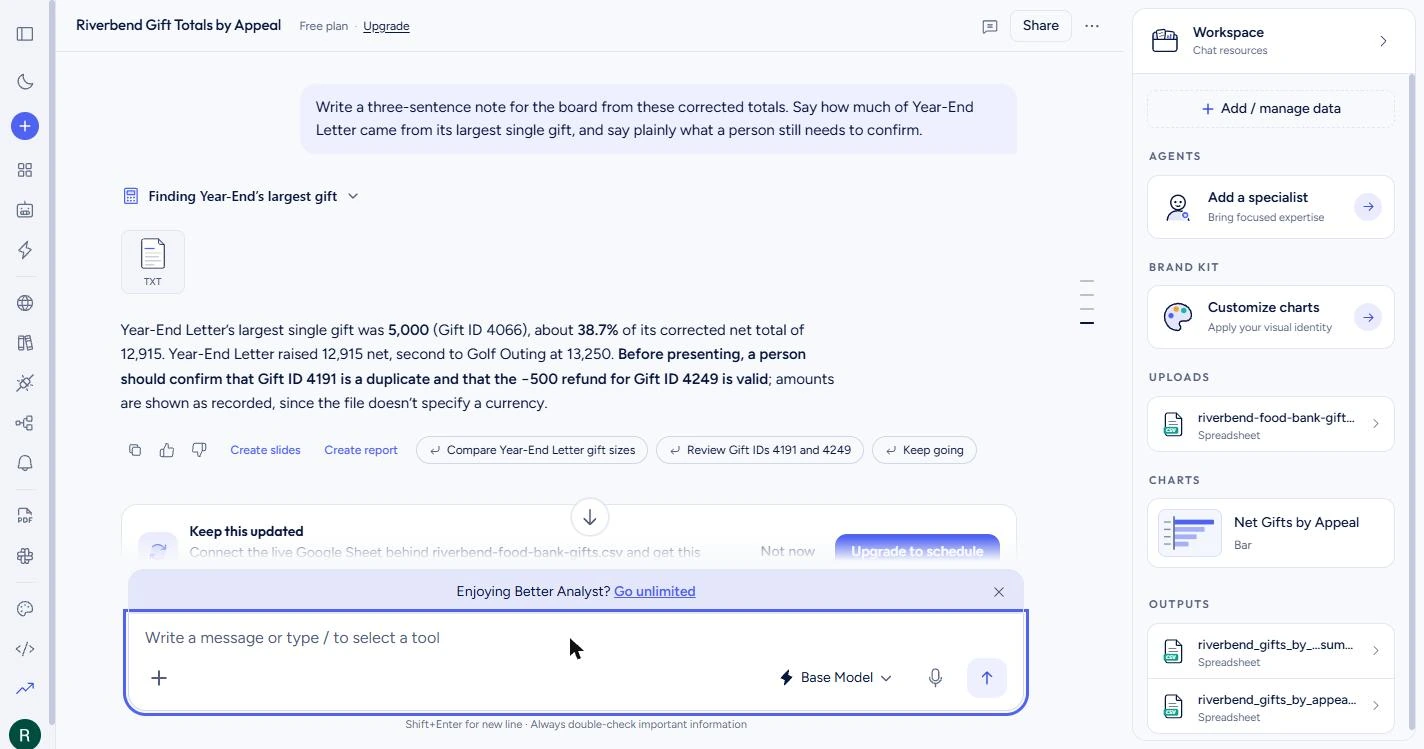
- Read it before you use it. The 5,000 gift is 38.7% of Year-End Letter, and we checked that math. It also says a person must confirm the repeat and the refund. It left out how thin Golf Outing's lead is, so add that yourself. It also says the file has no currency, which is true: tell the board these are dollars. Click the note.
The big gift is almost thirty nine percent of that appeal. It left out how thin the lead is, so add that yourself.
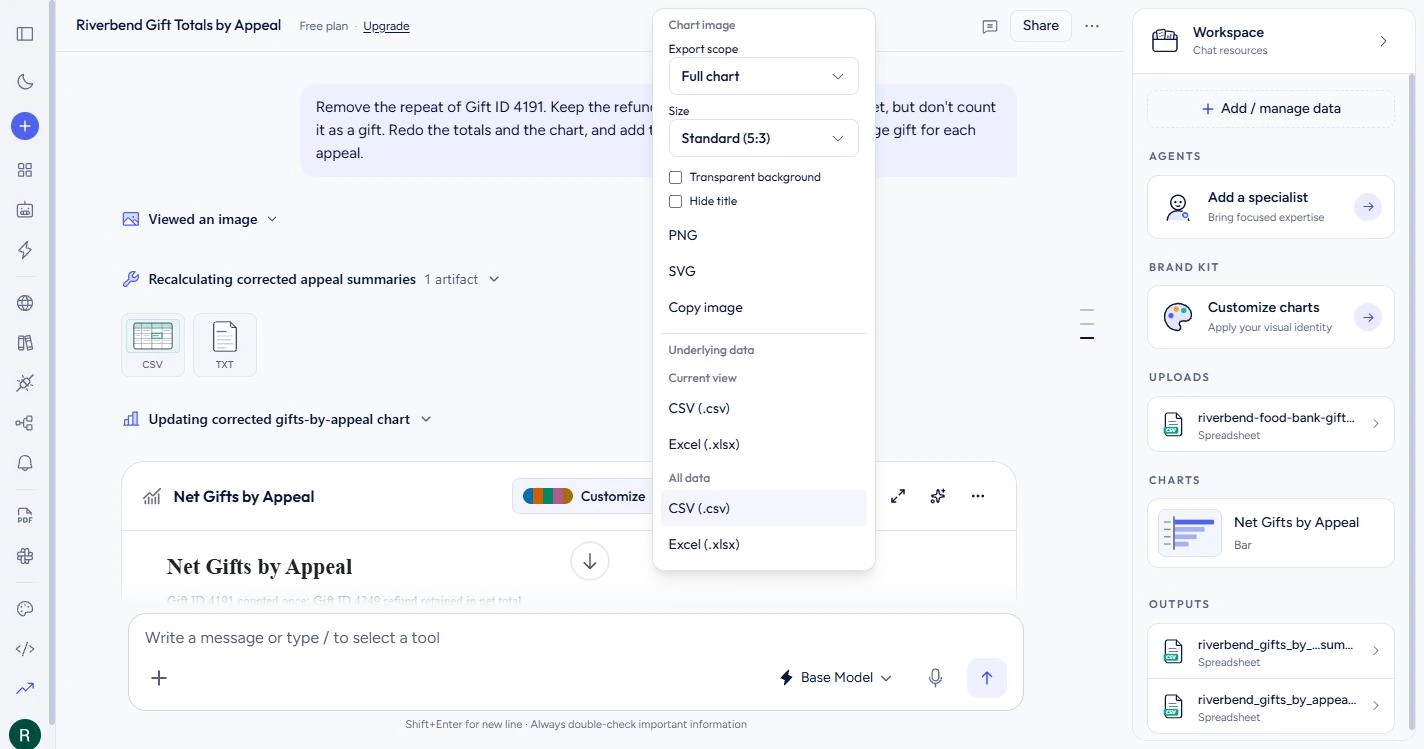
- Open Export. Scroll back up to the chart and click Export.
- Find the file for your packet. You can export the chart as PNG or SVG, and the data as CSV or Excel. Under Current view, click Excel (.xlsx) for your packet. We opened this menu but did not download from it, so open the file and check the numbers before you use it. On the Free plan, charts carry the watermark.
Export the chart as an image, or the data as a spreadsheet.
Screenshots
More in Business Automations
 AI Receipt Extractor: Receipts to Google Sheets with n8n
Drop a photo of a receipt into an n8n chat. An AI agent reads it, pulls out the date, vendor and amount, picks a category, and adds a row to Google Sheets.
Free · Live ~12 min Intermediate
 n8n AI Email Responder: Draft Gmail Replies Automatically
Build an n8n agent that watches your Gmail, reads each new customer email, and writes a reply as a draft in the same thread, ready for you to check and send.
Free · Live ~12 min Intermediate
 Daily Job Alerts: Email Each Tech Their Jobs from Google Sheets with n8n
Every morning at 7, n8n reads a plumbing company's jobs sheet, skips anything not assigned yet, and emails each job to the tech it's assigned to — customer, address…
Free · Live ~10 min Intermediate
 Gmail AI Triage: Auto-Label Every Email and Draft Replies
Build an n8n workflow that reads each new email, sorts it as a lead, a client or an invoice with a Text Classifier, adds the matching Gmail label, and drafts a reply to…
Free · Live ~18 min Advanced
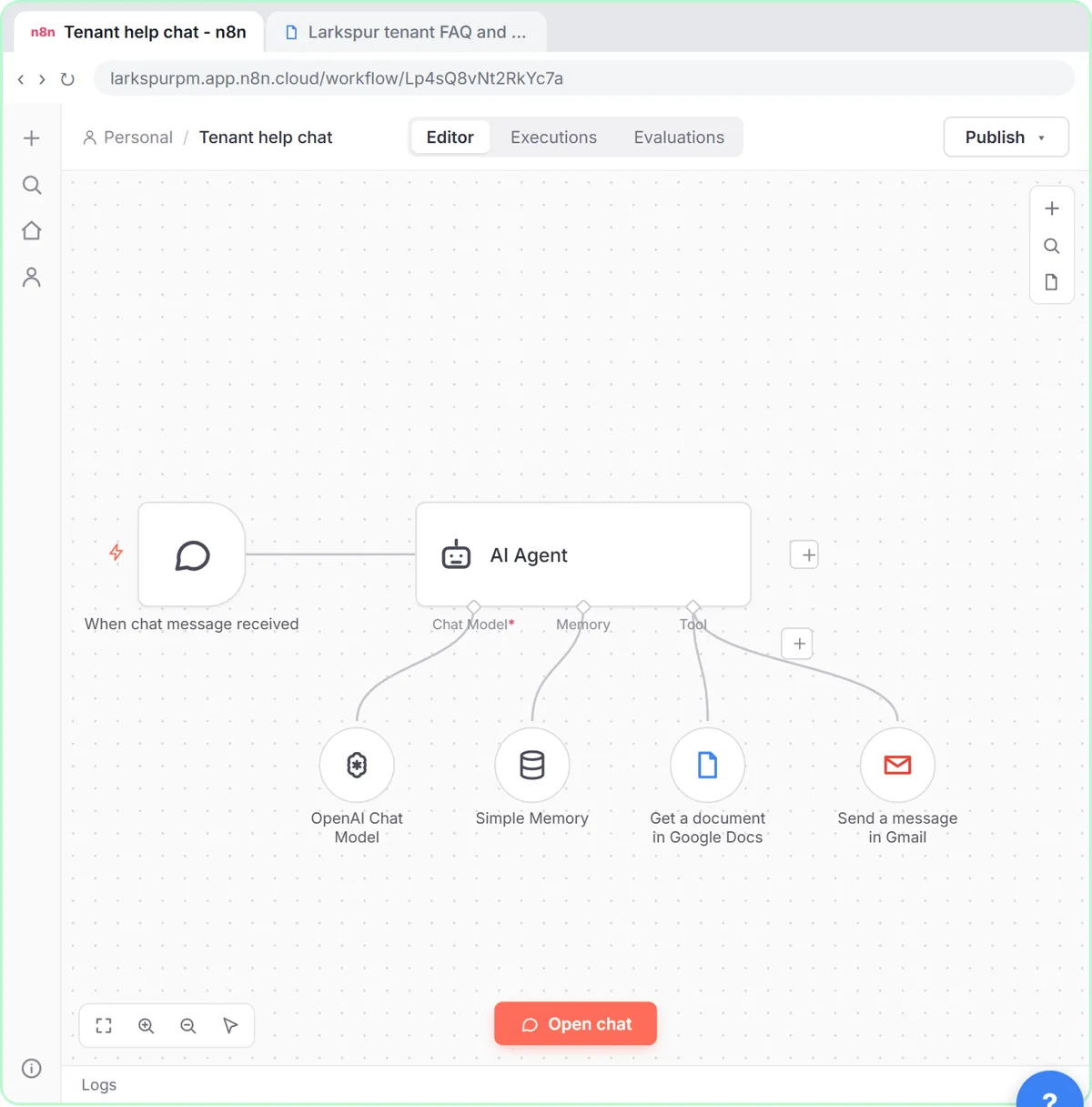 A Support Agent That Answers from Your Own Docs
Turn an n8n chat agent into a support agent that answers only from your policies in a Google Doc, refuses what it should, and hands off to a person by email.
Free · Live ~13 min Advanced
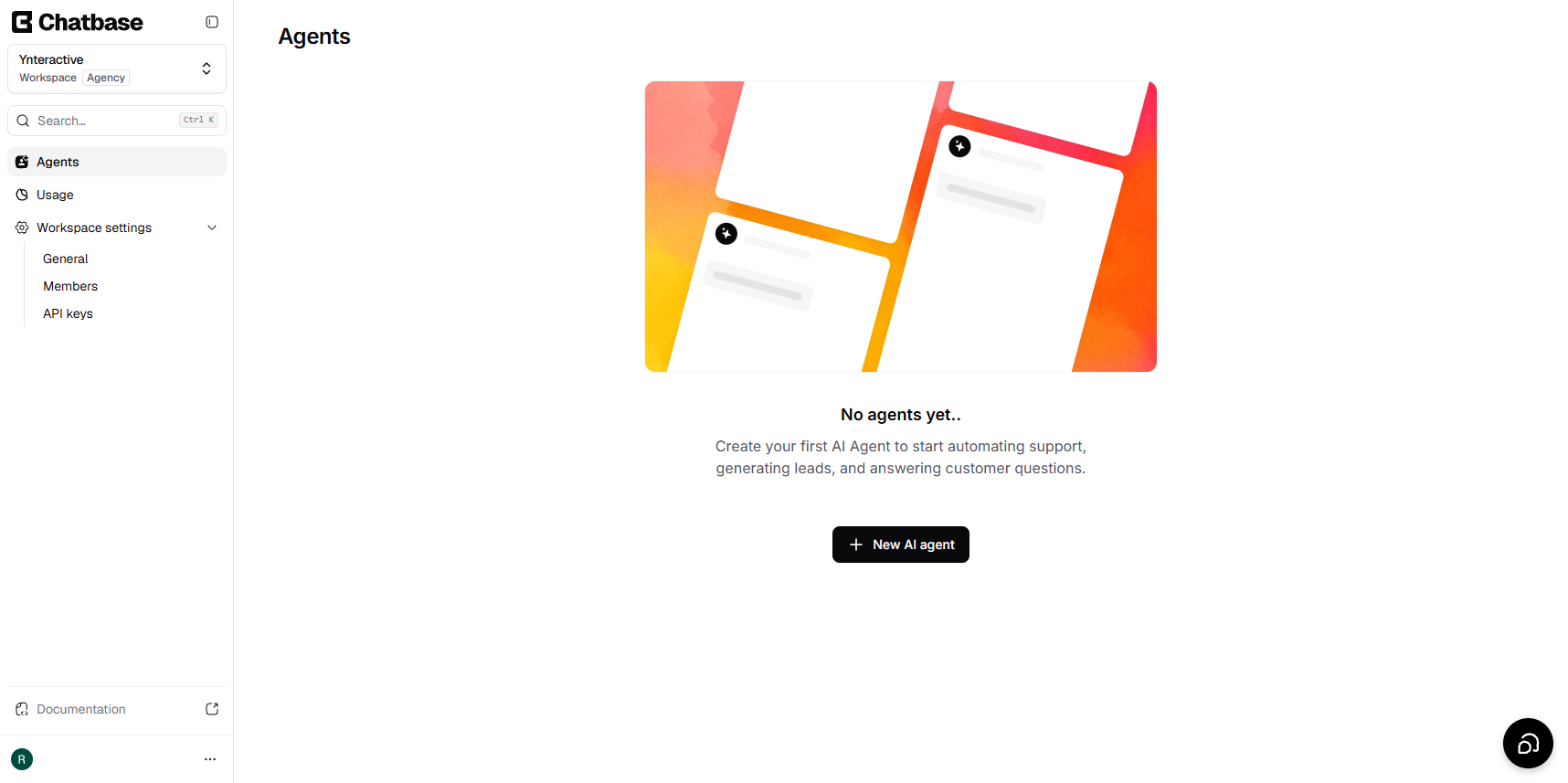 Chatbase: Answer Customer FAQs with an AI Agent
A business case for a small firm that answers the same customer questions every week: build a Chatbase AI agent on your FAQ in the real app, make it say when it does…
Free · Live ~15 min Beginner
All 19 modules in Business Automations
Terms in this lesson
Plain-English definitions, each with an example from a free lesson.