Updated . Built against the tool’s current screens and checked step by step. How we check this lesson
Stop replaying customer calls to find one good line. Transcribe an interview in Transgate, fix the name the AI misheard, pull exact quotes and numbers, and catch the claim your customer never made.
At a glance
| Question | Answer |
|---|---|
| What you build | Stop replaying customer calls to find one good line. Transcribe an interview in Transgate, fix the name the AI misheard, pull exact quotes and numbers, and catch the claim your customer never made. |
| Tools | Transgate |
| Time | About 7 minutes, 27 steps in 5 parts |
| Level | Beginner, no coding needed |
| Cost | Free |
| Ways to learn it | Practice it step by step |
The 5 parts, in short
- Transcribe the interview: Add the recording, Open the language list, Pick English, Turn on speaker labels, and 1 more step.
- Fix what the AI misheard: Open the first speaker label, Choose Edit speaker, Name the interviewer, Confirm it, and 7 more steps.
- Pull quotes and numbers: Ask for quotes and numbers, Send it, Check the quotes, Check the numbers.
- Check the claims: Ask a question with a trap in it, Send it, Read the answer, Open AI Analysis, and 1 more step.
- Take it with you: Download the transcript, Check your fixes came through.
Start here first: AI Receipt Extractor: Receipts to Google Sheets with n8n (module 1 of Business Automations)
In the course: Part 9 · n8n Automation Toolkit (Module 107 of the full course)
Part of: AI Apps Worth Knowing (step 103 of 104). Next up: Better Analyst: Check a Donor Export Before the Board Sees It
What you'll build
Lumen Desk is a made-up scheduling software company. Its marketing team replays every customer interview to find exact quotes and numbers for case studies, and one wrong figure becomes a public mistake. In this lesson you transcribe a made-up 2-minute interview in Transgate, name the speakers, and fix the two things the AI got wrong. Then you pull quotes and numbers, test a claim the customer never made, and download the corrected transcript. The lesson stops at the file; it does not write the case study.
You turned a recording into a named, corrected transcript, pulled quotes and numbers, and proved which claims it supports. The AI got every number right and the surname wrong, which is why you read it against the recording. Our sample is two clear voices over 2 minutes, so try it on a real call you have permission to use, and get your customer's OK on the quotes before you publish.
- Tools: Transgate
- Time: about 7 minutes, 27 steps in 5 chapters
- Level: beginner, no coding needed
- Price: free
Practice first, then build it for real
Practice copy built from real Transgate screens (transgate.ai), captured 31 October 2026 on a free trial account. Nothing here touches a Transgate account. The companies, the people and the recording are made up. The transcript and AI answers are what Transgate produced, and your results can differ. To build it for real you need your own Transgate account, and some services charge once you use them for real work, so check each tool's current pricing.
Try it yourself, free
Reading the steps is a start. Doing them is how it sticks. The interactive module walks you through every click in a practice copy of Transgate, checks each step, and never touches your real accounts.
Start “Transgate: Turn a Customer Interview Into Checked Case Study Quotes”Step by step: Transgate: Turn a Customer Interview Into Checked Case Study Quotes
All 27 steps of the interactive module, in order. In the module you watch each one, then do it yourself in a practice copy that checks your work.
1. Transcribe the interview
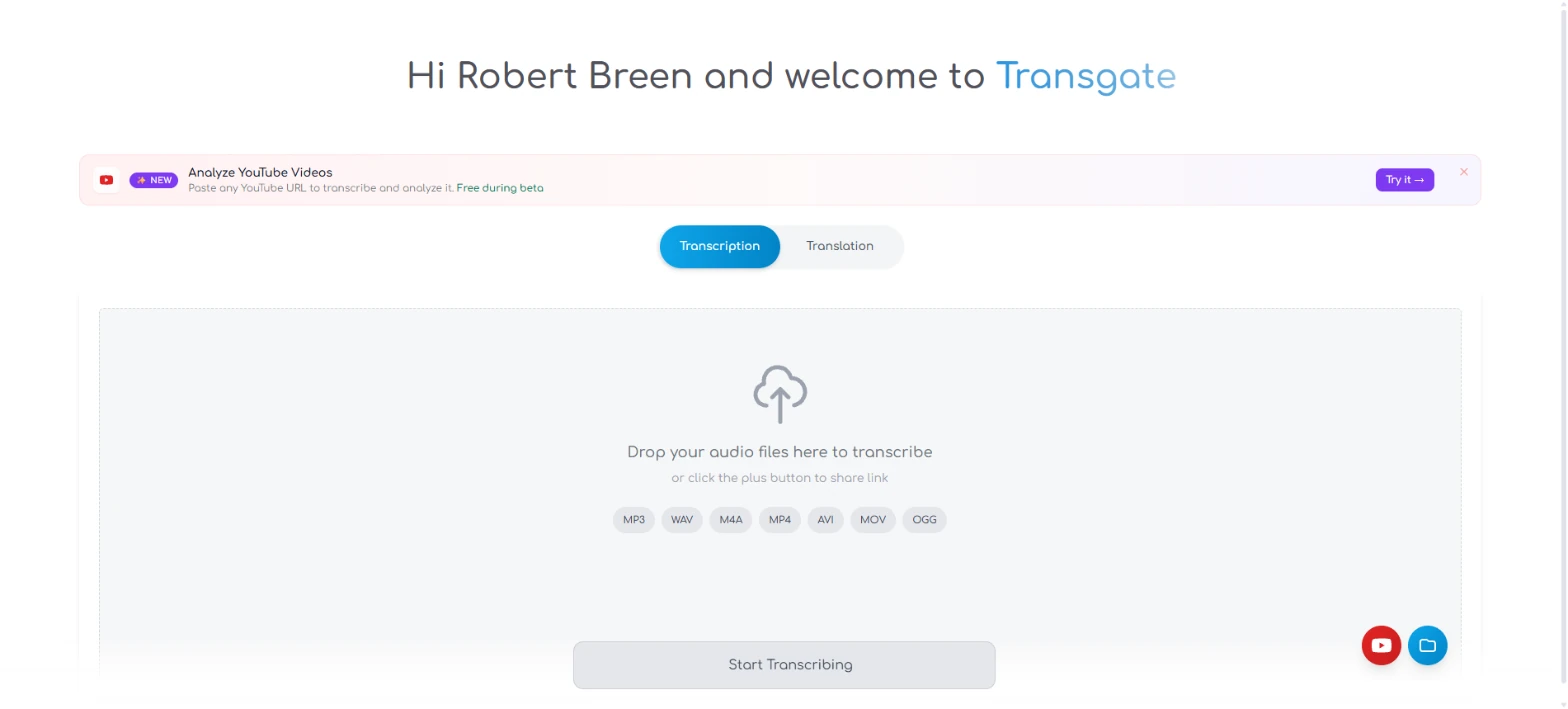
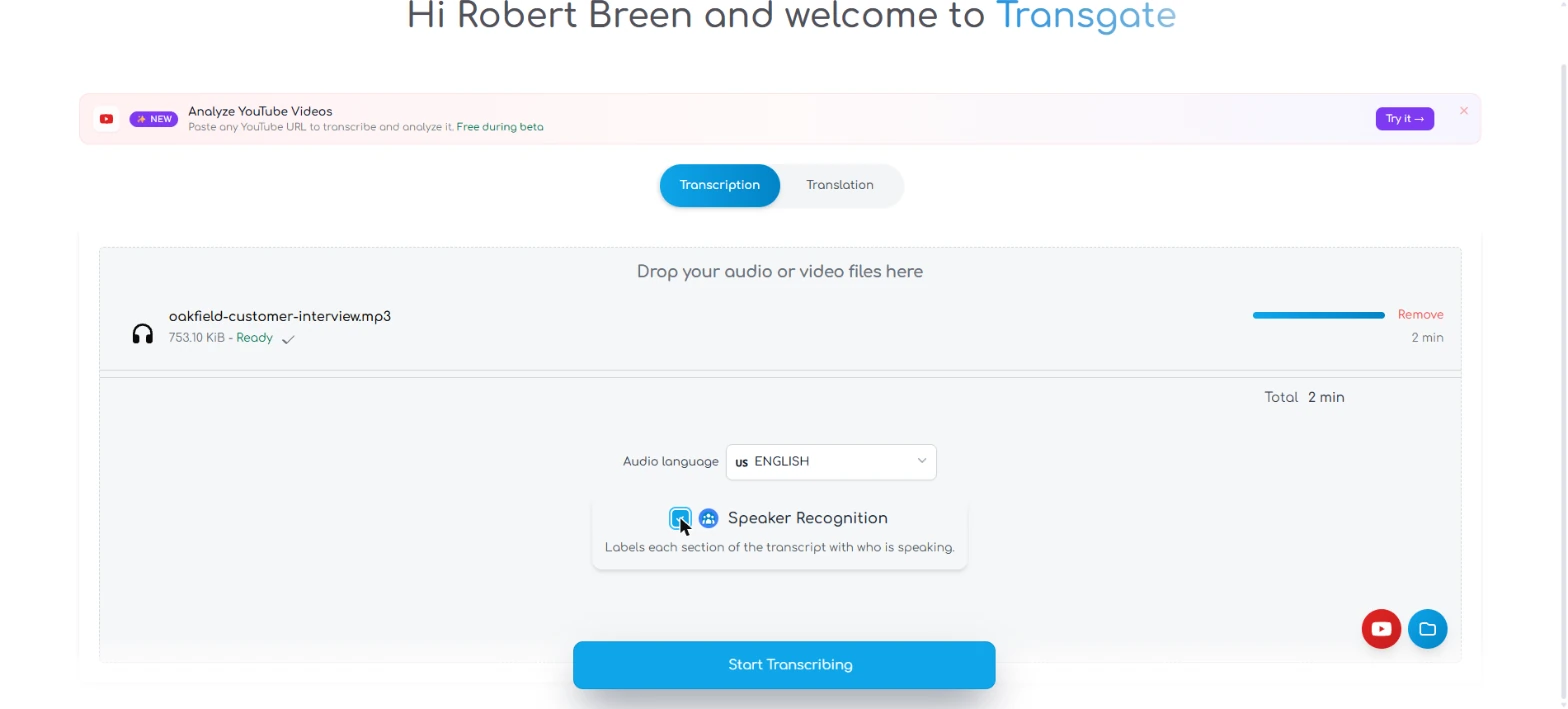
- Add the recording. You are Dana, on the marketing team at Lumen Desk, a made-up scheduling software company. You just finished a customer interview, and the case study is due. Today you would replay it to find the exact words and numbers. In transgate.ai, click the drop area and pick oakfield-customer-interview.mp3, the made-up recording from the links on this lesson. It runs about 2 minutes. A free trial includes 20 minutes.
You run marketing interviews, and the case study is due. Replaying the call for exact words takes hours. In Transgate, add the sample recording.
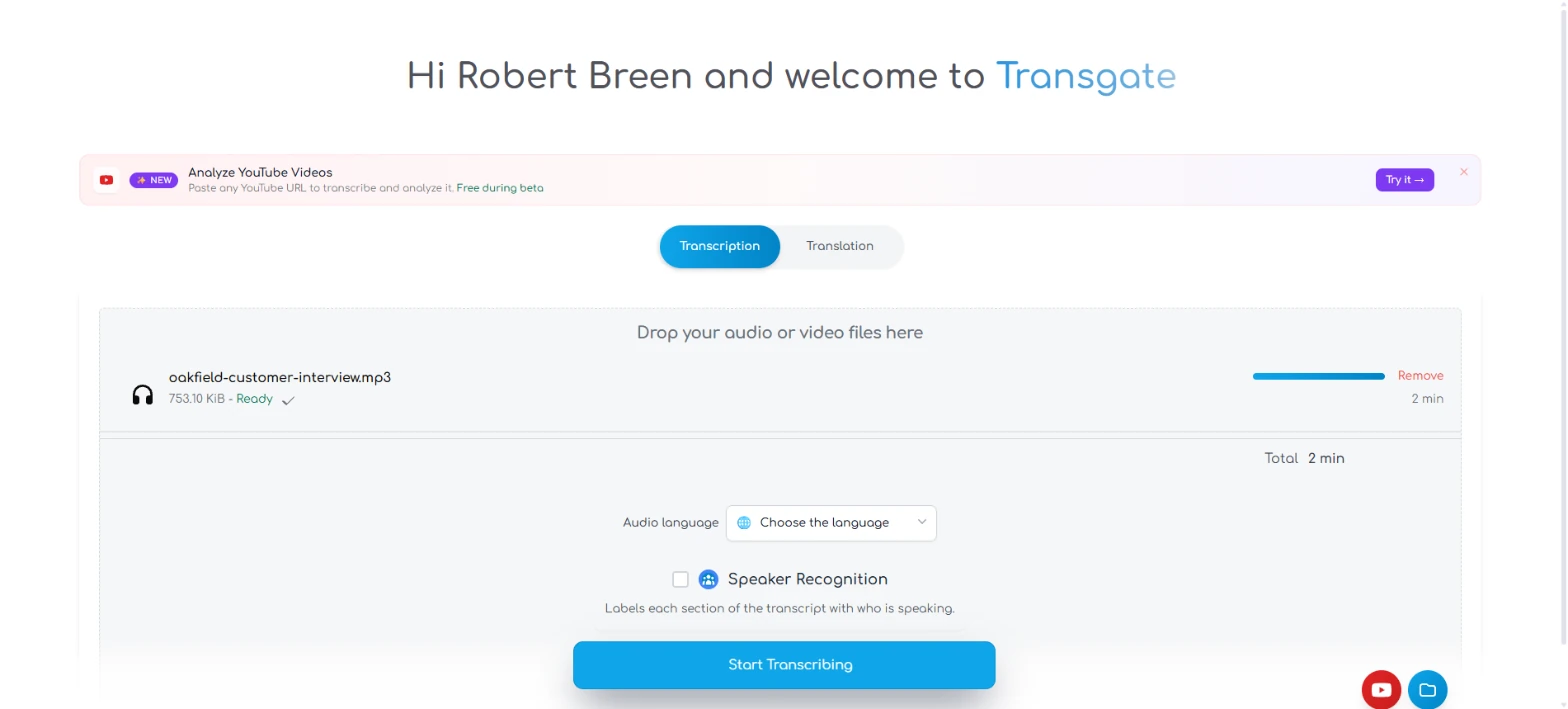
- Open the language list. The file shows Ready. Next to Audio language, click Choose the language.
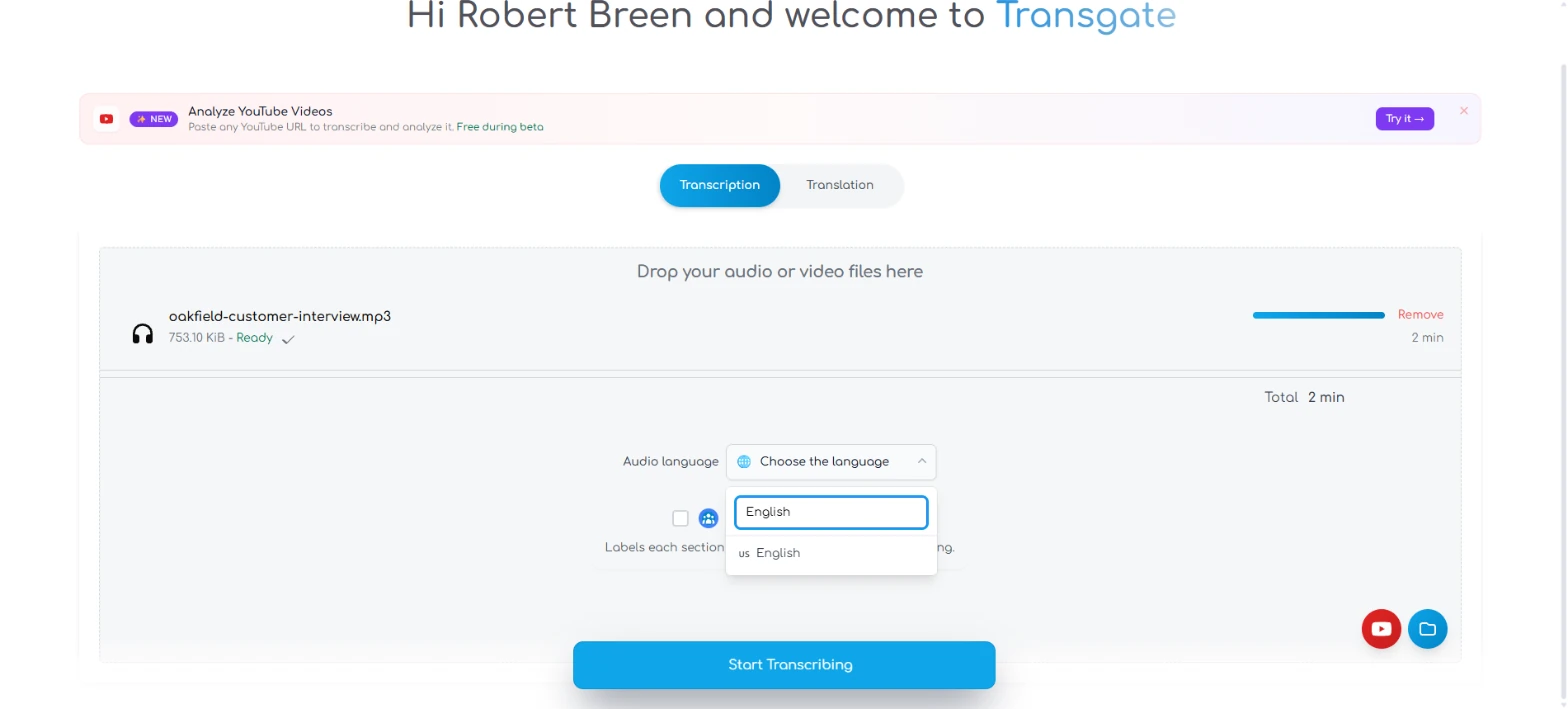
- Pick English. Type English in the search box, then click English. Auto-detect is also in the list; we did not test it.
Search for English, and pick it.
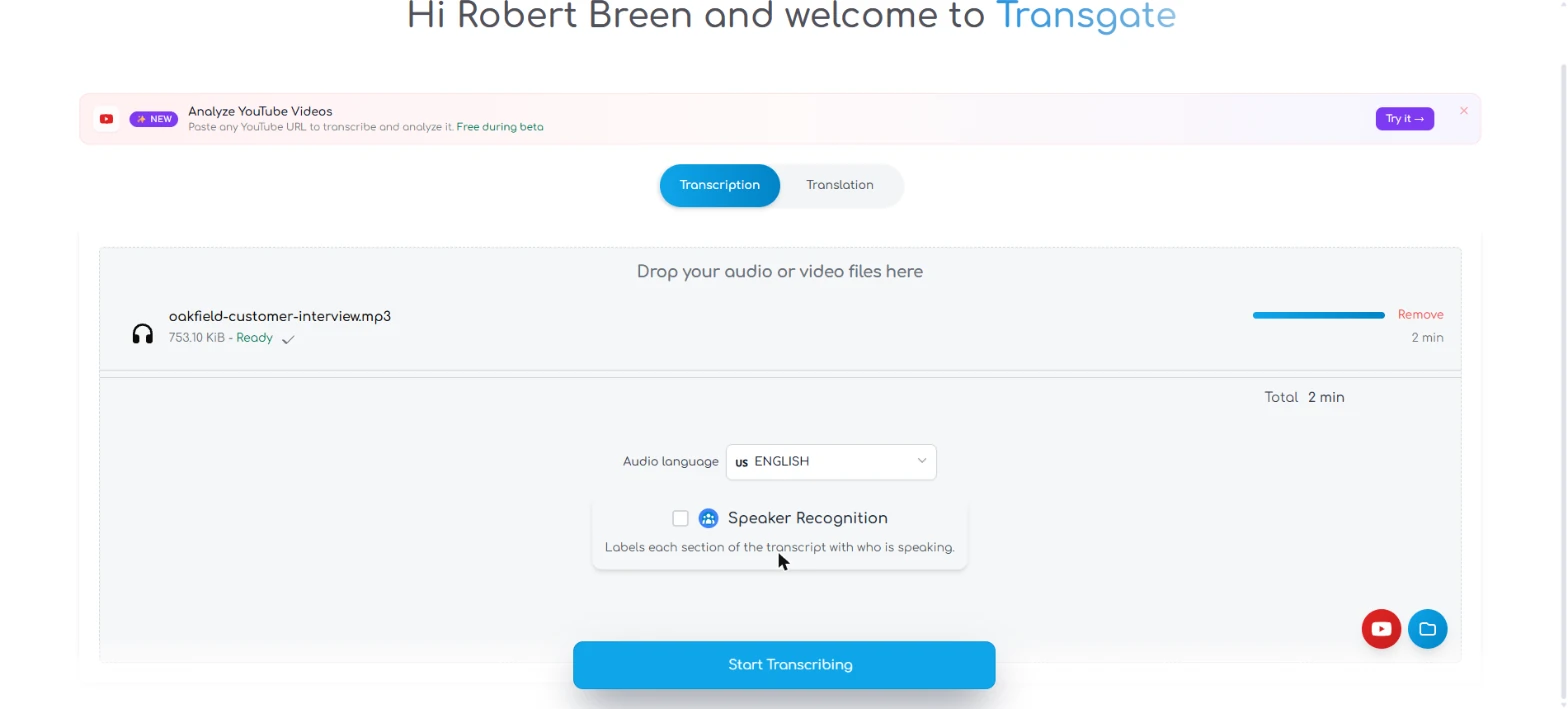
- Turn on speaker labels. Tick Speaker Recognition. A case study needs the customer's words, not yours, so you need to know who said what.
Tick Speaker Recognition. A case study needs the customer's words, so you need to know who said what.
- Start it. Click Start Transcribing. Our 2-minute file was done in about 10 seconds both times, and each run took 2 minutes off the balance.
2. Fix what the AI misheard
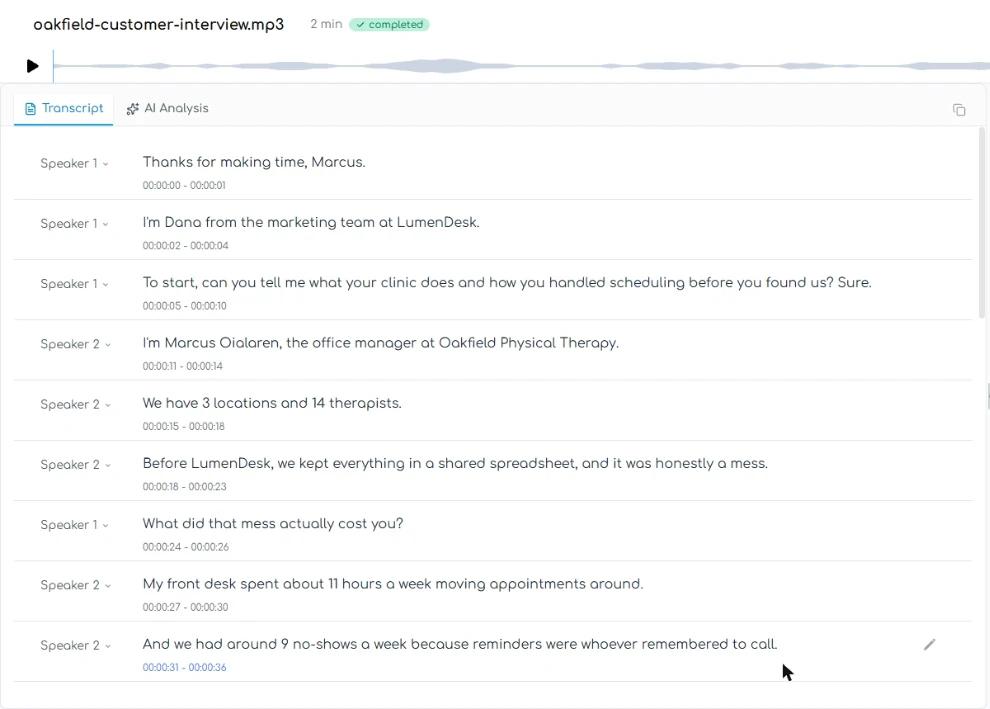
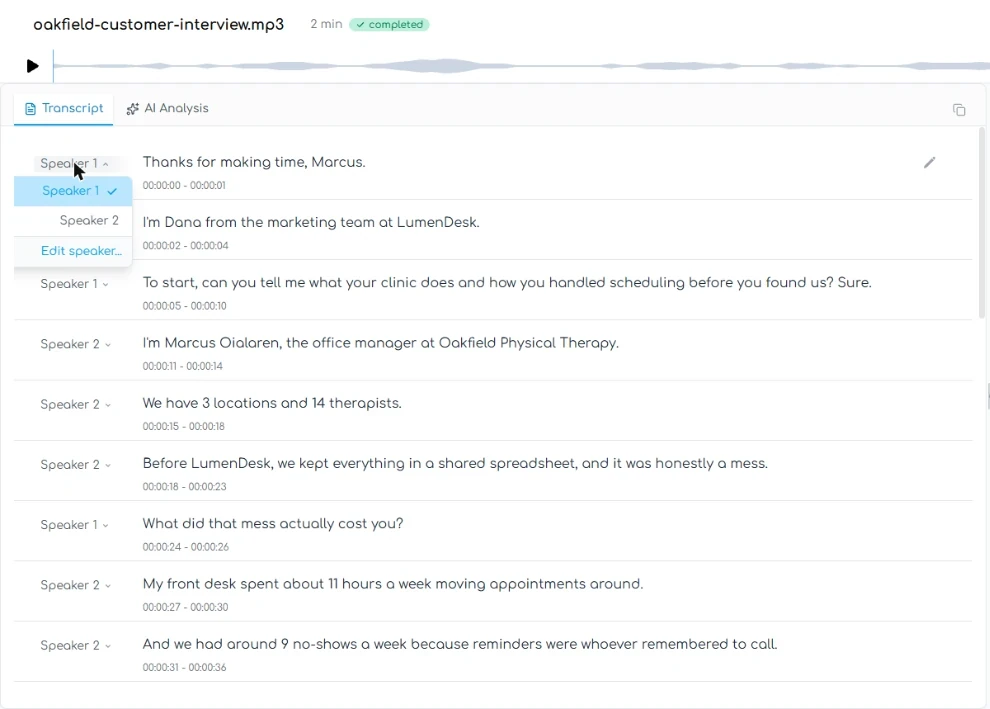
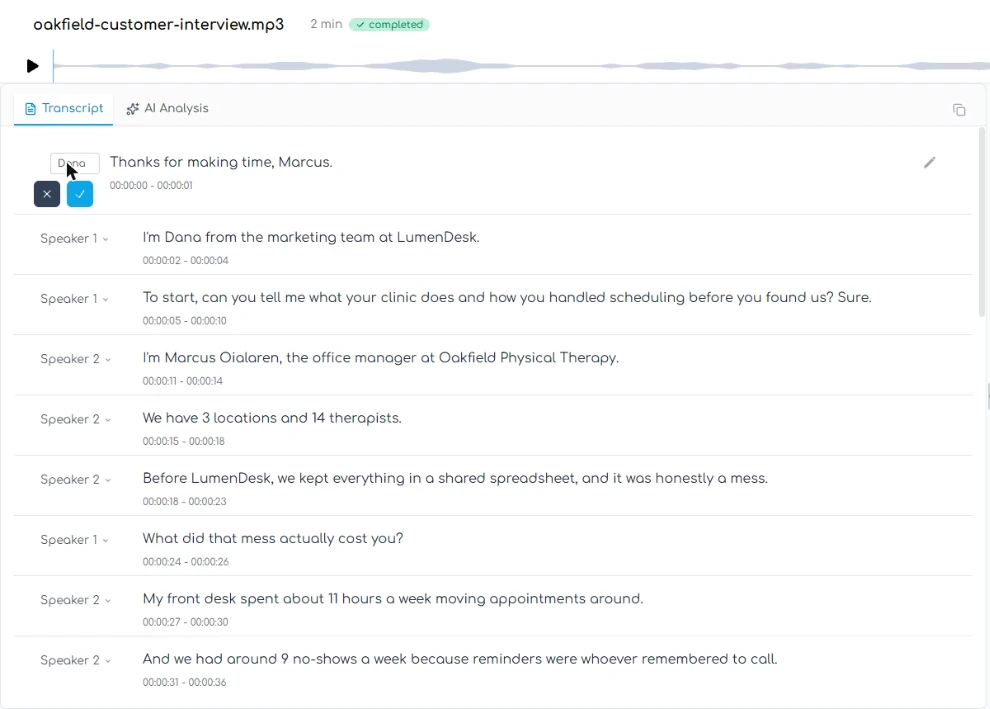
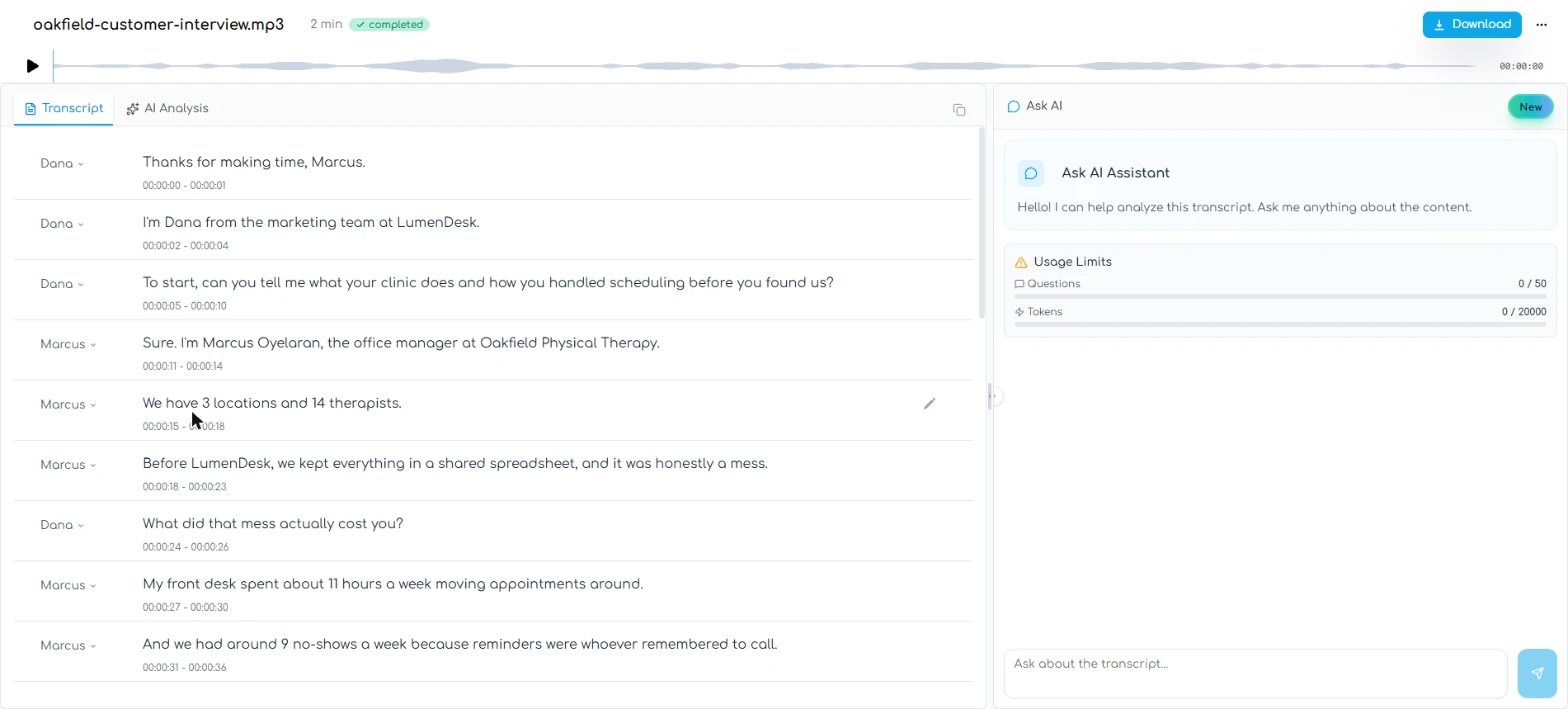
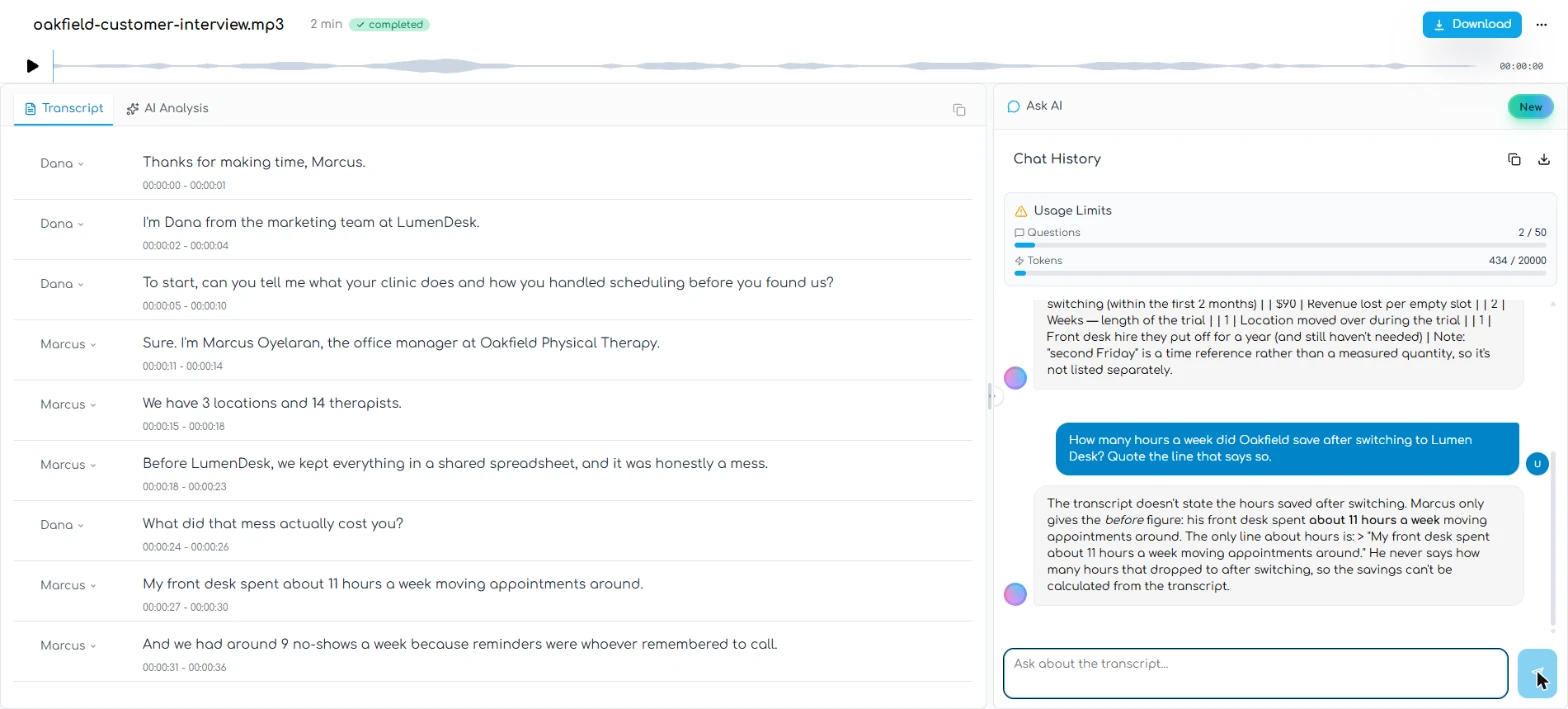
- Open the first speaker label. Here is the transcript, one line at a time, with timestamps. The speakers are just Speaker 1 and Speaker 2. Click Speaker 1 on the first line.
Here is the transcript. Speakers have no names yet.
- Choose Edit speaker. Click Edit speaker....
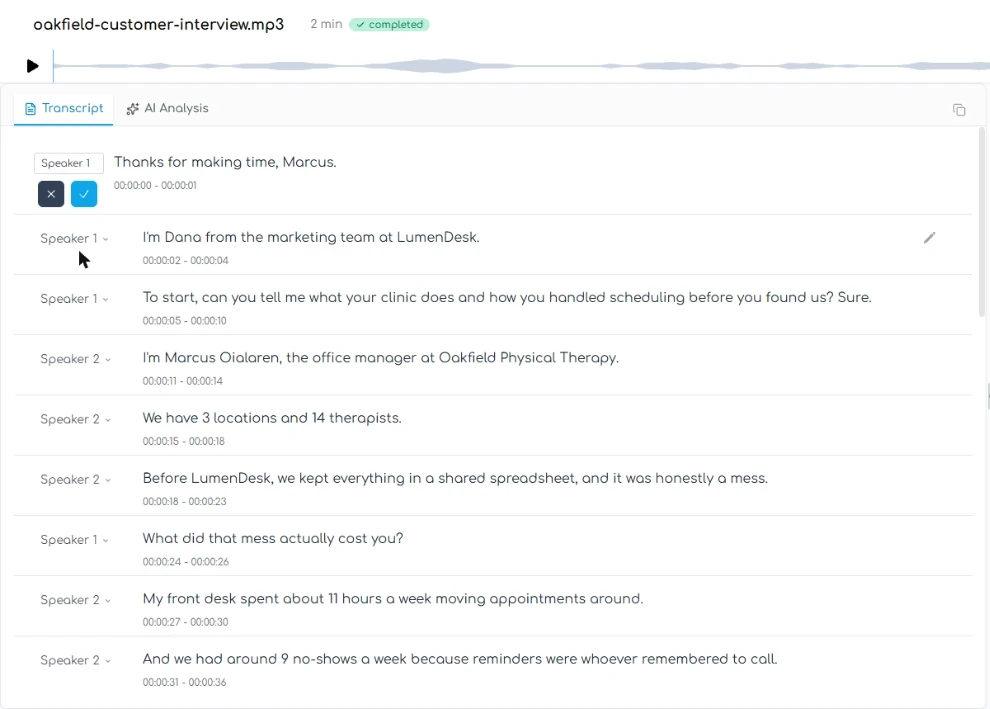
- Name the interviewer. Replace Speaker 1 with your own name.
- Confirm it. Click the blue check mark.
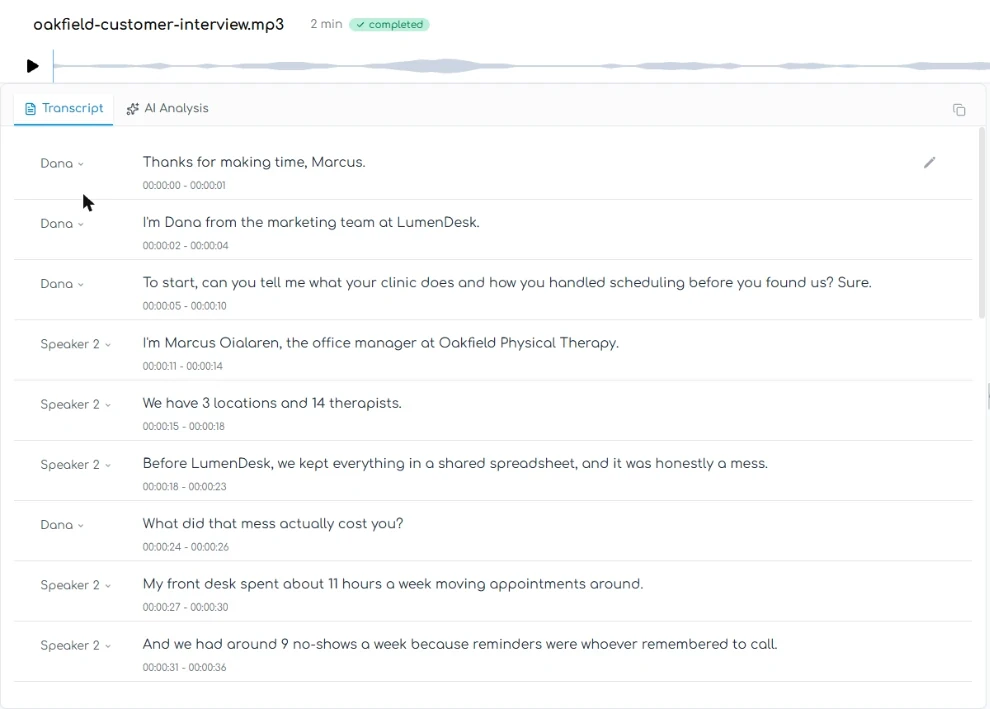
- Name the customer the same way. Dana now shows on every Speaker 1 line, including the ones further down. Do the same for the customer: click Speaker 2, Edit speaker..., type Marcus, and click the check mark. We tested those clicks; here they are one step.
One rename changes every line. Do the same for the customer, and name him Marcus.
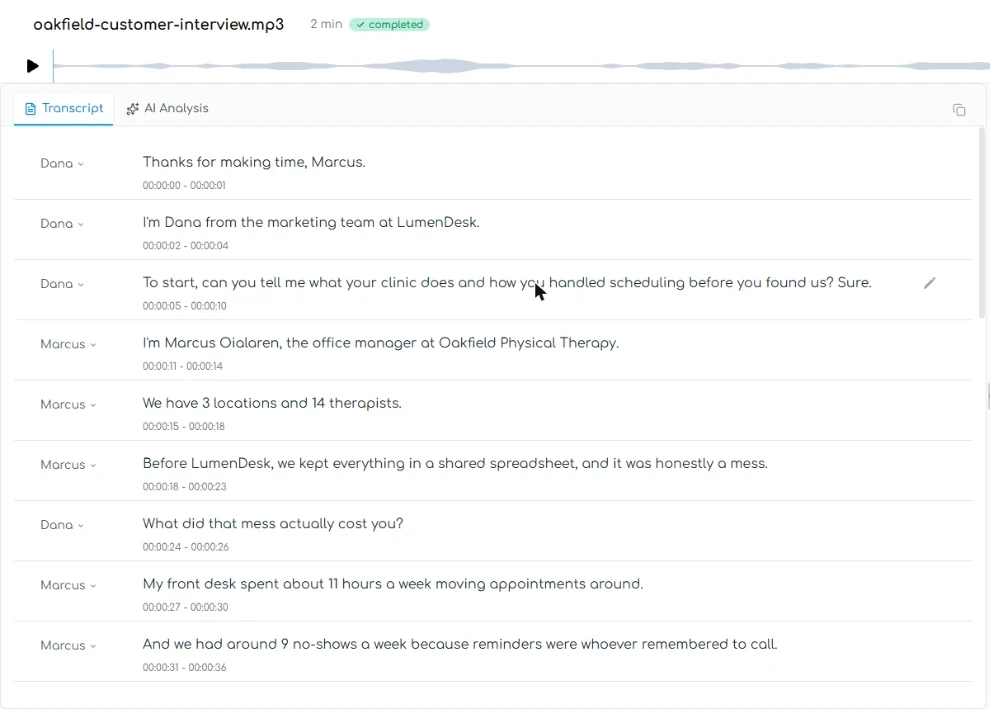
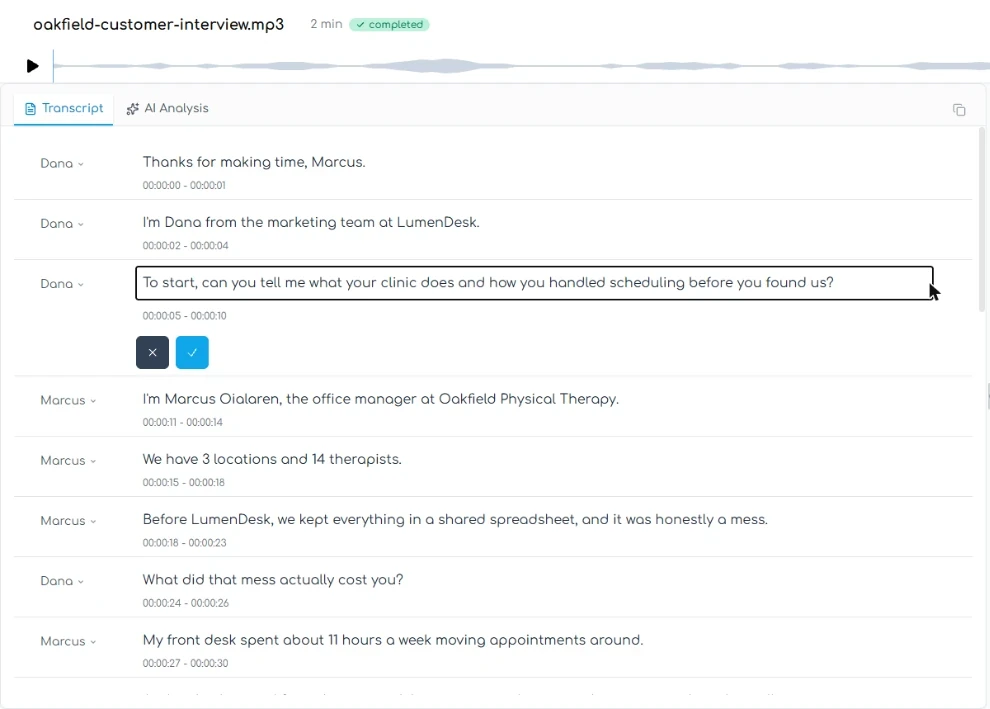
- Edit Dana's third line. Now read it against the recording. Look at the end of Dana's third line: Sure. Dana did not say that. Marcus did, and the AI put it on the wrong side of the break. It happened in both of our runs. Point at the line and click the pencil.
Read it against the recording. Sure belongs to Marcus, not to Dana.
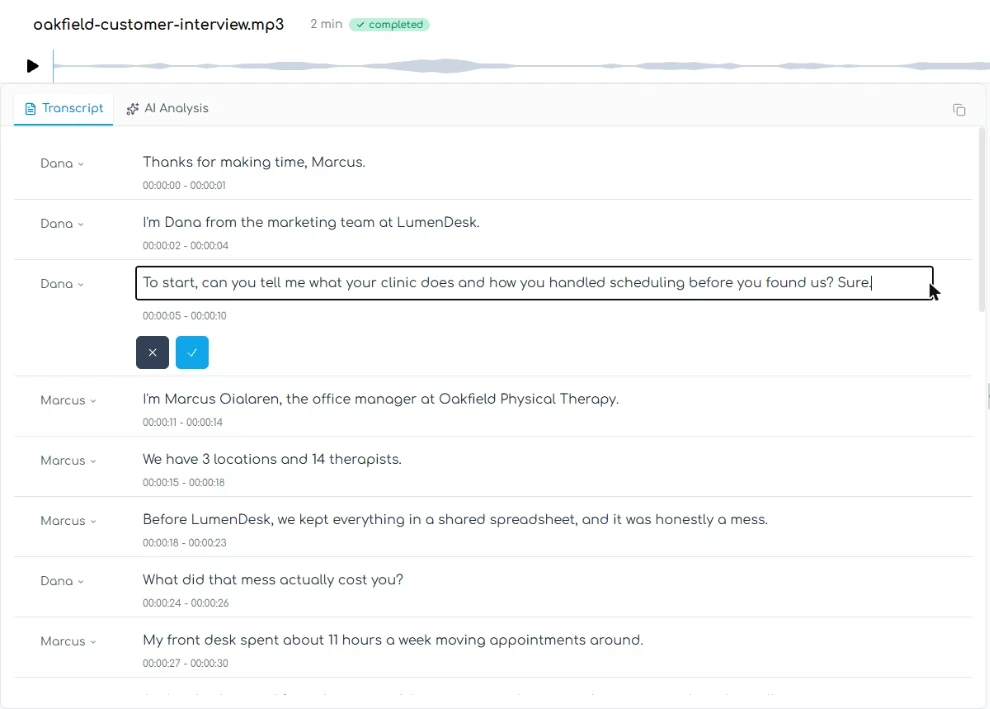
- Take out the stray word. Replace the line with the corrected text.
Take out the stray word.
- Save the line. Click the blue check mark.
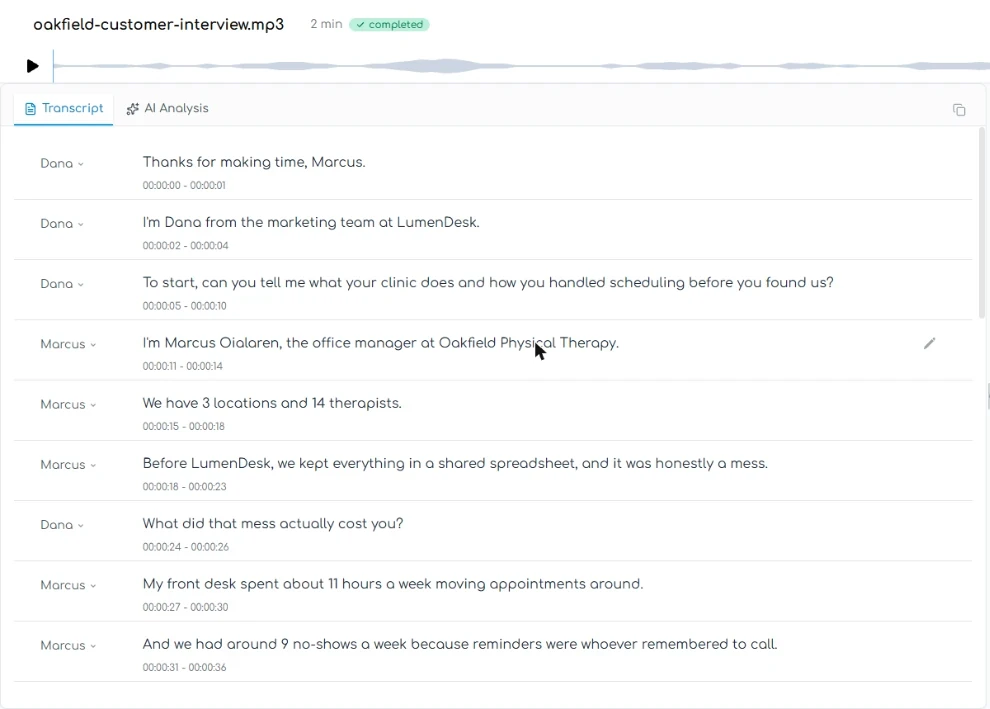
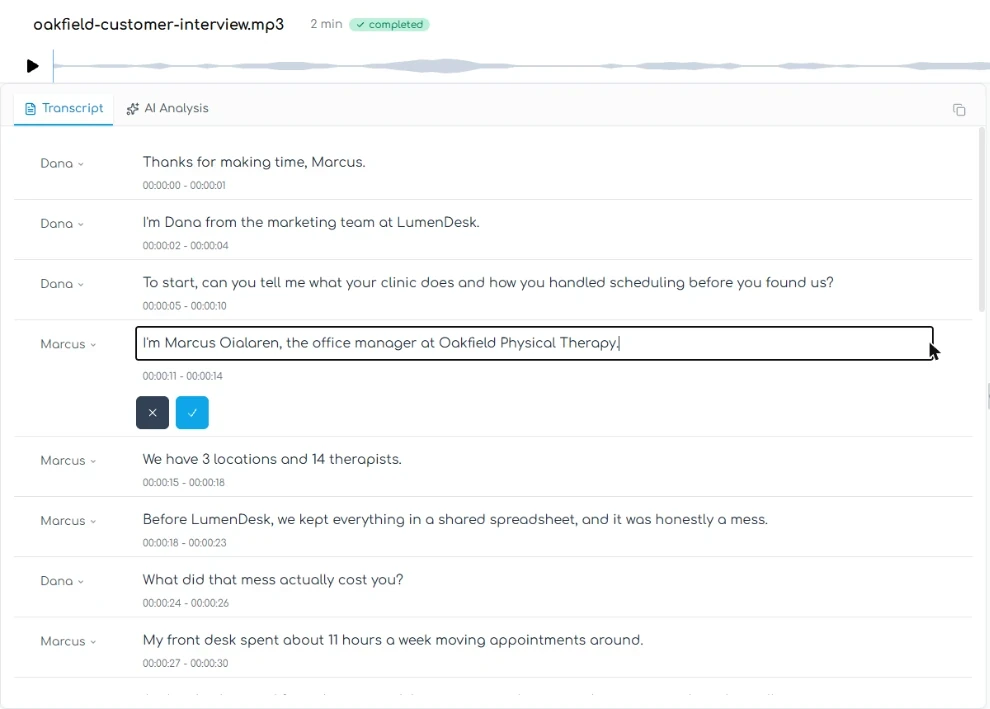
- Edit the line with his name. Next line. The transcript says Marcus Oialaren. His name is Oyelaran, and no AI could know that from the sound alone. A misspelled customer name is the mistake a case study can never ship with. Click the pencil.
The transcript misspells his name. No AI could know the spelling from sound alone, and you cannot ship that in a case study.
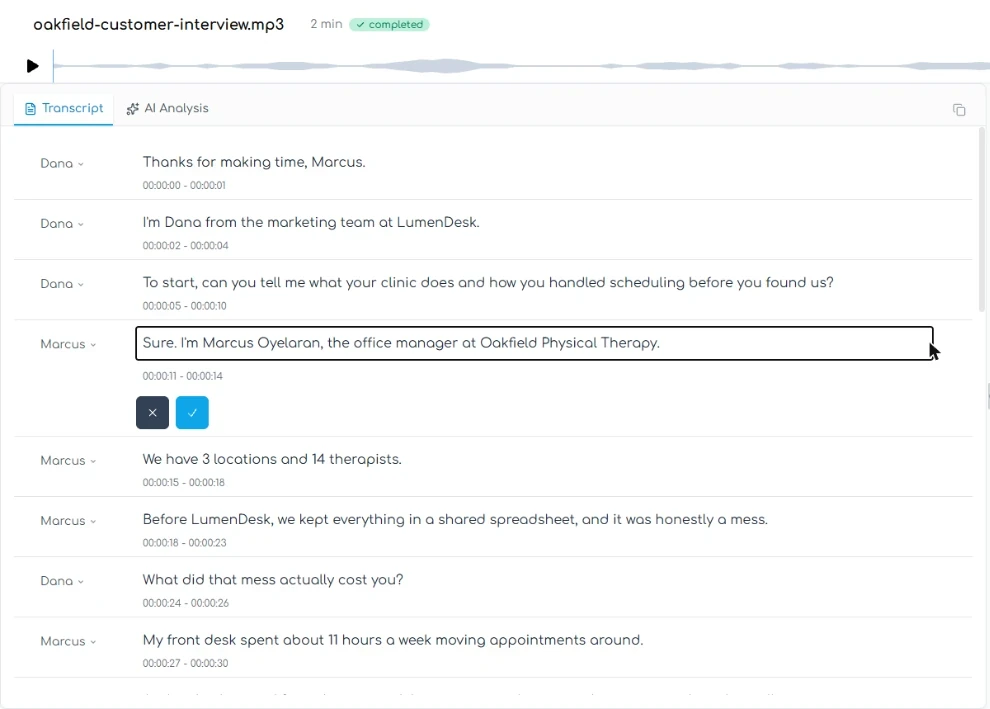
- Fix the name. Replace the line. This also gives Sure. back to Marcus.
Fix the name, and give Sure back to Marcus.
- Save it. Click the blue check mark. Everything else we checked matched: 11 hours, 9 no-shows, 3 a week and $90. Check yours against the recording. Transgate also wrote our company as one word, LumenDesk. We left that alone here. In real work, fix your company name in the file.
Every number matched in our runs. Always check numbers against the recording anyway.
3. Pull quotes and numbers
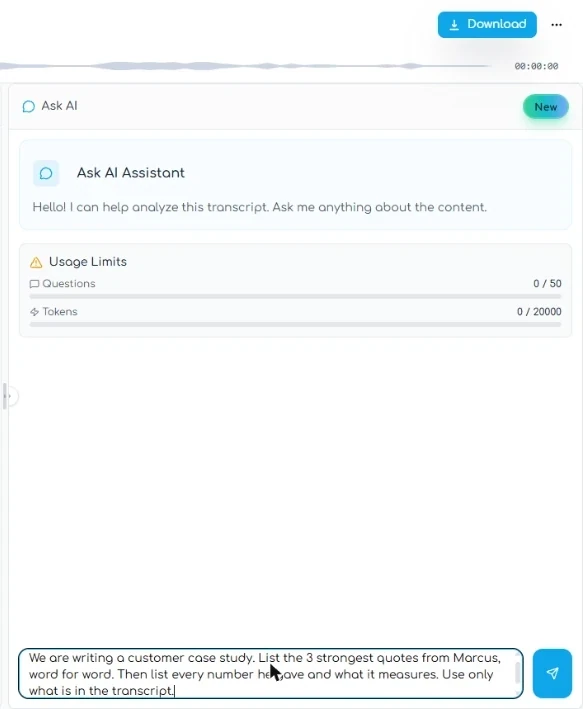
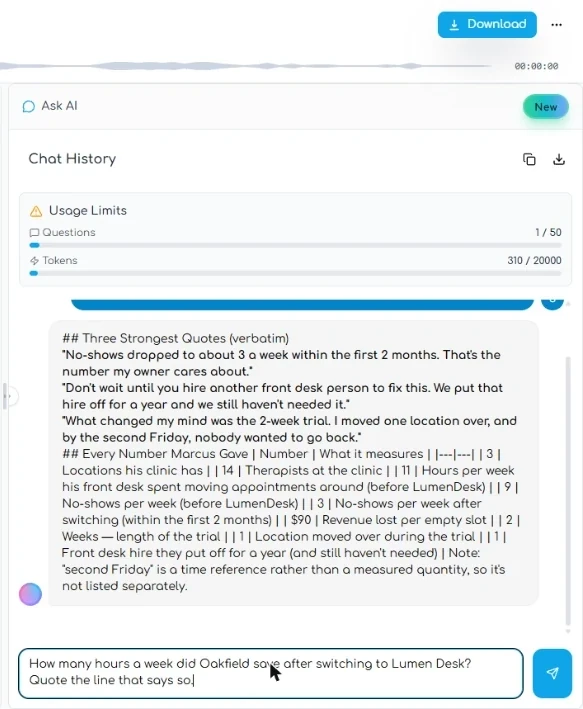
- Ask for quotes and numbers. Now the slow part of the job. In Ask AI, ask for what the case study needs, and limit it to the transcript. If you see Start Chatting, click it first. We saw that button on our first transcript; on the next one the box was already open.
Now the slow part. Ask for the quotes and the numbers, and limit it to the transcript.
We are writing a customer case study. List the 3 strongest quotes from Marcus, word for word. Then list every number he gave and what it measures. Use only what is in the transcript.
- Send it. Click the send button. The chat counts your usage: we saw limits of 50 questions and 20,000 tokens on each transcript.
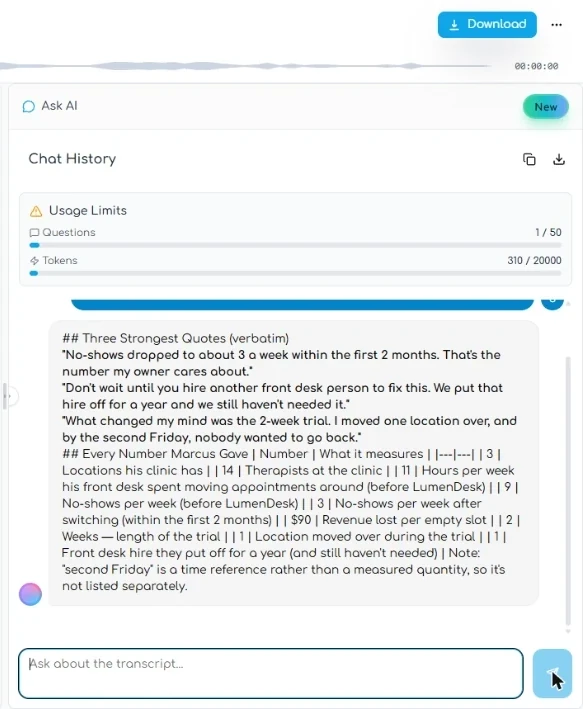
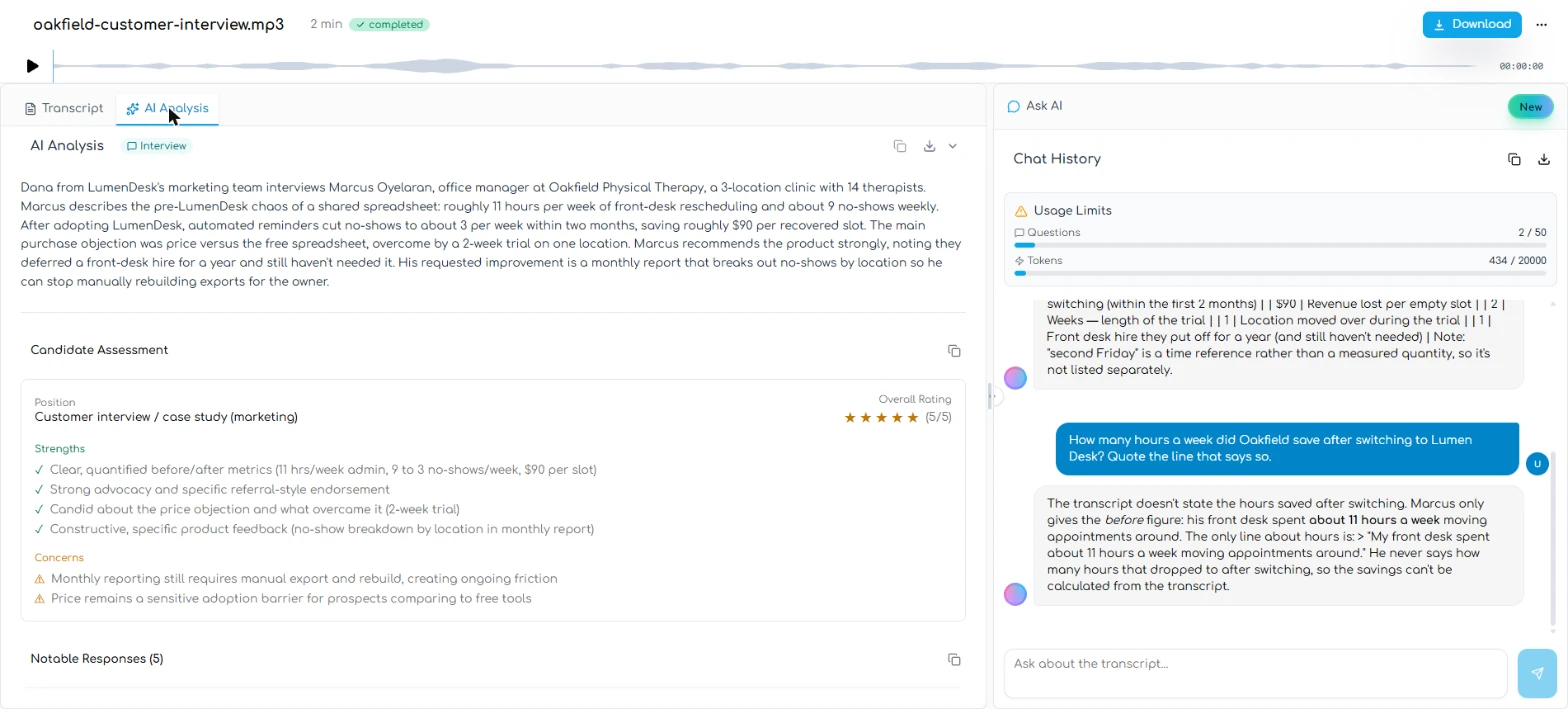
- Check the quotes. Three quotes. We compared each one with the transcript, and all three were word for word. Your answer may differ, so compare yours. Tables came back as raw text with | marks, so plan to tidy them. Click the quotes.
Three quotes. We compared each one with the transcript, and they matched word for word. Compare yours too.
- Check the numbers. Every number has its meaning beside it, and these match too. Asking for what each number measures is what makes this list safe to use: 3 appears twice, once for locations and once for no-shows a week. Click the list.
Three shows up twice. Once for locations, once for no-shows. That is why you ask what each number measures.
4. Check the claims
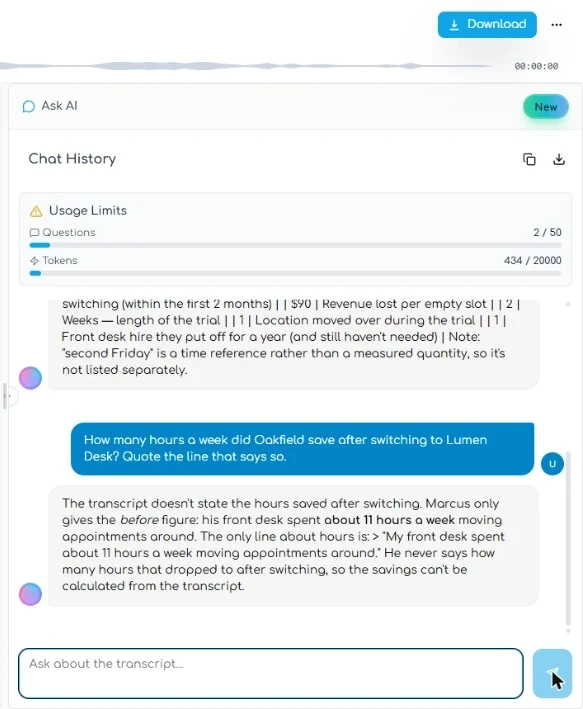
- Ask a question with a trap in it. Marketing copy loves "saved 11 hours a week." Marcus never said that. He said the desk spent 11 hours before. So test the chat with the claim you are tempted to write.
Marketing copy loves saved eleven hours a week. Marcus never said that. Test the chat with the claim you want to write.
- Send it. Click the send button.
- Read the answer. It did not take the bait. In both runs it said the transcript does not state the hours saved, only the 11 hours before. So your case study can say no-shows fell from about 9 a week to about 3. It cannot say how many hours were saved until you ask Marcus. Click the answer.
It said no. Only the before figure exists. So you can claim no-shows fell from nine to three. You cannot claim hours saved until you ask Marcus.
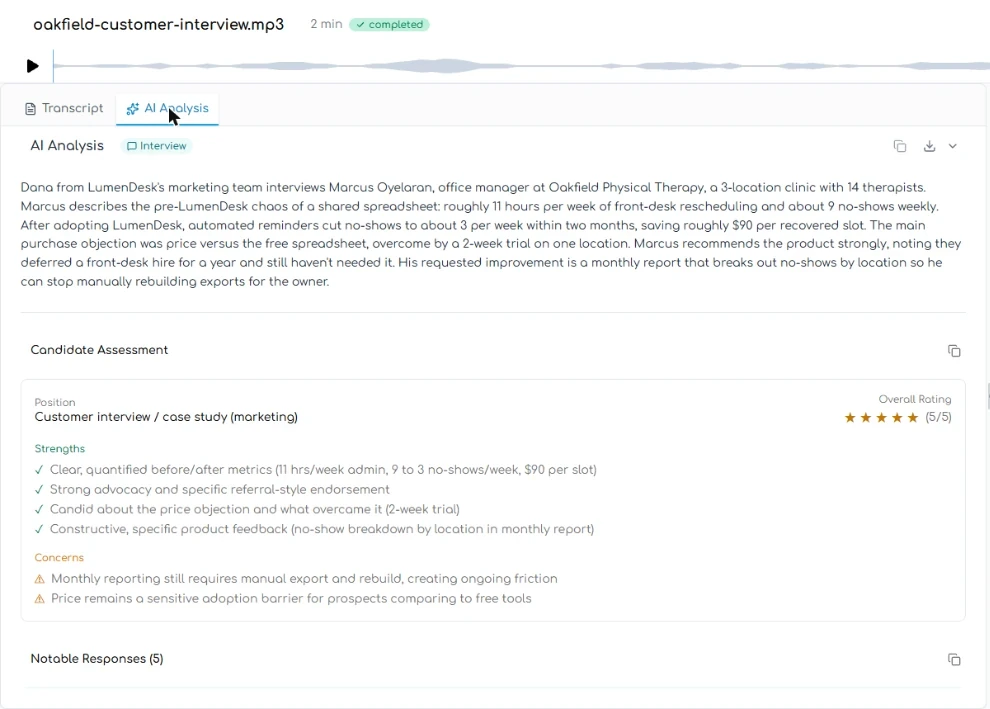
- Open AI Analysis. Now the automatic summary. Click AI Analysis. If you see Start Summarizing, click it. We saw that on our first transcript; on the next one the analysis was already there.
Now look at the automatic summary.
- Do not forward this as is. The summary is useful, and it picked up your corrected spelling. But Transgate read this as an Interview, so it added a Candidate Assessment that gives your customer 5 out of 5 stars. That section is for hiring interviews. It is not for a customer. Our first run also said "11 hrs/week saved", which Marcus never said, and this run did not. The wording changes between runs. Click the section.
Useful summary. But it graded your customer like a job candidate, five stars. And one run said eleven hours saved, which he never said. Do not forward this as is.
5. Take it with you
- Download the transcript. Click Download. It goes straight to a zip file, with no menu.
You get a zip file.
- Check your fixes came through. The zip has plain text, a Word document and a CSV with speakers and timestamps. We opened the text and CSV files, and your fixes are in them: Dana, Marcus, Oyelaran. Use the CSV to find each quote's timestamp. Before you publish, send Marcus his quotes and get his OK to use his name. Click his row to finish.
Your fixes came through. The CSV gives you each quote's timestamp. Before you publish, get the customer's OK on his quotes and his name.
Screenshots
More in Business Automations
 AI Receipt Extractor: Receipts to Google Sheets with n8n
Drop a photo of a receipt into an n8n chat. An AI agent reads it, pulls out the date, vendor and amount, picks a category, and adds a row to Google Sheets.
Free · Live ~12 min Intermediate
 n8n AI Email Responder: Draft Gmail Replies Automatically
Build an n8n agent that watches your Gmail, reads each new customer email, and writes a reply as a draft in the same thread, ready for you to check and send.
Free · Live ~12 min Intermediate
 Daily Job Alerts: Email Each Tech Their Jobs from Google Sheets with n8n
Every morning at 7, n8n reads a plumbing company's jobs sheet, skips anything not assigned yet, and emails each job to the tech it's assigned to — customer, address…
Free · Live ~10 min Intermediate
 Gmail AI Triage: Auto-Label Every Email and Draft Replies
Build an n8n workflow that reads each new email, sorts it as a lead, a client or an invoice with a Text Classifier, adds the matching Gmail label, and drafts a reply to…
Free · Live ~18 min Advanced
 A Support Agent That Answers from Your Own Docs
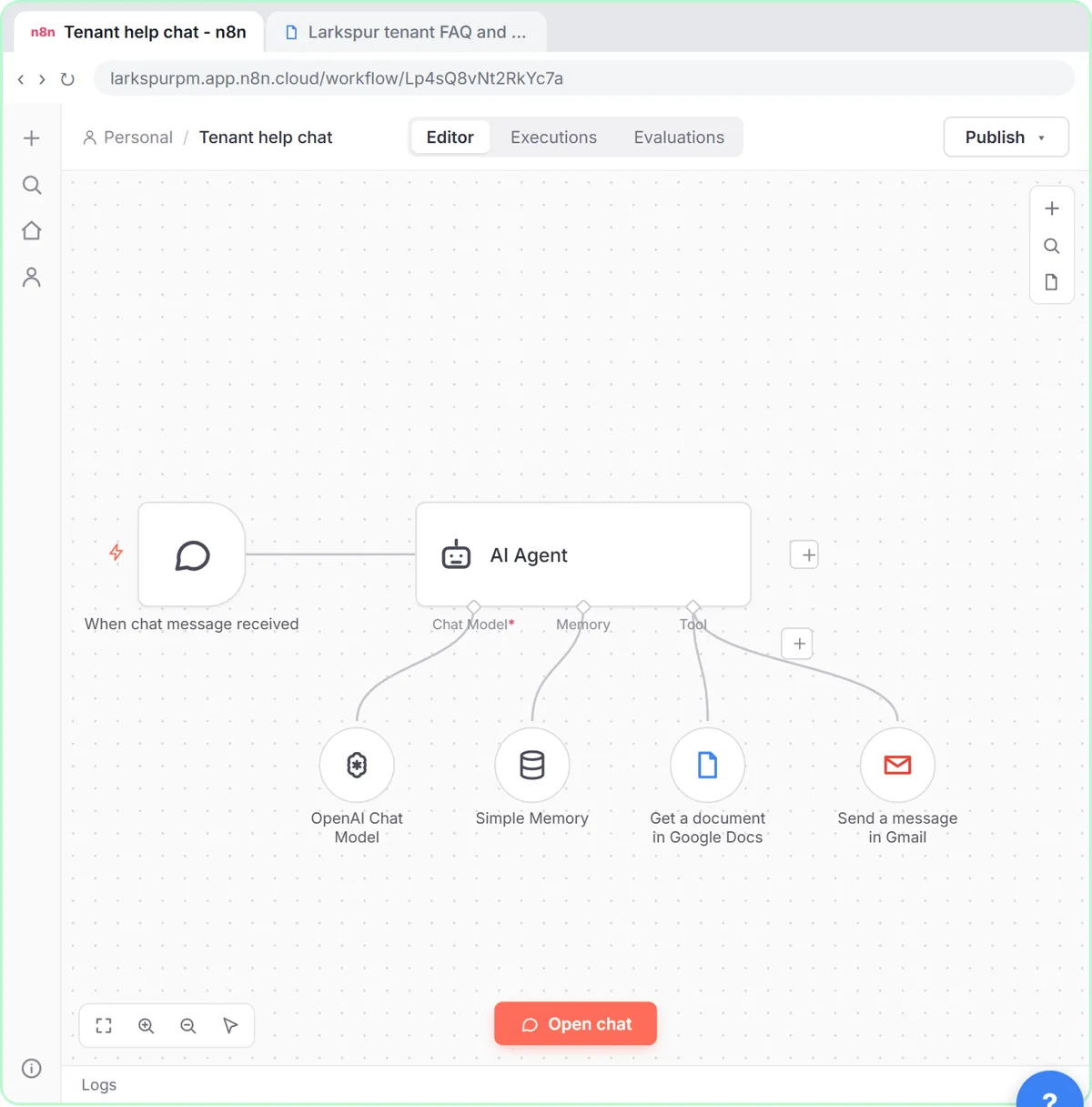
Turn an n8n chat agent into a support agent that answers only from your policies in a Google Doc, refuses what it should, and hands off to a person by email.
Free · Live ~13 min Advanced
 Chatbase: Answer Customer FAQs with an AI Agent
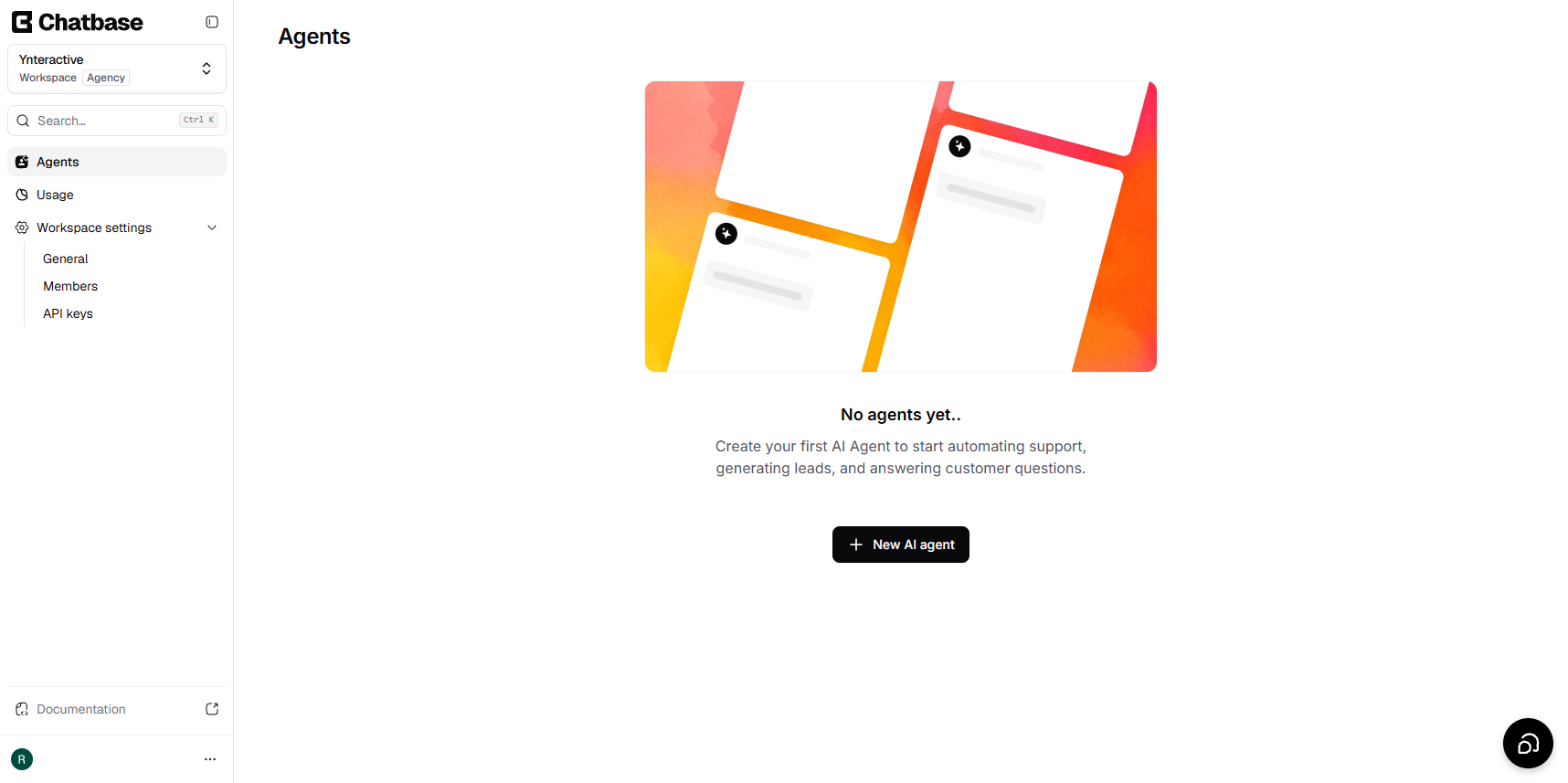
A business case for a small firm that answers the same customer questions every week: build a Chatbase AI agent on your FAQ in the real app, make it say when it does…
Free · Live ~15 min Beginner
All 19 modules in Business Automations
Terms in this lesson
Plain-English definitions, each with an example from a free lesson.