Updated . Built against the tool’s current screens and checked step by step. How we check this lesson
Stop retyping scanned purchase orders. Build a DigiParser parser for a wholesale order desk, add a human review stage, catch a handwritten change that throws off the total, and export a file ready for sales-order preparation.
At a glance
| Question | Answer |
|---|---|
| What you build | Stop retyping scanned purchase orders. Build a DigiParser parser for a wholesale order desk, add a human review stage, catch a handwritten change that throws off the total, and export a file ready for sales-order preparation. |
| Tools | DigiParser |
| Time | About 9 minutes, 37 steps in 5 parts |
| Level | Beginner, no coding needed |
| Cost | Free |
| Ways to learn it | Practice it step by step |
The 5 parts, in short
- Set up the parser: Name the parser, Choose Purchase order, Go to the next step, Read what it will pull, and 5 more steps.
- Try a clean PO: Upload the first PO, Open the extracted data, Look at the status, Check the values, then close.
- Require a human review: Open Settings, Open Reviews & Approvals, Add a review stage, Open the reviewer list, and 4 more steps.
- Review a marked-up PO: Upload a new document, Upload the marked-up PO, Open the document in review, Find the handwritten change, and 8 more steps.
- Export for sales order prep: Open the export, Include the line items, Download the file, Check your corrections came through.
Start here first: AI Receipt Extractor: Receipts to Google Sheets with n8n (module 1 of Business Automations)
In the course: Part 9 · n8n Automation Toolkit (Module 106 of the full course)
Part of: AI Apps Worth Knowing (step 102 of 104). Next up: Transgate: Turn a Customer Interview Into Checked Case Study Quotes
What you'll build
Keystone Foodservice Supply is a made-up wholesale distributor. Its order desk retypes every scanned purchase order to prepare sales orders, and one wrong quantity ships the wrong goods. In this lesson you build a DigiParser parser that reads the order number, ship date and line items, then require a person to review every document. You test it on two made-up POs. One is clean. One has a handwritten quantity change that leaves the printed total wrong. You correct it, approve it, and export a workbook for sales-order preparation. The lesson stops at that file; it does not connect to an order system.
You built a parser, added the field an order desk needs, and required a person to review every document. On the marked-up PO, the AI read the handwriting correctly, and the total was still wrong, because the page was. That is why extracted values need review before downstream use. Before you rely on this, try it on your own customers' PO layouts with made-up or approved test copies, and confirm any change with the buyer.
- Tools: DigiParser
- Time: about 9 minutes, 37 steps in 5 chapters
- Level: beginner, no coding needed
- Price: free
Practice first, then build it for real
Practice copy built from real DigiParser screens (app.digiparser.com), captured 30 October 2026 on a trial account. Nothing here touches a DigiParser account. The companies and purchase orders are made up. The extracted values are what DigiParser produced, and your results can differ. To build it for real you need your own DigiParser account, and some services charge once you use them for real work, so check each tool's current pricing.
Try it yourself, free
Reading the steps is a start. Doing them is how it sticks. The interactive module walks you through every click in a practice copy of DigiParser, checks each step, and never touches your real accounts.
Start “DigiParser: Turn Scanned Customer POs Into a Reviewed Sales Order File”Step by step: DigiParser: Turn Scanned Customer POs Into a Reviewed Sales Order File
All 37 steps of the interactive module, in order. In the module you watch each one, then do it yourself in a practice copy that checks your work.
1. Set up the parser
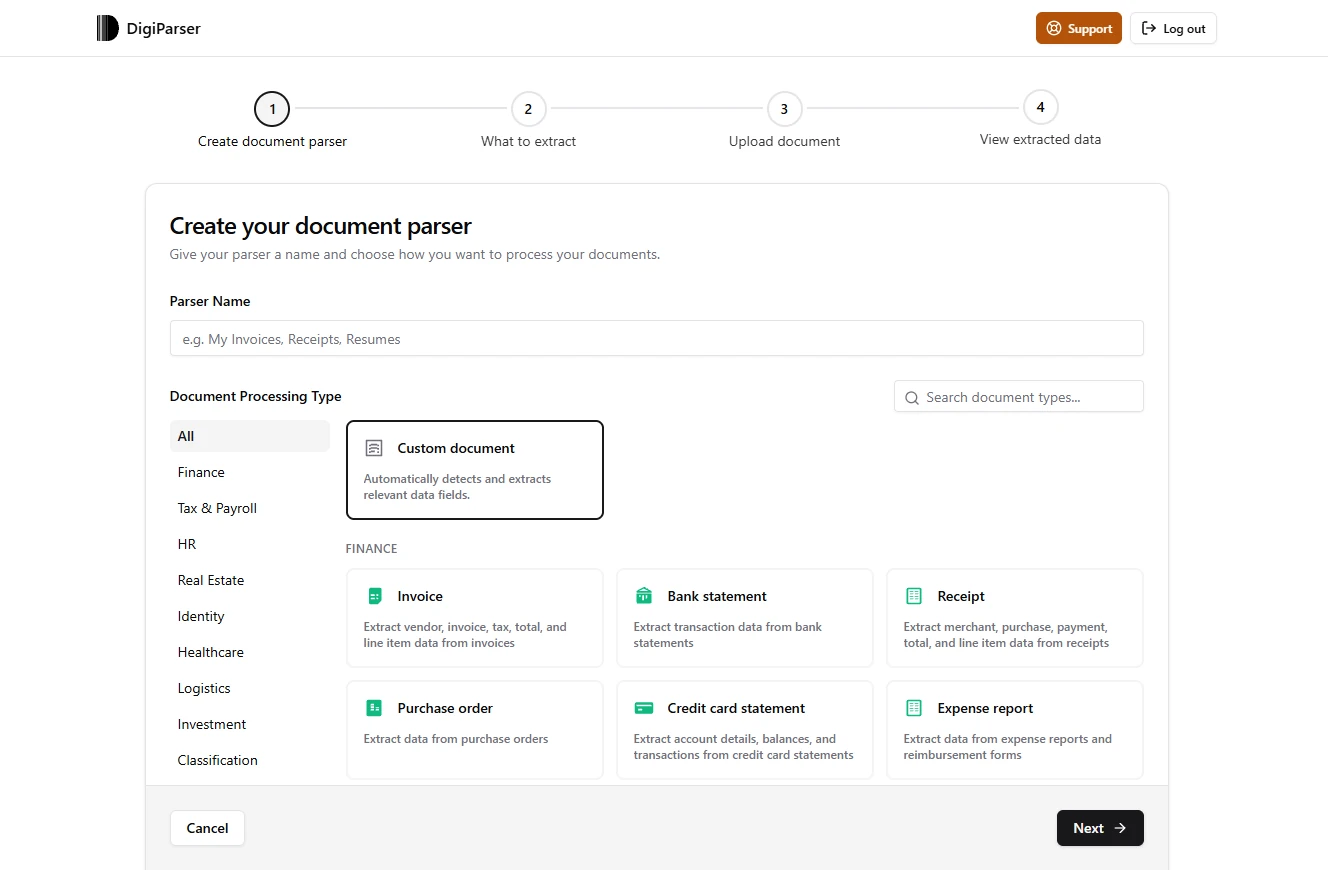
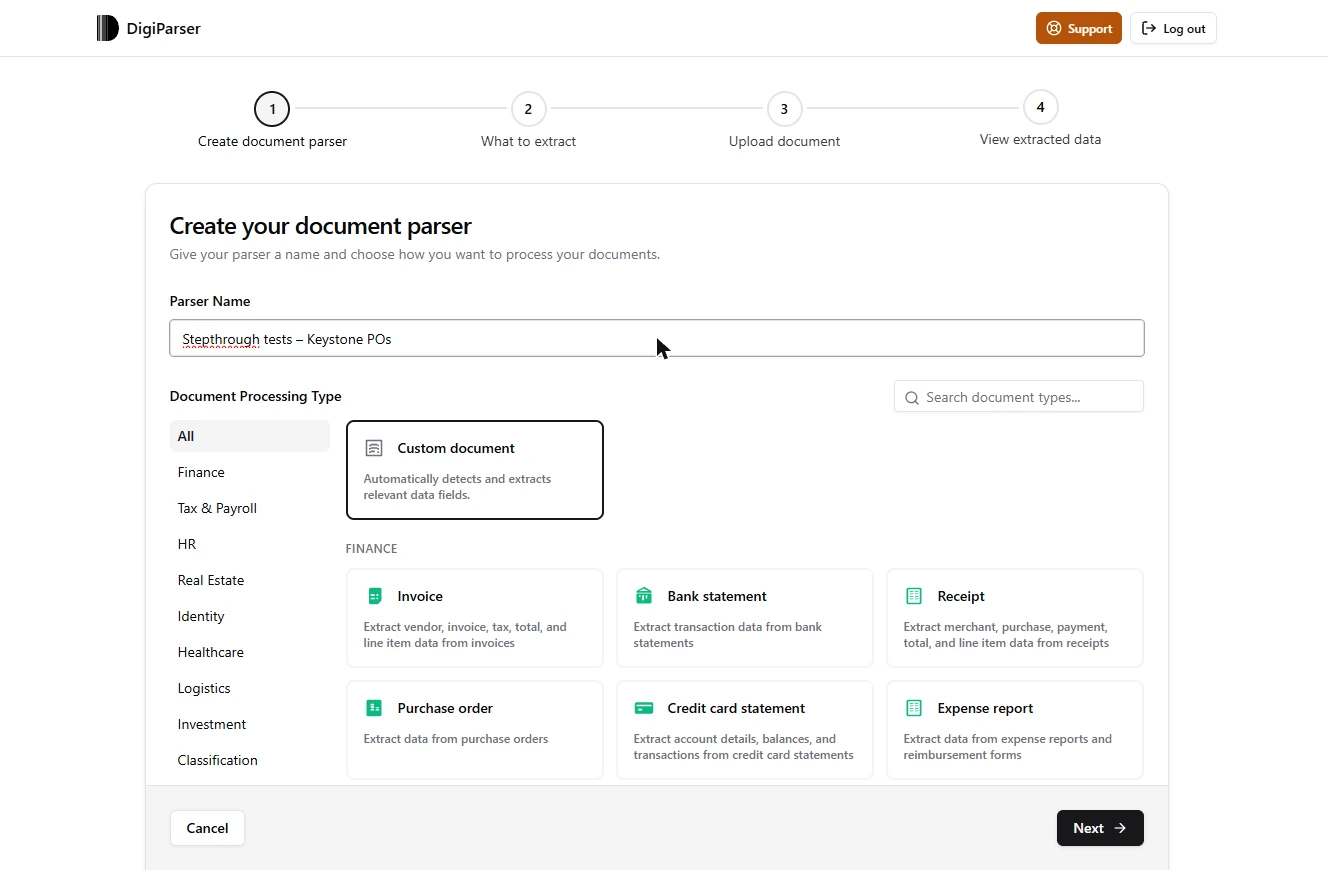
- Name the parser. You run the order desk at Keystone Foodservice Supply, a made-up wholesale distributor. Customers send scanned purchase orders, and your team retypes them to prepare sales orders. Open app.digiparser.com. Under Parser Name, use any name your team will recognize; ours marks it as a test.
You run the order desk at a wholesale distributor, and your team retypes scanned purchase orders. In DigiParser, give the parser a name.
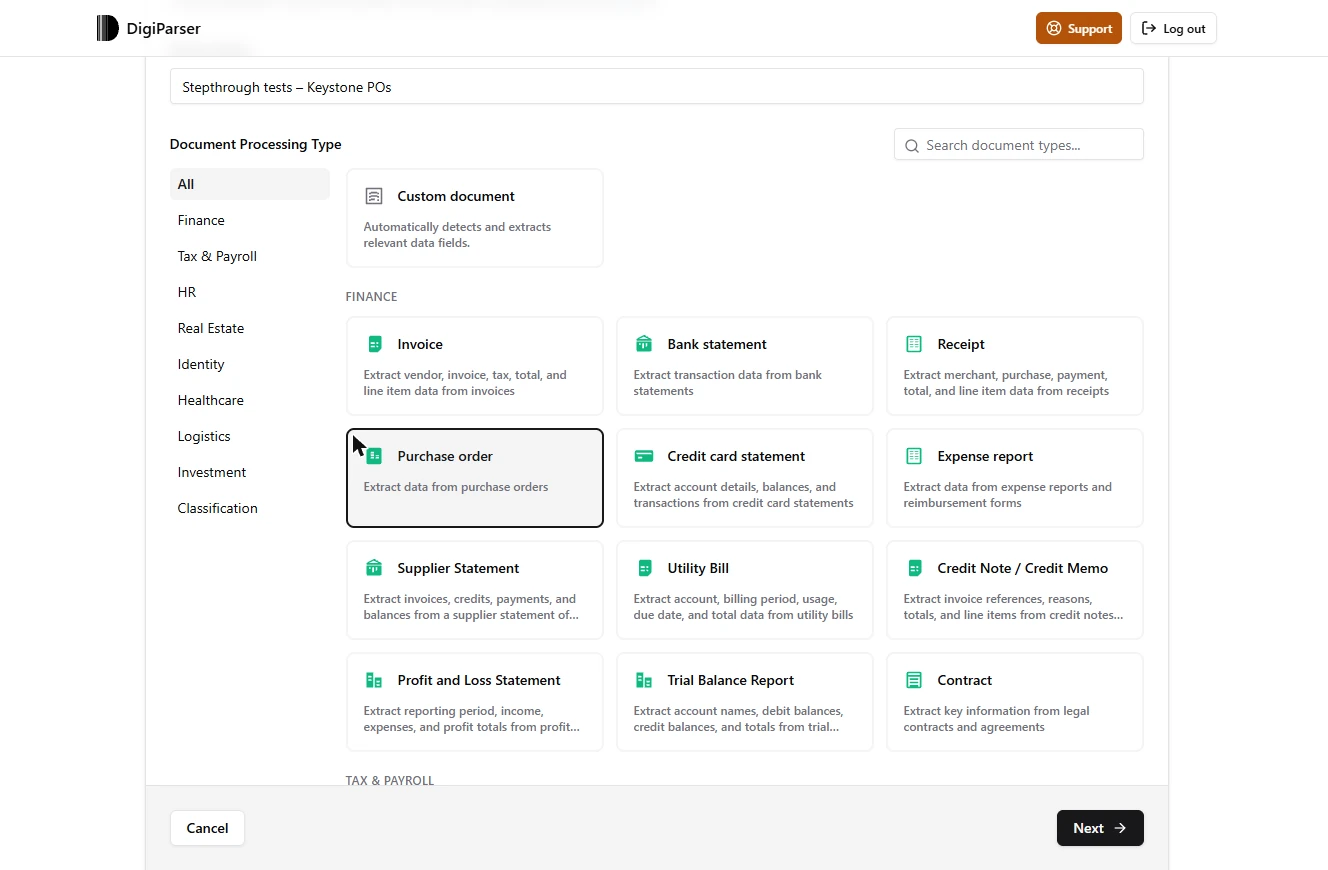
- Choose Purchase order. Under Document Processing Type, click Purchase order. It is listed under Finance.
- Go to the next step. Click Next.
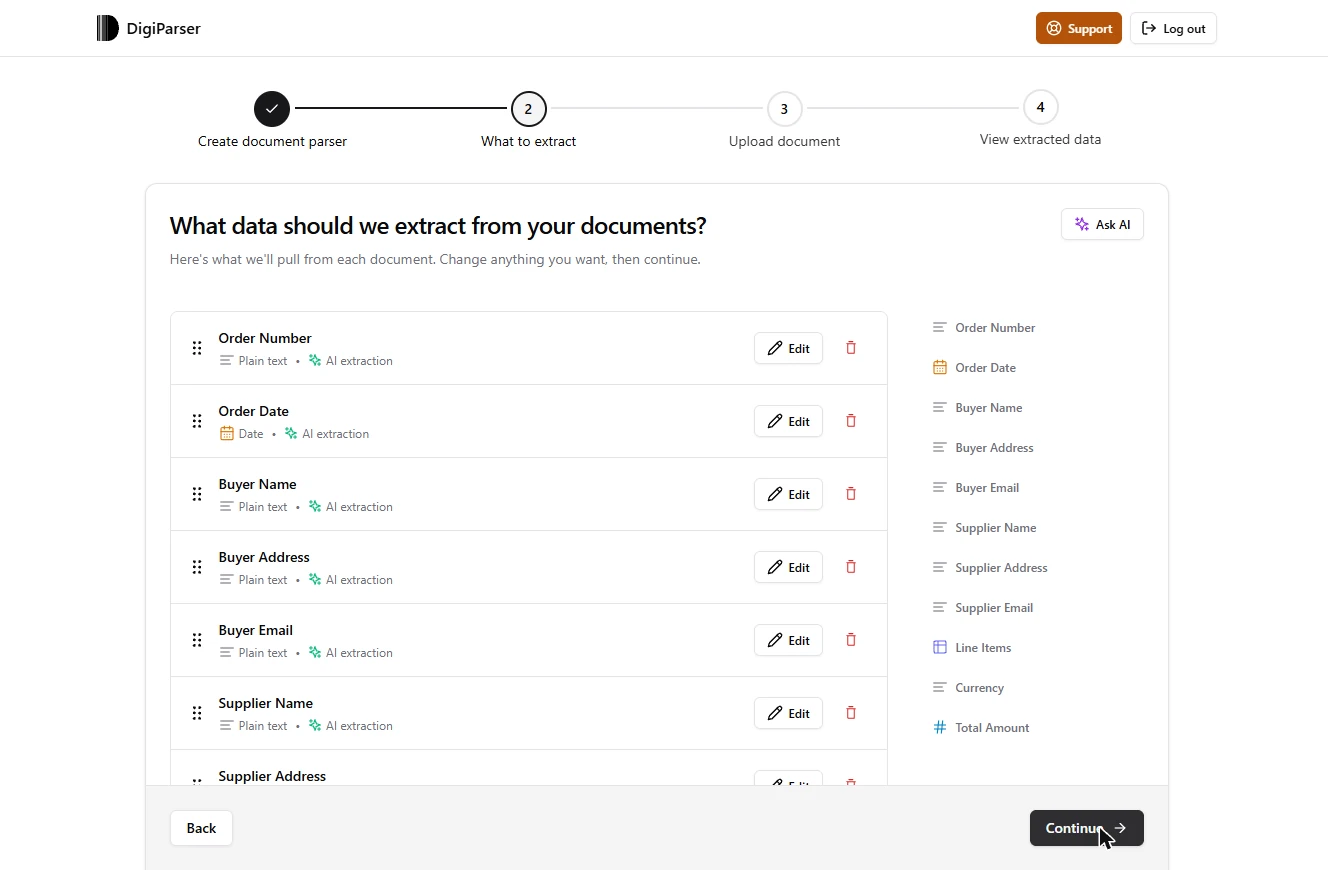
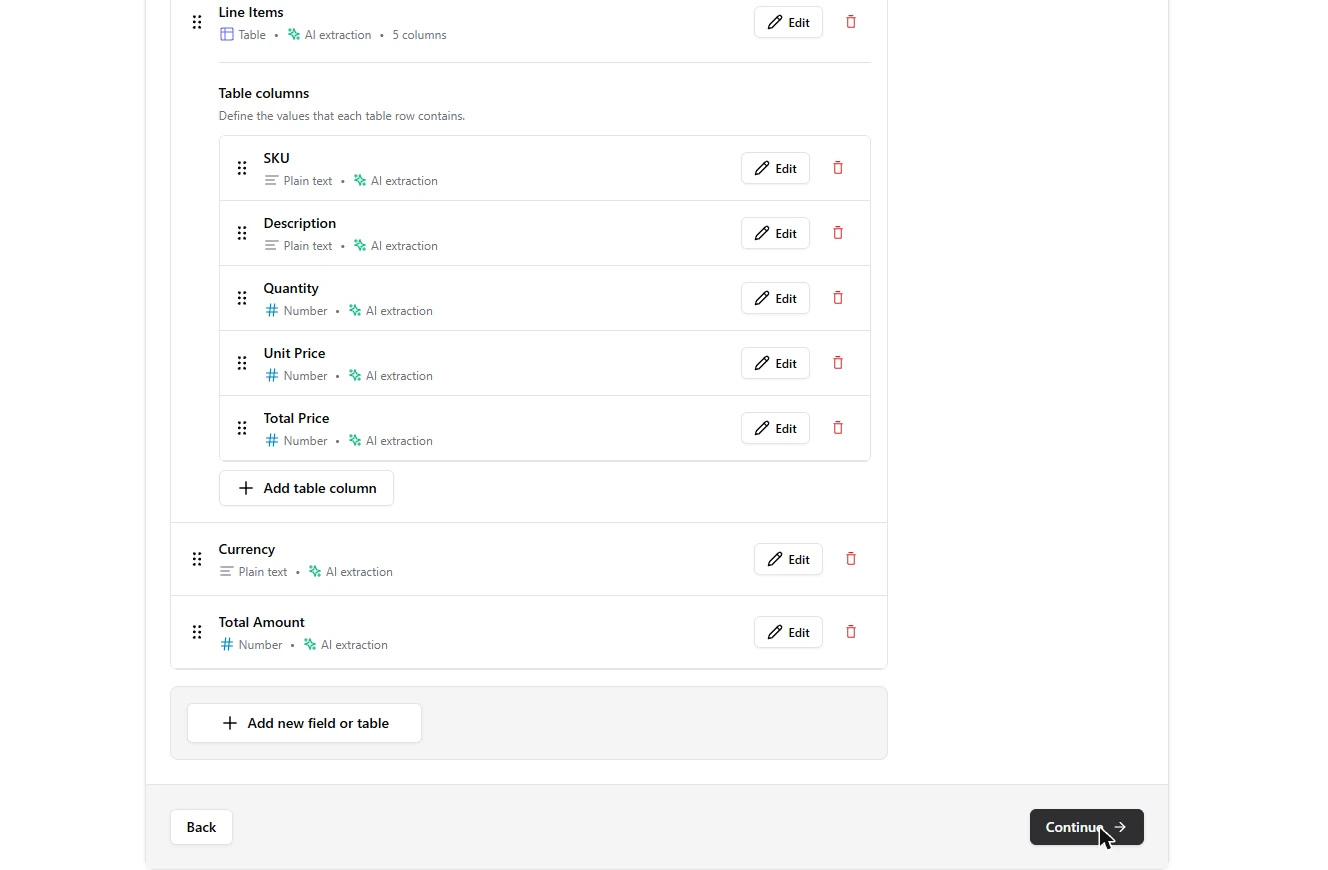
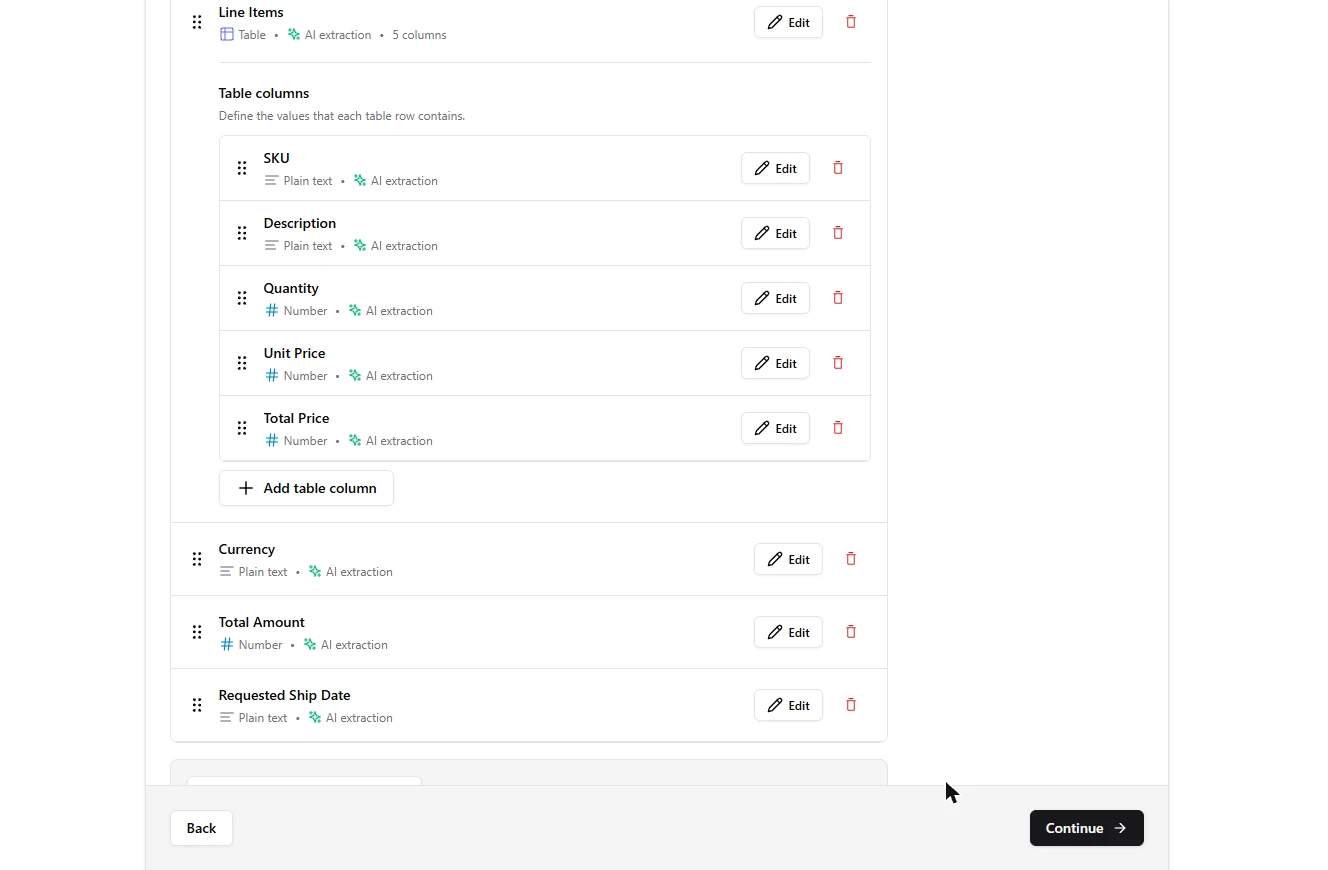
- Read what it will pull. This is the template: order number, order date, buyer, supplier, currency, total, and a Line Items table with SKU, description, quantity, unit price and total price. There is no ship date, ship-to or payment terms. Click the list, then scroll to the bottom.
This is what it pulls from each order. There is no ship date, and an order desk needs one.
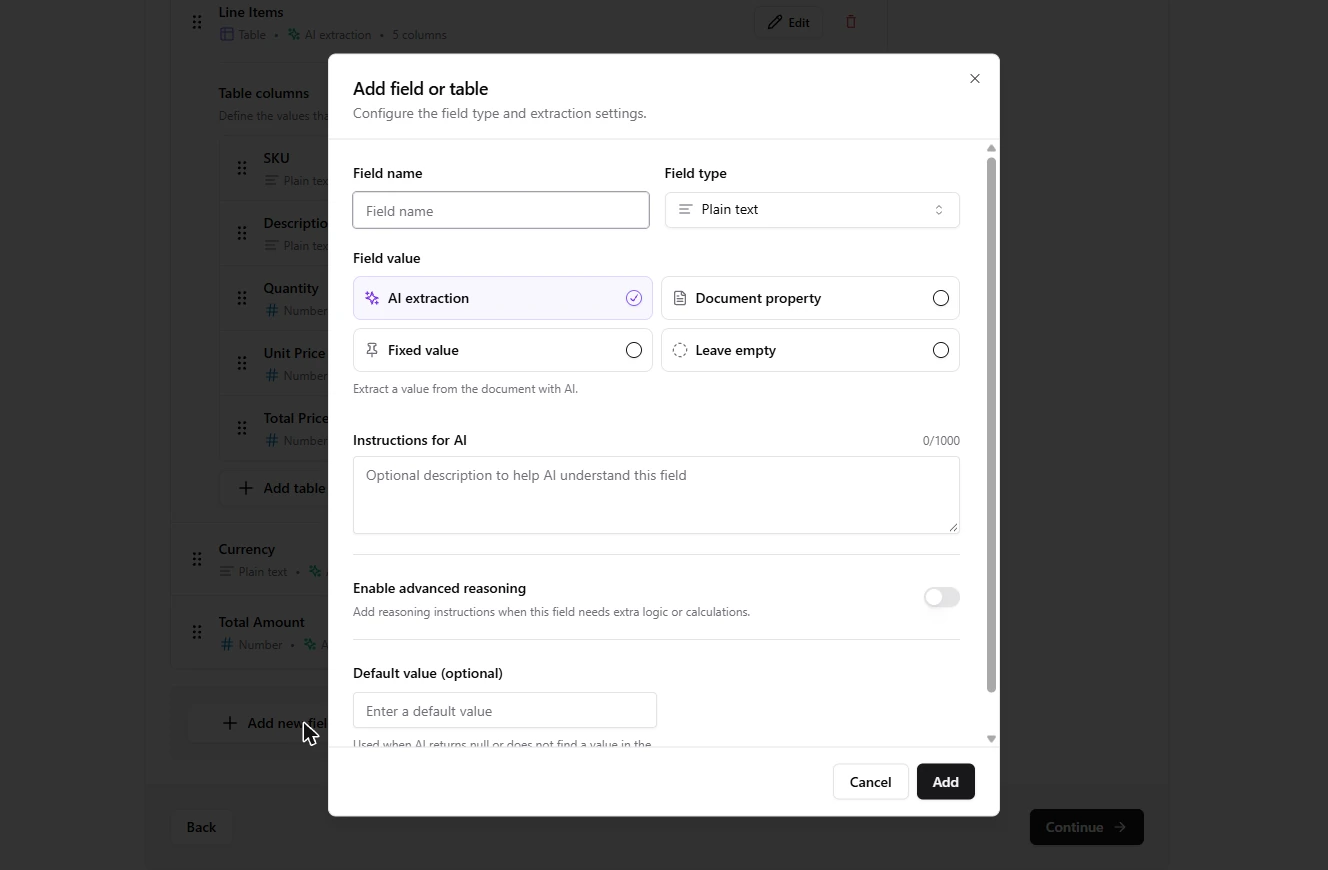
- Add a field. Click Add new field or table.
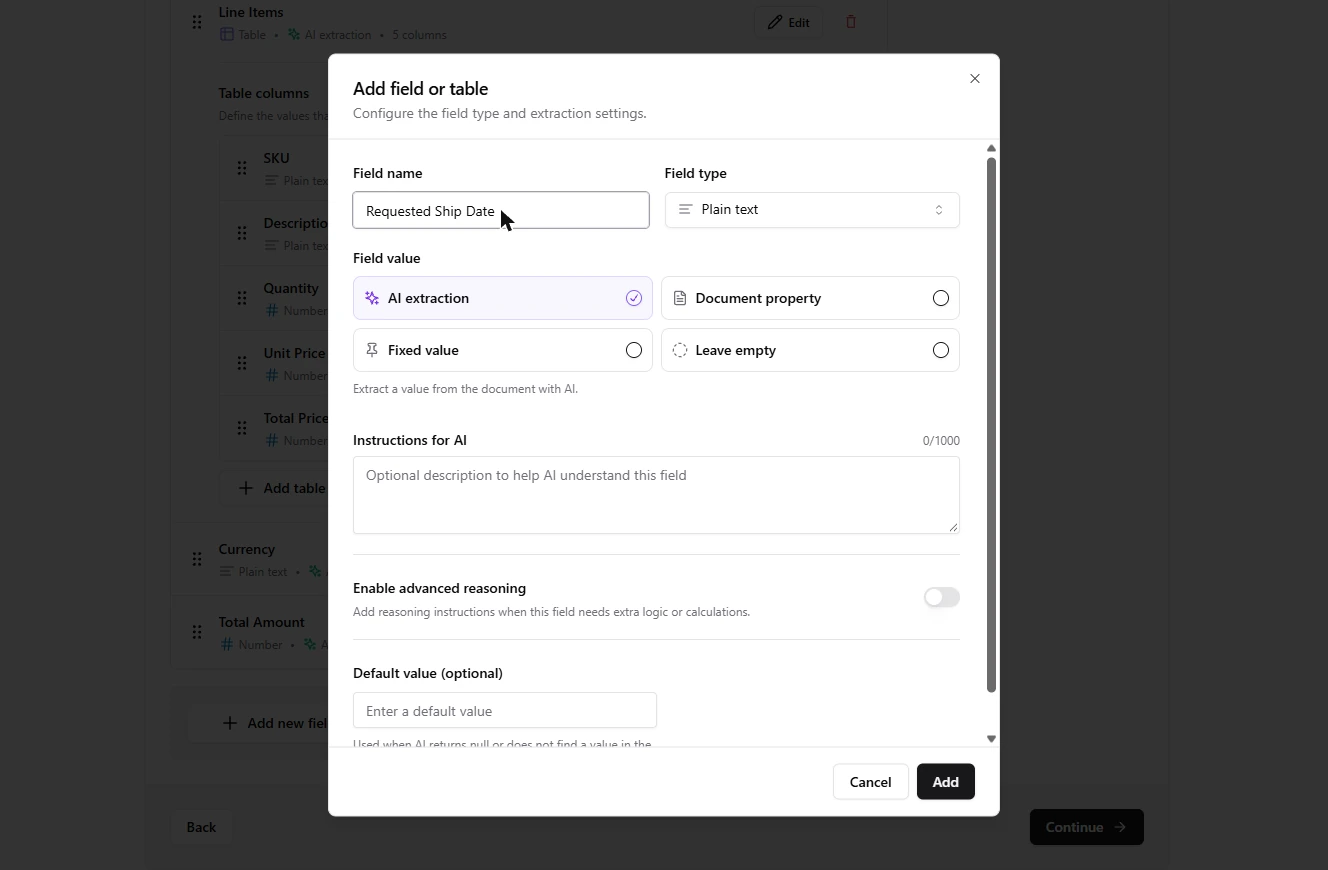
- Name the field. Under Field name, enter what your sales order needs. Add Ship To or Terms the same way if yours needs those too. We tested this one.
Name the field. Requested ship date.
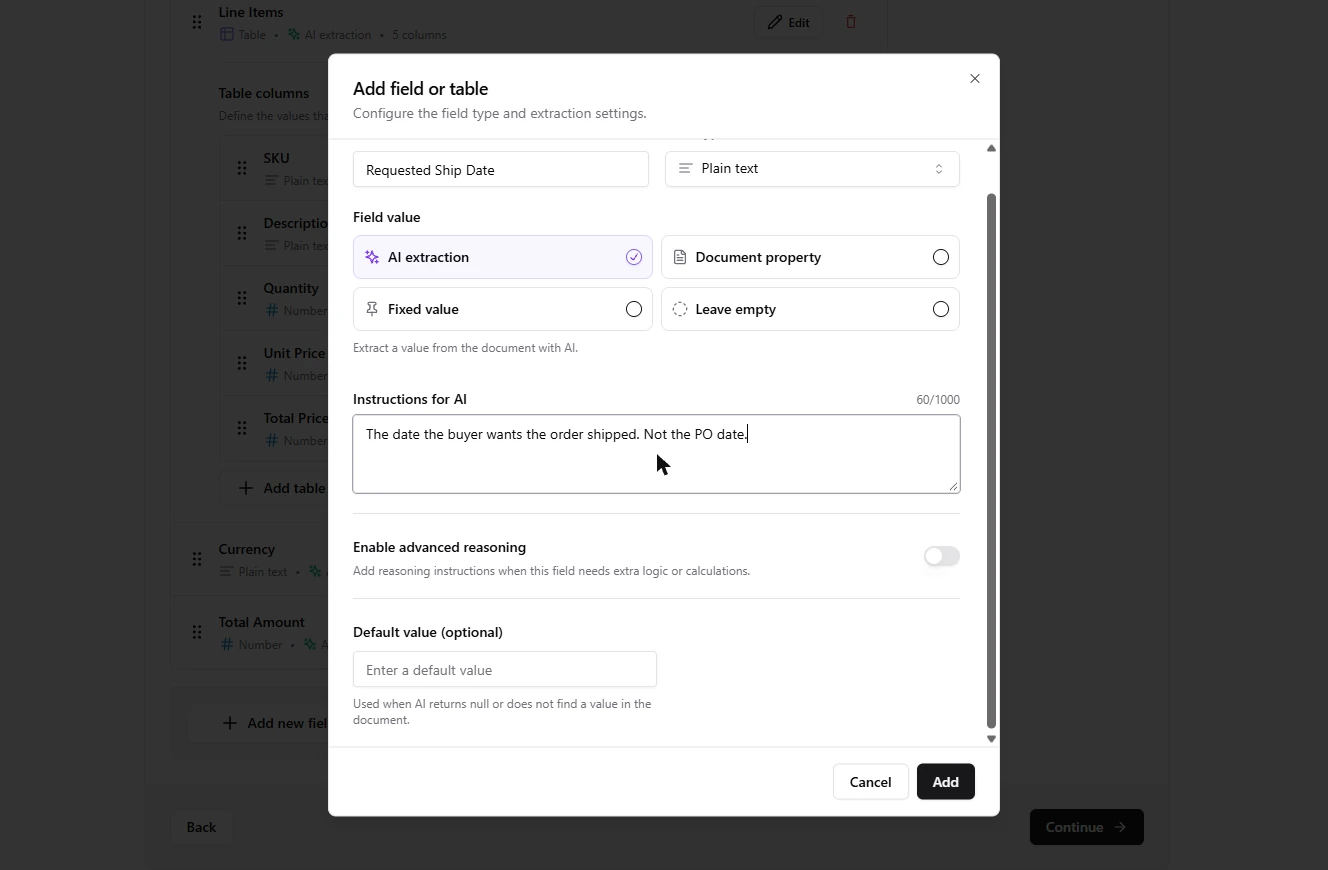
- Tell the AI which date you mean. A purchase order has more than one date. Instructions for AI says which one you want.
A purchase order has more than one date. Tell the AI which one you mean.
- Add it. Click Add.
- Continue to upload. Requested Ship Date is now at the bottom of the list. Click Continue.
It is on the list.
2. Try a clean PO
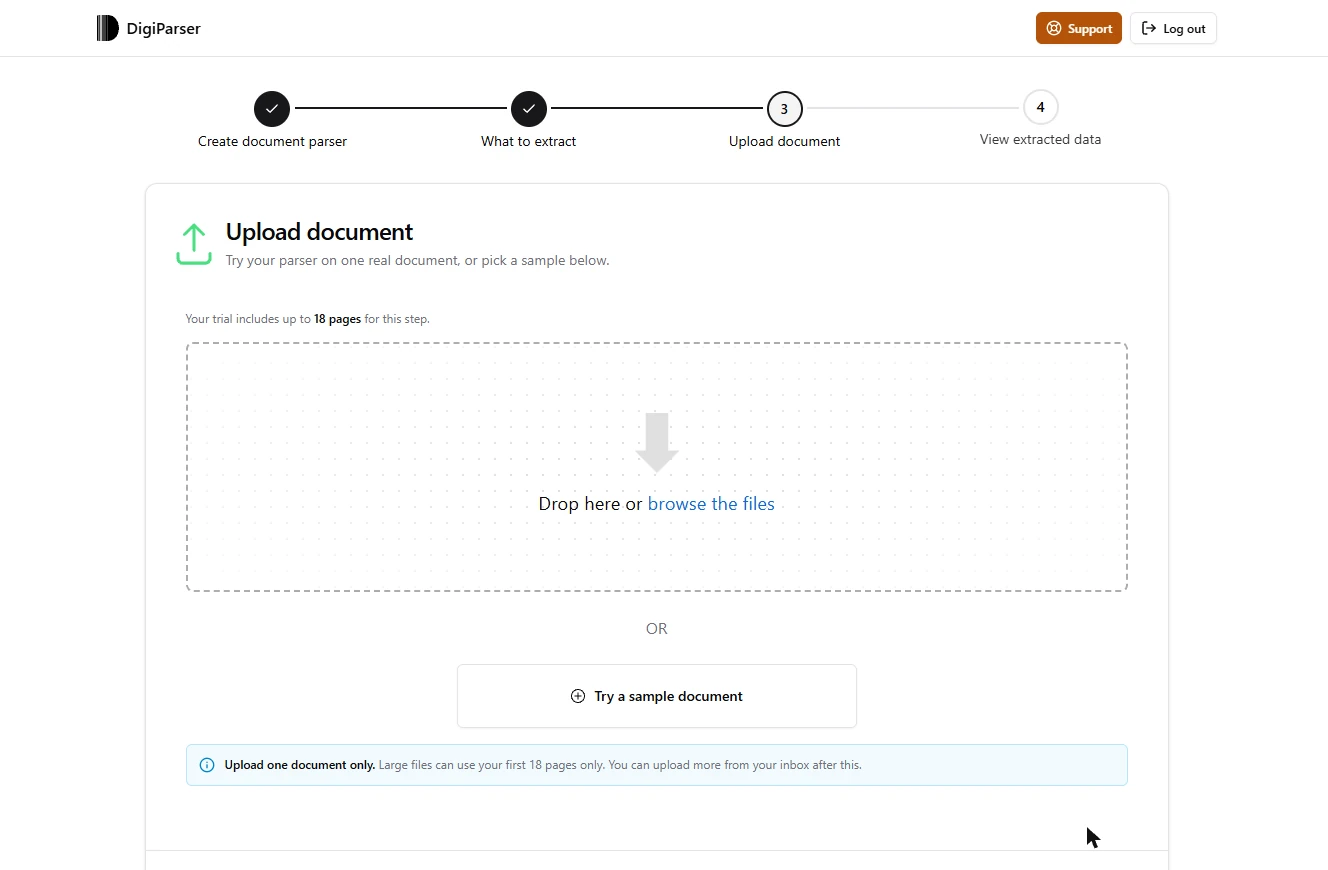
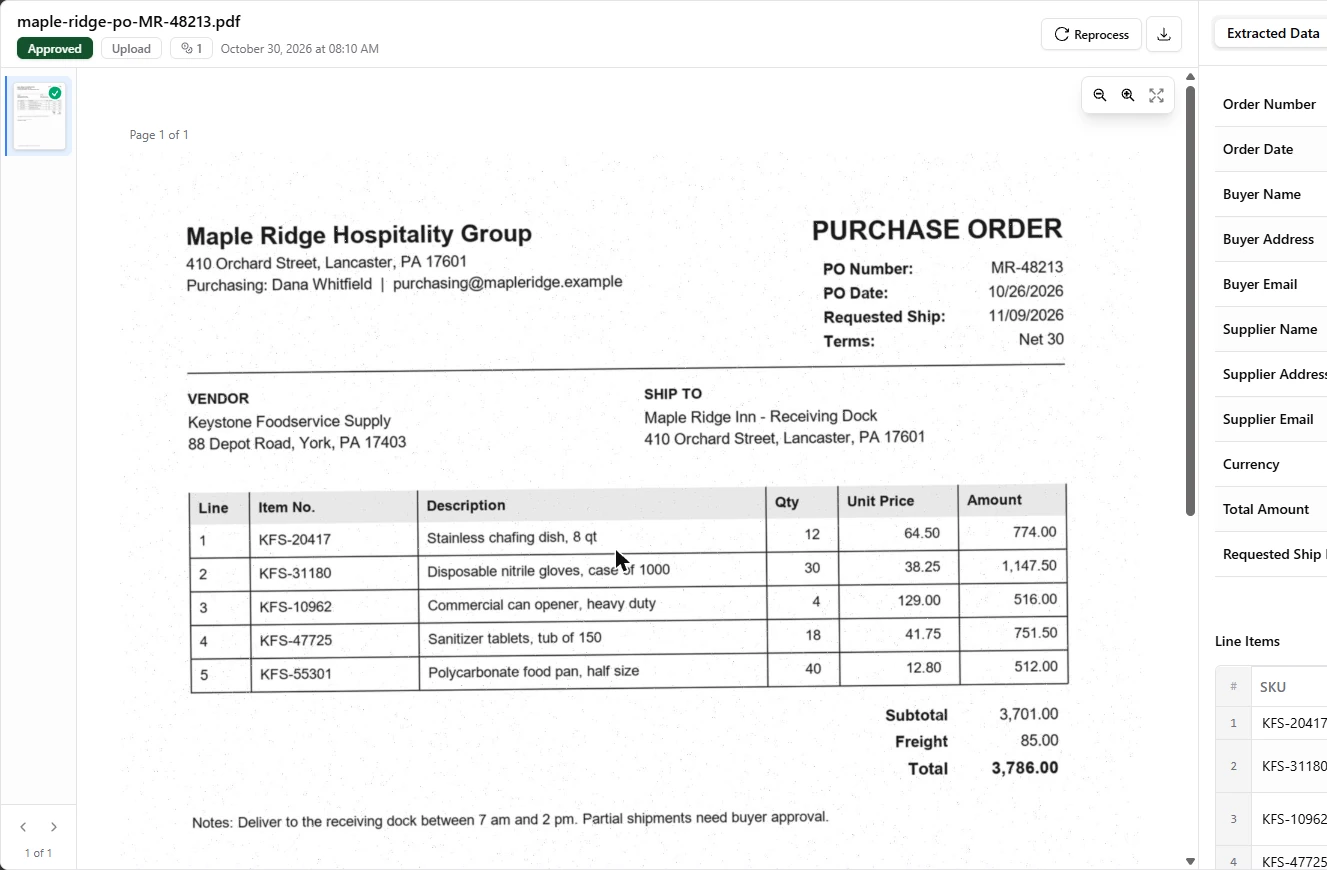
- Upload the first PO. Click browse the files and pick maple-ridge-po-MR-48213.pdf, the made-up scan from the links on this lesson. A new trial shows 20 pages here; ours shows 18 because we had already used two. Each page used one credit. A short survey may pop up while it processes. Skip is fine.
If a survey pops up, skip it.
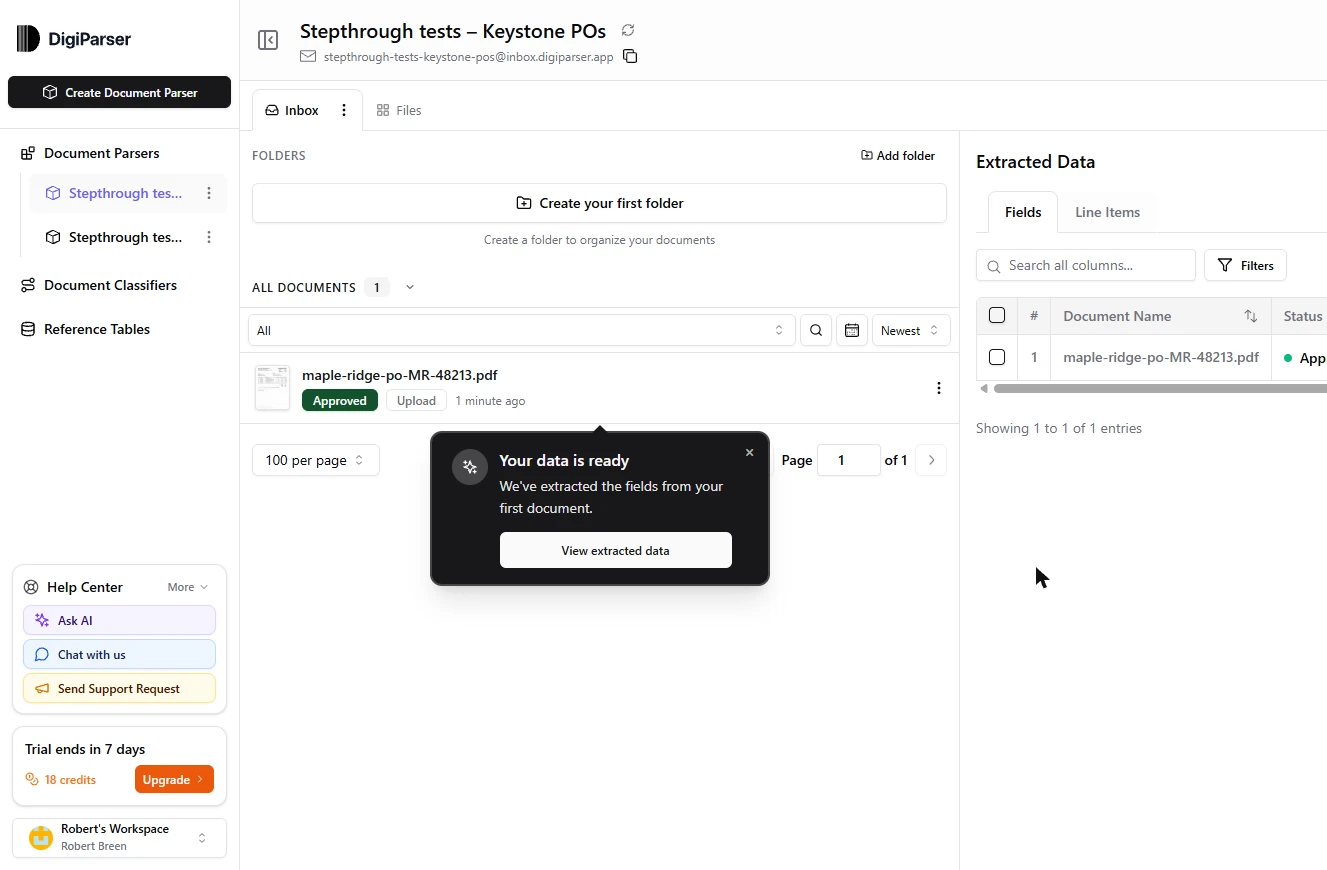
- Open the extracted data. In about 30 seconds, the document shows in the list. Click View extracted data.
When it finishes, click View extracted data.
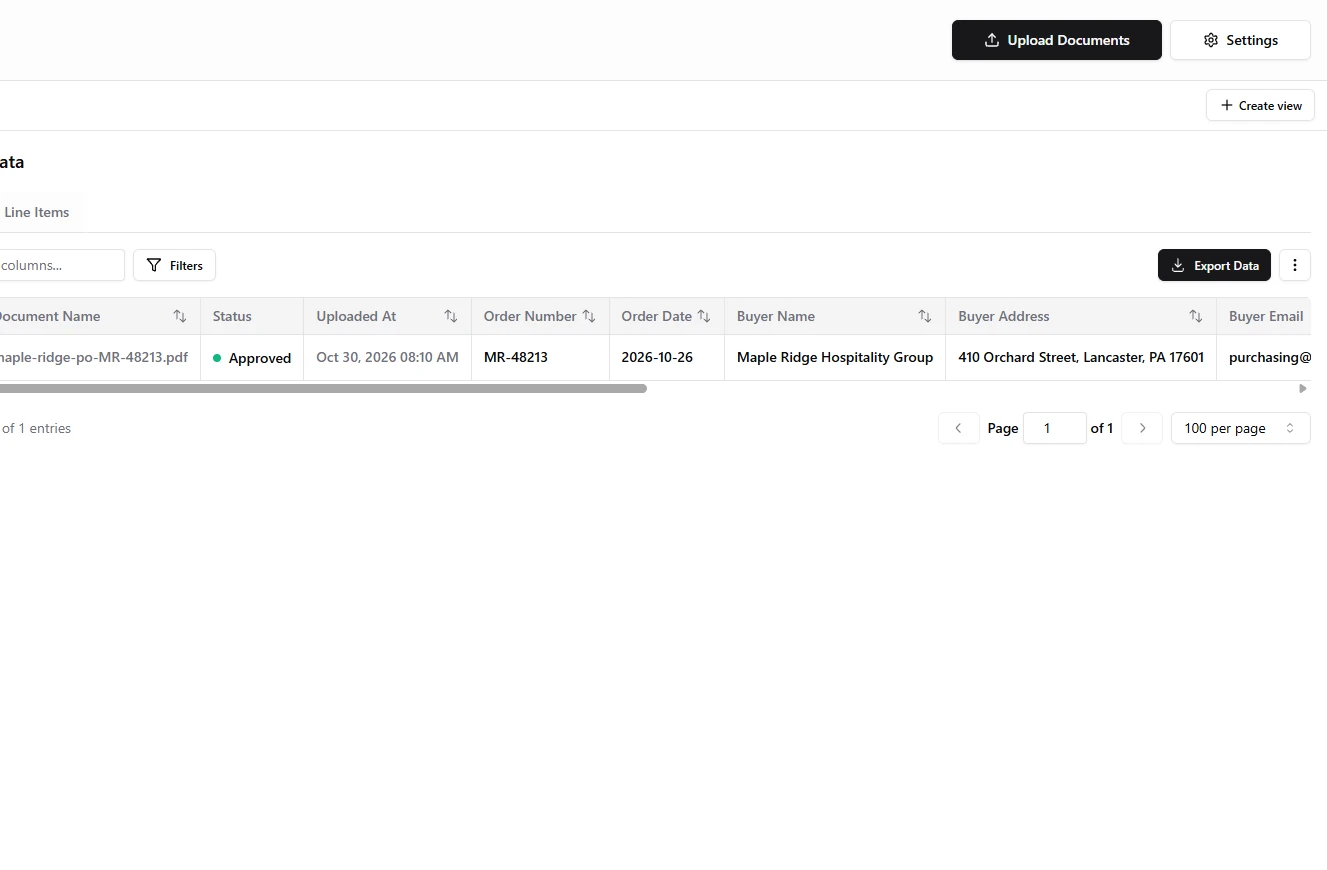
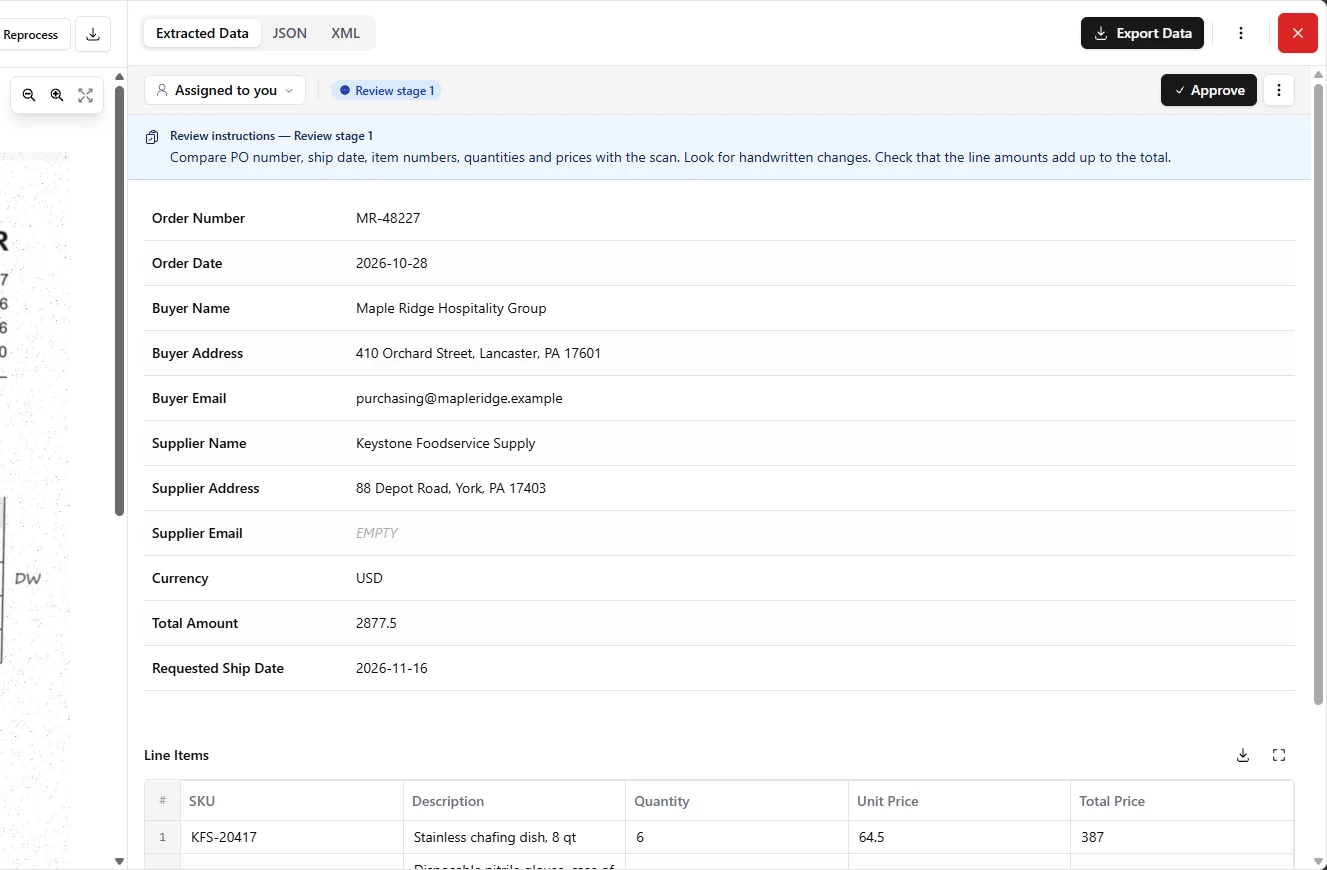
- Look at the status. The scan is on the left and the data is on the right. Now look at the status at the top: Approved. Nobody has looked at this yet. With no review stage set up, DigiParser marked it Approved as soon as it finished. Click Approved.
Look at the status. It says Approved, and nobody has looked at it. That is the default.
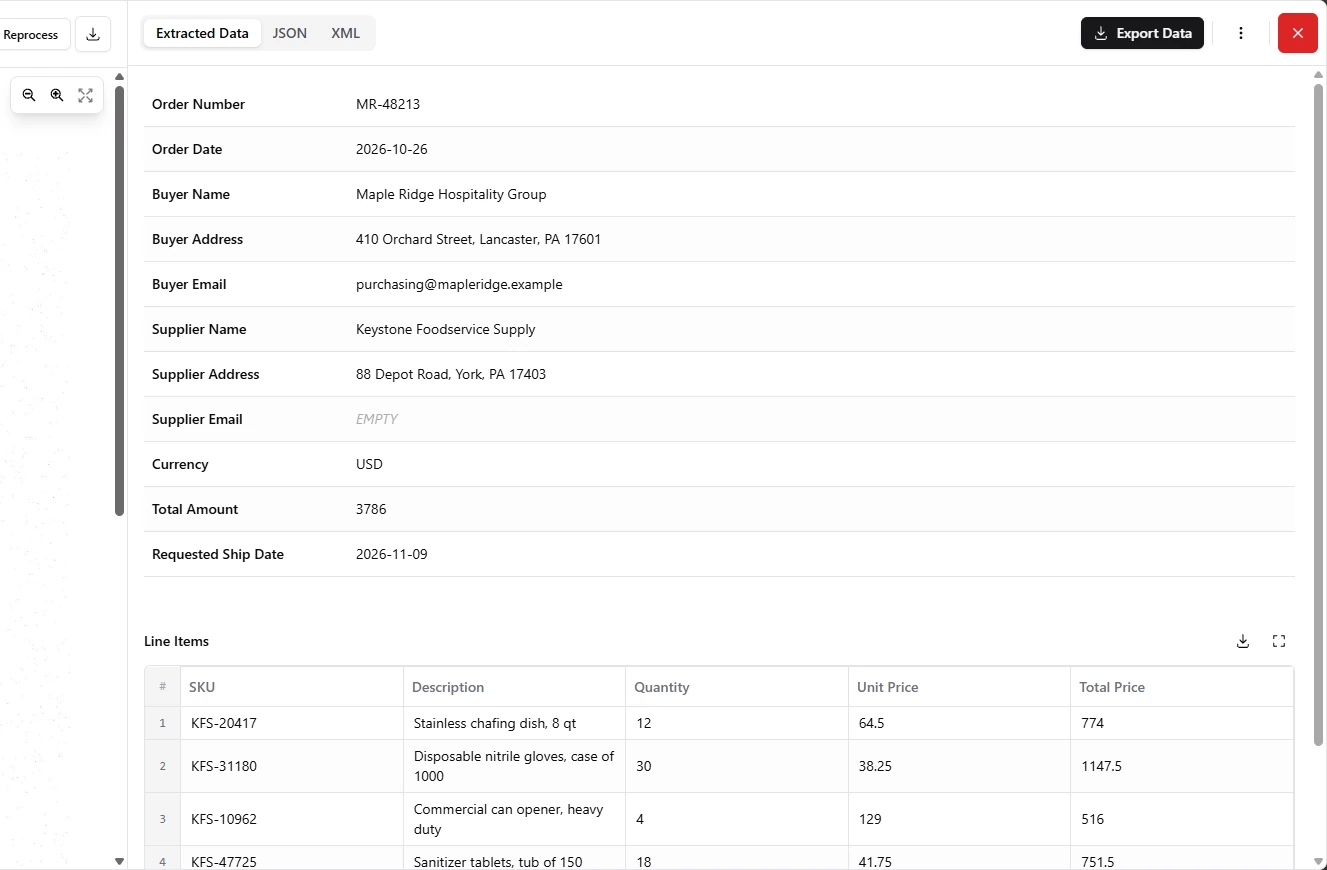
- Check the values, then close. On this clean scan, every value matched in both of our runs. USD is the one to notice: the PO never prints a currency, so the AI filled that in. Close the document with the red X.
Every value matched on this clean scan. But notice U S D. It is not printed on the order. The AI filled that in. Close it.
3. Require a human review
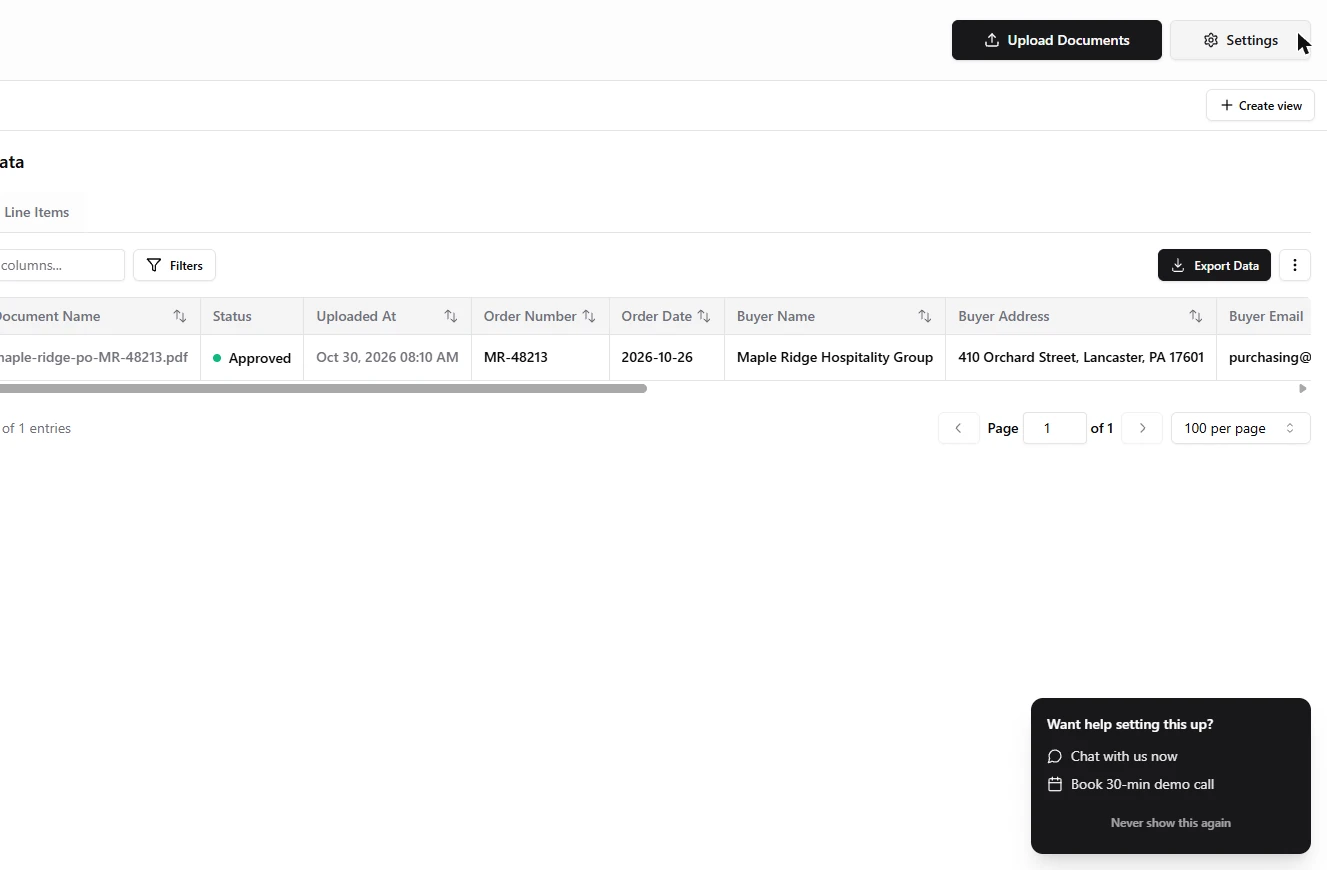
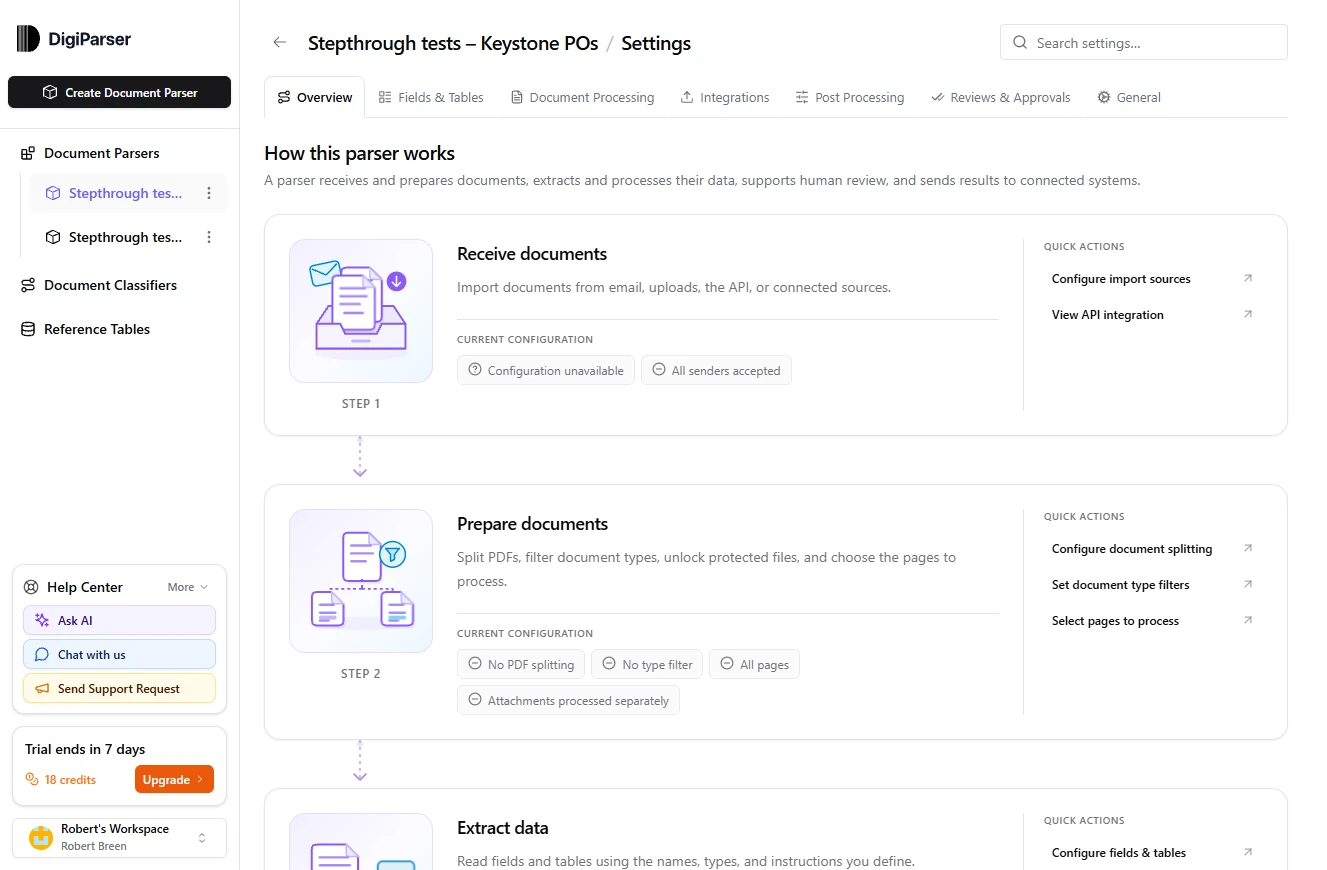
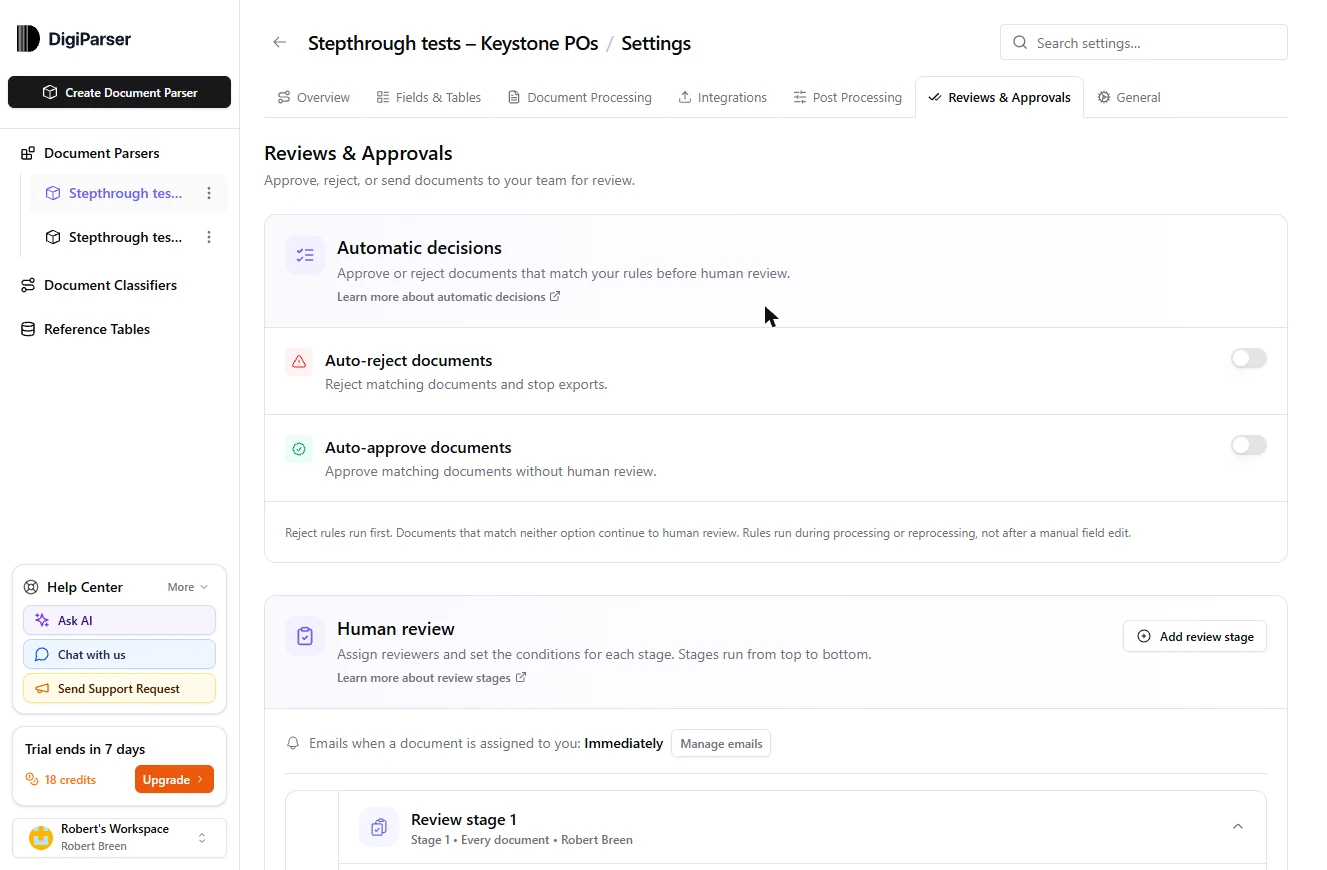
- Open Settings. DigiParser's founder puts it plainly: extracted values need review before downstream use. So make a person part of the process. Click Settings.
Extracted values need review before anything downstream uses them. So make a person part of the process.
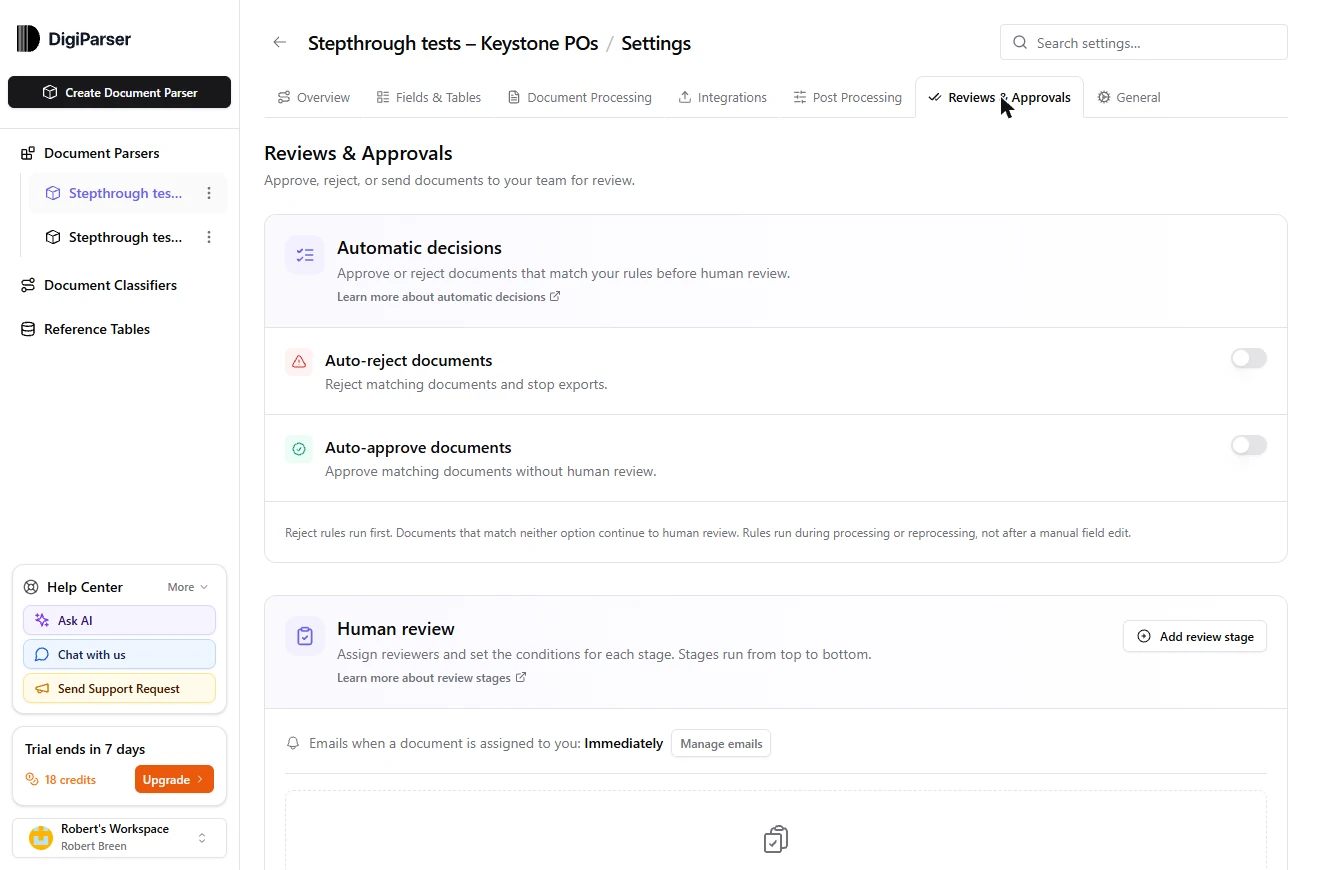
- Open Reviews & Approvals. Click Reviews & Approvals.
- Add a review stage. Leave Auto-approve documents off. Under Human review, click Add review stage.
Leave auto approve off. Under Human review, click Add review stage.
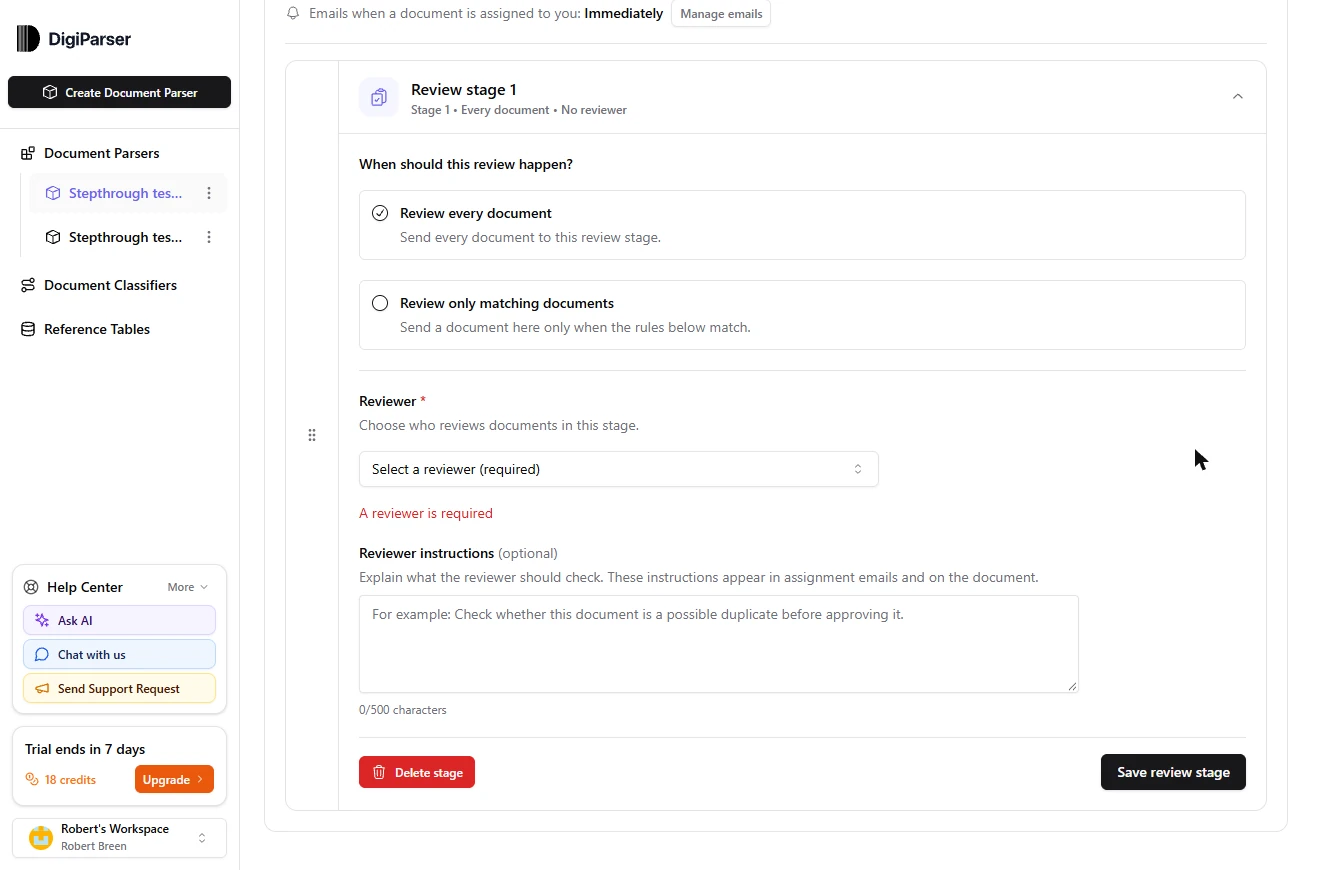
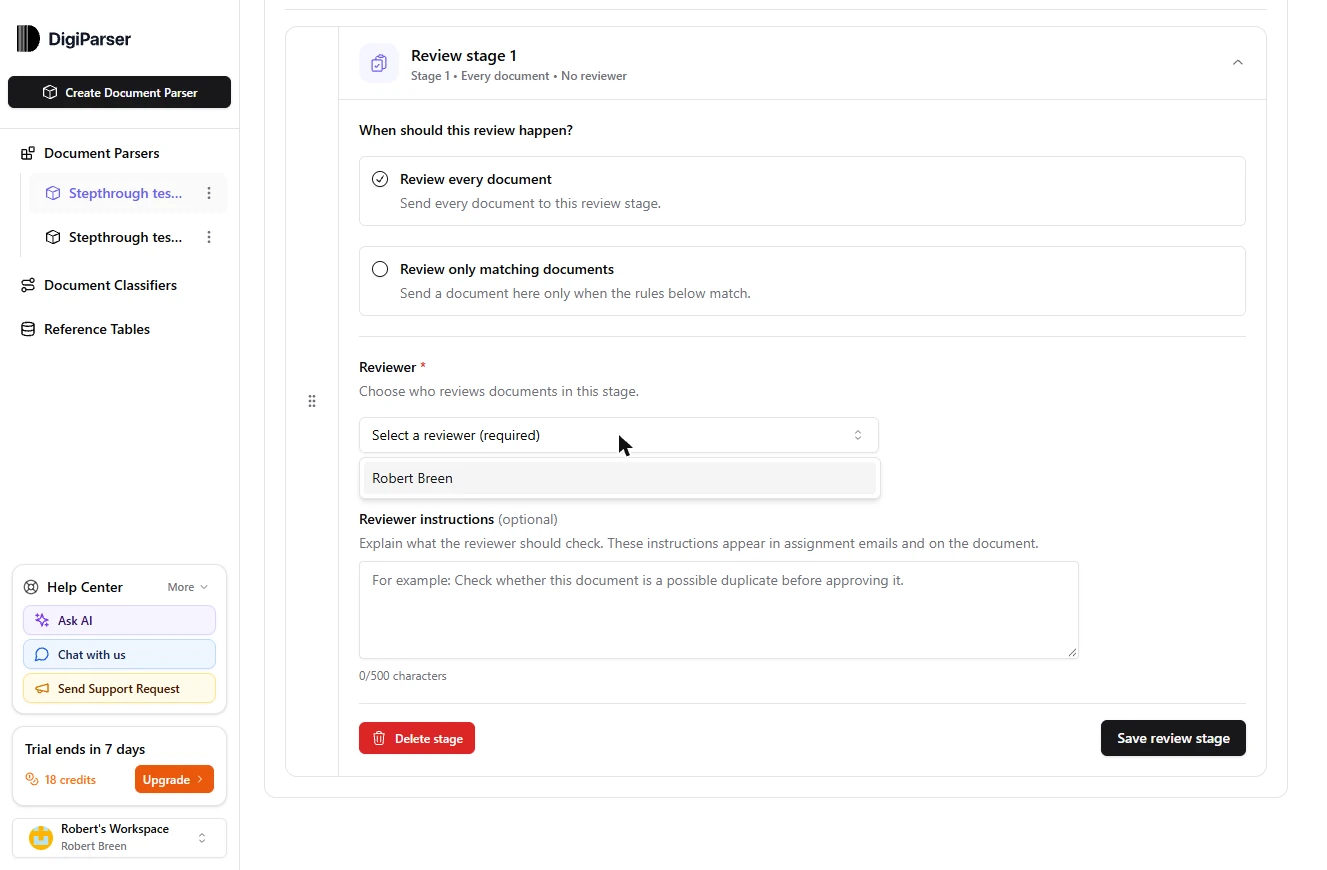
- Open the reviewer list. Review every document is already selected, which suits a new process. Click the Reviewer box.
Review every document is already selected.
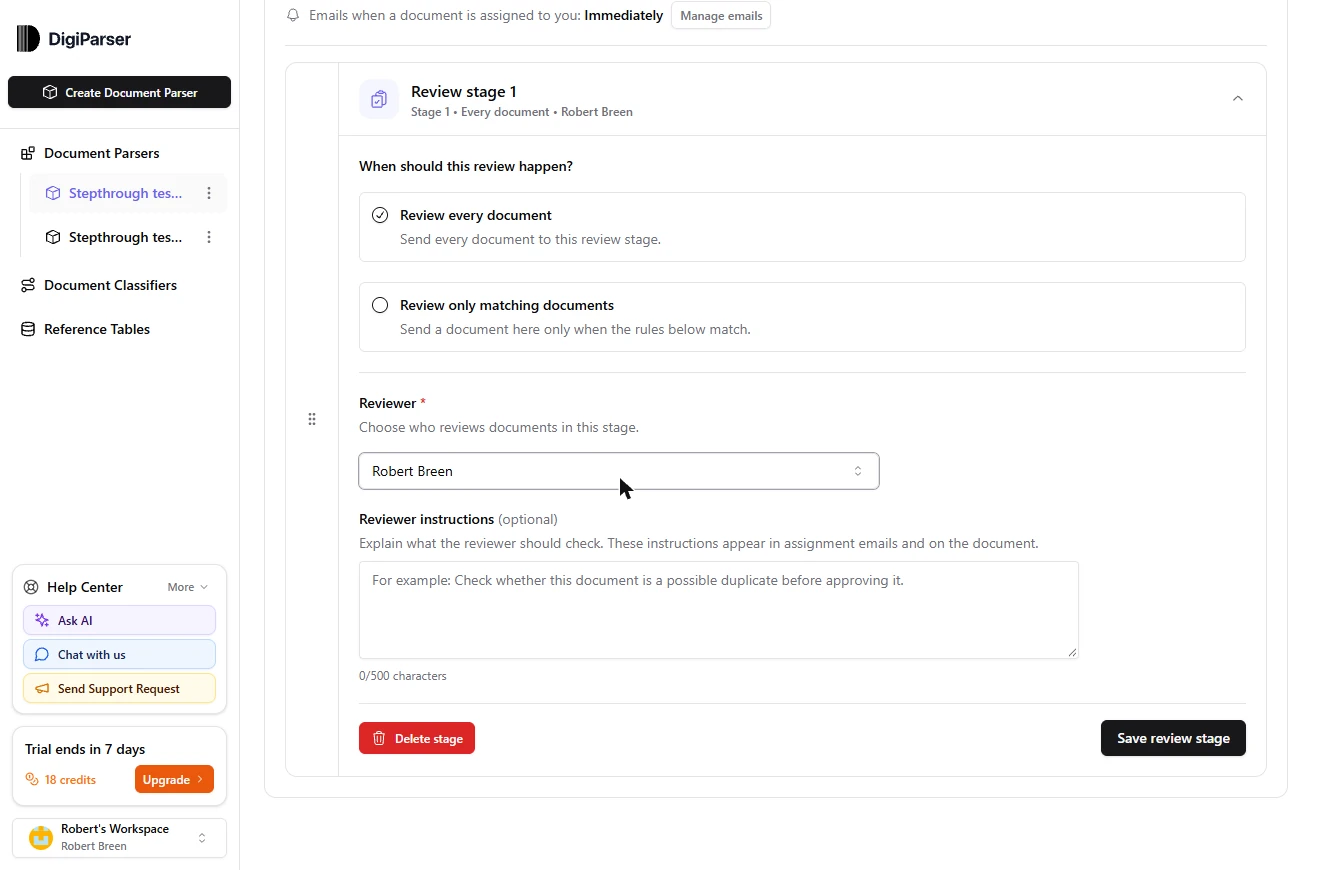
- Pick the reviewer. Pick the person who owns the check. On our trial, the only member is Robert. The list shows your own team.
Pick the person who owns the check.
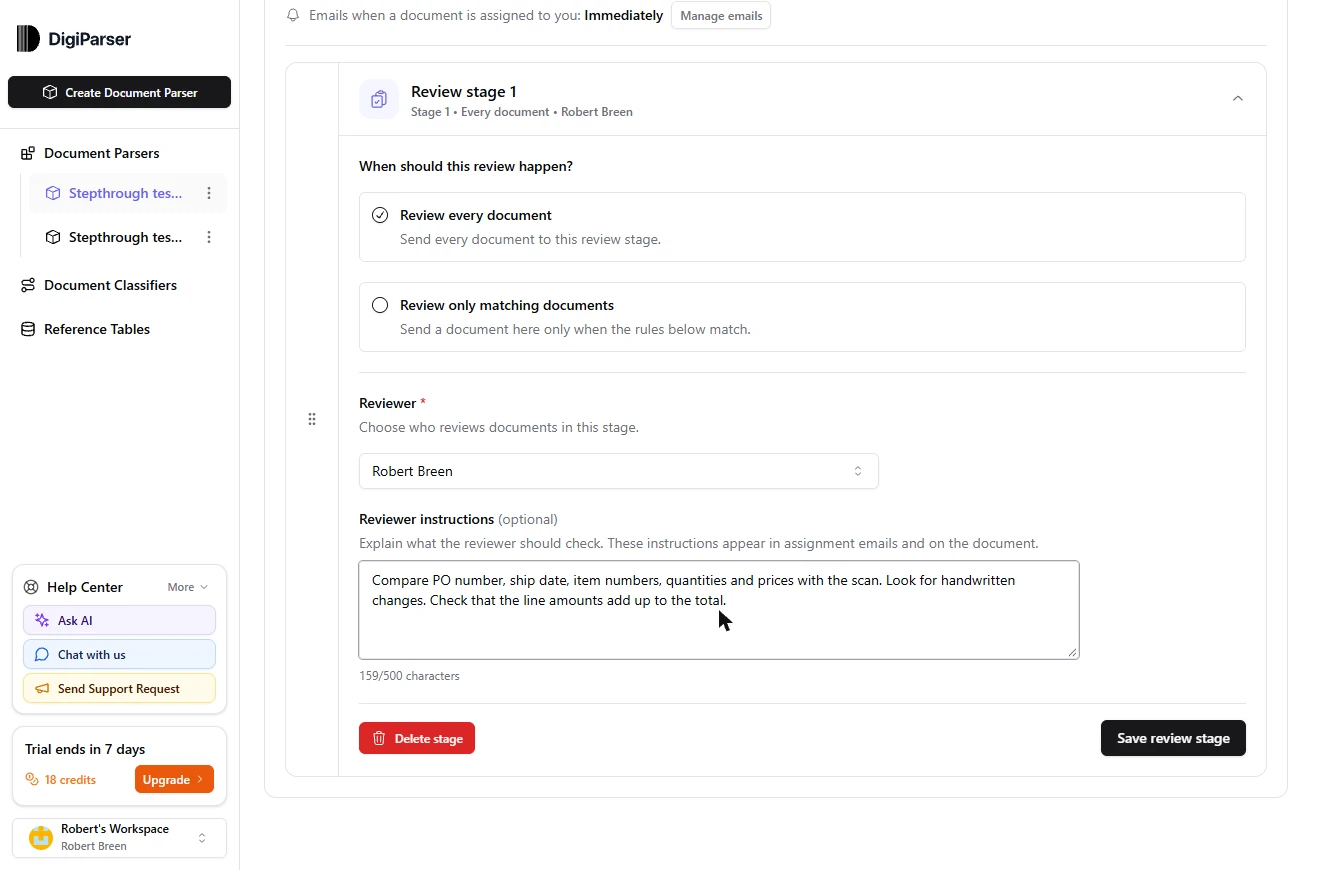
- Write what to check. Reviewer instructions show on every document and in the assignment emails. Write the checks your order desk actually does.
These instructions show on every document. Write the checks your order desk actually does.
Compare PO number, ship date, item numbers, quantities and prices with the scan. Look for handwritten changes. Check that the line amounts add up to the total.
- Save the stage. Click Save review stage.
- Go back to the inbox. The stage now says Stage 1 • Every document with your reviewer. It applies to documents from now on, so the first PO stays Approved. Click the back arrow by the title.
The stage is saved.
4. Review a marked-up PO
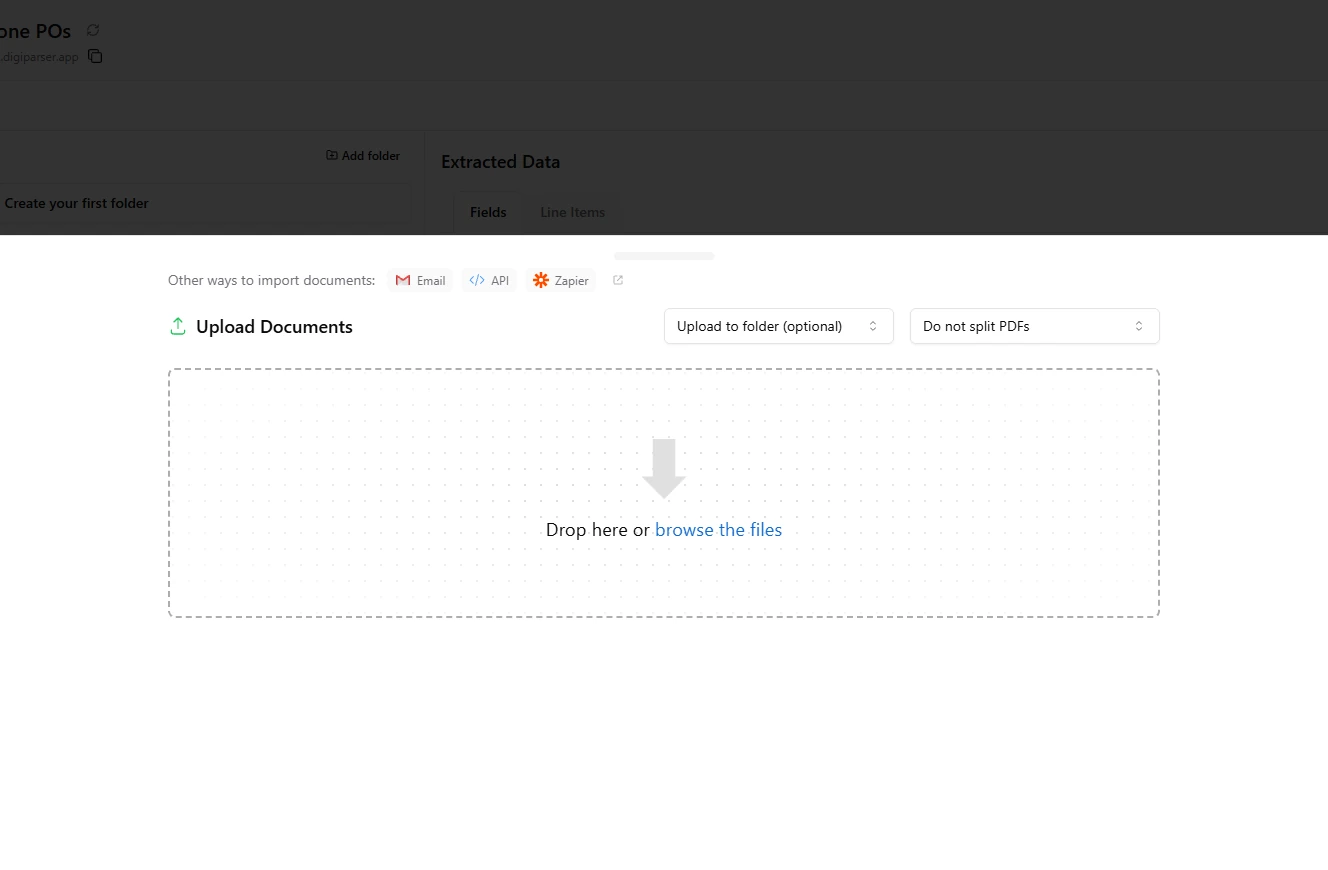
- Upload a new document. A second order just came in, and this one has been written on. Click Upload Documents.
A second order just came in, and someone has written on it.
- Upload the marked-up PO. Click browse the files, pick maple-ridge-po-MR-48227.pdf, then close the panel with the X at its top right.
Then close the panel.
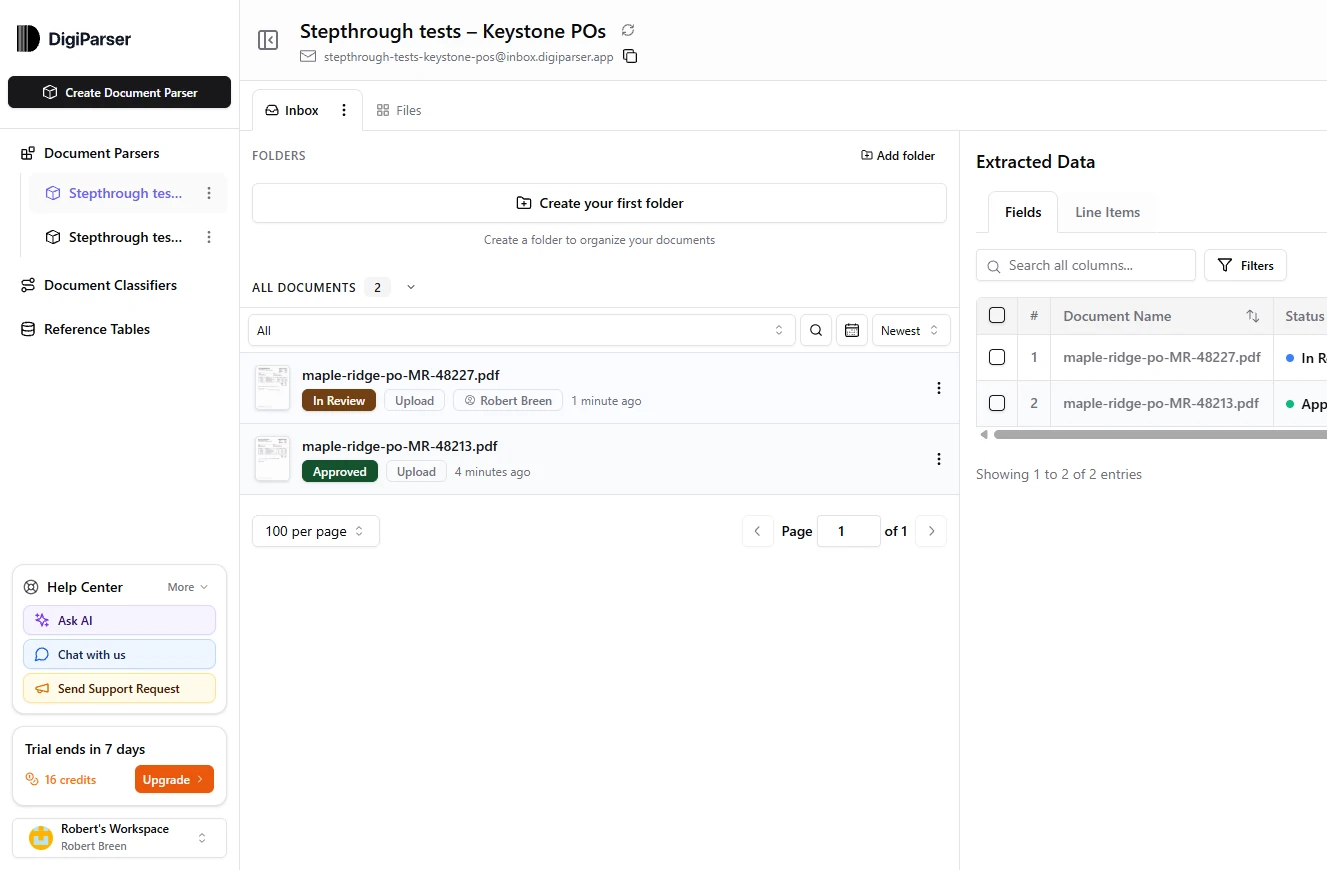
- Open the document in review. This time the status is In Review, assigned to your reviewer. Click the document.
This time it says In Review.
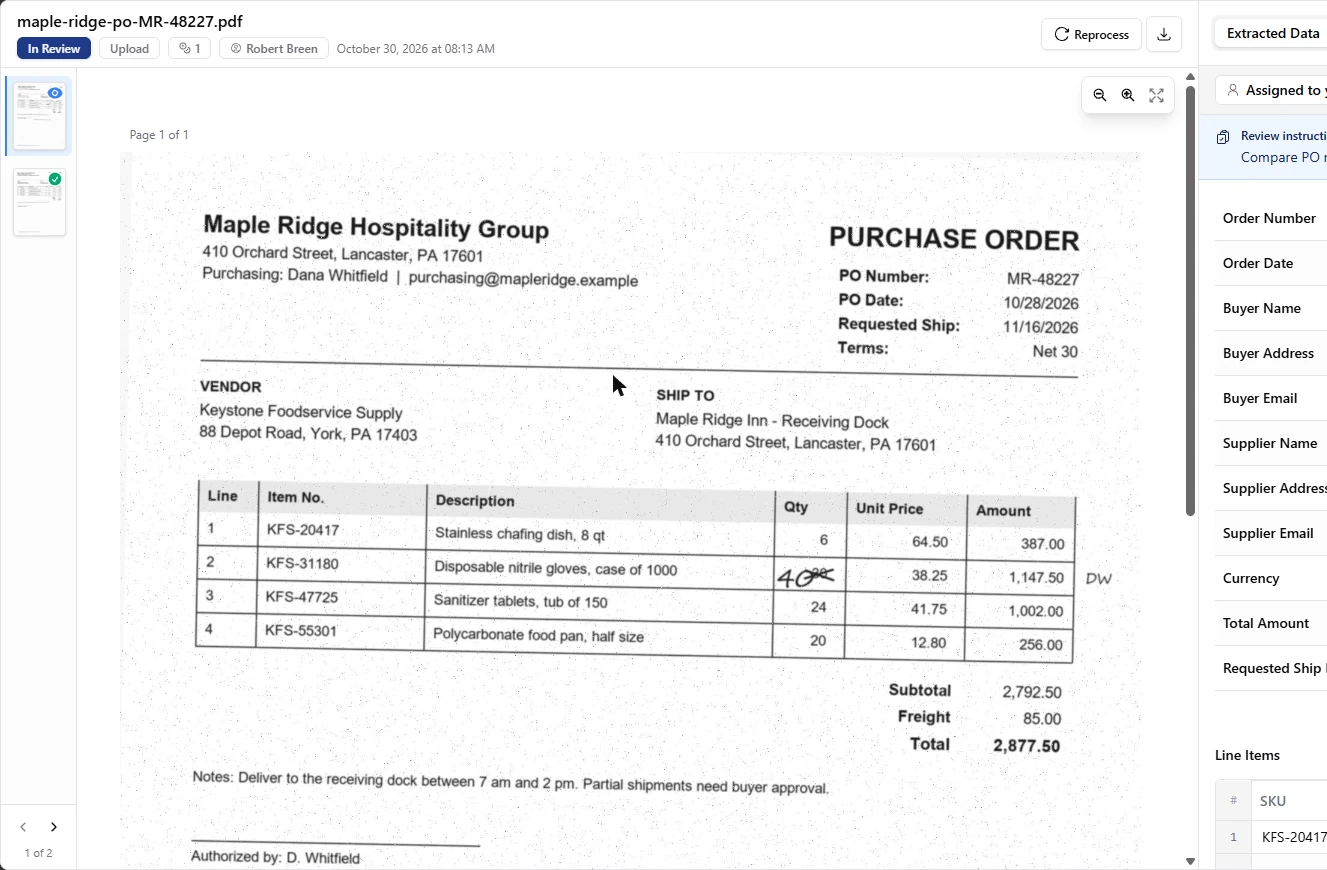
- Find the handwritten change. Start with the scan. On line 2, someone crossed out 30 and wrote 40, with initials in the margin and a note at the bottom: quantity changed by phone. Click the 40.
Start with the scan. On line 2, someone crossed out thirty and wrote forty, and left a note about a phone call.
- Check the header fields. Now the right side. The review bar and your instructions sit at the top. PO number, dates and buyer all match the scan. Total Amount says 2877.5, which is the printed total. Click the field list, then scroll down to Line Items.
Now the right side. The P O number and dates match. The total is the printed total.
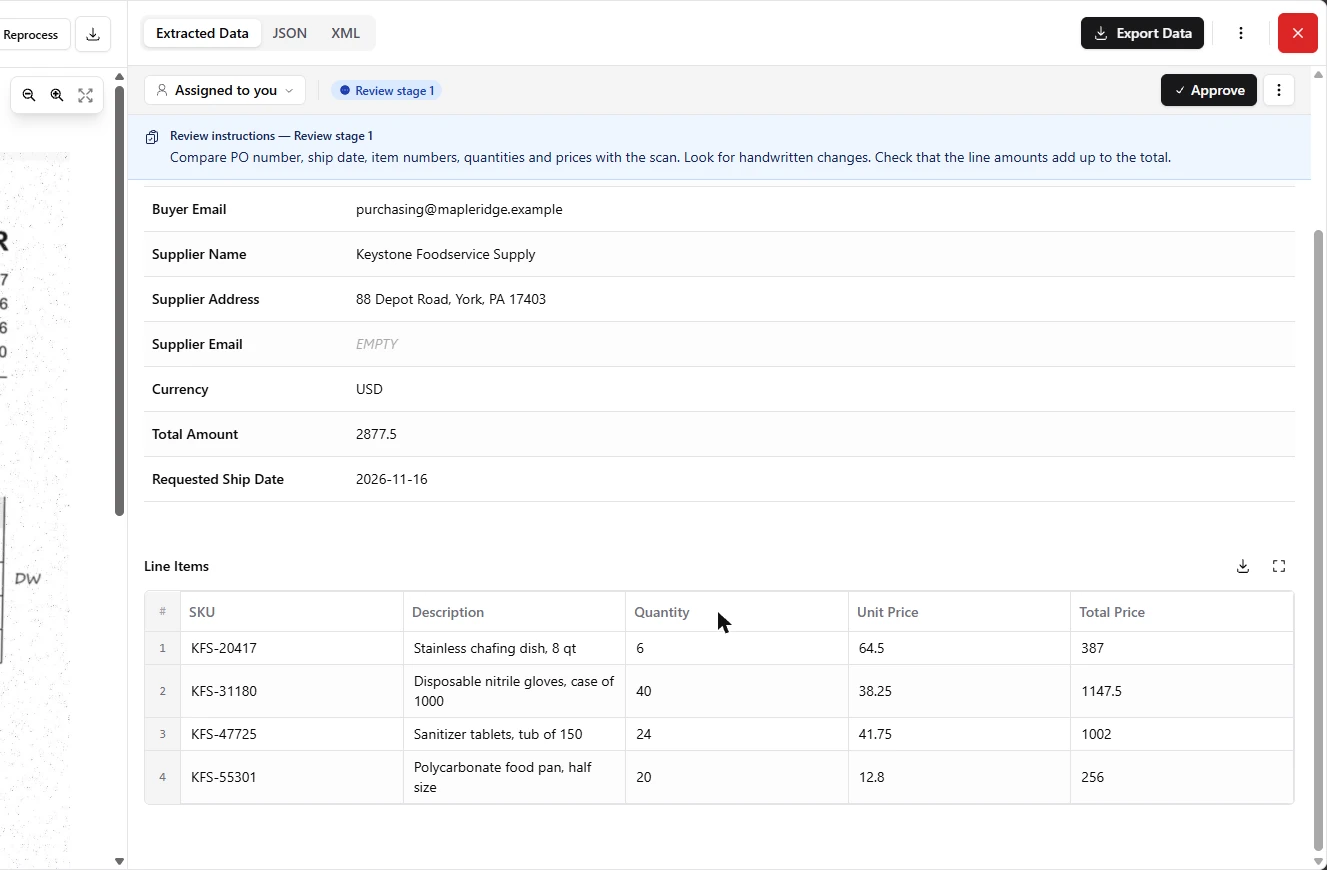
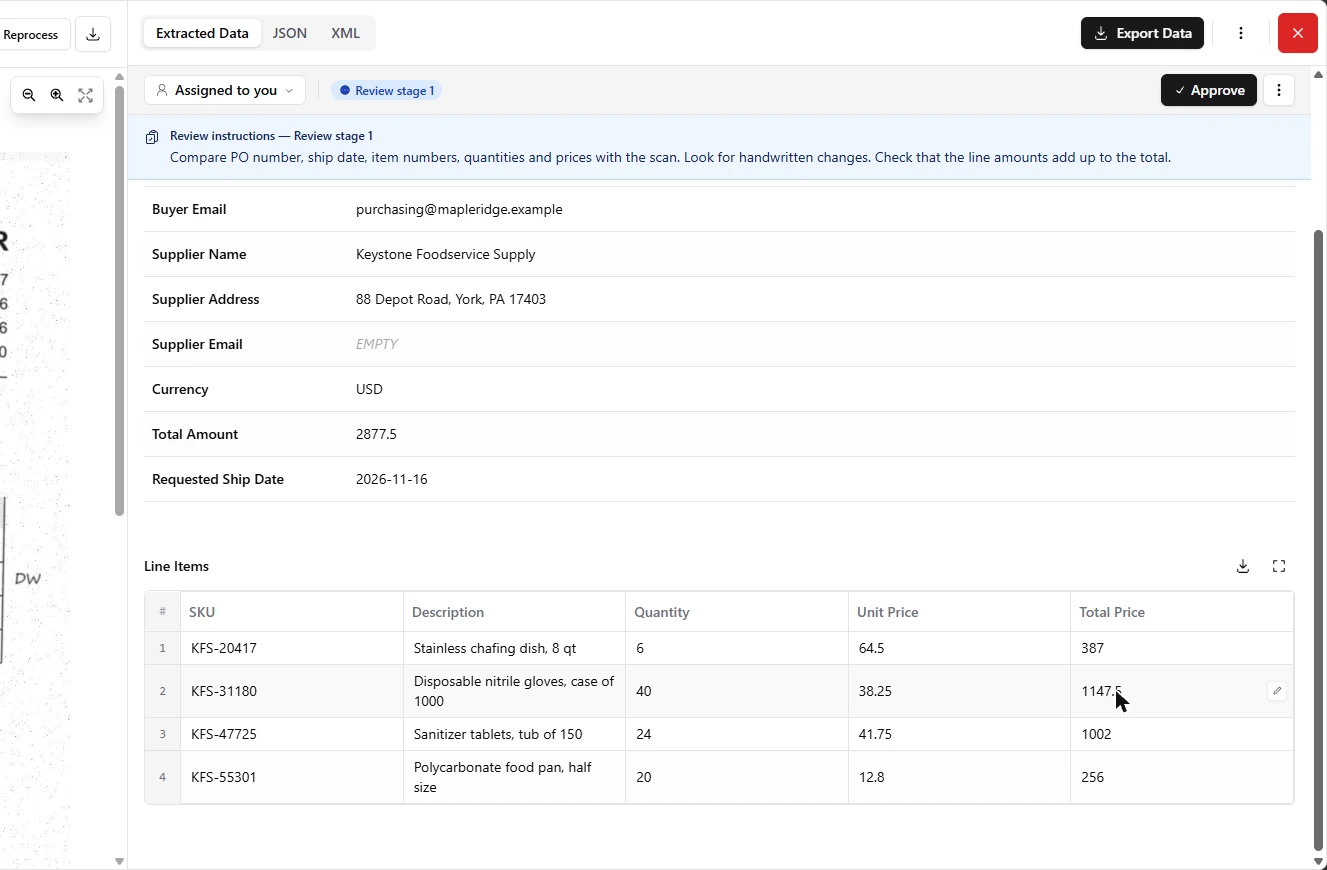
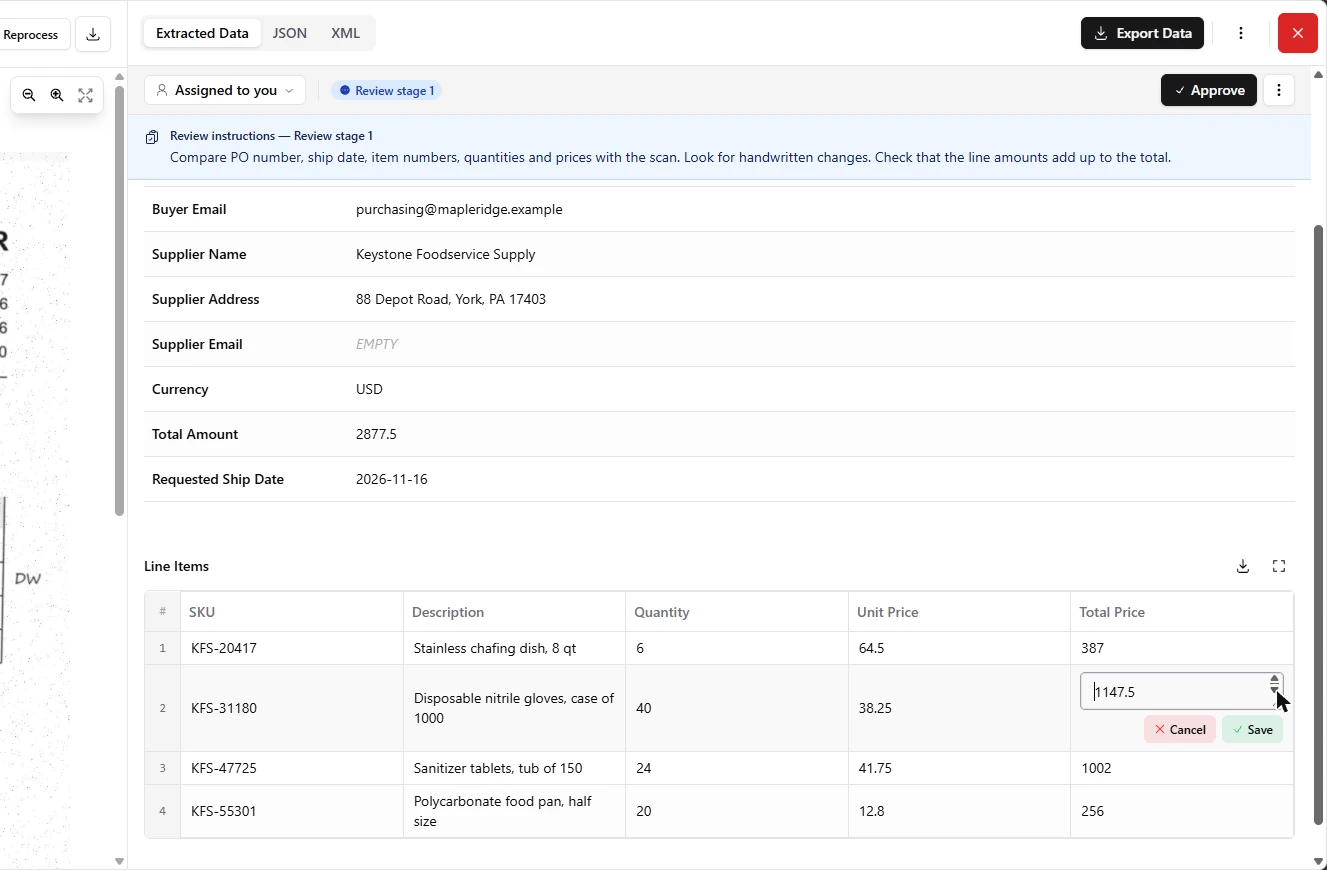
- Open the line total. In both of our runs, the AI read the handwritten 40 correctly. But Total Price stayed at the printed 1147.5, and 40 × 38.25 is 1530. The extraction copied the page faithfully, and the page is out of date. Point at that cell and click the pencil.
The AI read the forty correctly. But the line total is still the printed amount, and forty times thirty eight twenty five is fifteen thirty.
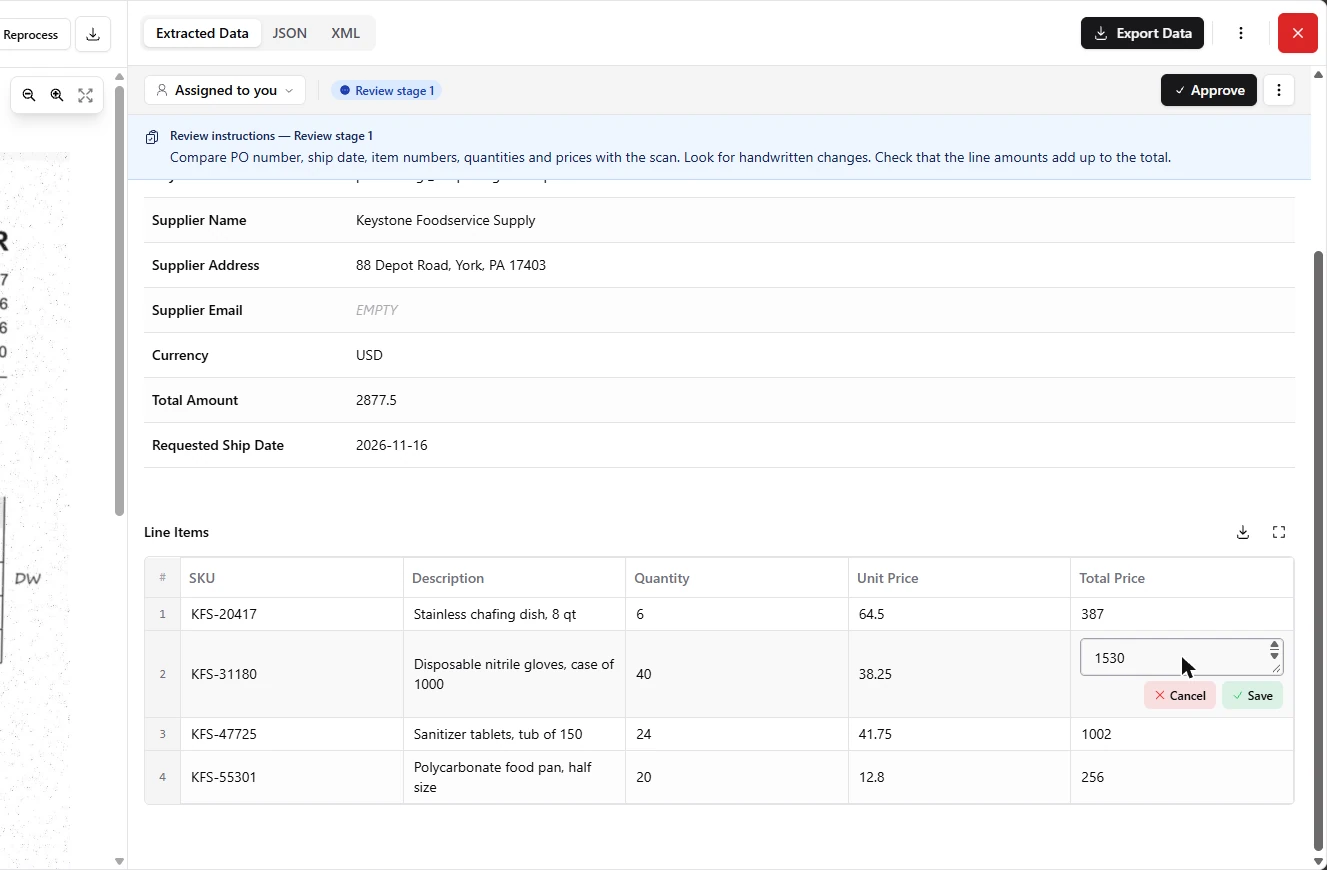
- Correct the line total. Enter the right amount. At a real desk, you would also confirm a phoned-in change with the buyer before relying on it. Ours is noted and initialed on the page.
Enter the right amount. At a real desk, confirm a phoned-in change with the buyer.
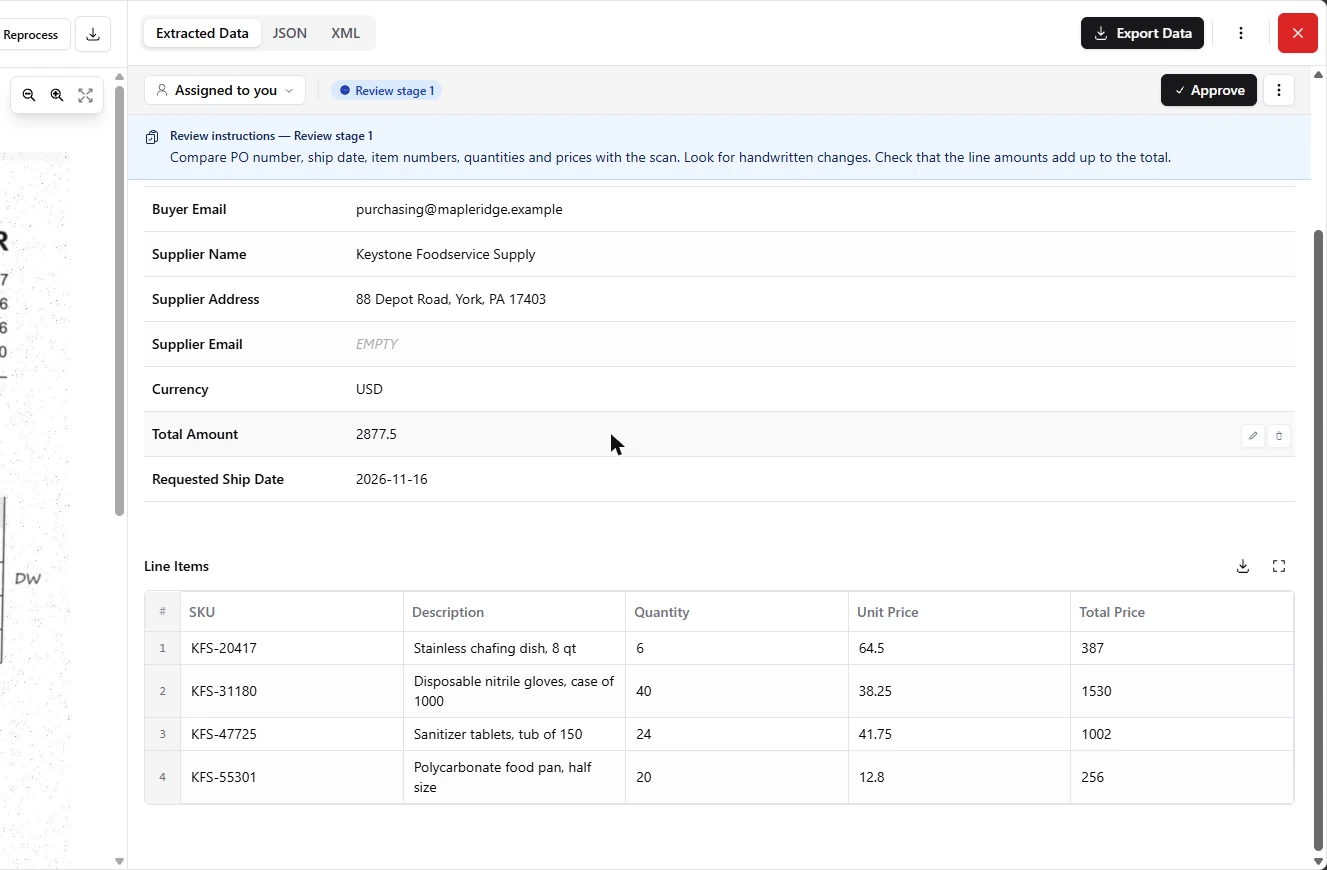
- Save the line. Click Save.
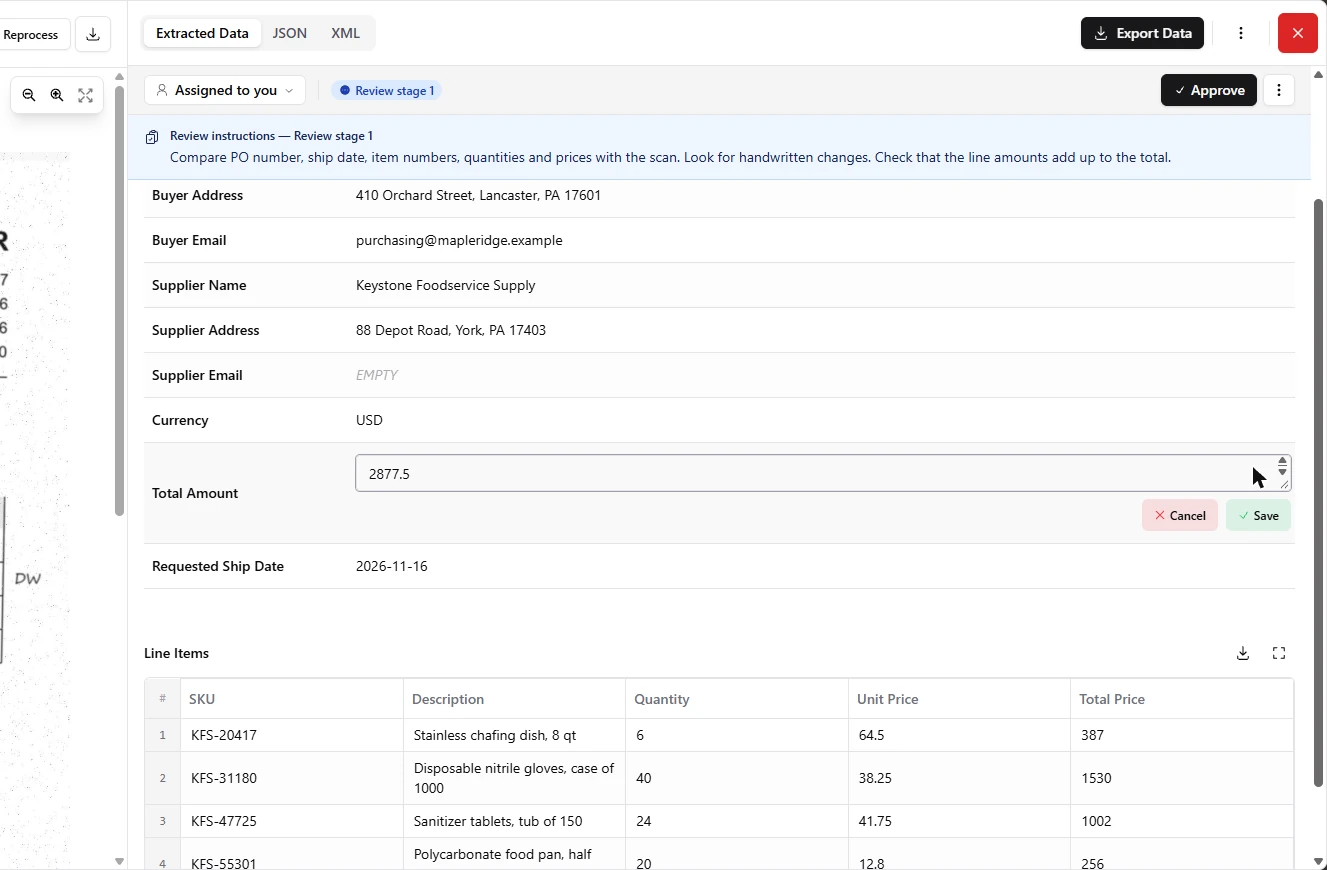
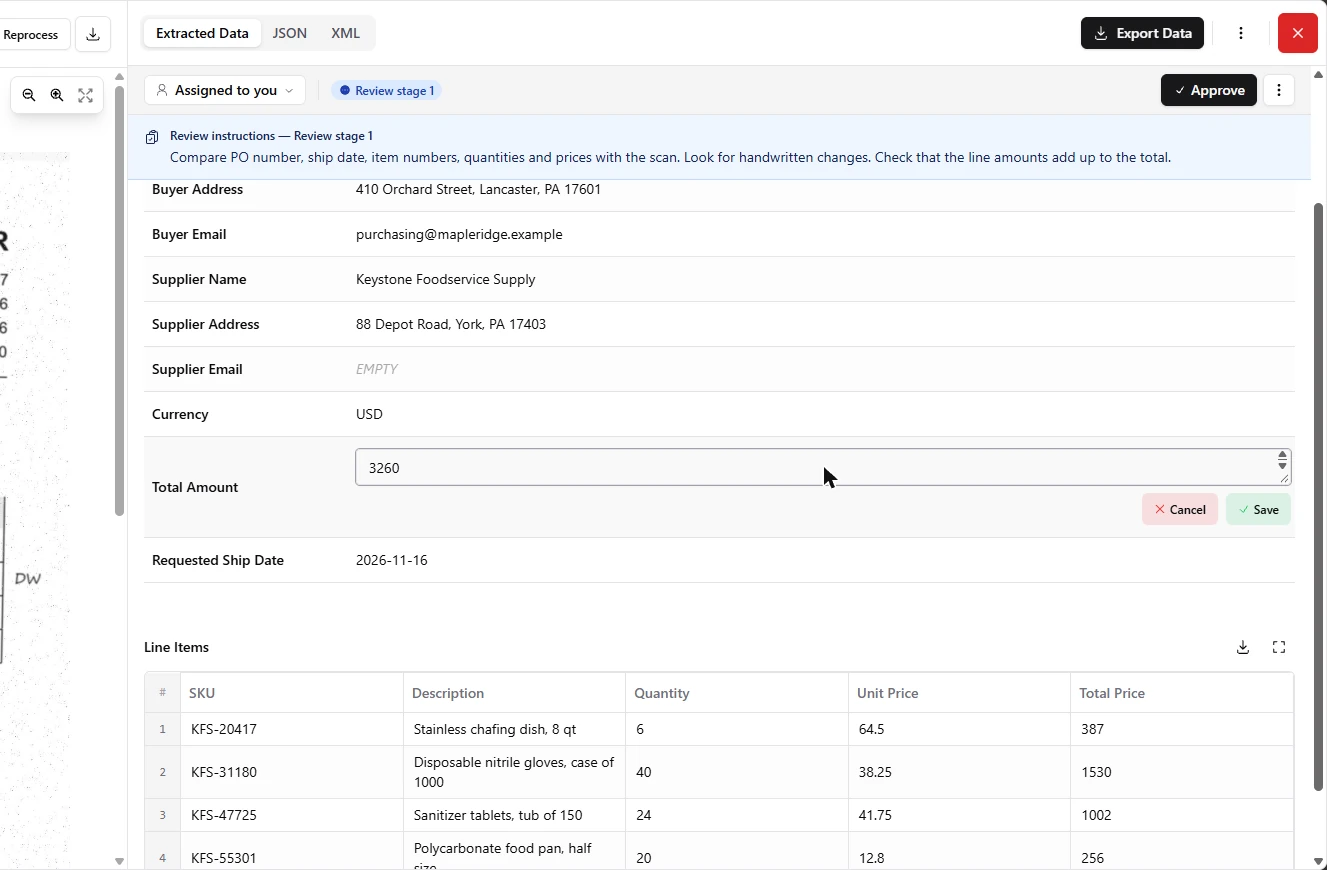
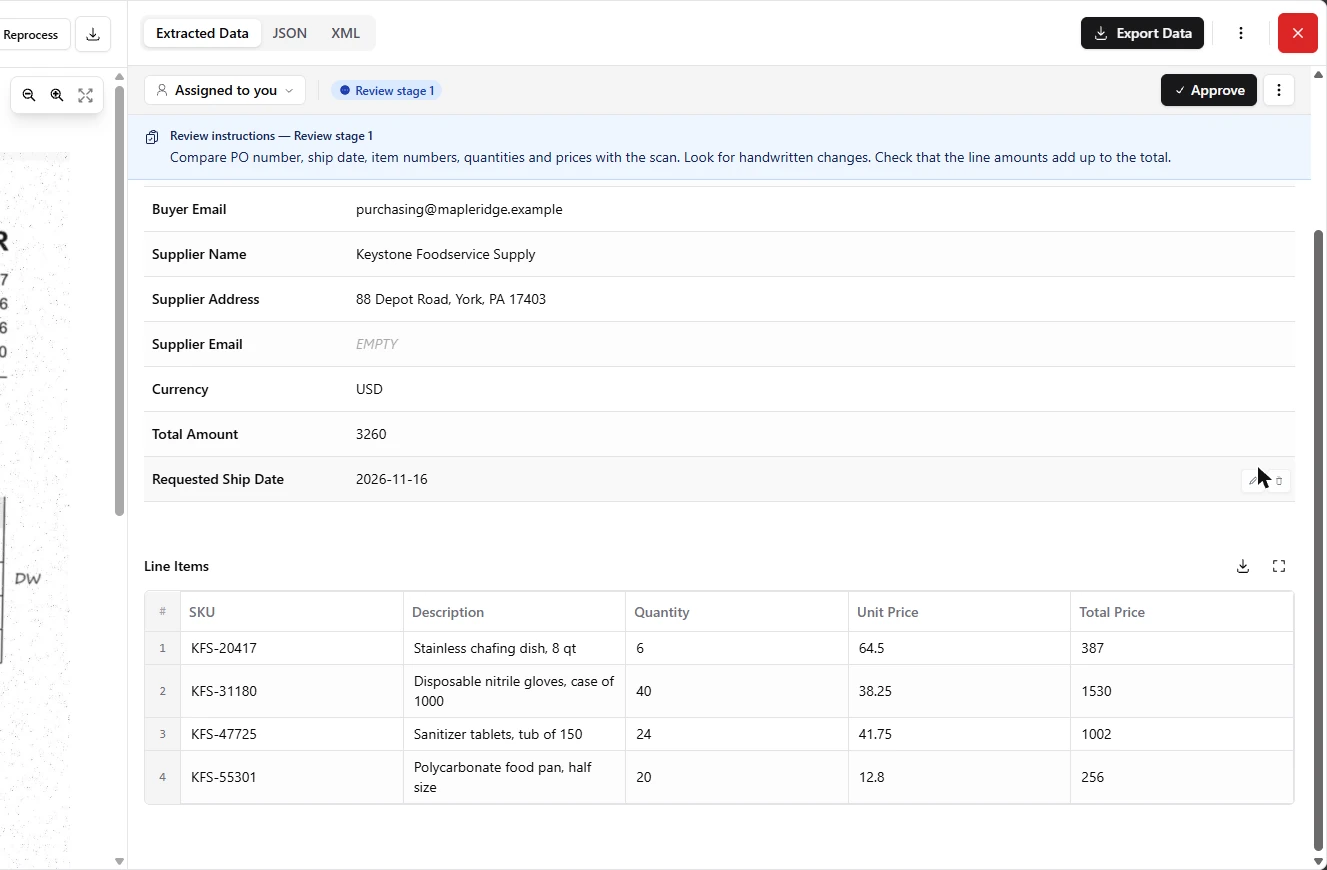
- Open the total. The order total is stale too. The lines now add up to 3175, plus 85 freight, which makes 3260. Point at Total Amount and click its pencil.
The order total is out of date too. The lines plus freight come to thirty two sixty.
- Correct the total. Enter the new total.
- Save the total. Click Save.
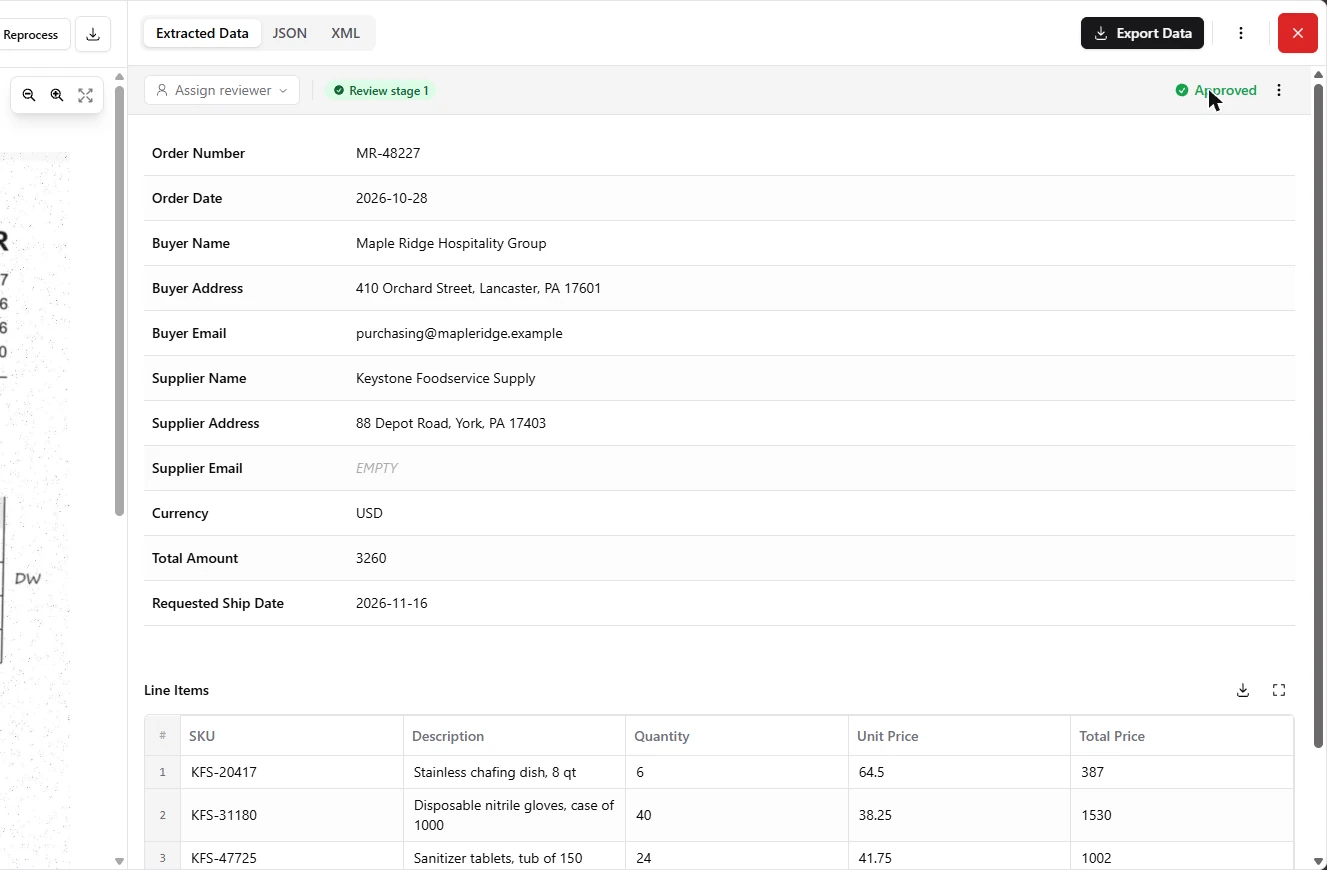
- Approve it. Line 2 now says 40 × 38.25 = 1530, and the total is 3260. Now the approval means something. Click Approve.
Now the numbers agree, and a person has checked them.
5. Export for sales order prep
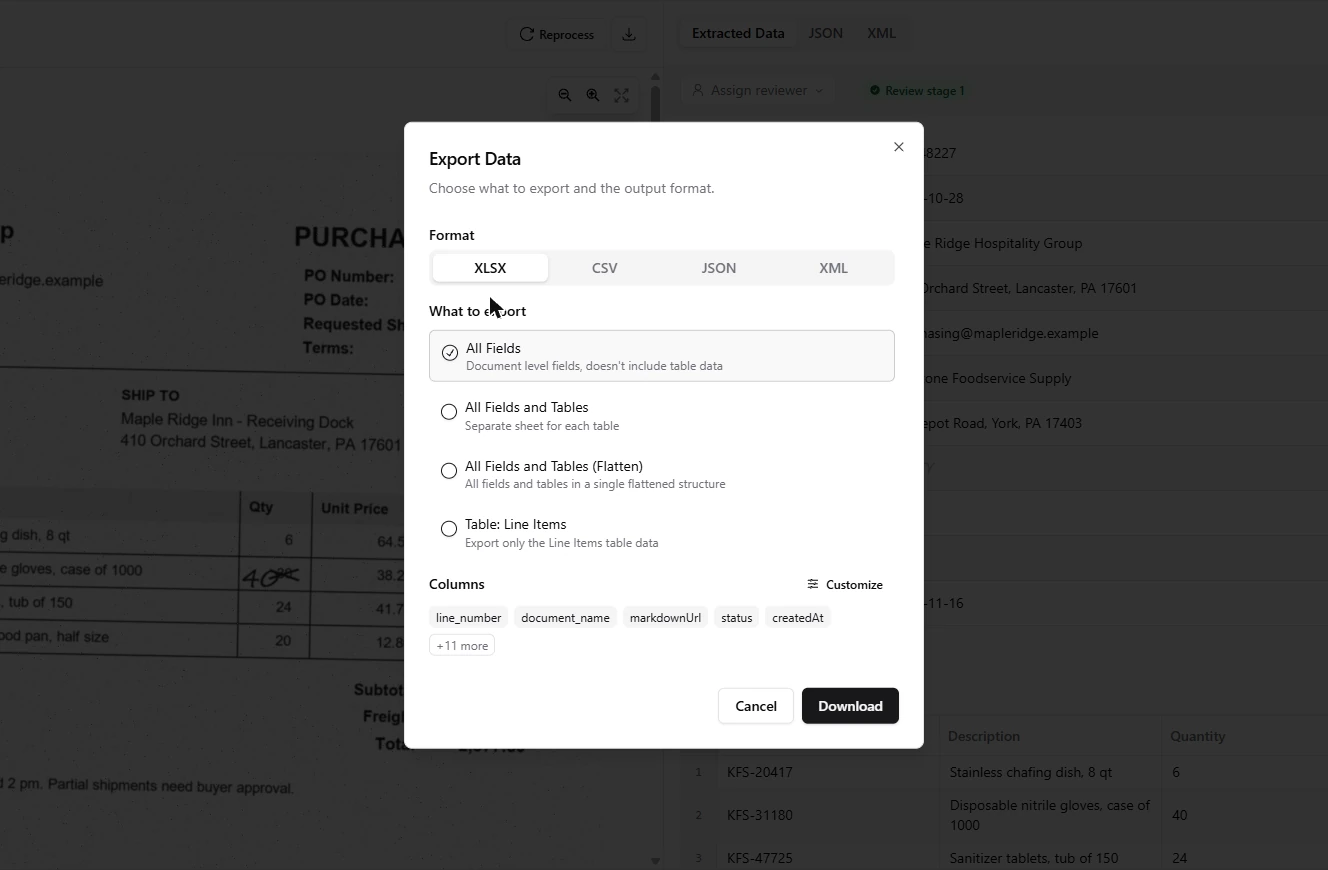
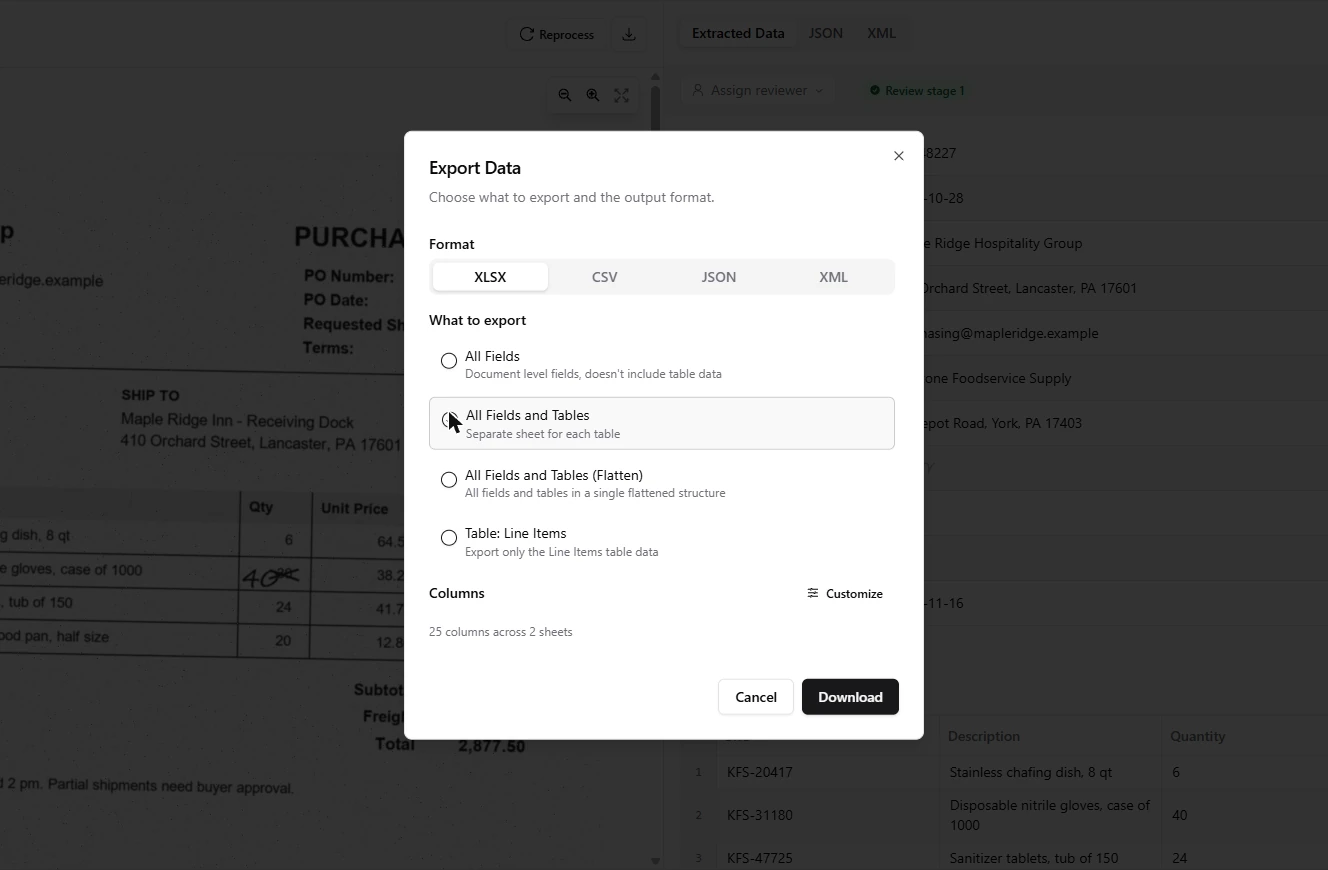
- Open the export. The review bar shows Approved. Click Export Data. One warning from our test: In Review does not block export. We exported this PO before correcting it, and the file held the old numbers with the status In Review. So only send on rows marked Approved.
One warning. In review does not block export. So only use rows marked Approved.
- Include the line items. XLSX is selected, but All Fields leaves out the table. Click All Fields and Tables to get a sheet for each. For one CSV, use CSV and All Fields and Tables (Flatten), which repeats the header values on each line; we tested that too.
All Fields leaves out the line items.
- Download the file. Click Download.
- Check your corrections came through. The workbook has two sheets, All Fields and Line Items. Your corrections are in it: 40 gloves at 1530, and a total of 3260. This is the file your team prepares the sales order from. Click the gloves row to finish.
Your corrections came through. This is the file your team prepares the sales order from.
Screenshots
More in Business Automations
 AI Receipt Extractor: Receipts to Google Sheets with n8n
Drop a photo of a receipt into an n8n chat. An AI agent reads it, pulls out the date, vendor and amount, picks a category, and adds a row to Google Sheets.
Free · Live ~12 min Intermediate
 n8n AI Email Responder: Draft Gmail Replies Automatically
Build an n8n agent that watches your Gmail, reads each new customer email, and writes a reply as a draft in the same thread, ready for you to check and send.
Free · Live ~12 min Intermediate
 Daily Job Alerts: Email Each Tech Their Jobs from Google Sheets with n8n
Every morning at 7, n8n reads a plumbing company's jobs sheet, skips anything not assigned yet, and emails each job to the tech it's assigned to — customer, address…
Free · Live ~10 min Intermediate
 Gmail AI Triage: Auto-Label Every Email and Draft Replies
Build an n8n workflow that reads each new email, sorts it as a lead, a client or an invoice with a Text Classifier, adds the matching Gmail label, and drafts a reply to…
Free · Live ~18 min Advanced
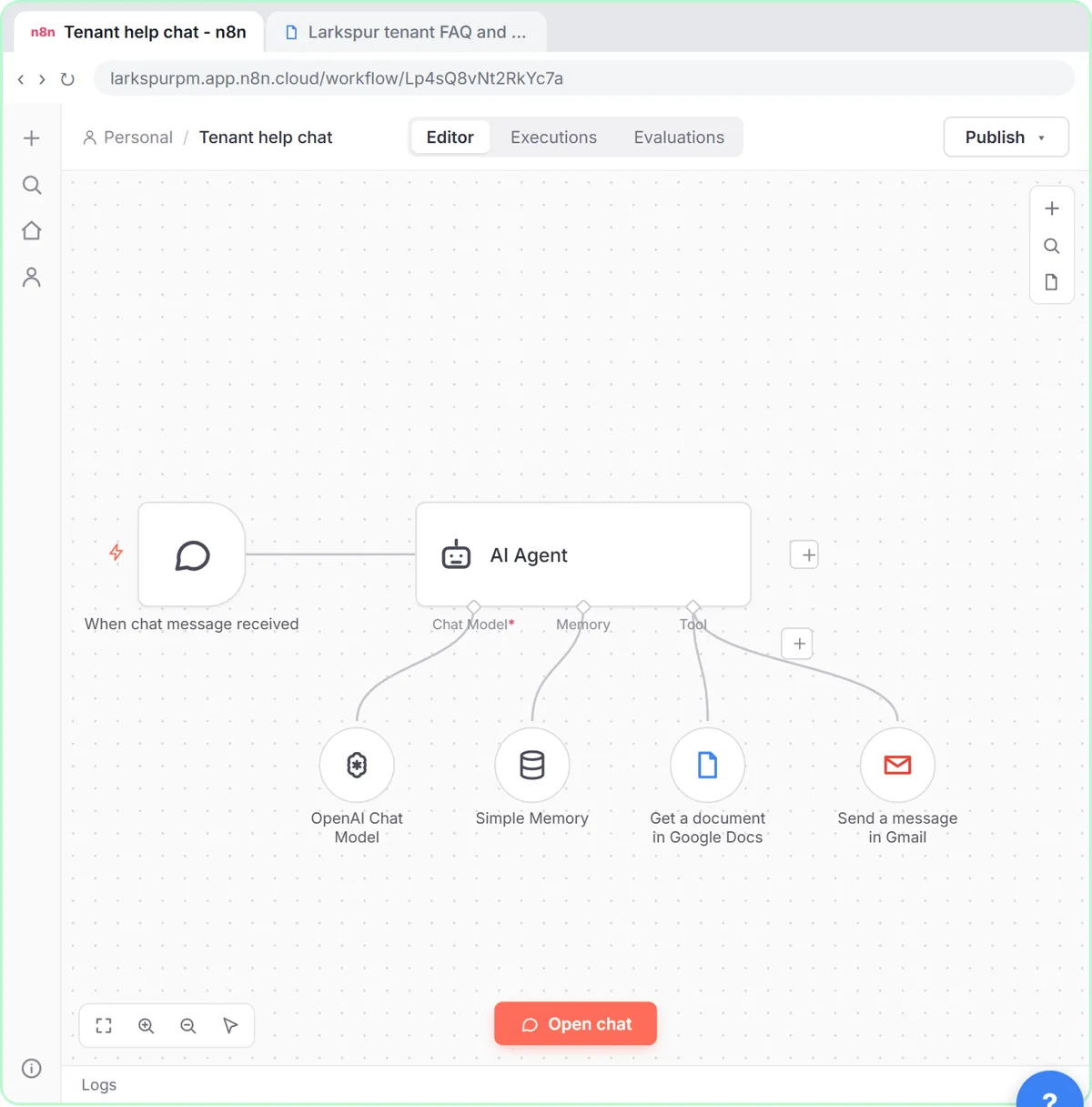 A Support Agent That Answers from Your Own Docs
Turn an n8n chat agent into a support agent that answers only from your policies in a Google Doc, refuses what it should, and hands off to a person by email.
Free · Live ~13 min Advanced
 Chatbase: Answer Customer FAQs with an AI Agent
A business case for a small firm that answers the same customer questions every week: build a Chatbase AI agent on your FAQ in the real app, make it say when it does…
Free · Live ~15 min Beginner
All 19 modules in Business Automations
Terms in this lesson
Plain-English definitions, each with an example from a free lesson.